META-T2W - Printer Metapace - Free user manual and instructions
Find the device manual for free META-T2W Metapace in PDF.


User questions about META-T2W Metapace
0 question about this device. Answer the ones you know or ask your own.
Ask a new question about this device
Download the instructions for your Printer in PDF format for free! Find your manual META-T2W - Metapace and take your electronic device back in hand. On this page are published all the documents necessary for the use of your device. META-T2W by Metapace.
USER MANUAL META-T2W Metapace
User's Manual Metapace T-2
Thermal Printer Rev. 1.00

natural_image
Line drawing of two identical portable electronic devices with ventilation grilles and buttons (no text or symbols)■ Safety Precautions
In using the present appliance, please keep the following safety regulations in order to prevent any hazard or material damage.

WARNING
Violating following instructions can cause serious injury or death.
Do not plug several products in one multi-outlet.
• This can provoke over-heating and a fire.
- If the plug is wet or dirty, dry or wipe it before usage.
- If the plug does not fit perfectly with the outlet, do not plug in.
- Be sure to use only standardized multi-outlets.

text_image
PROHIBITEDYou must use only the supplied adapter.
- It is dangerous to use other adapters.

text_image
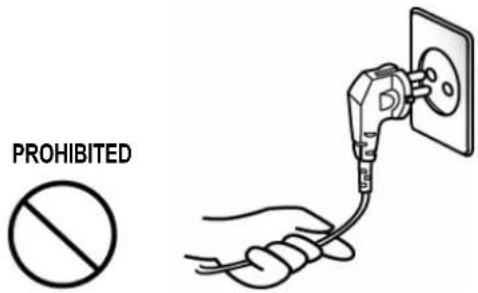
PROHIBITED ONLY SUPPLIED ADAPTERDo not pull the cable to unplug.
- This can damage the cable, which is the origin of a fire or a breakdown of the printer.
text_image
PROHIBITEDKeep the plastic bag out of children's reach.
- If not, a child may put the bag on his head.

text_image
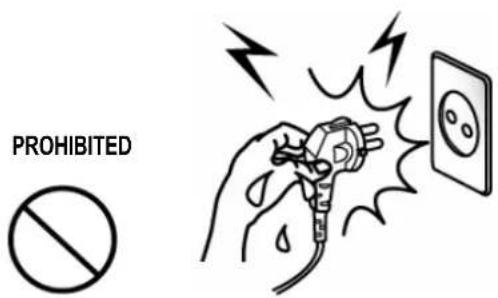
PROHIBITEDDo not plug in or unplug with your hands wet.
- You can be electrocuted.
text_image
PROHIBITEDDo not bend the cable by force or leave it under any heavy object.
• A damaged cable can cause a fire.

text_image
PROHIBITED
CAUTION
Violating following instructions can cause slight wound or damage the appliance.
If you observe a strange smoke, odor or noise from the printer, unplug it before taking following measures.
- Switch off the printer and unplug the set from the mains.
• After the disappearance of the smoke, call your dealer to repair it.
TO UNPLUG


text_image
PRINTERKeep the desiccant out of children's reach.
- If not, they may eat it.
PROHIBITED


natural_image
Cartoon illustration of a baby wearing a cap and holding a tray, with no text or symbols present.Install the printer on the stable surface.
- If the printer falls down, it can be broken and you can hurt yourself.
PROHIBITED


text_image
PRINTERUse only approved accessories and do not try to disassemble, repair or remodel it for yourself.
- Call your dealer when you need these services.
- Do not touch the blade of auto cutter.
DISASSEMBLING
PROHIBITED


text_image
PRINTERDo not let water or other foreign objects in the printer.
- If this happened, switch off and unplug the printer before calling your dealer.
PROHIBITED


text_image
PRINTERDo not use the printer when it is out of order. This can cause a fire or an electrocution.
- Switch off and unplug the printer before calling your dealer.
TO UNPLUG


text_image
PRINTER DEALER■ Warning - U.S.A
This equipment has been tested and found to comply with the limits for a Class A digital device pursuant to Part 15 of the FCC Rules. These limits are designed to provide reasonable protection against harmful interference when the equipment is operated in a commercial environment. This equipment generates uses, and can radiate radio frequency energy and, if not installed and used in accordance with the instruction manual, may cause harmful interference to radio communications. Operation of this equipment in a residential area is likely to cause harmful interference in which case the user will be required to correct the interference at his own expense.
■ Notice - Canada
This Apparatus complies with class “A” limits for radio interference as specified in the Canadian department of communications radio interference regulations.
Some semiconductor devices are easily damaged by static electricity. You should turn the printer "OFF", before you connect or remove the cables on the rear side, in order to guard the printer against the static electricity. If the printer is damaged by the static electricity, you should turn the printer "OFF".
■ Waste Electrical and Electric Equipment (WEEE)

This marking shown on the product or its literature, indicates that is should not be disposed with other household wastes at the end of its working life. To prevent possible harm to the environment or human health from uncontrolled waste disposal, please separate this from other types of wastes and recycle it responsibly to promote the sustainable reuse of material resources. Household users should contact either the retailer where they purchased this product, or their local government office, for details of where and how they can take this item for environmentally safe recycling. Business users should contact their supplier and check the terms and conditions of the purchase contract. This product should not be mixed with other commercial wastes for disposal.
Label Material
* Control Label: PC
* Other Labels: PET
■ Introduction
The Metapace T-2 Roll Printer are designed for use with electronic instruments such as system ECR, POS, banking equipment, computer peripheral equipment, etc.
The main features of the printer are as follows:
- High speed printing : 47/52 (1/6" Feed) lines per second.
- Low noise thermal printing.
- The data buffer allows the unit to receive print data even during printing.
- Peripheral units drive circuit enables control of external devices such as cash drawer.
- Characters can be scaled up to 64 times compared to it's original size.
- Bar code printing is possible by using a bar code command.
- Different print densities can be selected by DIP switches.
Please be sure to read the instruction in this manual carefully before using your new Metapace T-2.
NOTE
The socket-outlet shall be near the equipment and it shall be easy accessible.
※ All specifications are subjected to change without notice.
Table of Contents
1. Setting Up the Printer....7
1-1 Unpacking....7
1-2 Connecting the Cables 8
1-2-1 Serial Interface (RS-232C) 8
1-2-2 Parallel Interface (IEEE1284) 9
1-2-3 USB2.0 Interface 10
1-3 Connecting the Drawer.... 10
1-4 Setting the Dip Switches.... 11
1-4-1 Serial Interface (RS-232C)....11
1-4-2 Parallel & USB2.0 Interface....11
1-4-3 Auto Cutter Enable / Disable selection 12
1-5 Setting the Memory Switches 13
1-6 Installing or Replacing the Paper Roll.... 15
1-7 Adjustments and Settings 17
1-8 Using the Printer 17
1-9 Connecting the computer.... 18
1-10 Connecting the Power Supply 18
- Self test.... 19
- Hexadecimal Dumping ...... 20
- Specification 21
- Appendix ...... 22
5-1 Cleaning Printer 22
1. Setting Up the Printer
1-1 Unpacking
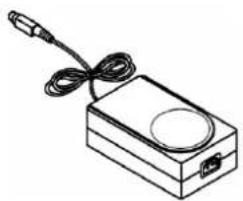
Your printer box should include these items. If any items are damaged or missing, please contact your dealer for assistance.

natural_image
Line drawing of two identical portable electronic devices with ventilation grilles and buttons (no text or symbols)Metapace T-2
natural_image
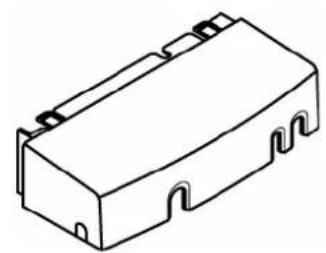
Isometric line drawing of a rectangular electronic component with mounting holes (no text or symbols)Cover Cable
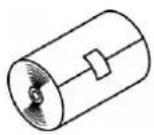
Roll Paper
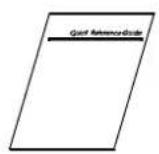
Manual
natural_image
Line drawing of a rectangular electronic device with a cable and connector (no text or symbols)AC Adapter
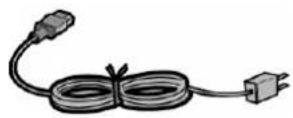
Power Cord
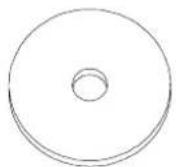
CD
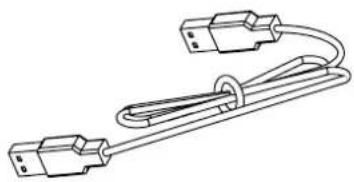
natural_image
Line drawing of a cable with two connectors (no text or symbols)USB A-A CABLE

Cleaning Pen
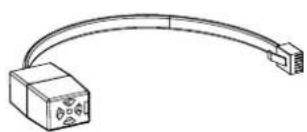
natural_image
Pure electrical circuit lines without any symbolsBuzzer
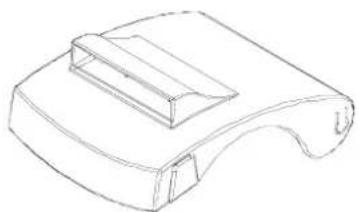
natural_image
Line drawing of a 3D mechanical part with a curved base and rectangular cutout (no text or symbols)Splash Proof Cover

Power Switch Cover
Rev. 1.00
1-2 Connecting the Cables
You can connect up the three cables to the printer. They all connect to the connector panel on the back of the printer, which is shown below:
NOTE
Before connecting any of the cables, make sure that both the printer and the host are turned off.
1-2-1 Serial Interface (RS-232C)
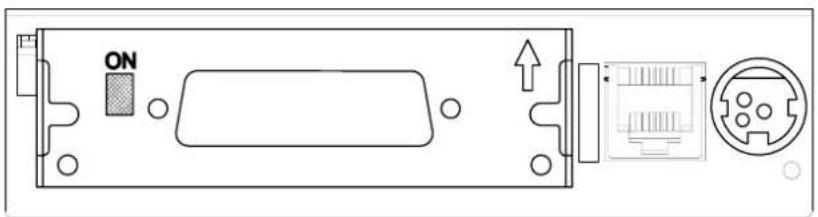
text_image
ONInterface connector
Drawer
kick-out
connector
Power
supply
connector
※ When the Dip Switch is "ON" on the Serial Interface Board, DTR and RTS are connected each other.
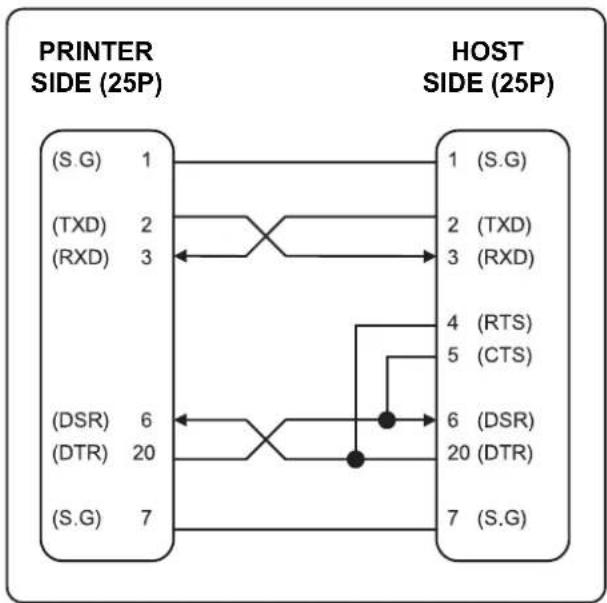
flowchart
graph LR
    subgraph_PRINTER_SIDE["PRINTER SIDE (25P)"]
        A1["(S.G)"] -->|1| B1["1 (S.G)"]
        A2["(TXD)"] -->|2| B2["(TXD)"]
        A3["(RXD)"] -->|3| B3["(RXD)"]
        A4["(DSR)"] -->|6| B4["(RTS)"]
        A5["(DTR)"] -->|20| B5["(CTS)"]
        A6["(S.G)"] -->|7| B6["(DSR)"]
    end
    subgraph_HOST_SIDE["HOST SIDE (25P)"]
        C1["1"] --> D1["(S.G)"]
        C2["2"] --> D2["(TXD)"]
        C3["3"] --> D3["(RXD)"]
        C4["4"] --> D4["(RTS)"]
        C5["5"] --> D5["(CTS)"]
        C6["6"] --> D6["(DSR)"]
        C7["20"] --> D7["(DTR)"]
        C8["7"] --> D8["(S.G)"]
    end
    A1 --> C1
    A2 --> C2
    A3 --> C3
    A4 --> C4
    A5 --> C5
    A6 --> C6
    A7 --> C8
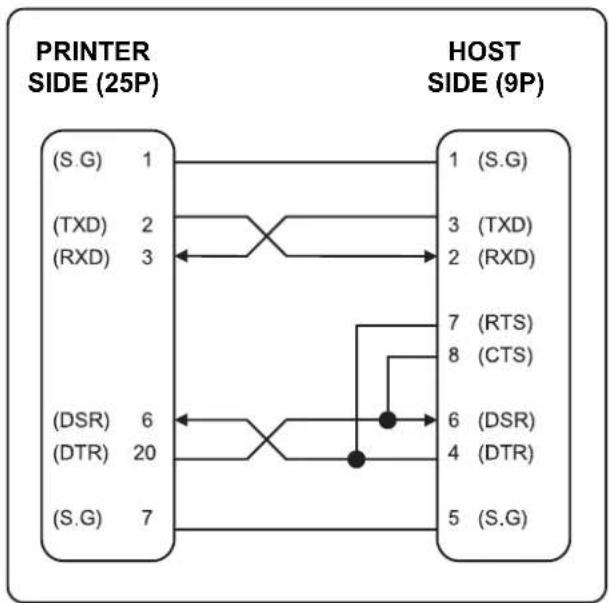
flowchart
graph LR
    subgraph_PRINTER_SIDE["PRINTER SIDE (25P)"]
        A1["(S.G)"] --> A2["1"]
        A3["(TXD)"] --> A4["2"]
        A5["(RXD)"] --> A6["3"]
        A7["(DSR)"] --> A8["6"]
        A9["(DTR)"] --> A10["20"]
        A11["(S.G)"] --> A12["7"]
    end

    subgraph_HOST_SIDE["HOST SIDE (9P)"]
        B1["(S.G)"] --> B2["1"]
        B3["(TXD)"] --> B4["3"]
        B5["(RXD)"] --> B6["2"]
        B7["(RTS)"] --> B8["7"]
        B8["(CTS)"] --> B9["8"]
        B10["(DSR)"] --> B11["6"]
        B12["(DTR)"] --> B13["4"]
        B13["(S.G)"] --> B14["5"]
    end
| Pin No. | Signal name | Direction | Function | |
| 1 | FG | - Frame | ||
| 2 | TxD | Output | Transmit | |
| 3 | RxD | Input | Receive | |
| 4 | RTS | Output | Ready To Send | |
| 5 | CTS | Input | Clear To Send | |
| 6 | DSR | Input | Data Set Ready | |
| 7 | SG | - Signal Ground | ||
| 20 | DTR | Output | Data Terminal Ready |
Data Data
1-2-2 Parallel Interface (IEEE1284)
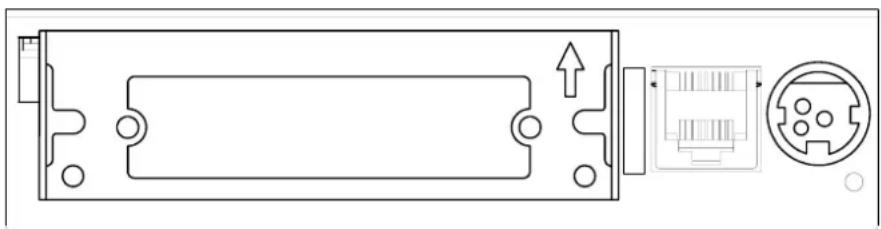
natural_image
Pure electrical connector diagram without any text, numbers, or symbolsInterface connector
Drawer
kick-out
connector
Power
supply
connector
| Pin No. | Source | Compatibility Mode | Nibble Mode | Byte Mode |
| 1 | Host | nStrobe | HostClk | |
| 2 Host / Printer Data | 0 (LSB) - Data 0 (L$B) | |||
| 3 Host / Printer Data | 1 - Data 1 | |||
| 4 Host / Printer Data | 2 - Data 2 | |||
| 5 Host / Printer Data | 3 - Data 3 | |||
| 6 Host / Printer Data | 4 - Data 4 | |||
| 7 Host / Printer Data | 5 - Data 5 | |||
| 8 Host / Printer Data | 6 - Data 6 | |||
| 9 Host / Printer Data | 7 (MSB) - | Data 7 (MSB) | ||
| 10 | Printer | nAck | PtrClk | PtrClk |
| 11 | Printer | Busy | PtrBusy /Data3,7 | PtrBusy |
| 12 | Printer | Perror | AckDataReq/Data2,6 | AckDataReq |
| 13 | Printer | Select | Xflag /Data1,5 | Xflag |
| 14 | Host | nAutoFd | HostBusy | HostBusy |
| 15 | NC | NC | NC | |
| 16 | GND | GND | GND | |
| 17 | FG | FG | FG | |
| 18 | Printer | Logic-H | Logic-H | Logic-H |
| 19~30 | GND | GND | GND | |
| 31 | Host | nInit | nInit | nInit |
| 32 | Printer | nFault | nDataAvail /Data0,4 | nDataAvail |
| 33 | GND | ND | ND | |
| 34 | Printer | DK_Status | ND | ND |
| 35 | Printer | +5V | ND | ND |
| 36 | Host | nSelectIn | 1284-Active | 1284-Active |
1-2-3 USB2.0 Interface
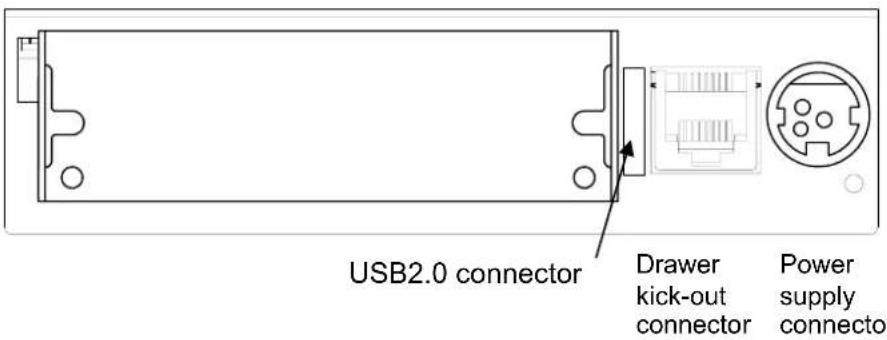
text_image
USB2.0 connector Drawer kick-out connector Power supply connector| Pin No. | Signal Name | Assignment (Color) | Function |
| Shell Shield Drain Wire Frame Ground | |||
| 1 | VBUS | Red | Host |
| 2 | D- | White | |
| 3 | D+ | Green | |
| 4 | GND | Black | Signal Ground |
Data Data Line
1-3 Connecting the Drawer
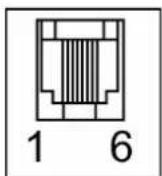
WARNING
Use a drawer that matches the printer specification. Using an improper drawer may damage the drawer as well as the printer.
※ CAUTION
Do not connect a telephone line to the drawer kick-out connector; otherwise the printer and the telephone line may be damaged.
Plug the drawer cable into the drawer kick-out connector on the back of the printer next to the power supply connector.
| Pin No. | Signal name | Direction |
| 1 | Frame ground | - |
| 2 | Drawer kick- out drive signal 1 | Output |
| 3 | Drawer open/close signal | Input |
| 4 | +24V | - |
| 5 | Drawer kick- out drive signal 2 | Output |
| 6 | Signal ground | - |
※ Drawer Port is 24Vdc/2.5A Output rating, Class 1.
1-4 Setting the Dip Switches
1-4-1 Serial Interface (RS-232C)
• DIP Switch 1
| SW Function ON OFF Default | ||||
| 1-1 Auto Line Feed Enable Disable OFF | ||||
| 1-2 | Handshaking XON/XOFF DTR/DSR OFF | |||
| 1-3 | Data Length 7bits 8bits OFF | |||
| 1-4 | Parity Check Yes No OFF | |||
| 1-5 | Parity Selection EVEN ODD OFF | |||
| 1-6 | Baud Rate Selection (bps) | Refer to the following table 1 | OFF | |
| 1-7 | ON | |||
| 1-8 | OFF | |||
- DIP Switch 2
| SW | Function | ON | OFF | Default |
| 2-1 | Reserved | - | - | OFF |
| 2-2 Internal bell control | Internal bell disable | Internal bell enable | OFF | |
| 2-3 | Auto Cutter | Disable | Enable | OFF |
| 2-4 BUSY Condition | Receive Buffer Full | * Offline* Receive Buffer Full | OFF | |
| 2-5 | Print Density | Refer to the following table 2 | OFF | |
| 2-6 | OFF | |||
| 2-7 | OFF | |||
| 2-8 | Near-End Sensor Status | Disable | Enable | OFF |
1-4-2 Parallel & USB2.0 Interface
• DIP Switch 1
| SW | Function | ON | OFF | Default |
| 1-1 | Auto Line Feed | Enable | Disable | OFF |
| 1-2~1-6 | Reserved | - | - | OFF |
| 1-7 | Reserved | - | - | ON |
| 1-8 | Reserved | - | - | OFF |
- DIP Switch 2
| SW | Function | ON | OFF | Default |
| 2-1 | Reserved | - | - | OFF |
| 2-2 Internal bell control | Internal bell disable | Internal bell enable | OFF | |
| 2-3 | Auto Cutter | Disable | Enable | OFF |
| 2-4 BUSY Condition | Receive Buffer Full | * Offline* Receive Buffer Full | OFF | |
| 2-5 | Print Density | Refer to the following Table 2 | OFF | |
| 2-6 | OFF | |||
| 2-7 | OFF | |||
| 2-8 | Near-End Sensor Status | Disable | Enable | OFF |
• Table 1 – Baud rate (bps) Selection
| Transmission Speed 1-6 | 1-7 | 1-8 Default | |||
| 2400 | ON | OFF | OFF | ||
| 4800 | ON | OFF | ON | ||
| 9600 | OFF | ON | OFF | ||
| 19200 | OFF | OFF | OFF | 9600 | |
| 38400 | OFF | ON | ON | ||
| 57600 | OFF | OFF | ON | ||
| 115200 | ON | ON | ON | ||
• Table 2 – Print Density Selection
| 2-5 | 2-6 | 2-7 | Print Density (Mono color) | Default |
| ON | ON | Reserved | 1(Light) | 2 |
| OFF | OFF | Reserved | 2 | |
| ON | OFF | Reserved | 3 | |
| OFF | ON | Reserved | 4(Dark) | |
| 2-5 | 2-6 | 2-7 | Print Density (Two colors ) | Default |
| ON | ON | ON | 80% | 100% |
| ON | ON | OFF | 90% | |
| OFF | OFF | ON | 95% | |
| OFF | OFF | OFF | 100% | |
| ON | OFF | ON | 105% | |
| ON | OFF | OFF | 110% | |
| OFF | ON | ON | 120% | |
| OFF | ON | OFF | 130% |
1-4-3 Auto Cutter Enable / Disable selection
| Dip Switch Set 2 | ||
| SW 2-3 | ON | Auto Cutter Disabled |
| OFF | Auto Cutter Enabled | |
| Application | Ignores Auto Cutter error for continuous printing. | |
1-5 Setting the Memory Switches
This printer has “Memory Switch” set which is software switches. Memory Switch set has “MSW1”, “MSW2”, “MSW8”, “MSW9” “Customize value”, “Serial communication condition”. “Memory Switch setting utility” can change the Memory Switch set to ON or OFF as shown in the table below. (default : all OFF)
NOTE
The Memory Switch is available to be changed by three methods.
- Memory Switch setting utility.
- Control from ESC/POS command.
Settings of the Memory Switch are stored in the NV memory : therefore, even if the printer is turned off, the settings are maintained.
MSW1
| Switch Function ON OFF | ||
| 1~8 Reserved -- Fixed to OFF |
MSW2
| Switch Function ON OFF | ||
| 1 Font Selection Font B (9 x 24) | Font A (12 x 24) | |
| 2 Auto Cutter Function Full Cutting Partial Cutting | ||
| 3~8 Code Page Selection | Refer to following Table | |
| MSW2-8 | MSW2-7 | MSW2-6 | MSW2-5 | MSW2-4 | MSW2-3 | Character Table | |
| OFF | OFF | OFF | OFF | OFF | OFF | Page 0(USA, Standard Europe) | |
| OFF | OFF OFF | OFF | ON OFF | Page 1 | Katakana | ||
| OFF | OFF OFF | ON | OFF OFF | Page 2 | 850 (Multilingual) | ||
| OFF | OFF OFF | ON | ON OFF | Page 3 | 860 (Portuguese) | ||
| OFF | OFF ON | OFF | OFF | OFF Page 4 | 863 (Canadian-French) | ||
| OFF | OFF | ON | OFF | ON | OFF | Page 5 | 865 (Nordic) |
| OFF | OFF | ON | ON | OFF | OFF | Page 16 | 1252 (Latin I) |
| OFF | OFF | ON | ON | ON | OFF | Page 17 | 866 (Cyrillic #2) |
| OFF | ON | OFF | OFF | OFF | OFF | Page 18 | 852 (Latin 2) |
| OFF | ON | OFF | OFF | ON | OFF | Page 19 | 858 (Euro) |
| OFF | ON | OFF | ON | OFF | OFF | Page 21 | 862 (Hebrew DOS code) |
| OFF | ON | OFF | ON | ON | OFF | Page 22 | 864 (Arabic) |
| OFF | ON | ON | OFF | OFF | OFF | Page 23 | Thai42 |
| OFF | ON | ON | OFF | ON | OFF | Page 24 | 1253 (Greek) |
| OFF | ON | ON | ON | OFF | OFF | Page 25 | 1254 (Turkish) |
| OFF | ON | ON | ON | ON | OFF | Page 26 | 1257 (Baltic) |
| ON | OFF | OFF | OFF | OFF | OFF | Page 27 | Farsi |
| ON | OFF | OFF | OFF | ON | OFF | Page 28 | 1251 (Cyrillic) |
| ON | OFF | OFF | ON | OFF | OFF | Page 29 | 737 (Greek) |
| ON | OFF | OFF | ON | ON | OFF | Page 30 | 775 (Baltic) |
| ON | OFF | ON | OFF | OFF | OFF | Page 31 | Thai14 |
| ON | OFF | ON | OFF | ON | OFF | Page 32 | Hebrew Old code |
| ON | OFF | ON | ON | OFF | OFF | Page 33 | 1255 (Hebrew New code) |
| ON | OFF | ON | ON | ON | OFF | Page 34 | Thai11 |
| ON | ON | OFF | OFF | OFF | OFF | Page 35 | Thai18 |
| ON | ON | OFF | OFF | ON | OFF | Page 36 | 855 (Cyrillic) |
| ON | ON | OFF | ON | OFF | OFF | Page 37 | 857 (Turkish) |
| ON | ON | OFF | ON | ON | OFF | Page 38 | 928 (Greek) |
| ON | ON | ON | OFF | OFF | OFF | Page 39 | Thai16 |
| ON | ON | ON | OFF | ON | OFF | Page 40 | 1256 (Arabic) |
MSW8
| Switch | Function | ON | OFF |
| 1~8 | Reserved | -- | Fixed to OFF |
MSW9
| Switch | Function | ON | OFF |
| 1~8 | Reserved | -- | Fixed to OFF |
MSW10 (Special Function 1)
| Switch | Function | ON | OFF |
| 1 | External buzzer control (This functions operate only after cutting) | External buzzer enable | External buzzer disable |
| 2~4 | Reserved | -- | Fixed to OFF |
| 5 | Printing width | 2 inch | 3 inch |
| 6 | 2Color support | Enable | Disable |
| 7~8 | Reserved | -- | Fixed to OFF |
MSW11 (Special Function 2)
| Switch | Function | ON | OFF |
| 1~8 | Reserved | -- | Fixed to OFF |
1-6 Installing or Replacing the Paper Roll
NOTE
Be sure to use paper rolls that meet the specifications. Do not use paper rolls that have the paper glued to the core because the printer cannot detect the paper end correctly.
1-6-1 Make sure that the printer is not receiving data; otherwise, data may be lost.
1-6-2 Open the paper roll cover by pressing the cover-open button.
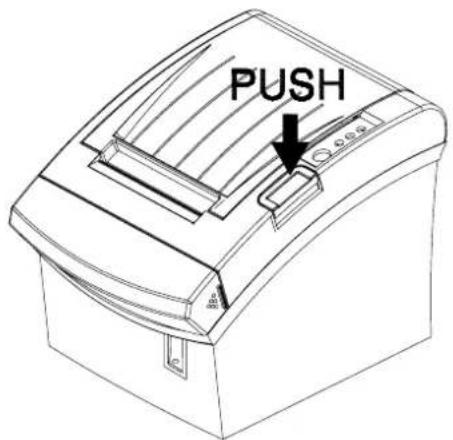
text_image
PUSHNOTE
Do not open the print cover while the printer is operating. This may damage the printer.
1-6-3 Remove the used paper roll core if there is one.
1-6-4 Insert the paper roll as shown.
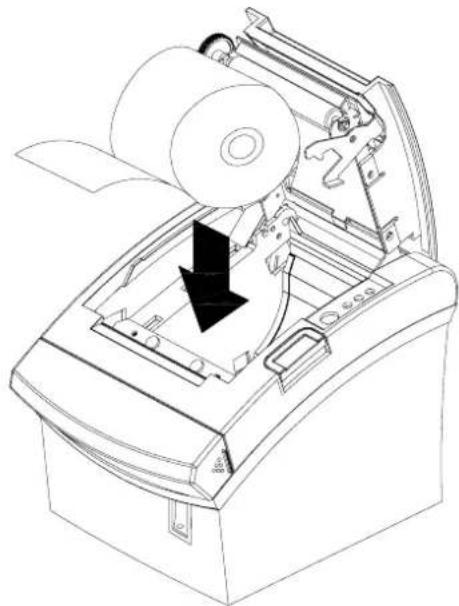
natural_image
Technical line drawing of a mechanical device with a downward arrow indicating a process or operation (no text or symbols present)1-6-5 Be sure to note the correct direction that the paper comes off the roll.
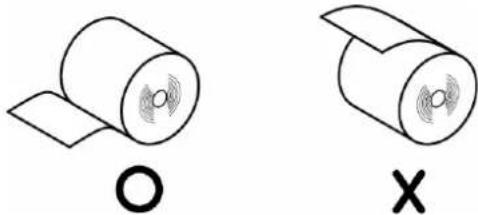
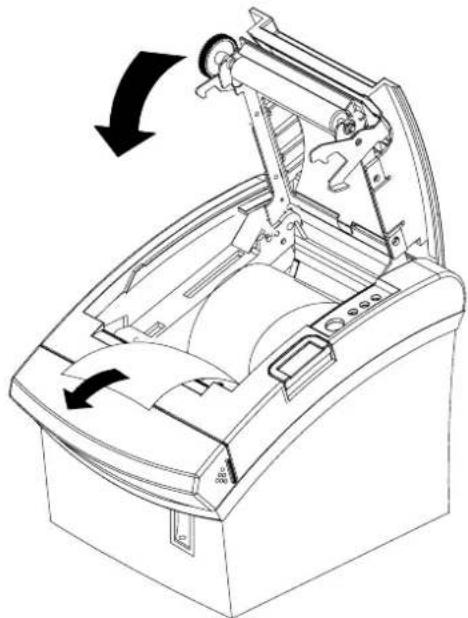
1-6-6 Pull out a small amount of paper, as shown. Then close the cover.
natural_image
Technical line drawing of a mechanical device with open lid and internal components, showing directional arrows (no text or symbols)NOTE
When closing the cover, press the center of printer cover firmly to prevent paper miss-loading.
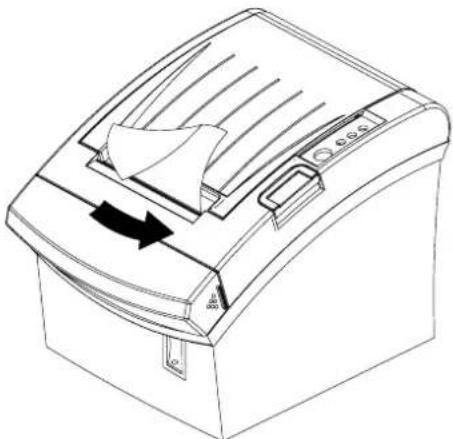
1-6-7 Tear off the paper as shown.
natural_image
Line drawing of a mechanical device with a black arrow indicating rotation or movement (no text or symbols)1-7 Adjustments and Settings
The Metapace T-2 is set up at the factory to be appropriate for almost all users. It does, however, offer some settings for users with special requirements.
It has DIP switches that allow you to change communication settings, such as handshaking and parity check, as well as print density.
The Metapace T-2 also has a near-end sensor for the paper. This can give you a warning when the paper is almost out. If you find that there is not enough paper remaining on the roll when the near-end sensor is triggered, you can change the near-end sensor setting. Rotate the near end sensor tab at front or rear position. (See the below figure)

text_image
Near end sensor tab1-8 Using the Printer
Control Panel
text_image
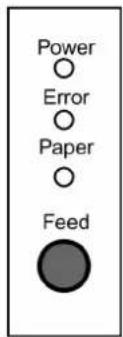
Power ○ Error ○ Paper ○ Feed○ POWER The POWER light is on whenever the printer is on.
○ ERROR This indicates an error.
○ PAPER This light indicates the near end of the paper roll. Install a new paper roll and the printer Will continue printing. When the light blinks, it indicates the self-test printing standby state or macro execution Standby state when the macro execution command is used.
○ FEED The button can be disabled by the ESC c 5 command. Press the FEED button once to advance paper one line. You can also hold down the FEED button to feed paper continuously.
1-9 Connecting the computer
You need an appropriate interface cable.
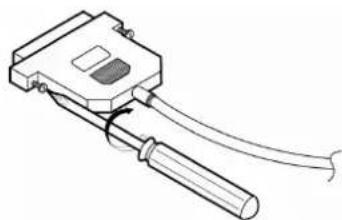
1-9-1 Plug the cable connector securely into the printer's interface connector. 1-9-2 Tighten the screws on both sides of the cable connector.
natural_image
Technical line drawing of a mechanical clamp or tool with a handle and clamped cable (no text or symbols)1-9-3 Attach the other end of the cable to the computer.
1-10 Connecting the Power Supply
※ CAUTIONS
When connecting or disconnecting the power supply from the printer, make sure that the power supply is not plugged into an electrical outlet. Otherwise you may damage the power supply or the printer.
If the power supply's rated voltage and your outlet's voltage do not match, contact your dealer for assistance. Do not plug in the power cord. Otherwise, you may damage the power supply or the printer.
1-10-1 Make sure that the printer's power switch is turned off, and the power supply's power cord is unplugged from the electrical outlet.
1-10-2 Check the label on the power supply to make sure that the voltage required by the power supply matches that of your electrical outlet.
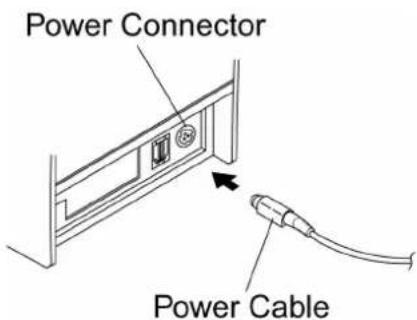
1-10-3 Plug in the power supply's cable as shown below. Notice that the flat side of the plug faces down.
text_image
Power Connector Power CableNOTE
To remove the DC cable connector, make sure that the power supply's power cord is unplugged; then grasp the connector at the arrow and pull it straight out.
2. Self test
The self-test checks whether the printer has any problems. If the printer does not function properly, contact your dealer. The self-test checks the following;
2-1 Make sure paper roll has been installed properly.
2-2 Turn on the power while holding down the FEED button. The self-test begins.
2-3 The self-test prints the current printer status, which provides the control ROM version and the DIP switch setting.
2-4 After printing the current printer status, self-test printing will print the following, and pause (The PAPER LED light blinks).
SELF-TEST PRINTING. PLEASE PRESS THE FEED BUTTON.
2-5 Press the FEED button to continue printing. The printer prints a pattern using the built-in character set.
2-6 The self-test automatically ends and cuts the paper after printing the following.
\*\*\* COMPLETED \*\*\*
2-7 The printer is ready to receive data as soon as it completes the self-test.
3. Hexadecimal Dumping
This feature allows experienced users to see exactly what data is coming to the printer. This can be useful in finding software problems. When you turn on the hexadecimal dump function, the printer prints all commands and data in hexadecimal format along with a guide section to help you find specific commands.
To use the hexadecimal dump function, follow these steps.
3-1 After you make sure that the printer is off, open the cover.
3-2 Turn on the printer, while holding down the FEED button.
3-3 Close the cover, then the printer enters the hexadecimal dump mode.
3-4 Run any software program that sends data to the printer. The printer will print all the codes it receives in a two-column format. The first column contains the hexadecimal codes and the second column gives the ASCII characters that corresponds to the codes.
| 1B | 21 | 00 | 1B | 26 | 02 | 40 | 40 | 40 | 40 | . | ! | . | & | . | @ | @ | @ | @ |
| 02 | 0D | 1B | 44 | 0A | 14 | 1E | 28 | 28 | 28 | . | . | . | D | . | . | . | ( | ( |
| 00 | 01 | 0A | 41 | 0D | 42 | 0A | 43 | 43 | 43 | . | . | . | A | . | B | . | C | C |
A period (.) is printed for each code that has no ASCII equivalent. During the hex dump, all commands except DLE EOT and DLE ENQ are disabled.
3-5 When the printing finishes, turn off the printer.
3-6 Turn on the printer and then the hexadecimal mode is off.
4. Specification
| Item Details | ||
| Printer | Printing Method Thermal Line | Printing |
| Dot Density 180 dpi (7dots/mm) | ||
| Printing Width 72mm | ||
| Characters per line (Default) 42 (Font A) / 56 (Font B) | ||
| Printing Speed *1) 47.28 lines/sec, 200 mm/sec | ||
| Receive Buffer Size 4K Bytes | ||
| SMPS Input Voltage 100~240 | VAC | |
| Frequency | 50/60 Hz | |
| SMPS Output Voltage 24 VDC | ||
| Temperature | 0 ~ 45 °C (Operating)-10 ~ 50 °C (Storage) | |
| Humidity | 30 ~ 80 % RH (Operating)10 ~ 90 % RH (Storage); Except for paper | |
| Auto Cutter | 1,800,000 Cuts | |
| Mechanism MCBF *2) | 70,000,000 Lines | |
| Paper | Paper Type | Paper Roll |
| Roll Width | 80mm | |
| Roll Diameter | Max 83mm | |
| Paper Thickness | 0.062~0.075mm | |
| Paper Tube | Inner: ∅12mm (0.47")Outer: ∅18mm (0.71") | |
※ Note
*1) Printing speed may be slower depending on the data transmission speed and the combination of control commands.
*2) The above values are calculated under printing level 2 with recommended paper at normal temperature. The values may vary with environment temperature, printing level, etc.
5. Appendix
5-1 Cleaning Printer
Paper dust inside the printer may lower the print quality. In this case clean the printer as follows.
5-1-1 Open the printer cover and remove the paper if exists.
5-1-2 Clean the print head with a cotton swab moistened with alcohol solvent.
5-1-3 Clean the platen roller and paper end sensor with cotton swab moistened with water.
5-1-4 Insert a paper roll and close the printer cover.
The remained amount of paper detected by paper near end sensor varies with the diameter of the paper core.
To adjust the remained amount, contact your dealer.