TF7750HDPVR - Digital decoder TOPFIELD - Free user manual and instructions
Find the device manual for free TF7750HDPVR TOPFIELD in PDF.


| Product Type | Digital terrestrial high-definition personal video recorder (PVR) |
| Model | TF7750HDPVR |
| Brand | Topfield |
| Dimensions (approx.) | 380 x 240 x 60 mm (width x depth x height) |
| Weight (approx.) | 2.5 kg |
| Power Supply | 100-240V AC, 50/60 Hz, max 30W |
| Tuner Type | DVB-T (terrestrial) with dual tuner support |
| Recording Capabilities | Simultaneous recording of two channels, time shift, scheduled recording |
| Storage | Built-in hard drive (capacity varies by model, typically 320GB or larger) |
| Video Outputs | HDMI, composite, component, SCART (select models) |
| Audio Outputs | HDMI (digital), optical digital, analog stereo |
| Media Playback | USB playback of MPEG, AVI, MP3, JPEG |
| Electronic Program Guide | 7-day EPG with search and reminder |
| Network Connectivity | Ethernet port for firmware updates and network features |
| Remote Control | Included infrared remote with full function buttons |
| Maintenance | Keep in ventilated area; clean with soft dry cloth; avoid liquids |
| Safety | Do not disassemble; use only supplied power adapter; keep away from moisture |
| Spare Parts Availability | Remote control and power adapter available from Topfield service centers |
| Accessories Included | Remote control, power adapter, user manual, batteries |
| Compliance | CE, RoHS |
Frequently Asked Questions - TF7750HDPVR TOPFIELD
User questions about TF7750HDPVR TOPFIELD
0 question about this device. Answer the ones you know or ask your own.
Ask a new question about this device
Download the instructions for your Digital decoder in PDF format for free! Find your manual TF7750HDPVR - TOPFIELD and take your electronic device back in hand. On this page are published all the documents necessary for the use of your device. TF7750HDPVR by TOPFIELD.
USER MANUAL TF7750HDPVR TOPFIELD
Digital Satellite Receiver
Personal Video Recorder
Common Interface
Contents
Contents ii
1 Introduction 1
1.1 Features ...... 1
1.2 Controlling the digital receiver 2
1.2.1 Front panel 3
1.2.2 Remote control 4
1.3 Common Interface 6
2 Setup 8
2.1 Unpacking 8
2.2 Safety precautions 8
2.3 Rear panel connections 10
2.4 Connecting up your digital receiver ..... 12
2.4.1 Connecting to the antenna 13
2.4.2 Connecting to your television set 14
2.4.3 Connecting to your video recorder 17
2.5 Switching on for the first time 17
3 Service Search 19
3.1 Searching for broadcasting services 19
3.1.1 Configuring LNB settings 20
3.1.2 Configuring DiSEqC 1.2 settings ..... 22
3.1.3 Configuring USALS settings 23
3.1.4 Searching for services 25
3.2 Copying services ..... 28
3.3 Editing the transponder list 28
3.4 Resetting to factory settings 29
4 Preference Settings 31
4.1 Language settings 31
4.1.1 Menu language ..... 31
4.1.2 Subtitle language ..... 32
4.1.3 Hard of Hearing .... 32
4.1.4 Audio language 32
4.2 Video and audio settings 33
4.2.1 High definition television ..... 33
4.2.2 Television aspect ratio 34
4.2.3 Colour format 35
4.2.4 Another video device 35
4.2.5 Audio mode ..... 36
4.3 Local time setting 37
4.4 Parental control 39
4.5 Adjusting the On-Screen Display ..... 40
4.6 To enable time-shifting 41
4.7 Advanced Settings 42
4.7.1 Recording Settings 42
4.7.2 Auto Decoding 43
5 Every Day Use 44
5.1 Volume control 44
5.2 Watching television 44
5.2.1 The services list ..... 44
5.2.2 The favourite service lists 46
5.2.3 Viewing programme information ..... 47
5.2.4 Selecting audio tracks 48
5.2.5 Selecting subtitle tracks ..... 48
5.2.6 Viewing teletext 48
5.3 Viewing electronic programme guide 49
5.4 Watching multifeed programme 49
5.5 Using time-shift ..... 50
6 Organising Services 52
6.1 Editing the services list 52
6.2 Editing the favourite lists 54
6.3 How to use on-screen keyboard ..... 56
6.4 Transferring receiver data 56
6.5 Editing channel data on your computer ..... 57
7 Recording and Playback 59
7.1 Recording a programme .... 59
7.1.1 Instant recording .... 60
7.1.2 Timer recording 62
7.1.3 Scheduling recordings using the programme guide .. 64
7.1.4 Recording a pay service programme ..... 65
7.2 File archive 65
7.2.1 To delete a recording 66
7.2.2 To sort recordings 66
7.2.3 To lock a recording 66
7.2.4 To rename a recording 67
7.2.5 To make a new folder 67
7.2.6 To move a recording to another folder 67
7.3 Playing back a recording 68
7.3.1 To navigate using the progress bar 69
7.3.2 To play in slow motion 69
7.3.3 To play in fast motion 69
7.3.4 To make a bookmark 70
7.3.5 To play back a recording repeatedly 70
7.3.6 To play back recordings in sequence 71
7.3.7 To play back a scrambled recording ..... 71
7.4 MP3 playback 72
7.5 Formatting the hard disk 72
8 Accessing via Network 73
8.1 Configuring the router 74
8.1.1 To access within the local area network ..... 74
8.1.2 To access over the Internet 75
8.2 Configuring the network setting on the digital receiver ..... 76
8.3 Accessing the web server 77
9 Firmware Update 79
9.1 From a memory stick 79
9.2 From the firmware server via the Internet 80
9.3 From your computer via RS-232 port ..... 81
9.4 From another digital receiver via RS-232 port ..... 82
9.5 Over the air 83
Index 85
Chapter 1
Introduction
The TF7750HDPVR digital receiver is fully compliant with the international Digital Video Broadcasting (DVB) standard, and thus is able to receive digital broadcasts of that standard. For its operation you need an antenna, which must be installed appropriately.
NOTE
In general we equate a channel with a frequency. However, unlike analogue broadcasts, digital broadcasts are not all assigned to their own frequencies; instead, multiple television broadcasts are transmitted through a single frequency. The frequency in digital broadcasting is usually called transponder or multiplex. To reduce confusion in this manual, the word service is preferably used than channel as a term to indicate one television or radio broadcast.
1.1 Features
This digital receiver has the following features:
- Supports DiSEqC 1.0, DiSEqC 1.1, DiSEqC 1.2 and US-ALS protocols.
- Can store up to 5,000 television and radio services.
- You can edit the services list.
- Can create lists of your favourite services.
- Can view information about the current television or radio programme.
- Has an electronic programme guide that provides an overview of scheduled programmes.
- You can record one service while you are currently watching another.
- You can record many programmes using a built-in hard drive with large storage capacity.
- Time-shift is a special technical feature available on this digital receiver. You can pause a programme you are watching and resume it again at a later time. Then you can quickly go to any part of the current programme by fast forward or rewind search.
- If you have an external hard drive connected to the digital receiver via the USB port, you can record television programmes into it.
1.2 Controlling the digital receiver
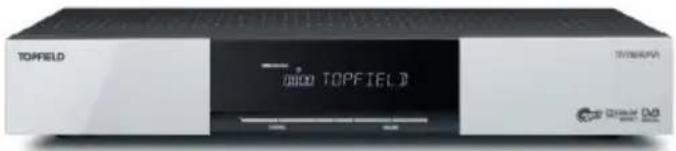
You can operate the digital receiver with the remote control or the buttons on the front panel.
NOTE
When the digital receiver is off but plugged into a wall socket, we say that it is in standby mode; on the other hand, when it is on, it is in active mode. Even when you are not using the digital receiver, you should keep it plugged into a wall socket to be in standby mode so that it can run timer events at any time.
1.2.1 Front panel
The front panel of the digital receiver has buttons to control the digital receiver, specific lights and a display to indicate its status. The following indicates what they mean.

button switches the digital receiver between standby mode and active mode.
VOLUME -, + buttons decrease or increase the volume. They are also used to change values for menu options.
CHANNEL -, + buttons switch to the previous or next service. They are also used to navigate in menus and interactive screens.
Front display shows the current time in standby mode, and displays the current service in active mode.
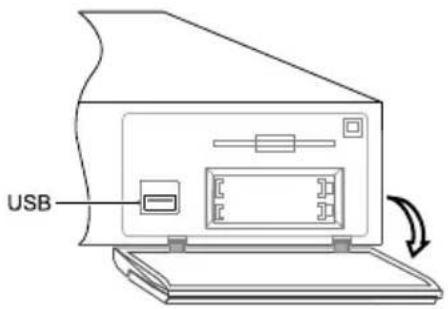
There is a USB port on the front panel for firmware update and data transfer.
1.2.2 Remote control
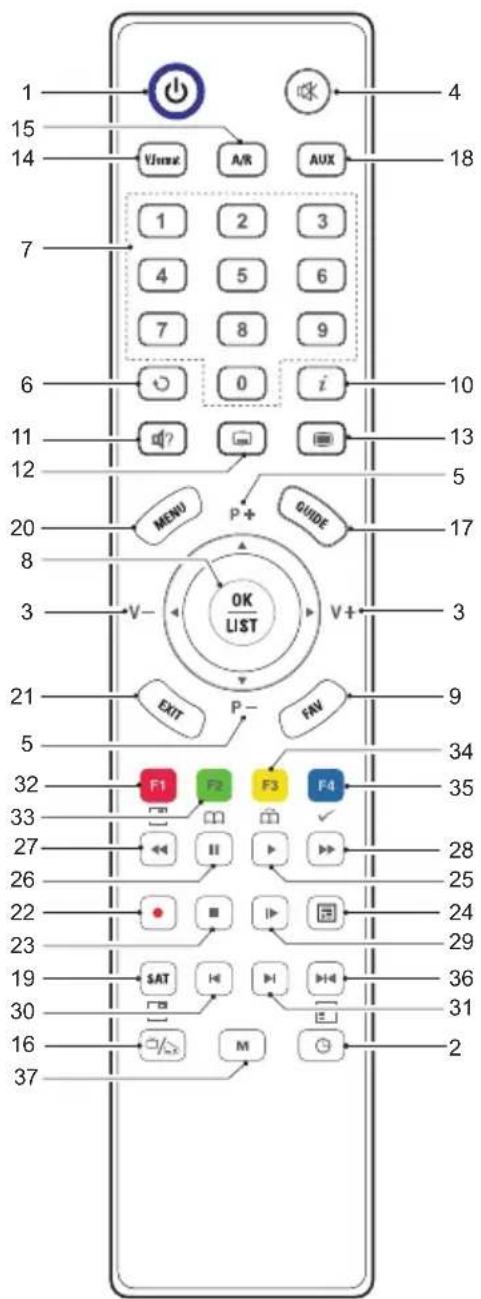
1 ⏻ button switches the digital receiver between standby mode and active mode.
2 is used to set a sleep timer in 10 minute increments.
3 ◀, ▶ decrease or increase the volume. They are also used to change values for menu options.
4 mutes the sound. Press again to switch it back on.
5 ▼, ▲ switch to the previous or next service. They are also used to navigate in menus and interactive screens.
6 switches over between the current service and the previously viewed one.
7 Numeric buttons are used to enter a service number for service change or to specify values for menu options.
8 OK displays the services list. See §5.2.1 for more details. It is also used to select a menu item.
9 FAV displays the favourite lists.
10 i displays the service information box. It is also used to display more information about a programme.
11 is used to select an audio track and a sound mode, or a video track of multifeed programme.
12 is used to select a subtitle track.
13 displays teletext.
14 V.Format changes video resolution. See §4.2.1 for more details.
15 A/R changes aspect ratio. See §4.2.2 for more details.
16 switches over between television services and radio services.
17 GUIDE displays the electronic programme guide.
18 AUX switches the output of the TV SCART socket over between the digital receiver and the device connected to the VCR SCART socket. See §4.2.4 for more details.
19 SAT displays the satellites list with their services list.
20 MENU displays the main menu. It is also used to return to the previous menu from a submenu.
21 EXIT is used to exit a menu or to hide on-screen information.
22 is used to start recording.
23 is used to stop playback, to stop recording, or to jump back to live television from time-shifted television.
24 is used to display the list of recorded programmes that are stored in the internal hard drive. See §7.2 for more details.
25 resumes normal playback speed, or displays the progress bar for navigation on playback or time-shift. To play a recorded programme, see button 24.
26 ☐ pauses live television or playback of a recorded programme.
27 is used to start reverse playback. Subsequent presses increase the rewind speed.
28 is used to start fast forward playback. Subsequent presses increase the playback speed.
29 is used to start slow motion playback. Subsequent presses change the playback speed.
30 is used to jump back to the beginning of the recording on playback.
31 is used to jump to the end of the recording on playback.
32 F1 has different functions per menu.
33 F2 is used to make a bookmark on playback or time-shift.
34 F3 is used to jump to next bookmark position.
35 F4 has different functions per menu.
36 has different functions per menu.
37 M is not used in this model.
NOTE
When using the remote control, point it at the remote sensor on the front panel of the digital receiver.
1.3 Common Interface
natural_image
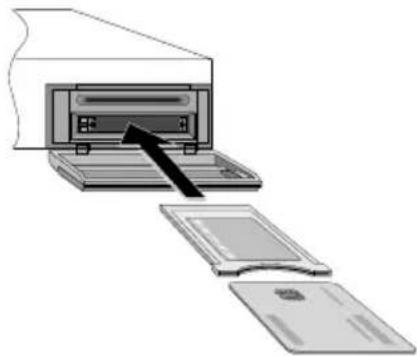
Diagram showing a printer with an arrow pointing to the front panel, and additional parts on the side (no text or symbols present)There are pay TV services available; these are accessible with the use of a Conditional Access Module (CAM) and a subscription card. A Common Interface (CI) is the slot into which you can insert a CAM. The front of the digital receiver has two common interface slots. To watch a pay service, you should take the following steps:
-
Purchase a CAM and a subscription card for the pay service you want to watch.
-
Insert the subscription card into the CAM.
-
Insert the CAM into a common interface on the front of the digital receiver.
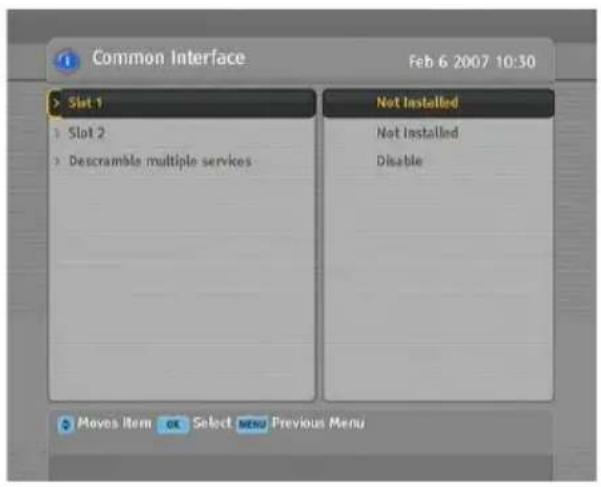
To view the information about the module and subscription card which is inserted into the digital receiver, select the Information >Common Interface menu.
Chapter 2
Setup
2.1 Unpacking
Before going any further, check that you have received the following items with the digital receiver.
- Remote control unit
- Two batteries for the remote control (AAA 1.5 V)
- One power cord
- One HDMI cable
• A copy of this user guide
NOTE
Accessories may vary according to your local area.
2.2 Safety precautions
Please read carefully the following safety precautions.
- The mains voltage must range between 90 and 250 volts. Check it before plugging the digital receiver to the wall socket. For the power consumption of the digital receiver, refer to Table 2.1.
- The wall socket should be near the equipment. Do not run an extension lead to the unit.
- The mains plug shall remain readily operable so that it can be removed easily to disconnect the power.
- The digital receiver shall not be exposed to dripping or splashing water, and no objects filled with liquids, such as vases, shall be placed on it.
- Do not expose the digital receiver to any moisture. The digital receiver is designed for indoor use only. Use dry cloth to clean the digital receiver.
- Place the digital receiver on a firm and level surface.
- Do not place the digital receiver close to heat emitting units or in direct sunlight, as this will impair cooling. Do not lay any objects such as magazines on the digital receiver. When placed in a cabinet, make sure there is a minimum space of 10 centimetres around it. For the physical specification of the digital receiver, refer to Table 2.2.
- Protect the power cord from being walked on or pinched. If the cord is damaged, do not use the digital receiver and get the cord replaced.
- Never open the digital receiver casing under any circumstances, or the warranty will be void.
• Refer all servicing to a qualified service technician.
Table 2.1: Power specification
| Input voltage | 90 to 250 V AC, 50/60 Hz |
| Power consumption | 60 W at maximum in active7 W in standby |
Table 2.2: Physical specifications
| Size 430×60×265 mm |
| Weight 3.8 kg |
| Operating temperature 0 to 45 °C |
| Storage relative humidity 5 to 90% |
2.3 Rear panel connections
The TF7750HDPVR has a wide range of connections on the back.
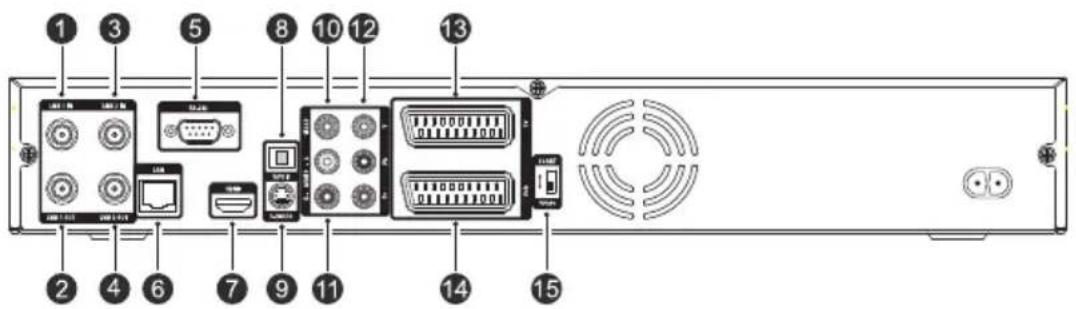
Check what connections your television set has in comparison with the digital receiver.
1 LNB 1 IN Satellite broadcasting signal input socket for the first tuner
(Current: Max.500mA with overload protection)
2 LNB 1 OUT Satellite broadcasting signal output socket through the first tuner
3 LNB 2 IN Satellite broadcasting signal input socket for the second tuner
4 LNB 2 OUT Satellite broadcasting signal output socket through the second tuner
5 RS-232 Serial port for firmware update and data transfer
6 LAN Local area network port
7 HDMI Audio and video output socket for the high definition television set
8 S/PDIF Digital audio output socket for the audio-video receiver
9 S-VIDEO Super video output socket for the television set
10 VIDEO Composite video output socket for the television set (yellow)
11 AUDIO L/R Stereo audio output socket for the television set or the audio-video receiver (white/red)
12 Y/Pb/Pr Component video output socket for the television set (green/blue/red)
13 TV Audio and video output socket for the television set
14 VCR Audio and video input/output socket for another device such as a video recorder
15 YPbPr SCART Video output selection switch. See §4.2.1 for more details.
Table 2.3: Connectors specifications
| HDMI High definition video outputLeft & right audio outputDigital audio output |
| YPbPr Component video output |
| TV CVBS/S-Video/RGB video outputLeft & right audio output |
| VCR CVBS video outputLeft & right audio outputCVBS/S-Video/RGB video input for bypassLeft & right audio input for bypass |
| S-VIDEO Super video (S-Video) output |
| VIDEO Composite video (CVBS) output |
| AUDIO Left & right audio output |
| S/PDIF Digital audio output |
| RS-232 115.2 kbps at maximum |
| USB 2.0 Host (5 V DC, 500 mA) |
2.4 Connecting up your digital receiver
There are several ways to set up the digital receiver. Set up the digital receiver suitably to your television and other devices. If you have any problem with your setup or need help, contact your dealer.
2.4.1 Connecting to the antenna
natural_image
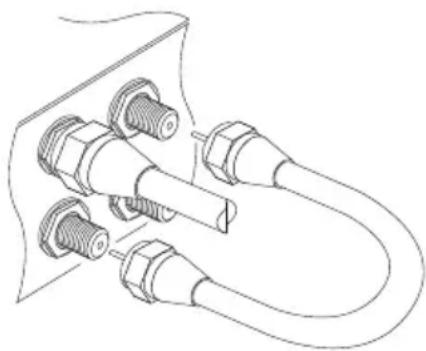
Line drawing of a U-shaped cable with multiple connectors and threaded ports (no text or symbols)Whatever sort of connection you have between the digital receiver and the television, you need to connect the digital receiver to the antenna so that it can receive digital television broadcasts. Connect the antenna cable to the LNB 1 IN connector on the back panel of the digital receiver. Also, you must ensure that there is a connection to both the LNB 1 IN and LNB 2 IN connectors on your digital receiver, so that both tuners work properly.
Normally you do that by using a loop cable to link from the LNB 1 OUT connector to the LNB 2 IN connector. If you have two antennas without DiSEqC switch, then you have to connect the cable from the other antenna directly to the LNB 2 IN connector rather than using the loop cable.
NOTE
The digital receiver can supply a current of 500 milliampere at maximum for antenna devices including LNB, DiSEqc switch and antenna rotor through each antenna input connection separately but not simultaneously. If there are too many antenna devices to be simultaneously supplied with sufficient power for a rather long time through the antenna input connections, then your antenna may lack power to operate. So it is recommended to link the LNB 1 OUT connector to the LNB 2 IN connector with a loop cable, even though the digital receiver is designed to operate independently over two antennas.
NOTE
Perhaps you are expecting that the satellite antenna could simultaneously catch all frequencies coming from a satellite
and send them to the digital receiver. However, the satellite antenna only sends the frequencies that it can catch with the LNB frequency and polarisation specified by the digital receiver. So if you have linked from the LNB 1 OUT connector to the LNB 2 IN connector, you would have some limitations in using some features such as dual recording. Likewise, if you have another digital receiver linked from the LNB 2 OUT connector, you can only use it limitedly. See §3.1 for more details.
2.4.2 Connecting to your television set
For all the following connections of the digital receiver, we recommend you to use the first connector to get the best picture quality. If your television does not have a matching connector, then use the next connector in the following order for a better picture quality.
- HDMI connector (HDMI)
- Component connector (YPbPr)
- SCART connector (TV)
- S-Video connector (S-VIDEO)
- Composite connector (VIDEO)
You should configure audio and video settings after connecting up the digital receiver. See §4.2 for a detailed description.
To use the HDMI output
natural_image
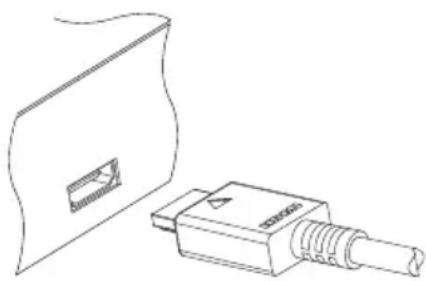
Line drawing of a device with a connector and a separate panel (no text or symbols)If you have a high definition television set, you should use an HDMI cable for best results. Plug one end of the cable into the HDMI socket on the digital receiver, and plug the other end into the matching socket on your television. In this case, you do not have to make audio connection because it can output stereo audio or digital audio as well.
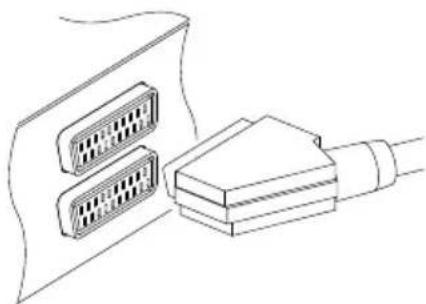
To use the SCART output
natural_image
Line drawing of a cable connector with two 24-pin connectors (no text or symbols)For best results with a standard television set, you should use a SCART cable. Plug one end of the cable into the TV socket on the digital receiver, and plug the other end into a free SCART socket on your television.
If you connect with a standard SCART cable, you do not have to make audio connection because it can output stereo audio as well. But if you use a conversion cable such as SCART-to-Component, then you have to make audio connection.
NOTE
You cannot view high definition video by means of the SCART output.
To use the Component video output
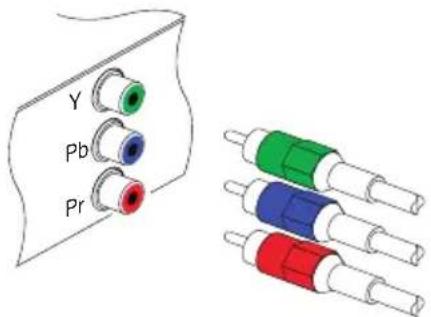
You need to obtain a Component video cable (RCA cable) to use the Component video output. Plug one ends of the cable into the Y (green), Pb (blue) and Pr (red) sockets on the digital receiver, and plug the other ends into the matching sockets on your television.
NOTE
When connecting with the Component video cable, remember to also plug in the additional white and red audio cables from the digital receiver to the back of your television.
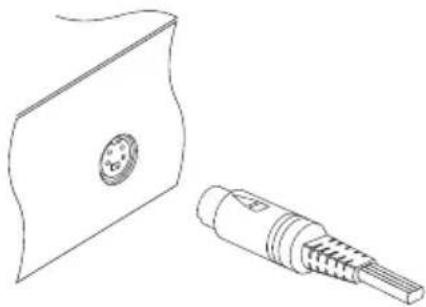
To use the S-Video output
natural_image
Line drawing of a device with a circular component and a separate connector (no text or symbols)NOTE
You cannot view high definition video by means of the S-Video output.
You need to obtain a S-Video cable to use the S-Video output. Plug one end of the cable into the S-VIDEO socket on the digital receiver, and plug the other end into the matching socket on your television.
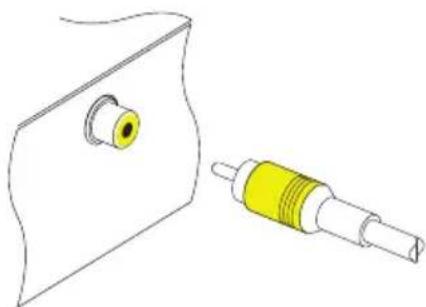
To use the Composite video output
natural_image
Technical line drawing of a mechanical component with a yellow cylindrical part and a yellow threaded shaft (no text or symbols)You need to obtain a Composite video cable (RCA cable) to use the Composite video output. Plug one end of the cable into the VIDEO (yellow) socket on the digital receiver, and plug the other end into the matching socket on your television.
NOTE
You cannot view high definition video by means of the Composite video output.
To make the audio connection
natural_image
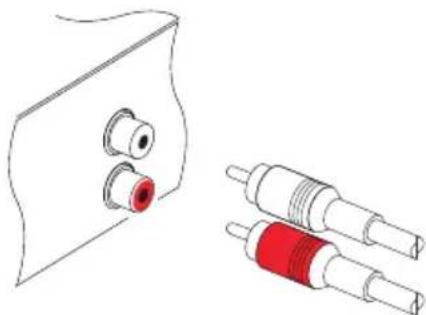
Technical line drawing of a device with a red connector and two cylindrical components (no text or symbols)You need to obtain an audio cable (RCA cable) to link the audio connectors. Plug one ends of the cable into the AUDIO L (white) and AUDIO R (red) sockets on the digital receiver, and plug the other ends into the matching sockets on your television or audio-video receiver.
natural_image
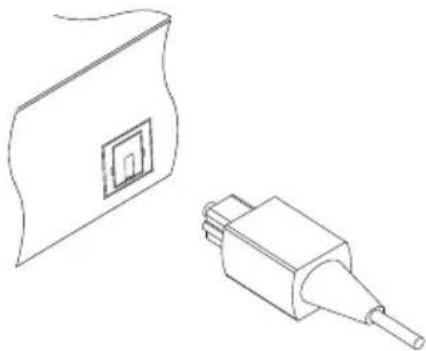
Technical line drawing of two electronic components: a rectangular panel with a square cutout and a rectangular connector (no text or symbols)To enjoy Dolby Digital audio, your television or audio-video receiver must be able to decode Dolby Digital audio, and you need to obtain an S/PDIF cable.
Plug one end of the cable into the S/PDIF socket on the digital receiver, and plug the other end into the matching socket on your audio-video receiver.
2.4.3 Connecting to your video recorder
The digital receiver can also output video through an auxiliary SCART connector to another device such as a video recorder.
natural_image
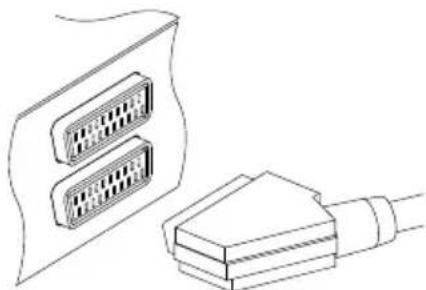
Line drawing of two connected electrical connectors (no text or symbols)You need to obtain a SCART cable to link the auxiliary SCART connector. Plug one end of the cable into the VCR socket on the digital receiver, and plug the other end into the matching socket on your video recorder or suchlike.
2.5 Switching on for the first time
Now that you have your digital receiver connected, you should plug it into a wall socket. Ensure that your television set is turned on and on the correct video channel so that you will be able to see the display from the digital receiver.
Before switching on the digital receiver, you should insert batteries into the remote control. Open the battery compartment by removing the lid, and then insert the batteries observing the polarity, which is marked on the base of the battery compartment.
Press the ⏻ button on the top left corner on the remote control. In a little time, you may see a picture displaying a menu.
If you do not see a picture, try pressing the V.Format button on the remote control. If after several tries you still get no picture,
check that the television is set to the correct input. If the picture is good, you can skip to §3.1 to search for available television and radio services. Otherwise, you may need to temporarily connect the Composite video connector (VIDEO) to your television set so that you can see the menu in order to configure the video settings.
CAUTION
If the digital receiver no longer reacts properly to the remote control commands, the batteries may be flat. Be sure to replace only with 1.5 V AAA size batteries, and observe the following precautions.
- Do not mix different types of batteries, or new and old batteries.
- Do not use rechargeable batteries.
- Do not recharge the old batteries.
- In order to avoid any risk of explosion, observe the polarities indicated inside the battery compartment.
- Do not subject to excessive heat such as the sun and fire.
- If you are not using the remote control for a long period of time, remove the batteries. The manufacturer accepts no liability for the damage resulting from leaking batteries.
- Batteries, including those which contain no heavy metals, may not be disposed with other household wastes. Please dispose of used batteries in an environmentally sound manner. Find out the legal regulations which apply in your area.
Chapter 3
Service Search
After connecting up the digital receiver, you will need to perform a service search.
NOTE
If there is no service stored, you will be not able to access all menus. A SERVICE is another name for a CHANNEL.
3.1 Searching for broadcasting services
This digital receiver can be operated with both fixed antenna and motorized antenna. You have to configure antenna settings according to your antenna system in the following order:
- Configure LNB settings. Refer to §3.1.1.
- Set the position of your desired satellites if you have a motorized antenna. You can control the antenna in DiS-EqC 1.2 mode or USALS mode. Refer to §3.1.2 for DiS-EqC 1.2, and refer to §3.1.3 for USALS.
- Perform a service search.
3.1.1 Configuring LNB settings
There are two large frequency bands for satellite broadcasts. One is C band which ranges approximately from 4 to 6 GHz. The other is K_u band which ranges approximately from 12 to 18 GHz.
natural_image
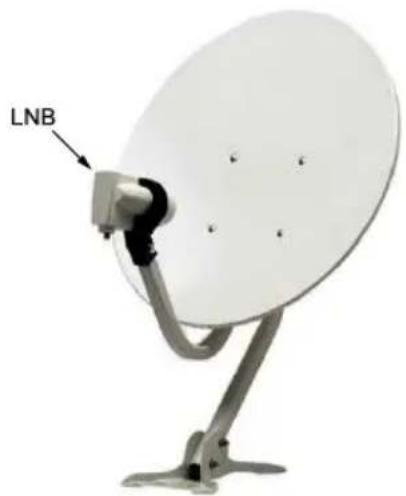
Exterior view of a satellite dish antenna with LNB label (no additional text or symbols)The LNB (Low Noise Block converter) is used to take a wide band of relatively high frequencies, amplify and convert them to similar signals that is carried at a much lower frequency, which is called Intermediate Frequency (IF). High frequencies from satellites are converted into 950 to 2150 MHz by a LNB.
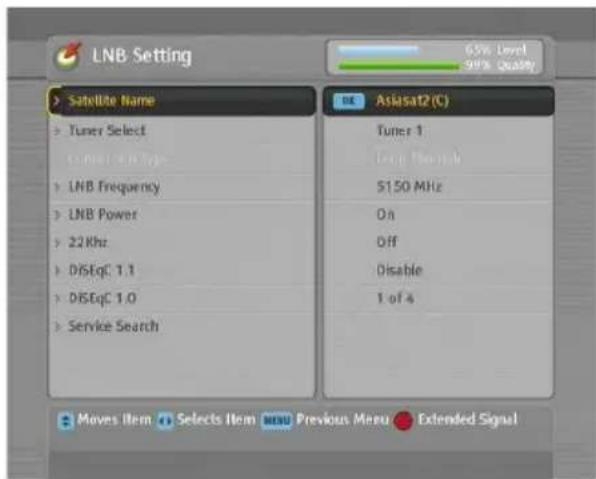
Select the Installation >LNB Setting menu to configure the LNB settings. You should see a screen like the left figure.
Pressing the ⒽK button on the Satellite Name option displays the satellite list in alphabetic order. Select the satellite toward which your antenna is set to face. Even if you cannot find your desired satellite, you can add your desired satellite to the satellite list. See §3.3 for a detailed description.
You have to specify which tuner is connected to your selected satellite. If it is LNB 1 IN, set the Tuner Select option to Tuner
1; otherwise, set it to Tuner 2.
If you have connected the LNB 1 OUT and LNB 2 IN with a loop-through cable, then set the Connection Type option to Loop Through; otherwise, set it to Separated.
NOTE
Both the LNB 1 IN and LNB 2 IN sockets should be connected to your antennas either directly or via the loop-through cable. If you have connected only one socket, some features such as dual recording will not function.
The digital receiver has a database of broadcasting satellites and their transponders, containing the following information: satellite position, frequency range, symbol rate, polarization and LNB frequency corresponding to the frequency range. So you might not have to specify the LNB Frequency option. However, if you have selected the Other entry at the Satellite Name option to specify a satellite that is not in the satellite list, you might have to fill in the correct LNB frequency. The absolute difference between a broadcasting frequency and its LNB frequency must be within 950 to 2150 MHz. For example, if the frequency band of your desired satellite ranges from 3660 to 4118 MHz, you have to set the LNB Frequency option to 5150 MHz.
The LNB has to be supplied with electric power to operate. Set the LNB Power option to On if it does not have any other power supply.
If you use a dual LNB or two antennas which is connected to the 22 kHz tone switch box, set the 22 kHz option to On.
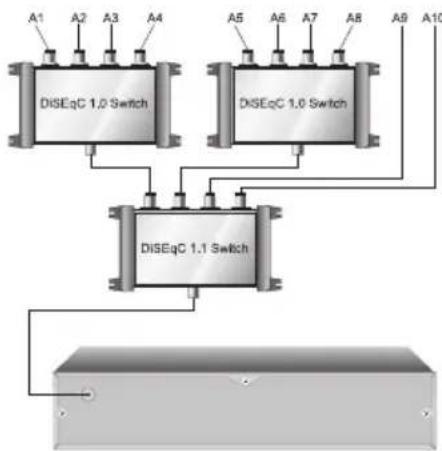
The digital receiver is designed to be compatible with DiSEqC (Digital Satellite Equipment Control) switches. It is possible to connect several antennas to one digital receiver by DiSEqC switches. A DiSEqC 1.0 switch allows switching between up to four satellite sources and a DiSEqc 1.1 switch allows switching between up to 16 satellite sources.
Set the DiSEqC 1.0 option and the DiSEqC 1.1 option according to your antenna configuration.
flowchart
graph TD
    A1["DiSEqC 1.0 Switch"] --> B["DiSEqC 1.1 Switch"]
    A5["DiSEqC 1.0 Switch"] --> B
    A9["A9"] --> B
    A10["A10"] --> B
    style A1 fill:#f9f,stroke:#333
    style A2 fill:#f9f,stroke:#333
    style A3 fill:#f9f,stroke:#333
    style A4 fill:#f9f,stroke:#333
    style A5 fill:#f9f,stroke:#333
    style A6 fill:#f9f,stroke:#333
    style A7 fill:#f9f,stroke:#333
    style A8 fill:#f9f,stroke:#333
    style A9 fill:#f9f,stroke:#333
    style A10 fill:#f9f,stroke:#333
For example, to select the antenna connected to the A5 input in the left figure, set the DiSEqC 1.1 option to 2 of 4 and the DiSEqC 1.0 option to 1 of 4. If you have a mini DiSEqC 1.0 switch which has only two inputs, you should set the DiSEqC 1.0 option to Mini A instead of 1 of 4.
3.1.2 Configuring DiSEqC 1.2 settings
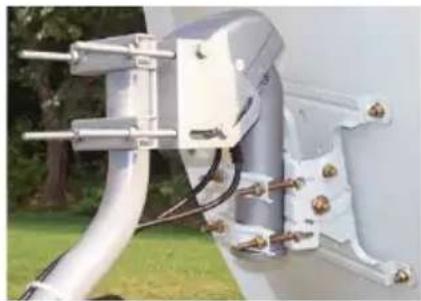
Your motorized antenna will turn toward your desired satellites horizontally by DiSEqC 1.2.
natural_image
Close-up of a mechanical device with attached components and connectors, set against a green outdoor background (no visible text or symbols)When you switch to a service, if it is not provided by the current satellite, it will take longer time than usual because the antenna has to turn to its position.
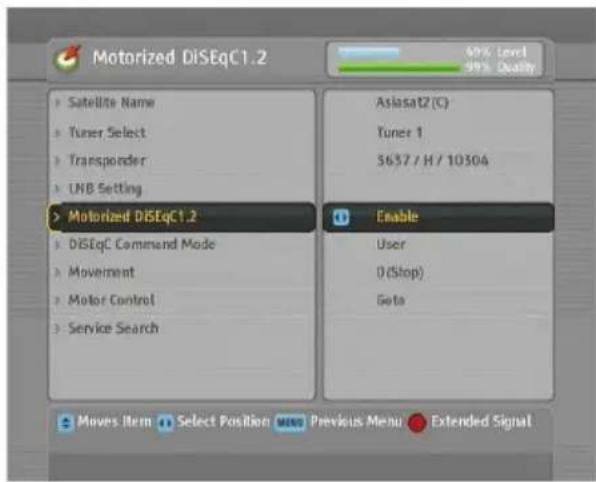
To use the DiSEqC 1.2 protocol, select the Installation >Motorized DiSEqC 1.2 menu. You should see a screen like the left figure. At first you have to set the Motorized DiSEqC 1.2 option to Enable.
To get the correct position of your desired satellite, take the
following steps:
- Choose your desired satellite at the Satellite Name option.
- Select the tuner that is connected to the motorized antenna at the Tuner Select option.
- Set the DiSEqC Command Mode option to User.
- Set the Motor Control option to Goto. Then the antenna will turn toward your selected satellite by the position data that the digital receiver has.
- If the receiving quality, which is displayed at the bottom right of the screen, is not good, tune the antenna finely with the Movement option. If you set it to 2(E), the antenna will move to the east by two degrees. At this time you had better check the receiving quality of every transponder and choose the best one at the Transponder (or Frequency) option. It will be helpful to your fine tuning.
- Finally set the Motor Control option to Store to save the tuned position when the receiving quality is best.
There are more motor control options for installers, but this guide does not describe them. If you are an installer, refer them to the manual about the STAB rotor.
3.1.3 Configuring USALS settings
USALS (Universal Satellite Automatic Location System), also known as DiSEqC 1.3, calculates the positions of all available satellites from your location. Compared to DiSEqC 1.2, it is no longer required to manually search and store every satellite position. Just pointing to a known satellite position is enough. This position will act as a central point. The USALS will then calculate positions of visible satellites.
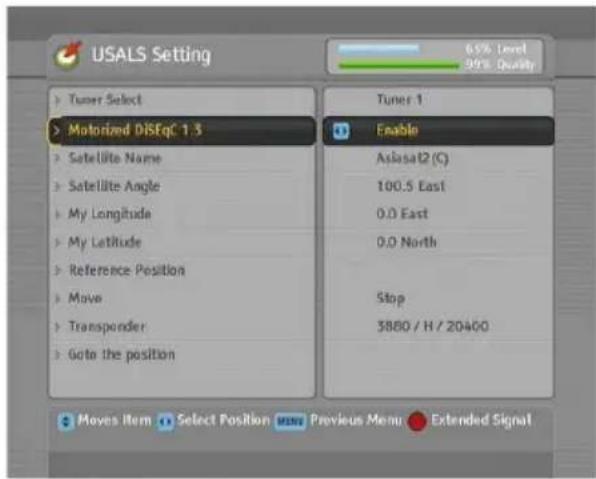
To use the USALS protocol, select the Installation >USALS Setting menu. You should see a screen like the left figure. At first you have to set the Motorized DiSEqC 1.3 option to Enable.
To get every satellite position calculated, take the following steps:
- Choose your desired satellite at the Satellite Name option.
- Select the tuner that is connected to the motorized antenna at the Tuner Select option.
- Enter your location to the My Longitude option and the My Latitude option with the ◀, ▶ and numeric buttons.
- Enter the position of your selected satellite to the Satellite Angle option if it is not correct.
- Select the Goto the position option, then the antenna will turn toward your selected satellite as calculating its position.
- If the receiving quality, which is displayed at the bottom right of the screen, is not good, then tune the antenna finely with the Move option. The changed position is automatically saved. At this time you had better check the receiving quality of every transponder and choose the best one at the Transponder (or Frequency) option. It will be helpful to your fine tuning.
3.1.4 Searching for services
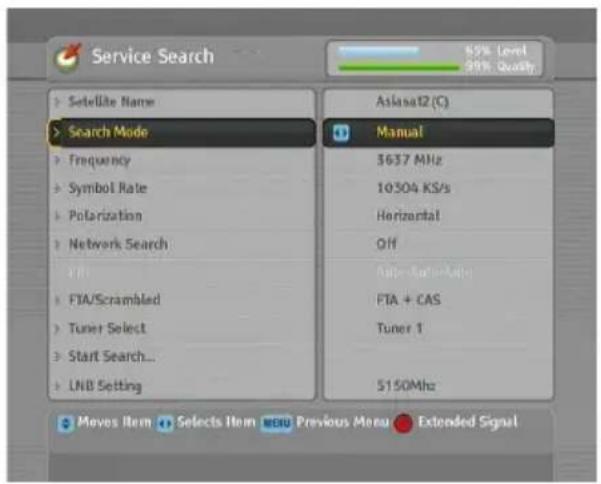
To perform a service search, select the Installation >Service Search menu. You should see a screen like the left figure.
There are in general four service search methods:
• searching every service of a satellite,
• searching every service of a transponder,
• searching single service of a transponder,
- searching every service of a SMATV (Satellite Master Antenna Television) system.
Searching every service of a satellite
To search every service of a satellite, take the following steps:
- Choose your desired satellite at the Satellite Name option.
- Set the Search Mode option to Auto.
- If you set the Network Search option to On, the digital receiver will check up the up-to-date channel information while searching services, but it takes a rather longer time.
With the Auto mode, the digital receiver tries to search every service, relying on the transponder data which is stored at the time of manufacture. It thus may happen to fail to search all actually available services since services are more often than not launched, discontinued, or removed into another transponder.
Searching every service of a transponder
To search every service of a transponder, take the following steps:
- Choose your desired satellite at the Satellite Name option.
- Set the Search Mode option to Manual.
- Choose your desired transponder at the Frequency option or enter it with the numeric buttons.
- Enter the symbol rate of your desired transponder to the Symbol Rate option with the numeric buttons.
- Set the Polarization option to match to that of your desired transponder.
- If you set the Network Search option to On, the digital receiver will check up the up-to-date channel information as searching services, but it takes rather longer time.
- Set the Modulation option to match to that of your desired transponder. If the transponder is of the DVB-S2 standard, you should set this option to DVB-S2 QPSK or DVB-S2 8PSK. Then the FEC option and the Pilot option will become enabled. You also should set these options correctly.
NOTE
You may get transponder information from a satellite magazine or website such as http://www.satbeams.com or http://www.lyngsat.com.
Searching single service of a transponder
To search single service of a transponder, take the following steps:
- Choose your desired satellite at the Satellite Name option
-
Set the Search Mode option to Advanced.
-
Choose your desired transponder at the Frequency option or enter it with the numeric buttons.
- Enter the symbol rate of your desired transponder to the Symbol Rate option with the numeric buttons.
- Set the Polarization option to match to that of your desired transponder.
- Set the Modulation option to match to that of your desired transponder. If the transponder is of the DVB-S2 standard, you should set this option to DVB-S2 QPSK or DVB-S2 8PSK. Then the FEC option and the Pilot option will become enabled. You also should set these options correctly.
- At the PID option, specify the audio and video packet identification (PID) of your desired service with the numeric buttons.
Searching every service of SMATV system
To search every service of a SMATV system, if the digital receiver is connected to it, take the following steps:
- Choose your desired satellite at the Satellite Name option.
- Set the Search Mode option to SMATV.
- Choose your desired transponder at the Frequency option or enter it with the numeric buttons.
- Enter the symbol rate of your desired transponder to the Symbol Rate option with the numeric buttons.
You can search pay services as well as free services as follows:
- To search only free services, set the FTA/Scrambled option to FTA only.
- To search only pay services, set it to CAS only.
- To search both free services and pay services, set it to FTA + CAS.
To start service search, move down to the Start Search item, and press the ⓄOKbutton. The digital receiver will start to
search for services and display a list of television and radio services as they are found. It is common for no channels to be found until quite late in the process. When the scan is complete, you will see a message telling you how many services have been found. Press the OK button to save the list.
3.2 Copying services
The digital receiver maintains a separate services list with each tuner. If a certain service is registered on only one tuner, it may be impossible to watch one service while recording. You can copy entries of one tuner's services list to the other tuner's services list to avoid such inconvenience.
To copy service entries, select the Installation >Services Copy menu. There are three copy options. To copy service entries of the first tuner to the second tuner's services list, select the Tuner 1 to Tuner 2 option. To copy on the contrary, select the Tuner 2 to Tuner 1 option. To copy reciprocally, select the ALL option.
3.3 Editing the transponder list
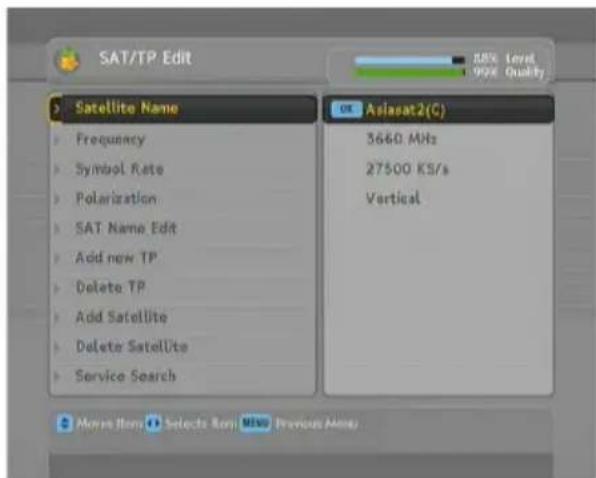
You can add, delete or modify satellite or transponder information. Select the Installation >SAT/TP Edit menu. You should see a screen like the left figure.
To add a satellite entry, select the Add Satellite option, then the on-screen keyboard appears. Enter your desired name and save it.
See §6.3 as to how to use the on-screen keyboard.
To change a satellite entry's name, select your desired entry at the Satellite Name option and select the SAT Name Edit option. Then the on-screen keyboard appears. Change the name as you desire and save it.
To delete a satellite entry, select your desired entry at the Satellite Name option and select the Delete Satellite option; then you get asked for confirmation. If you select Yes, it will be deleted.
To add a transponder entry, select your desired entry at the Satellite Name option and select the Add new TP option. Then the transponder information box appears. Enter a frequency and its symbol rate with the numeric buttons, and specify its polarization.
To delete a transponder entry, select your desired entry at the Frequency option and select the Delete TP option; then you get asked for confirmation. If you select Yes, it will be deleted.
3.4 Resetting to factory settings
The digital receiver maintains the following data:
- Satellite list
- Services list
- Favourite list
- Timer list
- Preference settings
You can reset all data of the digital receiver. Select the Installation >Factory Setting menu, and then you get asked for confirmation. With the choice of Yes, the services list, favourite list and timer list will all be cleared, and preference options will be reset to the manufacturer's factory settings.
NOTE
A factory reset will not delete any recorded programmes. However, you have to search services again after a factory reset.
Chapter 4
Preference Settings
4.1 Language settings
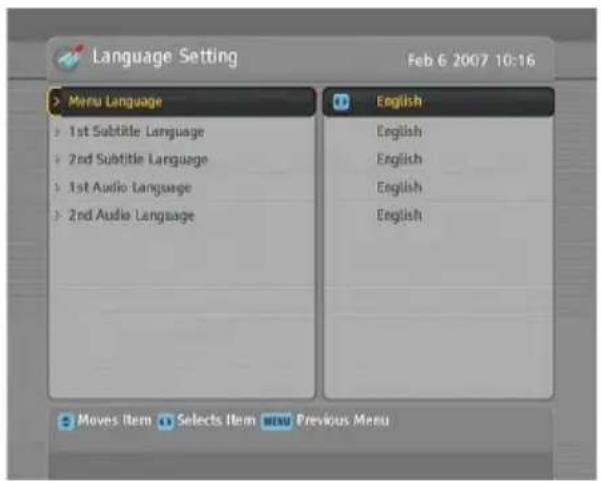
You can select the language in which the menu will be displayed. In addition to that, you can select the language of audio track and of subtitle track. Select the System Setting >Language Setting menu. You should see a screen like the left figure.
4.1.1 Menu language
The digital receiver provides menus in several different languages. Set the Menu Language option to your desired language. Once you select a language, the menu will be immediately displayed in the selected language.
4.1.2 Subtitle language
Set the 1st Subtitle Language option and the 2nd Subtitle Language option to your desired languages. When you watch a programme, if the programme has a subtitle track of the language that is specified for the 1st Subtitle Language, it will be displayed. If the first language is not available but the second language is available, the subtitle of the second language will be displayed. If there is no available language, no subtitle will be displayed.
Apart from this setting, you can select a subtitle track with the button. See §5.2.5 for a detailed description.
4.1.3 Hard of Hearing
Some broadcasters may send a subtitle track dedicated to the hard-of-hearing. Even when a subtitle track or more is available, that subtitle track will be displayed prior to those you have specified for the 1st Subtitle Language and the 2nd Subtitle Language options if the Hard of Hearing option is set to On.
4.1.4 Audio language
Set the 1st Audio Language option and the 2nd Audio Language option to your desired languages. When you watch a programme, if the programme has an audio track of the language that is specified for the 1st Audio Language, it will be output. If the first language is not available but the second language is, the audio of the second language will be output.
Apart from this setting, you can select an audio track with the button. See §5.2.4 for a detailed description.
4.2 Video and audio settings
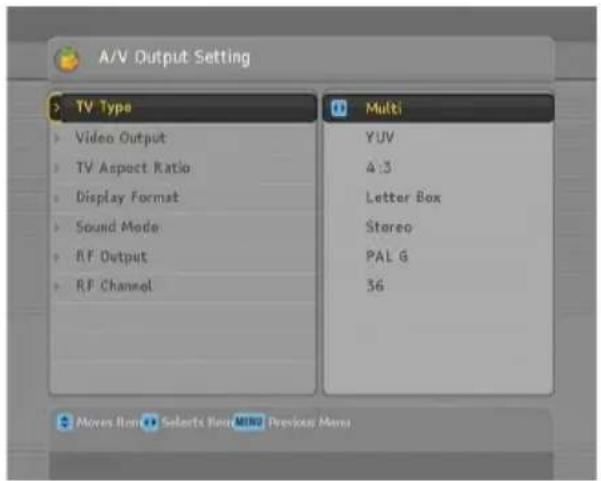
You have to configure the video and audio settings appropriately for your television set and other devices. Select the System Setting > A/V Output Setting menu. You should see a screen like the left figure.
4.2.1 High definition television
The digital receiver supports various video resolutions from 576 to 1080. In general, a resolution of 720 or more is considered high definition. The higher the resolution is, the better the quality is. However, if your television set does not support high definition, you cannot enjoy high definition quality picture.
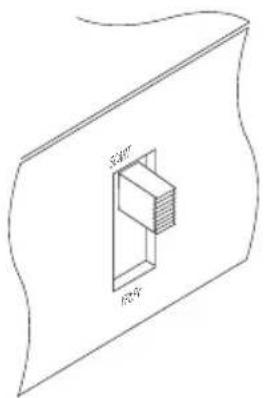
If you have the digital receiver linked to your television via the Component video output (Y, Pb and Pr) or the HDMI output, you have to toggle the video output selection switch on the back panel to the YPbPr position. Otherwise, you have to toggle the switch to the SCART position. The available values for the Video Format option vary depending on which position you toggle the switch to.
Set the Video Format option as you desire. If you set this option to 576P, the digital receiver will present even high definition programmes in resolution of 576. On the contrary, if you set it to 1080I, the digital receiver will present even standard definition programmes in resolution of 1080.
It is recommended to set it to Auto if you have a high definition television. With that setting the digital receiver will present a programme as it is without any resolution conversion. While watching television you can change the resolution with the V.Format button. Whenever you press it, the video resolution is changed in turn.
NOTE
You can enjoy only standard definition video with the following video outputs:
- Composite video output (VIDEO)
• S-Video output (S-VIDEO)
• SCART output (TV)
4.2.2 Television aspect ratio
If you have a wide-screen television, set the TV Aspect Ratio option to 16:9.
natural_image
Snow-covered mountain landscape with a reflective lake reflecting in the foreground (no text or symbols visible)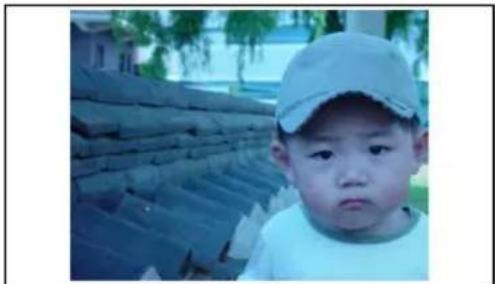
natural_image
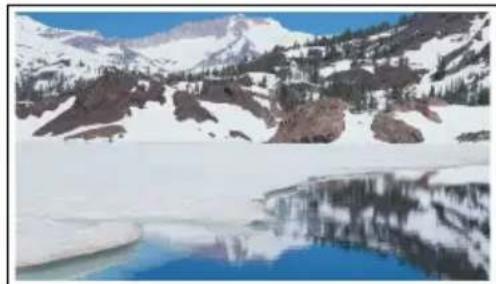
A young child wearing a cap and white shirt, standing outdoors with stacked tiled roofs in the background (no visible text or symbols)You can enjoy both wide-screen programmes and normal-screen programmes with your wide-screen television as the above figures show. To watch normal-screen programmes in full screen like the left figure, set the Display Format option to Full. Normal-screen pictures then will be inflated to fit to the width of the wide screen. Otherwise, to watch them in the original ratio like the right figure, set it to Center. If you have a normal-screen television, set the TV Aspect Ratio option to 4:3.
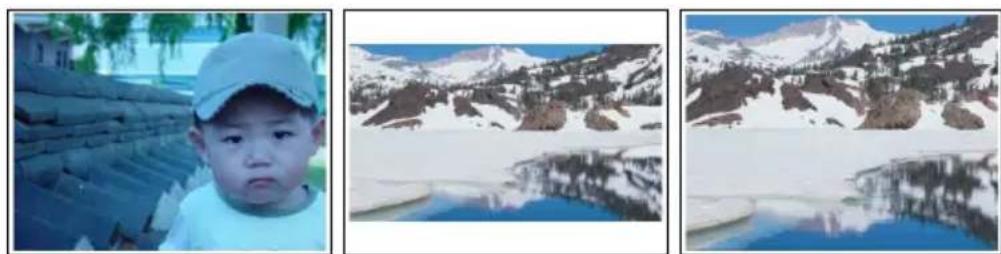
You cannot fully enjoy wide-screen programmes with your normal-screen television as the above figures show. The left figure shows a normal picture displayed in the normal screen. To watch wide-screen programmes in the shape like the centre figure, set the Display Format option to Letter Box. Wide-screen pictures then will be reduced to fit to the width of the normal screen. Otherwise, to watch them in the shape like the right figure, set it to Center extract. Then wide-screen pictures will be cut out on the left and right sides equally to fit to the width of the normal screen.
4.2.3 Colour format
Through the TV SCART output, the digital receiver is able to output video in various colour formats. If you have the digital receiver linked to your television via this output, you should set the Video Output option to your desired colour format.
If you have connected via the RCA socket labeled VIDEO on the back panel, you do not have to set this option because the digital receiver outputs CVBS video through that RCA output independently of the SCART output.
In general, it is known that the RGB colour format provides the best video quality but the CVBS colour format does the least. So RGB would be the most desirable option for this.
4.2.4 Another video device
You can have the digital receiver linked to another video device like a video recorder or a DVD player via the VCR SCART output. In this case, the digital receiver will operate differ-
ently depending on the setting of the VCR SCART Type option. If the option is set to Standard, the digital receiver will pass along the video from the video device to your television when it starts playback. But if the option is set to External A/V, the digital receiver will not pass the video automatically. You have to press the AUX button to pass it along. It is impossible for the digital receiver to record the video from the video device since the digital receiver is just a bypass for the video recorder.
NOTE
When the digital receiver is in standby mode, the digital receiver cannot pass the video from the video device to the television when it starts playback.
4.2.5 Audio mode
Basically, there are two audio sources as you can find two audio sockets on the back panel of the digital receiver. You can enjoy only one source or both of them in either stereo or mono. Set the Sound Mode option as you desire.
Apart from this setting, you can change the sound mode with the ☐ button. See §5.2.4 for a detailed description.
The digital receiver can output two types of digital audio signals via the S/PDIF output. One is an encoded signal, and the other is a decoded signal. If you have the digital receiver linked to your audio-video receiver via the S/PDIF output, you have to set the Dolby Digital option to PCM, which means that the digital receiver will output encoded Dolby Digital audio without decoding so that your audio-video receiver can decode it. Otherwise, set it to Bitstream, then the digital receiver will output decoded Dolby Digital audio, scaling it down to two channels.
NOTE
Only if the service you are currently watching provides a Dolby Digital audio track, you can enjoy Dolby Digital sound.
4.3 Local time setting
You should set your local time for timer events. If you do not set the local time correctly, the programme time table provided by the programme guide may be distrustful. For the programme guide, refer to §5.3.
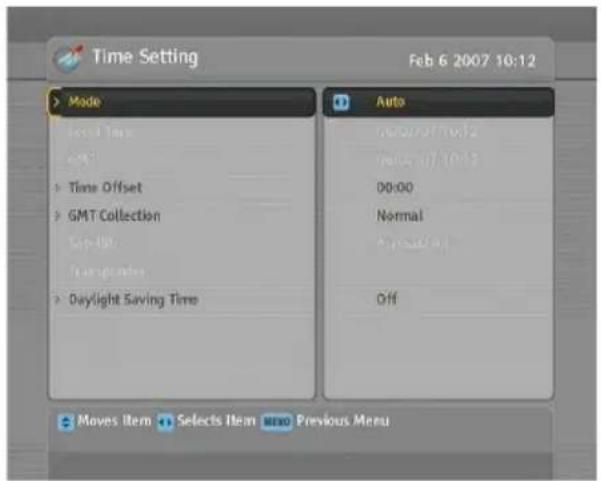
Select the System Setting > Time Setting menu. You should see a screen like the left figure. You can set the clock manually or use the time signal, Greenwich Mean Time (GMT), carried as part of the digital television broadcast. To use Greenwich Mean Time, take the following steps:
-
Set the Mode option to Auto, then the Time Offset option becomes enabled.
-
Set the Time Offset option to the time difference between your time zone and GMT referring to Table 4.1.
-
To get Greenwich mean time, set the GMT Collection option to one among the followings:
Normal from all transponders
CAS Only from transponders of pay services
User Select from transponders specified by you
If you set it to User Select, then the Satellite option and the Transponder option become enabled. Select your de-
sired satellite and transponders at those options. With the above settings, the digital receiver will scan all specified transponders one by one until it gets the Greenwich Mean Time.
- Make sure that your local time is correctly displayed on the Local Time item.
To set the local time manually, set the Mode option to Manual and enter your local time to the Local Time option with the numeric buttons. The time format is day/month/year 24-hour:minute.
If daylight saving time is observed in your state at the moment, set the Daylight Saving Time option to On.
NOTE
Daylight saving time adds one hour to the time when the option is set to On. When setting the time offset from Greenwich Mean Time, make sure that time offset does not include daylight saving time.
Table 4.1: Time offset table
| Time offset City | |
| GMT –12:00 Eniwetok, Kwajalein | |
| GMT – 11:00 Midway Island, Samoa | |
| GMT –10:00 Hawaii | |
| GMT –09:00 Alaska | |
| GMT – 08:00 Pacific Time US, Canada | |
| GMT – 07:00 Mountain Time US, Canada | |
| GMT – 06:00 Central Time US, Canada, Mexico City | |
| GMT – 05:00 Eastern Time US, Canada, Bogota, Lima | |
| GMT – 04:00 Atlantic Time Canada, La Paz | |
| GMT –03:30 Newfoundland | |
| GMT – 03:00 Brazil, Georgetown, Buenos Aries | |
| GMT –02:00 Mid-Atlantic | |
| GMT – 01:00 Azores, Cape Verde Islands | |
| GMT London, Lisbon, Casablanca | |
| GMT + 1:00 Paris, Brussels, Copenhagen, Madrid | |
| GMT + 2:00 South Africa, Kaliningrad | |
| GMT + 3:00 Baghdad, Riyadh, Moscow, St. Petersburg | |
| GMT +3:30 Tehran | |
| GMT + 4:00 Abu Dhabi, Muscat, Baku, Tbilisi | |
| GMT +4:30 Kabul | |
| GMT + 5:00 Ekaterinburg, Islamabad, Karachi, Tashkent | |
| GMT + 5:30 Bombay, Calcutta, Madras, New Delhi | |
| GMT + 6:00 Almaty, Dhaka, Colombo | |
| GMT + 7:00 Bangkok, Hanoi, Jakarta | |
| GMT + 8:00 Beijing, Perth, Singapore, Hong Kong | |
| GMT + 9:00 Tokyo, Seoul, Osaka, Sapporo, Yakutsk | |
| GMT +9:30 Adelaide, Darwin | |
| GMT + 10:00 Eastern Australia, Guam, Vladivostok | |
| GMT + 11:00 Magadan, Solomon Islands, New Caledonia | |
| GMT + 12:00 Fiji, Auckland, Wellington, Kamchatka |
4.4 Parental control
In general, television programmes are classified according to the level of violence, nudity and language of their content. When you are watching a programme, you can check its programme classification on the information box. For the information box, see §5.2.3. You can prevent your children from watching specific programmes by specifying a maximum permissible level.
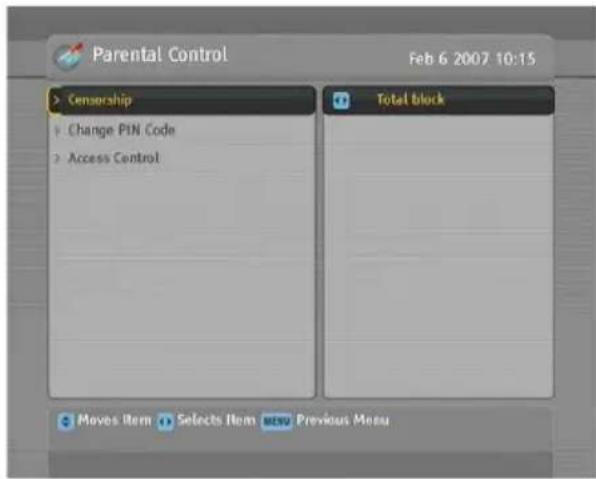
Select the System Setting > Parental Control menu. You should see a screen like the left figure, and you will be asked your Personal Identification Number (PIN). The number is initially set to '0000' as default.
If you wish to block programmes for viewers aged 15 or above, set the Censorship option to 15 (age). Setting it to No block blocks no programme; on the other hand, setting it to Total block blocks every programme.
NOTE
If a programme has no rating information, your censorship setting will not take effect.
If anyone is trying to watch a programme that is of or above the censorship setting, the person has to enter the personal identification number to override. To change the number, select the Change PIN Code menu, then a box pops up, asking a new PIN. Enter a desired number twice for confirmation.
You can also restrict uses of some menus. Selecting the Access Control menu displays a list of menus that you can lock. If the Time Setting item is set to Locked, you have to enter the PIN when accessing the Time Setting menu. If you enter a wrong number, you cannot use the menu. To release a locked item, set it to Unlocked.
4.5 Adjusting the On-Screen Display
You can adjust the transparency level of the On-Screen Display (OSD). Select the System Setting menu and set the OSD
Transparency option as you desire. Its available range is 0 to 50 percent.
You can adjust the display time of the information box. For the information box, see §5.2.3. To adjust its display time, select the System Setting menu and set the Info Box Display Time option as you desire. Its available range is 1 to 30 seconds. If you set this option to No Info Box, the information box will not be displayed when you switch services. However, pressing the button will display the information box. If you set this option to Never Hide, the information box will always be displayed.
In addition, you can raise or lower the position of the information box. Select the System Setting menu and set the Info Box Position option as you desire. Its available range is -10 to +3 lines. The higher you set the option, the lower the information box will be positioned.
4.6 To enable time-shifting
Time-shift means that the most recent hour of the television service you are watching gets saved temporarily on the hard disk. When this feature is enabled, you can reverse and pause live television as if playing back a recording. To enable this feature, select the System Setting menu and then set the Time Shifting option to Enable. See §5.5 as to how to use this feature.
4.7 Advanced Settings
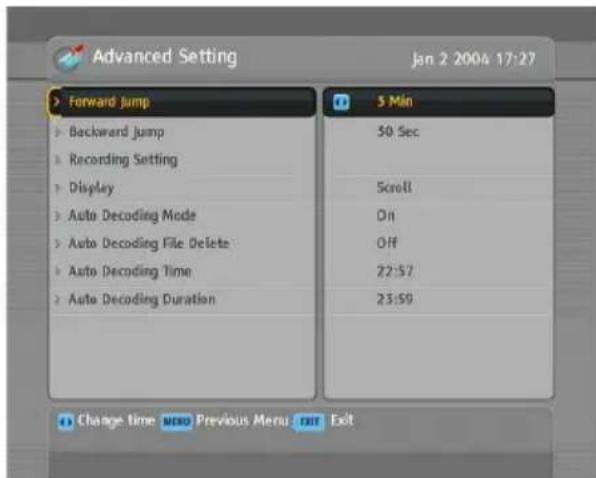
To configure the advanced settings, select the System Setting >Advanced Setting menu. You should see a screen like the left figure.
You can adjust the forward and backward jump time interval which is used in playback.
- To adjust the forward jump time interval, set Forward Jump option as you desire. Its available range is 15 seconds to 10 minutes.
- To adjust the backward jump time interval, set Backward Jump option as you desire. Its available range is 15 seconds to 10 minutes.
If you want to use the front display scrolling continuously, set the Display option to Scroll. Setting it to Scroll Once do the scrolling one time. Set it to Fixed not to use the scrolling.
4.7.1 Recording Settings
To configure the recording related settings, select the System Setting > Advanced Setting > Recording Setting menu. To set the pre recording buffer, set the Pre Recording Buffer option as you desire. Its available range is 0 to 30 minutes. To set the after recording buffer, set the After Recording Buffer option as you desire. Its available range is 0 to 30 minutes. You can also adjust the default duration of recording. Set the Default Recording Duration option as you desire. Its available range is 30 minutes to 24 hours.
4.7.2 Auto Decoding
You can perform an auto decoding by taking the following steps:
- Select the System Setting > Advanced Setting menu.
- Set the Auto Decoding Mode option to On.
- If you want to delete an encoded file after decoding, set the Auto Decoding file Delete option to On. Otherwise, set it to Off.
- Set the Auto Decoding Time option and Auto Decoding Duration as you desire.
- Select the File List menu or alternatively press the button to display the recorded programme list. See §7.2 for detailed description about the recorded programme list.
- Select a encoded file and press the button. Then decoding will be start automatically at the time you set on the Auto Decoding Time option.
Chapter 5
Every Day Use
5.1 Volume control
Use the ◀ and ▶ buttons to alter the volume to a comfortable level. You may need to adjust the volume on your television set too. To temporarily switch off the sound, press the ⏻ button. Press it again to restore the sound to previous level.
5.2 Watching television
To change services, press the ▼ or ▲ button. Pressing the ⏻ button switches to the previously viewed service. In addition, you can switch to your desired service by entering its service number with the numeric buttons. You can also select a service to watch in the services list.
5.2.1 The services list
To view the services list, press the OK button.
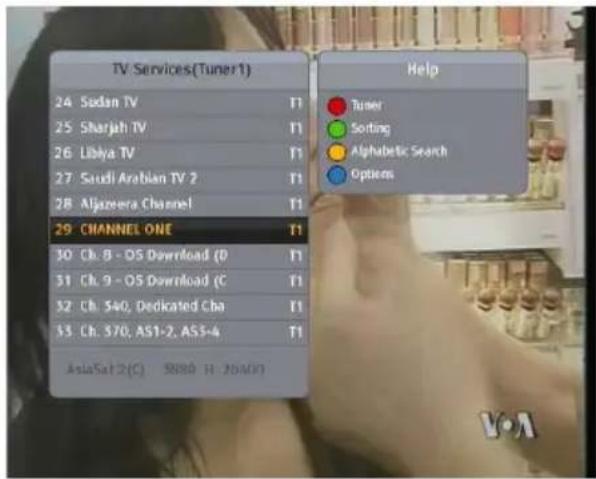
On the services list, you can see the service information as follows:
• Service number and name
• Transmitting satellite
• Receiving tuner: T1 stands for the first tuner; T2 stands for the second tuner.
- Multiplex information
A dollar sign (\$) may be marked on some entries, indicating pay service. To watch pay services, you need a subscription card.
To select a desired service, put the highlight bar on its entry with the ▲ or ▼ button and press the Ⓑbutton, then the selected service will be presented.
Pressing the ◀ or ▶ button skips over 10 entries up or down. Entering a service number with the numeric buttons puts the highlight bar on its entry.
You can switch between the television services list and the radio services list by pressing the button.
To sort the services list by service name, press the F2 button. Pressing this button once more makes it sorted by service number.
Pressing the F3 button performs an alphabetic browse. For instance, when the highlight bar is on an entry of which initial is B, pressing the F3 button puts the highlight bar on the first entry of which initial is C.
Pressing the (SAT) button displays the satellite list. Once you select a desired satellite, only services provided by the selected satellite are listed.
5.2.2 The favourite service lists
You can select a service to watch on a favourite list as well as on the services list.
![Fav List All services News Movie Music Sports [TV] News 1 ABC TV 4 2 Fly TV 3 ABC HDTV 4 ABC Kids 5 ABC TV Sydney Help Add New Favorite Group Add this service Delete](/content/2026/05/1026305/images/03850d4df60f3db4d02361dd9580440c8a9f38fb1ebe858159926c382cd72992.jpg)
To display the favourite lists, press the FAV button. You should see a screen like the left figure. As you move the high-light bar up or down on the favourite group list at the left box, favourite services belonging to the highlighted group are listed on the right box.
As to how to edit the favourite lists, refer to §6.2.
To select a favourite service, put the highlight bar on a desired group and press the ▶ button; a highlight bar appears on its favourite services list. Once you select a desired service with the OK button, it will be presented. Otherwise, to select other group, press the ◀ button.
After you have selected a favourite service, if you then switch to another service using the ▲ or ▼ button, it will be also another favourite service of the selected group. The digital receiver will remind you what group you have selected by displaying its name at the top right of the screen whenever you switch services. If you wish to get out of the current group, select the All services group on the favourite group list.
Besides that, you can add or delete a favourite group or service. To add the service you are currently watching into a favourite group, put the highlight bar on a desired group and press the F3 button. To create a new group, press the F2 button; then the on-screen keyboard appears. Enter your desired name and save it. See §6.3 as to how to use the on-screen keyboard. To delete a group or a service, press the F4 button, then you
get asked for confirmation. With the choice of Yes, it will be deleted.
5.2.3 Viewing programme information
Pressing the button displays the information box, on which you can see all of the following:
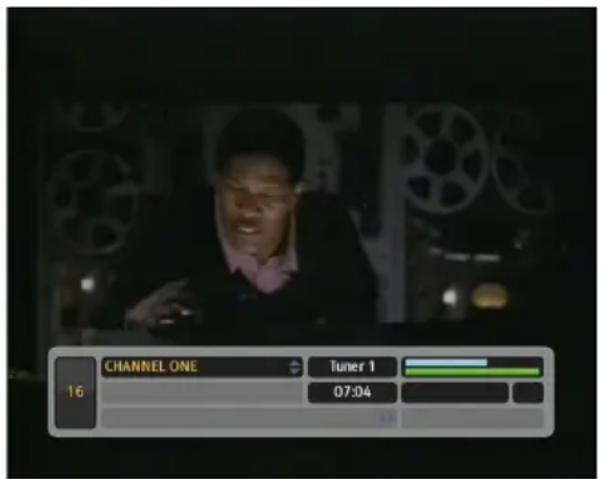
• Service number and name
- Transmitting satellite
- Receiving tuner
• Transponder information
• Signal level and quality
- Programme name
• Programme classification sign
- Programme summary
- Broadcasting time
- Current time
In addition, you might see the following symbols:
- Subtitle symbol (if subtitle tracks are provided on the current programme.
- Teletext symbol (if teletext pages are provided on the current service.
- Dolby Digital symbol ( )Dolby Digital audio track is provided on the current programme.
- Lock symbol (○) if the current service is locked.
- Dollar symbol (\$) if the current service is a pay service.
- Multifeed symbol (☐) if the current programme is provided as a multifeed programme. To use this feature, refer to §5.4.
If the electronic programme guide is provided on the current service, you can see the information about the current and next programmes with the ◀ or ▶ button. To adjust the sound volume at this time, hold down the ◀ or ▶ button until the sound bar appears and reaches your desired level.
Pressing the i button once more displays detailed information about the current programme. To hide the information box, press the EXIT button.
5.2.4 Selecting audio tracks
Some programmes are provided with audio tracks in one or more languages. Pressing the button displays available audio tracks. Once you select an audio track, that track will be heard. In addition, you can enjoy audio tracks in four sound modes: Stereo, Mono, Left or Right. However, if a multifeed programme is provided at the moment, video tracks will be displayed. In this case, you have to press the ☐ button once more to select an audio track.
5.2.5 Selecting subtitle tracks
Some programmes are provided with subtitle tracks in one or more languages. If the current programme provides subtitle tracks, the subtitle symbol (☐) will be marked on the information box. Pressing the ☐ button displays available subtitle tracks. Once you select a subtitle track, it will be displayed.
5.2.6 Viewing teletext
On some services, such information as weather reports, news or stock quotations is provided by means of teletext. If the current service provides teletext, the teletext symbol (≡) will be displayed on the information box. Press the button to view teletext pages.
Select a page to view by entering its page number with the numeric buttons. You can zoom into a teletext page with the F3 button, and adjust its transparency level with the F4 button. To clear the teletext screen, press the EXIT button.
5.3 Viewing electronic programme guide
The Electronic Programme Guide (EPG) shows the current and scheduled programmes that are or will be available on each service with a short summary for each programme.
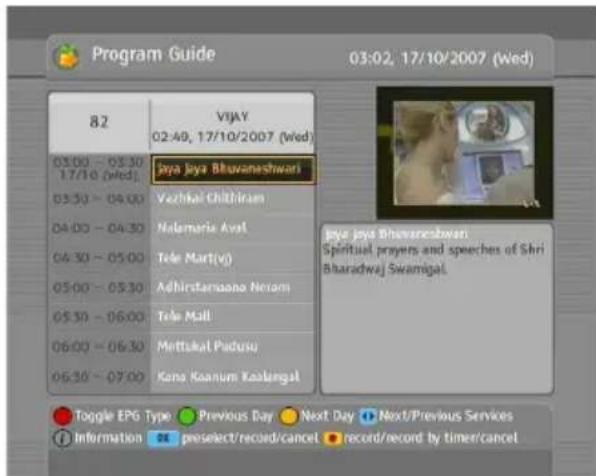
Pressing the GUIDE button displays the electronic programme guide, on which you can see the following:
- Scheduled programmes
• programme summary - Broadcasting date
- Broadcasting time
To see detailed information of a desired programme, put the highlight bar on the programme with the ▼ or ▲ button and press the button. To switch to another service, press the ◀ or ▶ button.
You can travel over previous days with the F2 button, and can travel over next days with the F3 button.
To see the programme guide for radio broadcasts, press the button. To switch it back, press the button again.
Pressing the F1 button will rearrange the form, swapping the columns and rows. To switch it back, press the F1 button again.
You can make a timer recording on the electronic programme guide. See §7.1.3 for detailed description.
5.4 Watching multifeed programme
Some broadcasts such as sports channels can provide a variety of perspectives on a programme at the same time. We call it a
multifeed programme. You can select and watch a perspective you prefer.
If a multifeed programme is provided on the current service, the multifeed symbol (☐) will be marked on the information box. Press the ☐ button, then available video tracks will be listed. Once you select one, it will be presented. At this time, you have to press the button once more to select audio tracks.
5.5 Using time-shift
You can pause and resume a live television programme, and even rewind and replay it. When you are watching a programme and you miss something, you can rewind and replay it. Or when your attention is needed elsewhere, you can pause a live TV and resume a short time later without losing any of the programme.
natural_image
Close-up of white and orange chrysanthemums with goji berries, displayed against a blue background (no text or symbols visible)When you do this, you are no longer watching the live programme, instead you are watching a delayed presentation. This is called time-shifted television. In order to use the time-shift feature, the Time Shifting option must be set to Enable. See §4.6.
When enabled, the digital receiver will archive the programme as much as one hour recording buffer of current service by utilizing the hard drive storage. The buffer will be reset each time you change to another service. With the time-shift, the following operations are possible:
- To go back in time, hold down the ▶ button; to go forward, hold down the ▶ button. The progress bar is dis-
played momentarily with a preview window.
- You can navigate using the progress bar, refer to §7.3.1.
- You can jump forward about 30 seconds at a time by pressing the F3 button.
- You can jump backward about 30 seconds at a time by pressing the F4 button.
- You can change playback speed. For slow motion see §7.3.2. For fast motion see §7.3.3.
- To check your current position in time-shift, press the i button. The time difference compared to live programme is displayed momentarily in top right corner of the screen. A value of -02:00 means two minutes behind the live programme.
- To end time-shift, press the button. The live programme will be presented.
When the time-shift feature is disabled and a pause is kept for more than 10 seconds, the time-shift feature will be enabled for saving the missing part of the programme. In such case it will remain enabled until you change services.
Chapter 6
Organising Services
6.1 Editing the services list
You would have got the services list after service search. You can rename, move, lock or delete service entries on the services list.
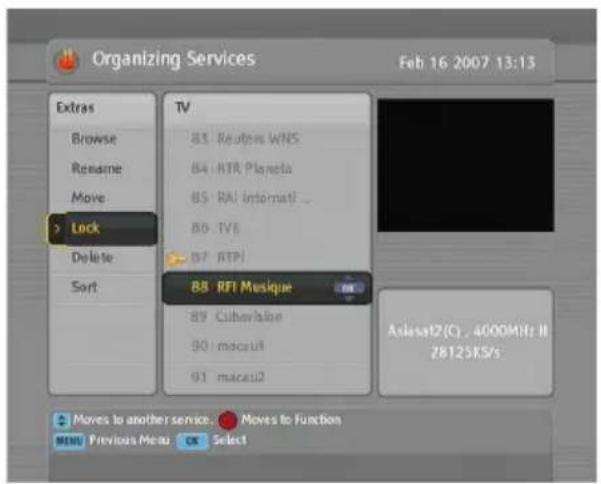
Select the Organizing Svc/Fav > Organizing Services menu. You should see a screen like the left figure. There are editing options on the left column and service entries on the right column.
Once you put the highlight bar on a desired option on the left column and press the OK button, you can select a desired service to edit on the right column. To go over to the other column, press the F1 button.
To edit the radio services list, press the 📋 button, then radio
service entries will be listed on the right column. To switch back to the television services list, press it again.
To change the name of a service, select the Rename and select a desired service; then the on-screen keyboard appears. See §6.3 as to how to use the on-screen keyboard.
Unlike analogue broadcasts, each service does not have a proper service number in digital broadcasts. Service numbers are just assigned to services in the order that they were found in service search. So you can reassign a service number by moving a service entry. To move a service entry, select the Move option and select a desired service; then the selected service becomes darker. As you move it up or down, it gets renumbered according to the position. Press the OK button to fix it.
You can lock some services to prevent your children from watching them. To lock a service, select the Lock option and select a desired service; then the selected service gets marked with a lock symbol (○) on it. If anyone tries to watch a locked service, the person has to enter the personal identification number that is set to the Change PIN Code option. See §4.4 for this option. Pressing the OK button on a locked service entry turns it back to be unlocked.
To delete a service, select the Delete option and select a desired service with the OK button, and then press the EXIT button; you get asked for confirmation. If you select Yes, the selected service will be deleted. If you want to undo the deleted service, there is nothing you can do but perform a service search again. Once you select the Sort option on the left column, sorting options are displayed as follows:
Default by service number
Alphabetic by service name
Satellite by satellite
FTA-CAS from free services to pay services
CAS-FTA from pay services to free services
Fav-NoFav from favourite services to unfavourite services Provider by broadcaster Transponder by transponder
6.2 Editing the favourite lists
You can make your own favourite service lists. In fact, you can define multiple favourite service lists, each being a 'group' of chosen services.
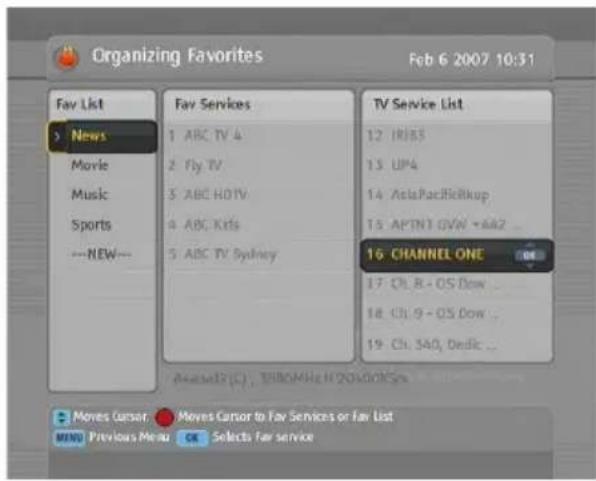
Select the Organizing Svc/Fav > Organizing Favorites menu. You should see a screen like the left figure. There are three columns:
- Group list (left)
- Favourites list (centre)
• Services list (right)
The services list contains all available services, whereas the favourites list contains only chosen services that have been added to the highlighted group. As you move the highlight bar up or down on the group list, favourite services belonging to the highlighted group get shown in the favourites list.
You can add up to 30 groups. To add a new group, select the NEW item in the group list, then the on-screen keyboard appears. See §6.3 as to how to use the on-screen keyboard.
To rename a group, put the highlight bar on the group entry you want and press the F2 button, then the on-screen keyboard likewise appears.
To delete a group, put the highlight bar on the group entry you want and press the F3 button, then a message box appears, asking you for confirmation. With the choice of Yes, it will be deleted.
You can add a favourite service to a group by taking the following steps:
- Put the highlight bar on a desired group entry in the group list and press the OK button to select it. The highlight bar then moves to the services list.
- To add a service to the selected group, put the highlight bar on a desired service entry and press the OK button. The selected service entry gets added to the favourite list. Repeat this step to add more entries.
- Press the F1 button, and the highlight bar gets moved to the favourite list. You can delete a favourite entry with the OK button.
- To select another group, press the F1 button again, then the highlight bar gets moved to each column.
Furthermore, you can rearrange a group's favourites by moving a favourite entry. To move a favourite entry, put the highlight bar on the favourite entry you want and press the button. Move it to a desired place and press the OK button.
To add radio services, press the Ⓟ button, then radio service entries get listed in the services list. To recall the television services list after adding radio services, press the button again.
As to how to use the favourite service lists you organised, refer to §5.2.2.
6.3 How to use on-screen keyboard
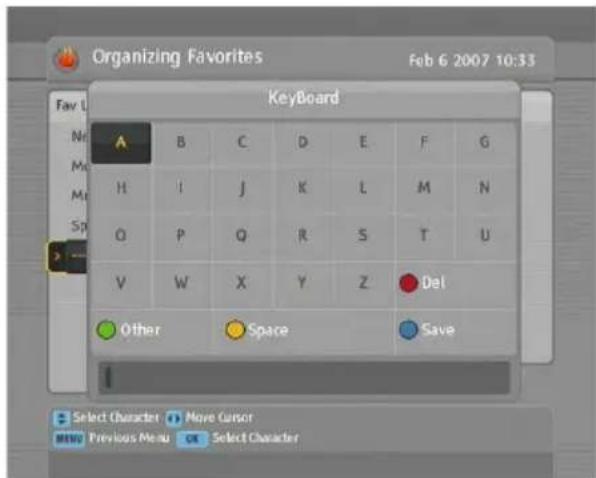
You can move the highlight key horizontally with the ◀ and ▶ buttons and vertically with the ▲ and ▼ buttons. Pressing the Ⓞbutton on a key enters its letter in the input line.
To type a space, select the Space key or alternatively press the F3 button. To type lower case letters or numerals, select the Other key or alternatively press the F2 button. To delete a letter, put the cursor to the right of the desired letter on the input line and then select the Del key or alternatively presF1 button. You must select the Save key or alternatively press the F4 button to complete your typing; otherwise if you press the EXIT button, it will not be saved.
6.4 Transferring receiver data
The digital receiver retains the following data:
• Satellite and transponder data
- Services list
- Favourite lists
- Preference settings
It is possible to transfer the receiver data from the digital receiver to another TF7750HDPVR digital receiver by connecting them with an RS-232 cable. To have the receiver data transferred, take the following steps:
natural_image
Technical line drawing of a mechanical component with a housing and a cylindrical shaft (no text or symbols)-
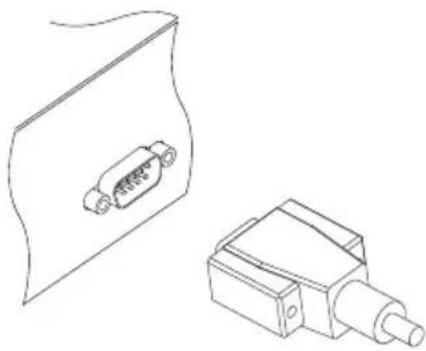
Plug one end of an RS-232 cable (9 pin D-sub cable) into the RS-232 port on the digital receiver, and the other end into the matching port on the other digital receiver.
-
Turn on the source digital receiver.
-
Select the Installation >Transfer Firmware >Transfer Data to Other IRD menu, then you get asked for confirmation; select Yes.
-
To start the data transfer, turn on the target digital receiver.
-
A progress bar appears showing the progress of the data transfer.
-
Restart the target digital receiver when the data transfer is complete.
6.5 Editing channel data on your computer
You can edit the channel data on your computer by using a channel editor software, Vega, which is available from Topfield's website, http://www.i-topfield.com/eng/download/utility_list.asp.
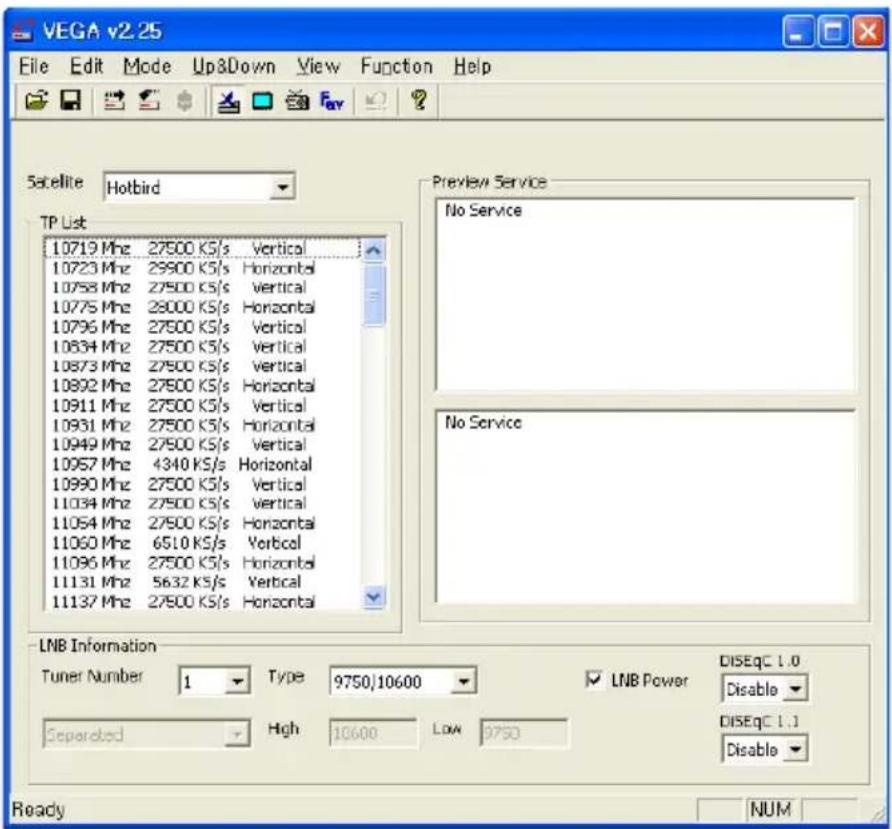
With Vega you can do the following:
- Adding, deleting or modifying satellite entries
- Adding, deleting or modifying transponder entries
- Deleting or modifying service entries
- Adding, deleting or modifying favourite groups
As to how to use Vega, refer to its user guide, which is accompanied by the software.
Chapter 7
Recording and Playback
CAUTION
Do not move the digital receiver nor pull out the power plug while it is running. It may cause damage to recorded programmes. Topfield is not responsible for damages inflicted on files that are stored on the hard drive.
You can record two different services while watching another if two among the services are provided through the same transponder. The TF7750HDPVR digital receiver has two tuners so that you can enjoy the followings:
- You can record two different services while playing back a previously recorded programme.
- You can record two different services while watching one of them using the time-shift feature. See §5.5 for the time-shift feature.
7.1 Recording a programme

Once recording has started, a symbol like the left figure will be displayed at the top right of the screen for a few seconds.
When you are watching a different service from the service being recorded, you will see a number on the centre of the symbol, this indicates the order that the recording has started.
To record two programs simultaneously, two tuners are allocated for the recording. Therefore, you can only change to a limited number of services while the two programs are being recorded.
NOTE
If a recording lasts less than one minute, the digital receiver will not save the recording.
7.1.1 Instant recording
To instantly record a programme you are watching at present, press the button.
Pressing the button will not pause the current recording like it does with a video recorder. Instead, pressing the button will pause the live show and begin time-shifting within the current recording even with the Time Shifting option disabled. However, it is still possible to pause a recording.
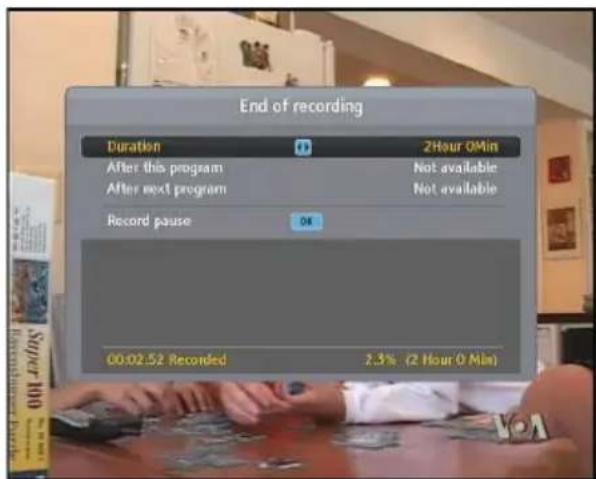
After a recording is started, pressing the ☐ button displays a menu like the left figure, in which you can set the recording duration.
To specify an arbitrary recording duration, set the Duration option as you desire with the◀ and ▶ buttons and press theOK button; the recording will end at the specified time.
If the information about the next programme is provided by the electronic programme guide, the After this program and After next program options will be available. Once the After this program option is selected, the current recording will stop when the current programme is scheduled to end. Likewise, once the After next program option is selected, the current recording will stop when the next programme is scheduled to end.
Selecting the Record pause option pauses recording. When you press the button again, you will see this option is changed to Record continue. To resume recording, select it.
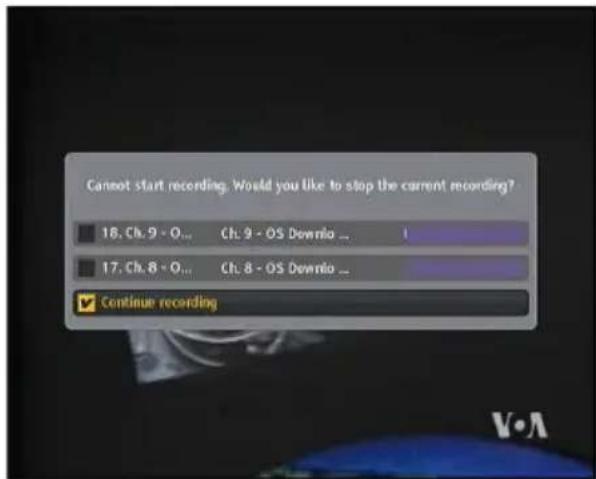
To stop recording, press the button, then a box like the left figure appears, showing the programmes currently being recorded. If you select one, its recording will stop.
While a recording is going on, you can watch or record another service. To additionally record another service, switch to the service you want to record, and press the button.
Once a recording is started, it is put on the recorded programme list even though it is not finished yet. The recording file is named after its service name with a suffix of a number. To view the recorded programme list, press the button. See §7.2 for detailed description about the recorded programme list.
7.1.2 Timer recording
You can make your desired service to be recorded at a specific time. Even if the digital receiver is in standby mode, it will switch into active mode and start recording at a specified time. When the recording comes to the end, the digital receiver will switch back into standby mode again after one minute.
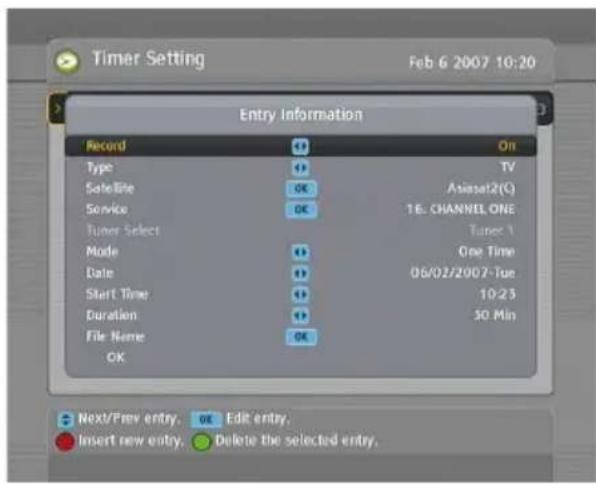
Select the Timer Setting menu, then the timer list will be displayed. To add a new timer event, press the F1 button, then an option box pops up. Take the following steps:
-
Set the Record option to On to make a recording. If this option is set to Off, the digital receiver will turn on at the specified time but not record; instead, you may record with your video recorder or suchlike in this case.
-
If you want a radio programme, set the Type option to Radio; otherwise, set it to TV.
-
Set the Satellite option to the satellite which transmits the service you want. Pressing the OK button on this option displays a satellite list, from which you can select your desired satellite. Set the Tuner Select option to a tuner to receive your desired service.
-
Set the Service option to the service that provides the programme you want. Pressing the OK button on this option makes a services list pop up, in which you can select your desired service.
-
There are five timer modes:
One Time means literally 'one time.'
Every Day means literally 'every day.'
Every Weekend means 'Saturday and Sunday every week.'
Weekly means 'one day every week.'
Every Weekday means 'from Monday to Friday every week.'
If your favourite programme is on the air at weekends and you wish to record every episode of the programme, set the Mode option to Every Weekend.
- Set the Date option to a desired date, on which the digital receiver will turn on. The date format is day/month/year—day of the week.
Set the Start Time option to a desired time, at which the recording will be started. The time format is hour:minute. - Set the Duration option to a desired time, in which the recording will be finished.
- Pressing the OK button on the File Name option displays the on-screen keyboard, with which you can specify a file name for the timer recording. If you do not specify anything, it will be named after the service name. See §6.3 as to how to use the on-screen keyboard.
- To save with the above settings, select the OK item
You can also edit or delete timer events in the timer list. To edit a timer entry, put the highlight bar on the entry you want and press OK button, then pops up the option box in which you can change its settings in the same manner as making a new one.
To delete a timer event, put the highlight bar on the entry you want to remove and press the F2 button, then you get asked for confirmation. With the choice of Yes, it will be deleted.
If you've made timer events from the electronic programme guide, they will be also displayed in the timer list. In that case, you can edit or delete them in the same manner described above.
NOTE
Do not operate the digital receiver while it is working on a timer event. If you press any key on the remote control or on the front panel, it will not turn off automatically even after the timer event is complete.
7.1.3 Scheduling recordings using the programme guide
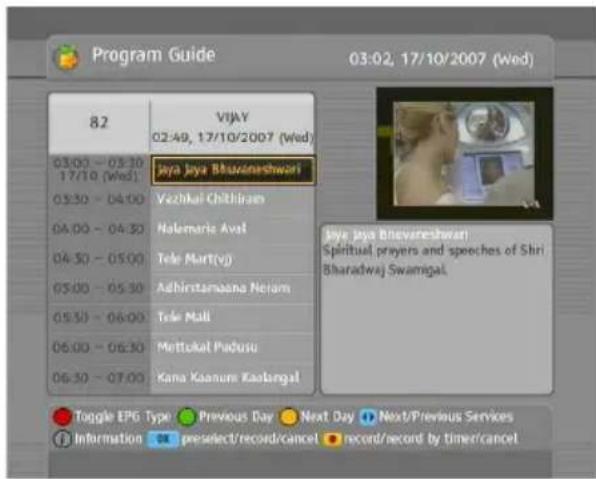
If the electronic programme guide is properly provided, you can make timer events on it. The instructions on how to make timer recordings using the electronic programme guide are as follows:
- Press the GUIDE button to display the electronic programme guide.
- Select a service you want to record with the ◀ and ▶ buttons.
- Select a programme you want to record with the ▲ and ▼ buttons.
- To make a timer event without recording, press the OK button; the letter P is displayed. To make a timer event with recording, press it once more or alternatively press the ● button, then the letter R is displayed.
- This timer event is placed on the timer list. To change its settings, press the button to show a box in which you can edit. Refer to §7.1.2 for detailed description.
- Pressing the Ⓒbutton once more will cancel the timer.
7.1.4 Recording a pay service programme
You can record a pay service programme without the subscription card. However, you need the subscription card to play it back because it has not been descrambled. So it is recommended to record pay service programmes with the subscription card so that they can be recorded in descrambled form. In that case you can enjoy them without the subscription card like free services.
To record a programme of a pay service in descrambled form, take the following steps:
- Select a programme of a pay service you want to record.
- Make sure that the subscription card is inserted in the slot on the front of the digital receiver.
- Start recording.
- Do not switch to other service nor use time-shift until it is finished.
NOTE
If you switch to other service or use time-shift in the middle of recording a pay programme, it will be recorded without descrambling from that moment. Even if the recording is only partially descrambled, you need the subscription card to play it back.
7.2 File archive
When a programme is recorded, it is stored as a file on the built-in hard drive of the digital receiver. You can select a recording to play back from the recorded programme list.
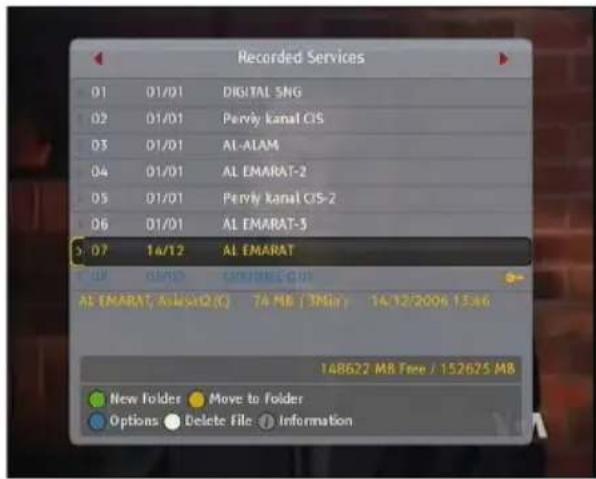
Press the button to dis- play the recorded programme list. The file information is com- prised of the following elements: file number, file name, recording time, running time, file size and so on.
You can play, move, delete, rename and lock a recording file. You can also sort the recording files by file name, running time or file size. In addition, you can make a new folder.
7.2.1 To delete a recording
To delete a recording, put the highlight bar on it and press the button; then you get asked for confirmation. If you select Yes, it will be deleted.
7.2.2 To sort recordings
To sort the recordings, take the following steps:
- Press the F4 button to display additional options.
- Set the Sorting option to Alphabetic, Time or Size as you want.
- Press the EXIT button.
- They are sorted by the specified option.
7.2.3 To lock a recording
To lock a recording so that other people cannot play or delete it, take the following steps:
- Put the highlight bar on a desired recording.
-
Press the F4 button to display additional options.
-
Set the Lock option to Locked.
- Press the EXIT button.
- The lock symbol (i) displayed on it.
If you select a locked recording to play it back, you will be asked for your personal identification number.
7.2.4 To rename a recording
To change a recording's name, take the following steps:
- Put the highlight bar on a desired recording.
- Press the F4 button to display additional options.
- Select the Rename option, and the on-screen keyboard appears. Change the name and save it. See §6.3 as to how to use the on-screen keyboard.
7.2.5 To make a new folder
To make a new folder, press the F2 button, then a new folder named GROUP # is created. You can change its name in the same manner as renaming a recording. See above.
7.2.6 To move a recording to another folder
To move a recording to another folder, put the highlight bar on a desired recording and press the F3 button; then all folders get listed. Once you choose a folder, the recording get moved into it.
In the same manner, you can copy files between an external storage and the internal hard drive of the digital receiver via USB connection as instructed below.
- Insert a memory stick into the USB port of the digital receiver.
-
Press the ☐ button and then the « or » button to display the file list in the memory stick or in the hard drive.
-
Put the highlight bar on a desired file and press the F3 button, then the selected file gets copied into the opposite storage.
NOTE
Your USB memory stick must be formatted in the FAT file system. Otherwise, the digital receiver cannot recognise your memory stick. In addition, the digital receiver can only recognise files and directories which are named with only alphabetic, numeric and underscore letters. If there is a file or folder named with other letters, the digital receiver cannot recognise not only it but also its subsequent files and folders.
You cannot play back the recordings with a regular MPEG player on your computer because they are formatted differently from the standard MPEG format. Visit http://www.kmplayer.com where you can find an MPEG player able to play them back.
7.3 Playing back a recording
When a programme is recorded, its additional contents such as audio track or subtitle track are also recorded together. So you can enjoy them while playing back a recording.
The instructions on how to play a recording are as follows:
- Press the button to display the list of recorded programmes.
- Put the highlight bar on a desired recording.
- Press the OK button to start playback.
- To stop playback, press the ☐ button.
During a playback, you can enjoy the following tricks:
- To see the detailed information about the currently played recording, press the i button; then the information box appears and shows its file name, running time, programme information, and so on.
- To pause playback, press the button. To resume it, press the button.
- To go forward, hold down the button; to go backward, hold down the button.
- To display the progress bar, press the ▶ button; to hide it, press the button again.
- When the progress bar is hidden, you can move to a desired scene by entering the percentage with the numeric buttons.
7.3.1 To navigate using the progress bar
First press the button to display the progress bar.
- To go forward, hold down the button; to go backward, hold down the button.
- If there are no bookmarks, you can jump forward 30 seconds at a time by pressing the F3 button. Refer to §7.3.4 as to how to bookmark a position.
- To jump to the beginning, press the button.
- To jump to the end, press the button.
- To hide the progress bar, press the button again.
7.3.2 To play in slow motion
To watch in slow motion during a playback, press the ▶ button. If you press it repeatedly, the playback speed changes in 3 steps: 1/2, 1/4 and 1/8 times. To resume normal speed, press the button.
7.3.3 To play in fast motion
To watch in fast motion during a playback, press the ➤ button. If you press it repeatedly, the playback speed changes in 3 steps: 2, 4 and 6 times. To resume normal speed, press the ➤ button.
You can play not only forward but also backward in fast motion. To play backward, press the button. If you press it repeatedly, the playback speed changes in 3 steps: 1, 2 and 3 times. To resume normal speed, press the button.
7.3.4 To make a bookmark
![Voice of America Television UTC Tuesday, February 6th, 2007 1655 VOA NEWSFLASH (CROATIAN) [EU] 1700 BIOGRAPHY OF AMERICA #114E [AS] 1700 MOUNTAIN STAGE #201E www.voanews.com/tvschedule](/content/2026/05/1026305/images/4f0018dd7d105d1531f49bf865d5ce4e37da9296808e4385c1c089d74c5b7ea5.jpg)
You can mark favourite parts of a recording by creating bookmarks and then jump to them in sequence. You can have up to 64 bookmarks. Bookmarks are stored with the recording so that you can use them again afterwards. To make bookmarks, take the following steps during playback:
- Press the ▶ button to display the progress bar.
- To add a bookmark, press the F2 button at a desired scene, then you will see a small dot appear above the progress bar like in the picture above.
- To jump forward to next bookmark, press the F3 button.
- To jump to the first bookmark, press the ⏻ button then the F3 button.
- To delete a bookmark, jump to it and then press the button.
7.3.5 To play back a recording repeatedly
You can play back a recording repeatedly both in whole and in part.
To play back in whole, press the 🎨 button when the progress bar is hidden, then the repetition symbol (→) is displayed on the information box. To cancel it, press the 🎨 button again.
To play back in part, take the following steps:
- Press the button to display the progress bar.
- Move to the beginning scene of the part you want to play repeatedly by holding down the or button.
- Press the button, then the pointer starts to blink.
- Move to the end scene; the part is marked in purple.
- Press the button again to start repeated playback.
- To cancel it, press the ⏻ button when the progress bar is displayed.
7.3.6 To play back recordings in sequence
You can play several recordings continuously in sequence by performing the following steps:
- Press the button to display the list of recorded programmes.
- Select each desired recording with the F1 button. Once a recording is selected, it gets numbered.
- Press the OK button to start playback.
- The selected recordings are played in the sequence that they are numbered.
- To jump to the beginning of the next recording in the queue, press the button to display the progress bar, then press the button.
7.3.7 To play back a scrambled recording
If you have recorded a programme of a pay service with the subscription card, you can play it as freely like one of a free service. Otherwise you need the subscription card to play it, because it has been recorded without descrambling even though it may have been partially descrambled.
On the recorded programme list, a purely green \indicates the recording has been wholly descrambled; on the other hand, a yellowish green \ indicates it has been partially descrambled,
and a purely yellow \$ indicates it has not been descrambled at all.
Refer to §7.1.4 as to how to record a pay service programme.
7.4 MP3 playback
You can enjoy music or audio books in MP3 format with the digital receiver. To play an MP3 file, take the following steps:
- Press the button and then the or button to display the MP3 list.
- Put the highlight bar on a desired file; if you want to play several files, select them with the F1 button.
- Press the Ⓒbutton to start playback.
- To stop playback, press the button.
To play all MP3 files in a subfolder, put the highlight bar on a desired folder, and press the button.
7.5 Formatting the hard disk
If a new hard drive is installed, it must be formatted because you can neither record nor use time-shift with an unformatted hard disk.
You can delete permanently all contents stored in the hard drive by formatting it. If you wish to do that, select the Installation > Format Hard Disk menu, then you get asked for confirmation. If you select Yes, formatting will start.
Chapter 8
Accessing via Network
NOTE
The following section describes complex functions that should only be used by owners with advanced computer knowledge.
TF7750HDPVR provides a web service. You can make scheduled recordings via the web service. Here you need a router, which will connect the digital receiver to your computer or to the Internet. To use the network features of the digital receiver, you should take the following steps:
- Configuring your router for the digital receiver.
- Configuring the Local Area Network (LAN) settings on the digital receiver.
- Accessing the home page of the digital receiver. Refer to §8.3 for detailed description about things you can do by way of the web service of the digital receiver.
NOTE
The web server of the digital receiver doesn't work in standby mode. So it must be powered up all the time if you wish to use the web service at any time.
8.1 Configuring the router
In this section, the setup program of WRT54G, which is a router manufactured by Linksys, will be referred to as an example of how to configure the router for network access.
NOTE
For detailed description about how to set up the router, refer to the manual of your router.
8.1.1 To access within the local area network
Once your router is powered up, a local area network gets created whether or not it is connected to the Internet.
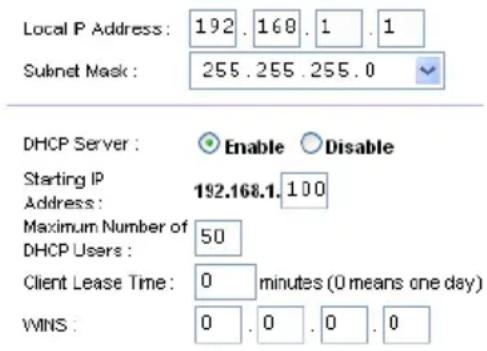
You can let the router automatically assign a dynamic IP address to the computers or devices connected to the network by enabling the DHCP server of the router. In this case, you can access the digital receiver with the IP address which is assigned to the digital receiver by the router.
If the digital receiver reboots, a new dynamic IP address will be assigned to it. You had better assign a static IP address to the digital receiver to avoid this inconvenience. As to how to assign a static IP address, refer to the manual of your router. As to how to specify a static IP address on the digital receiver, see §8.2.
8.1.2 To access over the Internet
When you are away from home, you can access the digital receiver inside your home if your router is configured to route access to the digital receiver by means of port forwarding. Via this feature, your router will lead you to the digital receiver when you access your router with its IP address.
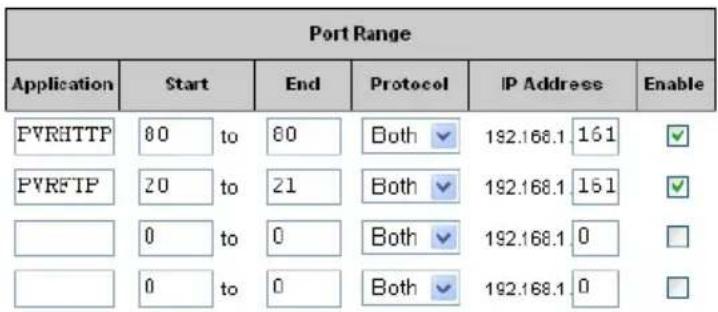
Your router may be assigned to a dynamic IP address by an Internet service provider. So if the router has rebooted, you cannot access it unless someone in your home can inform you of the changed IP address. However, many routers support Dynamic Domain Name System (DDNS) service, which can settle this problem. The following image is an example of one such DDNS service provider.
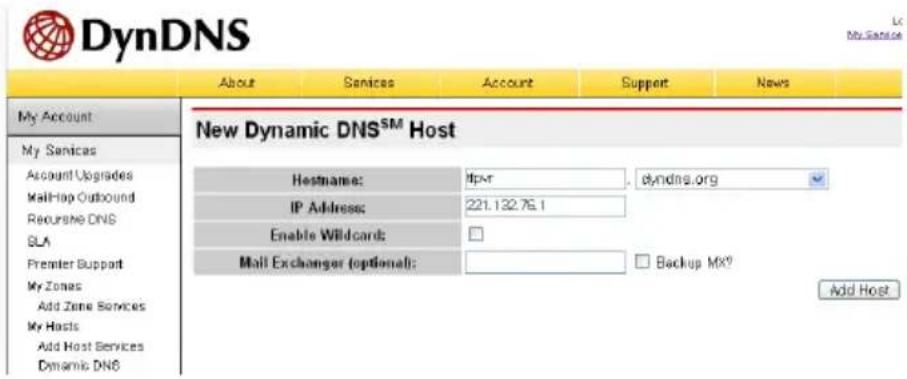
If you use a DDNS service, you can access your router with a domain name. The instructions on how to use the DDNS service are as follows:
- Make an account on a website providing DDNS service,
which should be supported by your router.
- Configure your router with the account so that it can communicate with the website.
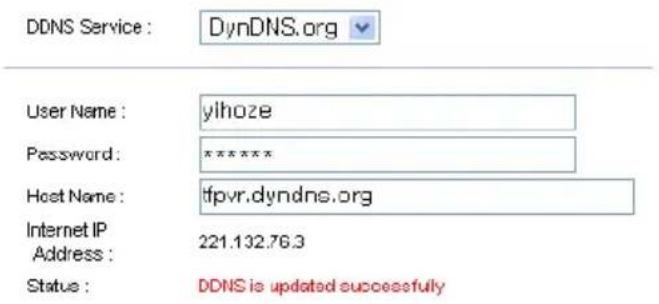
Whenever a new dynamic IP address is assigned to the router, it will inform the DDNS service provider of the new IP address. This makes it possible that you access the router with a domain name at any time.
8.2 Configuring the network setting on the digital receiver
You should configure the LAN settings to enable the web service.
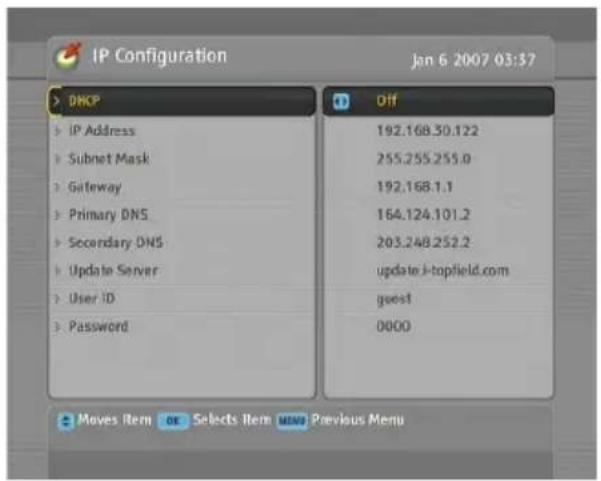
Select the Installation >LAN Setting >IP Configuration menu.
You may get the digital receiver to be assigned a dynamic IP address. Set the DHCP option to On to do that. You can view the dynamic IP address assigned to the digital receiver by your router at the LAN Status menu.
Sometimes when the digital receiver is restarted, the dynamic IP address will be changed and you will have to check it at the LAN Status menu to access the digital receiver. To avoid this cumbersome thing, you had better assign a static IP address rather than dynamic one.
Set the DHCP option to Off, then the IP Address, Subnet Mask and Gateway options become enabled. You have to set these options to match with the configuration of your router.
8.3 Accessing the web server
You can log into the web server with the user name and password specified in the LAN Setting menu if they have been set. As to how to configure the LAN settings, refer to §8.2.
In way of the web server of the digital receiver, you can do the following:
- Download recording files.
- Create new recording timers.
- View information about the programme currently being recorded.
• View the system information of the digital receiver.
NOTE
It is recommended to use the Internet Explorer web browser in order to fully enjoy the above facilities. If you use a different web browser such as Netscape Navigator, some problems may occur.
To access the digital receiver's home page through your web browser, enter its IP address, or domain name if you use a DDNS service. For the DDNS service, refer to the user manual of your router.
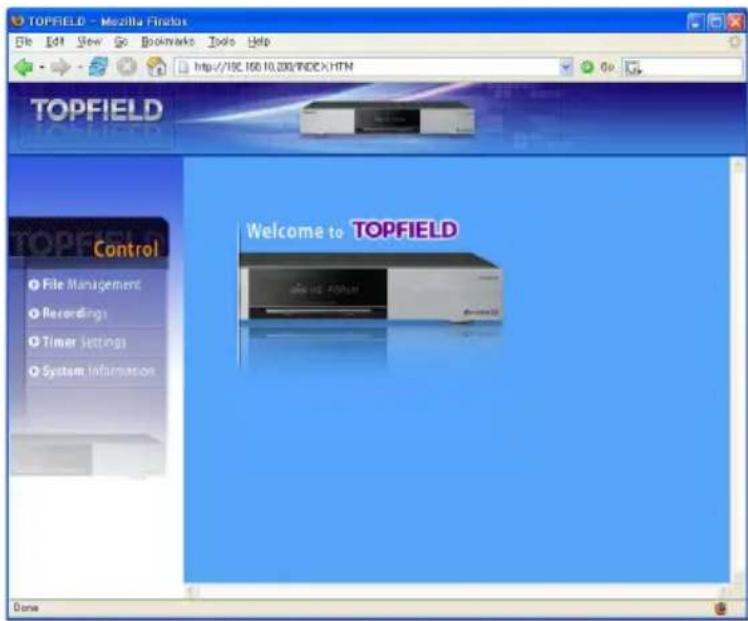
You cannot only download but also upload recording files or MP3 files in the File Management page.
![TOPFIELD - Mozilla Firefox File Edit View Go Bookmarks Tools Help http://156.100.10.200/INDEX/HTM Go TOPFIELD Control File Management Recordings Timer Settings System Information File Management AL-ALAM2.rec IRB3.rec KUWAIT SPACE CHANNEL rec NILE NEWS4.rec 200401.01 174MB [Rename] [Delete] 200401.01 266MB [Rename] [Delete] 200401.01 267MB [Rename] [Delete] 200401.01 47MB [Rename] [Delete] 200401.01 139MB [Rename] [Delete] 1 (Next) Upload File: Browse... Upload *File sizes over 4GE cannot be transferred. Using FTP is recommended for large file transferring. Done](/content/2026/05/1026305/images/1a3322fbc619199f5d6f45724cd04ab3074cbc726edf78b49bd1183fc4cba122.jpg)
NOTE
The maximum number of user connections is only one. This means that you cannot access the web server while someone else is occupying it.
Chapter 9
Firmware Update
The digital receiver has a stable and convenient firmware to use. However, once in a while a new firmware may be released to improve the digital receiver. You can get the latest firmware and the firmware update tool, which runs on most versions of Windows, from the Topfield website, http://www.i-topfield.com.
9.1 From a memory stick
If you have a USB memory stick, you can update the firmware from it by taking the following steps:
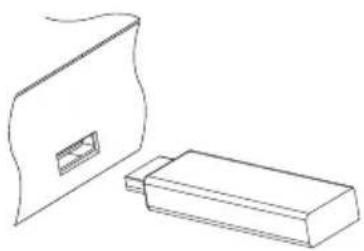
natural_image
Line drawing of two electronic components: a flat package and a rectangular box (no text or symbols)- Download a new firmware from the Topfield website.
- Copy the firmware file to your memory stick.
-
Insert the USB memory stick into the USB port on the digital receiver.
-
Select the Installation > USB Firmware Upgrade menu, and the files in the USB memory will be listed.
-
Place the highlight bar on the right firmware file and press the (OK) button, and a countdown will be displayed on the front display of the digital receiver.
-
When the message of 'END' appears, restart the digital receiver.
NOTE
Your memory stick must be formatted in the FAT file system. Otherwise, the digital receiver cannot recognise your USB memory. In addition, the digital receiver can only recognise files and directories which are named with only alphabetic, numeric and underscore letters. If there is a file or folder named with other letters, the digital receiver cannot recognise not only it but also its subsequent files and folders. And if the receiver does not recognise your USB, please restart the receiver with the USB memory stick plugged in.
9.2 From the firmware server via the Internet
You can update the firmware from the firmware server which is being run by Topfield via the Internet. Make sure that the digital receiver is connected to your router before configuring the network settings on the digital receiver.
NOTE
For detailed description about how to set up the router, refer to the manual of your router.
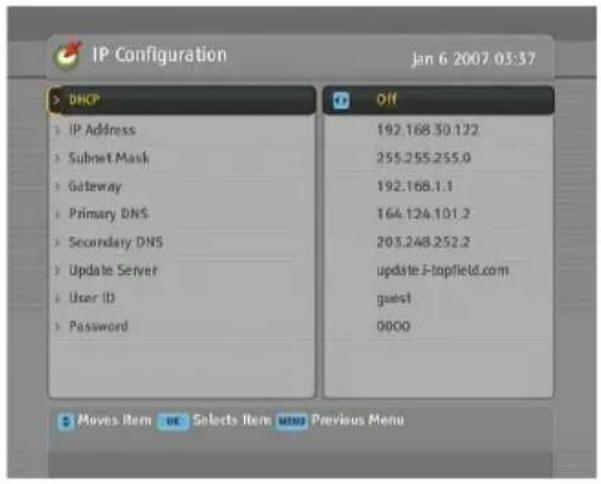
Select the Installation >LAN Setting >IP Configuration menu. You should see a screen like the left figure.
You may get the digital receiver to be assigned a dynamic IP address. Set the DHCP option to On to do that.
If you desire to use static IP address, set the DHCP option to Off, then the IP Address, Subnet Mask and Gateway options become enabled. You have to set these options to match with the configuration of your router.
To enable the digital receiver to update the firmware automatically when a new firmware is available, set the Auto LAN Firmware Upgrade option to On.
Otherwise if you want to do that by yourself, select the Installation > Firmware Update via Network menu, then you will be asked for confirmation. If you select Yes, it checks up whether a new firmware is available, and if any, it will start firmware update.
9.3 From your computer via RS-232 port
It is possible to transfer a new firmware to the digital receiver from your computer by connecting them with an RS-232 cable. You need TFD-Down, a firmware transfer utility for this, which is available from the website, http://www.i-topfield.com.
To update the firmware by this method, take the following steps:
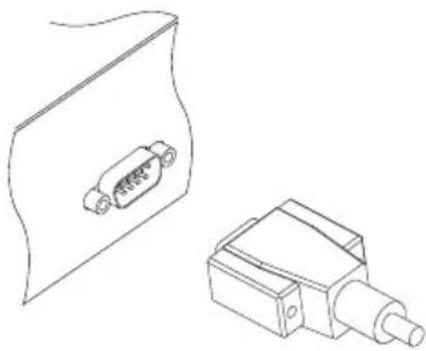
natural_image
Technical line drawing of a mechanical component with a cylindrical housing and a separate block assembly (no text or symbols)- Download a new firmware applicable to your digital receiver from the Topfield website.
- Turn off the digital receiver.
- Plug one end of an RS-232 cable (9 pin D-sub cable) into the RS-232 port on the digital receiver, and the other end into the matching port on your computer.
- Run TFD-Down.
The instructions on how to use TFD-Down are as follows:
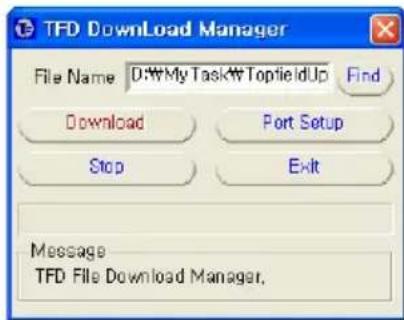
- Press the Find button to select the new firmware file.
- Press the download button, and then turn on the digital receiver to start the file transfer.
- A countdown will be displayed on screen.
- Restart the digital receiver when the file transfer is complete.
9.4 From another digital receiver via RS-232 port
It is possible to transfer the firmware from the digital receiver to another same digital receiver by connecting them with an RS-232 cable. To update the firmware with this method, take the following steps:
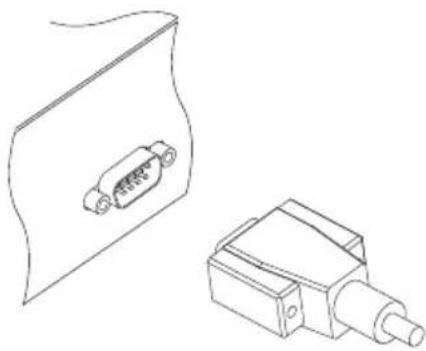
natural_image
Technical line drawing of two mechanical components: a rectangular housing and a cylindrical device with a protruding shaft (no text or symbols)- Turn off the target digital receiver.
- Plug one end of an RS-232 cable (9 pin D-sub cable) into the RS-232 port on the digital receiver, and the other end into the matching port on the other digital receiver.
-
Turn on the source digital receiver if not already on.
-
Select the Installation >Transfer Firmware >Transfer Firmware to Other IRD menu, then you get asked for confirmation; select Yes.
-
Turn on the target digital receiver to start the firmware transfer.
- A progress bar appears showing the progress of the firmware transfer.
- Restart the target digital receiver when the firmware transfer is complete.
9.5 Over the air
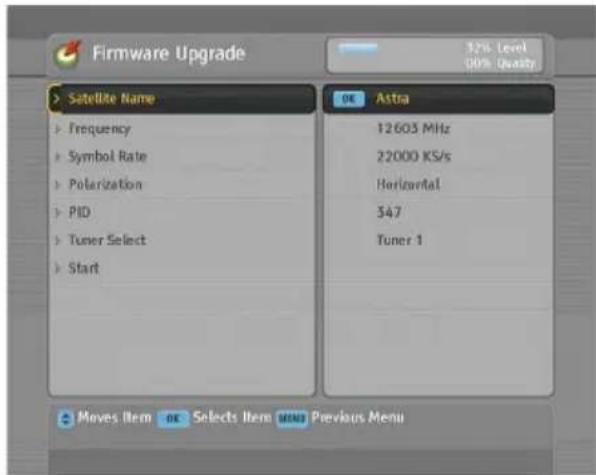
You can get a new firmware over the air. Select the Installation >OTA Firmware Upgrade menu. You should see a screen like the left figure.
Satellite Astra (19.2° E)
Frequency 12603 MHz
Symbol Rate 22000 KS/s
Polarisation Horizontal
PID 347
On the left table is presented the transponder information appointed by the manufacturer, Topfield, for firmware update.
This transponder information can be changed. You can get the information from the website, http://www.i-topfield.com.
Selecting the Start command starts firmware update.
Index
1st Audio Language, 32
1st Subtitle Language, 32
2nd Audio Language, 32
2nd Subtitle Language, 32
4:3, 34
16:9, 34
22 kHz, 21
A
A/V Output Setting, 33
Access Control, 40
Add new TP, 29
Add Satellite, 28
Advanced, 26
Advanced Setting, 42, 43
After next program, 61
After this program, 61
ALL, 28
Alphabetic, 53, 66
Astra, 84
AUDIO L, 16
AUDIO L/R, 11
AUDIO R, 16
Auto, 25
B
Button, 4
C
Cband, 20
CAM, 6
CAS Only, 37
CAS only, 27
CAS-FTA, 53
Censorship, 40
Center, 34
Center extract, 35
Change PIN Code, 40
CI, 6
Common Interface, 6, 7
Conditional Access Module, 6
Connection Type, 21
D
Date, 63
Daylight Saving Time, 38
Default, 53
Delete, 53
Delete Satellite, 29
Delete TP, 29
DHCP, 76, 77, 81
DiSEqC, 21
DiSEqC 1.0, 22
DiSEqC 1.1, 22
DiSEqC Command Mode, 23
Display, 42
Display Format, 34, 35
Dolby Digital, 36
download, 82
Duration, 61, 63
DVB, 1
DVB-S2 8PSK, 26, 27
DVB-S2 QPSK, 26, 27
E
Electronic Programme Guide, 49
EPG, 49
Every Day, 63
Every Weekday, 63
Every Weekend, 63
F
Factory Setting, 29
Fav-NoFav, 54
FEC, 26, 27
File Management, 78
File Name, 63
Find, 82
Firmware Update via Network, 81
Format Hard Disk, 72
Frequency, 23, 24, 26, 27, 29
FTA + CAS, 27
FTA only, 27
FTA/Scrambled, 27
FTA-CAS, 53
Full, 34
G
Gateway, 77, 81
GMT, 37
GMT Collection, 37
Goto, 23
Goto the position, 24
H
Hard of Hearing, 32
HDMI, 11, 14, 33
high definition, 33
I
Info Box Display Time, 41
Info Box Position, 41
information box, 47
IP Address, 77, 81
IP Configuration, 76, 81
K
K_u band, 20
keyboard, 56
L
LAN, 10, 73
LAN Setting, 77
LAN Status, 76, 77
Language Setting, 31
Letter Box, 35
LNB, 20
LNB 1 IN, 10, 13, 20, 21
LNB 1 OUT, 10, 13, 14, 21
LNB 2 IN, 10, 13, 14, 21
LNB 2 OUT, 10, 14
LNB Frequency, 21
LNB Power, 21
LNB Setting, 20
Local Time, 38
Lock, 53, 67
Locked, 67
Loop Through, 21
M
Manual, 26
Menu Language, 31
Mini A, 22
Mode, 37, 38, 63
Modulation, 26, 27
mono, 36
Motor Control, 23
Motorized DiSEqC 1.2, 22
Motorized DiSEqC 1.3, 24
Move, 24, 53
Movement, 23
multifeed, 50
multiplex, 1
My Latitude, 24
My Longitude, 24
N
Network Search, 25, 26
NEW, 54
No block, 40
Normal, 37
normal-screen television, 34
0
One Time, 62
Organizing Favorites, 54
Organizing Services, 52
OSD Transparency, 41
OTA Firmware Upgrade, 83
Other, 21
P
packet identification, 27
Parental Control, 40
PID, 27
Pilot, 26, 27
PIN, 40
Polarization, 26, 27
port forwarding, 75
Provider, 54
R
Radio, 62
radio services list, 52
Record, 62
Record continue, 61
Record pause, 61
recorded programme list, 65
Recording Setting, 42
Rename, 53, 67
RS-232, 10, 57, 82, 83
S
S/PDIF, 11, 17, 36
SAT Name Edit, 29
SAT/TP Edit, 28
Satellite, 37, 53, 62
Satellite Angle, 24
satellite list, 20, 45
Satellite Name, 20, 21, 23–27, 29
SCART, 33
Search Mode, 25–27
Separated, 21
Service, 62
Service Search, 25
Services Copy, 28
services list, 44
Size, 66
SMATV, 25, 27
Sort, 53
Sorting, 66
Sound Mode, 36
Start, 84
Start Search, 27
Start Time, 63
stereo, 36
Store, 23
Subnet Mask, 77, 81
subtitle, 48
S-VIDEO, 11, 16
Symbol Rate, 26, 27
System Setting, 40, 41
T
teletext, 48
television services list, 53
TFD-Down, 81, 82
Time, 66
Time Offset, 37
Time Setting, 37, 40
Time Shifting, 41, 50, 60
timer list, 62
Timer Setting, 62
Total block, 40
Transfer Data to Other IRD, 57
Transfer Firmware to Other IRD, 83
Transponder, 23, 24, 37, 54
transponder, 1
Tuner 1, 21
Tuner 1 to Tuner 2, 28
Tuner 2, 21
Tuner 2 to Tuner 1, 28
Tuner Select, 20, 23, 24, 62
TV, 11, 15, 62
TV Aspect Ratio, 34
Type, 62
U
USALS, 23
USALS Setting, 24
USB, 79
USB Firmware Upgrade, 79
User, 23
User Select, 37
V
VCR, 11, 17
VCR SCART Type, 36
Vega, 57
VIDEO, 11, 16
Video Format, 33
Video Output, 35
W
Weekly, 63
wide-screen television, 34
Y
Y/Pb/Pr, 11
YPbPr, 33
YPbPr ↔ SCART, 11


Manufactured under license from Dolby Laboratories. "Dolby" and the double-D symbol are trademarks of Dolby Laboratories.
Correct disposal of this product
This marking shown on the product or its literature indicates that it should not be disposed with other household wastes at the end of its working life. To prevent possible harm to the environment or human health from uncontrolled waste disposal, please separate this from other types of wastes and recycle it responsibly to promote the sustainable reuse of material resources. Household users should contact either the retailer where they purchased this product or their local government office for details of where and how they can dispose this product for environmentally safe recycling. Business users should contact their supplier and check the terms and conditions of the purchase contract. This product should not be mixed with other commercial wastes for disposal.
At any time during the life of a product Topfield Co., Ltd. may change or modify the hardware or software on any product to introduce new features or improve the functionality of the product.