
AITI520 - Magnetic Tape Reader SONY - Free user manual and instructions
Find the device manual for free AITI520 SONY in PDF.


| Product Type | Internal Magnetic Tape Drive |
| Brand | SONY |
| Model | AITi520 |
| Form Factor | 3.5 inch standard or 5.25 inch half-height (reconfigurable) |
| Dimensions (3.5") | Height: 41.2 mm, Width: 101.6 mm, Depth: 155.0 mm |
| Dimensions (5.25") | Height: 41.2 mm, Width: 146.0 mm, Depth: 155.0 mm |
| Weight (3.5") | 780 g |
| Weight (5.25") | 1010 g |
| Power Supply | 5 V ±5% (1.5 A typ., 2.5 A max.); 12 V ±10% (0.75 A typ., 3.0 A max.) |
| Interface | Ultra 160 SCSI LVD/SE |
| Supported Cartridge Formats | Write and Read: AIT-4 (AIT-4 logo) |
| Native Capacity | 200 GB (SDX4-200C cartridge) |
| Compressed Capacity | 520 GB (2.6:1 ratio) |
| Error Correction | Second-level error correction code |
| Data Compression | Yes, with automatic control |
| WORM Function | Supported (WORM cartridges: SDX4-200W) |
| LED Indicators | 3 LEDs: TAPE MOTION, CLEANING REQUEST, REPLACE TAPE |
| Eject Button | Yes |
| Dust Cover | Included and removable |
| Cleaning | SDX4-CL cleaning cartridge, automatic cycle 15 seconds to 1 minute |
| Operating Temperature | 5 °C to 40 °C |
| Operating Humidity | 20 to 80% RH (non-condensing) |
| Repairability | Do not attempt self-repair; refer to qualified technician |
| Safety | Complies with safety standards (grounding, moisture precautions) |
| Regulatory Compliance | Model no. ATDNA4; CE certifications |
Frequently Asked Questions - AITI520 SONY
User questions about AITI520 SONY
0 question about this device. Answer the ones you know or ask your own.
Ask a new question about this device
Download the instructions for your Magnetic Tape Reader in PDF format for free! Find your manual AITI520 - SONY and take your electronic device back in hand. On this page are published all the documents necessary for the use of your device. AITI520 by SONY.
USER MANUAL AITI520 SONY
This document contains proprietary information which is protected by copyright.
All rights reserved. No part of this document may be photocopied, reproduced or translated to another language without prior written consent of Sony.
The information contained in this document is subject to change without notice.
SONY MAKES NO WARRANTY OF ANY KIND WITH REGARD TO THIS DOCUMENT.
Sony shall not be liable for errors contained herein, indirect, special, incidental or consequential damages in connection with the furnishing, performance or use of this document.
Your AITi90, AITi130 is assigned a Model No. ATDNA2 for regulatory compliance certifications.
Your AITi260 is assigned a Model No. ATDNA3 for regulatory compliance certifications.
Your AITi390, AITi520 is assigned a Model No. ATDNA4 for regulatory compliance certifications.
The number is indicated on the model number label on your drive along with the rated voltage and current.
VORSICHT
For your protection, please read these safety instructions completely before operating the appliance, and keep this manual for future reference.
Carefully observe all warnings, precautions and instructions on the appliance, or the one described in the operating instructions and adhere to them.
USE
Power Sources – This unit should be operated only from the type of power source indicated on the marking label. If you are not sure of the type of electrical power, consult your dealer or local power company.
For the unit with a three-wire grounding type ac plug:
If you are unable to insert the plug into the outlet, contact your electrician to have a suitable plug installed. Do not defeat the safety purpose of the grounding plug.
AC Power cord: (for AC mains operating unit only)
The AC power cord should have appropriate safety approvals or marking for the country in which the equipment will be used. Consult your dealer or local power company.
Cleaning – Unplug the unit from the wall outlet before cleaning or polishing it. Do not use liquid cleaners or aerosol cleaners.
Use a cloth lightly dampened with water for cleaning the exterior of the unit.
Object and Liquid Entry – Never push objects of any kind into the unit through openings as they may touch dangerous voltage points or short out parts that could result in a fire or electric shock. Never spill liquid of any kind on the unit.
INSTALLATION
Water and Moisture – Do not use power-line operated units near water - for example, near a bathtub, washbowl, kitchen sink, or laundry tub, in a wet basement, or near a swimming pool, etc.
Power-Cord Protection – Route the power cord so that it is not likely to be walked on or pinched by items placed upon or against them, paying particular attention to the plugs, receptacles, and the point where the cord exits from the appliance.
Accessories – Do not place the unit on an unstable cart, stand, tripod, bracket, or table. The unit may fall, causing serious injury to a child or an adult, and serious damage to the unit. Use only a cart stand tripod, bracket, or table recommended by the manufacturer.
Ventilation – The slots and openings in the cabinet are provided for necessary ventilation. To ensure reliable operation of the unit, and to protect it from overheating, these slots and openings must never be blocked or covered.
- Never cover the slots and openings with a cloth or other materials.
- Never block the slots and openings by placing the unit on a bed, sofa, rug or other similar surface.
- Never place the unit in a confined space, such as a bookcase, or built-in cabinet, unless proper ventilation is provided.
SERVICE
Damage Requiring Service – Unplug the unit from the wall outlet and refer servicing to qualified service personnel under the following conditions:
- When the power cord or plug is damaged or frayed.
- If liquid has been spilled or objects have fallen into the unit.
- If the unit has been exposed to rain or water.
- If the unit has been subject to excessive shock by being dropped, or the cabinet has been damaged.
- If the unit does not operate normally when following the operating instructions. Adjust only those controls that are specified in the operating instructions. Improper adjustment of other controls may result in damage and will often require extensive work by a qualified technician to restore the unit to normal operation.
- When the unit exhibits a distinct change in performance - this indicates a need for service.
Servicing – Do not attempt to service the unit yourself as opening or removing covers may expose you to dangerous voltage or other hazards. Refer to all servicing to qualified service personnel.
Contents
Overview 6
Introduction 7
About AIT Drives ....7
Precautions 10
Installation 12
SCSI Connection/Setting the SCSI ID 12
Option Switches (DIP Switch) 13
Mounting Holes 17
Reconfiguring from 5.25" Model to 3.5" Model....19
Orientation....20
Attaching and Removing the Dust Cover 21
Attaching the Dust Cover 21
Removing the Dust Cover 23
Operation 24
Location of 3 LEDs 24
Drive Operation....25
Emergency Tape Removal Procedure 28
WORM Function 30
Interface Implementation 32
Supported SCSI Messages 32
Supported SCSI Commands 32
Specifications 33
Product Specifications 33
Sony Contacts 35
- Sony cannot accept liability for data written to cartridges lost as a result of using this product.
- Sony bears no responsibility for any financial damages, lost profits, or claims made by third parties arising from the use of this product.
Overview
The Sony AITi520, AITi390, AITi260, AITi130 and AITi90 drives are high capacity data storage devices using Advanced Intelligent Tape (AIT) technology. The AITi260, AITi130 and AITi90 drives achieve high data reliability through third-level Error Correction Code (second-level Error Correction Code for the AITi520 and AITi390).
The Sony AITi520, AITi390, AITi260, AITi130 and AITi90 drives store data on tape using standard formats called AIT (Advanced Intelligent Tape) and ALDC formats.
Introduction
About AIT Drives
The AITi520 is an internal AIT drive unit that uses data cartridges conforming to the AIT-4 format. The AITi390 is an internal AIT drive unit that uses data cartridges conforming to the AIT-3 Ex format. The AITi260 is an internal AIT drive unit that uses data cartridges conforming to the AIT-3 format. The AITi130 is an internal AIT drive unit that uses data cartridges conforming to the AIT-2 format. The AITi90 is an internal AIT drive unit that uses data cartridges conforming to the AIT-1 format. The AITi520 supports AIT-4 format. The AITi390 supports AIT-1 (Read only), AIT-2 (Read only), AIT-3 and AIT-3 Ex formats. The AITi260 supports AIT-1, AIT-2 and AIT-3 formats. The AITi130 supports AIT-1 and AIT-2 formats. The AITi90 supports only AIT-1 format.
Features
The AIT Drive Unit AITi520 has the following features:
- Supports reading and writing to data cartridges conforming to the AIT-4 format.
- The second-level error correction code guarantees high data reliability writing to data cartridges conforming to the AIT-4 format.
- Data compression provides 520 gigabytes of storage on SDX4-200C. ^*1 The native capacity is 200 gigabytes of storage on SDX4-200C.
- Stored data are automatically checked for compression.
- Ultra 160 SCSI LVD/SE interface is fully supported for host computer access.
The AIT Drive Unit AITi390 has the following features:
- Supports reading and writing to data cartridges conforming to the AIT-3 and AIT-3 Ex formats.
- Supports reading from data cartridges conforming to the AIT-1 and AIT-2 formats.
- The second-level error correction code guarantees high data reliability writing to data cartridges conforming to the AIT-3 Ex format.
- The third-level error correction code guarantees high data reliability writing to data cartridges conforming to the AIT-1, AIT-2 and AIT-3 formats.
- Data compression provides 390 gigabytes of storage on SDX3X-150C. ^*1 The native capacity is 150 gigabytes of storage on SDX3X-150C.
- Stored data are automatically checked for compression.
- Ultra 160 SCSI LVD/SE interface is fully supported for host computer access.
The AIT Drive Unit AITi260 has the following features:
- Supports reading and writing to data cartridges conforming to the AIT-1, AIT-2 and AIT-3 formats.
- The third-level error correction code guarantees high data reliability.
- Data compression provides 260 gigabytes of storage on SDX3-100C. ^*1 The native capacity is 100 gigabytes of storage on SDX3-100C.
- Stored data are automatically checked for compression.
- Ultra 160 SCSI LVD/SE interface is fully supported for host computer access.
The AIT Drive Unit AITi130 has the following features:
- Supports reading and writing to data cartridges conforming to the AIT-1 and AIT-2 formats.
- The third-level error correction code guarantees high data reliability.
- Data compression provides 130 gigabytes of storage on SDX2-50C. ^*1 The native capacity is 50 gigabytes of storage on SDX2-50C.
- Stored data are automatically checked for compression.
- Wide Ultra SCSI LVD/SE interface is fully supported for host computer access.
The AIT Drive Unit AITi90 has the following features:
- Supports reading and writing to data cartridges conforming to the AIT-1 format.
- The third-level error correction code guarantees high data reliability.
- Data compression provides 91 gigabytes of storage on SDX1-35C. ^*1 The native capacity is 35 gigabytes of storage on SDX1-35C.
- Stored data are automatically checked for compression.
- Wide Ultra SCSI LVD/SE interface is fully supported for host computer access.
*1 This is assuming 2.6:1 compression ratio.
The degree of data compression attained while recording data varies according to system environment and data type.
Precautions
Installation
Avoid placing the drive in a location subject to:
– high humidity
– high temperature
- mechanical shock and vibration
- direct sunlight
* For details, see “Specifications” on page 33.
Operation
- Do not move the drives while they are operating. It may cause malfunctions.
- Avoid exposing the drives to sudden changes from low to high temperatures. This may cause condensation to collect inside the drives. If the ambient temperature should suddenly rise while the drives are turned on, turn them off and wait at least one hour before turning them back on. If you attempt to operate the drives immediately after a sudden increase in temperature, malfunctions may occur.
- Turning off the power to the drives while they are writing to tape may cause the tape to become unreadable. All previously negotiated parameters will be lost, whenever power to the drives is cycled.
Transportation
- Keep the original packing materials to facilitate safe transportation of the drive.
- Always remove the tape/media cartridge before moving the drive. After removing the drive from the computer, repack the drive into its original packing.
Backup Application
Make sure to use a backup application that is confirmed to operate with an ISV.
Usable Cartridges
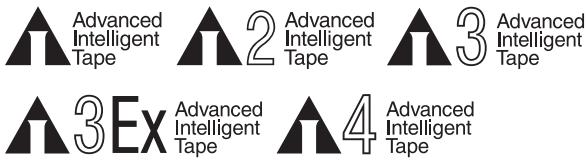
The AITi520 can be used with data cartridges marked with the AIT-4 logo.
The AITi390 can be used with data cartridges marked with the AIT-1 (read only), AIT-2 (read only), AIT-3 or AIT-3 Ex logo.
The AITi260 can be used with data cartridges marked with the AIT-1, AIT-2 or AIT-3 logo.
The AITi130 can be used with data cartridges marked with the AIT-1 or AIT-2 logo.
The AITi90 can be used with data cartridges marked with the AIT-1 logo.
Note
- Be sure to use only the cartridges designed specifically for AIT.
- Do not use anything but AIT cartridges with this system, as doing so can damage the AIT drive. Although commercially available 8mm videotapes resemble AIT cartridges in appearance, they have entirely different specifications and cannot be used.
SCSI Termination
The AITi520, AITi390, AITi260, AITi130 and AITi90 conform to the Microsoft PC97 standard, which requires the internal (naked) drive to be terminated with an external terminator.
Microsoft PC97 SCSI requirements
SCSI peripherals must not terminate the bus. Both internal and external cable ends are instead terminated by plug-in connectors.
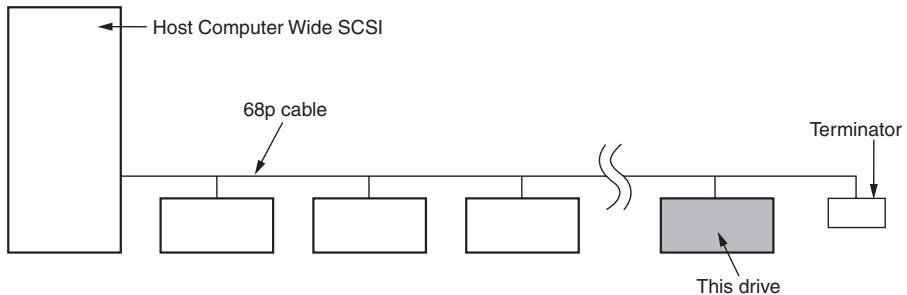
flowchart
graph LR
    A["Host Computer Wide SCSI"] --> B["68p cable"]
    B --> C["This drive"]
    C --> D["Terminator"]
Example of SCSI setup
Installation
SCSI Connection/Setting the SCSI ID
The following figures apply to the AITi520 model.
SCSI ID
| SCSI ID | P.D.N.C.3210 |
| 0 | |
| 1 | |
| 2 | |
| 3 | |
| 4 | |
| 5 | |
| 6 | |
| 7 | |
| 8 | |
| 9 | |
| 10 | |
| 11 | |
| 12 | |
| 13 | |
| 14 | |
| 15 |
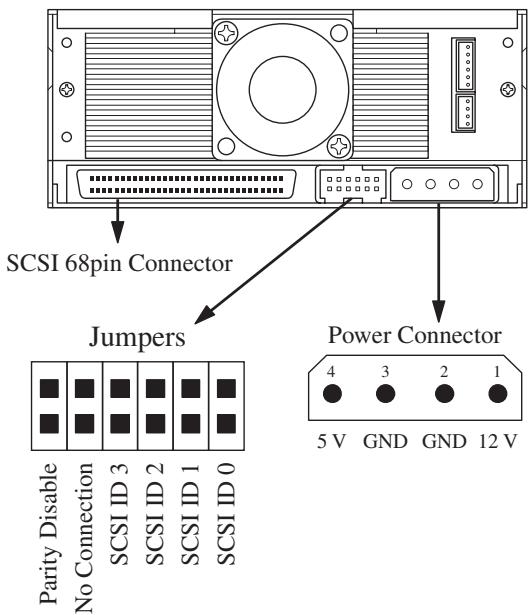
Parity
| Disable | ||||||
| Enable | ||||||
Note : ☐ = CLOSED/Jumper
■ = OPEN/Jumper not installed
= Don't care
Parity Disable Jumper
Parity check function can be disabled by Jumper. Parity check is disabled while left end jumper is installed. Parity generate function is always enabled.
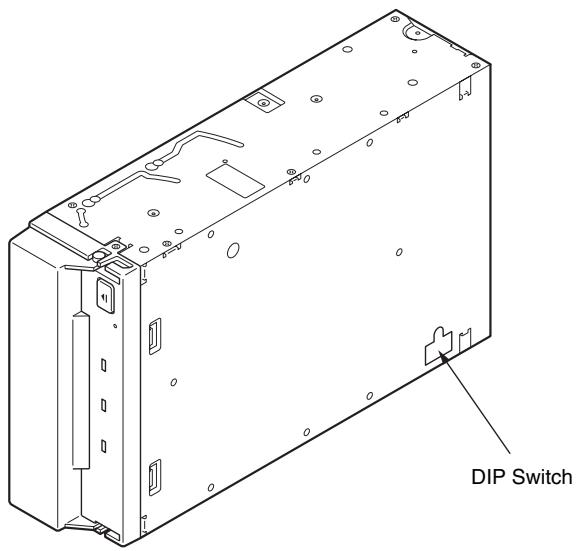
DIP Switch Positions
Default (AlTi90, AlTi130, AlTi260)
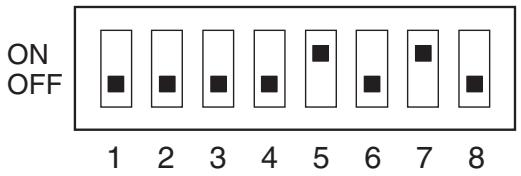
1 Drive Mode (OFF)
2 Drive Mode (OFF)
3 Drive Mode (OFF)
4 Drive Mode (OFF)
5 Terminator Power (ON)
6 Periodic Cleaning Req (OFF)
7 DC Control (1) (ON)
8 DC Control (2) (OFF)
Default (AlTi390, AlTi520)
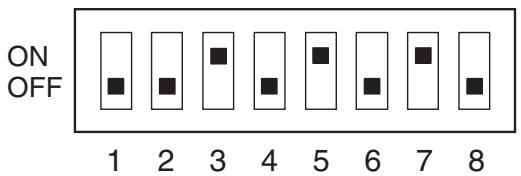
1 DR (Disaster Recovery)
Mode (OFF)
2 Emulation Mode (OFF)
3 AIT Library Interface Mode (ON)
4 Reserved (OFF)
5 Terminator Power (ON)
6 Periodic Cleaning Req (OFF)
7 DC Control (1) (ON)
8 DC Control (2) (OFF)
DR (Disaster Recovery*) Mode
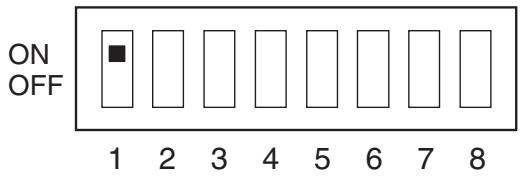
AlTi90, AlTi130, AlTi260
| 1 | Drive Mode (ON) | 1 | DR (Disaster Recovery) Mode (ON) |
| 2 | Drive Mode | 2 | Emulation Mode |
| 3 | Drive Mode | 3 | AIT Library Interface Mode |
| 4 | Drive Mode | 4 | Reserved |
| 5 | Terminator Power | 5 | Terminator Power |
| 6 | Periodic Cleaning Req | 6 | Periodic Cleaning Req |
| 7 | DC Control (1) | 7 | DC Control (1) |
| 8 | DC Control (2) | 8 | DC Control (2) |
AITi390, AITi520
* In Disaster Recovery (DR) Mode, the drive enters the DR Standby Mode 15 seconds after you insert a write-protected tape into the drive, and all the drive LEDs blink. If you restart the drive while the LEDs are blinking, it starts as a CD-ROM device.
For details about the Disaster Recovery Mode, refer to the instruction manual that came with the application software you are using.
Emulation Mode* (AlTi90, AlTi130, AlTi260)
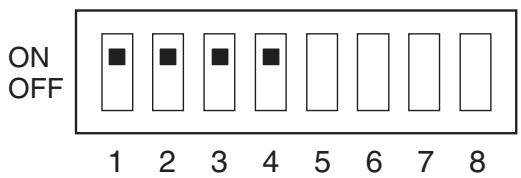
1 Drive Mode (ON)
2 Drive Mode (ON)
3 Drive Mode (ON)
4 Drive Mode (ON)
5 Terminator Power
6 Periodic Cleaning Req
7 DC Control (1)
8 DC Control (2)
* Emulation Mode returns the following in the Product Identification field of Inquiry of the AITi260.
SDX-700C
* Emulation Mode returns the following in the Product Identification field of Inquiry of the AITi130.
SDX-500C
* Emulation Mode returns the following in the Product Identification field of Inquiry of the AITi90.
SDX-400C
Emulation Mode\* (AITi390, AITi520)
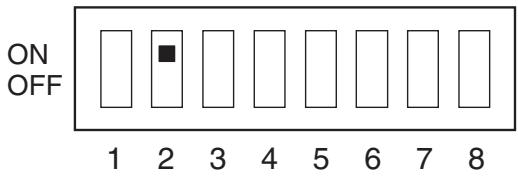
1 DR (Disaster Recovery) Mode
2 Emulation Mode (ON)
3 AIT Library Interface Mode
4 Reserved
5 Terminator Power
6 Periodic Cleaning Req
7 DC Control (1)
8 DC Control (2)
* Emulation Mode returns the following in the Product Identification field of Inquiry of the AITi520.
SDX-700C
* Emulation Mode returns the following in the Product Identification field of Inquiry of the AITi390.
SDX-700C
Cleaning Request Mode
Periodic cleaning requests can be enabled by a DIP switch.
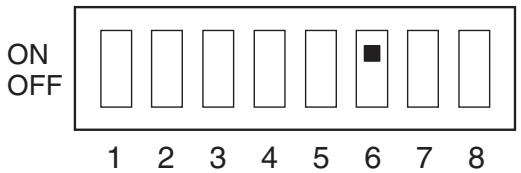
AlTi90, AlTi130, AlTi260
1 Drive Mode
2 Drive Mode
3 Drive Mode
4 Drive Mode
5 Terminator Power
6 Periodic Cleaning Req (ON)
7 DC Control (1)
8 DC Control (2)
AITi390, AITi520
1 DR (Disaster Recovery) Mode
2 Emulation Mode
3 AIT Library Interface Mode
4 Reserved
5 Terminator Power
6 Periodic Cleaning Req (ON)
7 DC Control (1)
8 DC Control (2)
When switch 6 is ON, cleaning requests are enabled. When enabled, the “CLEANING REQUEST” LED on the front panel lights after every 100 hours of operation.
When this LED lights, clean the drive with a cleaning cartridge.
Note
To maintain the drive in optimum condition in environments affected by dust and other contaminants, we recommend keeping cleaning requests enabled.
Terminator Power Control DIP switch
This DIP switch determines whether terminator power is supplied to the SCSI bus. To enable terminator power, set position 5 [Terminator Power] switch to ON.
Data Compression Control DIP switch
Data compression can be selected by DIP switches. Data compression is enabled when position 7 [DC Control (1)] is ON. Control by host can be disabled when position 8 [DC Control (2)] is ON.
Mounting Holes
The following figures apply to the AITi520 models. However, the locations of the mounting holes for the other models are the same.
For 3.5" Standard Height
![7.6±0.5 mm [0.3"±0.02"] 6-M3 (depth 2.5mm [0.10"] max.) 6-M3 (depth 2.5mm [0.10"] max.) 90.0±0.3mm [3.54"±0.01"] 60.0±0.3mm [2.36"±0.01"] 90.0±0.3mm [3.54"±0.01"] 155.0±0.5mm [6.10"±0.02"] 7.4±0.6mm [0.29"±0.02"] 42.0±0.3mm [1.65"±0.01"] 70.0±0.3mm [2.76"±0.01"] 4.8±0.5mm [0.19"±0.02"] 41.2±0.5mm [1.62"±0.02"] 9.8±0.6 mm [0.39"±0.02"] 94.0±0.5mm [3.70"±0.02"] 101.6±0.5mm [4.00"±0.02"] 31.0±0.3mm [1.22"±0.01"]](/content/2019/08/102524/images/ba95dd2dd139ca1cbb6535a5dccef60fe8b9eb0aa24be4c2aa26b1979fb8aa38.jpg)
For 5.25" Half Height
![21.8±0.5mm [0.86"±0.02"] 9.9±0.5mm [0.39"±0.02"] 79.2±0.3mm [3.12"±0.01"] 7.0mm [0.28"] 41.2±0.5mm [1.62"±0.02"] 47.5±0.3mm [1.87"±0.01"] 79.2±0.3mm [3.12"±0.01"] 6-M3 7.4±0.6mm [0.29"±0.02"] 155.0±0.5mm [6.10"±0.02"] 9.8±0.6 mm [0.39"±0.02"] 70.0±0.3mm [2.76"±0.01"] 42.0±0.3mm [1.65"±0.01"] 7.6±0.5 mm [0.3"±0.02"] 31.0±0.3mm [1.22"±0.01"] 94.0±0.5mm [3.70"±0.02"] 146.0±0.5mm [5.50"±0.02"] 149.0±0.5mm [5.87"±0.02"] 47.5±0.3mm [1.87"±0.01"] 79.2±0.3mm [3.12"±0.01"] 4-M3](/content/2019/08/102524/images/e1d612706c2a2932fd93a78af8a046f46eb147c5ae63cc84455f207128928598.jpg)
Reconfiguring from 5.25" Model to 3.5" Model
You can reconfigure the 5.25" model to the 3.5" model yourself.
1 Remove the 2 screws for each side rail.
2 Take the side rail off.
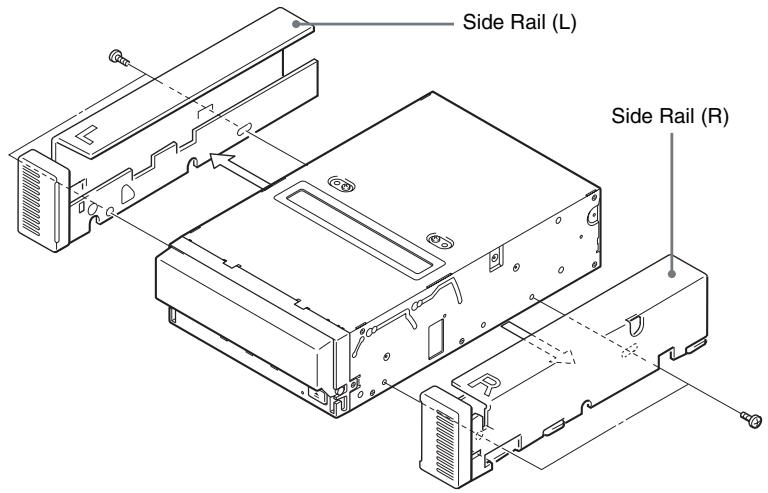
Orientation
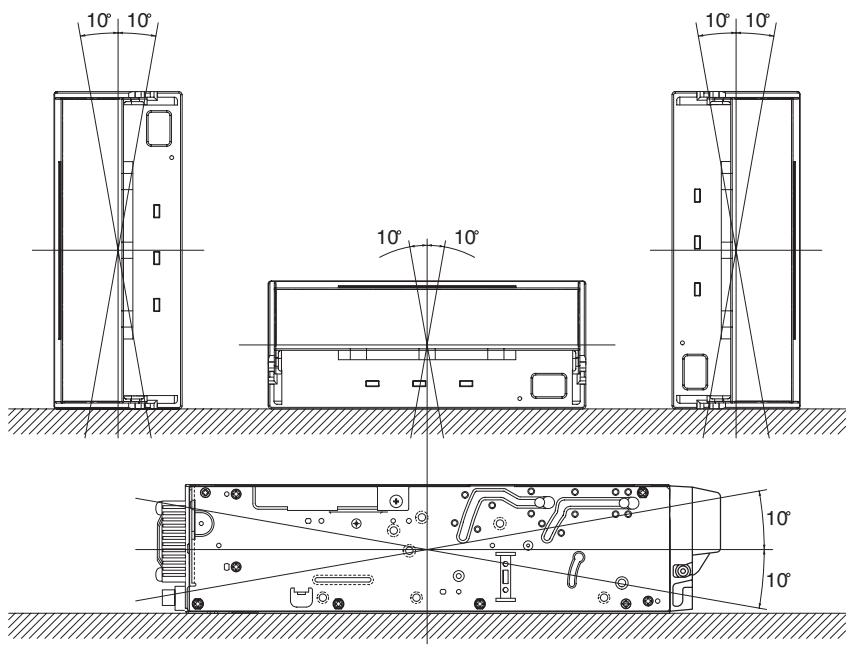
Attaching and Removing the Dust Cover
Attaching the Dust Cover
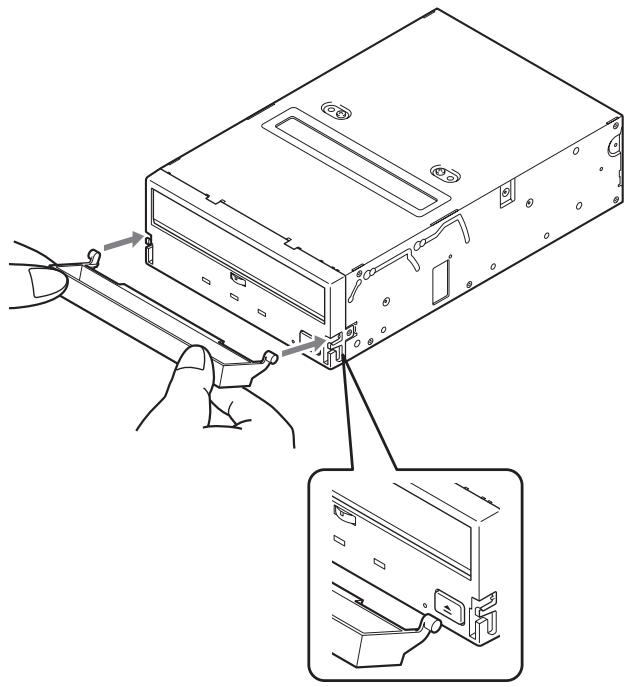
1 Align the dust cover's hinge clips (one on each side) with the pins of the drive bezel.
- The dust cover should be positioned so that the magnets* on the cover's back face the drive bezel.
* This magnet does not affect the tape of the cartridge. - Holding the dust cover at an angle as shown in the figure below, set the hinge clips on top of the bezel pins, positioning them so that they bracket the pins.
natural_image
Diagram of a computer drive with a close-up view showing internal components (no text or symbols)2 Press down at an angle on each side in turn until you hear the hinge clips click into place.
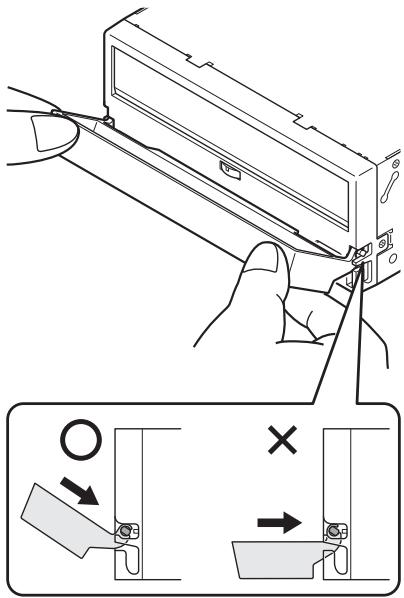
Caution
Do not press the dust cover in horizontally from the front. Doing so could cause the dust cover to break.
3 Close the dust cover.
This completes attachment of the dust cover.
Removing the Dust Cover
1 Open the dust cover.
2 Holding the dust cover at both corners, carefully raise the dust cover.
The dust cover hinge clips and drive bezel pins uncouple.
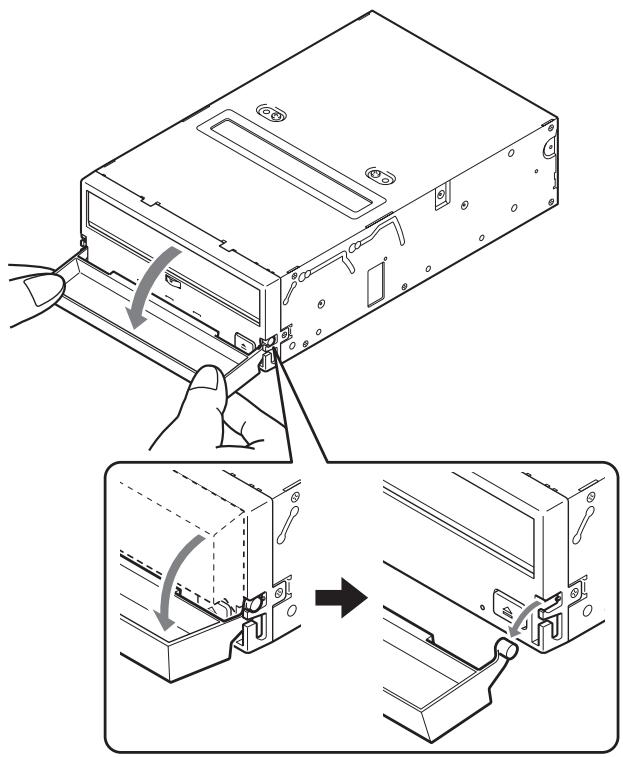
Note
We recommend that you use the drive with the dust cover.
Operation
Location of 3 LEDs
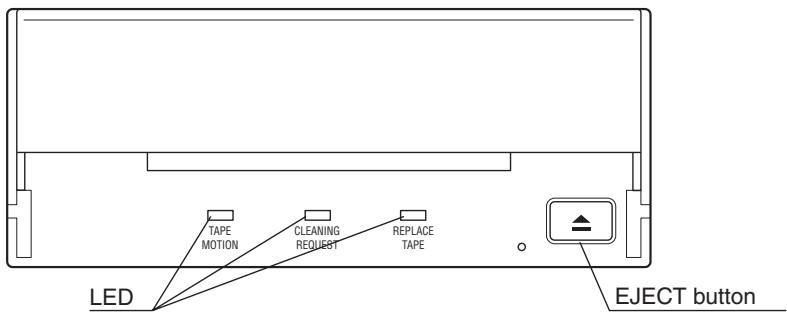
There are three LED indicators (TAPE MOTION LED, CLEANING REQUEST LED, REPLACE TAPE LED) and an EJECT button on the front panel of the unit.
Front Panel (for 3.5" Standard Height)
LED Indication for Drive Status
The LED indicators are defined as follows.
| LED | |||
| TAPE MOTION | CLEANING REQUEST | REPLACE TAPE | Sense |
| Independent | Independent | Tape Loaded | |
| Independent | Independent | Tape Access in Progress (write/read) | |
| Independent | Independent | Tape Access in Progress (others) | |
| Independent | Independent | Cleaning is requested | |
| Independent | Independent | Cleaning is Not Completed | |
| Independent | Independent | Media Error Occurred | |
| H/W Error Occurred | |||

on


Slow
1 pulse (0.9 sec on/0.3 sec off)


Fast
1 pulse (0.3 sec on/0.3 sec off)
Drive Operation
Loading a Cartridge
Note
While setting the data cartridge, do not turn off the host computer. This may cause a malfunction or damage data.
1 Turn on the host computer. Check that the drive's TAPE MOTION LED, CLEANING REQUEST LED and REPLACE TAPE LED go off.
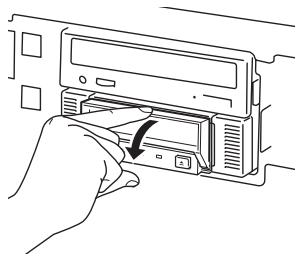
2 Open the dust cover.
natural_image
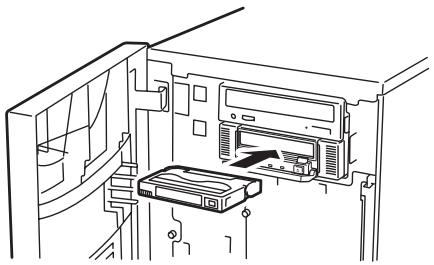
Line drawing of a hand inserting a CD into a memory unit (no text or symbols)3 Set the AIT data cartridge orientation as shown here and insert it into the data cartridge slot.
natural_image
Line drawing of a printer inside a cabinet or storage unit, showing internal components and no text or symbols.By inserting the data cartridge to the extent, it is automatically set in the drive and the TAPE MOTION LED lights.
Unloading a Cartridge
The cartridge can be removed from the AITi520, AITi390, AITi260, AITi130 and AITi90 either in response to a SCSI Unload Command, or by pressing the EJECT bottom.
By pressing EJECT button, the tape is rewound and the cartridge ejected from the slot.
Write-protecting a Cartridge
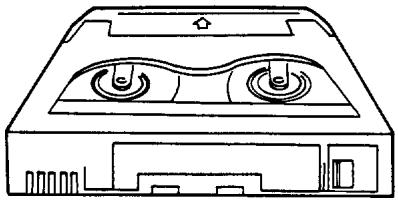
Cartridges can be write-protected by sliding the tab on the back of the cartridge. In this state, data can be read from the tape but not written onto it.
natural_image
Line drawing of a CD-ROM drive casing with two buttons and ventilation slots (no text or symbols)AIT-1
AIT-2

AIT-3
AIT-3 Ex
AIT-4


Using your fingernail, push the switch in the direction of the arrow to protect the tape from writing or accidental erasure.
Return the switch to its original position to re-enable writing.
Using a Cleaning Cartridge
To keep the AIT drive in top condition, clean the drive unit as needed using a cleaning cartridge with the AIT logo. When the drive unit needs cleaning, the CLEANING REQUEST indicator lights. (For the AITi390 and the AITi520, use the AITi390 and the AITi520 cleaning cartridge respectively.)
Use the cleaning cartridge made exclusively for each model.
| Cleaning cartridge to use | |
| AITi520 | SDX4-CL |
| AITi390 | SDX3X-CL |
| AITi260, AITi130, AITi90 | SDX1-CL |
How to Clean
1 Load the cleaning cartridge into the AIT drive. Cleaning starts automatically.
2 Cleaning takes about 15 seconds and the cartridge is automatically ejected when finished (AITi90, AITi130, AITi260). Cleaning takes from a few seconds to a minute for the AITi390 and the AITi520, * and the cartridge is automatically ejected when finished.
* The cleaning time varies depending on the condition of the drive (AITi390, AITi520).
Caution
Do not rewind the cleaning cartridge and reuse it. When you reach the end of the cartridge, dispose it and buy a new cleaning cartridge with the AIT logo.
Storage Precautions
- Keep cartridges in their cases when not in the drives.
- Avoid storing cartridges in dusty locations, in direct sunlight, near heaters or air conditioners, or in humid locations.
- Do not place cartridges on dashboards or in car storage trays.
Emergency Tape Removal Procedure
1 Remove the drive from the chassis or enclosure to allow access to the bottom of the drive.
2 Remove the drive's top cover.
3 Locate the small opening in the bottom of the drive and insert the tip of a precision screwdriver so that the Loading motor shaft can be rotated.
4 Rotate the motor shaft clockwise to bring the threading mechanism back to the initial position.
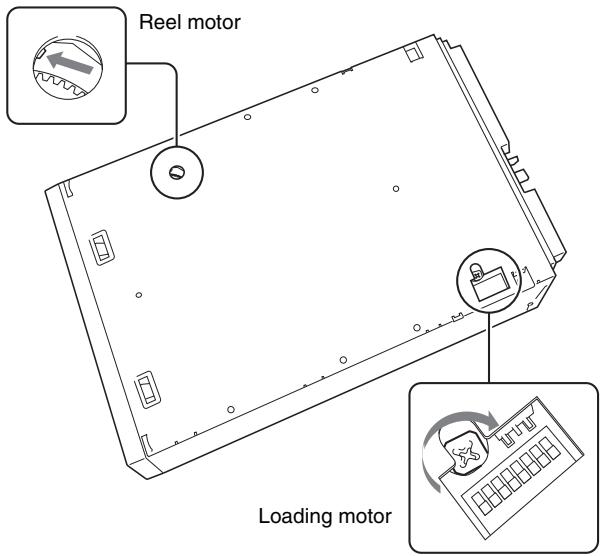
Emergency Tape Removal Procedure
Caution
Stop rotating the motor shaft immediately, when Guide B gets to the area below the line C-C (This line is defined by 2 circular tape guide surfaces of the cartridge). Otherwise, the gear of the drive can be damaged.
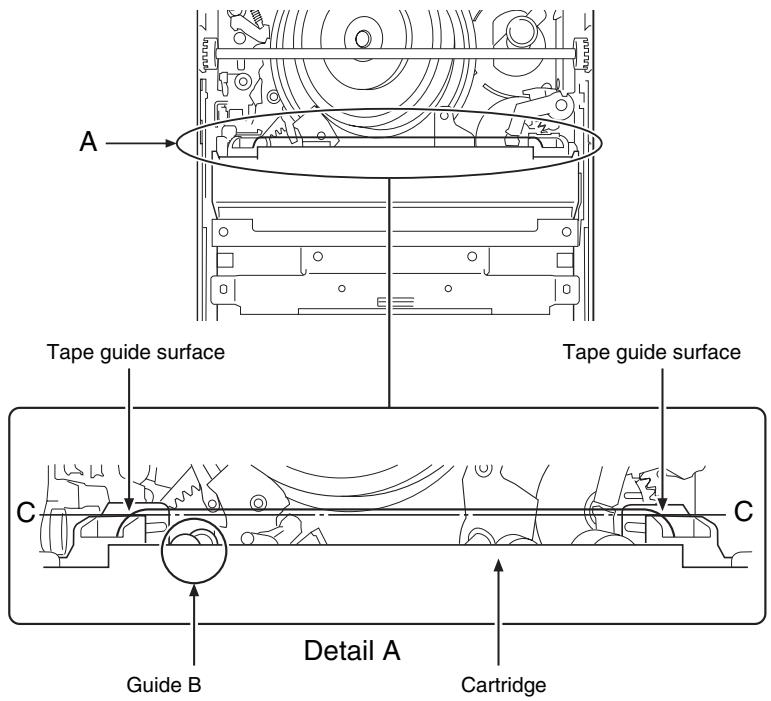
The Initial Position of the Threading Mechanism
5 Before the manual ejection procedure, tape slack must be removed in order to prevent tape damage. Rotate the gear mechanism located on the bottom of the drive counterclockwise to tighten the tape.
6 After the tape slack has been removed, continue to turn the Loading motor shaft located on the bottom of the drive clockwise with a precision screwdriver until the tape cartridge is lifted out of the drive mechanism and is ejected.
7 Return the drive to Sony for repair.
WORM Function
The AITi520, AITi260 and AITi130 support the WORM function. This section explains the WORM function.
What is "WORM"?
“WORM” is an acronym for “Write Once Read Many”, a function that allows data to be written to the same place on a tape only once, but permits that data to be read from the tape for any number of times. The AITi520, AITi260 and AITi130 support WORM cartridges. When a WORM cartridge is used with an application that supports the WORM function, data that has been written to a tape can not be accidentally deleted or overwritten.
A WORM drive operates in the same manner as a non-WORM drive when used with a non-WORM cartridge (henceforth referred to as “regular cartridge”).
The operation of a WORM drive and a non-WORM drive differs according to the type of cartridge that is being used.
| Tape Drive | Cartridge | |
| Regular Cartridge (without WORM logo) | WORM Cartridge (with WORM logo) | |
| Non-WORM drive | Read/Write Enabled | Waiting for Eject |
| WORM drive | Read/Write Enabled | Read/Append-Write Enabled |
WORM Cartridges
WORM cartridges can be distinguished from regular cartridges by their WORM logo and red shutters.
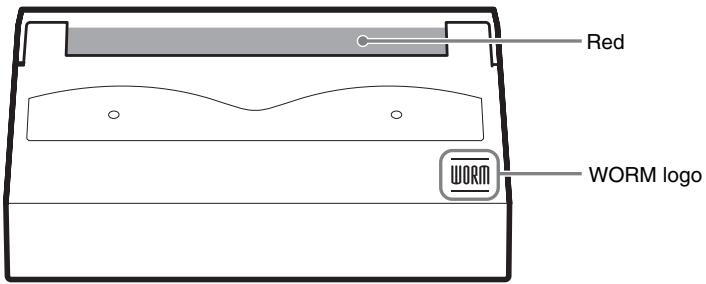
AIT-2 WORM cartridge: SDX2-50W
AIT-3 WORM cartridge: SDX3-100W
AIT-4 WORM cartridge: SDX4-200W
How to Write Data onto a WORM Cartridge
As with a regular cartridge, there is no limit on how many times data can be read from a WORM cartridge. When writing data to a WORM cartridge, the data can not be written to a portion of the tape that has already been written.
When writing data onto a WORM cartridge, it is appended after data that has already been written onto the cartridge. Accordingly, move to the EOD area before writing data onto the cartridge.
SCSI Commands Supported by the WORM Drive
The WORM drives support the same SCSI commands that are supported by non-WORM drives. However, if an attempt is made to write to a portion of a tape where data has already been written, the following error information is returned:
“Sense Key = 07, ASC = 27h, ASCQ = 00: Persistent Write Protect” or “Sense Key=03, ASC=27h, ASCQ=04: Write Position Error.”
AIT WORM-compliant Software
To find out whether your backup application is AIT WORM compliant, contact the manufacturer of the software.
Notes
- Sony cannot accept liability for data written onto a WORM cartridge that is lost as a result of using this unit.
- Sony accepts no responsibility for any financial damages, lost profits, or claims made by third parties arising from the use of this product.
Interface Implementation
Supported SCSI Messages
| Abort | Identify ( w/&w/o Disconnect ) |
| Bus Device Reset | Ignore Wide Residue |
| Command Complete | Initiator Defected Error |
| Disconnects | Message Parity Error |
| Extended Message | Message Reject |
| – Synchronous Data Transfer Request | No OperationRestore Pointer |
| – Wide Data Transfer Request | Save Data Pointer |
| – Parallel Protocol Request (AITi260, AITi390, AITi520) |
Supported SCSI Commands
| Erase | Report Density Support |
| Inquiry | Report Device Identifier (AITi390, AITi520) |
| Load/Unload | |
| Locate | Report Luns |
| Log Sense | Request Sense |
| Log Select | Reserve Unit (AITi90, AITi130, AITi260) |
| Mode Select | Reserved (6) (AITi390, AITi520) |
| Mode Sense | Reserved (10) (AITi390, AITi520) |
| Persistent Reserved IN | Rewind |
| Persistent Reserved OUT | Seek Block (AITi90, AITi130, AITi260) |
| Prevent Allow Medium Removal | |
| Read | Send Diagnostic |
| Read Attribute (AITi390, AITi520) | Set Device Identifier (AITi390, AITi520) Space |
| Read Block Limits | Test Unit Ready |
| Read Buffer | Verify (AITi90, AITi130, AITi260) |
| Read Position | |
| Receive Diagnostic Result | Write |
| Release Unit (AITi90, AITi130, AITi260) | Write Attribute (AITi390, AITi520) Write Buffer |
| Release (6) (AITi390, AITi520) | Write Filemarks |
| Release (10) (AITi390, AITi520) |
Specifications
Product Specifications
Dimensions (not including bezel and protruding parts)
| 3.5" | 5.25" | |
| Height | 41.2 mm (1.62 in) | 41.2 mm (1.62 in) |
| Width | 101.6 mm (4.0 in) | 146.0 mm (5.75 in) |
| Depth | 155.0 mm (6.1 in) | 155.0 mm (6.1 in) |
Altitude
| Operating | 0 to 3048 m (0 to 10,000 ft.) |
Acoustic Noise
(A) curve weight
| Streaming Write/Read | less than 35 dB (A) |
| Insert/Eject | less than 60 dB (A) |
Note
The sound-meter on (A) scale is located 1m (3.3 ft.) in front of the center of the drive front panel.
Mass
| AITi390, AITi520 | AITi260 | AITi130 | AITi90 | |
| 3.5" | 780 g (27.5 oz.) | 780 g (27.5 oz.) | 740 g (26.1 oz.) | 740 g (26.1 oz.) |
| 5.25" | 1010 g (35.6 oz.) | 1050 g (37.0 oz.) | 970 g (34.2 oz.) | 970 g (34.2 oz.) |
Temperature and Humidity Range
Temperature
| Operating | 5 °C to 40 °C (ΔT<10 °C/h)(41 °F to 104 °F (ΔT<18 °F/h)) |
| Non-Operating (mech.) | -40 °C to 70 °C (ΔT<20 °C/h)(-40 °F to 158 °F (ΔT<36 °F/h)) |
| Non-Operating (tape) | -40 °C to 45 °C (ΔT<20 °C/h)(-40 °F to 113 °F (ΔT<36 °F/h)) |
Humidity
| Operating | 20 to 80% RH, non-condensingMaximum wet bulb temperature :26 °C (78.8 °F) |
| Non-Operating (mech.) | 5 to 95% RH ( RH < 30%/h )Maximum wet bulb temperature :45 °C (113 °F) |
| Non-Operating (tape) | 20 to 80% RH ( RH < 30%/h ) |
Air-cooling Requirement
| Surrounding temperature | < 40 °C (104 °F) |
Clean air flow is recommended to minimize the possibility of data loss.
Power Requirements
AlTi390, AlTi520
| Voltage | Max Ripple | Current | |
| Typical | Maximum | ||
| 5 V +/- 5 % | 100 mVp-p | 1.5 A | 2.5 A |
| 12 V +/- 10 % | 150 mVp-p | 0.75 A | 3.0 A |
AlTi260
| Voltage | Max Ripple | Current | |
| Typical | Maximum | ||
| 5 V +/- 5 % | 100 mVp-p | 1.6 A | 1.9 A |
| 12 V +/- 10 % | 150 mVp-p | 0.5 A | 1.2 A |
AlTi130
| Voltage | Max Ripple | Current | |
| Typical | Maximum | ||
| 5 V +/- 5 % | 100 mVp-p | 1.1 A | 1.4 A |
| 12 V +/- 10 % | 150 mVp-p | 0.4 A | 1.2 A |
AITi90
| Voltage | Max Ripple | Current | |
| Typical | Maximum | ||
| 5 V +/- 5 % | 100 mVp-p | 1.1 A | 1.4 A |
| 12 V +/- 10 % | 150 mVp-p | 0.4 A | 1.2 A |
Sony Contacts
For further information, please contact:
Sony Electronics Inc., Tape Storage Solutions (USA)
URL: http://www.storagebysony.com
Sony of Canada Ltd., AV/IT Marketing Group
Computer Peripherals Product Marketing
115 Gordon Baker Road Toronto, Ontario, M2H 3R6 Canada
TEL: (416) 499-1414 or (1) 800-961-7669
FAX: (416) 499-8541
Sony Business Europe
URL: http://www.sonyisstorage.com/
Electronics Devices Marketing (Singapore)
(A division company of Sony Electronics (S) Pte. Ltd.)
Enterprise Storage Solutions Dept.
2 International Business Park, #01-10 Tower One, The Strategy,
Singapore 609930
TEL: 65-6544-8000 FAX: 65-6544-7390
Sony Corporation of Hong Kong Ltd.
Computer Peripheral Sales & Marketing Division
Electronic Devices Marketing Hong Kong
45/F, The Lee Gardens, 33 Hysan Avenue, Causeway Bay, Hong Kong
TEL: (852) 2909-1008 FAX: (852) 2909-2001
Sony Corporation of Hong Kong Ltd. Beijing Rep. Office
Computer Peripheral Div.
Full Link Plaza Tower A 11/F., No.18 Chaoyangmenwai Ave., Beijing
100020 P.R.C.
TEL: 86-10-6588-0633 FAX: 86-10-6588-0855
URL: http://www.sony.com.cn/ed/cp/ait/
Sony Corporation of Hong Kong Ltd.,
Electronic Devices Marketing Hong Kong
Computer Peripherals Sales & Marketing Div.
8/F, One Corporate Avenue, 222 Hu Bin Road. Luwan District,
Shanghai. P.R.C. Postcode 200021
TEL: 86-21-6121-6878
URL: http://www.sony.com.cn/ed/cp/ait/
Sony Brasil Ltda.
Rua Inocéncio Tobias, 125, Barra Funda
São Paulo-SP, Brasil 01144-000
TEL: (55) 11-2196-9000 FAX: (55) 11-2196-9186
Sony Australia Limited
33-39 Talavera Rd.
NORTH RYDE, NSW 2113
TEL: 1300-13-7669 FAX: 02-9870-5864
e-mail: CIC-customerissues@ap.sony.com
Sony New Zealand
Akoranga Business Park
NORTH SHORE, AUCKLAND
TEL: 0800-76-6969 FAX: 09-308-9300
e-mail: CIC-customerissues@ap.sony.com
Sony Chile Ltda
Av. Kennedy 8017, Las Condes, Santiago, Chile
TEL: (02) 210-6000 FAX: (02) 210-5417
Sony Taiwan Limited
Optical Devices Storage Dept. Data Storage Section
5F, 145 Changchun Road, Taipei 104, Taiwan
TEL: 886-2-2522-7920 FAX: 886-2-2522-2153
Sony Korea Corporation EDMK CP Sales & Marketing Team
34F, ASEM Tower, World Trade Center, 159-1, Samsung-Dong,
Kangnam-Ku, Seoul, 135-798, Korea
TEL: 82-2-6001-4249 FAX: 82-2-6001-4115
URL: http://www.sony.co.kr/cp/
Sony Gulf FZE Computer Display & Peripheral Div.
P.O.BOX 16871, Jebel Ali, Dubai, U.A.E.
TEL: 971-4-8815488 or 8816912 FAX: 971-4-8817210 or 8816259
Sony Marketing of Japan
Business Solution Dept. Server Solution Marketing Section
URL: http://www.sony.co.jp/STORAGE
- SONY MAKES NO WARRANTY OF ANY KIND WITH REGARD TO THIS DOCUMENT.
- VORSICHT
- USE
- For the unit with a three-wire grounding type ac plug:
- AC Power cord: (for AC mains operating unit only)
- INSTALLATION
- SERVICE
- Contents
- Overview
- Introduction
- About AIT Drives
- Features
- Precautions
- Operation
- Transportation
- Backup Application
- Usable Cartridges
- Note
- SCSI Termination
- Microsoft PC97 SCSI requirements
- SCSI Connection/Setting the SCSI ID
- Parity Disable Jumper
- DIP Switch Positions
- Default (AlTi90, AlTi130, AlTi260)
- Default (AlTi390, AlTi520)
- Emulation Mode\* (AITi390, AITi520)
- Cleaning Request Mode
- AlTi90, AlTi130, AlTi260
- AITi390, AITi520
- Terminator Power Control DIP switch
- Data Compression Control DIP switch
- Mounting Holes
- For 5.25" Half Height
- Reconfiguring from 5.25" Model to 3.5" Model
- Orientation
- Attaching and Removing the Dust Cover
- Attaching the Dust Cover
- Caution
- Removing the Dust Cover
- Location of 3 LEDs
- LED Indication for Drive Status
- Drive Operation
- Loading a Cartridge
- Unloading a Cartridge
- Write-protecting a Cartridge
- Using a Cleaning Cartridge
- How to Clean
- Storage Precautions
- Emergency Tape Removal Procedure
- WORM Function
- What is "WORM"?
- WORM Cartridges
- How to Write Data onto a WORM Cartridge
- SCSI Commands Supported by the WORM Drive
- AIT WORM-compliant Software
- Notes
- Interface Implementation
- Specifications
- Product Specifications
- Temperature and Humidity Range
- Sony Contacts
- For further information, please contact:
- Sony Electronics Inc., Tape Storage Solutions (USA)
- Sony of Canada Ltd., AV/IT Marketing Group
- Computer Peripherals Product Marketing
- Sony Business Europe
- Electronics Devices Marketing (Singapore)
- (A division company of Sony Electronics (S) Pte. Ltd.)
- Enterprise Storage Solutions Dept.
- Sony Corporation of Hong Kong Ltd.
- Computer Peripheral Sales & Marketing Division
- Electronic Devices Marketing Hong Kong
- Sony Corporation of Hong Kong Ltd. Beijing Rep. Office
- Computer Peripheral Div.
- Sony Corporation of Hong Kong Ltd.,
- Computer Peripherals Sales & Marketing Div.
- Sony Brasil Ltda.
- Sony Australia Limited
- Sony New Zealand
- Sony Chile Ltda
- Sony Taiwan Limited
- Optical Devices Storage Dept. Data Storage Section
- Sony Korea Corporation EDMK CP Sales & Marketing Team
- Sony Gulf FZE Computer Display & Peripheral Div.
- Sony Marketing of Japan
Brand : SONY
Model : AITI520
Category : Magnetic Tape Reader