MCD100-M - Speaker PLANTRONICS - Free user manual and instructions
Find the device manual for free MCD100-M PLANTRONICS in PDF.


| Product Type | Desktop Speakerphone |
| Brand | Plantronics |
| Model | MCD100-M |
| Dimensions (Approx.) | 12.0 x 12.0 x 4.5 cm |
| Weight | 280 g |
| Power Source | USB powered (5V, 500mA) |
| Speaker Output | Full-range speaker, 2W RMS |
| Microphone | Omnidirectional, noise-canceling |
| Frequency Response | 200 Hz - 8 kHz |
| Connectivity | USB (Plug-and-Play) |
| Controls | Volume +/-, Mute, Answer/End call |
| LED Indicators | Power, Mute, Call status |
| Cable Length | 1.5 m |
| Compatibility | Windows, macOS, Android, iOS |
| Certifications | FCC, CE |
| Operating Temperature | 0°C to 40°C |
| Storage Temperature | -20°C to 60°C |
| Humidity | 5% to 85% non-condensing |
| Care and Cleaning | Wipe with a soft, dry cloth. Do not use liquids. |
| Safety | Keep away from water and extreme heat. |
| Spare Parts | Not applicable (sealed unit). |
| Warranty | 1 year limited |
Frequently Asked Questions - MCD100-M PLANTRONICS
User questions about MCD100-M PLANTRONICS
0 question about this device. Answer the ones you know or ask your own.
Ask a new question about this device
Download the instructions for your Speaker in PDF format for free! Find your manual MCD100-M - PLANTRONICS and take your electronic device back in hand. On this page are published all the documents necessary for the use of your device. MCD100-M by PLANTRONICS.
USER MANUAL MCD100-M PLANTRONICS
MCD100-M™ USB Speakerphone
User Guide
Welcome
Congratulations on purchasing your new Plantronics product. This guide contains instructions for setting up and using your Plantronics MCD100-M USB Speakerphone.
The MCD100-M is a high quality USB speakerphone that is optimized for use with Microsoft® Office Communicator 2007. By default, the MCD100-M utilizes its internal microphone and loudspeaker providing high quality communication for all your VoIP applications.
Please refer to the safety instructions in the Quick Start Guide for important product safety information prior to installation or use of the product.
Contents
1 Package Contents and Features ....4
1.1 MCD100-M USB Speakerphone 4
1.2 MCD100-M USB Speakerphone Features ...... 4
2 Set Up ....5
2.1 Connecting USB Speakerphone to PC 5
2.2 External Speakers/Headphones Connection ..... 5
2.3 Confirming MCD100-M is Configured as Microsoft Office Communicator 2007 Speakerphone .... 5
3 Using Your MCD100-M USB Speakerphone 8
Volume up, Volume down, Mute 8
1 Package Contents and Features
1.1 MCD100-M USB Speakerphone
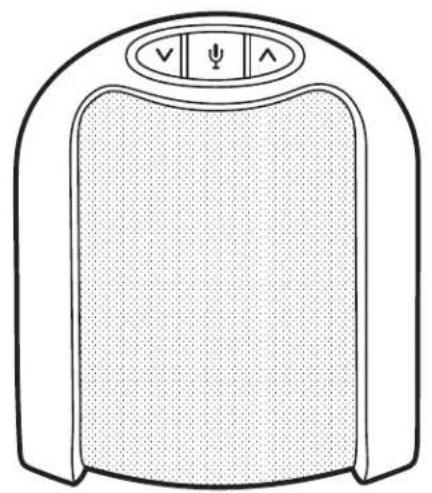
natural_image
Line drawing of a portable air conditioner unit with control buttons (no text or symbols)Speakerphone
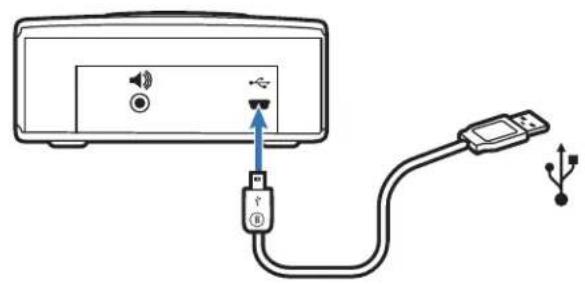
text_image
Diagram showing connection between a device with USB port and USB cable, labeled with ports and signal iconsUSB Cable
(mini B to A)
1.2 MCD100-M USB Features
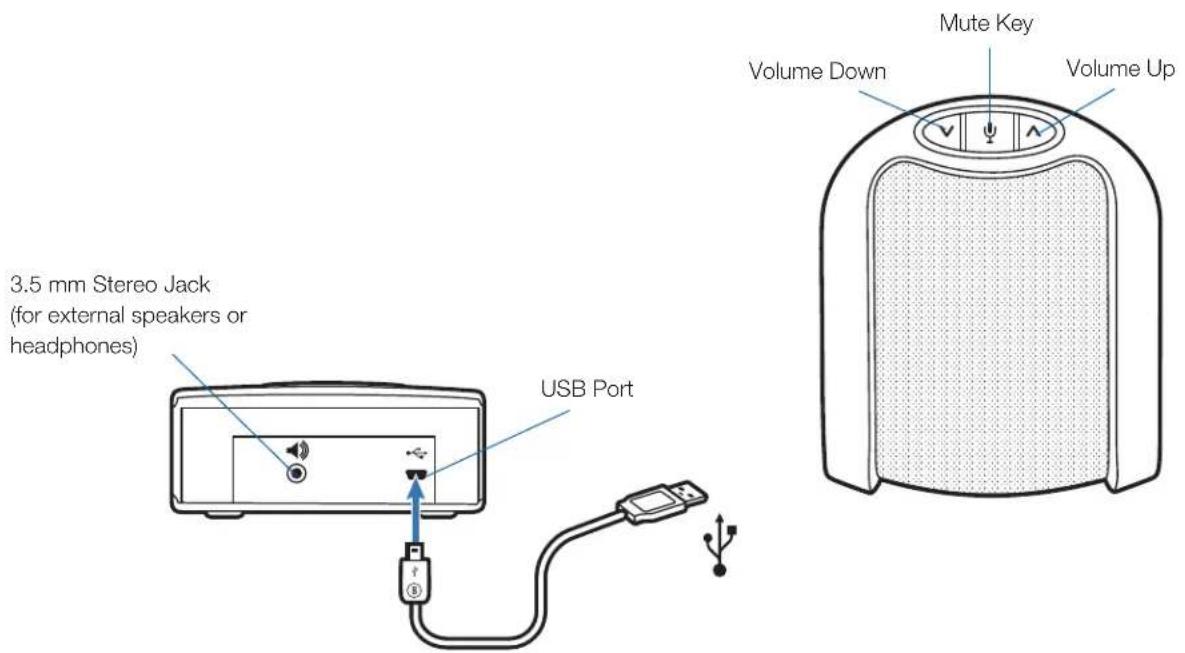
text_image
3.5 mm Stereo Jack (for external speakers or headphones) USB Port Mute Key Volume Down Volume Up2 Set Up
2.1 Connecting USB Speakerphone to PC
1 Connect the USB cable to the USB port on the back of the speakerphone.
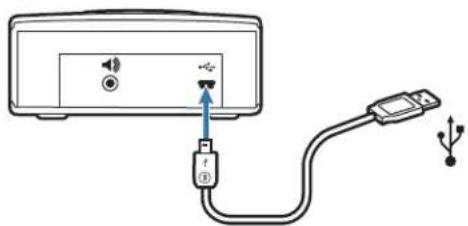
natural_image
Diagram showing a device with an external cable and USB port, no text or symbols present2 Connect the other end of the USB cable to the USB port on your computer. A blue light will illuminate through the buttons on the top of the unit indicating the speakerphone is powered on and operating.
2.2 External Speakers/Headphone Connection
The MCD100-M is equipped with 3.5mm stereo Headphones / External Speaker connector. Connecting your computer's loudspeakers (or headphones) to the MCD100-M will disable the MCD100-M's internal speaker. Your computer's audio (music, VoIP communication, or any other) will be passed through to the external speakers, maintaining the same sound quality your computer can deliver. While the internal speaker is disabled when using this connection, the MCD100-M's internal microphone is still functional.
2.3 Confirming MCD100-M is Configured as Microsoft Office Communicator 2007 Speakerphone
MCD100-M works plug-and-play with Microsoft Office Communicator 2007 and requires no drivers or additional software. For most computers, MCD100-M should become the default speakerphone device when connected to your computer. To assure MCD100-M is configured properly as the Microsoft Office Communicator 2007 speakerphone, follow these steps:
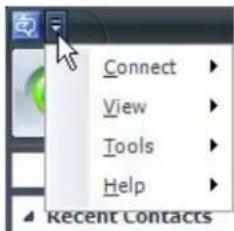
1 Click the drop down arrow on the upper left corner.
text_image
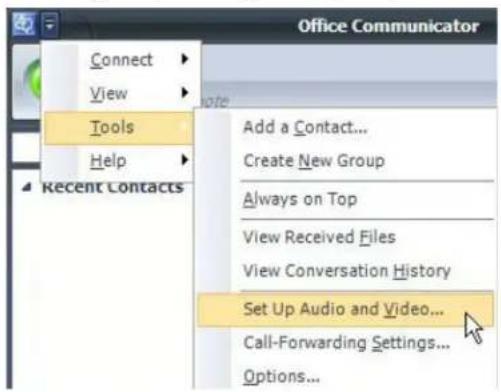
Connect View Tools Help Recent Contacts2 Select the "Tools" option
3 Select "Set Up Audio and Video..."
The Microsoft Office Communicator 2007 Audio and Video wizard will now guide you through 3 setup steps:
text_image
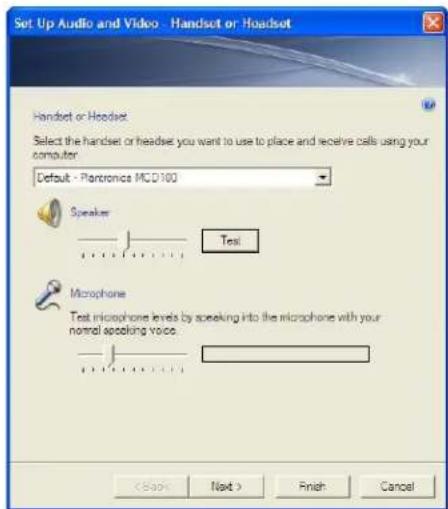
Office Communicator Connect View Tools Help Recent Contacts Add a Contact... Create New Group Always on Top View Received Files View Conversation History Set Up Audio and Video... Call-Forwarding Settings... Options...A) In step A you will set the Handset or Headset you want to use. If MCD100-M is the only Microsoft Office Communicator 2007 device connected to your PC, make sure MCD100-M is selected in the drop down menu, or, make sure the headset or handset you wish to use is selected. Click Next.
text_image
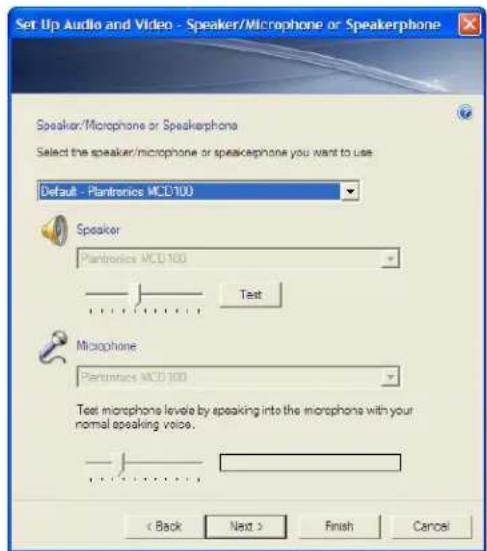
Set Up Audio and Video - Handset or Hoadset Handset or Headset Select the handset or headset you want to use to place and receive calls using your computer Default - Plantronics MCD100 Speaker Test Microphone Test microphone levels by speaking into the microphone with your normal speaking voice. < Back Next > Rain CancelB) In step B, you will set the Speakerphone you want to use. Make sure the Speakerphone is set for MCD100-M by default. If it is not, select then select MCD100-M in the drop down lists under Speaker and Microphone. Click Next.
text_image
Set Up Audio and Video - Speaker/Microphone or Speakerphone Speaker/Microphone or Speakerphone Select the speaker/microphone or speakerphone you want to use Default - Plantronics MCD100 Speaker Plantronics MCD 100 Text Microphone Plantronics MCD 100 Text microphone levels by speaking into the microphone with your normal speaking voice. < Back Next > Finish CancelAt this point you may click Test to play a tone through the MCD100-M speaker and adjust the speaker volume. For Windows XP the speaker slider will not adjust the volume on MCD100-M (because of how MCD100-M is required to enumerate to meet Microsoft Office Communicator 2007 Certification requirements) so the volume must be adjusted using the MCD100-M controls on the unit. The microphone can also be adjusted at this point using the slider. Both sliders operate correctly with Windows Vista.
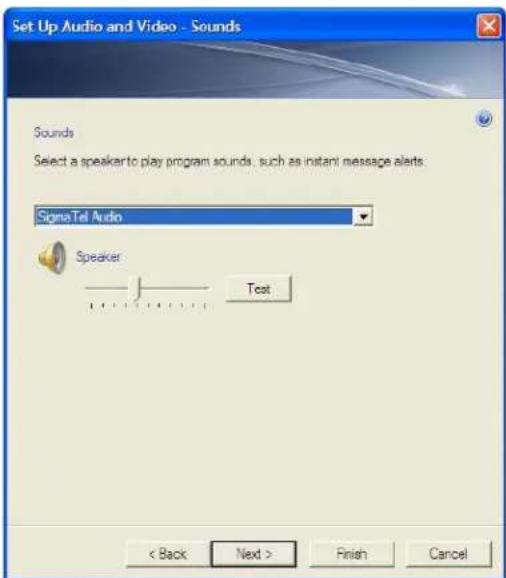
C) In step C, you will set the audio output location for your Microsoft Office Communicator 2007 program sounds. It is recommended that you use your PC speakers for this setting if you have a sound card and speakers available because system sounds can be distracting when played through MCD100-M during a call.
text_image
Set Up Audio and Video - Sounds Sounds Select a speaker to play program sounds, such as instant message alerts SignaTel Audio Speaker Test < Back Next > Finish CancelNOTE This step only controls Microsoft Office Communicator 2007 system sounds. Windows system sounds must be managed through "Sounds and Audio Devices" in Control Panel. To make any further adjustments to Windows audio, do the following:
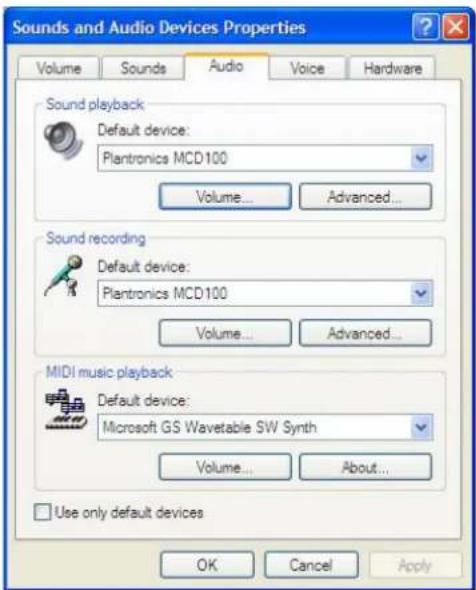
For Windows XP, click on the following: "Start", "Settings", "Control Panel", and select "Sound and Audio Devices". From there select the audio tab and make any further adjustments to MCD100-M settings for Sound Playback (speaker) or Sound Recording (Microphone).
text_image
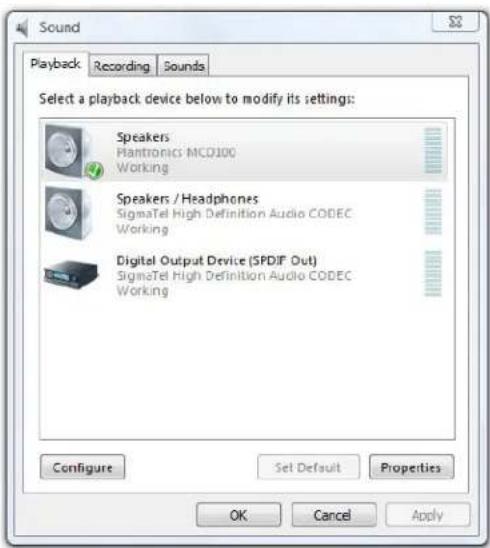
Sounds and Audio Devices Properties Volume Sounds Audio Voice Hardware Sound playback Default device: Plantronics MCD100 Volume... Advanced... Sound recording Default device: Plantronics MCD100 Volume... Advanced... MIDI music playback Default device: Microsoft GS Wavetable SW Synth Volume... About... Use only default devices OK Cancel ApplyFor Windows Vista, click on the following: "Start", "Control Panel", "Hardware and Sound", "Sound – Manage Audio Devices". From there select the Playback tab and make any further adjustments to MCD100-M (speaker) settings. Then select the Recording tab and make any further adjustments to the MCD100-M (microphone) settings.
text_image
Sound Playback Recording Sounds Select a playback device below to modify its settings: Speakers Hantonics MCD100 Working Speakers / Headphones SigmaTel High Definition Audio CODEC Working Digital Output Device (SPDIF Out) SigmaTel High Definition Audio CODEC Working Configure Set Default Properties OK Cancel Apply3 Using Your MCD100-M USB Speakerphone
Volume Up, Volume Down, and Mute
1 Press the down arrow (left button) to decrease the speaker volume.
2 Press the up arrow (right button) to increase the speaker volume.
NOTE A prolonged press of the Volume buttons will increase or decrease the volume several levels until you stop pressing the button. The MCD100-M will beep when a volume up button or volume down button is pressed and a series of beeps when a prolonged press is performed. Each beep signals one level of volume increase or decrease.
3 Press the microphone icon (middle button) to mute the microphone. A blue light will flash indicating that the microphone is muted.
4 Press this button again to unmute. The blue light will become solid indicating the microphone is unmuted.
Plantronics, Inc.
345 Encinal Street
Santa Cruz, CA 95060
United States
www.plantronics.com
For product support contact us at www.plantronics.com/support.