650SE - Label printer SEIKO - Free user manual and instructions
Find the device manual for free 650SE SEIKO in PDF.


| Product Type | Label Printer |
| Brand | Seiko |
| Model | 650SE |
| Dimensions (W x D x H) | Approx. 200 x 150 x 100 mm |
| Weight | Approx. 1.2 kg |
| Power Supply | AC adapter (100-240V, 50/60Hz) |
| Print Technology | Thermal Transfer |
| Max Label Width | Up to 50 mm |
| Print Resolution | 203 dpi |
| Connectivity | USB |
| Key Functions | Print text, barcodes, graphics; label preview; cut options |
| Maintenance | Clean print head with isopropyl alcohol; replace ribbon when faded |
| Cleaning | Wipe exterior with dry cloth; avoid liquids |
| Safety | Use only supplied AC adapter; do not expose to moisture |
| Spare Parts Available | Print head, cutter blade, platen roller |
| Repairability | User-replaceable consumables; professional service for major repairs |
| General Information | Free PDF manual available online; compatible with Seiko label software |
Frequently Asked Questions - 650SE SEIKO
User questions about 650SE SEIKO
0 question about this device. Answer the ones you know or ask your own.
Ask a new question about this device
Download the instructions for your Label printer in PDF format for free! Find your manual 650SE - SEIKO and take your electronic device back in hand. On this page are published all the documents necessary for the use of your device. 650SE by SEIKO.
USER MANUAL 650SE SEIKO
Smart Label Printers
User's Guide
Models 620, 650, and 650SE
U00128837201
For Windows® XP, Server 2003, Vista and Windows 7
or Mac OS® X 10.5 or later.
Smart Label Printers® Series
Smart Label Printers User's Guide Models 620, 650, and 650SE
U00128837200
November
2012
U00128837201
February
2013
FCC Compliance Statement
This equipment has been tested and found to comply with the limits for a Class B digital device, pursuant to Part 15 of the FCC Rules. These limits are designed to provide reasonable protection against harmful interference in a residential installation. This equipment generates, uses and can radiate radio frequency energy and, if not installed and used in accordance with the instructions, may cause harmful interference to radio communications. However, there is no guarantee that interference will not occur in a particular installation. If this equipment does cause harmful interference to radio or television reception, which can be determined by turning the equipment off and on, the user is encouraged to try to correct the interference by one or more of the following measures:
- Reorient or relocate the receiving antenna.
- Increase the separation between the equipment and receiver.
- Connect the equipment into an outlet on a circuit different from that to which the receiver is connected.
- Consult the dealer or an experienced radio/TV technician for help.
Changes or modifications not expressly approved by Seiko Instruments could void the user's authority to operate the equipment.
Applicable EC Directives and Standards
Directive Title
2004/108/EC EC Electromagnetic Compatibility Directive
2006/95/EC EC Low Voltage Directive
2011/65/EU Restriction of the use of certain hazardous substances (RoHS) Directive
2009/125/EC Directive on Eco-Design of Energy-related Products
Standards Title
EMC EN55022 class B
EN61000-3-2, EN61000-3-3
EN55024
LVD EN60950-1
For use in Turkey
Complies with Electrical and Electronic Equipment Directive.
Copyright © 2012-2013 by Seiko Instruments Inc. All rights reserved. No parts of this publication may be reproduced, stored in a retrieval system, or transmitted, in any form, or by any means, electronic, mechanical, photocopying, recording, or otherwise without the prior written permission of Seiko Instruments Inc. No patent liability is assumed with respect to the use of information contained herein. While every precaution has been taken in the preparation of this publication, Seiko Instruments USA Inc. assumes no responsibility for errors or omissions. Nor is any liability assumed for damages resulting from the use of information contained herein. Further, this publication and features described herein are subject to change without notice.
Trademark Information
SII and the SII logo are registered trademarks of Seiko Instruments Inc. Smart Label Printer is a registered trademark and SmartLabels, SmartCapture, SmartCopy and Smart Label Icons are trademarks of Seiko Instruments USA Inc.
Other brand and product names are trademarks or registered trademarks of their respective holders.
IMPORTANT SAFETY INSTRUCTIONS
The following symbols are used in this User's Guide.

WARNING. Warning statements are used to indicate actions that may result in risk of severe, al injury or loss of life.
CAUTION. Caution statements are used to indicate actions that may result in damage to the printer or other property, or may result in risk of minor personal injury.
Warning
- Use only the AC adapter provided with this printer, or an AC adapter that has been approved by Seiko Instruments for use with this printer. Use of an incorrect AC adapter may cause risk of overheating or fire.
- Do not bend or place a heavy object on the power cord as it could damage the cord and result in risk of electric shock or fire. Do not use the power cord if damaged or frayed.
- The thermal head may become quite hot after printing. Be careful when changing labels and cleaning the thermal head.
Caution
- Never insert objects of any kind into this printer as they may touch dangerous voltage points or short out parts, and may result in a risk of fire or electric shock. Never spill liquid of any kind on the printer.
- This printer contains no user-serviceable parts. Do not attempt to service the printer yourself as this can expose you to dangerous voltage points or other risks. Repair service should be performed by a trained technician.
- Do not use this printer near water or in extreme humidity.
-
Be sure to hold only the connector end of the power cord or interface cable when disconnecting. Repeated pulling on the cable could damage the cable.
-
If any of the following conditions occur, turn off the printer and unplug the power cord from the power outlet:
-
The power cord is damaged or frayed.
- Liquid has been spilled on the printer or the printer has been exposed to rain or water.
- The printer does not recover from an error or the printer does not operate normally when the operating instructions are followed.
-
The printer exhibits a distinct change in performance, such as emitting a strange noise, odor or smoke.
-
Before using your SLP, please remove the clear protective tape covering on the Print Engine Cover and Roll Cover.
-
When the SLP is unused for a period of time without a label, rubber of the Platen may become stuck. This condition may cause the printer malfunction. To avoid this, please keep a label loaded in the SLP — even when not in use.
-
Do not use the SLP without closing the Print Engine Cover.
Installation
For best performance, we recommend that you install your printer on a flat surface in a location that satisfies the following environmental conditions:
- Not subject to vibration
• Not exposed to direct sunlight - Dust-free
- Condensation-free
• Temperatures: 59°F to 95°F (15°C to 35°C)
• Humidity: 30%RH to 80%RH (non-condensing)
ABOUT THIS GUIDE
As you'll soon realize, the Smart Label Printer is easy to set up and use. Chances are, once you've read what you need to know in order to get going, you won't have to use this guide except as a quick reminder or a reference.
This guide will help you set up your SLP 620, 650, and 650SE, install the software, and use your SLP.
In writing this guide we assume that you are familiar with common operations using Microsoft Windows® XP, Server 2003, Vista or Windows 7 on a Windows compatible PC, or Mac OS® X 10.5 or later on an Apple Macintosh computer.
This guide has six sections for easy reference:
Introduction, provides some general information about the SLP 620, 650, and 650SE as well as the Smart Label program.
Getting Started, provides instructions for connecting the SLP 620, 650, and 650SE to your Windows-compatible PC or Mac, and loading labels into the printer. It also describes how to use on-line help.
Changing Labels and Printer Care, provides information for replacing a label roll and taking care of your SLP.
Specifications, provides SLP 620, 650 and, 650SE specifications.
Technical Support and Service, provides technical support and service information.
Ordering Labels and Parts, provides information for ordering SmartLabels, replacement parts, and accessories.
CONTENTS
INTRODUCTION ....5
About Your Smart Label Printer....5
Software Features....5
GETTING STARTED 6
What You Need....6
A Word about Labels....7
Caring for Labels....7
Installing the SLP 620, 650, or 650SE ....8
Installing the Software....9
Connecting the SLP to a Power Outlet....10
Connecting the SLP to Your Computer 11
Setting up the Printer 12
Loading a Roll of Labels....12
Testing the Printer 15
CHANGING LABELS AND PRINTER CARE 16
Caring for Your Printer 16
Off Line and On Line Mode....17
Changing a Label Roll....17
Adjusting the Position of Labels....18
Removing Stuck Labels ....20
Cleaning the Printer 21
SPECIFICATIONS 22
Smart Label Printer 620, 650, and 650SE....22
Status Light Indicators....24
TECHNICAL SUPPORT AND SERVICE 25
ORDERING LABELS AND PARTS 25
Ordering Labels 25
Ordering Parts....25
INTRODUCTION
About Your Smart Label Printer
The Smart Label Printer is the best way to instantly print one-at-a-time labels. Direct thermal printing technology does not use ink, toner or ribbon, just labels. The SLP produces fast, laser quality output on a variety of label sizes with the ability to print text, graphics, POSTNET codes and barcodes.
With the wide variety of available SmartLabels, you can use your SLP to create labels for just about anything. Here are some examples:
- Envelope labels
- Barcode labels
- File folder labels
- Business/Appointment Card
- Video Tape
- Name badge labels
- Security Voucher
- CD or DVD labels
- Shipping labels
- Jewelry labels
- Storage container labels
- Binder labels
- Notebook labels
- Shelf labels
• Videocassette labels
Software Features
The Smart Label program provides a rich set of features to simplify your labeling needs.
- WYSIWYG editor displays labels as they will print.
- Prints in background so you can work with other applications while labels are printing. Print labels one at a time or whole mailing lists.
- Object-oriented user interface makes it easy to include text, pictures, barcodes, etc. on your label.
- Mixed text possible within each text object—different font types, sizes and styles (bold/italic/underline) can be included on a single line.
- Shrink-to-fit and word wrap ensure that addresses and other text fit on the label.
- Built-in database to save labels and formats in user-definable database categories.
- Find feature makes it easy to locate saved labels by label name, database field or words within the label.
- Contact-based records updated automatically from label addresses.
GETTING STARTED
What You Need
In order to use your SLP and software, you need to have the following:
PC Users:
- Windows XP, Server 2003, Vista or Windows 7
- IBM® PC or compatible using 233MHz or higher Pentium-compatible CPU
• Minimum 64MB RAM, 128MB recommended
• 1.5GB hard disk space
• USB port or RS232C serial port
• CD-ROM or DVD drive
Mac Users:
• Mac OS X v10.5 or later
- PowerPC® G4 (867MHz or higher), G5, or Intel® processor
• Minimum 512MB RAM
• Minimum 9GB hard disk space
- USB port
- DVD drive
A Word about Labels
For best results we recommend the use of Seiko Instruments SmartLabels. Other brands may not be engineered to provide optimum, trouble-free results with your SLP; they may not work with your printer or they may damage it and void your warranty.
SmartLabels are available in a wide variety of sizes and colors to properly label almost anything.
The SmartLabels have a mark on the backing of each label that the SLP 620, 650, and 650SE uses for top of label alignment. Check to be sure the labels have this mark before loading them into the SLP.

text_image
MarkNote: Older SmartLabels did not have this mark. Be sure that the SLP 620, 650, and 650SE are listed as supported printers on the SmartLabels package.
Caring for Labels
The labels are sensitive to heat, moisture, and light. With this in mind:
• Store labels in a cool, dry place.
- Do not scratch or rub labels with a hard object.
- Do not expose labels to high heat or direct light for an extended period of time.
- Keep organic solvents away from labels.
Installing the SLP 620, 650, or 650SE
Here, you'll find out how to unpack and set up your new SLP. As part of the setup process, you'll load a roll of standard address labels and run a quick test.
Unpacking the SLP
Carefully remove the printer and its components from the box. It's a good idea to save the box and packing materials in case you need to store or ship the printer. Accessories vary depending on the package.
• A Smart Label Printer (SLP 620, 650, or 650SE)
- Safety Precautions
(Accessories)
• Smart Label software with User's Guide
- USB cable
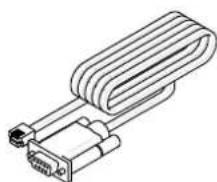
- Serial cable
- AC adapter (PW-B0625-W1-U, PW-B0625-W1-E, PW-B0625-W1-B, PW-B0625-W1-A, PW-B1230-W1-U, PW-B1230-W1-E, PW-B1230-W1-B, PW-B1230-W1-A)
- Starter roll of SmartLabels
- Quick Start Guide
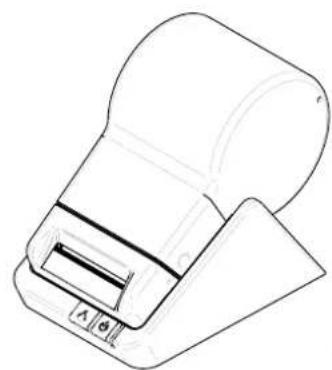
natural_image
Line drawing of a handheld electronic device with control buttons (no text or symbols)A Smart Label Printer

natural_image
Blank rectangular sheet or panel with no text, numbers, or symbols visibleSafety Precautions Safety Precautions
natural_image
Blank rectangular sheet or panel with no text, numbers, or symbols visibleQuick Start Guide

CD-ROM
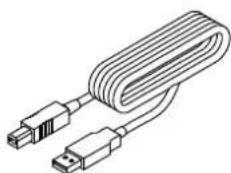
natural_image
Line drawing of a USB cable with two connectors (no text or symbols)USB Cable
natural_image
Technical line drawing of a coiled electrical connector with two connectors (no text or symbols)Serial Cable

natural_image
Illustration of a rectangular electronic component connected to a coiled cable (no text or symbols)AC Adapter
SmartLabels
Installing the Software
Installing the Smart Label Program for MacOS X
- Insert the Smart Label CD. If the installer does not appear automatically, double-click the CD on your desktop or in the left pane of a new Finder window.
- Double-click the file SIISmartLabelPrinter.mpkg. The installer will appear. Follow the on-screen instructions.
- Mac OS X 10.5 or later will automatically set up your printer, once the SLP is connected.
Installing the Smart Label Program for Windows
- Insert the Smart Label CD. The installation wizard starts automatically on most systems. If the introductory screen doesn't appear after a few seconds, do the following:
- Click the Windows Start button then point to Settings and choose Control Panel.
- Double-click Add/Remove Programs then click the Install button. Follow the install wizard to assist with installation.
Please note: If your printer is not recognized or all label templates do not appear, you will need to set-up your printer within the SLP printer software. Please see "Setting up the Printer".
Connecting the SLP to a Power Outlet
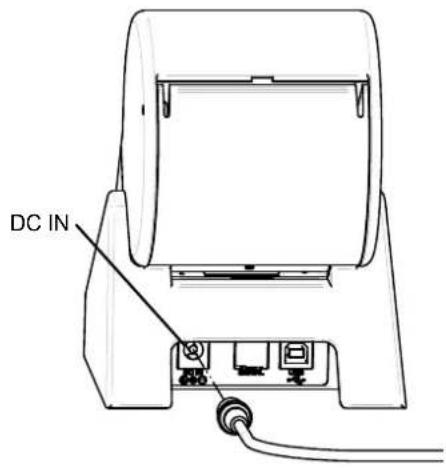
- Connect the supplied AC adapter to the back of the SLP and to a power outlet.
text_image
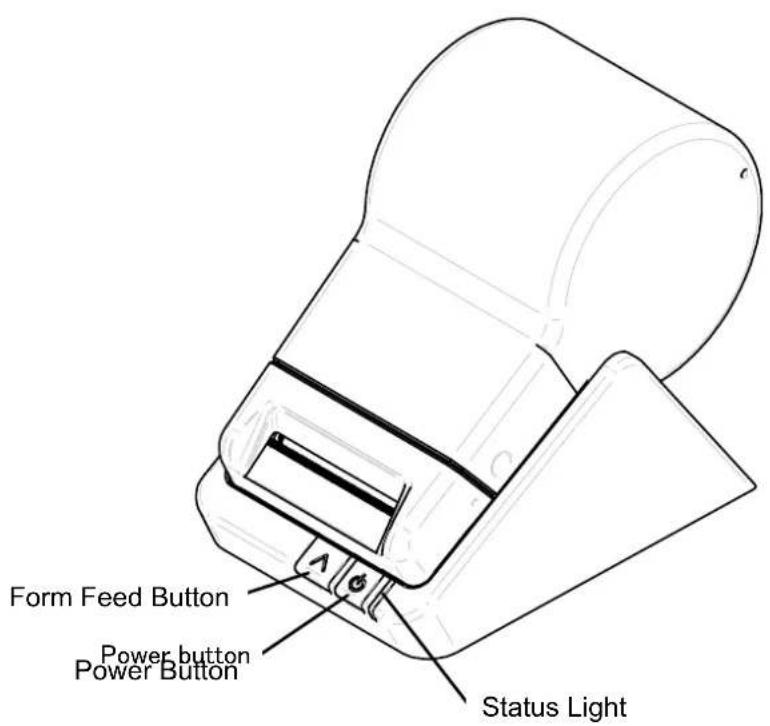
DC IN- The printer powers on automatically when connected to AC power. The Status Light will flash if no labels are loaded in the printer.
text_image
Form Feed Button Power button Power Button Status LightConnecting the SLP to Your Computer
Use the USB or serial cable provided with the SLP 620, 650, or 650SE to connect the SLP to your computer.

CAUTION: Connecting or disconnecting the interface cable while the printer is turned on may damage the printer.
Follow these steps:
- Make sure that the SLP is turned off. If the Status Light is on, hold the Power Button until the SLP is turned off.
- Connect the printer to your PC or Mac.
When using the USB cable:
- Insert the USB cable into the USB port on your PC or Mac.
- If all USB ports are in use, you may need to purchase a USB hub.
- Connect the other end of the cable into the appropriate port on the back of the SLP.
When using the serial cable:
- Insert the serial cable into the serial port on your PC or Mac.
- Connect the other end of the cable into the appropriate port on the back of the SLP.

text_image
Computer USB port Computer Serial port USB cable or Serial cable SLP Serial port SLP USB portSetting up the Printer
If the printer is not recognized using the installation wizard, you will need to set up your printer manually. To do so, follow these steps:
Prepare the Roll of Labels
- Open the Smart Label printer software.
- Under the Label pull-down menu, select Printer Set-up.
- Select Add a printer.
- Select how your printer is connected and click Done.
Loading a Roll of Labels
Prepare the Roll of Labels
- Remove the sticker from the beginning of the roll of labels.
Note: Make sure there is a black mark on the label backing as shown in "A WORD ABOUT LABELS".
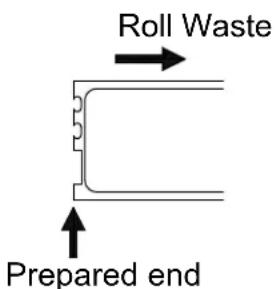
- If necessary, cut between the labels to create a "leader".
text_image
Roll Waste Prepared end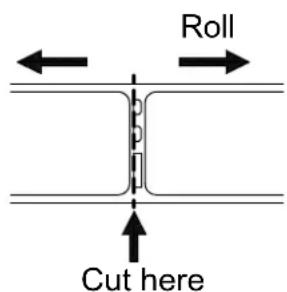
text_image
Roll Cut hereIf the end of the roll is not prepared as shown above, cut between the labels leaving as much backing as possible on the end of the roll to act as a leader.
Load the Roll of Labels
-
Make sure the power cord is connected and the printer is turned on. The green Status Light should be flashing.
-
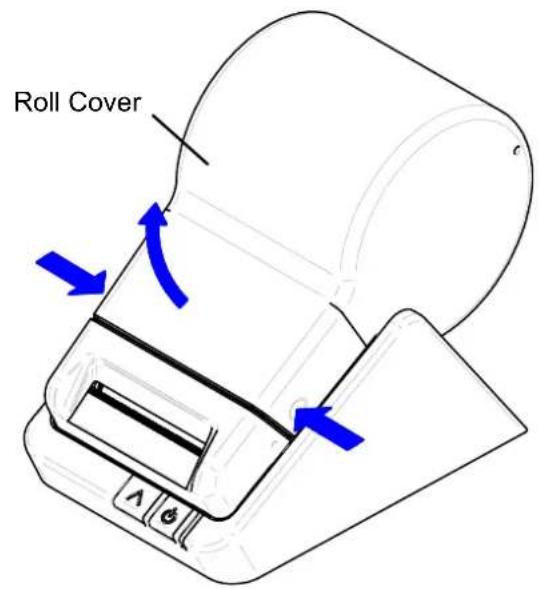
Press the left and right side of the Roll Cover, and lift up the edge of the Roll Cover to open.
text_image
Roll Cover
text_image
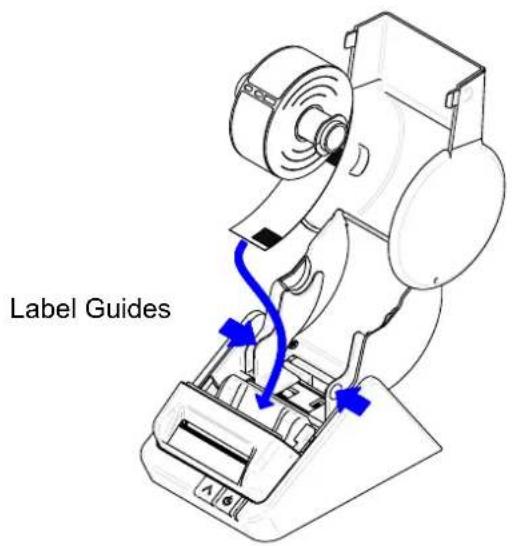
Roll Cover Spindle- Remove the Spindle from the SLP and insert the label roll into the Spindle.
- Insert the labels and Spindle into the SLP. Adjust the guides to fit the labels as shown below.
text_image
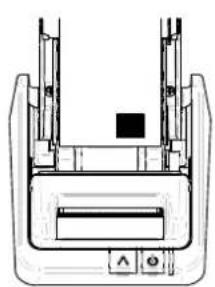
Label GuidesSLP provides three types of labels which have different paper width. Insert each label into positions shown in the figures below.
natural_image
Technical line drawing of a mechanical component with no visible text or symbols
natural_image
Technical line drawing of a mechanical component with no visible text or symbols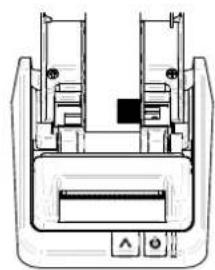
natural_image
Technical line drawing of a mechanical component with no visible text or symbols- Insert the free end of the label roll, label side down, into the paper inlet slot. Push the label stock into the paper inlet slot until you feel a slight resistance. Continue pushing gently. The SLP automatically feeds the labels through and aligns the end in the exit slot.
If the label end doesn't appear through the exit slot:
Press and release the Form Feed Button to advance the labels.
- Close the Roll Cover. At the time, be careful not to close the Roll Cover on your fingers.

natural_image
Line drawing of a device with a blue arrow pointing to a component, no text or symbols presentTesting the Printer
A quick test lets you know your printer is operating properly and that the labels are loaded correctly.
Testing the SLP 620, 650, and 650SE
- Press and hold the Power Button for 2 seconds to turn the printer standby.
- Press and hold the Form Feed Button and then press the Power Button. The green Status Light will begin to flash. Do not release the Form Feed Button.
- To print the serial number and firmware version:
- While holding the Form Feed Button, press and release the Power Button once, and release the Form Feed Button.
- To print the density test:
- While holding the Form Feed Button, press and release the Power Button twice, and release the Form Feed Button.
CHANGING LABELS AND PRINTER CARE
The SLP 620, 650, and 650SE uses advanced thermal print technology to provide crisp, high-contrast printing. There are no ribbons or cartridges to replace.
For best results we recommend the use of Seiko Instruments SmartLabels. Other brands may not be engineered to provide optimum, trouble-free results with your Smart Label Printer; they may not work with your SLP or they may damage it and void your warranty.
Caring for Your Printer
Your SLP 620, 650, or 650SE is a high-precision device that's designed for trouble-free operation. Just follow these few precautions:
- Note: The SLP 620, 650, or 650SE is designed for use only with Seiko Instruments SmartLabels. Use of improper labels may damage the printer and void your warranty.
- Don't operate the printer in a dusty environment.
- Keep the printer out of direct sunlight.
- Turn off the printer when not in use.
- Pull out the power plug when the printer is not in use for a long time.
Discarding Old Printers
When discarding old and used Smart Label Printers, please follow the disposal or recycling regulations in your area.
Off Line and On Line Mode
Pressing and releasing the Power Button toggles the printer between off line and on line mode. An amber Status Light indicates that the printer is off line. There is no communication with the computer when the printer is off line.
This feature is a handy way to stop printing so you don't waste labels while you delete labels from the print queue.
Changing a Label Roll
This procedure describes how to remove and replace label rolls.
- You can load a different type of label at any time — you don't have to wait until all of the labels have been used.
- When you run out of labels, the green Status Light on the front of the SLP flashes. If printing is in process, a message appears on the PC telling you that the printer is out of labels.
Removing the Old Roll
CAUTION: DO NOT pull on the labels to remove them from the printer. This may cause labels tuck inside the printer.
- Tear off any printed labels. If labels aren't torn off, they may get jammed when you perform step 2.
- Press and hold the Form Feed Button. The labels will reverse out of the SLP. If this does not work, see "Adjusting the Position of Labels" to release the Platen to remove the labels
Loading the New Roll
Prepare and load the new label roll as described in "Loading a Roll of Labels".
Adjusting the Position of Labels
If you find the labels are advancing at an angle, follow these steps to realign them:
- Make sure that the SLP is turned off. If the Status Light is on, hold the Power Button until the SLP is turned off.
- Swivel the Roll Cover open and remove the Print Engine Cover by pulling it toward you while pressing the left and right side of the Print Engine Cover.

natural_image
Technical line drawing of a mechanical device with blue arrows indicating directional components (no text or symbols)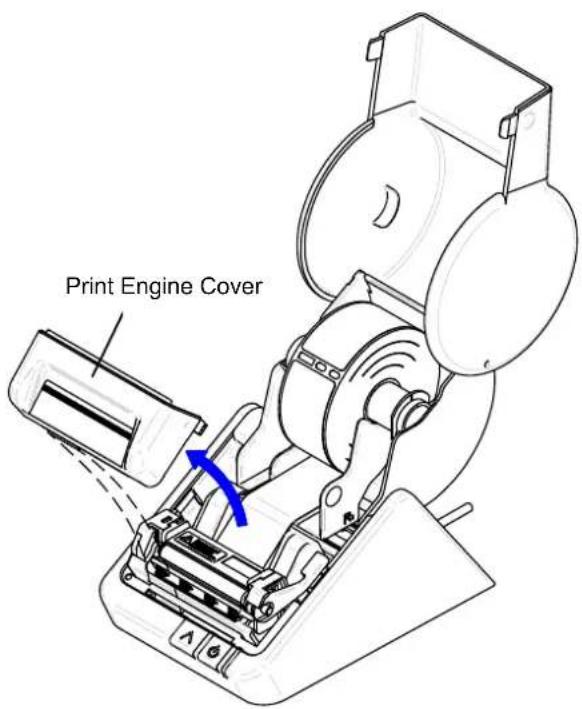
text_image
Print Engine Cover- Release the pressure on the label stock by moving the Platen Release Lever forward. When you let go of the Platen Release Lever, it goes back to the original position. Hold the Platen Release Lever until the adjustment of the label position completes.

natural_image
Technical line drawing of a mechanical device with a magnified inset showing internal components (no text or symbols)- Realign the label stock so it is straight.
- Return the Platen Release Lever.
- Replace the Print Engine Cover, starting at the bottom, and push the top edge forward until the Print Engine Cover snaps into place.
- Make sure the labels feed through the paper inlet slot.
Removing Stuck Labels
If a label becomes stuck in your printer, remove it as follows:
- Make sure that the SLP is turned off. If the Status Light is on, hold the Power Button until the SLP is turned off.
- Swivel the Roll Cover open. With a pair of scissors, cut the label stock between the label roll and the paper inlet slot.
- Remove the Print Engine Cover by pulling it toward you while pressing the left and right side of the Print Engine Cover.
- Release the pressure on the label stock by moving the Platen Release Lever forward. When you let go of the Platen Release Lever, it goes back to the original position. Hold the Platen Release Lever until a label is removed.
- Remove the stuck label.

CAUTION: DO NOT touch the print engine. It may be hot.
- Return the Platen Release Lever to the original position.
- Replace the Print Engine Cover, starting at the bottom, and push the top edge forward until the Print Engine Cover snaps into place.
Cleaning the Printer When Using the Cleaning Card
- Remove label stock from the printer.
- Insert the Seiko Smart Label Printer Cleaning Card (SLP-CLNCRD).
- The Cleaning Card should feed automatically or you can press the Form Feed Button to manually feed the card in a couple of times (you may also gently pull the card to guide it through the Platen).

text_image
Form Feed Button Cleaning Card d- Properly dispose of the used card.
SPECIFICATIONS
Smart Label Printer 620, 650, and 650SE
The Smart Label Printer is a compact printing device ideally suited for label printing applications. There are no built-in fonts and any text must be converted to a bitmap image by a host computer or device for printing.
Developer information can be found on our website at www.siibusinessproducts.com
Printer
| Specifications | SLP620 | SLP650,650SE |
| Technology | Direct | |
| Resolution 203 dpi (8 dots/mm) | 300 dpi (11.81 dots/mm) | |
| Max. Paper Width 2.28 in. (57.9 mm) | ||
| Max. Printable Width 1.89 in. (48.0 mm) | 1.92 in. (48.8 mm) | |
| Print Speed 70 mm/sec max. | 100 mm/sec max. | |
| Interface | USB | 650 USB650SE USB,RS-232C |
| Operating voltage DC5.7 V to DC6.3 V DC11.4 V to DC12.6 V | ||
| Current consumption (Normal) | 2.3 A 2.8 A | |
| Current consumption (Maximum) | 2.5 A 3.0 A | |
| Dimensions | 4.48 in. (W) x 6.77 in. (D) x 5.83 in. (H)(113.8 mm (W) x 172.0 mm (D) x 148.0 mm (H)) | |
| Mass Approx. 1.08 lbs. (490 g) | ||
| Life Span | 6 km | 15 km |
thermal
Compliance Table
Check the list below to see if the printer and its accessories can be operated in destination countries and comply with the regulations.
| Countries^*1 | SLP620, SLP650, 650SE | PW-B0625-W1-U PW-B1230-W1-U | PW-B0625-W1-E PW-B1230-W1-E | PW-B0625-W1-B PW-B1230-W1-B | PW-B0625-W1-A PW-B1230-W1-A |
| USA √ √ | - | - | - | ||
| Canada √ √ | - | - | - | ||
| Brazil | √ | - | √ | - | - |
| EU (except United Kingdom), EFTA | √ | - | √ | - | |
| United Kingdom | √ | - | - | √ | - |
| Turkey | √ | - | √ | - | - |
| United Arab Emirates | √ | - | √ | - | |
| South Africa | √ | - | √ | - | - |
| Israel | √ | - | √ | - | - |
| Tunisia | √ | - | √ | - | - |
| Malaysia | √ | - | (√) | √ | - |
| India | √ | - | √ | - | - |
| Singapore | √ | - | (√) | √ | - |
| Australia, New Zealand | √ | - | - | - | √ |
*1: Ask your SII sales representative if you want to operate the products in other countries than listed above.
(Note): The compliant AC cable differs from country to country. See the list below to find out which cable you need to connect in destination countries.
Environment
| Specifications | SLP620 | SLP650,650SE |
| Operating Temperature 41°F to 104°F (5°C to 40°C)* | ||
| Storage Temperature -4°F to 140°F (-20°C to 60°C) | ||
| Operating Humidity 30%RH to 80%RH (non-condensing) | ||
| Storage Humidity 30%RH to 90%RH (non-condensing) | ||
* Particular papers are excluded.
Status Light Indicators
LED Indicator State
| Off | Power | off/Stand-by |
| Steady Green On-line | ||
| Steady Yellow Off-line | ||
| Blinking Green 1* Paper out | ||
| Blinking Green 3* Cooling down | ||
| Blinking Yellow 1* | Paper jam | |
| Blinking Yellow 2* | Buffer overflow | |
| Blinking Red 1* | Head temperature error | |
| Blinking Red 2* | Voltage error | |
| Blinking Red 3* | Head error | |
| Blinking Red 5* | Hard error |
* The number refers to the number of blinks.
TECHNICAL SUPPORT AND SERVICE
Please refer to the "Troubleshooting" topic in on-line Help for information on how to determine if your Smart Label Printer needs service and how to contact Seiko Instruments for Technical Support and repairs.
You can contact Technical Support on our website under the Support section at:
www.siibusinessproducts.com
ORDERING LABELS AND PARTS
Ordering Labels
For best results we recommend the use of Seiko Instruments SmartLabels. Other brands may not be engineered to provide optimum, trouble-free results with your SLP; they may not work with your printer or they may damage it and void your warranty.
For information on ordering labels, please choose the How to Order Labels command on the Help menu or refer to the "Ordering Labels" topic in on-line Help.
You can order labels directly from Seiko Instruments on our website at the following address:
www.siibusinessproducts.com
Ordering Parts
For information on ordering replacement parts and accessories, please refer to your SLP model in the "Troubleshooting" topic in on-line Help.
You can order parts directly from Seiko Instruments on our website at the following address:
www.siibusinessproducts.com
Seiko Instruments USA Inc.
Thermal Printer Div.
21221 S. Western Avenue, Suite 250, Torrance, CA 90501, USA
Telephone:+1-310-517-7778 Facsimile:+1-310-517-7779
Seiko Instruments GmbH
Siemensstrasse 9, D-63263 Neu-Isenburg, Germany
Telephone:+49-6102-297-0 Facsimile:+49-6102-297-222