
DMA-1100P - Media player ZYXEL - Free user manual and instructions
Find the device manual for free DMA-1100P ZYXEL in PDF.


| Product Type | Network Media Player |
| Brand | ZyXEL |
| Model | DMA-1100P |
| Dimensions (W x D x H) | 210 x 160 x 45 mm |
| Weight | 0.6 kg |
| Power Supply | 5V DC, 2A via external adapter |
| Video Outputs | HDMI, Composite Video, Component Video (YPbPr) |
| Audio Outputs | Digital Optical, Digital Coaxial, Analog Stereo (RCA) |
| Network Connectivity | 10/100 Ethernet |
| USB Ports | 1 x USB 2.0 (Host) for playback from USB drives |
| Supported Video Formats | AVI, MPEG, MKV, WMV, MOV, VOB, MP4, DivX, XviD |
| Supported Audio Formats | MP3, WMA, WAV, AAC, OGG, FLAC |
| Supported Image Formats | JPEG, BMP, PNG, GIF |
| Subtitle Support | SRT, SUB, SMI, ASS, SSA |
| Remote Control | Infrared remote with AAA batteries |
| Maintenance & Cleaning | Wipe with a soft, dry cloth. Do not use liquid cleaners. |
| Safety Instructions | Keep away from water and moisture. Do not expose to extreme temperatures. |
| Spare Parts & Repairability | Remote control, power adapter, and AV cables available. Not user-serviceable. |
| General Information | Compatible with Windows Media Center Extender (if applicable). Requires network connection for streaming. |
Frequently Asked Questions - DMA-1100P ZYXEL
User questions about DMA-1100P ZYXEL
0 question about this device. Answer the ones you know or ask your own.
Ask a new question about this device
Download the instructions for your Media player in PDF format for free! Find your manual DMA-1100P - ZYXEL and take your electronic device back in hand. On this page are published all the documents necessary for the use of your device. DMA-1100P by ZYXEL.
USER MANUAL DMA-1100P ZYXEL
- DMA-1100P Introduction ...... 3
- Basic Application: Directly Connect to a Media Server 5
2.1 The Application Diagram....5
2.2 Hardware Connection....6
2.3 Software Installation 6
- Advanced Application: Connect to a Ethernet Hub/Switch 7
3.1 The Application Diagram....7
3.2 Hardware Connection....7
3.3 Software Installation 8
FAQ....9
A. Device Management FAQ .... 12
A01. How to configure if I would like to use “proxy mode” to enable the sharing application instead of “remote proxy”? 12
A02. How to activate the SSL-VPN license?...... 14
A03. I got the warning message “Port-based reverse proxy may not be fully functional, if sslvpn site is accessed using ip address instead of domain name. How can I do? .... 15
1. DMA-1100P Introduction
In modern entertainment life style, you may have many choices in digital contents such as surfing internet, transmitting data, seeing movies, browsing photos, and listening to music. The location may not only on your desk or study room, but also from everywhere in your house. Additionally, you capture digital images on your digital camera, digital videos on your digital camcorder. Hence, ZyXEL DMA series provide you better way to connect all those digital devices in one media adapter. Then, you can see these files stored in your PC in your digital home theater. The ZyXEL digital media adapter, DMA-1100P, is required to receive the content from the PC through wired Ethernet networking technology to exchange digital media and control information then display the content to TV with simple audio and video cables.
DMA-1100P allows you to stream all video content from a PC with application programming software to your big flat panel Plasma or LCD TV in the living room. You can also view your digital photo collection on your TV straight from photos stored on your PC or playback all digital music files on your stereo system.
The main difference between DMA-1000 and DMA-1100P is that DMA-1100P has truly plug & play via HomePlug AV power line networking technology. In other words, customer can use power line to interconnect other devices with Homeplug function.
There are three ways to show how to deploy ZyXEL DMA-1100P in your home:
- Basic application: DMA-1100P directly connects to a media server.
- Ethernet application: DMA-1100P links to a Ethernet Hub/Switch.
• Homeplug application: DMA-1100P connect to digital devices via power line
See following for detail description on these two scenarios.
2. Basic Application: Directly Connect to a Media Server
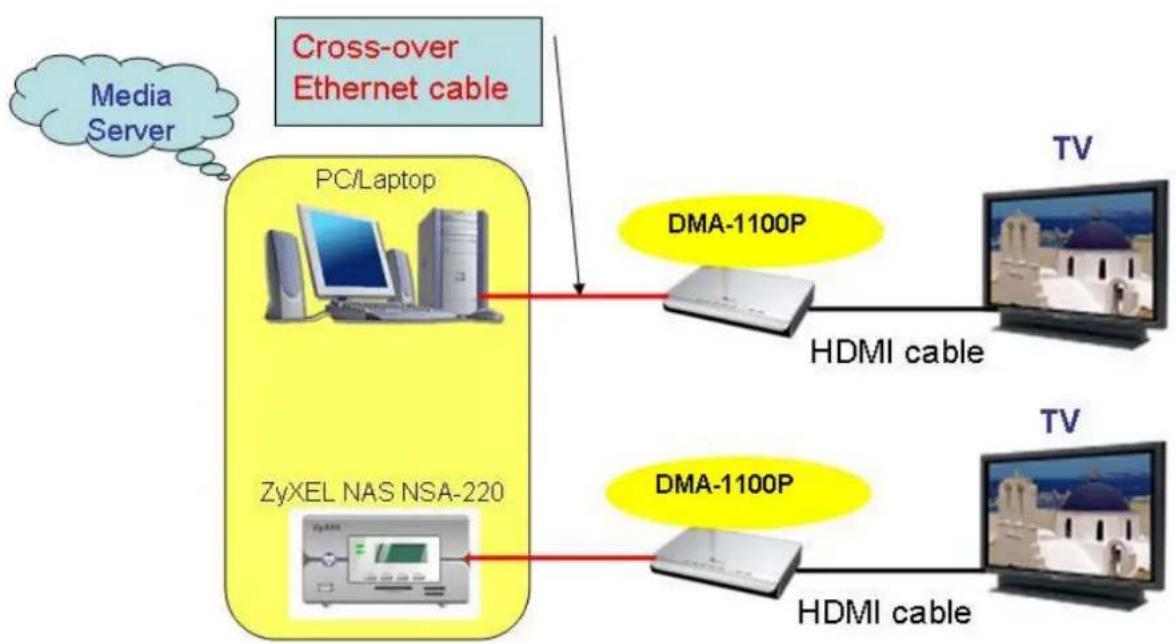
2.1 The Application Diagram
flowchart
graph TD
    A["Media Server"] --> B["PC/Laptop"]
    B --> C["Cross-over Ethernet cable"]
    C --> D["DMA-1100P"]
    D --> E["HDMI cable"]
    E --> F["TV"]
    G["ZyXEL NAS NSA-220"] --> H["DMA-1100P"]
    H --> I["HDMI cable"]
    I --> J["TV"]
In this basic application scenario, you have the all devices including TV set, ZyXEL DMA-1100P, and PC/Laptop or NAS (with embedded media server) in the same room. Using DMA-1100P as media adapter and interconnect your PC or NSA with TV set. This is the simplest environment when deploy ZyXEL DMA-1100P.
2.2 Hardware Connection
You need to use cross-over Ethernet cable to directly connect you PC/Laptop (or ZyXEL network storage appliance NSA-220) and ZyXEL DMA-1100P. For connecting to you TV set, you can use either HDMI cable or S-Video cable for transmit video signal. If you use HDMI cable then the audio output will be also transmit over HDMI cable. If you use S-Video cable for video output then you need to choose either a coaxial S/PDIF cable or AV cable for audio output to TV set.
For detail connection procedures, please reference DMA-1100P Quick Start Guide or User Guide.
2.3 Software Installation
The ZyXEL DMA-1100P gets the data (music, photos and videos) from media servers. In this directly connection scenario, the PC/Laptop or NAS (Network Attached Storage) need to act as a media server.
If you use ZyXEL NSA-220, then you won't need to install any extra software. You can install the bundled DiXiM Media Server software on you PC/Laptop. For the detail step-by-step procedures on installing DiXiM Media Server, please reference the DMA-1100P Quick Start Guide.
3. Ethernet Application: Links to Ethernet Hub/Switch
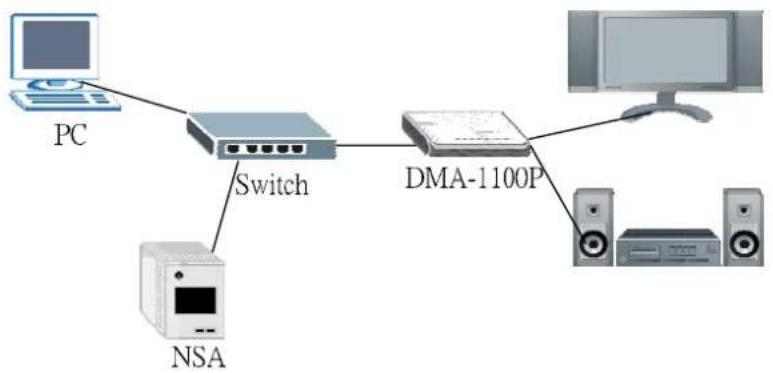
3.1 The Application Diagram
flowchart
graph TD
    PC["PC"] --> Switch["Switch"]
    Switch --> DMA["DMA-1100P"]
    Switch --> NSA["NSA"]
    DMA --> PC1["Computer"]
    DMA --> PC2["Computer"]
    DMA --> PC3["Computer"]
    DMA --> PC4["Computer"]
In this Ethernet application scenario, DMA-1100P and other digital devices, ex: PC, NSA connects to Ethernet hub. Your TV will be linked to DMA-1100P. All the media files will be transmitted through Ethernet hub or switch.
3.2 Hardware Connection
In this application scenario, we have the following hardware devices:
● ZyXEL Digital Media Adapter DMA-1100P
- ZyXEL hub/switch
- PC/Laptop
• TV set
To simply your network configuration, you can use DHCP function in your switch and
then all your network devices will automatically get their IP.
3.3 Software Installation
The PC/Laptop or NSA-220 acts as a media server in this scenario too. The DMA-1100P gets the data (music, photos and videos) from those media servers.
Like the previous scenario, by using ZyXEL NSA-220 you won't need to install any extra software because that NSA-220 has built-in Media Server. Besides, you may need to install the bundled DiXiM Media Server software on you PC/Laptop. For the detail step-by-step procedures on installing DiXiM Media Server, please reference the DMA-1100P Quick Start Guide.
4. Homeplug Application: Connect to a Ethernet Hub/Switch
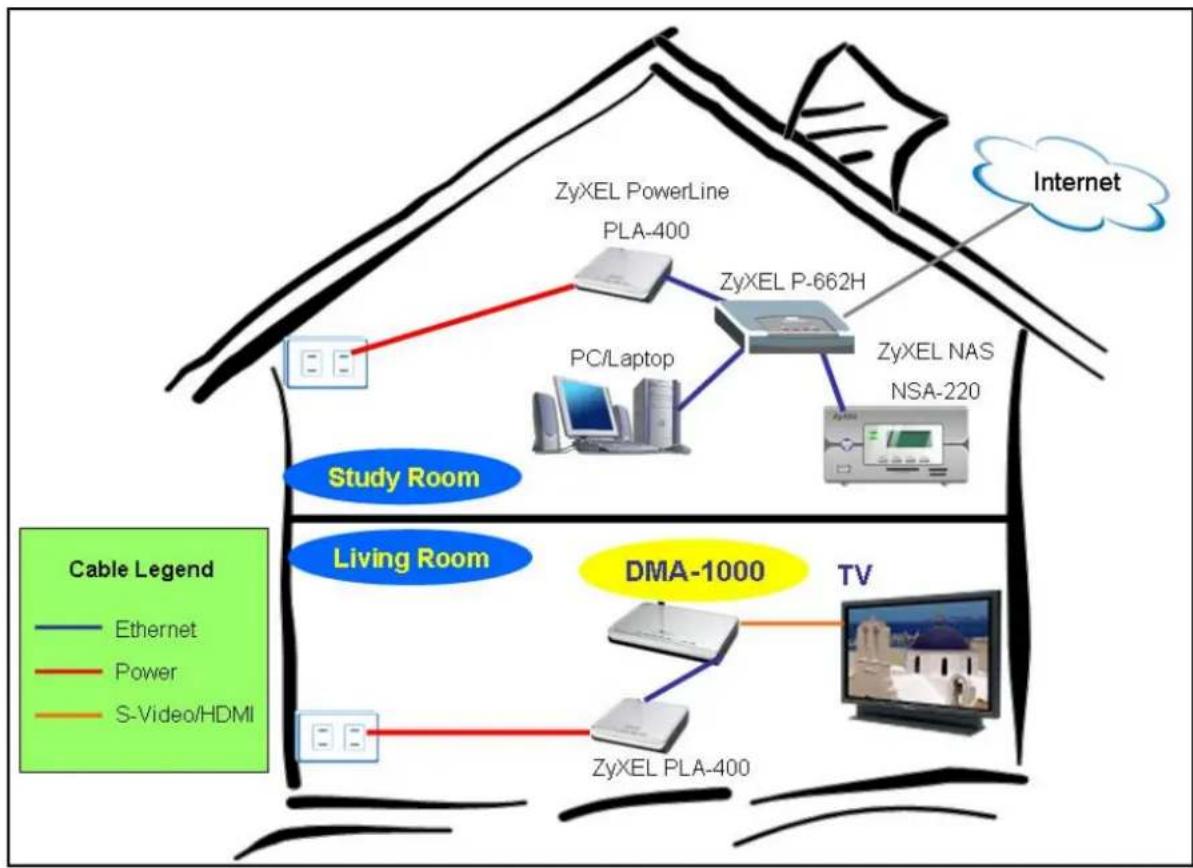
4.1 The Application Diagram
flowchart
graph TD
    subgraph Study Room
        A["PC/Laptop"] --> B["ZyXEL P-662H"]
        C["ZyXEL NAS NSA-220"] --> B
        D["ZyXEL PowerLine PLA-400"] --> B
    end
    subgraph Living Room
        E["Living Room"] --> F["ZyXEL PLA-400"]
        G["DMA-1000"] --> H["ZyXEL PowerLine"]
        I["TV"] --> J["ZyXEL PowerLine"]
    end
    subgraph Internet
        K["Internet"] --> L["Data Bus"]
    end
    style Study Room fill:#f9f,stroke:#333
    style Living Room fill:#bbf,stroke:#333
    style Internet fill:#dfd,stroke:#333
In this advanced application scenario, your TV set had already sat down in living room ( 1^st Floor) and there is no Ethernet jack placed in living room. Meanwhile, your computer and network devices all settle down in study room ( 2^nd Floor). This is a typical layout on most people's home. We will describe how to deploy ZyXEL DMA-1100P on such environment.
4.2 Hardware Connection
In this application scenario, we have the following hardware devices:
● ZyXEL Digital Media Adapter DMA-1100P
● ZyXEL Power Line Adapter PLA-400 *2
● ZyXEL Network Storage Appliance NSA-220
- ZyXEL DSL CPE P-662H
- PC/Laptop
• TV set
In the 1 ^st floor, the living room, you need to use straight-through Ethernet cable to connect the ZyXEL PLA-400 and ZyXEL DMA-1100P. Regarding the connection between DMA-1100P and TV set, this part is same as above scenario or you can see the DAM-1000 Quick Start Guide.
In the 2^nd floor, the study room, connect PLA-400 to the LAN port of your DSL MODEM ZyXEL P-662H. The PC/Laptop and ZyXEL NSA-220 are also connecting to the LAN port of P-662H.
You can extend the LAN area from study room on 2^nd floor to the living room on 1^st floor through using these two PLA-400s. The data stored on PC/Laptop or NSA-220 will stream onto DMA-1100P then TV set through the existing power line network.
4.3 Software Installation
The PC/Laptop or NSA-220 acts as a media server in this scenario too. The DMA-1100P gets the data (music, photos and videos) from those media servers.
Like the previous scenario, by using ZyXEL NSA-220 you won't need to install any extra software because that NSA-220 has built-in Media Server. Besides, you may need to install the bundled DiXiM Media Server software on you PC/Laptop. For the detail step-by-step procedures on installing DiXiM Media Server, please reference the DMA-1100P Quick Start Guide.
Frequently Asked Questions
A. DiXiM Media Server FAQs
A01. DiXiM Media Server & Firewall related issue
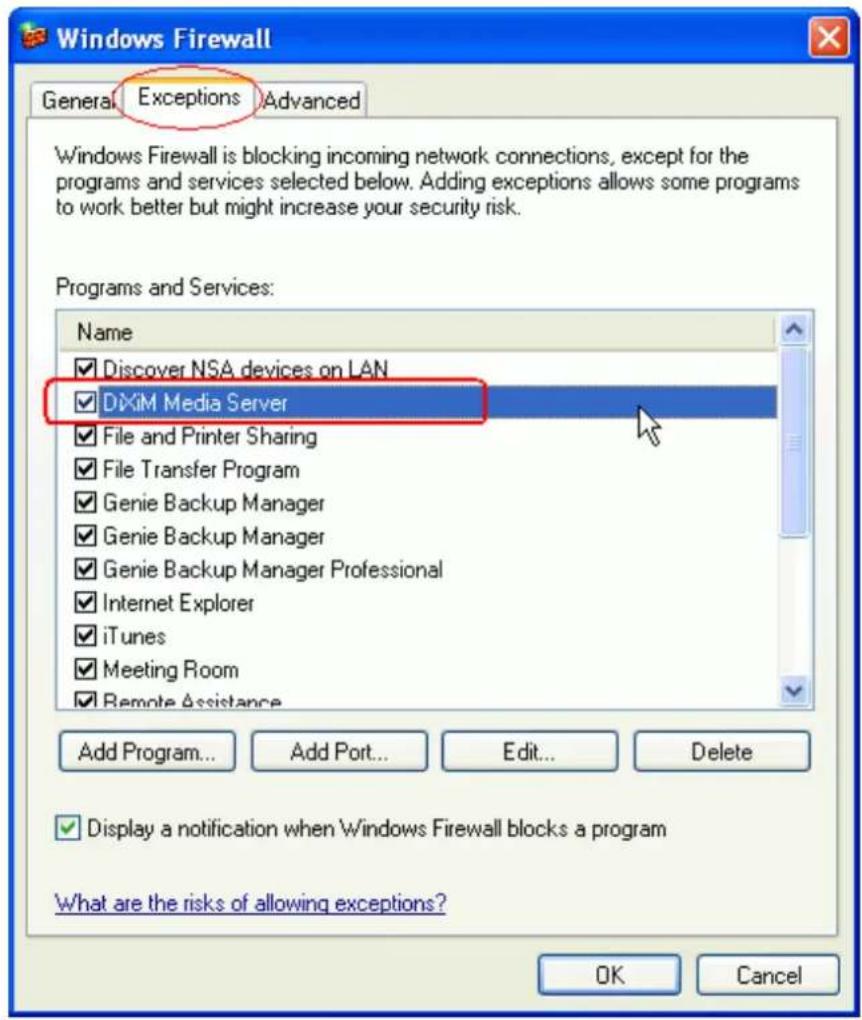
When you installing DiXiM Media Server on your PC/Laptop, if you see a window asking about configuring the Windows firewall, just click YES. This allows the DMA-1100P to access the media files that you publish on this media server.
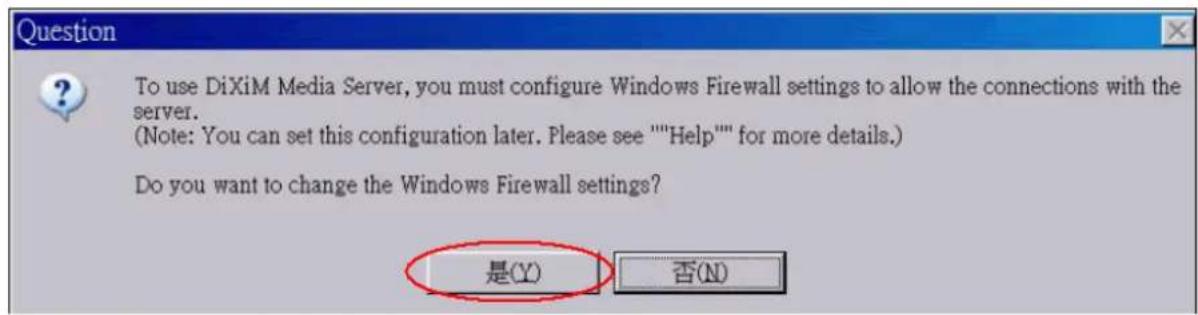
The DiXiM Media Server will add a entry on Windows Firewall Exceptions list, like the following figure shown.
If your computer has any other software firewalls, please refer to the following table to manually configure them to allow the DMA-1100P to access this PC/Laptop.
| Application Program file name | Function Port No. Protocol | ||
| DiXiM Media Server | dmsf.exe DiXiM | SSDP Discovery 1900 UDP | |
| DiXiM Media Server Device 30000 TCP | |||
| DiXiM Media Server HTTP 30001 TCP |
A02. The "DiXiM Media Server Helper" window pop-up?
When finishing the installation of DiXiM Media Server, there are DiXiM Media Server Helper windows will pop-up to notify some media clients request to access you DiXiM Media Server.
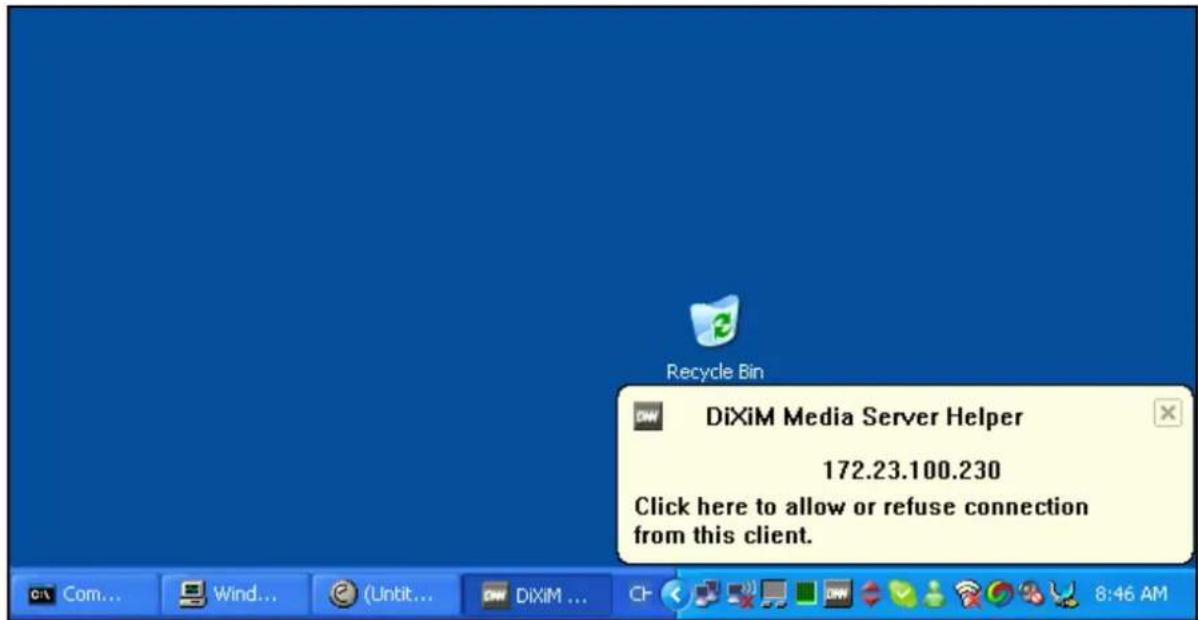
You can click on “Start Media Server Tool” button to open DiXiM Media Server Tool. Or tick on “Don’t show this message again” checkbox to disable the pop-up window.
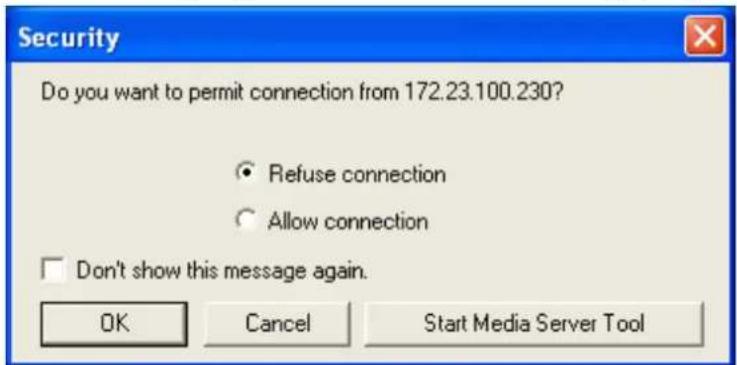
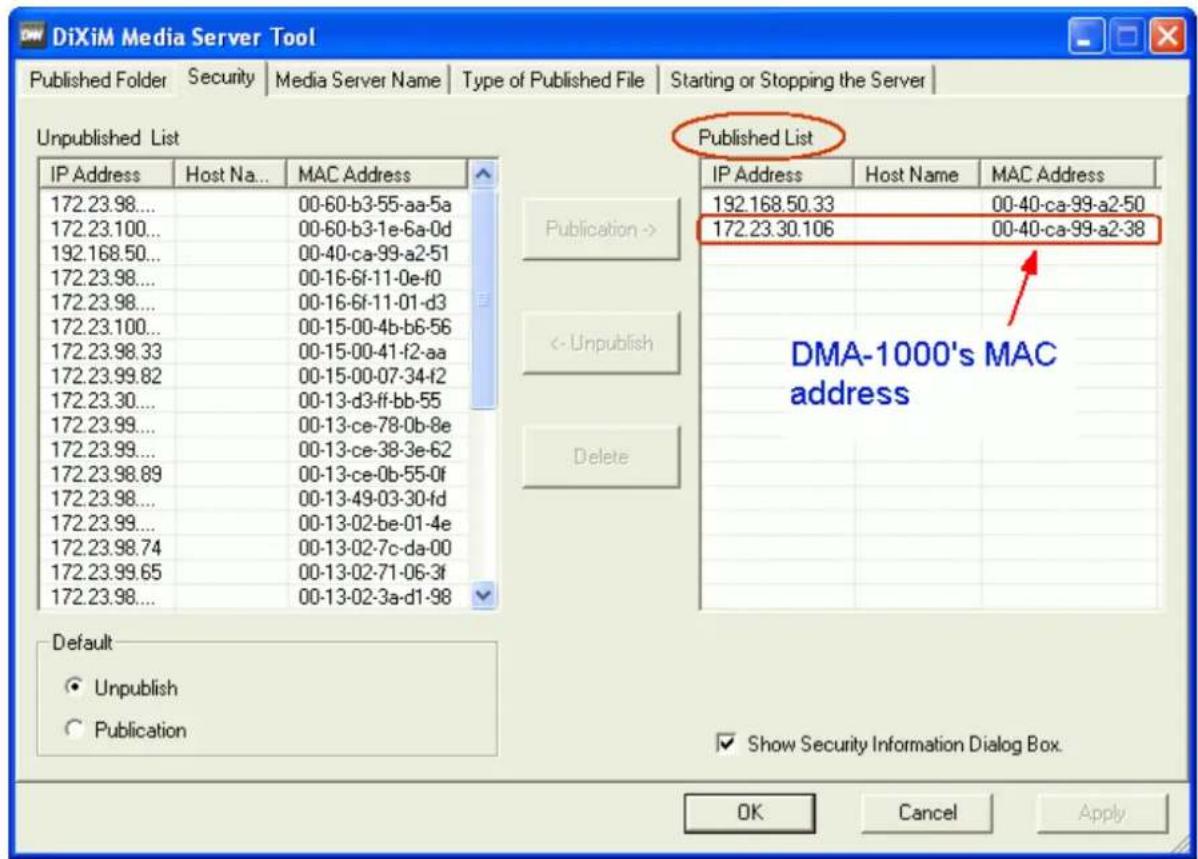
You can add this media client (e.g. DMA-1100P. The IP address may vary from the screen shot.) on published list, then this media client will be able to access this media server's published content.
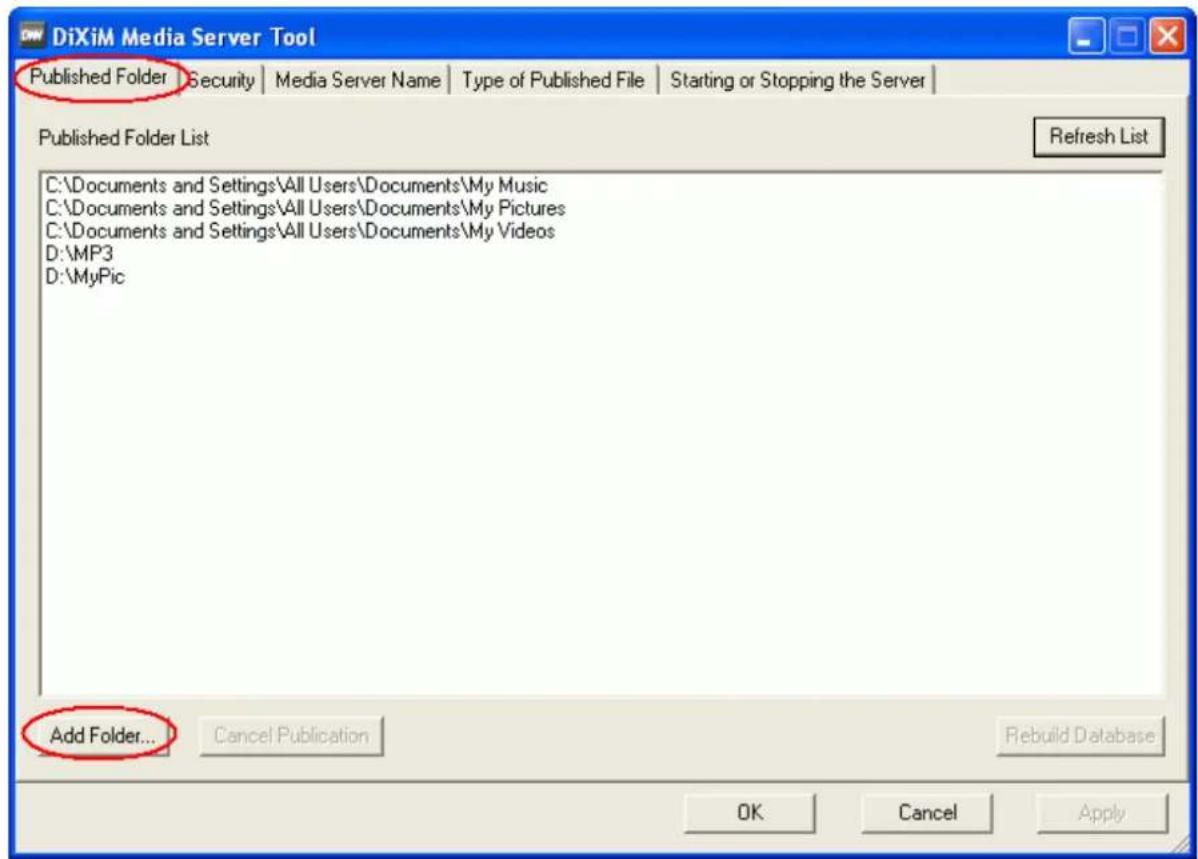
A03. How to publish contents on DiXiM Media Server?
- You can active DiXiM Media Server Tool by double click the DiXiM Media Server icon displayed in the bottom right system tray.
- click on the tab "Publish Folder", then you will see all you have published folders
- click on the "Add Folder..." button to add the folder which you want to share to media client (i.e. DMA-1100P)
- DMA-1100P Introduction
- Basic Application: Directly Connect to a Media Server
- The Application Diagram
- Hardware Connection
- Software Installation
- Ethernet Application: Links to Ethernet Hub/Switch
- The Application Diagram
- Hardware Connection
- Software Installation
- Homeplug Application: Connect to a Ethernet Hub/Switch
- The Application Diagram
- Hardware Connection
- Software Installation
- Frequently Asked Questions
- DiXiM Media Server FAQs
- A01. DiXiM Media Server & Firewall related issue
- A02. The "DiXiM Media Server Helper" window pop-up?
- A03. How to publish contents on DiXiM Media Server?
Brand : ZYXEL
Model : DMA-1100P
Category : Media player