
3G - Tablet HUAWEI - Free user manual and instructions
Find the device manual for free 3G HUAWEI in PDF.


| Product Type | Tablet |
| Model | 3G |
| Brand | Huawei |
| Display Size | 7.0 inches |
| Dimensions | 193.7 x 122.2 x 10.5 mm |
| Weight | 320 g |
| Battery Capacity | 4100 mAh |
| Power Supply | 5V DC, 2A via micro-USB |
| Connectivity | 3G, Wi-Fi 802.11 b/g/n, Bluetooth 4.0 |
| Operating System | Android 4.4 (KitKat) |
| Processor | Quad-core 1.2 GHz |
| RAM | 1 GB |
| Storage | 8 GB (expandable via microSD) |
| Camera (Rear) | 3.15 MP |
| Camera (Front) | 1.3 MP |
| Audio | 3.5 mm headphone jack, speaker |
| Sensors | Accelerometer, ambient light |
| Maintenance | Clean with soft dry cloth; avoid liquids |
| Safety | Do not expose to extreme temperatures; keep away from water |
| Spare Parts | Battery, screen, charging port available from authorized service |
| Reparability | Moderate; non-user-replaceable battery, screen replacement possible |
| Manual Language | English (PDF, 64 pages) |
Frequently Asked Questions - 3G HUAWEI
User questions about 3G HUAWEI
0 question about this device. Answer the ones you know or ask your own.
Ask a new question about this device
Download the instructions for your Tablet in PDF format for free! Find your manual 3G - HUAWEI and take your electronic device back in hand. On this page are published all the documents necessary for the use of your device. 3G by HUAWEI.
USER MANUAL 3G HUAWEI
1 Getting Started .... 1
1.1 Welcome....1
1.2 HUAWEI MediaPad at a Glance ....1
1.3 Installing microSD Card....2
1.4 Switching Your HUAWEI MediaPad On or Off....3
1.5 Charging the Battery....4
1.6 Important Information About the Battery 4
1.7 Power-Saving Tips....5
1.8 Touchscreen Actions....6
1.9 Home Screen....8
1.9.1 Home Screen at a Glance....8
1.9.2 Home Screen Extensions....10
1.9.3 Customizing the Home Screen 12
1.10 Locking and Unlocking the Screen 15
1.10.1 Locking the Screen....15
1.10.2 Setting the Screen Timeout Period....16
1.10.3 Unlocking the Screen 16
1.10.4 Setting the Screen Unlock Pattern 16
1.11 Navigation Icons .... 17
1.12 Opening the Settings List .... 18
1.13 Connecting Your Tablet to a PC 20
1.14 Connecting Your Tablet to a TV....20
2 Text Input 22
2.1 Selecting a Text Input Method ...... 22
2.2 Android Keyboard 23
2.3 Huawei Keyboard.... 24
2.4 Swype Keyboard.... 25
2.5 Editing Text.... 26
3 Wireless Networks 27
3.1 Wi-Fi 27
3.1.1 Turning Wi-Fi On or Off 27
3.1.2 Configuring Wi-Fi Settings....27
3.1.3 Connecting to a Wi-Fi Network.... 28
3.2 Bluetooth 29
3.2.1 Turning Bluetooth On or Off 29
3.2.2 Accessing Bluetooth settings.... 29
3.2.3 Connecting to Another Bluetooth Device 30
3.2.4 Disconnecting from or Unpairing with Another Bluetooth Device....31
4 Browser 32
4.1 Browsing a Webpage 32
4.2 Bookmarks....33
4.3 Downloading Files .... 34
5 Email 35
5.1 Opening an Email 35
5.2 Adding and Deleting Email Accounts 35
5.2.1 Setting Up an Email Account....35
5.2.2 Deleting an Email Account ....35
5.3 Sending and Receiving Emails ...... 35
5.3.1 Editing and Sending an Email 35
5.3.2 Reading an Email 36
5.3.3 Other Operations ...... 36
6 Contacts....37
6.1 Accessing Contacts ....37
6.2 Creating a Contact....37
6.3 Editing Detailed Contact Information ....37
6.4 Deleting a Contact 38
6.5 Combining Contacts....38
7 Multimedia 39
7.1 Sound Recorder....39
7.2 Camera and Camcorder 39
7.2.1 Camera Screen 40
7.2.2 Camcorder Screen....41
7.3 Gallery 42
7.3.1 Opening Gallery 42
7.3.2 Viewing Pictures 43
8 Applications.... 44
8.1 Calendar....44
8.2 Alarms 45
9 FAQs....46
10 Warnings and Precautions .... 48
11 Personal Information and Data Security 53
12 Legal Notice.... 55
1 Getting Started
1.1 Welcome
Thank you for choosing HUAWEI MediaPad as your daily life assistant and partner. Your HUAWEI MediaPad is a smart tablet that delivers high quality images, audio and video, and convenient network and information services.

The figures in this guide are provided for your reference only. The appearance and display features may vary slightly depending on the actual product version.
1.2 HUAWEI MediaPad at a Glance

1 Volume key 7 Speaker
2 Power button 8 Main camera
3 Light sensor 9 Microphone
4 Front camera 10 Micro-USB port
5 Headphone jack 11 HDMI port
6 Speaker 12 Charger port

You can use the USB adapter provided with your HUAWEI MediaPad to connect a keyboard, mouse or USB flash drive to your HUAWEI MediaPad.
1.3 Installing microSD Card

Do not remove the cover for the main camera.
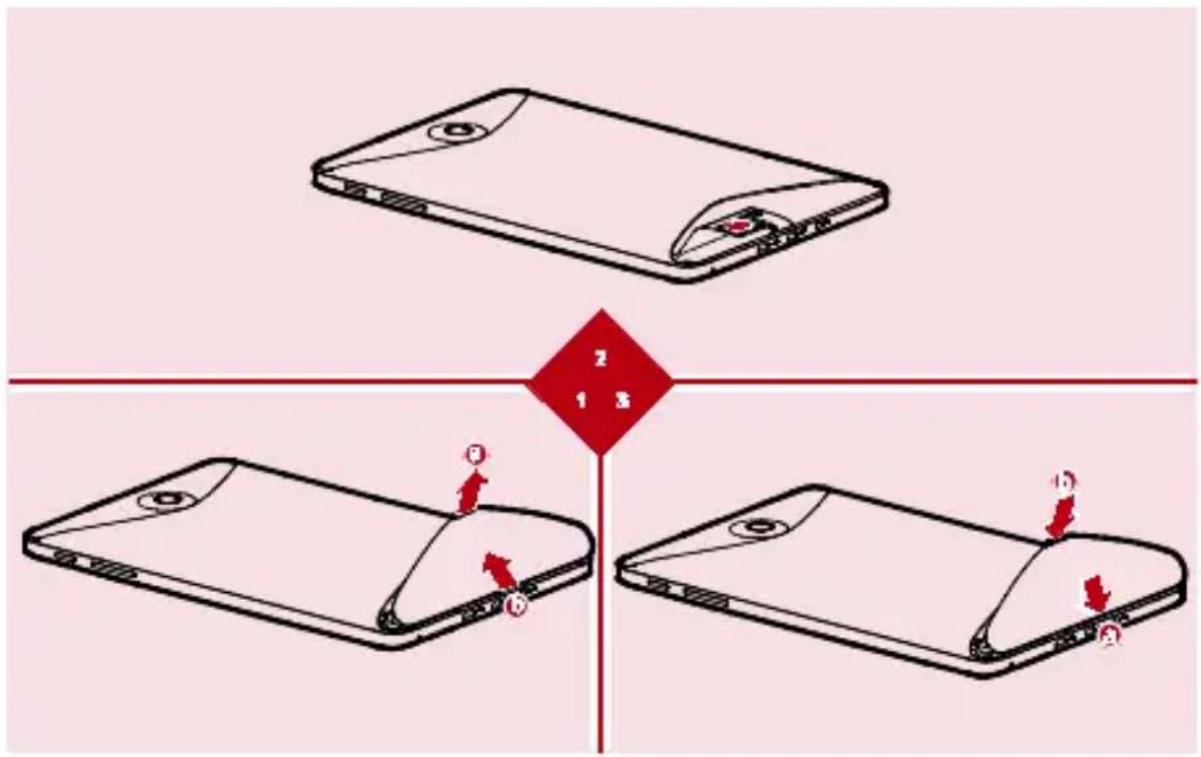
-
Remove the back cover.
-
Install the microSD card.
- Replace the back cover.
1.4 Switching Your HUAWEI MediaPad On or Off
Press and hold the Power button until your HUAWEI MediaPad vibrates to switch on your HUAWEI MediaPad. The first time you switch on the tablet, complete the setup by following the on-screen instructions.
To switch off your HUAWEI MediaPad, press and hold the Power button until the screen displays a dialog box, and then touch OK in the dialog box.

When the HUAWEI MediaPad is switched on or malfunctions, press and hold the Power button for 10 seconds. After release, press and hold the Power button again until your HUAWEI MediaPad vibrates, indicating that it is restarting.
1.5 Charging the Battery

Before charging, install the magnetic ring according to the installation diagram attached to the power cable.
To charge the HUAWEI MediaPad's battery, connect the charger to the charger port and plug the charger into a power outlet, as shown in the following figure.

1.6 Important Information About the Battery
√ When charging the battery for the first time, charge it for at least 6 hours to ensure that your HUAWEI MediaPad displays the battery information correctly.
√ If the battery has not been used for a long time or the battery power is exhausted, you may not be able to power on your tablet immediately after you begin charging
the battery. This is normal. Allow the battery to charge for a few minutes with the tablet powered off before attempting to power it on.
√ Using data services increases the power consumption of the tablet and will therefore reduce the length of time that the tablet can be used between battery charges.
√ The time required to fully charge the battery depends on the ambient temperature and the age of the battery.
√ When the battery power is low, your HUAWEI MediaPad will alert you and display a message. When the battery power is almost exhausted, your HUAWEI MediaPad will power off automatically.
1.7 Power-Saving Tips
√ When your HUAWEI MediaPad is not in use, turn off the screen backlight.
√ Reduce the time it takes for the screen backlight to turn off when your tablet is idle.
√ Lower the screen brightness.
√ Decrease the volume.
√ Turn off Bluetooth when you are not using it.
√ Turn off Wi-Fi when you are not using it.
√ Turn off your tablet's GPS receiver when you are not using it.
1.8 Touchscreen Actions
On the touchscreen, you can use your finger to operate the applications and screen elements conveniently. Your HUAWEI MediaPad supports the following actions.
| Action Description | |
Touch | Tap applications or other elements with your finger to open or select them. For example, touch the on-screen keyboard to enter letters, numbers and symbols. |
Touch and hold | Touch an item with your finger and do not release it until the tablet responds. For example, touch and hold an item to open its shortcut menu. |
Drag | Touch and hold an item and move it to a desired position. For example, drag a shortcut icon to the trash can to delete the icon. |
Flick | Move your finger quickly either vertically or horizontally across the screen. For example, flick up and down to scroll through a list, or flick left or right to switch between pictures. |
Double-touch | Quickly touch the screen twice. For example, double-touch a webpage to zoom in on the webpage. |
Pinch | Pinch your fingers together and move them apart. For example, when viewing pictures, pinch your fingers together to zoom out and move your fingers apart to zoom in. |
1.9 Home Screen
1.9.1 Home Screen at a Glance

| No. Description | |
| 1 | Touch 🔒 to open the text search box. Enter text in the box to search for matching content. |
| 2 | Touch 🔒 to open the voice search box. Speak to search as prompted. |
| 3 | Touch 🔒 to see recently used applications and running applications. |
| 4 | Touch 🔒 to return to the Home screen. |
| 5 | Touch 🔒 to return to the previous screen. |
| 6 | Displays the time, Wi-Fi status and signals, battery power, and more. To open the notification panel, touch the digital clock. |
| 7 Displays widgets and application shortcuts. | |
| 8 | Touch to access the Apps screen. |
| 9 | Touch + to open the customization screen. |

Depending on the presets of the product you have purchased, your Home screen might look a little different. The preceding figure is provided for your reference only.
1.9.2 Home Screen Extensions
Flick left or right across the Home screen to switch between Home screen extensions.

natural_image
Digital illustration of two red arrows pointing toward a blue sky with clouds, no text or symbols present.You can also touch and hold a blank area of the Home screen or its extensions to display screen thumbnails. Then touch the thumbnail of the screen you want to view.
1.9.3 Customizing the Home Screen
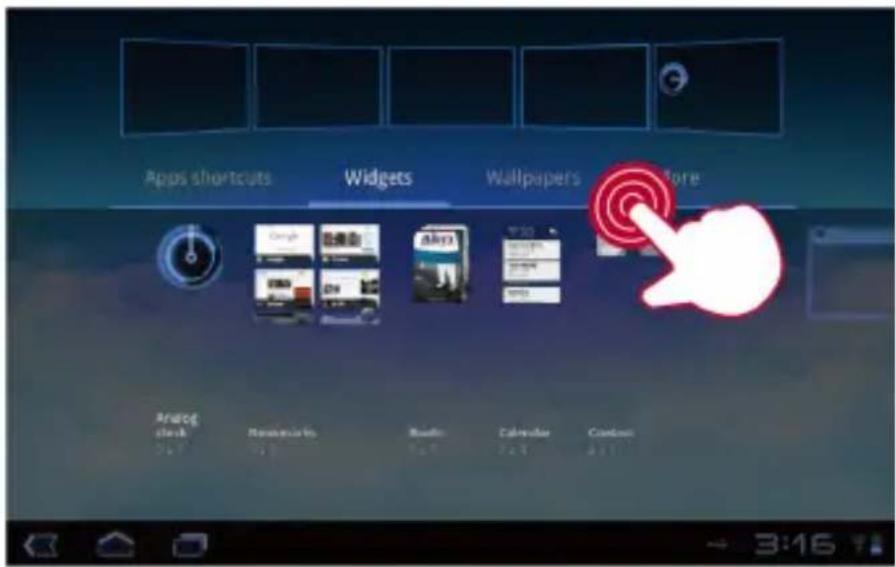
If there is enough room, you can add items such as shortcuts and widgets to the Home screen. You can also change the wallpaper to suit your preference.
Adding an Item
- Flick to the Home screen or extension where you want to add an item.
- Touch + in the upper right corner of the screen.
- Touch an item type option from those displayed, for example Widgets or App shortcuts.
- Touch the item to be added to the Home screen. The icon for the selected item will be automatically added to the Home screen.
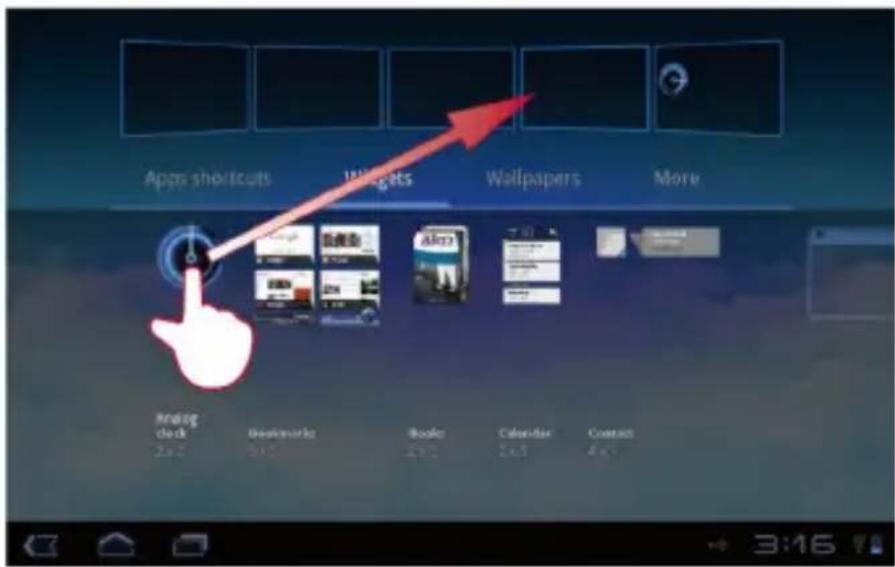
Moving an Item
Touch and hold an icon on the Home screen, drag the icon to the desired position, and then release it.

Removing an Item
- Touch and hold an icon to be removed until the trash can appears on the screen.
- Without lifting your finger, drag the icon to the trash can.
- When both the icon and the trash can are focused, release the icon by lifting your finger.

natural_image
Digital photo of a hand cursor clicking on a red circular icon above clouds against a blue sky (no text or symbols)Changing the Wallpaper
- On the Home screen, touch + in the upper right corner of the screen.
- Touch Wallpapers to select a picture and set it as the wallpaper.

1.10 Locking and Unlocking the Screen
1.10.1 Locking the Screen
√ When your HUAWEI MediaPad is turned on, press the Power button to lock the screen.
√ If your HUAWEI MediaPad is idle for a preset period of time, the screen will lock automatically.
1.10.2 Setting the Screen Timeout Period
To set the idle time after which the HUAWEI MediaPad automatically turns off and locks the screen, touch >Settings >Screen >Timeout.
1.10.3 Unlocking the Screen
- Press the Power button to wake up the screen.
- Drag the unlock icon to any point of the circle that is around the icon.


If you have set up a screen unlock pattern, draw the pattern to unlock the screen.
1.10.4 Setting the Screen Unlock Pattern
- Touch > Settings.
-
Touch Location & security > Configure lock screen > Pattern.
-
Set the screen unlock pattern as prompted.
1.11 Navigation Icons
The following icons are commonly used on the Home screen or other application screens. Touch the icons to perform the following operations.
| Touch... To... | |
| <3> | Return to the previous screen. |
| Return to the Home screen. | |
| Open the list of recently used applications and running applications. | |
| View all applications installed on the tablet. | |
| + | Open the customization screen. |
| Open an options menu. (When starting an application, you can see this icon in the upper right corner of the screen.) | |
| √ | Close the keyboard. (When the keyboard is displayed, you can see this icon in the lower left corner of the screen.) |
| Open a drop-down menu. (This icon appears in the lower right corner of some text boxes.) | |
1.12 Opening the Settings List
In the settings list, you can view and change the settings for the HUAWEI MediaPad's Wi-Fi, sounds, date and time, and more.
√ On the Home screen, touch the digital clock in the lower right corner. In the displayed menu, touch 📋, then Settings.

√ On the Home screen, touch, then screen.
Settings to directly go to the settings


Date and time settings: Touch > Settings > Date & time.
Screen settings: Touch > Settings > Screen.
Language settings: Touch >Settings> Language & input >Select language.
1.13 Connecting Your Tablet to a PC
You can connect your HUAWEI MediaPad to a PC to share resources between the devices. To set up a USB connection between your HUAWEI MediaPad and PC:
- Connect your HUAWEI MediaPad to a PC using the USB cable that comes with the HUAWEI MediaPad.
- The first time you connect the tablet to your PC, an installation wizard will run automatically. Follow the wizard to install the driver. After installation, reconnect the HUAWEI MediaPad to the PC.

If the installation wizard does not run automatically when you connect your HUAWEI MediaPad to the PC, your HUAWEI MediaPad will appear as an additional drive on your PC. Double-click the corresponding drive to launch the installation wizard.
- Select the HUAWEI MediaPad's file transfer mode:
- Use Windows Explorer to browse files on HUAWEI MediaPad.
- Use Windows Media Player (in Version 11 or later) to transfer media files between your PC and HUAWEI MediaPad.
1.14 Connecting Your Tablet to a TV
You can connect your HUAWEI MediaPad to a TV to output audio and video from the tablet to the TV. Playing pictures, videos, and music on your HUAWEI MediaPad via a TV delivers a better experience.
A High-Definition Multimedia Interface (HDMI) cable must be used to connect your HUAWEI MediaPad to a TV. As the HDMI cable is an optional accessory, it may not be included in the packing box. When purchasing an HDMI cable, check its connector types to ensure compatibility.
√ Type of the connector connecting to your HUAWEI MediaPad's HDMI port: Type D
√ Type of the connector connecting to your TV's HDMI port: depends on the type of the TV's HDMI port. Typically, it is a Type A connector.
To connect your HUAWEI MediaPad to a TV:

Before using the HDMI function, turn HDMI on. To turn HDMI on, touch Settings > Screen, and select HDMI.

- Connect the HDMI cable to the HDMI ports of your HUAWEI MediaPad and TV.

- Select the program source of the TV, and then use the TV to play the signals received through the HDMI port.
2 Text Input
Touch a text field to open the keyboard. Then touch letters and symbols on the keyboard to enter text.
To close the keyboard, touch √ in the lower left corner of the screen.
2.1 Selecting a Text Input Method
- Touch > Settings.
- Touch Language & input > Current input method to select a text input method.
2.2 Android Keyboard

| No. Description | |
| 1 | Switch between uppercase and lowercase letters. |
| 2 | Switch to the number/symbol input mode. |
| 3 Move to next item. | |
| 4 | Enter a space. |
| 5 | Start a new line. |
| 6 | ✓ Touch to delete the character to the left of the cursor.✓ Touch and hold to delete all characters to the left of the cursor. |
2.3 Huawei Keyboard

Huawei keyboard provides an optional text input method which may not be installed on your HUAWEI MediaPad. Download Huawei keyboard if you want to use it.

No. Description
| 1 Switch between uppercase and lowercase letters. | |
| 2 | Close the keyboard. |
| 3 | Select an input language. |
| 4 Switch to the number/symbol input mode. | |
| 5 Enter a space. | |
| 6 | Start a new line. |
| 7 | ✓ Touch to delete the character to the left of the cursor. ✓ Touch and hold to delete all characters to the left of the cursor. |
2.4 Swype Keyboard

Swype keyboard provides an optional text input method which may not be installed on your HUAWEI MediaPad. Download Swype keyboard if you want to use it.

No. Description
| 1 | Select an input language. |
| 2 Switch between uppercase and lowercase letters. | |
| 3 View the Swype Help. | |
| 4 | Open the symbol keyboard. |
| 5 | Open the number keyboard. |
| 6 Enter a space. | |
| 7 Turn on voice input. | |
| 8 | Switch to the small keyboard. |
| 9 | Start a new line. |
| No. Description | |
| 10 | ✓ Touch to delete the character to the left of the cursor. ✓ Touch and hold to delete all characters to the left of the cursor. |
2.5 Editing Text
- Touch the text field where you want to edit text. will appear at the cursor.
- Move the cursor to the position where you want to edit text.
- Drag the cursor to select the text you want to edit.
- Touch Copy, Cut or Select all to edit the text, or touch the Delete key on the keyboard to delete the selected text.
3 Wireless Networks
Your HUAWEI MediaPad allows you to connect to various wireless networks and devices via Wi-Fi or Bluetooth.

Using a wireless device or accessory while driving may cause distraction and may be illegal. Always obey local laws and drive safely.
3.1 Wi-Fi
Wi-Fi is a wireless networking technology that allows users to access the Internet through wireless access points. Wi-Fi connectivity depends on wireless access points and your surroundings. To use Wi-Fi on your HUAWEI MediaPad, you must access a wireless access point or "hotspot".
3.1.1 Turning Wi-Fi On or Off
Touch > Settings > Wireless & networks > Wi-Fi to turn Wi-Fi on or off.
3.1.2 Configuring Wi-Fi Settings
- Touch > Settings.
- Touch Wireless & networks > Wi-Fi settings.

On the Wi-Fi settings screen, you can turn Wi-Fi on or off, turn open network notification on or off, connect to a Wi-Fi network, or add a Wi-Fi network.
3.1.3 Connecting to a Wi-Fi Network
- Turn Wi-Fi on, and touch Wi-Fi settings.
- Touch □ > Scan. All available Wi-Fi networks nearby will be displayed in the Wi-Fi networks list.
- Select a Wi-Fi network from the list to connect to.
- If you select an open (unsecured) network, you can connect to it directly.
- If you select a secured network, you must enter the access password before you can connect to it.

If a Wi-Fi network you connected to previously is in range and if your HUAWEI MediaPad's Wi-Fi is turned on, you will automatically re-connect to the network.
After connecting to a Wi-Fi network, touch it in the Wi-Fi networks list to view detailed information about its speed, security, address, and other settings.
3.2 Bluetooth
Your HUAWEI MediaPad supports wireless connections between devices using Bluetooth. When using Bluetooth, keep the HUAWEI MediaPad within 10 meters of the other Bluetooth devices to which you want to connect. Bluetooth connectivity is affected by the surroundings. Obstacles like walls or other electronic equipment may interfere with your Bluetooth connection.
3.2.1 Turning Bluetooth On or Off
Touch > Settings > Wireless & networks > Bluetooth to turn Bluetooth on or off.
3.2.2 Accessing Bluetooth settings
- Touch > Settings.
- Touch Wireless & networks > Bluetooth settings.

On the Bluetooth settings screen, you can turn Bluetooth on or off, rename the HUAWEI MediaPad, connect the HUAWEI MediaPad to other Bluetooth devices, and scan for and view other Bluetooth devices within range.
3.2.3 Connecting to Another Bluetooth Device

When pairing the HUAWEI MediaPad with another Bluetooth device, ensure that Bluetooth is turned on and the device is discoverable.
- Turn on Bluetooth on your HUAWEI MediaPad.
- On the Bluetooth settings screen, select Discoverable to ensure that the HUAWEI MediaPad can be discovered by other Bluetooth devices.
- Touch Find nearby devices > Scan for devices.
- Touch the Bluetooth device to be connected to.
3.2.4 Disconnecting from or Unpairing with Another Bluetooth Device
To disconnect the HUAWEI MediaPad from another Bluetooth device, touch 📋 on the right of the device, and select Unpair.
4 Browser
Touch > Browser.
To access more Browser settings, touch in the upper right corner of the Browser screen.
Your Browser also supports multi-webpage browsing. To open more webpages, touch + on the Browser screen.
4.1 Browsing a Webpage
- Open Browser.
- Enter a web address or touch and speak a web address.
- After opening the website, flick up or down to browse the webpage.

| Touch... To... | |
| 1 Open a new webpage. | |
| 2 Go back. | |
| 3 | Go forward. |
| 4 | Stop loading a webpage. |
| 5 Bookmark the current webpage. | |
| 6 Display the search box. | |
| 7 | Access the bookmark screen. |
| 8 | View more menu options. |
4.2 Bookmarks
When browsing a webpage, touch ☆ to add the web address as a bookmark.
You can also touch 📋 to open the bookmark screen. Then touch and hold a bookmark to view more options.

4.3 Downloading Files
You can download files, images, and even applications from webpages. The downloaded files will be stored on your HUAWEI MediaPad or microSD card.
For example, to download an image, touch and hold the image on a webpage, and then touch Save image in the displayed menu; to download a file, touch and hold the link to a file on a webpage, and then touch Save link in the displayed menu.

To protect your HUAWEI MediaPad and personal data, set your tablet to download applications only from trusted sources: Touch > Settings > Applications, and then clear the Unknown sources check box.
5 Email
5.1 Opening an Email
To open an email, touch > Email.
5.2 Adding and Deleting Email Accounts
5.2.1 Setting Up an Email Account
- Touch > Email.
- Enter account information, and touch Next. You can also touch Manual setup to manually configure server settings.

If you touch Manual setup to manually set up your email account, contact your email service provider for specific settings.
- Set up your account as prompted.
5.2.2 Deleting an Email Account
- Touch > Email.
- Touch □ > Account settings.
- Select the account to be deleted, and touch Remove account.
5.3 Sending and Receiving Emails
5.3.1 Editing and Sending an Email
-
Touch Email, then the email account you want to use.
-
Touch in the upper right corner of the screen.
- Enter the recipient's email address, the email subject, and the email content.
- Touch Send in the upper right corner of the screen.
5.3.2 Reading an Email
- Touch Email, and select the email account you want to use.
- Touch 📋 in the upper right corner of the screen to refresh the inbox, and then select the email you want to read.
5.3.3 Other Operations
When reading an email, you can touch the icons listed in the following table to reply to or forward the email.
| Touch... To... | |
| Reply to the email sender. | |
| Reply to the email sender and other recipients. | |
| Forward the email. | |
6 Contacts
Contacts enables you to save and manage contact information such as the phone numbers and email addresses of your contacts. After you save contact information on your tablet, you have easy access to the people with whom you want to communicate.
6.1 Accessing Contacts
Touch > Contacts.
6.2 Creating a Contact
- Touch Contacts.
- Touch Create a new contact. If you already have some contacts saved in Contacts, touch New.
- Enter contact information.
- Touch Done.

If you are accessingContacts for the first time, you can touch Sign in to an account to log in to your email account and synchronize contact information from your email account.
6.3 Editing Detailed Contact Information
- Touch Contacts.
- Touch the contact for whom detailed contact information is to be edited, and touch 🔒 in the upper right corner of the screen.
- Edit contact information, and touch Done.
6.4 Deleting a Contact
- Touch Contacts.
- Touch the contact to be deleted, and touch ☐ in the upper right corner of the screen.
- Touch Delete contact.
6.5 Combining Contacts
- Select a contact, and touch .
- Touch > Join.
- Touch the contact to be combined, and touch Done.
7 Multimedia
7.1 Sound Recorder
On the Apps screen, touch Sound Recorder to open the Sound Recorder screen. To use the recorder:
√ Touch to start to record.
√ Touch to play the recording.
√ Touch to stop recording.
7.2 Camera and Camcorder
On the Apps screen, touch Camera or Camcorder to launch the camera or the camcorder, and take pictures or record videos.

Be sure to clean the protective lens cover with a microfiber cloth before you shoot pictures and videos. The lens cover with smudges from fingers can cause blurry pictures with a “halo” effect.
7.2.1 Camera Screen

| Touch... To... | |
| 1 Zoom in and out. | |
| 2 | Set the white balance. |
| 3 | Set the color effect. |
| 4 | Take a picture. |
| 5 Configure the camera settings. | |
| 6 Switch between the front and rear cameras. | |
| 7 | Switch between the camera (drag to the right) and camcorder (drag to the left) modes. |
| 8 | Review photos. |
7.2.2 Camcorder Screen

| Touch... To... | |
| 1 | Zoom in and out. |
| 2 Set the white balance. | |
| 3 | Set the color effect. |
| 4 | Record a video. |
| 5 | Set the video quality. |
| 6 Set the time lapse interval. | |
| 7 | Switch between the front and rear cameras. |
| 8 Switch between the camera (drag to the right) and camcorder (drag to the left) modes. | |
| 9 | Review videos. |
7.3 Gallery
Gallery displays pictures and videos stored on your HUAWEI MediaPad and microSD card, and sorts them into folders. Use Gallery to manage your pictures and videos.
7.3.1 Opening Gallery
Touch > Gallery.
On the Gallery screen, touch By album for more sorting modes.


If a large number of pictures are stored on your HUAWEI MediaPad or microSD card, the HUAWEI MediaPad may take several minutes to detect and organize the pictures the first time you open Gallery.
7.3.2 Viewing Pictures
- On the Gallery screen, touch a folder to view the pictures in that folder.
- Touch a picture to view it in full-screen mode. Flick left or right across the screen to view the previous or next picture.
You can pinch to zoom in or out on a picture or rotate the tablet sideways to switch the screen orientation for viewing pictures.

| Touch... To... | |
| 1 | View more menu options. |
| 2 | Delete the currently displayed picture. |
| 3 Share the picture via Bluetooth, email and so on. | |
| 4 | Play a slideshow. |
8 Applications
8.1 Calendar
Use Calendar to create and manage events, such as meetings and appointments. To open Calendar, touch Calendar on the Apps screen.
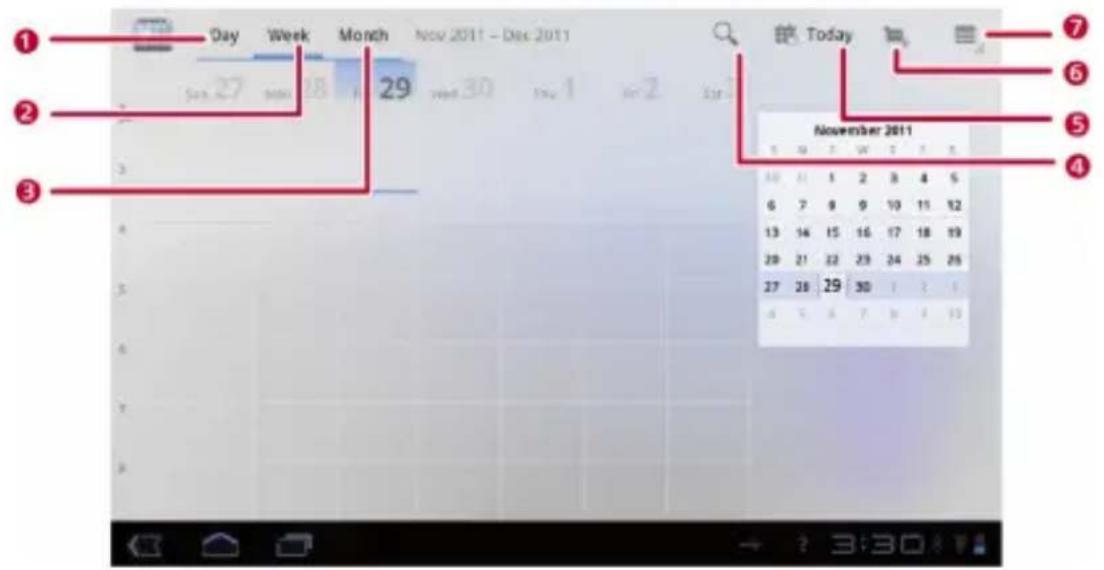
| Touch... To... | |
| 1 | Display your calendar in day view. |
| 2 | Display your calendar in week view. |
| 3 | Display your calendar in month view. |
| 4 Display the search box. | |
| 56 | Display today's calendar view.Create a new event. |
| 7 View more calendar settings. | |
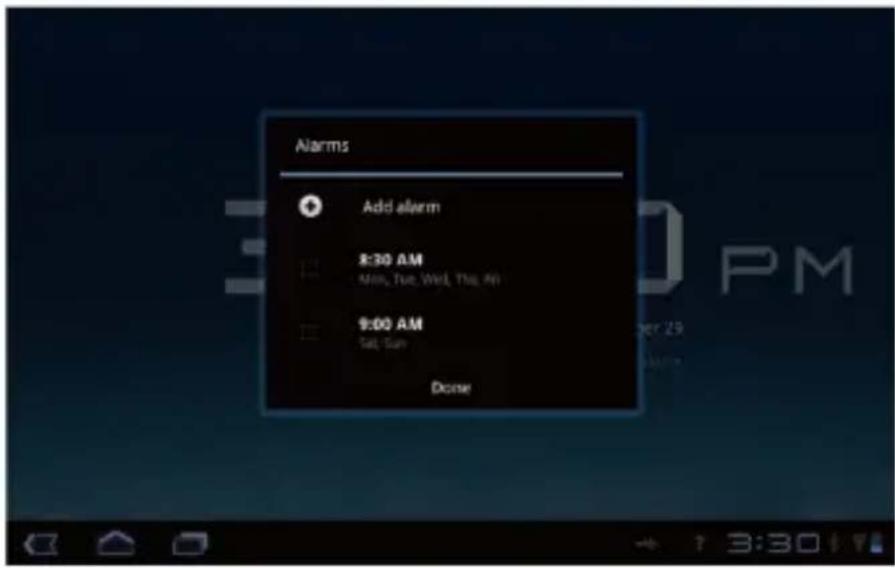
8.2 Alarms
- Touch > Clock to display the Clock screen.
- Touch Ⓤ to display the Alarm screen.
- Select an alarm to enable it.
Touch an alarm to set it. To add more alarms, touch Add alarm.
9 FAQs
How Can I Prevent Automatic Change of Screen Orientation When Rotating My Tablet?
Touch > Settings > Screen, and then clear the Auto-rotate screen check box.
How Can I Set the Screen Lock?
Touch > Settings > Location & security > Configure lock screen, and then select Pattern or Password as a method for locking your HUAWEI MediaPad's screen.
How Can I Stop a Song Playing in the Background?
When your HUAWEI MediaPad is playing a song in the background, 📋 is displayed in the notification bar. Touch 🔒 to open the music playback mini screen, and touch the playback mini screen to open the playback screen, then touch 11 to stop playing the song.
How Can I Create an Application Shortcut on the Home Screen?
On the Apps screen, touch and hold an application icon until the Home screen thumbnails are displayed. Then drag the icon to where you want to place it and release your finger.
How Can I Set a Ringtone for an Alarm?
- Touch > Clock to display the Clock screen.
- Touch Ⓤ to display the Alarm screen.
- Touch the alarm for which you want to set a ringtone. On the alarm settings screen, touch Ringtone.
How Can I Use the GPS?
- Touch > Settings > Location & security.
- Select Use GPS satellites to turn on the GPS receiver.
How Can I View the Applications Running on My Tablet?
Touch > Running.
How Can I Uninstall an Application?
- Touch > Settings > Applications > Manage applications.
- Touch the application you want to uninstall, and then touch Uninstall.
How Can I Exit a Running Application?
After starting an application, if you touch ⬤, the application will run in the background.
To exit the applications running in the background, touch □ >Running > . ✗
What Can I Do When the HUAWEI MediaPad Runs Slowly?
√ Access the settings menu of the browser, and clear the browser's cache.
√ Touch > Settings > Applications > Manage applications. Then uninstall unused applications or clear applications' caches.
10 Warnings and Precautions
To use the device properly and safely, read these warnings and precautions carefully and strictly observe them during operation. Unless otherwise specified, the term "device" refers to the device and its accessories.
Basic Requirements
√ During storage, transportation, and operation of the device, keep it dry and prevent it from colliding with other objects.
Do not dismantle the device. In case of any fault, contact an authorized service center for assistance or repair.
√ Without authorization, no organization or individual can change the mechanical, safety, or performance design of the device.
√ When using the device, observe all applicable laws and regulations and respect the legal rights of other people.
Medical Device
√ Follow rules and regulations set forth by hospitals and health care facilities. Do not use your device when using the device is prohibited.
√ Pacemaker manufacturers recommend that a minimum distance of 15 cm be maintained between a device and a pacemaker to prevent potential interference with the pacemaker. If you are using a pacemaker, use the device on the opposite side of the pacemaker and do not carry the device in your front pocket.
Environmental Requirements for Using the Device
√ Keep the device far from sources of heat and fire, such as a heater or a candle.
√ Keep the device far from electronic appliances that generate strong magnetic or electric fields, such as a microwave oven or a refrigerator.
√ Place the device on a stable surface.
√ Place the device in a cool and well-ventilated indoor area. Do not expose the device to direct sunlight.
√ Keep the ambient temperature between 0^ C and 35^ C while the device is being charged. Keep the ambient temperature between 0^ C to 35^ C for using the device powered by a battery.
Do not place any object (such as a candle or a water container) on the device. If any foreign object or liquid enters the device, stop using the device immediately, power it off, remove all the cables connected to it, and then contact an authorized service center.
√ During thunderstorms, power off the device, and then remove all the cables connected to it to prevent it from getting damaged due to lightning strikes.
Traffic Security
Observe local laws and regulations while using the device. In addition, if using the device while driving a vehicle, comply with the following guidelines:
√ Concentrate on driving. Your first responsibility is to drive safely.
√ Do not talk on the device while driving. Use hands-free accessories.
√ When you have to make or answer a call, park the vehicle at the road side before using your device.
√ RF signals may affect electronic systems of motor vehicles. For more information, consult the vehicle manufacturer.
√ In a motor vehicle, do not place the device over the air bag or in the air bag deployment area. Otherwise, the device may hurt you owing to the strong force when the air bag inflates.
Do not use your device while flying in an aircraft. Power off your device before boarding an aircraft. Using wireless devices in an aircraft may cause danger to the operation of the aircraft and disrupt the wireless telephone network. It may also be considered illegal.
Precautions for Using Wireless Devices
√ The device complies with the RF specifications when the device is used in portable exposure conditions or at a distance of 1.5 cm from your body.
√ Do not use the device where using wireless devices is prohibited or may cause interference or danger.
√ The radio waves generated by the device may interfere with the operation of electronic medical devices. If you are using any electrical medical device, contact its manufacturer for the restrictions on the use of the device.
Do not take the device into operating rooms, intensive care units (ICUs), or coronary care units (CCUs).
Areas with Inflammables and Explosives
Do not use the device where inflammables or explosives are stored, for example, in a gas station, oil depot, or chemical plant. Otherwise, explosions or fires may occur. In addition, follow the instructions indicated in text or symbols.
√ Do not store or transport the device in the same box as inflammable liquids, gases, or explosives.
Accessory Requirements
√ Use only the accessories supplied or authorized by the device manufacturer. Otherwise, the performance of the device may get affected, the warranty for the device or the laws and regulations related to telecommunications terminals may become null and void, or an injury may occur.
√ Do not use the power adapter if its cable is damaged. Otherwise, electric shocks or fires may occur.
√ Ensure that the power adapter meets the specifications indicated on the device nameplate.
√ Ensure that the power adapter meets the requirements of Clause 2.5 in IEC60950-1/EN60950-1 and it is tested and approved according to national or local standards.
√ For pluggable device, the socket-outlet shall be installed near the device and shall be easily accessible.
Battery and Charger
√ Unplug the charger from the electrical plug and the device when not in use.
√ The battery can be charged and discharged hundreds of times before it eventually wears out. When the standby time and the talk time are shorter than the normal time, replace the battery.
√ Use the AC power supply defined in the specifications of the charger. An improper power voltage may cause a fire or a malfunction of the charger.
Do not connect two poles of the battery with conductors, such as metal materials, keys, or jewelries. Otherwise, the battery may be short-circuited and may cause injuries and burns on your body.
Do not disassemble the battery or solder the battery poles. Otherwise, it may lead to electrolyte leakage, overheating, fire, or explosion.
√ If battery electrolyte leaks out, ensure that the electrolyte does not touch your skin and eyes. When the electrolyte touches your skin or splashes into your eyes, wash your eyes with clean water immediately and consult a doctor.
√ If there is a case of battery deformation, color change, or abnormal heating while you charge or store the battery, remove the battery immediately and stop using it. Otherwise, it may lead to battery leakage, overheating, explosion, or fire.
√ If the power cable is damaged (for example, the cord is exposed or broken), or the plug loosens, stop using the cable at once. Otherwise, it may lead to an electric shock, a short circuit of the charger, or a fire.
√ Do not dispose of batteries in fire as they may explode. Batteries may also explode if damaged.
√ Danger of explosion if battery is incorrectly replaced. Recycle or dispose of used batteries according to the local regulations or reference instruction supplied with your device.
Prevention of Hearing Damage
Using a headset at high volume can damage your hearing. To reduce the risk of damage to hearing, lower the headset volume to a safe and comfortable level.
Safety of Children
Keep the device and its accessories out of the reach of children. Otherwise, they may damage the device and its accessories by mistake, or they may swallow the small components of the device, causing suffocation or other dangerous situations.
Maintenance
√ If the device is not used for a long time, power it off, and then remove all the cables connected to it.
√ If any exception occurs, for example, if the device emits any smoke or unusual sound or smell, stop using the device immediately, power it off, remove all the cables connected to it, and then contact an authorized service center.
√ If the device screen is broken by colliding with hard objects, do not touch or try to remove the broken part. In this case, stop using the device immediately, and then contact an authorized service center in time.
Do not trample, pull, or overbend any cable. Otherwise, the cable may get damaged, causing malfunction of the device.
√ Before cleaning the device, stop using it, power it off, and then remove all the cables connected to it.
√ Use a clean, soft, and dry cloth to clean the device shell. Do not use any cleaning agent or spray to clean the device shell.
11 Personal Information and Data Security
The use of some functions or third-party applications on your device could result in your personal information and data being lost or becoming accessible to others. Several measures are recommended to help you protect personal and confidential information.
√ Place your device in a safe area to prevent it from unauthorized use.
√ Set your device screen to lock and create a password or unlock pattern to open it.
Periodically back up personal information kept on your memory card, or stored in your device memory. If you change to a different device, be sure to move or delete any personal information on your old device.
√ If you are worried about viruses when you receive messages or emails from a stranger, you can delete them without opening them.
√ If you use your device to browse the Internet, avoid websites that might pose a security risk to avoid theft of your personal information.
√ If you use services such as Bluetooth, set passwords for these services to prevent unauthorized access. When these services are not in use, turn them off.
√ Install or upgrade device security software and regularly scan for viruses.
√ Be sure to obtain third-party applications from a legitimate source. Downloaded third-party applications should be scanned for viruses.
√ Install security software or patches released by Huawei or third-party application providers.
√ Some applications require and transmit location information. As a result, a third-party may be able to share your location information.
√ Your device may provide detection and diagnostic information to third-party application providers. Third party vendors use this information to improve their products and services.
√ If you have concerns about the security of your personal information and data, please contact mobile@huawei.com.
12 Legal Notice
Copyright © Huawei Technologies Co., Ltd. 2011. All rights reserved.
No part of this document may be reproduced or transmitted in any form or by any means without prior written consent of Huawei Technologies Co., Ltd.
The product described in this manual may include copyrighted software of Huawei Technologies Co., Ltd. and possible licensors. Customers shall not in any manner reproduce, distribute, modify, decompile, disassemble, decrypt, extract, reverse engineer, lease, assign, or sublicense the said software, unless such restrictions are prohibited by applicable laws or such actions are approved by respective copyright holders.
Trademarks and Permissions

HUAWEI, HUAWEI, and Technologies Co., Ltd.

are trademarks or registered trademarks of Huawei

TruMedia
is a trademark of SRS Labs, Inc. TruMedia technology is incorporated under license from SRS Labs, Inc.
SRS TruMedia™ is a feature-rich audio solutions suite tuned specifically for mobile devices, which provides a cinema-like surround sound experience complete with deep, rich bass and more intelligible vocals.
HDMI, the HDMI Logo, and High-Definition Multimedia Interface are trademarks or registered trademarks of HDMI Licensing LLC in the United States and other countries.
Content owners use Microsoft PlayReady™ content access technology to protect their intellectual property, including copyrighted content. This device uses PlayReady technology to access PlayReady-protected content and/or WMDRM-protected content. If the device fails to properly enforce restrictions on content usage, content owners may
require Microsoft to revoke the device's ability to consume PlayReady-protected content. Revocation should not affect unprotected content or content protected by other content access technologies. Content owners may require you to upgrade PlayReady to access their content. If you decline an upgrade, you will not be able to access content that requires the upgrade.
Other trademarks, product, service and company names mentioned are the property of their respective owners.
Notice
Some features of the product and its accessories described herein rely on the software installed, capacities and settings of local network, and therefore may not be activated or may be limited by local network operators or network service providers. Thus the descriptions herein may not match exactly the product or its accessories you purchase.
Huawei Technologies Co., Ltd. reserves the right to change or modify any information or specifications contained in this manual without prior notice and without any liability.
Third-Party Software Statement
Huawei Technologies Co., Ltd. does not own the intellectual property of the third-party software and applications that are delivered with this product. Therefore, Huawei Technologies Co., Ltd. will not provide any warranty of any kind for these third-party software and applications. Neither will Huawei Technologies Co., Ltd. provide support to customers who use these third-party software and applications, nor be responsible or liable for the functions of these third-party software and applications.
Third-party software and applications services may be interrupted or terminated at any time. Huawei Technologies Co., Ltd. does not guarantee that any content or service would be maintained for any period during its availability. Third-party service providers provide content and services through network or transmission tools outside of the control of Huawei Technologies Co., Ltd. To the greatest extent permitted by applicable law, it is explicitly stated that Huawei Technologies Co., Ltd. shall not compensate or be liable for services provided by third-party service providers, or the interruption or termination of third-party contents or services.
Huawei Technologies Co., Ltd. shall not be responsible for the legality, quality, or any other aspects of any software installed on this product, or for any uploaded or downloaded third-party works, such as texts, images, videos, or software. Customers shall bear the risk for any and all effects, including incompatibility between the software and this product, which result from installing software or uploading or downloading the third-party works.
This product uses the open-sourced Android operating system. Huawei Technologies Co., Ltd. has made necessary changes to the system. Therefore, this product may not support all the functions that are supported by the standard Android operating system or may be incompatible with third-party software. Huawei Technologies Co., Ltd. shall not be liable for any of such situation.
DISCLAIMER OF WARRANTIES
THE CONTENTS OF THIS MANUAL ARE PROVIDED "AS IS". EXCEPT AS REQUIRED BY APPLICABLE LAWS, NO WARRANTIES OF ANY KIND, EITHER EXPRESS OR IMPLIED, INCLUDING BUT NOT LIMITED TO, THE IMPLIED WARRANTIES OF MERCHANTABILITY AND FITNESS FOR A PARTICULAR PURPOSE, ARE MADE IN RELATION TO THE ACCURACY, RELIABILITY OR CONTENTS OF THIS MANUAL.
LIMITATIONS OF LIABILITY
TO THE MAXIMUM EXTENT PERMITTED BY APPLICABLE LAW, IN NO EVENT SHALL HUAWEI TECHNOLOGIES CO., LTD. BE LIABLE FOR ANY SPECIAL, INCIDENTAL, INDIRECT, OR CONSEQUENTIAL DAMAGES, OR LOST PROFITS, BUSINESS, REVENUE, DATA, GOODWILL OR ANTICIPATED SAVINGS.
THE MAXIMUM LIABILITY (THIS LIMITATION SHALL NOT APPLY TO LIABILITY FOR PERSONAL INJURY TO THE EXTENT APPLICABLE LAW PROHIBITS SUCH A LIMITATION) OF HUAWEI TECHNOLOGIES CO., LTD. ARISING FROM THE USE OF THE PRODUCT DESCRIBED IN THIS DOCUMENT SHALL BE LIMITED TO THE AMOUNT PAID BY CUSTOMERS FOR THE PURCHASE OF THIS PRODUCT.
Import and Export Regulations
Customers shall comply with all applicable export or import laws and regulations and be responsible to obtain all necessary governmental permits and licenses in order to export, re-export or import the product mentioned in this manual including the software and technical data therein.
Issue: 03 (2012-08-28)
Part Number: 903139

natural_image
Android robot logo silhouette (no text or symbols)Please visit www.huaweidevice.com/worldwide/support/hotline for recently updated hotline and email address in your country or region.
for Android ^™ Android is a trademark of Google Inc. Use of this trademark is subject to Google Permissions.


- Getting Started .... 1
- Locking and Unlocking the Screen 15
- Setting the Screen Unlock Pattern 16
- Text Input 22
- Wireless Networks 27
- Browser 32
- Email 35
- Contacts....37
- Multimedia 39
- Applications.... 44
- FAQs....46
- Getting Started
- Welcome
- HUAWEI MediaPad at a Glance
- Installing microSD Card
- Switching Your HUAWEI MediaPad On or Off
- Charging the Battery
- Important Information About the Battery
- Power-Saving Tips
- Touchscreen Actions
- Home Screen
- Home Screen Extensions
- Customizing the Home Screen
- Adding an Item
- Moving an Item
- Removing an Item
- Changing the Wallpaper
- Locking and Unlocking the Screen
- Locking the Screen
- Setting the Screen Timeout Period
- Unlocking the Screen
- Setting the Screen Unlock Pattern
- Navigation Icons
- Opening the Settings List
- Connecting Your Tablet to a PC
- Connecting Your Tablet to a TV
- Text Input
- Selecting a Text Input Method
- Android Keyboard
- Huawei Keyboard
- Swype Keyboard
- Editing Text
- Wireless Networks
- Wi-Fi
- Turning Wi-Fi On or Off
- Configuring Wi-Fi Settings
- Connecting to a Wi-Fi Network
- Bluetooth
- Turning Bluetooth On or Off
- Accessing Bluetooth settings
- Connecting to Another Bluetooth Device
- Disconnecting from or Unpairing with Another Bluetooth Device
- Browser
- Browsing a Webpage
- Bookmarks
- Downloading Files
- Opening an Email
- Adding and Deleting Email Accounts
- Setting Up an Email Account
- Deleting an Email Account
- Sending and Receiving Emails
- Editing and Sending an Email
- Reading an Email
- Other Operations
- Contacts
- Accessing Contacts
- Creating a Contact
- Editing Detailed Contact Information
- Deleting a Contact
- Combining Contacts
- Multimedia
- Sound Recorder
- Camera and Camcorder
- Gallery
- Opening Gallery
- Viewing Pictures
- Applications
- Calendar
- Alarms
- FAQs
- How Can I Prevent Automatic Change of Screen Orientation When Rotating My Tablet?
- How Can I Set the Screen Lock?
- How Can I Stop a Song Playing in the Background?
- How Can I Create an Application Shortcut on the Home Screen?
- How Can I Set a Ringtone for an Alarm?
- How Can I Use the GPS?
- How Can I Uninstall an Application?
- How Can I Exit a Running Application?
- What Can I Do When the HUAWEI MediaPad Runs Slowly?
- Warnings and Precautions
- Basic Requirements
- Medical Device
- Environmental Requirements for Using the Device
- Traffic Security
- Precautions for Using Wireless Devices
- Areas with Inflammables and Explosives
- Accessory Requirements
- Battery and Charger
- Prevention of Hearing Damage
- Safety of Children
- Maintenance
- Personal Information and Data Security
- Legal Notice
- Copyright © Huawei Technologies Co., Ltd. 2011. All rights reserved.
- Trademarks and Permissions
- Notice
- Third-Party Software Statement
- DISCLAIMER OF WARRANTIES
- LIMITATIONS OF LIABILITY
- Import and Export Regulations
Brand : HUAWEI
Model : 3G
Category : Tablet