Forerunner 70 HRM - Sports Watch GARMIN - Free user manual and instructions
Find the device manual for free Forerunner 70 HRM GARMIN in PDF.


| Product Type | Sports Watch with Heart Rate Monitor |
| Model | Garmin Forerunner 70 HRM |
| Dimensions (H x W x D) | Approximately 42.0 x 42.0 x 11.5 mm |
| Weight (with band) | Approximately 36 g |
| Battery Life | Up to 9 days in smartwatch mode; up to 20 hours in GPS mode |
| Display Type | 1.04" (26.3 mm) diameter, color Garmin Chroma Display, sunlight-visible |
| Display Resolution | 208 x 208 pixels |
| GPS | GPS, GLONASS, Galileo |
| Heart Rate Monitor | Wrist-based heart rate with Elevate technology |
| Pulse Oximeter | Yes, for SpO2 measurement |
| Water Rating | 5 ATM (suitable for swimming, not for high-speed water sports) |
| Memory | 200 hours of activity data |
| Connectivity | Bluetooth, ANT+, Wi-Fi |
| Activity Tracking | Step count, calories, floors climbed, intensity minutes, sleep, stress |
| Workout Modes | Running, cycling, swimming, treadmill, track, pool swimming, and more |
| Smart Features | Smart notifications, music control, find my phone, weather, calendar |
| Navigation | Point-to-point navigation, breadcrumb trail |
| Power Source | Rechargeable lithium-ion battery via proprietary charging clip |
| Charging Time | Approximately 2 hours to full charge |
| Care and Maintenance | Clean with a soft, damp cloth; avoid using abrasive cleaners or solvents |
| Safety | Not a medical device; for fitness and wellness purposes only. Do not use while driving or in hazardous environments |
| Spare Parts and Repairability | Replacement bands, chargers, and screen protectors available; authorized service centers for repairs |
| General Information | Languages supported: English, French, German, Italian, Spanish, and more |
Frequently Asked Questions - Forerunner 70 HRM GARMIN
User questions about Forerunner 70 HRM GARMIN
0 question about this device. Answer the ones you know or ask your own.
Ask a new question about this device
Download the instructions for your Sports Watch in PDF format for free! Find your manual Forerunner 70 HRM - GARMIN and take your electronic device back in hand. On this page are published all the documents necessary for the use of your device. Forerunner 70 HRM by GARMIN.
USER MANUAL Forerunner 70 HRM GARMIN
September 2011 190-01373-00 Rev. A Printed in Taiwan
© 2011 Garmin Ltd. or its subsidiaries
All rights reserved. Under the copyright laws, this manual may not be copied, in whole or in part, without the written consent of Garmin. Garmin reserves the right to change or improve its products and to make changes in the content of this manual without obligation to notify any person or organization of such changes or improvements. Go to www.garmin.com for current updates and supplemental information concerning the use of this product.
Garmin ^® , the Garmin logo, Auto Lap ^® , and Auto Pause ^® are trademarks of Garmin Ltd. or its subsidiaries, registered in the USA and other countries. ANT ^™ , ANT+ ^™ , Garmin Connect ^™ , and GSC ^™ 10 are trademarks of Garmin Ltd. or its subsidiaries. These trademarks may not be used without the express permission of Garmin.
Firstbeat and Analyzed by Firstbeat are registered or unregistered trademarks of Firstbeat Technologies Ltd.
Other trademarks and trade names are those of their respective owners.
Introduction
Thank you for purchasing the Garmin® FR70 sports monitoring watch.

See the Important Safety and Product Information guide in the product box for product warnings and other important information.
WARNING: Always consult your physician before you begin or modify any exercise program. See the Important Safety and Product Information guide in the product box for product warnings and other important information.
Product Registration
Help us better support you by completing our online registration today. Go to http://my.garmin.com. Keep the original sales receipt, or a photocopy, in a safe place.
FR70 Owner's Manual 1
Contact Garmin
Contact Garmin Product Support if you have any questions while using your FR70. In the USA, go to www.garmin.com/support, or contact Garmin USA by phone at (913) 397-8200 or (800) 800-1020.
In the UK, contact Garmin (Europe) Ltd. by phone at 0808 2380000.
In Europe, go to www.garmin.com/support and click Contact Support for in-country support information, or contact Garmin (Europe) Ltd. by phone at +44 (0) 870.8501242.
Free Garmin Software
Go to www.garminconnect.com for information about Garmin Connect™ Web-based software. Use this software to store and analyze your workout data.
Introduction
Introduction ...... 1
Product Registration ...... 1
Contact Garmin 1
Free Garmin Software .... 1
Getting Started 4
Buttons 4
Icons 5
FR70 Backlight 5
Changing Modes 5
Turn on Your FR70 6
Pairing Sensors 8
Going for a Run 9
Downloading Free Software ..... 9
Sending Workout Data to Your Computer 10
Using the Heart Rate Monitor .. 10
Using the Foot Pod (Optional) ..11
Using the GSC ^TM 10 14
Using the Weight Scale ..... 14
Time Mode 15
Setting the Time.... 15
Power Save 15
Set the Alarm 16
Using the Alarm 16
Set a Second Time Zone ..... 16
Training Mode 17
Timed Workout 17
Training Alerts 17
Heart Rate Zones 18
Virtual Partner ^® 21
Interval Workouts 22
Linking to Fitness Equipment .. 23
History 25
Saving History 26
Viewing History 26
Managing Memory 26
Deleting Workout History ..... 26
Uploading Data 27
Requirements 27
Computer Pairing.... 28
Settings 29
Run Settings 30
Biking Settings 31
Data Fields 32
Data Field Options ...... 32
Appendix 34
Optional Accessories 34
Battery Information 34
Specifications 37
Troubleshooting 41
Software License Agreement... 43
Declaration of Conformity (DoC) . 43
Index 44
Getting Started
Buttons
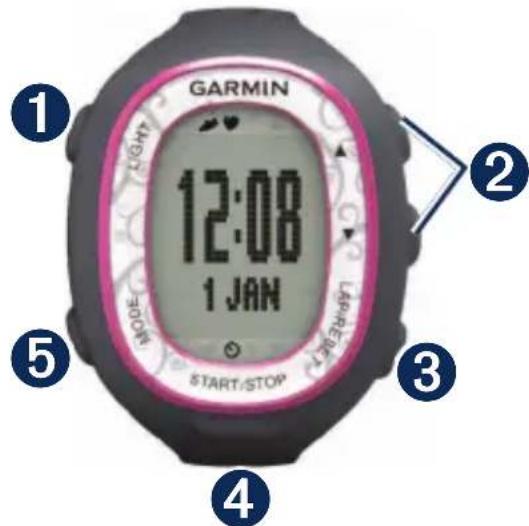
1 LIGHT/

- Press to turn the backlight on.
- Press and hold to pair with your ANT+™ weight scale (optional).
② ▲/▼
- Press to scroll through training pages during an activity.
- Press to scroll through menus and
settings.
- Press and hold to scroll quickly through the settings.
- On the Virtual Partner page, press and hold to adjust the Virtual Partner pace. (The optional foot pod must be paired to view the Virtual Partner (page 21)).
③ LAP/RESET
- Press to create a new lap.
• In training mode, press and hold to save your activity.
• In history mode, press and hold to delete an activity.
4 START/STOP/ENTER
• In training mode, press to start or stop the timer.
- In menu mode, press to confirm and advance to the next setting.
- In time mode, press and hold to set the time.
5 MODE
- Press to change modes.
- Press to exit a menu or page. Your settings are saved.
- Press and hold to change sport modes.
Icons
| Press ▲ to see more settings or history. | |
| Press ▼ to see more settings or history. | |
| Bike sensor is active. | |
| Foot pod sensor is active. |
| Heart rate sensor is active. | |
| Data is uploading or device is connected to ANT+ fitness equipment. | |
| Timer is running. | |
| Alarm is on. |
FR70 Backlight
Press LIGHT/ 📋 to turn on the backlight. The default backlight time is 5 seconds.
Press MODE > SETTINGS > SYSTEM > BACKLIGHT to adjust the backlight time from 1 to 20 seconds.
Changing Modes
Press MODE to change modes. (See image on page 6.)
Getting Started
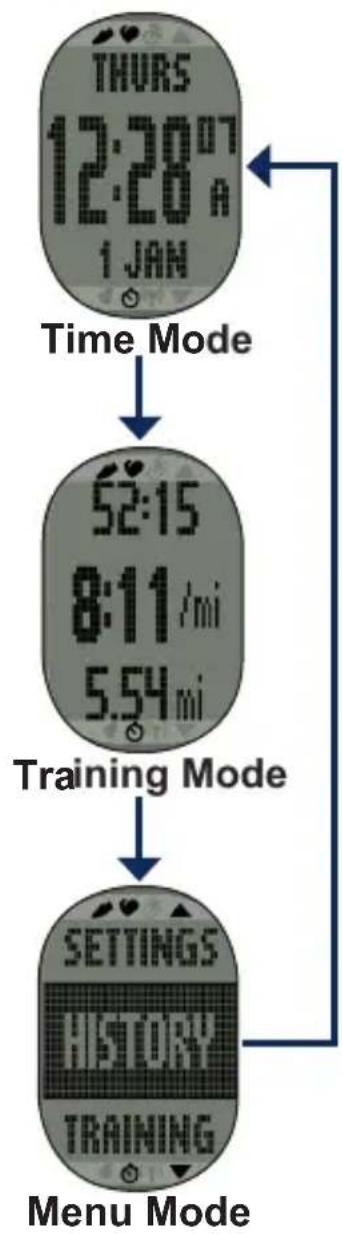
flowchart
graph TD
    A["THURS 12:28'07 A 1 JAN"] --> B["Time Mode"]
    B --> C["52:15 8:11 /mi 5.54 mi"]
    C --> D["Training Mode"]
    D --> E["SETTINGS HISTORY TRAINING"]
    E --> F["Menu Mode"]
Turn on Your FR70
Your watch ships with the power off to conserve the battery. For more battery information, see page 34.
Press MODE to turn on your watch. When you initially turn on the watch and are completing the setup wizard, set your activity class and indicate if you are a lifetime athlete.
Use the chart on page 7 to determine your activity class.
A lifetime athlete is an individual who has trained intensely for many years (with the exception of minor injuries) and has a resting heart rate of 60 beats per minute (bpm) or less.
Activity Class Chart
| Training Description | Training Frequency | Training Time Per Week | |
| 0 No | exercise - - | ||
| 1 Occasional, light exercise to 30 minutes | Once every two weeks Less than 15 minutes | ||
| 2 15 | |||
| 3 Once a week Approximately 30 minutes | |||
| 4 Regular exercise and training to 3 hours | 2 to 3 times per week Approximately 45 minutes | ||
| 5 45 | |||
| 6 1 | |||
| 7 3 to 5 times per week | 3 to 7 hours | ||
| 8 Daily training Almost daily 7 to 11 hours | |||
| 9 Daily 11 to 15 hours | |||
| 10 More than 15 hours | |||
Activity Class Chart provided by Firstbeat Technologies Ltd., portions of which are based on Jackson et al. Prediction of functional aerobic capacity without exercise testing. Medicine and Science in Sports & Exercise 22:863:870, 1990.
Pairing Sensors
The ANT+™ Heart Rate Monitor sensor included with your watch is already paired. Press MODE until training mode appears.
The ♥ icon appears on the FR70 screen when the sensor is paired.
If you purchased a sensor (with ANT+ wireless technology) separately, you need to pair it with your FR70.
After you pair the first time, your FR70 automatically recognizes your sensor each time it is activated. This process occurs automatically when you turn on the FR70 and only takes a few seconds when the sensors are activated and functioning correctly. When paired, your FR70 only receives data from your sensor, and you can go near other sensors.
Pairing Additional Accessories
- Move away (10 m) from other sensors while the FR70 is trying to pair with your sensor for the first time. Bring your sensor within range (3 m) of the FR70.
- Press MODE > SETTINGS > SPORT.
- Select RUN, GENERAL, or BIKE > HEART RATE, FOOT POD, or BIKE SENSOR > ON.

NOTE: When pairing the foot pod, make sure RUN is selected.
- While the FR70 scans for new sensors, the heart and icons blink. The icons are solid when paired.

TIP: The accessory needs to send data to complete the pairing process. You need to wear the heart rate monitor, take a few steps wearing the foot pod, or pedal your bike with the GSC 10.
After a period of inactivity, accessories enter sleep mode to conserve battery life. If the accessory icons are not displayed before resuming your activity, you must reestablish the connection with the FR70.
To Reestablish the Connection
Make sure the accessory is active. Stop and restart the training session. OR
Press MODE and cycle out of training mode and then back into training mode.
For instructions on using the heart rate monitor, see page 10. For instructions on using the foot pod, see page 11.
For information about purchasing additional accessories, go to http://buy.garmin.com.
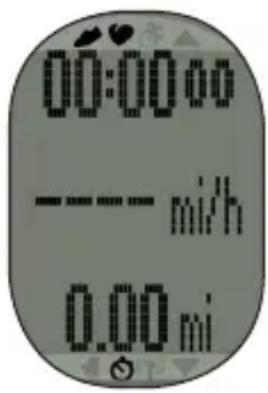
Going for a Run
-
Press MODE to view the training page.
-
Press START to start the timer.
-
After completing your run, press STOP.
-
Press and hold RESET to save your activity and reset the timer.
Downloading Free Software
- Go to www.garminconnect.com.
- Follow the on-screen instructions.
Sending Workout Data to Your Computer

NOTE: You must download software (page 9) so that the necessary USB drivers are installed before connecting the USB ANT Stick to your computer.
- Plug the USB ANT Stick into an available USB port on your computer.
- Bring your FR70 within range (5 m) of your computer.

NOTE: If Power Save Transfer is activated, your FR70 must be in regular time mode to transfer data to your computer. See page 28.
- Follow the on-screen instructions.
Using the Heart Rate Monitor
CAUTION
The heart rate monitor may cause chafing when used for long periods of time. To alleviate this issue, apply an anti-friction lubricant or gel to the center of the hard strap where it contacts your skin.
Do not use gels or lubricants that contain sunscreen. Do not apply anti-friction gel or lubricant on the electrodes.

NOTE: Your device may include either a hard strap monitor or a soft strap monitor.
The heart rate monitor is on standby and ready to send data. Wear the heart rate monitor directly on your skin, just below your breastplate. It should be snug enough to stay in place during your run.
- Connect one side of the strap to the heart rate monitor module.
- Wet both electrodes on the back of the heart rate monitor strap to create a strong connection between your chest and the transmitter.
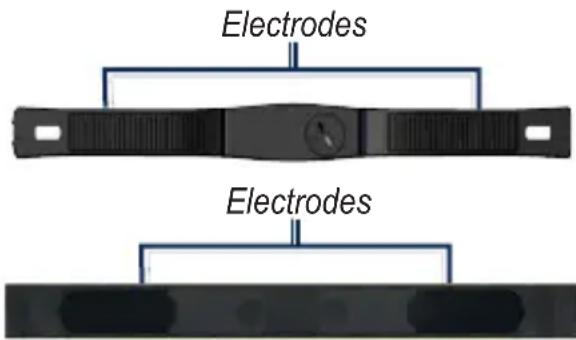
- Wrap the strap around your chest, and connect the other side.

NOTE: The Garmin logo should be right-side up.
- Bring the FR70 within range (3 m) of the accessory. Press MODE until the training page appears.

TIP: If the heart rate data is erratic or does not appear, you may have to tighten the strap on your chest or warm up for 5-10 minutes.
Using the Foot Pod (Optional)
The foot pod is on standby and ready to send data as soon as you install it or start moving.

TIP: Before pairing, walk 4-5 steps with the foot pod so it will begin transmitting speed data to your watch.
Installing the Foot Pod on Your Shoe Laces
- Press the tab on the lace clip. Lift and separate the foot pod from the lace clip.
- Loosen your shoe laces.
Getting Started
- Thread the lace clip through two secure sections of your shoelaces, allowing enough room at the top to tie the shoelaces.
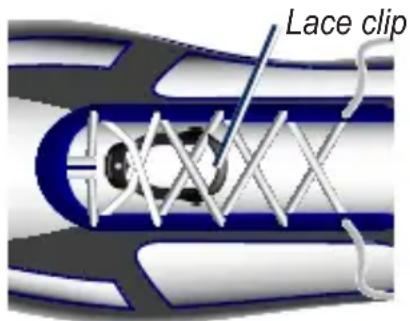
- Tie your shoelaces securely to keep the foot pod from shifting during your activity.
- Snap the foot pod into the lace clip. The arrow on the foot pod must be pointed toward the toe of your shoe.
Removing the Foot Pod
Press the tab on the front of the lace clip to remove the foot pod.
Installing the Foot Pod Under the Insole

NOTE: Your compatible shoe will have a pocket under the insole. You may need to remove a foam insert before installing the foot pod.
- Press the tab on the lace clip. Lift and separate the foot pod from the lace clip.
- Lift the insole of the shoe.
- Place the foot pod in the pocket with the ANT+™ logo facing up and the notch pointing toward the toe of your shoe.
Training with the Foot Pod
- Bring the FR70 within range (3 m) of the foot pod.
-
Press MODE to access training mode. The foot pod icon appears on the training page.
-
If a foot pod data does not appear, you may have to pair the foot pod and the FR70. See page 8.
Calibrating the Foot Pod
Calibrating your foot pod is optional and can improve accuracy. You can automatically or manually adjust the calibration.
Auto Calibration with a Known Distance
The minimum calibration distance is 400 m. For best results, calibrate the foot pod using the longest distance possible at your typical pace. A regulation track (one lap = 400 m) is more accurate than a treadmill.
-
Press MODE > SETTINGS > SPORT > RUN > FOOT POD > CALIBRATE > AUTO.
-
Press START to begin recording.
- Run or walk the known distance.
-
Press STOP.
-
Use ▲/▼ to adjust the calibration distance to the actual distance.
- Press ENTER to save the calibrated distance.
Manual Calibration
If your foot pod distance seems slightly high or low each time you run, you can manually adjust the calibration factor.
-
Press MODE > SETTINGS > SPORT > RUN > FOOT POD > CALIBRATE > MANUAL.
-
Use ▲/▼ to adjust the calibration factor.
- Press ENTER to save the calibration factor.
Turning Off the Foot Pod
After 30 minutes of inactivity, the foot pod automatically turns off to conserve the battery.
Getting Started
Using the GSC ^TM 10
Your watch is compatible with the GSC 10 speed and cadence sensor for bikes. The GSC 10 is an optional accessory that is available at http://buy.garmin.com.
Using the Weight Scale
If you have an ANT+ compatible weight scale, the FR70 can read the data from the weight scale.
- Press and hold LIGHT/ until the FR70 starts scanning.
- Stand on the scale when indicated.

NOTE: If using a body composition scale, remove shoes and socks to ensure that all body composition parameters are read and recorded.
- Step off the scale when indicated.

NOTE: If an error occurs, step off the scale. Step on when indicated.
Time Mode
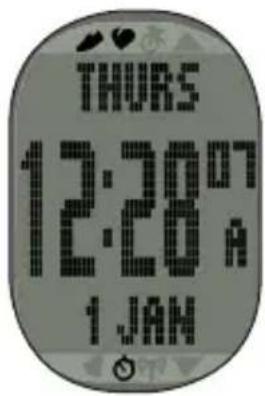
The time mode is the default view of the FR70. It shows the day, time, and date.
Setting the Time
- While in time mode, press and hold ENTER.
- Choose 12-hour or 24-hour mode.
- Press ▲/▼ to adjust the hour.
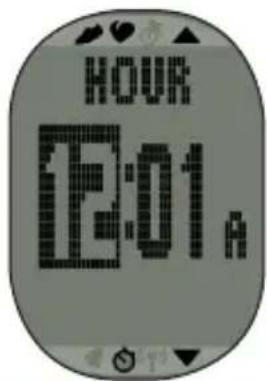
- Press ENTER to advance to the minutes setting.
- Press ▲/▼ to adjust the minutes.
- Continue this process to set seconds, day, month, and year.
- When finished, press MODE to return to time mode.
Power Save
After a period of inactivity, the FR70 automatically enters a power save mode to conserve battery life. The power save mode displays the time and date only. Press any button to exit the power save mode.
Time Mode
Set the Alarm
- While in time mode, press ▲ or ▼. The alarm page appears.
- Press and hold ENTER.
- Select ONCE, DAILY, or OFF.
- Press ▲/▼ to adjust the hour.
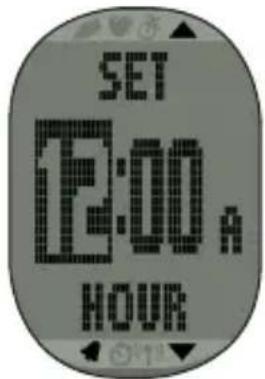
- Press ENTER to advance to the minutes setting.
- Press ▲/▼ to adjust the minutes.
- When finished, press MODE to save and return to the alarm page. The 🔔 icon appears.
Using the Alarm
When the alarm sounds, press MODE to turn off the alarm, or press ENTER to snooze for 9 minutes.
Set a Second Time Zone
You can set the FR70 time for two time zones.
- Press MODE > SETTINGS > WATCH > TIME 2.
- Follow the instructions on page 15 to set the time.
- Press MODE to save and return to the watch menu. The T2 icon appears on the time page.
Training Mode
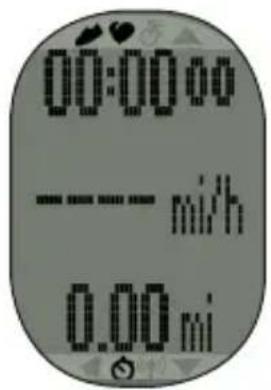
Training mode displays your current workout settings and data. Press MODE until training mode appears.
Timed Workout
-
Press START to begin a session.
-
Press LAP to mark a distance during your activity.
-
Press ▲/▼ to scroll through data pages.
-
When finished, press STOP.

NOTE: To pause the active session, press STOP. Press START when you are ready to continue the session.
- To save the activity and reset the timer, press and hold RESET for 3 seconds.
Training Alerts
To set audible training alerts for your activities, press MODE > TRAINING > ALERTS.

NOTE: Training alerts are inactive during interval workouts.
TIME—set an alert for a specific duration of time.
DISTANCE (foot pod required)—set an alert for a specific distance.
CALORIE—set an alert for a specific amount of calories. The measurement of calories is based on speed when connected to a foot pod or GSC 10, or heart rate when no speed sensor is present.
HEART RATE (heart rate monitor required)—set a low value and a high value. The alert sounds when
Training Mode
your heart rate is above or below the specified value range, or when you have reentered your target range. The heart rate is measured in beats per minute (bpm).
SPEED (foot pod or GSC 10 required)—set a low value and a high value. The alert sounds when your speed is above or below the specified value range, or when you have returned to your target range.
PACE (foot pod or GSC 10 required)—set a low value and a high value. The alert sounds when your pace is above or below the specified value range, or when you have returned to your target range.
CADENCE (foot pod or GSC 10 required)—set a low value and a high value. The alert sounds when your cadence is above or below the specified value range, or when you have returned to your target range.
Cadence is your rate of pedaling or “spinning,” measured by the number of revolutions of the crank arm per minute (rpm), or by the number of strides per minute (spm) when running.
Heart Rate Zones
- Press MODE > SETTINGS > SPORT
- Select RUN, BIKE or GENERAL > HEART RATE > HR ZONES.
- To change a heart rate zone, press ▲/▼ to select the zone you want to change. Press ENTER to edit the zone limits.
- Press ▲/▼ to change the limit. Press ENTER to toggle between fields.
Many athletes are using heart rate zones to measure and increase their cardiovascular strength and improve their level of fitness. A heart rate zone is a set range of heartbeats per minute.
The five commonly accepted heart rate zones are numbered from 1 to 5 according to increasing intensity. Generally, heart rate zones are calculated based on percentages of your maximum heart rate.
How Do Heart Rate Zones Affect Your Fitness Goals?
Knowing your heart rate zones can help you measure and improve your fitness by understanding and applying these principles:
- Your heart rate is a good measure of exercise intensity.
- Training in certain heart rate zones can help you improve cardiovascular capacity and strength.
- Knowing your heart rate zones can prevent you from overtraining and can decrease your risk of injury.
You can set the low and high heart rate limits for each zone. If you know your maximum heart rate, you can use the table on page 20 to determine the best heart rate zone for your fitness objectives.
If you do not know your maximum heart rate, use one of the calculators available on the Internet.
| Zone % of Maximum Heart Rate | Perceived Exertion Benefits | |
| 1 50–60% Relaxed, | easy pace; rhythmic breathing | Beginning-level aerobic training; reduces stress |
| 2 60–70% Comfortable pace; slightly deeper breathing, conversation possible | Basic cardiovascular training; good recovery pace | |
| 3 70–80% Moderate pace; more difficult to hold conversation | Improved aerobic capacity; optimal cardiovascular training | |
| 4 80–90% Fast pace and a bit uncomfortable; breathing forceful | Improved anaerobic capacity and threshold; improved speed | |
| 5 90–100% Sprinting pace, unsustainable for long period of time; labored breathing | Anaerobic and muscular endurance; increased power |
Virtual Partner®
Your Virtual Partner is a unique tool designed to help you meet your pace (or speed) training goals.
If you make changes to the Virtual Partner pace before you start the timer, those changes are saved. Changes made to the Virtual Partner pace after the timer has started are applied only to the current session, and are not saved when the timer is reset. If you make changes to the Virtual Partner during an activity, the Virtual Partner uses the new pace from your location.
Setting the Virtual Partner Pace
- Press MODE > SETTINGS > SPORT.
- Select RUN, GENERAL, or BIKE > VIRTUAL PARTNER > ON.
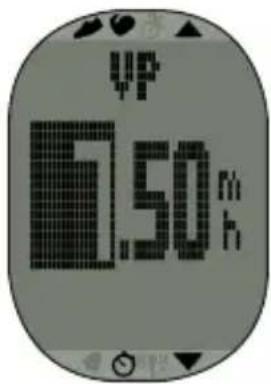
- Use ▲/▼ to adjust the Virtual Partner pace.
- Press MODE to save your changes and return to the sport menu.
Starting a Virtual Partner Workout
- Press MODE > SETTINGS > SPORT.
- Select RUN, GENERAL, or BIKE > VIRTUAL PARTNER > ON.
- Press MODE several times to return to training mode.
- Press START.
Training Mode
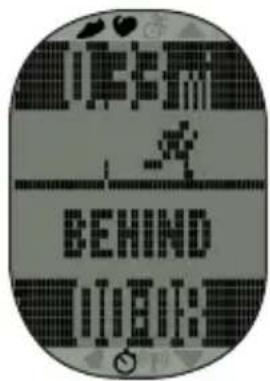

NOTE: The display field is highlighted in black when your pace is behind the Virtual Partner's pace.
- Press ▲ or ▼ to view the Virtual Partner data page.
Turning Off Virtual Partner
- Press MODE > SETTINGS > SPORT.
- Select RUN, GENERAL, or BIKE > VIRTUAL PARTNER > OFF.
Interval Workouts
You can create interval workouts with your FR70. The intervals can be based on time or distance for the activity and rest portions of the activity.
Creating an Interval Workout
- Press MODE > TRAINING > INTERVALS > SETUP.
- Press ENTER to select TIME or DISTANCE.
- Use ▲/▼ to enter a time interval. Press ENTER to advance to the next field.
- Use ▲/▼ arrows to set highlighted value.
- Press ENTER to set a rest type.
- Use ▲/▼ to enter a time interval. Press ENTER to advance to the next field.
- Use ▲/▼ arrows to set highlighted value.
-
Use ▲/▼ to select the number of REPS.
-
Select WARM UP > YES and COOL DOWN > YES (optional).
- Select DO WORKOUT.
- Press START.
If you are doing a warm up or cool down, press LAP at the end of your warm up lap to start your first interval. At the end of your last interval, the FR70 automatically starts a cool down lap. When you are finished cooling down, press LAP to end your cool down period. Press STOP to end your workout.
As you approach the end of each interval, an alarm counts down the time until a new interval begins. To end an interval early, press the LAP button.
Linking to Fitness Equipment
ANT+ technology links your FR70 to fitness equipment so you can send workouts and user information to the fitness equipment, and receive and store workout statistics from the fitness equipment.
Look for the
ANT+ "Link
Here" logo to find compatible fitness equipment.
For more information go to www.garmin.com/antplus.
Training Mode
Linking to Compatible Equipment
- Press MODE > TRAINING.
- Turn on the compatible equipment console.
- Touch your FR70 to the ANT+ "Link Here" logo on the fitness equipment for 2 seconds. The watch will beep and display a message indicating that it is linked to the fitness equipment.
- Press START on the fitness equipment to begin.

NOTE: The fitness equipment and your FR70 will stay linked until you end the session, or until you leave the area.
- Press STOP on the fitness equipment to stop the watch and exercise session.
History
History
flowchart
graph TD
    A["HISTORY"] --> B["TOTALS ACTIVITIES DELETE TRANSFER ALL"]
    B --> C["GENERAL RUN BIKE"]
    B --> D["Press ▲ or ▼ to view activities."]
    B --> E["ALL ACTIVITIES OLD ACTIVITIES ALL TOTALS"]
    B --> F["Select YES or NO"]
History Menu
History
Saving History
Your FR70 stores data based on the type of activity, the accessories used, and your training settings. Your session is automatically saved to history when you reset the timer.
Viewing History
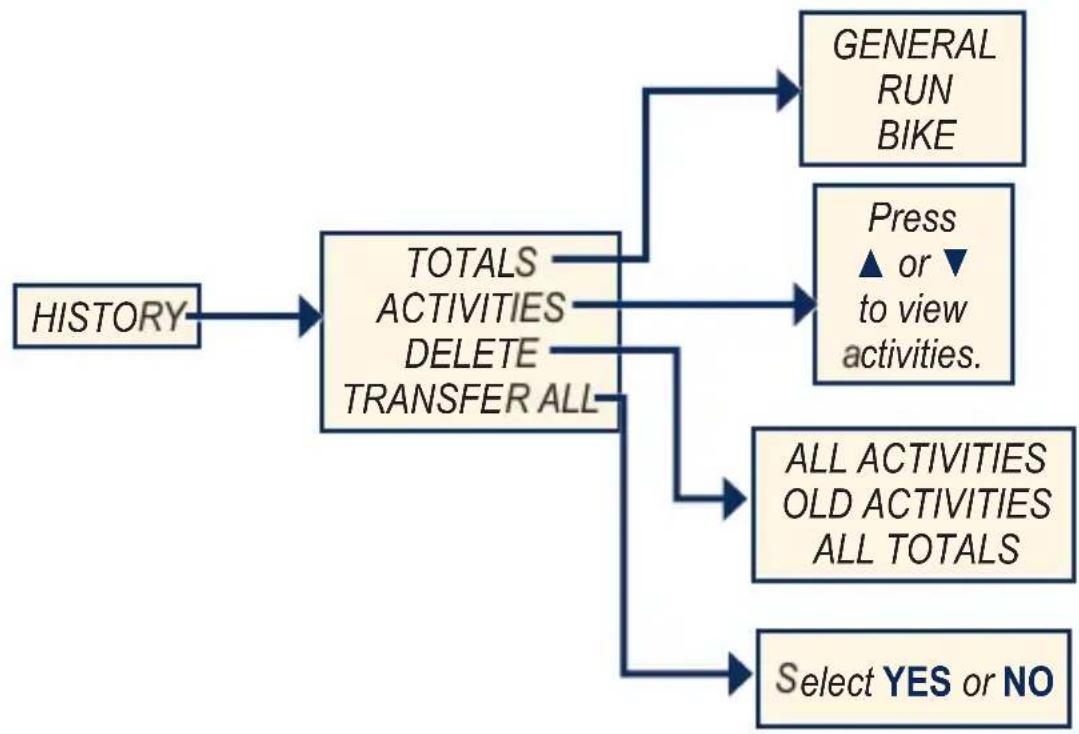
- Press MODE > HISTORY.
- Select ACTIVITIES to view individual workouts or TOTALS to view the cumulative workout data saved to your FR70.
- Press ENTER to view the date and time information. Press ▲/▼ to scroll through individual workouts.
Managing Memory
Your FR70 holds up to 100 laps and up to 20 hours of exercise files. When there is approximately one hour of memory remaining, the LOW MEMORY warning appears on the FR70 screen in training mode.
When the memory is full, the FULL MEMORY warning appears, and your FR70 stops recording data.
Your watch automatically saves your session when the memory is full.
For information about uploading data to your computer, see pages 27–28.
Deleting Workout History

NOTE: See pages 27–28 for information about transferring workout data to your computer.
- Press MODE > HISTORY > DELETE.
- Select ALL ACTIVITIES, OLD ACTIVITIES (activities older than 30 days), or ALL TOTALS.
- Select YES.
Uploading Data
Your FR70 stores up to 100 laps and up to 20 hours of exercise files. Periodically upload data to your computer using the ANT+ wireless technology.
Requirements
- Turn on the computer. (An Internet connection is required for software download and Garmin Connect.)
- Download software (see page 9) so that the necessary USB drivers are installed before connecting the USB ANT Stick to your computer.
- Connect the USB ANT Stick to an available USB port on your computer.
-
Bring the FR70 within range (5 m) of your computer.
-
Verify that there are no FR70 timers running or active training sessions, and that it is in regular time mode.
The FR70 automatically transmits data to the USB ANT Stick so you can use Garmin Connect to store and analyze your workout data.

NOTE: If you are having problems uploading data, you may need to enable computer pairing.
Computer Pairing
Pairing Your FR70 With a New Computer
- Verify that the computer is set up for data upload. See the requirements on page 27.
- Press MODE > SETTINGS > SYSTEM > COMPUTER > PAIRING.
- Select ON. Your computer detects the FR70 and requests to pair.
- Press YES.
Turning Off Computer Paring
- Press MODE > SETTINGS > SYSTEM > COMPUTER > PAIRING.
- Select OFF.
Using the Power Save Transfer Mode
The power save transfer mode turns off the computer beacon unless the watch is in regular time mode, menu mode, or training mode.
- Press MODE > SETTINGS > SYSTEM > COMPUTER > POWER SAVE TRANSFER.
- Select ON or OFF.
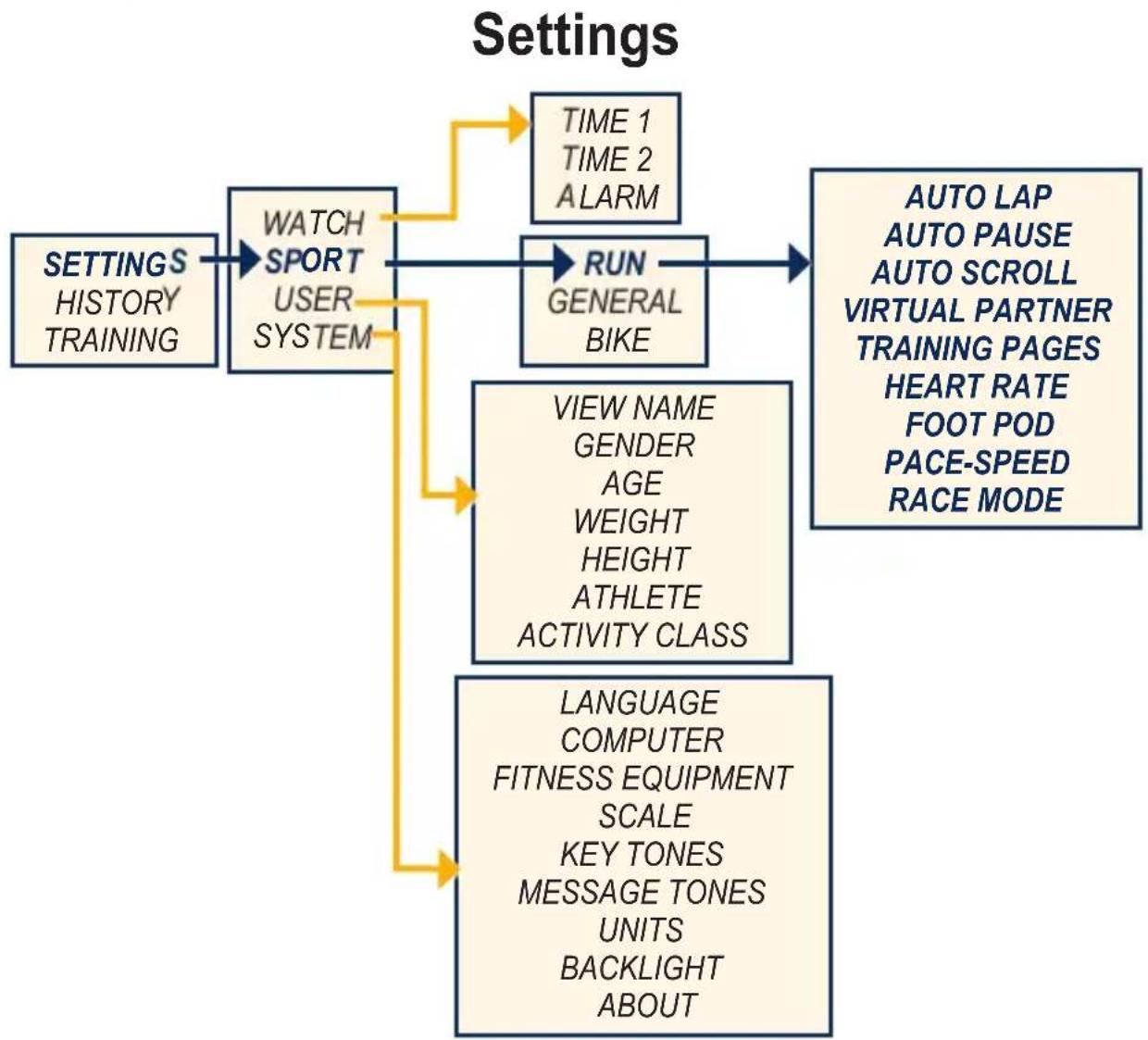
flowchart
graph TD
    A["SETTINGS HISTORY TRAINING"] --> B["WATCH SPORT USER SYSTEM"]
    B --> C["TIME 1 TIME 2 ALARM"]
    B --> D["RUN GENERAL BIKE"]
    D --> E["AUTO LAP AUTO PAUSE AUTO SCROLL VIRTUAL PARTNER TRAINING PAGES HEART RATE FOOT POD PACE-SPEED RACE MODE"]
    D --> F["VIEW NAME GENDER AGE WEIGHT HEIGHT ATHLETE ACTIVITY CLASS"]
    F --> G["LANGUAGE COMPUTER FITNESS EQUIPMENT SCALE KEY TONES MESSAGE TONES UNITS BACKLIGHT ABOUT"]
Run Settings
Settings
Press MODE > SETTINGS > SPORT to access setup menus for the following:
• RUN
- GENERAL
• BIKE
Run Settings
Press MODE > SETTINGS > SPORT > RUN.
AUTO LAP®—turn Auto Lap on or off. When Auto Lap is on, laps are triggered by distance; you can use the lap button to manually mark laps. The auto lap counter resets when a manual lap is set.
AUTO PAUSE®—turn Auto Pause on or off. When Auto Pause is on, the timer automatically pauses when your pace falls below a preset pace.
AUTO SCROLL—use the auto scroll feature to automatically cycle through all of the training data pages while the timer is running. Select a display speed: SLOW, MEDIUM, or FAST.
VIRTUAL PARTNER—turn Virtual Partner on or off. You can also set the Virtual Partner pace (see page 21).
TRAINING PAGES—set up the training pages and data fields you want to display during your run. See page 32.
HEART RATE—turn on the heart rate monitor feature and set up running heart rate zones (see page 18).
FOOT POD—select ON, OFF, or CALIBRATE. For more information about calibrating your foot pod (see page 13).
PACE-SPEED—select SPEED or PACE.

NOTE: Use ▲/▼ to toggle or change numeric settings. Press MODE at any time to return to the previous page or menu.
RACE MODE—will not default back to time mode. Race mode must be turned on. Race mode turns off when you start the timer.
Biking Settings
Press MODE > SETTINGS > SPORT > BIKE.
AUTO LAP®—turn Auto Lap on or off. When Auto Lap is on, laps are triggered by distance; you can use the lap button to manually mark laps. The auto lap counter resets when a manual lap is set.
AUTO PAUSE®—turn Auto Pause on or off. When Auto Pause is on, the timer automatically pauses (stops) when the your pace falls below a preset pace.
AUTO SCROLL—use the auto scroll feature to automatically cycle through all of the training data pages while the timer is running. Select a display speed: SLOW, MEDIUM, or FAST.
VIRTUAL PARTNER— turn Virtual Partner on or off. You can also set the Virtual Partner pace (page 21).
TRAINING PAGES—set up the training pages and data fields you want to display during your ride (page 32).
HEART RATE—turn on the heart rate monitor feature and set up biking heart rate zones (page 18).
BIKE PROFILE—select a wheel size and set up bike sensors.
PACE-SPEED—select SPEED or PACE.
Settings
RACE MODE—will not default back to time mode. Race mode must be turned on. Race mode turns off when you start the timer.
Data Fields
You can show up to five data pages for each mode: Run, General, or Bike. On each data page, you can customize up to three data fields.
- Press MODE > SETTINGS > SPORT.
- Select RUN, GENERAL, or BIKE > TRAINING PAGES.
- Select PAGE 1.
- Press ▲/▼ to set the number of fields.
- Press and hold ENTER to change FIELD 1. Press ▲/▼ to change the data field.
- Repeat for the other data fields and data pages.
Data Field Options
** Requires an optional accessory.
| Data Field Description | |
| CADENCE** | Revolutions of the crank arm or strides per minute. |
| A CADENCE** | Average cadence for the duration of your current activity. |
| L CADENCE** | Average cadence for the current lap. |
| CALORIES Number of calories burned. | |
| CALORIES - FAT | Amount of fat calories burned. |
| DISTANCE** | Distance traveled on the current activity. |
| L DIST ** Distance traveled in the current lap. | |
Settings
| Data Field Description | |
| HEART RATE ** | Heart rate in bpm. |
| A HR ** Average heart rate for the activity. | |
| L HR ** Average heart rate for the lap. | |
| HR ZONE ** Current range of heart rate (1–5). The default zones are based on your user profile. | |
| LAPS Number of laps completed. | |
| PACE ** Current pace. | |
| A PACE ** Average pace for the activity. | |
| L PACE ** Average pace in the current lap. | |
| SPEED ** Current speed. | |
| Data Field Description | |
| A SPEED ** A | Average speed for the activity. |
| L SPEED ** A | Average speed in the current lap. |
| L STEPS ** Steps for the current lap. | |
| TIME ELAPSED | Total time elapsed for the activity. |
| TIME | Stopwatch time. |
| A LAP TIME | Average time to complete the laps so far. |
| LAP TIME | Amount of time in the current lap. |
| TIME OF DAY | Current time. |
Appendix
Optional Accessories
For more information about optional accessories, go to http://buy.garmin.com. You can also contact your Garmin dealer to purchase accessories.
Battery Information
WARNING: The FR70, the heart rate monitor, the foot pod, and the GSC 10 contain user-replaceable CR2032 batteries. See the Important Safety and Product Information guide in the product box for important battery safety information.
FR70 Battery
The FR70 battery will last for 1 year (typical use). When the battery is low, the BATTERY LOW warning appears on the FR70 screen in Time mode.
Conserving Battery Life
Excessive use of the backlight reduces battery life. Set the backlight timeout to 5 seconds to ensure longer battery life.

NOTE: If the battery is low the backlight automatically is disabled.
Using the power save transfer mode turns off the computer beacon unless the watch is in regular time mode. See page 28.
Replacing the FR70 Battery
All of your settings are preserved, except the time of day.

NOTE: Before replacing the battery, save all of your data to your computer or to history (see page 26).

NOTE: Garmin recommends that you replace the battery in a low-humidity environment to prevent condensation from forming inside the watch.
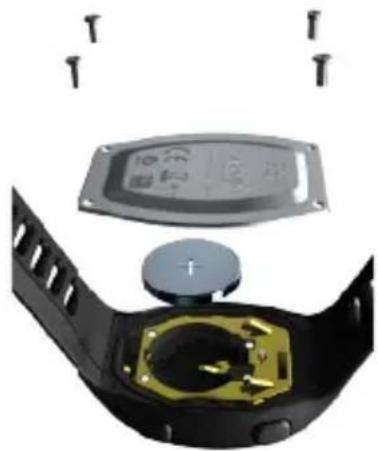
- Use a small Phillips screwdriver to remove the screws, from the FR70 back cover.
natural_image
Exploded view of a smartwatch with internal components and screw bolts (no text or symbols visible)FR70 Owner's Manual 35
- Carefully lift the back cover, and remove the battery.

NOTE: Be careful not to move the red O-ring gasket in the battery compartment.

NOTE: Be careful not to contaminate the O-ring gasket. Any contamination could compromise the performance of the watch.
- Replace the battery with the positive side facing up.

NOTE: Make sure the gasket is seated correctly in the gasket trough before screwing the back plate on.
- Replace the back cover and the four screws ensuring the gasket is in place. Do not over tighten the screws. (Garmin recommends a torque of 1 in.-lb.)
Appendix
Heart Rate Monitor Battery
The heart rate monitor contains a user-replaceable CR2032 battery.
The heart rate monitor battery should last for three years.
Replacing the Heart Rate Monitor Battery (Hard Strap)
- Locate the circular battery cover on the back of the heart rate monitor.
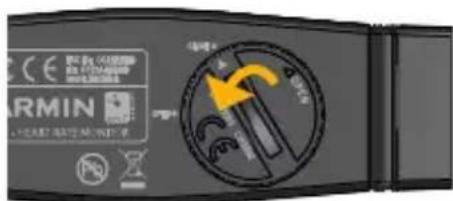
- Use a coin to twist the cover counter-clockwise so the arrow on the cover points to OPEN.
- Remove the cover and battery. Wait 30 seconds. Insert the new battery with the positive side facing up.

NOTE: Do not damage or lose the O-ring gasket.
- Use a coin to twist the cover clockwise so the arrow on the cover points to CLOSE.

NOTE: After replacing the battery, you may need to pair the heart rate monitor with your FR70 again.
Replacing the Heart Rate Monitor Battery (Soft Strap)
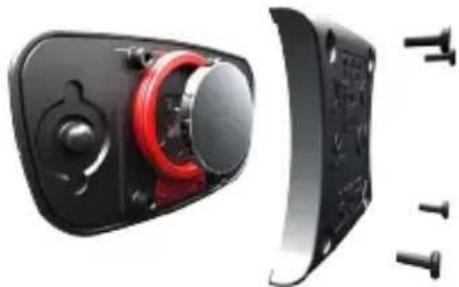
- Use a small Phillips screwdriver to remove the four screws on the back of the module.
- Remove the cover and battery.
natural_image
Close-up of a black electronic device with red internal components and screw bolts, shown from two angles (no text or symbols visible)- Wait 30 seconds.
- Insert the new battery with the positive side facing up.

NOTE: Do not damage or lose the O-ring gasket.
- Replace the back cover and the four screws.
After you replace the heart rate monitor battery, you must pair it with the device again.
Foot Pod Battery
When the battery is low, the FOOT POD BATTERY LOW
warning appears in training mode when a workout starts or stops.
Approximately five hours of battery life remain.
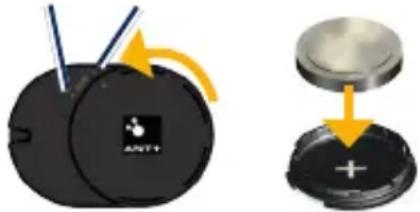
Replacing the Foot Pod Battery
- Locate the circular battery cover on the back of the foot pod.
Unlock Lock
FR70 Owner's Manual 37
- Twist the cover counter-clockwise until it is loose enough to remove.
- Remove the cover and battery. Wait 30 seconds. Insert the new battery with the positive side facing up.
- To replace the cover, align the dots and rotate the cover clockwise.
Specifications
FR70 Blue
Watch size (W×H×D):
$$ 1. 5 \times 2. 2 \times 0. 5 1 \text { in. } $$
$$ (3 8 \times 5 6 \times 1 3 \mathrm{mm}) $$
Wrist band size (L×W×D):
$$ 7. 0 \times 0. 9 \times 0. 1 2 \text { in. } $$
$$ (1 7 7 \times 2 3 \times 3 \mathrm{mm}) $$
Weight: 1.6 oz. (44 g)
LCD Display: 28.5 mm × 20 mm, with backlight
Water Resistance: 50 m
Appendix

NOTE: To maintain the water resistance, do not operate FR70 buttons under water.
Data storage: Up to 100 laps and up to 20 hours of exercise files
Computer interface: Wireless, automatic USB ANT Stick
Battery: user-replaceable CR2032 (3 volts) Perchlorate Material – special handling may apply. See www.dtsc.ca.gov /hazardouswaste/perchlorate.
Battery life: 1 year, depending on usage.
Operating temperature range: from 14^ F to 122^ F (from -10^ C to 50^ C)
Radio frequency/protocol: 2.4 GHz/ANT+ wireless communications protocol
System Compatibility: ANT+
FR70 Pink
Watch size (W×H×D): 1.5 × 2.0 × 0.55 in. (38 × 52 × 14 mm)
Wrist band size (L×W×D): 6.6 × 0.63 × 0.15 in. (168 × 16 × 3.75 mm)
Weight: 1.4 oz. (41 g)
LCD Display: 28.5 mm × 20 mm, with backlight
Water Resistance: 50 m

NOTE: To maintain the water resistance, do not push FR70 buttons under water.
Data storage: Up to 100 laps and up to 20 hours of exercise files
Computer interface: Wireless, automatic USB ANT Stick
Battery: user-replaceable CR2032 (3 volts) Perchlorate Material – special handling may apply. See www.dtsc.ca.gov
/hazardouswaste/perchlorate.
Battery life: 1 year, depending on usage.
Operating temperature range: from 14°F to 122°F (from -10°C to 50°C)
Radio frequency/protocol: 2.4 GHz/ANT+ wireless communications protocol
System Compatibility: ANT+
USB ANT Stick
Physical size (W×H×D): 2.3 × 0.7 × 0.3 in. (59 × 18 × 7 mm)
Weight: 0.2 oz. (6 g)
Transmission range: Approximately 5 m
Operating temperature: from 14°F to 122°F (from -10°C to 50°C)
Radio frequency/protocol: 2.4 GHz/ANT+ wireless communications protocol
Power source: USB
Heart Rate Monitor
Physical size (not including the strap) (W×H×D): 13.7 × 1.3 × 0.4 in. (34.7 × 3.4 × 1.1 cm)
Weight: 1.6 oz. (44 g)
Water Resistance: 32.9 ft. (10 m)
Transmission range: approximately 9.8 ft. (3 m)
Battery: user-replaceable CR2032 (3 volts) Perchlorate Material – special handling may apply. See www.dtsc.ca.gov /hazardouswaste/perchlorate.
Battery Life: approximately 3 years (1 hour per day)
Operating temperature: from 14°F to 122°F (from -10°C to 50°C)
Appendix

NOTE: In cold conditions, wear appropriate clothing to keep the temperature of the heart rate monitor near your body temperature.
Radio frequency/protocol: 2.4 GHz/ANT+ wireless communications protocol
System Compatibility: ANT+
Foot Pod
Physical size (excluding clip): (L×W×H): 1.4 × 1.0 × 0.3 in. ( 35 × 25 × 7.5 mm )
Weight (including battery): 0.4 oz. (10 g)
Water Resistance: 32.9 ft. (10 m)
Transmission range: approximately 9.8 ft. (3 m)
Speed and distance accuracy: uncalibrated 95%, calibrated 98%
Battery: user-replaceable CR2032
(3 volts) Perchlorate Material – special handling may apply. See www.dtsc.ca.gov /hazardouswaste/perchlorate.
Battery life: 400 hours run time
Operating temperature: from 14°F to 122°F (from -10°C to 60°C)
Sensor Accuracy Range: from 32°F to 104°F (from 0°C to 40°C)
Radio frequency/protocol: 2.4 GHz/ANT+ wireless communications protocol
System Compatibility: ANT+
Troubleshooting
| Problem Solution/Answer | |
| The buttons do not respond. How do I restart the FR70? | Press and hold MODE and ENTER simultaneously to restart the FR70 software. You must reset the time and your custom settings. If you are still having problems, remove and then replace the battery (see page 35). |
| How do I clear all user data? | This procedure deletes all information that you have entered. Press and hold MODE, LIGHT/ , and ▲ simultaneously. This also restores the factory settings. Workout data is deleted. |
| How do I set the time to AM or PM? | Verify that the time mode is set to 12 (12 hour). Press ▲/▼ to select the correct hour. The A or P icon appears below the seconds on the time page. For more information, see page 15. |
| The FR70 will not send data to my computer. | See page 28 to enable computer pairing. |
| The heart rate monitor or foot pod will not pair with the FR70. | Stay 10 m away from other ANT sensors while pairing.Bring the FR70 within range (3 m) of the heart rate monitor while pairing.If the problem persists, replace the battery. |
| How do I change the time? | See page 15 to set the time. |
Appendix
| Problem Solution | Answer |
| The heart rate monitor strap is too big. | A smaller elastic strap is sold separately.Go to http://buy.garmin.com. |
| The heart rate data is inaccurate or erratic. | Make sure the heart rate monitor is snug against your body.Warm up for 5–10 minutes. If the problem persists, continue with the following suggestions.Reapply moisture to the sensors. Use water, saliva, or electrode gel. Clean the sensors. Dirt and sweat residue on the sensor can interfere with heart rate signals.Synthetic fabrics that rub or flap against the heart rate monitor can create static electricity that interferes with heart rate signals. Wear a cotton shirt or wet your shirt if suitable for your activity.Position the heart rate monitor on your back instead of your chest.Strong electromagnetic fields and some 2.4 GHz wireless sensors can interfere with your heart rate monitor. Sources of interference may include very high-voltage power lines, electric motors, microwave ovens, 2.4 GHz cordless phones, and wireless LAN access points. After you move away from the source of interference, your heart rate data should return to normal. |
Software License Agreement
BY USING THE FR70, YOU AGREE TO BE BOUND BY THE TERMS AND CONDITIONS OF THE FOLLOWING SOFTWARE LICENSE AGREEMENT. PLEASE READ THIS AGREEMENT CAREFULLY.
Garmin grants you a limited license to use the software embedded in this device (the “Software”) in binary executable form in the normal operation of the product. Title, ownership rights, and intellectual property rights in and to the Software remain in Garmin.
You acknowledge that the Software is the property of Garmin and is protected under the United States of America copyright laws and international copyright treaties. You further acknowledge that the structure, organization, and code of the Software are valuable trade secrets of Garmin and that the Software in source code form remains a valuable trade secret of Garmin. You agree not to decompile,
disassemble, modify, reverse assemble, reverse engineer, or reduce to human readable form the Software or any part thereof or create any derivative works based on the Software. You agree not to export or re-export the Software to any country in violation of the export control laws of the United States of America.
Declaration of Conformity (DoC)
Hereby, Garmin, declares that this Forerunner is in compliance with the essential requirements and other relevant provisions of Directive 1999/5/EC.
To view the full Declaration of Conformity, see the Garmin Web site for your Garmin product: www.garmin.com.
Index
A
accessories 8,34 reestablish connection 9 sleep mode 9
activity class 6,7 alarm 16
alerts training 17
athlete, lifetime 6
Auto Lap 30, 31
auto pause 30, 31
auto scroll 30, 31
B
backlight 5 batteries 34 power save 15 replacing footpod 37 replacing FR70 35 replacing heart rate monitor 36 bike profile 31
bike settings 31 buttons, watch 4 light 4 mode 5 start/stop/enter 4 up/down 4
C
cadence sensor 14 calibrating foot pod 13 calories 32 computer pairing 28 conserving battery 9, 15, 34
D
data, sending to computer 10 data uploading 10, 27 drivers, USB 10, 27
F
fitness equipment, link to 23 foot pod 11
calibrating 13
G
Garmin Connect 27
GSC 10 14
H
heart rate monitor 10, 36
heart rate zones 18
History mode 25
deleting 23
memory 23
saving 23
viewing 23
|
icons 5 interval workouts 22
L
lap 4, 30, 31 license agreement 43
M
modes 5
P
pairing sensors 8
power save 15
power save transfer 28
product registration 1
R
race mode 31, 32
running, foot pod 11
run settings 30
S
sensors, pairing 8
setting the time 15
setup wizard 6
software
free download 9
software license
agreement 43
speed and cadence
sensor 14
T
technical
specifications 37
time, setting 15
time data fields 33
Time mode 15
time zones 16
Training mode 17
transferring data 10, 27
troubleshooting 41
U
uploading data 10, 27
USB ANT stick 10
USB drivers 10, 27
V
virtual partner
pace 21
workout 21
W
weight scale 14
workout 17, 21, 22, 24
www.garmin.com/support

913-397-8200 1-800-800-1020

0808 238 0000 +44 870 850 1242

1-866-429-9296

43 (0) 3133 3181 0

00 32 2 672 52 54

00 45 4810 5050

00 358 9 6937 9758

00 331 55 69 33 99

0180 5 / 42 76 46 - 880

00 39 02 3669 9699

0800-0233937

815 69 555

00800 4412 454 +44 2380 662 915

00 35 1214 447 460

00 34 902 007 097

00 46 7744 52020
Garmin International, Inc
1200 East 151st Street,
Olathe, Kansas 66062, USA
Garmin (Europe) Ltd.
Liberty House, Houndown Business Park
Southampton, Hampshire, SO40 9LR UK
Garmin Corporation
No. 68, Zhangshu 2nd Road, Xizhi Dist.
New Taipei City, 221, Taiwan (R.O.C.)