USER MANUAL 225B2CS PHILIPS
www.philips.com/welcome
Waste Electrical and Electronic Equipment-WEEE


This marking on the product or on its packaging illustrates that, under European Directive 2002/96/EC governing used electrical and electronic appliances, this product may not be disposed of with normal household waste. You are responsible for disposal of this equipment through a designated waste electrical and electronic equipment collection. To determine the locations for dropping off such waste electrical and electronic, contact your local government office, the waste disposal organization that serves your household or the store at which you purchased the product.
Your new monitor contains materials that can be recycled and reused. Specialized companies can recycle your product to increase the amount of reusable materials and to minimize the amount to be disposed of.
All redundant packing material has been omitted. We have done our utmost to make the packaging easily separable into mono materials.
Please find out about the local regulations on how to dispose of your old monitor and packing from your sales representative.
There is currently a system of recycling up and running in the European countries, such as The Netherlands, Belgium, Norway, Sweden and Denmark.
In Asia Pacific, Taiwan, the products can be taken back by Environment Protection Administration (EPA) to follow the IT product recycling management process, detail can be found in web site www.epa.gov.tw
The monitor contains parts that could cause damage to the nature environment. Therefore, it is vital that the monitor is recycled at the end of its life cycle.
For help and service, please contact Consumers Information Center or F1rst Choice Contact Information Center in each country.
Moniteur
Guide de démarrage

Support de la base

CD EDFU
Caution
![graph TD A["Network"] --> B["Node 8"] B --> C["Node 7"] C --> D["Node 6"] D --> E["Node 5"] E --> F["Node 4"] F --> G["Node 3"] G --> H["Node 2"] H --> I["Node 1"] E --> J["Sensor"] J --> K["OK"]](/content/2019/08/101473/images/e165b320a93ad1ad8e4f975d427fd970d5280e41fedc716f09cbb41125149fbc.jpg)
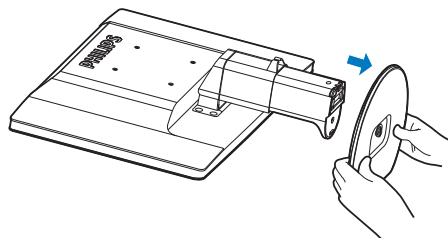
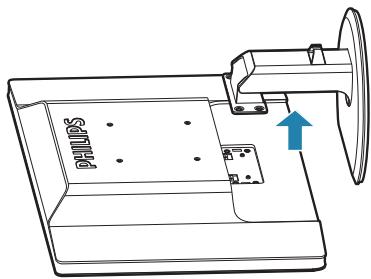
2 Déposer la base
Condition :

Note
| Smart Image |
| Office |
| Photo |
| Movie |
| Game |
| Economy |
| Off |
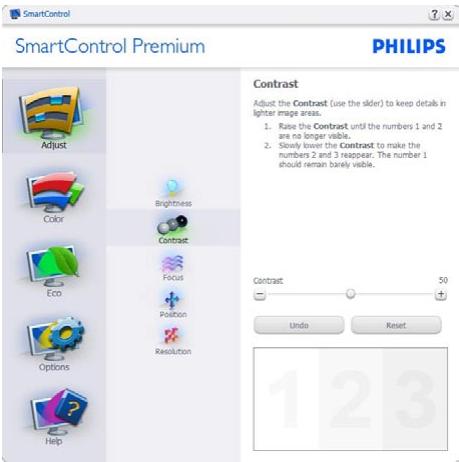
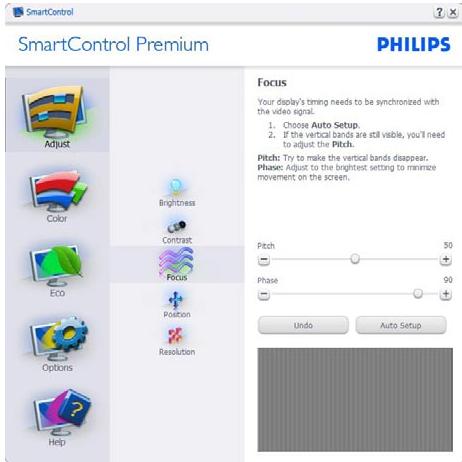
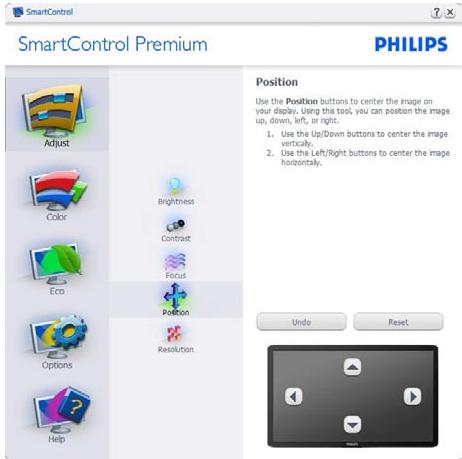
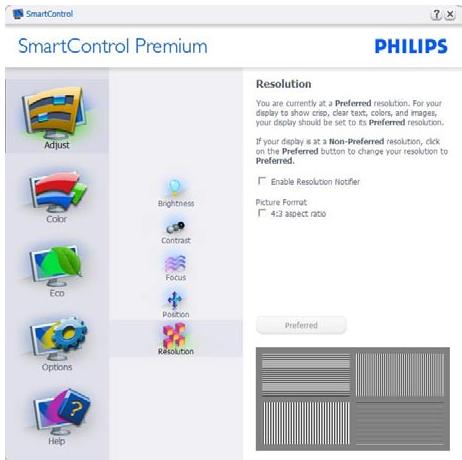
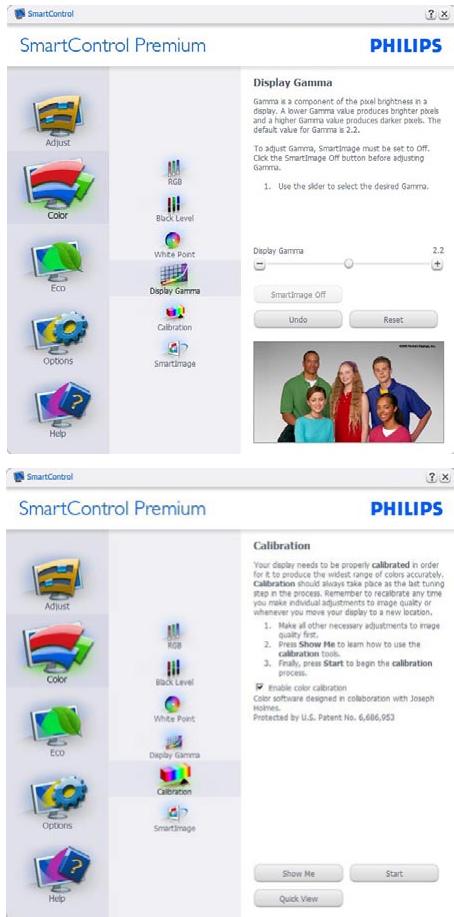
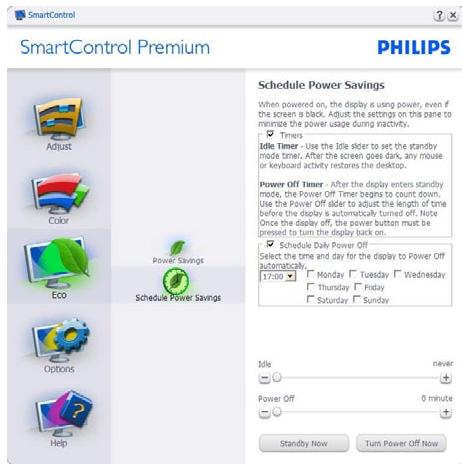
3.5 Philips SmartControl Premium
Premier lancement – Assistant
ECO
Note
Lead free display promotes environmentally sound recovery and disposal of waste from electrical and electronic equipment. Toxic substances like Lead has been eliminated and compliance with European community's stringent RoHs directive mandating restrictions on hazardous substances in electrical and electronic equipment have been adhered to in order to make Philips monitors safe to use throughout its life cycle.

Congratulations,
Your display is designed for both
you and the planet!
This display carries the TCO Certified label. This ensures that the display is designed for minimal impact on the climate and natural environment, while offering all the performance expected from top of the line electronic products. TCO Certified is a third party verified program, where every product model is tested by an accredited independent test laboratory. TCO Certified represents one of the toughest certifications for displays worldwide.
Some of the Usability features of the TCO Displays 5.0 requirements:
Visual Ergonomics
Good visual ergonomics in order to improve the working environment for the user and to reduce sight and strain problems. Important parameters are:
• Light levels without color tint, Uniform color and luminance, Wide color gamut
- Calibrated color temperature and gamma curve
- Wide luminance level, Dark black levels, Low motion blur
Electrical Safety
• Product fulfills rigorous safety standards
Emissions
- Low alternating electric and magnetic fields emissions
• Low acoustic noise emissions
• Some of the Environmental features of the TCO Displays 5.0 requirements:
- The brand owner demonstrates corporate social responsibility and has a certified environmental management system (EMAS or ISO 14001)
- Very low energy consumption both in on- and standby mode
- Restrictions on chlorinated and brominated flame retardants, plasticizer and polymers
- Restrictions on heavy metals such as cadmium, mercury and lead (RoHS compliance)
EPEAT
(www.epeat.net)

"The EPEAT (Electronic Product Environmental Assessment Tool) program evaluates computer desktops, laptops, and monitors based on 51 environmental criteria developed through an extensive stakeholder consensus process supported by US EPA.
EPEAT system helps purchasers in the public and private sectors evaluate, compare and select desktop computers, notebooks and monitors based on their environmental attributes. EPEAT also provides a clear and consistent set of performance criteria for the design of products, and provides an opportunity for manufacturers to secure market recognition for efforts to reduce the environmental impact of its products."
Benefits of EPEAT
Reduce use of primary materials
Reduce use of toxic materials
Avoid the disposal of hazardous waste EPEAT'S requirement that all registered products meet ENERGY STAR's energy efficiency specifications, means that these products will consume less energy throughout their life.
This product is in conformity with the following standards
• EN60950-1:2006 (Safety requirement of Information Technology Equipment)
• EN55022:2006 (Radio Disturbance requirement of Information Technology Equipment)
- EN55024:1998+A1:2001+A2:2003 (Immunity requirement of Information Technology Equipment)
• EN61000-3-2:2006 (Limits for Harmonic Current Emission)
- EN61000-3-3:1995+A1:2001+A2:2005 (Limitation of Voltage Fluctuation and Flicker) following provisions of directives applicable
• 2006/95/EC (Low Voltage Directive)
• 2004/108/EC (EMC Directive)
- 2005/32/EC (EuP Directive, EC No. 1275/2008 implementing Directive for Standby and Off mode power consumption) and is produced by a manufacturing organization on ISO9000 level.
- The product also comply with the following standards
- ISO9241-307:2008 (Ergonomic requirement, Analysis and compliance test methods for electronic visual displays)
• GS EK1-2000:2009 (GS mark requirement)
- prEN50279:1998 (Low Frequency Electric and Magnetic fields for Visual Display)
- MPR-II (MPR:1990:8/1990:10 Low Frequency Electric and Magnetic fields)
- TCO Displays 5.0 (Requirement for Environment Labeling of Ergonomics, Energy, Ecology and Emission, TCO: Swedish Confederation of Professional Employees) for TCO versions
Energy Star Declaration
(www.energystar.gov)
This monitor is equipped with a function for saving energy which supports the VESA Display Power Management (DPM) standard. This means that the monitor must be connected to a computer which supports VESA DPM. Time settings are adjusted from the system unit by software.
| VESA State | LED Indicator | Power Consumption |
| Normal operation | ON (Active) | White | 22.5W (typ.) |
| Power Saving Alternative 2 One step | Sleep (typ.)Switch Off | White BlinkingOff | 0.1W0.08W |

As an ENERGY STAR® Partner, we have determined that this product meets the ENERGY STAR® guidelines for energy efficiency.

Note
We recommend you switch off the monitor when it is not in use for a long time.
Federal Communications Commission (FCC) Notice (U.S. Only)

This equipment has been tested and found to comply with the limits for a Class B digital device, pursuant to Part 15 of the FCC Rules. These limits are designed to provide reasonable protection against harmful interference in a residential installation. This equipment generates, uses and can radiate radio frequency energy and, if not installed and used in accordance with the instructions, may cause harmful interference to radio communications. However, there is no guarantee that interference will not occur in a particular installation. If this equipment does cause harmful interference to radio or television reception, which can be determined by turning the equipment off and on, the user is encouraged to try to correct the interference by one or more of the following measures:
• Reorient or relocate the receiving antenna.
- Increase the separation between the equipment and receiver.
- Connect the equipment into an outlet on a circuit different from that to which the receiver is connected.
- Consult the dealer or an experienced radio/TV technician for help.

Changes or modifications not expressly approved by the party responsible for compliance could void the user's authority to operate the equipment.
Use only RF shielded cable that was supplied with the monitor when connecting this monitor to a computer device.
To prevent damage which may result in fire or shock hazard, do not expose this appliance to rain or excessive moisture.
THIS CLASS B DIGITAL APPARATUS MEETS ALL REQUIREMENTS OF THE CANADIAN INTERFERENCE-CAUSING EQUIPMENT REGULATIONS.
Declaration of Conformity for Products Marked with FCC Logo,
United States Only

This device complies with Part 15 of the FCC Rules. Operation is subject to the following two conditions: (1) this device may not cause harmful interference, and (2) this device must accept any interference received, including interference that may cause undesired operation.
Commission Federale de la Communication (FCC Declaration)

EN 55022 Compliance (Czech Republic Only)
This device belongs to category B devices as described in EN 55022, unless it is specifically stated that it is a Class A device on the specification label. The following applies to devices in Class A of EN 55022 (radius of protection up to 30 meters). The user of the device is obliged to take all steps necessary to remove sources of interference to telecommunication or other devices.
Polish Center for Testing and Certification Notice
The equipment should draw power from a socket with an attached protection circuit (a three-prong socket). All equipment that works together (computer, monitor, printer, and so on) should have the same power supply source.
The phasing conductor of the room's electrical installation should have a reserve short-circuit protection device in the form of a fuse with a nominal value no larger than 16 amperes (A).
To completely switch off the equipment, the power supply cable must be removed from the power supply socket, which should be located near the equipment and easily accessible.
A protection mark "B" confirms that the equipment is in compliance with the protection usage requirements of standards PN-93/T-42107 and PN-89/E-06251.
| Placering/VentilationVARNING:FÖRSÄKRA DIG OM ATT HUVUDBRYTAREOCH UTTAG ÄR LÄTÄTKOMLIGA, NÄR DUSTÄLLER DIN UTRUSTNING PÅPLATS. |
|
| Placering/VentilationADVARSEL:S∅RG VED PLACERINGEN FOR, ATNETLEDNINGENS STIK OG STIKKONTAKT ERNEMTTILGÆNGELIGE. |
|
| Paikka/IlmankiertoVAROITUS:SIJOITA LAITE SITEN, ETTÄ VERKKOJOHTOVOIDAAN TARVITTAESSA HELPOSTIIRROTTAA PISTORASIASTA. |
|
| Plassering/VentilasjonADVARSEL:NÅR DETTE UTSTYRET PLASSERES, MÅDU PASSE PÅ AT KONTAKTENE FORST∅MTILF∅RSEL ER LETTE Å NÅ. |
BSMI Notice (Taiwan Only)
符合乙類資訊產品之標準
The People's Republic of China released a regulation called "Management Methods for Controlling Pollution by Electronic Information Products" or commonly referred to as China RoHS. All products including CRT and LCD monitor which are produced and sold for China market have to meet China RoHS request.
中国大陆RoHS
General Consumer Information Center
0800004551
Datalan Servisne Stredisko
Puchovska 8
SK - 831 06 Bratislava
Tél.: +421 2 49207155
E-mail : servis@datalan.sk
SLOVÉNIE
PC HAND
Brezovce 10
SI - 1236 Trzin
Tél.: +386 1 530 08 24
E-mail : servis@pchand.si
RUSSIE
CPS
18, Shelepihinskaya nab.
123290 Moscou
Russie
Tél : +7(495)797 3434
Profservice:
14A -3, 2Karacharovskaya str,
109202, Moscou,
Russie
Tél : +7(095)170-5401
TURQUIE
Türk Philips Ticaret A.S.
Yukari Dudullu Org.San.Bolgesi
2.Cadde No:22
34776-Umraniye/Istanbul
Tél. : (0800)-261 33 02
UKRAINE
Comel
Shevchenko street 32
UA - 49030 Dnepropetrovsk
Tél.: +380 562320045
www.csp-comel.com LLC Topaz Company
Topaz-Service Company,
Mishina str. 3,
Kiev
Ukraine-03151
Tél.: +38 044 245 73 31
Amérique latine
ARGENTINE
Azopardo 1480.
(C1107ADZ) Cdad. de Buenos Aires
Tél.:0800 3330 856
E-mail : CIC.monitores@Philips.com
BRESIL
Alameda Raja Gabaglia, 188 - 10°Andar - V.
Olímpia - S. Paulo/SP - CEP 04551-090 -
Brésil
Tél.:0800-7254101
E-mail : CIC.monitores@Philips.com
PACIFIQUE
AUSTRALIE
Adresse : 4/5 Dursley Road, Yenorra, NSW 2161,
Australie
Tél.: 1300 360 386
Fax: +61-2-80808147
E-mail: philips@agos.com.au
Adresse : 28 Walls Rd Penrose Auckland
Tél:0800657447
Fax:095809607
E-mail : vai.ravindran@visualgroup.co.nz
Wo Yi Hop Road, Kwai Chung, New Territories, Hong Kong
Adresse : SPL Guindy House, 95 Mount Road,
Chennai 600032, Inde
Tél.: +9144-42243352/353
E-mail : aftersales@in.aocmonitor.com
Adresse : Mubarak manzil, 39, Garden Road,
Saddar, Karachi-74400
Tél.:(9221) 2737411-16
Fax : (9221) 2721167
E-mail : care@philips.com
Site Internet : www.philips.com.p
Singapour
Glee Electronics Inc
NEO CARE - Megamall
4th Level Cyberzone, Building B,
SM Megamall, Mandaluyong City
NEO CARE - SM North EDSA
4th Level Cyberzone, Annex Bldg.
SM City North EDSA, Quezon City
441-1610
MDR Microwave Sales Inc.
Branche Cébu
N. Escario corner Clavano St., Cebu City Phils.
C. Lim Comp., Gomez St., Iloilo City
033 338-4159/ 033 508-3741
Sun# 0922-8808850
Afrique
AFRIQUE DU SUD
E-mail : eastronics@eastronics.co.il
POUR OBTENIR UN SERVICE SOUS GARANTIE AU CANADA
Version: 225B2/225BL2 v1.0