
154116 - Barcode Reader MANHATTAN - Free user manual and instructions
Find the device manual for free 154116 MANHATTAN in PDF.


| Product Type | Barcode Reader |
| Model | 154116 |
| Brand | Manhattan |
| Dimensions (L x W x H) | Approx. 6.5 x 2.8 x 4.2 in (165 x 71 x 107 mm) |
| Weight | Approx. 5.3 oz (150 g) |
| Power Supply | USB bus-powered (5V DC) |
| Connection Interface | USB (Type-A) |
| Scan Engine | Laser / Linear CCD |
| Scan Rate | Up to 100 scans per second |
| Resolution | 4 mil (0.1 mm) |
| Barcode Symbologies Supported | UPC, EAN, Code 39, Code 128, Codabar, Interleaved 2 of 5, PDF417, and many more |
| Depth of Field | Up to 10 in (25 cm) for 13 mil barcodes |
| Drop Specification | 5 ft (1.5 m) onto concrete |
| Operating Temperature | 32°F to 104°F (0°C to 40°C) |
| Storage Temperature | -4°F to 140°F (-20°C to 60°C) |
| Humidity | 5% to 95% non-condensing |
| LED Indicators | Green (good read), Red (error) |
| Beeper | Configurable beep volume |
| Warranty | 1 year limited |
| Package Contents | Barcode reader, USB cable, user manual |
Frequently Asked Questions - 154116 MANHATTAN
User questions about 154116 MANHATTAN
0 question about this device. Answer the ones you know or ask your own.
Ask a new question about this device
Download the instructions for your Barcode Reader in PDF format for free! Find your manual 154116 - MANHATTAN and take your electronic device back in hand. On this page are published all the documents necessary for the use of your device. 154116 by MANHATTAN.
USER MANUAL 154116 MANHATTAN
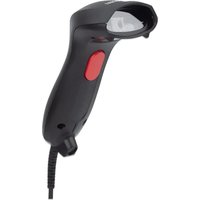
2D Long Range LED Barcode Scanner User Manual
Model 154116

natural_image
Black and white barcode scanner with blue stripe handle (no text or symbols visible)manhattan® Life just got easier.™
manhattanproducts.com

2D Long Range LED Barcode Scanner User Manual
All trademarks and trade names are the property of their respective owners. © IC Intracom. All rights reserved. Manhattan is a trademark of IC Intracom, registered in the U.S. and other countries.
This manual is copyrighted, with all right reserved. Under the copyright laws, this manual may not, in whole or in part, be copied, photocopied, reproduced, translated or converted to any electronic medium or machine readable form without prior written consent of maker.
Thank you for purchasing the Manhattan 2D Long Range LED Barcode Scanner.
Before using this product, carefully read the manual to understand its functions.
TABLE OF CONTENTS
BASIC INFORMATION......6
ABOUT THE MANUAL....6
PACKAGE DETAILS....6
APPEARANCE SIZE 6
INTERFACE....7
USB CABLE CONNECTION....7
DECODING 7
SYSTEM SETTINGS....8
CHECK THE VERSION NUMBER 8
RECOVER THE DEFAULT SETTING 8
INTERFACE MODE....8
USB HID INTERFACE 8
USB TRANSMISSION RATE 8
USB TRANSMISSION DELAY....9
EMULATE KEYBOARD 9
KEYBOARD LANGUAGE COUNTRY TYPE 10
KEYBOARD MODE ENCODING FORMAT....11
CTRL+ * MODE SEND ....11
USB COM INTERFACE 13
READING MODE....13
THE SAME BARCODE DELAY....14
THE SAME BARCODE DELAY....14
AUTOSENSE SENSITIVITY SETTINGS 15
LIGHT SETTING 15
POSITION LIGHT (AIMER)....15
FILLING LIGHT (LED)....15
INDICATOR....15
BEEPER SETTING 16
BEEPER LASTING TIME....16
BEEPER FREQUENCY SETTING....16
VIBRATION SETTING 16
OUTPUT SETTING 17
CARRIAGE RETURN/LINE FEED SETTING....17
CASE CONVERSION....17
CAPS LOCK DETENTION....17
REMOVE DIGITS FROM BEGINNING/ENDING....18
KEEP DATA FROM START/END 18
BARCODE SYMBOLOGY CONFIGURATION ....19
QUICK SETTING OF BARCODE ENABLE/DISABLE SETTING....19
BARCODE LENGTH SETTING....19
TELEPEN LENGTH LIMIT 19
MATRIX 25 LENGTH LIMIT....19
CHINAPOST (DATALOGIC 2 OF 5) LENGTH LIMIT....20
CODE 11 LENGTH LIMIT....20
CODEABAR LENGTH LIMIT....20
INTERLEAVED25 LENGTH LIMIT 20
CODE 128 LENGTH LIMIT....20
CODE 93 LENGTH LIMIT....20
CODE 39 LENGTH LIMIT....21
INDUSTRIAL 25 LENGTH LIMIT....21
AIRLINE25(ITAT 25) LENGTH LIMIT....21
MSI LENGTH LIMIT 21
RSS-EXPEND(GS1 DATABAR EXPANDED) LENGTH LIMIT 21
2D BARCODE LENGTH SETTING....22
AIRLINE 2 OF 5 (STANDARD 2 OF 5/IATA 2 OF 5)....22
AZTEC CODE 22
CODABAR 23
CODABLOCK A 23
CODABLOCK F....23
CODE 128....24
CODE 11 24
CODE 32....24
CODE 39....25
CODE 93....25
COMPOSITE 26
DATA MATRIX CODE....26
DOT-CODE 26
EAN/UPC 27
EAN-8 28
EAN-13 28
GS1 DATABAR EXPANDED 28
GS1 DATABAR LIMITED 28
GS1 DATABAR OMNIDIRECTIONAL 29
HANXIN....29
HONG KONG 2 OF 5(CHINA POST)....29
INTERLEAVED 2 OF 5....30
MATRIX 2 OF 5....30
MAXICODE 31
MSI 31
MICRO PDF417 31
PDF417....31
PHARMACODE....31
MICRO QR CODE....32
QR CODE 32
RSS-14 32
RSS-LIMITED 33
RSS-EXPANDED 33
STRAIGHT 2 OF 5 INDUSTRIAL 33
TELEPEN 33
TRIOPTIC CODE 33
UPC-A 34
UPC-E 35
GRIDMATRIX 35
ISBN 13 CONVERSION SETTING 36
2D Long Range LED Barcode ScannerUserMan
ISBN 13 CONVERSION SETTING .... 37
GS CHARACTER CONVERSION....38
GS OUTPUT MODE....38
CODE ID SETTING....39
ANNEX: CODE ID TABLE....39
CONTROL CHARACTER OUTPUT 39
BASIC INFORMATION
ABOUT THE MANUAL
This user manual includes interface mode settings, function settings (lighting, keyboard type and factory reset, etc.), symbology settings, exposure optimization in special scenes, and data format editing functions. If you need to change the function you need, scan the corresponding configuration code below. All bands (*) indicate factory default values.
PACKAGE DETAILS
| ITEM SPECIFICATION / MODEL NUMBER NOTE | ||
| Barcode scanner 2D Long Range LED Barcode Scanner 1 | ||
| Data Cable USB 1 | ||
| Quick Installation Guide Paper 1 |
APPEARANCE SIZE

natural_image
Technical line drawing of a mechanical component with dimension annotations (87 and 172), no readable text or symbols beyond measurement lines.
natural_image
Line drawing of a backpack with a side panel and measurement label (67), no text or symbols present.INTERFACE
USB CABLE CONNECTION
1 Insert the RJ45 interface (crystal head) of the USB data cable into the rear of the scanner, there is a crisp "click" sound, and the connection is normal.
2 Connect the USB interface of the USB data cable to the host device.
DECODING
1 Make sure that both ends of the cable are properly connected to the scanner and the host, and there is a prompt sound when starting.
2 Press the button, the fill light of window is on, accompanied by a green dot.
3 Aim the green dot at the barcode. After the reading is successful, the scanner will sound a beep, and turn off the fill light and aiming light. After the data is transmitted to the host, press the switch again to read the barcode.
4 In the process of reading barcode, the different sizes and density of the barcode, the effective reading distances are also different. When there is difficulty in reading, the scanner can be moved back and forth, adjust the distance between the scanner and the barcode to improve the success rate of reading.
SYSTEM SETTINGS
CHECK THE VERSION NUMBER
Read the "Version Information" barcode, the scanner will output software version.
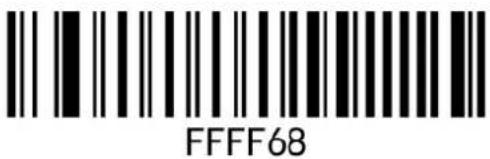
Version Number
RECOVER THE DEFAULT SETTING
Restore the system setting state to the default setting state. The scanner will restart automatically after setting.
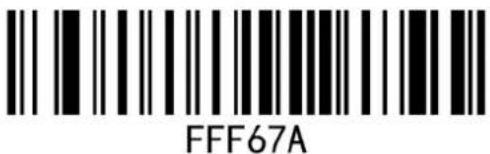
When the data cable with USB interface, after read the "USB HID" barcode, scanner will be set to the "USB Keyboard" mode, and the scanner will input data to the host by pressing the keyboard button first.

USB HID (USB Keyboard)

When the data output is wrong, please turn off the third-party output method and use the American English keyboard, because the third-party input method will edit the input data for a second time before outputting, and the data output will be incomplete, wrong or garbled.
USB TRANSMISSION RATE
The USB Transmission Rate can be set to three levels: high, medium, and low. The higher the rate, the faster the characters are transmitted to the host.


USB Transmission Rate-High USB Transmission Rate-Medium USB Transmission Rate-Low
USB TRANSMISSION DELAY
The USB Transmission Delay can be set to four gears from 0 to 3. If the host will lose characters, the delay can be increased.

USB Transmission Delay - 0ms USB Transmission Delay -1ms

A788B2

A788B3
USB Transmission Delay - 2ms USB Transmission Delay - 3ms
EMULATE KEYBOARD
When the emulate keyboard input character is enabled, the character will be sent through the numeric keypad, ignoring the national keyboard layout setting;
EXAMPLE
Assume that the current scanner reads the barcode with the content "A\$F" (the decimal value in Code Page 1252 is 65/167/66 respectively). If the keyboard emulation input character is set to "on", the scanner emulates the keyboard operation as follows:
1 Enter "A" -- press the ALT key, simultaneously press the numeric keypad keys 0, 6, 5 in sequence, and release the ALT key;
2 Enter "§" -- press the ALT key, simultaneously press the numeric keypad keys 1, 6, 7 in sequence, and release the ALT key;
3 Enter "B" - press the ALT key, simultaneously press the numeric keypad keys 0, 6, 6 in sequence, and release the ALT key.

A6A761

A6A760
Enable *Disable

A6A771

A6A770
Enable the emulate keyboard front zero Disable the emulate keyboard front zero
KEYBOARD LANGUAGE COUNTRY TYPE
When the barcode scanner is used as a keyboard input device by default, some characters are different in different countries, and different national languages need to be set. The keyboard defaults to the US language.

KEYBOARD MODE ENCODING FORMAT
The keyboard mode can output Chinese, traditional Chinese, Korean, etc. Since the third-party software uses different encoding, the scanner needs to switch to different encoding formats, please scan the corresponding configuration code as required.
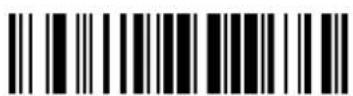
A67960

A67963

A67964
*Default GBK Word Output Japanese
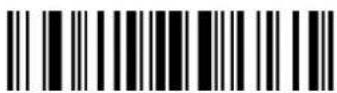
A67965

A67966

A67967
Txt output Japanese CP949 Word Output Korean Notepad Output Korean

A7B7C1

A67962
BIG5 (Traditional Chinese) Txt output BIG5 (Need to enable BIG5 setting)
CTRL+ \* MODE SEND
After this function is enabled, the control characters from 00 to 1F in the ASCII code table will be output by the combination of CTRL+*.
For the corresponding relationship between the specific ASCII value and the control function keys, see the attached table.
| NON-PRINTABLE | KEYBOARD CONTROL + ASCII (CTRL+*) MODE | ||||
| DEC HEX CHAR CONTROL + * MODE OFF | WINDOWS MODECONTROL + * MODE ON | ||||
| CTRL+ * | CTRL + *FUNCTION | ||||
| 0 00 | NUL NULL CTRL + @ | ||||
| 1 | 01 | SOH | NP Enter | CTRL + A | Select All |
| 2 | 02 | STX | Caps Lock | CTRL + B | Bold |
| 3 | 03 | ETX | Right Arrow | CTRL + C | Copy |
| 4 | 04 | EOT | Up Arrow | CTRL + D | Bookmark |
| 5 05 | ENQ NULL | CTRL + E Center | |||
| 6 | 06 | ACK | NULL | CTRL + F | Find |
| 7 07 | BEL | Enter CTRL + G | |||
| 8 | 08 | BS | Left Arrow | CTRL + H | History |
| 9 | 09 | HT | Tab | CTRL + I | Italic |
| 10 | 0A | LF | Down Arrow | CTRL + J | Justify |
| 11 0B | VT Tab CTRL + K Hyperlink | ||||
| 12 0C | FF Backspace CTRL + L List, Left Align | ||||
| 13 0D | CR | Enter / Ret CTRL + M | |||
| 14 | 0E | SO | Insert | CTRL + N | New |
| 15 | 0F | SI | ESC | CTRL + O | Open |
| 16 | 10 | DLE | F11 | CTRL + P | |
| 17 | 11 | DC1 | Home | CTRL + Q | Quit |
| 18 | 12 | DC2 | PrtScn | CTRL + R | |
| 19 | 13 | DC3 | Delete | CTRL + S | Save |
| 20 | 14 | DC4 | Tab + Shift | CTRL + T | |
| 21 | 15 | NAK | F12 | CTRL + U | |
| 22 | 16 | SYN | F1 | CTRL + V | Paste |
| 23 | 17 | ETB | F2 | CTRL + W | |
| 24 | 18 | CAN | F3 | CTRL + X | |
| 25 | 19 | EM | F4 | CTRL + Y | |
| 26 | 1A | SUB | F5 | CTRL + Z | |
| 27 | 1B | ESC | F6 | CTRL + [ | |
| 28 | 1C | FS | F7 | CTRL + \ | |
| 29 | 1D | GS | F8 | CTRL + ] | |
| 30 | 1E | RS | F9 | CTRL + ^ | |
| 31 | 1F US | F10 | CTRL + - | ||
| 127 | 7F | DEL | Delete | ||
USB COM INTERFACE
In this section, you can change the reading mode of the device, you only need to scan the corresponding setting code according to your needs.
After the scanner of the USB interface is set to "USB COM", the data will be transmitted to the host through the serial port;
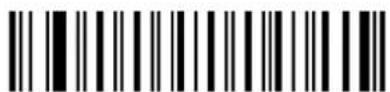
FFBFFD
USB COM (Virtual serial port)
READING MODE
The stop digit is located at the last part of each byte transmitted, and is used to mark the completion of the transmission of this byte to start receiving the next byte of data.
| MODE DESCRIPTION | |
| Manual | |
| Automatic | After power on, it has been in the state of reading codes. Pressing and releasing the button can briefly switch the scanner between manual and automatic states. In this mode, the reread delay can be used to prevent the same barcode from being read multiple times. |
| Multiple Reading | When the button is pressed, the scanner starts to read barcode, and it stops reading barcode until the button is released. When the key is pressed and the code is successfully read, there will be a prompt tone and the barcode information will be output. As long as the key is not released, the scanner will continue to read barcode. The same barcode is only allowed to be read and output once while the key is pressed. |
| Good Read Off | When the button is pressed, the scanner starts to read barcode, and stops reading barcode until barcode reading is successful or the set time of a code reading timeout is reached. In this mode, a barcode reading timeout starts from the time the button is released. |
| Auto-Sense | The scanner enters the induction mode, which can be used with a stand. When an object passes through the scanning window, the scanner will be awakened, the fill light will be lit, and the code will be read. When the decoding time is exceeded, the fill light is turned off. |

7E9AA2

7E9AA0

7E9AA3
* Manual Mode (Trigger On/Off) Automatic Mode Multiple Reading Mode

7E9AA6
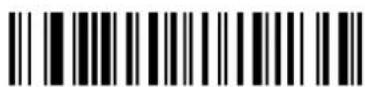
7E9AA8
Good Read Off Auto-Sense
THE SAME BARCODE DELAY
The same barcode delay only takes effect in automatic mode. After reading a barcode in automatic mode, it will refuse to read the same barcode within the set time period. It can be read and output only after the time period is exceeded.
The same barcode time can be set to 1\~127 (min. is 1, max. is 127), can be edited freely with barcode software, choose to use CODE128 code. "7EFD6X"(X means the same barcode interval time, 1 means 50ms, 127 means 127*50ms).
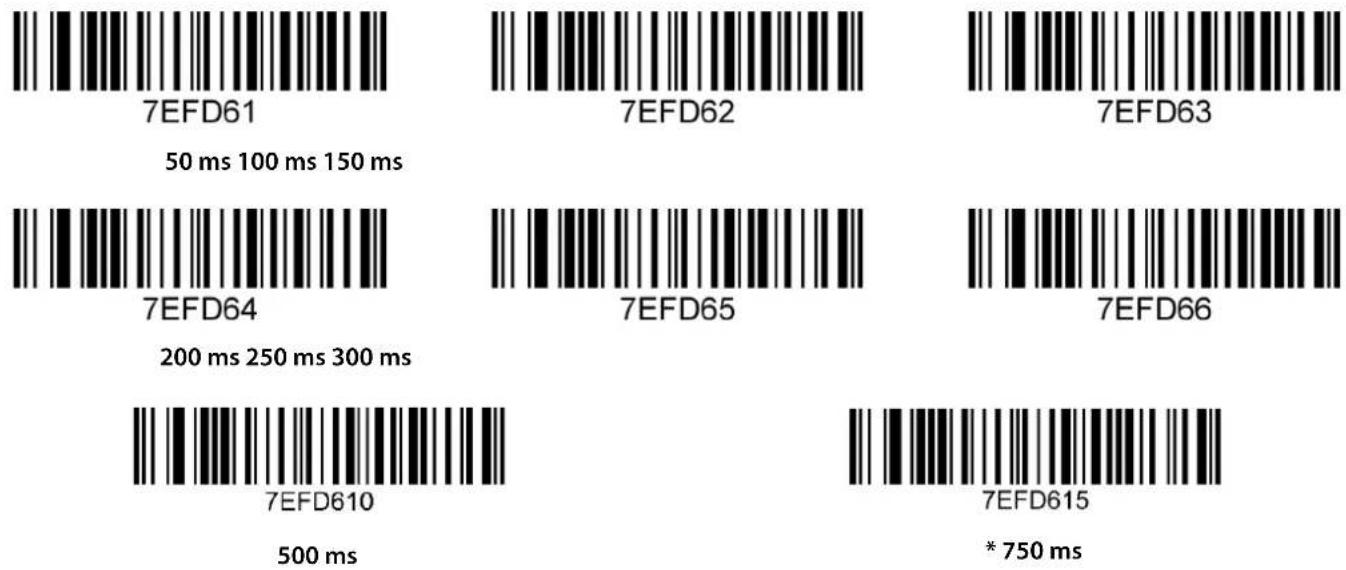
BARCODE READING TIMEOUT

B6AE610

B6AE620
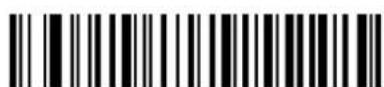
B6AE640
15 S * 30 S 60 S

B6AE680

B6AE6120

B6AE6200
120 S 180 S 200 S
AUTOSENSE SENSITIVITY SETTINGS
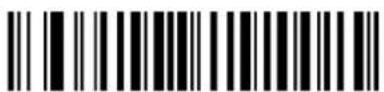
Sensitivity is 15 classes (B67A61 to BA67A615), class 1 highest, class 15 lowest.

B67A61
B67A62

B67A63
Class 1 Class 2 Class 3

B67A64

B67A65

B67A68
Class 4 Class 5 Class 8

B67A610

B67A615
Class 10 Class 15
LIGHT SETTING
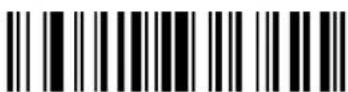
POSITION LIGHT (AIMER)

B66771
B66770
* Enable Disable
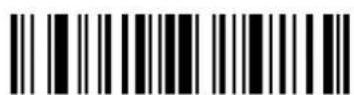
FILLING LIGHT (LED)
B66781

B66780
* Enable Disable
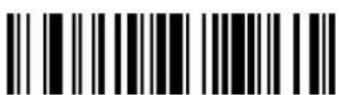
INDICATOR
B66890

B66892
Always OFF
* Normal

B66891

B66893
Backwards
Always ON
BEEPER SETTING


BEEPER LASTING TIME


BEEPER FREQUENCY SETTING


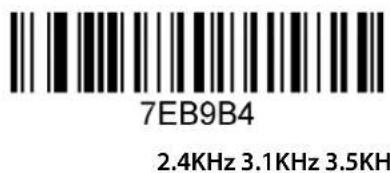

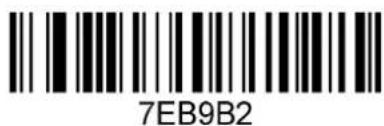


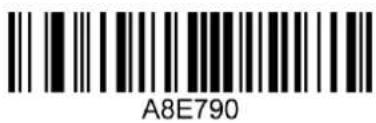
VIBRATION SETTING

OUTPUT SETTING
In this chapter, you can configure the output of the device, including carriage return/ line feed, serial port encoding setting, setting barcode length, removing barcode digits (remove/keep from beginning and ending), and multi-countries keyboard switching settings, etc. You only need to read the barcode according to the requirements.
CARRIAGE RETURN/LINE FEED SETTING

CASE CONVERSION
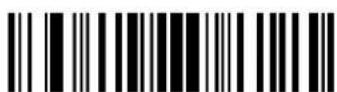
Letter conversion: when outputting barcodes with letter content, you can configure the output result to be all uppercase or all lowercase.
For example: the barcode content is ab12DE, if you scan the "all uppercase" barcode, the output result will be AB12DE; if you scan the "all lowercase" barcode, the output result will be abc12de; if you scan the "case conversion" barcode, the output result will be AB12de; the default case is not converted.

All Lowercase All Uppercase
A68863

A68860
Case Conversion *Not Convert
CAPS LOCK DETENTION

9FC781

9FC780
Enable * Disable
REMOVE DIGITS FROM BEGINNING/ENDING
Remove digits from Beginning/Ending can be used at the same time.
MODE DESCRIPTION
| Remove digits from Beginning | “B68E6X” (X is the number of digits to remove. If the last number is 1, it means remove one digit; if it is 2, remove two digits; if it is 0, it is not removed.) |
| Remove digits from Ending | “B6BE6X” (X is the number of digits to remove. If the last number is 1, it means remove one digit; if it is 2, remove two digits; if it is 0, it is not removed.) |
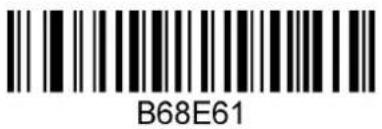

Remove 1 digit from Beginning Remove 1 digit from Ending
KEEP DATA FROM START/END
You can only choose to keep the beginning or ending digit, but not both. Scan "AC8760" from the digit of the reserved barcode at the beginning, scan "AC8761" from the digit of the reserved barcode at the ending, and then scan the reserved digit barcode, "B69E6X" X is the digit of the reserved data.
For example, if 9 bits are reserved, the maximum number of B69E69 is 255.

Keep beginning digit

Keep ending digit Keep 9 digits


Keep the header or keep the tail data is a single option and cannot take effect at the same time. When it is used in combination with the delete data setting, the data will be edited and output in the order of the settings.
BARCODE SYMBOLOGY CONFIGURATION
This chapter can configure the Barcode Symbology Configuration of the device, including barcode enable/disable, check enable/disable, check output enable/disable, etc.
QUICK SETTING OF BARCODE ENABLE/DISABLE SETTING

Enable All 2D Symbology Disable All 2D Symbology
BARCODE LENGTH SETTING
The barcode length setting code can be edited freely with barcode software, and CODE128 can be selected. For example, the minimum length setting of Telepan is ^3B76E61, 1 means that the barcode with the minimum length of 1 digit can be read, and the maximum length setting code is ^3B77E6255, which means the barcode with the maximum length of 255 digits can be read.
TELEPEN LENGTH LIMIT

The min. Length of Telepen is 1 digit The max. Length of Telepen is 255 digits
MATRIX 25 LENGTH LIMIT

The min. Length of Matrix 25 is 1 digit The max. Length of Matrix 25 is 255 digits
CHINAPOST (DATALOGIC 2 OF 5) LENGTH LIMIT

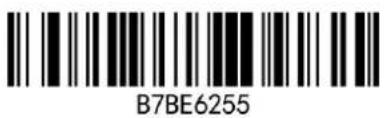
The min. Length of Chinapost is 1 digit The max. Length of Chinapost is 255 digits
CODE 11 LENGTH LIMIT
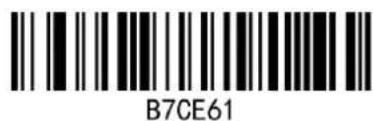

The min. Length of Code 11 is 1 digit The max. Length of Code 11 is 255 digits
CODEABAR LENGTH LIMIT
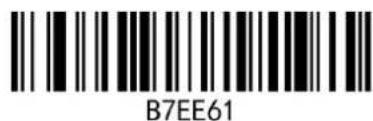

The min. Length of Codeabar is 1 digit The max. Length of Codeabar is 255 digits
INTERLEAVED25 LENGTH LIMIT


The min. Length of Interleaved25 is 1 digit The max. Length of Interleaved25 is 255 digits
CODE 128 LENGTH LIMIT
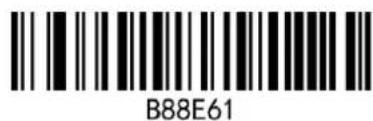
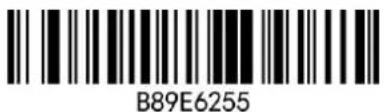
The min. Length of Code128 is one digit The max. Length of Code128 is 255 digits
CODE 93 LENGTH LIMIT


The min. Length of Code 93 is one digit The max. Length of Code 93 is 255 digits
CODE 39 LENGTH LIMIT

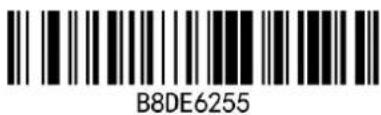
The min. Length of Code 39 is one digit The max. Length of Code 39 is 255 digits
INDUSTRIAL 25 LENGTH LIMIT


The min. Length of Industrial 25 is one digit The max. Length of Industrial 25 is 255 digits
AIRLINE25(ITAT 25) LENGTH LIMIT


The min. Length of Airline25 is one digit The max. Length of Airline25 is 255 digits
MSI LENGTH LIMIT
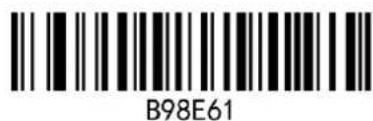

The min. Length of MSI is one digit The max. Length of MSI is 255 digits
RSS-EXPEND(GS1 DATABAR EXPANDED) LENGTH LIMIT
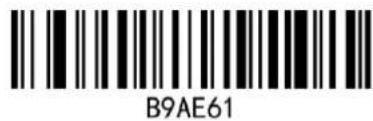
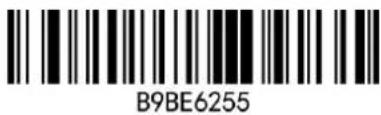
The min. Length of RSS-expend is one digit The max. Length of RSS-expend is 255 digits
2D BARCODE LENGTH SETTING
The minimum length of the 2D barcode can be set to 1\~255 (the minimum length is 1, the maximum length is 255), 67EE6X (X represents the length of the barcode)
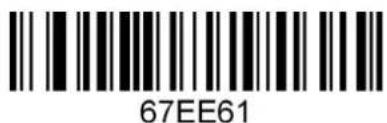
The min. length of the 2D barcode is 1

The min. length of the 2D barcode is 255
2D barcode length lock: After locking, only fixed-length 2D barcodes can be read, 67FE6X (X represents the data length)
Setting example: ^367FE620, the last two digits of "20" represent only read the 2D barcode with a barcode data length of 20 digits;

Only read 2D Barcode with 20-digit data
AIRLINE 2 OF 5 (STANDARD 2 OF 5/IATA 2 OF 5)
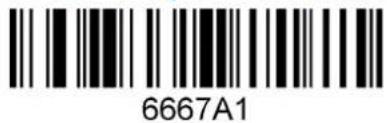
Enable *Disable

AZTEC CODE

Enable *Disable

AZTEC CODE DIRECT AND REVERSE COLOR

* Regular Both
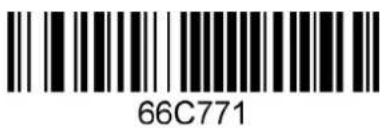
CODABAR

* Enable Disable

CODABAR CHECK


*Disable Check Enable check and output check character Enable check but not output
check character
CODABAR STOP BIT
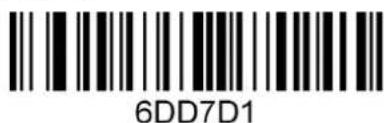

Enable output beginning & ending character * Disable output beginning & ending character
CODABAR DIRECT AND REVERSE COLOR
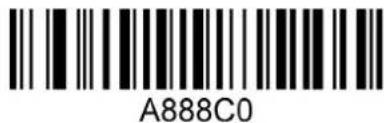
* Regular Both
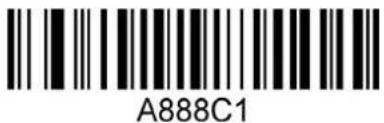
CODABLOCK A
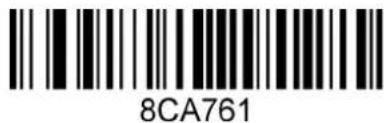
Enable * Disable
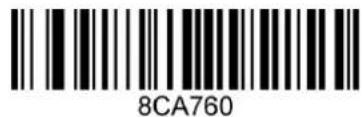
CODABLOCK F
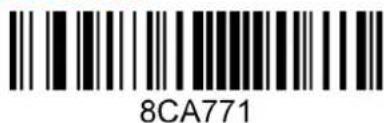
Enable * Disable

CODE 128

* Enable Disable
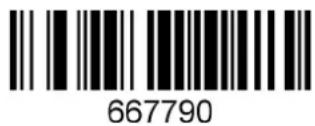
CODE 128 DIRECT AND REVERSE COLOR

* Regular Both

CODE 11

Enable Disable

CODE 11 CHECK

* Enable Check Disable Check
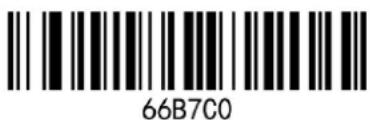

*One check bit Two check bits
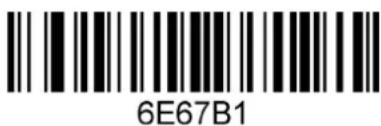
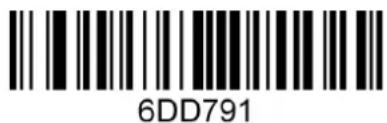
Enable transmit check character

*Disable transmit check character
CODE 32

Enable * Disable

CODE 39
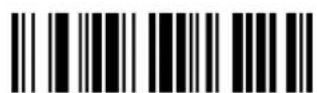
667771

667770
* Enable Disable
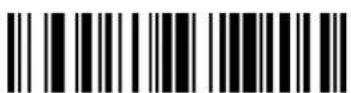
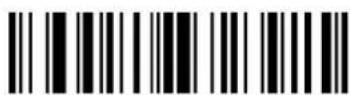
CODE 39 CHECK

9F6862
9F6860
Enable Check * Disable Check
9F6861
Enable check and transmit check character

9F6781

9F6780
Enable output beginning & ending digit * Disable output beginning
& ending digit
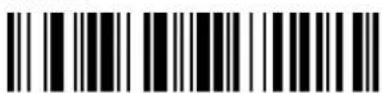
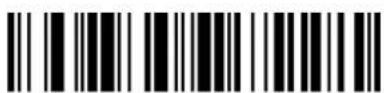
FULL ASCII CODE39
6687D1
6687D0
Enable Disable
CODE 39 DIRECT AND REVERSE COLOR
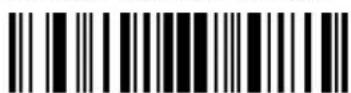
A88880

A88881
* Regular Both
CODE 93
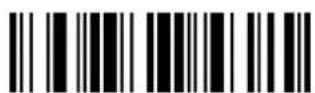
667781

667780
Enable * Disable
CODE 93 DIRECT AND REVERSE COLOR
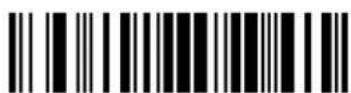
A88860
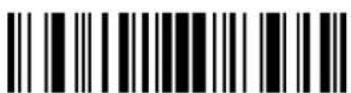
A88861
* Regular Both
COMPOSITE
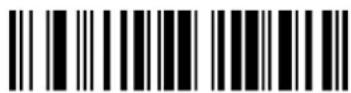
To enable this symbology, both Micro PDF and RSS-14 must be enabled at the same time.

A66761
A66760
Enable *Disable
DATA MATRIX CODE

66B791

66B790
Enable Disable
MATRIX DM

A7F791

A7F790
Enable Matrix DM Disable Matrix DM
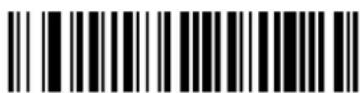
LATTICE DM
66B761

66B760
Enable Lattice DM(DPM) Disable Lattice DM(DPM)
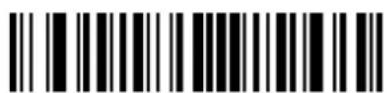
DATA MATRIX DIRECT AND REVERSE COLOR
66B780

66B883
Regular *Both
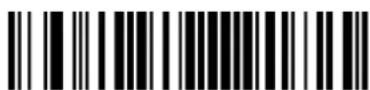
DOT-CODE
A7F771

A7F770
Enable Disable
DOT-CODE DIRECT AND REVERSE COLOR
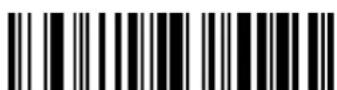
A66780
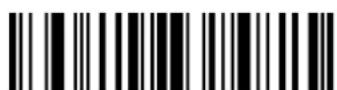
A66781
Enable Matrix DM Disable Matrix DM
EAN/UPC
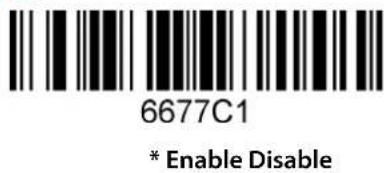
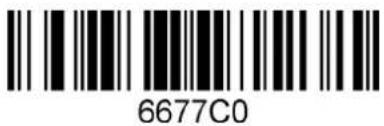
EAN/UPC DIRECT AND REVERSE COLOR


EAN/UPC TWO-DIGITS ADDITIONAL CODE


EAN/UPC FIVE-DIGITS ADDITIONAL CODE
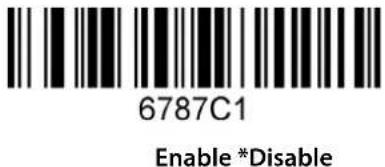

MERGE THE ADDITIONAL CODE
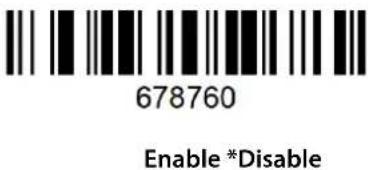

EAN/UPC ADDITIONAL CODE THAT MUST BE RECOGNIZED


EAN/UPC BOUNDARY DETECTION (QUITE ZONE)
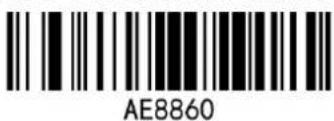


*Normal Border Narrow Border Borderless
EAN-8


EAN-8 CHECK
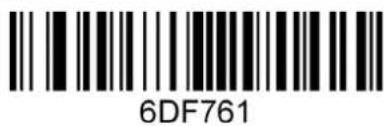
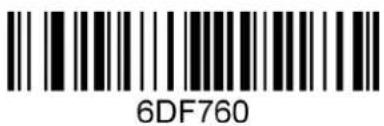
*Enable output check bit Disable output check bit
EAN-8 CONVERT TO EAN-13


EAN-13

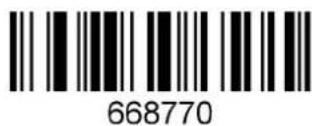
EAN-8 CHECK

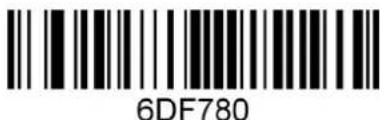
*Enable output check bit Disable output check bit
GS1 DATABAR EXPANDED
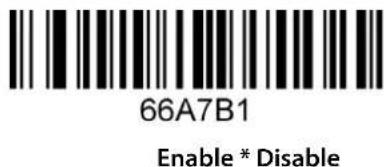
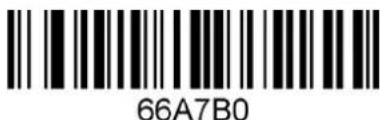
GS1 DATABAR LIMITED
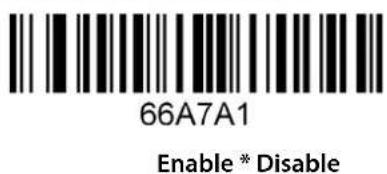

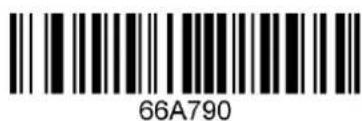
GS1 DATABAR OMNIDIRECTIONAL

Enable * Disable
HANXIN

Enable * Disable

When reading a postal, all other postal need close.
INTERLEAVED 2 OF 5

* Enable Disable

INTERLEAVED 2 OF 5 CHECK
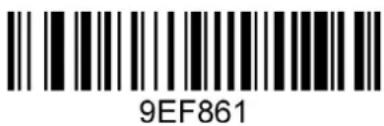
Open check *No check Open check and transmit
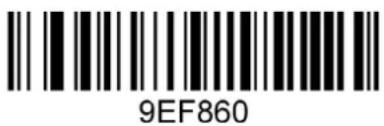
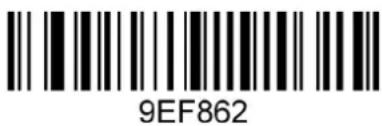
check character
INTERLEAVED 2 OF 5 DIRECT AND REVERSE COLOR

* Regular Both

FEBRABAN BARCODE

Enable *Disable

MATRIX 2 OF 5
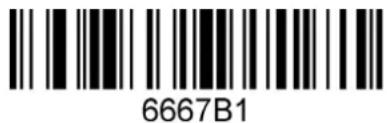
Enable * Disable

MATRIX 2 OF 5 CHECK

Enable check bit Disable check bit
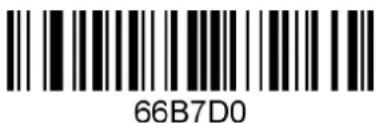
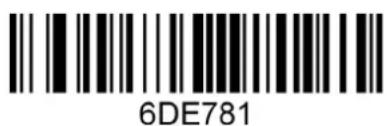
Enable output check bit *Disable output check bit

MAXICODE


MSI

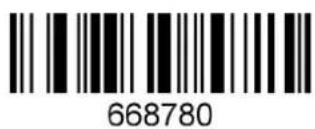
MICRO PDF417


PDF417

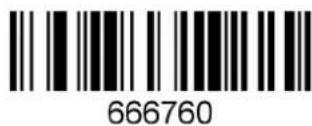
PDF417 DIRECT AND REVERSE COLOR


PHARMACODE


MICRO QR CODE
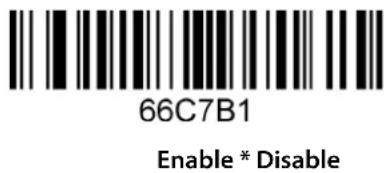

MICRO QR CODE DIRECT AND REVERSE COLOR
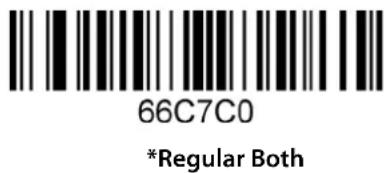
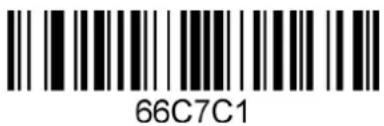
QR CODE

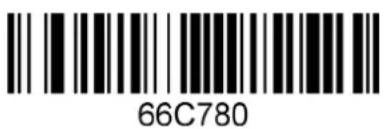
QR CODE DIRECT AND REVERSE COLOR
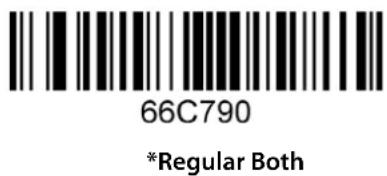

QR CODE DOT MATRIX


QR CODE URL CODE


RSS-14
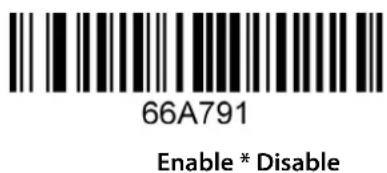
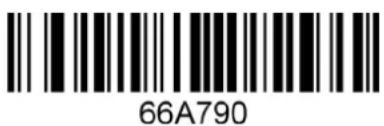
RSS-LIMITED


RSS-EXPANDED


STRAIGHT 2 OF 5 INDUSTRIAL
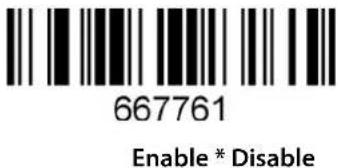

TELEPEN


TRIOPTIC CODE
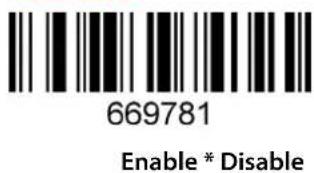
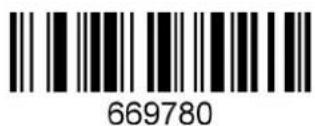
UPC-A


UPC-A CHECK


*Enable output check bit Disable output check bit
UPC-A OUTPUT NUMERIC SYSTEM CHARACTERS
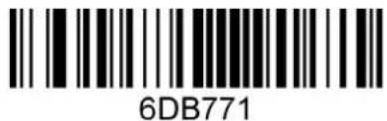

*Enable Disable
UPC-A CONVERT TO EAN-13


Enable * Disable
UPC-E

*Enable Disable
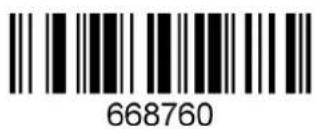
UPC-E CHECK

Enable output check bit * Disable output check bit

UPC-E OUTPUT HEADER CHARACTERS (SYSTEM CHARACTERS)

Enable * Disable

UPC-E CONVERT TO UPC-A(EXTEND TO 12 BITS)

Enable * Disable

GRIDMATRIX
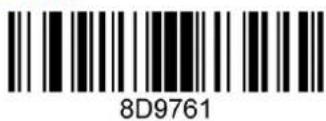
*Enable Disable

ISBN 13 CONVERSION SETTING
CONVERT TO ISBN
Enable * Disable
978 BEGINNING BARCODE ISBN CONVERSION
Enable * Disable
979 BEGINNING BARCODE ISBN CONVERSION
Enable * Disable
ADD BOOKLAND PREFIX
Enable * Disable
TRANSMIT ISBN CHECK DIGIT
Enable * Disable
ISBN 13 CONVERSION SETTING
CONVERT BARCODES STARTING WITH 977 TO ISSN

7B77D1
Enable * Disable

7B77D0
ISSN CONVERT TO "-"

7B77C1
Enable * Disable
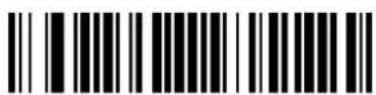
7B77C0
TRANSMITTING THE CHECK DIGIT OF THE ISSN

7B77B1
Enable * Disable

7B77B0
GS CHARACTER CONVERSION
This mode is to output GS control characters as text characters.

Enable control character conversion Disable control character conversion
GS OUTPUT MODE
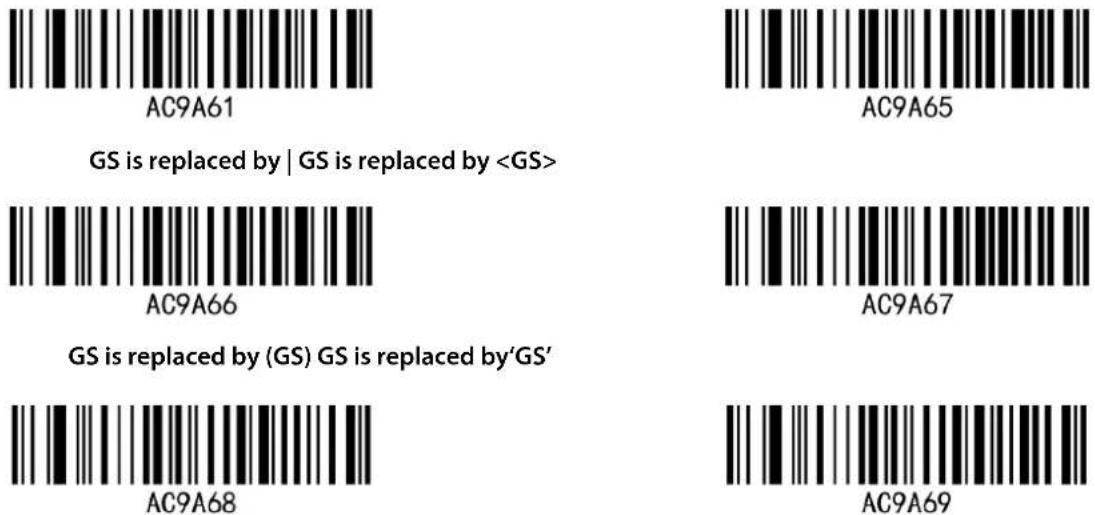
GS is replaced by | GS is replaced by
GS is replaced by (GS) GS is replaced by 'GS'
GS is replaced by 'GS' GS is replaced by GS
CODE ID SETTING

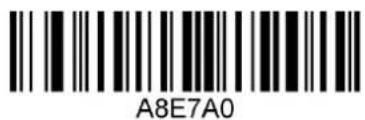
Enable output Code ID * Disable output Code ID
ANNEX: CODE ID TABLE
| BARCODE CODE ID BARCODE CODE ID | |||
| Airline 2 of 5 (Standard 2 of 5/IATA 2 of 5) | f HANXIN | H | |
| Aztec Code z Interleaved | 2 of 5 e | ||
| Codabar a Hong Kong | 2 of 5(China post) | Q | |
| Codablock A V | Matrix 2 of 5 m | ||
| Codablock F | q | Maxicode | |
| Code 128 | j | MSI | g |
| Code 11 h | Micro PDF417 | R | |
| Code 32 | < | PDF417 | r |
| Code 39 | b | Pharmacode | |
| Code 93 | i | Micro QR Code | s |
| Composite | ! | QR Code | s |
| Data Matrix | w | RSS-14 | y |
| EAN-8 | D | RSS-Limited { | |
| EAN-13 | d | RSS-Expanded | } |
| GS1 DataBar Expanded | } | Straight 2 of 5 Industrial | f |
| GS1 DataBar Limited | { | Telepen | t |
| GS1 DataBar Omnidirectional | y | Trioptic Code | = |
| UPC-A | c | DOT_Code | . |
| UPC-E | E ISBN 13 | d | |
| GridMatrix | X | ISSN | d |
CONTROL CHARACTER OUTPUT
After this function is enabled, control characters (invisible characters) are output as text characters, for example, carriage return is output as


Due to product improvement programs, specifications and features are subject to change without prior notice.
WASTE ELECTRICAL & ELECTRONIC EQUIPMENT
DISPOSAL OF ELECTRIC AND ELECTRONIC EQUIPMENT
(Applicable In The European Union And Other European Countries With Separate Collection Systems)

ENGLISH: This symbol on the product or its packaging means that this product must not be treated as unsorted household waste. In accordance with EU Directive 2012/19/EU on Waste Electrical and Electronic Equipment (WEEE), this electrical product must be disposed of in accordance with the user's local regulations for electrical or electronic waste. Please dispose of this product by returning it to your local point of sale or recycling pickup point in your municipality.
manhattanproducts.com
This equipment has been tested and found to comply with the limits for a Class B digital device, pursuant to Part 15 of Federal Communications Commission (FCC) Rules. These limits are designed to provide reasonable protection against harmful interference in a residential installation. This equipment generates, uses and can radiate radio frequency energy, and if not installed and used in accordance with the instructions may cause harmful interference to radio communications. However, there is no guarantee that interference will not occur in a particular installation. If this equipment does cause harmful interference to radio or television reception, which can be determined by turning the equipment off and on, the user is encouraged to try to correct the interference by one or more of the following measures: reorient or relocate the receiving antenna; increase the separation between the equipment and the receiver; connect the equipment to an outlet on a circuit different from the receiver; or consult the dealer or an experienced radio/TV technician for help.
CE
ENGLISH: This device complies with the requirements of CE 2014/30/EU and/or 2014/35/EU. The Declaration of Conformity for is available at: DEUTSCH: Dieses Gerät enspricht der CE 2014/30/EU und / oder 2014/35/EU. Die Konformitätserklärung für dieses Produkt finden Sie unter: ESPAÑOL: Este dispositivo cumple con los requerimientos de CE 2014/30/EU y / o 2014/35/EU. La declaración de conformidad esta disponible en: FRANÇAIS: Cet appareil satisfait aux exigences de CE 2014/30/EU et / ou 2014/35/EU. La Déclaration de Conformité est disponible à: POLSKI: Urządzenie spełnia wymagania CE 2014/30/EU I / lub 2014/35/EU. Deklaracja zgodności dostępna jest na stronie internetowej producenta: ITALIANO: Questo dispositivo è conforme alla CE 2014/30/EU e / o 2014/35/EU. La dichiarazione di conformità è disponibile al:
support.manhattanproducts.com/barcode/154116


North America
IC Intracom America
550 Commerce Blvd.
Oldsmar, FL 34677 USA
Asia & Africa
IC Intracom Asia
4-F, No. 77, Sec. 1, Xintai 5th Rd.
Xizhi Dist., New Taipei City 221, Taiwan
Europe
IC Intracom Europe
Löhbacher Str. 7, D-58553
Halver, Germany
All trademarks and trade names are the property of their respective owners.
manhattanproducts.com
All trademarks and trade names are the property of their respective owners.
© IC Intracom. All rights reserved. Manhattan is a trademark of IC Intracom, registered in the U.S. and other countries.


- 2D Long Range LED Barcode Scanner User Manual
- TABLE OF CONTENTS
- 2D Long Range LED Barcode ScannerUserMan
- BASIC INFORMATION
- ABOUT THE MANUAL
- INTERFACE
- USB CABLE CONNECTION
- DECODING
- SYSTEM SETTINGS
- CHECK THE VERSION NUMBER
- RECOVER THE DEFAULT SETTING
- USB TRANSMISSION RATE
- USB TRANSMISSION DELAY
- EMULATE KEYBOARD
- EXAMPLE
- KEYBOARD LANGUAGE COUNTRY TYPE
- KEYBOARD MODE ENCODING FORMAT
- CTRL+ \* MODE SEND
- USB COM INTERFACE
- READING MODE
- THE SAME BARCODE DELAY
- AUTOSENSE SENSITIVITY SETTINGS
- LIGHT SETTING
- OUTPUT SETTING
- CASE CONVERSION
- REMOVE DIGITS FROM BEGINNING/ENDING
- KEEP DATA FROM START/END
- BARCODE SYMBOLOGY CONFIGURATION
- BARCODE LENGTH SETTING
- CHINAPOST (DATALOGIC 2 OF 5) LENGTH LIMIT
- CODE 11 LENGTH LIMIT
- CODEABAR LENGTH LIMIT
- INTERLEAVED25 LENGTH LIMIT
- CODE 128 LENGTH LIMIT
- CODE 93 LENGTH LIMIT
- CODE 39 LENGTH LIMIT
- INDUSTRIAL 25 LENGTH LIMIT
- AIRLINE25(ITAT 25) LENGTH LIMIT
- MSI LENGTH LIMIT
- RSS-EXPEND(GS1 DATABAR EXPANDED) LENGTH LIMIT
- 2D BARCODE LENGTH SETTING
- AIRLINE 2 OF 5 (STANDARD 2 OF 5/IATA 2 OF 5)
- AZTEC CODE
- AZTEC CODE DIRECT AND REVERSE COLOR
- COMPOSITE
- UPC-E
- ISBN 13 CONVERSION SETTING
- GS CHARACTER CONVERSION
- CODE ID SETTING
- CONTROL CHARACTER OUTPUT
- WASTE ELECTRICAL & ELECTRONIC EQUIPMENT
- manhattanproducts.com
- CE
- North America
- Asia & Africa
- Europe
Brand : MANHATTAN
Model : 154116
Category : Barcode Reader