
Argus AS-42HA - Switch Inter-Tech - Free user manual and instructions
Find the device manual for free Argus AS-42HA Inter-Tech in PDF.


| Product Type | HDMI Switch |
| Model | Argus AS-42HA |
| Brand | Inter-Tech |
| Number of Inputs | 4 |
| Number of Outputs | 1 |
| Supported Resolution | Up to 4K@60Hz |
| HDMI Version | 2.0 |
| Dimensions (L x W x H) | 10 x 6 x 2 cm |
| Weight | 120 g |
| Power Supply | USB 5V DC |
| Power Consumption | 2.5 W |
| Switching Method | Button or Remote Control |
| HDCP Support | HDCP 2.2 |
| LED Indicators | Input status LEDs |
| Auto Switching | Yes (last connected device) |
| Supported Audio Formats | Dolby Atmos, DTS:X, PCM 7.1 |
| Cable Length Supported | Up to 15 m (48 Gbps cable) |
| Material | Aluminum housing |
| Package Contents | HDMI switch, USB cable, remote control, user manual |
| Warranty | 2 years |
Frequently Asked Questions - Argus AS-42HA Inter-Tech
User questions about Argus AS-42HA Inter-Tech
0 question about this device. Answer the ones you know or ask your own.
Ask a new question about this device
Download the instructions for your Switch in PDF format for free! Find your manual Argus AS-42HA - Inter-Tech and take your electronic device back in hand. On this page are published all the documents necessary for the use of your device. Argus AS-42HA by Inter-Tech.
USER MANUAL Argus AS-42HA Inter-Tech
ARGUS
Manual
Desktop HDMI KVM Switch
AS-21HA
AS-41HA
AS-22HA
AS-42HA
CE
1 Important information ....3
1.1 Introduction ...... 3
1.2 Scope of delivery....3
1.3 General information....3
2 Safety....4
2.1 Intended use ....4
2.1.1 Environmental....4
2.1.2 Disposal....4
2.2 General information....4
2.3 Danger and protection....4
3 Product information ....5
3.1 Features....5
3.2 Technical data....5
4 Installation ....7
5 Use....9
5.1 Toggle by switches....9
5.2 Toggle by hotkeys....9
6 FAQ....12
7 Maintenance....13
8 Disposal ....13
9 Warranty terms....14
10 Contact....14
1 Important Information
1.1 Introduction
Thank you for buying an Argus Desktop KVM Switch.
To enjoy this product for a long time we recommend to read this manual carefully and especially paying attention to the security advices.
1.2 Scope of delivery
1x KVM Switch
1x QIG with safety instructions
1x CD with manual
Cable:
AS-21HA 2x HDMI + 2x USB
AS-41HA 2x HDMI + 4x USB
AS-22HA 4x HDMI + 2x USB
AS-42HA 8x HDMI + 4x USB
The HDMI Cable between KVM-Switch and monitor/s is not included.
1.3 General information
Symbols
Symbol
Meaning

Handling and effects of safety instructions

Dangerous situation, which can retighten violation or death
2 Safety
2.1 Intended use
2.1.1 Environmental
This product is only for indoor use and connecting of computers.
Don't use and store it inside humid rooms or near water.
Don't use it close to source of heat. The additional heat could lead to overheating and fire.
2.1.2 Disposal
Don't put this device to normal waste.
Please read the instruction in chapter 8 for disposal of packaging and device.

2.2 General information
Please read this manual carefully before installing or using this product.
Keep this manual and pass it by passing of the product.
Please follow the instructions and warning of this manual before using the product.
The inobservance of this manual can effect violations and damage.
We disclaim liability for violations and damages caused by inobservance of this manual.
2.3 Danger and protection
Don't damage the cable.
Don't use patched or damaged cable.
Don't put the device close to heating.
In case of strange noise or smell pull the power cord out of the socket.
Don't open the device.
Please ensure, that all cables will be fixed permanently.
Keep the product away from children.
Don't remove the cable with wet hands (electric strike).
Don't use the product with wet hands (electric strike).



Flammable
Please remove the power cord from socket in case of longer non-use (Could led to overheating, fire hazard or electric strike).
Keep the product free of dust (Overheating or fire).
Look for sufficient airflow to avoid overheating and fire.
Leave service or cleaning only authorized qualified personnel.
3 Product information
3.1 Features
- Connects 2 or 4 computers with one keyboard and mouse and with one or two monitors (depending model).
- Auto scan function
- Supports HDCP
- Easy Installation
- Full support for keyboard and mouse over USB.
- Switching by Hot-Keys or directly.
- LED Indicators for selection and connection.
- No software necessary.
- Compatible to all OS.
3.2 Technical data
| AS-21HA | AS-41HA | AS-22HA | AS-42HA | |
| PC-ports | 2 | 4 | 2 | 4 |
| Consoles | 1 | |||
| HDMI Version | HDMI 1.4b | |||
| Resolution | HDMI max: 4K@30Hz (3840x2610@30Hz)VGA max: 1920x1200@60Hz (1080p) - only with opt. adapterDVI max: DVI-Dual Link 2K - only with opt. adapterDP max: 4K@60Hz - only with opt. adapter | |||
| HDCP support | Ja | |||
| Sound | Dolby True HDDTS HD Master AudioAnalog Audio (via 3,5mm audio jack) | |||
| Port-control | Control keysHot keys | |||
| USB Emulation | Keyboard/ Mouse | |||
| AS-21HA | AS-41HA | AS-22HA | AS-42HA | |
| Front connector | USB Printer / HDD | |||
| PC connectors | 2x HDMI Type AF2x USB Type BF2x audio jack | 4x HDMI Type AF4x USB Type BF4x audio jack | 4x HDMI Type AF2x USB Type BF2x audio jack | 8x HDMI Type AF4x USB Type BF4x audio jack |
| Console connectors | 1x HDMI Type AF2x USB Type AF2x audio socket | 2x HDMI Type AF2x USB Type AF2x audio socket | ||
| Power supply | by USBoptional DC 9V= adapter | |||
| Temperature | ||||
| Operating | 0 - 50 °C | |||
| Storage | -20 - 60 °C | |||
| Humidity | 0 - 80% non condensing | |||
| Material | Metal | |||
| Dimension | 132x92x44mm | 202 x 110 x 44mm | 132x92x66mm | 202 x 110 x 66mm |
| Weight | 465g | 660g | 575g | 825g |
4 Installation
- Take out the power supply and check the package content for completeness or damages.
- In case of missing parts or external damages, please contact your local dealer for replacement.
Please keep the original package for shipping in case of warranty case. - Take care to shut down all devices first.
- Connect all computers with the KVM, using the included cables.
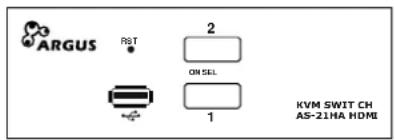
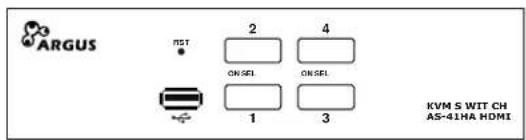
- Connect mouse, keyboard and monitor to the KVM Switch. Look at the following drawings.
- If all cables are connected you can start the computers. The installation is complete.
AS-21HA

AS-22HA


AS—41HA

AS-42HA

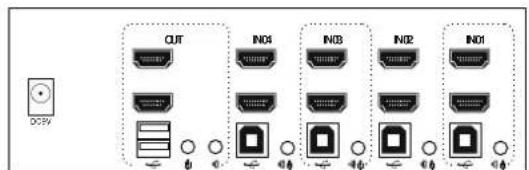

USB plug for Printer or HDD

Switch for Port 1 - 4
On = PC connected to port
SEL= Port selected

Reset

Power 9V DC=, optional

USB connector for Mouse/keyboard

Output for 1 or 2 Monitors

Microphone input
Headphone / Speaker output

Input for 1 or 2 Monitors for Port 1 - 4
Input for Computer for Port 1 - 4

Audio input for Port 1 - 4
5 Use
You can control the KVM by using the switches at the front or by using Hotkeys.
The front USB port switches automatically by changing the port. The data transfer between an external device and the USB port will be interrupted in this case.
5.1 Toggle by switches
AS-21HA/ AS-22HA AS-41HA/ AS-42HA


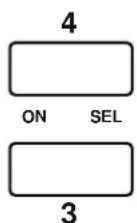
The switches at the front of the device are control buttons as well as LED indicators.
You can switch between the computers by pushing the buttons. The right LEDs show the selected port. The left LEDs show the online status of these ports.
5.2 Toggle by Hotkeys
You can operate by using 4 different Hotkey Mode:
Hotkey
| Mode 1 | STRG + SHIFT (Default) |
| Mode 2 | SCROLL |
| Mode 3 | NUM |
| Mode 4 | CAPS LOCK |
Mode 1:
Switch to other mode:
STRG + SHIFT + SCROLL new Hotkey = SCROLL
+ NUM LOCK new Hotkey = NUM LOCK
+ CAPS LOCK new Hotkey = CAPS LOCK
Operating:
STRG + SHIFT + N (N=1-4) Switches to port N.
+ Switches to next port. ↓
+ Switches to last port. ↑
+ B + ENTER Switches speaker On/ Off
+ S + ENTER Forwards ports all 5 sec.
Stop with ESC.
+ S + N + ENTER Forwards ports all
„N“ - seconds.
N=1 = 5 sec.
N=2 to 9 each +5 sec.
Stop with ESC.
Press first three keys at the same time.
STRG + STRG
Forwards to next active port.
Mode 2 to 4:
Switch to other mode:
HOTKEY + HOTKEY + SCROLL new Hotkey = SCROLL
+ NUM LOCK new Hotkey = NUM LOCK
+ CAPS LOCK new Hotkey = CAPS LOCK
+ STRG new Hotkey = STRG + SHIFT
Operating:
HOTKEY + HOTKEY + N (N=1-4) Switches to port N.
- Switches to next port. ↓
- Switches to last port. ↑
- B + ENTER Switches speaker On/ Off
- S + ENTER Forwards ports all 5 sec.
Stop with ESC. - S + N + ENTER Forwards ports all
„N“ - seconds.
N=1 = 5 sec.
N=2 to 9 each +5 sec.
Stop with ESC.
"HOTKEY" means the current Hotkey.
Press all keys one after another.
6 FAQ
| Fault | Possible reason(s) | Help |
| Keyboard/ Mouse/ Monitor doesn’t work | Cable not connected | Check all cables |
| Computers off | Check if Computer is switched on | |
| Computer USB port defective | Connect the switch to another USB port | |
| HDMI Port or graphics adapter faulty | Connect the switch to another computer | |
| Keyboard/ Mouse or Monitor faulty | Connect another mouse/keyboard or monitor | |
| Switch defective | Change the switch at your dealer |
Please unplug power cord generally when working inside the Computer.
In case of checking the electric socket exists risk of electric strike.
Leave work on mains supply only authorized experts.
This device needs no maintenance which requires opening of the housing or working inside the device.
HINWEIS
8 Disposal
Please dispose your product by using the special discharge point for electronic waste. Please ask your municipality or disposal company in case of further questions.

Card boards and plastics of packaging can be disposed by using the usual way of disposal of these materials.
9 Warranty terms
Inter-Tech grants 24 months warranty by proper use up from the date of purchase.
In case of warranty please contact your local dealer or the dealer from which you bought the product.
We will grant no warranty by:
- Missing or damaged warranty seal,
- Negligent behavior,
- Improper use,
- Nonobservance of the manual,
- External violence,
- Acts of god,
- Damages caused by other harm,
- Damages caused by manipulation, upgrading, updating or reconstruction of hardware or software
In case of data loss Inter-Tech will only be liable at wanton negligence or deliberate intention or, in all other cases, only for the recovery of data from a continuous, daily backup. Inter-Tech does not assume liability for all other matters.
Please look also at our complete warranty terms on our website.
10 Contact



- ARGUS
- MANUAL
- 1 IMPORTANT INFORMATION ....3
- 2 SAFETY....4
- 3 PRODUCT INFORMATION ....5
- 4 INSTALLATION ....7
- 5 USE....9
- 6 FAQ....12
- 7 MAINTENANCE....13
- 8 DISPOSAL ....13
- 9 WARRANTY TERMS....14
- 10 CONTACT....14
- 1 IMPORTANT INFORMATION
- 1.1 INTRODUCTION
- 1.2 SCOPE OF DELIVERY
- 1.3 GENERAL INFORMATION
- 2 SAFETY
- 2.1 INTENDED USE
- 2.1.1 ENVIRONMENTAL
- 2.1.2 DISPOSAL
- 2.2 GENERAL INFORMATION
- 2.3 DANGER AND PROTECTION
- 3 PRODUCT INFORMATION
- 3.1 FEATURES
- 3.2 TECHNICAL DATA
- 4 INSTALLATION
- 5 USE
- 5.1 TOGGLE BY SWITCHES
- 5.2 TOGGLE BY HOTKEYS
- MODE 1
- OPERATING
- MODE 2 TO 4
- 6 FAQ
- 8 DISPOSAL
- 9 WARRANTY TERMS
- 10 CONTACT
Brand : Inter-Tech
Model : Argus AS-42HA
Category : Switch