Guide - Uncategorized Peloton - Free user manual and instructions
Find the device manual for free Guide Peloton in PDF.


| Product Type | Home Fitness Camera / Workout Tracker |
| Brand | Peloton |
| Model | Guide |
| Dimensions (HxWxD) | 6.5 x 4.5 x 4.5 inches (approx.) |
| Weight | 1 lb (approx.) |
| Power Supply | USB-C (adapter included) |
| Camera Resolution | 1080p HD |
| Field of View | 120 degrees |
| Tracking Technology | AI body tracking with skeletal mapping |
| Main Functions | Real-time form feedback, motion tracking, workout library, leaderboard integration |
| Compatibility | Peloton membership required; works with Peloton Bike, Tread, and app |
| Connectivity | Wi-Fi, Bluetooth |
| Mounting | Flat surface or tripod mount (1/4-20 thread) |
| Care & Cleaning | Wipe with soft dry cloth; avoid liquids |
| Safety Precautions | Do not place near water; ensure stable placement |
| Spare Parts & Repairability | Contact Peloton support for replacement parts; not user-serviceable |
| General Information | Released 2022; designed for at-home strength training and yoga |
Frequently Asked Questions - Guide Peloton
User questions about Guide Peloton
0 question about this device. Answer the ones you know or ask your own.
Ask a new question about this device
Download the instructions for your Uncategorized in PDF format for free! Find your manual Guide - Peloton and take your electronic device back in hand. On this page are published all the documents necessary for the use of your device. Guide by Peloton.
USER MANUAL Guide Peloton
natural_image
Exterior view of a black Peloton smart camera with front and side views (no text or symbols on body)TABLE OF CONTENTS
WARNINGS AND SAFETY INSTRUCTIONS 4
MEMBER SUPPORT 5
MEET THE PELOTON GUIDE 6
INSTALLATION 11
SETUP 16
USING THE PELOTON GUIDE 18
TAKING A CLASS 23
Class Plan 23
Class Screen 25
Self Mode 25
Movement Tracker 26
Strive Score 26
Voice Control 26
ACCOUNT 28
TROUBLESHOOTING 30
SETTINGS 32
WARRANTY 36
USA 36
Canada 39
United Kingdom 42
Australia 45

CAUTION: The information in this manual may not reflect recent updates as we continue to improve our product. Please see onepeloton.com/manuals for the latest version of the manual.
⚠️ WARNINGS AND SAFETY INSTRUCTIONS
READ ALL WARNINGS AND INSTRUCTIONS BEFORE USING THE PELOTON GUIDE. IMPROPER USE CAN VOID THE LIMITED WARRANTY.
Consult a physician before beginning a new fitness plan or if you have any preexisting condition which might be affected by use of the Peloton Guide. Consult a physician before using a heart rate sensor if you have a pacemaker or other implanted electronic device.
Incorrect or excessive exercising may result in serious injury or death. If you experience faintness, chest pain, shortness of breath, or any other adverse health effect, stop exercising immediately and consult a physician.
The Peloton Guide is not a medical device and is not intended to diagnose, treat, mitigate, cure or prevent disease, disorder or abnormal physical state or any of their symptoms.
Metrics on the screen, including heart rate monitoring, may be inaccurate. Values should be used for reference only.
Keep your workout area clear and free of obstructions. If working out with others, keep at least an arm's length apart at all times to avoid injury.
No one under the age of 16 should use the Peloton Guide, unless under adult supervision and participating in a class that is specifically designed and labeled as appropriate for the user's age.
Only join and participate in classes or activities that are appropriate for the age and fitness level of all participants.
Do not disassemble. Taking apart the Peloton Guide could create a risk of injury or electric shock.
Do not use Peloton Guide or any accompanying components if they are damaged, faulty, or contaminated by foreign material such as dust, water, or dirt.
Use only the power cord and power adapter that come with the Peloton Guide. If the power cord or adapter is damaged, stop using immediately and contact Peloton Member Support.
Recycle used batteries promptly and in accordance with local regulations. Replace only with new batteries of the same type and model number. Do not expose batteries to heat or moisture. Do not use batteries that appear to be damaged or leaking. Keep batteries out of reach of children at all times.
Do not install the Peloton Guide on a freestanding television. Doing so could cause the freestanding television to tip over. Always install the Guide on a flat surface or a television securely anchored to a wall.
The Peloton Guide is meant for indoor use only. Do not use outdoors or in a wet or damp location.
SAVE THESE INSTRUCTIONS FOR FUTURE REFERENCE.
MEMBER SUPPORT
Member satisfaction is a top priority for Peloton. If you require assistance or are experiencing issues with the Peloton Guide, please visit support.onepeloton.com for additional help.
When you contact Member Support, have the following information ready:
- Guide ID/serial number*
- Purchase Date
- The username, phone number, or email address associated with your Peloton account
* To find your Guide's serial number, navigate to Settings > System > About.
DISTRIBUTED BY:
US/CANADA
Peloton Interactive, Inc.
441 9th Ave, 6th Floor
New York, NY 10001
USA
UK
Peloton Interactive UK Limited
110 Long Acre
Covent Garden
London WC2E 9LH
United Kingdom
GERMANY
Peloton Interactive Australia Pty Ltd
ACN 644 958 047
20 Martin Place
Sydney NSW 2000
Australia
MEET THE PELOTON GUIDE
WHAT'S IN THE BOX?
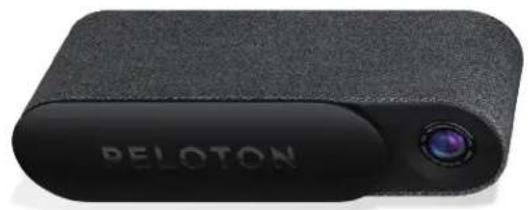
natural_image
Exterior view of a black PELOTON device with a circular lens (no additional text or symbols visible)PELOTON GUIDE MOUNT
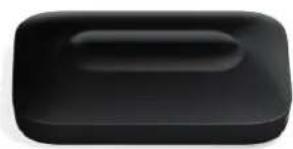
natural_image
Black rectangular object with a rounded top and horizontal oval outline, resembling a battery or sensor (no text or symbols visible)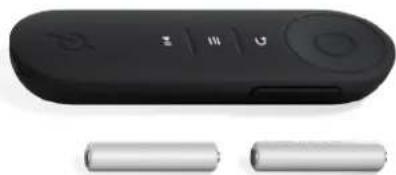
natural_image
Black remote control device with two cylindrical batteries beside it (no visible text or symbols)REMOTE AND AAA BATTERIES POWER ADAPTER
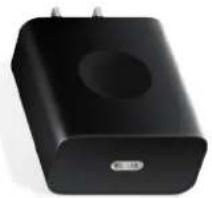
natural_image
Black rectangular electronic device with a circular vent and a small logo on the side (no visible text or symbols)plug varies by region
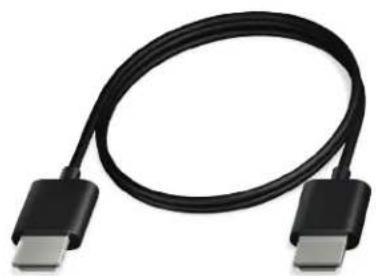
natural_image
Black cable with two USB connectors, no text or symbols visibleHDMI CABLE
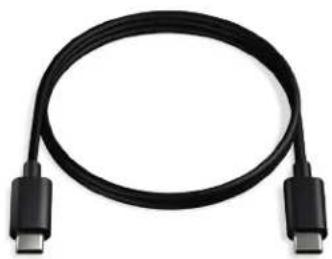
natural_image
Black cable with two USB connectors, no text or symbols visiblePOWER CABLE
MEET THE PELOTON GUIDE
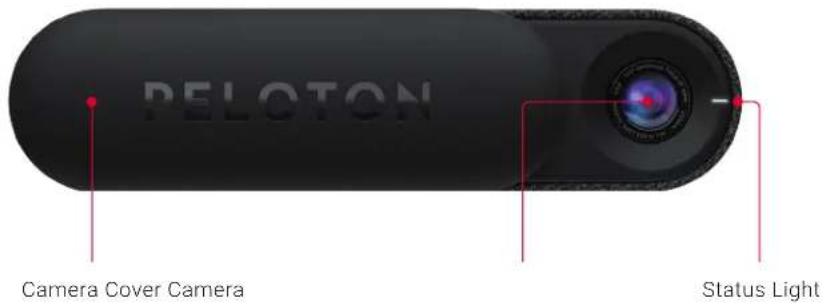
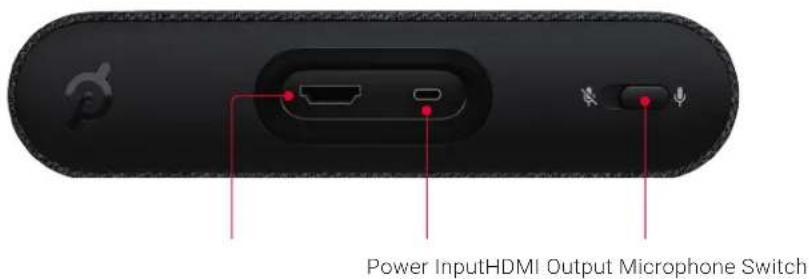
MEET THE PELOTON GUIDE
SPECIFICATIONS AND REQUIREMENTS
DIMENSIONS
| Guide: 166mm × 64mm × 42mm / 6.5" L × 2.5" W × 1.7" H |
| Height (mounted): 65mm / 2.6" H |
| Weight: 510g / 18oz. |
| Weight (mounted): 635g / 22.4oz. |
| Remote: 134mm × 42mm × 19.25mm / 5.3" L × 1.7" W × 0.8" H |
| Weight (with batteries): 61g / 2.2 oz. |
TECHNOLOGY
| Bluetooth® 5.0.x, Bluetooth Low Energy (BLE) |
| BLE remote control with 20ft /6.1m range |
| 12 megapixel front-facing camera with privacy slider |
| 2 microphone top facing array with on/off switch |
| WiFi 802.11 a/b/g/n/ac |
REQUIREMENTS
| TV: HDMI Port, 4K or 1080p screen resolution recommended |
| Network: 2.4GHz or 5GHz WiFi, 15mbps download speed recommendedNote: Wired networks and hidden networks are not supported. |
POWER
| Power adapter input: AC 100 - 240 V 50-60 Hz |
| Power adapter output: DC 5V/3A |
Remote: 2x AAA batteries (non-rechargeable)
MEET THE PELOTON GUIDE
CLEANING THE PELOTON GUIDE

CAUTION: Always unplug the Guide before cleaning. Always follow these instructions to clean the Peloton Guide. Other cleaning procedures could result in damage to the device.
When cleaning the Peloton Guide:
• Make sure the Guide is unplugged.
- Use a soft dry cloth to clean the camera lens and the outside of the Guide.
- Never use abrasive or harsh chemicals when cleaning the Peloton Guide.
- Never spray or pour liquid directly on the Guide. Never allow liquid to drip into any opening on the Guide.
REMOTE CONTROL
USING THE REMOTE
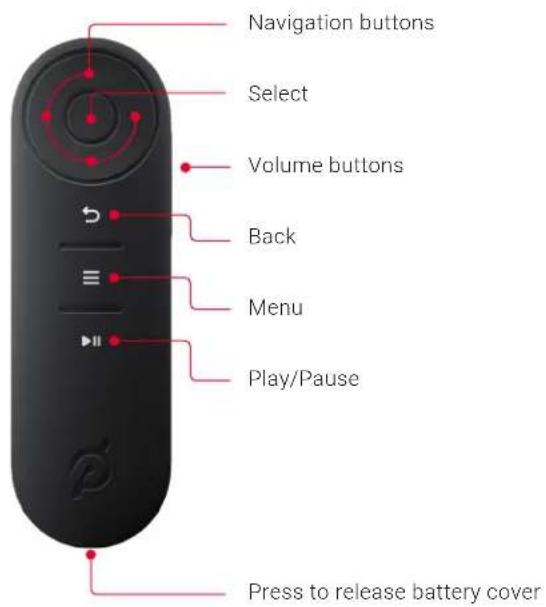
Use ↩ to return to the previous screen or exit a menu.
Use ≡ to open or exit a menu.
Hold down ≡ to quickly navigate to the home screen, settings menu, or login screen, or to shut down the Guide.
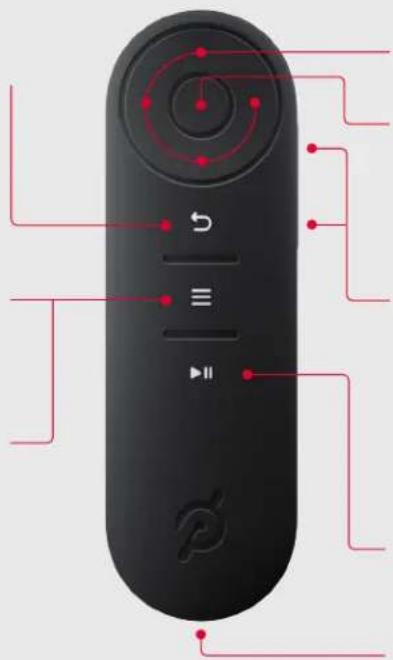
Use the arrow buttons to navigate
Use the select button to choose a class or feature.
Many TVs will allow the Guide remote to control TV volume. To set up TV volume controls, go to
Settings > Remote > Calibrate Volume Buttons.
Use ▶II to pause or resume an on-demand class.
Press the button at the bottom of the remote to release the battery cover.
MEET THE PELOTON GUIDE
PAIRING A REMOTE
- If the Peloton Guide can't find a remote, a screen will appear with pairing instructions.
- When a remote is connected, you can access the pairing screen by navigating to Settings > Remote > Pair New Remote
Once you see the pairing screen, make sure your remote is within 20ft / 6.1m of the Guide, and press and hold the ∧ and ≡ buttons for 4 seconds.
REPLACING THE REMOTE BATTERIES

WARNINGS AND SAFETY INFORMATION
Do not expose batteries to heat or moisture.
Do not use batteries that appear to be damaged or leaking.
Dispose of used batteries promptly and replace only with new batteries of the same type and model number.
Keep batteries out of reach of children at all times.
natural_image
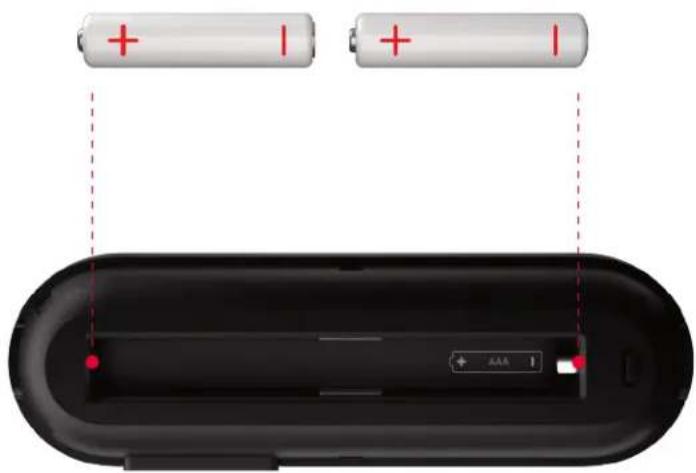
Diagram of a black electronic device with two batteries and a display panel, no text or symbols presentThe Guide remote uses two non-rechargeable AAA batteries.
INSTALLATION
WHERE TO PUT YOUR GUIDE
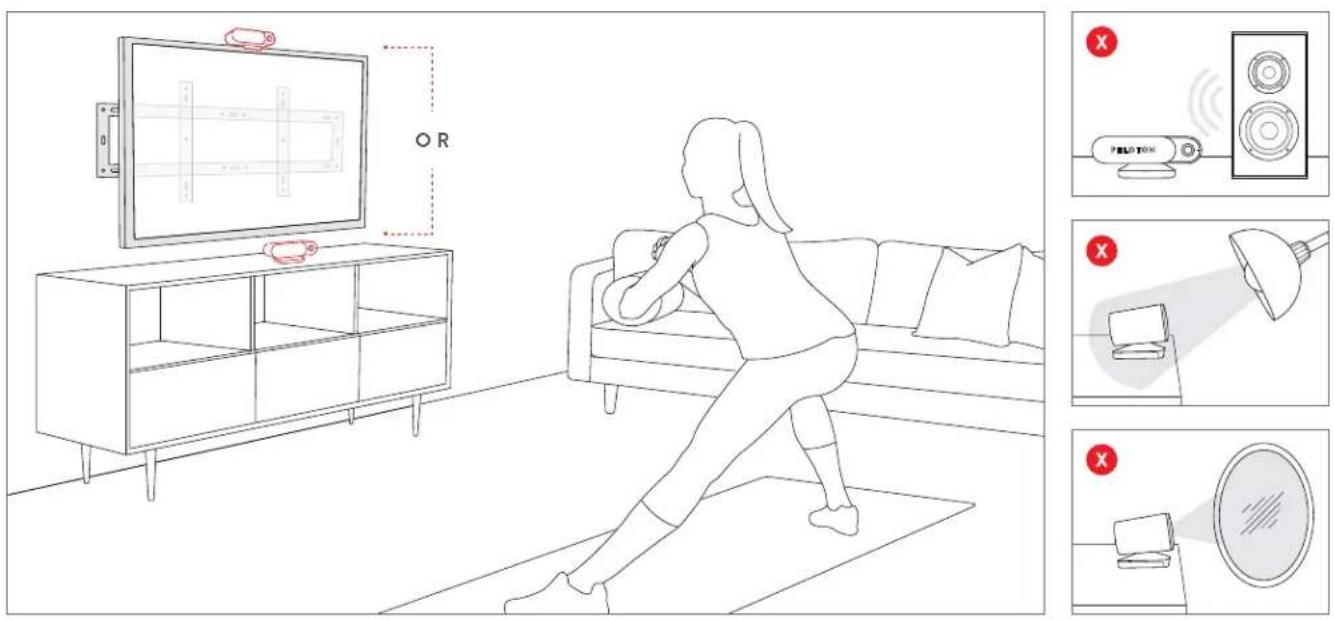
Finding the right spot to install the Peloton Guide will help you get the most out of the camera and voice features. Use these guidelines to get set up. After you turn on the Guide, you can refine its position with the help of the camera view.
SPACE
Make sure you have plenty of space to work out.
- Give yourself at least 4.5 × 6 feet/1.4 × 1.8m of unobstructed space--about the size of two yoga mats side by side.
- Orient your mat with the long side facing the camera for better tracking.
• Always make sure your workout area is free of obstructions, including furniture you could bump into and objects you could step on or trip over. - If you plan to work out with others, you will need to be an arm's length away from them at all times.*
* When working out with others, note that:
• Movement Tracker will not support multiple users.
- Only the logged-in user will receive credit for the class.
ANGLE
Put the Guide somewhere where the camera can capture your entire body with your arms raised.
- A height of 3 to 6 feet/0.9 to 1.8m from the ground should let the camera see you without distorting your image.
- If you're too close to the camera when working out, the camera won't be able to see all of you.
- If you're too far from the camera when working out, Movement Tracker (see p. 26) may not be able to correctly identify your movements. Try to stay within 6.5 ft/2 m.
- You can locate the Guide to the side of your workout area, but keep in mind that Self Mode (see p. 25) could show a confusing angle.
INSTALLATION
LIGHT
Movement Tracker works best when the camera has a clear view of you and your workout area and there are no confusing movements in the background.
- Avoid having light sources pointed directly at the camera, including lamps and windows.
- Avoid having sources of movement visible to the camera, including mirrors, televisions, and doorways to high-traffic areas.
- Choose workout clothes that contrast with your background. If you fade into the background, the Guide could have trouble finding you.
NOISE
Voice commands work best when the microphone hears your voice without interference.
- Ensure no speakers are pointed directly at the Guide, or located within 1ft / 30cm of it.
- Try to keep background noise to a minimum when working out.
MOUNTING THE PELOTON GUIDE
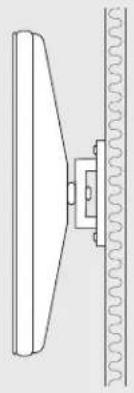
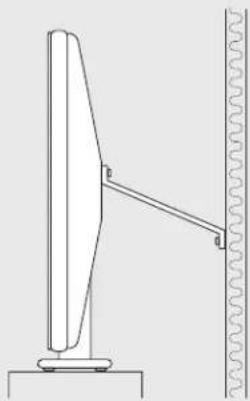
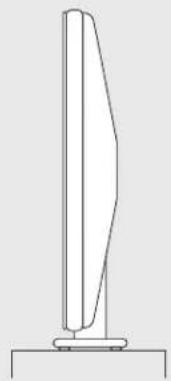
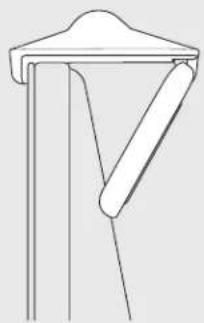
The Peloton Guide's mount can sit on a flat, stable surface or unfold to attach to an anchored flatscreen TV.
CAN I MOUNT THE GUIDE ON MY TV?
Is your TV anchored to a wall? Installing the Guide on a freestanding TV could cause the TV to tip. If your TV is not anchored, please install the Guide on a flat surface instead.
natural_image
Pure mechanical diagram showing a lever and spring attached to a wall (no text or symbols)√
natural_image
Technical line drawing of a mechanical device with a spring attached, showing no text or symbols√
natural_image
Simple line drawing of a vertical structure with a base, no text or symbols present×
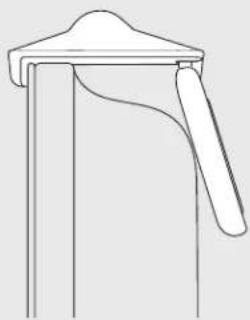
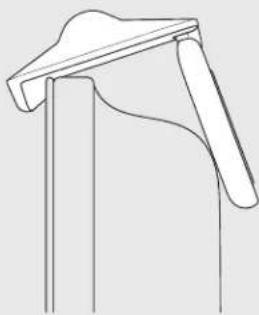
Will the mount fit on your TV? If the mount can't close to an acute angle when the base is horizontal, your TV won't provide enough stability to safely mount the Guide. Please install the Guide on a flat surface instead.
natural_image
Pure line drawing of a mechanical bracket or support structure without any text, numbers, or symbols√
natural_image
Simple line drawing of a mechanical lever or bracket (no text or symbols)×
natural_image
Line drawing of a mechanical bracket or support structure (no text or symbols)×
INSTALLATION
MOUNTING ON A TV
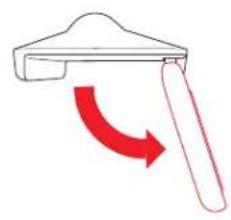
- Pull the mount open.
- Fit the front edge against the bezel of your TV.
- Fold the back of the mount in to press firmly against the back of the TV.
- Set the Guide on the mount.
natural_image
Simple line drawing of a tool with a red curved arrow indicating rotation or movement (no text or symbols)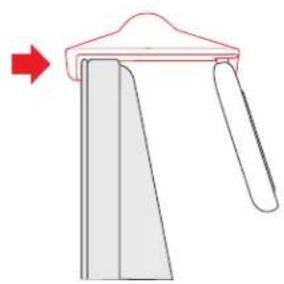
natural_image
Diagram showing a mechanical component with a red arrow indicating direction, no text or symbols present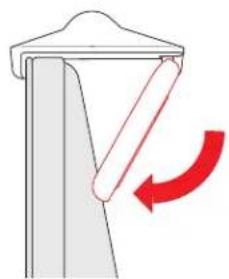
natural_image
Diagram showing a mechanical component with a red curved arrow indicating rotation or force direction (no text or symbols)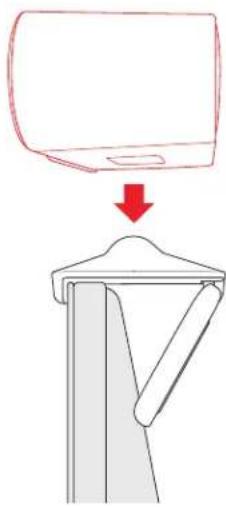
natural_image
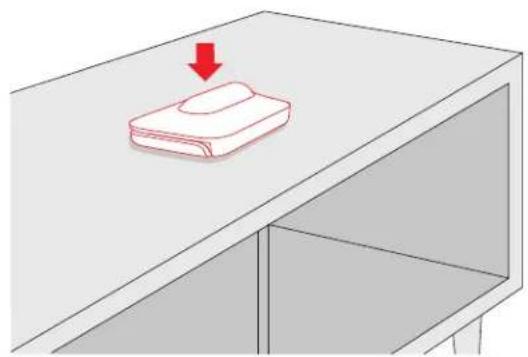
Diagram showing a device with a downward arrow pointing to a mechanical component (no text or symbols present)MOUNTING ON A FLAT SURFACE
- Set the closed mount on a flat, stable surface.
- Set the Guide on the mount.
natural_image
Illustration of a red arrow pointing downward on a white shelf with a folded top (no text or symbols)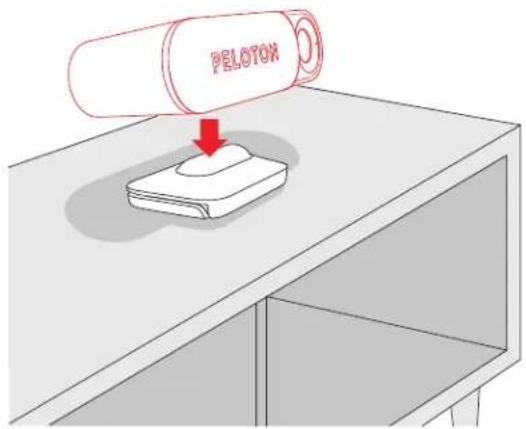

Move the Guide back or forward to tilt up or down.
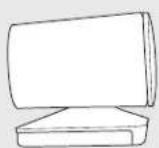
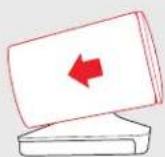
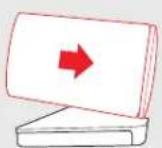
INSTALLATION
INSTALLING THE PELOTON GUIDE
- Plug the included HDMI cable into the back of the Guide and an HDMI port on your TV.
- Plug the power cord into the back of the Guide.
- Plug the other end of the power cord into the power adapter. Plug the power adapter into an electrical socket.
- Set your TV to the HDMI input used to connect to your Guide. Wait for a Peloton screen to appear.
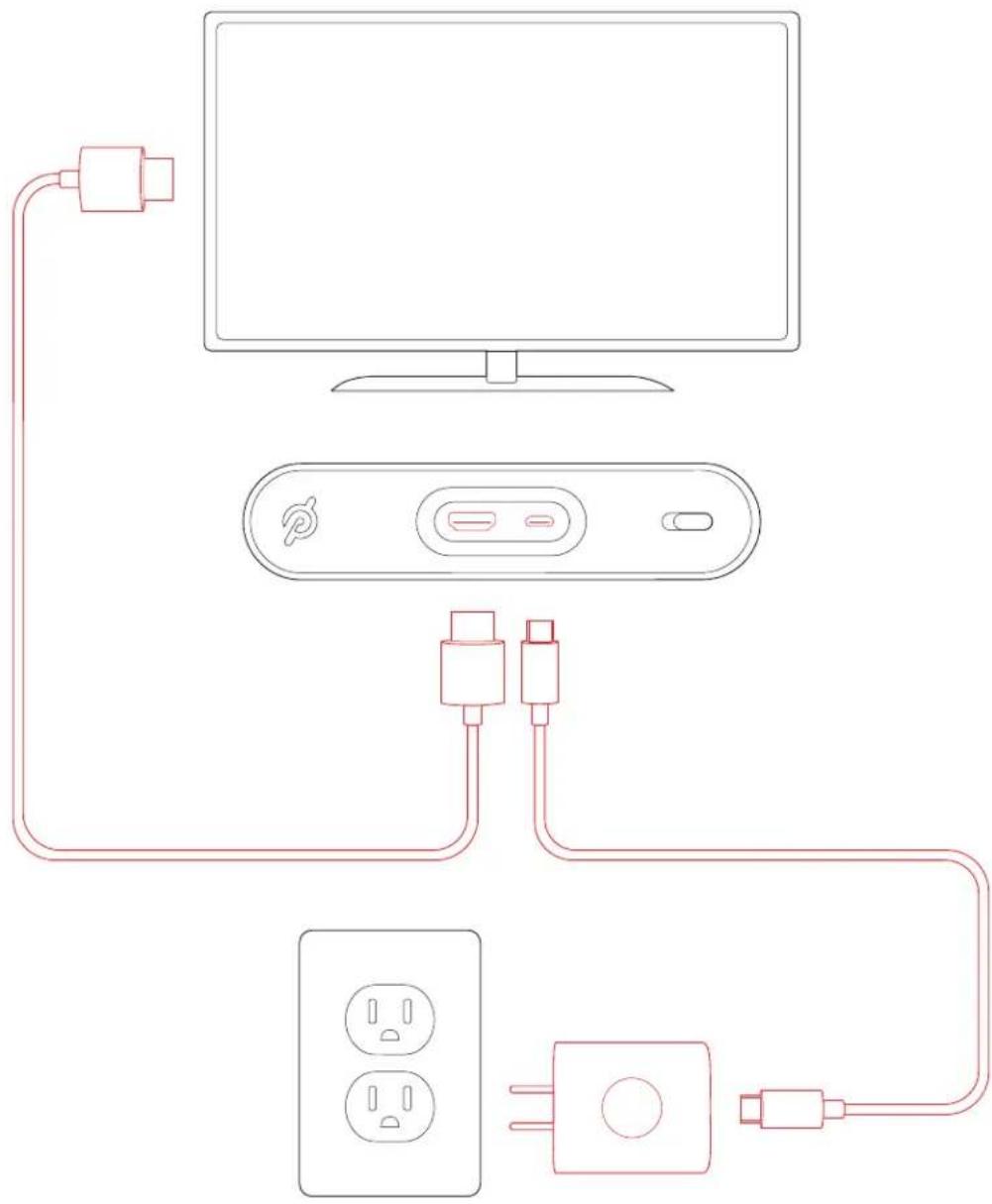
natural_image
Line drawing of a TV network connection diagram showing connections between a monitor, switch, power outlet, and plug (no text or labels)SETUP
The first time you turn on the Peloton Guide, it will walk you through setup and activation. Each step is also accessible via the Settings (see p. 34) menu.
1. REMOTE SETUP
When you turn on the Guide for the first time, you will be prompted to pair the remote. If you ever want to pair your remote again, or pair another remote, navigate to Settings > Remote > Pair New Remote.
2. CALIBRATE VOLUME BUTTONS
Many TVs will allow the Guide remote to control TV volume. In this step, your remote will learn how to communicate with the TV. If you skip this step, you can always set up TV volume controls later by navigating to Settings > Remote > Calibrate Volume Buttons.
3. NETWORK SETUP
Next, you will be prompted to connect to a Wi-Fi network. Select your network and enter the password using the onscreen keyboard. You can disconnect from a network or connect to a different network at any time by navigating to Settings > Network.
4. TIME ZONE SETUP
To make sure the clock on the Guide is set correctly, select your time zone.
To change your time zone at any time, navigate to Settings > System > Date & Time.
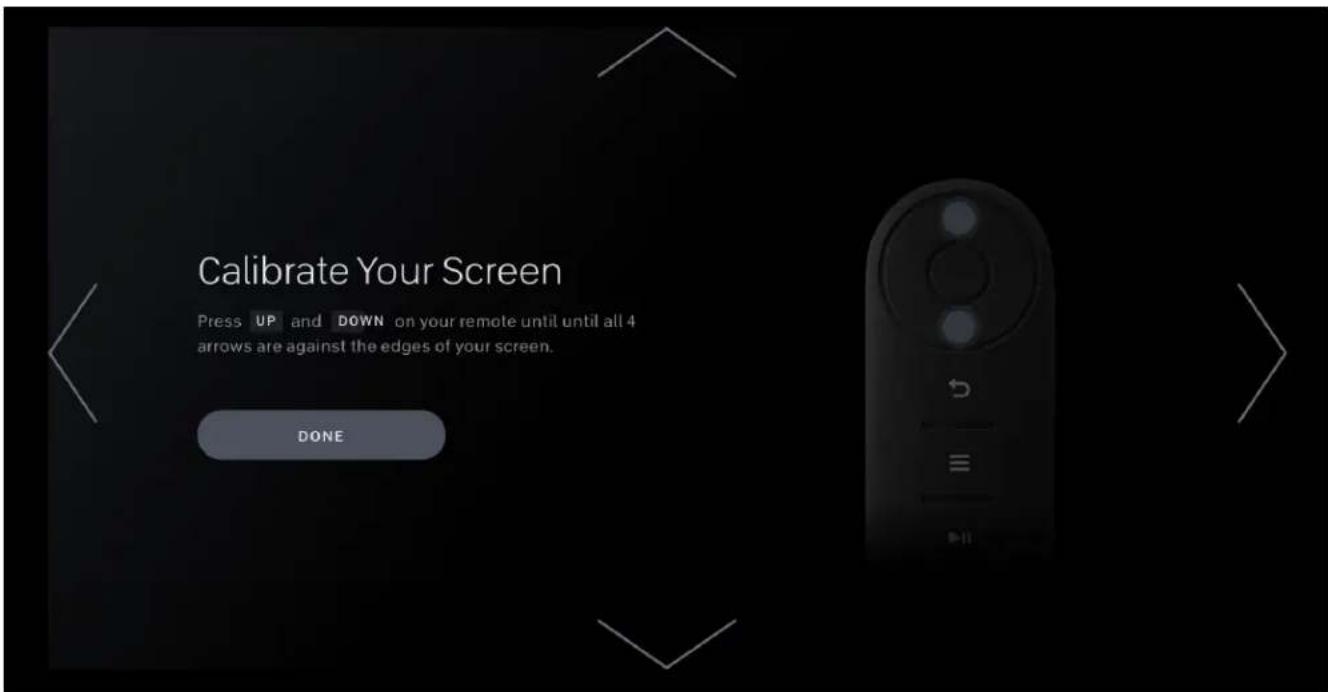
5. CALIBRATE YOUR SCREEN
SETUP
This step gives the Guide more precise information about your screen size. When the arrows just touch the edges of the screen, the Guide knows how to make best use of the available space.
If you connect your Guide to a different TV, you may need to calibrate your screen again. To access screen size calibration, navigate to Settings > Screen > Calibrate Your Screen.
6. SET UP MOVEMENT TRACKER
You'll set up Movement Tracker (see p. 26) in three steps.
First, use the camera view to ensure that the Guide is in the best possible location. You should be able to see your whole body and workout area without distortion. Move or tilt the Guide to fix any problems before proceeding to the next step.
Next, follow a tutorial to learn how the Guide tracks your movements.
Finally, learn how Smart Framing allows you a wider range of movement.
If you would like to go through the tutorial again, navigate to Settings > Movement Tracker > Set Up Movement Tracker.
7. CALIBRATE VOICE CONTROL
If you plan to use voice commands, you can set up that feature in this step.
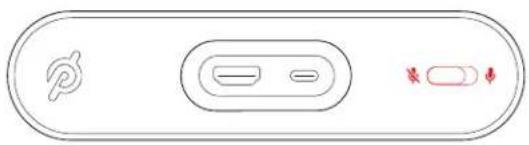
If you don't plan to use voice commands, skip this step. You can also completely turn off the microphone using the switch on the back of the Guide. You can turn on voice commands at any time by navigating to Settings > Voice Control > Voice Control Calibration.
For more information, see Voice Control (p. 26).
8. ACTIVATE YOUR DEVICE
Once you finish the setup steps, an activation code will appear. Go to members.onepeloton.com/activate and enter the code on your screen.
Next, sign into or create a Peloton account. Activating the Guide requires a Peloton All-Access Membership. If you have an existing Peloton App Membership, you will be prompted to cancel it and sign up for an All-Access Membership.
Enter or review your profile information to complete the process. When your TV displays the Home Screen, you're ready to get started.
For more on accounts or activation, see Account (p. 26).
USING THE PELOTON GUIDE
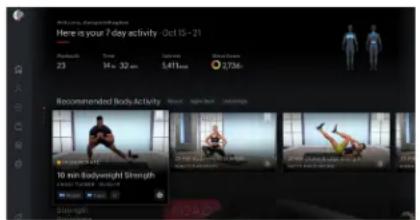
Each time you turn on the Peloton Guide and log in, you'll see a Home Screen.
Use the ∧ and ∨ buttons on your remote to see your recent activity and personalized class recommendations.
Press ≡ or ↻ to open the main menu, where you can access your Profile, browse Classes, and edit your Settings.
PROFILE
Navigate to the top of the screen to move between the Overview, Workouts, and Achievements tabs, or scroll down to find an individual module.
30 Day Activity shows a snapshot of your active days over the past month, so you can keep track of your streaks. 30 Day Stats gives you additional details on the time you spent working out in the same period.
USING THE PELOTON GUIDE
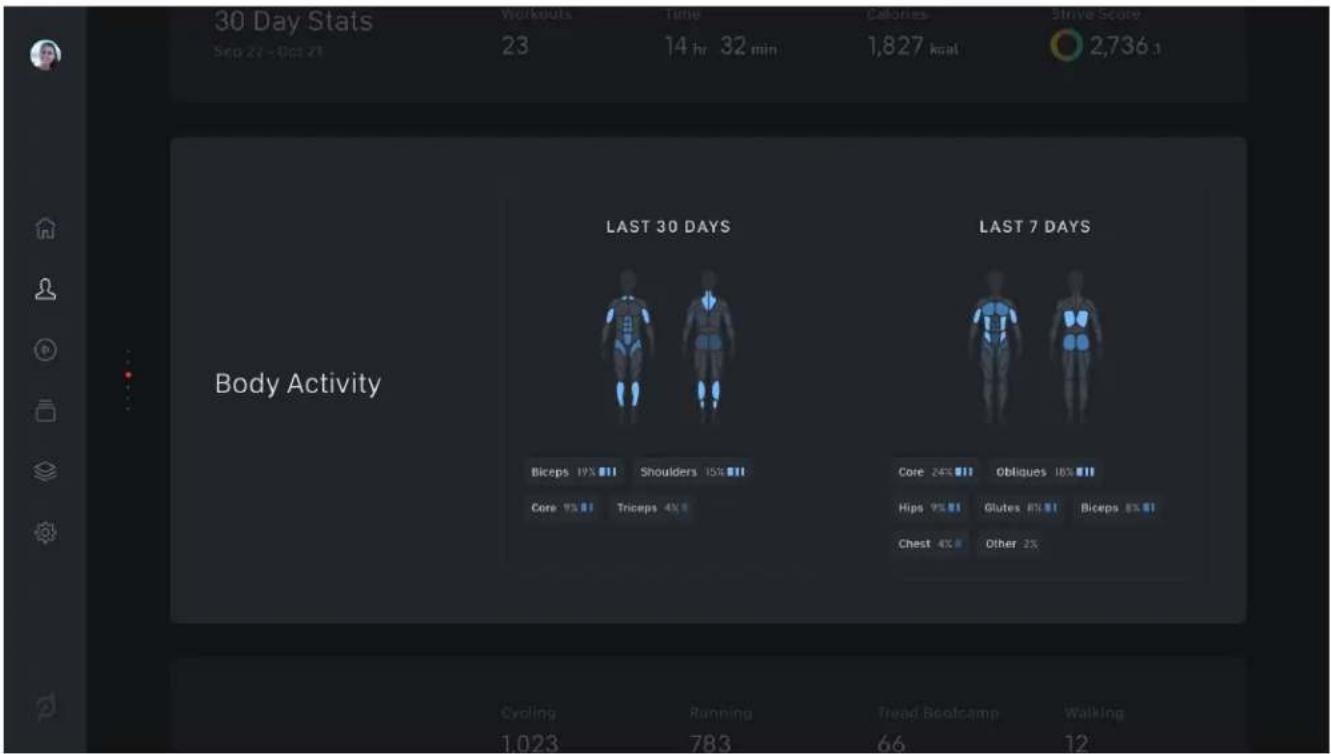
Body Activity highlights the muscle groups you've worked on most in the last week and month.
30 Day Movement Tracker Highlights shows your best moves and the moves that could use some work, based on your recent activity.
Total Workouts shows the number of Peloton Workouts you've completed in each discipline.
Recent Workouts shows the last classes you took. Select to see the complete list of your workouts in the Workouts tab. Select an individual workout to see more details on how you did.
Recent Achievements shows badges you earned by hitting milestones, participating in special events, and working out with friends. Select to see the complete list of your badges in the Achievements tab.
USING THE PELOTON GUIDE
CLASSES
Choose a discipline to browse all available classes.
Select Filter or press ≡ to narrow down your results by Length, Instructor, Body Activity, and more.
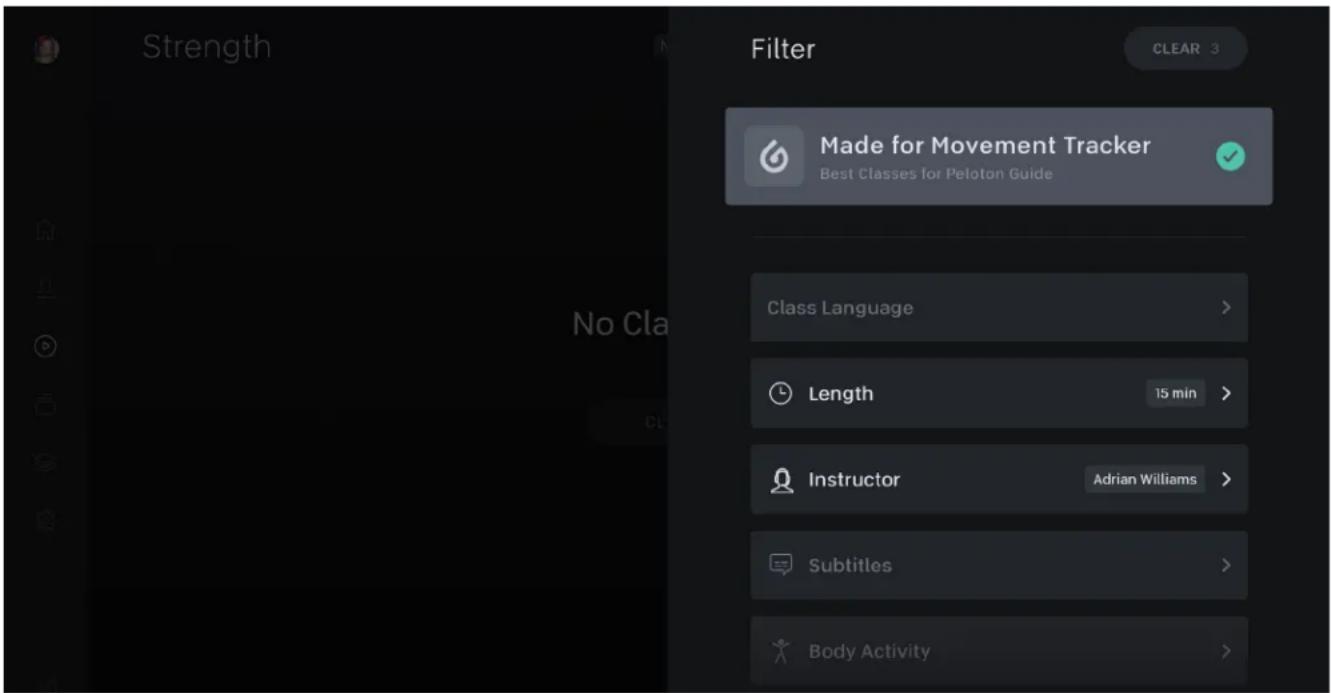
By default, the Peloton Guide will show you only classes that are compatible with Movement Tracker. Deselect the Movement Tracker filter to view all classes.
Focus on a class to see a brief preview, or select it to view class details.
PROGRAMS
Programs are groups of classes that you can complete on a recommended schedule to get familiar with a new discipline or help you reach a goal. Navigate to the top of the screen to switch between all Programs and Completed programs.
COLLECTIONS
Collections are groups of classes centered around a specific theme. Collection themes can include instructor series, artist events, holidays, and sub-disciplines like Barre or Dance Cardio.
SETTINGS
Use the Settings menu to edit your account or preferences, or to make changes to your Peloton Guide. For a complete list of available settings, see Settings (p. 32).
SHUT DOWN
To shut down the Guide, navigate to the bottom of the menu and select power symbol.
USING THE PELOTON GUIDE
CAMERA
When the Guide's camera is in use, the status light will turn green. The camera is only in use when you are in a class with the camera cover open and Self Mode (see p. 25) turned on.
When the Guide is powered on, but the camera is not in use, the status light will be white. To shut the camera off completely, slide the camera cover over the lens.

flowchart
graph LR
    A["PELOTON"] --> B["Green Signal"]
    B --> C["White Signal"]
    C --> D["Red Signal"]
    D --> E["PELOTON"]
MICROPHONE
The Guide's microphone is used only for listening to voice commands during a class. To disable the microphone and turn off voice control, toggle the switch on the back of the Guide.
natural_image
Pure diagram of a device control panel with no text or symbolsPOWER
To shut down the Guide, press ≡ or ↻ to open the main menu. Navigate to the bottom of the menu and select power symbol.
The Guide will also shut itself off after about 15 minutes of inactivity. To set a longer time-out period, navigate to Settings > Screen > Auto-Sleep.
To wake the Guide, press any button on the remote. If the Guide and remote are both asleep, you may need two button-presses to wake the system.
USING THE PELOTON GUIDE
CONNECTING THE PELOTON HEART RATE BAND
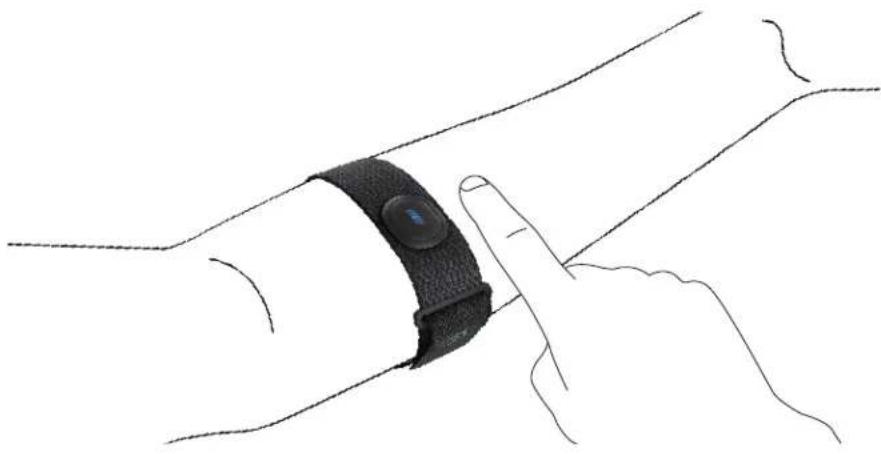
Before connecting a Peloton Heart Rate Band to the Peloton Guide, set up the Heart Rate Band according to the accompanying instructions. When the Heart Rate Band is ready to pair, the display will flash with a blue animation.
natural_image
Line drawing of a hand holding a black wristband with a finger pointing to the wrist area (no text or symbols)When you are logged into a Peloton account on a Peloton Guide, the Guide will detect the Heart Rate Band and prompt you to pair.
After the initial pairing, your Heart Rate Band will connect automatically when it is in pairing mode and you are logged into your Peloton account on the Guide or another Peloton connected fitness device.
CONNECTING A BLUETOOTH HEART RATE MONITOR
To connect any Bluetooth heart rate monitor, including one not manufactured by Peloton, put it in pairing mode and navigate to Settings > Heart Rate Monitor. Select your heart rate monitor from the list of available devices.
You can reach the same menu from the Start Class (see p. 24) screen.
CONNECTING AN AUDIO DEVICE
To connect a Bluetooth audio device, such as external speakers or wireless headphones navigate to Settings > Audio > Audio Output and select from the list of available devices.
You can reach the same menu from the Start Class (see p. 24) screen.
TAKING A CLASS
Select a class from the Home screen, Classes, Programs or Collections to pull up the class details.
Class details include:
• Class Plan: a detailed rundown of the segments and movements in a class
- Playlist: all songs that will be played during a class
• Body Activity: a snapshot of which muscle groups are targeted in a class
- More Info: extra information including a class description, other Members' class ratings, and available subtitles
CLASS PLAN
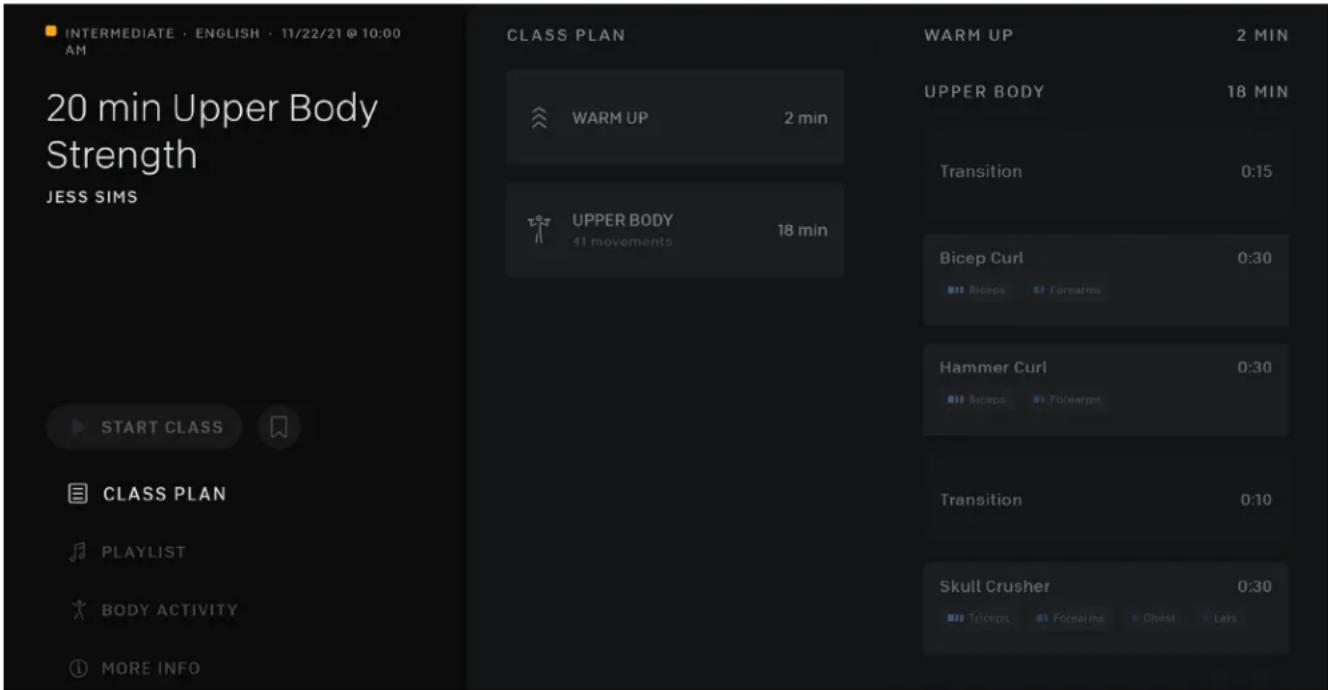
Select Class Plan for a detailed rundown of the segments and movements in a class.
First, you'll see the class divided into segments, like Warm Up, Core, and Upper Body.
Select a segment or navigate to the right side of the screen for a complete list of the movements used in the class.
Focus on an individual movement to find out what muscle groups it targets and see a short video demonstration. Select the movement for detailed information, including lists of similar movements and modifications, and even Try Movement with the help of a video tutorial.
TAKING A CLASS
PRE-CLASS
Before you start a class, take a moment to make sure you're ready to go.
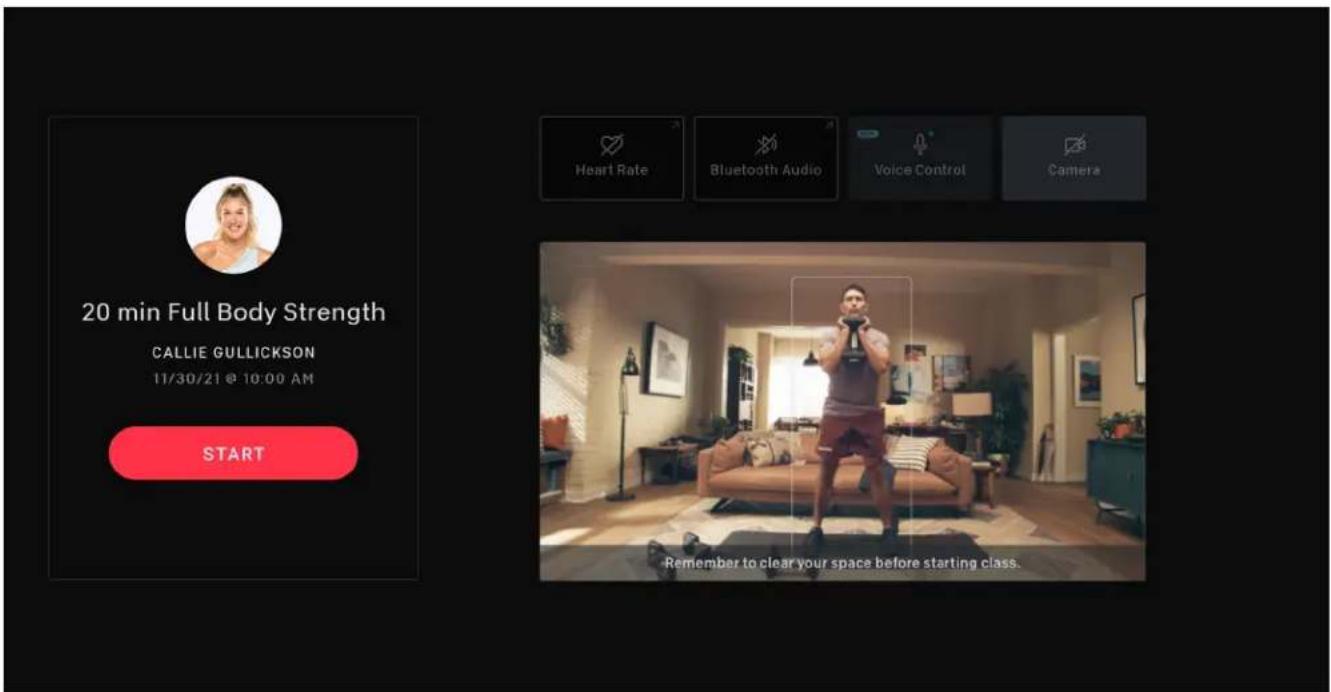
HEART RATE
Select to look for your available Bluetooth heart rate monitor, or put your Peloton Heart Rate Band into pairing mode to connect automatically.
BLUETOOTH AUDIO
Select to look for your available Bluetooth audio device.
CAMERA
Keeping the camera on allows you to use Self Mode. To disable the camera, slide the Peloton Guide's camera cover over the lens.
VOICE CONTROL
Keeping the microphone on lets you use your voice to control class playback and change display options. If the microphone is disabled, you can access the same controls using your remote. To disable the microphone, toggle the switch on the back of the Guide.
PREVIEW YOUR SELF MODE VIEW
Make sure your workout area is free of obstructions and the camera is positioned to capture your movements.
When the camera is tracking you, you will see a white box around your image on the screen. If you see an error message or if the white box is absent, you may need to adjust the camera position.
When everything is set up correctly, select Start to begin the class.
TAKING A CLASS
CLASS SCREEN
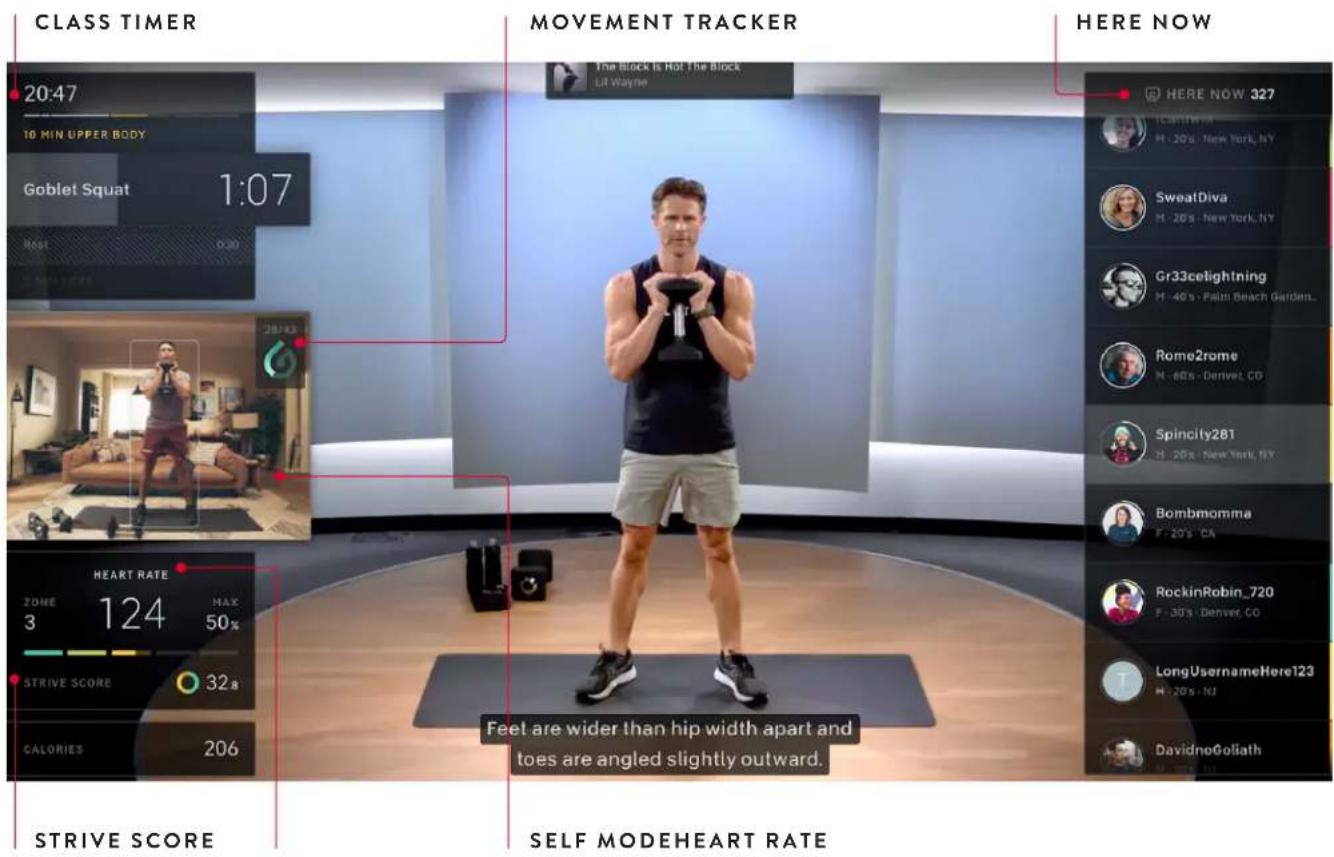
Press ∧ or ≡ during a class to hide or minimize any module, manage connected devices, or control subtitles.
CLASS TIMER
The Class Timer lives at the upper left of the Class Screen and helps you keep track of where you are in the class.
In the top section, you'll see the time remaining in the class and a timeline with the current segment highlighted.
Below that, you'll see the current movement and a countdown to the next one. Upcoming movements at the bottom of the timer help you prepare for what's coming next.
SELF MODE
In Self Mode, you'll see yourself on screen next to your instructor as you're guided through class. Do your best to reflect the instructor's movements and correct your own form as you go.
To change the size or location of the Self Mode window, or to hide it completely, press ∧ or ≡ and select another view option. You can also turn off Self Mode by sliding the Peloton Guide's camera cover over the lens.
TAKING A CLASS
MOVEMENT TRACKER
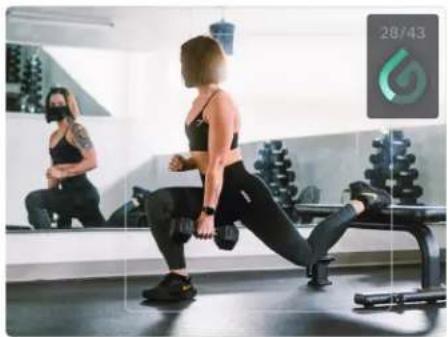
Movement Tracker lives in the corner of your Self Mode window and gives you credit for following the Class Plan.
As you follow each movement, the Movement Tracker will fill. It won't count repetitions or check your form—it's just looking to see whether you're doing the movement the instructor asked for. If you stop doing the exercise, or move out of the camera's effective tracking range, the tracker will stop filling.
At the end of a movement, a full Movement Tracker will indicate that you followed along the entire time. An empty or partially filled tracker will indicate that you did not always follow along, or that the camera wasn't always able to track your movement.
natural_image
Woman performing a lunge exercise in a gym, with another person observing in the background (no visible text or symbols)As you complete movements, the Movement Tracker will keep a count of movements you got credit for, out of all trackable movements in the class so far.
When the camera is off or Self Mode is hidden, Movement Tracker is disabled.
STRIVE SCORE
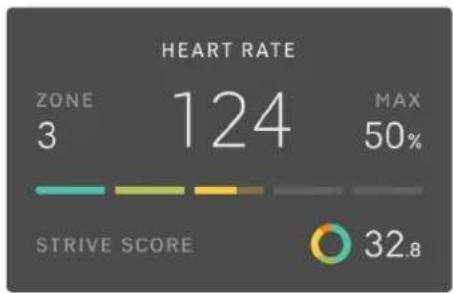
Strive Score is a personal, non-competitive metric that measures your workout intensity based on the time you spend in each heart rate zone. Your score will increase more quickly in higher zones.
Strive Score is calculated only when you have a heart rate monitor connected during class.
other
HEART RATE | Zone | Value | | :--- | :--- | | ZONE | 3 | | 124 | 124 | | MAX | 50% | | STRIVE SCORE | 32.8 |VOICE CONTROL
During a class, you can use voice commands to control playback or change display options. To use a voice command, say, "OK Peloton," followed immediately by the command.
Use one of the example commands below, or put your command into your own words--whatever works best for you.
To control playback, try commands like: "OK Peloton, pause."
"...rewind 20 seconds."
"...skip to the next movement."
To change display options, try commands like: "OK Peloton, turn on subtitles."
"...what song is this?"
"...maximize Self Mode, please."
You can also use voice commands to exit to the home screen, control music and instructor volume, and put the Guide to sleep from within a class.
TAKING A CLASS
POST-CLASS
When a class is over the Peloton Guide will show you a snapshot of how you did, including how many movements it tracked, and which muscles you worked hardest.
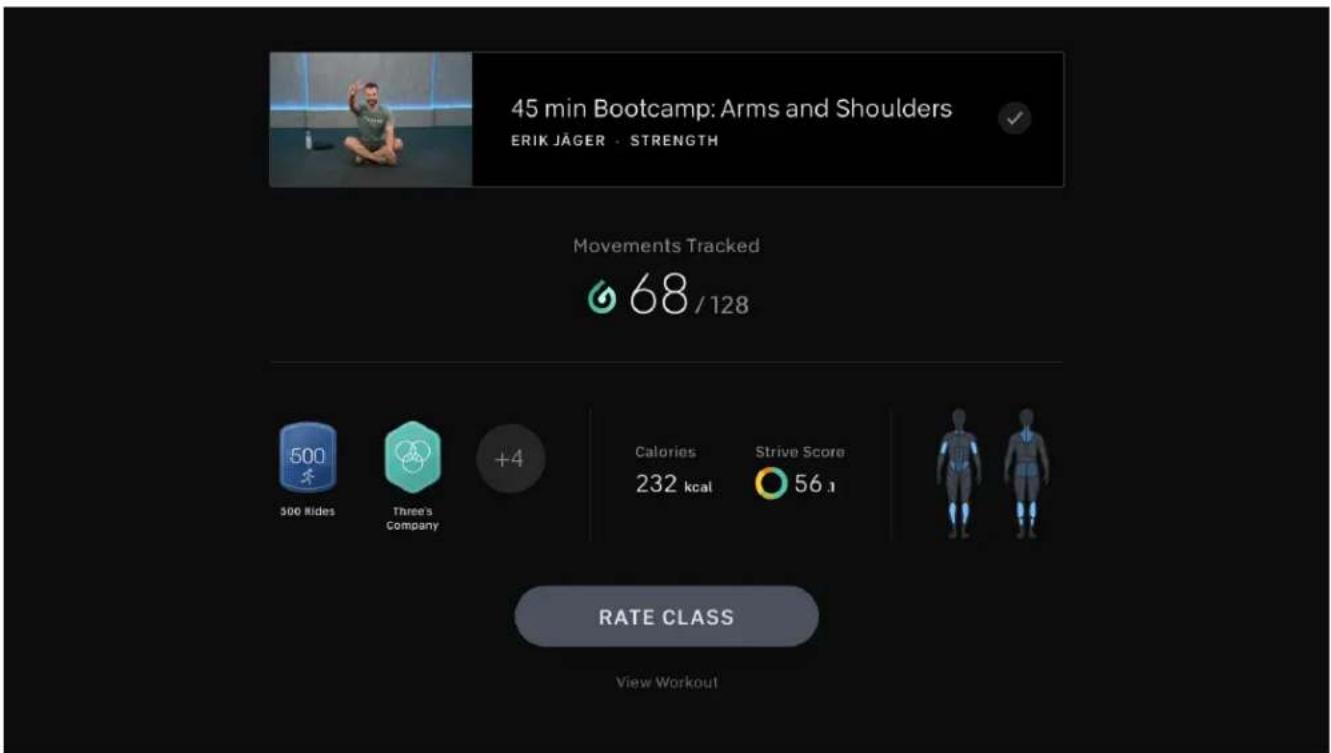
Select Workout Details for more details on your performance, including a list of movements that the Guide didn't see you complete, Strive Score and heart rate information, and any achievements you earned during the class. You can access this information at any time by navigating to Profile >Workouts and selecting the class.
Select Rate Class to assign a difficulty rating, or give a score to the instructor or playlist. These ratings will help other users choosing a class.
ACCOUNT
ACTIVATION
To use the Peloton Guide, you will need to attach an active Peloton All-Access Membership.
During the onboarding process, you will be prompted to activate the Peloton Guide using a code displayed on the screen. You can log into an existing account or create a new one, and purchase a new All-Access Membership or attach an existing one. If you have a Peloton App Membership, you will be prompted to cancel it and sign up for a new All-Access Membership. Enter or review your profile information to complete the process.
To detach a subscription from the Guide, go to members.onepeloton.com/preferences/subscriptions.
To return to the original activation process, perform a Factory Reset (see p. 34).
MEMBERSHIPS
ALL-ACCESS MEMBERSHIP
Provides your household with access to Peloton's growing library of live streaming and on-demand classes, challenges, and real-time performance tracking. An All-Access Membership can be used to activate one Bike, one Tread, and one Guide, as well as allowing you to access content on the Peloton App.
APP MEMBERSHIP
Provides a single account with access to Peloton's growing library of live streaming and on-demand classes, challenges, and real-time performance tracking. An App Membership cannot be used to activate any Peloton device, but allows you full access to our content on the Peloton App. An App Membership can be replaced with an All-Access Membership when you activate the Peloton Guide.
PROFILE
Your profile is where you can find your complete workout history, achievements, and other stats. It's also how you will identify yourself to other Members in Here Now.
View your profile information at any time by selecting Settings, then Profile Info. You can edit your profile and choose what information is visible to other Members by going to members.onepeloton.com/preferences.
ACCOUNT
ADDING USERS
Once the Peloton Guide is activated, additional Members can add their profiles from the login screen.
To access the login screen from another Guide screen, navigate to the top of the main menu or hold down ≡ to open the Quick Actions menu, and select Switch Profile.
To add a profile:
- Select +
- Select Add Existing to add a user who already has a Peloton account, or Create New to set up a new account.
All profiles added to your Peloton Guide will live on the login screen. To remove profiles at any time, select Manage, or focus on a profile and press ≡.
Accounts created on the Peloton Guide will give the user full access to Peloton content on the Guide or the Peloton App. To modify a user's profile information, go to members.onepeloton.com/preferences.
TROUBLESHOOTING
CAUTION: Any repair or troubleshooting procedure other than those described in this section must be performed by Peloton authorized personnel.
THE PELOTON GUIDE WON'T TURN ON
Check the status light.
- If the light is on, make sure that your TV is powered on and set to the correct input.
- If the light is off, check that the power cord is securely attached to the Peloton Guide and the power adapter, and that the adapter is fully plugged into the outlet. If the power cord is securely attached, try switching to a different outlet. If issues persist, please contact Member Support.
THE GUIDE REMOTE IS NOT CONNECTED
This could indicate a problem with the batteries or with the remote's Bluetooth connection.
- Remove the back cover. Remove and reinsert the batteries, making sure that they are oriented correctly. If the batteries are not working, replace them with two new AAA batteries.
- Make sure the remote is within 20ft / 6.1m of the Peloton Guide. Press and hold ∧ and ≡ for about 4 seconds. Wait several seconds for the remote to reconnect.
If you're still experiencing issues with your remote, please contact Member Support.
THE GUIDE HAS TROUBLE CONNECTING TO WI-FI
Navigate to Settings > Wi-Fi. If your network is available, try reconnecting. If you still can't connect, try power cycling the Guide.
If you're still having trouble, or if the Guide can't find your Wi-Fi network, there may be a problem with your network or router.
- Verify that the Wi-Fi router is powered on and connected to the internet.
- Verify that your network will support the use of the Guide. The Peloton Guide requires a minimum of 10–15 mbps download and 2.5 mbps upload speed, and cannot connect to hidden or captive portal networks.
- Make sure the Guide is within range of your router. Wi-Fi extenders and boosters, distance from the router, and obstructions like walls and furniture can weaken your WiFi signal.
If you're still experiencing issues connecting to your wireless network, please contact Member Support or an IT professional.
MOVEMENT TRACKER ISN'T WORKING CORRECTLY
- Verify that the camera cover is open and the status light is green. Movement Tracker only works when the camera is turned on.
- Make sure your area is well-lit and no light sources are pointed directly at the camera.
- Wear clothing that contrasts with your background. The Guide may be having trouble finding you.
- Avoid standing so close that the Guide can't see your whole body, or so far that it has trouble identifying your movements. Try to stay within about 6.5 feet / 2m of the camera.
• Make sure your image isn't distorted. If the camera is at too steep an angle, the Guide may have trouble identifying your movements - If you are working out with another person, Movement Tracker will not work correctly. The Guide can only track one user at a time.
If you're still experiencing issues with the Movement Tracking feature, please contact Member Support.
CAUTION: If working out with others, keep at least an arm's length apart to avoid injury.
TROUBLESHOOTING
THE CAMERA WON'T TURN ON
Toggle the privacy slider back and forth to turn the camera off and on. If that doesn't help:
- Verify that you haven't hidden the Self Mode window. Movement Tracker only works when you are in a class and Self Mode is visible.
- Power cycle the device by unplugging the power cord from the back of the Peloton Guide, waiting several seconds and then reconnecting it.
- Navigate to Settings > Systems > Factory Reset to completely reset the Guide. Be aware that you will have to go through the activation process again after a factory reset, and that you will need to remove and reinstall the remote batteries to pair the remote.
If you're still experiencing issues with your camera, please contact Member Support.
THE GUIDE DOESN'T HEAR MY VOICE COMMANDS
Toggle the microphone switch off and on. If that doesn't help:
- Test the microphone by using a voice command during a class. The microphone will not work outside of a class.
- Power cycle the device by unplugging the power cord from the back of the Peloton Guide, waiting several seconds and then reconnecting it.
- Navigate to Settings > Systems > Factory Reset to completely reset the Guide. Be aware that you will have to go through the activation process again after a factory reset, and that you will need to remove and reinstall the remote batteries to pair the remote.
If you're still experiencing issues with your microphone, please contact Member Support.
THE GUIDE WON'T DISPLAY ANYTHING ON MY TV
The Guide requires a TV with an available HDMI port, and a minimum resolution of 720p, with 1080p or 4K UHD recommended for the best experience. If your TV meets these requirements, try the following troubleshooting steps.
- Ensure that the HDMI cable is securely plugged into the back of the Guide and your TV.
- Verify that your TV is powered on and set to the HDMI input that matches the HDMI port you used to connect the cable.
- If your TV still isn't detecting the Guide, try:
• Using a different HDMI port on your TV.
• Using a different HDMI cable. - Testing your TV's HDMI port using another device. If the other device works correctly, contact Member Support.
If issues persist, please contact Member Support or an AV professional.
I CAN'T SEE MYSELF IN SELF MODE
- Verify that the camera cover is open and the status light is green. Movement Tracker only works when the camera is turned on.
- Press ≡ and verify that you haven't hidden the Self Mode window. If you hid Self Mode in a previous class, the Guide will remember that setting.
- The last Self Mode view selected is the view your next class will be displayed in.
- Power cycle the device by unplugging the power cord from the back of the Peloton Guide, waiting several seconds and then reconnecting it.
SETTINGS
PROFILE
| Profile Info | Displays profile information, including username, email, location.Customize the information displayed by going to members.onepeloton.com/preferences. |
| Sign Out | Select to sign out of the logged-in account. |
NETWORK
| Wi-Fi | Toggle Wi-Fi on and off. The Peloton Guide will not be able to access any content, including your profile and workout history, when Wi-Fi is turned off. |
| Connected Network | Displays the name of the connected network.Select: to disconnect from the network and forget the password. |
| Available Networks | Displays the names of networks within range of the Guide.Select a network and enter the password to connect. |
SYSTEM
| About | Displays system information about your Guide, including serial numbers and software versions. |
| Date & Time | Time Zone: Select to change your current time zone setting.Use 24 Hour Format: Toggle 24 hour time format on and off. |
| Legal | Select to view Terms of Service, Privacy Policy, Membership Terms, and regulatory information. |
| Check for Updates | The Peloton Guide will receive most software updates automatically. Select this option to manually search for an available update. |
| Factory Reset | Performing a factory reset restores the Guide to its original settings, erasing all data and detaching your membership.After a factory reset, you will need to go through the activation process again to use the Peloton Guide. You will also need to remove and reinstall the remote batteries to pair the remote. |
HEART RATE MONITOR
| Connected Device | Displays the name of any heart rate monitor currently connected to the Peloton Guide. |
| Available Devices | Displays available Bluetooth heart rate monitors within range.Select an available device to pair. |
AUDIO
| Audio Output | Select an available Bluetooth audio device to pair, or switch audio output between a connected device and the TV. |
| Navigation Sounds | Toggle navigation sounds on and off. |
| Movement Tracker Sounds | Toggle Movement Tracker sounds on and off. |
| Preferences | Jump to the Preferences menu. |
REMOTE
| Pair New Remote | Select to disconnect your remote and pair a different one, or pair this one again. |
| Calibrate Volume Buttons | Select to set up your remote to control TV volume. |
MOVEMENT TRACKER
| Camera | Shows whether the Guide camera is currently enabled. Slide the camera cover to turn the camera on or off. |
| Track and Display Movement Tracker | Turn Movement Tracker on or off. |
| Smart Framing | Turn Smart Framing on or off. |
| Set Up Movement Tracker | Select to go through the Movement Tracker tutorial again. |
| Audio | Jump to the Audio menu. |
| What is Movement Tracker? | Select for a brief description of Movement Tracker. |
SETTINGS
VOICE CONTROL
| Microphone | Shows whether the Guide microphone is currently enabled. Toggle the microphone switch to turn the microphone on or off. |
| Voice Control Calibration | Select to go through the Voice Control tutorial again. |
| Language | Select to change the device language. |
PRIVACY
| Private Profile | Toggle on or off. When your profile is private, only Members you approve can follow you, and only approved followers can view your profile. |
| Hide Age/Gender In-Class | Toggle on or off to choose whether other Members can see your age or gender on the in-class Here Now module. |
| Share Diagnostic Data | Toggle on or off. Sharing diagnostic data may help Member Support troubleshoot any issues you may have. |
| Microphone | Jump to the Voice Control menu. |
| Camera | Jump to the Movement Tracker menu. |
SCREEN
| Calibrate Your Screen | Select to help the Guide understand the size of your TV screen. |
| Screensaver | By default, the screensaver starts after 5 minutes of inactivity. Select to set a different time-out period. |
| Auto-sleep | By default, the Guide will sleep after 15 minutes of inactivity. Select to set a different time-out period. |
SETTINGS
PREFERENCES
| Class Languages | Classes in these languages will be available when you browse classes.To change your language preferences, go tomembers.onepeloton.com/preferences/settings. |
| Hide Explicit Classes | Toggle to show or hide classes containing explicit language when you browse classes. |
| Units of Measurement | Select to toggle between display units of miles or kilometers. |
| Track and display Strive Score | Toggle to turn Strive Score on or off. When Strive Score is enabled and a heart rate monitor is connected, your Guide will track this non-competitive metric and save it to your workout history. |
| Hide Strive Score from others | Toggle on or off to choose whether other Members can see your heart rate zone on the Here Now module. |
MEMBERSHIP
Displays membership information, including membership status, your next billing date, and devices attached to this membership.
To manage your membership, go to members.onepeloton.com/preferences/subscriptions.
SUPPORT
| Contact Support | Select to view Member Support contact information. |
| Send Diagnostics | Select to send diagnostic data to Peloton. |
USA
PELOTON GUIDE LIMITED HOME USE WARRANTY
Peloton Interactive, Inc. ("Peloton") extends the following Limited Warranty, which applies only to the components and all original parts included with the Peloton Guide (together, the "Product") when used in a non-commercial, in-home, indoor setting. Any other use of the Product shall void this Limited Warranty. During the applicable Limited Warranty period described below, Peloton warrants that the Product will be free of defects under normal use. Certain exclusions apply, as further described in this Limited Warranty.
WHAT IS COVERED BY THIS LIMITED WARRANTY?
This Limited Warranty applies only against defects discovered within the applicable Limited Warranty period.
PELOTON GUIDE AND RELATED COMPONENTS: 12 MONTHS
Peloton warrants the Product against defects in materials and workmanship under normal use for a period of 12 months from the date of delivery, or for any additional period that is required by applicable law.
If a successful claim is made for the defect that is covered by this Limited Warranty within the Limited Warranty period identified above, Peloton will service the relevant Product, and if necessary, repair or replace the relevant Product, free of charge.
EXCLUSIONS AND LIMITATIONS
WHO IS COVERED BY THIS LIMITED WARRANTY?
- The original owner of the Product. The Product must remain in the possession of the original purchaser, or, for a gifted Product, the first-time giftee. Except as described herein for first time giftees, this Limited Warranty is not transferable.
WHAT IS NOT COVERED BY THIS LIMITED WARRANTY?
This Limited Warranty does not apply to:
- Any other Peloton products or services not expressly referred to under the heading "What is covered by this Limited Warranty?" above, non-Peloton products or labor not approved in advance by Peloton Member Support, a Product that is, or that Peloton reasonably believes to be, stolen, counterfeit, or purchased from an unauthorized distributor or reseller, a Product purchased or used outside the U.S. or Canada, a Product that is moved outside of Peloton's service area in the U.S. or Canada, and units missing serial numbers. Warranty coverage is limited to any area which Peloton sells the Product to in the U.S. and Canada.
- Software, even if sold with or embedded in the Product (except to the extent required by applicable law), or Internet connectivity. Peloton does not warrant that the operation of the Product will be uninterrupted or error-free.
- Data loss, including any damages or costs related to data recovery, removal, and installation. Peloton does not warrant that it will be able to repair or replace the Product under this Limited Warranty without risk to or loss of information or data stored on the Product.
- Damage or equipment failure due to normal wear and tear, improper or negligent assembly, maintenance, installation, relocation, or repair (other than in each case that is caused by a Peloton authorized service technician), use of the Product beyond its design and its intended purpose, use of the Product with parts or accessories from third parties, or with parts or accessories not originally intended for or compatible with the Product, or any use contrary to the instructions in the user manual, the technical specifications or other published guidelines relating to the Product.
USA
PELOTON GUIDE LIMITED HOME USE WARRANTY
- Damage or equipment failure due to accident, abuse, improper or abnormal use, neglect, corrosion, discoloration of paint or plastic (or any other change in cosmetic appearance that does not affect performance), theft, vandalism, fire, flood, wind, lightning, freezing or other natural disasters or acts of God of any kind, electrical wiring, power reduction, power fluctuation or power failure from whatever cause, unusual atmospheric conditions, collision, introduction of foreign objects, or modifications that are unauthorized or not recommended by Peloton.
- Incidental or consequential damages; or economic loss, loss of property or profits, or loss of enjoyment or use. To the extent permitted by applicable law, Peloton is not responsible or liable for indirect, special, incidental or consequential or punitive damages, economic loss, loss of property or profits, loss of enjoyment or use, or other consequential damages of any nature whatsoever in connection with the purchase, use, repair or maintenance of equipment or parts, and Peloton will not provide monetary or other compensation for any such repairs or replacement parts costs, including but not limited to gym membership fees, work time lost, cost of substitute equipment, diagnostic visits, maintenance visits or transportation. Some States do not allow the exclusion or limitation of incidental or consequential damages, so the above limitation or exclusion may not apply to you.
- Use of the Product for commercial purposes or for any use other than normal use in a single family or household.
- Any attempt to repair fitness equipment creates a risk of injury and property damage. Peloton is not responsible or liable for any damage or injury incurred during, or as a result of, any repair or attempted repair of equipment by anyone other than a Peloton authorized service technician. All repairs attempted by you or your agents are undertaken AT YOUR OWN RISK and Peloton will have no liability for any injury to persons or property arising from such attempted repairs.
WHAT YOU MUST DO TO MAKE A CLAIM UNDER THE LIMITED WARRANTY
To make a claim under this Limited Warranty, you must, upon discovering any nonconformity or defect:
• cease using the Product;
• provide Peloton Member Support with:
• the serial number or order number of your Product;
- a copy of the dated receipt, or other proof of purchase indicating the date purchased;
• a description of the nonconformity or defect; and
• photographs of the nonconformity or defect where they may assist Peloton Member Support to assess the claim.
- If Peloton Member Support determines that it is necessary to return the Product or a component, Peloton Member Support will provide you with a pre-paid shipping label. You must follow all directions provided by Peloton Member Support and ensure that the defective Product or components are properly packed to protect it from damage during shipping. Peloton will not be responsible for any damage that occurs to the Product or component during shipment.
Contact Member Support if you believe you need warranty service:
support.onepeloton.com
Peloton Interactive, Inc.
441 Ninth Avenue, 6th Floor
New York, New York 10001
USA
Attn: Limited Warranty Claims
Claims must be made within the specified warranty period.
USA
PELOTON GUIDE LIMITED HOME USE WARRANTY
WHAT HAPPENS AFTER YOU SUBMIT A CLAIM?
- If, within the applicable Limited Warranty period, a defect arises in the Product or a warranted component that is covered by this Limited Warranty and you submit a claim to Peloton under this Limited Warranty, then without excluding, restricting or modifying any other rights to which you may be entitled under applicable laws, Peloton will, at its option and as its sole obligation, either replace the defective or malfunctioning Product or component of the same or a comparable model, or repair it.
- Any replacement or repaired component shall be warranted for the remainder of the original Limited Warranty period or 30 days, whichever is longer, or for any additional period that is required by applicable law. Where permitted by law, replacement units, parts and electronic components reconditioned to as-new condition by Peloton or its vendors may sometimes be supplied as warranty replacement and constitute fulfillment of warranty terms. Goods presented for repair may be replaced by refurbished goods of the same type rather than being repaired. Refurbished parts may be used to repair the goods.
- If a successful claim is made for a defect that is covered by this Limited Warranty within the Limited Warranty periods identified above, any shipping costs to return the relevant component to Peloton or the cost of Peloton collecting the relevant part(s) will be at Peloton's cost.
- To the extent that the Product or component is capable of retaining user generated data, you should be aware that repairs may result in the loss of that data.
- All exchanged components or Products replaced under this Limited Warranty become the property of Peloton after the repair or exchange.
Any disputes between you and Peloton related to this Limited Warranty or the Product will be governed by the then-current dispute resolution procedures in Peloton's Terms of Service, available at www.onepeloton.com/terms-of-service.
*THIS LIMITED WARRANTY IS THE EXCLUSIVE WARRANTY GIVEN BY PELOTON AND SUPERSEDES ANY PRIOR, CONTRARY OR ADDITIONAL REPRESENTATIONS. THE DURATION AND REMEDIES OF ALL IMPLIED WARRANTIES, INCLUDING THE WARRANTIES OF MERCHANTABILITY AND FITNESS FOR A PARTICULAR PURPOSE, ARE LIMITED TO THE DURATION OF THIS EXPRESS LIMITED WARRANTY. SOME STATES DO NOT ALLOW LIMITATIONS ON HOW LONG AN IMPLIED WARRANTY LASTS, SO THAT LIMITATION MAY NOT APPLY TO YOU.
THE REMEDIES DESCRIBED ABOVE ARE YOUR SOLE AND EXCLUSIVE REMEDIES AND PELOTON'S ENTIRE LIABILITY FOR ANY BREACH OF THIS LIMITED WARRANTY. PELOTON'S LIABILITY SHALL UNDER NO CIRCUMSTANCES EXCEED THE ACTUAL AMOUNT PAID BY YOU FOR THE DEFECTIVE PRODUCT, NOR SHALL PELOTON UNDER ANY CIRCUMSTANCES BE LIABLE FOR ANY CONSEQUENTIAL, INCIDENTAL, SPECIAL OR PUNITIVE DAMAGES OR LOSSES, WHETHER DIRECT OR INDIRECT.
SOME JURISDICTIONS DO NOT ALLOW THE EXCLUSION OR LIMITATION OF INCIDENTAL OR CONSEQUENTIAL DAMAGES, SO THE ABOVE LIMITATION MAY NOT APPLY TO YOU.
THIS LIMITED WARRANTY GIVES YOU SPECIFIC LEGAL RIGHTS, AND YOU MAY ALSO HAVE OTHER LEGAL RIGHTS, WHICH VARY FROM STATE TO STATE.
CANADA
PELOTON GUIDE LIMITED HOME USE WARRANTY
Peloton Interactive, Inc. ("Peloton") extends the following Limited Warranty, which applies only to the components and all original parts included with the Peloton Guide (together, the "Product") when used in a non-commercial, in-home, indoor setting. Any other use of the Product shall void this Limited Warranty. During the applicable Limited Warranty period described below, Peloton warrants that the Product will be free of defects under normal use. Certain exclusions apply, as further described in this Limited Warranty.
WHAT IS COVERED BY THIS LIMITED WARRANTY?
This Limited Warranty applies only against defects discovered within the applicable Limited Warranty period.
PELOTON GUIDE AND RELATED COMPONENTS: 12 MONTHS
Peloton warrants the Product against defects in materials and workmanship under normal use for a period of 12 months from the date of delivery, or for any additional period that is required by applicable law.
If a successful claim is made for the defect that is covered by this Limited Warranty within the Limited Warranty period identified above, Peloton will service the relevant Product, and if necessary, repair or replace the relevant Product, free of charge.
EXCLUSIONS AND LIMITATIONS
WHO IS COVERED BY THIS LIMITED WARRANTY?
- The original owner of the Product. The Product must remain in the possession of the original purchaser, or, for a gifted Product, the first-time giftee. Except as described herein for first time giftees, this Limited Warranty is not transferable.
WHAT IS NOT COVERED BY THIS LIMITED WARRANTY?
This Limited Warranty does not apply to:
- Any other Peloton products or services not expressly referred to under the heading "What is covered by this Limited Warranty?" above, non-Peloton products or labor not approved in advance by Peloton Member Support, a Product that is, or that Peloton reasonably believes to be, stolen, counterfeit, or purchased from an unauthorized distributor or reseller, a Product purchased or used outside the U.S. or Canada, a Product that is moved outside of Peloton's service area in the U.S. or Canada, and units missing serial numbers. Warranty coverage is limited to any area which Peloton sells the Product to in the U.S. and Canada.
- Software, even if sold with or embedded in the Product (except to the extent required by applicable law), or Internet connectivity. Peloton does not warrant that the operation of the Product will be uninterrupted or error-free.
- Data loss, including any damages or costs related to data recovery, removal, and installation. Peloton does not warrant that it will be able to repair or replace the Product under this Limited Warranty without risk to or loss of information or data stored on the Product.
- Damage or equipment failure due to normal wear and tear, improper or negligent assembly, maintenance, installation, relocation, or repair (other than in each case that is caused by a Peloton authorized service technician), use of the Product beyond its design and its intended purpose, use of the Product with parts or accessories from third parties, or with parts or accessories not originally intended for or compatible with the Product, or any use contrary to the instructions in the user manual, the technical specifications or other published guidelines relating to the Product.
CANADA
PELOTON GUIDE LIMITED HOME USE WARRANTY
- Damage or equipment failure due to accident, abuse, improper or abnormal use, neglect, corrosion, discoloration of paint or plastic (or any other change in cosmetic appearance that does not affect performance), theft, vandalism, fire, flood, wind, lightning, freezing or other natural disasters or acts of God of any kind, electrical wiring, power reduction, power fluctuation or power failure from whatever cause, unusual atmospheric conditions, collision, introduction of foreign objects, or modifications that are unauthorized or not recommended by Peloton.
- Incidental or consequential damages; or economic loss, loss of property or profits, or loss of enjoyment or use. To the extent permitted by applicable law, Peloton is not responsible or liable for indirect, special, incidental or consequential or punitive damages, economic loss, loss of property or profits, loss of enjoyment or use, or other consequential damages of any nature whatsoever in connection with the purchase, use, repair or maintenance of equipment or parts, and Peloton will not provide monetary or other compensation for any such repairs or replacement parts costs, including but not limited to gym membership fees, work time lost, cost of substitute equipment, diagnostic visits, maintenance visits or transportation. Some States do not allow the exclusion or limitation of incidental or consequential damages, so the above limitation or exclusion may not apply to you.
- Use of the Product for commercial purposes or for any use other than normal use in a single family or household.
- Any attempt to repair fitness equipment creates a risk of injury and property damage. Peloton is not responsible or liable for any damage or injury incurred during, or as a result of, any repair or attempted repair of equipment by anyone other than a Peloton authorized service technician. All repairs attempted by you or your agents are undertaken AT YOUR OWN RISK and Peloton will have no liability for any injury to persons or property arising from such attempted repairs.
WHAT YOU MUST DO TO MAKE A CLAIM UNDER THE LIMITED WARRANTY
To make a claim under this Limited Warranty, you must, upon discovering any nonconformity or defect:
• cease using the Product;
• provide Peloton Member Support with:
• the serial number or order number of your Product;
- a copy of the dated receipt, or other proof of purchase indicating the date purchased;
• a description of the nonconformity or defect; and
• photographs of the nonconformity or defect where they may assist Peloton Member Support to assess the claim.
- If Peloton Member Support determines that it is necessary to return the Product or a component, Peloton Member Support will provide you with a pre-paid shipping label. You must follow all directions provided by Peloton Member Support and ensure that the defective Product or components are properly packed to protect it from damage during shipping. Peloton will not be responsible for any damage that occurs to the Product or component during shipment.
Contact Member Support if you believe you need warranty service:
support.onepeloton.ca
Peloton Interactive, Inc.
441 Ninth Avenue, 6th Floor
New York, New York 10001
USA
Attn: Limited Warranty Claims
Claims must be made within the specified warranty period.
CANADA
PELOTON GUIDE LIMITED HOME USE WARRANTY
WHAT HAPPENS AFTER YOU SUBMIT A CLAIM?
- If, within the applicable Limited Warranty period, a defect arises in the Product or a warranted component that is covered by this Limited Warranty and you submit a claim to Peloton under this Limited Warranty, then without excluding, restricting or modifying any other rights to which you may be entitled under applicable laws, Peloton will, at its option and as its sole obligation, either replace the defective or malfunctioning Product or component of the same or a comparable model, or repair it.
- Any replacement or repaired component shall be warranted for the remainder of the original Limited Warranty period or 30 days, whichever is longer, or for any additional period that is required by applicable law. Where permitted by law, replacement units, parts and electronic components reconditioned to as-new condition by Peloton or its vendors may sometimes be supplied as warranty replacement and constitute fulfillment of warranty terms. Goods presented for repair may be replaced by refurbished goods of the same type rather than being repaired. Refurbished parts may be used to repair the goods.
- If a successful claim is made for a defect that is covered by this Limited Warranty within the Limited Warranty periods identified above, any shipping costs to return the relevant component to Peloton or the cost of Peloton collecting the relevant part(s) will be at Peloton's cost.
- To the extent that the Product or component is capable of retaining user generated data, you should be aware that repairs may result in the loss of that data.
- All exchanged components or Products replaced under this Limited Warranty become the property of Peloton after the repair or exchange.
Any disputes between you and Peloton related to this Limited Warranty or the Product will be governed by the then-current dispute resolution procedures in Peloton's Terms of Service, available at www.onepeloton.ca/terms-of-service.
*THIS LIMITED WARRANTY IS THE EXCLUSIVE WARRANTY GIVEN BY PELOTON AND SUPERSEDES ANY PRIOR, CONTRARY OR ADDITIONAL REPRESENTATIONS. THE DURATION AND REMEDIES OF ALL IMPLIED WARRANTIES, INCLUDING THE WARRANTIES OF MERCHANTABILITY AND FITNESS FOR A PARTICULAR PURPOSE, ARE LIMITED TO THE DURATION OF THIS EXPRESS LIMITED WARRANTY. SOME STATES DO NOT ALLOW LIMITATIONS ON HOW LONG AN IMPLIED WARRANTY LASTS, SO THAT LIMITATION MAY NOT APPLY TO YOU.
THE REMEDIES DESCRIBED ABOVE ARE YOUR SOLE AND EXCLUSIVE REMEDIES AND PELOTON'S ENTIRE LIABILITY FOR ANY BREACH OF THIS LIMITED WARRANTY. PELOTON'S LIABILITY SHALL UNDER NO CIRCUMSTANCES EXCEED THE ACTUAL AMOUNT PAID BY YOU FOR THE DEFECTIVE PRODUCT, NOR SHALL PELOTON UNDER ANY CIRCUMSTANCES BE LIABLE FOR ANY CONSEQUENTIAL, INCIDENTAL, SPECIAL OR PUNITIVE DAMAGES OR LOSSES, WHETHER DIRECT OR INDIRECT.
SOME JURISDICTIONS DO NOT ALLOW THE EXCLUSION OR LIMITATION OF INCIDENTAL OR CONSEQUENTIAL DAMAGES, SO THE ABOVE LIMITATION MAY NOT APPLY TO YOU.
THIS LIMITED WARRANTY GIVES YOU SPECIFIC LEGAL RIGHTS, AND YOU MAY ALSO HAVE OTHER LEGAL RIGHTS, WHICH VARY FROM STATE TO STATE.
UNITED KINGDOM
PELOTON GUIDE LIMITED HOME USE WARRANTY
Peloton Interactive, Inc., located at 441 Ninth Avenue, 6th Floor, New York, New York, 10001, and its affiliate companies ("Peloton") extends the following Limited Warranty, which applies only to the components and all original parts included with the Peloton Guide (together, the "Product") when used in a non-commercial, in-home, indoor setting. Any other use of the Product shall void this Limited Warranty. During the applicable Limited Warranty period described below, Peloton warrants that the Product will be free of defects under normal use. Certain exclusions apply, as further described in this Limited Warranty.
WHAT IS COVERED BY THIS LIMITED WARRANTY?
This Limited Warranty applies only against defects discovered within the applicable Limited Warranty period.
PELOTON GUIDE AND RELATED COMPONENTS: 12 MONTHS
Peloton warrants the Product against defects in materials and workmanship under normal use for a period of 12 months from the date of delivery or for any additional period that is required by applicable law.
If a successful claim is made for the defect that is covered by this Limited Warranty within the Limited Warranty period identified above, Peloton will service the relevant Product, and if necessary, repair or replace the relevant Product, free of charge.
EXCLUSIONS AND LIMITATIONS
WHO IS COVERED BY THIS LIMITED WARRANTY?
- The original owner of the Product. The Product must remain in the possession of the original purchaser, or, for a gifted Product, the first-time giftee. Except as described herein for first time giftees, this Limited Warranty is not transferable.
WHAT IS NOT COVERED BY THIS LIMITED WARRANTY?
This Limited Warranty does not apply to:
- Any other Peloton products or services not expressly referred to under the heading "What is covered by this Limited Warranty?" above, non-Peloton products or labour not approved in advance by Peloton Member Support, a Product that is, or that Peloton reasonably believes to be, stolen, counterfeit, or purchased from an unauthorised distributor or reseller, a Product purchased, used or moved outside any area which Peloton delivers to in the UK, and units missing serial numbers. Warranty coverage is limited to any area which Peloton sells the Product to in the UK.
- Software, even if sold with or embedded in the Product (except to the extent required by applicable law), or Internet connectivity. Peloton does not warrant that the operation of the Product will be uninterrupted or error-free.
- Data loss, including any damages or costs related to data recovery, removal, and installation. Peloton does not warrant that it will be able to repair or replace the Product under this Limited Warranty without risk to or loss of information or data stored on the Product.
- Damage or equipment failure due to normal wear and tear, improper or negligent assembly, maintenance, installation, relocation, or repair (other than in each case that is caused by a Peloton authorised representative or service technician), use of the Product beyond its design and its intended purpose, use of the Product with parts or accessories from third parties, or with parts or accessories not originally intended for or compatible with the Product, or any use contrary to the instructions in the user manual, the technical specifications or other published guidelines relating to the Product.
UNITED KINGDOM
PELOTON GUIDE LIMITED HOME USE WARRANTY
- Damage or equipment failure due to accident, abuse, improper or abnormal use, neglect, corrosion, discolouration of paint or plastic (or any other change in cosmetic appearance that does not affect performance), theft, vandalism, fire, flood, wind, lightning, freezing or other natural disasters or acts of God of any kind, electrical wiring, power reduction, power fluctuation or power failure from whatever cause, unusual atmospheric conditions, collision, introduction of foreign objects, or modifications that are unauthorised or not recommended by Peloton.
- Incidental or consequential damages; or economic loss, loss of property or profits, or loss of enjoyment or use. To the extent permitted by applicable law, Peloton is not responsible or liable for: (a) indirect, special, incidental or consequential damages, or other consequential damages of any nature whatsoever; (b) economic loss, loss of property or profits, or loss of enjoyment or use, in connection with the purchase, use, repair or maintenance of equipment or parts, and Peloton will not provide monetary or other compensation for any such repairs or replacement parts costs, including but not limited to gym membership fees, work time lost, cost of substitute equipment, diagnostic visits, maintenance visits or transportation.
- Use of the Product for commercial purposes or for any use other than normal use in a single family or household.
- Any attempt to repair fitness equipment creates a risk of injury and property damage. Peloton is not responsible or liable for any damage or injury incurred during, or as a result of, any repair or attempted repair of equipment by anyone other than a Peloton authorized service technician. All repairs attempted by you or your agents are undertaken AT YOUR OWN RISK and Peloton will have no liability for any injury to persons or property arising from such attempted repairs.
Nothing in this Limited Warranty limits or excludes Peloton's liability for (i) death or personal injury caused by its negligence; (ii) fraud; or (iii) anything else for which liability cannot be limited or excluded under applicable law.
WHAT YOU MUST DO TO MAKE A CLAIM UNDER THE LIMITED WARRANTY
To make a claim under this Limited Warranty, you must, upon discovering any nonconformity or defect:
-
cease using the Product;
• provide Peloton Member Support with: -
the serial number or order number of your Product and email address used for the purchase of your Product;
- a copy of the dated receipt, or other proof of purchase indicating the date purchased;
• a description of the nonconformity or defect; and
- photographs of the nonconformity or defect where they may assist Peloton Member Support to assess the claim.
- If Peloton Member Support determines that it is necessary to return the Product or a component, Peloton Member Support will provide you with a pre-paid shipping label. You must follow all directions provided by Peloton Member Support and ensure that the defective Product or components are properly packed to protect it from damage during shipping. Peloton will not be responsible for any damage that occurs to the Product or component during shipment.
Contact Member Support if you believe you need warranty service:
support.onepeloton.co.uk
Peloton Interactive UK Limited
Orion House
5 Upper St Martin's Lane
London WC2H 9EA
Attn: Limited Warranty Claims
Claims must be made within the specified warranty period.
UNITED KINGDOM
PELOTON GUIDE LIMITED HOME USE WARRANTY
WHAT HAPPENS AFTER YOU SUBMIT A CLAIM?
- If, within the applicable Limited Warranty period, a defect arises in the Product or a warranted component that is covered by this Limited Warranty and you submit a claim to Peloton under this Limited Warranty, then without excluding, restricting or modifying any other rights to which you may be entitled under applicable laws, Peloton will, at its option and as its sole obligation, either replace the defective or malfunctioning Product or component of the same or a comparable model, or repair it.
- Any replacement or repaired component shall be warranted for the remainder of the original Limited Warranty period or 30 days, whichever is longer, or for any additional period that is required by applicable law. Where permitted by law, replacement units, parts and electronic components reconditioned to as-new condition by Peloton or its vendors may sometimes be supplied as warranty replacement and constitute fulfillment of warranty terms. Goods presented for repair may be replaced by refurbished goods of the same type rather than being repaired. Refurbished parts may be used to repair the goods.
- If a successful claim is made for a defect that is covered by this Limited Warranty within the Limited Warranty periods identified above, any shipping costs to return the relevant component to Peloton or the cost of Peloton collecting the relevant part(s) will be at Peloton's cost.
- To the extent that the Product or component is capable of retaining user generated data, you should be aware that repairs may result in the loss of that data.
- All exchanged components or Products replaced under this Limited Warranty become the property of Peloton after the repair or exchange.
Any disputes between you and Peloton related to this Limited Warranty or the Product will be governed by the then-current dispute resolution procedures in Peloton's Terms of Service, available at https://www.onepeloton.co.uk/terms-of-service provided that, but subject to any lawful disclaimer contained in this Limited Warranty, this Limited Warranty's terms and conditions shall not apply to any statutory claims.
*THIS LIMITED WARRANTY IS THE EXCLUSIVE WARRANTY GIVEN BY PELOTON AND SUPERSEDES ANY PRIOR, CONTRARY OR ADDITIONAL REPRESENTATIONS. ALL OTHER WARRANTIES, EXPRESS OR IMPLIED, INCLUDING ANY STATUTORY WARRANTY OR CONDITION OF MERCHANTABILITY OR FITNESS FOR A PARTICULAR PURPOSE, ARE DISCLAIMED EXCEPT IN EACH CASE TO THE EXTENT PROHIBITED BY APPLICABLE LAW.
THIS LIMITED WARRANTY GIVES YOU SPECIFIC LEGAL RIGHTS. YOU HAVE STATUTORY RIGHTS IN RELATION TO THE PRODUCT WHICH ARE IN ADDITION TO AND WHICH ARE UNAFFECTED BY THIS LIMITED WARRANTY.
AUSTRALIA
PELOTON GUIDE LIMITED HOME USE WARRANTY
YOUR RIGHTS UNDER THE AUSTRALIAN CONSUMER LAW
Our goods come with guarantees that cannot be excluded under the Australian Consumer Law.
You are entitled to a replacement or refund for a major failure and compensation for any other reasonably foreseeable loss or damage. You are also entitled to have the goods repaired or replaced if the goods fail to be of acceptable quality and the failure does not amount to a major failure.
The rights described in this Peloton Interactive, Inc., located at 441 Ninth Avenue, 6th Floor, New York, New York, 10001, and its affiliate companies ("Peloton") Guide Limited Warranty are in addition to the rights you have as a consumer under the Australian Consumer Law. This Limited Warranty does not purport to limit liability or alter your rights as a consumer that cannot be excluded under applicable law, including the Australian Consumer Law.
WHAT IS COVERED BY THIS LIMITED WARRANTY?
When you purchase a Peloton Guide in Australia, Peloton Interactive Australia Pty Ltd. ("Peloton AU") extends the following Limited Warranty, which applies only to the components and all original parts included with the Peloton Guide (together, the "Product") when used in a non-commercial, in-home, indoor setting. Any other use of the Product shall void this Limited Warranty. During the applicable Limited Warranty period described below, Peloton AU warrants that the Product will be free of defects under normal use. Certain exclusions apply, as further described in this Limited Warranty.
This Limited Warranty applies only against defects discovered within the applicable Limited Warranty period.
PELOTON GUIDE AND RELATED COMPONENTS: 12 MONTHS
Peloton AU warrants the Product against defects in materials and workmanship for a period of 12 months from the date of delivery or for any additional period that is required by applicable law.
If a successful claim is made for the defect that is covered by this Limited Warranty within the Limited Warranty period identified above, Peloton AU will service the relevant Product, and if necessary, repair or replace the relevant Product, free of charge.
WHO IS COVERED BY THIS LIMITED WARRANTY?
This Limited Warranty covers the original purchaser of the Product while the Product is in the possession of the original purchaser, or, for a gifted Product, the first-time giftee. Without excluding, restricting or modifying any rights or remedies to which you may be entitled under the Australian Consumer Law or other applicable law, any other person in possession of the Product is not covered by this Limited Warranty.
WHAT IS NOT COVERED BY THIS LIMITED WARRANTY?
This Limited Warranty does not apply to:
- Any other Peloton products or services not expressly referred to under the heading "What is covered by this Limited Warranty?" above, non-Peloton products or labour not approved in advance by Peloton Member Support, a Product that is, or that Peloton AU reasonably believes to be, stolen, counterfeit, or purchased from an unauthorised distributor or reseller, a Product purchased outside Australia, a Product that is moved outside of Peloton's service area in Australia, and units missing serial numbers. Warranty coverage is limited to any area which Peloton sells the Product to in Australia.
AUSTRALIA
PELOTON GUIDE LIMITED HOME USE WARRANTY
- Software, even if sold with or embedded in the Product (except to the extent required by applicable law), or Internet connectivity. Peloton AU does not warrant that the operation of the Product will be uninterrupted or error-free.
- Data loss, including any damages or costs related to data recovery, removal, and installation. Peloton AU does not warrant that it will be able to repair or replace the Product under this Limited Warranty without risk to or loss of information or data stored on the Product.
- Damage or equipment failure due to normal wear and tear, improper or negligent assembly, maintenance, installation, relocation, or repair (other than in each case that is caused by a Peloton authorized service technician), use of the Product beyond its design and intended purpose, use of the Product with parts or accessories from third parties, or with parts or accessories not originally intended for or compatible with the Product, or any use contrary to the instructions in the user manual, the technical specifications or other published guidelines relating to the Product.
- Damage or equipment failure due to accident, abuse, improper or abnormal use, neglect, corrosion, discoloration of paint or plastic (or any other change in cosmetic appearance that does not affect performance), theft, vandalism, fire, flood, wind, lightning, freezing or other natural disasters or acts of God of any kind, electrical wiring, power reduction, power fluctuation or power failure from whatever cause, unusual atmospheric conditions, collision, introduction of foreign objects, or modifications that are unauthorised or not recommended by Peloton.
- Incidental or consequential damages; or economic loss, loss of property or profits, or loss of enjoyment or use. Except to the extent required by the Australian Consumer Law or other applicable law that cannot be excluded, Peloton is not responsible or liable for indirect, special, incidental or consequential damages, economic loss, loss of property or profits, loss of enjoyment or use, or other consequential damages of any nature whatsoever in connection with the purchase, use, repair or maintenance of equipment or parts, and Peloton will not provide monetary or other compensation for any such repairs or replacement parts costs, including but not limited to gym membership fees, work time lost, cost of substitute equipment, diagnostic visits, maintenance visits or transportation.
- Use of the Product for commercial purposes or for any use other than normal use in a single family or household.
- Any attempt to repair fitness equipment creates a risk of injury and property damage. Peloton is not responsible or liable for any damage or injury incurred during, or as a result of, any repair or attempted repair of equipment by anyone other than a Peloton authorized service technician. All repairs attempted by you or your agents are undertaken AT YOUR OWN RISK and Peloton will have no liability for any injury to persons or property arising from such attempted repairs.
TO THE EXTENT ALLOWED BY LAW AND WITHOUT EXCLUDING, RESTRICTING OR MODIFYING THE APPLICATION OR EXERCISE OF ANY RIGHT OR REMEDY TO WHICH YOU MAY BE ENTITLED UNDER AUSTRALIAN CONSUMER LAW OR ANY LIABILITY OF PELOTON IN RELATION TO A FAILURE TO COMPLY WITH A GUARANTEE THAT APPLIES UNDER AUSTRALIAN CONSUMER LAW TO A SUPPLY OF GOODS OR SERVICES:
- THIS LIMITED WARRANTY IS THE EXCLUSIVE WARRANTY GIVEN BY PELOTON AU AND SUPERSEDES ANY PRIOR, CONTRARY OR ADDITIONAL REPRESENTATIONS.
- ALL OTHER WARRANTIES, EXPRESS OR IMPLIED, INCLUDING ANY STATUTORY WARRANTY OR CONDITION OF MERCHANTABILITY OR FITNESS FOR A PARTICULAR PURPOSE, ARE DISCLAIMED TO THE EXTENT PERMITTED BY LAW.
- IN SO FAR AS A WARRANTY CANNOT BY LAW BE DISCLAIMED, SUCH WARRANTY IS LIMITED TO THE DURATION OF THE WARRANTY PERIODS SET FORTH ABOVE.
- TO THE EXTENT THAT THIS EXCLUSION APPLIES, IT APPLIES EVEN IF THIS WARRANTY FAILS OF ITS ESSENTIAL PURPOSES AND REGARDLESS OF WHETHER DAMAGES ARE SOUGHT FOR BREACH OF WARRANTY, BREACH OF CONTRACT, NEGLIGENCE, OR STRICT LIABILITY IN TORT OR UNDER ANY OTHER LEGAL THEORY.
FOR THE AVOIDANCE OF DOUBT, THE LIMITATIONS OUTLINED ABOVE DO NOT PURPORT TO LIMIT LIABILITY OR ALTER YOUR RIGHTS AS A CONSUMER THAT CANNOT BE EXCLUDED UNDER APPLICABLE LAW, INCLUDING THE AUSTRALIAN CONSUMER LAW.
AUSTRALIA
PELOTON GUIDE LIMITED HOME USE WARRANTY
WHAT YOU MUST DO TO MAKE A CLAIM UNDER THE LIMITED WARRANTY
To make a claim under this Limited Warranty you must, upon discovering any nonconformity or defect:
-
cease using the Product;
• provide Peloton Member Support with: -
the serial number or order number of your Product and email address used for the purchase of your Product;
- a copy of the dated receipt, or other proof of purchase indicating the date purchased;
• a description of the nonconformity or defect; and
• photographs of the nonconformity or defect where they may assist Peloton Member Support to assess the claim.
- If Peloton Member Support determines that it is necessary to return the Product or a component, Peloton Member Support will provide you with a pre-paid shipping label. You must follow all directions provided by Peloton Member Support and ensure that the defective Product or components are properly packed to protect it from damage during shipping. If you do not do so, Peloton will not be responsible for any damage that occurs to the Product or component during shipment.
To make a claim under this Limited Warranty, contact Member Support at 1800 952 535 or by emailing support@onepeloton.com.au.
WHAT WILL PELOTON DO IF THIS LIMITED WARRANTY IS BREACHED?
- If, within the applicable Limited Warranty period, a defect arises in the Product that is covered by this Limited Warranty and you submit a claim to Peloton AU under this Limited Warranty, then without excluding, restricting or modifying any other rights to which you may be entitled under the Australian Consumer Law or other applicable laws, Peloton AU will, at its option and as its sole obligation, either replace the defective Product or component with a new or refurbished Product or component of the same or a comparable model, or repair it.
- Any replacement or repaired component shall be warranted for the remainder of the original Limited Warranty period or 30 days, whichever is longer, or for any additional period that is required by applicable law.
- Where permitted by law, replacement units, parts and electronic components reconditioned to as-new condition by Peloton or its vendors may sometimes be supplied as warranty replacement and constitute fulfilment of warranty terms. Goods presented for repair may be replaced by refurbished goods of the same type rather than being repaired. Refurbished parts may be used to repair the goods.
- If a successful claim is made for a defect that is covered by this Limited Warranty within the Limited Warranty period identified above, any shipping costs to return the relevant component to Peloton or the cost of Peloton collecting the relevant part(s) will be at Peloton's cost.
- To the extent that the Product or component is capable of retaining user-generated data, you should be aware that repairs may result in the loss of that data.
- All exchanged components or Products replaced under this Limited Warranty become the property of Peloton after the repair or exchange.
AUSTRALIA
PELOTON GUIDE LIMITED HOME USE WARRANTY
WHAT IF I HAVE QUESTIONS OR CONCERNS?
This Limited Warranty is given by Peloton Interactive Australia Pty Ltd (ACN 644 958 047).
You may direct any questions or concerns to Member Support:
+61 1800 952 535
support@onepeloton.com.au
Peloton Interactive Australia Pty Ltd
20 Martin Place
Sydney
NSW 2000
Attn: Limited Warranty Claims
Without excluding, restricting or modifying any rights or remedies to which you may be entitled under the Australian Consumer Law or other applicable law, any disputes between you and Peloton related to this Limited Warranty or the Product will be governed by the then-current dispute resolution procedures in Peloton's Terms of Service, available at www.onepeloton.com.au/terms-of-service.

40002771-A
© Peloton 2022, Peloton Interactive, Inc. All rights reserved.
onepeloton.com
- TABLE OF CONTENTS
- WARNINGS AND SAFETY INSTRUCTIONS 4
- MEMBER SUPPORT 5
- MEET THE PELOTON GUIDE 6
- INSTALLATION 11
- SETUP 16
- USING THE PELOTON GUIDE 18
- TAKING A CLASS 23
- Class Plan 23
- Class Screen 25
- Self Mode 25
- Movement Tracker 26
- Strive Score 26
- Voice Control 26
- ACCOUNT 28
- TROUBLESHOOTING 30
- SETTINGS 32
- WARRANTY 36
- USA 36
- Canada 39
- United Kingdom 42
- Australia 45
- ⚠️ WARNINGS AND SAFETY INSTRUCTIONS
- MEMBER SUPPORT
- DISTRIBUTED BY:
- US/CANADA
- UK
- GERMANY
- MEET THE PELOTON GUIDE
- SPECIFICATIONS AND REQUIREMENTS
- CLEANING THE PELOTON GUIDE
- REMOTE CONTROL
- PAIRING A REMOTE
- REPLACING THE REMOTE BATTERIES
- WARNINGS AND SAFETY INFORMATION
- INSTALLATION
- WHERE TO PUT YOUR GUIDE
- SPACE
- ANGLE
- LIGHT
- NOISE
- MOUNTING THE PELOTON GUIDE
- CAN I MOUNT THE GUIDE ON MY TV?
- MOUNTING ON A TV
- MOUNTING ON A FLAT SURFACE
- INSTALLING THE PELOTON GUIDE
- SETUP
- REMOTE SETUP
- CALIBRATE VOLUME BUTTONS
- NETWORK SETUP
- TIME ZONE SETUP
- CALIBRATE YOUR SCREEN
- SET UP MOVEMENT TRACKER
- CALIBRATE VOICE CONTROL
- ACTIVATE YOUR DEVICE
- USING THE PELOTON GUIDE
- PROFILE
- CLASSES
- PROGRAMS
- COLLECTIONS
- SETTINGS
- SHUT DOWN
- CAMERA
- MICROPHONE
- POWER
- CONNECTING THE PELOTON HEART RATE BAND
- CONNECTING A BLUETOOTH HEART RATE MONITOR
- CONNECTING AN AUDIO DEVICE
- TAKING A CLASS
- CLASS PLAN
- PRE-CLASS
- HEART RATE
- BLUETOOTH AUDIO
- VOICE CONTROL
- PREVIEW YOUR SELF MODE VIEW
- CLASS SCREEN
- CLASS TIMER
- SELF MODE
- MOVEMENT TRACKER
- STRIVE SCORE
- POST-CLASS
- ACCOUNT
- ACTIVATION
- MEMBERSHIPS
- ALL-ACCESS MEMBERSHIP
- APP MEMBERSHIP
- ADDING USERS
- TROUBLESHOOTING
- THE PELOTON GUIDE WON'T TURN ON
- THE GUIDE REMOTE IS NOT CONNECTED
- THE GUIDE HAS TROUBLE CONNECTING TO WI-FI
- MOVEMENT TRACKER ISN'T WORKING CORRECTLY
- THE CAMERA WON'T TURN ON
- THE GUIDE DOESN'T HEAR MY VOICE COMMANDS
- THE GUIDE WON'T DISPLAY ANYTHING ON MY TV
- I CAN'T SEE MYSELF IN SELF MODE
- MEMBERSHIP
- USA
- PELOTON GUIDE LIMITED HOME USE WARRANTY
- WHAT IS COVERED BY THIS LIMITED WARRANTY?
- PELOTON GUIDE AND RELATED COMPONENTS: 12 MONTHS
- EXCLUSIONS AND LIMITATIONS
- WHO IS COVERED BY THIS LIMITED WARRANTY?
- WHAT IS NOT COVERED BY THIS LIMITED WARRANTY?
- WHAT YOU MUST DO TO MAKE A CLAIM UNDER THE LIMITED WARRANTY
- support.onepeloton.com
- WHAT HAPPENS AFTER YOU SUBMIT A CLAIM?
- CANADA
- support.onepeloton.ca
- UNITED KINGDOM
- AUSTRALIA
- YOUR RIGHTS UNDER THE AUSTRALIAN CONSUMER LAW
- WHAT WILL PELOTON DO IF THIS LIMITED WARRANTY IS BREACHED?
- WHAT IF I HAVE QUESTIONS OR CONCERNS?
Brand : Peloton
Model : Guide
Category : Uncategorized