
FWR7 - Hi-Fi System PHILIPS - Free user manual and instructions
Find the device manual for free FWR7 PHILIPS in PDF.


| Product type | Compact Hi-Fi system |
| Brand | Philips |
| Model | FWR7 |
| Dimensions (W x H x D) | 250 x 300 x 400 mm |
| Weight | 5.5 kg |
| Power supply | 220-240 V AC, 50/60 Hz |
| Power consumption | 100 W |
| Output power (RMS) | 2 x 50 W |
| CD player type | CD audio player compatible with CD-R/RW |
| Cassette type | Stereo cassette deck with recording |
| Tuner | FM/AM with RDS |
| Audio inputs | 1 x AUX (RCA) |
| Audio outputs | 1 x Headphones (3.5 mm), 1 x Speakers (screw terminals) |
| Equalizer | Presets (Rock, Pop, Jazz, Classical) |
| Special functions | Sleep timer, Built-in clock |
| Remote control | Yes, included |
| Care and cleaning | Clean with a soft, dry cloth. Do not use solvents. |
| Safety | Do not expose to moisture. Disconnect before cleaning. |
| Spare parts and repairability | Contact Philips service or an authorized repair center. |
| General information | Manual available for free download at notice-facile.com |
Frequently Asked Questions - FWR7 PHILIPS
User questions about FWR7 PHILIPS
0 question about this device. Answer the ones you know or ask your own.
Ask a new question about this device
Download the instructions for your Hi-Fi System in PDF format for free! Find your manual FWR7 - PHILIPS and take your electronic device back in hand. On this page are published all the documents necessary for the use of your device. FWR7 by PHILIPS.
USER MANUAL FWR7 PHILIPS
Return your Warranty Registration card today to ensure you receive all the benefits you’re entitled to.
-
Once your Philips purchase is registered, you're eligible to receive all the privileges of owning a Philips product.
-
So complete and return the Warranty Registration Card enclosed with your purchase at once. And take advantage of these important benefits.
WarrantyVerification
Registering your product within 10 days confirms your right to maximum protection under the terms and conditions of your Philips warranty.
Owner Confirmation
Your completed Warranty Registration Card serves as verification of ownership in the event of product theft or loss.
Model Registration
Returning your Warranty Registration Card right away guarantees you'll receive all the information and special offers which you qualify for as the owner of your model.
PHILIPS
Congratulations on your purchase, and welcome to the "family!"
Dear Philips product owner:
Thank you for your confidence in Philips. You've selected one of the best-built, best-backed products available today. And we'll do everything in our power to keep you happy with your purchase for many years to come.
As a member of the Philips "family," you're entitled to protection by one of the most comprehensive warranties and outstanding service networks in the industry.
What's more, your purchase guarantees you'll receive all the information and special offers for which you qualify, plus easy access to accessories from our convenient home shopping network.
And most importantly you can count on our uncompromising commitment to your total satisfaction.
All of this is our way of saying welcome—and thanks for investing in a Philips product.
Sincerely,

Robert Minkhorst
President and Chief Executive Officer
P.S. Remember, to get the most from your Philips product, you must return your Warranty Registration Card within 10 days. So please mail it to us right now!
Know these
safety symbols
CAUTION
RISK OF ELECTRIC SHOCK
DO NOT OPEN

CAUTION: TO REDUCE THE RISK OF ELECTRIC SHOCK. DO NOT
REMOVE COVER (OR BACK). NO USER-SERVICEABLE PARTS
INSIDE. REFER SERVICING TO QUALIFIED SERVICE PERSONNEL.
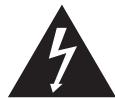
This "bolt of lightning" indicates
uninsulated material within your unit may cause an electrical shock. For
the safety of everyone in your household, please do not remove product covering.

The "exclamation point" calls attention
to features for which you should read
the enclosed literature closely to
prevent operating and maintenance problems.
WARNING: TO PREVENT FIRE OR
SHOCK HAZARD,DO NOT EXPOSE THIS
EQUIPMENT TO RAIN OR MOISTURE.
CAUTION: To prevent electric shock,
match wide blade of plug to wide slot, and fully insert.
For Customer Use
Enter below the Serial No. which is located on the rear of the cabinet. Retain this information for future reference.
Model No.
Serial No.
This product was designed and manufactured to meet strict quality and safety standards. There are, however, some installation and operation precautions which you should be particularly aware of.
- Read these instructions – All the safety and operating instructions should be read before the appliance is operated.
- Keep these instructions - The safety and operating instructions should be retained for future reference.
- Heed all warnings - All warnings on the appliance and in the operating instructions should be adhered to.
- Follow all instructions - All operating and use instructions should be followed.
- Do not use this apparatus near water – for example, near a bathtub, washbowl, kitchen sink, laundry tub, in a wet basement or near a swimming pool, etc.
- Clean only with a damp cloth. The appliance should be cleaned only as recommended by the manufacturer.
- Install in accordance with the manufacturers instructions. Do not block any of the ventilation openings. For example, the appliance should not be situated on a bed, sofa, rug, or similar surface or placed in a built-in installation, such as a bookcase or cabinet that may impede the flow of air through the ventilation openings.
- Do not install near any heat sources such as radiators, heat registers, stoves, or other apparatus (including amplifiers) that produce heat.
9. Do not defeat the safety
purpose of the polarized or grounding-type plug. A polarized plug has two blades with one
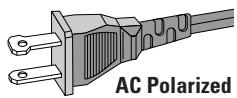
AC Polarized Plug
wider than the other. A grounding type plug has two blades and a third grounding prong. The wide blade or the third prong are provided for your safety. When the provided plug does not fit into your outlet, consult an electrician for replacement of the obsolete outlet.
- Protect the power cord from being walked on or pinched particularly at plugs, convenience receptacles, and the point where they exit from the apparatus.
- Only use attachments/accessories specified by the manufacturer.
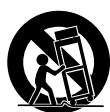
- Use only with a cart, stand, tripod, bracket, or table specified by the manufacturer, or sold with the apparatus. When a cart is used, use caution when moving the cart/apparatus combination to avoid injury from tip-over.
- Unplug this apparatus during lightning storms or when unused for long periods of time.
- Refer all servicing to qualified service personnel. Servicing is required when the apparatus has been damaged in any way, such as power-supply cord or plug is damaged, liquid has been spilled or objects have fallen into the apparatus, the apparatus has been exposed to rain or moisture, does not operate normally, or has been dropped.
EL 4562-E004:99/3
English 6
François. 32
Espanol 60
Canada
English: This digital apparatus does not exceed the Class B limits for radio noise emissions from digital apparatus as set out in the Radio Interference Regulations of the Canadian Department of Communications.
This warning lable is located on the rearside and inside this laser product.
CAUTION INVISIBLE 1970-28
LASER RADIATION
WHEN OPEN. DO NOT STARE INTO BEAM
DANGER INVISIBLE LASER RADIATION WHEN OPEN: AVOID DIRECT EXPOSURE TO BEAM
VARO! AVATTAESSA,JA SUJOLAIKUTIUS OHITETTAESSA OLET ALTTIINANAKYMTOMAALLE LASERSATEILEYLE. ALA KATSO SATESEEN.
WARNING! OSYNLIG LASERSTRÄLNG NÜR DENNA DEL A R OPPNDA. OCH SPARREN AR URKOPPLAD. BETRAKTA EJ STRÄNDEN.
or
DANGER - Invisible laser radiation when open.
AVOID DIRECT EXPOSURE TO BEAM.
Safety instructions 2-3
General information
Accessories supplied 6
Setup information. 6
Maintenance 6
Environmental information 6
Discs for recording 7
Discs for playback 7
CD(RW) handling 7
Controls and connections 8-9
Installation
Power 10
Speaker connections 10
Antenna connections. 10
Analog audio connections 11
Digital audio connections 11
Connecting a subwoofer 11
Remote control
Remote control buttons. 12
Remote control batteries 12
Display
Basic functions
Switching on, switching to standby 14
Loading the CD changer, CD recorder 14
Playing a CD(RW) 14
Sound control 15
Demo mode 15
Selecting a disc on the CD changer. 16
Selecting a track and searching 16
SHUFFLE and REPEAT 16
CD text. 16
Program
Programming track numbers 17
Erasing a track from the program 17
Clearing the program 17
Making a program for recording 17
About recording
Basic information 18
Direct Line Recording (DLR) 18
Auto Level Control (ALC) 18
REC LEVEL key. 18
Internal recording
Recording modes. 19
High speed recording and automatic finalizing 19
High speed recording 20
Normal recording and listening 20
Manual recording 21
External recording
Analog or digital recording? 22
Recording with automatic start 22
Manual recording 22
Automatic track increment 23
(Un)finalizing, erasing
Finalizing CDR(W) discs 23
Unfinalizing CDRW discs 24
Erasing from a CDRW disc 24
Features
EDIT TEXT (on CD recorder only) 25-26
Track editing (on CD changer only) 26
Tuner
Tuning to radio stations 27
Storing radio stations 27
Tuning to preset stations 27
Clock/Timer
Clock setting. 28
Sleep timer 28
Alarm timer 28
Record timer 29
Switching the alarm and record timer on/off. 29
Technical data
bubbleshooting 301
Limited warranty 31
Accessories supplied
- 2 speakers including 2 speaker cables
- Remote control
- 2 batteries for the remote control, size AA
- AM loop antenna
- FM wire antenna
- Power cable
Setup information
Place the unit on a flat, hard and stable surface. Make sure there is sufficient space around the unit to prevent overheating.
Active mobile phones close to the CDR Mini Hi-Fi system may cause malfunctions.
Maintenance
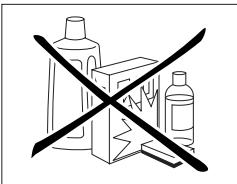
Clean the unit with a soft, slightly dampened, lint-free cloth. Do not use any cleaning agents as they may have a corrosive effect.
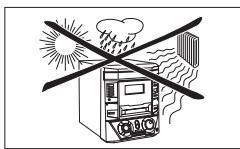
Do not expose the unit, batteries or discs to humidity, rain, sand or excessive heat (caused by heating equipment or direct sunlight).
Environmental information
All redundant packing material has been omitted. We have tried to make the packaging easy to separate into three mono materials: cardboard (box), polystyrene foam (buffer) and polyethylene (bags, protective foam sheet).
Your unit consists of materials which can be recycled if disassembled by a specialized company. Please observe the local regulations regarding the disposal of packing materials, dead batteries and old equipment.
As an ENERGY STAR® partner, Philips has determined that this product meets the ENERGY STAR guidelines for energy efficiency

Discs for recording
For recording, make sure to use special audio discs only. These discs are marked "Digital Audio" and with the logos shown below.
Two different types of audio discs are usable on this CD recorder:
- CD-Audio Recordable (CDR) discs
These discs can be recorded once and will play on all standard CD players and CD recorders, when finalized.
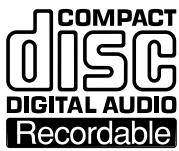
- CD-Audio ReWritable (CDRW) discs
These discs can be recorded, erased and rerecorded many times and will play on CDRW compatible CD players and CD recorders, when finalized.
All Philips CD players and CD recorders with this sticker are CDRW compatible.

To ensure proper working of the unit, we recommend the use of Philips audio CDR and audio CDRW discs only.
Note: Do not use a computer CDR or CDRW as recording will not work properly!
Recording is permissible insofar as copyright or other rights of third parties are not infringed upon.
In some countries, the use of the Philips CDR Mini Hi-Fi system as shown or suggested in this user manual may require the authorization of copyright holders.
Discs for playback
For playback on this CD changer and CD recorder you can use the following audio discs:
- All pre-recorded audio CDs
- All audio CDR and audio CDRW discs
Notes: - Do not try to play a CD-ROM, CD-I or CDV!
- CDR(W) discs, which are recorded on a computer, can only be used when they are correctly treated according to the audio standard (IEC958: Consumer part). Single session only!
CD(RW) handling
If the CDR Mini Hi-Fi system fails to read discs correctly, use a commonly available cleaning-CD to clean the lenses before submitting the unit to repair. Other cleaning methods may destroy the lenses. Always keep the trays closed to avoid dust on the lenses.
The lenses may cloud over when the unit is suddenly moved from cold to warm surroundings. Playing a CD(RW) is not possible then. Leave the unit in a warm environment until the moisture evaporates.
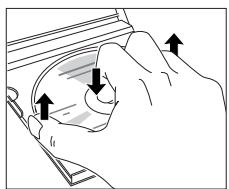
To take a CD(RW) out of its box easily, press the center spindle while lifting the CD(RW). Always pick up a CD(RW) by the edge and put it back in its box after use. Never write on a CD or attach a sticker to it. Write only on the printed side of a CDR or CDRW, and only with a soft, felt-tipped pen.
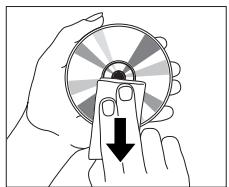
To clean a CD(RW), wipe it in a straight line from the center toward the edge using a soft, lint-free cloth. A cleaning agent may damage the disc!
CAUTION
Use of controls or adjustments or performance of procedures other than herein may result in hazardous radiation exposure or other unsafe operation.
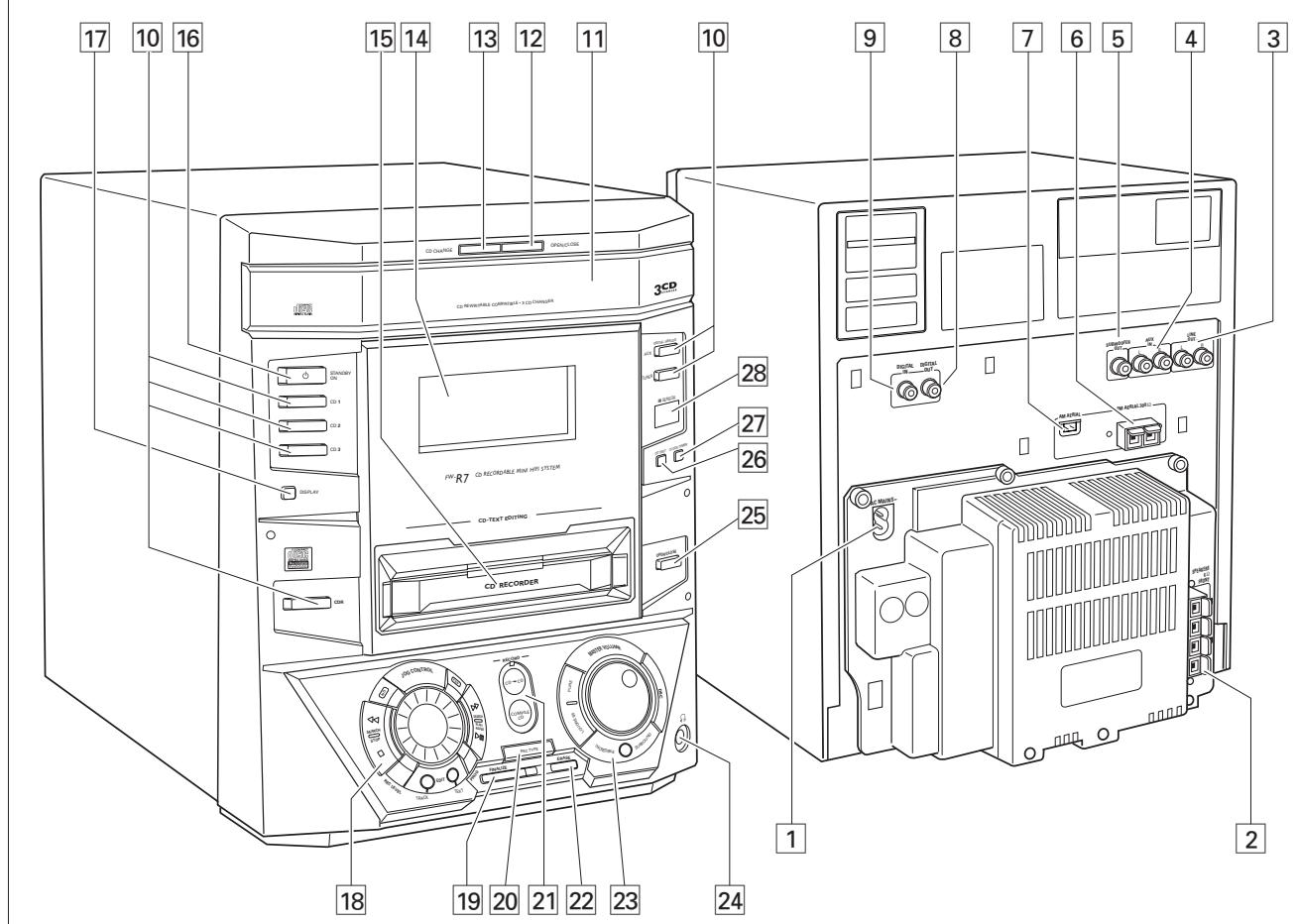
On the back
1 AC MAINS ~ After all other connections have been made, connect the power cord to the power outlet. For optimal performance use only the original power cable.
2 SPEAKERS 6 Ω FRONT L/R...connect to the supplied speakers
3 LINE OUT L/R... .connect to the analog audio input of an additional appliance
4 AUX IN L/R . . . . . . . . . . . . . . . . . . . . . . . . . . . . . . . . . . . . . . . . . . . . . . . . . . . . . . . . . . . . . . . . . . . . . . . . . . . . . . . . . . . . . . . . . . . . .. connect to the analog audio output of an additional appliance
SUBWOOFER OUT.........connect to the input of a subwoofer
6 FM AERIAL 300 Ω.........connect the supplied wire antenna here
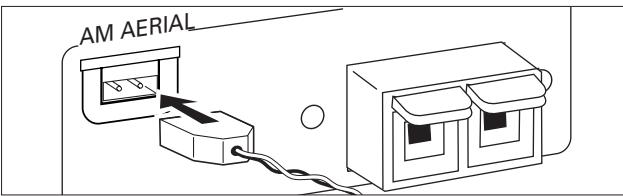
7 AM AERIAL . . . . . . . . . . . . . . . . . . . . . . . . . . . . . . . . . . . . . . . . . . . . . . . . . . . . . . . . . . . . . . . . . . . . . . . . . . . . . . . . . . . . . . . . . . . . . . . . . . .. connect the supplied loop antenna here
8 DIGITAL OUT... connect to the coaxial input of a digital appliance
9 DIGITAL IN . . . . . . . . . . . . . . . . . . . . . . . . . . . . . . . . . . . . . . . . . . . . . . . . . . . . . . . . . . . . . . . . . . . . . . . . . . . . . . . . . . . . . of a digital appliance
On the front
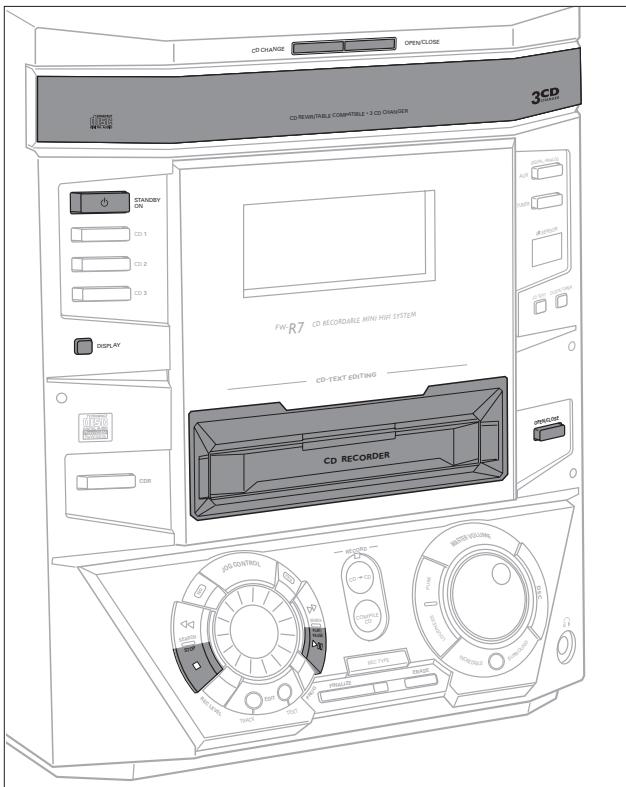
10 Source selection
CD 1, CD 2, CD 3 selects the CD changer, switches to CD 1, CD 2 or CD 3
CDR.........selects the CD recorder
TUNER selects the tuner
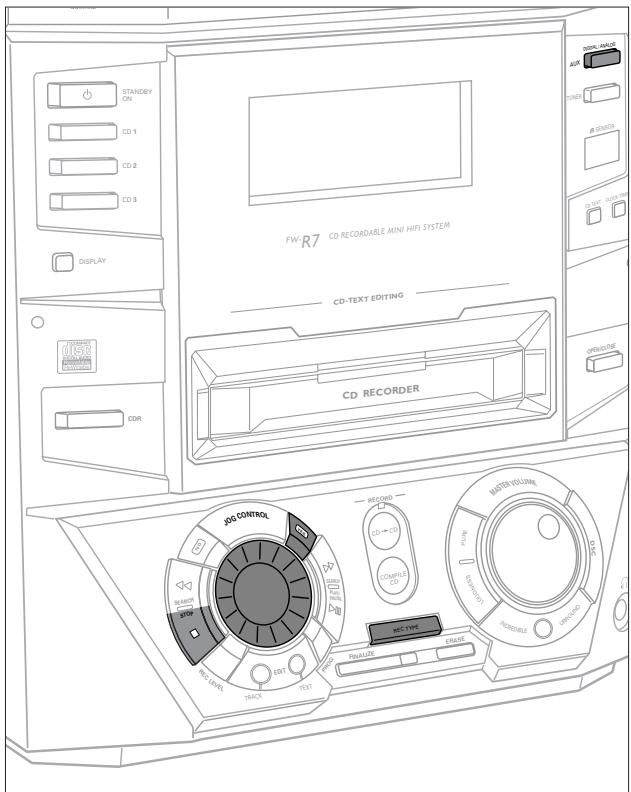
DIGITAL / ANALOG AUX....selects the input for an additional appliance
11 CD changer tray
12 OPEN/CLOSE. opens and closes the CD changer tray
13 CD CHANGE selects the next disc tray
14 display
15 CD REORDER CD recorder tray
16 STANDBY ON.....switches the unit on and to standby
17 DISPLAY selects display information/text
18 Multiple function control
Rotary control:
JOG CONTROL CDC, CDR: selects the previous/next track TUNER: selects the previous/next preset tuner station
Keys to press:
YES .confirms a selection
SEARCH CDC, CDR: searches forward, reviews the tracks in a program, controls the cursor in different menus TUNER: tunes to a higher radio frequency
PLAY/PAUSE .starts and interrupts playback/recording
PROG .opens/closes the program menu
EDIT TEXT....enters/exists the text edit menu
EDIT TRACK....enters/exists the track edit menu
REC LEVEL. enables the rotary control to adjust the level for recordings
STOP stops CD play/record, closes program memory
SEARCH CDC, CDR: searches backward, reviews the tracks in a program, controls the cursor in different menus TUNER: tunes to a lower radio frequency
NO. . cancels a selection
19 FINALIZE.......finalizes and unfinalizes recordings
20REC TYPE....enters/exists the recording menu
21 RECORD CD→CD selects high speed recording and automatic finalizing of current CD
COMPILE CD selects high speed recording and automatic finalizing of current program
22 ERASE erases recordings
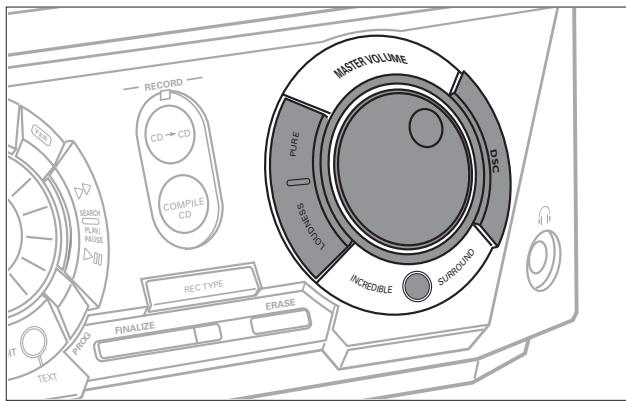
Sound control
MASTER VOLUME .adjusts the volume
DSC .DIGITAL SOUND CONTROL selects sound characteristics
INCRIDIBLE SURROUND .creates an incredibly wide stereo effect
LOUDNESS boosts treble and bass PURE switches DSC settings on/off
24 3.5 mm headphone jack Note: Connecting the headphones will switch off the speakers.
25 OPEN/CLOSE. opens and closes the CD recorder tray
26 CD TEXT.........switches through CD text information
27 CLOCK/TIMER selects the clock function, activates and deactivates the timer
28 iR SENSOR sensor for the infrared remote control
Note: You will recognize that various keys will be illuminated on the unit depending on the different modes or programs you are in. This is for your guidance in order to facilitate the finding of the relevant keys for selection.
Power
The type plate is located on the rear of the unit.
1 Check whether the power voltage as shown on the type plate corresponds to your local power voltage. If it does not, consult your dealer or service organization.
2 Make sure all connections have been made before switching on the power supply.
3 Connect the supplied power cable to AC MAINS ~ and to the power outlet. This switches on the power supply.
For optimal performance use only the original power cable.
When the unit is switched to standby, it is still consuming some power. To disconnect the unit from the power completely, remove the power cable from the power outlet.
To avoid overheating of the set, a safety circuit has been built in. Therefore, your unit may disconnect under extreme conditions. If this happens, switch the unit off and let it cool down before reusing it.
Speaker connections
The speaker connections are click-fit connectors. Use them as shown below.
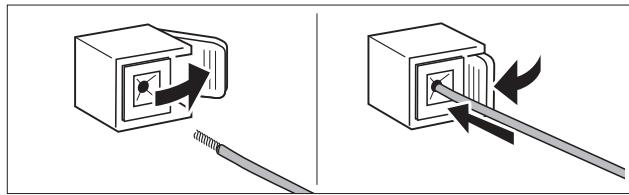
1 Connect the colored (or marked) wire to the red terminal and the black (or unmarked) wire to the black terminal.
2 Connect:
- Left speaker to L (red and black)
- Right speaker to R (red and black)
Antenna connections
AM antenna
The supplied loop antenna is for indoor use only.
1 Fit the plug of the loop antenna to AM AERIAL as shown below.
2 Position the antenna as far as possible from a TV, VCR or other radiation sources.
3 Turn the antenna for optimum reception.
FM antenna
The supplied wire antenna can only be used to receive nearby stations. For better reception we recommend using a cable antenna system or an outdoor antenna.
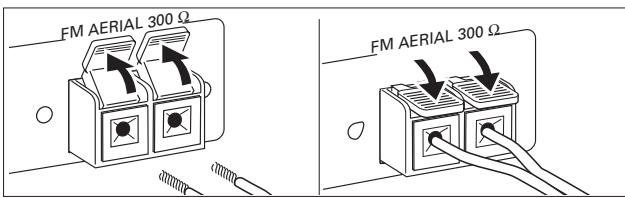
1 Open the FM AERIAL 300 Ω click-fits by pushing the lever down as shown below.
2 Insert each wire of the antenna into one hole.
3 Close the click-fits using the lever.
4 Move the antenna in different positions for optimum reception.
The unit complies with the FCC-Rules, Part 15 and with 21 CFR 1040.10. Operation is subject to the following two conditions:
- This device may not cause harmful interference, and
- This device must accept any interference received, including interference that may cause undesired operation.
Analog audio connections
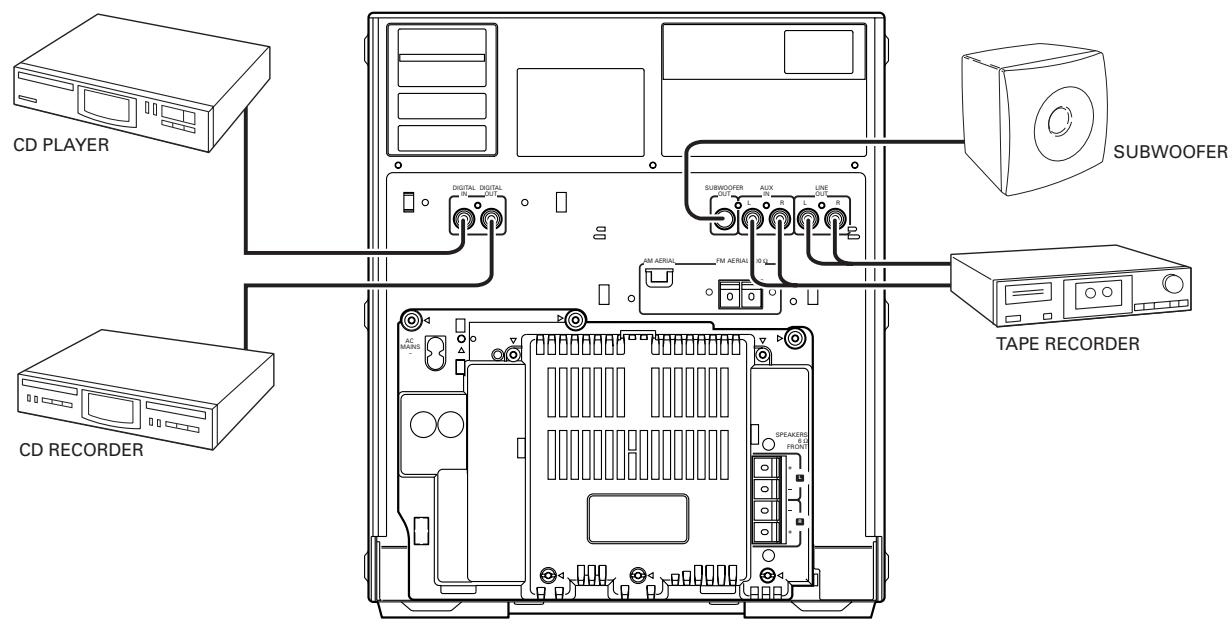
AUX IN L/R
It is possible to use an additional appliance, e.g. tape recorder, TV or VCR, with the unit.
1 Insert the red plug of a cinch cable to the red jack AUX IN R and insert the white plug to the white jack AUX IN L.
2 Connect the other end of the cinch cable to the audio outputs of the additional appliance.
3 Press DIGITAL / ANALOG AUX repeatedly to select the analog input for the appliance.
→AUX Analog is displayed.
4 Operate your appliance as usual and adjust volume and sound with the unit.
Note: It is not possible to connect a turntable directly to AUX IN L/R. If you wish to use a turntable with the unit, you have to connect an amplifier to AUX IN L/R on the unit. Then connect the turntable to the amplifier.
LINE OUT L/R
You can use these outputs for playback or recording on any analog audio equipment e.g. amplifier or tape recorder.
- Use a cinch cable to connect the analog audio inputs of the additional appliance with LINE OUT L/R on the unit and operate your appliance as usual.
Digital audio connections
DIGITAL IN
You can use this coaxial input for recordings from any digital audio equipment with a digital coaxial output e.g. CD player or DVD player.
1 Use a coaxial cable to connect the coaxial output of the additional appliance with DIGITAL IN on the unit.
2 Press DIGITAL / ANALOG AUX repeatedly to select the digital input for the appliance.
→FUX Digital is displayed.
3 Operate your appliance as usual.
DIGITAL OUT
You can use this coaxial output for recordings on any digital audio equipment with a digital coaxial input e.g. CD recorder.
- Use a coaxial cable to connect the coaxial input of the additional appliance with DIGITAL OUT on the unit and operate your appliance as usual.
Connecting a subwoofer
A subwoofer can be used to enhance the bass performance of your unit dramatically.
1 Use a cinch cable to connect the input of the subwoofer with SUBWOOFER OUT at the unit.
2 Follow the instructions supplied with the subwoofer.
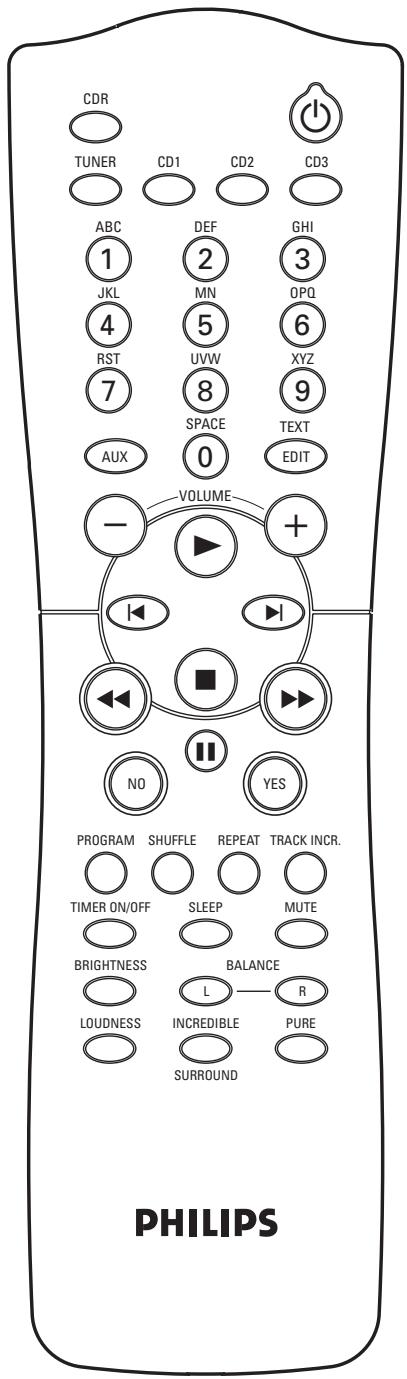
Remote control buttons
. switches the unit to standby
CDR, TUNER, CD1,
CD2, CD3, AUX.....selects the sources
Number/alphabet keys
1-0 keys in numbers for tracks or stations
ABC - XYZ .........keys in letters for text
SPACE keys in a space within the text
EDIT TEXT.........enters the text edit menu
VOLUME.........decreases the volume
- VOLUME......increases the volume
.starts playback/recording
..CDC, CDR: selects the previous track TUNER: selects the previous preset tuner station
CDC, CDR: selects the next track TUNER: selects the next preset tuner station
stops CD play/recording, closes program memory
CDC, CDR: searches forward, reviews the tracks in a program, controls the cursor in different menus
TUNER: tunes to a higher radio frequency
CDC, CDR: searches backward, reviews the tracks in a program, controls the cursor in different menus
TUNER: tunes to a lower radio frequency
interrupts playback/recording
YES selects a selection
NO .........cancels a selection
PROGRAM .opens/closes the program menu
SHUFFLE.........plays tracks in random order
REPEAT . . . repeats a track, the entire CD(RW) or the program
TRACK INCR. .........selects automatic or manual increment of a track
TIMER ON/OFF......activates and deactivates the timer
SLEEP............activates the sleep timer
MUTE....mutes the sound
BRIGHTNESS.....controls the brightness of the display
L BALANCE........... adjusts the volume balance to the left speaker
R BALANCE ............ adjusts the volume balance to the right speaker
LOUDNESS......... boosts treble and bass
INcredible
SURROUND . . . creates an incredibly wide stereo effect
PURE.........switches DSC settings on/off
Note: Always press the source key of the source you wish to control (e.g. CD1) before selecting the desired function key (e.g. SHUFFLE).
Remote control batteries
Open the battery compartment of the remote control and insert 2 alkaline batteries, type AA (R06, UM-3).
Do not use old and new or different types of batteries in combination.
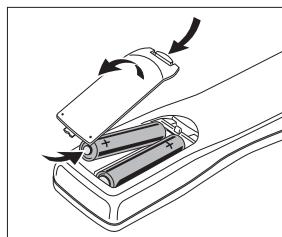
Remove batteries if they are dead or if the remote control is not to be used for a long time.
Batteries contain chemical substances, so they should be disposed of properly.
Display
The display of the unit is divided into 3 sections, which show you the following:
Information area
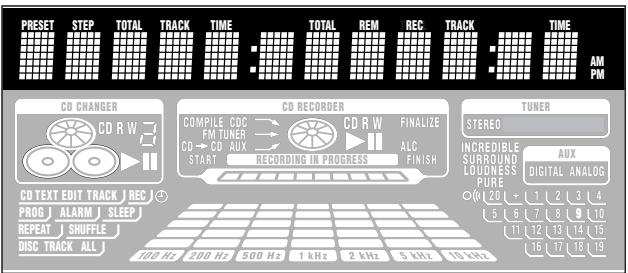
This area is used for feedback of the CD changer, CD recorder, tuner frequencies, menu options, values and scrolling text messages.
Status lights and flags
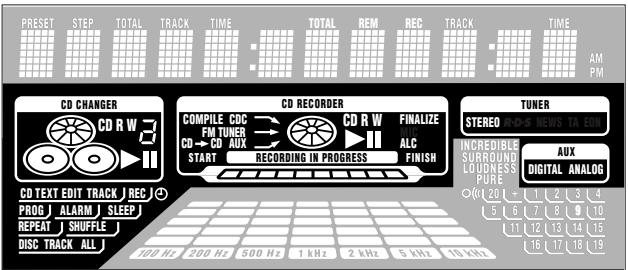
Flags
CD TEXT CD text is available
CD TEXT EDIT .text edit menu is active
EDIT TRACK . . . . . . . . . . . . . . . . . . . . . . . . . . . . . . . . . . . . . . . . . . . . . . . . . . . . . . . . . . . . . . . . . . . . . . . . . . . . . . . . . . . . . . .
REC ① .record timer is selected
PROG program menu is active
① .clock is selected
ALARM alarm timer is selected
SLEEP... sleep timer is selected
REPEAT DISC.........selected disc is played repeatedly
REPEAT TRACK.........current track is played repeatedly
REPEAT ALL... all discs in the CD changer (or the program) are (is) played repeatedly
SHUFFLE. either all tracks of the program or of the loaded disc(s) in the CD changer or CD recorder are played in random order
CDChanger

playback is activated
playback is interrupted
CD 1,2,3.......disc tray 1, 2 or 3 is selected and loaded with a pre-recorded CD, finalized CDR or CDRW
CD R 1,2,3.......disc tray 1,2 or 3 is selected and loaded with an unfinalized CDR
CD RW 1,2,3.......disc tray 1,2 or 3 is selected and loaded with an unfinalized CDRW
CD Recorder
COMPILE CDC ....current program is being recorded with high speed dubbing and auto finalize
FM TUNER FM station is being recorded
CD CD . current disc is being recorded with high speed dubbing and auto finalize
AUX material from an external source is being recorded
playback is activated
playback is interrupted
RECORDING IN PROGRESS...recording in progress
START FINISH ......status of recording progress is shown
CD......... pre-recorded CD, finalized CDR or CDRW inserted
CD R............unfinalized CDR inserted
CD RW .unfinalized CDRW inserted
FINALIZE (un)finalizing will start
ALC .........auto level control is active
Tuner
STEREO FM station is being received in stereo
AUX
DIGITAL .digital input in use for external source
ANALOG. ..analog input in use for external source
Music calendar, sound lights and remote control
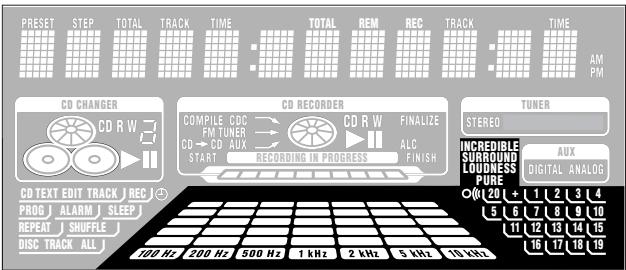
INcredible Surround...Incredible Surround is active
Loudness . . . . . . . . . . . . . . . . . . . . . . . . . . . . . . . . . . . . . . . . . . . .
PURE . DSC settings are switched off
O command from remote control is being received
Music calendar
1-20. CDC, CDR: actual track number played, number of tracks on a disc/program TUNER: preset number of tuned station
+..... CDC, CDR: disc or program contains more than 20 tracks TUNER: more than 20 radio stations are stored
......spectrum analyzer
Switching on, switching to standby
- To switch the unit on press ☑ STANDBY ON on the unit.
- To switch the unit to standby press STANDBY ON again on the unit (on the remote control).
Loading the CD changer, CD recorder
Important!
1) This system is designed for regular CD(RW)s. Therefore, do not use any accessories such as disc stabilizer rings or CD treatment sheets, etc. as offered on the market, because they may cause jamming of the changer mechanism.
2) Do not load more than one disc into one disc tray.
1 CD changer:
Press OPEN/CLOSE on the unit to open the CD changer tray.
→Open CDC is displayed and the tray is opened.
CD recorder:
Press OPEN/CLOSE on the unit to open the CD recorder tray.
→Open CDR is displayed and the tray is opened.
2 CD changer:
You can load up to three discs in the CD changer for continuous playback without interruption. Insert an audio disc (printed side up) in the right disc tray.
- You can load another disc in the left disc tray.
- To insert a third audio disc, press CD CHANGE on the unit. The CD carousel will rotate until the empty disc tray is at the right hand side.
CD recorder:
Insert an audio disc (printed side up) in the tray.
3 CD changer:
Press OPEN/CLOSE on the unit again to close the tray.
The tray is closed and Reading is displayed.
If an unfinalized disc is inserted, Initializing will be displayed.
- CD, the disc tray number, the total number of tracks and the total playing time of the disc in the last selected disc tray are displayed. The track numbers light up in the music calendar.
CD recorder:
Press OPEN/CLOSE on the unit again to close the tray.
The tray is closed and Reading is displayed.
If an unfinalized disc is inserted, Initializing will be displayed.
→CDR, the total number of tracks and the total playing time of the disc are displayed. The track numbers light up in the music calendar.
Playing a CD(RW)
1 Press PLAY/PAUSE (on the remote control) to start playback.
CD changer:
CD, the disc tray number, the current track number and elapsed playing time are displayed. The current track number is also blinking in the music calendar.
CD recorder:
→CDR, the current track number and elapsed playing time are displayed. The current track number is also blinking in the music calendar.
- To switch through the following information, repeatedly press DISPLAY on the unit:
Track number, remaining playing time of current track
Track number, remaining playing time of disc
Track number, actual playing time of current track
2 Press STOP (on the remote control) to stop playback.
CD changer:
CD, the disc tray number, the total number of tracks and the total playing time of the disc are displayed.
CD recorder:
→CDR, the total number of tracks and the total playing time of the disc are displayed.
- To switch through the following information, repeatedly press DISPLAY on the unit:
Total number of tracks, total playing time of disc
CD text is displayed.
- You can interrupt playback by pressing PLAY/PAUSE (on the remote control).
The time where playback was interrupted is blinking. - To resume playback press PLAY/PAUSE (▶ on the remote control) again.
Sound control
Volume adjustment
- Adjust the volume by using MASTER VOLUME (-VOLUME / + on the remote control).
The volume level in dE (decibel) is displayed.
DSC
Digital Sound Control enables you to select different preset sound settings.
- Press DSC repeatedly to select the desired sound characteristics.
Optimal, Jazz, Classic, Rock, Vocal, Techno.
Incredible Surround
Stereo sound is determined by the distance between the front speakers. Incredible Surround enables you to enjoy an incredibly wide stereo effect, regardless of the speakers' distance.
- Press INCRIDIBLE SURROUND (INCRIDIBLE SURROUND on the remote control) to switch the surround sound effect either on or off.
INcredible SURROUND is shown and Incredible Surround is displayed if the surround sound effect is on.
Note: The effect of Incredible Surround may vary with different types of music.
PURE
- Press PURE repeatedly to switch the DSC settings either on or off.
PURE is shown and Pure is displayed if the DSC settings are switched off.
LOUDNESS
- Press LOUDNESS to switch loudness either on or off.
LOUDNESS is shown and Loudness is displayed if loudness is on.
MUTE
This feature allows you to temporarily switch off the sound without switching off the unit.
1 Press MUTE on the remote control to switch off the sound.
→Mu t e is displayed and playback/recording will be continued without sound.
2 Press MUTE on the remote control again to switch on the sound again.
Speaker balance
It is possible to adjust the relative volume balance between the connected front speakers.
- Press L BALANCE or R BALANCE on the remote control to adjust the relative volume of the left or right front speaker.
→Balance L (or R) and the actual volume of the left (or right) front speaker are displayed.
When the volume of both speakers is balanced, Balance L = R is displayed.
Demo mode
The demo mode displays various features of the unit and will start automatically.
- If any source key is pressed:
The unit switches to the selected source.
If STANDBY ON is pressed:
The unit switches to standby. After a few seconds, the demonstration will start again.
Cancelling the demo mode
- Keep STOP on the unit pressed for at least 3 seconds to cancel the demo mode.
The demo mode is cancelled permanently. The unit switches to standby. A few seconds later the unit switches to an economy power save mode.
Selecting a disc on the CD changer
- Press either CD 1, CD 2 or CD 3 to select a particular disc.
Selecting a track and searching
Selecting a track during playback
- Rotate JOG CONTROL (press or on the remote control) to skip to the beginning of the previous or next track on the selected disc.
→Playback continues with the selected track.
Selecting a track when playback is stopped
1 Rotate JOG CONTROL (press or on the remote control) to skip to the required track number.
2 Press PLAY/PAUSE (▶ on the remote control) to start playback.
→Playback starts with the selected track.
Note: Instead of using or on the remote control, you can also directly key in the required track number by using the numerical keys. For 2-digit numbers, press the keys in rapid succession.
Searching for a passage during playback
- Keep SEARCH or SEARCH ( or on the remote control) pressed to find a particular passage in a backward or forward direction.
Searching is started and playback continues at a low volume. After 3 seconds, the search speeds up with volume muted.
2 Release the key at the desired passage.
Normal playback continues.
Note: During SHUFFLE, while repeating a track or while playing a program, searching is only possible within the current track.
SHUFFLE and REPEAT
Repeating a track, the disc or the program
1 Repeatedly press REPEAT on the remote control during playback to select either:
REPEAT TRACK: The current track is played repeatedly.
REPEAT DISC: The entire selected disc is played repeatedly.
→REPEAT ALL: All discs in the CD changer (or the program) are (is) played repeatedly.
2Playback starts in the chosen mode.
3 To return to normal playback, press REPEAT on the remote control until the display indication disappears.
Note: REPEAT DISC is not possible during SHUFFLE or while playing a program.
Playing tracks in random order
1 Press SHUFFLE on the remote control during playback.
SHUFFLE is shown and either all tracks of the program or of the loaded disc(s) in the CD changer or CD recorder are played in random order.
2 To return to normal playback, press SHUFFLE again.
CD text
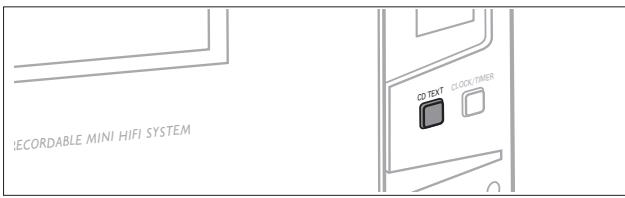
This feature allows the display of information such as album title or track title contained on a specially encoded CD.
- Make sure to insert a CD with CD text.
CD TEXT is shown and the album title is scrolled once.
CD text when playback is stopped
-
Press CD TEXT on the unit to see the following information, which will be scrolled once (if available):
-
Album title
Artist's name on album
CD text during playback
-
Press CD TEXT on the unit to see the following information, which will be scrolled once (if available):
-
Artist's name on track (on CD recorder only)
Track title
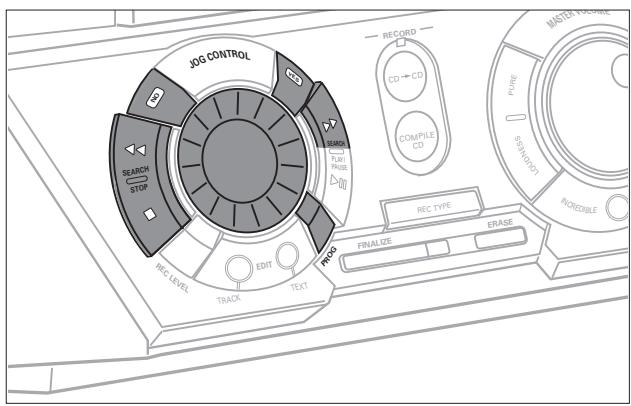
Programming track numbers
You can select tracks and store them either in the CD changer or CD recorder memory. If you use the program for playback you can choose one of the two memories, else if you like to specify tracks for recording, use the CD changer memory only! You can store any track more than once.
1 Load the desired disc(s) in the disc tray(s).
2 Press either CD 1, CD 2, CD 3, or CDR to select the disc.
3 Press PROG on the unit (PROGRAM on the remote control).
PROG starts blinking and Program is displayed.
4 If either CD 1, CD 2 or CD 3 is selected:
Rotate JOG CONTROL to select either:
CD1 (or 2, 3) H11: All tracks of CD 1 (or 2, 3) will be programmed.
CD1 (or 2, 3) and track number: The track number of CD 1 (or 2, 3) will be programmed.
If CDR is selected:
Rotate JOG CONTROL (press the numerical keys on the remote control; for 2-digit numbers, press the keys in rapid succession) to select a track number.
5 Press YES to store your selection in the memory.
The number of programmed tracks (STEP), Prog and the total program time are displayed. The track number blinks in the music calendar.
6 Select and store all desired tracks in this way.
7 Press PROG on the unit (PROGRAM on the remote control) to end programming.
PROG stays shown and the program is currently available.
Note: If the maximum number of programmable tracks is reached, the display shows Program full.
Erasing a track from the program
1 If necessary, press STOP on the unit (■ on the remote control) to stop playback.
2 Press either CD 1, CD 2, CD 3, or CDR to select the desired memory.
3 Press PROG (PROGRAM on the remote control), followed by SEARCH or SEARCH (or on the remote control) to move through the program steps.
The track number at the selected step and the total program time are displayed.
4 Press NO to remove the track from the program.
Cleared is displayed briefly.
The next programmed track number will move up to this position and is displayed together with the step number and the remaining total program time.
Clearing the program
1 If necessary, press STOP on the unit (■ on the remote control) to stop playback.
2 Press NO.
Clear Prog? is displayed.
3 Press YES to clear the program.
Prog Cleared will be displayed and PROG goes off.
Note: When you open the CD recorder tray or the CD changer tray the respective program will be cleared.
Making a program for recording
1 Select and store all desired tracks in the CD changer memory (see "Programming track numbers").
2 Enter the recording menu (see "Internal recording").
- If the total time of the program is of larger size than the remaining recording time of the CDR(W):
Not fitting! will be displayed briefly, followed by the remaining recording time and Record Prog? If you nevertheless start recording, only those tracks of the program that fit onto the CDR(W) will be recorded in entirety.
- To change the program, press NO.
Edit Program will be displayed briefly, PROG and the time of the program start blinking. Now you can change the program (see "Programming track numbers", "Erasing a track from the program" and "Clearing the program").
Basic information
The CD recorder deck offers you 3 main functions:
- Recording from the internal CD changer and tuner or from a selected external source
- Finalizing your CDR(W) discs and unfinalizing your CDRW discs
Erasing a CDRW disc
The recording procedure is the same for CDR and CDRW discs.
Make sure the CDR(W) is absolutely free of scratches and dust particles.
For recordings, the minimum track length is 4 seconds. You can record up to a maximum of 99 tracks on a disc. The minimum of recording time left on the disc is 7 seconds. Otherwise Does not fit is displayed and you cannot enter the record standby mode.
DO NOT FORGET TO FINALIZE!
Finalizing a CDR(W) disc is a simple procedure, necessary to: - play a recorded CDR on a standard CD player or
- play a recorded CDRW on a CDRW compatible CD player and CD recorder.
Copyright protection
The Serial Copy Management System (SCMS) prevents the making of a digital copy from a digital copy. The system allows making a digital recording from the original, however in some countries this may require the authorization of copyright holders.
When you try to record copy protected material from an external source, Copy Protect will be displayed. No further digital recording is possible then.
When you try to record copy protected material from the internal CD changer, no digital recording is possible, however the CD recorder will automatically switch to analog recording.
Recording CD text
If the original CD has CD Text, this text will be recorded automatically, provided that the CD text is not copy protected. In that case, recording of CD text will not be possible and Text Protect will be displayed.
Direct Line Recording (DLR)
The CD recorder is equipped with the high-performance Direct Line Recording technique. It ensures a perfect recording of the source material, meaning a true "bit for bit" recording. DLR will always become active when you make normal recordings in listen mode.
Auto Level Control (ALC)
Auto Level Control ensures that the tracks on the recorded disc have a similar volume level. At all times the already recorded tracks of the CDR(W) disc will be taken as reference for the volume level of the following recordings. ALC is active when ALC is shown.
Auto level control becomes active when:
- COMPILE CD is being used,
- a disc, a track or a track edit is being high speed recorded and the CDR(W) has recordings on it,
- a program (consisting from more than one disc) from the CD changer is being high speed recorded, or
- CD→CD is being used and the CDR(W) has recordings on it.
Auto level control will not become active when:
- CD→CD is being used and the CDR(W) has no recordings on it,
- making recordings from the FM tuner,
- making recordings from an external source, or
- making normal recordings in listen mode.
REC LEVEL key
You can adjust the reference record level. This is also possible when ALC is active. This feature can be used for fading your recordings in or out.
1 Keep REC LEVEL on the unit pressed to enable the rotary control to adjust the record level.
2 Turn the rotary control to the left to adjust the desired record level.
The actual record level (in dB) will be displayed.
- The record level is reset after the unit has been switched to standby.
Recording modes
For internal recordings you can record from the internal CD changer or tuner. You can choose from the following recording modes:
High speed recording and automatic finalizing: Fast and easy! Record and finalize your CDR(W) in one quick step while the sound is muted. You can record the current CD or a program from the CD changer.
High speed recording:
Record your CDR(W) fast while the sound is muted.
You can record an entire CD, a track, a program or a track edit from the CD changer.
- Normal recording and listening:
Listen to the recording while you are making it.
You can record an entire CD, a track, a program or a track edit from the CD changer.
- Manual recording:
Start and stop your recording manually while listening to it. You can do radio recordings from the FM tuner.
High speed recording and automatic finalizing
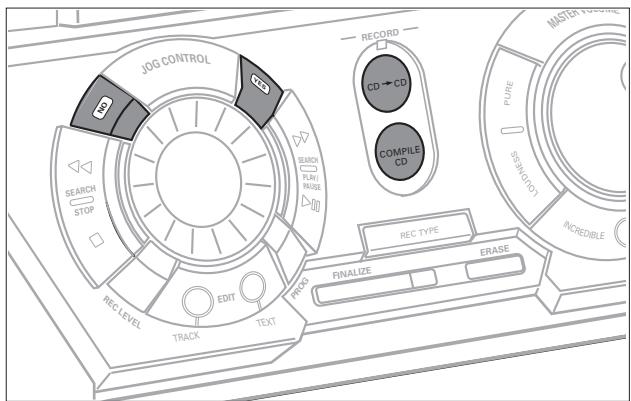
High speed recording and automatic finalizing of the current disc
1 Make sure the CDR(W) is absolutely free of scratches and dust particles.
2 Press CD CD on the unit to enter the recording mode.
Both decks will be selected in the display, the arrow starts blinking. The remaining recording time of the CDR(W), the total playing time of the source CD and Record CD1 (or 2, 3)? are displayed.
3 Press YES to start recording and finalizing.
The arrow lights, RECORDING IN PROGRESS is shown, high speed recording and finalizing start, and the actual recording time remaining starts to count down.
Note: If a program was already available before pressing CD→CD, this will be ignored. PROG goes off and the current disc will be recorded. After finishing the recording, PROG is shown and the program is available again.
High speed recording and automatic finalizing (optional) of the current program
1 Make sure the CDR(W) is absolutely free of scratches and dust particles.
2 Press COMPILE CD on the unit to enter the record mode.
Both decks will be selected in the display, the arrow starts blinking. The remaining recording time of the CDR(W), the total playing time of the source CD and Record Prog? are displayed.
3 Press either:
YES to confirm,
or
NO to change the program.
→PROG starts blinking. Now you can change the program (see "Program") and return to the record mode by pressing COMPILE CD.
4 Auto Fin? is displayed.
Press either:
YES, if the CDR(W) is to be finalized after recording, or
NO, if the CDR(W) is not to be finalized after recording.
The arrow lights, RECORDING IN PROGRESS is shown, high speed recording and finalizing (if selected) start and the actual recording time remaining starts to count down.
Note: If no program is available and you press COMPILE CD, you enter immediately into the program menu. Start your programming and return to the record mode by pressing PROGRAM or COMPILE CD.
DO NOT FORGET TO FINALIZE!
Finalizing a CDR(W) disc is a simple procedure, necessary to: - play a recorded CDR on a standard CD player or - play a recorded CDRW on a CDRW compatible CD player and CD recorder.
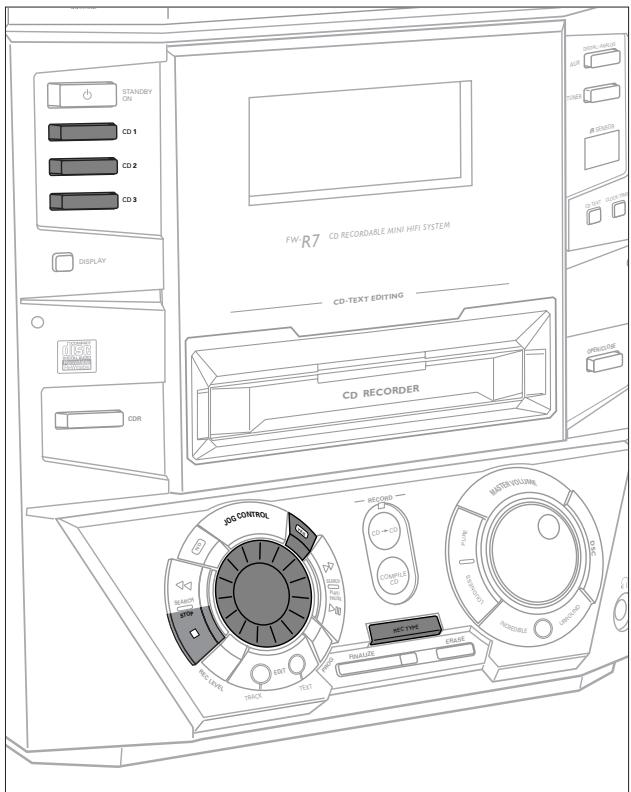
High speed recording
High speed recording of an entire disc, a track, a program or a track edit
1 Make sure the CDR(W) is absolutely free of scratches and dust particles.
2 Press either CD 1, CD 2 or CD 3 to select the disc from which you wish to record.
3 Press REC TYPE on the unit to enter into the recording menu.
4 Rotate JOG CONTROL to select one of the following high speed recording modes:
If a disc from the CD changer is selected:
→CD Fas t?: for high speed recording of an entire disc
- Continue with step 5.
→Track Fast?: for high speed recording of a track
- Press YES to confirm.
- Rotate JOG CONTROL to select the track.
Rec Tr and the track number is displayed.
- Continue with step 6.
If CD changer program mode is available:
→Prog Fast?: for high speed recording of the selected disc or of the program
If CD changer track edit mode is available:
→H-B Fas t?: for high speed recording of the A-B track
5 Press YES to confirm your selection.
Both decks will be selected in the display, the arrow starts blinking. The remaining recording time of the CDR(W), the total recording time of the CDR(W) and either Record CD1 (or 2, 3)?, Record Prog? or Record A-B? is displayed.
Note: When the CDR(W) already contains a recording, ALC will also become active and ALC will be shown.
6 Press YES to start high speed recording.
The arrow lights, RECORDING IN PROGRESS is shown, high speed recording starts and the actual recording time remaining starts to count down.
- To stop recording, press STOP on the unit.
Normal recording and listening
Normal recording and listening of an entire disc, a track, a program or a track edit
1 Make sure the CDR(W) is absolutely free of scratches and dust particles.
2 Follow steps 2 and 3 of "High speed recording".
3 Rotate JOG CONTROL to select one of the following normal record options:
If CD changer is selected:
→CD Listen?: for listening to the entire disc during normal recording
→TrackListen?: for listening to the track during normal recording
- Press YES to confirm.
- Rotate JOG CONTROL to select the desired track.
→Rec Tr and the track number is displayed. - Continue with step 6 of "High speed recording".
If CD changer program mode is available:
→Prog Listen?: for listening to the program during normal recording
If CD changer track edit mode is available:
→A-B Listen?: for listening to the A-B track during normal recording
4 Follow steps 5 and 6 of "High speed recording".
- To stop recording, press STOP on the unit.
DO NOT FORGET TO FINALIZE!
Finalizing a CDR(W) disc is a simple procedure, necessary to: - play a recorded CDR on a standard CD player or - play a recorded CDRW on a CDRW compatible CD player and CD recorder.
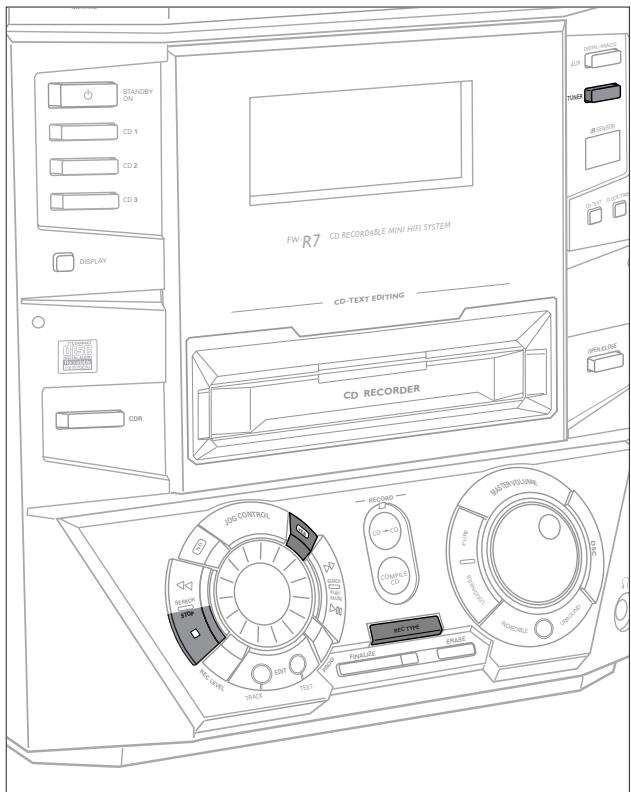
Manual recording
Manual recording from the FM tuner
1 Make sure the CDR(W) is absolutely free of scratches and dust particles.
2 Press TUNER repeatedly to select the FM tuner. Then select the desired radio station (see "Tuning to radio stations").
3 Press REC TYPE on the unit to enter the recording menu. FM Tuner? is displayed.
4 Press YES to confirm.
→Wait and Record? are displayed.
5 Press YES to start recording.
→The arrow lights, RECORDING IN PROGRESS is shown, manual recording starts and the actual recording time remaining starts to count down.
6 Press STOP to stop recording.
DO NOT FORGET TO FINALIZE!
Finalizing a CDR(W) disc is a simple procedure, necessary to: - play a recorded CDR on a standard CD player or - play a recorded CDRW on a CDRW compatible CD player and CD recorder.
Analog or digital recording?
When making recordings from an external source, we recommend to do analog recording only if digital recording is not possible. Digital recording will usually result in better sound quality.
Recording with automatic start
Recording of an entire disc or a track with automatic start
1 Make sure the CDR(W) is absolutely free of scratches and dust particles.
2 Repeatedly press DIGITAL / ANALOG AUX to select the input for the external source from which you want to record.
RUX Digital is displayed if the digital input is selected.
RUX Analog is displayed if the analog input is selected.
3 Press REC TYPE on the unit to enter the recording menu.
4 Rotate JOG CONTROL to select either:
→FUX CD?: for recording with synchronized start of an entire disc
→Hux Track?: for recording with synchronized start of a track
5 Press YES to confirm your selection.
Start Source, RUX and the remaining recording time of the CDR(W) are displayed.
6 Start playback on the selected source.
The CD recorder starts to record simultaneously and RECORDING IN PROGRESS is shown. The remaining recording time on the CDR(W) is displayed.
Note: If you start playback on the selected source within a track, recording starts at the beginning of the next track or after 2.7 seconds of silence in analog recordings.
7 If a digital source is selected:
After the recording process, the CD recorder stops automatically.
Note: Recordings from DAT or DCC will automatically stop after 20 seconds of silence.
If an analog source is selected:
At the end of the recording process, the CD recorder stops after a silence of 20 seconds on the source material.
- To stop recording manually, press STOP on the unit.
RECORDING IN PROGRESS goes off.
Manual recording
Manual recording from an external source
1 Make sure the CDR(W) is absolutely free of scratches and dust particles.
2 Repeatedly press DIGITAL / ANALOG AUX to select the input for the external source from which you want to record.
- FUX Digital is displayed if the digital input is selected.
→HUX Analog is displayed if the analog input is selected.
3 Press REC TYPE on the unit to enter the recording menu.
4 Rotate JOG CONTROL to select the type of recording.
→FLUX Manual?: for manual start of recording
5 Press YES to confirm your selection.
→Wait is displayed.
Record?, AUX and the remaining recording time of the CDR(W) are displayed.
6 Start playback on the external source in order to set the optimal recording level on the CD recorder (see "REC LEVEL key").
7 Stop playback on the external source.
8 Go to the beginning of the desired track.
9 Press YES on the unit and simultaneously start playback on the external source.
The CD recorder starts to record and RECORDING IN PROGRESS is shown. The remaining recording time of the CDR(W) is displayed.
Note: If Check Input is flashing, check the digital connection.
10 Press STOP on the unit to stop recording.
Update is displayed and RECORDING IN PROGRESS goes off.
DO NOT FORGET TO FINALIZE!
Finalizing a CDR(W) disc is a simple procedure, necessary to:
play a recorded CDR on a standard CD player or
- play a recorded CDRW on a CDRW compatible CD player and CD recorder.
Automatic track increment
In recording mode, tracks will be incremented automatically so that the track numbers are in the same position as the original.
- To switch the automatic track increment function on, press as often as necessary TRACK INCR. on the remote control during stop when CDR is selected.
Auto TR ON is displayed and the function is on. Track increments are now automatically detected from digital source material. In analog source material, a silence of 2.7 seconds or more is detected as a track increment. - To switch the automatic track increment function off, press as often as necessary TRACK INCR. on the remote control during stop when CDR is selected.
Auto TR OFF is displayed and the function is off. Track numbers can now be incremented manually by pressing TRACK INCR. on the remote control during recording. The minimum track length is 4 seconds.
Notes: - Track numbers cannot be changed after recording.
- The automatic track increment only works with consumer sources with a digital output signal according to the IEC 958 (consumer part) audio standard. DAT, DVD and DCC do not deliver this signal.
Finalizing CDR(W) discs
Finalizing a CDR(W) disc is a simple procedure, necessary to:
- play a recorded CDR on a standard CD player,
- play a recorded CDRW on a CDRW compatible CD player and CD recorder,
- avoid further unwanted recordings on a disc, or
- avoid erasure of tracks on a CDRW.
Notes: - Finalizing will take about 2-4 minutes.
- After finalization of the CDR(W), CDR(w) changes to CD on the display.
- During finalization no other operating commands can be executed.
Auto finalizing
When using either CD CD or COMPILE CD, your recordings will be finalized automatically (see "High speed recording and automatic finalizing").
Manual finalizing when recording is in progress
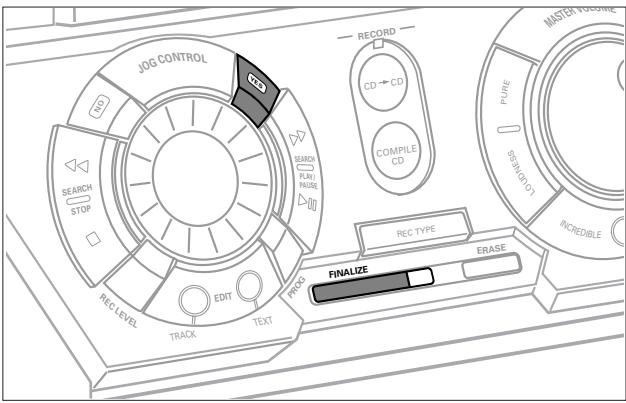
1 Press FINALIZE on the unit during recording.
Auto Final? is displayed.
2 Press YES to confirm.
→→FINALIZE is shown. The finalization will start after recording and the actual finalizing time left will start to count down.
Manual finalizing when recording is stopped
1 Insert the CDR(W) you want to finalize in the CD recorder tray.
2 Press CDR to select the CD recorder.
3 Press FINALIZE on the unit.
Finalize? is displayed.
4 Press YES to start finalizing.
→FINALIZE is shown, Final is displayed and the actual finalizing time left starts to count down.
Unfinalizing CDRW discs
If you want to record (or erase) on (from) a finalized CDRW, you have to uninitialize it first.
Notes: - Unfinalizing will take approximately 2 minutes.
- After unfinalizing of the CDRW, CD changes to CDRW on the display.
- When unfinalizing a CDRW with CD text on it available, this text will be transferred to the CD recorder memory. In case the memory is full, you have to erase text (see "Erasing from the memory") or to finalize another disc first in order to obtain memory space.
1 Insert the CDRW you want to uninitialize in the CD recorder tray.
2 Press CDR to select the CD recorder.
3 Press FINALIZE on the unit.
Unfinalize? is displayed.
4 Press YES to start unfinalizing.
Unfinal is displayed and the operation time remaining starts to count down.
Erasing from a CDRW disc
It is possible to erase one or more tracks (starting from the end of the last track) or the entire CDRW.
Erasing an entire CDRW
1 Insert the CDRW you want to erase in the CD recorder tray.
2 Press CDR to select the CD recorder.
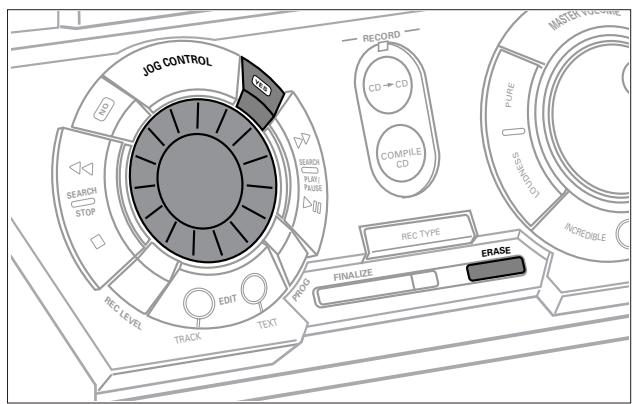
3 Press ERASE to enter the erasing menu.
4 Rotate JOG CONTROL to select:
→Erase Disc?: for erasing the entire disc
5 Press YES to confirm your selection.
→Erase?, the total playing time and the total number of tracks to be erased are displayed. All track numbers will blink in the music calendar.
6 Press YES to start erasing.
→Erase is displayed and the operation time remaining starts to count down. The track number of the actual erased track will go off in the music calendar.
Erasing one or more tracks
1 Insert the CDRW from which you want to erase tracks in the CD recorder tray.
2 Press CDR to select the CD recorder.
3 Press ERASE to enter the erasing menu.
4 Rotate JOG CONTROL to select the track number(s) you wish to erase.
→Erase and the track number (e.g. 10+)? are displayed.
- To select more tracks to be erased, repeat step 4.
Note: When erasing more tracks, the tracks to be erased must be selected in sequence, starting from the last recorded track. Example: The CDRW has 5 tracks recorded on it. Now, you can erase tracks 5 and 4. You can also erase tracks 5, 4 and 3, but you cannot erase tracks 5 and 3!
→All track numbers selected for erasing will blink in the music calendar. The remaining track numbers light up.
5 Press YES to confirm your selection.
Erase? is displayed.
6 Press YES to start erasing.
→Erase is displayed and the operation time remaining starts to count down. The track number of the currently erased track will go off in the music calendar.
EDIT TEXT (on CD recorder only)
Storing text during stop mode
After you have recorded your CDR(W) you can enter text, e.g. names to discs and tracks. The text will be displayed during playback. You can enter up to 60 characters per text field. Only use an unfinalized CDR or CDRW (finalized CDRW must be unfinalized first).
1 If necessary, press STOP on the unit (■ on the remote control) to stop playback.
2 Press CDR to select the CD recorder.
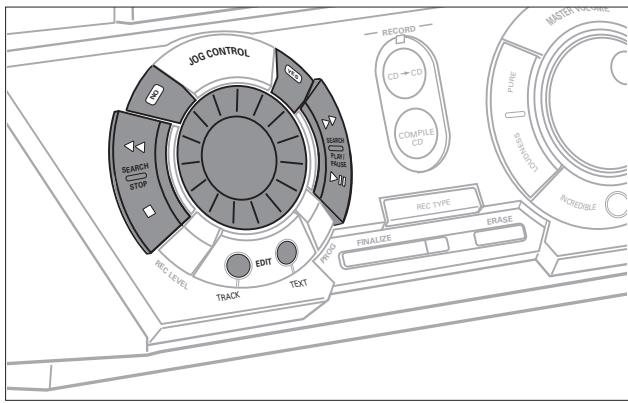
3 Press EDIT TEXT on the unit to enter the text edit menu. CD TEXT EDIT is blinking, Text Edit is displayed.
4 Press YES to confirm.
5 Rotate JOG CONTROL to select either:
→Album Artist: for editing the CD artist.
→Album Title: for editing the CD title.
→Arist.Tr1 or (2,3,...): for editing the artist of track 1 or (2,3,...).
Title Tr 1 or (2, 3,...): for editing the title of track 1 or (2, 3,...).
6 Press YES to confirm the selection.
7 Rotate JOG CONTROL (press the alphabet keys on the remote control) to select a character.
8 Press YES to confirm the selection.
The cursor moves to the next character space.
9 Repeat steps 7 and 8 for adding further characters.
10 Press EDIT TEXT to save the characters that have been selected and to exit to the last position in the text editing menu.
Update is displayed.
Storing text during recording
You can store and edit text even while recording a single track or single CD, or when recording from an external source or tuner. Editing text during finalizing is not possible. Make sure, when using high speed recording and automatic finalizing, to enter the text before finalizing starts, otherwise automatic finalizing will be cancelled.
- Follow steps 3–10 of "Storing text during stop mode".
Note: Editing text is not possible when a copy protected track is analog recorded. Editing is stopped, CDText Saved is displayed and your text is saved for later editing.
Auto copied text
When an artist's name has been stored for a track, it will be copied automatically into the next track.
- Press either:
EDIT TEXT to confirm the copied text,
or
NO to delete the copied text and enter new text.
Inserting a space
1 Press < SEARCH or SEARCH (or on the remote control) to move to the position where the space is to be inserted.
The position starts blinking.
2 Press YES to confirm the position of the insert character.
A space will be inserted, text will move to the right.
Deleting and substituting a character
1 Press SEARCH or SEARCH (or on the remote control) to move to the character's position to be deleted or substituted.
The character starts blinking.
2 If you want to delete the character:
Press NO.
The character is deleted and the text is shifted one position to the left.
If you want to substitute the character:
Rotate JOG CONTROL (press the alphabet keys on the remote control) to select a new character.
Press YES to confirm the selection.
- To change another character, press <> SEARCH or SEARCH ( or on the remote control).
Erasing text
1 Press EDIT TEXT to enter the text edit menu.
→CD TEXT EDIT is blinking, Text Edit is displayed.
2 Rotate JOG CONTROL to select the text erase menu. Text Erase is displayed.
3 Press YES to confirm.
4 Rotate JOG CONTROL to select one of the following:
→H11 Text: All text of the selected disc is chosen to be erased in one step.
→Album Artist: CD artist's name is chosen to be erased.
→Album Title: CD title is chosen to be erased.
→Artist Tr 1 or (2,3,...): artist's name of track 1 or (2,3,...) is chosen to be erased.
Title Tr 1 or (2,3,) : title of track 1 or (2,3,) is chosen to be erased.
5 Press YES to confirm your selection.
→Erase? or Erase A11? is displayed.
6 Press YES to start erasing.
Update is displayed and the chosen text is erased.
Erasing from the memory
When the text memory of your CD recorder is full, the messages Memory Full and Finalize Disc will be displayed. If you still want to add a new disc to the text memory, you either have to erase another disc from the memory or you have to finalize another disc.
1 Press EDIT TEXT to enter the text edit menu.
→CD TEXT EDIT is blinking, Text Edit is displayed.
2 Rotate JOG CONTROL to select the memory view menu.
Text Memory is displayed.
3 Press YES to confirm.
4 Rotate JOG CONTROL to select the disc you wish to erase from the text memory.
5 Press YES to confirm.
Erase Memory is displayed.
6 Press YES to confirm the text erasure of that particular disc.
Note: If there are no discs stored in the text memory, Memory Empty will be displayed.
Track editing (on CD changer only)
You can create a "track" by marking a passage of music within one track on the current disc. This new "track" can be used for recording or playing. The minimum track length is 4 seconds.
1 Press EDIT TRACK on the unit.
→EDIT TRACK starts blinking, Track and the current track number? are displayed. The current track number also blinks in the music calendar.
2 Rotate JOG CONTROL until the desired track number is displayed.
3 Press YES to confirm the selected track.
The marker position and the track time will be displayed. The first 4 seconds of the track will be played continuously.
4 Press PLAY/PAUSE on the unit to play to the desired start position of your new "track" (The initial position of marker F is always the start of the chosen track).
- To fast forward to the desired start position, press SEARCH or SEARCH on the unit.
- To fine tune the position, first press PLAY/PAUSE on the unit, then rotate JOG CONTROL.
5 Press YES to confirm the position of marker FI.
The marker position B and the new "track" time will be displayed. The first 4 seconds before marker position B until marker position B will be played continuously.
6 Press PLAY/PAUSE on the unit to play to the stop position of your new "track" (the initial position of marker B is always the position of marker F plus 4 seconds).
7 Press YES to confirm the marked passage.
- EDIT TRACK is shown, H-E and the track edit time are displayed.
Note: If you open the CD changer tray, the edit is deleted.
Clearing the track edit
1 Press NO during stop.
Clear A-B? is displayed.
2 Press YES to clear the markers.
The markers H-B are cleared.
Tuning to radio stations
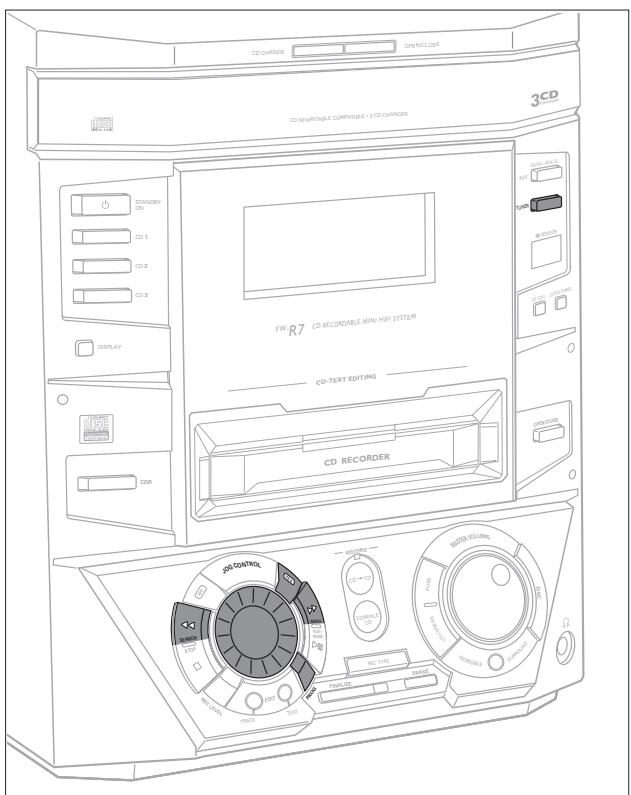
1 Press TUNER to select the tuner.
Tuner is scrolled.
2 Press TUNER again to select the desired waveband.
The selected waveband is displayed.
3 Keep SEARCH or SEARCH (or on the remote control) pressed for more than a half second.
The selected waveband and Searching are displayed. The radio tunes to a station with sufficient signal strength.
4 Repeat searching until you find the desired station.
- To tune to a weak station, briefly press < SEARCH or SEARCH (or on the remote control) as often as necessary for optimum reception.
Storing radio stations
It is possible to store up to 40 radio stations. Stations can be selected and programmed automatically or you can do that yourself. Programming will overwrite your former presets starting from the last active preset station. After programming the last stored preset station will be tuned.
Automatic programming
If no preset is tuned, automatic programming starts at preset number one.
1 Follow steps 1 and 2 of "Tuning to radio stations".
2 Keep PROG (PROGRAM on the remote control) pressed for more than 2 seconds.
→Autoprogram is displayed, PROG and the current preset number in the music calendar start blinking.
All available radio stations for the selected waveband are stored automatically. PROG goes off, the preset number, the waveband and the frequency of the last preset station are displayed briefly.
- To store radio stations for another waveband, repeat steps 1-2. Make sure to select the next available preset number first before proceeding, otherwise already programmed radio stations may be erased.
- To exit the automatic programming, press PROG (PROGRAM on the remote control).
Note: Strong stations will always automatically be programmed first, followed by the weak stations.
Manual programming
1 Follow steps 1 and 2 of "Tuning to radio stations".
2 Keep PROG (PROGRAM on the remote control) pressed for less than 2 seconds.
PROG and the current preset number in the music calendar start flashing.
3 Press SEARCH or SEARCH (or on the remote control) to tune to the desired radio station.
- To allocate the radio station to another preset number, rotate JOG CONTROL (press or on the remote control).
4 Press YES to confirm the setting.
PROG goes off, the preset number, the waveband and the frequency of the preset station are displayed.
- To exit manual programming, press PROG (PROGRAM on the remote control).
Tuning to preset stations
- Use JOG CONTROL ( or on the remote control) until the preset number of the desired station is displayed.
Clock setting
Manual clock setting
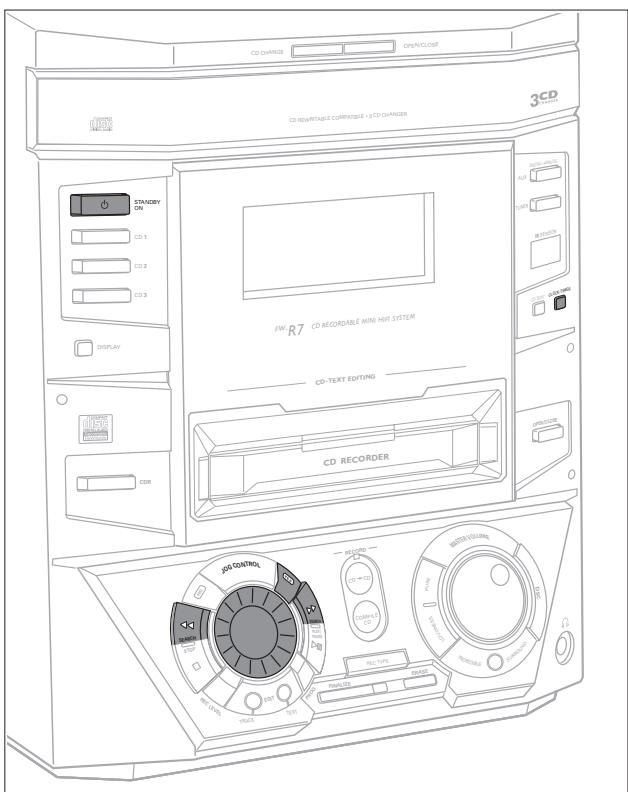
1 Press STANDBY ON as often as necessary on the unit to switch the unit to standby.
2 Press CLOCK/TIMER on the unit.
3 Rotate JOG CONTROL to select the clock. Clock is displayed and starts blinking.
4 Press YES to confirm the selection. The day of the week digit blinks.
5 Rotate JOG CONTROL to set the day.
6 Use SEARCH or SEARCH on the unit to move from day of the week to hour.
7 Rotate JOG CONTROL to set the hour.
8 Repeat steps 6 and 7 to set the minutes.
9 Press YES to confirm the settings.
You can select different timer functions which will be activated at a chosen time. Make sure the clock is set before using one of these features.
Sleep timer
You can set a certain period of time before the unit switches off.
1 Press SLEEP on the remote control until the desired sleeper time is displayed.
→SLEEP is shown and Sleep 60 min, 45 min, 30 min, 15 min is displayed or, Sleep OFF is displayed.
2 As soon as the desired time is displayed, do not press SLEEP again.
After the chosen time has elapsed, the unit switches to standby.
- To deactivate the sleep timer, press SLEEP on the remote control until SLEEP OFF is displayed.
Alarm timer
Alarm timer setting
The unit can be used as an alarm clock, whereby the tuner, CD recorder or CD changer starts playback automatically at a preset time.
1 Press STANDBY ON as often as necessary on the unit to switch the unit to standby.
2 Press CLOCK/TIMER on the unit.
3 Rotate JOG CONTROL to select the alarm timer. Alarm is displayed, ALARM is blinking.
4 Press YES to confirm the selection. The hour digit is blinking.
5 Rotate JOG CONTROL to set the hour.
6 Use SEARCH or SEARCH on the unit to move from hour to minutes.
7 Rotate JOG CONTROL to set the minutes.
8 Press YES to confirm the time settings.
9 Rotate JOG CONTROL to select the source you want to be woken up with.
10 Press YES on the unit to confirm the source selection.
- To stop the alarm, press STANDBY ON on the unit.
Record timer
Record timer setting
The unit can do recordings automatically from an external source or from a preset radio station at a preset time.
1 Follow steps 1 and 2 of "Alarm timer setting".
2 Rotate JOG CONTROL to select the record timer.
Rec Timer is displayed, REC is shown and starts blinking.
3 Press YES on the unit to confirm the selection.
The hour digit for the start of recording blinks.
4 Rotate JOG CONTROL to set the hour of start of recording.
5 Use SEARCH or SEARCH on the unit to move from hour to minutes of start of recording.
6 Rotate JOG CONTROL to set the minutes of start of recording.
7 Continue this procedure by using SEARCH or SEARCH to move on to hour and minutes of end of recording and to the day of the week. After each move, always rotate JOG CONTROL to do the settings.
8 Press YES to confirm the settings.
9 Rotate JOG CONTROL to select from which you want to record.
If you have chosen the tuner as source:
Rotate JOG CONTROL again to select a preset radio station and confirm this selected station by pressing YES.
10 Press YES on the unit to confirm the source selection.
- To stop the recording press STOP on the unit.
Switching the alarm and record timer on/off
- Press TIMER ON/OFF on the remote control repeatedly to switch the alarm and/or record timer on or off:
→ ALARM is shown and H1arm OH is displayed when the alarm timer is on.
REC is shown and REC Timer ON is displayed when the record timer is on.
→ ALARM and REC are shown, REC+ALarm ON is displayed when the alarm and record timer are on.
→ ALARM and REC go off, REC+R1armOFF is displayed when the alarm and record timer are off.
Subject to modification without notice.
General
AC Power 120V/60Hz
Power consumption
Active 66 W
Standby. < 22W
Economy power save mode. < 2W
Dimensions, w × h × d 10.4 × 12.2 × 15.7 in.
Weight (without speakers) 9 kg
Amplifier
Output power. 2 × 50 W FTC, 6 , 1kHz , THD 10%
Frequency response .40-16,000 Hz FTC, +0.5/-1.5 dB
S/N ratio. 80 dB A (IEC)
Input sensitivity
AUX IN L/R .800 mV
DIGITAL IN 500 mVpp (75 Ω)/12-56 kHz
Output
Impedance speakers. 6
Impedance headphones 32Ω-600Ω
LINE OUT L/R .500 mV
DIGITAL OUT 500 mVpp (75 Ω)/44.1 kHz
SUBWOOFER OUT 1 V
CD changer
Number of programmable tracks. 40
Frequency range 20-20,000 Hz
S/N ratio. 92 dBA
Cross talk. ≤ -65 dB (1 kHz)
Total harmonic distortion. ≤ -94 dB (1 kHz)
CD recorder
Number of programmable tracks. 99
CD playback
Frequency range. 20-20,000 Hz
S/N ratio playback. 92 dB A
Cross talk. -65 dB (1 kHz)
Total harmonic distortion. ≤ -84 dB (1 kHz)
Analog recording, digital playback
Frequency range 20-20,000 Hz
S/N ratio playback. 86 dBA
Cross talk. -65 dB (1 kHz)
Total harmonic distortion. ≤ -81 dB (1 kHz)
Laser (CD recorder)
Type . Semiconductor laser GaAlAs
Wave length. 775-795 nm (at 25^ C)
Output power. 2.5 mW (Read), 35 mW (Write)
Beam divergence 60 degree
Tuner
Wave range
FM. 87.5-108.0 MHz
AM .530-1,700 kHz
Speakers
System. 3 way bass reflex
Impedance 6Ω
Woofer. 1× 6.5^
Tweeter 1× 2.5^ Ferro fluid cooled
Tweeter 1× 1^ , Polydome
Dimensions, h × w × d 12.2 × 9.4 × 12.7 in.
Weight 4.6 kg/each
WARNING
Under no circumstances should you try to repair the unit yourself as this will invalidate the guarantee. Do not open the unit as there is a risk of electric shock.
If a fault occurs, first check the points listed, before taking the unit for repair.
If you are unable to solve a problem by following these hints, consult your dealer or service center.
LASER SAFETY
This unit employs a laser. Only a qualified service person should remove the cover or attempt to service this device, due to possible eye injury.
| PROBLEM No sound, no power | POSSIBLE CAUSE Volume is not correctly adjusted. | SOLUTION Adjust the volume. |
| Headphones are connected. | Disconnect headphones. | |
| Speakers are wrongly or not connected. | Make sure speakers are properly connected. | |
| Power cable is not securely connected. | Connect power cable properly. | |
| No reaction to controls | Electrostatic discharge | Disconnect the unit from power supply, then reconnect after a few seconds. |
| Poor radio reception | Weak radio signal | Direct the antenna for optimum reception. |
| Antenna is positioned near a radiation source such as a TV, VCR, computer, etc. | Change the position of the interfering unit or try to switch it off. | |
| Poor bass sound | Speakers are not in phase. | Connect the colored (or marked) wires to the colored terminals and the black (or unmarked) wires to the black terminals. |
| Bad sound | Badly matched setting for the given type of music or sound. | Correct the sound settings on the unit. |
| Remote control does not function properly | Batteries are inserted incorrectly. | Insert batteries correctly. |
| Batteries are flat. | Insert new batteries. | |
| Distance to the unit is too large. | Reduce distance. | |
| Insert Disc indication | The CD(RW) is scratched badly or dirty. | Replace or clean the disc. |
| No CD(RW) inserted or inserted upside down. | Insert a CD(RW), with label facing upwards. | |
| The laser lens is steamed up. | Wait until the lens has cleared. | |
| Wrong Disc indication, Use Audio CD indication | No digital audio disc is inserted. | Insert a digital audio disc marked with "Digital Audio" and the special logo. |
| Disc Recover indication | Power loss | Wait a few minutes. The disc is being repaired. |
| Disc Error indication | Disc Recover was not able to repair the disc. | The disc can still be played, but not recorded or finalized further. |
| Check Input indication | Wrong input is chosen. | Select the correct input. |
| No correct digital source is detected after starting recording. | Make sure the connection cable is properly connected. | |
| Does not record | CDR(W) is scratched or dirty. | Make sure the CDR(W) is absolutely free of scratches and dust particles. |
| The inserted disc is not recordable. | Insert a digital CDR(W) and make sure it is un finalized. | |
| Recording process is interrupted (power loss, mechanical shock). | Start recording again. | |
| Recorded disc does not play in another standard CD player | The inserted CDR(W) is not finalized. | Finalize the CDR(W). |
| The CDRW is inserted in a non-CDRW compatible CD player. | Insert the CDRW in a CDRW compatible CD player. |
AUDIO SYSTEM
One Year Free Labor
One Year Free Service on Parts
This product must be carried in for repair.
WHO IS COVERED?
You must have proof of purchase to receive warranty service. A sales receipt or other document showing that you purchased the product is considered proof of purchase.
WHAT IS COVERED?
Warranty coverage begins the day you buy your product. For one year thereafter, all parts will be repaired or replaced, and labor is free. After one year from the day of purchase, you pay for the replacement or repair of all parts, and for all labor charges.
All parts, including repaired and replaced parts, are covered only for the original warranty period. When the warranty on the product expires, the warranty on all replaced and repaired parts also expires.
WHAT IS EXCUSED?
Your warranty does not cover:
- labor charges for installation or setup of the product, adjustment of customer controls on the product, and installation or repair of antenna systems outside of the product.
- product repair and/or part replacement because of misuse, accident, unauthorized repair or other cause not within the control of Philips Consumer Electronics Company.
- reception problems caused by signal conditions or cable or antenna systems outside the unit.
- a product that requires modification or adaptation to enable it to operate in any country other than the country for which it was designed, manufactured, approved and/or authorized, or repair of products damaged by these modifications.
- incidental or consequential damages resulting from the product. (Some states do not allow the exclusion of incidental or consequential damages, so the above exclusion may not apply to you. This includes, but is not limited to, prerecorded material, whether copyrighted or not copyrighted.)
- a product that is used for commercial or institutional purposes.
WHERE IS SERVICE AVAILABLE?
Warranty service is available in all countries where the product is officially distributed by Philips Consumer Electronics Company. In countries where Philips Consumer Electronics Company does not distribute the product, the local Philips service organization will attempt to provide service (although there may be a delay if the appropriate spare parts and technical manual(s) are not readily available).
MAKE SURE YOU KEEP...
Please keep your sales receipt or other document showing proof of purchase. Attach it to this owner's manual and keep both nearby. Also keep the original box and packing material in case you need to return your product.
BEFORE REQUESTING SERVICE...
Please check your owner's manual before requesting service.
Adjustments of the controls discussed there may save you a service call.
TO GET WARRANTY SERVICE IN U.S.A., PUERTO RICO OR U.S. VIRGIN ISLANDS...
Take the product to a Philips factory service center (see enclosed list) or authorized service center for repair. When the product has been repaired, you must pick up the unit at the center. Centers may keep defective parts. (In U.S.A., Puerto Rico and U.S.Virgin Islands, all implied warranties, including implied warranties of merchantability and fitness for a particular purpose, are limited in duration to the duration of this express warranty. But, because some states do not allow limitations on how long an implied warranty may last, this limitation may not apply to you.)
TO GET WARRANTY SERVICE IN CANADA...
Please contact Philips at:
1-800-661-6162 (French Speaking)
1-800-363-7278 (English Speaking)
(In Canada, this warranty is given in lieu of all other warranties. No other warranties are expressed or implied, including any implied warranties of merchantability or fitness for a particular purpose. Philips is not liable under any circumstances for any direct, indirect, special, incidental or consequential damages, howsoever incurred, even if notified of the possibility of such damages.)
REMEMBER...
Please record the model and serial numbers found on the product below. Also, please fill out and mail your warranty registration card promptly. It will be easier for us to notify you if necessary.
MODEL#
SERIAL#
PHILIPS CONSUMER ELECTRONICS COMPANY
A Division of Philips Electronics North America Corporation
Knoxville, Tennessee 37914-1810, U.S.A.

CLASS 1
LASER PRODUCT
- Return your Warranty Registration card today to ensure you receive all the benefits you’re entitled to.
- WarrantyVerification
- Owner Confirmation
- Model Registration
- PHILIPS
- Congratulations on your purchase, and welcome to the "family!"
- CAUTION
- Do not defeat the safety
- Canada
- General information
- Installation
- Remote control
- Display
- Basic functions
- Program
- About recording
- Internal recording
- External recording
- (Un)finalizing, erasing
- Features
- Tuner
- Clock/Timer
- Technical data
- Accessories supplied
- Setup information
- Maintenance
- Environmental information
- Discs for recording
- - CD-Audio Recordable (CDR) discs
- - CD-Audio ReWritable (CDRW) discs
- Discs for playback
- CD(RW) handling
- On the back
- On the front
- Power
- The type plate is located on the rear of the unit.
- For optimal performance use only the original power cable.
- Speaker connections
- Antenna connections
- AM antenna
- FM antenna
- Analog audio connections
- AUX IN L/R
- LINE OUT L/R
- Digital audio connections
- DIGITAL IN
- DIGITAL OUT
- Connecting a subwoofer
- Remote control buttons
- Remote control batteries
- Information area
- Status lights and flags
- Music calendar, sound lights and remote control
- Switching on, switching to standby
- Loading the CD changer, CD recorder
- Important!
- CD changer:
- CD recorder:
- CD changer:
- CD changer:
- Playing a CD(RW)
- CD changer:
- Sound control
- Volume adjustment
- DSC
- Incredible Surround
- PURE
- LOUDNESS
- MUTE
- Speaker balance
- Demo mode
- Cancelling the demo mode
- Selecting a disc on the CD changer
- Selecting a track and searching
- Selecting a track during playback
- Selecting a track when playback is stopped
- Searching for a passage during playback
- SHUFFLE and REPEAT
- Repeating a track, the disc or the program
- Playing tracks in random order
- CD text
- CD text when playback is stopped
- CD text during playback
- Programming track numbers
- If either CD 1, CD 2 or CD 3 is selected:
- If CDR is selected:
- Erasing a track from the program
- Clearing the program
- Making a program for recording
- Basic information
- Make sure the CDR(W) is absolutely free of scratches and dust particles.
- DO NOT FORGET TO FINALIZE!
- Copyright protection
- Recording CD text
- Direct Line Recording (DLR)
- Auto Level Control (ALC)
- Auto level control becomes active when:
- Auto level control will not become active when:
- REC LEVEL key
- Recording modes
- High speed recording and automatic finalizing
- High speed recording and automatic finalizing of the current disc
- High speed recording and automatic finalizing (optional) of the current program
- High speed recording
- High speed recording of an entire disc, a track, a program or a track edit
- If a disc from the CD changer is selected:
- If CD changer program mode is available:
- If CD changer track edit mode is available:
- Normal recording and listening
- Normal recording and listening of an entire disc, a track, a program or a track edit
- If CD changer is selected:
- Manual recording
- Manual recording from the FM tuner
- Analog or digital recording?
- Recording with automatic start
- Recording of an entire disc or a track with automatic start
- If a digital source is selected:
- If an analog source is selected:
- Manual recording from an external source
- Automatic track increment
- Finalizing CDR(W) discs
- Auto finalizing
- Manual finalizing when recording is in progress
- Manual finalizing when recording is stopped
- Unfinalizing CDRW discs
- Erasing from a CDRW disc
- Erasing an entire CDRW
- Erasing one or more tracks
- EDIT TEXT (on CD recorder only)
- Storing text during stop mode
- Storing text during recording
- Auto copied text
- Inserting a space
- Deleting and substituting a character
- If you want to delete the character:
- If you want to substitute the character:
- Erasing text
- Erasing from the memory
- Track editing (on CD changer only)
- Clearing the track edit
- Tuning to radio stations
- Storing radio stations
- Automatic programming
- Manual programming
- Tuning to preset stations
- Clock setting
- Manual clock setting
- Sleep timer
- Alarm timer
- Alarm timer setting
- Record timer
- Record timer setting
- If you have chosen the tuner as source:
- Switching the alarm and record timer on/off
- General
- Amplifier
- CD changer
- CD recorder
- Laser (CD recorder)
- Speakers
- WARNING
- LASER SAFETY
- AUDIO SYSTEM
- WHO IS COVERED?
- WHAT IS COVERED?
- WHAT IS EXCUSED?
- WHERE IS SERVICE AVAILABLE?
- MAKE SURE YOU KEEP...
- BEFORE REQUESTING SERVICE...
- TO GET WARRANTY SERVICE IN U.S.A., PUERTO RICO OR U.S. VIRGIN ISLANDS...
- TO GET WARRANTY SERVICE IN CANADA...
- REMEMBER...
- PHILIPS CONSUMER ELECTRONICS COMPANY
Brand : PHILIPS
Model : FWR7
Category : Hi-Fi System