
Vertis Plus - Smartphone Overmax - Free user manual and instructions
Find the device manual for free Vertis Plus Overmax in PDF.


| Product Type | Smartphone |
| Brand | Overmax |
| Model | Vertis Plus |
| Operating System | Android 10 (Go Edition) |
| Display Size | 5.5 inches |
| Display Resolution | 720 x 1440 pixels (HD+) |
| Processor | Quad-core 1.3 GHz Cortex-A53 |
| RAM | 2 GB |
| Internal Storage | 16 GB |
| Expandable Storage | MicroSD up to 64 GB |
| Rear Camera | 8 MP with LED flash |
| Front Camera | 5 MP |
| Battery Capacity | 2800 mAh (removable) |
| Dimensions | 148 x 72 x 9 mm |
| Weight | 160 g |
| SIM Card | Dual SIM (Micro-SIM) |
| Connectivity | Wi-Fi 802.11 b/g/n, Bluetooth 4.2, GPS |
| Ports | Micro USB 2.0, 3.5mm headphone jack |
| Sensors | Accelerometer, proximity, light |
| Color Options | Black, Gold |
| Package Contents | Phone, battery, charger, USB cable, user manual |
Frequently Asked Questions - Vertis Plus Overmax
User questions about Vertis Plus Overmax
0 question about this device. Answer the ones you know or ask your own.
Ask a new question about this device
Download the instructions for your Smartphone in PDF format for free! Find your manual Vertis Plus - Overmax and take your electronic device back in hand. On this page are published all the documents necessary for the use of your device. Vertis Plus by Overmax.
USER MANUAL Vertis Plus Overmax
natural_image
Close-up of a smartphone displaying a red abstract image with a diagonal white stripe (no text or symbols visible)Telefon komórkowy
Instrukcja
Użytkownika
PL / EN / CZ / SK / RO / HU
www.overmax.pl
KWESTIE PRAWNE
Chroniony prawem autorskim © 2013 Overmax
Copyright © 2013 Overmax All rights reserved.
No part of this publication may be quoted, reproduced, translated or used in any form or by any means, electronic or mechanical, including photocopying and microfilm, without the prior written permission of Overmax Corporation.
Overmax Corporation reserves the right to make modifications on print errors or update specifications in this guide without prior notice.
Version No.: 1.0
Edition Time: 2013.07.04
For Your Safety
General Safety
 | Don’t make or receive handheld calls while driving. And never text while driving. |  | Don’t use at petrol stations. |
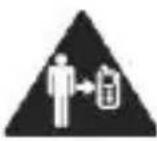 | Keep your phone at least 15 mm away from your ear or body while making calls. |  | Your phone may produce a bright or flashing light. |
 | Small parts may cause a choking. |  | Don’t dispose of your phone in fire. |
 | Your phone can produce a loud sound. |  | Avoid contacting with anything magnetic. |
 | Keep away from pacemakers and other electronic medical devices. |  | Avoid extreme temperatures. |
 | Switch off when asked to in hospitals and medical facilities. |  | Avoid contacting with liquids. Keep your phone dry. |
 | Switch off when told to in aircrafts and airports. |  | Don’t take your phone apart. |
 | Switch off when near explosive materials or liquids. |  | Only use approved accessories. |

Don't rely on your phone for emergency communications.
Distraction
Driving
Full attention must be given to driving at all times in order to reduce the risk of an accident. Using a phone while driving (even with a hands free kit) can cause distraction and lead to an accident. You must comply with local laws and regulations restricting the use of wireless devices while driving.
Operating Machinery
Full attention must be given to operating the machinery in order to reduce the risk of an accident.
Product Handling
General Statement on Handling and Use
You alone are responsible for how you use your phone and any consequences of its use.
You must always switch off your phone wherever the use of a phone is prohibited. Use of your phone is subject to safety measures designed to protect users and their environment.
• Always treat your phone and its accessories with care and keep it in a clean and dust-free place.
- Do not expose your phone or its accessories to open flames or lit tobacco products.
- Do not expose your phone or its accessories to liquid, moisture or high humidity.
- Do not drop, throw or try to bend your phone or its accessories.
- Do not use harsh chemicals, cleaning solvents, or aerosols to clean the device or its accessories.
- Do not paint your phone or its accessories.
- Do not attempt to disassemble your phone or its accessories, only authorized personnel can do so.
- Do not expose your phone or its accessories to extreme temperatures, minimum - [5] and maximum + [50] degrees Celsius.
- The phone's normal operating temperature is -20°C \~ 60°C .In order to ensure the normal phone functions, do not use this phone outside the temperature range.
- Please check local regulations for disposal of electronic products.
- Do not carry your phone in your back pocket as it could break when you sit down.
Small Children
Do not leave your phone and its accessories within the reach of small children or allow them to play with it.
They could hurt themselves or others, or could accidentally damage the phone.
Your phone contains small parts with sharp edges that may cause an injury or may become detached and create a choking hazard.
Demagnetization
To avoid the risk of demagnetization, do not allow electronic devices or magnetic media close to your phone for a long time.
Electrostatic Discharge (ESD)
Do not touch the SIM card's metal connectors.
Antenna
Do not touch the antenna unnecessarily.
Normal Use Position
When placing or receiving a phone call, hold your phone to your ear, with the bottom towards your mouth.
Air Bags
Do not place a phone in the area over an air bag or in the air bag deployment area.
Store the phone safely before driving your vehicle.
Seizures/ Blackouts
The phone can produce a bright or flashing light.
Repetitive Motion Injuries
To minimize the risk of RSI when texting or playing games with your phone:
- Do not grip the phone too tightly.
- Press the buttons lightly.
- Use the special features which are designed to minimize the times of pressing buttons, such as Message Templates and Predictive Text.
• Take lots of breaks to stretch and relax.
Emergency Calls
This phone, like any wireless phone, operates using radio signals, which cannot guarantee connection in all conditions. Therefore, you must never rely solely on any wireless phone for emergency communications.
Loud Noise
This phone is capable of producing loud noises, which may damage your hearing. Turn down the volume before using headphones, Bluetooth stereo headsets or other audio devices.
Phone Heating
Your phone may become warm during charging and during normal use.
Electrical Safety
Accessories
Use only approved accessories.
Do not connect with incompatible products or accessories.
Take care not to touch or allow metal objects, such as coins or key rings, to contact or short-circuit in the battery terminals.
Connection to a Car
Seek professional advice when connecting a phone interface to the vehicle electrical system.
Faulty and Damaged Products
Do not attempt to disassemble the phone or its accessory.
Only qualified personnel can service or repair the phone or its accessory.
If your phone or its accessory has been submerged in water, punctured, or subjected to a severe fall, do not use it until you have taken it to be checked at an authorized service centre.
Interference
General Statement on Interface
Care must be taken when using the phone in close proximity to personal medical devices, such as pacemakers and hearing aids.
Pacemakers
Pacemaker manufacturers recommend that a minimum separation of 15 cm be maintained between a mobile phone and a pacemaker to avoid potential interference with the pacemaker. To achieve this, use the phone on the opposite ear to your pacemaker and do not carry it in a breast pocket.
Hearing Aids
People with hearing aids or other cochlear implants may experience interfering noises when using wireless devices or when one is nearby.
The level of interference will depend on the type of hearing device and the distance from the interference source, increasing the separation between them may reduce the interference. You may also consult your hearing aid manufacturer to discuss alternatives.
Medical Devices
Please consult your doctor and the device manufacturer to determine if operation of your
phone may interfere with the operation of your medical device.
Hospitals
Switch off your wireless device when requested to do so in hospitals, clinics or health care facilities. These requests are designed to prevent possible interference with sensitive medical equipment.
Aircraft
Switch off your wireless device whenever you are instructed to do so by airport or airline staff.
Consult the airline staff about the use of wireless devices on board the aircraft. If your device offers a ‘flight mode’, this must be enabled prior to boarding an aircraft.
Interference in Cars
Please note that because of possible interference to electronic equipment, some vehicle manufacturers forbid the use of mobile phones in their vehicles unless a hands-free kit with an external antenna is included in the installation.
Explosive Environments
Petrol Stations and Explosive Atmospheres
In locations with potentially explosive atmospheres, obey all posted signs to turn off wireless devices
such as your phone or other radio equipment.
Areas with potentially explosive atmospheres include fuelling areas, below decks on boats, fuel or chemical transfer or storage facilities, areas where the air contains chemicals or particles, such as grain, dust, or metal powders.
Blasting Caps and Areas
Power off your mobile phone or wireless device when in a blasting area or in areas posted power off “two-way radios” or “electronic devices” to avoid interfering with blasting operations.
Getting Started
Keys Explained
| Key | Function |
| Power Key | Hold to switch audio profiles, or to turn on or off Airplane mode, or to power off.Press to switch your phone to Sleep mode.Press to wake up your phone. |
| Home Key | Press to return to the Home Screen from any application or screen.Hold to see recently used applications. |
| Menu Key | Press to get the options for the current screen. |
| Back Key | Press to go to the previous screen. |
| Volume Keys | Press or hold to turn the volume up or down. |
Starting up
Installing the SIM/SD Card and Battery
Switch off your phone before installing or replacing the battery, SIM, or memory card.
◆ Remove the back cover.
- Hold the SIM card with the cut corner oriented as shown and slip it into the card holder.
- Insert the memory card into the card slot with the metal contacts facing down until it inserts to the right position.
- Insert the battery by aligning the gold contacts on the battery with the gold contacts in the battery compartment. Gently push down on the battery until it clicks into place.
✿ Press the cover gently back into place until you hear a click.
Removing the Battery and SIM/SD Card
◆ Make sure that your mobile phone is off.
◆ Remove the back cover.
◆ Lift the battery up and out.
◆ Slide the SIM card out.
◆ Slide the SD card out.
Charging the Battery
When you first get your new phone you'll need to charge the battery.
Connect the adapter to the charger jack. Ensure that the adapter is inserted with the correct orientation. Do not force the connector into the charger jack.
- Connect the charger to a standard AC wall outlet.
- Disconnect the charger when the battery is fully charged.
Switching Your Phone On/Off
Make sure the SIM card is in your device and the battery is charged.
- Hold Power Key to switch on your phone.
- To switch it off, hold Power Key to get the phone options. Select Power off, and then tap OK.
Setting Up Your Phone for the First Time
When you first power on your phone after you purchase it or reset it to factory settings (see chapter Sorting out Your Phone Settings – Privacy: Reset to Factory Settings), you need to do some settings before using it.
Tap Menu Key in the standby mode, then select System settings > Language & input > Language to change the language you want to use, if needed.
Switching to Sleep Mode
To save battery power, Sleep Mode suspends your device to a low-power-consumption state while the display is off. Your device also goes into Sleep Mode by itself when the display is automatically
turned off after a certain period of time. You can start sleep mode by the following method. Press Power Key to switch to Sleep Mode.
Waking Up Your Phone
✿ Press Power Key to activate your screen display.
◆ Tap the icon, drag to the right.
NOTE: If you have set an unlock pattern, PIN or password for your phone (see chapter Sorting out Your Phone Settings – Security Settings) you'll need to draw the pattern or enter the PIN/password to unlock your screen.
Getting Around Your Phone
Touch Control
You can use finger gestures to control your phone. The controls on your touch-screen change dynamically depending on the tasks you're performing.
- Tap the buttons, icons, or applications to select items or to open applications.
❖ Flick the screen to scroll up, down, left or right. - Point, drag and drop to move particular items across the screen.
◆ Double-tap the screen to zoom in/out an image.
NOTE: You can view the phone screen in portrait or
landscape orientation simply by holding it upright or turning it on its side. Not all screens are viewable in landscape.
Home Screen
In the Home screen, besides the shortcut icon is displayed, you can also set your own wallpaper, add the widgets or application shortcuts you need, or remove them as you like.
Extended Home Screen
The Home Screen extends beyond the screen width, giving you loads more space to add more stuff.
Simply slide your finger to the left or right.
Choosing Your Wallpaper
❖ Press Home Key to return to the Home Screen.
◆ Tap Menu Key and select Wallpaper.
Tap Gallery, Live Wallpapers, Video Wallpaper, or Wallpapers and choose the image or animation you want to use as the wallpaper. Some cropping may be needed for Gallery images.
Tap Set wallpaper.
Adding Items to Your Home Screen
✿ Press Home Key > tap 📋 to enter the Application Program Interface
In the list of applications, touch and hold the icon until the main screen appears, move the application icon to the idle position, release the
finger.
Removing Items from Your Home Screen
❖ Press Home Key to return to the Home Screen.
Tap and hold the item you want to delete until the remove icon appears on the top of the screen.
Drag the item to the remove icon and release your finger when the item turns red.
Status and Notification Icons
Your phone will tell you exactly what's going on by showing you simple icons. Here's what they mean.
 | USB connected |  | Missed call |
 | Airplane mode |  | Signal strength |
 | Battery charge |  | New message |
 | Meeting mode |  | Wi-Fi network |
 | Alarm set |  | Earphone insert |
 | Silent mode |  | Signal searching |
 | Bluetooth icon |  | USB debugging connected |
 | Data Conn off |  | New Wi-Fi network detected |
Using the Notification Panel
Flick the status bar downwards from across the top of the screen to open the Notification Panel, where you can see your calendar events, new Messages and so on. Tap 📁 to open the shortcuts panel from notification panel. To hide the panel, tap on the lower edge of the panel, drag up.
Open Recently-Used Applications
- Hold Home Key from any screen. The phone will display the applications you used recently.
◆ Tap the application you want to open.
Phone Calls
Making Calls
There are many ways to make a call with your phone. And they're all easy to do.
Calling from the Phone
✿ Press Home key > tap 📋 > Phone or tap
on the Home Screen.

- Enter the phone number using the on-screen keypad.
Tap

delete wrong digits.
◆ Tap the dial icon.
TIPS: To make international calls, hold 0 to enter
the “+”.
Calling from Your Contacts
✿ Press Home key > tap 📋 > People.
✿ Slide your finger to scroll the contacts list and tap the contact name you want to call, when the contact details appear, click on the number, choose the SIM card to dial.
People.
You can search for a contact by tapping 📄 on the screen.
Calling from Your Call Log
If you have opened the dialer, touch the call log tab to open the call records, respectively touch all, dialed, received, missed call button to display a list of the corresponding call records.
- Tap dial icon on the right side of the current record.
Calling from a Text Message
If a text message contains a phone number that you want to call, you can make the call while viewing the text message.
✿ Press Home key > tap 📋 > Messaging.
- Tap the conversation and then find the message that contains the phone number you need.
◆ Tap the message, the phone will list the options.


on
Receiving Calls
Answering a Call
Tap the 📄 icon, drag to right to answer the call.
Rejecting a Call
Tap the 📄 icon, drag to left to reject the call.
Muting a Call
During a call, you can mute your microphone so that the person you are speaking to cannot hear you, but you can still hear them.
Tap 📄 to turn your microphone off. To turn your microphone back on, tap 📄
Turning the Speakerphone On/Off
Tap during a call to turn the speakerphone on. Tap again to turn off the speakerphone.
Ending a Call
Tap to finish a call.
Contacts
You can add contacts on your phone and synchronize them with the contacts in your Google account or other accounts that support contact syncing.
To see your contacts, Press Home key > tap

People.
Creating a Contact
◆ Tap from the Contacts Screen.
- Choose the storage location to save the contact.
Enter the contact name, phone numbers, and other information, and then save it.
Searching for a Contact
◆ Tap on the Contacts Screen.
Input the contact name you want to search for.
The contacts matched will be listed.
Messaging
Your SMS (text message) and MMS (multimedia messaging service) are combined into one menu in Home Key > Messaging.
The Message Box
Instead of an inbox and outbox, your phone organizes all Messaging you sent and received into one box, where Messaging exchanged with the same number are grouped into one message thread in the Messaging Screen. You can tap a thread to see the conversation you have had with someone.
Sending an Message
✿ Press Home key > tap 📋 > Messaging.
◆ Tap 📄 to create new message.
Enter the recipient's number or name. As you type, matching contacts will appear. Tap a suggested contact to add as a recipient. You can also tap to select recipients from the contacts.
✿ Tap Type text message and type your message.
- Tap Menu Key to insert quick text or contact.
- If you are sending an MMS, tap Menu Key to add a subject, or tap to attach pictures, videos, audio, or slideshow.
◆ Tap to send your message.
NOTE: Add an attachment to text message and it will be converted into an MMS automatically.
Likewise if you remove all attachments and the subject from an MMS, it'll automatically become a text message.
Message Settings
The phone's message settings are pre-configured for you to use immediately. To change them, tap Menu Key > Settings from the Messaging Screen.
NOTE: From SMS settings screen tap Menu Key >Restore default settings to change the message
settings back to the original.
Touch Input Settings
Choose the touch input settings by tapping Menu Key > System settings > Language & input from Home Screen.
In the KEYBOARD & INPUT METHODS section, you can choose the settings that you need.
Getting Connected to the Internet
Your phone's impressive networking capabilities allow you to access the Internet or your corporate network with ease.
You can use default connection settings to connect to the Internet via your mobile network, or Wi-Fi.
The network connection can be enabled /disabled manually. Just press Home key > tap

Settings > SIM management > Data connection.
Adding a New Network Connection
To get connected via your mobile network you need a data plan with your service provider. Also if the networks settings are not pre-configured on your phone, please contact your provider to get the necessary information.
You can view settings by pressing Home key > tap

Settings > More (WIRELESS &
NETWORKS) > Mobile networks > Access Point Names.
Turning On Wi-Fi
Wi-Fi provides wireless Internet access over distances of up to about 300 feet.
✿ Press Home key > tap 📋 > Settings.
- Click off next to the Wi-Fi menu to turn it on, click you can turn off the Wi-Fi function.
Connecting to a Wi-Fi Network
✿ Press Home key > tap 📄 > Settings > Wi-Fi. When the Wi-Fi is on, the Wi-Fi access points, or “hotspots”, that your phone has detected are displayed with their names and security settings.
◆ Tap an access point to connect to it.
NOTE: If security features are implemented, you'll need to enter a password.
Checking the Wi-Fi Network Status
You can check the Wi-Fi network by looking at the icon in the status bar.
USB tethering & portable hotspot
Share your phone's data connection via USB or as a portable Wi-Fi hotspot.
Enabling USB tethering
TIPS: The PC accesses the Internet via the phone's mobile network. Therefore, set up the networks connection correctly before you try to use the phone as a modem.
Press Home Key > tap Menu Key > System settings > More (WIRELESS & NETWORKS) > Tethering & portable hotspot and tick the USB tethering check box.
Disabling USB tethering
Press Home Key > tap Menu Key > System settings > More (WIRELESS & NETWORKS) > Tethering & portable hotspot and clear the USB tethering check box.
You can also just pull out the USB cable.
Enabling the Wi-Fi Hotspot
You can use the phone as a portable WLAN router, to share your phone's internet connection with one or more PC or other devices.
NOTE:
- When the portable Wi-Fi hotspot function is enabled, you can't use your phone's applications to access the internet via its Wi-Fi connection.
- You can configure the Wi-Fi hotspot as follows:
✿ Press Home Key > tap Menu Key > System settings > More (WIRELESS & NETWORKS), click ☐ next to the Wi-Fi hotspot to turn it on. - Tap Wi-Fi hotspot to set up & manage portable Wi-Fi hotspot. Now you can find the hotspot on other devices and connect to it.
Disabling the Wi-Fi Hotspot
Press Home Key > tap Menu Key > System settings > More (WIRELESS & NETWORKS) > Tethering & portable hotspot and click ON next to the Wi-Fi hotspot to turn it off.
Browsing the Internet
You can use your phone to get on the Internet via a network or Wi-Fi connection.
Press Home Key > tap 📋 > Browser.
There are different ways to open web pages:
- Tap the address bar to enter the website you want to browse. Then tap on the touch keyboard.
- Tap Menu Key > Bookmarks/History and select a bookmark or history to open.
Browsing Options
When you browse the Web, you can also do the following:
- Press Menu Key > Close and select Quit to exit.
- Press Menu Key > Bookmarks/History and select a bookmark or history to open.
- Press Menu Key > Settings to configure browser settings.
Using Bookmarks
If you know the Web address, you can manually add bookmarks. To bookmark a web page, open it and tap Menu Key > Save to bookmarks. Give the bookmark a name and save it.
Editing a Bookmark
- Open a Browser window.
- Tap Menu Key > Bookmarks/History.
- Select an item you want to edit and hold on it until the shortcut menu pops up.
- Select Edit bookmark.
- Edit the name or location, and then tap Ok to save it.
Deleting a Bookmark
- Open a Browser window.
- Tap Menu Key > Bookmarks/History.
- Select an item you want to delete and hold on it until the shortcut menu pops up.
- Select Delete bookmark and tap OK to confirm.
Changing Browser Settings
Tap Menu Key > Settings from a browser window to change browser settings.
Bluetooth
Bluetooth is a short-range wireless communication technology. Phones or other devices with Bluetooth capabilities can exchange information wirelessly within a distance of about 10 meters. The Bluetooth devices must be paired before the communication is performed.
-
Press Home Key > tap 📋 > Settings.
-
Click off next to the Bluetooth menu to turn it on,
When Bluetooth is on, the icon will appear in the status bar.
-
Tap Bluetooth. Your phone will show all visible Bluetooth devices in range.
-
Tap the device you want to pair with and operate according to the message prompt.
When both devices to be paired accept the connection, the pairing is completed.
TIPS: Tap your device name to make your phone discoverable if other devices try to pair with your phone.
Making the Most of Multimedia
Taking Pictures with Your Camera
Your phone has camera function. Open it by
pressing Home Key > tap 📋 > Camera.
Tap 📄 to take a picture. To view it, just tap the picture in the right corner of the screen.
Listening to Your FM Radio
With the FM Radio, you can search for radio channels, listen to them, and save them on your phone. Note that the quality of the radio broadcast depends on the coverage of the radio station in your area. The wired headset works as an antenna, so always connect the headset when using the radio.
- To tune in, plug your headset into your phone.
Press Home key > tap 📋 > FM Radio.
Playing Your Music
You can play digital audio files from your phone's memory card in Music. Before playing music, you need to copy music files to memory card location.
✿ Press Home Key >tap 📋 > Music to open the Music Screen.
- Click the Music category label > music files to start playing.
❖ Adjust the volume with Volume Keys.
Opening Your Gallery
Press Home Key > tap 📋 > Gallery. You can use Gallery to view pictures and play videos. You can also do some basic editing of your pictures – such as setting them as wallpaper or contact photo, and sharing with friends.
Playing Your Videos
Press Home Key > tap 📋 >Video Player. You can use Video Player to play videos on the phone and memory card.
Making Voice Memos
Sound Recorder enables you to record your voice memos.
✿ Press Home Key > tap 📋 > Sound Recorder.
◆ Tap to start recording.
◆ Tap to stop recording.
◆ Tap to play back the voice recording.
- Save the voice recording after stop, or tap Discard to delete the recording.
Sorting out Your Phone Settings
Setting Date and Time
❖ Press Home key > tap time.
Settings > Date &
- Tap Automatic Date & time and select Off if you want to set the time and date by yourself.
- Set date, time and change the other options.
Display Settings
Press Home key > tap 📄 > Settings > Display, you can adjust the display settings as you like:
- Brightness: Adjust brightness of the screen.
- Auto-rotate screen: Rotate the screen display as you rotate the phone.
- Screen timeout: Set the delay for the screen to automatically turn off.
- Wallpaper: Set the wallpaper of the phone
- Theme: Set the theme of the phone.
Audio Profiles Settings
By pressing Home Key > tap 📋 > Settings >
Audio profiles. When you choose the General mode, you can adjust the sound settings, such as ringtones, volume and vibrate.
Language Settings
You can change the language of your phone system in two simple steps.
✿ Press Home key > tap 📋 > Settings > Language & input > Language.
- Select a language from the list given.
Disabling Data Services
Press Home key > tap 📋 > Settings > SIM management > Data connection, then tap Off.
Switching Network Modes
✿ Press Home key > tap 📄 > Settings > More (WIRELESS & NETWORKS) > Mobile networks > Network Mode.
- Select one of the following: GSM/WCDMA (auto mode), WCDMA only, GSM only.
Switching Networks
✿ Press Home key> tap 📋 > Settings > More (WIRELESS & NETWORKS) > Mobile networks > Network operators.
◆ Tap the SIM card you want to set.
✿ Tap Select manually to register manually, or tap Choose automatically.
Setting Access Point Names
To connect to the Internet you can use the default Access Point Names (APN). And if you want to add a new APN, please contact the service provider to find out more.
Press Home key> Menu Key > Settings > More (WIRELESS & NETWORKS) > Mobile networks > Access Point Names.
Security Settings
Here's how to protect your phone and SIM card from unauthorized use.
Protecting Your Phone with a Pattern Creating Your Screen Unlock Pattern
✿ Press Home key > tap 📋 > Settings > Security > Screen lock > Pattern.
Read the instructions on-screen and watch the example pattern, and select Next.
- Drag your finger to connect at least four dots, draw the pattern.
◆ Touch Continue.
◆ Redraw your pattern to confirm.
Unlocking the Screen with Your Pattern
❖ Press Power Key to wake up the screen.
- Draw the pattern you set to unlock the screen.
If you make a mistake, your phone will ask you to try
again.
Protecting Your Phone with a Voice unlock
Creating unlock command
✿ Press Home key > tap 📋 > Settings > Security > Screen lock.
Tap Voice Unlock.
According to the instruction to set Unlock command and Wake up command.
Unlocking the Screen with Your Voice unlock
❖ Press Power Key to wake up the phone.
◆ Speak your unlock command.
Protecting Your Phone with a PIN or Password
Creating a PIN or Password
✿ Press Home key > tap 📋 > Settings > Security > Screen lock.
◆ Tap PIN or Password.
- According to the instruction to complete your PIN or password settings.
Unlocking the Screen with Your PIN or Password
❖ Press Power Key to wake up the phone.
◆ Enter the PIN or password you set then select

on the touch keyboard.
Disabling Screen Unlock Security
If you have created an unlock pattern, PIN or password, you can disable it.
- Press Home key > tap > Settings > Security > Screen lock.
- Draw the screen unlock pattern or enter your PIN/ password you have created if required.
- Tap None.
Protecting Your SIM Card with a PIN
Every SIM card comes with a PIN. The initial PIN is provided by your mobile phone carrier. It's best to lock your SIM card as soon as you can.
✿ Press Home key > tap 📋 > Settings > Security > Set up SIM card lock.
◆ Choose the SIM card you want set.
◆ Tick the Lock SIM card check box.
❖ Enter the PIN you’ve been given and tap OK.
TIPS: If you enter the wrong SIM PIN more times than allowed, your SIM card will be locked and you cannot access the mobile phone network. Contact your operator for a PIN Unlock Key (PUK) to restore the SIM card.
Changing Your SIM PIN
You can change the PIN you've been given to one
easier for you to remember and harder for others to guess.
✿ Press Home key > tap 📋 > Settings > Security > Set up SIM card lock.
◆ Choose the SIM card you want set.
Make sure you already tick the Lock SIM card check box.
◆ Tap Change SIM PIN.
Managing Your Device Memory
Press Home Key > tap

Settings > Storage.
You can view the space information of the SD card and the phone storage.
- Unmount SD card: You can unmount the SD card to safely remove it.
- Erase SD card: Erase all data on the SD card.
Privacy: Reset to Factory Settings
Press Home key > tap 📋 > Settings > Backup & reset > Factory data reset > Reset phone > Erase everything.
WARNING: All your personal information and downloaded applications on your phone will be erased after the resetting.
Applications
Press Home Key > tap 📋 > Settings > Apps.
Installing an Application
You can install a non-Marketing application if you have allowed the installation of it. Make sure that you select an application developed for your device and processor type before installing it.
❖ Copy the application file to the SD card and install the card on your phone.
✿ Press Home key > tap 📋 > File Manager, and open the folder where the application file is.
◆ Tap the file to start installation.
- Read the installation instructions that come with the application and follow it to complete the setup.
NOTE: please take your handset as the standard.
Removing an Application
✿ Press Home key > tap 📋 > Settings > Apps.
- Select the application you want to delete.
◆ Tap Uninstall and OK to confirm.
Moving an Application
You can move the applications downloaded or installed on your phone to the memory card when the phone memory is full. You can also move
applications to your phone if the memory card is getting full.
NOTE: Not all applications can be move to your phone or memory card.
-
Press Home key > tap 📋 > Settings > Apps.
-
Click the application you want to move on the Downloaded tab.
Managing Other Settings
Text-to-speech Output
You can set the text-to-speech and voice recognition options by pressing Home Key > tap
Settings >Language & input > Text-to-speech output.
Accessibility
You can configure accessibility options for accessibility-related applications by pressing Home
Key > tap 📋 > Settings > Accessibility.
Other Applications
Clock
Press Home key > tap 📋 > Clock, you can view the clock or set the alarm.
Tap the top of the screen icon can be switched to
the countdown and stopwatch functions from the clock interface.
Calculator
You can use the phone directly perform simple mathematical calculations.
- Press Home Key > Tap 📋 > Calculator.
- Click the button corresponding with the calculator display, perform basic arithmetic.
TIPS: Tap Menu Key > Advanced panel to use scientific calculation.
Vertis-01
Copyright © 2013 Overmax
Copyright © 2013 Overmax
Interference in Cars
◆ Apasati Setati wallpaper.
◆ Tap an access point to connect to it.
Text-to-speech Output
Puteti seta optiunile text-to-speech si recunoasterea vocei apasand tasta Home > apasati
Setari >Limba & introducere > Text-to-speech output.
Accesibilitate
Copyright © 2013 Overmax
Minden jog fenntartva.
Declaration of Conformity
We, the undersigned:
Declare the following apparatus:
| Products name: | Mobile Phone 5” |
| Brand and Model name: | OV-Vertis-01 |
Hereby we confirm above product compliance with the European directive of CE:
| EMC : | 2004/108/EC |
| LVD : | 2006/95/EC |
| R&TTE : | 1999/5/EC |
| ROHS : | 2011/65/EU |
| WE : | 1275/2008 |
Below standards were tested and passed:
| EMC : | ETSI EN 301 489-1 V1.8.1 (2008-04)ETSI EN 301 489-17 V2.1.1(2009-05) |
| LVD : | EN 60950-1:2006 + A11:2009 +A1:2010 + A12:2011 |
| R&TTE : | EN 300328 V1.7.1:2006EN 62311:2008 |

May be sold in: BE CZ DK DE EE IE EL ES FR HR IT LV LT HU MT NL AT PL PT RO SI SK FI SE UK

The original document is located in the headquarter Overmax Poland sp. z o.o sp. k. ul. Dziadoszańskiej 10 61-248 Poznan Poland
OVERMAX
Your electronic world
OV-Vertis-01
www.overmax.pl
- Telefon komórkowy
- Instrukcja
- Użytkownika
- KWESTIE PRAWNE
- Chroniony prawem autorskim © 2013 Overmax
- Copyright © 2013 Overmax All rights reserved.
- For Your Safety
- Distraction
- Driving
- Operating Machinery
- Product Handling
- General Statement on Handling and Use
- Small Children
- Demagnetization
- Electrostatic Discharge (ESD)
- Antenna
- Normal Use Position
- Air Bags
- Seizures/ Blackouts
- Repetitive Motion Injuries
- Emergency Calls
- Loud Noise
- Phone Heating
- Electrical Safety
- Accessories
- Connection to a Car
- Faulty and Damaged Products
- Interference
- General Statement on Interface
- Pacemakers
- Hearing Aids
- Medical Devices
- Hospitals
- Aircraft
- Interference in Cars
- Explosive Environments
- Petrol Stations and Explosive Atmospheres
- Blasting Caps and Areas
- Getting Started
- Keys Explained
- Starting up
- Installing the SIM/SD Card and Battery
- Removing the Battery and SIM/SD Card
- Charging the Battery
- Switching Your Phone On/Off
- Setting Up Your Phone for the First Time
- Switching to Sleep Mode
- Waking Up Your Phone
- Getting Around Your Phone
- Touch Control
- Home Screen
- Extended Home Screen
- Choosing Your Wallpaper
- Adding Items to Your Home Screen
- Removing Items from Your Home Screen
- Status and Notification Icons
- Using the Notification Panel
- Open Recently-Used Applications
- Phone Calls
- Making Calls
- Calling from the Phone
- Calling from Your Contacts
- Calling from Your Call Log
- Calling from a Text Message
- Receiving Calls
- Answering a Call
- Rejecting a Call
- Muting a Call
- Turning the Speakerphone On/Off
- Ending a Call
- Contacts
- Creating a Contact
- Searching for a Contact
- Messaging
- The Message Box
- Sending an Message
- Message Settings
- Touch Input Settings
- Getting Connected to the Internet
- Adding a New Network Connection
- Turning On Wi-Fi
- Connecting to a Wi-Fi Network
- Checking the Wi-Fi Network Status
- USB tethering & portable hotspot
- Enabling USB tethering
- Disabling USB tethering
- Enabling the Wi-Fi Hotspot
- NOTE:
- Disabling the Wi-Fi Hotspot
- Browsing the Internet
- There are different ways to open web pages:
- Browsing Options
- Using Bookmarks
- Editing a Bookmark
- Deleting a Bookmark
- Changing Browser Settings
- Bluetooth
- Making the Most of Multimedia
- Taking Pictures with Your Camera
- Listening to Your FM Radio
- Playing Your Music
- Opening Your Gallery
- Playing Your Videos
- Making Voice Memos
- Sorting out Your Phone Settings
- Setting Date and Time
- Display Settings
- Audio Profiles Settings
- Language Settings
- Disabling Data Services
- Switching Network Modes
- Switching Networks
- Setting Access Point Names
- Security Settings
- Protecting Your Phone with a Pattern Creating Your Screen Unlock Pattern
- Unlocking the Screen with Your Pattern
- Protecting Your Phone with a Voice unlock
- Creating unlock command
- Unlocking the Screen with Your Voice unlock
- Protecting Your Phone with a PIN or Password
- Creating a PIN or Password
- Unlocking the Screen with Your PIN or Password
- Disabling Screen Unlock Security
- Protecting Your SIM Card with a PIN
- Changing Your SIM PIN
- Managing Your Device Memory
- Privacy: Reset to Factory Settings
- Applications
- Installing an Application
- Removing an Application
- Moving an Application
- Managing Other Settings
- Text-to-speech Output
- Accessibility
- Other Applications
- Clock
- Calculator
- Vertis-01
- Copyright © 2013 Overmax
- Accesibilitate
- Minden jog fenntartva.
- Declaration of Conformity
- OVERMAX
Brand : Overmax
Model : Vertis Plus
Category : Smartphone