
DCP-L2680DW - Fax BROTHER - Kostenlose Bedienungsanleitung
Finden Sie kostenlos die Bedienungsanleitung des Geräts DCP-L2680DW BROTHER als PDF.


| Produkttyp | Multifunktions-Laserdrucker (Drucken, Kopieren, Scannen, Faxen) |
| Modell | DCP-L2680DW |
| Marke | Brother |
| Abmessungen (B x T x H) | ca. 410 x 398 x 318 mm |
| Gewicht | ca. 10,5 kg |
| Stromversorgung | AC 220–240 V, 50/60 Hz |
| Druckgeschwindigkeit | bis zu 30 Seiten/Minute (A4) |
| Druckauflösung | bis zu 600 x 600 dpi |
| Papierkapazität (Standard) | 250 Blatt |
| Duplexdruck | Automatisch |
| Anschlüsse | USB 2.0, Ethernet, Wi-Fi |
| Display | 2,7-Zoll-Farb-LCD |
| Fax | Ja, 33,6 Kbps, Speicher für bis zu 500 Seiten |
| Kopierfunktion | Ja, bis zu 99 Kopien, Zoom 25–400 % |
| Scan-Funktion | Ja, bis zu 1200 x 1200 dpi, Farbe |
| Druckersprachen | PCL6, BR-Script 3, PDF 1.7 |
| Betriebssysteme | Windows, macOS, Linux, iOS, Android |
| Wartung | Toner- und Trommelwechsel, Reinigung der Glasplatte und Papierrollen |
| Sicherheit | Netzwerksicherheit (802.1x, IPsec), Passwortschutz für Geräteeinstellungen |
| Ersatzteile | Toner TN-2360/TN-2380, Trommel DR-2300 |
| Reparierbarkeit | Ersatzteile über Brother-Fachhändler erhältlich, Reparaturanleitungen online |
| Allgemeine Informationen | Geräuschpegel: ca. 50 dB (Druck), Energieverbrauch: ca. 0,8 W (Standby) |
Häufig gestellte Fragen - DCP-L2680DW BROTHER
Benutzerfragen zu DCP-L2680DW BROTHER
0 Frage zu diesem Gerät. Beantworten Sie die, die Sie kennen, oder stellen Sie Ihre eigene.
Eine neue Frage zu diesem Gerät stellen
Laden Sie die Anleitung für Ihr Fax kostenlos im PDF-Format! Finden Sie Ihr Handbuch DCP-L2680DW - BROTHER und nehmen Sie Ihr elektronisches Gerät wieder in die Hand. Auf dieser Seite sind alle Dokumente veröffentlicht, die für die Verwendung Ihres Geräts notwendig sind. DCP-L2680DW von der Marke BROTHER.
BEDIENUNGSANLEITUNG DCP-L2680DW BROTHER
D02UV1001-00 OCE/ASA/GLF/TWN Version 0
EN
Quick Setup Guide
brother
HL-L2464DW / DCP-L2605DW / DCP-L2600D / DCP-L2625DW / DCP-L2640DW / DCP-L2680DW / HL-L2480DW / MFC-L2800DW / MFC-L2805DW / MFC-L2806DW / MFC-L2820DW / MFC-L2861DW / MFC-L2885DW / MFC-L2886DW / MFC-L2880DW / MFC-L2880DWXL / MFC-L2920DW
Read the Product Safety Guide first, then read this Quick Setup Guide for the correct installation procedure. Not all models are available in all countries.

The latest manuals are available at the Brother support website: support.brother.com/manuals
Unpack the machine and check the components
Remove the protective tape or film covering the machine and the supplies.
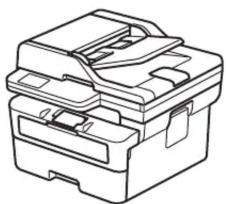
natural_image
Line drawing of a mechanical device with no visible text or symbols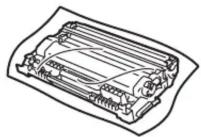
Toner Cartridge and Drum Unit Assembly

Quick Setup Guide
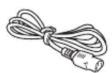
AC Power Cord
Product Safety Guide
NOTE:
- The components included in the box may differ depending on your country.
- The available connection interfaces vary depending on the model. If you use a wired connection, you must purchase the correct cable for the interface you want to use.
- USB cable
We recommend using a USB 2.0 cable (Type A/B) that is no more than 2 metres long.
• Network cable (for wired network models only)
Use a straight-through Category 5 (or greater) twisted-pair cable.
- The screens and images in this Quick Setup Guide show the MFC-L2885DW.
- Save all packing materials and the box in case you must ship your machine.
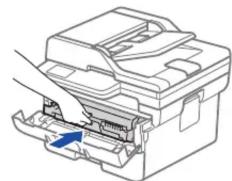
1 Remove the packing materials and install the toner cartridge and drum unit assembly
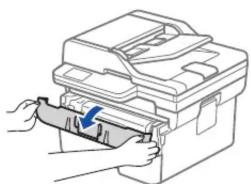
natural_image
Illustration of hands inserting a file into a machine (no text or symbols visible)
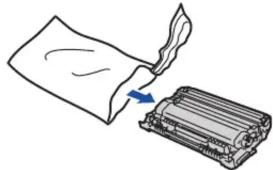
natural_image
Illustration of a cloth being inserted into a rectangular device (no text or symbols)
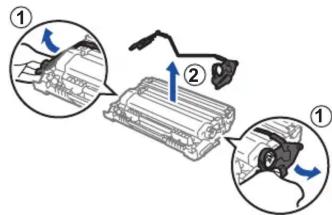
Remove the orange part.

natural_image
Diagram of a printer or printer with a hand inserting a cable into the case (no text or symbols visible)Push firmly.

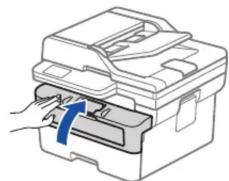
natural_image
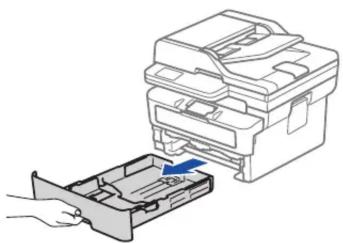
Illustration of a printer with a blue arrow indicating the press or operation (no text or symbols present)2 Load paper in the paper tray
natural_image
Diagram showing a printer being inserted into a plastic case, with no visible text or symbols.
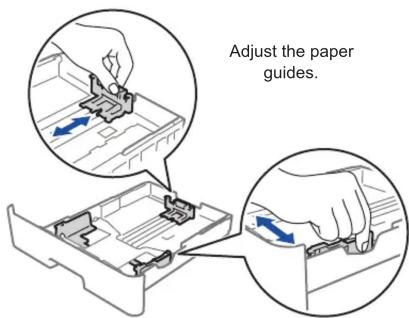
Do not exceed this mark.

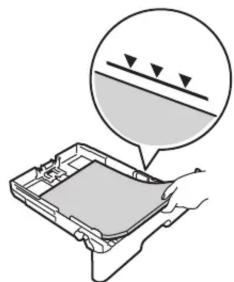
natural_image
Illustration of a hand holding a device with a magnified view showing a surface feature (no text or symbols)
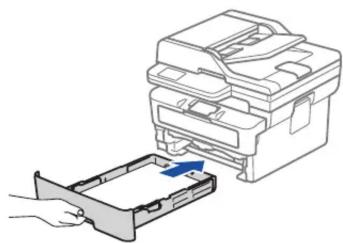
natural_image
Diagram showing a hand inserting a device into a plastic case, with no visible text or symbols.3 Connect the power cord and turn the machine on
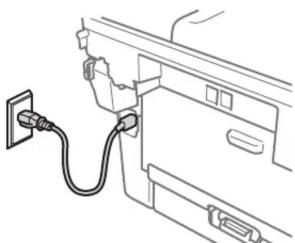
natural_image
Line drawing of a car interior with a cable plugged into the door (no text or symbols)Back Front

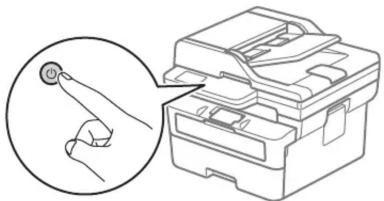
natural_image
Line drawing of a printer with a magnified inset showing the tip of the paper (no text or symbols present)4 Select your country/language (Initial setup only)
After turning the machine on, you may be required to set your country or language (depending on your machine).
If required, follow the on-screen instructions.
5 Select your language (if needed)
■ For LCD models:
- Press Menu.
- Press ▲ or ▼ to display [Initial Setup], and then press OK.
- Press ▲ or ▼ to display [Local Language], and then press OK.
- Press ▲ or ▼ to select your language, and then press OK.
- Press Stop/Exit.
■ For touchscreen models:
- On the machine's touchscreen, press ⚫[Settings] > [All Settings] > [Initial Setup] > [Local Language].
- Select your language.
- Press
6
Connect the telephone line cord (For MFC models only)
If you do not plan to use the fax feature on this machine, go to step .7
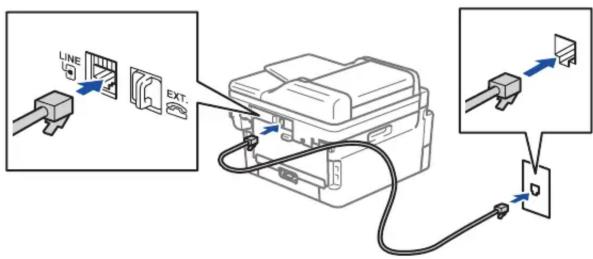
7 Connect your computer or mobile device to your machine
Follow these steps to complete the setup using one of the connection types available on your machine.
Visit setup.brother.com to download and install Brother software.
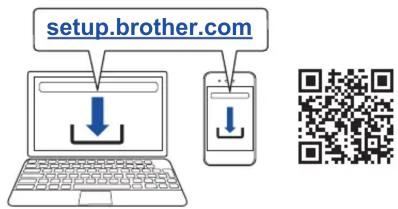
Follow the on-screen instructions and prompts.
Setup Finished
You can now print and scan using your machine.
Important Notice for Network Security: The default password to manage this machine's settings is located on the back of the machine and marked "Pwd". We recommend immediately changing the default password to protect your machine from unauthorised access.
NOTE:
For Windows only, CD installation is also available (for some countries).
Can't Connect? Check the following:

Wireless network

Wired network
USB connection
Restart your wireless access point or router. If this is not possible, go to the next step.
Disconnect the cable.
Restart your machine and computer, and then go to 7
▶
If still unsuccessful, go to .8
If still unsuccessful, visit support.brother.com for FAQs and Troubleshooting.
8 Manual wireless setup (Wireless models)
If the wireless setup is unsuccessful, set up the connection manually.
Find your SSID (Network Name) and Network Key (Password) on your wireless access point or router and write them in the table provided below.
| SSID (Network Name) | |
| Network Key (Password) |
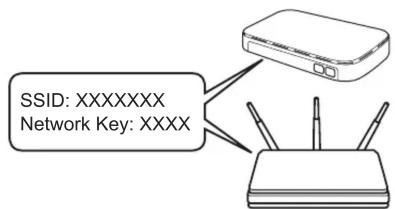
If you cannot find this information, ask your network administrator or wireless access point or router manufacturer.
■ For LCD models: Press Menu, and then select [Network] > [WLAN(Wi-Fi)] > [Find Network]. Follow the LCD instructions.
■ For touchscreen models: Press > [Find Wi-Fi Network]. Follow the touchscreen instructions.
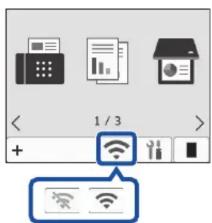
Select the SSID (Network Name) for your access point or router and enter the Network Key (Password).
- For LCD DCP models: Press and hold (or press repeatedly) ▲ or ▼ to select one of the following characters: 0123456789abcdefghijklmnopqrstuvwxyz ABCDEFGHIJKLMNOPQRSTUVWXYZ ABCDEFGHIJKLMNOPQRSTUVWXYZ (space)!"#\$%&')*+,-./;;<=>?@[]^_'{}\~
(space)!"#\$%&'()*+,-./:;<=>?@[]\^_'{}\~
When the wireless setup is successful, the touchscreen/LCD displays [Connected].
If the setup is unsuccessful, restart your Brother machine and your wireless access point or router, and repeat 8. If still unsuccessful, visit support.brother.com.
Go to to install software.
- Quick Setup Guide
- brother
- Unpack the machine and check the components
- NOTE:
- - USB cable
- Remove the packing materials and install the toner cartridge and drum unit assembly
- Load paper in the paper tray
- Connect the power cord and turn the machine on
- Select your country/language (Initial setup only)
- Select your language (if needed)
- 6
- Connect the telephone line cord (For MFC models only)
- Connect your computer or mobile device to your machine
- Can't Connect? Check the following:
- Manual wireless setup (Wireless models)
Marke : BROTHER
Modell : DCP-L2680DW
Kategorie : Fax