
I-WL-REPEATER2 - Router Techly - Kostenlose Bedienungsanleitung
Finden Sie kostenlos die Bedienungsanleitung des Geräts I-WL-REPEATER2 Techly als PDF.


| Produkttyp | Wireless-N Mini Router |
| Marke | Techly |
| Modell | I-WL-REPEATER2 |
| Abmessungen (ca.) | Kompaktes Reiseformat (ca. 80 x 50 x 20 mm) |
| Gewicht (ca.) | ca. 100 g |
| Stromversorgung | Netzteil (im Lieferumfang) 5V DC |
| WLAN-Standard | IEEE 802.11b/g/n |
| Maximale WLAN-Geschwindigkeit | 300 Mbit/s |
| Betriebsmodi | Router, AP, Repeater, WISP, Client, Bridge |
| WLAN-Sicherheit | WEP, WPA/WPA2, WPA-PSK/WPA2-PSK |
| Schnittstellen | 1x RJ-45 LAN/WAN (10/100 Mbit/s) |
| WPS-Taste | Ja |
| Reset-Taste | Ja (10 Sekunden drücken für Werkseinstellungen) |
| Standard-IP-Adresse | 192.168.10.253 |
| Standard-Benutzername/-Passwort | admin / admin |
| Lieferumfang | Router, Schnellstartanleitung, RJ-45-Kabel |
| QoS | Ja (für VoIP und Multimedia-Streaming) |
| Firmware-Update | Über Webinterface möglich |
| Konfigurationssicherung | Export/Import der Einstellungen |
| Entsorgung | Nicht im Hausmüll, gemäß WEEE-Richtlinie |
Häufig gestellte Fragen - I-WL-REPEATER2 Techly
Benutzerfragen zu I-WL-REPEATER2 Techly
0 Frage zu diesem Gerät. Beantworten Sie die, die Sie kennen, oder stellen Sie Ihre eigene.
Eine neue Frage zu diesem Gerät stellen
Laden Sie die Anleitung für Ihr Router kostenlos im PDF-Format! Finden Sie Ihr Handbuch I-WL-REPEATER2 - Techly und nehmen Sie Ihr elektronisches Gerät wieder in die Hand. Auf dieser Seite sind alle Dokumente veröffentlicht, die für die Verwendung Ihres Geräts notwendig sind. I-WL-REPEATER2 von der Marke Techly.
BEDIENUNGSANLEITUNG I-WL-REPEATER2 Techly
Wireless- Mini RouterN User Manual
Quick Installation Guide(Q.I.G.)
REV 3.2
A4. The login screen below will appear. Enter the "User Name" and
"Password" then click "OK" to login. The default User name is "admin" and Password is "admin".
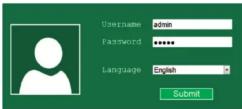
A5. After logging in, you will see the web page below:

Open Source Code
This product includes software codes developed by third parties. These software codes are subject to either the GNU General Public License (GPL), Version 2, June 1991 or the GNU Lesser General Public License (LGPL), Version 2.1, February 1999. You can copy, distribute, and/or modify in accordance with the terms and conditions of GPL or LGPL.
The source code should be complete, if you think our need to provide any additional source code files under GNU General Public License (GPL), please contact us. We are committed to meeting the requirements of the GNU General Public License (GPL). You are welcome to contact us local office to get the corresponding software and licenses. Please inform us your contact details and the product code. We will send you a CD with the software and license for free.
Please refer to the GNU GPL Web site for further information. http://www.gnu.org/licenses/licenses.en.html.
Introduction:
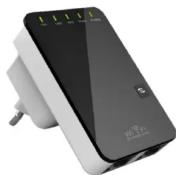
The Wireless-N Mini Router is a combined wired/wireless network connection device designed specifically for small business, office, and home office networking requirements. It complies with the IEEE 802.11n standard. It adopts MIMO as well as SST technologies. It also works well with other 11b/g and 11n protocol wireless products. Create instant WiFi hotspots at any location where you have Internet connection .
Main Features
- Complies with IEEE 802.11b/g/n standards - Supports Router, Client, Bridge, Repeater, AP mode - QoS function assures the quality of VoIP and multimedia streaming - Wireless N speed up to 300Mbps and Backward compatible with 802.11b/g
• Compact and portable, powerful wireless signal as well
01 — Wireless-N Mini Router
Configuring via Web Browser
After you successfully login, you can click the Wizard's menu to quickly configure your Router.

Choose the Operation Mode you need, and then click it.
| Mode | Description |
| Router | Standard Wireless Router Mode: This router connect to Internet by WAN port, and then other terminal devices can connect to this router by wireless connection or connect to this router's LAN port. by wired |
| AP | raditional wired router realize wireless function: This router can connect to uplink router's LAN port by wired connection, user terminal can connect to this router by wireless connection |
| Repeater | Extend wireless signal comprehensively: This router can connect to uplink wireless router by wireless connection, user terminal can connect to this router by wired or wireless connection |
| WISP | Wireless used as WAN port: This router can connect to uplink wireless router by wireless connection, at the same time, it can extend wireless signal for other devices' connection |
- Travel size design, ideal for home or travel use
• Supports WEP, WPA/WPA2, WPA-PSK/WPA2-PSK encryptions
Package Contents
Before you starting to use this router, please check if there's anything missing in the package, and contact your dealer of purchase to claim for missing items;
1 x Wireless N Mini Router 1 x Quick Installation Guide 1 x RJ-45 Networking Cable
Getting Started
Setting up a Wireless Infrastructure Network
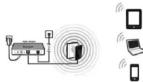
For a typical wireless setup at home (as shown above),
-
You will need broadband Internet access (a ADSL, Cable Modem line into www.home.com/ffee).
-
Consult with your ADSL or Cable Modem provider for proper installation of the modem
-
Connect the ADSL or Cable modem to the Wireless N Mini Router.
Plug the power plug of the Router in electrical w 4. Adding computers to the Wireless N Mini Router

02 — Wireless-N Mini Router
Router Mode: AP Mode:

Choose your WAN Connection Type.
If Dynamic IP is selected, the Router gets the IP address automatically from the DHCP server or the ISP. No configuration should be set and you can go on with the wireless configuration.
If ADSL Dial-up (PPPoE) is selected, please enter the User Name and Password from your ISO. These fields are easy sensitive.
- Password from your ISP, These fields are case-sensitive.
Set the wireless parameter. It's recommended that you rename an SSID, choose a Security Mode and enter a Key.
| SSID | the "SSID" of your wireless network. |
| Channel | Auto (recommend) |
| Security type | Setup the wireless security and encryption to prevent from unauthorized access and monitoring.Supports 64/128-bit WEP, WPA, WPA2, WPA/WPA2 encryption methods. |
| Security key | the "Password" of your wireless network. |
Click 'Save&Reboot' button, It will restart.
Wait for a few seconds your Wi-Fi Router is ready for use.
How Connect to Wireless-N Mini Router
You can configure the Wireless-N Mini Router by connecting it with your
computer/laptop with enclosed RJ45 cable or wirelessly
A1. Plug the Wireless-N Mini Router to a wall socket
A2. Click on the network icon (or) on the right bottom of your desktop. You will find the signal from the Wireless-N. Click on 'Connect' then wait for a few seconds.

A3. Open web browser and type http://192.168.10.253 in the browser's address box. This number is the default IP address for this device.
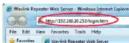
Note: Please check whether the Wireless-N Mini Router accord with factory default settings once you can't download http://192.168.10.253 If you are still not sure what reasons, you can reset the Wireless-N Mini Router, just need to press the reset button for 10 seconds, then try again.
03 — Wireless-N Mini Router

Set the wireless parameter. It's recommended that you rename an SSID, choose a Security Mode and enter a Key.
| SSID | the "SSID" of your wireless network. |
| Channel | Auto (recommend) |
| Security type | Setup the wireless security and encryption to prevent from unauthorized access and monitoring.Supports 64/128-bit WEP, WPA, WPA2, WPA/WPA2 encryption methods. |
| Security key | the "Password" of your wireless network. |
Click 'Save&Reboot' button, It will restart. Wait for a few seconds your Wi-Fi Router is ready for use.
04 — Wireless-N Mini Router
05 — Wireless-N Mini Router
06 — Wireless-N Mini Router
07 — Wireless-N Mini Router
Repeater Mode:

Select the SSID of the target network and click Select.
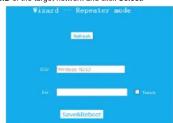
The target network's SSID will be automatically filled into the wireless setting figure. Then enter the Password.
Click 'Save&Reboot' button, It will restart. Wait for a few seconds your Wi-Fi Router is ready for use.
WISP Mode:
In this mode, all Ethernet ports are bridged together and the wireless client will connect to ISP access point.

Select the SSID of the target network and click Select.

The target network's SSID will be automatically filled into the wireless setting figure. Then enter the Password.
Click 'Save&Reboot' button, It will restart.
Wait for a few seconds your Wi-Fi Router is ready for use.
Change Management password
Default password of Wireless-N Mini Router is "admin", and it's displayed on the login prompt when accessed from web browser. There's a security risk if you don't change the default password, since everyone can see it. This is very important when you have wireless function enabled.
To change password, please follow the following instructions: Please click 'Administrator' menu on the web management interface, the following message will be displayed on your web browser:

If you want to change password, fill in the Username and Password,
Click 'Apply' button, The WiFi Repeater will log off.
Firmware Upgrade
The system software used by this router is called as 'firmware', just like any applications on your computer, when you replace the old application with a new one, your computer will be equipped with new function. You can also use this firmware upgrade function to add new functions to your router, even fix the bugs of this router.
The upper right corners please click 'Firmware', and then the following message will be displayed on your web browser:

Click 'Browse' button first; you'll be prompted to provide the filename of firmware upgrade file. Please download the latest firmware file from our website, and use it to upgrade your router.
After a firmware upgrade file is selected, click 'Upgrade' button, and the router will start firmware upgrade procedure automatically. The procedure may take several minutes, please be patient.
NOTE: Never interrupt the upgrade procedure by closing the web browser or physically disconnect your computer from router. If the firmware you uploaded is corrupt, the firmware upgrade will fail, and you may have to return this router to the dealer of purchase to ask for help. (Warranty voids if you interrupted the upgrade procedure).
08 — Wireless-N Mini Router
09 — Wireless-N Mini Router
10 — Wireless-N Mini Router
11 — Wireless-N Mini Router
Factory Default and Settings Backup, Restore
You can backup all Setting of this router to a file, so you can make several copied of router configuration for security reason.
To backup or restore router setting, please follow the following instructions: Please click 'Save/Reload setting' located at the web management interface, then the following message will be displayed on your web browser:
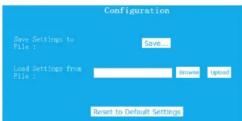
| Save Settings to File | Press 'Save...' button, you can please save it as another filename for different versions, and keep it in a safe place. |
| Load Settings | Press 'Browse...' to pick a previously-saved configuration file from your computer, and then click 'Upload...' After the configuration is uploaded, the router's configuration will be replaced by the file you just uploaded. |
| Reset Settings | Click this 'Reset to Default Settings' button to remove all settings |
How to connect your computer/laptop with the Wireless-N Mini Router
Adding a Wireless computers to the Wireless-N Mini Router
-
Log on to the computer
-
Open Connect to a Network by right-clicking the network icon (or [icon]) in the notification area.
-
Choose the wireless network from the list that appears, and then click Connect.
-
Type the network security key or passphrase if you are asked to do so, and then click OK. You'll see a confirmation message when you are connected to the network.

- To confirm that you added the computer, do the following: Open Network by clicking the Start button (1), and then clicking Control Panel. In the search box, type network, and then, under Network and Sharing Center, click View network computers and devices. You should see icons for the computer you added and for the other computers and devices that are part of the network.
Note : If you don't see icons in the Network folder, then network discovery and file sharing might be turned off.
Adding a Wireless computers to the Wireless-N Mini Router with WPS Button
-
Log on to the computer
-
Press the WPS button of the Wireless-N Mini Router directly for 2 - 3
seconds.
- Press the WPS button of the Wireless Adapter directly for 2 seconds Click Finish to complete the WPS configuration. (Please check your
Click Finish to complete the WPS configuration. (Please: Wireless adapter Manual with WPS configuration)
- You should see icons for the computer you added and for the other computers and devices that are part of the network.
Adding a wired (Ethernet) computer to the Wireless-N Mini Router
-
Plug the Wireless-N Mini Router to a wall socket. Connect your computer interface with the Wireless-N Mini Router with anized 7-U5 Cable.
-
To confirm that you added the computer, do the following:
Open Network by clicking the Start button , and then clicking Control
Panel. In the search box, type network, and then, under Network and Sharing Centre, click View network computers and devices. You should
Sharing Center, click view network computers and devices. You should see icons for the computer you added and for the other computers and
devices that are part of the network
For more information:
http://windows.microsoft.com/en-US/windows/?Add-a-device-or-computer-to-a-network
http://windows.microsoft.com/en-US/windows7/Setting-up-a-wireless-network
http://windows.microsoft.com/en-US/windows-vista/Setting-up-a-wireless-network
How to configure your computer/laptop with the Network IP Address
-
Log on to the computer.
-
Click the "Start" button (it should be located at the lower-left corner of your screen), then click "Control Panel". Click "View Network Status and Tasks", and then click "Manage Network Connections" Right-click "Local Area Network", then select "Properties". When the "Local Area Connection Properties" window appears, select "Internet Protocol Version 4 (TCP/IPv4)" and then click "Properties".
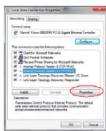
- Setting IP address manually: Type IP address is 192.168.10.x (x is from 2 to 252), and Subnet mask is 255.255.255.0. Type the Router's LAN IP address (the default IP is 192.168.10.253) into the Default gateway field.

WEEE Directive & Product Disposal
At the end of its serviceable life, this product should not be treated as household or general waste. It should be handed over to the applicable collection point for the recycling of electrical and electronic equipment, or returned to the supplier for disposal.
12 — Wireless-N Mini Router
13 — Wireless-N Mini Router
14 — Wireless-N Mini Router
15 — Wireless-N Mini Router


Marke : Techly
Modell : I-WL-REPEATER2
Kategorie : Router