
IDATA HDMI-CAPCA01 - Audio-/Video-Konverter Techly - Kostenlose Bedienungsanleitung
Finden Sie kostenlos die Bedienungsanleitung des Geräts IDATA HDMI-CAPCA01 Techly als PDF.


| Produkttyp | HDMI-Grabber (Audio-/Video-Konverter) |
| Marke | Techly |
| Modell | IDATA HDMI-CAPCA01 |
| Abmessungen (B x T x H) | 86 x 86 x 21 mm |
| Gewicht | 80 g |
| Stromversorgung | DC 5V, 2A |
| Eingangssignale | HDMI |
| Ausgangssignale | HDMI (Durchschleifung) |
| USB-Anschluss | USB 2.0 |
| Mikrofon-Eingang | 3,5 mm Klinke |
| Videoaufnahmeformat | MP4 (H.264) |
| Maximale Aufnahmeauflösung | 1920x1080 bei 30p |
| Bitrate | max. 16 Mbps (standardmäßig 10 Mbps für USB-Kompatibilität) |
| Maximale Dateigröße pro Aufnahme | 2 GB (automatische Aufteilung bei längeren Aufnahmen) |
| Maximale Speicherkapazität (USB/SD) | 2 TB |
| Unterstützte Dateisysteme | FAT, FAT32, NTFS |
| Betriebsmodi | Standalone (PC-frei), PC-Modus (über Micro-USB), Dual-Modus |
| LED-Anzeigen | Blau/Grün für Eingangssignal und Aufnahmestatus |
| Reinigung | Mit einem weichen, trockenen Tuch abwischen |
| Sicherheitshinweise | Nicht öffnen, vor Hitze, Feuchtigkeit und Flüssigkeiten schützen |
Häufig gestellte Fragen - IDATA HDMI-CAPCA01 Techly
Benutzerfragen zu IDATA HDMI-CAPCA01 Techly
0 Frage zu diesem Gerät. Beantworten Sie die, die Sie kennen, oder stellen Sie Ihre eigene.
Eine neue Frage zu diesem Gerät stellen
Laden Sie die Anleitung für Ihr Audio-/Video-Konverter kostenlos im PDF-Format! Finden Sie Ihr Handbuch IDATA HDMI-CAPCA01 - Techly und nehmen Sie Ihr elektronisches Gerät wieder in die Hand. Auf dieser Seite sind alle Dokumente veröffentlicht, die für die Verwendung Ihres Geräts notwendig sind. IDATA HDMI-CAPCA01 von der Marke Techly.
BEDIENUNGSANLEITUNG IDATA HDMI-CAPCA01 Techly
QUICK START GUIDE
HDMI Grabber type:
- Standalone Mode (PC free)
Storage: USB HDD/USB Flash Drive
- Dual Mode (Standalone Mode + PC Mode)
Storage: USB HDD / USB Flash Drive, SD Card or PC HDD
SAFETY PRECAUTION
Before using the HDMI Grabber please ensure that you read and understand the safety precautions below.
- Do not attempt to open the case of the HDMI modify it in any way, as this void the warranty.
- Keep the HDMI Grabber away from heat source, humid place and liquids.
- The HDMI Grabber may become warm during usage does not indicate malfunction.
- Do not place heavy objects on the HDMI Grabber, as this may cause the device to overheat and malfunction.
- If the exterior of the HDMI Grabber requires cleaning, wipe it with a soft dry cloth.
RECORDING STEPS
- Switch on power, LED will flash quickly in blue and green.
- Connect video source to HDMI Grabber. LED will turn blue (1080i/p) or green (720p).
- Connect a USB storage device to the USB port of HDMI Grabber.
- Press REC / STOP button to start recording, the LED will flash slowly.
- Press REC / STOP button again to stop recording.
- The LED will flash in blue / green slowly. DO NOT remove the USB device as the file is being saved. The LED goes off when the file is saved.
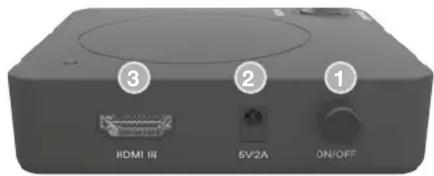
PRODUCT CONNECTORS/ BUTTONS / LED LIGHTS
N. STANDALONE DUAL MODE
| 1 | Power Power | |
| 2 | DC Input 5 V / 2A DC Input 5 | V / 2A |
| 3 | HDMI IN HDMI IN | |
| 4 | HDMI OUT | HDMI OUT |
| 5 | MIC input | MIC input |
| 6 | USB2.0 | USB2.0 |
| 7 | Micro USB (USB to PC) | |
| 8 | Record/Stop button | Record/Stop button |


Grabber or

CONNECTION - STANDALONE MODE
PlayStation 3 and PlayStation 4 XBOX 360 and XBOX ONE

flowchart
graph TD
    A["PS3 PS4"] -->|HDMI In| B["HDMI Grabber"]
    C["TV"] -->|USB Flash Drive USB HDD *| B
    B -->|HDMI Out| D["External Device"]
** External power may be required from some USB HDD
- Make sure the PS3/4 video/audio output are setup correctly before you begin.
- Connect Ps (output) to HDMI Grabber (input) via HDMI cable.
- Connect HDMI Grabber to TV via HDMI cable.
- Make sure gameplay is visible on TV screen (if TV screen ois black, try to press and hold REC /STOP button for 10 seconds).
- Connect USB HDD/USB Flash Drive to HDMI Grabber.
RECORDING FILE & TIME
File saving
- HDMI Grabber will record a new file when the previous recording file reaches the maximum 2GB capacity.
- When HDD or USB storage is full, HDMI Grabber stops recording and record light will go off.
- HDMI Grabber saves files in MPEG4 format.
Resolution
The resolution can be set at either 720p or 1080p for capture. Please note that not all games / video files are produced at 1080p.
Recording time
The HDMI Grabber will record approximately 1GB per 10 mins at either 720p or 1080p.
RESOLUTION
| Input/Output | 1920x1080 (50p), 1920x1080 (60p)1920x1080 (24p), 1920x1080 (25p),1920x1080 (30p)1920x1080 (50i), 1920x1080 (60i),1280x1024 (60p)1280x720 (60p), 1280x768 (60p),1280x800 (60p)720x480 (60i), 720x480 (50i)640x480 (60p), 720x480 (60p),720x576 (50p) |
| Record | 1920x1080 (24p), 1920x1080 (25p),1920x1080 (30p)1280x720 (50p), 1280x720 (60p)640x480 (60p), 720x480 (60p),720x576 (50p) |
THE HDMI GRABBER LED LIGHTS WILL ILLUMINATE TO INDICATE DIFFERENT STATUS
| LED STATUS FUNCTION | |
| Blue / green flashing Power is on | |
| Blue / green flashing slowly | Saving recording to USB |
| Blue LED on Input source is 1080i/p | |
| Green LED on Input source is 720i/p | |
| Blue LED flashing 1080p recording | |
| Green LED flashing 720p recording | |
CONNECTION - PC MODE
HDMI devices
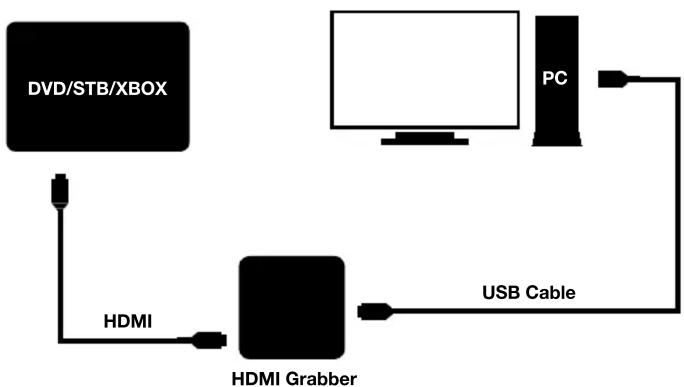
flowchart
graph TD
    A["DVD/STB/XBOX"] --> B["HDMI"]
    B --> C["HDMI Grabber"]
    C --> D["USB Cable"]
    D --> E["PC"]
- Connect video source to HDMI Grabber by HDMI cable
- Connect HDMI Grabber (Micro USB) to PC via USB cable.
- Open PC software Trevii Player and make sure video is visible (if TV screen is black, try to press and hold REC / STOP button for 10 seconds).
- Trevii Player will record the file into the PC HDD
RECORDING STEPS
- Switch on Power, the LED will flash in blue and green.
- Connect a USB storage device to the USB port of HDMI Grabber.
- Press REC / STOP button to start recording, the LED will flash in blue or green.
- Press REC / STOP button again to stop recording.
- The LED will flash several times. DO NOT remove USB device as the file is being saved. The REC / STOP LED goes off when file is saved.
MICROPHONE FUNCTION
You may adjust audio volume of video source to audio recording effect.
PRODUCT SPECIFICATIONS
| Capture format MP4 (H.264) | |
| Video format (input) NTSC, | PAL PAL-60 |
| File recording format support | FAT, FAT32, NTFS |
| Input signals HDMI | |
| Output signals | HDMI (pass-through) |
| USB port | USB2.0 |
| Bit rate | Maximum 16 Mbps* |
| Recording capacity | 2GB maximum per file |
| Note | For a long recording, HDMI Grabber will record in several 2GB files |
| Maximum storage capacity | 2TB |
| Power supply | DC 5V 2A |
| Weight | 80 g |
| Dimension | 86*86*21 mm |
** For some USB HDD, its reading speed may not be fast enough. The Bit Rate is fixed at 10Mbps to be compatible with most of USB HDD available.

In accordance with the WEEE regulation, electrical and electronic equipment must not be disposed of with household waste. It means that used electrical and electronic products should not be mixed with
household waste. There is a separate collections system for these products.
CE With the CE sign, Techly® ensures that the product is conformed to the basic European standards and directives.


Marke : Techly
Modell : IDATA HDMI-CAPCA01
Kategorie : Audio-/Video-Konverter