
P-touch PT-6100 - Etikettendrucker BROTHER - Kostenlose Bedienungsanleitung
Finden Sie kostenlos die Bedienungsanleitung des Geräts P-touch PT-6100 BROTHER als PDF.


| Produkttyp | Etikettendrucker |
| Modell | P-touch PT-6100 |
| Marke | Brother |
| Abmessungen (B x T x H) | 107,4 mm x 202,6 mm x 56,6 mm |
| Gewicht | 365 g (ohne Batterien und Bandkassette) |
| Stromversorgung | 6 AAA Alkaline-Batterien (LR03) oder optionales Netzteil AD-24ES |
| Bandbreiten | 3,5 mm, 6 mm, 9 mm, 12 mm |
| Bandtyp | Brother TZ-Bänder |
| Display | LCD, 1 Zeile, 12 Zeichen |
| Maximale Textlänge | 80 Zeichen |
| Schriftgrößen | Mehrere Größen (z. B. Groß, Mittel, Klein) |
| Schriftstile | Normal, Fett, Kursiv, Vertikal, Umriss, Schatten |
| Rahmen und Unterstreichungen | Verschiedene Rahmenmuster und Unterstreichungsarten |
| Datum- und Uhrzeitfunktion | Ja, 8 verschiedene Formate |
| Auto-Format | Ja, voreingestellte Formate für verschiedene Anwendungen |
| Nummerierung | Ja, automatische Erhöhung um 1 |
| Spiegelprint | Ja, für transparente Etiketten |
| Kettenprint | Ja, minimiert Ränder beim Druck mehrerer Kopien |
| Speicher | Bis zu 9 Etiketten speicherbar |
| Zubehör (Ersatzteile) | Schneideeinheit TC-5, Netzteil AD-24ES |
| Reinigung | Nur mit weichem, trockenem Tuch; Druckkopf mit Wattestäbchen |
| Sicherheitshinweise | Nur Brother TZ-Bänder verwenden, nicht in feuchten Räumen betreiben, Druckkopf nicht berühren |
Häufig gestellte Fragen - P-touch PT-6100 BROTHER
Benutzerfragen zu P-touch PT-6100 BROTHER
0 Frage zu diesem Gerät. Beantworten Sie die, die Sie kennen, oder stellen Sie Ihre eigene.
Eine neue Frage zu diesem Gerät stellen
Laden Sie die Anleitung für Ihr Etikettendrucker kostenlos im PDF-Format! Finden Sie Ihr Handbuch P-touch PT-6100 - BROTHER und nehmen Sie Ihr elektronisches Gerät wieder in die Hand. Auf dieser Seite sind alle Dokumente veröffentlicht, die für die Verwendung Ihres Geräts notwendig sind. P-touch PT-6100 von der Marke BROTHER.
BEDIENUNGSANLEITUNG P-touch PT-6100 BROTHER
INTRODUCTION
With your PT-6100, you can create labels for any application. Select from the many frames, character sizes and styles to design beautiful custom labels. In addition, the variety of tape cartridges available allows you to print labels with different widths and exciting colors.
Read this manual carefully before starting and keep the manual in a handy place for future reference.
WARNING
• Always use the specified voltage and the suggested AC adapter (AD-24ES) for this machine to prevent any damage or failure.
- Unplug the power cord immediately and stop using the P-touch labeler during an
• electrical storm. There may be a remote risk of electric shock from lighttr • Do not use the AC adapter in places of high humidity such as bathrooms.
- Do not overload the power cord.
- Do not place heavy objects on, or damage the power cord or plug. Do not forcibly bend or pull the power cord. When disconnecting the power cord from the power outlet, always hold the plug.
• To prevent fire or electric shock, make sure that the plug is fully inserted to the power outlet. Do not use an outlet that is loose.
- Do not get the machine/AC adapter/power plug wet, such as by handling them with
wet hands or spilling beverages on to them. • Do not disassemble or modify the machine/AC adapter/batteries.
- Do not disassemble or modify the machine/AC adapter/batteries. - Disconnect the AC adapter, remove batteries and stop using immediately if you notice any abnormal odor, heat, discoloration, deformation or anything unusual while in use or in storage.
- Do not use metallic articles, such as tweezers or a metallic pen, when exchanging the batteries.
- Do not throw into fire or heat up the battery.
CAUTION
• To avoid injuries, do not touch the blade of the cutter unit or any metal parts near the print head.
- Do not apply excessive pressure to the cutter lever.
- Remove the batteries and disconnect the AC adapter if you do not intend to use the machine for an extended period of time. (Note: When power is disconnected for more than two minutes, all text & formats in the display will be lost. Language, Unit and Time/Date settings will also be cleared.)
- Do not use old and new batteries together or mix alkaline batteries with other type batteries, or set the positive and negative end in the wrong position. Otherwise, the batteries may leak or be damaged.
• To prevent damage or breakage, do not drop or hit the machine/AC adapter and press on the LCD display.
- Depending on the location, material, and environmental conditions, the label may unpeel or become irremovable, the color of the label may change or be transferred to other objects. Before applying the label, check the environmental condition and the material
• Any data stored in memory will be lost due to failure or repair of the P-touch labeler, or if the battery expires.
General Precautions
- Do not use the P-touch labeler in any way or for any purpose not described in this guide. Doing so may result in accidents or damage the machine.
- Use only Brother TZ tapes with this machine. Do not use tapes that do not have the TZ mark
- Do not clean the machine with alcohol or other organic solvents. Only use a soft, dry cloth
- Do not touch the print head with your fingers. Use a soft wipe (e.g. a cotton swab) when cleaning the print head.
- Do not put any foreign objects into the tape exit slot or AC adapter connector, etc. - Do not place the P-touch labeler in direct sunlight or rain, near heaters or other hot appliances, dashboard or in the back of your car, in any location exposed to extremely high or low temperatures, high humidity, or dusty locations. Standard operating temperature range: 50°F to 95°F (10°C to 35°C).
- Do not try to print labels using an empty tape cassette in the P-touch labeler. Doing so will damage the print head.
- Do not pull the tape being fed from the P-touch labeler, otherwise the tape cassette or P-touch labeler may be damaged.
1 PREPARATION OPERATION REFERENCE
Power Supply & Tape Cassettes
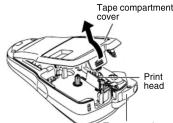
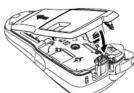
1 Open the tape compartment cover by pressing in the rough area at the top end of the machine. If a tape cassette is already
• Make sure that the power is turned off when replacing batteries outside, especially
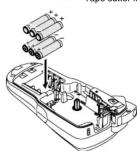
2 Insert six new AAA alkaline batteries (LR03), making sure that their poles point in the correct directions. Always replace all six batteries at the same time using brand new ones.
3 Insert a tape cassette, making sure that it snaps into place.
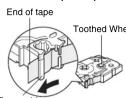
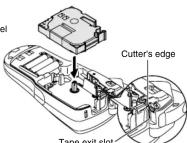
- Make sure that the end of the tape feeds under the tape guides. - If the ink ribbon is loose, use your finger to wind the toothed wheel in the direction of the arrow on the cassette.
4 Securely close the back cover, making sure that it snaps into place. After you have installed the tape, feed the tape (see Feeding) once and then push in the tape cutter lever to cut the tape.
When using optional AC adapter (AD-24ES) Insert the plug on the adapter cord into the adapter jack on the bottom end of the machine.
② Insert the plug into the nearest standard electrical outlet.
For memory back up, we recommend using AAA alkaline batteries (LR03) together when using the AC adapter.
Keyboard & LCD
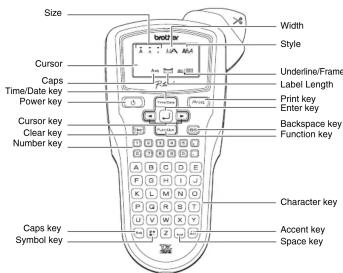
The LCD shows one row of 12 characters; however, the text that you enter can be up to 80 characters in length.
Initial Settings
1 Start your machine
Supply power by using six AAA alkaline batteries or the optional AC adapter, and then press
▼
2 Set the language (English/Espanol/Français/Hrvatski/Italiano/Magyar/
Nedrinds/Norsk/Polski/Portug./Română/Slovenski/Slovensky/Suomi/Svenska/(Datrik/Deutsch)
• Svenska/Grank/Deutsch) The default setting is "English
•

3 Set the unit (inch/mm)
©

Choose unit with □ and press
4 Set Date (MM/DD/YY) and Time (hh:mm)
Example: setting the clock to October 21st 2009, 10:30AM
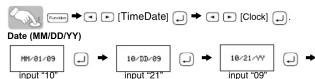
Time (hh:mm)
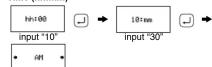
Select AM/PM with ▼ and press .
You can also confirm the figure and move to the next setting by using the right cursor key.
- The machine automatically turns off if no keys are pressed within 5 minutes.
• To cancel operations, press 📄86
- To initialize the settings, turn off the machine and then while holding down Function and R, press ⏻ to turn the machine back on. Finally, release Function and R.

Troubleshooting
Error message
| Message | Cause/Remedy |
| Battery | The batteries are weak. Replace them with new ones. |
| BATTERY! | The installed batteries are about to run out. |
| Invalid | There is no text above the cursor when you set Numbering. Invalid character is selected for Numbering. In addition, a number is selected for Tab Length or Label Length. |
| No Text | You tried to print a text file when there is no data stored in the memory. The Print key is pressed when no text is entered. You tried to set Copies, Numbering, Mirror, or Text Preview when no text is entered. |
| Line Lmt | You tried to enter a 3rd line by pressing the Enter key. You tried to print a 2 line next when 0.13^ (3.5mm) or 0.23^ (6mm) tape is installed. |
| No Cassette | You tried to print a label when there is no cassette installed. |
| Cutter Error | Tape cutter lever is used in the middle of printing process. |
| Full | The maximum number of characters (80 characters) have already been entered. |
| Text Lmt | The length exceeds the selected label length or the selected Auto Format setting length. |
| No Frame OK? | Printing on 0.13^ (3.5 mm) tape with invalid Frame setting ON. (Select to print with no Frame, to cancel.) |
What to do when..
Solution
| The display stays blank after you have turned on the machine. | • Check that the batteries are correctly inserted.• If the batteries are weak, replace them.• Check that the AD-24ES adapter is correctly connected.• See [Margin] (“Tape Margin”) in this users guide and select [Half] or [Narrow] to have smaller margins for your label. |
| What's a label is printed out, there is too much margin (space) on both sides of the text. | |
| The machine does not press or the prismatic characters are not formed properly. | • Check that the tape cassette has been inserted correctly.• If the tape cassette is replaced, replace them.• Check the tape compartment cover is properly closed. |
| The setting has cleared on its own. | • The batteries may be weak. Replace them.• When power is disconnected for more than two minutes, all text & formats in the display will be lost. Language, Unit and Time/Date settings will also be cleared. |
| A blank horizontal line is open through the printed label. | • There maybe some dust on the print head. Remove the tape cassette and use of location was gently wipe the print head with an up-and-down motion. |
| The machine has “locked up” (i.e., nothing but it is very key is pressed, even though the machine is on.) | • Turn off the machine, and then while holding down (and), press (and), press (and) to turn the machine back on. Finally, release (and) and (and).• Note: The text and formats in the display are erased. Also, the language, Unit and Time/Date settings will be cleared. |
| The power turns off when you try to print. | • The batteries may be weak. Replace them.• Check that the batteries are correctly inserted. |
| The tape does not feed properly or the tape is get stuck inside the machine. | • Check that the end of the tape feeds under the tape guides.• The tape is set up during printing. Do not touch the cutter lever during printing. |
| All text and format settings need to be cleared to create over-label. | • Press and select [Txt&Format]. |
| To change language setting. | • See step 2 “Set the language” of the “Initial Settings”. |
Specifications
| Item | Specification |
| Dimensions | 4.3^ (W) × 8.1^ (D) × 2.3^ (H)(107.4 mm (W) × 202.6 mm (D) × 56.6 mm (H)) |
| Weight | 0.80 lbs. (365 g) (without batteries and tape cassette) |
| Power supply | Six AAA alkaline batteries (LR03) or optional AC adapter (AD-24ES) |
| Tape cassette | Brother TZ tape (width) :0.13" (3.5 mm), 0.23" (6 mm), 0.35" (9 mm), 0.47" (12 mm) |
Accessories (Supplies may differ by distribution.)
| Accessories | Stock No. |
| Tape Cassettes | See the included "Supplies and Accessories Guide". |
| AC Adapter | AD-24ES |
| Cutter Unit | TC-5 (replacement) |
| If the cutter blade becomes blunt and the cutter stopper wear after repetitive use and the tape cannot be cut cleanly, replace with new cutter unit (stock no. TC-5) by obtaining from an authorized brother reseller. | |
MAKING TEXT
Switching Upper Case/Lower Case

Making Two Line Text
Move the cursor to where the second line starts and press ↙

Entering Symbols

| Group | Symbols | |||||
| 1 | . | , | : | ; | " | ' |
| 2 | @ | - | & | - | _ | \ / |
| 3 | # | % | ? | ! | ¿ | i * |
| 4 | + | - | × | ÷ | ± | = |
| 5 | ( ) | [ ] | < | > | ||
| 6 | → | ← | ↑ | ↓ | ||
| 7 | $ | ¢ | € | £ | ¥ | ° √ |
| 8 | α | β | Y | δ | § | Φ |
| 9 | 2 | 3 | ● | ○ | ★ | |
| Group | Symbols |
| 10 | |
| 11 | |
| 12 | |
| 13 | |
| 14 | |
| 15 | |
| 16 | |
| 17 |
- To go to the next group, press - To cancel operations, press
Entering Accented Characters

| Accented Characters | |
| A | A A A A A E A A A A A |
| C | C C C |
| D | D D |
| E | E E E E E E E E |
| G | G G |
| I | I I I I I I I |
| K | K |
| L | L L L |
| N | N N N |
| O | O O O O O O E O |
| R | R R R |
| S | S S S S B |
| T | T T P |
| U | U U U U U U U U |
| Y | Y Y |
| Z | Z Z Z |
| Accented Characters | |
| a | á à â ä æ ã a à â ä |
| c | ç ć ć |
| d | d' ō d |
| e | é è ë ę ę è è ë |
| g | g g |
| i | í i î î î î î |
| k | k |
| l | í í | í |
| n | ñ n í n |
| o | ó ó ó ø ó ó ø ó |
| r | ř f r |
| s | š ś s s B |
| t | t' t b |
| u | ú ú ú ú u ú ú ú |
| y | ý ŷ |
| z | ž z Ž |
• To cancel operations, press . [88]
• The order of accented characters differ by the selected LCD language.
To Clear
By pressing the Backspace Key, the letters will be deleted one by one.

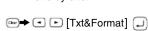
All text and settings will be cleared.

[Text Only]
Only text will be cleared.
2 DESIGNING LABELS 3 PRINTING LABELS
[Size]
(Function + 9)
![BROTHER P-touch PT-6100 - [Size] - 1](/content/2026/05/817249/images/1089ae6108550b72060b9281fb2be462b7c381f70cf85519287e35059e591085.jpg)
[Width]
(→to)
![BROTHER P-touch PT-6100 - [Width] - 1](/content/2026/05/817249/images/18963a1d31795a0abb98992f22ae17ab6a88992e9e713d94180395f15ba33199.jpg)
![BROTHER P-touch PT-6100 - [Width] - 2](/content/2026/05/817249/images/837dc140f13554464f8677a8b6b801eaeb9d5ae855a3ea26aa56deb7d0e0dfd0.jpg)
[Style] (Vertical)
Function → [Style] → [Vertical]
![BROTHER P-touch PT-6100 - [Style] (Vertical) - 1](/content/2026/05/817249/images/37c3346b24f4b954193dd95f68f5a3b199b71270233f64d3e5a0502c4036aa5e.jpg)
[Underline/Frame]
(Function + 4)
Function → [Undl/Frm] → [Undl]
![BROTHER P-touch PT-6100 - [Underline/Frame] - 1](/content/2026/05/817249/images/ae9af8ba8a0a4317f077a21baf2ca390a920e361cb83a86d6b5cb4c6cae4419c.jpg)
Frames can not be printed on 0.13" (3.5mm) tape.
[Tab]
(Function + 8)
You can make aligned texts by setting tabs.
Example: To set a tab between "ABC" and "D"
The cursor should be positioned where you set a tab.
![BROTHER P-touch PT-6100 - [Tab] - 1](/content/2026/05/817249/images/d34418672d9074b7170edf8a575fa5e6c516f10de48a40bbb8ba05f305214bb2.jpg)
![BROTHER P-touch PT-6100 - [Tab] - 2](/content/2026/05/817249/images/dbc3307facbc40e40b5e0fa1b4f1aa151793e90ad3f17b545f582cf413760320.jpg)
Function → [Tab Length] → 1.0"
- You can also select the length by entering the length with Number keys.
- To return to [Auto], press
[Non-Text]
![BROTHER P-touch PT-6100 - - To return to [Auto], press - 1](/content/2026/05/817249/images/5429505e8502b879f15d404b466edb3d75d71dd56deb06e9260979e1a6e09337.jpg)
- You can also select the length by entering the length with Number keys. - To return to [Auto], press.
[Auto Format]
(Function + *)
You can choose label length from six formats to create labels for various ap-
![BROTHER P-touch PT-6100 - [Auto Format] - 1](/content/2026/05/817249/images/7324ec1d68fc807cf36ba46405e055ff0ff10eb96958b8f6cbfc5fc401ed32fd.jpg)
![BROTHER P-touch PT-6100 - [Auto Format] - 2](/content/2026/05/817249/images/0bebebae64aeca08e66822a7d25e514117c5e5c3e6a4ced75de1a3bf219718d7.jpg)
![BROTHER P-touch PT-6100 - [Auto Format] - 3](/content/2026/05/817249/images/20e401891f3621dfa1ba730fcb1dca2704d14beb62f2d2a09f88a68ee1052d62.jpg)
![BROTHER P-touch PT-6100 - [Auto Format] - 4](/content/2026/05/817249/images/c01a61aa9ee5c5729f9d82b5f90b46caacf82f1276684f7b2e662f1dfa3d3f36.jpg)
You can also use the Function shortcuts for these menu. Press the Function and the shortcut key shown next to the menu title. To confirm, press
Text Preview
(Function + )
You can preview the text before printing.
Function → [Preview]
- The LCD shows the whole text and the label length (inch/mm), then returns to the label length.
• Only the text can be previewed, not the font, style, size, underline/frame or any
additional features.
Feeding (Tape Feed)
(Function + )
Function → [Feed]
Printing


25.17
off the label, push in the tape cutter lever on the upper-right corner of the
• To prevent
is displayed.
- When Chain Print is set, "OK to Feed?" will appear. (See the [Margin] (Tape Margin).)


1 + u1 - 1 = ( 1 + u) u1 < 1 = u
→ [Margin] → [Full]
[Full]/[Half]/[Narrow] is for leaving equal margins on both sides of the text.
NOTE: Cut along the printed dots (:) with scissors so the text is centered in the label.

[Chain Prt] (Chain Print) is for printing more than 1 copy of a label with minimum margin
Chain Print

• FEED THE TAPE BEFORE USING THE CUTTER OTHERWISE A PART OF THE TEXT MAY BE CUT OFF.
- After pressing (Print), "OK to Feed?" will appear. Press ☐ to feed. Press 📄 to cancel.
- Do not try to pull the tape since this may damage the tape cassette.
Using [Print Option]
(Functional + Print)
[Copies]
You can print up to 9 copies of each label.
![BROTHER P-touch PT-6100 - [Copies] - 1](/content/2026/05/817249/images/47994e9c9e4edd006ece56eb13e9bec5d5b27de9a09912e2e9097e817082476f.jpg)
You can also select the number of copies by entering with Number keys.
[Numbering]
You can print many copies of the same text while increasing a selected number by 1 after each label is printed.
Example: To print copies of a label containing a serial number (0123, 0124 and 0125)
![BROTHER P-touch PT-6100 - [Numbering] - 1](/content/2026/05/817249/images/46df034f318b3e086d7ccb93fdb8359b1a03370b5b2539295ff3a08febc0d26f.jpg)
[Numbering] → Set 3-9? 5
Select the highest number you wish to be printed when setting the number.
[Mirror]
Function → [Print Option] → [Mirror]
![BROTHER P-touch PT-6100 - [Mirror] - 1](/content/2026/05/817249/images/f5e0eab79021ce1e7ba72fec60d6663a6de78668f3b78b4e098e8d961af995f1.jpg)
![BROTHER P-touch PT-6100 - [Mirror] - 2](/content/2026/05/817249/images/b7b55807d14b7890166e24560451bd41e2c3089c5e1ce980c3ad70111656d9af.jpg)
Use clear tape in [Mirror], so the labels can be read correctly from the opposite side when attached on glass, windows or other transparent surfaces.
[CREATING LABELS]
4 COMPLETED LABELS


Peel the printed label from backing and apply the label.
USEFUL FUNCTIONS
File (Memory)
You can save your original labels on to your machine. Up to nine labels can be saved and recalled for printing whenever you desire. You can also edit and overwrite the stored label.





Time/Date Function
(Function + Times)
You can insert the desired time and date to your text at the touch of a button.
8 Formats are available for printing time and date. You can change the number of time/date by change
You can change the number of time/date by changing the clock setting. To add Time/Date to your text:

The cursor should be positioned where you wish to insert the time and date.
To select the format of Time/Date:


| Format | Example(October 21st 2009, 3:30PM) | Format | Example(October 21st 2009, 3:30PM) |
| M/D/Y | 10/21/09 | D.M.Y | 21.10.09 |
| M/D/Y hm | 10/21/09 03:30PM D.M.Y | hm 21.10.09 | 03:30PM |
| D/M/Y | 21/10/09 | Y-M-D | 09-10-21 |
| D/M/Y hm | 21/10/09 03:30PM | Y-M-D hm | 09-10-21 03:30PM |
To change the Clock Setting:
See step 4 of the "Initial Settings"
FCC NOTICE
This device complies with Part 15 of the FCC Rules. Operation is subject to the following two conditions: (1) This device may not cause harmful interference, and (2) this device must accept any interference received, including interference that may cause undesired operation.
This equipment has been tested and found to comply with the limits for a Class B digital device, pursuant to Part 15 of the FCC Rules. These limits are designed to provide reasonable protection against harmful interference in a residential installation. This equipment generates, uses, and can radiate radio frequency energy and, if not installed and used in accordance with the instructions, may cause harmful interference to radio communications. However, there is no guarantee that interference will not occur in a particular installation. If this equipment does cause harmful interference to radio or television reception, which can be determined by turning the equipment off and on, the user is encouraged to try to correct the interference by one or more of the following measures:
- Reorient or relocate the receiving antenna.
- Increase the separation between the equipment and receiver. - Connect the equipment into an outlet on a circuit different from
- Consult the dealer or an experienced radio/TV technician for help.
- Changes of modifications not exp authority to operate the equipment.
Should you encounter any problems with your product, please do not return your product to the store!
After referring to the User's guide, if you still need assistance, call Brother Customer Service at:
Voice: 1-877-BROTHER (1-877-276-8437) Web: www.brother.com
Fax: 1-901-379-1210
If you need to locate a service center, please call
1-877-BROTHER (1-877-276-8437) or visit us at www.brother.com

- INTRODUCTION
- WARNING
- CAUTION
- General Precautions
- PREPARATION OPERATION REFERENCE
- Power Supply & Tape Cassettes
- Keyboard & LCD
- Initial Settings
- Troubleshooting
- MAKING TEXT
- Switching Upper Case/Lower Case
- Making Two Line Text
- Entering Symbols
- Entering Accented Characters
- To Clear
- DESIGNING LABELS 3 PRINTING LABELS
- [Size]
- [Width]
- [Style] (Vertical)
- [Underline/Frame]
- [Tab]
- - To return to [Auto], press
- [Auto Format]
- Text Preview
- Feeding (Tape Feed)
- Printing
- Using [Print Option]
- [Copies]
- [Numbering]
- [Mirror]
- [CREATING LABELS]
- COMPLETED LABELS
- USEFUL FUNCTIONS
- File (Memory)
- Time/Date Function
- FCC NOTICE
Marke : BROTHER
Modell : P-touch PT-6100
Kategorie : Etikettendrucker