
C110 - Projektor INFOCUS - Kostenlose Bedienungsanleitung
Finden Sie kostenlos die Bedienungsanleitung des Geräts C110 INFOCUS als PDF.


| Produkttyp | Videoprojektor |
| Marke | InFocus |
| Modell | C110 |
| Projektionstechnologie | DLP |
| Auflösung | SVGA (800 x 600) |
| Helligkeit | 1500 ANSI Lumen |
| Kontrastverhältnis | 2000:1 |
| Objektiv | Manueller Zoom und Fokus |
| Lampenlebensdauer | ca. 2000 Stunden |
| Lautsprecher | Integrierter Mono-Lautsprecher |
| Anschlüsse | VGA, S-Video, Composite Video, Audio-Eingang |
| Keystone-Korrektur | Manuell |
| Stromverbrauch | ca. 250 W |
| Abmessungen (B x T x H) | 295 x 225 x 95 mm |
| Gewicht | 2,5 kg |
| Lieferumfang | Netzkabel, VGA-Kabel, Audio/Video-Kabel, Bedienungsanleitung |
| Besonderheiten | Integrierter Lautsprecher, automatische Bildanpassung |
Häufig gestellte Fragen - C110 INFOCUS
Benutzerfragen zu C110 INFOCUS
0 Frage zu diesem Gerät. Beantworten Sie die, die Sie kennen, oder stellen Sie Ihre eigene.
Eine neue Frage zu diesem Gerät stellen
Laden Sie die Anleitung für Ihr Projektor kostenlos im PDF-Format! Finden Sie Ihr Handbuch C110 - INFOCUS und nehmen Sie Ihr elektronisches Gerät wieder in die Hand. Auf dieser Seite sind alle Dokumente veröffentlicht, die für die Verwendung Ihres Geräts notwendig sind. C110 von der Marke INFOCUS.
BEDIENUNGSANLEITUNG C110 INFOCUS
Projector and Computer Quick Set Up
X2/X3
1 Connect computer cable
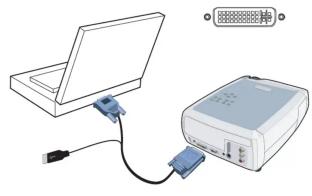
natural_image
Diagram showing connections between a laptop, an electronic device, and a USB cable (no text or symbols present)2 Connect power cable
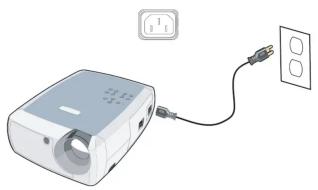
natural_image
Illustration of a projector connected to a wall socket (no text or symbols visible)3 Remove lens cap
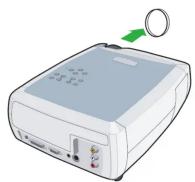
4 Power on projector ▼ warm up
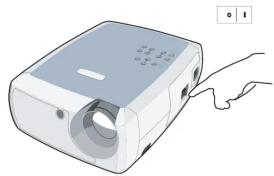
natural_image
Illustration of a projector with a hand pointing to the side panel (no text or symbols)5 Adjust height
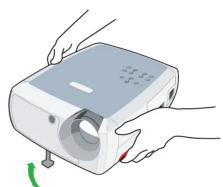
natural_image
Illustration of hands holding a projector with a green indicator knob (no text or symbols)6 Adjust zoom and focus
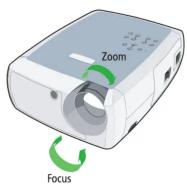
7 Adjust keystone
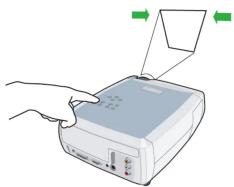
natural_image
Illustration of a computer monitor with hands holding a cable, showing ports and a green arrow indicating direction (no text or symbols present)8 Power on computer warm up
Many laptops do not turn on their external video port when connected to a projector. A key combo like FN + F3 or CRT/LCD key turns the external display on/off. Locate a function key labeled CRT/LCD or a function key with a monitor symbol on the laptop. Press FN and the labeled function key simultaneously. Refer to your laptop's documentation to learn your laptop's key combination.

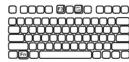
If there is still no image, restart computer
Optional Audio/Video Connections

Standard Connection
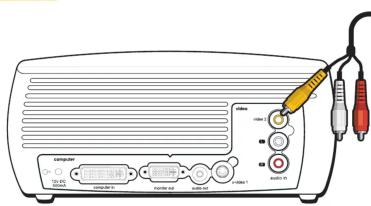
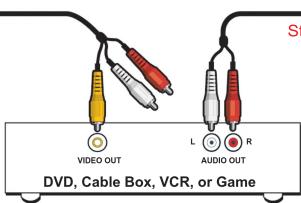
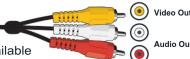
Stereo Audio Cable (Not Included) Included Audio/Video Cable
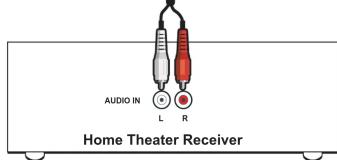

Using the Projector's Speaker
If a home theater or other audio receiver is not available, you can use the projector's built-in speaker.
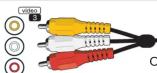
Projector
Included Audio/Video Cable
Only use projector speaker if other audio output is not available
DVD, Cable Box, VCR, or Game System
Optional Cables for Improved Video Quality available at www.infocus.com

Good Connection
S-video cable Component cable DVI
S-video cable separates the video signal into two parts and offers better video quality than composite video.


Better Connection Premium Connection ★
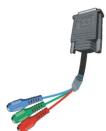
Component video cable provides a high-bandwidth connection that separates video colors for improved resolution and color accuracy compared to S-Video and composite video. Component cables can transmit high definition (Hi-Def, HDTV) signals.
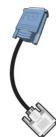
DVI cable (Digital Visual Interface) provides picture information, giving the best possible image quality. DVI cables can transmit high definition (Hi-Def, HDTV) signals.
Marke : INFOCUS
Modell : C110
Kategorie : Projektor