INE-S920E - Browser ALPINE - Kostenlose Bedienungsanleitung
Finden Sie kostenlos die Bedienungsanleitung des Geräts INE-S920E ALPINE als PDF.


| Produkttyp | Navigationssystem (Autoradio mit Navigation) |
| Marke | Alpine |
| Modell | INE-S920E |
| Displaygröße | 7 Zoll (ca. 17,8 cm) Touchscreen |
| Abmessungen (B x H x T) | 178 mm x 100 mm x 160 mm (ca. 2-DIN) |
| Gewicht | ca. 1,5 kg (mit Zubehör) |
| Stromversorgung | 12 V DC (Fahrzeugbordnetz) |
| Leistungsaufnahme | max. 15 A (Sicherung 15 A) |
| Navigationssoftware | Vorinstalliert mit Kartenmaterial Europa |
| Kartenaktualisierung | Über microSD-Karte oder USB |
| Audiofunktionen | Radio (FM/AM), CD/DVD, USB, Bluetooth, AUX-Eingang |
| Videoausgang | RCA Composite, optional Rückfahrkamera |
| Bluetooth | Freisprecheinrichtung, Audio-Streaming |
| Anschlüsse | USB, microSD, AUX, Antenne, Lenkradfernbedienung (optional) |
| Reinigung | Staubtuch, keine aggressiven Reiniger |
| Betriebstemperatur | -10 °C bis +60 °C |
| Lagertemperatur | -20 °C bis +80 °C |
| Sicherheitshinweise | Nicht in Wasser tauchen, vor Feuchtigkeit schützen |
| Ersatzteile | Fernbedienung, Stromkabel, Halterung, microSD-Karte |
| Reparierbarkeit | Fachwerkstatt empfohlen, keine Selbstreparatur |
Häufig gestellte Fragen - INE-S920E ALPINE
Benutzerfragen zu INE-S920E ALPINE
0 Frage zu diesem Gerät. Beantworten Sie die, die Sie kennen, oder stellen Sie Ihre eigene.
Eine neue Frage zu diesem Gerät stellen
Laden Sie die Anleitung für Ihr Browser kostenlos im PDF-Format! Finden Sie Ihr Handbuch INE-S920E - ALPINE und nehmen Sie Ihr elektronisches Gerät wieder in die Hand. Auf dieser Seite sind alle Dokumente veröffentlicht, die für die Verwendung Ihres Geräts notwendig sind. INE-S920E von der Marke ALPINE.
BEDIENUNGSANLEITUNG INE-S920E ALPINE
ALPINE®
8-INCH ADVANCED NAVI STATION
INE-W928R/INE-Z928E
7-INCH ADVANCED NAVI STATION
INE-W977BT/INE-W947E
ADVANCED NAVI STATION
INE-W925R/INE-W920R/
INE-S920E
MOBILE MEDIA STATION
IVE-W535BT/IVE-W535EBT/
IVE-W535ABT
- MirrorLink™ Operation Manual Please read before using this equipment.
- MirrorLink™ -Bedienungsanleitung Lesen Sie diese Bedienungsanleitung bitte vor Gebrauch des Gerätes.
- Guide d'utilisation de la fonction MirrorLink™ Veuillez lire avant d'utiliser cet appareil.
- Manual de funcionamiento de MirrorLink™ Léalo antes de utilizar este equipo.
-
Manuale di funzionamento MirrorLink™ Si prega di leggere prima di utilizzare il attrezzatura.
-
MirrorLink™ Bruksanvisning Innan du använder utrustningen bör du läsa igenom denna användarhandledning.
- MirrorLink™ -gebruikershandleiding Lees deze aanwijzingen aandachtig alvorens dit toestel te gebruiken.
- Руководство по эксплуатации MirrorLink™ Прочтите настоящее руководство перед началом использования оборудования.
- Mirror Link™ — instrukcja obsługi Prosimy zapoznać się z tą instrukcją przed przystąpieniem do użytkowania urządzenia.
MirrorLink™ Operation (Optional)
DISCLAIMER
ENABLED BY CONNECTIVITY FUNCTIONS OF THE MOBILE PHONE, THE MOBILE PHONE'S USER INTERFACES FOR MUSIC OR DRIVE ARE DISPLAYED DIRECTLY ON OUR HEAD UNIT WITH NO ALTERATION. ALPINE SHALL NOT BE RESPONSIBLE OR LIABLE TO USERS FOR ANY DAMAGES, LOSSES OR COSTS RELATED TO OR ARISING OUT OF THESE MOBILE PHONE INTERFACES.
Using MirrorLink™
MirrorLink is a standard for connecting between this unit and a mobile phone. Using MirrorLink, you can display a mobile phone screen and operate your mobile phone applications via this unit.
- Some applications may not be displayed or operated, depending on the connected mobile phone.
- If the mobile phone is locked, it cannot be operated from the unit.
- For details on compatible phones, refer to the Alpine website.
When using MirrorLink, we recommend that you connect your mobile phone via both USB and BLUETOOTH.
- For details on BLUETOOTH connection, refer to Owners Manual “Registering the BLUETOOTH Device.”
- If your mobile phone is connected via USB only, some functions may not operate normally. Make sure you also connect via BLUETOOTH.
1 Press the ♪(AUDIO) button.
2 Touch [Mirror Mode] or [Car Mode] of Top banner.
The screen for the selected mode is displayed.
- After connecting to a mobile phone that is compatible with this unit, source icons will appear on the Top banner.
- Mirror Mode or Car Mode may be automatically selected on this unit without performing step 2, depending on the connected mobile phone.
3 Press the ★(My Favorites) button after the Top banner disappears.
The Media Control button will be displayed on the bottom of the screen.
- The Top banner disappears if no operation is performed for at least 5 seconds or the centre of the screen is touched.

- If the Media Control buttons are not operated for at least 5 seconds, the display will disappear. Each time you press the (My
Favorites) button, you can set the Media Control button display to On/Off. - Touch [图标] to switch the mode of Media Control button operation.
- Touch [ ] to display the Media Control button Setup screen.
- Touch [ ] to display the Top Banner.
Mirror Mode
Applications in a mobile phone can be displayed on this unit's screen. Some applications may not be displayed, depending on the connected mobile phone.
- You cannot operate the Mirror Mode while driving.
Car Mode
All automotive applications in a mobile phone are displayed on this unit.
- If the connected mobile phone displays a screen other than Car mode, “Please select Car Mode source again” is displayed on this unit.
Switching the mode of Media Control button operation
Touch the Media Control button (☑) select the operation mode.
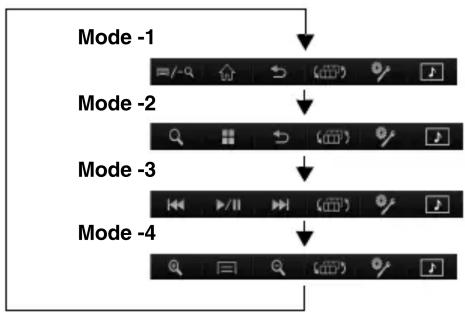
flowchart
graph TD
    A["Mode -1"] --> B["/"]
    B --> C["Button icon"]
    C --> D["Button icon"]
    D --> E["Button icon"]
    E --> F["Button icon"]
    F --> G["Button icon"]
    G --> H["Button icon"]
    H --> I["Button icon"]
    I --> J["Button icon"]
    J --> K["Button icon"]
    K --> L["Button icon"]
    L --> M["Button icon"]
    M --> N["Button icon"]
    N --> O["Button icon"]
    O --> P["Button icon"]
    P --> Q["Button icon"]
    Q --> R["Button icon"]
    R --> S["Button icon"]
    S --> T["Button icon"]
    T --> U["Button icon"]
    U --> V["Button icon"]
    V --> W["Button icon"]
    W --> X["Button icon"]
    X --> Y["Button icon"]
    Y --> Z["Button icon"]
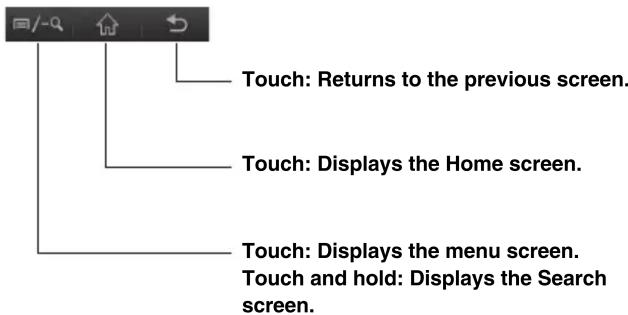
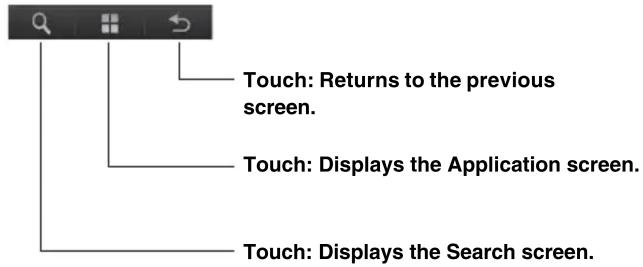
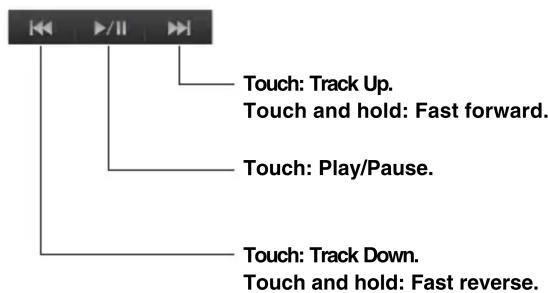
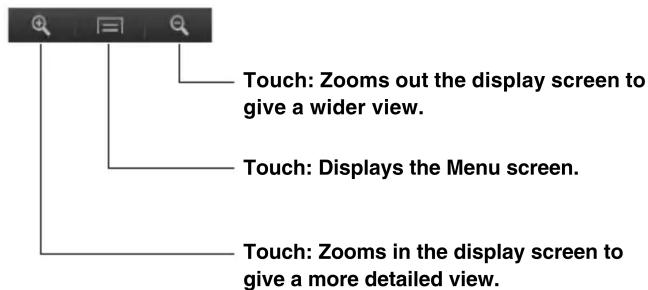
- In the Mirror Mode/Car Mode, you can change four patterns.
- A function that has been set to “OFF” in the Media Control button Setup, is not displayed.
■ Mode -1 (Android mobile phones)
■ Mode -2 (Nokia phones)
■ Mode -3 (Music Application Mode)
■ Mode -4 (Navigation Mode)
- Operable modes on this unit may differ from operations on your mobile phone, depending on the connected mobile phone.
MirrorLink™ Setup (Optional)
Media Control button Setup
Media Control button setup is performed for the Mirror Mode/Car Mode. Set “ON” to enable the Media Control buttons.
Setting item: Media Control button Setup Setting contents: OFF / ON (Initial setting)
1 Touch [ ] of Media Control buttons.
2 Touch [ON] or [OFF].
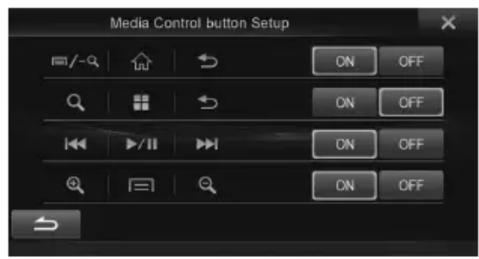
- The Media Control buttons of a mode set to “OFF,” is not displayed.
About Other Settings
Media Xpander and Source Volume Setup of MirrorLink are applied to Compress Media.