
XDP-766EQ - Freisprecheinrichtung Auto SONY - Kostenlose Bedienungsanleitung
Finden Sie kostenlos die Bedienungsanleitung des Geräts XDP-766EQ SONY als PDF.


| Produkttyp | Digitaler Signalprozessor (DSP) mit Spektrumanalysator für Freisprecheinrichtung im Auto |
| Abmessungen (B × H × T) | ca. 178 × 50 × 170 mm (ohne hervorstehende Teile) |
| Einbaumaße (B × H × T) | ca. 178 × 50 × 153 mm (ohne hervorstehende Teile) |
| Gewicht | ca. 0,7 kg |
| Stromversorgung | 12 V DC (negative Masse) |
| Stromaufnahme | 0,6 A |
| Frequenzgang | 20 Hz – 20 kHz (±1 dB) |
| Signal-Rausch-Verhältnis | mehr als 85 dB |
| Klirrfaktor | 0,008 % |
| Equalizer-Bänder | 7 Bänder (63 Hz, 160 Hz, 400 Hz, 1 kHz, 2,5 kHz, 6,3 kHz, 16 kHz) |
| Equalizer-Regelbereich | ±12 dB |
| Spektrumanalysator | 13 Bände, 7 Anzeigemodi, Empfindlichkeit in 11 Stufen einstellbar |
| DSP-Effekte (vorprogrammiert) | Heavy, Mellow, Vocal, Dynamic, Disc Jockey, Relaxation, Loudness |
| Benutzerprofile | 7 Speicherplätze (U1–U7) für eigene DSP-Dateien (Name, Equalizer, Surround, DRS) |
| Surround-Modi | Disco, Theater, Kirche, Halle, Stadion, Karaoke, Studio (Effektstärke in 10 Stufen) |
| DRS (Dynamic Range Suppressor) | Komprimiert die Dynamik, Effektstärke in 10 Stufen einstellbar |
| Subwoofer-Tiefpassfilter | Grenzfrequenzen: 78 Hz, 99 Hz, 125 Hz, 157 Hz, 198 Hz; Flanke -48 dB/Okt |
| Hörpositionsanpassung | 5 Positionen (Alle, Vorne, Vorne rechts, Vorne links, Hinten) mit Feineinstellung (Balance/Fader) |
| Eingänge | Line-Eingang (Cinch) |
| Ausgänge | Line-Ausgang (Cinch) |
| Anzeige | Spektrumanalysator/Equalizer-Kurve mit Zeicheninformation; Beleuchtungsfarbe (grün/bernsteinfarben) über Hauptgerät wählbar |
| Kompatible Hauptgeräte | Sony BUS-System mit DSP-Steuerfunktion (DSP-Taste am Hauptgerät nicht verwenden) |
| Wartung und Reinigung | Vor direkter Sonneneinstrahlung schützen; nach starker Erwärmung abkühlen lassen; keine Reinigungsmittel verwenden |
| Sicherheit | Nur für 12-V-Negativmasse-Fahrzeuge; Sicherung nur mit korrekter Amperezahl ersetzen |
| Ersatzteile und Reparierbarkeit | Keine vom Benutzer zu wartenden Teile; Reparatur nur durch autorisierten Sony-Händler |
| Lieferumfang | Installations- und Anschlusszubehör (1 Satz) |
Häufig gestellte Fragen - XDP-766EQ SONY
Benutzerfragen zu XDP-766EQ SONY
0 Frage zu diesem Gerät. Beantworten Sie die, die Sie kennen, oder stellen Sie Ihre eigene.
Eine neue Frage zu diesem Gerät stellen
Laden Sie die Anleitung für Ihr Freisprecheinrichtung Auto kostenlos im PDF-Format! Finden Sie Ihr Handbuch XDP-766EQ - SONY und nehmen Sie Ihr elektronisches Gerät wieder in die Hand. Auf dieser Seite sind alle Dokumente veröffentlicht, die für die Verwendung Ihres Geräts notwendig sind. XDP-766EQ von der Marke SONY.
BEDIENUNGSANLEITUNG XDP-766EQ SONY
SONY®
3-800-145-21(1)
Digitaler Signalprozessor
Bedienungsanleitung
Bevor Sie das Gerät in Betrieb nehmen, lesen Sie diese Anleitung bitte vollständig durch und bewahren Sie sie für späteres Nachschlagen auf.
Eigentümer-Notiz
Modell- und Seriennummer befinden sich auf der Unterseite des Geräts. Notieren Sie die Seriennummer im unten vorgesehenen Feld. Beziehen Sie sich darauf, wenn Sie Ihren Sony-Händler zu diesem Produkt kontaktieren.
Modell-Nr. XDP-766EQ Serien-Nr. ____
Für Installation und Anschlüsse siehe die mitgelieferte Installations-/Anschlussanleitung.
XDP-766EQ
©1995 Sony Corporation
WARNUNG
Dieses Gerät wurde getestet und entspricht den Grenzwerten für ein digitales Gerät der Klasse B gemäß Teil 15 der FCC-Bestimmungen. Diese Grenzwerte sollen einen angemessenen Schutz vor schädlichen Störungen in einer Wohnanlage bieten. Dieses Gerät erzeugt, verwendet und kann Hochfrequenzenergie ausstrahlen. Wenn es nicht gemäß der Anleitung installiert und verwendet wird, kann es schädliche Störungen des Funkverkehrs verursachen. Es gibt jedoch keine Garantie, dass in einer bestimmten Installation keine Störungen auftreten. Wenn dieses Gerät schädliche Störungen des Radio- oder Fernsehempfangs verursacht, was durch Ein- und Ausschalten des Geräts festgestellt werden kann, wird der Benutzer ermutigt, die Störungen durch eine oder mehrere der folgenden Maßnahmen zu beheben:
— Richten Sie die Empfangsantenne neu aus oder stellen Sie sie um.
— Vergrößern Sie den Abstand zwischen Gerät und Empfänger. — Schließen Sie das Gerät an eine Steckdose an, die zu einem anderen Stromkreis gehört als der des Empfängers. — Ziehen Sie den Händler oder einen erfahrenen Radio-/TV-Techniker zu Rate.
Bitte beachten Sie, dass Änderungen oder Modifikationen, die nicht ausdrücklich in diesem Handbuch genehmigt sind, Ihre Berechtigung zum Betrieb dieses Geräts aufheben können.
Eigenschaften
Der XDP-766EQ ist ein mit Sony BUS kompatibler digitaler Signalprozessor, der mit einem Spektrumanalysator ausgestattet ist. Er verfügt außerdem über Subwoofer-Ausgänge für die Wiedergabe von reichhaltigem, tiefem Bass.
Spektrumanalysator-Anzeige
- 13-Band-Spektrumanalysator zur Echtzeitanzeige des variablen Eingangsaudiosignalpegels. • Mit sieben Anzeigemustern für den Spektrumanalysator.
DSP-Dateifunktion (Digitaler Signalprozessor)
- Ausgestattet mit der Sony-Original-Preset-DSP-Datei mit integrierten Effekten wie: Heavy, Mellow, Vocal, Dynamic, Disc Jockey, Relaxation und Loudness. Ein gewünschter Effekt kann per Tastendruck ausgewählt werden, passend zur Art der Musik, die Sie abspielen. Außerdem mit einer Benutzerspeicherfunktion ausgestattet, die bis zu sieben benutzerdefinierte DSP-Dateien speichern kann.
- Ein 7-Band-Grafik-Equalizer ermöglicht präzise Anpassungen der Klangqualität.
- Die DRS-Funktion (Dynamic Range Suppressor) kann den Dynamikbereich des Eingangssignals komprimieren, um den durchschnittlichen Ausgangspegel zu erhöhen.
- Mit der DSP-Custom-Dateifunktion können Sie bei jedem Abspielen derselben Disc dieselbe DSP-Datei genießen.
- Mit der Last-Sound-Speicherfunktion können Sie immer dieselbe Programmquelle mit derselben DSP-Datei hören, auch nachdem Sie die Programmquelle gewechselt oder das Gerät neu eingeschaltet haben.
Sonstiges
- Umschaltbarer Tiefpassfilter (LPF) passend zum Frequenzgang des optionalen Subwoofers/der optionalen Subwoofer.
- Die Beleuchtungsfarbe der Bedientasten kann über das angeschlossene Hauptgerät zwischen Amber und Grün gewählt werden, passend zur Beleuchtungsfarbe des Hauptgeräts.
Vorsichtsmaßnahmen
Vor der ersten Inbetriebnahme dieses Geräts oder nach dem Austausch der Autobatterie drücken Sie die Reset-Taste am Hauptgerät und starten Sie dann den Betrieb.
- Wenn Sie die Autobatterie austauschen oder die Reset-Taste drücken, werden die gespeicherten benutzerdefinierten Entzerrungskurven, die gespeicherten Dateinamen usw. aus dem Speicher des Hauptgeräts gelöscht. In diesem Fall müssen Sie sie erneut speichern.
Dieses Gerät ist nur für den Betrieb mit 12 V Gleichstrom mit negativer Masse ausgelegt.
Wenn Ihr Auto in direktem Sonnenlicht geparkt war und die Temperatur im Innenraum erheblich gestiegen ist, lassen Sie das Gerät abkühlen, bevor Sie es in Betrieb nehmen.
Wenn keine Stromversorgung zum Gerät erfolgt, überprüfen Sie zuerst die Anschlüsse. Wenn alles in Ordnung ist, überprüfen Sie die Sicherung.
Ersatz verwenden
Achten Sie beim Ersetzen der Sicherung darauf, eine mit der richtigen Stromstärke zu verwenden, die im Sicherungskasten angegeben ist. Verwenden Sie niemals eine Sicherung mit einer höheren Stromstärke als die mitgelieferte, da dies zu einer Fehlfunktion des Geräts führen kann.
Inhaltsverzeichnis
Position und Funktion der Bedienelemente .... 4
Spektrumanalysator-Funktion
Ändern der Spektrumanalysator-Anzeigen .. 6
Einstellung der Hörposition 9
Einstellen der Trennfrequenz des Subwoofers/der Subwoofer 11
DSP-Dateifunktion
Was ist die DSP-Dateifunktion? 12
Anhören mit der DSP-Datei 13
Registrieren der DSP-Dateien 14
Grundlegende Vorgehensweise zum Registrieren der DSP-Datei 14
Registrieren des Dateinamens....15
Einstellen des Klangs mit dem grafischen Equalizer .... 16
Auswählen des Surround-Menüs 18
Einstellen des DRS-Effektpegels 20
Speichern der DSP-Datei 21
Registrieren der DSP-Datei auf Discs....22
Abspielen im DSP-Benutzerdatei-Modus 23
Anhören mit demselben DSP-Datei-Modus bei jedem Mal 24
Fehlerbehebungsanleitung 25
Technische Daten 27
Dieses Gerät kann an ein Mastergerät mit DSP-Steuerungsfunktion angeschlossen und verwendet werden. Selbst wenn das Mastergerät mit der DSP-Taste ausgestattet ist, können Sie die DSP-Funktion nicht über das Mastergerät steuern. Betätigen Sie daher nicht die DSP-Taste am Mastergerät.
Position und Funktion der Bedienelemente
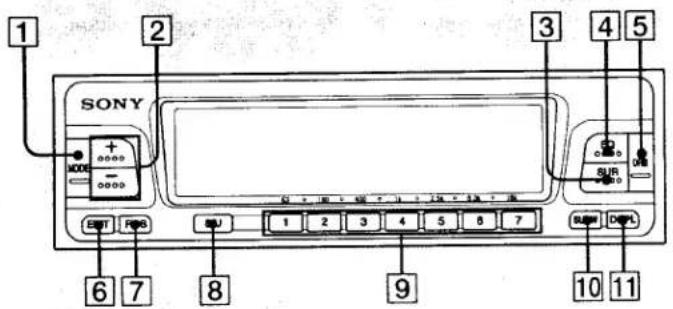
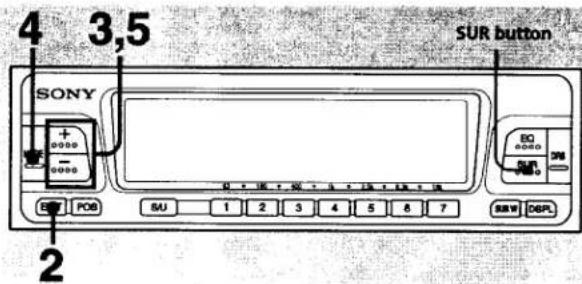
1 MODE-Taste 7 10 15 19 23 24
Drücken Sie, um die Anzeigemuster des Spektrumanalysators oder die jeweiligen Modi auszuwählen, die durch die Klangbild-Einstellung festgelegt wurden. Verwenden Sie diese Taste zum Registrieren des DSP-Dateinamens.
2 +/- (Pegelregelung)-Taste
67101517181920
Drücken Sie, um jeden Pegel einzustellen oder jeden Modus in den jeweiligen Einstellungen auszuwählen.
③ SUR-Taste 18
Diese Taste fungiert als Ein-/Aus-Taste für den Surround-Modus.
4 EQ-Taste 16
Drücken Sie, um den Equalizer-Modus ein- oder auszuschalten.
5 DRS-Taste 20
Drücken Sie, um den Dynamikbereichs-Unterdrückungsmodus ein- oder auszuschalten.
6 EDIT-Taste 14 15 16 18 20 21
Drücken Sie, um die DSP-Datei zu registrieren oder den Einstellmodus auszuwählen, während die DSP-Datei registriert wird.
7 POS-Taste 910
Drücken Sie, um die gewünschte Hörposition einzustellen oder zu ändern.
8 S/U-Taste (Sony-Original-DSP-Datei/Benutzer-DSP-Datei auswählen) 13
Drücken Sie, um zwischen dem Sony-Original-DSP-Dateimodus und dem Benutzer-DSP-Dateimodus umzuschalten.
9 Tasten für Preset-Nummer/Frequenzauswahl 13 16 21 23 24
Drücken Sie, um die gespeicherte DSP-Datei auszuwählen oder eine DSP-Datei zu registrieren.
10 SUB.-W-Taste (Subwoofer-Tiefpassfilter-Grenzfrequenzauswahl) ⑪
Drücken Sie, um die Tiefpassfilter-Grenzfrequenz des Subwoofer-Ausgangs auszuwählen.
11 DSPL-Taste (Spektrumanalysator-Anzeigeauswahl) 8
Drücken Sie, um die Spektrumanalysator-Anzeige zu ändern, entweder mit oder ohne Zeichenanzeige.
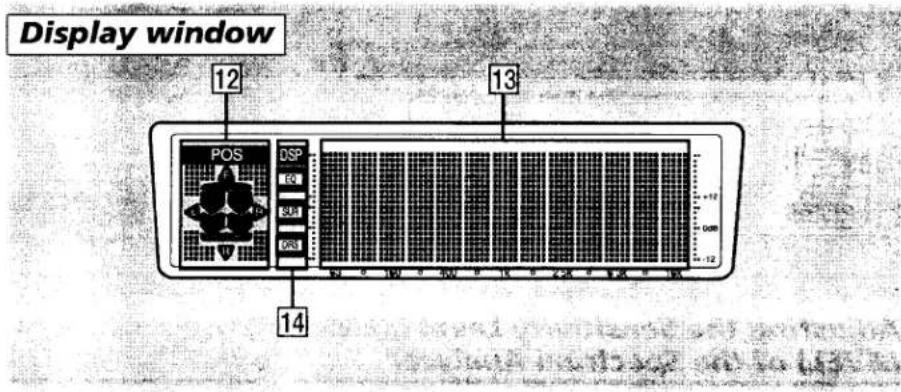
2 POS-Anzeigebereich
Zeigt die aktuell ausgewählte Hörposition an. Dieser Bereich blinkt, während sich das Gerät im Feinabstimmungsmodus der Hörposition befindet.
3 Anzeigebereich für Spektrumanalysator/Equalizer-Klangkurve
Die Zeicheninformationen oder der Dateiname werden im oberen Bereich angezeigt, und der Spektrumanalysator oder der grafische Equalizer wird im unteren Bereich des Anzeigefensters angezeigt.
14 DSP-Anzeigebereich
Zeigt an, ob die jeweilige DSP-Funktion aktiviert ist oder nicht.
| Lights up while the graphic equalizer function is activated. Press EQ button to turn on/off the function. | |
| Lights up while the surround function is activated. Press SUR button to turn on/off the function. | |
| Lights up while the DRS function is activated. Press DRS button to turn on/off the function. |
Funktion des Spektrumanalysators
Ändern der Anzeigen des Spektrumanalysators
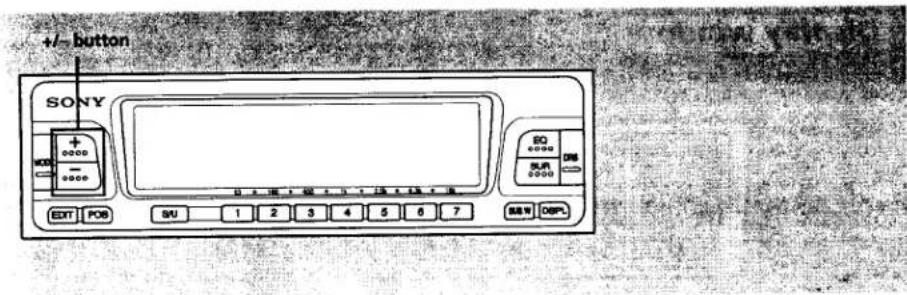
Einstellen des Empfindlichkeitspegels (SENS LEVEL) des Spektrumanalysators
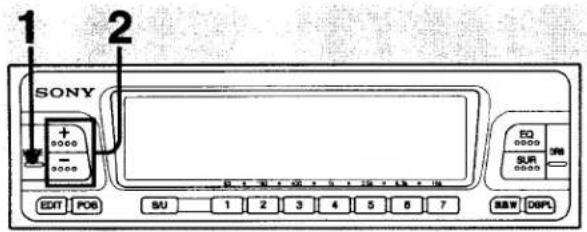
Drücken Sie die +/- Taste.
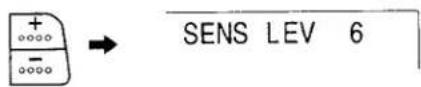
(Die Anzeige "SENS LEV" erscheint im Display.)
Sie können den Pegel der Schwingung in 11 Schritten einstellen. (Je größer der Wert von SENS LEV ist, desto höher ist die Empfindlichkeit des Spektrumanalysators.)
Hinweis
Wenn die Anzeige "SENS LEV 0" im Display erscheint, wird der Spektrumanalysator nicht angezeigt.
Ändern der Anzeigemuster
1 Drücken Sie die MODE-Taste.
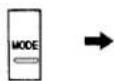
ANALYZER 1
2 Drücken Sie entweder die + oder - Taste und wählen Sie das gewünschte Anzeigemuster.

Sie können aus sieben Mustern wählen.
Jedes Mal, wenn Sie die Taste drücken, ändert sich das Anzeigemuster wie folgt:
Anzeigemuster des Spektrumanalysators
![graph TD A["ANALYZER 1"] --> B["ANALYZER 2"] B --> C["ANALYZER 3"] C --> D["ANALYZER 4"] D --> E["ANALYZER 5"] E --> F["ANALYZER 6"] F --> G["ANALYZER 7"] G --> H["Displays the patterns 1 to 6 repeatedly for fifteen seconds each."]](/content/2026/05/805490/images/2d0d2d275a0c478e8843c588dd9e466ed817ff5df64f222fd6c2a1be8eb030b5.jpg)
Ändern der Spektrumanalysator-Anzeigen
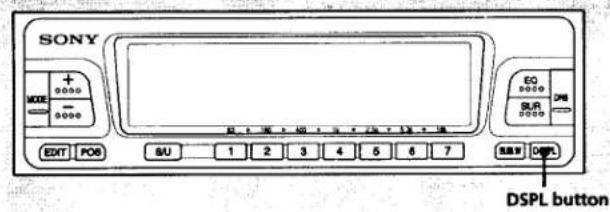
Löschen der Zeichenanzeige
Drücken Sie die DSPL-Taste

Die Zeichenanzeige im oberen Bereich des Anzeigefensters erlischt, und das Display zeigt die vollständige Spektrumanalysator-Anzeige.
Um zur Anzeige mit der Zeichenanzeige zurückzukehren, drücken Sie erneut die DSPL-Taste.
Ändern der Farben der Beleuchtung
Die Beleuchtungsfarbe dieses Geräts ist mit der Beleuchtungsfarbe des Hauptgeräts verknüpft. Verwenden Sie daher das Hauptgerät, um die Farbe der Beleuchtung auszuwählen.
Einstellung der Hörposition
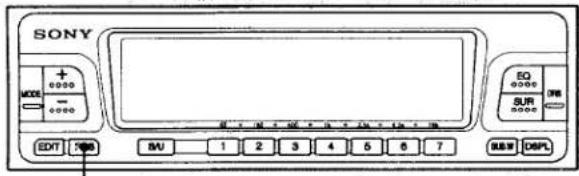
POS-Taste
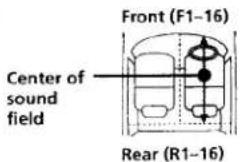
Selbst in einer unvollkommenen Hörumgebung wie in einem Auto ist es möglich, ein natürliches Klangfeld zu simulieren, sodass ein Zuhörer das Gefühl hat, als säße er in der Mitte des Klangfelds, unabhängig von seiner Position im Auto.
Auswählen der Hörpositionen
Drücken Sie die POS-Taste und wählen Sie die gewünschte Hörposition.

Jedes Mal, wenn Sie die POS-Taste drücken, ändert sich die Anzeige im Anzeigefenster zyklisch wie folgt:
![graph LR A["LP ALL"] --> B["LP FRONT"] B --> C["LP FRONT R"] C --> D["LP FRONT L"] D --> E["LP REAR"] E --> D](/content/2026/05/805490/images/8b7e4a26af40d77eb9e56f4260cbb1c452f946ec6c6c536965d8ad4c9314a6db.jpg)
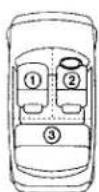
| Display window | Center of sound field |
| LP ALL | Normal setting (1+2+3) |
| LP FRONT | Front part (1+2) |
| LP FRONT R | Front right (2) |
| LP FRONT L | Front left (1) |
| LP REAR | Rear part (3) |
Einstellung der Hörposition
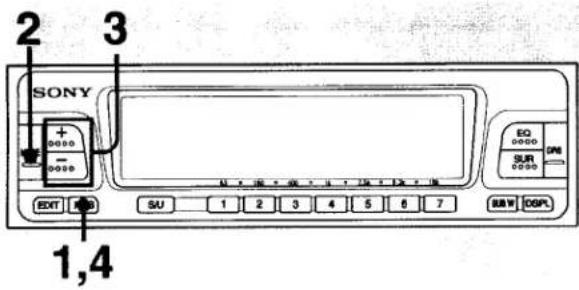
Für jede Hörposition können Sie das Zentrum des Klangfelds genauer einstellen.
Einstellung der Hörposition genauer vornehmen
1 Drücken Sie die POS-Taste länger als zwei Sekunden. Das Gerät wechselt in den Feineinstellungsmodus.

2 Drücken Sie die MODE-Taste und wählen Sie die gewünschte Position, die feiner eingestellt werden soll.

| Display window | Contents of adjustment |
| LP LR. POS 0(Left and right adjustment) | The center of the sound field is adjusted finely to the left or to the right. (16 steps either way.) |
| LP FR. POS 0(Front and rear adjustment) | The center of the sound field is adjusted finely toward the front or toward the rear. (16 steps either way.) |
| LP L ..... III ..... R(Left and right-Balance) | The balance of the left and right speakers' levels is adjusted. (8 steps either way.) |
| LP F ..... III ..... R(Front and rear-Fader) | The balance of the front and rear speakers' levels is adjusted. (8 steps either way.) |
3 Drücken Sie die + oder - Taste, um den Pegel einzustellen.

4 Drücken Sie die POS-Taste länger als zwei Sekunden, um die Einstellung abzuschließen.

Hinweis
Stellen Sie die Balance- und Fader-Regler am Hauptgerät auf die Mittelposition. Wenn die Balance- oder Fader-Einstellung am Hauptgerät nicht auf der Mittelposition steht, kann es sein, dass der Ton nicht aus den Lautsprechern auf beiden Seiten kommt. Die Einstellung des Klangfelds ist dann möglicherweise nicht möglich.
Um beispielsweise die Hörposition zwischen links und rechts mit der Position "LP FRONT R" fein einzustellen, wählen und justieren Sie die Anzeige "LP LR. POS 0" im Display.
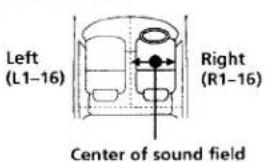
Um beispielsweise die Hörposition zwischen vorne und hinten mit der Position "LP FRONT R" fein einzustellen, wählen und justieren Sie die Anzeige "LP FR. POS 0" im Display.
Einstellen der Trennfrequenz des Subwoofers/der Subwoofer
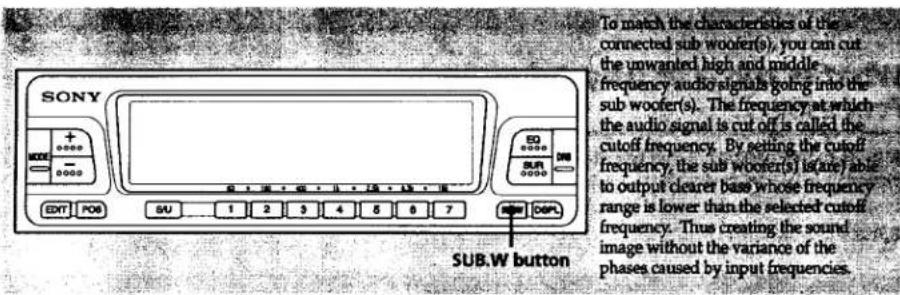
Drücken Sie die SUB.W-Taste

Die aktuelle Trennfrequenz wird angezeigt.
Bei jedem Drücken der SUB.W-Taste ändert sich die Trennfrequenz zyklisch wie folgt:

*Werksseitig eingestellter Wert
DSP-Dateifunktion
Was ist die DSP-Dateifunktion?
Mit diesem Gerät können Sie Toneffekte auf Band-, Disc- oder Radioton legen.
Was ist der DSP (Digitaler Signalprozessor)?
Ein eingebauter Mechanismus, der den analogen Eingangston in digitale Signale umwandelt. Mit der Hochgeschwindigkeits-Berechnung des DSP können die akustischen Eigenschaften des Schallfelds frei verändert werden, während die Audioausgabe gesteuert wird.
Was ist die DSP-Datei?
Eine Sammeldatei, die die Einstellungen der Equalizer-Klangkurve, des Surround-Menüs und des DRS-Effektpegels enthält. Es stehen sieben werkseitig eingestellte Sony-Original-DSP-Dateien zur Verfügung. Darüber hinaus können sieben benutzerdefinierte DSP-Dateien registriert werden.
DSP-Datei-Bearbeitungsmodus
Stellen Sie die folgenden Auswahl-/Einstellmodi ein und registrieren Sie sie im Benutzer-DSP-Dateimenü. (Siehe Seite 14 ff.)
- Dateiname (siehe Seite 15.) • Equalizer-Klangkurven-Einstellmodus (siehe Seite 16.)
- Surround-Menü-Auswahlmodus (siehe Seite 18.)
- DRS-Effektpegel-Einstellmodus (siehe Seite 20.)
Hören mit der DSP-Datei
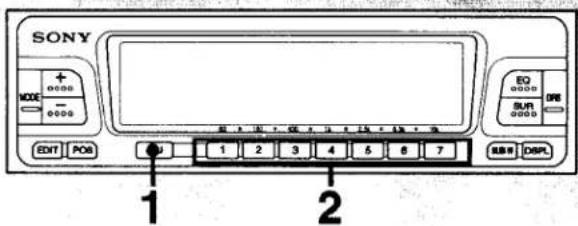
Eine Auswahl kann aus Ihren eigenen benutzerdefinierten DSP-Dateien oder den sieben Sony-Original-DSP-Dateien getroffen werden, die auf den Preset-Tasten gespeichert sind.
(Siehe nächste Seite, wie Sie Ihre eigene benutzerdefinierte DSP-Datei registrieren.)
1 Drücken Sie die S/U-Taste, um die gewünschte DSP-Datei aus dem Sony-Original-DSP-Dateimenü (S1–S7) oder dem Benutzer-DSP-Dateimenü (U1–U7) auszuwählen.
S/U
2 Drücken Sie die Speicherplatz-Taste, auf der die gewünschte DSP-Datei gespeichert ist.

(Zum Beispiel, wenn Sie die Speicherplatz-Taste 1 mit dem Sony Original-DSP-Dateimenü ausgewählt haben.)
Sony Original-DSP-Dateimenü
| S1 Heavy | Powerful sound with boosted bass and treble. |
| S2 Mellow | Soft and balanced sound featuring mid-bass. |
| S3 Vocal | Rhythmical sound featuring vocal. |
| S4 Dynamic | Wide range sound featuring vocal and bass. |
| S5 Disc Jockey | Studio-like sound with the human voice made easier to listen to. |
| S6 Relaxation | Warm and relaxing sound suitable for listening to background music. |
| S7 Loudness | Natural sound suitable to the human ear with bass and treble boosted even in low volume. |
Wenn das TV-Tuner-Gerät (separat erhältlich) und der TV-Monitor (separat erhältlich) angeschlossen sind, wird der Name der ausgewählten DSP-Datei auf dem Monitor angezeigt. Der Dateiname wird jedoch in Großbuchstaben angezeigt.
Registrieren der DSP-Dateien
2
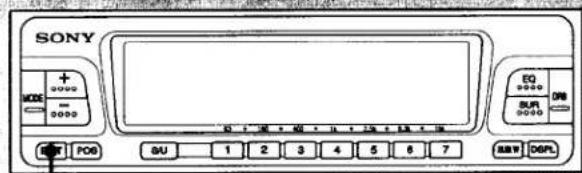
Insgesamt können sieben benutzerdefinierte DSP-Dateien (Dateiname, 10.2) Equalizer-Klangkurve, Surround-Menü und DRS-Effektstufe) im Speicher abgelegt werden, jeweils eine auf den Speicherplatz-Tasten 1 bis 7.
Grundlegende Vorgehensweise zum Registrieren der DSP-Datei
1 Wählen Sie mit dem Hauptgerät eine Programmquelle aus Band, CD, MD, AUX, VIDEO, TV oder Radio.
2 Halten Sie die EDIT-Taste länger als zwei Sekunden gedrückt, um in den DSP-Datei-Bearbeitungsmodus zu gelangen.

Jedes Mal, wenn Sie die EDIT-Taste kurz drücken, wechselt die Anzeige im Displayfenster zyklisch wie folgt:
![graph LR A["File name"] --> B["Equalizer sound curve"] C["DRS effect level"] <--_D["Surround menu"] B --> C](/content/2026/05/805490/images/ac344b1cb66f9a1217de5a2df7ba88c73444ebfb5a6680e10bdff92a6752dd02.jpg)
Speichern Sie dann den Dateinamen, die Equalizer-Klangkurve, das Surround-Menü und die DRS-Effektstufe, indem Sie die auf der nächsten Seite und danach beschriebenen Verfahren befolgen.
Hinweis
Verwenden Sie nicht die DSP-Taste am Hauptgerät, auch wenn es mit einer ausgestattet ist. Verwenden Sie die Tasten an diesem Gerät für die Bedienung.
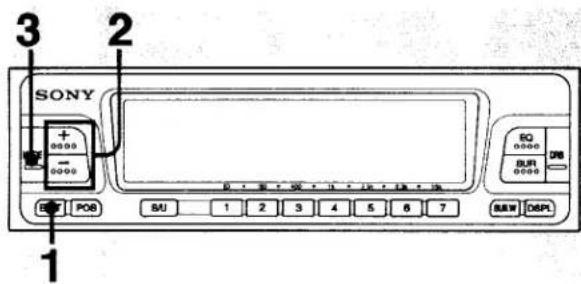
Registrieren des Dateinamens
1 Rufen Sie den DSP-Dateibearbeitungsmodus auf, indem Sie sich auf die Schritte 1 bis 2 unter "Grundlegende Vorgehensweise zum Registrieren der DSP-Datei" beziehen. (Siehe vorherige Seite.)

2 Drücken Sie die Taste + oder -, um ein Zeichen oder eine Zahl für die Benennung auszuwählen.

Das Zeichen kann in der folgenden Reihenfolge ausgewählt werden.


3 Drücken Sie die MODE-Taste, um den blinkenden Teil zum nächsten Zeichen zu bewegen.
"U" bezeichnet den benutzerdefinierten Speicher.
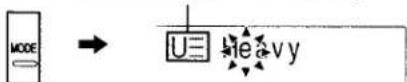
Wiederholen Sie die Schritte 2 und 3. Es können bis zu zehn Zeichen eingegeben werden.
4 Drücken Sie die EDIT-Taste kurz, um zum nächsten Einstellvorgang zu gelangen, oder beenden Sie die Registrierung der DSP-Datei, indem Sie sich auf Seite 21 beziehen.
Wenn Sie ein Leerzeichen eingeben möchten, wählen Sie " _ " (Unterstrich).
- Wenn Sie die MODE-Taste drücken, während das äußerste rechte Zeichen (10. Zeichen) blinkt, bewegt sich der blinkende Teil zum äußersten linken Zeichen.
- Wenn das TV-Tuner-Gerät (separat erhältlich) und der TV-Monitor (separat erhältlich) angeschlossen sind, wird der Name der ausgewählten DSP-Datei auf dem Monitor angezeigt. Der Name der Datei wird jedoch in Großbuchstaben angezeigt.
Registrieren der DSP-Dateien
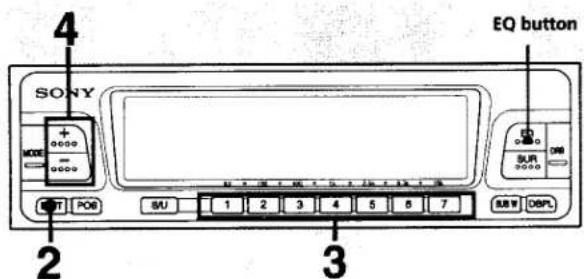
Sie können die Klangqualität in sieben Bändern einstellen.
Einstellen des Klangs mit dem grafischen Equalizer
1 Rufen Sie den DSP-Dateibearbeitungsmodus auf, indem Sie sich auf die Schritte 1 bis 2 unter "Grundlegende Vorgehensweise zum Registrieren der DSP-Datei" beziehen. (Siehe Seite 14.)
2 Drücken Sie kurz die EDIT-Taste, um in den Einstellmodus für die Equalizer-Klangkurve zu gelangen.
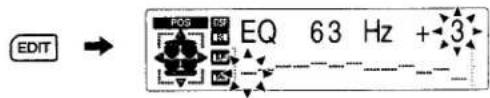
3 Drücken Sie die Taste für die Preset-Nummer (1 bis 7), deren Frequenz Sie einstellen möchten.
| Preset number button | Frequency | |
| 1 | 63Hz | To adjust heavy bass |
| 2 | 160Hz | To clarify and boost bass. |
| 3 | 400Hz | To enhance the basic range of musical instruments and vocal. |
| 4 | 1kHz | To enhance vocal. |
| 5 | 2.5kHz | To enhance the brightness of brass instruments and the crispness of percussive instruments. |
| 6 | 6.3kHz | To enhance light touch. |
| 7 | 16kHz | To boost treble. |
Hinweis
Stellen Sie sicher, dass die Equalizer-Funktion eingeschaltet ist, bevor Sie die Equalizer-Klangkurve einstellen. (Überprüfen Sie, ob die Anzeige "EQ" im Display erscheint.)
Zum Ein- und Ausschalten der grafischen Equalizer-Funktion drücken Sie die EQ-Taste.
4
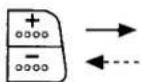
Drücken Sie die Taste + oder -, um den Pegel der ausgewählten Frequenz einzustellen.

5
Drücken Sie kurz die EDIT-Taste, um zum nächsten Einstellschritt zu gelangen, oder beenden Sie die Registrierung der DSP-Datei, indem Sie auf Seite 21 verweisen.
Wenn der Klang verzerrt ist.
Je nach Frequenz, die Sie einstellen, kann der Klang verzerrt werden, wenn Sie den Pegel zu stark erhöhen. In einem solchen Fall halten Sie die SEL-Taste gedrückt und drücken Sie dann die Preset-Nummerntaste 8 am Hauptgerät. (Drücken Sie dieselben Tasten erneut, um den Effekt aufzuheben.) Die Lautstärke wird möglicherweise verringert, aber der verzerrte Klang wird verbessert. Zu diesem Zeitpunkt kann die Oszillation des Spektrumanalysators geringer werden, aber Sie können die Empfindlichkeit des Spektrumanalysators einstellen. (Siehe "Einstellen des Empfindlichkeitspegels (SENS LEVEL) des Spektrumanalysators" auf Seite 6.)
Der Entzerrungspegel der Frequenz kann mit den Tasten + und - in zwölf Schritten in beide Richtungen eingestellt werden.
Hinweis
Wenn die Anzeige "EQ" beim Beenden der Registrierung der DSP-Datei nicht angezeigt wird, wird die Datei ohne den grafischen Equalizer-Effekt gespeichert.
Registrieren der DSP-Dateien
Dieses Gerät verfügt über sieben werksseitig eingestellte Surround-Menüs. Durch die Auswahl des Surround-Menüs, das zu der Art der Musik passt, die Sie abspielen, können Sie die verbesserte Präsenz und Atmosphäre der Musik auch in akustisch beengten Räumen wie einem Auto genießen.
Auswählen des Surround-Menüs
1 Rufen Sie den DSP-Datei-Bearbeitungsmodus auf, indem Sie auf die Schritte 1 bis 2 unter "Grundlegende Vorgehensweise zum Registrieren der DSP-Datei" verweisen. (Siehe Seite 14.)
2 Drücken Sie kurz die EDIT-Taste, um in den Surround-Menü-Einstellmodus zu gelangen.

3 Jedes Mal, wenn Sie die + oder - Taste drücken, wechselt das Surround-Menü zyklisch wie folgt.
![graph LR A["DISCO"] --> B["THEATER"] B --> C["CHURCH"] C --> D["HALL"] E["STADIUM"] --> F["KARAOKE"] F --> G["STUDIO"] G --> E](/content/2026/05/805490/images/e0a7ef70a08f7109871a01057d92727c53d4a037284e4af9c5bfc350b65a95dc.jpg)
Die Liste der Surround-Menüs
| STADIUM | Atmosphere of an outdoor stadium. |
| DISCO | Atmosphere of a disco with hard walls and floor. |
| THEATER | Atmosphere of a movie theater. |
| CHURCH | Atmosphere of a church with a lot of reverberation. |
| HALL | Atmosphere of a concert hall. |
| STUDIO | Atmosphere of a recording studio with little reverberation. |
| KARAOKE | With decreased vocal. |
Hinweis
Stellen Sie sicher, dass die Equalizer-Funktion eingeschaltet ist, bevor Sie die Equalizer-Klangkurve einstellen. (Überprüfen Sie, dass "SUR" im Display angezeigt wird.)
Zum Ein- und Ausschalten der Surround-Funktion drücken Sie die SUR-Taste.

4 Drücken Sie die MODE-Taste, um in den Einstellmodus für den Surround-Effektpegel zu gelangen.



5 Drücken Sie die + oder - Taste, um den Surround-Effektpegel einzustellen.

Wenn Sie die MODE-Taste drücken, kehrt die Anzeige zum Surround-Menü-Einstellmodus zurück.
6 Drücken Sie kurz die EDIT-Taste, um zum nächsten Einstellvorgang überzugehen, oder beenden Sie die Registrierung der DSP-Datei, indem Sie auf Seite 21 verweisen.
Sie können den Effektpegel in 10 Schritten einstellen. (Je größer die Zahl, desto effektiver ist der Surround-Effekt.)
Hinweis
Wenn die Anzeige "SUR" beim Abschließen der Registrierung der DSP-Datei nicht angezeigt wird, wird die Datei ohne den Surround-Effekt gespeichert.
Registrieren der DSP-Dateien
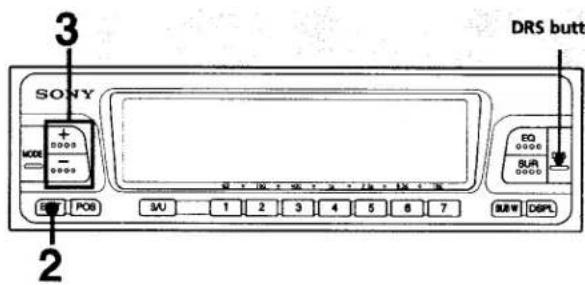
DRS-Taste Der eingebaute DRS (Dynamic Range Suppressor)
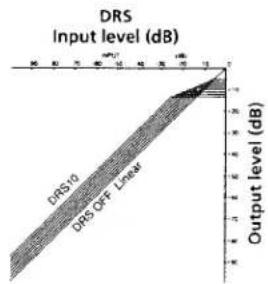
komprimiert den Dynamikbereich des Eingangssignals, um den durchschnittlichen Ausgangspegel ohne Verzerrung zu erhöhen. Diese Funktion ist nützlich, um auch bei geringen Ausgangspegeln in einer lauten Umgebung wie in einem Auto einen dynamischen Klang zu erzielen.
Einstellen des DRS-Effektpegels
1 Rufen Sie den DSP-Datei-Bearbeitungsmodus auf, indem Sie auf die Schritte 1 bis 2 unter "Grundlegende Vorgehensweise zum Registrieren der DSP-Datei" verweisen. (Siehe Seite 14.)
2 Drücken Sie kurz die EDIT-Taste, um in den Einstellmodus für den DRS-Effektpegel zu gelangen.

3 Drücken Sie die Taste + oder -, um den DRS-Effektpegel einzustellen.

Der Effektpegel kann in 10 Schritten eingestellt werden. Je größer der Pegel, desto größer das Kompressionsverhältnis und desto geringer der Unterschied zwischen lauten und leisen Tönen.
4 Drücken Sie kurz die EDIT-Taste, um zum nächsten Einstellvorgang zu gelangen, oder schließen Sie die Registrierung der DSP-Datei ab, indem Sie auf Seite 21 verweisen.
Hinweis
Stellen Sie sicher, dass die DRS-Funktion eingeschaltet ist, bevor Sie den DRS einstellen. (Überprüfen Sie, ob die Anzeige "DRS" im Display erscheint.)
Zum Ein- und Ausschalten der DRS-Funktion drücken Sie die DRS-Taste.
Hinweis
Wenn die Anzeige "DRS" beim Abschließen der Registrierung der DSP-Datei nicht angezeigt wird, wird die Datei ohne den DRS-Effekt gespeichert.
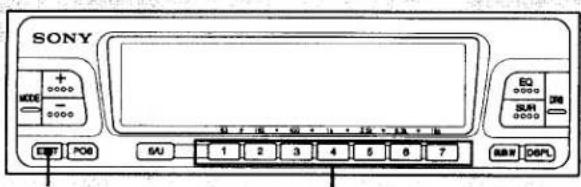
EDIT-Taste, Preset-Nummerntaste
Speichern der DSP-Datei
Wenn Sie die auf den vorherigen Seiten beschriebenen Einstellungen abgeschlossen haben, speichern Sie die Einstellungen auf den Preset-Nummerntasten.
Halten Sie eine der Preset-Nummerntasten 1 bis 7, auf der Sie die DSP-Datei speichern möchten, länger als zwei Sekunden gedrückt.
Zum Beispiel, um eine Datei namens "SONY" auf der Preset-Nummerntaste 1 zu speichern.
Das eingestellte Klangfeld wird auf der Preset-Nummerntaste (U1 - U7) gespeichert, und die Registrierung der DSP-Datei ist abgeschlossen.
Wenn Sie die Preset-Nummer nicht speichern möchten, halten Sie die EDIT-Taste länger als zwei Sekunden gedrückt.

U≡ SONY
Der Inhalt der Einstellung wird nicht gespeichert.
Um das aktuell abgespielte Klangfeld zu speichern.
Drücken Sie einfach eine der Preset-Nummerntasten 1 bis 7 länger als zwei Sekunden.
Hinweise
- Der Dateiname, die Equalizer-Klangkurve, das Surround-Menü und der DRS-Effektpegel werden als Satz gespeichert. Sie können nicht nur eine Einstellung eines einzelnen Elements wie Dateiname oder Equalizer-Klangkurve speichern. Wenn Sie nur eine Einstellung eines einzelnen Elements speichern möchten, registrieren Sie alle übrigen Einstellungselemente mit den jeweiligen Effekten deaktiviert.
- Sie können den Inhalt der Sony-Original-DSP-Dateien frei ändern und als benutzerdefinierte DSP-Dateien neu registrieren.
- Wenn Sie versuchen, eine Datei auf einer Preset-Nummerntaste zu speichern, deren Speicher bereits belegt ist, wird der vorherige Speicher gelöscht.
Registrieren der DSP-Datei auf Discs
Nachdem Sie die DSP-Datei auf den Discs registriert haben, können Sie bei jeder Wiedergabe dieser Discs dieselbe DSP-Datei genießen.
Verwenden Sie für diesen Vorgang das Hauptgerät.
1 Legen Sie eine beliebige Disc ein. 2 Halten Sie die Taste FILE oder LIST am Hauptgerät länger als zwei Sekunden gedrückt, um in den Namensbearbeitungsmodus zu gelangen.
Wenn im Hauptanzeigefenster des Hauptgeräts die Anzeige "____" erscheint, vergeben Sie einen Titel für die Disc, indem Sie auf "Anzeigen des Titels jeder Disc" im Bedienungshandbuch des Hauptgeräts verweisen.
3 Drücken Sie die Taste FILE oder LIST am Hauptgerät zweimal kurz, um in den Registrierungsmodus für DSP-Benutzerdateien zu gelangen. 4 Drücken Sie die Tasten +/- am Hauptgerät, um die gewünschte Benutzer-DSP-Datei auszuwählen.
Jedes Mal, wenn Sie die Taste + oder - drücken, erscheinen die Preset-Nummer und der Dateiname im Anzeigefenster dieses Geräts wie folgt (im Fenster des Hauptgeräts erscheint nur der Dateiname):

→ …U1→U2→U3→U4→U5→U6→U7→KEIN EINTRAG→U1…

→ ...U1→KEIN EINTRAG→U7→U6→U5→U4→U3→U2→U1...
5 Halten Sie die Taste FILE oder LIST am Hauptgerät länger als zwei Sekunden gedrückt.
Hinweise
- Stellen Sie vor dem Registrieren der DSP-Benutzerdatei sicher, dass Sie die Titel auf den Discs vergeben haben. (Siehe Bedienungsanleitung des Hauptgeräts.)
- Sie können diese Funktion nur nutzen, wenn ein CD-Wechsler mit Benutzerdateifunktion an das Hauptgerät angeschlossen ist.
- Die Tasten an diesem Gerät funktionieren während der Registrierung der DSP-Benutzerdatei nicht.
- DSP-Benutzerdateifunktion (mit angeschlossenem/n optionalen CD-Wechsler(n))
Verwendung des DSP-Custom-Dateimodus
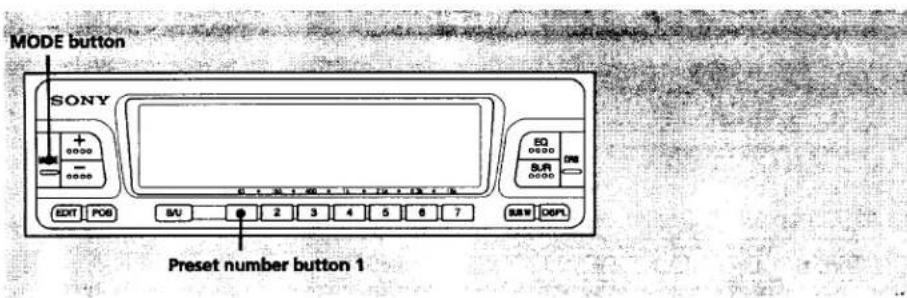
Halten Sie während der Wiedergabe einer Disc die MODE-Taste gedrückt und drücken Sie dann die Speichertaste 1.

Um zum normalen CD-Wiedergabemodus zurückzukehren, halten Sie die MODE-Taste gedrückt und drücken Sie dann erneut die Speichertaste 1.
So ändern Sie die registrierte DSP-Datei
Wählen Sie die Disc, deren Speicherplatz Sie ändern möchten, und wiederholen Sie die Schritte 2 bis 5 auf der vorherigen Seite.
So löschen Sie die registrierte DSP-Datei
Wählen Sie im Schritt 4 auf der vorherigen Seite "NO ENTRY".
Hinweis
Verwenden Sie nicht die DSP-Taste am Hauptgerät, auch wenn es mit einer ausgestattet ist. Verwenden Sie die Tasten an diesem Gerät für die Bedienung.
Hören mit demselben DSP-Dateimodus bei jeder Wiedergabe - LSM-Funktion (Last Sound Memory)
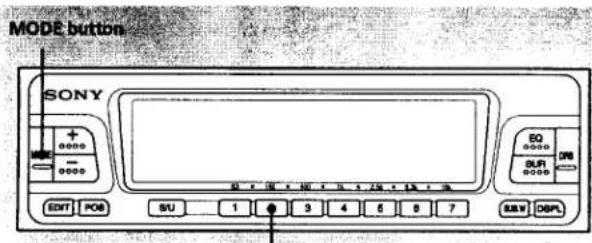
Speichertaste 2
Was ist die LSM-Funktion (Last Sound Memory)?
Diese Funktion speichert die ausgewählte DSP-Datei jeder Programmquelle jederzeit. Mit dieser Funktion können Sie dieselbe Programmquelle immer mit derselben DSP-Datei hören, auch nach einem Wechsel der Programmquelle oder nach einem erneuten Einschalten des Geräts.
Wiedergabe mit der LSM-Funktion
Halten Sie die MODE-Taste gedrückt und drücken Sie dann die Speichertaste 2.

Wenn Sie die LSM-Funktion abbrechen möchten, halten Sie die MODE-Taste gedrückt und drücken Sie dann erneut die Speichertaste 2.
Zum Beispiel haben Sie die Quellen in der folgenden Reihenfolge gehört: eine CD im Modus "S2", dann ein Tonband im Modus "U3" und dann das Radio im Modus "U2". Wenn Sie dann wieder eine CD hören, ändert sich die DSP-Dateinummer automatisch auf "S2". Wenn Sie danach ein Tonband hören, ändert sich die DSP-Dateinummer auf "U3".
Hinweise
- Während die LSM-Funktion aktiviert ist, werden CDs im DSP-Benutzerdateimodus (Seite 22) automatisch in den jeweiligen Benutzer-DSP-Dateien abgespielt.
- Die LSM-Taste am Hauptgerät funktioniert nicht, auch wenn sie vorhanden ist. Verwenden Sie die Tasten an diesem Gerät, um die LSM-Funktion zu bedienen.
Fehlerbehebungsanleitung
Die folgende Überprüfung hilft Ihnen bei der Behebung der meisten Probleme, die mit Ihrem Gerät auftreten können.
Bevor Sie die folgende Checkliste durchgehen, lesen Sie bitte die Anschluss- und Bedienungsanleitung erneut.
| Problem | Cause/Solution |
| The unit does not turn on | The fuse is blown → Change the blown fuse with a new one. |
| The BUS cable is disconnected. The BUS cable is not connected properly. → Connect it properly. (Refer to the Installation/ Connections manual of this unit.) | |
| The connected master unit is not turned on. → Turn on the master unit. | |
| No sound | The RCA pin cords are disconnected. The RCA pin cords are not connected properly. → Connect them properly. (Refer to the Installation/connections manual.) |
| LINE-OUT/IN SELECT switch on the master unit is set to “1” position. → When you connect this unit to the master unit, set the LINE-OUT/IN SELECT switch on the master unit to “2” position. (Refer to the Installation/Connections manual of the master unit.) | |
| The sound output is too much. | The LINE-OUT/LINE-IN (EQ-IN) on the master unit is set to the LINE-OUT position. → When connecting this unit to the master unit, set the LINE-OUT/LINE-IN (EQ-IN) on the master unit to the LINE-IN position. (Refer to the Installation/Connections manual of the master unit.) |
| No DSP effect | The DSP function is not activated. The effect level is not high enough. → Use the EQ, SUR and DRS buttons to turn the respective functions on. Adjust the effect levels with the respective DSP files. |
| A user's DSP file number which has not been memorized is selected. → Select one of the Sony original preset numbers or register the desired DSP file. (See the main text of this manual.) |
Fortsetzung auf der nächsten Seite.
Fehlerbehebungsanleitung
| Problem | Cause/Solution |
| The listening positions cannot be selected. | The setting of the BALANCE or the FADER control on the master unit is unbalanced. → Set the BALANCE and FADER controls on the main unit to the center position. |
| The DSP custom file cannot be set. | The DSP custom file can only be set when a custom-file compatible CD changer is connected to the main unit. |
| The sound is distorted when the graphic equalizer function is activated. | The sound is boosted too much with the equalizer function.→ Press and hold the SEL button and then press the preset number button 8 on the master unit. (Press these buttons again to cancel the effect.) If the sound is still distorted, lower the frequency band whose level has been set too high. (See pages 16 and 17.) |
| The oscillation of the spectrum analyzer is too much. | The sensitivity of the spectrum analyzer is set too high. → Lower the level. (See page 6.) |
| The output level of the source is too high. → Press and hold the SEL button and then press the preset number button 8 on the main unit. (Press these buttons again to cancel the effect.) | |
| The spectrum analyzer does not oscillate. | The sensitivity of the spectrum analyzer is set at "0" level. → Increase the level. (See page 6.) |
Wenn die oben genannten Lösungen nicht zur Verbesserung der Situation beitragen, wenden Sie sich an Ihren nächsten Sony-Händler.
Technische Daten
| Center frequencies | 63 Hz, 160 Hz, 400 Hz, 1 kHz, 2.5 kHz, 6.3 kHz, 16 kHz | Current drain Dimensions | (Negative ground) 0.6 A Approx. 178 × 50 × 170 mm ( 71/8 × 2 × 63/4. in.) (w/h/d) not incl. projecting parts and controls |
| Boost/cut range | ±12 dB | ||
| Sub woofer LPF | Cutoff frequencies 78 Hz, 99 Hz, 125 Hz, 157kHz, 198kHz | Mounting dimensions | |
| Slope -48 dB/oct | Approx. 178 × 50 × 153 mm ( 71/8 × 2 × 61/8. in.) (w/h/d) not incl. projecting parts and controls | ||
| Frequency response | |||
| 20Hz - 20kHz( + 0 \\ - 1 ) dB | |||
| Signal to noise ratio | Mass | Approx. 0.7 kg( 1 lb · 9oz) | |
| more than 85 dB | Supplied accessories | ||
| Distortion | 0.008% | Parts for installation and connections (1) | |
| Gain | 0 dB | ||
| Input | Line input | Optional accessories | |
| RCA pin jacks | BUS cable (RCA pin cord | ||
| Output | Line output | equipped) RC-61 (1m), RC-62(2m) | |
| RCA pin jacks | |||
| Power supply | 12 V DC car battery | RCA pin cord RC-63 (1 m), RC-64 (2 m), RC-65 (5 m) | |
Design und technische Daten können ohne vorherige Ankündigung geändert werden.
- DIGITALER SIGNALPROZESSOR
- BEDIENUNGSANLEITUNG
- EIGENTÜMER-NOTIZ
- WARNUNG
- EIGENSCHAFTEN
- SPEKTRUMANALYSATOR-ANZEIGE
- DSP-DATEIFUNKTION (DIGITALER SIGNALPROZESSOR)
- SONSTIGES
- VORSICHTSMASSNAHMEN
- ERSATZ VERWENDEN
- INHALTSVERZEICHNIS
- SPEKTRUMANALYSATOR-FUNKTION
- DSP-DATEIFUNKTION
- POSITION UND FUNKTION DER BEDIENELEMENTE
- POS-ANZEIGEBEREICH
- ANZEIGEBEREICH FÜR SPEKTRUMANALYSATOR/EQUALIZER-KLANGKURVE
- DSP-ANZEIGEBEREICH
- ÄNDERN DER ANZEIGEN DES SPEKTRUMANALYSATORS
- EINSTELLEN DES EMPFINDLICHKEITSPEGELS (SENS LEVEL) DES SPEKTRUMANALYSATORS
- HINWEIS
- ÄNDERN DER ANZEIGEMUSTER
- ÄNDERN DER SPEKTRUMANALYSATOR-ANZEIGEN
- LÖSCHEN DER ZEICHENANZEIGE
- ÄNDERN DER FARBEN DER BELEUCHTUNG
- EINSTELLUNG DER HÖRPOSITION
- AUSWÄHLEN DER HÖRPOSITIONEN
- EINSTELLUNG DER HÖRPOSITION GENAUER VORNEHMEN
- EINSTELLEN DER TRENNFREQUENZ DES SUBWOOFERS/DER SUBWOOFER
- DRÜCKEN SIE DIE SUB.W-TASTE
- WAS IST DIE DSP-DATEIFUNKTION
- WAS IST DER DSP (DIGITALER SIGNALPROZESSOR)
- WAS IST DIE DSP-DATEI
- DSP-DATEI-BEARBEITUNGSMODUS
- HÖREN MIT DER DSP-DATEI
- REGISTRIEREN DER DSP-DATEIEN
- GRUNDLEGENDE VORGEHENSWEISE ZUM REGISTRIEREN DER DSP-DATEI
- REGISTRIEREN DES DATEINAMENS
- EINSTELLEN DES KLANGS MIT DEM GRAFISCHEN EQUALIZER
- WENN DER KLANG VERZERRT IST
- AUSWÄHLEN DES SURROUND-MENÜS
- EINSTELLEN DES DRS-EFFEKTPEGELS
- SPEICHERN DER DSP-DATEI
- UM DAS AKTUELL ABGESPIELTE KLANGFELD ZU SPEICHERN
- HINWEISE
- REGISTRIEREN DER DSP-DATEI AUF DISCS
- VERWENDEN SIE FÜR DIESEN VORGANG DAS HAUPTGERÄT
- DSP-BENUTZERDATEIFUNKTION (MIT ANGESCHLOSSENEM/N OPTIONALEN CD-WECHSLER(N))
- VERWENDUNG DES DSP-CUSTOM-DATEIMODUS
- SO ÄNDERN SIE DIE REGISTRIERTE DSP-DATEI
- SO LÖSCHEN SIE DIE REGISTRIERTE DSP-DATEI
- HÖREN MIT DEMSELBEN DSP-DATEIMODUS BEI JEDER WIEDERGABE - LSM-FUNKTION (LAST SOUND MEMORY)
- WAS IST DIE LSM-FUNKTION (LAST SOUND MEMORY)
- WIEDERGABE MIT DER LSM-FUNKTION
- FEHLERBEHEBUNGSANLEITUNG
Marke : SONY
Modell : XDP-766EQ
Kategorie : Freisprecheinrichtung Auto