
XG-3790E - Projektor SHARP - Kostenlose Bedienungsanleitung
Finden Sie kostenlos die Bedienungsanleitung des Geräts XG-3790E SHARP als PDF.


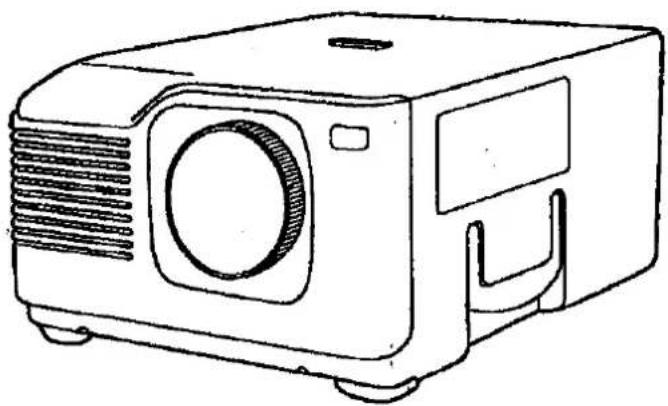
| Produkttyp | LCD-Projektor |
| Modell | XG-3790E |
| Marke | Sharp |
| Bildschirmgröße (diagonal) | 30 bis 150 Zoll |
| Projektionsabstand | 1,3 m bis 5,3 m |
| Eingangssignale (Computer) | SVGA (800 × 600), VGA, Mac (832 × 624 komprimiert / 640 × 480 max.) |
| Eingangssignale (Video) | NTSC, PAL, SECAM (über Composite- oder S-Video) |
| Bildauflösung | 480.000 RGB-Pixel |
| Lautsprecher | Eingebauter 5W-Verstärker |
| Fokus | Manuell (Festbrennweite) |
| Bildumkehr | Ja (für Rückprojektion oder Spiegel) |
| E-Zoom-Funktion | Ja (Vergrößerung von Bildern unter 800 × 600) |
| On-Screen-Display-Sprachen | 8 Sprachen (u.a. Deutsch, Englisch, Französisch) |
| Stromversorgung | Netzanschluss (Typenschild auf der Rückseite) |
| Luftfilter | Reinigung alle 100 Stunden; Ersatzfilter PFILD0047CEZZ |
| Betriebstemperatur | 5 °C bis 40 °C |
| Lagertemperatur | -20 °C bis 60 °C |
| Maximale Neigung | 10° |
| Fernbedienung | IR-Fernbedienung (2 × AAA-Batterien) |
| Sicherheitshinweise | Nicht in den Lichtstrahl blicken; Gerät nicht Flüssigkeiten aussetzen |
| Garantie | Herstellergarantie (Details in der Bedienungsanleitung) |
Häufig gestellte Fragen - XG-3790E SHARP
Benutzerfragen zu XG-3790E SHARP
0 Frage zu diesem Gerät. Beantworten Sie die, die Sie kennen, oder stellen Sie Ihre eigene.
Eine neue Frage zu diesem Gerät stellen
Laden Sie die Anleitung für Ihr Projektor kostenlos im PDF-Format! Finden Sie Ihr Handbuch XG-3790E - SHARP und nehmen Sie Ihr elektronisches Gerät wieder in die Hand. Auf dieser Seite sind alle Dokumente veröffentlicht, die für die Verwendung Ihres Geräts notwendig sind. XG-3790E von der Marke SHARP.
BEDIENUNGSANLEITUNG XG-3790E SHARP
SHARP®
LCD-PROJEKTOR
LCD-PROJEKTOR
LCD-PROJEKTOR
LCD-PROJEKTOR
LCD-PROJEKTOR
LCD-PROJEKTOR
LCD-PROJEKTOR
BEDIENUNGSANLEITUNG
BEDIENUNGSANLEITUNG
BEDIENUNGSANLEITUNG
BEDIENUNGSANLEITUNG
BEDIENUNGSANLEITUNG
BEDIENUNGSANLEITUNG
BEDIENUNGSANLEITUNG
Modell
Modell
Modell
Modell
Modell
Modell
Modell
XG-3790E
• ENGLISCH E
• DEUTSCH D
• FRANZÖSISCH F
• SCHWEDISCH SV
• SPANISCH ES
• ITALIENISCH
• NIEDERLÄNDISCH N
CEO TECHNICAL
THOOPEY
REMOOD FROM OLE OFFICE.
Willkommen in der SHARP-Familie. Wir freuen uns, dass Sie jetzt Besitzer eines SHARP-Farb-LCD-Projektors sind, der für herausragende Qualität, Zuverlässigkeit und Leistung gebaut wurde.
Jeder SHARP-Farb-LCD-Projektor ist für ein korrektes Bild eingestellt und hat im Werk die strengsten Qualitätskontrollen durchlaufen. Wir haben diese BEDIENUNGSANLEITUNG vorbereitet, damit Sie die Möglichkeit haben, Bild und Farbe nach Ihren persönlichen Sehvorlieben einzustellen. Wir hoffen aufrichtig, dass Sie mit der Qualität und Leistung Ihres Farb-LCD-Projektors viele Jahre lang zufrieden sein werden.
Bitte lesen Sie die Anweisungen sorgfältig durch und bewahren Sie sie für spätere Referenz griffbereit auf.
WICHTIG
Um Sie bei der Meldung von Verlust oder Diebstahl Ihres Farb-LCD-Projektors zu unterstützen, notieren Sie bitte die Seriennummer auf der Rückseite des Projektors und bewahren Sie diese Informationen auf. Die Modellnummer, die Leistungsaufnahme und Warnhinweise sind auf der Rückseite des Geräts angegeben.
Modell-Nr.: XG-3790E
Serien-Nr.:
Bevor Sie die Verpackung entsorgen, vergewissern Sie sich bitte, dass Sie den Inhalt des Kartons gründlich mit den "Mitgelieferten Zubehörteilen" verglichen haben, die in der Bedienungsanleitung auf Seite 23 aufgeführt sind.
Wichtige Informationen
WARNUNG
Intensive Lichtquelle, nicht in den Strahl schauen oder direkt darauf blicken. Achten Sie besonders darauf, dass Kinder nicht direkt in den Strahl schauen.
WARNUNG:
UM DIE GEFAHR VON BRAND ODER ELEKTRISCHEM SCHLAG ZU VERRINGERN, SETZEN SIE DIESES GERÄT KEINEN FLÜSSIGKEITEN AUS.
VORSICHT:
UM DIE GEFAHR EINES ELEKTRISCHEN SCHLAGS ZU VERRINGERN, ENTFERNEN SIE NICHT DAS GEHÄUSE. IM INNEREN BEFINDEN SICH KEINE VOM BENUTZER WARTBAREN TEILE. WENDEN SIE SICH FÜR WARTUNG AN QUALIFIZIERTES SERVICEPERSONAL.
HERAUSRAGENDE EIGENSCHAFTEN
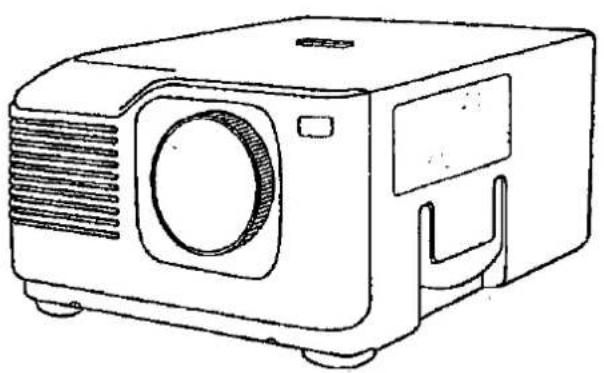
Ermöglicht die einfache Projektion von großformatigen, vollfarbigen Computer- und Videobildern.
- Kann direkt auf eine Videoleinwand oder eine weiße Wand projiziert werden. • Leichtes, konvergenzfreies System für eine einfache Installation.
DIREKTE COMPUTERKOMPATIBILITÄT
Ein Multiscan-RGB-Eingang akzeptiert Signale von SVGA (800 Punkte × 600 Zeilen), VGA und Mac (832 Punkte × 624 Zeilen komprimiert/640 Punkte × 480 Zeilen maximal) kompatiblen Computern ohne zusätzliche Hardware.
HOHE BILDQUALITÄT
Ein einzelnes LCD-Panel enthält 480.000 X RGB-Pixel, um außergewöhnlich helle, hochwertige Videobilder mit bis zu 580 verdoppelten TV-Zeilen Auflösung zu erzielen.
FLEXIBLE VERWENDUNG
- Zusätzlich zum Standard-Frontprojektionsmodus können die menügeführten Funktionen verwendet werden, um das Bild sofort umzukehren (für Rückprojektion).
- Die Bildschirmprojektionsgröße lässt sich von 30 bis 150 Zoll einstellen.
EINGEBAUTER LAUTSPRECHER
Der eingebaute 5-W-Verstärker und Lautsprecher macht externe Audiokomponenten überflüssig.
Inhalt
- Wichtige Informationen .... 1
- Hervorragende Merkmale 1
- Wichtige Sicherheitshinweise.... 3
- Lage der Bedienelemente.... 4
- Bedienung der Fernbedienung.... 5
- Aufstellen des Projektors 6
- Anschließen des Projektors 8
- Anschließen des Projektors (RGB: Computer).... 9
- Eingangssignale (Empfohlene Zeiten).... 11
- RGB-Einstellregler.... 12
- Grundlegende Bedienung des Projektors 13
- Einstellen des Bildes 15
• E-ZOOM-Funktionen 17
- Funktionen am Projektor.... 18
• Wartung des Luftfilters .... 21
- Anzeigen für Lampe/Wartung .... 22
- Vor dem Anruf des Kundendienstes 22
- Technische Daten 23
- Abmessungen 24
BESONDERER HINWEIS FÜR BENUTZER IN GROSSBRITANNIEN
Das Netzkabel dieses Produkts ist mit einem nicht erneuerbaren (formgepressten) Stecker ausgestattet, der eine 13A-Sicherung enthält. Sollte die Sicherung ersetzt werden müssen, muss eine von BSI oder ASTA zugelassene BS 1362-Sicherung verwendet werden, die mit ♦ oder ♦ gekennzeichnet ist und dieselbe Nennleistung wie oben hat, die auch auf der Stiftseite des Steckers angegeben ist.
Setzen Sie nach dem Ersetzen der Sicherung immer die Sicherungsabdeckung wieder auf. Verwenden Sie den Stecker niemals ohne die Sicherungsabdeckung.
Falls die Steckdose in Ihrem Haus nicht mit dem mitgelieferten Stecker kompatibel sein sollte, schneiden Sie den Netzstecker ab und montieren Sie einen geeigneten Typ.
GEFAHR: Die Sicherung aus dem abgeschnittenen Stecker sollte entfernt und der abgeschnittene Stecker sofort zerstört und sicher entsorgt werden.
Der abgeschnittene Stecker darf auf keinen Fall in eine andere 13A-Steckdose eingeführt werden, da dies zu einem schweren elektrischen Schlag führen kann.
Um einen geeigneten Stecker am Netzkabel anzubringen, befolgen Sie die folgenden Anweisungen:
WICHTIG: Die Adern im Netzkabel sind gemäß dem folgenden Code farbcodiert:
Blau: Nullleiter
Braun: Außenleiter
Da die Farben der Adern im Netzkabel dieses Produkts möglicherweise nicht mit den farbigen Markierungen übereinstimmen, die die Anschlüsse in Ihrem Stecker kennzeichnen, gehen Sie wie folgt vor:
- Die blaue Ader muss an den mit N markierten oder schwarz gefärbten Steckeranschluss angeschlossen werden.
- Die braune Ader muss an den mit L markierten oder rot gefärbten Steckeranschluss angeschlossen werden.
Stellen Sie sicher, dass weder die braune noch die blaue Ader an den Erdungsanschluss in Ihrem dreipoligen Stecker angeschlossen ist.
Bevor Sie die Steckerabdeckung wieder anbringen, stellen Sie sicher, dass:
- Wenn der neu angebrachte Stecker eine Sicherung enthält, deren Wert dem der entfernten Sicherung aus dem abgeschnittenen Stecker entspricht.
• Die Kabelzugentlastung über der Ummantelung des Netzkabels geklemmt ist und nicht nur über den Adern.
WENN SIE ZWEIFEL HABEN, KONSULTIEREN SIE EINEN QUALIFIZIERTEN ELEKTRIKER.
VORSICHT: Bitte lesen Sie alle diese Anweisungen, bevor Sie Ihren LCD-Projektor bedienen. Bewahren Sie diese Anweisungen zum späteren Nachschlagen auf.
Sehr geehrter Kunde,
Vielen Dank, dass Sie sich für einen Sharp LCD-Projektor entschieden haben. Zu Ihrem eigenen Schutz und für einen langen Betrieb Ihres LCD-Projektors lesen Sie bitte vor dem Gebrauch sorgfältig die folgenden "Wichtigen Sicherheitshinweise".
Elektrische Energie kann viele nützliche Funktionen erfüllen. Dieser Projektor wurde entwickelt und hergestellt, um Ihre persönliche Sicherheit zu gewährleisten. Aber UNSACHGEMÄSSER GEBRAUCH KANN ZU ELEKTRISCHEM SCHLAG ODER BRANDGEFAHR FÜHREN. Um die in diesen LCD-Projektor eingebauten Sicherheitsvorkehrungen nicht zu umgehen, beachten Sie die folgenden grundlegenden Regeln für Installation, Gebrauch und Wartung.
1 Ziehen Sie den Netzstecker des LCD-Projektors aus der Steckdose, bevor Sie ihn reinigen.
2 Verwenden Sie keine flüssigen Reinigungsmittel oder Aerosolreiniger. Verwenden Sie ein feuchtes Tuch zur Reinigung.
3 Verwenden Sie kein Zubehör, das nicht vom Hersteller des LCD-Projektors empfohlen wird, da dies Gefahren verursachen kann.
4 Verwenden Sie den LCD-Projektor nicht in der Nähe von Wasser; zum Beispiel in der Nähe einer Badewanne, eines Waschbeckens, einer Küchenspüle, eines Waschbeckens, in einem feuchten Keller, in der Nähe eines Schwimmbeckens usw. Verschütten Sie niemals Flüssigkeit über den Projektor.
5 Stellen Sie den LCD-Projektor nicht auf einen instabilen Wagen, Ständer oder Tisch. Der LCD-Projektor könnte herunterfallen, was zu schweren Verletzungen bei Kindern oder Erwachsenen und/oder schweren Schäden am Gerät führen kann.
6 LCD-Projektor und Wagen sollten vorsichtig bewegt werden.
Schnelle Stopps, übermäßige Kraft und unebene Oberflächen können dazu führen, dass das Gerät und der Wagen umkippen.
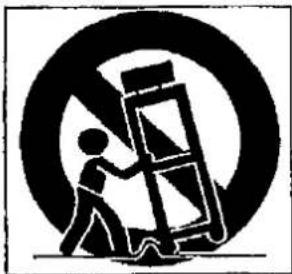
7 Um einen zuverlässigen Betrieb des LCD-Projektors zu gewährleisten und ihn vor Überhitzung zu schützen, dürfen diese Öffnungen nicht blockiert oder abgedeckt werden. Schlitze und Öffnungen an der Rückseite und Unterseite des Gehäuses dienen der Belüftung.
8 Die Öffnungen sollten niemals mit Tüchern oder anderem Material abgedeckt werden. Dieser LCD-Projektor sollte niemals in der Nähe oder über einem Heizkörper oder einer Heizöffnung aufgestellt werden. Der LCD-Projektor sollte nicht in einer eingebauten Installation wie einem Bücherregal aufgestellt werden, es sei denn, es ist für ausreichende Belüftung gesorgt.
9 Der LCD-Projektor sollte nur mit der auf der Rückseite des Projektors oder in den technischen Daten angegebenen Stromquelle betrieben werden. Wenn Sie sich nicht sicher sind, welche Art von Strom in Ihrem Haushalt verwendet wird, wenden Sie sich an Ihren LCD-Projektor-Händler oder das örtliche Elektrizitätswerk.
10 Stellen Sie den LCD-Projektor nicht an einem Ort auf, an dem das Kabel durch Personen, die darauf treten, beschädigt werden kann.
11 Beachten Sie alle Warnhinweise und Anweisungen auf dem LCD-Projektor. 12 Um Schäden am Projektor durch Blitzschlag und Überspannungen zu vermeiden, ziehen Sie den Netzstecker aus der Steckdose, wenn das Gerät nicht verwendet wird. 13 Überlasten Sie Wandsteckdosen und Verlängerungskabel nicht mit zu vielen Geräten, da dies zu Brand oder Stromschlag führen kann. 14 Stecken Sie niemals Gegenstände jeglicher Art durch die Gehäuseschlitze in den LCD-Projektor, da diese spannungsführende Teile berühren oder einen Kurzschluss verursachen könnten. Dies könnte zu einem Brand oder Stromschlag führen. 15 Versuchen Sie nicht, den LCD-Projektor selbst zu warten. Das Öffnen oder Entfernen von Abdeckungen kann Sie gefährlichen Spannungen oder anderen Gefahren aussetzen. Überlassen Sie alle Wartungsarbeiten qualifiziertem Servicepersonal. 16 Ziehen Sie den Netzstecker des LCD-Projektors aus der Wandsteckdose und wenden Sie sich in den folgenden Fällen an qualifiziertes Servicepersonal:
A. Wenn das Netzkabel oder der Stecker beschädigt oder ausgefranst ist.
B. Wenn Flüssigkeit in den LCD-Projektor verschüttet wurde.
C. Wenn der LCD-Projektor Regen oder Wasser ausgesetzt war.
D. Wenn der LCD-Projektor nicht normal funktioniert, wenn Sie die Bedienungsanleitung befolgen. Stellen Sie nur die Bedienelemente ein, die in der Bedienungsanleitung beschrieben sind, da eine falsche Einstellung anderer Bedienelemente Schäden verursachen kann und oft umfangreiche Arbeiten durch einen qualifizierten Techniker erfordert, um den LCD-Projektor wieder in einen normalen Betriebszustand zu versetzen.
E. Wenn der LCD-Projektor fallen gelassen wurde oder das Gehäuse beschädigt ist.
F. Wenn der LCD-Projektor eine deutliche Änderung der Leistung aufweist – dies weist auf einen Wartungsbedarf hin.
Wenn Ersatzteile benötigt werden, stellen Sie sicher, dass der Servicetechniker vom Hersteller spezifizierte Ersatzteile verwendet, die dieselben Eigenschaften wie die Originalteile haben. Nicht autorisierte Ersatzteile können zu Feuer, elektrischem Schlag oder anderen Gefahren führen.
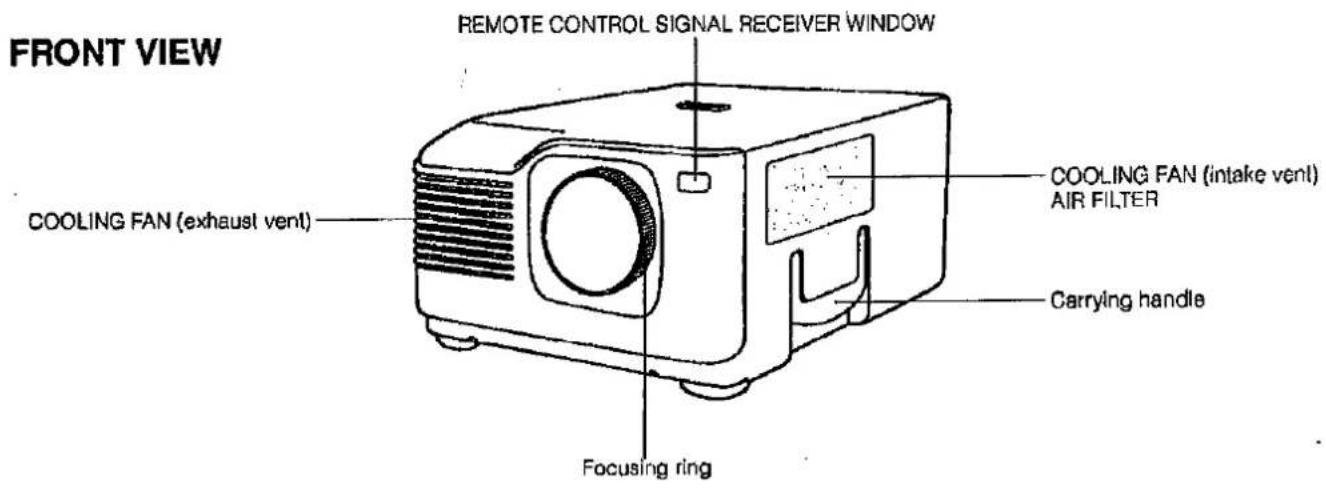
BEDIENFELD AUF DER RÜCKSEITE DES PROJEKTORS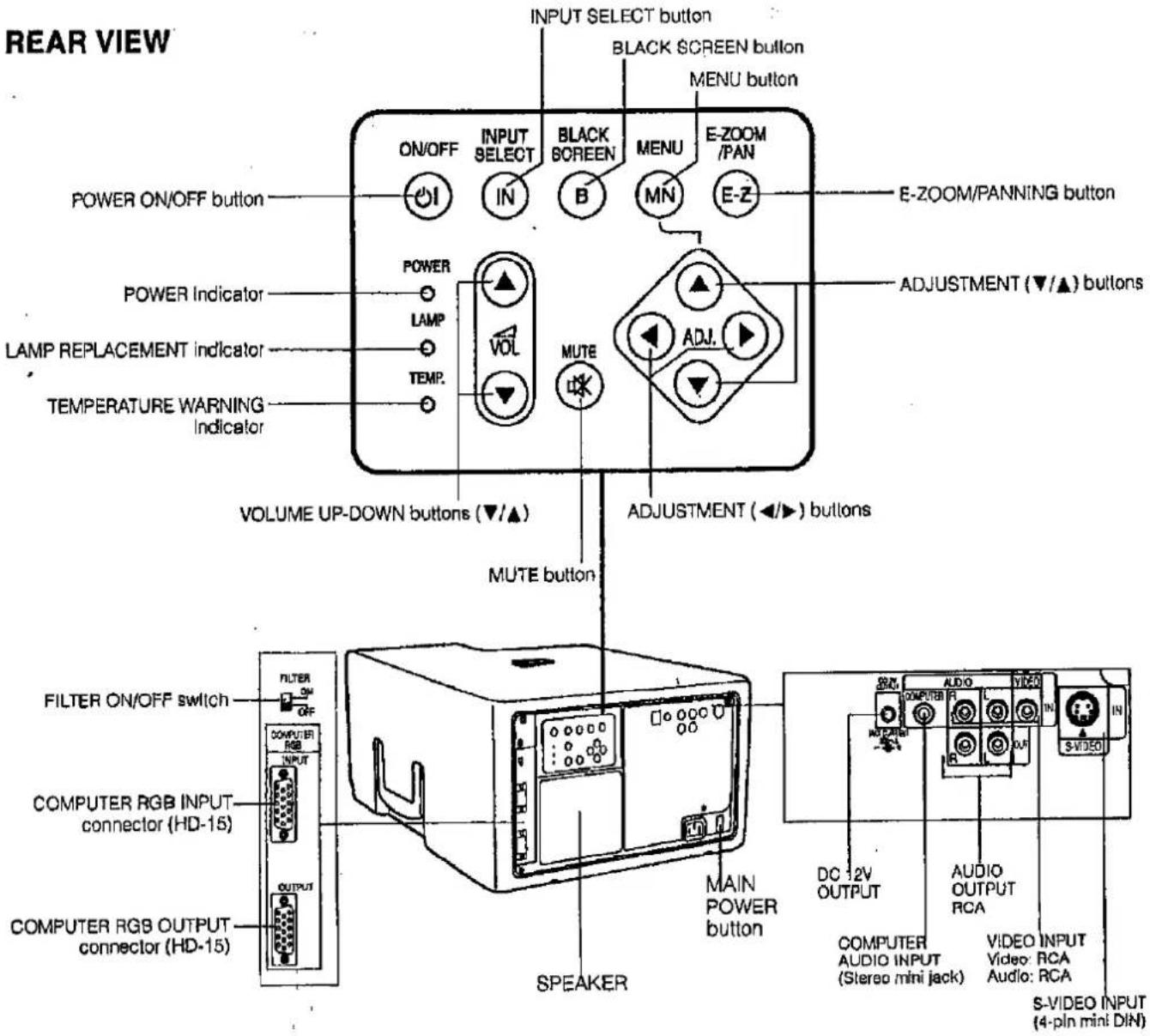
Hinweis: - Wenn ein Strom von 200 mA oder mehr aus der DC 12V-Ausgangsbuchse entnommen wird, schaltet eine Schutzvorrichtung den Projektor automatisch ab und versetzt ihn in den Standby-Modus.
FERNBEDIENUNG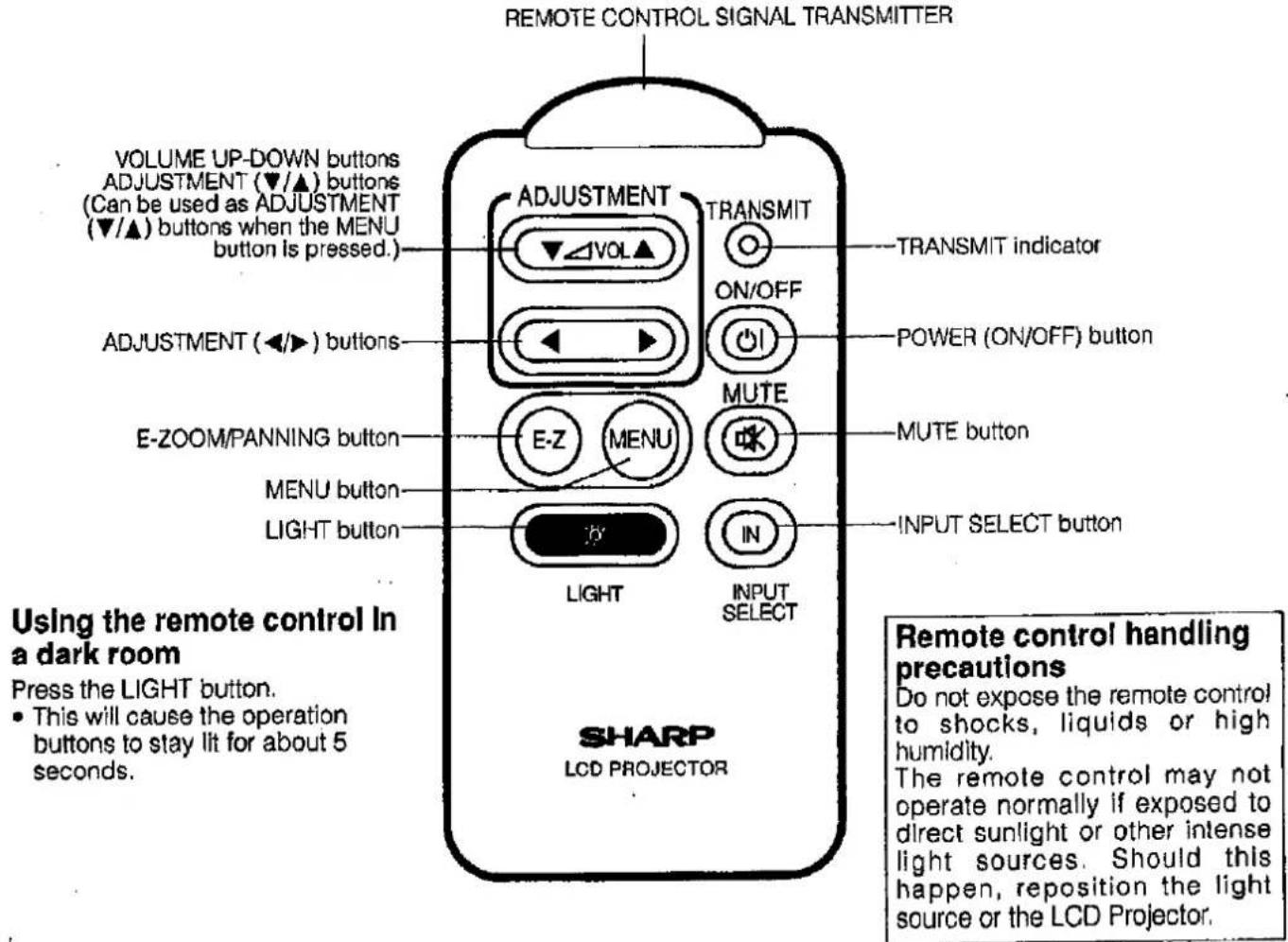
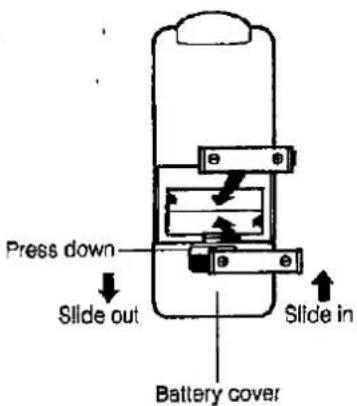
Einlegen der Batterien
Entfernen Sie die Batterieabdeckung wie gezeigt und legen Sie zwei AAA-Batterien ein, wobei Sie darauf achten, dass die Polarität mit den Markierungen (+) und (-) im Batteriefach übereinstimmt.
Hinweise:
Unsachgemäßer Gebrauch der Batterien kann dazu führen, dass sie auslaufen oder platzen.
- Legen Sie die Batterien mit der angegebenen Polarität (+) und (−) ein.
- Entfernen Sie die Batterien, wenn die Fernbedienung längere Zeit nicht benutzt wird.
- Halten Sie die Batterien sauber.
- Mischen Sie nicht verschiedene Batteriemarken. Die Lebensdauer der neuen Batterien wird verkürzt und die alten Batterien können auslaufen.
- Wenn die Batterien verbraucht sind, entfernen Sie sie sofort, um Auslaufen und Schäden zu vermeiden. Ausgelaufene Batterieflüssigkeit kann die Haut reizen. Entfernen Sie Batterieflüssigkeit durch Abwischen mit einem Tuch.
- Aufgrund der Lagerbedingungen und der Haltbarkeit der mitgelieferten Batterien können diese nach kurzer Zeit leer sein. Ersetzen Sie sie so schnell wie möglich durch neue Batterien.
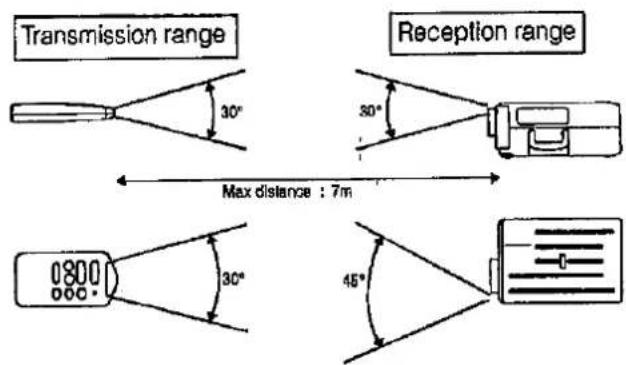
Positionierung der Fernbedienung
Verwenden Sie die Fernbedienung wie in den Abbildungen links gezeigt.
Hinweis:
- Das Signal der Fernbedienung kann von der Leinwand reflektiert werden, um die Bedienung zu erleichtern. Die effektive Reichweite des Signals kann jedoch je nach Leinwandmaterial variieren.
Projektorabstand und Bildgrößenverhältnis
■ Dieser Projektor hat ein Objektiv mit fester Brennweite. Siehe das folgende Diagramm, um die Bildgröße und den Projektionsabstand zu bestimmen. Das Bild kann fokussiert werden, wenn sich der Projektor zwischen 1,3 m und 5,3 m von der Leinwand befindet. Bitte stellen Sie den Projektor in diesem Bereich auf.
Abstand von der Leinwand
Bildgröße: 254 cm (100 Zoll)
| Picture size (diag.) | Projection distance (L) |
| 381 cm (150 inches) | 5.3 m |
| 254 cm (100 inches) | 3.6 m |
| 203 cm (80 inches) | 2.9 m |
| 152 cm (60 inches) | 2.3 m |
| 76 cm (30 inches) | 1.3 m |
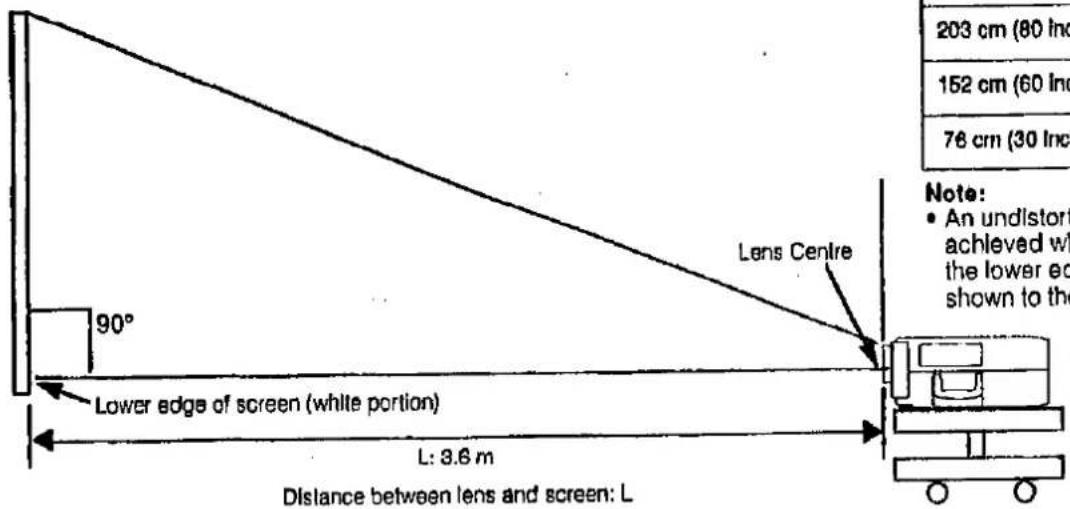
Hinweis:
- Ein unverzerrtes Bild kann erreicht werden, wenn die Linsenmitte und die Unterkante der Leinwand ausgerichtet sind, wie links gezeigt.
- Oben ist eine Abbildung des Projektionsabstands für den XG-3790E mit einer Bildgröße von 100 Zoll. Bewegen Sie den Projektor vor oder zurück, wenn die Bildränder verzerrt sind.
So richten Sie den Projektor und die Leinwand ein
254 cm (100 Zoll).
Vorsicht: Beim Aufstellen des Projektors
- Stellen Sie ihn nicht an feuchten oder staubigen Orten auf, oder an Orten, an denen die Luft rußig oder voller Zigarettenrauch ist. Wenn die Linse, der Spiegel oder andere optische Komponenten verschmutzt werden, wird das Bild unscharf oder dunkel, was das Betrachten erschwert.
- Setzen Sie ihn keiner extremen Hitze oder Kälte aus. Betriebstemperatur: 5°C bis 40°C Lagertemperatur: -20°C bis 60°C
- Neigen Sie den Projektor nicht um mehr als 10 Grad.
■ Positionieren Sie die Leinwand so, dass sie nicht direktem Sonnenlicht oder Raumlicht ausgesetzt ist. Direkt auf die Leinwand fallendes Licht wäscht die Farben aus und erschwert das Betrachten. Schließen Sie die Vorhänge und dimmen Sie das Licht, wenn Sie die Leinwand in einem hellen oder sonnigen Raum verwenden. ■ Das beste Bild wird erzielt, wenn der Projektor in einem 90-Grad-Winkel zur Leinwand steht. Positionieren Sie Projektor und Leinwand wie abgebildet.
Fokussierung
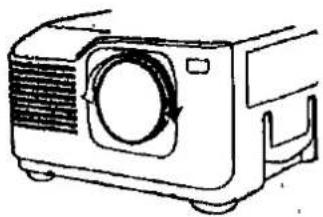
■ Nachdem Sie den Projektor positioniert haben, stellen Sie den Fokus wie abgebildet ein. ■ Bitte schalten Sie auf Seite 13 um, um den Strom einzuschalten. ■ Stellen Sie den Fokus ein, während Sie die Leinwand betrachten. ■ Drehen Sie den Fokusring hin und her. ■ Fokussieren Sie das Objektiv so, dass das Bild auf der Leinwand so scharf wie möglich ist.
Hinweis:
Hinweis: • Eine optimale Bildqualität kann erreicht werden, wenn der Projektor senkrecht zur Leinwand steht und alle Füße flach und eben sind.
Beispiel einer Standardaufstellung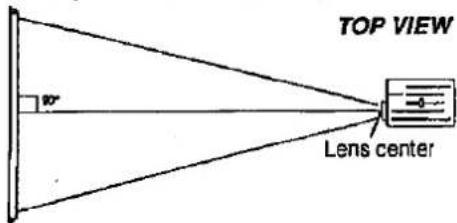
Die Projektorlinse sollte in der Mitte der Leinwand zentriert sein.
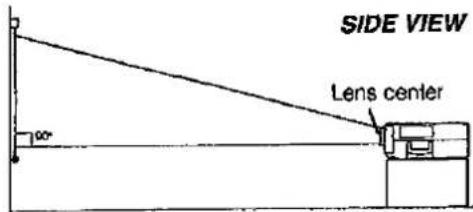
Wenn Projektor und Leinwand nicht richtig zentriert sind, wird das Bild verzerrt, was das Betrachten erschwert. ■ Mit der Umkehrfunktion sind folgende Aufstellungen möglich.
Beispiel einer umgekehrten Bildaufstellung
- Durch Platzieren eines Spiegels (normaler flacher Typ) vor der Linse und Verwendung der Umkehrfunktion kann das vom Spiegel reflektierte Bild auf die Leinwand projiziert werden. (Siehe E-19.)
- Rückprojektion mit einer Rückprojektionsleinwand ist ebenfalls möglich, wenn die Umkehrfunktion verwendet wird.

Die Projektorlinse sollte in der Mitte der Leinwand zentriert sein.
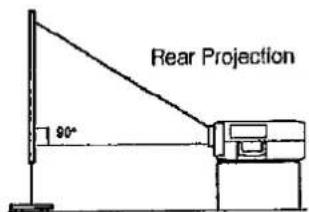
Wenn Projektor und Leinwand nicht richtig zentriert sind, wird das Bild verzerrt, was das Betrachten erschwert.
Verwendung der Nivellier- und Höhenversteller
- Wenn der Projektorständer schräg steht, verwenden Sie die Stellfüße an der Unterseite des Projektors, um den vertikalen Winkel anzupassen.
SEITENANSICHT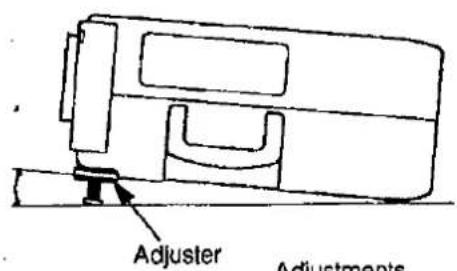
Es können Einstellungen von bis zu 5° vorgenommen werden.
FRONTANSICHT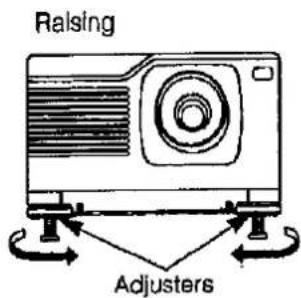
Absenken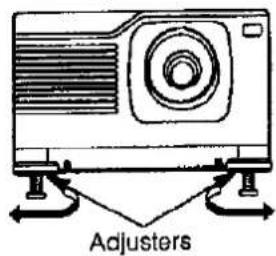
Hinweise:
1) Wenn Einstellungen mit den Stellfüßen vorgenommen werden, kann das Bild je nach den relativen Positionen von Projektor und Leinwand verzerrt werden. 2) Nach der Einstellung können in einigen Fällen nicht alle Füße der Stellfüße auf der Montagefläche aufliegen. Um ein Wackeln des Projektors zu verhindern, stellen Sie die Füße der Stellfüße so ein, dass sie fest auf der Montagefläche aufliegen.
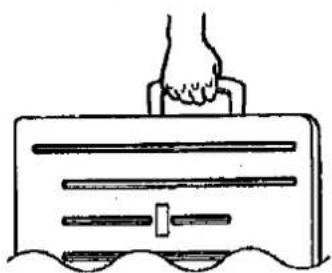
Transport des Projektors
Verwenden Sie den Tragegriff, wenn Sie den Projektor bewegen
Wenn Sie den Projektor transportieren, tragen Sie ihn am Griff an der Seite des Geräts.
Hinweis:
Setzen Sie beim Transport des Projektors immer die Objektivschutzkappe auf, um Schäden am Objektiv zu vermeiden.
Vorsicht:
Heben oder tragen Sie den Projektor nicht am Objektiv.
(1)
[Non-Text]
[Non-Text]
[Non-Text]
[Non-Text]
[Non-Text]
[Non-Text]
[Non-Text]
[Non-Text]
[Non-Text]
[Non-Text]
[Non-Text]
[Non-Text]
[Non-Text]
[Non-Text]
[Non-Text]
[Non-Text]
[Non-Text]
[Non-Text]
[Non-Text]
[Non-Text]
[Non-Text]
[Non-Text]
[Non-Text]
[Non-Text]
[Non-Text]
[Non-Text]
[Non-Text]
[Non-Text]
[Non-Text]
[Non-Text]
(1) 1. Januar 2017
•
(4) 10
(4)
(3) Gültigkeitsdauer des Beschlusses der Hauptversammlung vor Ort
[Non-Text]
[Non-Text]
[Non-Text]
[Non-Text]
[Non-Text]
[Non-Text]
[Non-Text]
[Non-Text]
[Non-Text]
[Non-Text]
[Non-Text]
[Non-Text]
[Non-Text]
[Non-Text]
[Non-Text]
[Non-Text]
[Non-Text]
[Non-Text]
[Non-Text]
[Non-Text]
[Non-Text]
[Non-Text]
[Non-Text]
[Non-Text]
[Non-Text]
[Non-Text]
[Non-Text]
[Non-Text]
[Non-Text]
[Non-Text]
[Non-Text]
[Non-Text]
[Non-Text]
[Non-Text]
(1) 1. Januar 2017
[Non-Text]
•
(4) 10
(3) Gültigkeitsdauer des Beschlusses der Hauptversammlung vor Ort
[Non-Text]
[Non-Text]
[Non-Text]
[Non-Text]
[Non-Text]
[Non-Text]
[Non-Text]
[Non-Text]
[Non-Text]
[Non-Text]
[Non-Text]
[Non-Text]
[Non-Text]
[Non-Text]
[Non-Text]
[Non-Text]
[Non-Text]
[Non-Text]
[Non-Text]
[Non-Text]
[Non-Text]
[Non-Text]
[Non-Text]
[Non-Text]
[Non-Text]
[Non-Text]
[Non-Text]
[Non-Text]
[Non-Text]
[Non-Text]
[Non-Text]
[Non-Text]
[Non-Text]
[Non-Text]
[Non-Text]
[Non-Text]
[Non-Text]
[Non-Text]
[Non-Text]
[Non-Text]
[Non-Text]
[Non-Text]
[Non-Text]
[Non-Text]
[Non-Text]
(1) Der durchschnittliche Aktienkurs des Unternehmens vom 1. Januar 2017 bis zum 1. Januar 2018 (einschließlich) betrug 4,56 Yuan pro Aktie, was einem Anstieg von 0,39 % gegenüber dem 1. Januar 2017 entspricht.
[Non-Text]
•
(4) 10
(fünf)
[Non-Text]
[Non-Text]
[Non-Text]
[Non-Text]
[Non-Text]
[Non-Text]
[Non-Text]
[Non-Text]
[Non-Text]
[Non-Text]
[Non-Text]
[Non-Text]
[Non-Text]
[Non-Text]
[Non-Text]
[Non-Text]
[Non-Text]
[Non-Text]
[Non-Text]
[Non-Text]
[Non-Text]
[Non-Text]
[Non-Text]
[Non-Text]
[Non-Text]
[Non-Text]
[Non-Text]
[Non-Text]
[Non-Text]
[Non-Text]
[Non-Text]
[Non-Text]
[Non-Text]
[Non-Text]
[Non-Text]
[Non-Text]
[Non-Text]
[Non-Text]
[Non-Text]
[Non-Text]
[Non-Text]
[Non-Text]
[Non-Text]
[Non-Text]
[Non-Text]
[Non-Text]
(4) 10
(4)
[Non-Text]
[Non-Text]
[Non-Text]
[Non-Text]
[Non-Text]
[Non-Text]
[Non-Text]
[Non-Text]
[Non-Text]
[Non-Text]
[Non-Text]
[Non-Text]
[Non-Text]
[Non-Text]
[Non-Text]
(1) Der durchschnittliche Aktienkurs des Unternehmens vom 1. Januar 2017 bis zum 1. Januar 2018 (einschließlich) betrug 4,56 Yuan pro Aktie, verglichen mit dem Schlusskurs von 3,97 Yuan pro Aktie am 1. Januar 2017.
•
(4) 10
(1)
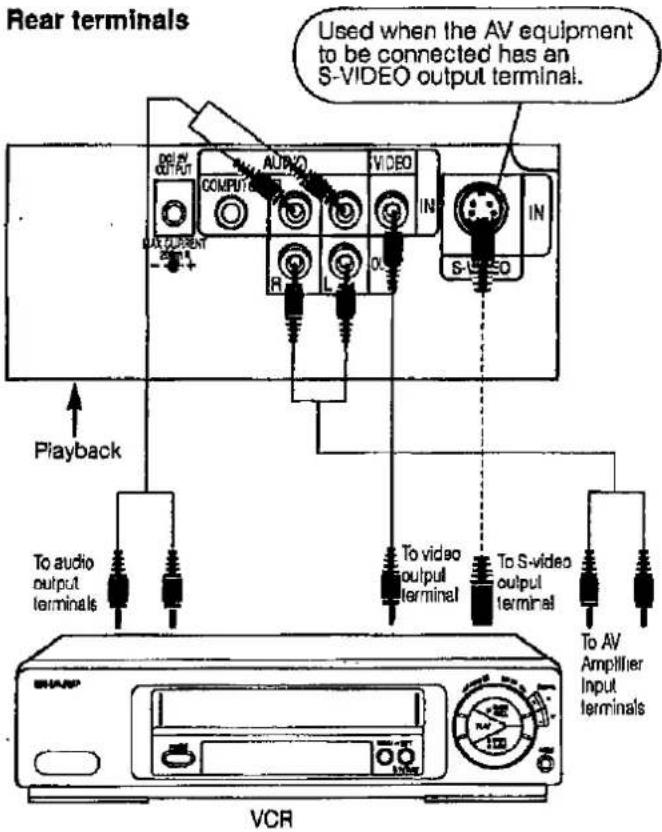
Um die Videowiedergabe mit dem Projektor anzusehen, der an Audio-/Video-Ausgabegeräte wie einen Videorekorder oder Laserdisc-Player angeschlossen ist, oder um auf einem separaten Monitor zu betrachten:
• Schalten Sie den LCD-Projektor immer aus, während Sie Videogeräte anschließen, um sowohl den Projektor als auch das anzuschließende Gerät zu schützen.
Beachten Sie Folgendes bei Verwendung des S-VIDEO-EINGANGSANSCHLUSSES:
- Der S-VIDEO-EINGANGSANSCHLUSS verwendet ein Videosignalsystem, bei dem das Bild in ein Farb- und ein Luminanzsignal getrennt wird, um eine höhere Bildqualität zu erzielen.
- Der S-VIDEO-EINGANGSANSCHLUSS hat Vorrang vor dem VIDEO-EINGANGSANSCHLUSS. Stellen Sie die Audioverbindung über die Audioanschlüsse des VIDEO-EINGANGS (links/rechts) her.
- Der S-VIDEO-EINGANGSANSCHLUSS wird verwendet, wenn das anzuschließende AV-Gerät über einen S-VIDEO-Ausgangsanschluss verfügt.
Hinweis:
- Durch die Verwendung des externen Verstärkers kann die Lautstärke für einen größeren Klang verstärkt werden.
1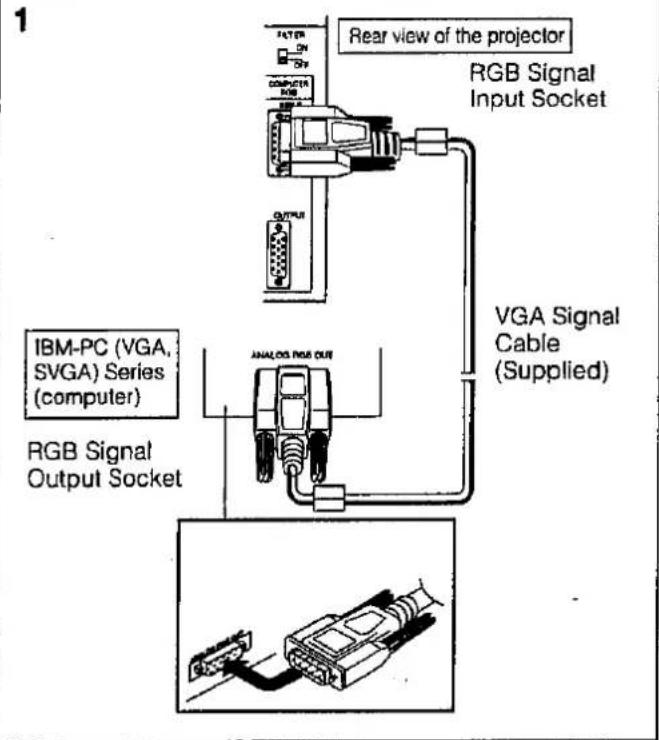
Sie können Ihren Projektor an einen Computer anschließen, um problemlos Vollfarb-Computerbilder zu projizieren, oder an einen externen Monitor für die gleichzeitige Anzeige.
Schalten Sie vor dem Anschließen unbedingt sowohl den Projektor als auch den Computer aus.
Nachdem alle Verbindungen hergestellt sind, schalten Sie zuerst den Projektor ein. Der Computer sollte immer zuletzt eingeschaltet werden.
1. Anschluss an einen IBM-PC (VGA, SVGA) Serie Computer – maximale Auflösung 800 x 600
Stecken Sie das VGA-Signalkabel korrekt in den RGB-EINGANG am Projektor und in den RGB-Signalausgang am Computer und ziehen Sie die Stecker von Hand fest.
Hinweis:
- Dieser Anschluss ist nur möglich, wenn Sie einen Computer mit einem VGA/SVGA- oder Mac-Displayausgang verwenden.
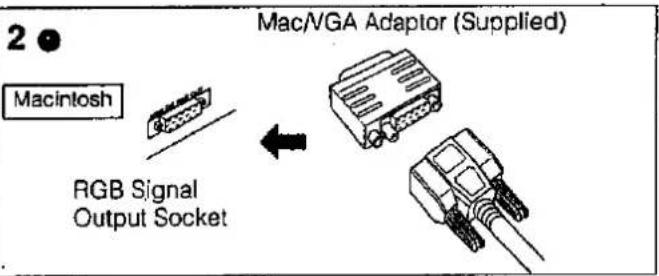
2. Anschluss an einen Macintosh-Serie Computer
- 640 x 480 Auflösung
Verbinden Sie zuerst den mitgelieferten Mac/VGA-Adapter mit dem RGB-Signalausgang an Ihrem Macintosh-Serie Computer, wie links gezeigt, und ziehen Sie die Stecker von Hand fest.
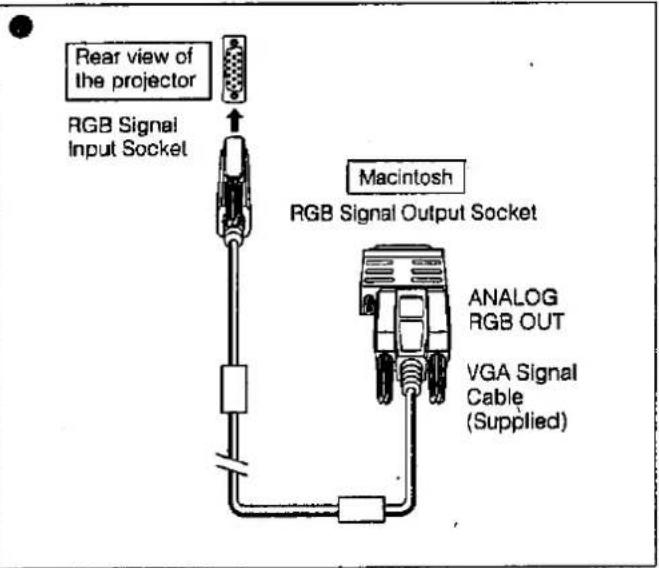
Stecken Sie als nächstes das mitgelieferte VGA-Signalkabel fest in den RGB-Eingang am Projektor und in den Mac/VGA-Adapter am Computer und ziehen Sie die Stecker von Hand fest.
- 832 x 624 Auflösung
Wenn Sie im 832 x 624-Punktmodus anschließen, verwenden Sie einen Mac/VGA-Adapter mit Umschaltfunktion für den Anzeigemodus, der bei Ihrem nächsten autorisierten Sharp Industrial LCD Products Händler oder Ihrem örtlichen Computerhändler erhältlich ist.
3. Anschluss an andere kompatible Computer
Wenn Sie den Projektor an einen anderen kompatiblen Computer als einen IBM-PC (VGA/SVGA) oder eine Macintosh-Serie anschließen, ist ein separates Kabel erforderlich. Bitte wenden Sie sich für Bestellinformationen an Ihren Händler.
Hinweise:
- Der Anschluss an andere als die empfohlenen Computertypen kann zu Schäden am Projektor, am Computer oder an beiden führen.
- Schließen Sie den Audioausgang des Computers an den COMPUTER-AUDIO-EINGANG an.
![graph TD A["External IBM-PC monitor"] -->|Direct connection| B["Computer RAM"] B --> C["Optional VGA to Mac Mac adaptor cable"] C --> D["External Macintosh monitor"] B -->|Output| C style A fill:#f9f,stroke:#333 style D fill:#bbf,stroke:#333](/content/2026/05/805220/images/ff5c64e6afb784fffb6d2c71ad49a1e7668f2e5edb53e7da4bceae9f4fe7b630.jpg)
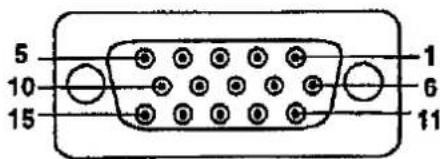
Computereingang
Analog
- Videoeingang (rot)
- Videoeingang
- Videoeingang (grün)
- Videoeingang
- Reserveeingang 1
- Zusammengesetzte Synchronisation (nur MACIT)
- Erde (rot)
- Erde (grün)
- Erde (blau)
- Masse
- Masse
- Masse
- Reserve-Eingang 2
- Horizontales Synchronisationssignal
- Vertikales Synchronisationssignal
- Reser
4. Anschluss eines externen Monitors
Schließen Sie den Computermonitor an die COMPUTER RGB OUTPUT-Buchse des Projektors an, um Bilder gleichzeitig auf dem externen Monitor und der Projektionsfläche zu sehen.
Vorsicht (Apple MacIntosh)
Schließen Sie die COMPUTER RGB OUTPUT-Buchse nur an die folgenden Monitore an:
Apple Colour RGB Monitor: 13" (640 x 480) / 16" (832 x 624). Das Ausgangssignal des Projektors an den Monitor sollte dem Eingangssignal des Computers an den Projektor entsprechen.
Beispiel: Eingabe 13" (640 × 480) → Ausgabe (640 × 480)
Eingabe 16" (832 × 624) → Ausgabe (832 × 624)
Hinweis:
- Wenn der Projektor mit einem externen IBM-PC-Monitor verwendet wird, schließen Sie den Monitor mit dem mitgelieferten Kabel an. Bei Verwendung mit einem Macintosh-Monitor ist ein optionales Adapterkabel erforderlich. Überprüfen Sie vor der Verwendung eines anderen Monitortyps sorgfältig die Schnittstellenspezifikationen des Monitors und stellen Sie sicher, dass sie mit den Spezifikationen der Projektorschnittstelle übereinstimmen.
Der externe Monitorausgang zeigt nur ein analoges Computereingangssignal an. Er zeigt kein digitales oder Video-Eingangssignal an. Um das Composite-Videosignal aufzuteilen, verwenden Sie einen Video-Verteilerverstärker. Dieser ist bei Ihrem örtlichen Händler erhältlich.
Der Computer-RGB-Ausgang gibt nur dasselbe Signal aus, das am Computer-RGB-Eingang anliegt.
(VGA IN → VGA OUT, Mac IN → Mac OUT)
Analog-RGB-Signal-Eingangs- und Ausgangsanschluss
Dieses Gerät verwendet einen 15-poligen Mini-D-Sub-Buchsenstecker. Die Pinbelegung ist links dargestellt.
Eingangssignale (Empfohlene Timing)
Für IBM und Kompatible
Eingangssignale: Die Videoausgangssignal-Timings verschiedener Videosignaltypen sind unten als Referenz aufgeführt.
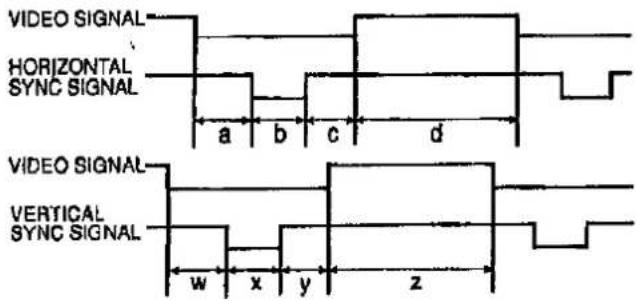
Für Apple Macintosh II-Serie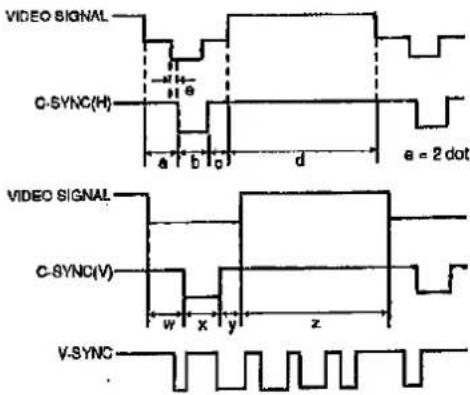
| MODE | IBM | IBM | IBM | IBM | IBM | IBM | Apple | Apple | Apple | |||||||
| VGA | VESA | SVGA | SVGA | SVGA | SVGA | MacintoshTM Itsl | MacintoshTM LC | MacintoshTM | ||||||||
| TEXT | Graphic | Graphlo | Graphic | VESA Guideline | VESA Standard | VESA Standard | 13" Monitor | 13" Monitor | 16" Monitor | |||||||
| 720 dot | 640 dot | 640 dot | 800 dot | 800 dot | 800 dot | 800 dot | 640 dot | 640 dot | 832 dot | |||||||
| 350 line | 400 line | 350 line | 400 line | 480 line | 480 line | 600 line | 600 line | 600 line | 600 line | 480 line | 480 line | 624 line | ||||
| VIDEO | LEVEL | 0.7Vp-p 75Ω load | 0.7Vp-p 75Ω load | 0.7Vp-p 75Ω load | 0.7Vp-p 75Ω load | 0.7Vp-p 75Ω load | 0.7Vp-p 75Ω load | 1Vp-p max. 75Ω load | 0.7Vp-p max. 75Ω load | 0.7Vp-p max. 75Ω load | ||||||
| TYPE | R·G·B | R·G·B | R·G·B | R·G·B | R·G·B | R·G·B | R·G·B C,SYNC | R·G·B C,SYNC | R·G·B C,SYNC | |||||||
| HSYNC | FRONT PORCH | a | dot | 17 | 14 | 24 | 24 | 40 | 56 | 16 | 64 | 78 | 31 | |||
| SYNC | b | dot | 108 | 98 | 40 | 72 | 128 | 120 | 80 | 64 | 62 | 65 | ||||
| BACK PORCH | c | dot | 55 | 50 | 128 | 128 | 88 | 64 | 160 | 96 | 116 | 224 | ||||
| VIDEO PERIOD | d | dot | 720 | 840 | 640 | 800 | 800 | 600 | 600 | 640 | 640 | 832 | ||||
| 1H (a+b+c+d) | dot | 900 | 600 | 832 | 1,024 | 1,056 | 1,040 | 1,056 | 864 | 898 | 1,162 | |||||
| μs | 31.7774 | 31.7776 | 26.413 | 26.444 | 26.400 | 20.800 | 21.333 | 28.5714 | 28.595 | 20.124 | ||||||
| 1 dot | ns | 35.3082 | 39.7219 | 31.746 | 27.777 | 25.000 | 20.000 | 20.202 | 33.0688 | 31.914063 | 17.468 | |||||
| 1/H | kHz | 31.4689 | 31.4688 | 37.860 | 35.156 | 37.879 | 48.077 | 48.875 | 35.0000 | 34.971149 | 49.693 | |||||
| 1/dot | MHz | 28.322 | 25.176 | 31.500 | 36.000 | 40.000 | 50.000 | 49.500 | 30.2400 | 31.334149 | 57.246 | |||||
| LEVEL | TTL | TTL | TTL | TTL | TTL | TTL | TTL | TTL | TTL | TTL | TTL | |||||
| SYNC POLARITY | +/- | + | - | + | - | - | - | +/- | + | + | + | - | - | - | ||
| VSYNC | FRONT PORCH | w | H | 38 | 13 | 38 | 13 | 11 | 9 | 1 | 1 | 37 | 1 | 3 | 3 | 1 |
| SYNC | x | H | 2 | 2 | 2 | 2 | 2 | 3 | 2 | 4 | 6 | 3 | 3 | 3 | 3 | |
| BACK PORCH | y | H | 59 | 34 | 59 | 34 | 32 | 28 | 22 | 23 | 23 | 21 | 39 | 39 | 39 | |
| VIDEO PERIOD | z | H | 350 | 400 | 350 | 400 | 480 | 480 | 600 | 600 | 600 | 600 | 480 | 480 | 624 | |
| 1V (w+x+y+z) | H | 449 | 449 | 449 | 449 | 525 | 520 | 625 | 628 | 666 | 625 | 525 | 525 | 667 | ||
| ms | 14.2681 | 14.2681 | 14.2681 | 14.2681 | 16.6832 | 13.735 | 17.778 | 16.579 | 13.653 | 13.333 | 15.00 | 15.00 | 13.423 | |||
| 1/V | Hz | 70.0866 | 70.0866 | 70.0863 | 70.0863 | 59.9405 | 72.809 | 56.250 | 60.317 | 72.188 | 75.000 | 66.67 | 66.67 | 74.502 | ||
| LEVEL | TTL | TTL | TTL | TTL | TTL | TTL | TTL | TTL | TTL | TTL | TTL | TTL | TTL | |||
| SYNC POLARITY | +/- | - | + | - | + | - | - | +/- | + | + | + | - | - | - | ||
2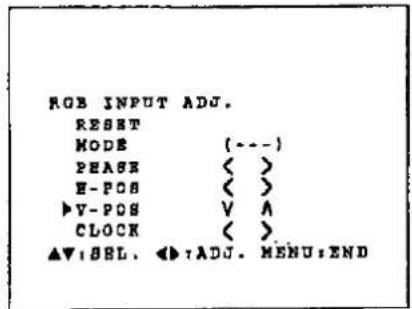
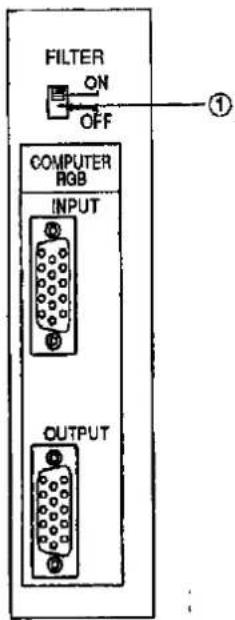
Bei der Anzeige von Computergrafiken, die sich jeden zweiten Punkt wiederholen (Kachelung, vertikale Streifen usw.), kann es zu Interferenzen zwischen den LCD-Pixeln kommen, die Flackern, vertikale Streifen oder Kontrastunregelmäßigkeiten in Teilen des Bildschirms verursachen. Sollte dies auftreten, verwenden Sie die ADJUSTMENT ◀/▶ Tasten auf der Fernbedienung für HORIZONTALE (LINKS/RECHTS) und VERTIKALE (OBEN/UNTEN) POSITIONSEINSTELLUNGEN, um das optimale Bild einzustellen.
RGB-EINGANGSEINSTELLUNGEN (CLOCK, PHASE, V-POS und H-POS)
- Wählen Sie RGB mit der INPUT SELECT Taste auf der Fernbedienung und drücken Sie die MENU Taste, um den RGB INPUT ADJ. Modus zu wählen.
Bei angezeigtem MENÜ-Bildschirm drücken Sie die ▼/▲ Tasten, um RGB INPUT ADJ. auszuwählen. Drücken Sie dann die MENU Taste, um den RGB INPUT ADJ. Bildschirm anzuzeigen.
- Wählen Sie den Punkt, den Sie einstellen möchten, mit den ▼/▲ Tasten aus. Stellen Sie den Punkt mit den ◀/▶ Tasten ein.
- Drücken Sie jederzeit die MENU Taste, um RGB INPUT ADJ. zu verlassen.
Beschreibung der Einstellpunkte
INITIAL RESET
- Wird verwendet, um die H-POS, V-POS, PHASE und CLOCK Einstellungen auf ihre Anfangswerte zurückzusetzen.
MODUS-EINSTELLUNG
Anschluss an IBM-PC-Computer
- Normalerweise wird die Art des Eingangssignals erkannt und der korrekte Auflösungsmodus (Text oder Grafik) automatisch ausgewählt. Für die folgenden Signale setzen Sie MODUS auf ON oder OFF, um den Auflösungsmodus des Projektors entsprechend dem Computermodus einzustellen. 720 Punkte × 400 Zeilen, 720 Punkte × 350 Zeilen (Textmodus) 640 Punkte × 400 Zeilen, 640 Punkte × 350 Zeilen (Grafikmodus)
- Für den Grafikmodus MODE wählen und MODE auf ON setzen.
- Für den Textmodus MODE erneut wählen und MODE auf OFF setzen.
Anschluss an Macintosh LC/II-Serie Computer
- Beim Anschluss an einen Macintosh II mit 30,24 MHz Punktfrequenz MODE wählen und MODE auf ON setzen.
- Beim Anschluss an einen Macintosh LC-Serie Computer mit 31,33 MHz Punktfrequenz MODE auf OFF setzen.
- Beim Anschluss an Grafikkarten von Drittanbietern und andere Macintosh-Computer MODE auf ON oder OFF setzen, um den korrekten Anzeigemodus zu wählen.
- Wenn das Eingangssignal automatisch erkannt wird oder kein Eingangssignal vorhanden ist, erscheint MODE (---) auf dem Bildschirm und der Anzeigemodus kann nicht geändert werden.
PHASENEINSTELLUNG (AUF/AB)
• Dient zur Reduzierung von Bildverzerrungen oder zur Verbesserung des Kontrasts.
HORIZONTALE POSITIONSEINSTELLUNG (LINKS/RECHTS)
- Wenn Bilder auf dem Bildschirm zu weit links oder rechts sind, können sie zur Mitte verschoben werden.
VERTIKALE POSITIONSEINSTELLUNG (AUF/AB)
- Wenn Bilder auf dem Bildschirm zu hoch oder zu niedrig sind, können sie zur Mitte verschoben werden.
TAKTGEBEREINSTELLUNG (SCHNELL/LANGSAM)
• Dient zur Reduzierung von Bildverzerrungen oder zur Verbesserung des Kontrasts.
INPUT-EINSTELLUNG
① Filter-Schalter
Bei sehr detaillierten Computermustern, die sich jeden zweiten Punkt wiederholen (Kachelung, vertikale Streifen usw.), kann Rauschen auf dem Bildschirm auftreten. Sollte dies der Fall sein, setzen Sie den FILTER-Schalter auf ON. Der Musterbereich wird ausgeglichen und das Rauschen reduziert.
Hinweise:
1) Flackern, vertikale Streifen oder Kontrastunregelmäßigkeiten können auch auftreten, wenn das Bild invertiert ist. Verwenden Sie auch hier die EINSTELLUNG ◀/▶-Tasten auf der Fernbedienung für HORIZONTALE (LINKS/RECHTS) und VERTIKALE POSITIONSEINSTELLUNG (AUF/AB), um das optimale Bild einzustellen. 2) Vermeiden Sie die Anzeige von Computermustern, die sich jede zweite Zeile wiederholen (horizontale Streifen). (Es tritt Flackern auf, das das Bild schwer erkennbar macht.)
2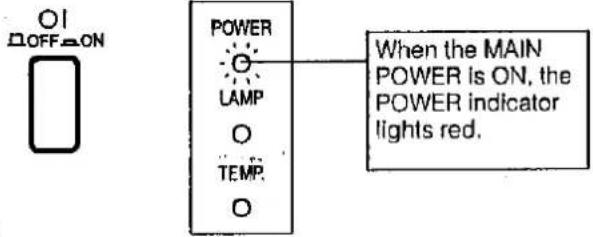
3
4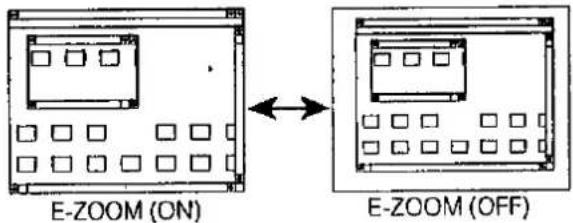
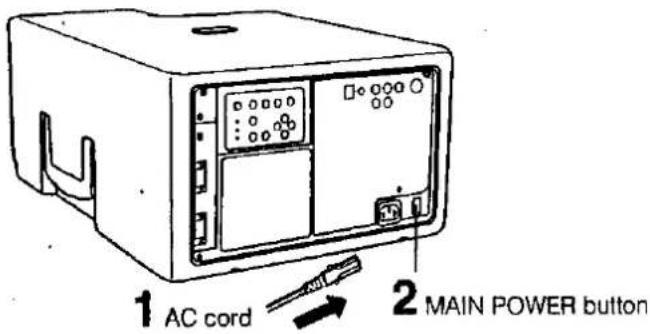
1. Anschließen des Netzkabels
Schließen Sie das mitgelieferte Netzkabel an die Steckdose an.
2. HAUPTNETZ EINSCHALTEN
Drücken Sie die HAUPTNETZ-Taste auf der Rückseite des Projektors. Die POWER-Anzeige leuchtet rot und der Projektor wechselt in den STANDBY-Modus.
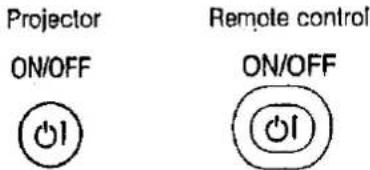
3. EINSCHALTEN
Drücken Sie die POWER-Taste am Projektor oder auf der Fernbedienung.
- Wenn das Gerät durch Drücken der POWER-Taste (EIN/AUS) ausgeschaltet wird, erlischt die POWER-Anzeige erst, wenn der Lüfter aufgehört hat zu laufen.
Siehe Seite 22, "Lampen-/Wartungsanzeigen", für Details.
Hinweise:
- Wenn die POWER-Anzeige nicht leuchtet, kann der Projektor nicht mit der Fernbedienung bedient werden.
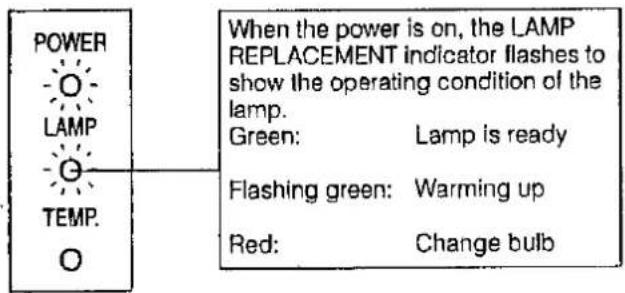
- Wenn das Gerät unmittelbar nach dem Ausschalten wieder eingeschaltet wird, kann es einen Moment dauern, bis die Lampe angeht. (Während dieser Zeit blinkt die LAMP REPLACEMENT-Anzeige.)
- Nach dem Auspacken und dem ersten Einschalten des Projektors kann ein leichter Geruch vom Lüfter ausgehen. Dieser Geruch verschwindet mit der Zeit.
4. E-ZOOM/PANNING-Funktion
Dieser Projektor verfügt über einen E-ZOOM-Modus, der die Anzeige vergrößert, wenn ein Bild mit einer Auflösung von weniger als 800 x 600 Punkten eingegeben wird. Mit der E-ZOOM/PANNING-Taste können die E-ZOOM- und PANNING-Funktionen bedient werden. Siehe Seite 17 "E-ZOOM/PANNING-Funktion" für Details.
Hinweis:
- Die E-ZOOM- und PANNING-Funktionen funktionieren nicht im SVGA- (800 x 600 Punkte), PAL- oder SECAM-Eingabemodus. und Schwarzweißbilder.
Bildschirmanzeige • Bildschirmgröße bei RGB-Eingabe, NTSC-Eingabe, PAL/SECAM-Eingabe?
5. BILDSCHIRMANZEIGE in 8 Sprachen
Die Bildschirmanzeige ist werkseitig auf Englisch eingestellt. Die Sprache für die Bildschirmanzeige des Geräts kann auf Englisch, Deutsch, Spanisch, Niederländisch, Schwedisch, Italienisch, Französisch oder Japanisch eingestellt werden.
- Einstellen der Sprache der Bildschirmanzeige
1) Drücken Sie die MENU-Taste. Das Menü erscheint auf dem Bildschirm. 2) Drücken Sie die ADJUSTMENT ▼/▲-Tasten, bis das ▶-Zeichen auf "LANGUAGE" steht. Drücken Sie die MENU-Taste, um das Sprachmenü anzuzeigen. 3) Drücken Sie die ADJUSTMENT ▼/▲-Tasten, bis das ▶-Zeichen auf die gewünschte Sprache zeigt, und drücken Sie dann die MENU-Taste, um die Sprache einzustellen. Die Bildschirmanzeige ist nun so programmiert, dass sie in der gewählten Sprache angezeigt wird.
On-Screen Display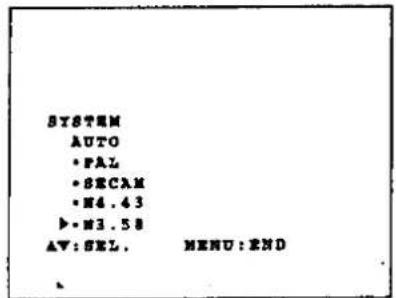
PAL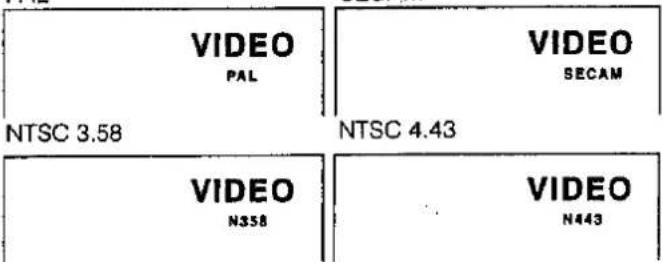
On-Screen Display![graph TD A["VIDEO N35B"] --> B["RGB 800 x 600, 80Hz"] C["COMPUTER RGB"] --> D["RGB 800 x 600, 80Hz"] C --> E["RGB 840 x 480, 80Hz"] C --> F["RGB ... 720 x 400, 70Hz"] G["from a video source connected to: VIDEO INPUT or S-VIDEO INPUT"] --> A](/content/2026/05/805220/images/9a6c345759da4ccbe77677f17327761871bc8b23f5831cdc0603995af065b7d5.jpg)
POWER

LAMP

TEMP.

6. Ändern des Systemmodus
Der Systemmodus ist werkseitig auf AUTO eingestellt, kann aber auf einen anderen Modus geändert werden.
1) Drücken Sie die MENU-Taste. Das Menü erscheint auf dem Bildschirm. 2) Drücken Sie die ADJUSTMENT ▼/▲ Tasten, bis die ▶ Markierung auf "SYSTEM" steht. Drücken Sie die MENU-Taste, um das Systemmenü anzuzeigen. 3) Drücken Sie die ADJUSTMENT ▼/▲ Tasten, bis die ▶ Markierung dem gewünschten Videosystem entspricht, und drücken Sie dann die MENU-Taste, um das System einzustellen.
Hinweis:
- Im AUTO-Modus werden "PAL", "SECAM", "NTSC4.43" oder "NTSC3.58" für einige Sekunden auf dem Bildschirm angezeigt, wenn der Modus mit der INPUT SELECT Taste geändert wird.
7. Eingang wählen.
Drücken Sie die INPUT SELECT Taste, um den Bildeingang umzuschalten. Wenn Sie die Taste drücken, wird der aktuelle Eingangsmodus für etwa 4 Sekunden angezeigt. Wenn Sie die Taste erneut drücken, während der Eingangsmodus angezeigt wird, wechselt der Modus wie links gezeigt.
Bestätigen Sie den gewählten Eingangsanschluss und drücken Sie dann die INPUT SELECT Taste.
Hinweise:
- Im VIDEO-Modus wird das empfangene System unterhalb der Anzeige "VIDEO" angezeigt.
- Bei Auswahl des RGB-Modus ändert sich der Modus wie links gezeigt.
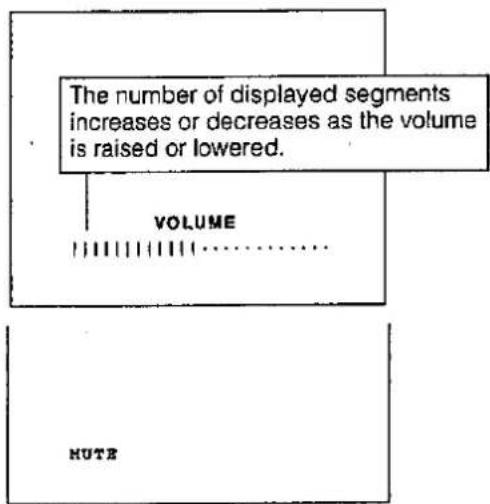
8. Lautstärke einstellen.
Drücken Sie die Lautstärke-Tasten am Projektor oder an der Fernbedienung, um die Lautstärke einzustellen.
STUMM
- Drücken Sie die Taste STUMM, um den Ton vorübergehend auszuschalten.
- Drücken Sie die Taste erneut, um den Ton wieder einzuschalten.
9. Ausschalten des Projektors oder der Fernbedienung
Der Projektor kann vorübergehend ausgeschaltet werden, indem Sie die Taste POWER am Projektor oder an der Fernbedienung drücken.
Nachdem die POWER-Anzeige rot leuchtet und der Lüfter 90 Sekunden lang läuft, schaltet sich der Projektor aus und kehrt in den STANDBY-Modus zurück.
Der Projektor kann entweder über den Projektor oder die Fernbedienung wieder eingeschaltet werden. Wenn der Projektor eingeschaltet wird, leuchten die POWER-Anzeige und die LAMPENWECHSEL-Anzeige grün.
HINWEIS:
- Wenn die HAUPTSTROMVERSORGUNG am Projektor ausgeschaltet ist, kann der Projektor nicht über die Fernbedienung eingeschaltet werden.
Bildschirmanzeige 1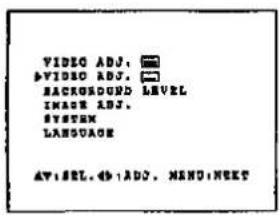
2![graph TD A["VIDEO PICTURE<br>AV:SEL. ↔:ADJ. MENU:END"] --> B["VIDEO SMARTNESS<br>AV:SEL. ↔:ADJ. MENU:END"] A --> C["VIDEO BRIGHT<br>AV:SEL. ↔:ADJ. MENU:END"] B --> D["VIDEO TIME<br>AV:SEL. ↔:ADJ. MENU:END"] C --> E["VIDEO COLOR<br>AV:SEL. ↔:ADJ. MENU:END"] D --> F["Output"] E --> F](/content/2026/05/805220/images/763892137c22955bb73455c4fe6a05808599c649ba2aaed1ea2f414e54a37739.jpg)
• TINT: nur NTSC
- Das Bild dieses Projektors ist werkseitig auf Standardeinstellungen voreingestellt. Sie können es jedoch mit den EINSTELLUNGSTASTEN am Projektor und an der Fernbedienung an Ihre eigenen Vorlieben anpassen.
- Die Einstellung kann für VIDEO oder RGB separat gespeichert werden.
- Fünf Bildmodi können eingestellt werden: "BILD", "HELLIGKEIT", "FARBE", "TINT" und "SCHÄRFE".
Einstellen des Bildes
1. Verwenden Sie die MENÜ-Taste, um den einzustellenden Modus auszuwählen.
- Wenn die MENÜ-Taste gedrückt wird, wird der MENÜ-Modus etwa 30 Sekunden lang angezeigt. Drücken Sie die EINSTELLUNG ▼/▲ Tasten, um "VIDEO-EINST. □" auszuwählen, und drücken Sie dann die MENÜ-Taste.
2. Drücken Sie die EINSTELLUNG ◀/▶ Tasten.
- Wenn die EINSTELLUNG ▼/▲ Tasten gedrückt werden, während der Modus auf dem Bildschirm angezeigt wird, ändert sich der MENÜ-Modus wie gezeigt.
- Wenn die EINSTELLUNG (◀) oder (▶) Tasten gedrückt werden, während der Modus, den Sie einstellen möchten, angezeigt wird, kann das "!”-Zeichen, das die Einstellung anzeigt, bewegt werden. • Der Einstellmodus wird etwa 10 Sekunden lang angezeigt.
Beschreibung der Einstellelemente
| Selected item | ADJUSTMENT ◀ button | ADJUSTMENT ► button |
| PICTURE | To decrease contrast | To increase contrast |
| BRIGHT | For less brightness | For more brightness |
| COLOR | For less colour intensity | For more colour intensity |
| TINT | Skin tones become purplish | Skin tones become greenish |
| SHARPNESS | For less sharpness | For more sharpness |
| RED | For weaker red | For stronger red |
| BLUE | For weaker blue | For stronger blue |
| RESET | All Video RGB Adjustment items are returned to the factory preset settings.Note:To reset all adjustment items, select RESET in "ADJ.■" mode. | |
Bildschirmanzeige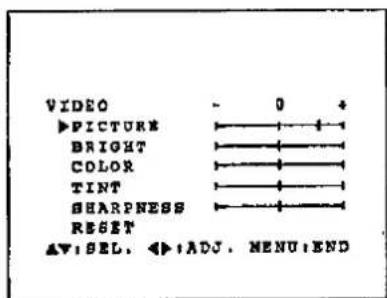
• TINT: nur NTSC Wenn der Videomodus ausgewählt ist,
Hinweise:
- Wenn ein RGB-Signaleingang ausgewählt wurde, können nur "BILD", "HELLIGKEIT", "ROT" und "BLAU" eingestellt werden. • TINT erscheint nur im NTSC-Modus.
3. Drücken Sie jederzeit die MENU-Taste, um VIDEO ADJ zu verlassen.
Überprüfen der Bildeinstellungen
Wenn die MENU-Taste gedrückt wird, wird der MENU-Modus etwa 30 Sekunden lang angezeigt. Drücken Sie die ADJUSTMENT ▼/▲-Tasten, um "VIDEO ADJ. ■" auszuwählen, und drücken Sie dann die MENU-Taste.
- Jedes Mal, wenn Sie die ADJUSTMENT ▼/▲-Tasten drücken, während die Anzeige sichtbar ist, bewegt sich die ▶-Markierung, um das ausgewählte Video-Status-Element zur Einstellung anzuzeigen.
- Wenn die ADJUSTMENT (◀) oder (▶)-Tasten gedrückt werden, bewegt sich die "◀"-Markierung. • Der Einstellmodus wird etwa 30 Sekunden lang angezeigt.
1 Wenn RGB ausgewählt ist.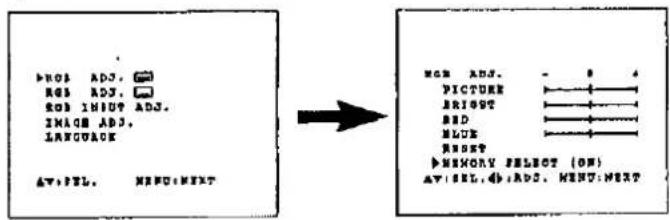
2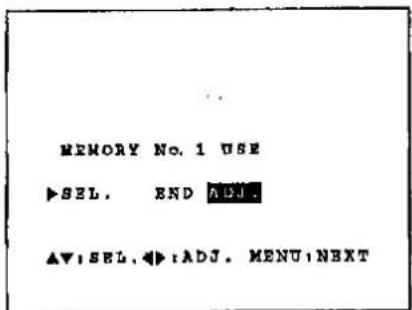
Computermodus-Speichereinstellungen
- Der Projektor ist mit verschiedenen Modi für die Verwendung mit VGA und anderen kompatiblen Computern voreingestellt. Es sind jedoch 2 Speicherpositionen zum Speichern von Moduseinstellungen vorgesehen. • Jede Speicherposition kann zum Speichern von Moduseinstellungen verwendet werden, die zum Computer passen.
1. Drücken Sie die MENU-Taste, um den Speichereinstellungsmodus auszuwählen.
- Drücken Sie die MENU-Taste. Während der MENU-Bildschirm angezeigt wird, drücken Sie die ADJUSTMENT ▼/▲-Tasten, um "RGB ADJ." auszuwählen. Drücken Sie die MENU-Taste. Der MENU-Modus ändert sich wie gezeigt.
- Während das RGB-Einstellungsmenü angezeigt wird, drücken Sie die ADJUSTMENT ▼/▲-Tasten, um "MEMORY SELECT" auszuwählen, drücken Sie dann die ADJUSTMENT ◀/▶-Tasten, um ON auszuwählen, und drücken Sie die MENU-Taste, um das Bild zu ändern.
2. Drücken Sie die ADJUSTMENT ◀/▶-Tasten.
- Es gibt 2 Speicherpositionen. Drücken Sie die ADJUSTMENT ◀/▶-Tasten, um die Nummer des Speichers auszuwählen, den Sie einstellen möchten. Drücken Sie die ▶-Taste, um eine höhere Nummer auszuwählen, und die ◀-Taste, um eine niedrigere Nummer auszuwählen. Wenn diese Speicherposition nicht eingestellt wurde, wird "NON" angezeigt. Wenn sie eingestellt wurde, wird "USE" angezeigt. Speicher Nr. 0 kann nicht eingestellt werden. Er enthält die festen werkseitigen Voreinstellungen.
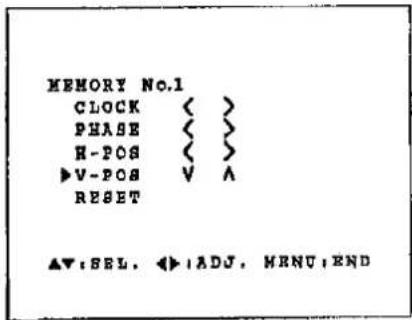
- Um eine Einstellung vorzunehmen oder zu ändern, drücken Sie die ADJUSTMENT ▼/▲ Tasten, um den Cursor auf "SEL." zu bewegen, und drücken Sie die ADJUSTMENT ◄/▶ Tasten, um "ADJ." auszuwählen. (Wenn Sie keine Einstellungen vornehmen möchten, wählen Sie "END".) Das ausgewählte Element wird lila hervorgehoben. Drücken Sie dann die MENU-Taste, um zum nächsten Bildschirm zu gelangen.
- Wählen Sie das Element, das Sie einstellen möchten, mit den ADJUSTMENT ▼/▲ Tasten aus, und nehmen Sie dann mit den ADJUSTMENT ◀/▶ Tasten die Einstellungen vor. Wenn die Einstellungen abgeschlossen sind, drücken Sie die MENU-Taste. Die Anzeige verschwindet und die Einstellungen werden als Benutzermodus im Speicher abgelegt. Einzelheiten zu den Einstellpunkten finden Sie auf Seite 12.
- Wenn Sie RESET auswählen, wird ON angezeigt.
Priorität des automatischen Anzeigemodus
- Um die Computermemory-Modi zu priorisieren, beginnt die Reihenfolge mit dem aktuellen Modus und durchläuft dann die restlichen Modi der Reihe nach. Wenn beispielsweise Speicher Nr. 2 eingestellt ist, durchsucht der Projektor automatisch die folgende Reihenfolge, um den Memory-Modus zu finden, der zum Computer passt: Speicher Nr. 2 → Speicher Nr. 0 (Werksvoreinstellung) → Speicher Nr. 1. - Die automatische Erkennung ist nur bei großen Unterschieden der horizontalen Frequenz aktiv. Wenn eine der anderen Positionen (z. B. "Phase") nicht korrekt funktioniert, erfolgt kein automatischer Wechsel des Speicherplatzes.
3. Drücken Sie jederzeit die MENU-Taste, um RGB ADJ zu verlassen.

1 Bildschirmanzeige
![graph TD A["Floor Layout"] --> B["E-ZOOM (ON)"] B --> C["Floor Layout"] C --> D["E-ZOOM (OFF)"] D --> E["Floor Layout"] E --> F["Floor Layout"] style A fill:#f9f,stroke:#333 style B fill:#ccf,stroke:#333 style C fill:#cfc,stroke:#333 style D fill:#fcc,stroke:#333 style E fill:#cff,stroke:#333 style…](/content/2026/05/805220/images/a3c5b4c86d18d529299a9f73c68e498782e7efb9a1a5a69365a9ca2d4ff649e2.jpg)
E-ZOOM/PANNING-Funktion
Dieser Projektor verfügt über einen E-ZOOM-Modus (640 x 480 Punkte, NTSC usw.), der die Anzeige vergrößert, wenn ein Bild mit einer Auflösung von weniger als 800 x 600 Punkten eingegeben wird. Es gibt auch einen PANNING-Modus, der eine 800 x 600 Punkte-Anzeige ermöglicht, wenn keine Komprimierung erfolgt.
1. Drücken Sie die MENU-Taste, um den E-ZOOM-Modus auszuwählen.
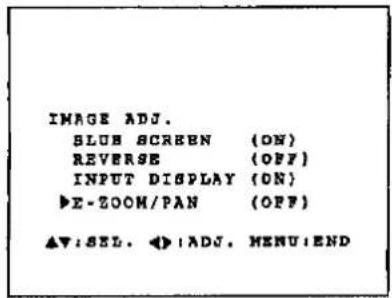
Drücken Sie die MENU-Taste. Während der MENU-Bildschirm angezeigt wird, drücken Sie die ADJUSTMENT ▼/▲ Tasten, um IMAGE ADJ auszuwählen. Drücken Sie dann die MENU-Taste, um den IMAGE ADJ-Bildschirm anzuzeigen. Drücken Sie die ADJUSTMENT ▼/▲ Tasten, um E-ZOOM/PAN auszuwählen, und drücken Sie die ADJUSTMENT ◀/▶ Tasten, um ON auszuwählen. Drücken Sie die MENU-Taste. Wenn das VGA-Signal (640 x 480 Punkte) oder Mac 16" (832 x 624) eingegeben wird, wechselt der Projektor in den E-ZOOM-Modus.
Hinweis:
- Die E-ZOOM/PANNING-Taste auf der Rückseite des Projektors kann ebenfalls verwendet werden, um den E-ZOOM-Modus anzuzeigen. Drücken Sie diese Taste, während die Bildschirmanzeige (unten) angezeigt wird, um E-ZOOM ein- und auszuschalten. E-ZOOM (ON): Das Bild wird auf 800 x 600 Punkte vergrößert oder verkleinert. E-ZOOM (OFF): Die Auflösung des Bildes ändert sich nicht. Verwenden Sie die ▼/▲ und ◀/▶ ADJUSTMENT-Tasten zum Schwenken, wenn ein Mac 16" (832 x 624 Punkte) Bild eingegeben wird. E-ZOOM (---): Kein Eingang
Hinweise:
- Wählen Sie ON 1 oder ON 2, um den Status für ein 640 x 400 Punkte-Bild oder ein 640 x 350 Punkte-Bild im E-ZOOM-Modus festzulegen. - Im E-ZOOM-Modus erhöht eine vergrößerte Anzeige die Menge der verarbeiteten Daten auf dem Bildschirm, und ein komprimiertes Bild verringert die Anzahl der angezeigten Zeilen, was die Lesbarkeit von Zeichen erschweren kann.
2. Drücken Sie die E-ZOOM/PANNING-Taste auf der Fernbedienung.
Mit der E-ZOOM/PANNING-Taste auf der Fernbedienung können Sie zwischen den Modi E-ZOOM und NO E-ZOOM (PANNING) wählen.
Hinweis:
- Im SVGA-EINGANGSMODUS erscheint (---), was anzeigt, dass die E-ZOOM-Funktion in diesem Modus nicht funktioniert.
3. Drücken Sie jederzeit die MENU-Taste, um den E-ZOOM-Modus zu verlassen.
PANNING-Funktion: Mac 16" (832 x 624) (NO E-ZOOM)
Im NO E-ZOOM-Modus können Sie mit den ▼/▲- und ◀/▶-EINSTELLTASTEN das Bild der Anzeige innerhalb des 800 x 600-Punkte-Bildschirms bewegen.
- Drücken Sie eine der ▼/▲- und ◀/▶-EINSTELLTASTEN, um die Funktion zu starten.
- Drücken Sie zuerst die ◀/▶-EINSTELLTASTEN und verwenden Sie dann die ▼/▲- und ◀/▶-EINSTELLTASTEN, um die Größe der Anzeige zu ändern.
- Wenn zuerst die ▼/▲-EINSTELLTASTEN gedrückt werden, erscheint die Lautstärkeanzeige auf dem Bildschirm.
(Fernbedienung)
Hinweise:
- Die E-ZOOM- und PANNING-Funktionen funktionieren nicht im SVGA- (800 x 600 Punkte), PAL- und SECAM-EINGANGSMODUS.
- Wenn das Eingangssignal im RGB-Eingangsmodus geändert wird, funktionieren die E-ZOOM- und PANNING-Funktionen möglicherweise nicht. Sollte dies auftreten, drücken Sie die MENU-Taste. Der Projektor überprüft das Eingangssignal, dann funktionieren die E-ZOOM- und PANNING-Funktionen.
On-Screen Display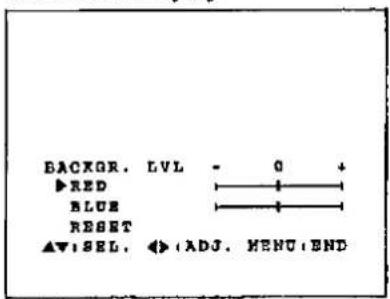
Hintergrundpegel
- Die Einstellung des Hintergrundpegels kann verwendet werden, um den Weißabgleich des Bildes für die ausgewählte Videoeingangsquelle anzupassen.
- Eine optimale Bildqualität kann erreicht werden, indem der weiße Anteil des Bildes angepasst wird, um die beste Farbe für die ausgewählte Quelle zu erhalten.
Einstellen des HINTERGRUNDPEGELS
- Drücken Sie die MENÜ-Taste. Wählen Sie mit den Tasten ▼/▲ den HINTERGRUNDPEGEL aus. Drücken Sie dann die MENÜ-Taste, um zu dem links angezeigten Bild zu wechseln.
- Wählen Sie mit den Tasten ▼/▲ ROT oder BLAU aus. Passen Sie den gewünschten Modus mit den Tasten ◀/▶ an. • Um zum werkseitigen Voreinstellungsmodus zurückzukehren, wählen Sie mit den Tasten ▼/▲ RESET und drücken Sie dann die Tasten ◀/▶.
- Drücken Sie die MENÜ-Taste, um den normalen Bildschirmmodus auszuwählen.
Hinweis:
- Der Hintergrundpegel ist nur für die Videoquelle einstellbar. Der Hintergrundpegel muss für jede Quelle eingestellt werden und wird nicht im Statuspeicher gespeichert.
Verwenden der Bildumkehrfunktion
Dieser Projektor ist mit einer Bildumkehrfunktion ausgestattet. Das projizierte Bild kann mit der MENÜ-Taste am Projektor oder an der Fernbedienung umgekehrt werden.
On-Screen Display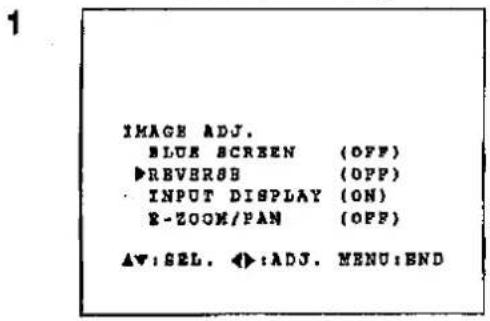
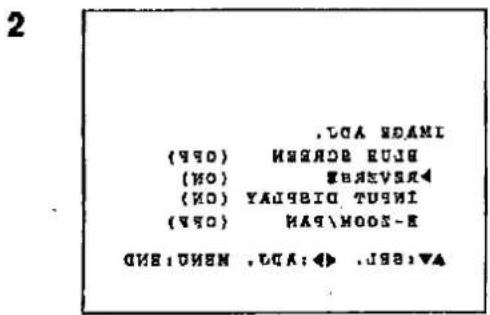
1. Drücken Sie die MENÜ-Taste.
Bei angezeigtem MENÜ-Bildschirm wählen Sie mit den Tasten ▼/▲ BILD-EINSTELLUNG aus. Drücken Sie dann die MENÜ-Taste, um den Bildschirm BILD-EINSTELLUNG anzuzeigen.
- Das zuletzt ausgewählte MENÜ wird etwa 30 Sekunden lang angezeigt.
2. Modus für gespiegeltes Bild
Wählen Sie im Menü IMAGE ADJ. mit den Tasten ▼/▲ die Option REVERSE aus. Drücken Sie dann die Tasten ◀/▶, um ON auszuwählen. Das gespiegelte Bild wird angezeigt.
3. Drücken Sie jederzeit die MENÜ-Taste, um das Menü IMAGE ADJ. zu verlassen.
Verwendung des Black-Screen-Modus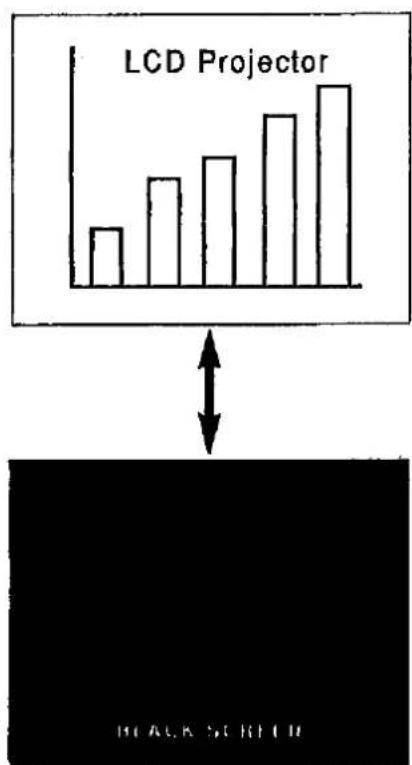
Wenn die Taste BLACK SCREEN am Projektor gedrückt wird, erscheint ein schwarzer Bildschirm auf der Leinwand. Dies kann verwendet werden, um das Präsentationsbild auszublenden. Bei jedem Drücken der Taste wechselt der Bildschirm zwischen dem Präsentationsbild und dem schwarzen Bildschirm.
Verwendung der Blue-Screen-Funktion
Dieser Projektor ist mit einer Blue-Screen-Funktion ausgestattet, die den Bildschirm blau färbt, wenn der Videoeingang nicht angeschlossen ist oder die Videokomponente ausgeschaltet ist.
Bildschirmanzeige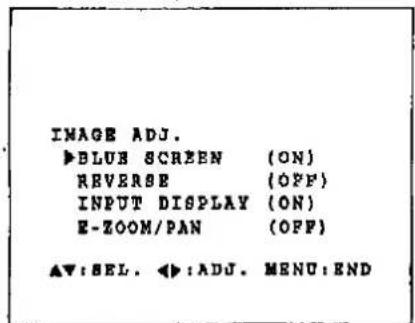
Bildschirmanzeige![graph TD A["REMAIN 5M"] --> B["REMAIN 1M"] B --> C["↓"]](/content/2026/05/805220/images/447f58a95f0a71b1602ec1fed8af817c0fc6f1b00afd07a2be828d50fa578edf.jpg)
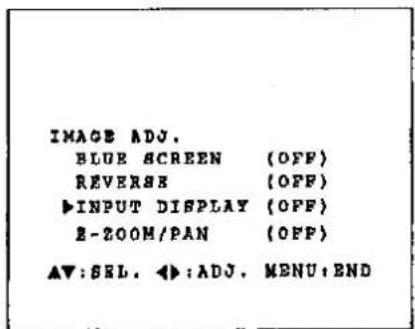
- Drücken Sie die MENÜ-Taste. Während das MENÜ angezeigt wird, drücken Sie die Tasten ▼/▲, um IMAGE ADJ. auszuwählen. Drücken Sie dann die MENÜ-Taste, um den Bildschirm IMAGE ADJ. wie gezeigt anzuzeigen. Drücken Sie die Tasten ▼/▲, um "BLUE SCREEN" auszuwählen, und drücken Sie die Tasten ◀/▶, um ON oder OFF auszuwählen. Drücken Sie die MENÜ-Taste, um zum normalen Bildschirm zurückzukehren.
- Wenn die Blue-Screen-Funktion aktiviert ist, wird der Bildschirm blau, wenn kein Videosignal über den Videoeingang eingegeben wird.
- Wenn die Blue-Screen-Funktion aktiviert ist und mehr als 15 Minuten lang kein Videosignal über den Eingang eingegeben wird, wird das Gerät automatisch ausgeschaltet.
- Fünf Minuten und eine Minute vor dem Ausschalten erscheinen die Anzeigen wie gezeigt.
Hinweise:
- Die Blue-Screen-Funktion funktioniert im RGB-Modus nicht.
- Wenn das Gerät ausgeschaltet ist, leuchtet die POWER-Anzeige rot.
- Um das Gerät wieder einzuschalten, drücken Sie die POWER-Taste, um es auf OFF zu stellen, und drücken Sie sie dann erneut, um es auf ON zu stellen.
Verwenden der On-Screen-Display-Override-Funktion
Die On-Screen-Displays ("VIDEO" usw.), die während der Eingangsauswahl erscheinen, können ausgeschaltet werden.
- Drücken Sie die MENU-Taste. Während das MENÜ angezeigt wird, drücken Sie die ADJUSTMENT ▼/▲-Tasten, um IMAGE ADJ. auszuwählen. Drücken Sie dann die MENU-Taste, um den Bildschirm IMAGE ADJ. anzuzeigen. Drücken Sie die ADJUSTMENT ▼/▲-Tasten, um "INPUT DISPLAY" auszuwählen, und drücken Sie die ADJUSTMENT ◀/▶-Tasten, um ON oder OFF auszuwählen, und drücken Sie dann die MENU-Taste.
- Wenn OFF ausgewählt ist, wird das On-Screen-Display ("VIDEO" usw.) während der Eingangsauswahl nicht angezeigt.

Wartung des Luftfilters
Der Luftfilter sollte alle 100 Betriebsstunden gereinigt werden. Reinigen Sie den Filter häufiger, wenn der Projektor in staubiger oder rauchiger Umgebung verwendet wird. ■ Lassen Sie den Filter (PFILD0047CEZZ) von Ihrem nächsten autorisierten Sharp Industrial LCD Products Händler ersetzen, wenn er nicht mehr gereinigt werden kann.
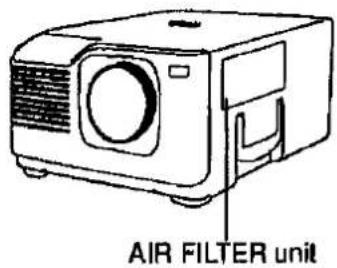
LUFTFILTER-Einheit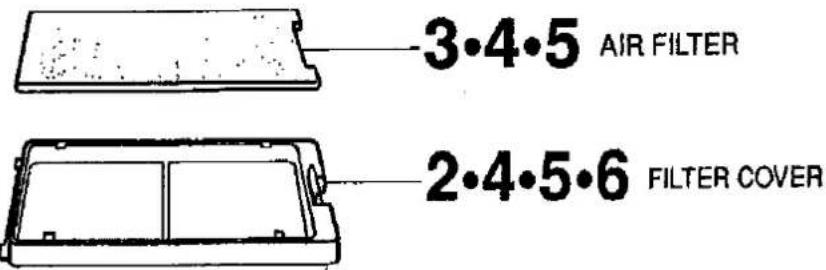
Reinigen und Ersetzen des Filters
| 1 Turn OFF the MAIN POWER. | 2 Remove the FILTER COVER. | 3 Remove the AIR FILTER. |
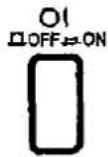 Power indicator goes off.Unplug the power cord. Power indicator goes off.Unplug the power cord. | 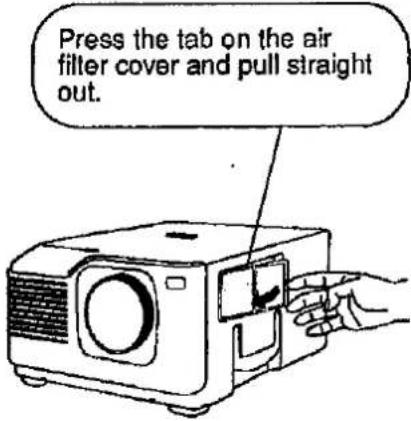 | 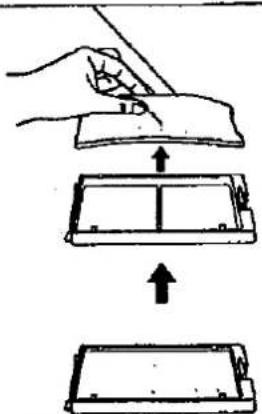 |
| 4 Clean the AIR FILTER. | 5 Replace the AIR FILTER. | 6 Replace the FILTER COVER. |
Clean the dust off the air filter and cover with a vacuum cleaner.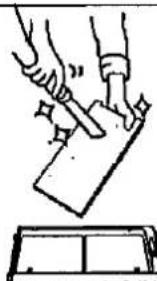 If the filter is very dirty, wash with a water-diluted neutral detergent.Leave the filter to dry in the sun. If the filter is very dirty, wash with a water-diluted neutral detergent.Leave the filter to dry in the sun. | Return the air filter to its original position in the filter cover.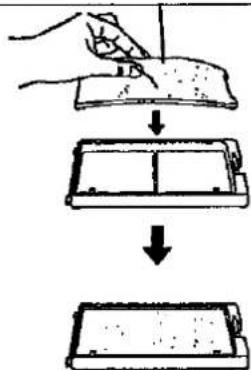 | Insert the two tabs on the end of the filter cover into the filter cover opening and press the filter cover into position.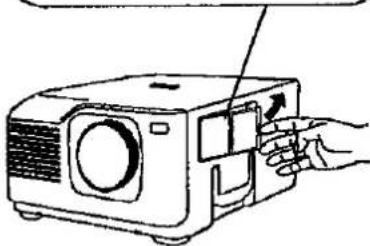 |
Hinweis: - Stellen Sie sicher, dass die LUFTFILTER-ABDECKUNG sicher installiert ist. Das Gerät kann nicht eingeschaltet werden, wenn sie nicht korrekt installiert ist.
- 2017年,中国共产党成立100周年。
Lampe
■ Die Lampe hat eine begrenzte Lebensdauer.
- Wenn die Lampe fast ausgebrannt ist, verschlechtern sich Bild- und Farbqualität. Bringen Sie in diesem Fall Ihren Projektor zum nächsten autorisierten Sharp Industrial LCD Products Händler zur Reparatur.
- Gefahr durch intensives Licht. Versuchen Sie nicht, in die Öffnung und die Linse zu schauen, während der Projektor in Betrieb ist.
Wartungsanzeigen
Die Warnleuchten am Projektor weisen auf Probleme im Inneren des Projektors hin. Es gibt zwei Warnleuchten – eine TEMPERATUR-Anzeige, die warnt, wenn der Projektor zu heiß ist, und eine LAMPEN-Austauschanzeige, die anzeigt, wann die Birne gewechselt werden muss. Wenn ein Problem auftritt, leuchtet entweder die TEMPERATUR-Anzeige oder die LAMPEN-Austauschanzeige rot auf, und der Strom wird abgeschaltet. Nach dem Ausschalten des Stroms befolgen Sie die unten angegebenen Verfahren.
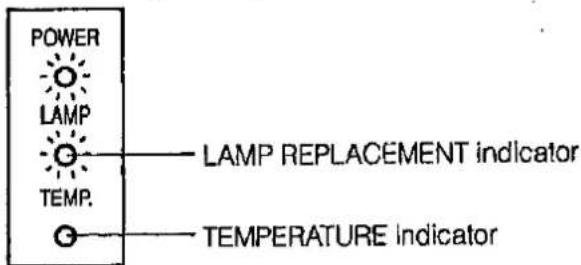
| Warning Indicator | Symptom | Problem | Possible Solution |
| TEMPERATURE indicator | The internal temperature is abnormally high. | •Blocked air intake. | • Relocate projector to a proper location. |
| •Clogged air filter. | • Clean the filter.(See E-21.) | ||
| •Cooling fan breakdown.•Internal circuit failure. | • Take the projector to your nearest Authorized Sharp Industrial LCD Products Dealer for repair. | ||
| LAMP REPLACEMENT indicator | The lamp does not light up. | •Burnt-out lamp. | • Carefully change the lamp.• Take the projector to your nearest Authorized Sharp Industrial LCD Products Dealer for repair. |
| •Lamp circuit failure. |
Hinweise:
- Wenn die TEMPERATUR-Anzeige aufleuchtet, warten Sie nach der Wartung bitte, bis der Projektor vollständig abgekühlt ist, bevor Sie den Strom wieder einschalten. (Mindestens 5 Minuten.)
- Wenn der Strom aus- und wieder eingeschaltet wird, wie bei einer kurzen Pause, kann die LAMPEN-Austauschanzeige ausgelöst werden, wodurch verhindert wird, dass der Strom angeht. Wenn dies passiert, ziehen Sie den Netzstecker aus der Steckdose und stecken Sie ihn wieder ein.
Bevor Sie den Kundendienst rufen
| Problem | Check |
| No picture and no sound. | The projector power cord is not plugged into the AC wall outlet.The main power button is not pressed.The input is wrong. (See E-14.)Cables improperly connected to rear panel of the projector. (See E-8, 9 and 10.)Remote control batteries have run down. (See E-5.) |
| Sound is heard but no picture appears. | Cables Improperly connected to rear panel of the projector. (See E-8, 9 and 10.)The BRIGHTNESS and PICTURE adjustments are set to minimum position. (See E-15.) |
| Colour is faded or poor. | Check that the COLOR and TINT adjustments are correct. (See E-15.) |
| Picture is blurred. | Adjust the focus. (See E-6.)The projection distance is too long or too short to allow for proper focus. (See E-6.) |
| Picture appears but no sound is heard. | Cables Improperly connected to rear panel of the projector. (See E-8, 9 and 10.)Volume is set to minimum. (See E-14.) |
| An unusual sound is occasionally heard from the cabinet. | If the picture is normal, the sound is due to cabinet shrinkage caused by temperature changes. This will not affect operation or performance. |
| Maintenance Indicator lights up. | Refer to "Lamp/Maintenance Indicators" on E-22. |
- 1. Januar 2017
•
•


- SHARP®
- WICHTIG
- WICHTIGE INFORMATIONEN
- WARNUNG
- VORSICHT
- HERAUSRAGENDE EIGENSCHAFTEN
- DIREKTE COMPUTERKOMPATIBILITÄT
- HOHE BILDQUALITÄT
- FLEXIBLE VERWENDUNG
- EINGEBAUTER LAUTSPRECHER
- INHALT
- BESONDERER HINWEIS FÜR BENUTZER IN GROSSBRITANNIEN
- VORSICHT: BITTE LESEN SIE ALLE DIESE ANWEISUNGEN, BEVOR SIE IHREN LCD-PROJEKTOR BEDIENEN. BEWAHREN SIE DIESE ANWEISUNGEN ZUM SPÄTEREN NACHSCHLAGEN AUF
- EINLEGEN DER BATTERIEN
- HINWEISE
- POSITIONIERUNG DER FERNBEDIENUNG
- HINWEIS
- PROJEKTORABSTAND UND BILDGRÖSSENVERHÄLTNIS
- ABSTAND VON DER LEINWAND
- SO RICHTEN SIE DEN PROJEKTOR UND DIE LEINWAND EIN
- VORSICHT: BEIM AUFSTELLEN DES PROJEKTORS
- FOKUSSIERUNG
- BEISPIEL EINER UMGEKEHRTEN BILDAUFSTELLUNG
- VERWENDUNG DER NIVELLIER- UND HÖHENVERSTELLER
- TRANSPORT DES PROJEKTORS
- VERWENDEN SIE DEN TRAGEGRIFF, WENN SIE DEN PROJEKTOR BEWEGEN
- ANSCHLUSS AN EINEN IBM-PC (VGA, SVGA) SERIE COMPUTER – MAXIMALE AUFLÖSUNG 800 X
- ANSCHLUSS AN EINEN MACINTOSH-SERIE COMPUTER
- X 480 AUFLÖSUNG
- X 624 AUFLÖSUNG
- ANSCHLUSS AN ANDERE KOMPATIBLE COMPUTER
- COMPUTEREINGANG
- ANALOG
- ANSCHLUSS EINES EXTERNEN MONITORS
- VORSICHT (APPLE MACINTOSH)
- ANALOG-RGB-SIGNAL-EINGANGS- UND AUSGANGSANSCHLUSS
- EINGANGSSIGNALE (EMPFOHLENE TIMING)
- FÜR IBM UND KOMPATIBLE
- RGB-EINGANGSEINSTELLUNGEN (CLOCK, PHASE, V-POS UND H-POS)
- BESCHREIBUNG DER EINSTELLPUNKTE
- INITIAL RESET
- MODUS-EINSTELLUNG
- PHASENEINSTELLUNG (AUF/AB)
- HORIZONTALE POSITIONSEINSTELLUNG (LINKS/RECHTS)
- VERTIKALE POSITIONSEINSTELLUNG (AUF/AB)
- TAKTGEBEREINSTELLUNG (SCHNELL/LANGSAM)
- INPUT-EINSTELLUNG
- ① FILTER-SCHALTER
- ANSCHLIESSEN DES NETZKABELS
- HAUPTNETZ EINSCHALTEN
- EINSCHALTEN
- E-ZOOM/PANNING-FUNKTION
- BILDSCHIRMANZEIGE IN 8 SPRACHEN
- EINSTELLEN DER SPRACHE DER BILDSCHIRMANZEIGE
- ÄNDERN DES SYSTEMMODUS
- EINGANG WÄHLEN
- LAUTSTÄRKE EINSTELLEN
- STUMM
- AUSSCHALTEN DES PROJEKTORS ODER DER FERNBEDIENUNG
- EINSTELLEN DES BILDES
- VERWENDEN SIE DIE MENÜ-TASTE, UM DEN EINZUSTELLENDEN MODUS AUSZUWÄHLEN
- DRÜCKEN SIE DIE EINSTELLUNG ◀/▶ TASTEN
- DRÜCKEN SIE JEDERZEIT DIE MENU-TASTE, UM VIDEO ADJ ZU VERLASSEN
- ÜBERPRÜFEN DER BILDEINSTELLUNGEN
- COMPUTERMODUS-SPEICHEREINSTELLUNGEN
- DRÜCKEN SIE DIE MENU-TASTE, UM DEN SPEICHEREINSTELLUNGSMODUS AUSZUWÄHLEN
- DRÜCKEN SIE DIE ADJUSTMENT ◀/▶-TASTEN
- PRIORITÄT DES AUTOMATISCHEN ANZEIGEMODUS
- DRÜCKEN SIE JEDERZEIT DIE MENU-TASTE, UM RGB ADJ ZU VERLASSEN
- BILDSCHIRMANZEIGE
- DRÜCKEN SIE DIE MENU-TASTE, UM DEN E-ZOOM-MODUS AUSZUWÄHLEN
- DRÜCKEN SIE DIE E-ZOOM/PANNING-TASTE AUF DER FERNBEDIENUNG
- DRÜCKEN SIE JEDERZEIT DIE MENU-TASTE, UM DEN E-ZOOM-MODUS ZU VERLASSEN
- PANNING-FUNKTION: MAC 16" (832 X 624) (NO E-ZOOM)
- (FERNBEDIENUNG)
- HINTERGRUNDPEGEL
- EINSTELLEN DES HINTERGRUNDPEGELS
- VERWENDEN DER BILDUMKEHRFUNKTION
- DRÜCKEN SIE DIE MENÜ-TASTE
- MODUS FÜR GESPIEGELTES BILD
- DRÜCKEN SIE JEDERZEIT DIE MENÜ-TASTE, UM DAS MENÜ IMAGE ADJ. ZU VERLASSEN
- VERWENDUNG DER BLUE-SCREEN-FUNKTION
- VERWENDEN DER ON-SCREEN-DISPLAY-OVERRIDE-FUNKTION
- WARTUNG DES LUFTFILTERS
- LAMPE
- WARTUNGSANZEIGEN
- BEVOR SIE DEN KUNDENDIENST RUFEN
Marke : SHARP
Modell : XG-3790E
Kategorie : Projektor