
RD-JT21 - Projektor LG - Kostenlose Bedienungsanleitung
Finden Sie kostenlos die Bedienungsanleitung des Geräts RD-JT21 LG als PDF.


| Produkttyp | Videoprojektor |
| Modell | RD-JT21 |
| Marke | LG |
| Display-Technologie | 1-Chip DMD |
| Auflösung | SVGA (800 x 600) |
| Objektiv | F/2.6, manueller Zoom |
| Lampe | 120 W VIP-Lampe |
| Lampenlebensdauer | ca. 1500 Stunden |
| Stromversorgung | AC 100–240 V, 2,3 A, 50/60 Hz |
| Leistungsaufnahme | 185 W (max.) |
| Abmessungen (B x H x T) | 220 mm x 52 mm x 175 mm |
| Gewicht | 1,69 kg |
| Gehäusematerial | Magnesiumlegierung |
| Eingänge | RGB/HDTV (D-Sub 15-polig), S-Video (Mini-DIN 4-polig), Video (RCA), Audio (Miniklinke) |
| Lautsprecher | 1 W x 1 |
| Besondere Merkmale | Digitale Trapezkorrektur, automatische Bildeinstellung, Bild-in-Bild (PIP), Bildschirmmenü in 8 Sprachen |
| Fernbedienung | Vollfunktions-Fernbedienung mit Batterien |
| Betriebstemperatur | 0 °C bis 40 °C |
| Zertifizierungen | FCC Klasse B |
| Lieferumfang | S-Video-Kabel, Netzkabel, Bedienungsanleitung |
Häufig gestellte Fragen - RD-JT21 LG
Benutzerfragen zu RD-JT21 LG
0 Frage zu diesem Gerät. Beantworten Sie die, die Sie kennen, oder stellen Sie Ihre eigene.
Eine neue Frage zu diesem Gerät stellen
Laden Sie die Anleitung für Ihr Projektor kostenlos im PDF-Format! Finden Sie Ihr Handbuch RD-JT21 - LG und nehmen Sie Ihr elektronisches Gerät wieder in die Hand. Auf dieser Seite sind alle Dokumente veröffentlicht, die für die Verwendung Ihres Geräts notwendig sind. RD-JT21 von der Marke LG.
BEDIENUNGSANLEITUNG RD-JT21 LG

LG
LG DLP-Projektor
BEDIENUNGSANLEITUNG
MODELL: RD-JT20 XGA
RD-JT21 SVGA
Bitte lesen Sie diese Anleitung sorgfältig durch, bevor
Sie das Gerät in Betrieb nehmen. Bewahren Sie sie für späteres Nachschlagen auf.
DLP-PROJEKTOR
BEDIENUNGSANLEITUNG
Vielen Dank, dass Sie sich für den DLP-Projektor entschieden haben.
Bitte lesen Sie diese Bedienungsanleitung, um die korrekte Verwendung des Geräts sicherzustellen. Bewahren Sie diese Bedienungsanleitung für späteres Nachschlagen auf.
ÜBERSICHT
Dieser DLP-Projektor kann verschiedene Computersignale sowie NTSC/PAL/SECAM-Videosignale anzeigen.
EIGENSCHAFTEN
- Hohe Helligkeit
- Hohe Auflösung
- Kompakte Größe, geringes Gewicht für Mobilität
- Robustes Magnesiumlegierungsgehäuse
- RGB-Eingangsanschluss
- Automatische Bildeinstellung per Tastendruck
- Einfache Trapezkorrektur
Urheberrecht
Urheberrecht © 2002. Alle Rechte vorbehalten. Kein Teil dieser Veröffentlichung darf ohne vorherige schriftliche Genehmigung des Unternehmens in irgendeiner Form oder mit irgendwelchen Mitteln, elektronisch, mechanisch, magnetisch, optisch, chemisch, manuell oder anderweitig, reproduziert, übertragen, transkribiert, in einem Abrufsystem gespeichert oder in eine andere Sprache oder Computersprache übersetzt werden.
Haftungsausschluss
Das Unternehmen gibt keine Zusicherungen oder Gewährleistungen, weder ausdrücklich noch stillschweigend, in Bezug auf den Inhalt dieses Dokuments und lehnt ausdrücklich jegliche Gewährleistung der Marktgängigkeit oder Eignung für einen bestimmten Zweck ab. Darüber hinaus behält sich das Unternehmen das Recht vor, diese Veröffentlichung zu überarbeiten und von Zeit zu Zeit Änderungen am Inhalt vorzunehmen, ohne dass das Unternehmen verpflichtet ist, eine Person über solche Überarbeitungen oder Änderungen zu informieren.
Inhaltsverzeichnis
Einführung 1
Sicherheitshinweise 1
FCC-Erklärung 2
Lieferumfang 3
Optionales Zubehör 3
Projektorbeschreibung 4
Projektor 4
Externes Bedienfeld 5
Stellfuß 6
Projektorfunktionen 6
Beschreibung der Fernbedienung 7
Funktionen der Fernbedienung 7
Einlegen oder Ersetzen der Batterien 9
Installation 10
Bildschirmgröße 10
Anschluss verschiedener Geräte 10
Betrieb 11
Inbetriebnahme 11
Digitale Trapezkorrektur 12
Auto Adjustment 12
Source Selection 13
Menu System 13
- Display Menu 14
- Image Menu 15
- Source Menu 16
- Control Menu 17
- PIP Menu 17
Shutdown 18
Maintenance 19
Lampeninformation 19
Verwendung und Austausch der Lampe 19
LED-Statusanzeigen 19
Lampenwechsel 19
Fehlerbehebung 20
Statusmeldungen 21
Technische Daten 22
Technische Daten des Projektors 22
Timing-Diagramm 23
Abmessungen 24
EINFÜHRUNG
Vorsicht
ZUM SCHUTZ VOR STROMSCHLÄGEN DAS GEHÄUSE NICHT ÖFFNEN. KEINE VOM BENUTZER WARTBAREN TEILE IM INNEREN. WARTUNG NUR DURCH QUALIFIZIERTES FACHPERSONAL. BITTE LESEN SIE DIESE BEDIENUNGSANLEITUNG, BEVOR SIE DEN PROJEKTOR IN BETRIEB NEHMEN. BEWAHREN SIE DIESE BEDIENUNGSANLEITUNG FÜR SPÄTERE REFERENZ AUF.
Sicherheitshinweise
- Lesen Sie diese Bedienungsanleitung, bevor Sie den Projektor in Betrieb nehmen, und bewahren Sie sie für spätere Referenz auf.
- Die Lampe wird während des Betriebs extrem heiß. Lassen Sie den Projektor vor dem Austausch der Lampenbaugruppe etwa 45 Minuten abkühlen. Betreiben Sie Lampen nicht über die Nennlebensdauer hinaus. Übermäßiger Betrieb von Lampen über die Nennlebensdauer hinaus kann in seltenen Fällen zu deren Explosion führen.
- Tauschen Sie die Lampenbaugruppe oder elektronische Komponenten niemals aus, solange der Projektor nicht vom Stromnetz getrennt ist.
- Um das Risiko eines elektrischen Schlags zu verringern, zerlegen Sie dieses Gerät nicht. Bringen Sie es zu einem qualifizierten Techniker, wenn Wartung oder Reparatur erforderlich ist. Ein falscher Zusammenbau kann bei späterer Verwendung des Geräts zu einem elektrischen Schlag führen.
- Stellen Sie dieses Produkt nicht auf einen instabilen Wagen, Ständer oder Tisch. Das Produkt könnte herunterfallen und ernsthaft beschädigt werden. Dieses Produkt kann invertierte Bilder für die Deckenmontage anzeigen. Verwenden Sie geeignetes Zubehör für die Montage des Geräts und stellen Sie sicher, dass es sicher installiert ist.
- Um ein Bersten der Lampe zu verhindern, wechseln Sie die Lampe nach einer Änderung der Montageposition des Projektors (von Tisch- zu Deckenmontage oder umgekehrt).
Vorsicht
- Öffnen Sie immer den Objektivverschluss oder entfernen Sie die Objektivkappe, wenn die Projektorlampe eingeschaltet ist.
- Schauen Sie während des Betriebs nicht direkt in die Projektorlinse. Der intensive Lichtstrahl kann Ihre Sehkraft schädigen.
- In einigen Ländern ist die Netzspannung NICHT stabil. Dieser Projektor ist für den sicheren Betrieb in einem Bereich von 100 bis 240 Volt ausgelegt, kann jedoch ausfallen, wenn Stromausfälle oder Spannungsspitzen von ±10 Volt auftreten. In diesen Hochrisikobereichen wird empfohlen, einen Spannungsstabilisator zu installieren.
- Stellen Sie diesen Projektor nicht auf Stoff oder Teppich.
- Berühren Sie den Lüftungsgrill nicht, während der Projektor in Betrieb ist.
FCC-Erklärung
KLASSE B
Dieses Gerät erzeugt, verwendet und kann Hochfrequenzenergie ausstrahlen und kann, wenn es nicht gemäß den Anweisungen installiert und verwendet wird, schädliche Störungen des Funkverkehrs verursachen. Es gibt jedoch keine Garantie, dass in einer bestimmten Installation keine Störungen auftreten. Wenn dieses Gerät schädliche Störungen des Radio- oder Fernsehempfangs verursacht, was durch Ein- und Ausschalten des Geräts festgestellt werden kann, wird der Benutzer aufgefordert, die Störungen durch eine oder mehrere der folgenden Maßnahmen zu beheben:
— Richten Sie die Empfangsantenne neu aus oder verlegen Sie sie. — Vergrößern Sie den Abstand zwischen Gerät und Empfänger. — Schließen Sie das Gerät an eine Steckdose an, die zu einem anderen Stromkreis gehört als der, an den der Empfänger angeschlossen ist. — Wenden Sie sich an den Händler oder einen erfahrenen Radio-/Fernsehtechniker.
Bewahren Sie diese Bedienungsanleitung auf: Die in diesem Handbuch enthaltenen Informationen helfen Ihnen beim Betrieb und bei der Wartung Ihres Personal-Projektors.
Lieferumfang
Der Projektor wird mit den erforderlichen Kabeln für Standard-PC-, Macintosh- oder Laptop-Verbindungen geliefert. Packen Sie den Projektor vorsichtig aus und vergewissern Sie sich, dass Sie alle unten aufgeführten Teile erhalten haben. Falls Teile fehlen, wenden Sie sich bitte an Ihre Verkaufsstelle.
S-Video-Kabel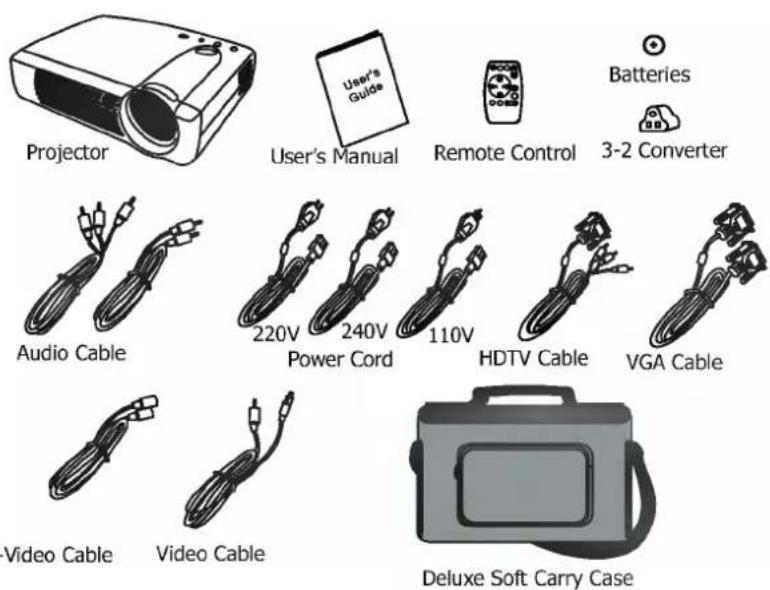
Optionales Zubehör
- Ersatzlampen-Kit
- Mac-Adapter
Projektorbeschreibung
Projektor
- Externes Bedienfeld (siehe nächste Seite)
- Projektionslinse
- Vordere Verstellfüße
- IR-Fernbedienungssensor
- Lüftungsgitter
- Kensington-Schloss
- Netzkabel-Eingang
- S-Video-Anschluss
- Video-Anschluss
- D-Sub-Anschluss (für Computer-/Eingang)
- Audio-Eingang
- Hintere Stellfüße
- Zugangstür zur Lampe (unter dem Gerät)
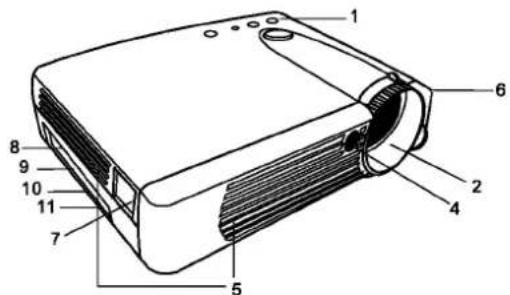
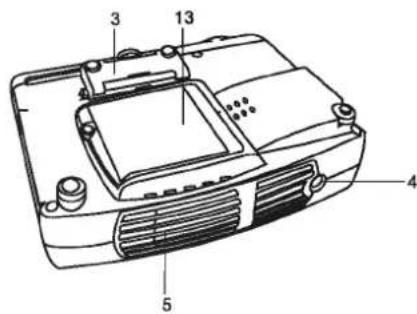
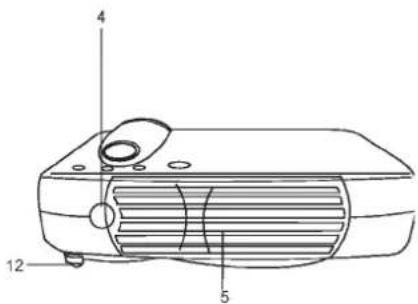
Externes Bedienfeld
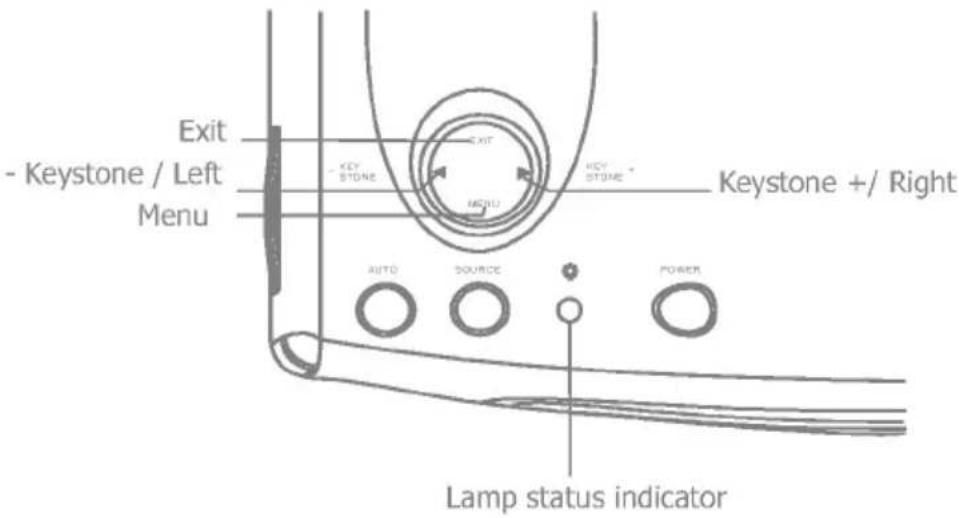
- Der Infrarot-Empfänger (vorne und hinten) ermöglicht es dem Projektor, Signale von der Fernbedienung zu empfangen. Für beste Ergebnisse richten Sie die Fernbedienung ohne Hindernisse auf den Sensor und halten Sie einen Abstand von nicht mehr als 6 Metern ein.
- Das Menü zeigt das Menüsystem auf dem Bildschirm an. Drücken Sie erneut auf Menü, um auf die Untermenüs zuzugreifen. Mit Links und Rechts navigieren Sie durch die Optionen und Einstellungen in den Menüs und Untermenüs. Wenn das Bildschirmmenü jedoch nicht aktiviert ist, fungieren die Tasten Links und Rechts als Hotkeys für die Trapezkorrektur +/-.
- Drücken Sie die Taste Beenden, um zum Hauptmenü zurückzukehren. Drücken Sie erneut auf Beenden, um das Menüsystem zu verlassen.
- Die Statusanzeige blinkt oder leuchtet, wenn die Lampe gewartet, gekühlt oder ausgetauscht werden muss. Weitere Informationen finden Sie unter "Lampeninformationen" auf Seite 19.
- Wenn der Projektor eingeschaltet ist, blinkt die hinterleuchtete Taste Power während des Aufwärmens und wird dann durchgehend grün, um anzuzeigen, dass der Projektor betriebsbereit ist.
- Drücken Sie die Taste Power 1 Sekunde lang, um den Projektor ein- oder auszuschalten. • Auto-Taste: Erkennt automatisch die beste Bildqualität für die aktuell empfangenen Signale. • Quelle-Taste: Wählen Sie Signalquellen: PC, Video, S-Video und YPbPr.
Stellfuß
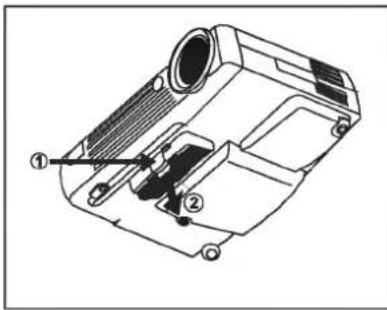
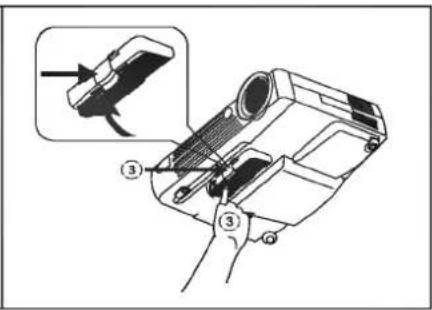
Der Projektor ist mit einem Schnellspann-Stellfuß und einer Taste zum Einstellen des Neigungswinkels ausgestattet.
- Heben Sie den Projektor an und drücken Sie die Taste für den Stellfuß, um ihn zu lösen.
- Der Stellfuß rastet in Position ein und wird verriegelt.
Projektorfunktionen
Der Projektor integriert eine Hochleistungs-Optikengine und ein benutzerfreundliches Design, um hohe Zuverlässigkeit und einfache Bedienung zu gewährleisten.
Der Projektor bietet die folgenden Funktionen:
- Kompaktes und tragbares Gerät • Voll funktionsfähige Fernbedienung • Manuelles Zoomobjektiv • Ein-Tasten-Automatik zur Anzeige der besten Bildqualität • Einfache digitale Trapezkorrektur über Hotkeys zur Korrektur von verzerrten Bildern • Einstellbare Farbbalance für Daten/Video • Ultrahelle Projektionslampe • Fähigkeit zur Anzeige von hochwertigen 16,7 Millionen Farben
- Bildschirmmenüs in 8 Sprachen: Englisch, Französisch, Deutsch, Italienisch, Spanisch, Japanisch, Koreanisch und vereinfachtes Chinesisch. • Leistungsstarke AV-Funktion für hochwertige AV-Bildergebnisse. • HDTV-Kompatibilität (YPbPr)
Hinweis: Die Helligkeit Ihres Geräts variiert je nach Umgebungsbedingungen und Kontrast-/Helligkeitseinstellungen.
Beschreibung der Fernbedienung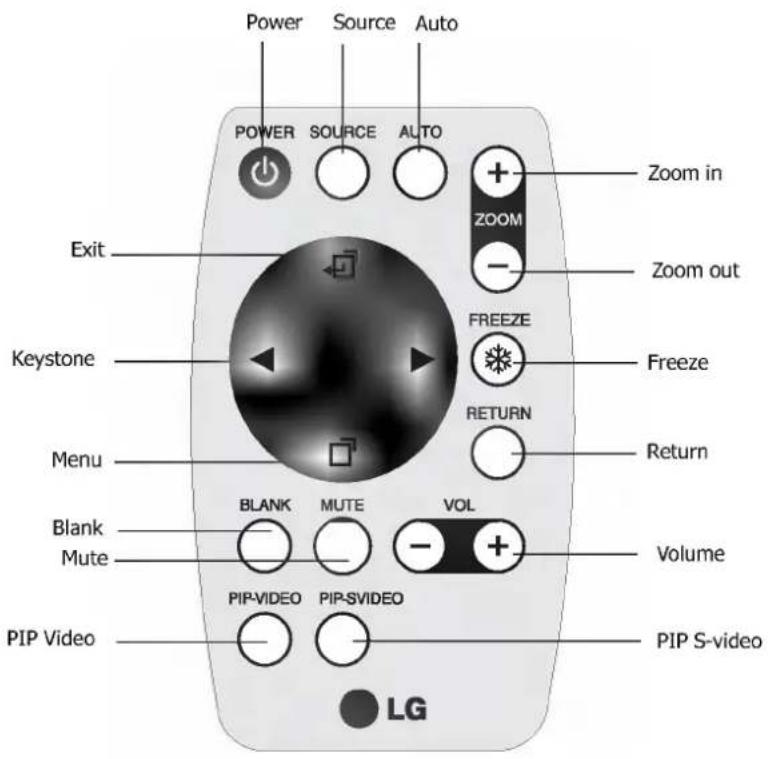
Funktionen der Fernbedienung
Die Sensoren der Fernbedienung befinden sich an der Vorder-/Rückseite des Projektors. Der Abstand zwischen Sensor und Fernbedienung sollte 6 Meter nicht überschreiten.
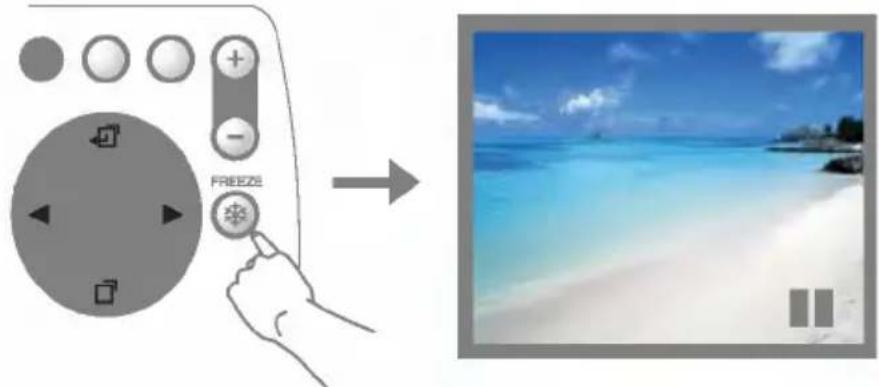
EINFRIEREN
Das Bild kann eingefroren werden, wenn EINFRIEREN gedrückt wird. Ein "Pause"-Symbol erscheint für drei Sekunden in der unteren rechten Ecke des Bildschirms. Um die Einfrierfunktion aufzuheben, drücken Sie erneut die Taste EINFRIEREN, die Taste ZURÜCK oder die Taste QUELLE (wenn die Eingangsquelle während der Anzeige umgeschaltet wird). Ein "Play"-Symbol erscheint für drei Sekunden in der unteren rechten Ecke des Bildschirms, wenn die Einfrierfunktion aufgehoben wird.
BLENDEN
Das Bild kann ausgeblendet werden, wenn BLENDEN gedrückt wird. Um die Ausblendfunktion aufzuheben, drücken Sie erneut BLENDEN.
ZOOM +/ -
Durch Drücken von ZOOM + wird die Bildmitte vergrößert. Wenn die + Taste erneut gedrückt wird, wird das Bild weiter vergrößert, bis zu viermal der Originalgröße. Durch Drücken von ZOOM - wird die Bildgröße verkleinert. Wenn die - Taste erneut gedrückt wird, wird das Bild weiter verkleinert, bis es wieder seine Originalgröße erreicht. Um zum normalen Anzeigemodus zurückzukehren, drücken Sie die Taste ZURÜCK. (Diese Funktion kann in Kombination mit EINFRIEREN verwendet werden.)
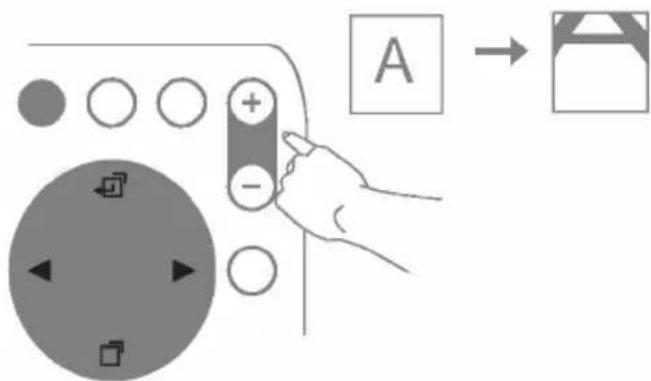
Nach Aktivierung der Zoomfunktion können Sie den Bildschirm mit den folgenden Tasten verschieben.
| Menu | Move downward to the bottom. |
| Exit | Move upward to the top. |
| Left (Keystone -) | Move toward to the left side. |
| Right (Keystone +) | Move toward to the right side. |
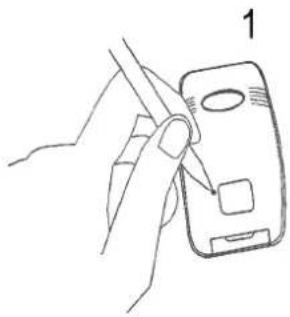
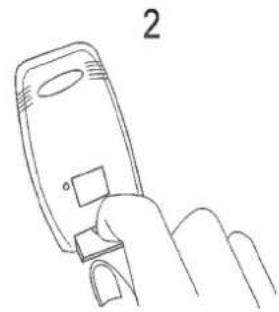
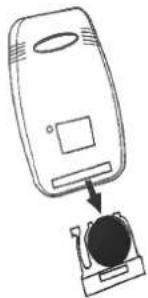
Installieren oder Ersetzen der Batterien
- Drücken und schieben Sie den Batteriefachdeckel in die angegebene Richtung. • Legen Sie die Batterie gemäß dem Diagramm im Inneren des Fachs ein. • Setzen Sie den Deckel wieder auf das Fach und lassen Sie ihn einrasten.
3
Vorsicht
Vermeiden Sie übermäßige Hitze und Feuchtigkeit. Es besteht Explosionsgefahr, wenn die Batterie falsch ersetzt wird. Ersetzen Sie die Batterie nur durch denselben oder einen gleichwertigen Typ, der vom Hersteller empfohlen wird. Entsorgen Sie gebrauchte Batterien gemäß den Anweisungen des Herstellers.
INSTALLATION
Bildschirmgröße
Platzieren Sie den Projektor je nach gewünschter Bildgröße im erforderlichen Abstand zum Bildschirm (siehe Tabelle unten).
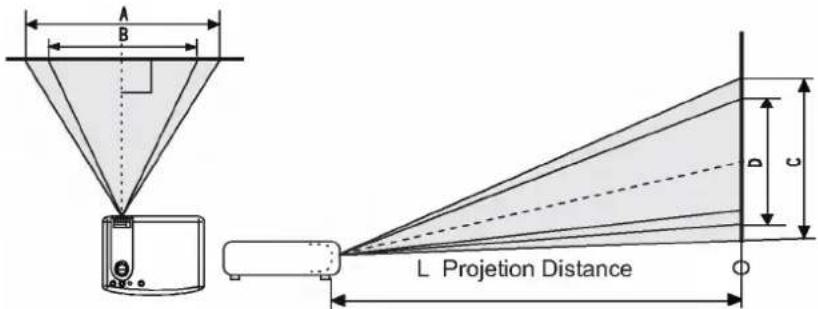
| Screen Size (Max.) | L. Projection distance (cm) | Screen Size (Min.) | ||||
| Diagnal (in) | A. Width (cm) | C. Height (cm) | Diagnal (in) | B. Width (cm) | D. Height (cm) | |
| 30.4 | 61.8 | 46.3 | 100 | 24.9 | 50.7 | 38.0 |
| 60.8 | 123.7 | 92.7 | 200 | 49.9 | 101.3 | 76.0 |
| 91.2 | 185.3 | 138.9 | 300 | 74.7 | 151.9 | 113.9 |
| 121.5 | 247.0 | 185.2 | 400 | 99.7 | 202.5 | 151.9 |
| 151.9 | 308.7 | 231.6 | 500 | 124.6 | 253.2 | 189.9 |
| 182.3 | 370.5 | 277.9 | 600 | 149.5 | 303.8 | 227.9 |
| 212.8 | 432.2 | 324.2 | 700 | 174.6 | 354.4 | 266.2 |
| 243.1 | 494.0 | 370.5 | 800 | 199.4 | 405.1 | 303.8 |
| 273.5 | 555.7 | 416.7 | 900 | 224.3 | 455.7 | 341.8 |
| 303.9 | 617.5 | 463.1 | 1000 | 249.2 | 506.3 | 379.8 |
Anschluss an verschiedene Geräte
Es dauert nur wenige Sekunden, um Ihren Projektor an Ihren Computer/Laptop, Videorecorder oder andere Systeme anzuschließen. Für Macintosh-Benutzer ist jedoch ein Mac-Adapter (ein optionales Zubehör) erforderlich.
![graph TD A[" projector"] -->|Audio| B["Audio"] A -->|Video| C["Video"] A -->|S-Video| D["S-Video"] B --> E["Computer/HDTV"] C --> E D --> E](/content/2026/05/804449/images/5fbff78f301bc167b777a8366b94286abca863c53b3f4d29b47d00a7a824e590.jpg)
BETRIEB
Inbetriebnahme
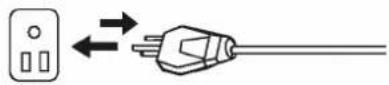
- Stecken Sie das Netzkabel in eine Steckdose.
- Drücken Sie POWER für 1 Sekunde.
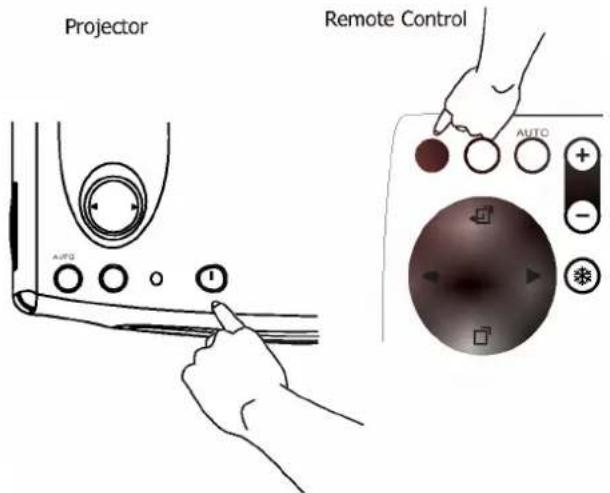
- Die hinterleuchtete POWER-Taste blinkt grün und bleibt grün, wenn das Gerät eingeschaltet ist. (Wenn das Gerät ausgeschaltet ist, gibt es eine 60-sekündige Abkühlphase, bevor der Projektor neu gestartet werden kann.)
- Schalten Sie alle angeschlossenen Geräte ein.
Digitale Trapezkorrektur
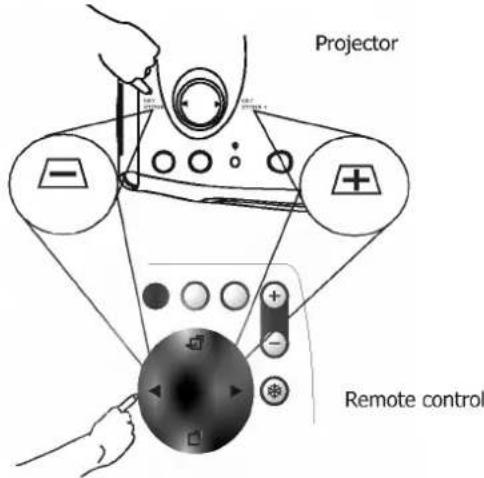
Trapezverzerrung liegt vor, wenn das projizierte Bild oben oder unten deutlich breiter ist. Um dies zu korrigieren, drücken Sie KEYSTONE +/- (Schnellzugriffstaste) am Bedienfeld des Projektors oder an der Fernbedienung und stellen Sie dann den Schieberegler mit der Bezeichnung Keystone wie erforderlich ein. Drücken Sie +, um die Trapezverzerrung am oberen Bildrand zu korrigieren. Drücken Sie -, um die Trapezverzerrung am unteren Bildrand zu korrigieren.
Auto Adjustment
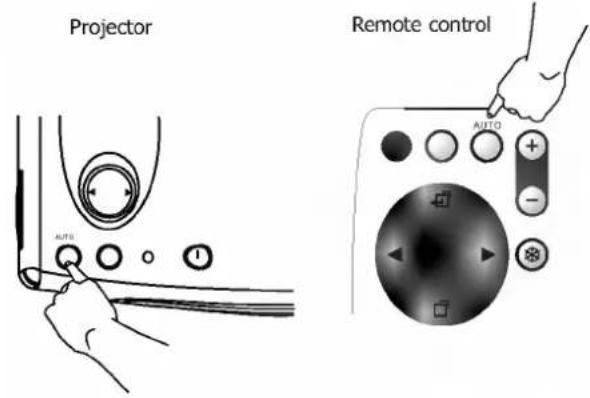
In einigen Fällen müssen Sie die Bildqualität möglicherweise manuell optimieren. Drücken Sie dazu die Taste AUTO am Bedienfeld des Projektors oder auf der Fernbedienung. Innerhalb von 3 Sekunden passt die integrierte Funktion Intelligente automatische Einstellung die Bildqualität erneut optimal an.
Quellenauswahl
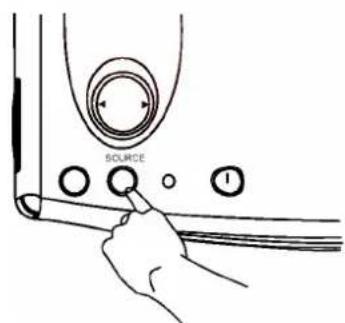
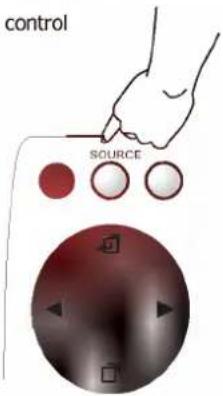
Wenn mehrere Eingangsquellen verfügbar sind, drücken Sie die Taste SOURCE, um eine Auswahl über das Bedienfeld des Projektors oder die Fernbedienung zu treffen.
Projektor
Fernbedienung
Menüsystem
Drücken Sie Menu für das Hauptmenü und drücken Sie ◀ oder ▶, um ein Untermenü auszuwählen. Drücken Sie Menu erneut, um Elemente im Untermenü auszuwählen.
| Menu Bar |  |  |  |  | |
| Sub-menu | Display | Image | Source | Control | PIP |
| PC | KeystoneBrightnessContrastPhaseH.Size | Auto resizeH-positionV-positionColor TempInformation | MirrorSourceVolumeTrebleBassMute | LangaugeOSDOSD TimeAuto OffResetLamp hour | Main page:PIP SourcePIP sizePIP Pos.H. PositionV.PositionMore OptionsSub Page:BrightnessContrastColorTintSharpnessSystem |
| Y/Pb/Pr | Auto resizeH-positionV-positionColorTintColor Temp | ||||
| Video | KeystoneBrightnessContrastColorTint | RatioSystemSharpnessColor tempInformation | |||
- Anzeigemenü
| Keystone | Corrects the keystone of the image.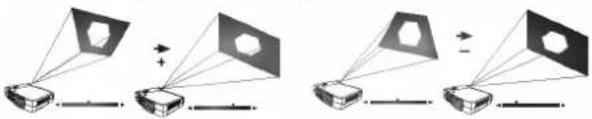 |
| Brightness | Adjusts the brightness of image.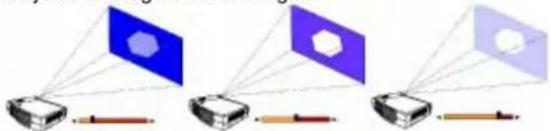 |
| Contrast | Adjusts the degree of difference between darkness and lightness of image.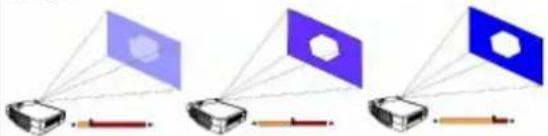 |
| Phase | Adjusts to fit in the desired image size. *This function is not available when the input mode are Video, S-video. *This function is not available when the input mode are Video, S-video. |
| H.Size | Adjusts to avoid the occurrence of flicker.*This function is not available when the input modes are Video, S-video. |
| Color | Adjusts to increase or decrease the colors (R, G, B) of image.*This function is not available when the input mode is PC. |
| Tint | Adjusts to make the image look more red or blue.*This function is not available when the input mode is PC. |
- Bildmenü
| Auto resize | Makes the best fit of the image to the screen,OFF ON |
| H-position | Adjusts the horizontal position of image.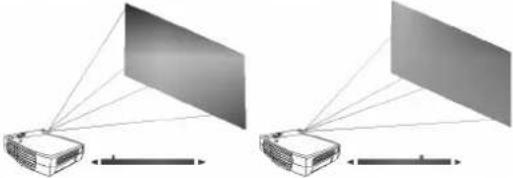 |
| V-position | Adjusts the vertical positon of image.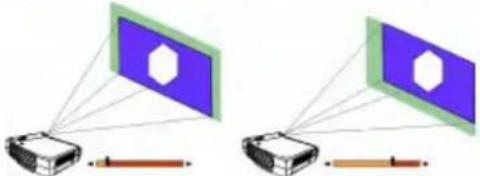 |
| Color Temp. | Adjusts the color templerature to fit your preference. |
| Information | Shows the current resolution. |
| Ratio | Users have 2 options for the image ratio.1. 4:3 (Normal) 2. 16:9 (Wide)*This function is not available when the input modes are PC, YPbPr. |
| System | 4 modes can be selected.1. Auto 2. PAL-M 3. PAL-N 4.SECAM*The default setting of System is Auto.*This function is not available when the input modes are PC, YPbPr. |
| Sharpness | Adjusts to make the image look sharper or softer.*This function is not available when the input mode are PC, YPbPr. |
| Color | Adjusts to increase or decrease the colors (R, G, B) of image.*This function is not available when the input mode is PC. |
| Tint | Adjusts to make the image look more red or blue.*This function is not available when the input mode is PC. |
3. Quellenmenü
| Mirror1. Default2. Ceiling - mounted projection3. Rear screen projection4. Ceiling - mounted and rear screen projection | 2.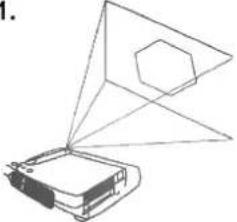 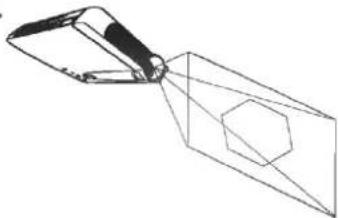 2 2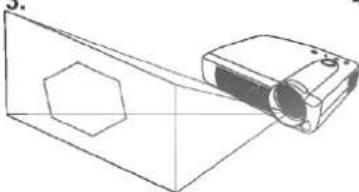 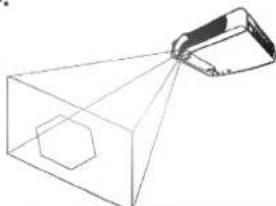 |
| Source | Selects sources between PC, Video, S-Video, and YPbPr. |
| Volume | Adjusts the volume level. |
| Treble | Adjusts the treble level.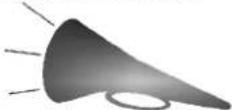 |
| Bass | Adjusts the bass level.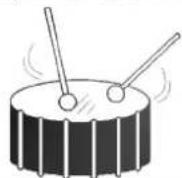 |
| Mute | On  |
- Steuerungsmenü
| Language | Language sets the OSD to display in one of 8 languages.Use ◆ / ▶ key to select the languages: English, French, German, Italian, Spanish, Japanese, Korean and Simplified Chinese. |
| OSD | Selects a desired OSD position. |
| OSD Time | Sets the length of time the OSD will remain active after the last time you pressed a button. The range is from 5 to 60 seconds in 5-second increments. |
| Auto Off | Sets the length of time to shut off the system when no input is detected. The range is from 0 to 60 minutes in 1-minute increments. |
| Reset | Returns all settings to those set at the time of manufacturing. |
| Lamp hour | Shows lamp used time. |
5. PIP-Menü
Diese Funktionen sind nur gültig, wenn der Eingabemodus PC ist und die PIP-Quelle Video oder S-Video ist.
| PIP Source | Selects the source from which the PIP picture comes. |
| PIP Size | Uses ◀ / ▶ key to scroll through the 4 alternatives: Off, Small, Medium, Large. |
| PIP Position | Selects a desired PIP position. |
| H Position | Adjusts the horizontal position of PIP image. |
| V Position | Adjusts the vertical position of PIP image. |
| More Options | Uses ◀ / ▶ key to select more PIP functions including Brightness, Contrast, Color, Tint, Sharpness and System. |
| Brightness | Adjusts the brightness of PIP image. |
| Contrast | Adjusts the degree of difference between darkness and lightness of PIP image. |
| Color | Adjusts to increase or decrease the colors (R, G, B) of image. |
| Tint | Adjusts to make the image look more red or blue. |
| Sharpness | Adjusts to make the image look sharper or softer |
| System | Selects PIP image systems: Auto, NTSC, PAL, SECAM |
Herunterfahren
- Drücken Sie POWER, und eine Warnmeldung wird angezeigt. Um den Projektor auszuschalten, drücken Sie erneut POWER.
- Der Lüfter läuft noch etwa 60 Sekunden weiter.
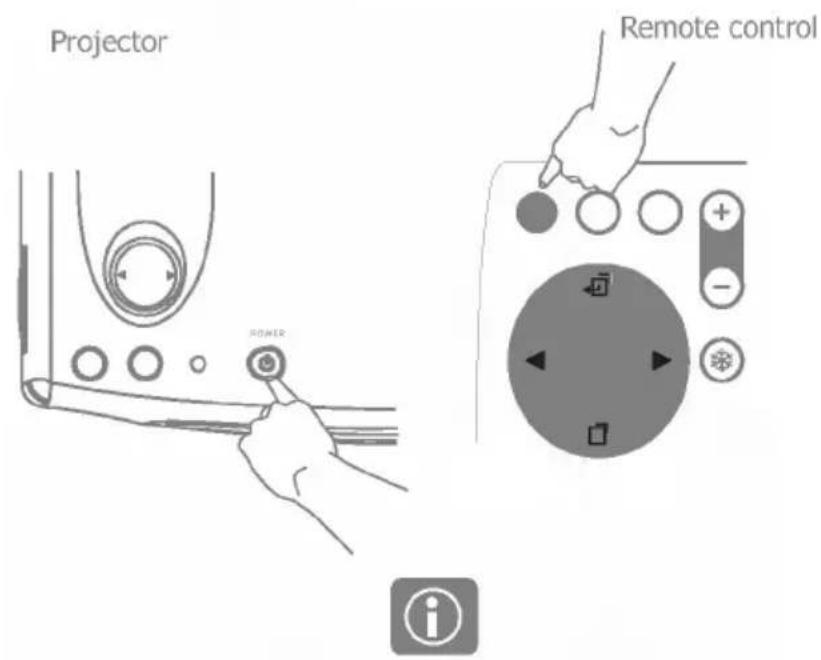
Möchten Sie wirklich ausschalten? Drücken Sie erneut "Power", um auszuschalten.
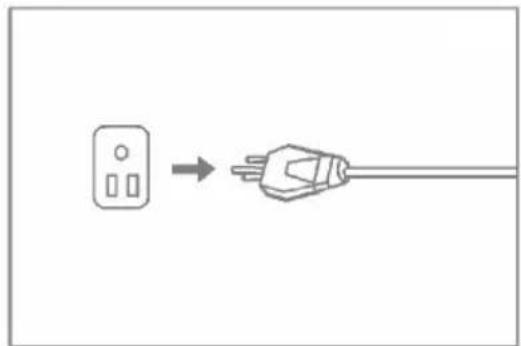
- Trennen Sie das Netzkabel von der Steckdose.
Vorsicht
Bitte ziehen Sie das Netzkabel nicht ab, bevor POWER ausgeschaltet ist oder während des 60-sekündigen Abkühlvorgangs.
WARTUNG
Lampeninformation
Verwendung und Austausch der Lampe
Wenn die Lampenanzeige rot aufleuchtet oder eine Meldung den Zeitpunkt des Lampenwechsels vorschlägt, ersetzen Sie die Lampe oder wenden Sie sich an Ihren Händler. Eine alte Lampe kann eine Fehlfunktion des Projektors verursachen und möglicherweise explodieren.
LED-Statusanzeigen
| Lamp Life Indicators | When this LED shows red continuously, it is warning you that the lamp life has exceeded 1500 hours. Replace the projection lamp with a new one immediately. |
| CHANGE THE LAMP, AND RESET THE LAMP TIMER | The lamp has been in operation for 1400 hours. Change a new lamp for optimal performance. |
| CHANGE THE LAMP. THE POWER WILL TURN OFF AFTER 20 HOURS | The lamp has been in operation for 1480 hours, and the power will turn off after 20 hours. |
| CHANGE THE LAMP! | The lamp has been in operation for over 1500 hours. The warning message will display for 30 seconds every 5 minutes after you turn on the projector and the power will turn off automatically in 10 minutes |
| Lamp is not properly attached | LED blinks rapidly. |
| Temperature is too high | When the projector's internal temperature is too hot to operate safely, the LED blinks slowly for one minute and the lamp turns off automatically.If the LED light is off, the projector's lamp and temperature are operating under normal conditions. |

Vorsicht
Die LAMPEN-Anzeige leuchtet auf, wenn die Lampe zu heiß wird. Schalten Sie das Gerät aus und lassen Sie den Projektor 45 Minuten abkühlen. Wenn die LAMPEN-Anzeige beim Einschalten immer noch rot ist, wenden Sie sich an Ihren Händler.
Lampenwechsel
Bitte wenden Sie sich für Informationen zum Lampenwechsel an das LG-Servicecenter.
FEHLERBEHEBUNG
Häufige Probleme und Lösungen
| PROBLEMS | TRY THESE SOLUTIONS |
| NO POWER | Plug the power cord into the AC inlet.Plug the power cord into the power inlet.Wait two minutes after the projector is turned off before turning the projector back on. |
| NO PICTURE | Check for the proper input source.Ensure all cables are connected properly.Adjust the brightness and contrast.Remove the lens cap. |
| TRAPEZOID IMAGE ON THE SCREEN | Reposition the unit to improve its angle on the screen.Use the Keystone correction key on the control panel of the projector or the remote control unit. |
| POOR COLOR | Select the correct video system.Adjust brightness, contrast, or saturation. |
| BLURRED IMAGE | Press Auto on the control panel of the projector or the remote control unit to get better picture quality.Adjust the focus.Reposition the unit to improve its screen angle.Ensure the distance between the unit and screen is within the adjustment range of the lens. |
| REMOTE CONTROL DOES NOT WORK | Replace the batteries with new ones.Make sure there is no obstacle between the remote control and the unit.Stand within 4 meters (13 feet) of the unit.Make sure nothing blocking the front and rear receivers. |
Statusmeldungen
| On Screen Messages | Description |
| SEARCHING | Projector is searching for input. |
| INPUT SIGNAL DETECTED, ACTIVATING AUTO IMAGE | Projector has identified the input signal and is running the auto image adjustment function. |
| SYNC IS OUT OF RANGE | Input signal frequency exceeds the projector's. |
| CHANGE THE LAMP, AND RESET THE LAMP TIMER | The lamp has been in operation for 1400 hours. Lamp replacement is recommended. |
| CHANGE THE LAMP, THE POWER WILL TURN OFF AFTER 20 HOURS | The lamp has been in operation for 1480 hours, and the power will turn off after 20 more hours. Replace the lamp as soon as possible. |
| CHANGE THE LAMP! | The lamp has been in operation for over 1500 hours, and the power will turn off automatically in 10 minutes. Replace the lamp immediately. |
TECHNISCHE DATEN
Projektor-Spezifikationen
Technische Spezifikationen
Hinweis: Alle Spezifikationen können ohne Vorankündigung geändert werden.
Allgemein
Produktname Personalprojektor
Optik
Anzeigesystem 1-CHIP-DMD
Objektiv Blendenwert F/2.6
Lampe 120W-VIP-Lampe
Elektrisch
Stromversorgung AC100 \~ 240V, 2,3A, 50/60 Hz (automatisch)
Leistungsaufnahme 185 W (max.)
Mechanisch
Abmessungen 220 mm (B) x 52 mm (H) x 175 mm (T)
Betrieb
Temperaturbereich 0° C \~ 40° C
Gewicht 3,85 lbs (1,69 kg)
Eingangsanschluss
Computereingang RGB/HDTV-Eingang D-Sub 15-polig (weiblich)
Video-Signaleingang S-VIDEO Mini-DIN 4-polig VIDEO RCA-Buchse
Audio-Signaleingang Audio-Miniklinke Stereo
Ausgang
Lautsprecher 1 Watt x 1
Timing-Diagramm
| Resolution | H Sync (kHz) | V Sync (Hz) | Remark |
| 640x350 | 31.5 | 70.1 | |
| 640x400 | 37.9 | 85.1 | VESA |
| 720x400 | 31.5 | 70.0 | |
| 720x400 | 37.9 | 85.1 | VESA |
| 640x480 | 31.5 | 60.0 | VESA |
| 640x480 | 37.9 | 72.8 | VESA |
| 640x480 | 35 | 66.7 | Macintosh |
| 640x480 | 43.3 | 85.0 | VESA |
| 800x600 | 35.2 | 56.3 | VESA |
| 800x600 | 37.9 | 60.3 | VESA |
| 800x600 | 46.9 | 75.0 | VESA |
| 800x600 | 48.1 | 72.2 | VESA |
| 800x600 | 53.7 | 85.1 | VESA |
| 832x624 | 49.7 | 74.5 | Macintosh |
| 1024x768 | 48.4 | 60.0 | VESA |
| 1024x768 | 56.5 | 70.1 | VESA |
| 1024x768 | 60.0 | 75.0 | VESA |
| 1024x768 | 68.7 | 85.0 | VESA |
| 1280x1024 | 64.0 | 60.0 | VESA |
ABMESSUNGEN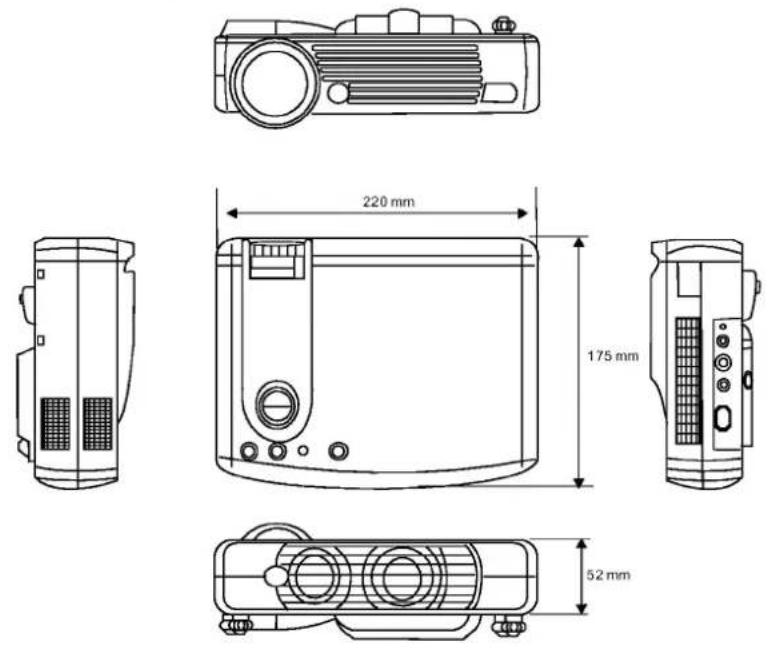

- LG DLP-PROJEKTOR
- BEDIENUNGSANLEITUNG
- DLP-PROJEKTOR
- ÜBERSICHT
- EIGENSCHAFTEN
- URHEBERRECHT
- HAFTUNGSAUSSCHLUSS
- INHALTSVERZEICHNIS
- EINFÜHRUNG
- INSTALLATION
- BETRIEB
- MAINTENANCE
- FEHLERBEHEBUNG
- TECHNISCHE DATEN
- ABMESSUNGEN
- VORSICHT
- SICHERHEITSHINWEISE
- FCC-ERKLÄRUNG
- KLASSE B
- LIEFERUMFANG
- OPTIONALES ZUBEHÖR
- PROJEKTORBESCHREIBUNG
- PROJEKTOR
- EXTERNES BEDIENFELD
- STELLFUSS
- PROJEKTORFUNKTIONEN
- FUNKTIONEN DER FERNBEDIENUNG
- EINFRIEREN
- BLENDEN
- ZOOM
- INSTALLIEREN ODER ERSETZEN DER BATTERIEN
- BILDSCHIRMGRÖSSE
- ANSCHLUSS AN VERSCHIEDENE GERÄTE
- INBETRIEBNAHME
- DIGITALE TRAPEZKORREKTUR
- AUTO ADJUSTMENT
- QUELLENAUSWAHL
- MENÜSYSTEM
- QUELLENMENÜ
- PIP-MENÜ
- HERUNTERFAHREN
- WARTUNG
- LAMPENINFORMATION
- LAMPENWECHSEL
- PROJEKTOR-SPEZIFIKATIONEN
- ALLGEMEIN
- OPTIK
- ELEKTRISCH
- MECHANISCH
- EINGANGSANSCHLUSS
- AUSGANG
Marke : LG
Modell : RD-JT21
Kategorie : Projektor