
NV-MPD1B - Drucker PANASONIC - Kostenlose Bedienungsanleitung
Finden Sie kostenlos die Bedienungsanleitung des Geräts NV-MPD1B PANASONIC als PDF.
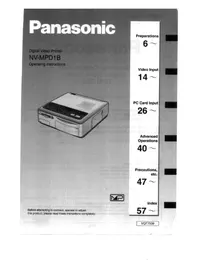


| Produkttyp | Digitaler Videodrucker |
| Marke | Panasonic |
| Modell | NV-MPD1B |
| Druckverfahren | Thermosublimations-Übertragungsverfahren |
| Druckgeschwindigkeit | ca. 105 Sek./Blatt |
| Druckauflösung (Video) | 464 x 664 Pixel (144 x 158 dpi) |
| Druckauflösung (PC-Karte) | 478 x 700 Pixel (144 x 158 dpi) |
| Druckauflösung (Computer) | 480 x 640 Pixel (Standard) / 480 x 1280 Pixel (hohe Auflösung) |
| Farbtiefe | 256 Abstufungen pro Farbe (16,7 Mio. Farben) |
| Papierformat | 100 x 148 mm (Postkartengröße) |
| Papierkapazität | max. 25 Blatt Standardpapier |
| Tintenkassette | 3-Farben (Gelb, Magenta, Cyan) in einer Kassette |
| Eingänge | S-Video, Video, PC-Karte (Typ II), Parallel (Centronics), Serie (Macintosh) |
| Ausgang | Video OUT |
| Stromversorgung | AC 220–240 V, 50/60 Hz |
| Leistungsaufnahme | ca. 60 W (Druck) / ca. 8 W (Ein) / ca. 3 W (Standby) |
| Abmessungen (B x H x T) | ca. 250 x 89,5 x 269,5 mm |
| Gewicht | ca. 2,4 kg |
| Betriebstemperatur | 5 °C bis 35 °C |
| Betriebsfeuchtigkeit | 35 % bis 60 % |
| Besondere Funktionen | Albumdruck (4/9/16 Bilder), Mehrfachbild, Stroboskop, Titel einfügen, Rahmen einfügen, automatischer Druck, Speichern auf PC-Karte |
| Reinigung | Mit einem weichen, trockenen Tuch abwischen; keine Lösungsmittel verwenden |
| Sicherheitshinweise | Gerät nicht Feuchtigkeit aussetzen, Lüftungsschlitze nicht abdecken, nur empfohlenes Zubehör verwenden |
| Lieferumfang | Netzkabel, Papierkassette, Videokabel, CD-ROM (Treiber), Klammerfilter, Treiberhandbuch |
Häufig gestellte Fragen - NV-MPD1B PANASONIC
Benutzerfragen zu NV-MPD1B PANASONIC
0 Frage zu diesem Gerät. Beantworten Sie die, die Sie kennen, oder stellen Sie Ihre eigene.
Eine neue Frage zu diesem Gerät stellen
Laden Sie die Anleitung für Ihr Drucker kostenlos im PDF-Format! Finden Sie Ihr Handbuch NV-MPD1B - PANASONIC und nehmen Sie Ihr elektronisches Gerät wieder in die Hand. Auf dieser Seite sind alle Dokumente veröffentlicht, die für die Verwendung Ihres Geräts notwendig sind. NV-MPD1B von der Marke PANASONIC.
BEDIENUNGSANLEITUNG NV-MPD1B PANASONIC
Panasonic
Digitaler Videodrucker
NV-MPD1B
Bedienungsanleitung
Bevor Sie dieses Produkt anschließen, bedienen oder einstellen, lesen Sie bitte diese Anleitung vollständig durch.
Vorbereitungen
6 \~
Videoeingang
14 \~
PC-Karteneingang
26\~
Erweiterte Funktionen
40 \~
Vorsichtsmaßnahmen usw.
47\~
Index
57~
VQT7539
Sehr geehrter Kunde,
Wir möchten diese Gelegenheit nutzen, um Ihnen für den Kauf dieses Panasonic Digital Video Printers zu danken. Bitte lesen Sie diese Bedienungsanleitung sorgfältig durch und bewahren Sie sie für spätere Referenz auf.
Panasonic
Kundendienst-Hotline Digital Video Printer 08701 505610
Bevor Sie dieses Produkt in Betrieb nehmen, stellen Sie bitte sicher, dass Sie die Bedienungsanleitung vollständig gelesen haben.
Wenn Sie weitere Unterstützung bezüglich des Betriebs benötigen oder das Produkt repariert werden muss, kontaktieren Sie bitte unsere Kundendienst-Hotline telefonisch zwischen 9:00 und 17:30 Uhr von Montag bis Freitag.
Diese Hotline-Nummer ist nur für Anrufe bezüglich dieses Produkts. Für andere Produktkategorien wenden Sie sich bitte an Ihren Händler.
Bitte für spätere Referenz aufbewahren.
WICHTIG
Bitte respektieren Sie alle Urheberrechte.
Was auch immer Sie aufgenommen und erstellt haben, kann nur für Ihre persönliche Unterhaltung verwendet werden. Gemäß Urheberrechtsgesetzen darf es nicht ohne Genehmigung der Urheberrechtsinhaber verwendet werden.
- "Microsoft Windows" ist eine Marke der Microsoft Corporation (USA). ●Der "Apple"-Name, Macintosh und System sind eingetragene Marken oder Marken der Apple Computer Inc.
- Andere Namen, Firmennamen und Produktnamen, die in diesem Handbuch erwähnt werden, sind entweder Warenzeichen oder eingetragene Warenzeichen der jeweiligen Unternehmen.
WARNUNG
UM DIE GEFAHR VON BRAND ODER STROMSCHLAG UND STÖRENDEN INTERFERENZEN ZU VERRINGERN, VERWENDEN SIE NUR DIE EMPFOHLENEN ZUBEHÖRTEILE UND SETZEN SIE DIESES GERÄT NICHT REGEN ODER FEUCHTIGKEIT AUS.
FÜR IHRE SICHERHEIT
■ ÄUSSERE ABDECKUNG NICHT ENTFERNEN.
Um einen elektrischen Schlag zu vermeiden, entfernen Sie nicht die Abdeckung. Im Inneren befinden sich keine vom Benutzer zu wartenden Teile. Überlassen Sie die Wartung qualifiziertem Servicepersonal.
- Da dieses Gerät während des Betriebs heiß wird, betreiben Sie es an einem gut belüfteten Ort; installieren Sie es nicht in einem beengten Raum wie einem Bücherregal oder ähnlichen Einheiten.
- Öffnen Sie die Abdeckung der Tintenkassette nicht, während der Druck läuft. Ihre Finger könnten zwischen den Thermokopfarmen und der Tintenkassette eingeklemmt werden.
STELLEN SIE DIESES GERÄT MIT GENÜGEND PLATZ DARUM AUF, UM EINEN LEICHTEN ZUGANG ZUM NETZSCHALTER AUF DER RÜCKSEITE ZU ERMÖGLICHEN.
Vorsicht bei der Netzkabel
Zu Ihrer Sicherheit lesen Sie bitte den folgenden Text sorgfältig durch.
Dieses Gerät ist aus Sicherheits- und Bequemlichkeitsgründen mit einem geformten dreipoligen Netzstecker ausgestattet.
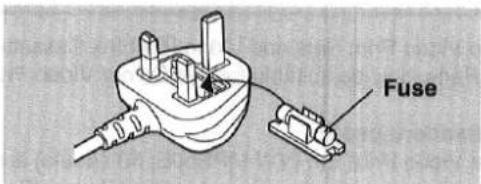
In diesem Stecker ist eine 5-Ampere-Sicherung eingebaut. Sollte die Sicherung ersetzt werden müssen, stellen Sie bitte sicher, dass die Ersatzsicherung eine Nennleistung von 5 Ampere hat und von ASTA oder BSI gemäß BS1362 zugelassen ist.
Prüfen Sie auf dem Sicherungskörper das ASTA-Zeichen 📋 oder das BSI-Zeichen 🌐.
Wenn der Stecker eine abnehmbare Sicherungsabdeckung enthält, müssen Sie sicherstellen, dass sie beim Ersetzen der Sicherung wieder angebracht wird.
Wenn der Sicherungsdeckel verloren geht, darf der Stecker nicht verwendet werden, bis ein Ersatzdeckel beschafft wurde. Ein Ersatzsicherungsdeckel kann bei Ihrem örtlichen Panasonic-Händler gekauft werden.
WENN DER MONTIERTE FORMGUSSSTECKER NICHT ZUR STECKDOSE IN IHREM HAUS PASST, SOLLTE DIE SICHERUNG ENTFERNT UND DER STECKER ABGESCHNITTEN UND SICHER ENTSORGT WERDEN.
ES BESTEHT GEFAHR EINES SCHWEREN ELEKTRISCHEN SCHLAGS, WENN DER ABGESCHNITTENE STECKER IN EINE 13-AMPERE-STECKDOSE GESTECKT WIRD.
Wenn ein neuer Stecker angebracht werden soll, beachten Sie bitte den unten gezeigten Verdrahtungscode. Wenn Sie Zweifel haben, wenden Sie sich bitte an einen qualifizierten Elektriker.
■WICHTIG
Die Adern in diesem Netzkabel sind gemäß dem folgenden Code gefärbt:
Blau: Neutralleiter
Braun: Außenleiter
Da die Farben der Adern im Netzkabel dieses Geräts möglicherweise nicht mit den farbigen Markierungen übereinstimmen, die die Klemmen in Ihrem Stecker kennzeichnen, gehen Sie wie folgt vor:
Das BLAU gefärbte Kabel muss an die Klemme im Stecker angeschlossen werden, die mit dem Buchstaben N oder der Farbe SCHWARZ gekennzeichnet ist.
Das BRAUN gefärbte Kabel muss an die Klemme im Stecker angeschlossen werden, die mit dem Buchstaben L oder der Farbe ROT gekennzeichnet ist.
Unter keinen Umständen darf eines dieser Kabel an die Erdungsklemme des dreipoligen Steckers angeschlossen werden, die mit dem Buchstaben E oder dem Erdungssymbol gekennzeichnet ist.
■Vor der Verwendung
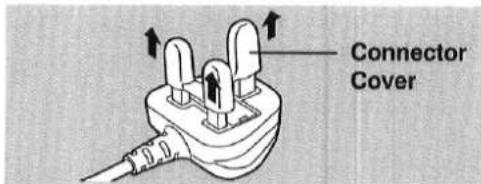
Entfernen Sie die Steckerabdeckung wie folgt.
■So ersetzen Sie die Sicherung
- Entfernen Sie die Sicherungsabdeckung mit einem Schraubendreher.
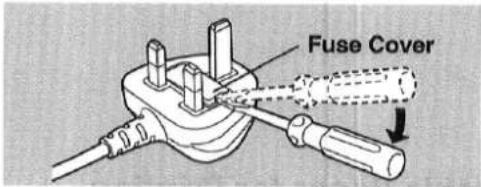
- Ersetzen Sie die Sicherung und bringen Sie die Sicherungsabdeckung wieder an.
Mitgeliefertes Zubehör
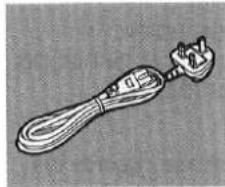
Netzkabel (S.9) (VJA0733)
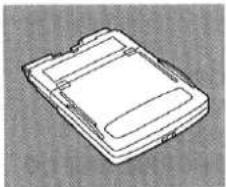
Papierkassette (S.12) (VXF0153)
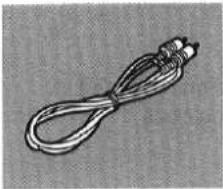
Videokabel (S.9) (VJA0815)
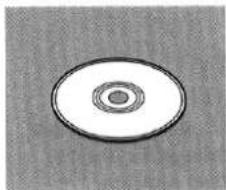
CD-ROM mit Druckertreibersoftware (Windows, Macintosh) (VFF0038)
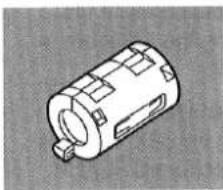
Klemmfilter (S.8) (VLF1321)
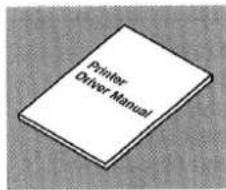
Druckertreiber-Handbuch (VQT7540)
Verwendbares Papier zum Drucken
Verwenden Sie Video-Drucksets und Video-Drucktintenkassetten, die entweder das MP-Zeichen tragen oder von Panasonic als für diesen Farbvideodrucker geeignet bezeichnet wurden.
Standardpapier
Das Video-Druckset (VW-MPS50E; 50 Blatt) ist erforderlich (separat erhältlich). Dieses Papier kann als Postkarte verwendet werden, wenn Sie das entsprechende Porto aufkleben.
Vorbereitungen
Bedienelemente und Komponenten 6
Verbindungen 9
Automatisches Drucken. 10
Verwendbares Druckpapier....11
Einlegen des Druckpapiers 12
Einlegen der Tintenkassette....12
Videoeingang
Drucken von einem Videoeingang....14
Verwendung des MENÜ-Modus....16
Für optimale Druckergebnisse. 18
Drucken einer Serie verschiedener Bilder auf demselben Ausdruck....20
Wiederholtes Drucken desselben Bildes auf demselben Ausdruck ..... 22
Drucken einer Bildsequenz auf demselben Ausdruck 24
PC-Karten-Eingang
Einlegen einer PC-Karte 26
Drucken von einer PC-Karte 28
Drucken mehrerer Bilder gleichzeitig von einer PC-Karte 30
Verwendung des MENU-Modus....32
Drucken einer Serie verschiedener Bilder auf demselben Ausdruck. . . . . . . . 34
Drucken desselben Bildes wiederholt auf demselben Ausdruck ..... 36
Löschen der Bilder auf der PC-Karte....38
Aufzeichnen des Videoeingangsbildes auf der PC-Karte 38
Erweiterte Bedienung
Drucken mit Titel oder zugeschnittenem Rahmen 40
Drucken mit einem zugeschnittenen Rahmen. 42
Drucken mit einem Titel 44
Anschlüsse bei Verwendung als PC-Drucker....46
Vorsichtsmaßnahmen, usw.
Vorsichtsmaßnahmen....47
Fragen und Antworten 50
Vor der Anforderung von Kundendienst....54
Fehlermeldungen 56
Index 57
Technische Daten 58
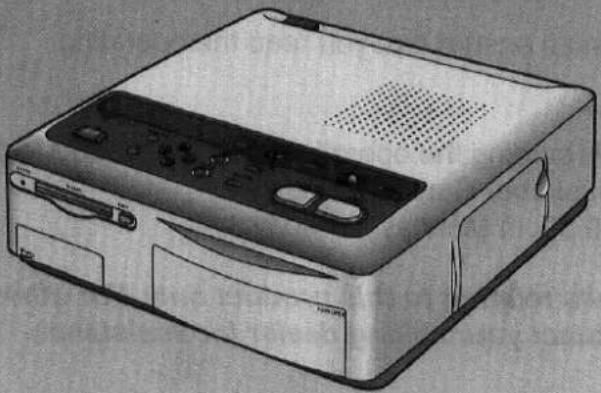
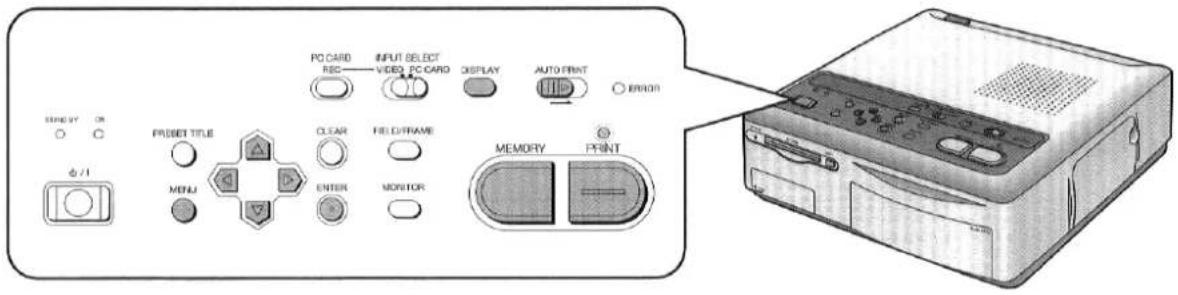
Vorderseite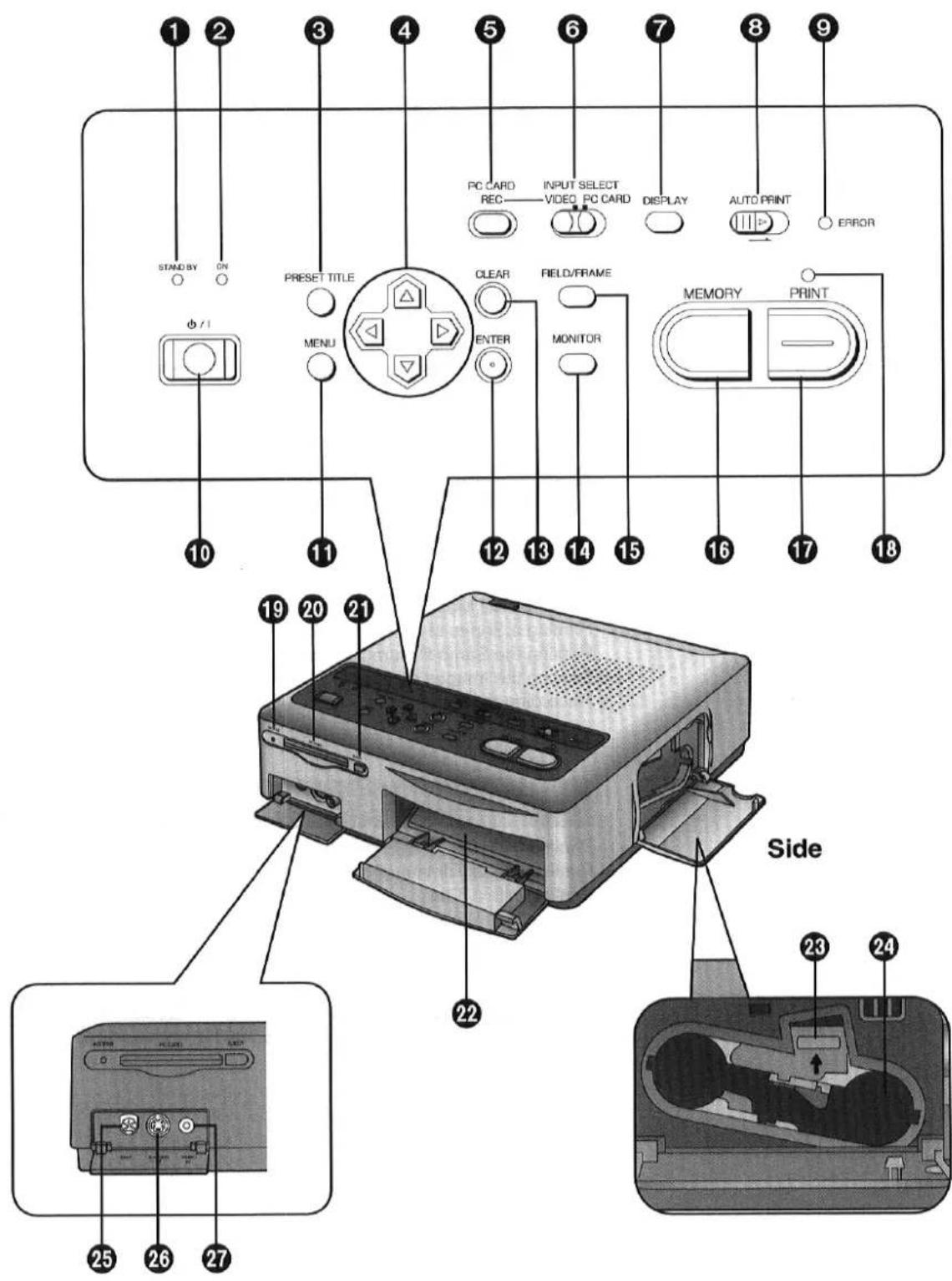
① STAND BY-Lampe
Diese Lampe leuchtet, wenn der Drucker an die Steckdose angeschlossen ist und der ⏻ / I (Power)-Schalter auf Aus steht.
② ON-Lampe (S.14, 28)
Diese Lampe leuchtet, wenn der ⏻ / I (Power)-Schalter gedrückt wird und der Drucker eingeschaltet ist. Wenn die Stromversorgung ausgeschaltet wird, wechselt der Drucker in den STAND BY-Modus und die STAND BY-Lampe leuchtet.
③ PRESET TITLE-Taste (S.40)
Mit dieser Taste können Sie einen der mitgelieferten Rahmen oder Titel zum Drucken einfügen.
④ ▶▲▼▶-Tasten (S.16, 29)
Mit diesen Tasten wählen Sie die Menüinhalte oder das PC-Card-Bild aus.
⑤ PC CARD REC-Taste (S.39)
Mit dieser Taste zeichnen Sie das Bild vom VIDEO IN- (oder S-VIDEO IN-) Anschluss auf die PC-Card auf.
⑥ INPUT SELECT (VIDEO / PC CARD)-Schalter (S.14, 28)
Verwenden Sie diesen Schalter, um entweder die VIDEO IN- (oder S-VIDEO IN-) Buchse oder den PC Card Steckplatz für die Eingabe des zu druckenden Bildes auszuwählen. Beide Einstellungen können beim Drucken von einem Computer verwendet werden.
⑦ DISPLAY-Taste (S.28)
Mit dieser Taste wechseln Sie zwischen der Einzelbild- und der Indexansicht, wenn die im PC Card gespeicherten Bilder angezeigt werden.
8 AUTO PRINT Hebel (S.31)
Mit diesem Hebel drucken Sie die im PC Card gespeicherten Bilder in einem Durchgang.
9 ERROR-Lampe (S.56)
Diese Lampe blinkt, wenn ein Problem auftritt, das den normalen Druck verhindert, wie z.B. Papierstau oder fehlendes Druckpapier oder fehlende Tinte. Eine entsprechende Fehlermeldung erscheint auch auf dem Fernsehbildschirm.
10 ⏻ / I (Netzschalter) (S.14, 28)
Mit dieser Taste schalten Sie den Drucker ein und aus. Wenn der Drucker ausgeschaltet ist, gehen alle im Speicher gespeicherten Daten verloren.
⑪ MENU-Taste (S.16, 32)
Mit dieser Taste wird der MENU-Bildschirm angezeigt. Im MENU-Bildschirm können verschiedene Druckerfunktionen ausgewählt werden. Die Tasten ◀▲▼►, ENTER, der INPUT SELECT-Schalter und der ⏻ / I (Netzschalter) sind die einzigen Tasten und Schalter, die funktionieren, während der MENU-Bildschirm angezeigt wird.
⑫ ENTER-Taste (S.17, 33)
Mit dieser Taste führen Sie die im MENU-Modus ausgewählten Elemente aus.
⑬ CLEAR-Taste (S.14)
Mit dieser Taste löschen Sie das im Speicher gespeicherte Bild, brechen den Druck mehrerer Kopien ab, brechen den Stapeldruck ab oder brechen die Einstellungen ab.
14 MONITOR-Taste (S.14)
Bei Videoeingang schaltet diese Taste zwischen dem Bild von der Videoquelle und dem im Speicher abgelegten Bild um.
⑮ FIELD/FRAME-Taste (S.14)
Verwenden Sie diese Taste, wenn Sie ein sich schnell bewegendes Bild im Speicher speichern möchten oder wenn das im Speicher gespeicherte Bild unscharf ist.
16 MEMORY-Taste (S.15, 31)
Verwenden Sie diese Taste, um das aktuell auf dem Fernsehbildschirm angezeigte Bild im Speicher zu speichern.
⑰ PRINT-Taste (S.15, 28)
Verwenden Sie diese Taste, um Bilder zu drucken. Während des Druckvorgangs funktionieren keine Tasten.
18 PRINT-Lampe (S.15, 28)
Diese Lampe leuchtet auf, wenn die MEMORY-Taste gedrückt wird. Diese Lampe blinkt während des Druckvorgangs.
⑲ ACCESS-Lampe (S.27)
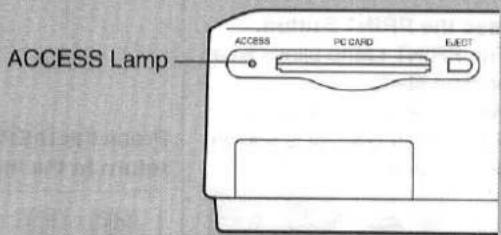
Diese Lampe leuchtet auf, wenn Bilddaten von einer eingelegten PC-Karte gelesen oder gespeichert werden.
20 PC-CARD-Steckplatz (S.26)
Die PC-Karte wird hier eingeführt.
21 PC-CARD-AUSWURF-Taste (S.27)
Verwenden Sie diese Taste, um die PC-Karte auszuwerfen.
22 Papierkassettenschacht (S.13)
Die Papierkassette wird hier eingelegt.
23 Auswurfhebel für Tintenkassette (S.13)
Heben Sie diesen Hebel an, um die Tintenkassette auszuwerfen.
24 Tintenkassettenschacht (S.13)
Die Tintenkassette wird hier eingesetzt.
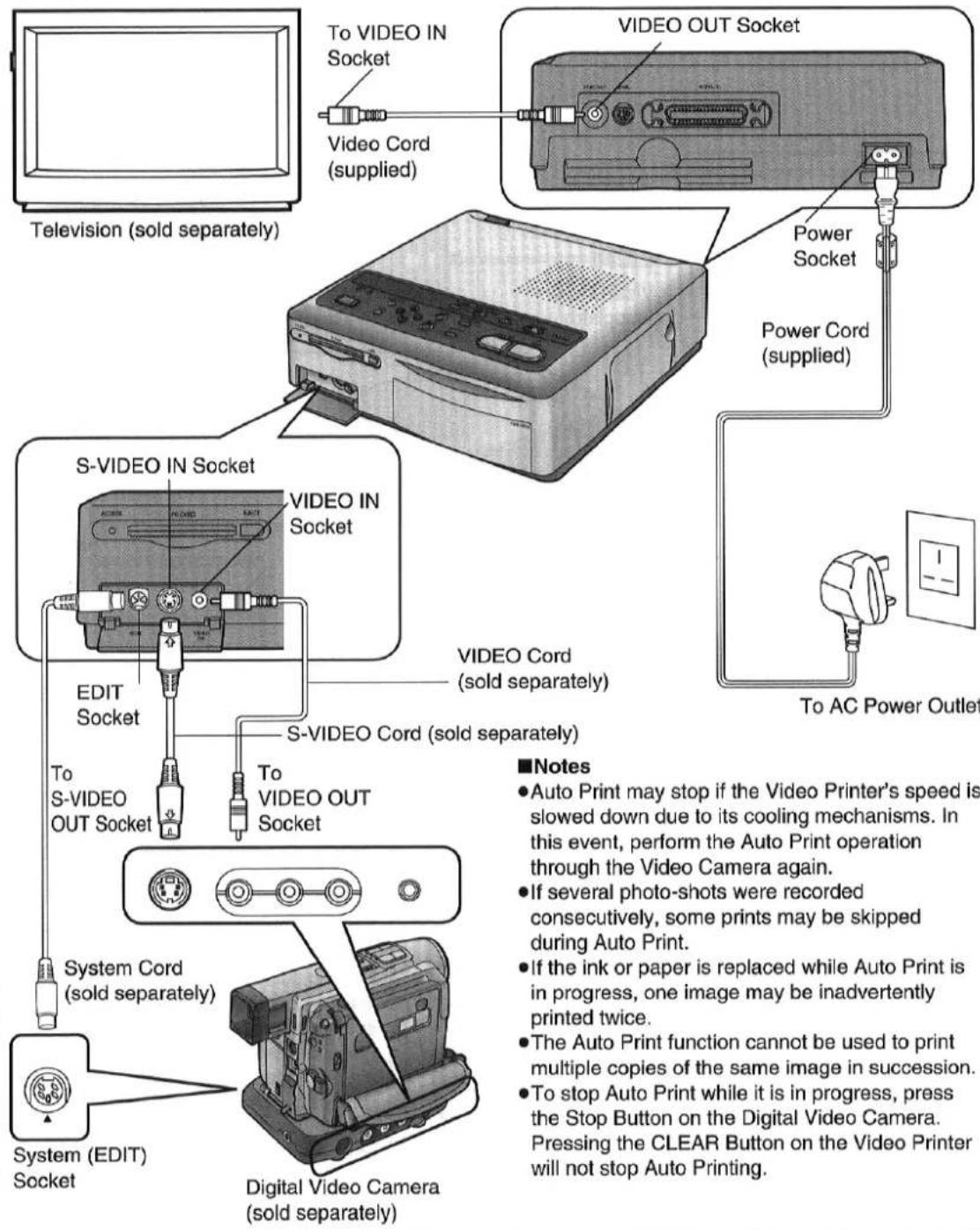
25 EDIT-Buchse (S.10)
Wenn Sie diesen Drucker über das Systemkabel (separat erhältlich) mit der Panasonic Digital-Videokamera verbinden, können Sie automatisch nach Standbildern suchen und diese drucken, die mit der Digitalfoto-Funktion aufgenommen wurden. Einzelheiten finden Sie in der Bedienungsanleitung der Digital-Videokamera.
26 S-VIDEO-IN-Buchse (S.9)
Verwenden Sie ein S-VIDEO-Kabel, um diese Buchse mit der S-VIDEO-OUT-Buchse an Videogeräten zu verbinden.
Über die S-VIDEO-IN-Buchse werden hochwertige Bilder erzielt.
Wenn das verwendete Gerät über eine S-VIDEO-OUT-Buchse verfügt, wird empfohlen, diese Buchse zu verwenden.
27 VIDEO-IN-Buchse (S.9)
Verwenden Sie ein Videokabel, um diese Buchse mit der VIDEO-OUT-Buchse an Videogeräten zu verbinden.
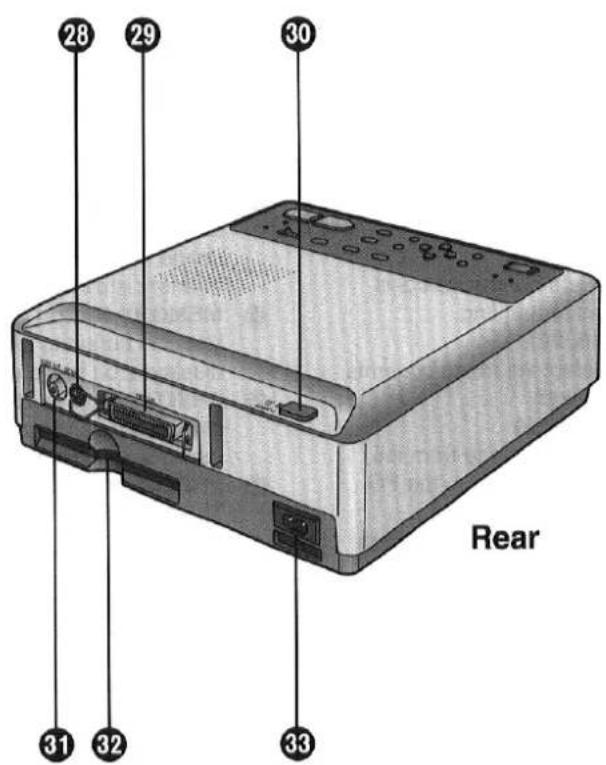
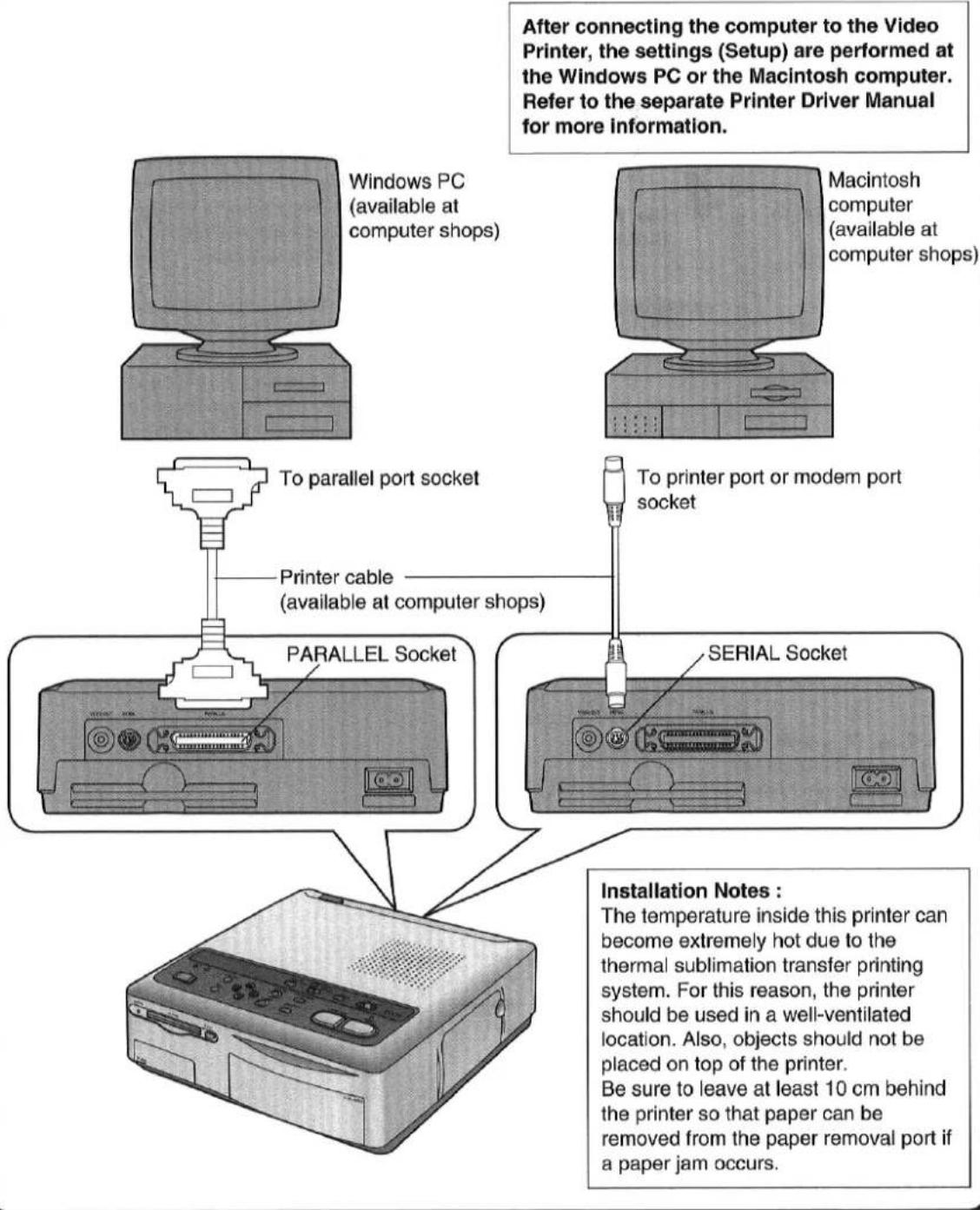
28 SERIAL-Steckplatz (S.46)
Verwenden Sie diesen Steckplatz, um das Druckerkabel für Macintosh-Computer anzuschließen (in Computergeschäften erhältlich).
29 PARALLEL-Steckplatz (S.46)
Verwenden Sie diesen Steckplatz, um das Druckerkabel anzuschließen (in Computergeschäften erhältlich). Der PC sollte über einen bidirektionalen parallelen Steckplatz gemäß den Centronics-Standards verfügen.
30 NETZSCHALTER (Hauptschalter) (S.14, 28)
Mit dieser Taste schalten Sie den Hauptstrom des Druckers ein oder aus. Wenn sie auf AUS steht, wird kein Strom zugeführt, auch wenn die Taste ⏻ / | (Ein/Aus) gedrückt wird.
31 VIDEO-AUSGANG (S.9)
Verwenden Sie diese Buchse, um das Kabel von der VIDEO-Buchse (VIDEO-EINGANG) am Fernsehgerät anzuschließen.
32 Papierauswurföffnung (S.15)
Entfernen Sie hier das Papier, falls ein Papierstau auftritt.
33 Netzanschluss (S.9)
Schließen Sie hier das mitgelieferte Netzkabel an.
Wichtige Informationen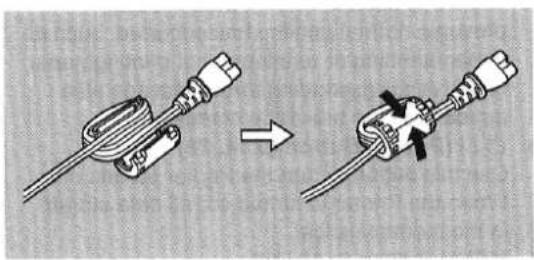
Um elektromagnetische Störungen durch die Stromversorgung zu vermeiden, installieren Sie den mitgelieferten Klemmenfilter am Netzkabel, wie in der obigen Abbildung gezeigt.
- Führen Sie das Netzkabel durch den Klemmenfilter und legen Sie es einmal um, dann schließen Sie den Klemmenfilter, bis er einrastet.
■Verbinden Sie das S-Video-Kabel, wenn der Videorecorder oder die Kamera über eine S-VIDEO-OUT-Buchse verfügt.
- Verbinden Sie mit einem Videokabel, wenn der Videorecorder oder die Kamera keine S-VIDEO-OUT-Buchse hat.
- Um den Ton vom Videorecorder oder der Videokamera zu hören, schließen Sie den Audioausgang des Videorecorders oder der Videokamera direkt an die AUDIO-IN-Buchse des Fernsehers an.
- Wenn verschiedene Videoquellen gleichzeitig an die S-VIDEO-IN-Buchse und die VIDEO-IN-Buchse angeschlossen sind, hat das Video der S-VIDEO-IN-Buchse Vorrang.
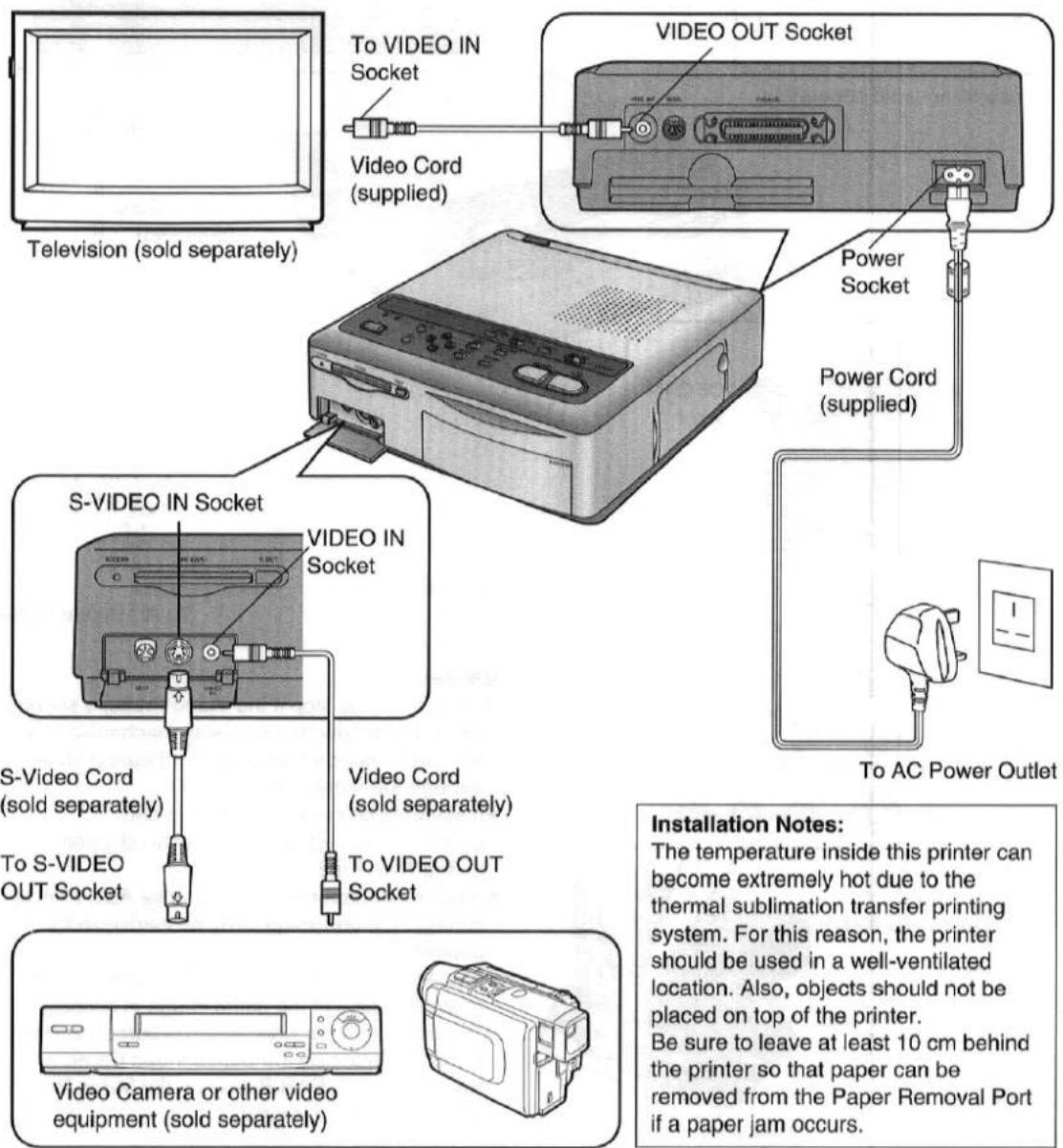
Automatisches Drucken
(Für automatisches Drucken ist eine Digitalvideokamera (separat erhältlich) mit einer System-EDIT-Buchse erforderlich.)
Verbinden Sie die Digitalvideokamera mit einem Videokabel (separat erhältlich) oder einem S-Video-Kabel (separat erhältlich) mit dem Videodrucker. Wenn auch das Systemkabel (separat erhältlich) verwendet wird, um die System-EDIT-Buchse der Digitalvideokamera mit der EDIT-Buchse des Videodruckers zu verbinden, können Sie automatisch nach Standbildern suchen und diese drucken, die mit der digitalen Fotoaufnahmefunktion aufgenommen wurden.
Vorgehensweise
- Schalten Sie den Videodrucker ein.
- Schalten Sie die Digitalvideokamera ein.
- Führen Sie den automatischen Druckvorgang über die Digitalvideokamera aus. (Details finden Sie im Handbuch der Digitalvideokamera.)
Der Digitalvideodrucker kann die folgenden zwei Papiersorten verwenden.
(Verwenden Sie Video-Drucksets und Video-Druckfarbkassetten, die entweder das MP-Zeichen tragen oder von Panasonic als für diesen Videodrucker geeignet bezeichnet wurden.)
Standardpapier
Das Video-Druckset VW-MPS50E ist erforderlich.
(Separat erhältlich: Tintenkassette und Papier [50 Blatt])
- Dieses Papier kann als Postkarte verwendet werden, wenn eine Briefmarke aufgeklebt wird.
- Kleben Sie vor dem Drucken keine Briefmarken oder Aufkleber auf das Papier und bedrucken Sie es nicht mit einem Textverarbeitungsprogramm. Das Papier könnte sich wellen oder die Briefmarke könnte sich lösen, was zu einem Papierstau oder einer Fehlfunktion im Videodrucker führen kann.
- Schreiben Sie nicht auf das Papier, bevor Sie es mit dem Videodrucker bedrucken.
- Verwenden Sie zum Schreiben auf der bedruckten Oberfläche einen Permanentmarker. Lassen Sie in diesem Fall bedruckte Oberflächen nicht miteinander in Kontakt kommen. ●Permanentmarker, abwaschbare Marker, Bleistifte und Kugelschreiber können alle zum Schreiben auf der Rückseite der bedruckten Bilder verwendet werden. Achten Sie jedoch darauf, beim Schreiben auf der Rückseite nicht zu viel Druck auszuüben, da dies Abdrücke auf der bedruckten Oberfläche hinterlässt.
■Aufklebepapier
(im Handel erhältlich)
- Entfernen Sie die Klebeschicht nicht vor dem Drucken. Dies kann einen Papierstau oder eine Fehlfunktion im Videodrucker verursachen.
- Wenn Sie das Aufklebepapier auf einer anderen Oberfläche (Papier, Glas, Kunststoff, Metall usw.) anbringen, reinigen Sie die Oberfläche sorgfältig von Schmutz und Fremdkörpern.
- Wenn Sie das Aufklebepapier nach dem Drucken zuschneiden, verwenden Sie einen "Einzelblatt-Schneider" (im Handel erhältlich), um das Aufklebepapier mit dem Trägerpapier an Ort und Stelle zu schneiden.
Einlegen des Druckpapiers / Einsetzen der Tintenkassette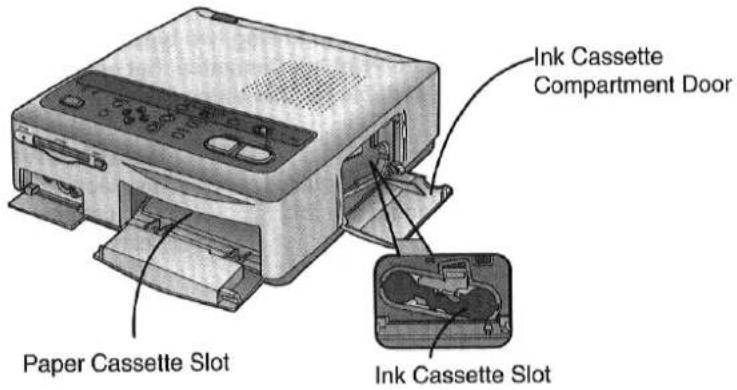
| Title | Procedure | |
| Inserting the Printing Paper | 1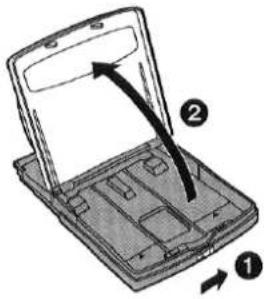 Open the cover of the Paper Cassette (supplied).1 Slide the switch, and2 Raise the cover. Open the cover of the Paper Cassette (supplied).1 Slide the switch, and2 Raise the cover. | 2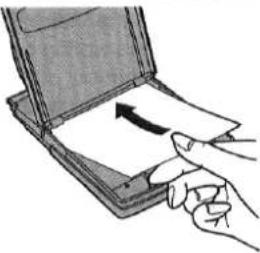 Place the paper in the Paper Cassette with the blank side to be printed facing up.The Paper Cassette can hold up to 25 sheets of standard paper.Tuck the paper under the two tabs. Place the paper in the Paper Cassette with the blank side to be printed facing up.The Paper Cassette can hold up to 25 sheets of standard paper.Tuck the paper under the two tabs. |
| 3 Close the cover. | ||
| Inserting the Ink Cassette | 1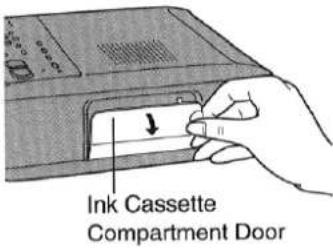 Open the Ink Cassette Compartment Door. Open the Ink Cassette Compartment Door. | 2Ink Cassett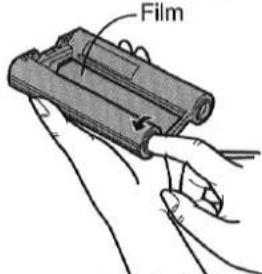 Take up any slack in the Ink Cassette Film.Insert a finger in a spool and turn it in the direction indicated by the arrow.Ink Cassettes are included in the Video Print Sets (sold separately). (p.11) Take up any slack in the Ink Cassette Film.Insert a finger in a spool and turn it in the direction indicated by the arrow.Ink Cassettes are included in the Video Print Sets (sold separately). (p.11) |
Entfernen der Tintenkassette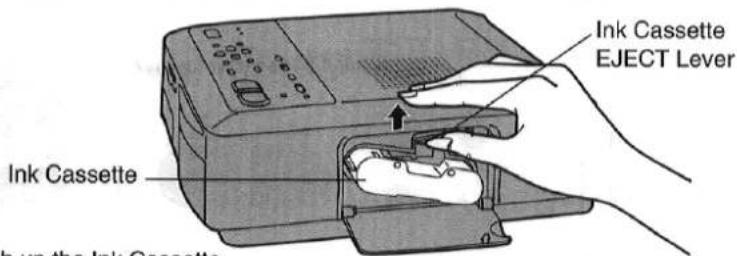
- Drücken Sie den EJECT-Hebel der Tintenkassette nach oben und ziehen Sie dann die Tintenkassette gerade heraus.
| Remarks, etc. | ||
4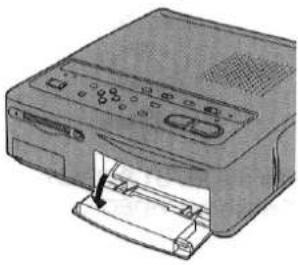 Open the cover of the Paper Slot.To open, press "PUSH OPEN" at the top right of the cover. Open the cover of the Paper Slot.To open, press "PUSH OPEN" at the top right of the cover. | 5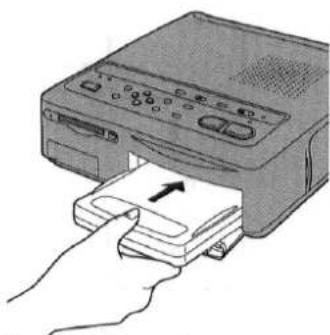 Push the Paper Cassette into the Video Printer as far as it will go. Push the Paper Cassette into the Video Printer as far as it will go. | ·Do not bend or fold the paper or place it in the cassette with the wrong side facing upward.·Do not soil the printing side (blank side) of the paper.Fan the paper before placing it in the Paper Cassette.The front end of the Paper Cassette Slot becomes the left side of the image to be printed.Do not remove the Paper Cassette while printing is in progress.After printing, remove the Paper Cassette and close the cover of the Paper Cassette Slot. |
3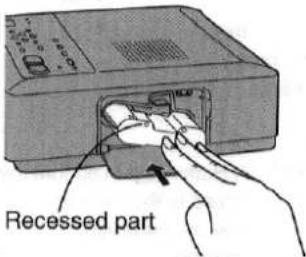 With the recessed part facing upward, push the Ink Cassette into the Video Printer as far as it will go. With the recessed part facing upward, push the Ink Cassette into the Video Printer as far as it will go. | 4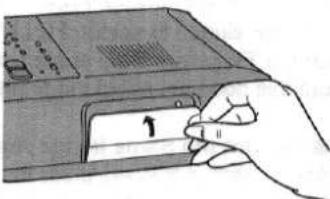 Close the Ink Cassette Compartment Door.Check that the Ink Cassette has been inserted all the way before closing the Compartment Door. Close the Ink Cassette Compartment Door.Check that the Ink Cassette has been inserted all the way before closing the Compartment Door. | ·Do not touch the ink film in the Ink Cassette, and do not try to pull it out of the cassette.Do not peel off the label on the Ink Cassette.The "ink film" refers to the wide tape that is inside the Ink Cassette.When all of the ink film in an Ink Cassette has been used up, replace the Ink Cassette with a new one. Used Ink Cassettes cannot be reused.For best printing results, use only the printing paper and Ink Cassette packaged together as a Video Print Set. |
Drucken von einem Videoeingang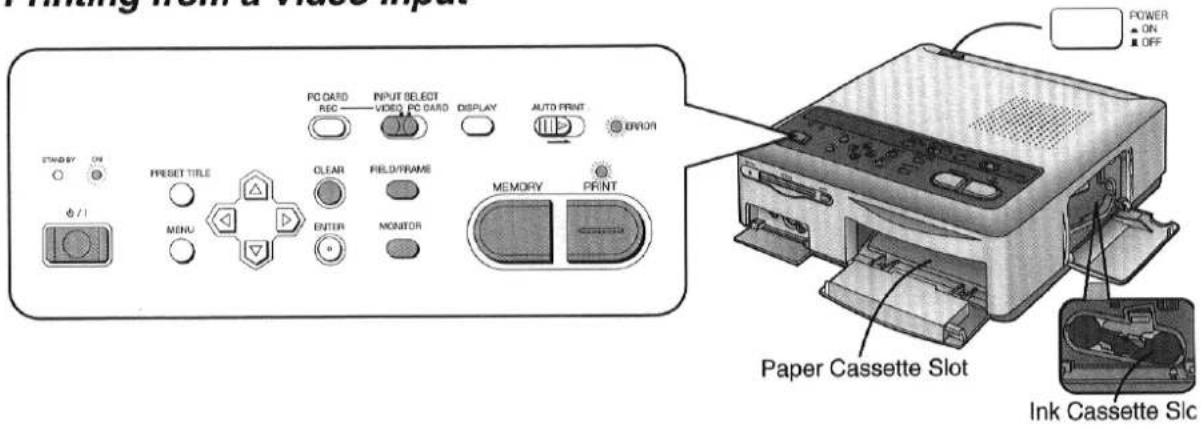
| Title | Procedure | |
| Printing from a Video Input (Printing an image from the VIDEO IN or S-VIDEO IN socket)Before printing, check that an Ink Cassette has been inserted in the Ink Cassette Compartment.Check that paper has been placed in the Paper Cassette, and then start the printing procedure. | 1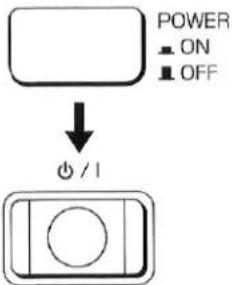 Turn on the power by pressing first the POWER (Main Power) Button and then the ⏻ / I (Power) Button.The ON Lamp lights up. Turn on the power by pressing first the POWER (Main Power) Button and then the ⏻ / I (Power) Button.The ON Lamp lights up. | 2INPUT SELECTVIDEO PC CARD Set the INPUT SELECTSwitch to “VIDEO”. Set the INPUT SELECTSwitch to “VIDEO”. |
| ■Reducing BlurTo reduce the blur in a printed picture and to minimise the jitter on the TV screen caused by the subject moving, Press the FIELD / FRAME Button to select “FIELD”. The picture on the TV Screen may appear slightly blurry but this does not affect the printed image.■To Print the Same Image AgainAfter printing is finished, press the MONITOR Button again so that the image displayed on the television screen is stored in the memory.Then, press the PRINT Button to print the same image again.■Printing Multiple Copies of the Same ImageSet the number of prints on the MENU Screen (up to 10 sheets).(p.16)●The remaining sheets to be printed are shown at the top right of the television screen. This number includes the sheet being printed.To cancel continuous printing when two or more sheets remain press the CLEAR Button. | ||
| While printing is in progress, the only button on the Video Printer that functions is the CLEAR Button for cancelling the printing of multiple sheets. | ||
Nach dem Drucken
- Entfernen Sie das bedruckte Papier.
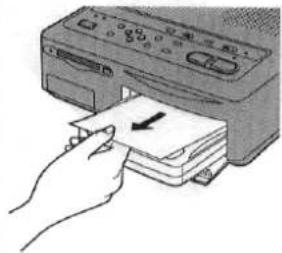
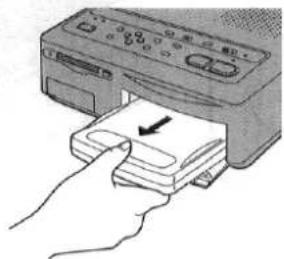
- Nehmen Sie die Papierkassette heraus.
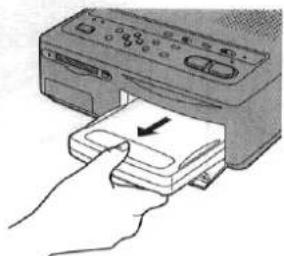
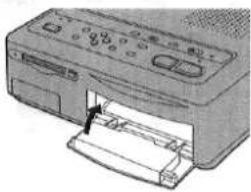
- Schließen Sie die Abdeckung des Papierkassettenfachs.
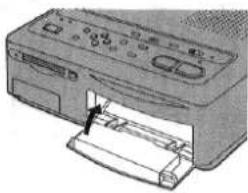
- Schalten Sie den Drucker aus, indem Sie die Taste ⏻ /l (Netz) drücken. ●Die STANDBY-Anzeige leuchtet auf.
3
SPEICHER
Drücken Sie bei laufendem Fernsehbild die Taste SPEICHER an der Szene, die Sie drucken möchten.
●Die DRUCK-Anzeige leuchtet auf. - Um eine neue Szene im Speicher zu speichern, drücken Sie die Taste MONITOR, sodass die DRUCK-Anzeige erlischt. Drücken Sie dann erneut die Taste SPEICHER, um ein neues Bild im Speicher zu speichern.
4
DRUCK
Überprüfen Sie, ob die DRUCK-Anzeige am Videodrucker leuchtet, und drücken Sie dann die Taste DRUCK.
- Der Druckvorgang beginnt. ●Während des Druckens erscheint das Bild, das aus dem Speicher eingegeben wird, auf dem Fernsehbildschirm.
- Wenn der Druckvorgang beendet ist, erscheint das Bild, das von der Videoquelle eingegeben wird, wieder auf dem Fernsehbildschirm.
■Wenn ein Papierstau auftritt
Eine Fehlermeldung "PAPIERSTAU ENTFERNEN" wird angezeigt, und die FEHLER-Anzeige blinkt. Entfernen Sie in diesem Fall das Papier an der Stelle, an der es gestaut ist (1 oder 2 in der Abbildung unten). Wenn das Papier nicht entfernt werden kann, schalten Sie den Drucker aus. Schalten Sie den Drucker dann wieder ein und entfernen Sie das Papier von 1 oder 2.
① Hinterer Papierauswurf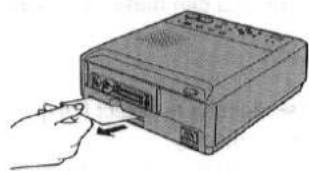
② Druckausgabe (über der Papierkassette)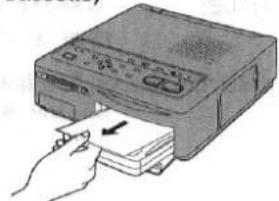
- Wenn die Papierkassette während des Druckvorgangs entfernt wird, kann das Papier im Druckausgabebereich (über der Papierkassette) stecken bleiben und nicht mehr herausgezogen werden. Setzen Sie die Papierkassette wieder ein und schalten Sie den Drucker erneut ein, um das Papier auszugeben.
Hinweise usw.
- Wenn der Druck beginnt, ändert sich die Anzeige „— — —“ oben rechts auf dem Bildschirm zu „☆ — —“.
„☆——“: Druck läuft „☆☆—“: Druck läuft "☆☆☆": Der Druck ist abgeschlossen, wenn das ☆-Symbol blinkt und dann leuchtet.
(Das ☆-Symbol zeigt den Druckfortschritt an.)
- Ziehen Sie das Papier während des Druckvorgangs nicht heraus, solange es sich bewegt.
- Entfernen Sie die Papierkassette nicht während des Druckvorgangs.
- Nehmen Sie die Tintenkassette nicht während des Druckvorgangs heraus.
- Wenn kein Papier in der Papierkassette ist oder das Papier nicht richtig eingelegt ist, kann nach dem Drücken der Taste [DRUCK] (nach ca. 25 Sekunden) die Meldung „PAPIER EINLEGEN UND [DRUCK] DRÜCKEN“ erscheinen. Legen Sie in diesem Fall das Papier richtig ein.
- Der Druck kann bei kontinuierlichem Druck von zwei oder mehr Blättern oder bei hohen oder niedrigen Temperaturen mehr Zeit in Anspruch nehmen. Wenn der Videodrucker heiß wird, können die Ränder der gedruckten Bilder leicht verfärbt sein.
- Bitte beachten Sie, dass bei gebogenem oder gefaltetem Papier die Ausdrucke aus dem Druckausgabebereich (über der Papierkassette) fallen können. • Um Papierstaus zu vermeiden, lassen Sie nicht mehr als 10 Blatt Papier im Druckausgabebereich liegen.
Verwendung des MENÜ-Modus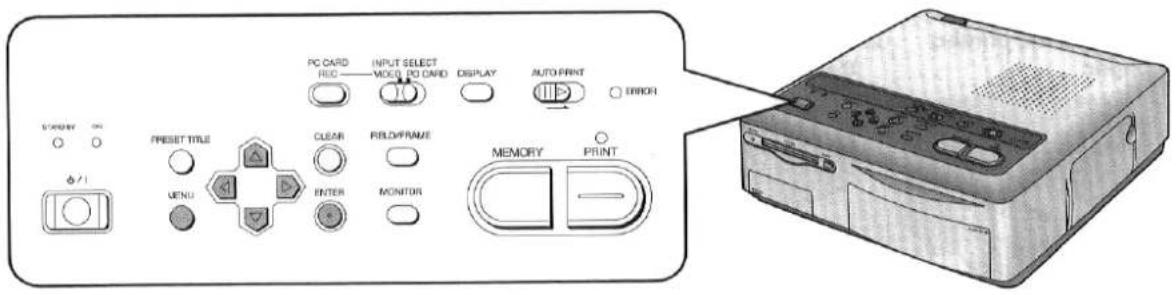
| Title | Procedure | |
| Using the MENU ModeThe settings for the functions in the Video Printer are made at the MENU Screen. | 1MENU Press the MENU Button.•The MENU Screen is displayed on the television screen. Press the MENU Button.•The MENU Screen is displayed on the television screen. | 2 or or  Use the ▲ and ▼ Buttons to select the desired menu.•The 🔒 mark indicates the selected item. Use the ▲ and ▼ Buttons to select the desired menu.•The 🔒 mark indicates the selected item. |
| ■Menu Description | 1 PRINT: Use the ◀ and ► Buttons to set the number of prints (from 1 to 10) desired.2 FORMAT: If [SET] is selected, use the ▲ and ▼ Buttons to select each print function. (p.20 - 25)3 PICTURE: If [SET] is selected, you can adjust the picture quality. (p.18)4 FRAME: If [SET] is selected, you can make your own trimming frame. (p.42)5 TITLE: If [SET] is selected, you can make your own titles. (p.44)6 OSD (On Screen Display):Use the ◀ and ► Buttons to select [ON] or [OFF] for the screen display.•Error messages, menus, and the preset title menu are still displayed even when [OFF] is selected for OSD.(The setting for OSD is still stored even when the INPUT SELECT Switch is set to "PC CARD"). | |
![MENÜ DRUCKEN : 1 FORMAT : [STD] EINSTELLEN BILD : [STD] EINSTELLEN RAHMEN : [AUS] EINSTELLEN TITEL : [AUS] EINSTELLEN OSD : [EIN] AUS CINEMA : [AUS] EIN [◄►]ÄNDERN [ ◆ ]AUSWÄHLEN [ENTER]ENDE](/content/2026/05/794531/images/a1d5af1ca483e1bd1a4812ee5a07282719d4fef196d68a129f0490a4ddc627d7.jpg)
| Remarks, etc. | ||
| 3or ▶ Use the ◀ and ► Buttons to select the desired setting.●The selected setting is indicated by brackets [ ]. | 4ENTERPress the ENTER Button to complete the setting.●The MENU Screen disappears from the television screen. | ●The ◀▲▼► Buttons, ENTER Button, and ⏻/1 (Power) Button are the only buttons that function while the MENU Screen is displayed.●Once you set "PICTURE," [ADJ] is displayed on the MENU Screen. The previous settings are maintained in memory until you select [SET] to implement the new settings.●Once you set "FRAME" or "TITLE," [ON] is displayed on the MENU Screen. The previous settings are maintained in memory until you select [SET] to implement the new settings.●The stored settings are erased when the power cord is unplugged.●If the letters are blurred and difficult to read when the MENU Screen is displayed, go to the MEMORY Screen and then return to the MENU Screen to make the settings. |
| 7 CINEMA: [ON][OFF] | All pictures are printed in wide dimensions.All images, including wide images, are printed in normal dimensions. | ●When normal-sized images are printed as cinema images, the top and bottom of the images will be cut off.●When cinema images are printed as normal-sized images, the printed picture is stretched vertically . |
Für optimale Druckergebnisse (BILD)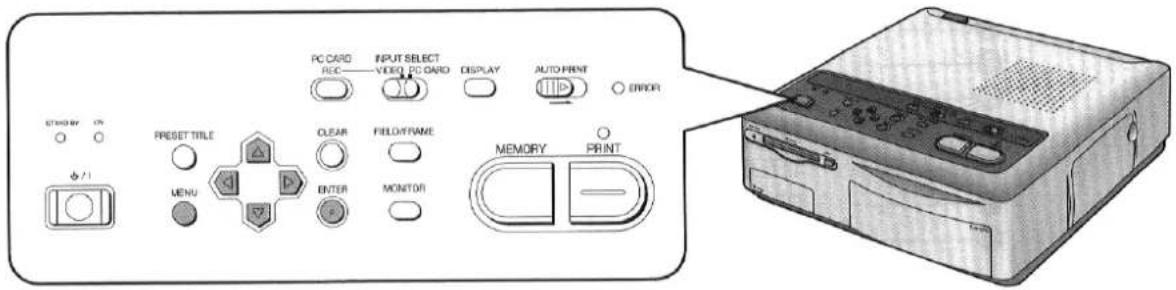
| Title | Procedure | |
| For Optimum Printing Results(PICTURE)Although the picture quality of an image that you want to print can be adjusted before storing the image in memory, for optimum results we recommend that you adjust the picture quality of the image after you have stored it in memory. | 1MENUPress the MENU Button. | 2Use the▼Button to select “PICTURE”. |
| MENUPRINT: 1FORMAT: [STD] SETPICTURE: [STD] SETFRAME: [OFF] SETTITLE: [OFF] SETOSD: [ON] OFFCINEMA: [OFF] ON[◄►]CHANGE[◆]SELECT [ENTER]END | MENUPRINT: 1FORMAT: [STD] SETPICTURE: [STD] SETFRAME: [OFF] SETTITLE: [OFF] SETOSD: [ON] OFFCINEMA: [OFF] ON[◄◆►]SELECT [ENTER]END | |
| 5or ▶Use the◄and►Buttons to adjust the level. | 6ENTERPress the ENTER Button. | |
| C-LEVEL +2-++[◄►]ADJUST[◆]SELECT [ENTER]END | ||
Verfahren zur Bildqualitätseinstellung
- Stellen Sie "BILD" im MENÜ-Modus auf [STD] ein, und drucken Sie dann ein Bild mit kontrastreichen hellen und dunklen Bereichen.
- Stellen Sie bei der Fernsehbildqualitätseinstellung den Fernsehbildschirm auf nahezu dieselbe Farbe wie das gedruckte Bild ein.
- Stellen Sie bei "BILD" im MENÜ-Modus den Fernsehbildschirm auf den gewünschten Farbabgleich ein. Das Drucken nach diesen Einstellungen erzeugt einen Ausdruck mit fast exakt denselben Farben wie auf dem Bildschirm.
| Remarks, etc. | |
| 3 | 4 |
| Use the ▶ Button to select [SET]. | Use the ▲ and ▼ Buttons to select the picture quality item that you want to adjust. • See the adjustment items below. |
| MENU PRINT : 1 FORMAT : [STD] SET 2" PICTURE : STD [SET] FRAME : [OFF] SET TITLE : [OFF] SET OSD : [ON] OFF CINEMA : [OFF] ON [◀ ◆ ▶]SELECT [ENTER]END | C-LEVEL 0 - - - - - - - - - - - - - - - - - - - - - - - - - - - - - - - - - - - - - - - - - - - - - - - - - - - - - - - - - - - - - - - - - - - - - - - - - - - - - - - - - - - - - - - - - - - - - - - - - - - - - |
| Picture Quality Adjustment Items → C-LEVEL ↔ C-BALANCE ↔ BRIGHTNESS ↔ → SHARPNESS ↔ CONTRAST ← The adjustments shown above change in the following order. C-LEVEL: This setting lets you adjust to the desired colour intensity. C-BALANCE: This setting lets you reproduce colours with the correct balance. BRIGHTNESS: This setting lets dark parts become more visible. CONTRAST: This setting lets you adjust the difference between the light and dark parts of the picture. SHARPNESS: This setting lets you adjust the contours. • The C-LEVEL, C-BALANCE, BRIGHTNESS, and CONTRAST settings can be adjusted from -9 to +9 using the ◀ and ▶ Buttons. • The level of SHARPNESS can be set to L (Low), M (Medium), or H (High) using the ◀ and ▶ Buttons. | • For PC Card input, follow the same procedure shown on the left. • If it is necessary to re-adjust the picture quality, start from Step 1. • The picture will not be displayed in black and white even if C-LEVEL is set to -9. • Adjusting SHARPNESS has no effect on television picture quality. • Images are stored in the PC Card without the setting adjustments made to the picture. When using video input, one of the most important factors in printing images of high quality is skillful video camera work. When printing, it is recommended that you use an S-VIDEO IN Socket for best results. When shooting a scene from a Video Camera, keep the following points in mind. • If at all possible, shoot with the light source at your back. • When shooting a scene outdoors that includes motion, either put the Video Camera into "sports mode" or, if the camera is equipped with an electronic shutter function, set it to about 1/500. Doing so will allow you to print images with less blurring. • When shooting indoors, make sure that there is enough light. |
Drucken einer Serie verschiedener Bilder auf demselben Ausdruck (ALBUM)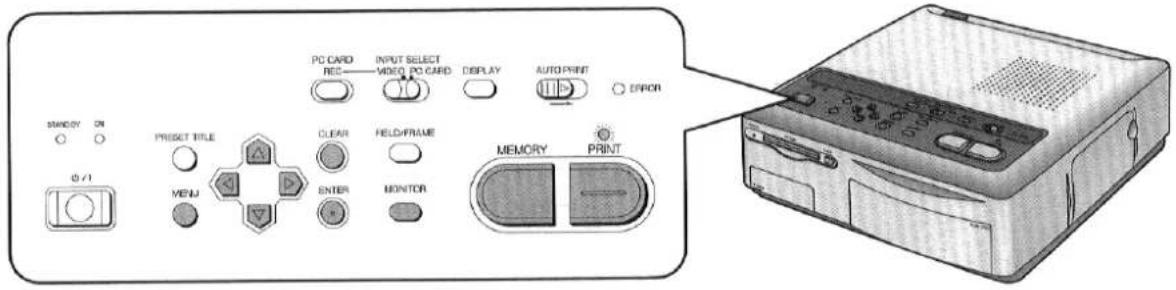
| Title | Procedure | |
Printing a Series of Different Pictures on the Same Print (ALBUM)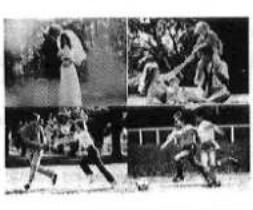 This printing function allows you to divide the screen into 4, 9, or 16 mini-frames containing different pictures, and then print them all together on the same print.This feature is useful for printing a variety of scenes from an event on a single print. This printing function allows you to divide the screen into 4, 9, or 16 mini-frames containing different pictures, and then print them all together on the same print.This feature is useful for printing a variety of scenes from an event on a single print. | 1 Press the MENU Button, and then use the▼Button to select “FORMAT”. Press the MENU Button, and then use the▼Button to select “FORMAT”.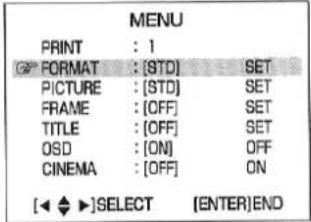 | 2 Use the ►Button to select [SET].MENUPRINT:1FORMAT:STD[SET]PICTURE:[STD]SETFRAME:[OFF]SETTITLE:[OFF]SETOSD:[ON]OFFCINEMA:[OFF]ON[◄◆►]SELECT[ENTER]END Use the ►Button to select [SET].MENUPRINT:1FORMAT:STD[SET]PICTURE:[STD]SETFRAME:[OFF]SETTITLE:[OFF]SETOSD:[ON]OFFCINEMA:[OFF]ON[◄◆►]SELECT[ENTER]END |
 Press the ENTER Button.ALBUM Press the ENTER Button.ALBUM |  Press the MEMORY Button.●After the image stored in memory is displayed for about one second, the display returns to the input screen. Press the MEMORY Button.●After the image stored in memory is displayed for about one second, the display returns to the input screen. PRINT 1 PRINT 1 | |
| MENU | ||
| : 1 | ||
| FORMAT | : STD | [SET] |
| PICTURE | : [STD] | SET |
| FRAME | : [OFF] | SET |
| TITLE | : [OFF] | SET |
| OSD | : [ON] | OFF |
| CINEMA | : [OFF] | ON |
| [◀ ◆ ▶]SELECT | [ENTER]END | |
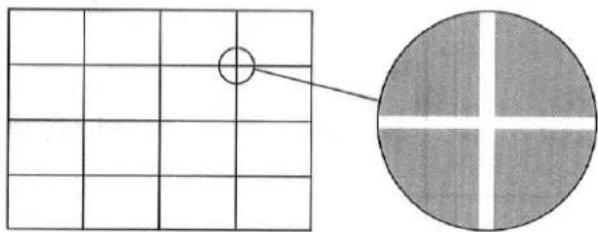
Drucken von 16 Mini-Bildern
16 Mini-Bilder werden durch weiße Linien getrennt gedruckt. (Diese Linien werden auch auf dem Fernsehbildschirm angezeigt.)
| Remarks, etc. | ||
| 3 | 4 | ■To Erase Stored PicturesPress the CLEAR Button when the PRINT Lamp is lit. One frame is erased each time the CLEAR Button is pressed.(To store new pictures to replace the erased pictures, press the MONITOR Button so that the PRINT Lamp turns off, and then press the MEMORY Button.) |
| Use the ▼ Button to select "ALBUM". | Use the ◀ and ► Buttons to select the desired number of mini-frames. | ■Storing Pictures Again after All the Pictures Are StoredPress the MONITOR Button so that the PRINT Lamp turns off, and then press the MEMORY Button. (See Step 6 on the previous page.) |
| 7 | 8 | ■To Abort the Setting ProcessPress the CLEAR Button twice when the PRINT Lamp is turned off.Hints for Use●The PRINT Lamp lights up and turns off each time the MONITOR Button is pressed.●If you press the MONITOR Button again after printing is complete, the display returns to the MEMORY Screen, allowing you to print the same pictures again.●To allow printing without the entire ALBUM Screen stored in memory, press the MONITOR Button to light up the PRINT Lamp. The ALBUM Screen will be printed with white spaces where no image was saved. (In this case, the pictures are still stored in memory starting from the upper left corner. There is no editing process that will allow images to be printed between blank (white) images.) |
| Check that the PRINT Lamp is lit up.●If the entire ALBUM Screen is not stored in memory, press the MONITOR Button to light up the PRINT Lamp. | Then press the PRINT Button.●Printing starts. | |
Drucken desselben Bildes wiederholt auf demselben Ausdruck (MULTI FRAME)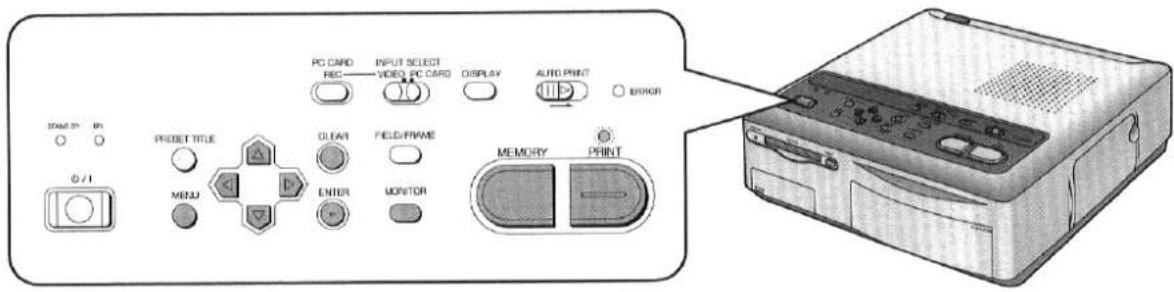
| Title | Procedure | |
Printing the Same Picture Repeatedly on the Same Print (MULTI FRAME)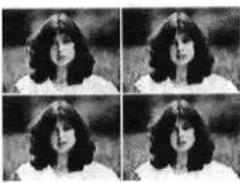 This feature allows you to divide the paper into 4, 9, or 16 mini-frames, and then print the same stored image, reduced in size, in each mini-frame. This feature allows you to divide the paper into 4, 9, or 16 mini-frames, and then print the same stored image, reduced in size, in each mini-frame. | 1MENU→Press the MENU Button, and then use the▼Button to select “FORMAT”.[IMAGE] | 2 Use the►Button to selec [SET]. Use the►Button to selec [SET].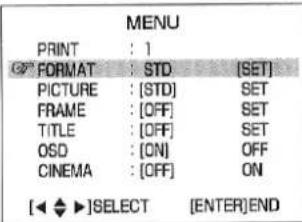 |
| 5ENTERPress the ENTER Button. | 6 Press the MEMORY Button. Press the MEMORY Button.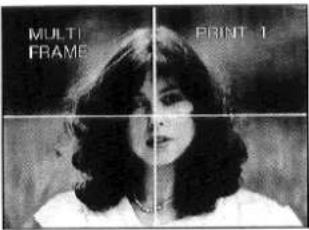 | |
| MULTIFRAME | ||
| Remarks, etc. | ||
3 | 4 or or  | ■To Erase Stored PicturesPress the MONITOR Button when the PRINT Lamp is lit.(To store new pictures to replace the erased pictures, press the MONITOR Button so that the PRINT Lamp turns off, and then press the MEMORY Button.)■To Abort the Setting ProcessPress the CLEAR Button once when the PRINT Lamp is turned off.The PRINT Lamp lights up and turns off each time the MONITOR Button is pressed.If you press the MONITOR Button again after printing is complete, the display returns to the MEMORY Screen, allowing you to print the same pictures again.It is also possible to store the image that you want to print in memory first, and then select the "MULTI" printing settings on the MENU Screen. |
Use the ▼ Button to select “MULTI”.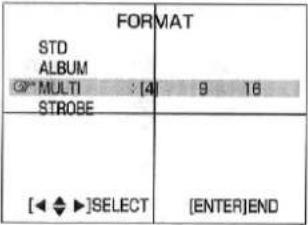 | Use the ◀ and ► Buttons to select the desired number of mini-frames.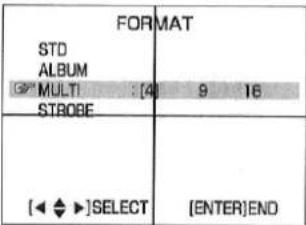 | |
7 Press the PRINT Button.•Printing starts. Press the PRINT Button.•Printing starts.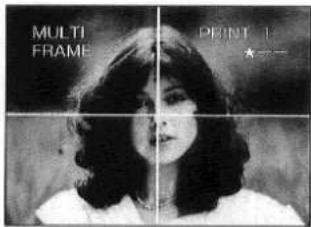 | ||
Drucken einer Sequenz von Bildern auf demselben Ausdruck (STROBE)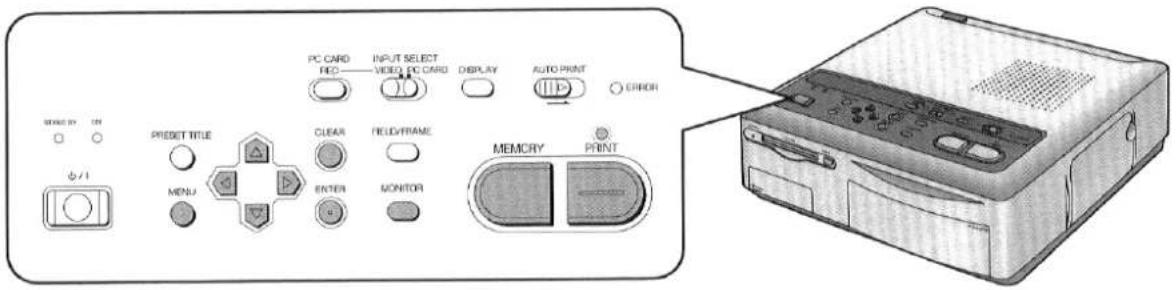
| Title | Procedure | ||||
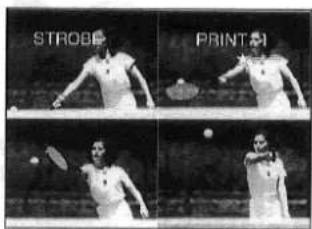
Printing a Sequence of Pictures on the Same Print (STROBE) 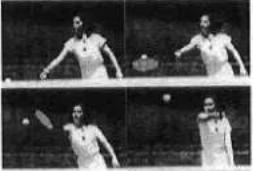 This feature allows the screen to be divided into 4, 9, or 16 mini-frames, allowing you to print a series of freeze-frames on a single sheet.This feature is useful when studying, for instance, a golfer's swing or a tennis player's shot.●One of three strobe speeds can be selected.The memory storage time is determined by the MODE and SPEED settings. This feature allows the screen to be divided into 4, 9, or 16 mini-frames, allowing you to print a series of freeze-frames on a single sheet.This feature is useful when studying, for instance, a golfer's swing or a tennis player's shot.●One of three strobe speeds can be selected.The memory storage time is determined by the MODE and SPEED settings. | 1MENU→Press the MENU Button, and then use the▼Button to select "FORMAT".[←◆►]SELECT [ENTER]END | 2Use the ►Button to select [SET].[←◆►]SELECT [ENTER]END | |||
5 Use the▼Button to select "SPEED", and then use the◀and ►Button to select the speed. Use the▼Button to select "SPEED", and then use the◀and ►Button to select the speed.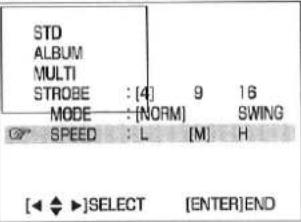 | 6ENTERPress the ENTER Button.STROBE | ||||
| Normal | Swing | ||||
| L | 3 seconds | 2 seconds | |||
| M | 2 seconds | 1.8 seconds | |||
| H | 1 second | 1.4 seconds | |||
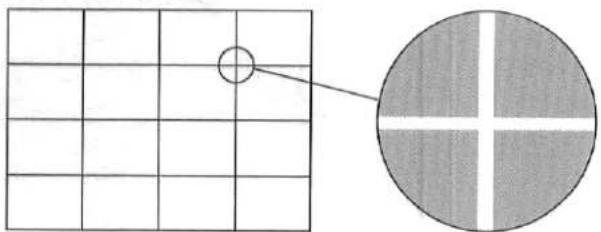
Drucken von 16 Mini-Bildern
16 Mini-Bilder werden durch weiße Linien getrennt gedruckt. (Diese Linien werden auch auf dem Fernsehbildschirm angezeigt.)
3


Verwenden Sie die ▼-Taste, um "STROBE" auszuwählen, und verwenden Sie dann die ◀- und ►-Taste, um die Anzahl der Mini-Bilder auszuwählen.
![STD ALBUM MULTI STROBE : [4] 9 16 MODE : [NORM] SWING SPEED : L [M] H [◀ ◆ ▶]AUSWÄHLEN [ENTER]ENDE](/content/2026/05/794531/images/ca6b031f5e6346c35e7ae33325a5f11d5a972a43864675d3cbf1ef645720cebe.jpg)
7
Drücken Sie die MEMORY-Taste an der Stelle, an der die gewünschten Standbilder beginnen sollen.
- Der Bildschirm wird dunkel, während diese Bilder im Speicher abgelegt werden.
STROBE
SPEICHERT
4


Verwenden Sie die ▼-Taste, um "MODUS" auszuwählen, und dann die ◀- und ▶-Taste, um den Modus zu wählen.
![STD ALBUM MULTI STROBE : [4] 9 16 MODE : [NORM] SW/NG SPEED : L [M] H [◀ ◆ ▶]AUSWÄHLEN [ENTER]ENDE](/content/2026/05/794531/images/418109c795710a0cbc613953aad3cea8d5187493a2db39397ce85f74090127c5.jpg)
8
Drücken Sie die DRUCK-Taste. ● Der Druckvorgang startet.
Bemerkungen usw.
■Löschen gespeicherter Bilder
Drücken Sie die LÖSCHEN-Taste, während die DRUCK-Lampe leuchtet. Bei jedem Drücken der LÖSCHEN-Taste wird ein Bild gelöscht.
(Um neue Bilder zu speichern und die gelöschten zu ersetzen, drücken Sie die MONITOR-Taste, bis die DRUCK-Lampe erlischt, und dann die SPEICHER-Taste.)
■Fortsetzen der Bildspeicherung
Drücken Sie die MONITOR-Taste, bis die DRUCK-Lampe erlischt, und dann die SPEICHER-Taste. (Siehe Schritt 7)
■Abbrechen des Einstellvorgangs
Drücken Sie die LÖSCHEN-Taste zweimal, wenn die DRUCK-Lampe ausgeschaltet ist.
- Die PRINT-Lampe leuchtet auf und erlischt jedes Mal, wenn die MONITOR-Taste gedrückt wird.
- Wenn Sie die Taste nach Abschluss des Druckvorgangs erneut drücken, kehrt die Anzeige zum MEMORY-Bildschirm zurück, sodass Sie dieselben Bilder erneut drucken können.
■Wann die beiden Stroboskop-Modi verwendet werden
NORM (Normal):
Verwenden Sie diesen Modus, um den Bildschirm in gleichmäßigen Abständen im Speicher zu speichern.
SWING:
Verwenden Sie diesen Modus, um den Bildschirm während des ersten Teils des Abtastzeitraums in langen Abständen, dann während des mittleren Teils in kürzeren Abständen und danach wieder in längeren Abständen im Speicher zu speichern.
Dieser Modus eignet sich zum Drucken von Tennis- und Golfschwüngen.
| Title | Procedure |
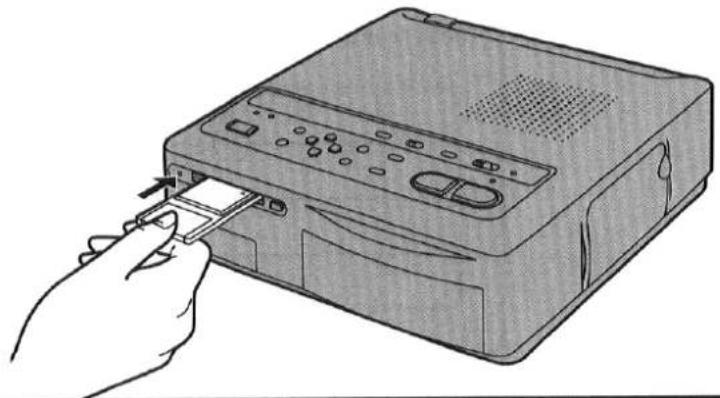
| Inserting a PC CardThis feature allows you to insert a PC Card, CF Card, or Smart Media into the PC Card Slot, and then print images from the card.The PC Card can be inserted into the PC Card Slot without any adaptors. CF Cards and Smart Media require adaptors (available at stores). | ■Using a CF Card1Attach the CF Card containing image data to a PC Card Adaptor (available at stores).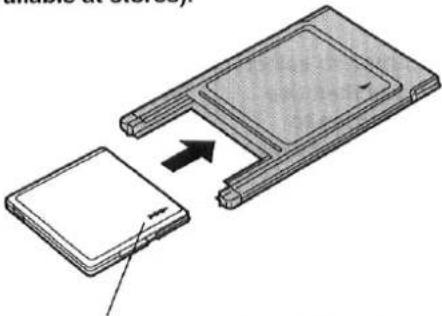 Insert the CF Card in the direction of the ▲ mark as shown in the figure. Insert the CF Card all the way into the PC Card Adaptor. Insert the CF Card in the direction of the ▲ mark as shown in the figure. Insert the CF Card all the way into the PC Card Adaptor. |
■Using Smart Media1Attach the Smart Media containing image data to a PC Card Adaptor (available at stores).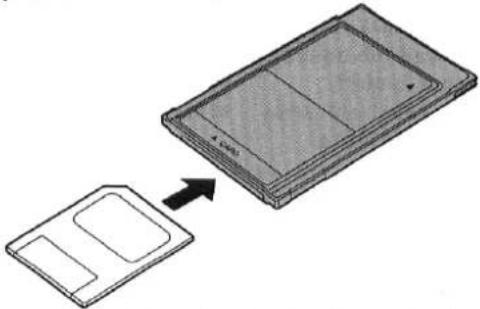 Follow the adaptor instructions for attaching the Smart Media. Follow the adaptor instructions for attaching the Smart Media. |
Entfernen der PC-Karte Drücken Sie die EJECT-Taste.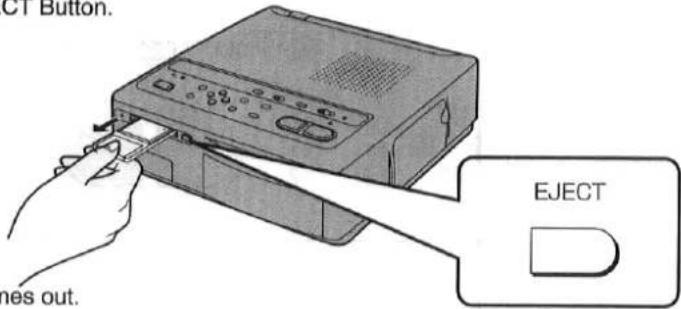
- Die Karte kommt heraus.
2
Einführen in den PC-Kartensteckplatz.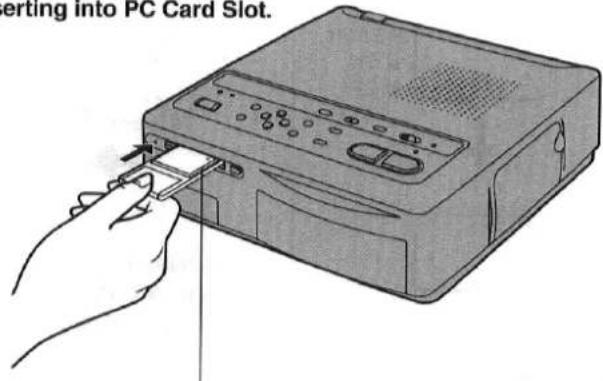
Führen Sie die Karte in Richtung der ▲-Markierung ein, wie in der Abbildung gezeigt. Führen Sie die Karte vollständig in den PC-Kartensteckplatz ein.
WARNUNG
Ziehen Sie die Karte niemals heraus oder führen Sie sie ein, während die ACCESS-Lampe an der Vorderseite des Videodruckers leuchtet. Dies könnte das Format der Karte beschädigen und sie unbrauchbar machen.
Bemerkungen usw.
- Achten Sie darauf, die Karte nicht in der falschen Richtung einzulegen.
- PC-Karten-Adapter (im Handel erhältlich) gibt es für CF-Karten und SmartMedia. Wählen Sie den passenden für Ihre Karte. ●Die SmartMedia wird aus dem Adapter entfernt, indem Sie die Taste am Adapter drücken.
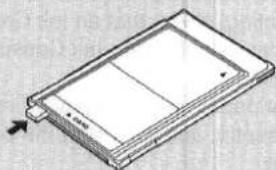
Entfernen Sie die SmartMedia nicht, während der Adapter noch im PC-Karten-Steckplatz steckt.
■Kompatibilität von Karten aus Digitalkameras mit diesem Digital-Video-Drucker
- Karten mit Bildern von den folgenden Digitalkameras (in beliebiger Reihenfolge) können mit diesem Digital-Video-Drucker gedruckt werden.
(Stand: Februar 1998)
NV-DCF1, KXL-600A (Panasonic)
- Bei Verwendung der oben genannten Digitalkamera können bessere Druckergebnisse erzielt werden, wenn direkt von der PC-Karte gedruckt wird, anstatt über den Videoeingang.
■Über die CF-Karte (separat erhältlich)
Panasonic bietet die VW-CF4E CF-Karte (4 MB Kapazität) (separat erhältlich) an.
Drucken von einer PC-Karte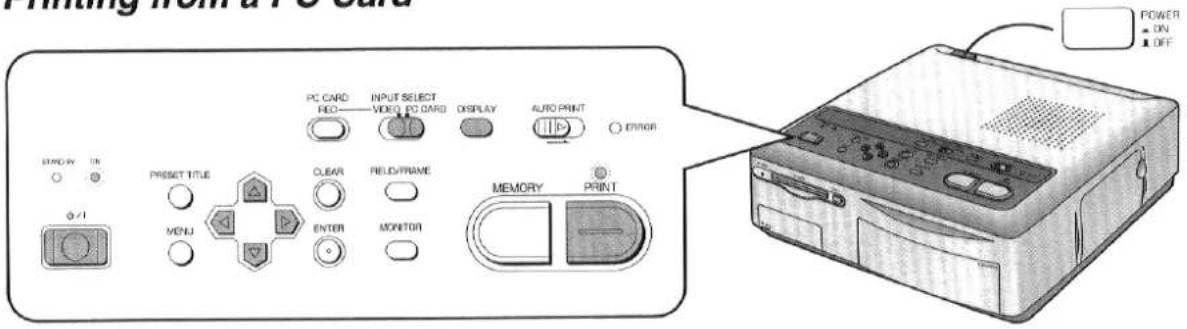
| Title | Procedure | |
| Printing from a PC Card(Printing images from a PC Card)The images stored in the PC Card are displayed as an Index (16 images per screen). This makes it easy to select the image to be printed.Insert the PC Card into the Digital Video Printer before starting the procedure.Before printing, check that an Ink Cassette has been inserted into the Ink Cassette Compartment.Check that paper has been placed in the Paper Cassette, and then start the printing procedure. | 1 POWERONOFF↓/I POWERONOFF↓/I Turn on the power by pressing first the POWER (Main Power) Button and then the /I (Power) Button.The ON Lamp lights up. Turn on the power by pressing first the POWER (Main Power) Button and then the /I (Power) Button.The ON Lamp lights up. | 2INPUT SELECTVIDEO PC CARD Set the INPUT SELECTSwitch to “PC CARD”.The ACCESS Lamp lights up, and the data in the card is read.The images stored in the carc are shown on an Index Display (16 images per screen). Set the INPUT SELECTSwitch to “PC CARD”.The ACCESS Lamp lights up, and the data in the card is read.The images stored in the carc are shown on an Index Display (16 images per screen). |
4PRINT Press the PRINT Button.The PRINT Lamp blinks when printing starts.When printing is finished, a Full Screen Display is shown on the screen. Press the PRINT Button.The PRINT Lamp blinks when printing starts.When printing is finished, a Full Screen Display is shown on the screen.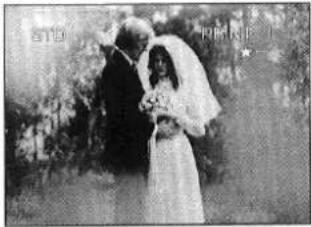 | 5DISPLAY Press the DISPLAY Button to return to the Index. Press the DISPLAY Button to return to the Index.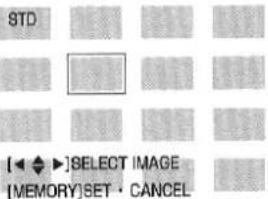 | |
| None of the buttons on the Video printer function while printing is in progress. | ||
Nach dem Drucken
- Entfernen Sie das bedruckte Papier.
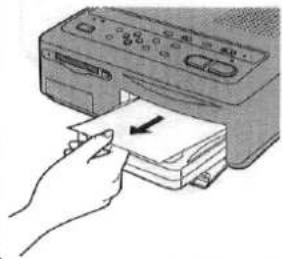
- Nehmen Sie die Papierkassette heraus.
- Schließen Sie die Abdeckung des Papierkassettenschachts.
- Schalten Sie den Drucker aus, indem Sie die Taste ⏻ / I (Power) drücken. ●Die STANDBY-Anzeige leuchtet auf.
3
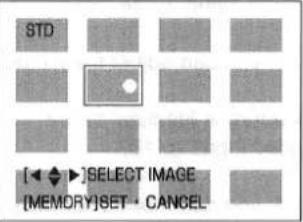
![STD [◀ ◆ ▶]BILD AUSWÄHLEN [SPEICHER]SETZEN · ABBRECHEN](/content/2026/05/794531/images/92ffcee27f33be41a69920e078b8ce7fd17e3d71870e7fd0ea16322ef77efddd.jpg)
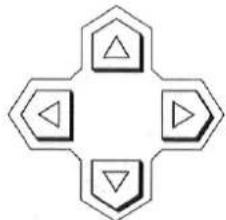
Verwenden Sie die Tasten ◀, ▶, ▲ und ▼, um das zu druckende Bild auszuwählen.
- Der grüne Rahmen bewegt sich jedes Mal, wenn eine dieser Tasten gedrückt wird.
- Wenn mehr als 16 Bilder aufgenommen wurden, können Sie zur nächsten Indexanzeige gelangen, indem Sie die Tasten ▼ und ▶ mehrmals drücken.
- Der Drucker druckt nicht, während die Bilder angezeigt werden.
■Umschalten des Fernsehbilds von der Indexanzeige auf die Vollbildanzeige und Drucken
- Drücken Sie die DISPLAY-Taste.

- Die DISPLAY-Taste schaltet zwischen Vollbildanzeige und Indexanzeige um.
- Verwenden Sie die Tasten ◀ und ▶, um das zu druckende Bild auszuwählen.


●Die PRINT-Anzeige leuchtet auf.
- Drücken Sie die PRINT-Taste.
- Der Druckvorgang startet.
Bemerkungen usw.
- Einige Bilder, die auf der PC-Karte gespeichert sind, können je nach Bild möglicherweise nur langsam auf dem Fernsehbildschirm ausgegeben werden.
Ein Bild benötigt etwa 5 bis 30 Sekunden, um auf dem Bildschirm angezeigt zu werden. (Eine Index
Anzeige benötigt etwa 5 bis 30 Sekunden × 16 Bilder.)
Wenn außerdem die Bildschirmumschalttaste verwendet wird, um zwischen der Vollbildanzeige und der Indexanzeige zu wechseln, werden für jedes Bild etwa 5 bis 30 Sekunden benötigt.
Die Menüfunktionen funktionieren nicht, während das Bild ausgegeben wird.
- Wenn das Bild nicht richtig angezeigt wird, entfernen Sie die Karte und setzen Sie sie wieder ein, und versuchen Sie dann erneut, das Bild anzuzeigen.
- Wenn der Druck beginnt, ändert sich die Anzeige "----" oben rechts auf dem Bildschirm in "☆--".
„☆——": Druck läuft
„☆☆-": Druck läuft
"☆☆☆": Der Druck ist abgeschlossen, wenn das ☆-Symbol blinkt und dann aufleuchtet.
(Das ☆-Symbol zeigt den Druckfortschritt an.)
- Ziehen Sie das Papier nicht heraus, während es sich während des Druckvorgangs bewegt.
- Entfernen Sie die Papierkassette nicht, während der Druck läuft.
- Nehmen Sie die Tintenkassette nicht heraus, während der Druck läuft. • Um Papierstaus zu vermeiden, lassen Sie nicht mehr als 10 Blatt Papier am Druckausgang liegen.
Mehrere Bilder gleichzeitig von einer PC-Karte drucken (Stapeldruck)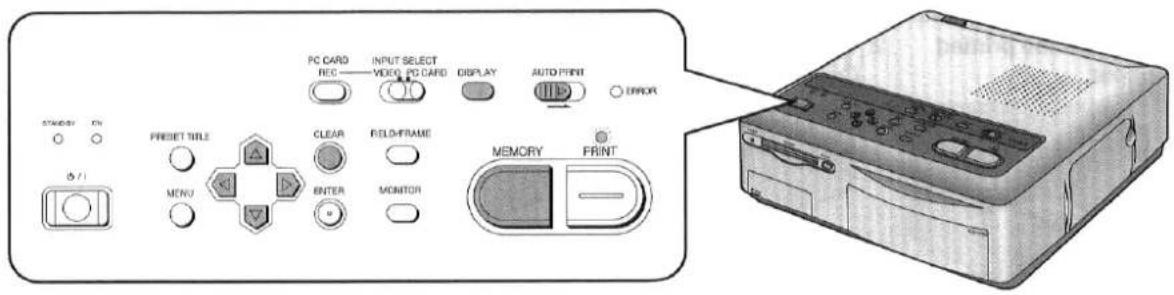
| Title | Procedure | |
| Printing Multiple Images at Once from a PC Card (Batch print)This feature allows multiple images selected from the PC Card to be automatically printed. | 1DISPLAYIf a Full Screen Display is shown, press the Display Button to display the Index. | 2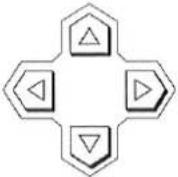 Use the ◀, ▶, ▲, and ▼ Buttons to select the image to be printed.When more than 16 images are recorded, you can go to the next Index Display by pressing the ▼ and ▶ Buttons several times.You can return to the previous Index Display by pressing the ▲ and ▶ Buttons several times. Use the ◀, ▶, ▲, and ▼ Buttons to select the image to be printed.When more than 16 images are recorded, you can go to the next Index Display by pressing the ▼ and ▶ Buttons several times.You can return to the previous Index Display by pressing the ▲ and ▶ Buttons several times.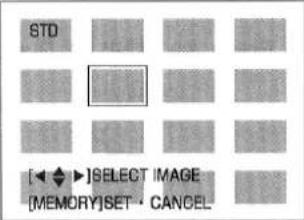 |
| Remarks,etc. | ||
3MEMORY Press the MEMORY Button.The image is marked with a○ mark.Pressing the MEMORY Button again will erase the○ mark.Repeat Steps 2 and 3 to select a number of images. Press the MEMORY Button.The image is marked with a○ mark.Pressing the MEMORY Button again will erase the○ mark.Repeat Steps 2 and 3 to select a number of images. | 4AUTO PRINT[IMAGE]Slide the AUTO PRINT Lever.The PRINT Lamp blinks when printing starts. | The images are printed in the order they were selected in Steps 2 and 3.When printing is finished, the ○ mark is erased, and the memory is reset.After storing the images in memory, setting the INPUT SELECT Switch to “VIDEO” or turning the power off will reset the memory.To Print All the Images Recorded in the CardSlide the AUTO PRINT Lever.(Steps 1, 2, and 3 are not necessary.)To Abort PrintingPress the CLEAR Button.Although the image being printed will not stop, the following printing images will be cancelled. |
 |  | |
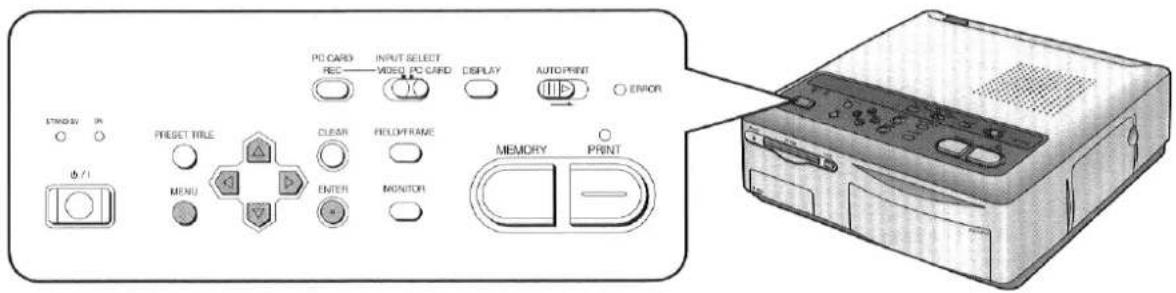
| Title | Procedure | |
| Using MENU ModeThe settings for the functions in the Video Printer are made at the MENU Screen. | 1MENUPress the MENU Button.The MENU Screen is displayed on the television screen. | 2orUse the ▲ and ▼ Buttons to select the desired menu.•The 🔒 mark indicates the selected item. |
| ■Menu Description | 1 PRINT: Use the ◀ and ▶ Buttons to set the number of prints (from 1 to 10) desired.2 FORMAT: If [SET] is selected, use the ▲ and ▼ Buttons to select each print function. (p.34 - 37)3 PICTURE: If [SET] is selected, you can adjust the picture quality.•The setting procedure is identical to the procedure for video input. (p.18)4 FRAME: If [SET] is selected, you can make your own trimming frame. (p.42)5 TITLE: If [SET] is selected, you can make your own titles. (p.44) | |
![CARD MENU PRINT : 1 FORMAT : [STD] SET PICTURE : [STD] SET FRAME : [OFF] SET TITLE : [OFF] SET OSD : [ON] OFF DELETE : [NO] YES [◀▶]CHANGE [ ◆ ]SELECT [ENTER]END](/content/2026/05/794531/images/b7264caa80d1e60ecacaa34bda5b8b7b381bc0e5f098beb220d25c7b0a3bebc6.jpg)
Full-Screen-Anzeige
![CARD MENU PRINT : 1 FORMAT : [STD] SET OSD : [ON] OFF DELETE : [NO] YES [◄►]CHANGE [ ◆ ]SELECT [ENTER]END](/content/2026/05/794531/images/0abfa26ce1cfdbe31e3b815bdd69f393d9d9839ebaf84f239479b24d0626ec5c.jpg)
Index-Anzeige
| Remarks,etc. | ||
| 3or ▶ | 4ENTERPress the ENTER Button to complete the setting.The MENU Screen disappears from the television screen. | The ▶▲▼ Buttons, ENTER Button, and ⏻/ I (Power) Button are the only buttons that function while the MENU Screen is displayed.The menu operations do not function when the picture image is being output. Operation can be performed once the complete picture appears.Once you set "PICTURE," [ADJ] is displayed on the MENU Screen. The previous settings are maintained in memory until you select [SET] to implement the new settings.Once you set "FRAME" or "TITLE," [ON] is displayed on the MENU Screen. The previous settings are maintained in memory until you select [SET] to implement the new settings.The stored settings are erased when the power cord is unplugged. |
| 6 OSD (On Screen Display):Use the ▶ and ▶ Buttons to select [ON] or [OFF] for the screen display.Error messages, menus, and the preset title menu are still displayed even when [OFF] is selected for OSD.(The setting for OSD is still stored even when the INPUT SELECT Switch is set to "VIDEO".)7 DELETE: Use the ▶ and ▶ Buttons to select [YES] or [NO] for allowing images in the PC Card to be erased (p.38). | During Index Display, only 1, 2, 6, and 7 are shown. (PICTURE, FRAME, and TITLE are not shown.) | |
Drucken einer Serie verschiedener Bilder auf demselben Ausdruck (ALBUM)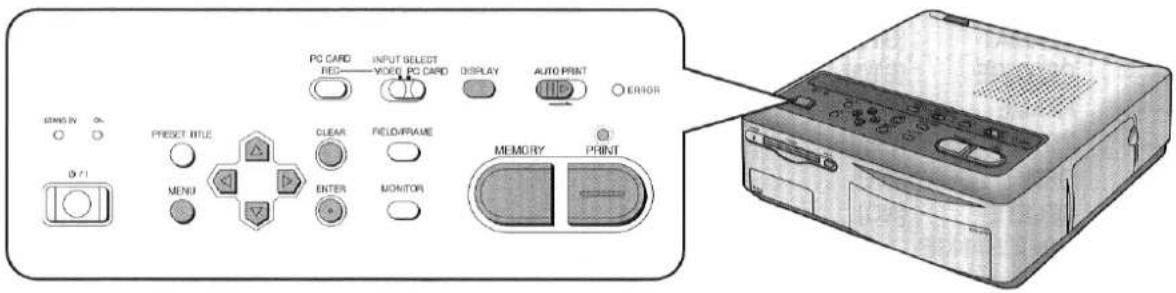
| Title | Procedure | |
Printing a Series of Different Pictures on the Same Print (ALBUM)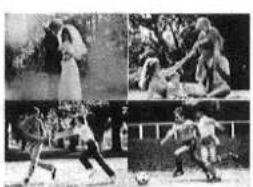 This printing function allows you to divide the screen into 4, 9, or 16 mini-frames containing different pictures, and then print them all together on the same print.This feature is useful for printing a variety of scenes from a vacation on a single print. This printing function allows you to divide the screen into 4, 9, or 16 mini-frames containing different pictures, and then print them all together on the same print.This feature is useful for printing a variety of scenes from a vacation on a single print. | 1MENUPress the MENU Button, and then use the▼Button to select “FORMAT”.CARD MENUPRINT:1FORMAT: [STD] SETPICTURE: [STD] SETFRAME: [OFF] SETTITLE: [OFF] SETOSD: [ON] OFFDELETE: [NO] YES[◄◆►]SELECT [ENTER]END | 2Use the ►Button to select [SET].CARD MENUPRINT:1FORMAT: STD [SET]PICTURE: [STD] SETFRAME: [OFF] SETTITLE: [OFF] SETOSD: [ON] OFFDELETE: [NO] YES[◄◆►]SELECT [ENTER]END |
5MEMORY Use the ◀ and ►Buttons to select the desired image to be printed, and then press the MEMORY Button.PRINT 1 Use the ◀ and ►Buttons to select the desired image to be printed, and then press the MEMORY Button.PRINT 1 IMAGE NO. 0001[◄►]SELECT IMAGE[MEMORY]OK IMAGE NO. 0001[◄►]SELECT IMAGE[MEMORY]OK | 6PRINT Repeat Step 5, and after storing the number of images which fill up the screen, press the PRINT Button.Printing starts. Repeat Step 5, and after storing the number of images which fill up the screen, press the PRINT Button.Printing starts.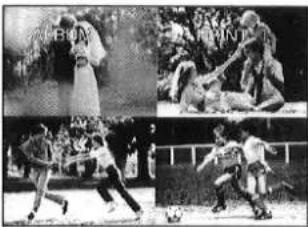 | |
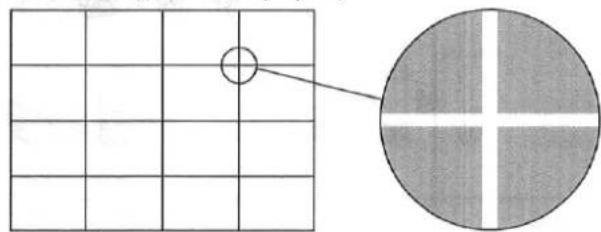
Drucken von 16 Mini-Bildern
16 Mini-Bilder werden durch weiße Linien getrennt gedruckt. (Die horizontalen Linien werden auf dem Fernsehbildschirm angezeigt, die vertikalen Linien jedoch nicht.)
3

Wählen Sie mit der ▼-Taste "ALBUM" aus und wählen Sie dann mit den ◀- und ▶-Tasten die gewünschte Anzahl von Mini-Bildern.
![FORMAT STD ALBUM : [4] 9 16 MULTI [◀ ◆ ▶]SELECT [ENTER]END](/content/2026/05/794531/images/65d0d22b7c1543a397e7587099df3338d813322fb2357882944f7ec7fceb183c.jpg)
4

Drücken Sie die ENTER-Taste.
![ALBUM BILD NR. 0001 [◀▶]BILD WÄHLEN [MEMORY]OK](/content/2026/05/794531/images/1f7fd31c98556eaadd6fa64a48aa3b4128f096bbd1824e54142d2c8ab3426b60.jpg)
■So wählen Sie das gewünschte Bild aus, das auf der Index-Anzeige angezeigt wird
- Drücken Sie nach Schritt 4 die DISPLAY-Taste.
- Wählen Sie mit den Tasten ◀, ▶, ▲, ▼ das gewünschte Bild zum Drucken aus und drücken Sie dann die MEMORY-Taste.


![ALBUM DRUCKEN 1 [◀ ◆ ▶] BILD WÄHLEN (MEMORY) SET • ABBRECHEN](/content/2026/05/794531/images/e7561a1b1fa57c2b54a4e5a9695d1f7995a5c8fe23e136bb8440a6c507a59da7.jpg)
●Das Bild wird mit einem ○-Zeichen markiert. - Dieser Vorgang kann nur für die Anzahl der Bilder auf dem Bildschirm durchgeführt werden.
- Drücken Sie die DISPLAY-Taste, um die Druckbilder zu bestätigen.
(Seien Sie vorsichtig beim Drücken der DISPLAY-Taste, da ein zweimaliges Drücken den Speicher löscht.)
- Drücken Sie die Taste PRINT.
Bemerkungen usw.
■Zum Löschen gespeicherter Bilder
Drücken Sie die Taste CLEAR, wenn die PRINT-Lampe leuchtet.
■Zum Abbrechen des Einstellvorgangs
Drücken Sie die Taste CLEAR mehrmals, um den Speicherbildschirm vollständig zu löschen. Wenn Sie die Taste MENU drücken, während die Indexanzeige angezeigt wird, gelangen Sie zurück zum KARTENMENÜ.
■Zum gleichzeitigen Drucken verschiedener ALBUM-Drucke von verschiedenen Bildschirmen
- Verwenden Sie die Tasten ◀, ▶, ▲ und ▼ sowie die Taste MEMORY, um die verschiedenen Bildtypen auszuwählen. 2. Schieben Sie den Hebel AUTO PRINT.
AUTO PRINT
- Beispiel: Wenn beim Drucken von 8 ausgewählten Bildern ALBUM:[4] ausgewählt ist, enthält der erste Druck das erste bis vierte ausgewählte Bild und der zweite Druck das fünfte bis achte ausgewählte Bild.
- Der ALBUM-Bildschirm zeigt weiße Bereiche, wo kein Bild gespeichert wurde. Es gibt keinen Bearbeitungsprozess, der es ermöglicht, Bilder zwischen leeren (weißen) Bildern zu drucken.
Drucken desselben Bildes wiederholt auf demselben Druck (MULTI FRAME)
| Title | Procedure | |
Printing the Same Picture Repeatedly on the Same Print (MULTI FRAME) This feature allows you to divide the paper into 4, 9, or 16 mini-frames, and then print the same stored image, reduced in size, in each mini-frame. This feature allows you to divide the paper into 4, 9, or 16 mini-frames, and then print the same stored image, reduced in size, in each mini-frame. | 1MENU→Press the MENU Button, and then use the▼Button to select “FORMAT”.CARD MENUPRINT:1FORMAT:[STD] SETPICTURE:[STD] SETFRAME:[OFF] SETTITLE:[OFF] SETOSD:[ON] OFFDELETE:[NO] YES[◄◄►]SELECT [ENTER]END | 2Use the ►Button to select [SET].CARD MENUPRINT:1FORMAT:STD [SET]PICTURE:[STD] SETFRAME:[OFF] SETTITLE:[OFF] SETOSD:[ON] OFFDELETE:[NO] YES[◄◄►]SELECT [ENTER]END |
5 Use the ◀ and ►Buttons to select the desired image to be printed. Use the ◀ and ►Buttons to select the desired image to be printed.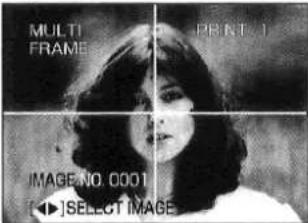 | 6PRINT Press the PRINT Button.●Printing starts. Press the PRINT Button.●Printing starts.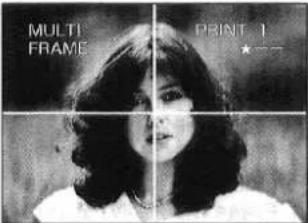 | |
| Remarks,etc. | ||
| 3▽→or▽>Use the▼Button to select “MULTI”, and then use the◀ and ►Buttons to select the desired number of mini-frames. | 4ENTERPress the ENTER Button. | ■To Print Various Types of Different MULTI FRAME Prints from the Same Screen at the Same Time1. After Step 4, press the DISPLAY Button so that the Index Display is shown.2. Use the◀, ►, ▲, and▼Buttons and MEMORY Button to select the various different types of images.3. Slide the AUTO PRINT Lever.AUTO PRINT |
| FORMATSTDALBUM○* MULTI : [4] 9 16[◀ ◆ ►]SELECT [ENTER]END | ||
| ■To Select the Desired Image Displayed on the Index Display1. After Step 4, press the DISPLAY Button.2. Use the◀, ►, ▲,▼Buttons to select the desired image to be printed, and then press the MEMORY Button.●The image is marked with a ○ mark.●Pressing the MEMORY Button again will erase the ○ mark.3. Press the DISPLAY Button to confirm the print images.4. Press the PRINT Button. | ||
Löschen der Bilder auf der PC-Karte / Aufzeichnen des Videoeingangsbildes auf der PC-Karte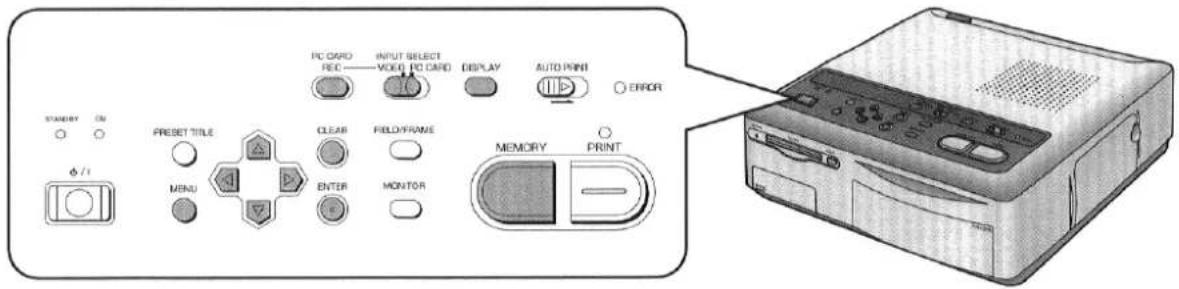
| Title | Procedure | |
| Erasing the Images on the PC Card(Erasing card images)The images stored on the PC Card can be erased one at a time. | 1MENUPress the MENU Button, and then use the ▼ Button to select “DELETE”. | 2Use the ▶ Button to select [YES]. |
| CARD MENUPRINT: 1FORMAT: [STD] SETPICTURE: [STD] SETFRAME: [OFF] SETTITLE: [OFF] SETOSD: [ON] OFFDELETE: [NO] YES[◀ ◆ ►]SELECT [ENTER]END | CARD MENUPRINT: 1FORMAT: [STD] SETPICTURE: [STD] SETFRAME: [OFF] SETTITLE: [OFF] SETOSD: [ON] OFFDELETE: NO [YES][◀ ◆ ►]SELECT [ENTER]END | |
| Recording the Video Input Image on the PC Card(Recording images on the PC Card)This function allows images from the VIDEO IN Socket or the S-VIDEO IN Socket to be recorded on the PC Card as still images.The images are recorded as still images.Approximately 40 images can be recorded on a 4-MB capacity PC Card. However, this may vary depending on the stored image. | 1Connect the necessary devices, and then prepare the desired image to be recorded on the PC Card.Connections (p.9) | 2INPUT SELECTVIDEO PC CARDSet the INPUT SELECTSwitch to “VIDEO”. |
■Zum Auswählen des gewünschten Bildes, das gelöscht werden soll, vom Indexanzeigebildschirm
- Drücken Sie die Taste DISPLAY, sodass die Indexanzeige angezeigt wird.

- Wählen Sie im MENÜ-Bildschirm "LÖSCHEN" und dann [JA].
![CARD MENU PRINT : 1 FORMAT : [STD] SET OSD : [ON] OFF DELETE : NO [YES] [◄►]CHANGE [ ◆ ]SELECT [ENTER]END](/content/2026/05/794531/images/9c4cb6df7ff98cf3e1344abc88a1865fda935791df6d0fed55e2b53ff86a49ce.jpg)
- Verwenden Sie die Tasten ◀, ▶, ▲ und ▼, um das zu löschende Bild auszuwählen, und drücken Sie dann die EINGABE-Taste.
![DIESES BILD LÖSCHEN [◀ ◆ ▶]BILD WÄHLEN [ENTER]LÖSCHEN [CLEAR]ABBRECHEN](/content/2026/05/794531/images/2df3164ed90e504bb467d0838d5fa9f7afbf1214e9b8696a7e185736e7548005.jpg)
| Remarks,etc. | ||
| 3orUse the ◀ and ► Buttons to select the desired image to be erased.[◄]SELECT IMAGE[ENTER]DELETE[CLEAR]CANCEL | 4ENTERPress the ENTER Button.When the image is erased, the screen returns to the CARD MENU. To continue erasing images, repeat Steps 2 and 3.NOW DELETING[◄]SELECT IMAGE[ENTER]DELETE[CLEAR]CANCEL | ·Once an image has been erased, it cannot be restored. Check carefully before erasing any images.·Never remove the PC Card or press the ⏻/I (Power) Button to turn off the Video Printer while the image is being erased (when the ACCESS Lamp is lit up). This could damage the format of the card and make it unusable.·Images can be erased either from the Full Screen Display and Index Display. |
| 3MEMORYStart playback of the video equipment, and then while viewing the television screen, press the MEMORY Button at the scene to be recorded on the card.·The scene is stored in the Video Printer memory. | 4PC CARD RECPress the PC CARD REC Button.The scene is stored in the PC Card from the Video Printer memory.The ACCESS Lamp lights up while the image is being recorded.STD PRINT 1FRAME NOW RECORDING | ·Never remove the PC Card or turn off the Video Printer while the image is being recorded (when the ACCESS Lamp is lit up). This could damage the format of the card and make it unusable.·Images cannot be recorded on the PC Card with MULTI FRAME Mode.·Data stored in the PC Card undergoes image compression. In some cases, this can deteriorate the image when it is stored on the card.·Images are stored in the PC Card without the setting adjustments made to the picture quality.·Blurred images are stored without any adjustments.·Titles are not stored.·Wide images cannot be stored in wide format in the PC Card. |
Drucken mit Titel oder zugeschnittenem Rahmen (voreingestellter Titel)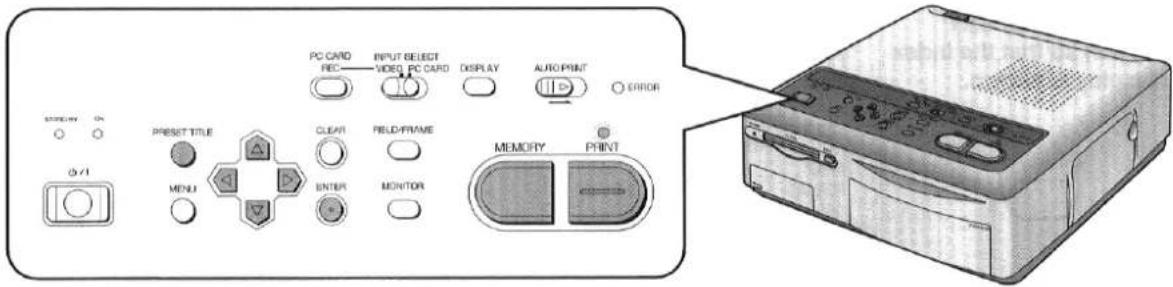
Titel
Drucken mit Titel oder zugeschnittenem Rahmen (voreingestellter Titel)
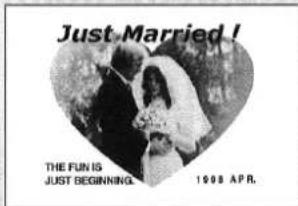
Mit dieser Funktion können Sie dem Bild voreingestellte Titel oder zugeschnittene Rahmen hinzufügen.
- Der Videodrucker enthält 14 Beispiele für voreingestellte Titel und 8 Illustrationen. (Siehe nächste Seite.)
- Einige der Begrüßungsbeispiele sind farbig.
| Colours | Example Number |
| Black | 1, 3, 13 |
| Red | 6,7,8,9,12,14 |
| Cyan | 10 |
| Pink | 2, 4 |
| Green | 5, 11 |
1
VOREINGESTELLTER TITEL

Drücken Sie die Taste VOREINGESTELLTER TITEL.
- Wenn der Index-Anzeigebildschirm bei Verwendung der PC-Karte angezeigt wird, drücken Sie die Taste VOREINGESTELLTER TITEL, nachdem Sie zur Vollbildanzeige gewechselt haben.
TITEL
[DANKE] WIE GEHT'S NEU BABY ERINNERUNGEN MÜTTER VÄTER PATEN GLÜCKWUNSCH GLÜCKWUNSCH ILLUSTRATION ILLUSTRATION [ZURÜCKSETZEN] [VOREINGESTELLT]ABBRECHEN [◀ △ ▶] AUSWÄHLEN
VERMISSE DICH
HOCHZEIT NEUJAHR GEBURTSTAG FEIERTAGE URLAUB YMAC AMAS STRASSE GRUSS
(fünf)
2, geprüft und angenommen "Über
[ENTER]OK
2
ENTER

Verwenden Sie die Tasten ◀, ▶, ▲ und ▼, um eine Auswahl zu treffen, und drücken Sie dann die ENTER-Taste.
TITEL
[DANKE]
WIE GEHT ES
NEUES BABY
ERINNERUNGEN
ERINNERUNGEN MÜTTER
MÜTTER VÄTER
VÄTER GLÜCKWUNSCH
[PRESET] ABBRECHEN
[◀ ◆ ▶] AUSWÄHLEN
[ENTER] OK
5
ENTER

Verwenden Sie die Tasten ▲ und ▼, um den "MONAT" auszuwählen, und drücken Sie dann die ENTER-Taste.
- Sie können mit den Tasten ◀ und ▶ zum gewünschten Monat wechseln.
MONAT: [JAN]
AUS
[PRESET] ABBRECHEN
[◄►] ÄNDERN [▲] AUSWÄHLEN
[ENTER] OK
6
Drucken Sie den Titel und das Bild.
1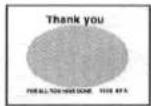
2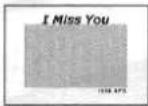
3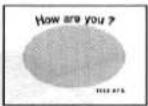
4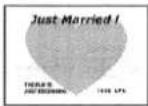
5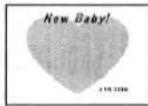
6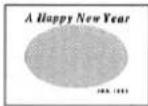
7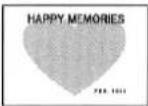
8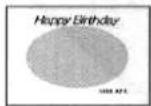
9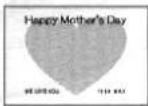
10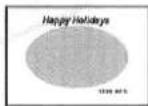
11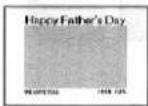
12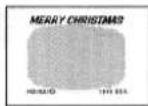
13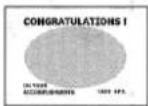
14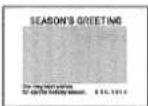

ABBILDUNG
Bemerkungen usw.
3
EINGABE
Verwenden Sie die Tasten ▲ und ▼, um den "TEXT" auszuwählen, und drücken Sie dann die EINGABE-Taste.
- Text kann nicht für die Beispiele ②, ③, ⑤, ⑥, ⑦, ⑧ und ⑩ ausgewählt werden.
![TEXT: [FOR ALL YOU ...] OFF [PRESET]CANCEL [ ◆ ]SELECT [ENTER]OK](/content/2026/05/794531/images/4f9913eea3ec1e73c1ba38e8acad0309f95372b4f15e69f9702067465ca79537.jpg)
4
EINGABE
Verwenden Sie die Tasten ▲ und ▼, um das "JAHR" auszuwählen, und drücken Sie dann die EINGABE-Taste.
- Sie können mit den Tasten ◀ und ► das gewünschte Jahr ändern.
![JAHR: [1998] OFF [PRESET]CANCEL [◀]ÄNDERN [◀]AUSWÄHLEN [ENTER]OK](/content/2026/05/794531/images/24c980f457a2292d0dddcc6e4da54631745a593a516b4adb3fc3225ff18d4ebd.jpg)
![ABBILDUNG 1 [PRESET]CANCEL [◀]ÄNDERN [ENTER]OK](/content/2026/05/794531/images/f8ce7569e90a1a976990af6f92ad39f3cba349afefd9e11153b6a1e81ab9d695.jpg)
15 Die Auswahl von "ABBILDUNG" ermöglicht es Ihnen, aus den acht Abbildungen 1 bis 8 zu wählen.
Verwenden Sie die Tasten ◀ und ▶, um eine der Abbildungen 1 bis 8 auszuwählen, und drücken Sie dann die EINGABE-Taste.
- Obwohl ein Teil der Titelanzeige auf dem Fernsehbildschirm nicht angezeigt wird, hat dies keinen Einfluss auf den Druck. ●Das Jahr kann von 1997 bis 2028 eingestellt werden.
- Alle im Speicher gespeicherten Daten werden gelöscht, wenn der Videodrucker ausgeschaltet wird.
- Um einen Ausschnittrahmen oder Titel auf dem Fernsehbildschirm auszuschalten, drücken Sie die PRESET-TITLE-Taste.
- Um entweder den Rahmenschnitt oder nur den Titel auszuschalten, setzen Sie FRAME oder TITLE im MENU-Modus auf [OFF].
(Wenn Sie diese Einstellung wieder auf [ON] setzen, werden der Rahmenschnitt oder der Titel wieder angezeigt.)
■So brechen Sie den Einstellvorgang ab
Drücken Sie die PRESET TITLE-Taste.
- Wenn eine 15-Illustration von einer PC-Karte in ein Bild eingefügt wird, werden die rechte und linke Seite der Illustration leicht verkürzt.
1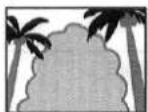
2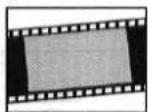
3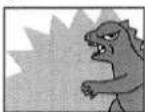
4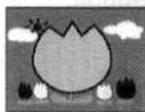
5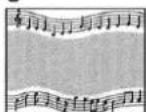
6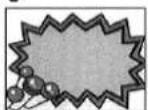
7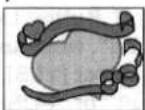
8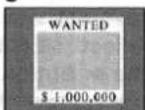
Drucken mit einem Rahmenschnitt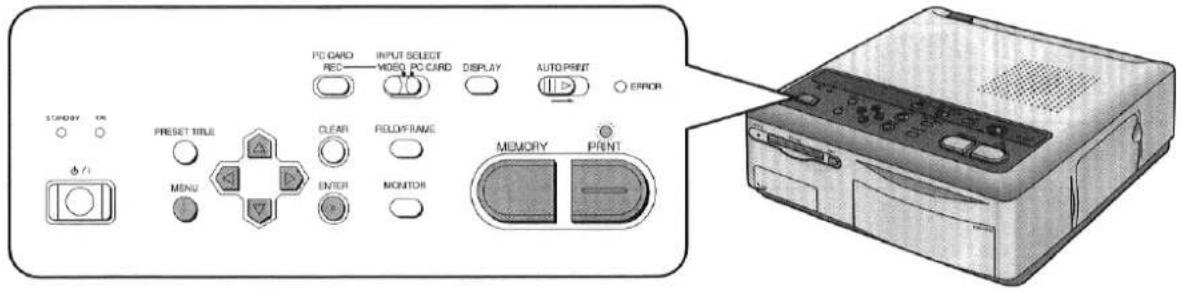
Titel
Drucken mit einem zugeschnittenen Rahmen
Ein Zuschnittrahmen kann auf eine von zwei möglichen Arten erstellt werden.
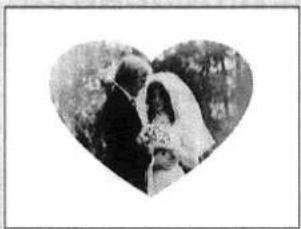
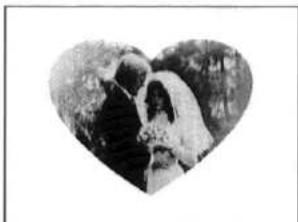
① Auswahl aus einem der voreingestellten Zuschnittrahmen: QUADRAT, OVAL, FROST oder HERZ (Die Größe des QUADRAT-Zuschnittrahmens kann angepasst werden.) - Zuschnitt kann verwendet werden, um schwarze Balken oben, unten oder um das Bild herum abzudecken (z. B. bei Filmszenen). ② Aufnehmen eines selbst erstellten Zuschnittrahmens mit Ihrer Videokamera
Vorgehensweise
1
Drücken Sie die MENU-Taste.
Beispiel: Videoeingang
| MENU | ||
| 1 | ||
| FORMAT | [STD] | SET |
| PICTURE | [STD] | SET |
| FRAME | [OFF] | SET |
| TITLE | [OFF] | SET |
| OSD | [ON] | OFF |
| CINEMA | [OFF] | ON |
| [◄►]CHANGE | ||
| [◆]SELECT | [ENTER]END | |
2
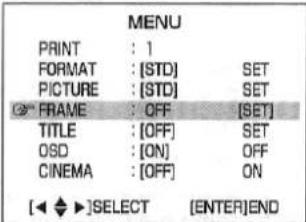
Wählen Sie mit der ▼-Taste "RAHMEN".
| MENU | ||
| : 1 | ||
| FORMAT | :[STD] | SET |
| PICTURE | :[STD] | SET |
| FRAME | :[OFF] | SET |
| TITLE | :[OFF] | SET |
| OSD | :[ON] | OFF |
| CINEMA | :[OFF] | ON |
| [◀ ◆ ▶]SELECT [ENTER]END | ||
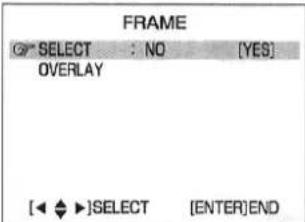
① Wenn "AUSWÄHLEN" gewählt ist
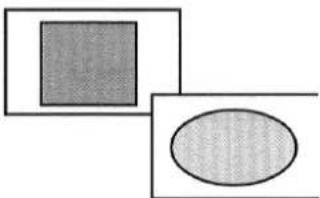
Wählen Sie einen der vier Zuschnittrahmen: QUADRAT, OVAL, FROST und HERZ. Wählen Sie dann [JA].
- Die Größe des QUADRAT-Zuschnitts kann mit den Tasten ◀, ▶, ▲ und ▼ angepasst werden.
5
Wenn in Schritt 4 "ÜBERLAGERN" ausgewählt wurde, drücken Sie die ENTER-Taste.
6
Um die Innen-Außen-Umkehrung durchzuführen, wählen Sie mit der ▼-Taste "NEGA-POSI". Wählen Sie dann mit der ▶-Taste [JA] und anschließend "NEGA" oder "POSI".
| FRAME | ||
| SELECT | ||
| OVERLAY | ||
| [IMAGE] NEGA · POSI : NO [YES] | ||
| [◀ ◆ ▶]SELECT [ENTER]END |
1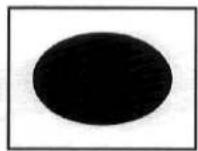
2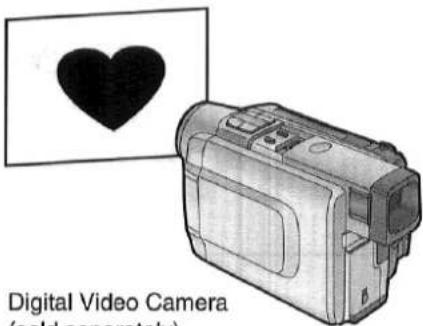
Digitalvideokamera (separat erhältlich)
| Remarks,etc. | ||
| 3 Use the ▶ Button to select [SET]. | 4 Use the ▼ Button to select one of the two methods, and then use the ▶ Button to select [YES]. | ●When a trimming frame is stored in memory, [ON] appears on the MENU Screen. ●A trimmed frame stored in memory is lost when the Digital Video Printer is turned off. ●When a new trimming frame is stored in memory, the previous trimming frame is erased. ●When a preset title is used, the previous trimming frame is lost. ●When capturing the title or trimming frame with a Video Camera, shine the lighting at a 45-degree angle to prevent reflection. ●To temporarily turn off a trimming frame stored in memory displayed on the screen, set "FRAME" in MENU Mode to [OFF]. (When the setting is switched back to [ON], the stored trimming frame reappears on the screen.) ●When creating your own frame, use a black marker on white paper. |
 |  | |
| 2 When "OVERLAY" is chosen A trimming frame that you created is captured with your Video Camera, and the trimmed frame is adjusted for optimum appearance. ●The value can be adjusted over a range from -9 to +9. Positive values make the trimmed frame lighter, and negative values make the trimming frame darker. | 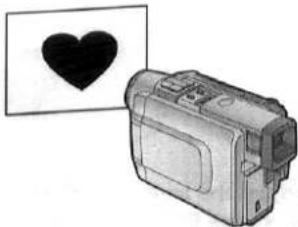 | |
| 7 Press the ENTER Button. (If the menu is displayed, hold down this button until the menu disappears.) | 8 Print the trimmed frame. | |
 | ||
Drucken mit einem Titel (Einfügen eigener Titel)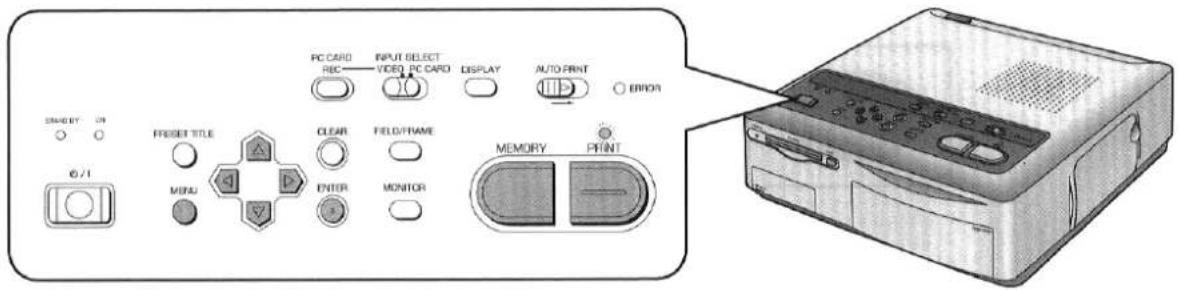
| Title | Procedure | |
Printing with a Title(Inserting your own titles)With this function, you can use your Video Camera to capture titles that you created, allowing you to add an original title to the image.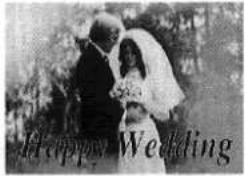 | 1Press the MENU Button.Example:Video InputMENUPRINT : 1FORMAT : [STD] SETPICTURE : [STD] SETFRAME : [OFF] SETTITLE : [OFF] SETOSD : [ON] OFFCINEMA : [OFF] ON[◄►]CHANGE[◆]SELECT [ENTER]END | 2Use the▼Button to select “TITLE”. |
5Happy Wedding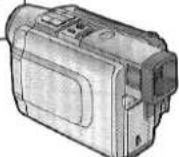 Adjust the level, and then press the ENTER Button.●The value can be adjusted over a range from -9 to +9. Positive values make the title darker, and negative values make the title lighter.6Print the title with the image.LEVEL : -6[◆]ADJUST [ENTER]OK Adjust the level, and then press the ENTER Button.●The value can be adjusted over a range from -9 to +9. Positive values make the title darker, and negative values make the title lighter.6Print the title with the image.LEVEL : -6[◆]ADJUST [ENTER]OK | ■Changing the Colour of the Title1. Select “COLOUR CHANGE WHOLE”, and then select [YES].TITLEOVERLAY COLOUR CANGEWHOLE : NO [YES]PART[◄◆►]SELECT [ENTER]END2. Use the▲and▼Buttons t select the colour, and then press the ENTER Button.CYANRED MAGENTA YELLOW WHITE BLACK BLUE GREEN[◆]SELECT [ENTER]OK | |
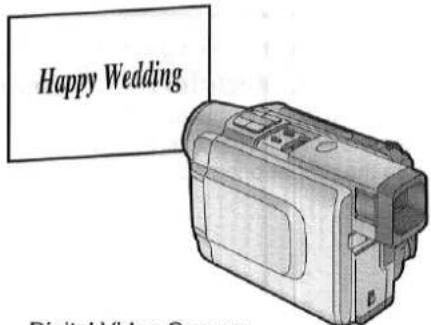
Digitalvideokamera (separat erhältlich)
![Hinweise usw. 3 Verwenden Sie die ▶-Taste, um [SET] auszuwählen. MENÜ DRUCK: 1 FORMAT: [STD] SET BILD: [STD] SET RAHMEN: [AUS] SET TITEL: AUS [SET] OSD: [EIN] AUS CINEMA: [AUS] EIN [◀ ◆ ▶]AUSWÄHLEN [ENTER]ENDE 4 Verwenden Sie die ◀- und ▶-Tasten, um [JA] auszuwählen. TITEL ÜBERLAGERUNG: NEIN [JA] FA…](/content/2026/05/794531/images/b7b7069736493365655ff716d8d8b0ffb8fe9ce1e918fc0cb176b41fd56bf7a8.jpg)
■Beim Anschluss an einen Windows-Computer (PC/AT):
Zum Anschluss des Videodruckers ist ein Druckerkabel (im Computerfachhandel erhältlich) erforderlich. Besorgen Sie sich das passende Druckerkabel für Ihren Computer.
■Beim Anschluss an einen Macintosh-Computer:
Zum Anschluss des Videodruckers ist ein Druckerkabel für Macintosh-Computer (im Computerfachhandel erhältlich) erforderlich.
■Vorsichtsmaßnahmen bei der Verwendung des Digitalvideodruckers
- Wenn der Videodrucker Rauch abgibt, ungewöhnlich heiß wird oder einen ungewöhnlichen Geruch verströmt, schalten Sie den Drucker aus und ziehen Sie den Netzstecker.
- Wenn Wasser oder andere Fremdkörper in den Drucker gelangen, schalten Sie den Drucker aus und ziehen Sie den Netzstecker.
- Wenn die Oberfläche des Druckers beschädigt oder gerissen ist, schalten Sie den Drucker aus und ziehen Sie den Netzstecker.
- Wenn das Netzkabel beschädigt ist (z. B. freiliegende Adern), schalten Sie den Drucker aus und ziehen Sie den Netzstecker.
- Verwenden Sie den Videodrucker nicht in einer Weise, die die Steckdose oder die Verkabelung überlastet. Verwenden Sie als Stromversorgung für den Videodrucker ausschließlich Wechselstrom 220 - 240 V.
- Stellen Sie sicher, dass der Stecker beim Gebrauch des Videodruckers richtig eingesteckt ist.
- Beschädigen Sie nicht das Netzkabel oder den Stecker.
- Entfernen Sie Staub oder andere Fremdkörper, die am Netzstecker haften.
- Stellen Sie den Videodrucker nicht auf instabile, geneigte oder andere unsichere Oberflächen.
- Stellen Sie keine Blumenvasen, Behälter mit Wasser oder kleine Metallgegenstände auf den Videodrucker.
- Lassen Sie keine Metall- oder brennbaren Gegenstände in den Videodrucker fallen oder stecken Sie diese hinein.
- Spritzen Sie den Videodrucker nicht mit Wasser ab und machen Sie ihn nicht nass.
- Zerlegen oder modifizieren Sie den Videodrucker nicht.
- Berühren Sie während eines Gewitters nicht die Metallteile des Videodruckers oder den Stecker.
- Ziehen Sie den Stecker nicht mit nassen Händen heraus.
- Stellen Sie den Videodrucker nicht an Orten mit Rauch, Dampf, hoher Luftfeuchtigkeit, großen Staubmengen oder starken Vibrationen auf.
- Installieren Sie den Videodrucker nicht so, dass das Netzkabel gewaltsam gebogen wird.
- Decken Sie die Lüftungsschlitze des Videodruckers nicht ab.
- Legen Sie keine schweren Gegenstände auf den Videodrucker.
- Bewegen Sie den Videodrucker nicht, solange das Netzkabel eingesteckt ist.
- Ziehen Sie nicht am Netzkabel, um es abzustecken.
- Ziehen Sie den Stecker aus der Steckdose als Sicherheitsmaßnahme, wenn Sie den Videodrucker reinigen oder wenn der Videodrucker längere Zeit nicht verwendet wird.
Zeitraum.
Der Drucker verbraucht etwa 3 W Strom, auch wenn er ausgeschaltet ist (STANDBY).
- Berühren Sie keine internen Komponenten außer den angegebenen.
- Entfernen Sie die Papierkassette nicht, während der Druckvorgang läuft.
Während des Druckens bewegt sich das Papier dreimal vor und zurück. Sie können sich schneiden, wenn Sie das Papier während dieses Vorgangs berühren.
■Hinweise zur Handhabung der Tintenkassetten, des Tintenkassettenfilms, der Papierkassette und des Papiers
Um eine hochwertige, präzise Druckqualität zu gewährleisten, beachten Sie stets die folgenden Punkte.
Die Nichtbeachtung dieser Punkte kann nicht nur zu schlechter Druckqualität führen, sondern auch zu Papierstaus oder Schäden am Videodrucker.
- Verwenden Sie nur das angegebene Papier.
Verwenden Sie Video-Drucksets, die das MP-Zeichen tragen oder die von Panasonic für die Verwendung mit diesem Videodrucker spezifiziert wurden.
- Verwenden Sie die Tintenkassette mit dem Papier, das in derselben Box geliefert wird.
Eine Tintenkassette ist so ausgelegt, dass sie genügend Tintenfilm für die Anzahl der Blätter bietet, die in diesem Video-Druckset enthalten sind.
- Entfernen Sie das Etikett nicht von der Tintenkassette. Dies könnte zu Fehlbedienungen führen.
● Ziehen Sie vor dem Einlegen einer Tintenkassette etwaigen Durchhang des Farbbands (das breite Band in der Tintenkassette) straff. Der Durchhang kann beseitigt werden, indem Sie die Spule in Pfeilrichtung drehen.
● Stellen Sie sicher, dass die Tintenkassette richtig ausgerichtet ist, und schieben Sie sie vollständig ein.
- Fassen Sie das Farbband nicht an und ziehen Sie nicht daran.
- Vermeiden Sie Fingerabdrücke und Staub auf dem Farbband oder dem Papier.
- Halten Sie das Farbband und das Papier trocken.
- Berühren Sie die Tintenkassette oder die Papierkassette nicht während des Druckvorgangs. Die Tintenkassette kann während des Druckens nicht entnommen werden.
Ein gewaltsames Herausziehen der Tintenkassette, das Einlegen von zu viel Papier oder starke Druck- oder Vibrationseinwirkungen auf die Papierkassette können zu einem Papierstau oder anderen Störungen führen. (Entnehmen Sie die Papierkassette nicht und legen Sie während des Druckens kein Papier nach.)
- Versuchen Sie nicht, eine leere Tintenkassette oder bereits bedrucktes Papier wiederzuverwenden.
Dies könnte zu Fehlfunktionen oder einem Ausfall des Videodruckers führen.
- Fächern Sie das Papier gründlich auf, bevor Sie es in die Papierkassette einlegen. Anhaftende Blätter können einen Papierstau verursachen.
- Falten oder knicken Sie das Papier nicht. Wenn eine Postkarte gewölbt ist, entfernen Sie die Wölbung, bevor Sie sie im Drucker verwenden.
- Legen Sie das Papier nicht verkehrt herum ein. Die glänzende, unbeschriftete Seite des Papiers ist die Druckseite. Das Papier sollte mit dieser Seite nach oben eingelegt werden.
- Beschriften Sie das Papier nicht, bevor Sie darauf drucken. Dies könnte zu Fehlbedienungen führen.
- Legen Sie nicht zu viel Papier in die Papierkassette. Es sollten nicht mehr als 25 Blatt Standardpapier eingelegt werden.
- Lassen Sie das Video Print Set vor der Verwendung Zeit, sich an die Umgebungstemperatur anzupassen. Wenn das Video Print Set bei niedriger Temperatur gelagert wurde, kann sich beim Hineinbringen in einen wärmeren Raum Kondenswasser auf dem Papier bilden. Öffnen Sie die Verpackung des Video Print Sets erst, wenn es Raumtemperatur erreicht hat.
- Legen Sie kein bedrucktes Papier über die Papierkassette (in den Druckauswurf). Lassen Sie nicht zu, dass sich mehr als 10 Blatt über der Papierkassette ansammeln.
- Legen Sie keine Fremdkörper über die Papierkassette (in den Druckauswurf).
■Hinweise zur Lagerung des Video Print Sets
- Lagern Sie die Tintenkassetten oder das Papier nicht bei hohen Temperaturen oder hoher Luftfeuchtigkeit. Dies könnte zu einer Verschlechterung der Druckqualität führen.
- Lagern Sie das Papier nicht aufrecht. Bewahren Sie das Papier flach in seiner ursprünglichen silbernen Tüte auf.
- Lagern Sie Tintenkassetten oder Papier nicht an einem Ort, der direktem Sonnenlicht ausgesetzt ist. Dies führt zu einer Verschlechterung der Druckqualität. Die Tintenkassette und das Papier könnten sogar unbrauchbar werden.
- Entfernen Sie nach der Verwendung des Videodruckers die Tintenkassette und das Papier und bewahren Sie sie wieder auf. Wenn die Tintenkassette im Videodrucker verbleibt, entsteht ein Durchhang im Tintenfilm und es sammelt sich Staub an, was hochwertiges Drucken unmöglich machen kann.
Um übrig gebliebenes Papier so lange wie möglich in optimalem Zustand zu halten, entfernen Sie das Papier aus dem Videodrucker und legen Sie es zur Aufbewahrung in die ursprüngliche silberne Tüte.
■Hinweise zur Handhabung fertiger Ausdrucke
Um fertige Ausdrucke im besten Zustand zu erhalten, beachten Sie stets die folgenden Punkte. Die Nichtbeachtung dieser Punkte könnte zu einer Verschlechterung der Druckqualität oder zu einer leichten Verletzung führen.
- Kleben Sie kein Zellophanband auf die bedruckte Oberfläche.
- Berühren Sie die bedruckte Oberfläche nicht mit den Fingern.
- Lassen Sie die bedruckte Oberfläche nicht mit anderen Gegenständen in Kontakt kommen. Lassen Sie insbesondere die folgenden Materialien nicht mit der bedruckten Oberfläche in Kontakt kommen:
- Schreibtischunterlagen oder Visitenkartenetuis aus Vinyl
- Radiergummis aus Kunststoff
- Verschütten Sie keine flüchtigen Lösungsmittel wie Alkohol auf der bedruckten Oberfläche. Dies könnte zu Verfärbungen oder Ausbleichen führen.
- Lassen Sie bedruckte Oberflächen nicht in Kontakt miteinander. Dies könnte zu Farbübertragung zwischen den beiden Bildern führen. Farbübertragung kann auch auftreten, wenn eine bedruckte Oberfläche längere Zeit unter Druck mit einer anderen Papiersorte in Kontakt bleibt.
- Lagern Sie Drucke nicht unter Bedingungen hoher Temperatur oder hoher Luftfeuchtigkeit. Wenn Drucke solchen Bedingungen längere Zeit ausgesetzt sind, kann dies zu einer Verschlechterung der Druckqualität führen. Setzen Sie Drucke nicht direktem Sonnenlicht aus.
- Wenn Drucke in einem Album aufbewahrt werden sollen, wählen Sie ein Album mit Nylonhüllen. Andere Materialien könnten Farbübertragung oder Verfärbungen verursachen. (Polypropylen und Zellophan sind ebenfalls akzeptable Materialien.)
■ Hinweise zur Handhabung des Digital-Videodruckers
- Sprühen Sie keine Insektizide oder andere flüchtige Materialien auf den Drucker. Wenn solche Materialien mit dem Drucker in Kontakt kommen, können sie die Oberfläche des Druckers beschädigen oder zum Abblättern der Oberfläche führen. Lassen Sie außerdem keine Gummi- oder Vinylmaterialien längere Zeit in Kontakt mit dem Drucker.
- Wenn der Drucker längere Zeit nicht verwendet wird:
Um Strom zu sparen, schalten Sie den Drucker aus und ziehen Sie den Netzstecker.
(Der Drucker verbraucht etwa 3 W Strom, auch wenn er ausgeschaltet ist [STANDBY].) Lassen Sie den Drucker längere Zeit im Leerlauf, kann dies seine Funktionsfähigkeit beeinträchtigen. Schalten Sie den Drucker ein und betreiben Sie ihn mindestens einmal alle sechs Monate.
- Beim Transport des Druckers mit dem Auto oder LKW: Verpacken Sie den Drucker sorgfältig in seinem Originalverpackungsmaterial. Wenn Sie das Verpackungsmaterial nicht aufbewahrt haben, wickeln Sie den Drucker vorsichtig in eine Decke oder anderes Polstermaterial, um ihn zu schützen. (Entfernen Sie vor dem Transport des Videodruckers unbedingt die Papierkassette und die Tintenkassette und schließen Sie dann die Abdeckung.)
■ Wartungshinweise
- Verwenden Sie kein Benzol, Farbverdünner oder andere Lösungsmittel zur Reinigung des Druckers. Der größte Teil der Druckeroberfläche besteht aus Kunststoff. Verwenden Sie keine Lösungsmittel wie Benzol und Farbverdünner zum Abwischen des Druckers, da diese die Oberfläche des Druckers beschädigen und zum Abblättern der Oberfläche führen können.
Zum Reinigen der Druckeroberfläche wischen Sie Staub mit einem weichen, trockenen Tuch ab.
Zum Reinigen der Druckeroberfläche wischen Sie Staub mit einem weichen, trockenen Tuch ab.
Wenn der Videodrucker besonders verschmutzt ist, tränken Sie ein Tuch in mit Wasser verdünntem Küchenreiniger (neutral) und wringen Sie es gründlich aus. Wischen Sie dann den Staub mit dem Tuch ab und wischen Sie anschließend mit einem trockenen Tuch nach.
Bei Verwendung eines synthetischen Tuchs beachten Sie die Hinweise in der Gebrauchsanleitung.
- Wenn sich Staub um die Lüftungsschlitze auf der Oberseite des Druckers ansammelt:
Entfernen Sie nach dem Herausnehmen der Tintenkassette den Staub von den Lüftungsschlitzen mit einem Staubsauger. Staub, der durch die Lüftungsschlitze in den Drucker gelangt, kann sich auf der Tintenfolie absetzen und eine hochwertige Druckqualität unmöglich machen. Entfernen Sie in diesem Fall die Tintenkassette und reinigen Sie dann den Staub von der Tintenfolie.
■Installationshinweise
- Installieren Sie den Videodrucker entfernt von Geräten, die Magnetfelder erzeugen.
Die von Stereo-Lautsprechern oder großen Monitoren erzeugten Magnetfelder verzerren das vom Videodrucker erzeugte Bild.
Elektromagnetische Wellen, die in diesem Videodrucker sowie in Fernsehgeräten, Videospielen und anderen Geräten erzeugt werden, können gegenseitige Störungen verursachen und sowohl die Anzeige auf dem Fernsehbildschirm als auch das Druckbild stören.
■Innentemperatur
- Obwohl es von der Umgebungstemperatur abhängt, blinkt die ERROR-Lampe, wenn die Innentemperatur des Videodruckers über ein bestimmtes Niveau steigt, und auf dem Fernsehbildschirm erscheint die Fehlermeldung "WAIT: COOLING". In dieser Situation wird der Druckvorgang vorübergehend angehalten. Dies ist keine Fehlfunktion. Nach einigen Minuten Wartezeit, bis die Temperatur gesunken ist (höchstens vier oder fünf Minuten), nimmt der Videodrucker den Druckvorgang automatisch wieder auf.
- Der Druckvorgang kann in den folgenden Fällen vorübergehend angehalten werden, was zu einer längeren Druckzeit als normal führt:
- Beim kontinuierlichen Drucken von Bildern
- Wenn die Umgebungstemperatur hoch ist
- Wenn die Innentemperatur des Druckers schnell ansteigt, weil die Lüftungsschlitze oder andere Teile blockiert sind.
- Beachten Sie, dass das Drucken noch länger dauert, wenn zwei oder mehr dieser Bedingungen vorliegen. Bemühen Sie sich daher, einen gut belüfteten Ort für die Installation dieses Druckers zu finden.
Kondensation
- Wenn beispielsweise eine Flasche im Sommer aus einem Kühlschrank genommen und eine Weile stehen gelassen wird, bilden sich Wassertropfen darauf. Dieses Phänomen nennt man Kondensation.
- Bedingungen für Kondensation Kondensation entsteht, wenn der Drucker oder das Video-Print-Set an einen Ort mit erheblichem Temperatur- oder Feuchtigkeitsunterschied gebracht wird, wie zum Beispiel:
- Ein Ort mit hoher Luftfeuchtigkeit, z. B. ein Raum mit Dampf
- Wenn das Gerät plötzlich von einer klimatisierten Umgebung an einen Ort mit hohen Temperaturen und hoher Luftfeuchtigkeit gebracht wird
- Ein Raum, der gerade beheizt wurde In diesem Fall das Gerät einschalten und zwei Stunden warten.
Wenn Papier oder Walzen durch Kondensation feucht sind, kann die gedruckte Oberfläche verschmutzt sein.
Sonstiges
-Video-Print-Sets
Wenn ein Video-Print-Set aufgrund eines Herstellungsfehlers von Panasonic defekt ist, ersetzen wir das Video-Print-Set durch ein gleichwertiges Video-Print-Set. Panasonic übernimmt keine Haftung über den Ersatz des Produkts hinaus.
■Zu den Funktionen
F1: Was sind beim Drucken die Unterschiede zwischen "Photo Shot" und normalem Video?
A1: Wenn ein Bild mit der "Photo Shot"-Funktion einer Digital-Videokamera aufgenommen wird, ist das Ergebnis ein hochwertiges Bild mit wenig Rauschen oder Verzerrungen. Daher ist ein Druck dieses Bildes von höherer Qualität als ein Druck eines normalen Videobildes.
F2: Welche Arten von Videokameras können an den Digital-Video-Drucker angeschlossen werden?
A2: Jede Art von Videokamera, die entweder mit einer S-VIDEO-OUT-Buchse oder einer VIDEO-OUT-Buchse ausgestattet ist, kann verwendet werden. (S.9)
F3: Kann ein Titel oder ein Schnittrahmen von einer Kamera eingegeben werden?
A3: Sie können eigene Titel oder Schnittrahmen eingeben, indem Sie sie mit einer Videokamera aufnehmen. (S.42 - 45)
F4: Wie sollte ich die Pegel-Einstellungen anpassen, wenn ich den Schnittrahmen speichere?
A4: Die Pegel-Einstellungen ähneln der Dunkelheits-Einstellung eines Kopierers. Unter normalen Bedingungen müssen Sie die Einstellungen nicht anpassen. Wenn der von Ihnen erstellte Schnittrahmen jedoch unerwünschte Linien aufweist, reduzieren Sie den Pegel des Schnittrahmens für das beste Erscheinungsbild. (S.43)
F5: Kann der Digital-Video-Drucker Bilder von HDTV-Sendungen drucken?
A5: Nein, da die Videosignale unterschiedlich sind.
F6: Was sollte ich bei schlechter Farbgebung tun?
A6: Der wichtigste Faktor ist die Farbgebung der ursprünglichen Aufnahme des Bildes. Die Farbe und andere Parameter können durch Auswahl von "BILD" auf dem Menübildschirm angepasst werden. (S.18)
F7: Wenn ich die Farbgebung und andere Aspekte der Bildqualität anpasse, kann ich die Ergebnisse auf dem Fernsehbildschirm überprüfen?
A7: Ja, dies kann für alle Einstellungen außer SCHÄRFE durchgeführt werden. Die Qualität des Bildes auf dem Fernsehmonitor wird sich geringfügig von der Qualität des gedruckten Bildes unterscheiden. Testen Sie den Druck des Bildes, stellen Sie den Fernseher so ein, dass die Qualität des Bildes auf dem Bildschirm so nah wie möglich an der des gedruckten Bildes liegt, und stellen Sie dann den Digital-Video-Drucker ein. (S.19)
F8: Ist es möglich, für jeden ALBUM-Modus-Bildschirm einen Titel einzufügen?
A8: Nein, das ist im normalen ALBUM-Modus nicht möglich. Es ist im MULTI-FRAME-Modus möglich, aber es ist nicht möglich, für jeden Mini-Rahmen einen anderen Titel einzufügen.
F9: Welchen sollte ich verwenden, den S-VIDEO-IN-Anschluss oder den VIDEO-IN-Anschluss?
A9: Wenn Sie ein Gerät mit einem S-VIDEO-OUT-Anschluss anschließen, verwenden Sie am besten den S-VIDEO-IN-Anschluss. Dadurch erhalten Sie die beste Druckqualität. Wenn Geräte sowohl an den S-VIDEO-IN-Anschluss als auch an den VIDEO-IN-Anschluss angeschlossen sind, hat der S-VIDEO-IN-Anschluss Vorrang. (S.9)
F10: Was sollte ich tun, wenn ein Papierstau auftritt?
A10: Entfernen Sie das Papier entweder aus dem ① hinteren Papierauswurf oder dem ② Druckausgang (über der Papierkassette). Wenn das Papier nicht entfernt werden kann, schalten Sie den Drucker aus. Schalten Sie ihn dann wieder ein und entfernen Sie das Papier aus ① oder ②. Wenn das Papier immer noch nicht entfernt werden kann, wenden Sie sich bitte an Ihren nächsten Panasonic-Händler. (S. 15)
■Über den Digital-Videodrucker im Allgemeinen
F11: Wie sollte ich meine Ausdrucke aufbewahren?
A11: Wir empfehlen, sie in einem Album aufzubewahren. Stellen Sie dabei sicher, dass die Hüllen aus Nylon, Polypropylen oder Zellophan bestehen. Die Verwendung anderer Materialien kann zu Farbübertragung oder Verfärbung führen. (S. 48)
F12: Was ist das "Thermosublimations-Übertragungsdrucksystem"?
A12: Dies ist eine Druckmethode, die eine ausgezeichnete Bildqualität bietet. Es gibt auch andere Methoden, wie das direkte Thermodruckverfahren.
F13: Was bedeutet die Anzahl der Punkte in einem gedruckten Bild?
A13: Ein gedrucktes Bild besteht aus vielen Punkten. Dieser Drucker druckt 464 Punkte (vertikal) × 664 Punkte (horizontal) im Video-Eingabemodus und 478 Punkte (vertikal) × 700 Punkte (horizontal) im PC-Karten-Eingabemodus. Die Druckgröße für PC-Karten-Eingabe ist etwas größer als die Druckgröße für Video-Eingabe.
F14: Was bedeutet "256 Farbabstufungen"?
A14: Es bedeutet, dass der Digital-Videodrucker 256 Farbabstufungen zwischen Weiß und der dunkelsten Farbe, die aus den drei Grundfarben gebildet wird, ausdrücken kann. Da jede der drei Farben in 256 Abstufungen ausgedrückt werden kann, beträgt die Gesamtzahl der Farben 256 × 256 × 256 (Vollfarbe).
F15: Wie funktionieren die Tintenkassetten und das Papier?
A15: Die Tintenkassetten enthalten drei Farben in einer Einheit: Cyan, Magenta und Gelb. Das Druckpapier hat eine spezielle Beschichtung, die die Haftung der Tinte verbessert. Da Postkarten diese spezielle Beschichtung nicht haben, wird die Beschichtung vor dem Drucken auf die Postkarte übertragen. Deshalb dauert das Drucken auf Postkarten länger als das Drucken auf Standardpapier.
■Über das Papier und die Tintenkassetten
F16: Wie sollte ich die Tintenkassetten und das Papier nach dem Öffnen aufbewahren?
A16: Lassen Sie die Tintenkassetten oder das Papier nicht an einem Ort liegen, der direktem Sonnenlicht ausgesetzt ist, oder an einem Ort mit hoher Temperatur oder hoher Luftfeuchtigkeit. Legen Sie die Kassette oder das Papier zurück in den ursprünglichen Silberbeutel und lagern Sie sie dann flach. (S. 47) Diese Verbrauchsmaterialien sollten so bald wie möglich nach dem Öffnen verwendet werden.
F17: Auf welchem Papier kann der Digital-Videodrucker drucken?
A17: Der Digital-Videodrucker kann auf Standardpapier, Klebepapier (einschließlich 16 vorgestanztem Klebepapier) und Postkarten drucken. Verwenden Sie keine anderen Papiersorten, da dies zu Papierstaus oder anderen Fehlfunktionen führen kann. Verwenden Sie beim Drucken das spezielle Video-Druckset und die Video-Druckertintenkassette. (S. 11)
F18: Kann der Digital-Videodrucker Bilder kontinuierlich drucken?
A18: Wenn "DRUCKEN" im Menümodus eingestellt ist, können bis zu 10 Blatt kontinuierlich gedruckt werden. (S. 16, 32)
F19: Wie viele Blatt können mit einer einzigen Tintenkassette gedruckt werden?
A19: Eine Tintenkassette kann so viele Blatt drucken, wie im jeweiligen Video-Druckset enthalten sind. Zum Beispiel ist das Video-Druckset VW-MPS50E für 50 Blatt ausgelegt, und daher kann die Tintenkassette 50 Blatt drucken. Tintenkassetten können nicht zurückgespult und wiederverwendet werden.
F20: Welche Arten von Tintenkassetten und Druckpapier kann ich mit dem Digital-Videodrucker verwenden?
A20: Verwenden Sie Video-Drucksets, die entweder das MP-Zeichen tragen oder von Panasonic als für diesen Digital-Videodrucker geeignet bezeichnet wurden.
■Über Computer
●Windows und Macintosh
F21: Was ist ein Betriebssystem?
A21: OS ist eine Abkürzung für Operating System und wird manchmal auch als "Grundsoftware" bezeichnet. Das Betriebssystem ist die Grundsoftware, die bereitgestellt wird, um die Nutzung des Computers zu erleichtern. Zum Beispiel können Operationen wie das Lesen von Daten oder das Anzeigen von Text nicht nur mit anderer Software durchgeführt werden. Das Betriebssystem führt diese Operationen über Befehle der Software aus. Das Betriebssystem für PC/AT-Computer ist Windows 3.1 oder Windows 95, und das Betriebssystem für Macintosh-Computer ist das MacOS (System).
F22: Was sind Anwendungen (Software)?
A22: Dies ist Software zur Durchführung spezifischer Aufgaben in einem Computer. Zu den Anwendungen gehören beispielsweise Textverarbeitungs- und Tabellenkalkulationssoftware.
F23: Was ist eine Schnittstelle?
A23: Eine Schnittstelle ist ein Mittel, um zwei oder mehr verschiedene Geräte zu verbinden. Schnittstellen werden in verschiedenen Kontexten verwendet, unter anderem zwischen Computern und externen Geräten sowie zwischen Computern und Menschen. Beispiele für Schnittstellen sind Verbindungskabel, Steckdosen und Tastaturen.
F24: Was ist Auflösung?
A24: Die Auflösung gibt an, wie viele Punkte auf einem Bildschirm angezeigt werden können. Die Auflösung wird in Punkten pro Zoll angegeben, und je höher die Auflösung, desto besser die Druckqualität.
F25: Was ist dpi?
A25: Der dpi ist eine Einheit der Auflösung, die die Anzahl der Punkte pro Zoll angibt, die gedruckt werden können. Ein höherer dpi ermöglicht detaillierteres Drucken.
F26: Was ist ein Druckeranschluss?
A26: Ein Druckeranschluss ist eine Buchse zum Verbinden eines Druckers mit anderen Geräten. Er befindet sich auf der Rückseite des Computers. Druckeranschlüsse werden je nach Übertragungssystem in die folgenden zwei Typen eingeteilt. - Serielle Schnittstelle Eine serielle Schnittstelle ist eine Eingabe-/Ausgabebuchse zum Anschließen von Peripheriegeräten, die jeweils nur ein Datenbit senden können, wie z. B. eine Maus oder ein Modem.
- Parallele Schnittstelle
Eine parallele Schnittstelle ist eine Eingabe-/Ausgabebuchse zum Anschließen von Peripheriegeräten, die Daten übertragen, indem sie gleichzeitig eine Anzahl von Bits über getrennte Leitungen senden. Obwohl die parallele Schnittstelle eine höhere Datenübertragungsgeschwindigkeit als die serielle Schnittstelle ermöglicht, kann die Übertragung nicht über große Entfernungen erfolgen, da es zu Interferenzen zwischen den Datenleitungen kommt. Diese Schnittstelle wird normalerweise verwendet, um einen Drucker an einen Computer anzuschließen. Im Allgemeinen verwendet das Drucken mit einem Windows-Computer eine parallele Schnittstelle, während das Drucken mit einem Macintosh-Computer eine serielle Schnittstelle verwendet.
F27: Was ist Speicher?
A27: Der Speicher ist ein temporärer Speicherort für Daten, wenn der Computer Operationen durchführt. Der Speicher kann grob in RAM und ROM unterteilt werden. RAM ist ein Akronym für Random-Access Memory, eine Art von Speicher, der das freie Lesen und Speichern von Daten ermöglicht. Softwareprogramme und eingegebene Daten werden im RAM gespeichert. ROM hingegen steht für Read-Only Memory, eine spezielle Art von Speicher, der nur das Lesen von Daten ermöglicht. Das ROM enthält feste Daten für Programme des jeweiligen Computers.
F28: Was ist eine Bitmap?
A28: Eine Bitmap ist eine Art Standard zum Speichern von vom Computer erstellten Grafiken als Datei. Die Grafikdatei wird als eine Sammlung extrem kleiner Punkte gespeichert.
F29: Was ist ein Dialogfeld?
A29: Ein Dialogfeld ist ein spezielles Fenster auf Windows- und Macintosh-Bildschirmen zum Anzeigen spezifischer Informationen und zum Anfordern einer benötigten Antwort.
F: Was ist ein Druckertreiber?
A: Ein Druckertreiber ist ein Programm, das zur Steuerung der Interaktion zwischen Computer und Drucker verwendet wird. Der Druckertreiber stellt die Druckerschnittstelle und die Schriftartzuweisung, die Funktionen des installierten Druckers und andere notwendige Informationen für Windows- und Macintosh-Systeme bereit.
F: Kann der Digital-Video-Drucker Text drucken, der mit Textverarbeitungssoftware erstellt wurde, sodass Titel zu Fotos und anderen Bildern im Computer hinzugefügt werden können?
A: Text, der mit Bildbearbeitungssoftware (Grafiksoftware: Malsoftware, Zeichensoftware, Fotoretuschiersoftware) erstellt wurde, kann auch mit dem Bild gedruckt werden.
F: Kann der Digital-Video-Drucker Videosequenzen drucken, die mit einer Videokamera aufgenommen wurden?
A: Sie können Videosequenzen drucken, wenn Ihr Computer über eine Video-Capture-Karte verfügt (ein Gerät, das Videosignale digitalisiert, bevor sie an den Computer gesendet werden).
Wenn Bilder, die mit einer Digital-Videokamera aufgenommen wurden, an den Computer gesendet werden, können sie auch mit dem Digital-Video-Drucker gedruckt werden. Für Panasonic Digital-Videokameras ist ein Personal Computer Connection Kit VW-DTA1E (nur Windows 95) erhältlich (separat erhältlich).
Dieses Kit ermöglicht das Senden von Daten an den Computer. (Dieses Kit kann jedoch nur für Digital-Videokameras verwendet werden, die mit einer Digital-Still-Frame-Buchse ausgestattet sind.)
•Macintosh
F: Was ist AppleTalk?
A: AppleTalk ist der Name der LAN-Standards (Local Area Network: ein internes Computernetzwerk, das mehrere Computer, Drucker und andere Geräte miteinander verbindet) und der Netzwerksoftware für Macintosh-Computer.
F: Was ist LocalTalk?
A: LocalTalk ist ein LAN-Standard für AppleTalk, der es ermöglicht, ein Computernetzwerk zu bilden, indem Macintosh-Computer einfach mit einem speziellen Kabel verbunden werden.
Sie können sich nicht mit einem Druckerport verbinden, wenn Sie ein LocalTalk-Netzwerk verwenden. In diesem Fall muss der Modemport verwendet werden. Durch die Einstellung "AppleTalk" auf "Nicht verwendet" können Sie jedoch die LocalTalk-Netzwerkverbindungen trennen und dann den Druckerport verwenden.
F: Was ist PICT?
A35: PICT ist das Standardformat für Grafikdateien von Apple.
Q36: Welche Computer sind für hochauflösenden Druck geeignet?
A36: Die folgenden Computer sind mit diesem Digital-Video-Drucker kompatibel.
Macintosh-Computer mit einer 68030- oder schnelleren CPU
Allerdings können auch PPC603-, 603e-CPU- und 68030-
CPU-Systeme für hochauflösenden Druck verwendet werden, indem die Übertragungsmethode auf "Benutzerdefiniert" eingestellt wird.
Vor der Anforderung von Service
| Symptom | Cause | Remedy |
| The power cannot be switched on. | ●The power plug is not plugged in correctly. | ●Insert the power plug all the way into a wall outlet. |
| No picture appears on the television screen.(video input) | ●The external video source is not connected properly. | ●Connect the external video source correctly. (p.9) |
| ●A device is connected to an S-VIDEO IN Socket, but you are attempting to use a VIDEO IN Socket. | ●Unplug the S-Video Cord connected to the S-VIDEO IN Socket. | |
| ●The INPUT SELECT Switch is set to "PC CARD". | ●Set to "VIDEO". (p.14) | |
| The printer does not print. | ●The Ink Cassette is not oriented properly, or was not pushed all of the way in. | ●Insert the Ink Cassette correctly. (p.13) |
| ●There is slack in the ink film. | ●Take up the slack in the ink film. (p.12) | |
| ●The Paper Cassette is not oriented properly, or was not pushed all of the way in. | ●Insert the Paper Cassette correctly. (p.13) | |
| ●The paper was loaded upside-down. | ●Load the paper correctly. (p.12) | |
| ●The internal temperature of the printer is too high. | ●Wait. | |
| Printing is not of the expected quality. | ●The paper being used is not of the specified type. | ●Use the specified paper. (p.11) |
| ●The paper was not loaded correctly. | ●Load the paper correctly. (p.12) | |
| ●The ink film or paper is dirty. | ●Use clean supplies. | |
| ●Condensation has formed. | ●Wait. | |
| The printed colours are not right. | ●The print image has not been adjusted correctly. | ●Adjust the print image correctly. (p.18) |
| The printed pictures are distorted. | ●The printer is located near a television, video game or other source of electromagnetic waves. | ●Move the printer so that it is at least one meter away from the television, video game, etc. |
| ●The printer is located near a stereo speaker, large motor, or other source of a strong magnetic field. | ●Move the printer away from the device generating the magnetic field. | |
| Pressing the MEMORY Button does not store the picture in memory. | ●The MENU Screen is displayed. | ●Press the ENTER Button. (p.17) |
| ●A picture stored in memory is displayed on the television screen due to the MONITOR Button settings. | ●Press the MONITOR Button to display the video source picture on the screen. (p.15) | |
| The printer does not respond when a button is pressed. | ●The internal temperature of the printer is too high. | ●Wait. |
| ●Printing is in progress. | ●Wait until printing is complete. | |
| Paper jams occur frequently. | ●More than 25 sheets of paper have been loaded in the Paper Cassette. | ●Do not place more than 25 sheets of paper in the Paper Cassette. |
| ●More than 10 sheets of paper have accumulated in the Print Exit. | ●Do not allow more than 10 sheets to accumulate in the Print Exit. | |
| ●The paper is creased or curled. | ●Do not use creased or curled paper. |
| Symptom | Cause | Remedy |
| The MENU Screen does not appear. | ●The Video Printer is not connected properly to the television. | ●Connect the printer to the television correctly. (p.9) |
| ●Printing is in progress. | ●Wait until printing is complete. | |
| No picture appears on the television screen (PC Card input). | ●The CF Card or Smart Media is not correctly inserted in the adaptor. | ●Insert correctly. (p.26) |
| ●The PC Card is not correctly inserted in the printer. | ●Insert correctly. (p.27) | |
| ●The INPUT SELECT Switch is set to "VIDEO". | ●Set to "PC CARD". (p.28) | |
| ●A card with an incompatible format is being used. | ●This card cannot be used with this printer. | |
| It takes time for the image to appear. | ●Depending on the image system for storing the images in the PC Card and its capacity, it can take 20 to 30 seconds to display the image. | ●This is not a malfunction. |
| Multiple images from the PC Card cannot be all printed at once. | ●Multiple images are not stored in the PC Card. | ●Use a PC Card with multiple images stored. |
| Images in the PC Card cannot be erased, or cannot be all erased at once. | ●There are no images stored in the PC Card. | ●You cannot erase. |
| ●The image is set to write-protect in the camera or computer. | ●Change the write-protect setting in the camera or computer, and then erase. | |
| ●Images can only be erased one at a time. | - | |
| Video images cannot be recorded in the PC Card. | ●The INPUT SELECT Switch is set to "PC CARD". | ●Set to "VIDEO". (p.38) |
| ●The PC Card is set to write-protect. | ●Set the PC Card to write-enable. | |
| ●The PC Card is full. | ●Either erase unneeded images (p.38) or use another PC Card with sufficient capacity. | |
| The video image was stored in the PC Card, but the image is not clear. | ●In some cases, image compression may deteriorate the quality of image when storing. | ●This is not a malfunction. |
| The printer cannot be used as a computer printer. | ●The printer and computer are not connected correctly. | ●Connect the printer and computer correctly. (p.46) |
| ●You are not using the proper printer cable for your computer. | ●Obtain the proper printer cable (available at computer stores) for your computer. (p.46) | |
| ●The printer driver software is not installed or is not installed correctly. | ●Refer to the separate Printer Driver Manual. | |
Vorsichtsmaßnahmen usw.
Fehlermeldungen
Wenn ein Fehler auftritt, erscheint eine Fehlermeldung in der Mitte des Fernsehbildschirms, um Sie zu benachrichtigen. Die ERROR-Lampe blinkt ebenfalls.
| Error Message | Remedy |
| SET PAPER AND PUSH [PRINT] | Insert the printing paper correctly. (p.12, 13) |
| SET PAPER (when using as a computer printer) | Insert the printing paper correctly. (p.12, 13) |
| CHECK PAPER TYPE | Remove the jammed paper (p.15) and insert the specified printing paper (p.11). |
| REMOVE JAMMED PAPER | |
| CHECK PAPER TYPE | Insert the specified printing paper (p.11) correctly. (p.12, 13) |
| SET PAPER PROPERLY AND PUSH [PRINT] | |
| NO PAPER CASSETTE | Insert the Paper Cassette. (p.13) |
| REMOVE JAMMED PAPER | Remove the jammed paper. (p.15) |
| NO INK | Replace the Ink Cassette with a new one. (p.13) |
| CHECK INK TYPE | Use the specified Ink Cassette. (p.11) |
| NO INK CASSETTE | Insert the Ink Cassette. (p.13) |
| WAIT | Wait for a moment. |
| WAIT:COOLING | Internal temperature (p.49) |
| NO CARD | Insert the card. (p.27) |
| CAN NOT USE THIS CARD | Insert a card which can be used. (p.26) |
| CAN NOT RECORD | Either the card is full or an incompatible card is being used. Either erase unneeded images (p.38), or use another card. |
| CAN NOT DELETE | No images are recorded on the card. |
| NO IMAGE IN THIS CARD | Use a card with images recorded on it. |
- Wenn F00 oder eine andere Fehlermeldung angezeigt wird, wenden Sie sich an Ihren nächsten Panasonic-Händler.
Index
A
ACCESS-Lampe (S.27)
Klebepapier (S.11)
ALBUM (S.20, 34)
M
Macintosh (S.46)
MENU-Modus (S.16, 32)
MULTI FRAME (S.22, 36)
B
Blur Reduction (S.14)
HELLIGKEIT (S.19)
N
NEGA (S.43)
C
C-BALANCE (S.19)
CF-Karte (S.26)
CINEMA (S.17)
C-LEVEL (S.19)
KONTRAST (S.19)
P
Papier (S.11)
Papierkassette (S.12)
Papierstau (S.15)
PARALLEL-Steckplatz (S.46)
PC-Karten-Adapter (S.26)
BILD (S.18)
POSI (S.43)
VOREINGESTELLTER TITEL (S.40)
E
Fehlermeldungen (S.56)
S
SERIELLER Steckplatz (S.46)
SCHÄRFE (S.19)
Smart Media (S.26)
Standardpapier (S.11)
STROBE (S.24)
F
FRAME (S.42)
T
TITLE (S.44)
TRIMMING (S.42)
1
Tintenpatrone (S.12)
INPUT SELECT Schalter (S.14, 28)
W
Windows (S.46)
Vorsichtsmaßnahmen,
usw.
Index
| Power SupplyPower Consumption | AC 220 - 240 V 50 / 60 HzDuring printing: Approx. 60 WWhen on: Approx. 8 WWhen off (STAND BY): Approx. 3 W |
| Printing SystemPrinting SpeedPicture MemoryPrint Media●Ink Film●Printing Paper | Thermal sublimation transfer printing systemApprox. 105 sec./ sheet8-bit, 1 frameCassette type (exclusive),3 colour field successive printing (yellow, magenta, cyan)Cut sheets 100 × 148 mm (postcard size)Screen dimensions: Video mode: 82 × 107 mmCard mode: 85 × 112 mmComputer mode: 85 × 113 mm |
| Paper Feeding SystemPicture QualityNumber of Printing Pixels | Automatic paper feed (holds 25 sheets of standard paper)256 colour gradationsVideo mode: 464 × 664 dots (frame and field), 144 × 158/dpiCard mode: 478 × 700 dots, 144 × 158/dpiComputer mode: 480 × 640 dots (standard and high-speed), 144 × 144/dpi480 × 1280 dots (high resolution), 144 × 288/dpi |
| Number of CopiesFunctions | Video/Card mode: Max. 10 sheetsComputer mode: Max. 99 sheetsVideo mode: Single Screen, Album Print, Strobe Print, Multi Frame Print,Title, Cinema, Card StorageCard mode: Single Screen, Album Print, Multi Frame Print, Title, CardErase, Auto PrintComputer mode: Single Screen, Multi Frame Print |
| Print HeadInput Socket●S-VIDEO IN Socket●VIDEO IN Socket●EDIT Socket●PARALLEL Socket●SERIAL Socket●PC Card●Input Switch | Film Thermal Head 5.65 dots/mmY (luminance signal) 1 Vp-p, 75 ohm, C (colour signal) 0.3 Vp-p, 75 ohm(front: 1)RCA pin socket 1 Vp-p, 75 ohm (front: 1)(front: 1)Centronics standard 36 pin (rear: 1)Macintosh serial port 8 pin (rear: 1)PC Card type II (CF card and Smart Media are compatible with the adaptor) (front: 1)Video mode: S-VIDEO takes precedence when both S-VIDEO and VIDEO are connected.Computer mode: When both the PARALLEL Socket and SERIAL Socket are connected, you can switch to the side to be used. |
| Output Socket●VIDEO OUT SocketCompatible Computers●Windows●Macintosh | RCA pin socket 1 Vp-p, 75 ohm (rear: 1)PC/AT compatible system with i486SX or faster CPUOS: Windows 95, Windows 3.1Memory: 16 MB or more (Windows 95)8 MB or more (Windows 3.1)Macintosh series with 68030 or faster CPUOS: System 7 or laterMemory: 8 MB or more |
Kompatible PC-Karten
• Standards PCMCIA 2.1 und PCMCIA ATA 1.02 - Format DOS-Format - Bildformat JPEG-Basissystem (JFIF, EXIF, SISRIF) ● Anzahl der Pixel 320 × 240 (QVGA) bis 1536 × 1024 (4BASE)
- Aufgezeichnetes Bild
Abtastverhältnis 4:4:4, 4:2:2, 4:2:0, 4:1:1
● Anzahl der aufgezeichneten Bilder
JPEG-Basissystem JFIF 4:2:2
● Dekomprimierungszeit
Ca. 20 Bilder (2-MB-Karte)
Zulässige Betriebs-
Ca. 10 Sekunden (VGA-Bild)
Temperatur
5 °C - 35 °C
Zulässige Betriebsluftfeuchtigkeit
35% - 60%
Außenmaße
Ca. 250 (B) × 89,5 (H) × 269,5 (T) mm
Gewicht
Ca. 2,4 kg

Gedruckt in Japan
VQT7539
X0298Y0(600④)
| MJFO | Door No. ? | |
| Drop No. 0 | ||
| Customer: PANASON182 | ||
| Assembly Number: SPOF SS/01 | ||
| Model: VQT7539 | Qty: 1 | |
| Carton: | Pallet: | |
Matsushita Electric Industrial Co., Ltd.
Central P.O.Box 288, Osaka 530-91, Japan

- PANASONIC
- SEHR GEEHRTER KUNDE
- KUNDENDIENST-HOTLINE DIGITAL VIDEO PRINTER
- WICHTIG
- WARNUNG
- FÜR IHRE SICHERHEIT
- VORSICHT BEI DER NETZKABEL
- VOR DER VERWENDUNG
- SO ERSETZEN SIE DIE SICHERUNG
- MITGELIEFERTES ZUBEHÖR
- VERWENDBARES PAPIER ZUM DRUCKEN
- STANDARDPAPIER
- VORBEREITUNGEN
- VIDEOEINGANG
- PC-KARTEN-EINGANG
- ERWEITERTE BEDIENUNG
- VORSICHTSMASSNAHMEN, USW
- VERBINDEN SIE DAS S-VIDEO-KABEL, WENN DER VIDEORECORDER ODER DIE KAMERA ÜBER EINE S-VIDEO-OUT-BUCHSE VERFÜGT
- AUTOMATISCHES DRUCKEN
- VORGEHENSWEISE
- AUFKLEBEPAPIER
- NACH DEM DRUCKEN
- WENN EIN PAPIERSTAU AUFTRITT
- HINWEISE USW
- VERFAHREN ZUR BILDQUALITÄTSEINSTELLUNG
- DRUCKEN VON 16 MINI-BILDERN
- BEMERKUNGEN USW
- LÖSCHEN GESPEICHERTER BILDER
- FORTSETZEN DER BILDSPEICHERUNG
- ABBRECHEN DES EINSTELLVORGANGS
- WANN DIE BEIDEN STROBOSKOP-MODI VERWENDET WERDEN
- KOMPATIBILITÄT VON KARTEN AUS DIGITALKAMERAS MIT DIESEM DIGITAL-VIDEO-DRUCKER
- ÜBER DIE CF-KARTE (SEPARAT ERHÄLTLICH)
- SO WÄHLEN SIE DAS GEWÜNSCHTE BILD AUS, DAS AUF DER INDEX-ANZEIGE ANGEZEIGT WIRD
- ZUM LÖSCHEN GESPEICHERTER BILDER
- ZUM ABBRECHEN DES EINSTELLVORGANGS
- ZUM GLEICHZEITIGEN DRUCKEN VERSCHIEDENER ALBUM-DRUCKE VON VERSCHIEDENEN BILDSCHIRMEN
- DRUCKEN DESSELBEN BILDES WIEDERHOLT AUF DEMSELBEN DRUCK (MULTI FRAME)
- ZUM AUSWÄHLEN DES GEWÜNSCHTEN BILDES, DAS GELÖSCHT WERDEN SOLL, VOM INDEXANZEIGEBILDSCHIRM
- TITEL
- DRUCKEN MIT TITEL ODER ZUGESCHNITTENEM RAHMEN (VOREINGESTELLTER TITEL)
- DRÜCKEN SIE DIE TASTE VOREINGESTELLTER TITEL
- SO BRECHEN SIE DEN EINSTELLVORGANG AB
- DRUCKEN MIT EINEM ZUGESCHNITTENEN RAHMEN
- ① WENN "AUSWÄHLEN" GEWÄHLT IST
- BEIM ANSCHLUSS AN EINEN WINDOWS-COMPUTER (PC/AT)
- BEIM ANSCHLUSS AN EINEN MACINTOSH-COMPUTER
- VORSICHTSMASSNAHMEN BEI DER VERWENDUNG DES DIGITALVIDEODRUCKERS
- HINWEISE ZUR HANDHABUNG DER TINTENKASSETTEN, DES TINTENKASSETTENFILMS, DER PAPIERKASSETTE UND DES PAPIERS
- HINWEISE ZUR LAGERUNG DES VIDEO PRINT SETS
- HINWEISE ZUR HANDHABUNG FERTIGER AUSDRUCKE
- HINWEISE ZUR HANDHABUNG DES DIGITAL-VIDEODRUCKERS
- VERWENDEN SIE KEIN BENZOL, FARBVERDÜNNER ODER ANDERE LÖSUNGSMITTEL ZUR REINIGUNG DES DRUCKERS. DER GRÖSSTE TEIL DER DRUCKEROBERFLÄCHE BESTEHT AUS KUNSTSTOFF. VERWENDEN SIE KEINE LÖSUNGSMITTEL WIE BENZOL UND FARBVERDÜNNER ZUM ABWISCHEN DES DRUCKERS, DA DIESE DIE OBERFLÄCHE DES DRUCKERS BESCHÄDIGEN UND ZUM ABBLÄTTERN DER OBERFLÄCHE FÜHREN KÖNNEN
- INSTALLATIONSHINWEISE
- INNENTEMPERATUR
- KONDENSATION
- SONSTIGES
- ZU DEN FUNKTIONEN
- ÜBER DEN DIGITAL-VIDEODRUCKER IM ALLGEMEINEN
- F11: WIE SOLLTE ICH MEINE AUSDRUCKE AUFBEWAHREN
- F12: WAS IST DAS "THERMOSUBLIMATIONS-ÜBERTRAGUNGSDRUCKSYSTEM
- F13: WAS BEDEUTET DIE ANZAHL DER PUNKTE IN EINEM GEDRUCKTEN BILD
- F14: WAS BEDEUTET "256 FARBABSTUFUNGEN
- F15: WIE FUNKTIONIEREN DIE TINTENKASSETTEN UND DAS PAPIER
- ÜBER DAS PAPIER UND DIE TINTENKASSETTEN
- F16: WIE SOLLTE ICH DIE TINTENKASSETTEN UND DAS PAPIER NACH DEM ÖFFNEN AUFBEWAHREN
- F17: AUF WELCHEM PAPIER KANN DER DIGITAL-VIDEODRUCKER DRUCKEN
- F18: KANN DER DIGITAL-VIDEODRUCKER BILDER KONTINUIERLICH DRUCKEN
- F19: WIE VIELE BLATT KÖNNEN MIT EINER EINZIGEN TINTENKASSETTE GEDRUCKT WERDEN
- F20: WELCHE ARTEN VON TINTENKASSETTEN UND DRUCKPAPIER KANN ICH MIT DEM DIGITAL-VIDEODRUCKER VERWENDEN
- ÜBER COMPUTER
- ●WINDOWS UND MACINTOSH
- F21: WAS IST EIN BETRIEBSSYSTEM
- F22: WAS SIND ANWENDUNGEN (SOFTWARE)
- F23: WAS IST EINE SCHNITTSTELLE
- F24: WAS IST AUFLÖSUNG
- F25: WAS IST DPI
- F26: WAS IST EIN DRUCKERANSCHLUSS
- PARALLELE SCHNITTSTELLE
- F27: WAS IST SPEICHER
- F28: WAS IST EINE BITMAP
- F29: WAS IST EIN DIALOGFELD
- F: WAS IST EIN DRUCKERTREIBER
- MACINTOSH
- FEHLERMELDUNGEN
- INDEX
- A
- M
- B
- N
- C
- P
- E
- S
- F
- T
- W
- KOMPATIBLE PC-KARTEN
- ZULÄSSIGE BETRIEBS
- TEMPERATUR
- ZULÄSSIGE BETRIEBSLUFTFEUCHTIGKEIT
- AUSSENMASSE
- GEWICHT
Marke : PANASONIC
Modell : NV-MPD1B
Kategorie : Drucker