
KX-P2023 - Drucker PANASONIC - Kostenlose Bedienungsanleitung
Finden Sie kostenlos die Bedienungsanleitung des Geräts KX-P2023 PANASONIC als PDF.


| Produkttyp | Matrixdrucker |
| Modell | KX-P2023 |
| Marke | Panasonic |
| Drucktechnologie | 9-Nadel-Matrix |
| Druckauflösung | 180 x 180 dpi |
| Druckgeschwindigkeit | 240 Zeichen/s (Entwurf) |
| Papierformat | Endlospapier, Einzelblatt |
| Schnittstellen | Parallel (Centronics), seriell (RS-232) |
| Abmessungen (B x T x H) | 415 x 315 x 185 mm |
| Gewicht | 5,2 kg |
| Stromversorgung | 220-240 V, 50/60 Hz |
| Leistungsaufnahme | 70 W (Betrieb), 15 W (Standby) |
| Farbband | Nachfüllbar (Standard) |
| Funktionen | Drucken, Grafik, Mehrfachkopien |
| Bedienfeld | Druckerstatusanzeigen, Tasten |
| Wartung und Reinigung | Druckkopf reinigen, Papierzufuhr prüfen |
| Sicherheit | Nicht in feuchter Umgebung betreiben |
| Ersatzteile und Reparierbarkeit | Farbband, Druckkopf, Treiber online verfügbar |
Häufig gestellte Fragen - KX-P2023 PANASONIC
Benutzerfragen zu KX-P2023 PANASONIC
0 Frage zu diesem Gerät. Beantworten Sie die, die Sie kennen, oder stellen Sie Ihre eigene.
Eine neue Frage zu diesem Gerät stellen
Laden Sie die Anleitung für Ihr Drucker kostenlos im PDF-Format! Finden Sie Ihr Handbuch KX-P2023 - PANASONIC und nehmen Sie Ihr elektronisches Gerät wieder in die Hand. Auf dieser Seite sind alle Dokumente veröffentlicht, die für die Verwendung Ihres Geräts notwendig sind. KX-P2023 von der Marke PANASONIC.
BEDIENUNGSANLEITUNG KX-P2023 PANASONIC
Betriebsanleitung
Impact-Matrixdrucker
KX-P2023
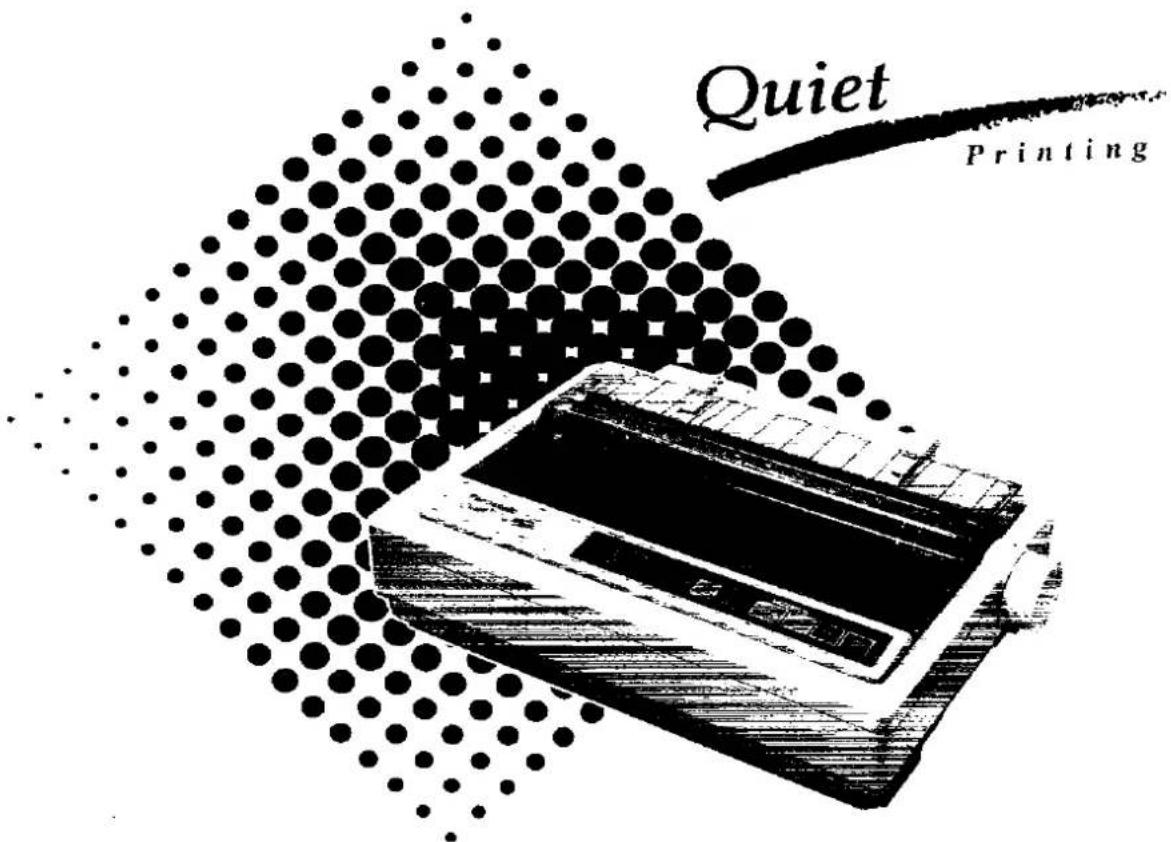
Bitte lesen Sie diese Anleitung vor der Inbetriebnahme dieses Geräts vollständig.
WICHTIG (FÜR VEREINIGTES KÖNIGREICH)
KLASSE I FÜR BS 7002
ZU IHRER SICHERHEIT BITTE LESEN SIE DEN FOLGENDEN TEXT SORGFÄLTIG
Dieses Gerät wird aus Sicherheits- und Bequemlichkeitsgründen mit einem geformten dreipoligen Netzstecker geliefert. In diesem Stecker ist eine 5-Ampere-Sicherung eingebaut. Sollte die Sicherung ersetzt werden müssen, stellen Sie bitte sicher, dass die Ersatzsicherung eine Nennleistung von 5 Ampere hat und von ASTA oder BSI nach BS 1362 zugelassen ist.
Prüfen Sie das ASTA-Zeichen A\$A oder das BSI-Zeichen auf dem Sicherungskörper.
Wenn der Stecker eine abnehmbare Sicherungsabdeckung enthält, müssen Sie sicherstellen, dass diese beim Austausch der Sicherung wieder angebracht wird. Wenn Sie die Sicherungsabdeckung verlieren, darf der Stecker nicht verwendet werden, bis eine Ersatzabdeckung beschafft wurde. Eine Ersatz-Sicherungsabdeckung können Sie bei Ihrem örtlichen Panasonic-Händler kaufen.
WENN DER ANGEFORMte STECKER NICHT FÜR DIE STECKDOSE IN IHREM HAUS GEEIGNET IST, SOLLTEN SIE DIE SICHERUNG ENTFERNEN UND DEN STECKER ABSCHNEIDEN UND SICHER ENTSORGEN. ES BESTEHT GEFAHR EINES SCHWEREN ELEKTRISCHEN SCHLAGS, WENN DER ABGESCHNITTENE STECKER IN EINE 13-AMPERE-STECKDOSE GESTECKT WIRD.
Wenn ein neuer Stecker angebracht werden soll, beachten Sie bitte den unten gezeigten Verdrahtungscode. Wenn Sie Zweifel haben, wenden Sie sich bitte an einen qualifizierten Elektriker.
WARNUNG: DIESES GERÄT MUSS GEERDET WERDEN.
WICHTIG: Die Drähte in diesem Netzkabel sind gemäß dem folgenden Code gefärbt:
Grün-Gelb: Erde Blau: Nullleiter Braun: Phase
Da die Farben der Adern im Netzkabel dieses Geräts möglicherweise nicht mit den farbigen Markierungen übereinstimmen, die die Anschlüsse in Ihrem Stecker kennzeichnen, gehen Sie wie folgt vor.
Das Kabel, das GRÜN-GELB gefärbt ist, muss an den Anschluss im Stecker angeschlossen werden, der mit dem Buchstaben E oder mit dem Erdungssymbol ⊕ gekennzeichnet ist oder grün oder grün-gelb gefärbt ist.
Das Kabel, das BLAU gefärbt ist, muss an den Anschluss im Stecker angeschlossen werden, der mit dem Buchstaben N oder schwarz gekennzeichnet ist.
Das Kabel, das BRAUN gefärbt ist, muss an den Anschluss im Stecker angeschlossen werden, der mit dem Buchstaben L oder rot gekennzeichnet ist.
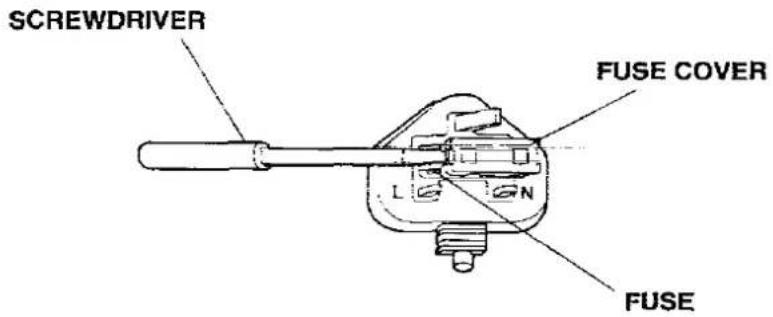
So ersetzen Sie die Sicherung: Öffnen Sie das Sicherungsfach mit einem Schraubendreher und ersetzen Sie die Sicherung.
• Dieses Gerät wird gemäß BS800: 1988 hergestellt.
Alle Rechte vorbehalten. © COPYRIGHT 1992 KYUSHU MATSUSHITA ELECTRIC CO., LTD.
WARNUNG
- Die Netzspannung dieses Geräts ist auf dem Typenschild angegeben. Schließen Sie den Drucker nur an eine Steckdose mit der richtigen Spannung an. • Um Brand- oder Stromschlaggefahr zu vermeiden, setzen Sie dieses Produkt nicht Regen oder Feuchtigkeit aus.
- Wenn Sie dieses Gerät betreiben, sollte sich die Steckdose in der Nähe des Geräts befinden und leicht zugänglich sein.
Die Seriennummer des Geräts befindet sich auf dem Etikett auf der Rückseite des Geräts. Notieren Sie diese Nummer unten und bewahren Sie dieses Buch zusammen mit Ihrem Kaufbeleg auf, um einen dauerhaften Nachweis Ihres Kaufs im Falle eines Diebstahls oder für spätere Referenz zu haben.
MODELL-NR. KX-P2023
NAME DES HÄNDLERS
SERIEN-NR.
KAUFDATUM ____
IBM und IBM-PC sind eingetragene Warenzeichen der International Business Machines Corporation.
Proprinter ist ein Warenzeichen der International Business Machines Corporation.
Windows ist ein Warenzeichen der Microsoft Corporation.
Epson ist ein eingetragenes Warenzeichen der Seiko Epson Corporation.
Änderungen an den Angaben in dieser Bedienungsanleitung sind ohne Vorankündigung vorbehalten.
Inhaltsverzeichnis
Einführung
Funktionen 6
Kap. 1 Vorbereitungen
Sicherheitshinweise 7
Betriebsumgebung 7
Vorsichtsmaßnahmen 7
Auspacken 8
Zusammenbau der Teile 9
Teile des Druckers 10
Kap. 2 Einrichtung
Anschluss an einen Computer 12
Farbbandkassette 14
Installieren der Farbbandkassette 14
Entfernen der Farbbandkassette 17
Einlegen von Papier 19
Endlospapier (Traktor-Schubmodus) 19
Einzelblätter und Umschläge (Reibungsmodus) 22
Auswahl des Druckertreibers 24
Installieren eines Druckertreibers (Windows Ver. 3.1) ..... 25
Selbsttest 27
Kap. 3 Initialer Einrichtungsmodus
Verwenden der Einrichtungsdiskette 28
Verwenden des Bedienfelds 33
Kap. 4 Verwenden des Druckers
Auswahl einer Zeichenschrift 37
Super-Quiet-Modus 38
Papiereinzug 39
Zeilenvorschub/Formularvorschub LF/FF 39
Abreißen TEAR OFF 39
Papierablage LOAD/PARK 40
Kap. 5 Software-Befehle
Epson LQ-850-Modus 43
IBM Proprinter X24E-Modus 49
Befehlsreferenzprogramm
(mit der Setup-Diskette) 54
Kap. 6 Wartung und Fehlerbehebung
Regelmäßige Wartung 57
Fehlerbehebung 58
Anhang
Druckerspezifikationen 59
Papierspezifikationen 61
Endlospapier 61
Einzelblätter 61
Umschläge 61
Druckbereich 62
Schnittstellen 63
Parallele Schnittstelle 63
Initialisierung 66
Hexdump 67
Zeichensatztabellen 68
Tabellen für proportionalen Abstand 74
Glossar 81
Index 85
Optionen und Zubehör 87
Einführung
Wir gratulieren Ihnen zum Kauf eines Panasonic-Druckers.
Dieser Drucker ist ein vielseitiger, hochwertiger 24-Nadel-Drucker, der entwickelt wurde, um die Anforderungen Ihres Büros zu erfüllen.
Dieser Drucker ist werkseitig so eingestellt, dass er mit den meisten gängigen Softwarepaketen funktioniert.
Ihre Anwendungssoftware sollte die Druckerfunktionen steuern. In den meisten Fällen ist es nicht erforderlich, die anfänglichen Druckereinstellungen zu ändern.
Funktionen
Druckeremulation: Epson LQ-850 und IBM Proprinter X24E
Setup-Diskette: Ein Druckertreiber für Windows Ver. 3.1, Initial Setup-Programm und Command Reference-Programm
Super-Leise-Modus: Reduziert Druckgeräusche
Schriftarten: 3 Entwurf (Pica, Elite, Micron) 4 LQ (Courier, Bold PS, Prestige, Script)
Druckgeschwindigkeit: Entwurf – 192 Zeichen pro Sekunde (12 cpi) LQ – 64 Zeichen pro Sekunde (12 cpi)
Papierhandhabung: Reibung und Push-Traktor
Abreißen: Bringt die Perforation des Endlospapiers in die Abreißposition
Papierparken: Ermöglicht die Verwendung von Einzelblättern/Umschlägen, ohne Endlospapier zu entfernen/zu verschwenden
Option Einzelblatt-Einzug: Bietet schnelles und automatisches Einziehen von Einzelblättern (KX-PT12):
Puffer-Chip-Option (KX-P44): Ein 32K-Chip ist erhältlich, um die Speicherkapazität Ihres Geräts von 14K auf 46K zu erweitern.
Betriebsumgebung
Dieser Drucker kann in jeder normalen Büroumgebung installiert werden. Es sind keine speziellen elektrischen Anschlüsse oder Kühlung erforderlich.
- Verwenden Sie den Drucker nicht unter den folgenden Bedingungen:
— Extrem hohe oder niedrige Temperaturen [Temperaturbereich: 10\~35°C (50\~95°F)] — Extrem hohe oder niedrige Luftfeuchtigkeit (Luftfeuchtigkeitsbereich: 30\~80% relative Luftfeuchtigkeit) — Schlecht belüftete Bereiche [Ein Mindestabstand von 4" (10 cm) auf allen Seiten ist erforderlich, um eine ordnungsgemäße Belüftung zu gewährleisten] — Bereiche mit hoher Staubkonzentration — Bereiche mit chemischen Dämpfen — Bereiche mit starken Vibrationen oder bei Platzierung auf einer instabilen oder unebenen Oberfläche — Stromverbrauch: (MAX—150 W, Standby—5,66 W, Selbsttest—35,4 W)
Vorsichtsmaßnahmen
Die folgenden Vorsichtsmaßnahmen werden empfohlen, um die Lebensdauer des Druckers zu verlängern.
- Halten Sie alle Flüssigkeiten vom Drucker fern.
- Legen Sie keine Bücher, Papier oder andere Gegenstände auf den Drucker.
- Betreiben Sie den Drucker nicht ohne Papier und ohne installierte Farbbandkassette.
- Vermeiden Sie längeren Betrieb, ohne dem Druckkopf Zeit zum Abkühlen zu geben.
- Blockieren Sie nicht die Bewegung des Druckkopfs während des Betriebs.
- Wenn der Drucker längere Zeit nicht verwendet wird, ziehen Sie das Netzkabel ab.
Auspacken
Nach dem Auspacken des Druckers stellen Sie sicher, dass keiner der unten aufgeführten Inhalte fehlt oder beschädigt ist. Melden Sie Schäden oder Fehlmengen dem Geschäft, in dem das Gerät gekauft wurde.
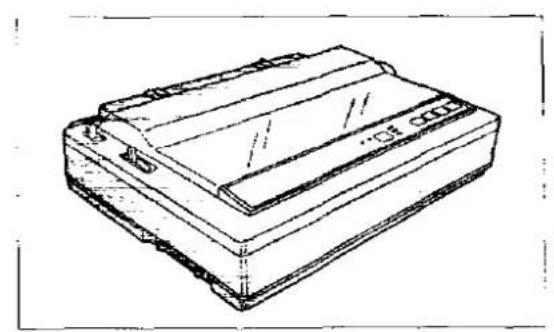
Drucker (KX-P2023)
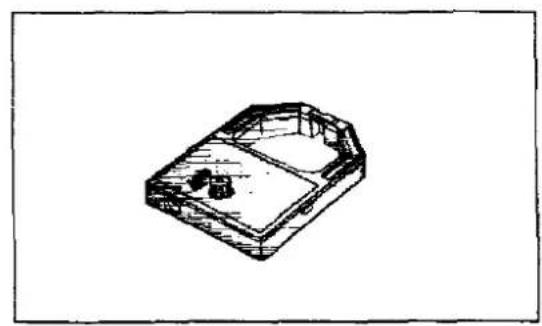
Farbbandkassette (KX-P145)
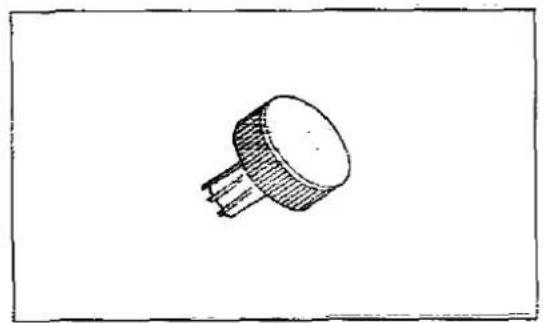
Walzenknopf
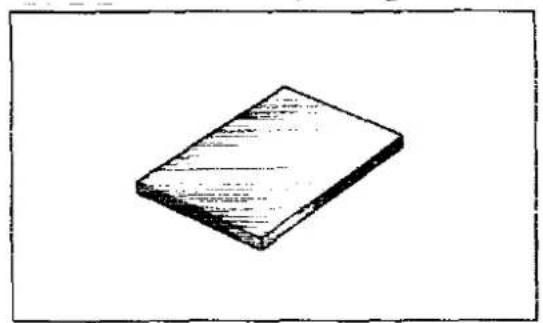
Bedienungsanleitung
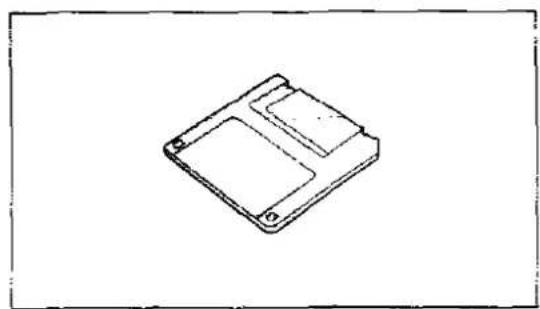
Setup-Diskette
- Diese Setup-Diskette enthält einen Druckertreiber für Windows Ver. 3.1 (S. 25), ein Initialisierungsprogramm (S. 28) und ein Befehlsreferenzprogramm (S. 54).
• Zur Verwendung dieser Setup-Diskette benötigen Sie einen IBM-PC oder einen kompatiblen Computer.
Hinweis:
- Es wird empfohlen, den Originalkarton und das Verpackungsmaterial für einen ordnungsgemäßen Versand und Transport des Druckers aufzubewahren.
Zusammenbau der Teile
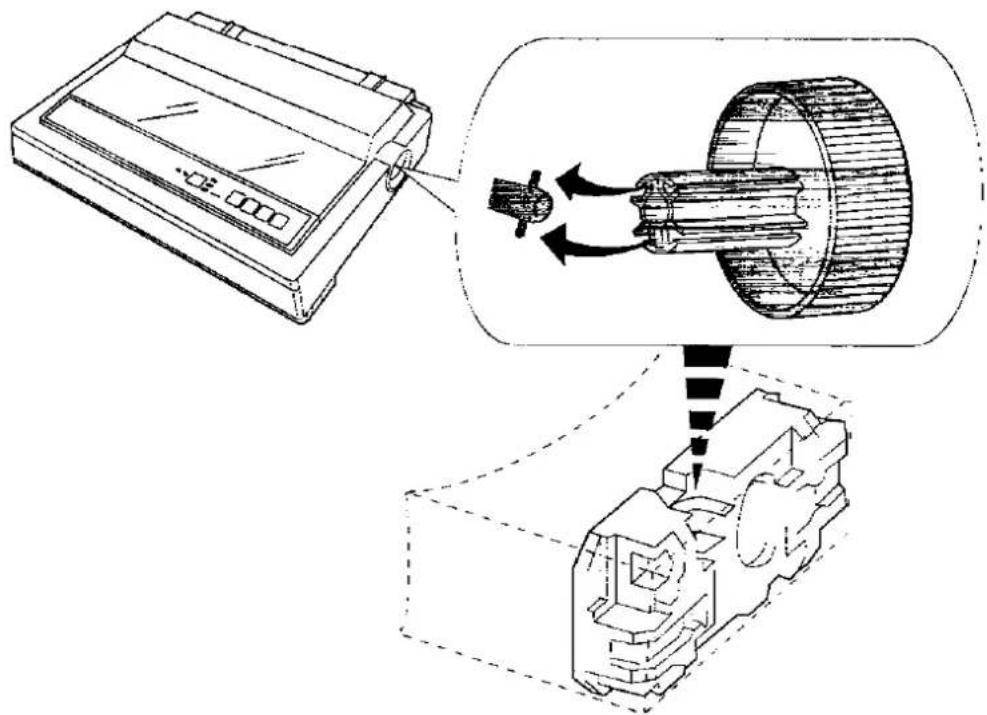
① Falten Sie die Rauchglasabdeckung und entfernen Sie das Schutzpapier.
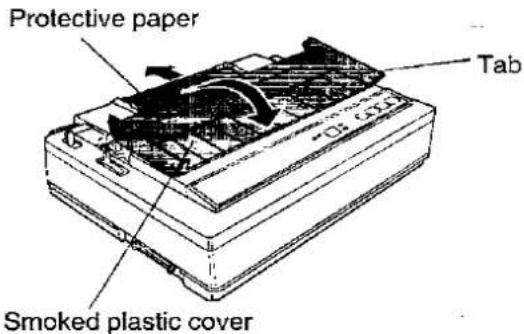
Bringen Sie die Rauchglasabdeckung wieder in ihre ursprüngliche Position. Setzen Sie den Walzenknopf in das Loch auf der rechten Seite des Druckers ein und drehen Sie ihn langsam, bis er auf die Welle gleitet. Drücken Sie den Walzenknopf auf die Walzenwelle, um ihn zu befestigen.
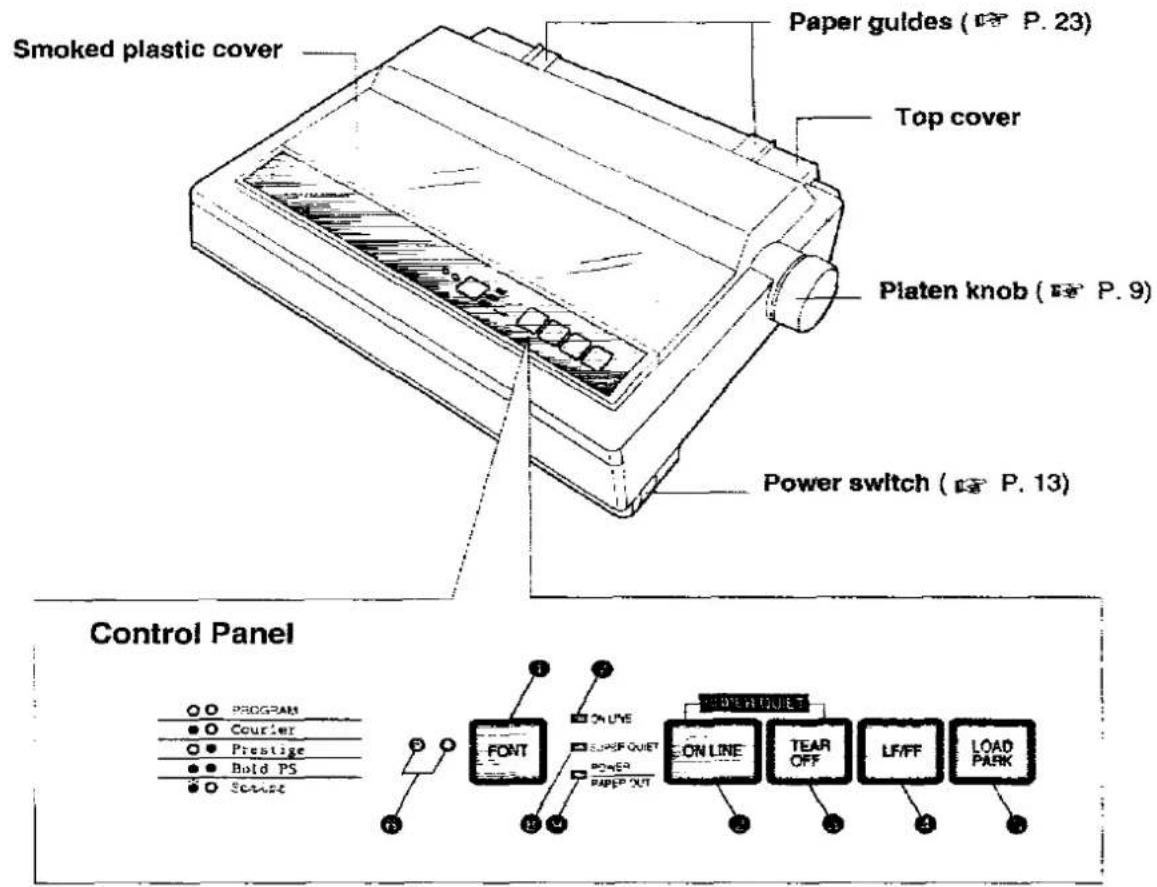
① SCHRIFTART-Schalter
Durch Drücken dieses Schalters wird der Schriftstil ausgewählt. (S. 37)
② ONLINE-Schalter
Dieser Schalter öffnet und schließt die Kommunikationsleitung mit dem Computer.
③ ABREIßEN-Schalter
Durch Drücken dieses Schalters wird das Papier zum Abreißen vor- oder zurückgeschoben. (S. 39)
④ LF/FF-Schalter
Durch Drücken dieses Schalters wird das Papier zeilenweise vorgeschoben. Wenn Sie diesen Schalter gedrückt halten, wird das Papier bis zur ersten Druckzeile der nächsten Seite vorgeschoben. (S. 39)
⑤ LADEN/PARKEN-Schalter
Durch Drücken dieses Schalters wird das Papier geladen oder geparkt. (S. 40)
⑥ SCHRIFTART-Anzeigen
Diese Anzeigen zeigen an, welche Schriftart ausgewählt wurde. (S. 37)
⑦ ONLINE-Anzeige
Diese Anzeige leuchtet, wenn sich der Drucker im ONLINE-Modus befindet, und erlischt im OFFLINE-Modus.
⑧ SUPER QUIET-Anzeige
Diese Anzeige leuchtet, wenn sich der Drucker im SUPER QUIET-Modus befindet. (Während Sie den ONLINE-Schalter gedrückt halten, drücken Sie den ABREIßEN-Schalter.) (S. 38)
⑨ STROM/PAPIERENDE-Anzeige
Diese Anzeige leuchtet, wenn der Drucker eingeschaltet ist und Papier eingelegt ist. Sie blinkt, wenn kein Papier eingelegt ist.
Papierzufuhr-Wahlschalter
„☐“ (Reibung)
Einzelblätter und Umschläge
„[ ]“ (Traktor)
Endlospapier
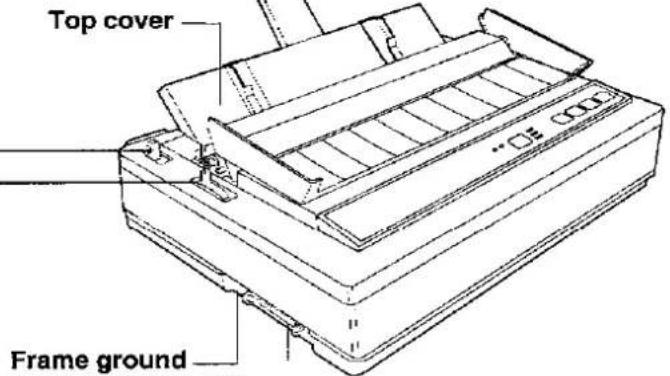
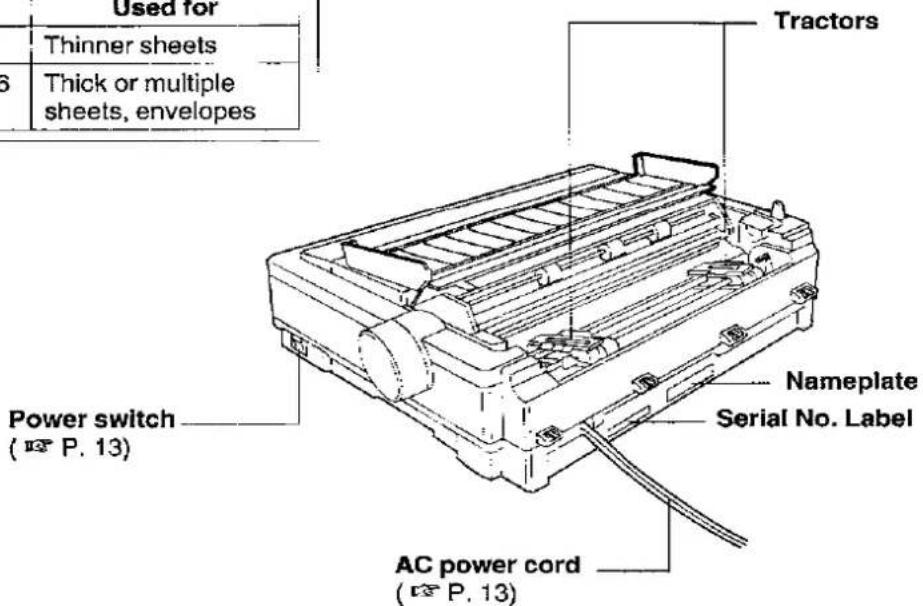
Papierstütze (S. 23)
Centronics-Parallelschnittstellenanschluss (S. 12)
Kopfabstandshebel
Stellt den Abstand zwischen der Druckwalze und dem Druckkopf ein. Der Hebel bewegt sich in Schritten von 0,0028 Zoll (0,07 mm).
| -1 | |
| △ | -2 |
| H | -3 |
| E | -4 |
| A | -5 |
| D | -6 |
| G | -5 |
| GAP | -5 |
| F | -5 |
| V | -5 |
| Position | Used for |
| 1 or 2 | Thinner sheets |
| 3, 4, 5 and 6 | Thick or multiple sheets, envelopes |
Anschließen an einen Computer
1a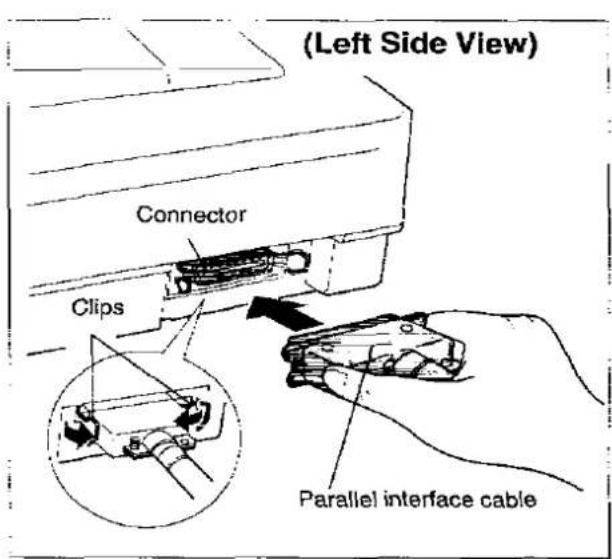
Schließen Sie das parallele Schnittstellenkabel von Ihrem Computer an und sichern Sie die Druckerklammern.
Hinweis:
Wenn Sie kein paralleles Schnittstellenkabel haben, müssen Sie eines in einem Computergeschäft oder beim Händler kaufen.
1b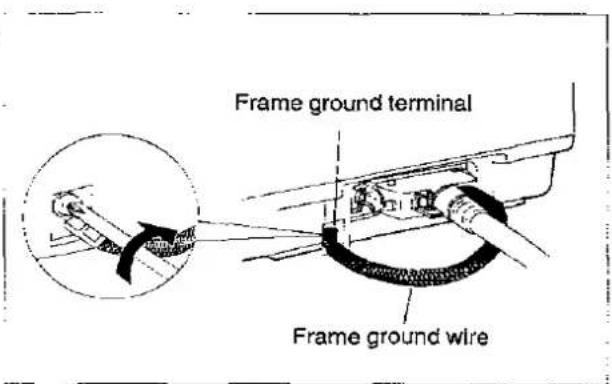
Wenn das Kabel einen Rahmen-Erdungsdraht hat, schließen Sie ihn an die Rahmen-Erdungsklemme an.
2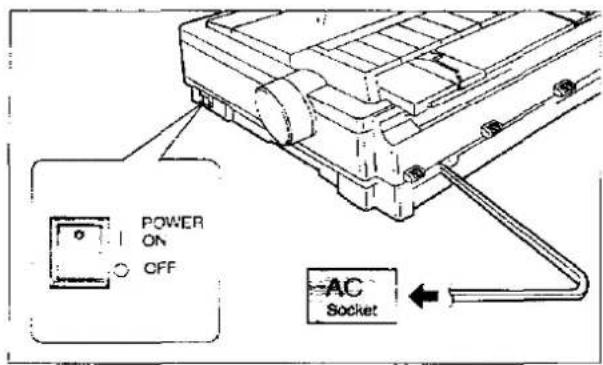
Schließen Sie den Drucker an eine geerdete 3-polige AC-Steckdose an.
Wenn der Drucker mit Strom versorgt wird, leuchtet die Betriebsanzeige auf dem Bedienfeld auf.
Einrichtung
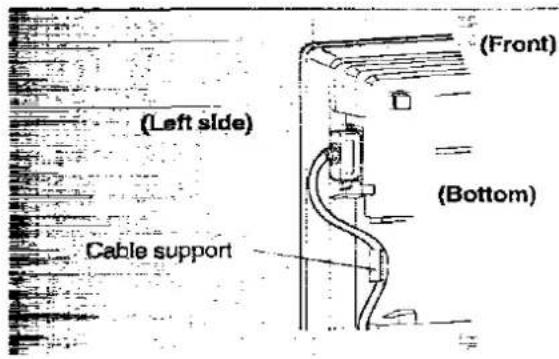
Um zu verhindern, dass das Kabel möglicherweise vom Drucker getrennt wird, führen Sie das Kabel durch die Kabelhalterung, die sich an der Unterseite des Geräts befindet.
Installieren der Farbbandkassette
1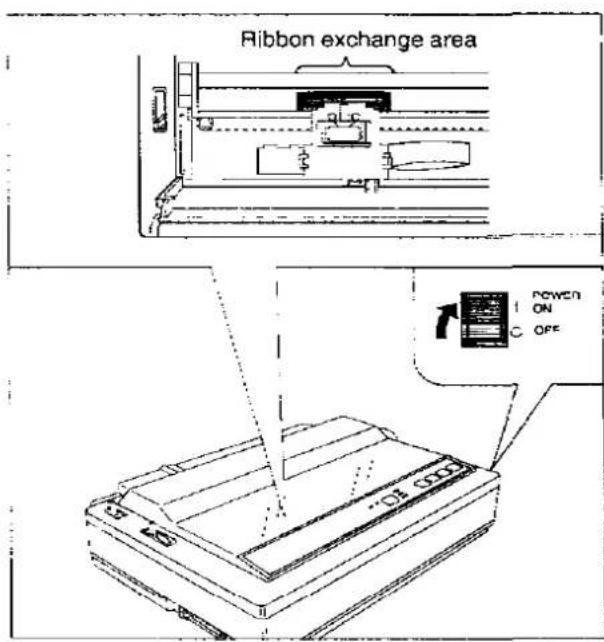
Schalten Sie das Gerät ein.
Der Wagen bewegt sich automatisch in den Farbbandwechselbereich.
HINWEIS:
Der Drucker ermöglicht die Installation der Farbbandkassette nur in diesem Bereich.
2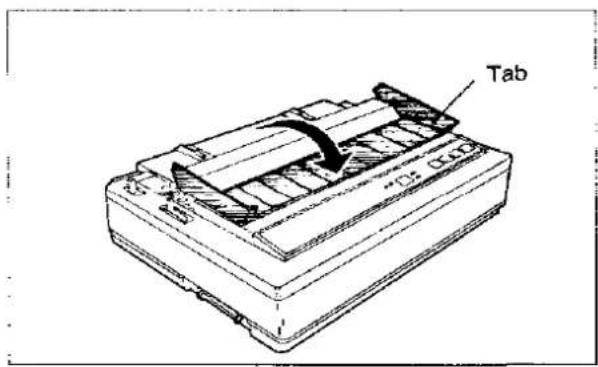
Klappen Sie die rauchfarbene Kunststoffabdeckung nach vorne.
3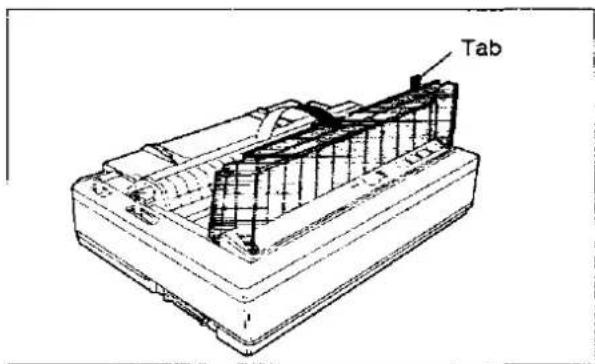
Heben Sie die rauchfarbene Kunststoffabdeckung an.
Vorsicht:
- Der Druckkopf kann heiß sein; seien Sie vorsichtig, wenn die Abdeckung geöffnet ist.
4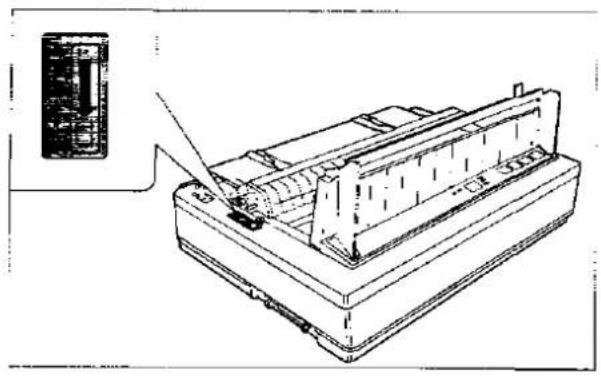
Bewegen Sie den Hebel für den Kopfabstand in die Position (+).
5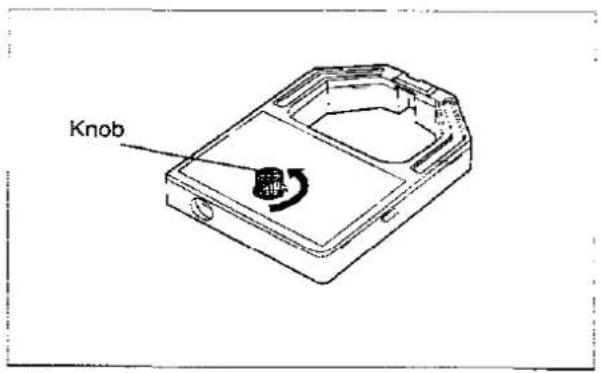
Drehen Sie den Knopf an der Farbbandkassette, um eventuelles Spiel zu entfernen.
6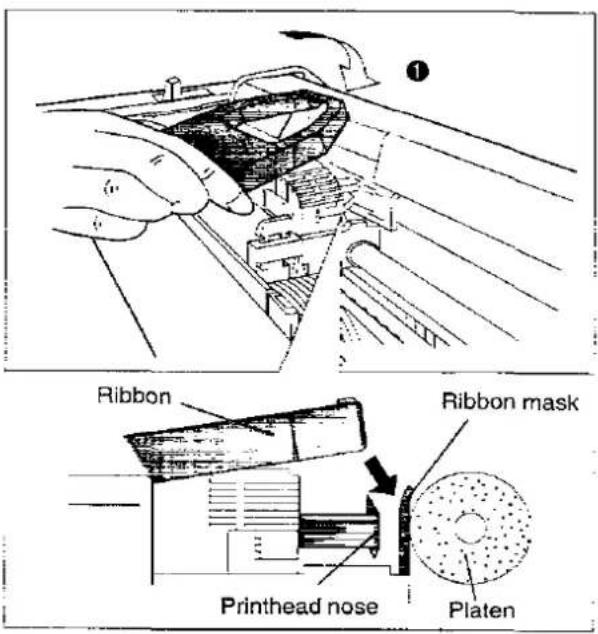
① Schieben Sie das Farbband zwischen der Farbbandmaske und der Druckkopfspitze hindurch.
Farbbandkassette
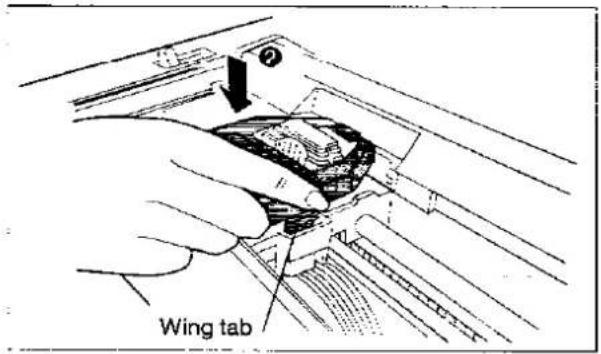
② Drücken Sie die Rückseite der Kassette nach unten, bis die seitliche Lasche einrastet.
7 Ersetzen Sie die rauchfarbene Kunststoffabdeckung.
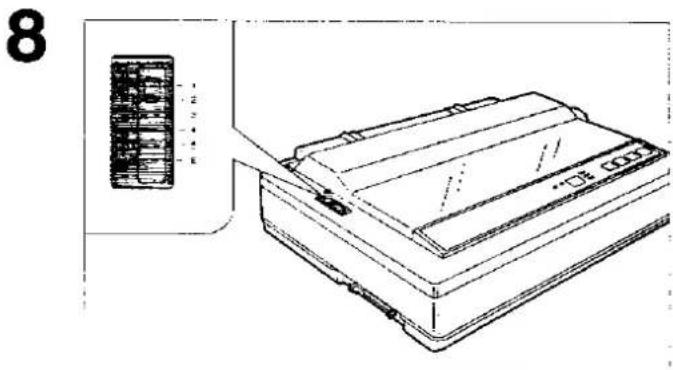
Stellen Sie den Hebel für den Kopfabstand entsprechend der Dicke des verwendeten Papiers ein.
| Position | Use for |
| 1 or 2 | Thinner sheets |
| 3, 4, 5 and 6 | Thick or multiple sheets or envelopes |
Entfernen der Farbbandkassette
1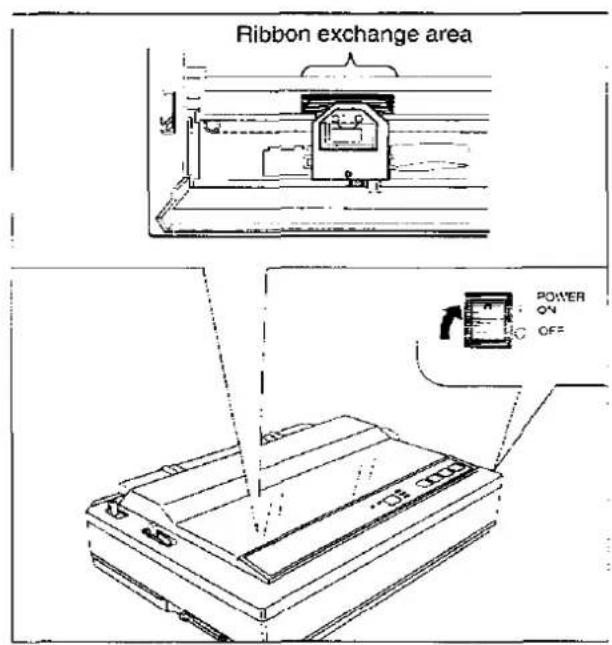
Schalten Sie das Gerät ein.
Der Schlitten bewegt sich automatisch in den Farbbandwechselbereich.
Hinweis:
Der Drucker ermöglicht das Einsetzen der Farbbandkassette nur in diesem Bereich.
Einrichtung
2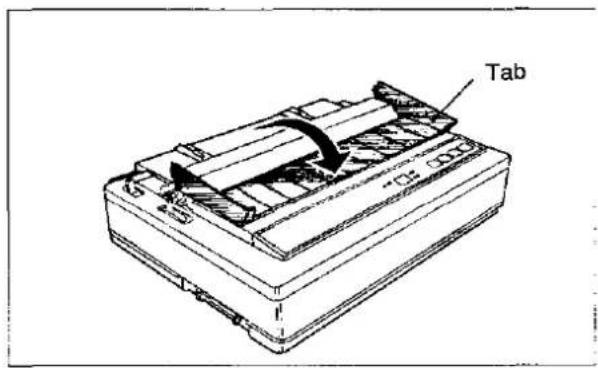
Klappen Sie die rauchfarbene Kunststoffabdeckung nach vorne.
3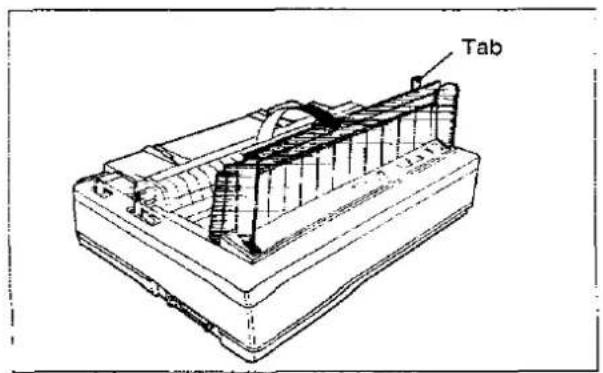
Heben Sie die rauchfarbene Kunststoffabdeckung an.
Vorsicht:
- Der Druckkopf kann heiß sein; seien Sie vorsichtig, wenn die Abdeckung geöffnet ist.
Farbbandkassette
4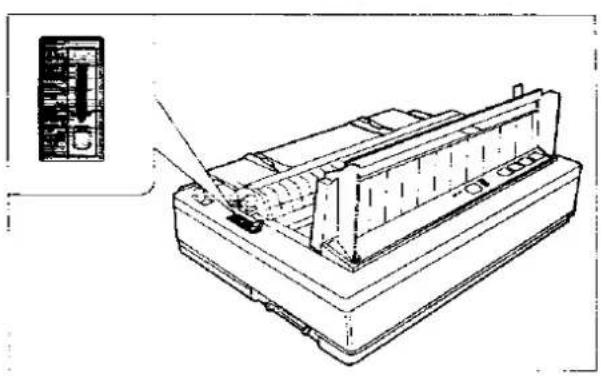
Bewegen Sie den Kopfabstands-Hebel in die Position (+).
5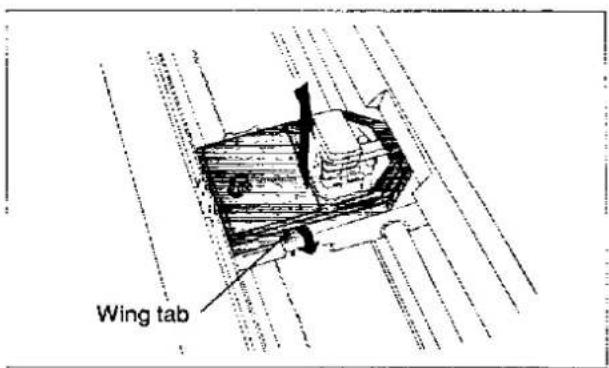
Spreizen Sie die Papierführungslasche und heben Sie die Kassette an.
Einlegen von Papier
Ihr Panasonic-Drucker bietet zwei Möglichkeiten zur Papierzuführung:
— Endlospapier (Traktor-Schubmodus)
— Einzelblätter und Umschläge (Reibungsmodus)
Endlospapier (Traktor-Schubmodus)
1
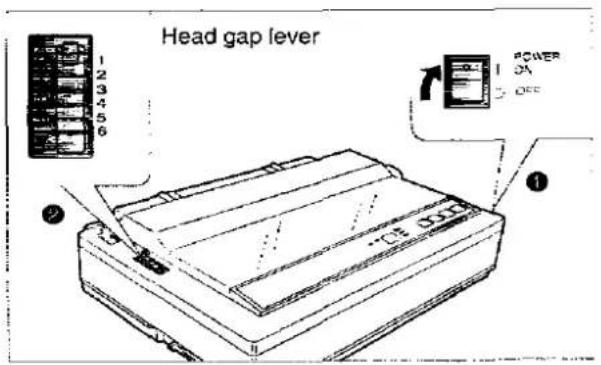
① Schalten Sie das Gerät ein.
Die Anzeige PAPER OUT blinkt und zeigt an, dass kein Papier in den Drucker eingelegt ist.
② Stellen Sie den Abstandshebel für die Dicke des verwendeten Papiers ein.
| Position | Use for |
| 1 or 2 | Thinner sheets |
| 3, 4, 5 and 6 | Thick or multiple sheets |
Einrichtung
2
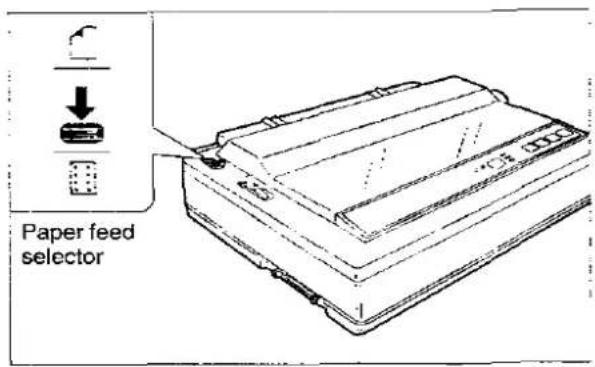
Stellen Sie den Papierzufuhr-Wahlschalter auf die Position "☐".
3
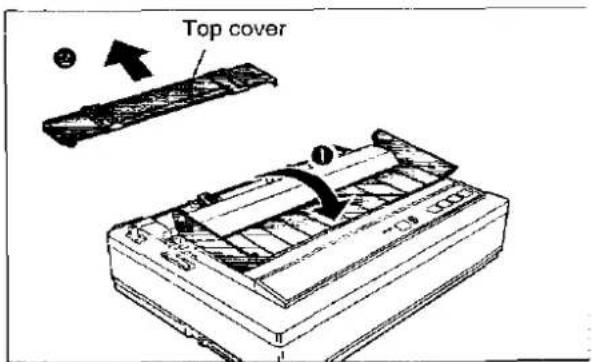
① Klappen Sie die rauchfarbene Kunststoffabdeckung nach vorne.
② Entfernen Sie die obere Abdeckung.
4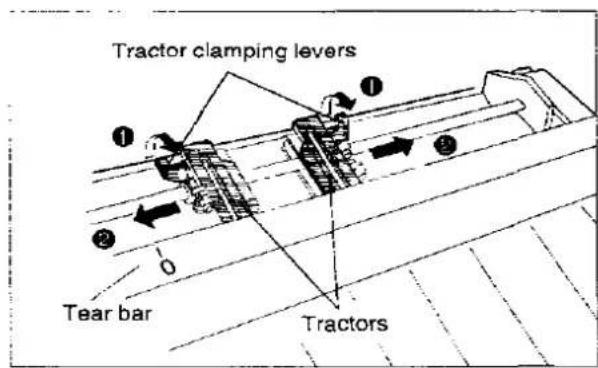
① Entriegeln Sie die Traktoren, indem Sie die Klemmhebel der Traktoren nach vorne ziehen. ② Schieben Sie die Traktoren, um sie an die ungefähre Breite des verwendeten Papiers anzupassen.
In den meisten Anwendungen werden Sie feststellen, dass die 0-Markierung an der Abrisskante ein nützliches Hilfsmittel ist, um die linke Druckposition im Voraus zu bestimmen.
5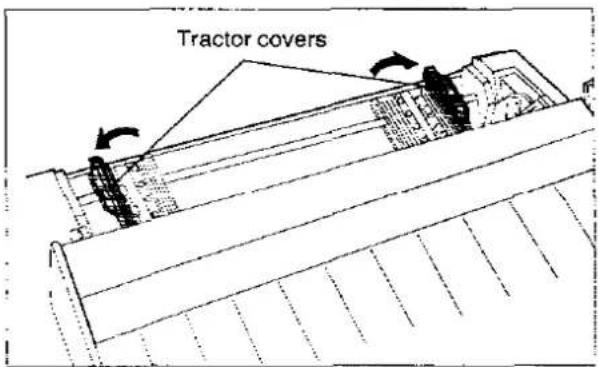
Öffnen Sie die Traktorabdeckungen.
6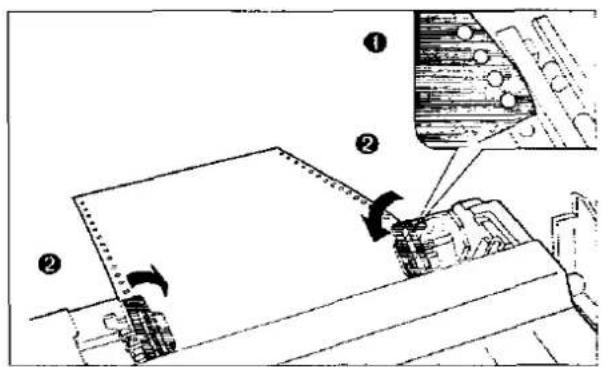
① Richten Sie die Papierlochungen an den Traktorstiften aus und stellen Sie sicher, dass das Papier gerade ist. ② Schließen Sie die Traktorabdeckungen.
7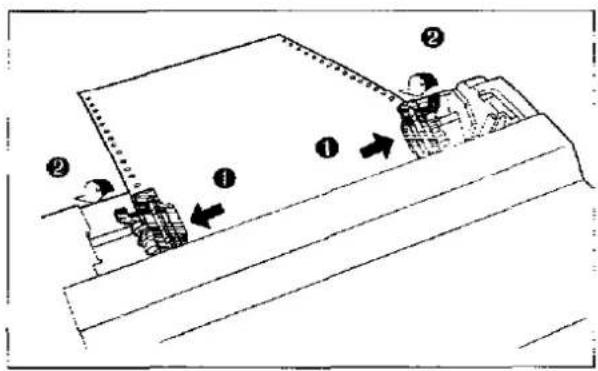
① Stellen Sie die Traktoren so ein, dass kein Durchhang entsteht. ② Verriegeln Sie die Klemmhebel der Traktoren.
8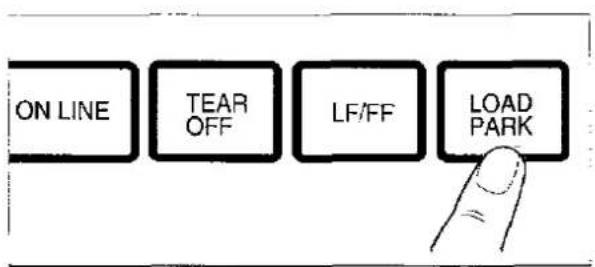
Drücken Sie LOAD/PARK.
Dadurch wird das Papier bis zur ersten Druckzeile eingezogen.
Hinweis:
- Verwenden Sie nicht LF/FF, um Papier einzuziehen.
Setzen Sie die obere Abdeckung und die Rauchglas-Abdeckung wieder auf.
Wenn die ON-LINE-Anzeige nicht leuchtet, drücken Sie ON LINE, um den Drucker betriebsbereit zu machen.
Einzelblätter und Umschläge (Reibungsmodus)
① Schalten Sie das Gerät ein.
Die PAPER-OUT-Anzeige blinkt und zeigt an, dass kein Papier eingelegt ist.
② Stellen Sie den Abstandshebel für die Papierdicke ein, die Sie verwenden.
| Position | Use for |
| 1 or 2 | Thinner sheets |
| 3, 4, 5 and 6 | Thick sheets or envelopes |
Stellen Sie den Papierzufuhr-Wahlschalter auf die Position "☐".
① Klappen Sie die Rauchglas-Abdeckung nach vorne.
② Heben Sie die obere Abdeckung in die Position für Einzelblatteinzug.
Dies geschieht, indem Sie die seitlichen Stifte der oberen Abdeckung in die Schlitze am oberen Gehäuse einführen.
4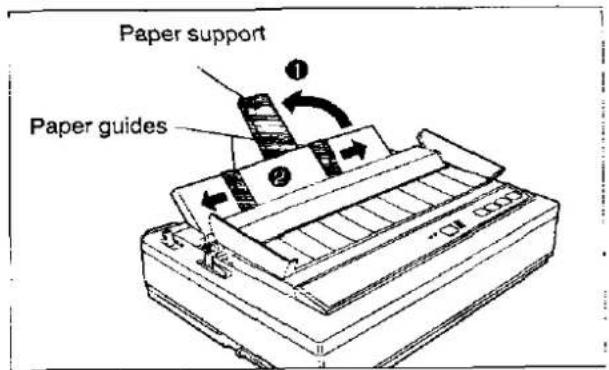
5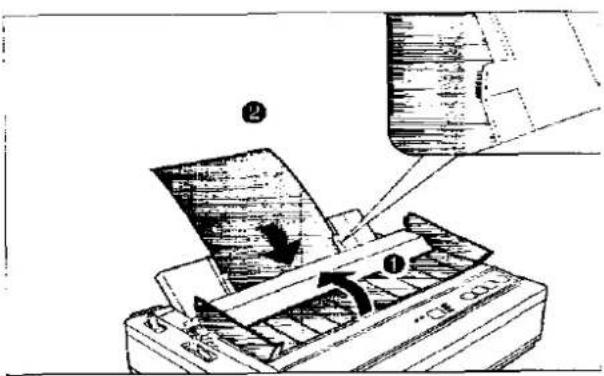
① Drehen Sie die Papierablage.
② Schieben Sie die Papierführungen auf die ungefähre Breite Ihres Papiers oder Umschlags.
① Setzen Sie die Rauchglasabdeckung wieder ein.
② Führen Sie ein Blatt Papier durch die Papierführungen und hinter die Walze.
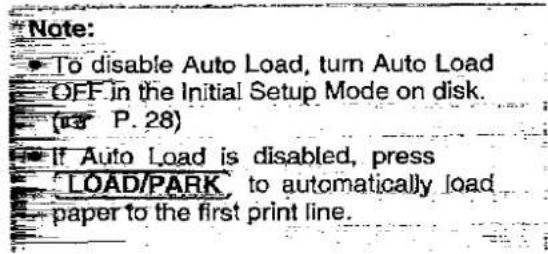
Das Papier wird automatisch bis zur ersten Druckzeile eingezogen.
6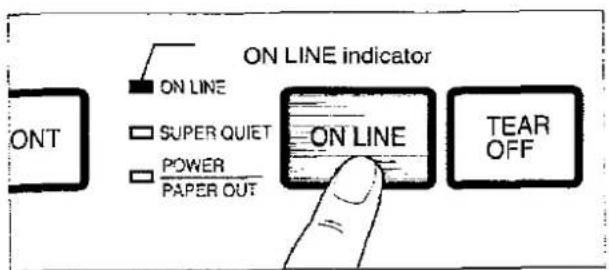
Wenn die ON LINE-Anzeige nicht leuchtet, drücken Sie ON LINE, um den Druck vorzubereiten.
Auswahl des Druckertreibers
Dieser Schritt ist der letzte vor dem Drucken und wird in Ihrem Anwendungsprogramm durchgeführt. Die Schritte variieren je nach Softwareprogramm. Konsultieren Sie Ihre Softwaredokumentation für die richtige Vorgehensweise. Der Panasonic KX-P2023 sollte Ihre erste Wahl sein. Falls der Panasonic KX-P2023 jedoch nicht in Ihrer Software aufgeführt ist, müssen Sie eine Alternative aus der folgenden Tabelle auswählen.
Druckertreiber-Auswahl (in der Reihenfolge der Priorität)
| Panasonic KX-P2023 |
| Panasonic KX-P1123 |
| Panasonic KX-P1124 |
| Epson LQ-850 |
| Epson LQ series |
| IBM Proprinter X24E * |
| IBM Proprinter X24 * |
* Wenn Sie in Ihrer Software den IBM Proprinter X24E oder IBM Proprinter X24 auswählen, muss die Druckeremulation auch im Initial-Setup-Modus geändert werden. (S. 28~36)
Installieren eines Druckertreibers (Windows Ver. 3.1)
Wenn Sie Windows Ver. 3.1 verwenden, verwenden Sie bitte einen Druckertreiber für Windows Ver. 3.1 von der beiliegenden Setup-Diskette.
Bevor Sie die Setup-Diskette verwenden, wird empfohlen, eine Sicherungskopie zu erstellen und das Original an einem sicheren Ort aufzubewahren.
Hinweis:
Verwenden Sie den Befehl DISKCOPY des Betriebssystems, um eine Sicherungskopie zu erstellen. Weitere Informationen finden Sie in Ihrem DOS-Handbuch.

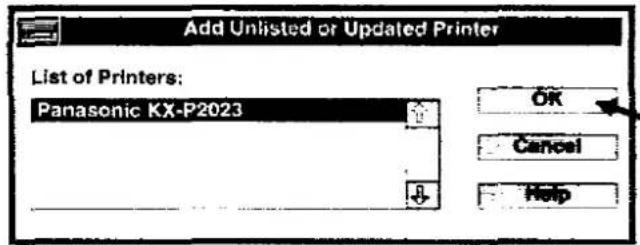
1 Wählen Sie in der "Hauptgruppe" den "Druckmanager". 2 Wählen Sie unter "Optionen" die Option "Drucker einrichten". 3 Klicken Sie auf "Hinzufügen >>".
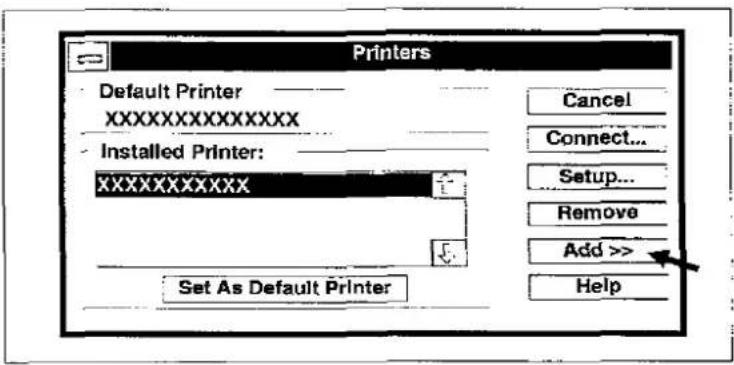
4 Wählen Sie in der "Liste der Drucker" die Option "Nicht aufgeführten oder aktualisierten Drucker installieren". 5 Klicken Sie auf "Installieren...".
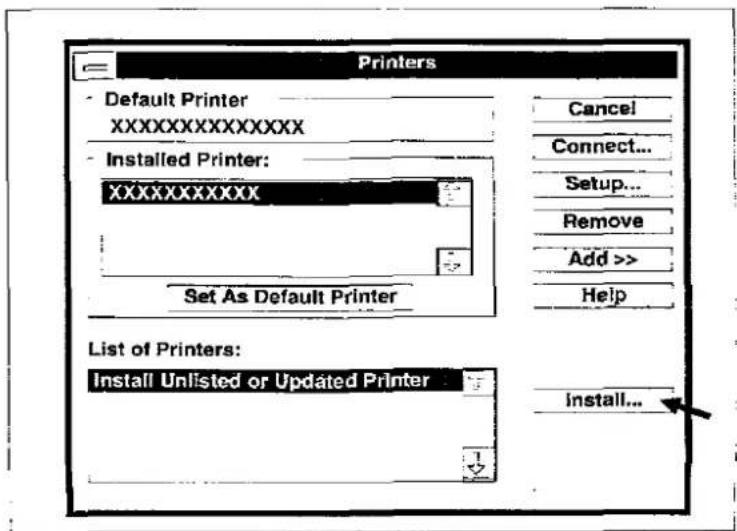
Installieren eines Druckertreibers (Windows Ver. 3.1)
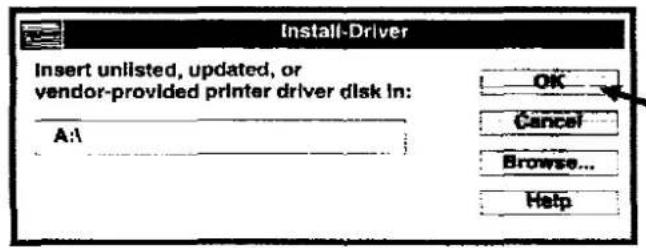
6 Legen Sie die Diskette ein.
Wenn Sie den Druckertreiber von Laufwerk B lesen, geben Sie B: ein.
7 Klicken Sie auf "OK".
Der Druckertreiber des KX-P2023 wird in einem Dialogfeld angezeigt.
8 Klicken Sie auf "OK".
9 Klicken Sie auf "Als Standarddrucker festlegen".
10 Klicken Sie auf "Schließen".
11 Beenden Sie den "Druckmanager".
Der Drucker verfügt über eine Selbsttestfunktion, mit der Sie den Drucker testen können.
1 Legen Sie ein Blatt Papier ein (Endlospapier oder Einzelblatt) und schalten Sie dann den Drucker aus.
(12) S. 19–23
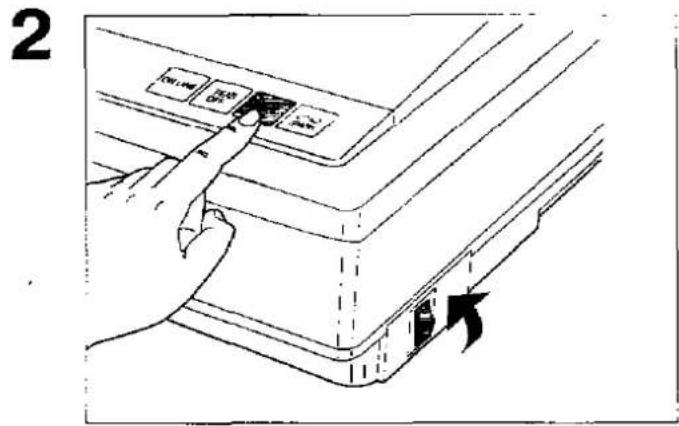
Halten Sie LF/FF gedrückt, schalten Sie den Drucker ein und lassen Sie dann die Taste los.

Draft
!"#$%&'()*+,-./0123456789:;<=>?@ABCDEFGHIJKLMNOPQRSTUVWXYZ!#
!"#$%&'()*+,-./0123456789:;<=>?@ABCDEFGHIJKLMNOPQRSTUVWXYZ!#
"#$%&'()*+,-./0123456789:;<=>?@ABCDEFGHIJKLMNOPQRSTUVWXYZ!#
#$%&'()*+,-./0123456789:;<=>?@ABCDEFGHIJKLMNOPQRSTUVWXYZ!#
$%&'()*+,-./0123456789:;<=>?@ABCDEFGHIJKLMNOPQRSTUVWXYZ!#
Courier
!"#$%&'()*+,-./0123456789:;<=>?@ABCDEFGHIJKLMNOPQRSTUVWXYZ!#
"#$%&'()*+,-./0123456789:;<=>?@ABCDEFGHIJKLMNOPQRSTUVWXYZ!#
"#$%&'()*+,-./0123456789:;<=>?@ABCDEFGHIJKLMNOPQRSTUVWXYZ!#
#$%&'()*+,-./0123456789:;<=>?@ABCDEFGHIJKLMNOPQRSTUVWXYZ!#
$%&'()*+,-./0123456789:;<=>?@ABCDEFGHIJKLMNOPQRSTUVWXYZ!#
3 Wenn der Drucker ordnungsgemäß funktioniert, können Sie den Drucker während des Selbsttests ausschalten oder den gesamten Test durchlaufen lassen (ca. 20 Minuten).
Verwenden der Setup-Diskette
Der Drucker ermöglicht die Auswahl von 17 Initial-Setup-Elementen, die in der folgenden Tabelle aufgeführt sind. Sie können alle diese Elemente mithilfe der Setup-Diskette auswählen.
| 1 | Emulation | ||
| Epson* .....Epson LQ-850IBM .....IBM Proprinter X24E | |||
| Character set ( P. 68) | |||
| 2 | Italic* (Epson only)Graphic character set 1Graphic character set 2 | ||
| Code page ( P. 68) | |||
| 3 | PC-437 (USA)*PC-850 (Multilingual)PC-860 (Portugal)PC-863 (Canada-French)PC-865 (Norway)PC-857 (Turkey) | ||
| International character set ( P. 73) | |||
| 4 | USA Sweden Denmark 2France Italy Spain 2Germany Spain 1 Latin AmericaU.K.* Japan KoreaDenmark 1 Norway LEGAL | ||
| Font | |||
| 5 | Draft Bold PSCourier ScriptPrestige | ||
| 6 | Pitch | ||
| 10 cpi* 17 cpi12 cpi 20 cpi15 cpi P.S | |||
| 7 | Zero font | ||
| 0* (Normal zero)ø (Slashed zero) | |||
| Page length | |||
| 11 inches* 12 inches14 inches 8 inches11 2/3 inches 8 1/2 inches | |||
* kennzeichnet die Einstellung ab Werk.
| Auto LF | |
| 10 | ON .... CR+LFOFF* .... CR only |
| Auto CR | |
| 11 | ON .... LF, VT, ESC+"J"+CROFF* .... LF, VT, ESC+"J" only(This setting is effective only in the IBM mode.) |
| Skip perforation | |
| 12 | ON .... 1 inch skipOFF* .... No skip |
| Alternate Graphic Mode (A.G.M.) | |
| ON .... AGM is ONOFF* .... AGM is OFF(This setting is effective only in the IBM mode.) | |
| Cut Sheet Feeder (C.S.F.) | |
| 13 | EnableDisable*[C.S.F. option (KX-PT12) is installed.] |
| Graphic direction | |
| 14 | Uni* .... Uni-directional printingBi .... Bi-directional printing(Uni-directional printing will provide precise vertical alignment when printing graphics such as tables.) |
| Super quiet | |
| 15 | ON .... Super Quiet is ONOFF* .... Super Quiet is OFF |
| Download | |
| 16 | EnableDisable*[Buffer Chip option (KX-P44) is installed.] |
| Auto load | |
| 17 | ON* .... EnabledOFF .... Disabled(This setting is effective only when using the single sheets and envelopes.) |
Hinweis:
Die Werkseinstellungen für Portugal, Niederlande,
Venezuela und Griechenland sind wie folgt geändert:
| Items | Portugal | Netherlands/ Venezuela | Greece |
| Emulation | IBM | ||
| Character Set | Graphic character set 2 | Graphic character set 2 | |
| Code page | PC-860 (Portugal) | ||
| International character set | USA | USA | USA |
| Page length | 12 inches |
Diese Setup-Diskette kann nur in einem IBM-PC oder einem kompatiblen Computer verwendet werden.
Bevor Sie die Setup-Diskette verwenden, wird empfohlen, eine Sicherungskopie zu erstellen und das Original an einem sicheren Ort aufzubewahren.
Dieser Drucker wurde ab Werk so eingestellt, dass er mit den meisten gängigen Softwarepaketen funktioniert. In den meisten Fällen ist es nicht erforderlich, die Initial-Setup-Elemente zu ändern. Siehe Seite 28, um zu überprüfen, ob die Werkseinstellungen Ihren Anforderungen entsprechen. Wenn keine Änderungen erforderlich sind, können Sie mit dem Drucken beginnen.

Ausführen des Initial-Setup-Programms
1 Legen Sie Ihre Setup-Diskette in Laufwerk A oder B ein.
2 Geben Sie A: (oder B:) ein und drücken Sie die Eingabetaste. 3 Geben Sie SETUP ein. 4 Drücken Sie die Eingabetaste. 5 Bildschirm 1 [LAND AUSWÄHLEN] wird angezeigt (bei der ersten Installation). Der Bildschirm ist standardmäßig auf USA eingestellt. 2 Wählen Sie im Menü Datei die Option Ausführen. 3 Geben Sie A:\SETUP (oder B:\SETUP) ein. 4 Klicken Sie auf OK (oder drücken Sie die Eingabetaste).
Der Bildschirm ist standardmäßig auf USA eingestellt. Wenn Sie ein anderes Land als USA auswählen müssen, lesen Sie Seite 30, Schritt 1.
Bildschirm 1
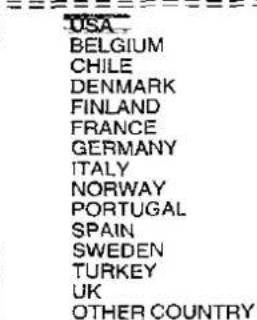

Hinweis:
Wenn Sie zuvor Ihre anfänglichen Setup-Einstellungen auf einer Diskette gespeichert haben, wird Bildschirm 1 [LAND AUSWÄHLEN] nicht angezeigt. Wenn Sie ein anderes Land auswählen müssen, drücken Sie F4 und Bildschirm 1 wird angezeigt.
Festlegen und Speichern der anfänglichen Setup-Elemente
1 Drücken Sie ↑ oder ↓.
Wählen Sie das gewünschte Land.
Hinweis:
Wenn der Name Ihres Landes nicht auf dem Bildschirm erscheint, wählen Sie ANDERES LAND.
Bildschirm 1
| < < Panasonic KX-P2023 Setup Utility (xxxxxxxxxxx) >>[SELECT COUNTRY] - for appropriate FACTORY settings | |
| USA | |
| BELGIUM | |
| CHILE | |
| DENMARK | |
| FINLAND | |
| FRANCE | |
| GERMANY | |
| ITALY | |
| NORWAY | |
| PORTUGAL | |
| SPAIN | |
| SWEDEN | |
| TURKEY | |
| UK | |
| OTHER COUNTRY | |
| [↑], [↓] --> Select country[Enter] --> Confirm country[ESC] --> Exit to DOS | |
2 Drücken Sie die Eingabetaste.
Das Land wird festgelegt und Bildschirm 2 wird angezeigt.
3 Drücken Sie ↑ oder ↓.
Wählen Sie das gewünschte Element. Eine kurze Beschreibung begleitet jedes Element.
4 Drücken Sie → oder ← .
Wählen Sie die gewünschte Einstellung.
Wenn Sie die Einstellungen weiterer Punkte ändern möchten, führen Sie die Schritte 3 und 4 aus.
Bildschirm 2
| << Panasonic KX-P2023 Setup Utility (xxxxxxxxxx) >> | |||
| Item | Setting | Item | Setting |
| Emulation | EPSON | Auto CR | OFF |
| Character set | ITALIC | Skip perforation | OFF |
| Code page | USA | A.G.M | OFF |
| International char. | U.K. | C.S.F mode | DISABLE |
| Font | DRAFT | Graphic direction | UNI |
| Pitch | 10 CPI | Super quiet | OFF |
| Zero font | NORMAL | Download | DISABLE |
| Page length | 11 INCH | Auto load | ON |
| Auto LF | OFF | ||
| [T]/[↓] | Moves the cursor one line up/down |
| [←]/[→] | Changes the setting |
| [Enter] | Displays a message which confirms settings |
| [F1] | Resets the current settings to FACTORY settings |
| [F4] | Returns to screen 1 |
| [ESC] | Exits to DOS |
5 Drücken Sie Enter.
Bildschirm 3 wird angezeigt.
6 Drücken Sie Y oder N.
"Y": Alle Punkte werden eingestellt und Bildschirm 4 wird angezeigt.
"N": Die Anzeige kehrt zu Bildschirm 2 zurück.
Bildschirm 3
Sind Sie sicher? (Y/N)
7 Drücken Sie Y oder N.
"Y": Alle Einstellungen werden an den Drucker gesendet und Bildschirm 5 wird angezeigt.
"N": Die aktuellen Einstellungen werden nicht an den Drucker gesendet und Bildschirm 2 wird angezeigt.
Bildschirm 4
Möchten Sie Ihre Einstellungen auf dem Drucker speichern? (J:N)
8 Drücken Sie J oder N.
"J": Alle Einstellungen werden auf der Festplatte gespeichert und Bildschirm 6 wird angezeigt.
"N": Die Einstellungen werden nicht auf der Festplatte gespeichert und Bildschirm 6 wird angezeigt.
Bildschirm 5
Möchten Sie auf der Festplatte speichern? (J:N)
Verwenden der Setup-Diskette
9
Drücken Sie J oder N.
"J": Alle Einstellungen werden ausgedruckt und Bildschirm 7 wird angezeigt.
"N": Die aktuellen Einstellungen werden nicht ausgedruckt und Bildschirm 7 wird angezeigt.
Bildschirm 6
Möchten Sie einen Ausdruck der Druckereinstellungen? (J:N) Papier muss eingelegt sein.
10
Drücken Sie J oder N.
"Y": Sie haben das Initial Setup-Programm verlassen.
"N": Die Anzeige kehrt zu Bildschirm 2 zurück.
Bildschirm 7
Zu DOS wechseln? (J/N)
Hinweis:
- Es kann praktisch sein, die Setup-Disk-Programme direkt auf Ihrem C-Laufwerk zu installieren, anstatt sie bei jeder Änderung von der Setup-Disk zu lesen. Beide Methoden sind akzeptabel.
Um eine automatische Installation der Setup-Disk-Dateien auf Ihrem C-Laufwerk durchzuführen, gehen Sie wie folgt vor:
- Legen Sie die Setup-Disk in Laufwerk A oder B ein.
- Geben Sie A: (oder B:) ein und drücken Sie die Eingabetaste.
- Geben Sie INSTALL ein und drücken Sie die Eingabetaste.
Dieses Verfahren erstellt automatisch ein Verzeichnis namens 2023 und kopiert alle Programme (9 Dateien) von Ihrer Setup-Disk auf Ihr C-Laufwerk.
Um die Programme von Ihrem C-Laufwerk abzurufen,
Geben Sie an der Eingabeaufforderung C:> den Befehl CD 2023 ein und drücken Sie die Eingabetaste.
Geben Sie SETUP ein, um den Vorgang abzuschließen. Achten Sie darauf, diese Anweisung als ein Wort einzugeben. Andernfalls erhalten Sie eine Syntaxfehlermeldung.
Verwenden des Bedienfelds
Über das Bedienfeld können Sie nur Emulation, automatischen Zeilenvorschub, Blattzufuhr, Grafikrichtung und Seitenlänge einstellen. (S. 35)
1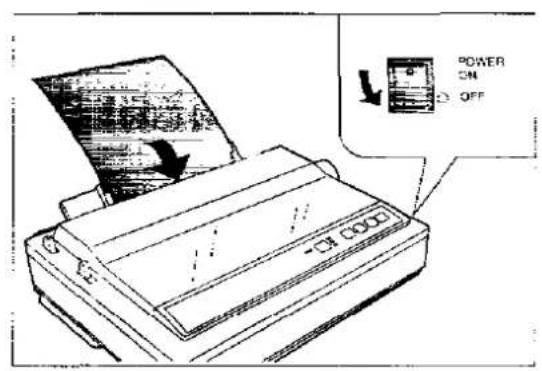
Legen Sie ein Blatt Papier ein (S. 19-23) und schalten Sie das Gerät aus.
2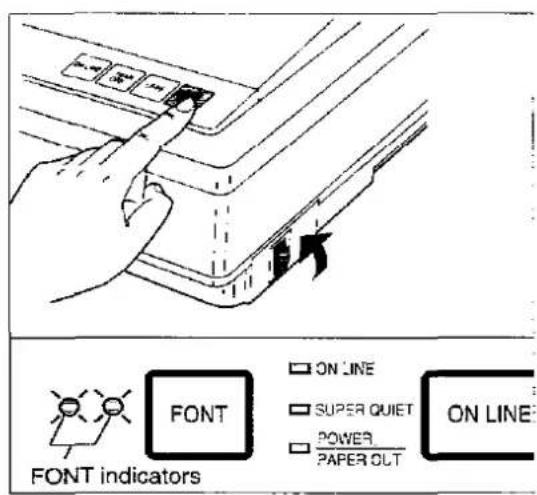
▶ Aufrufen des Initial-Setup-Modus Halten Sie LOAD/PARK gedrückt und schalten Sie das Gerät ein.
Beide Schriftanzeigen und die Super-Quiet-Anzeige blinken. Die aktuellen Einstellungen werden automatisch gedruckt.
3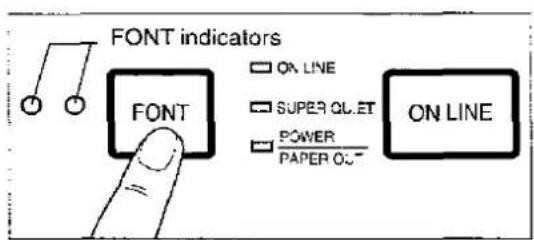
▶ Auswählen des Elements (z. B. Emulation) Drücken und loslassen Sie FONT.
Wählen Sie das gewünschte Element entsprechend dem Status der FONT-Anzeigen (ein, aus, blinkend). Jedes Mal, wenn Sie FONT drücken, gelangen Sie zum nächsten Element. (S. 35)
Verwenden des Bedienfelds
4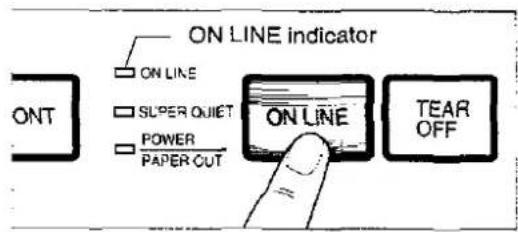
Festlegen des Status des Elements (z. B. Epson/IBM)
ON LINE drücken und loslassen.
Um den Status des Elements zu ändern, drücken Sie ON LINE. Der Status des Elements ändert sich jedes Mal, wenn Sie ON LINE drücken. (C S. 35)
Wenn Sie die Einstellungen weiterer Elemente ändern möchten, führen Sie die Schritte 2 und 3 aus.
5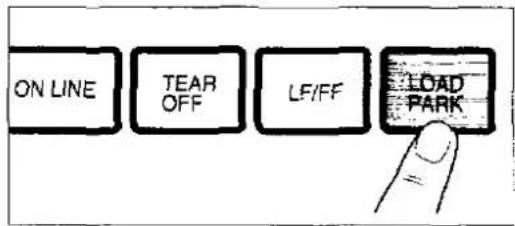
▶ Beenden des Initialisierungsmodus
LOAD/PARK drücken.
Die Schriftanzeigen erlöschen und die aktuellen Bedingungen werden gedruckt.
BEISPIELE
- Während Sie LOAD/PARK gedrückt halten, schalten Sie das Gerät ein.
- Drücken Sie FONT, bis die Schriftanzeigen das Element anzeigen, das Sie ändern möchten.
- Drücken Sie ON LINE, wenn Sie den Status dieses Elements ändern möchten.
Emulation: FONT einmal drücken.
![graph LR A["Epson Mode"] --> B["Press ON LINE"] B --> C["IBM Mode"] D["FONF"] --> E["ON LINE"] D --> F["SURFACE OUT"] D --> G["POWER"] D --> H["PAPER OUT"] I["●"] --> J["FONF"] K["●"] --> L["FONF"] M["●"] --> N["POWER"] O["●"] --> P["PAPER OUT"]](/content/2026/05/1021210/images/0e5df4cc6b99198b1c439bccc2f51bcb2727cc4e7d1a754bb5f5fb3a5fb7e4bb.jpg)
Auto LF: FONT zweimal drücken.
![graph LR A["Off"] --> B["Press ON LINE"] B --> C["On"] D["● O"] --> E["FONT"] E --> F["ON..."] E --> G["SUPER QUIT"] E --> H["POWER"] E --> I["PAPER OUT"] J["● O"] --> K["FONT"] K --> L["ON..."] K --> M["SUPER QUIT"] K --> N["POWER"] K --> O["PAPER OUT"]](/content/2026/05/1021210/images/7a6cb0e3aeb624bb2160e9d64b6af163113dc757b2e8cf20038eb6d670f33c14.jpg)
C.S.F.: FONT dreimal drücken.
![graph LR A["Disable"] --> B["Press ON LINE"] B --> C["Enable"] D["● FGV"] --> E["ON LINE"] D --> F["POWER"] D --> G["PAPEROUT"] H["● FONT"] --> I["ON LINE"] H --> J["POWER"] H --> K["PAPEROUT"]](/content/2026/05/1021210/images/8fae4f715a3afd7568ebae8fddadd54c727af661851cbcfba4898478324a28f5.jpg)
G. Richtung: FONT viermal drücken.
![graph LR A["Uni-directional"] --> B["Press ON LINE"] B --> C["Bi-directional"] A --> D["FONT"] D --> E["ON LINE"] D --> F["SUPER QUT"] D --> G["POWER"] D --> H["PAPER OUT"] C --> I["FONT"] I --> J["ON LINE"] I --> K["SUPER QUT"] I --> L["POWER"] I --> M["PAPER OUT"]](/content/2026/05/1021210/images/356a589463451b47c6adeac189d5fb2b2218abaada4d6a7917b93be0fe210847.jpg)
Seitenlänge: Drücken Sie FONT 5 Mal.
![graph TD A["11""] --> B["Press ON LINE"] B --> C["14""] B --> D["Press ON LINE"] D --> E["11²/3""] A --> F["FONT"] B --> G["ONLINE"] B --> H["SUPER QUT"] B --> I["PAPER OUT"] C --> J["ONLINE"] C --> K["SUPER QUT"] C --> L["PAPER OUT"]](/content/2026/05/1021210/images/51354c9b7de0e33c71bc901397a9dcd4084fce549d166f26ceb715fa36e57f88.jpg)
FONT-Anzeigenbedingungen:
●=Lampe leuchtet
○=Lampe aus
=Lampe blinkt
ON LINE-Anzeigenbedingung:
=Lampe leuchtet
□
=Lampe blinkt
Zurücksetzen aller aktuellen Einstellungen auf die Werkseinstellungen
Befolgen Sie die folgenden Anweisungen:
Wenn Papier eingelegt ist, erhalten Sie automatisch einen Ausdruck der aktuellen Einstellungen.
1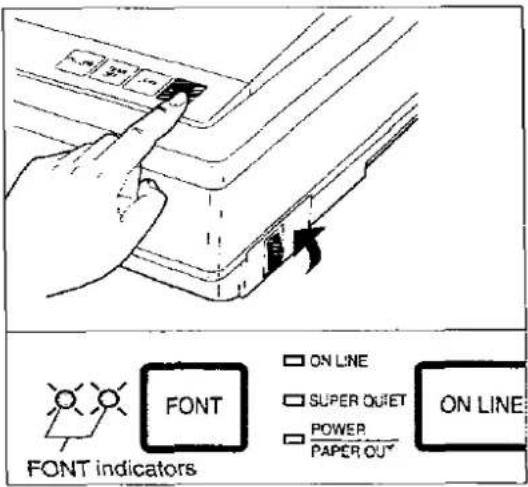
Halten Sie LOAD/PARK gedrückt, schalten Sie das Gerät ein und lassen Sie dann los.
Stellen Sie sicher, dass beide FONT-Anzeigen blinken.
Drücken Sie TEAR OFF
Alle aktuellen Einstellungen werden auf die Werkseinstellungen zurückgesetzt.
Drücken Sie LOAD/PARK.
Ein Ausdruck bestätigt die aktuelle Einstellung. Sie haben den Initial Setup-Modus verlassen.
Auswählen einer Zeichenschrift
- Drücken und loslassen Sie FONT
Sie können eine der Zeichenschriften auswählen, indem Sie die FONT-Taste auf dem Bedienfeld drücken. Die Kombination der FONT-Anzeigen zeigt den aktuellen Zeichenschriftstatus, wie unten dargestellt.
BEISPIELE
![○ ○ [FONT] □ ONLINE □ SUPERONE □ POWER □ PABER OUT =PROGRAM](/content/2026/05/1021210/images/53ed812104979d9f7b761c80c3956d7d8b3b6a78013d93b6971d7d765cf2344c.jpg)
![● ○ [FONT] □ ONLINE □ SUPERCLET □ POWER □ PARELLGT =Courier](/content/2026/05/1021210/images/4e13d8294b8a2e80dbde5ef27f8db486d1b6a4f81c82929b13be8c5c0198d80a.jpg)



● = Lampe leuchtet. ○ = Lampe aus. ☆ = Lampe blinkt.
Hinweis:
Wenn das Gerät ausgeschaltet wird, wird die Schriftart auf die Standardeinstellung zurückgesetzt. Wenn Sie eine Schriftartauswahl als Standard speichern möchten, können Sie dies mit der Initial Setup-Diskette tun. (S. 30) Wenn beide Schriftartanzeigen aus sind, steuern die Schriftartbefehle Ihrer Software den Drucker.
Super-Quiet-Modus
Der Super-Quiet-Modus ist eine nützliche Funktion zur weiteren Reduzierung des Druckgeräuschs. Ihr Drucker hat die Möglichkeit, diese Funktion mit der Initial Setup-Diskette zu speichern. (S. 28-32)
Hinweis:
- Wenn diese Funktion aktiviert ist, wird Ihre Druckgeschwindigkeit verringert.
Aktivieren des Super-Leise-Modus:
- Halten Sie ON LINE gedrückt und drücken Sie TEAR OFF.
Die Anzeige für Super-Leise ist eingeschaltet.
Deaktivieren des Super-Leise-Modus:
- Halten Sie ON LINE gedrückt und drücken Sie TEAR OFF.
Die Anzeige für Super-Leise ist ausgeschaltet.
Sie können die Papierposition über die Schalter am Bedienfeld einstellen, wenn sich der Drucker im OFF LINE-Modus befindet oder wenn der Drucker im ON LINE-Modus nicht druckt.
Zeilenvorschub/Formularvorschub (LF/FF)
Wenn Papier eingelegt ist, drücken Sie LF/FF einmal, um das Papier um eine Zeile vorzuschieben. Wenn Sie LF/FF gedrückt halten, bewegt sich der Druckkopf in die Mitte des Druckers und das Papier wird vorgeschoben.

Abreißen | TEAR OFF
Wenn Endlospapier eingelegt ist, können Sie mit dieser Funktion das Papier bis zur Abreißposition vorschieben. Nach dem Abreißen des Blattes können Sie das Papier wieder in die erste Druckzeile zurückführen.
1
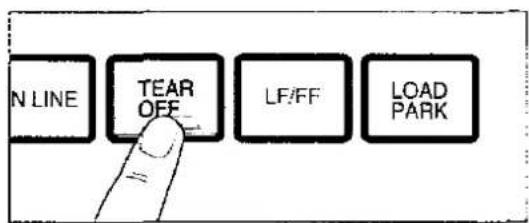
Drücken Sie TEAR OFF, um das Papier bis zur Abreißkante vorzuschieben.
2
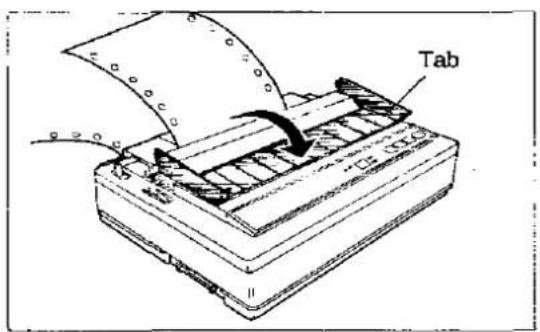
Klappen Sie den vorderen Teil der Rauchglas-Abdeckung nach vorne.
3
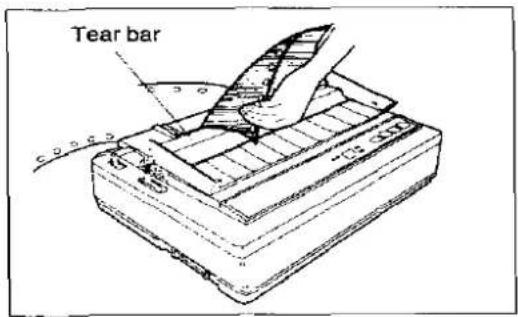
Reißen Sie das Blatt ab.
4
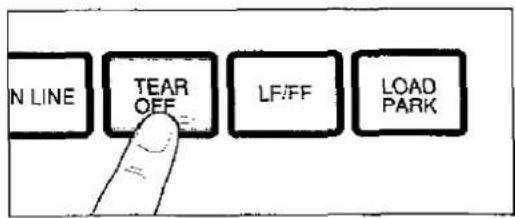
Drücken Sie TEAR OFF, um das Papier zurück zur ersten Druckzeile zu transportieren.
5
Setzen Sie die Rauchglas-Abdeckung wieder auf.
Hinweis:
- Wenn TEAR OFF nicht ein zweites Mal gedrückt wird, transportiert der Drucker das Papier automatisch zurück zur ersten Druckzeile, sobald Daten vom Computer empfangen werden.
Papierablage LOAD/PARK
Mit dieser Funktion können Sie Einzelblätter oder Umschläge verwenden, ohne Ihr Endlospapier zu entfernen oder zu verschwenden.
1 Reißen Sie die bedruckten Seiten des verwendeten Endlospapiers ab.
2
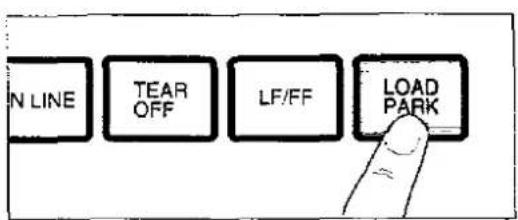
Drücken Sie LOAD/PARK, um das Endlospapier in die Parkposition zu transportieren.
3
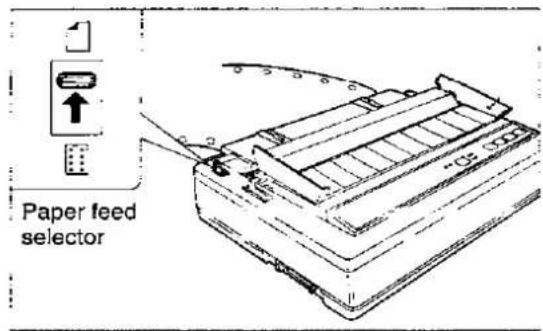
Stellen Sie den Papierzufuhr-Wahlschalter auf „☐“ (Reibungsmodus).
4
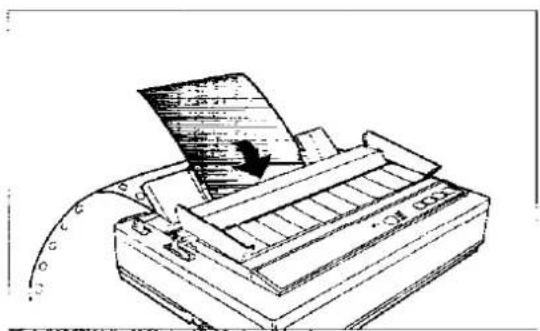
Legen Sie ein einzelnes Blatt oder einen Umschlag ein.
(S. 22 „Einzelblätter und Umschläge“) Wenn Sie mit dem Drucken fertig sind, entfernen Sie das Blatt (oder den Umschlag) aus dem Drucker.
5
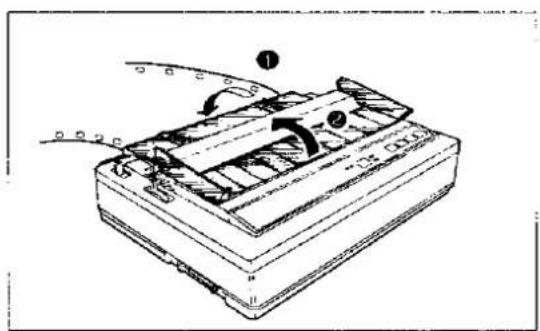
① Senken Sie die obere Abdeckung für Endlospapier ab. ② Setzen Sie die Rauchglas-Abdeckung wieder ein.
6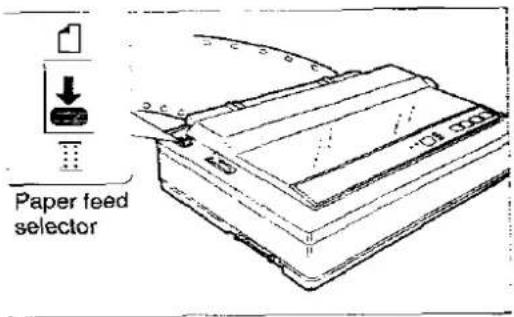
Stellen Sie den Papierzufuhr-Wahlschalter auf „☐“ (Traktor-Schubmodus).
7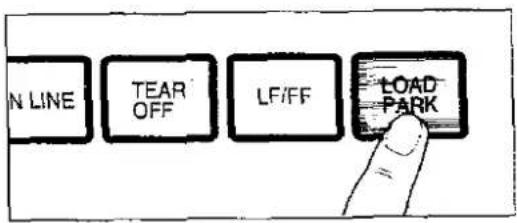
Drücken Sie LOAD/PARK, um das Endlospapier wieder auf die erste Druckzeile zu laden.
Dieser Drucker verfügt über die Softwarebefehle des Epson LQ-850-Modus. Weitere detaillierte Informationen sind im Befehlsreferenzprogramm auf der Setup-Diskette gespeichert. (S. 54)
Schriftartenauswahl
| Function | Name | Parameter |
| Selects print quality | ESC "x" n | n=0: Draft fontn=1: LQ font |
| Selects print typeface | ESC "k" n | n=0: Courier fontn=2: Courier fontn=3: Prestige fontn=4: Scriptn=6: Bold PS font |
| Selects sub/superscript printing | ESC "S" n | n=0: Superscriptn=1: Subscript |
| Releases sub/superscript printing | ESC "T" |
Zeichenabstandsauswahl
| Function | Name | Parameter | ||
| Sets pica pitch (10 cpi) printing | ESC "P" | |||
| Sets elite pitch (12 cpi) printing* | ESC "M" | |||
| Sets micron (15 cpi) printing | ESC "g" | |||
| Sets compressed (17 cpi) printing* | SI or ESC SI | |||
| Releases compressed printing | DC2 | |||
| Sets/Releases proportional spacing | ESC "p" n | n=0: Release | ||
| n=1: Set | ||||
| Sets programmable pitch/ highlighting based on the value of n | ESC "!" n | (0≤n≤255)DEC | ||
| Bit | ON | OFF | ||
| 0: Pitch | Elite | Pica | ||
| 1: PS | ON | OFF | ||
| 2: Compressed | ON | OFF | ||
| 3: Emphasized | ON | OFF | ||
| 4: Double printing | ON | OFF | ||
| 5: Double width | ON | OFF | ||
| 6: Italic | ON | OFF | ||
| 7: Underlining | ON | OFF | ||
- Wenn Elite- und Kompressionsabstände gleichzeitig eingestellt sind, wird die nachfolgende Ausgabe mit 20 cpi (bis zu 160 cpi) gedruckt.
Zeichen-Hervorhebungsauswahl
| Function | Name | Parameter |
| Sets emphasized printing | ESC "E" | |
| Releases emphasized printing | ESC "F" | |
| Sets/Releases double high printing | ESC "w" n | n=0: Releasen=1: Set |
| Sets single-line double wide printing | SO or ESC SO | |
| Releases single-line double wide printing | DC4 | |
| Sets/Releases double wide printing | ESC "W" n | n=0: Releasen=1: Set |
| Sets outline and shadow printing | ESC "q" n | n=0: Releasen=1: Outlinen=2: Shadown=3: Outline with Shadow |
| Sets double strike printing | ESC "G" | |
| Releases double strike printing | ESC "H" | |
| Sets/Release underlining | ESC "-" n | n=0: Releasen=1: Set |
| Sets/Releases score | ESC "(") "-" 3 0 1 d1 d2 | d1=1: Underlined1=2: Strikethroughd1=3: Overscored2=0: Cancel the score line selected by d1d2=1: Single continuous lined2=2: Double continuous lined2=5: Single broken lined2=6: Double broken line |
Wortverarbeitungsmodus-Auswahl
| Function | Name | Parameter |
| Sets Word Processing mode | ESC "a" n | n=0: Selects left alignment mode.n=1: Selects centering mode.n=2: Selects right alignment mode.n=3: Selects justification mode |
| Sets character dots spacing | ESC SP n | (0≤n≤127)DEC |
Zeichensatz-Auswahl
| Function | Name | Parameter |
| Sets Italic printing | ESC "4" | |
| Releases Italic printing | ESC "5" | |
| Sets international character set | ESC "R" n | n=0: USA n=8: Japann=1: France n=9: Norwayn=2: Germany n=10: Denmark 2n=3: England n=11: Spain 2n=4: Denmark 1 n=12: Latinn=5: Sweden American=6: Italy n=13: Korean=7: Spain 1 n=64: Legal |
| Selects graphic Character Set 1 | ESC "7" | |
| Selects graphic Character Set 2 | ESC "6" | |
| Selects alternate character set | ESC "t" n | n=0: Italicn=1: Graphic character setn=2: User-defined characters |
Bitbild-(Grafik-)Modus-Auswahl
| Function | Name | Parameter |
| Sets 8-pin image standard density (60 dpi) | ESC "K" n1 n2 Data | |
| Sets 8-pin image double density (120 dpi) | ESC "L" n1 n2 Data | |
| Sets 8-pin image double density/ double speed (120 cpi) | ESC "Y" n1 n2 Data | |
| Sets 8-pin bit image quadruple density (240 dpi) | ESC "Z" n1 n2 Data | |
| Sets bit image mode selection | ESC "-" m n1 n2 Data | 8-pin Dots/Inch 24-pin Dots/Inch |
| m=0: 60 m=32: 60 | ||
| m=1: 120 m=33: 120 | ||
| m=2: 120D m=38: 90 | ||
| m=3: 240 m=39: 180 | ||
| m=4: 80 m=40: 360 | ||
| m=6: 90 | ||
| Reassigns graphics mode density | ESC "?" n m | n=75: Reassign (ESC "K" n1 n2)n=76: Reassign (ESC "L" n1 n2)n=89: Reassign (ESC "Y" n1 n2)n=90: Reassign (ESC "Z" n1 n2)m is same as m of "Sets bit image mode selection" |
Papiereinzug-Auswahl – Menge
| Function | Name | Parameter |
| Sets paper feed to 1/8 inch (3.2 mm) | ESC "0" | |
| Sets paper feed to 1/6 inch (4.2 mm) | ESC "2" | |
| Sets paper feed to n/60 inch | ESC "A" n | (0 ≤ n ≤ 127)DEC |
| Sets paper feed to n/180 inch | ESC "3" n | (0 ≤ n ≤ 255)DEC |
| Sets paper feed to n/360 inch | ESC "+" n | (0 ≤ n ≤ 255)DEC |
Papiereinzug-Auswahl
| Function | Name | Parameter |
| Feeds paper one line | LF | |
| Feeds paper to next top of form | FF | |
| Executes paper feed of n/180 inch for one line | ESC "J" n | (0 ≤ n ≤ 255)DEC |
| Executes reverse paper feed of n/180 inch for one line | ESC "j" n | (0 ≤ n ≤ 255)DEC |
Seitenformat-Auswahl
| Function | Name | Parameter |
| Sets page length in inches | ESC "C" 0 n | (0 ≤ n ≤ 22)DEC |
| Sets page length in lines | ESC "C" n | (1 ≤ n ≤ 127)DEC |
| Sets left margin | ESC "r" n | 0 ≤ n ≤ 78 : Pica 0 ≤ n ≤ 93 : Elite 0 ≤ n ≤ 117 : Micron 0 ≤ n ≤ 133 : Compressed |
| Sets right margin | ESC "Q" n | 2 ≤ n ≤ 80 : Pica 3 ≤ n ≤ 96 : Elite 3 ≤ n ≤ 120 : Micron 4 ≤ n ≤ 137 : Compressed |
| Sets skip perforation | ESC "N" n | (1 ≤ n ≤ 127)DEC |
| Releases skip perforation | ESC "O" |
Tabulator – horizontal
| Function | Name | Parameter |
| Sets horizontal tab | ESC "D" n1 ... nx 0 | (1≤x≤32) |
| Releases horizontal tab | ESC "D" 0 | |
| Executes horizontal tab | HT |
Tabulator – vertikal
| Function | Name | Parameter |
| Sets vertical tab | ESC "B" n1 ... nx 0 | (1 ≤ x ≤ 16) |
| Releases vertical tab | ESC "B" 0 | |
| Executes vertical tab | VT | |
| Sets VFU channel | ESC "/n | (0 ≤ n ≤ 7)DEC |
| Sets VFU tabulation | ESC "b" m n1 n2 ... nx 0 | (0 ≤ m ≤ 7) (1 ≤ x ≤ 16) |
| Releases VFU tabulation | ESC "b" m 0 | (0 ≤ m ≤ 7) |
Wagenrücklauf-Steuerung
| Function | Name | Parameter |
| Prints, then backspaces one character | BS | |
| Prints a line, then returns carriage | CR | |
| Unidirection mode (single line) | ESC "<" | |
| Sets/Releases single direction printing | ESC "U" n | n=0: Releasen=1: Set |
| Sets/Releases half speed printing | ESC "s" n | n=0: Releasen=1: Set |
| Moves the print position to an absolute horizontal position | ESC "S" n1 n2 | |
| Moves the print position to a relative horizontal position | ESC "I" n1 n2 |
Datensteuerung
| Function | Name | Parameter |
| Clears data in line buffer | CAN | |
| Selects printer remotely | DC1 | |
| Deselects printer remotely | DC3 | |
| Deletes last printable character | DEL | |
| Sets MSB on | ESC ">” | |
| Sets MSB off | ESC “=” | |
| Cancels MSB setting | ESC “#” |
Download-Zeichen-Auswahl
| Function | Name | Parameter |
| Defines download font | ESC "&" 0 n m do d1 d2 Data | |
| Selects ROM CG | ESC "%" n | n=0: Select ROM Character Generator |
| Selects download CG | n=1: Select download CG | |
| Copies internal ROM CG font into download CG | ESC ": 0 n 0 | n=0: Courier font |
| n=2: Courier font | ||
| n=3: Prestige font | ||
| n=4: Script | ||
| n=6: Bold PS font |
Verschiedenes
| Function | Name | Parameter |
| Initializes the printer | ESC “@” | |
| Cut Sheet Feeder control | ESC EM n | n="R": Eject a sheetn="0": Cut Sheet Feeder mode is OFFn="4": Cut Sheet Feeder mode is ON |
BM Proprinter X24E Modus
Dieser Drucker verfügt über die Softwarebefehle des IBM Proprinter X24E Modus. Detailliertere Informationen sind im Befehlsreferenzprogramm auf der Setup-Diskette gespeichert. (S. 54)
Schriftartauswahl
| Function | Name | Parameter |
| Selects print quality | ESC "I" n | n=0: Internal Draft 10 cpi fontn=2: Internal LQ 10 cpi fontn=3: Internal Proportional LQ fontn=4: Download Draft 10 cpi fontn=6: Download LQ 10 fontn=7: Download Proportional LQ fontn=8: Internal Draft 12 cpi fontn=10: Internal LQ 12 cpi fontn=12: Download Draft 12 cpi fontn=14: Download LQ 12 cpi fontn=16: Internal Draft 17 cpi fontn=18: Internal LQ 17 cpi fontn=20: Download Draft 17 cpi fontn=22: Download LQ 17 cpi font |
| Selects print typeface | ESC "K" n | n=0: Courier fontn=2: Courier fontn=3: Prestige fontn=4: Scriptn=6: Bold PS font |
| Selects subscript printing | ESC "S" n | n=0: Superscript |
| Selects superscript printing | n=1: Subscript | |
| Releases sub/superscript printing | ESC "T" |
Zeichenabstandsauswahl
| Function | Name | Parameter |
| Sets elite pitch (12 cpi) printing | ESC “:” | |
| Sets compressed (17 cpi) printing | SI or ESC SI | |
| Releases elite and compressed printing | DC2 | |
| Sets/Releases proportional spacing | ESC “P” n | n=0: Releasen=1: Set |
IBM Proprinter X24E Modus
Zeichenhervorhebungsauswahl
| Function | Name | Parameter | |
| Sets emphasized printing | ESC "E" | ||
| Releases emphasized printing | ESC "F" | ||
| Sets double strike printing | ESC "G" | ||
| Releases double strike printing | ESC "H" | ||
| Sets single-line double wide printing | SO or ESC SO | ||
| Releases single-line double wide printing | DC4 | ||
| Sets/Releases double wide printing | ESC "W" n | n=0: Releasen=1: Set | |
| Sets double high & double wide printing | ESC "T" "@" 4 0 0 0 m3 m4 | m3 Line feed Character height0: Unchanged Unchanged1: Unchanged Single-line2: Unchanged Double-high16: Single Unchanged17: Single Single-high18: Single Double-high32: Double Unchanged33: Double Single-high34: Double Double-high | |
| m4=0: No changem4=1: Single-widem4=2: Double-wide | |||
| Sets/Releases underlining | ESC "-" n | n=0: Releasen=1: Set | |
| Sets/Releases overlining | ESC "-" n | n=0: Releasen=1: Set | |
Zeichensatzauswahl
| Function | Name | Parameter |
| Selects alternate Character Set 1 | ESC "7" | |
| Selects alternate Character Set 2 | ESC "6" | |
| Changes the current code page | ESC "I" "T" 4 0 0 0 n1 n2 | n1=00H and n2=00H: Currentn1=01H and n2=B5H: USAn1=03H and n2=52H: Multilingualn1=03H and n2=5CH: Portugaln1=03H and n2=5FH: Canada Frenchn1=03H and n2=61H: Norwayn1=03H and n2=59H: TurkeyExcept the above: Download font |
Bitbild- (Grafik-) Modusauswahl
| Function | Name | Parameter | |
| Sets 8-pin image standard density (60 dpi) | ESC "K" n1 n2 Data | ||
| Sets 8-pin image double density (120 dpi) | ESC "L" n1 n2 Data | ||
| Sets 8-pin image double density/ double speed (120 dpi) | ESC "Y" n1 n2 Data | ||
| Sets 8-pin image quadruple density (240 dpi) | ESC "Z" n1 n2 Data | ||
| Sets bit image mode selection (A.G.M. mode only) | ESC "s" m n1 n2 Data | 8-pin Dots/Inch | 24-pin Dots/Inch |
| m=0: 60 | m=32: 60 | ||
| m=1: 120 | m=33: 120 | ||
| m=2: 120D | m=38: 90 | ||
| m=3: 240 | m=39: 180 | ||
| m=4: 80 | m=40: 360 | ||
| m=6: 90 | |||
| Sets bit image mode selection | ESC "I" "g" n1 n2 m Data | 8-pin Dots/Inch | 24-pin Dots/Inch |
| m=0: 60 | m=8: 60 | ||
| m=1: 120 | m=9: 120 | ||
| m=2: 120D | m=11: 180 | ||
| m=3: 240 | m=12: 360 | ||
Papiervorschubauswahl – Menge
| Function | Name | Parameter |
| Sets paper feed to 1/8 inch (3.2 mm) | ESC "0" | |
| Sets paper feed to 7/72 inch (2.5 mm) | ESC "1" | |
| Executes line spacing set by ESC "A" n | ESC "2" | |
| Sets paper feed to n/72 inch (or 1/60 inch in A.G.M. mode) | ESC "A" n | (0 ≤ n ≤ 255)DEC |
| Sets paper feed to 7/216 inch (or 1/180 inch in A.G.M. mode) | ESC "3" n | (0 ≤ n ≤ 255)DEC |
| Selects the base line feed unit for ESC "3" and ESC "J" | ESC "["] 4 0 0 0 0 n | n=180: 1/180 inch base unitn=216: 1/216 inch base unit |
| Sets/Release automatic line feed | ESC "5" n | n=0: Releasen=1: Set |
Papiervorschubauswahl
| Function | Name | Parameter |
| Feeds paper one line | L | |
| Feeds paper to next top of form | FF | |
| Executes one-line paper feed of n/216 inch(or n/180 inch in A.G.M. mode) | ESC “J” n | (0≤n≤255)DEC |
Seitenformatsteuerung
| Function | Name | Parameter |
| Sets page length in inches | ESC "C" 0 n | (1 ≤ n ≤ 255)DEC |
| Sets page length in lines | ESC "C" n | (1 ≤ n ≤ 255)DEC |
| Sets left and right margins | ESC "X" n1 n2 | Pica: 1 ≤ n1 ≤ 78 3 ≤ n2 ≤ 80 Elite: 1 ≤ n1 ≤ 93 4 ≤ n2 ≤ 96 Comp.: 1 ≤ n1 ≤ 133 5 ≤ n2 ≤ 137 |
| Sets skip perforation | ESC "N" n | (0 ≤ n ≤ 255)DEC |
| Releases skip perforation | ESC "O" | |
| Sets top of form | ESC "4" |
Tabulator – horizontal
| Function | Name | Parameter |
| Sets horizontal tab | ESC "D" n1 n2 ...nx 0 | (1 ≤ x ≤ 32) |
| Releases horizontal tab | ESC "D" 0 | |
| Executes horizontal tab | HT |
Tabulator – vertikal
| Function | Name | Parameter |
| Sets vertical tab | ESC "B" n1 n2 ... nx 0 | (1 ≤ x ≤ 64) |
| Releases vertical tab | ESC "B" 0 | |
| Executes vertical tab | VT | |
| Returns to default tabs | ESC "R" |
Wagensteuerung
| Function | Name | Parameter |
| Prints, then backspaces on character | BS | |
| Prints a line, then returns carriage | CR | |
| Sets/Release single direction printing | ESC “U” n | n=0: Releasen=1: Set |
| Moves the print position to a relative horizontal position ( 1/120 inch) | ESC “d” n1 n2 | Position: n1+(256×n2) |
Datensteuerung
| Function | Name | Parameter |
| Clears data in line buffer | CAN | |
| Selects printer remotely | DC1 | |
| Deselects printer remotely | ESC "Q" 36 |
Auswahl herunterladbarer Zeichen
| Function | Name | Parameter |
| Defines download font | ESC "=" n1 n2 35 A1 A2 Data |
Verschiedenes
| Function | Name | Parameter |
| Prints continuously from All Character Chart | ESC "V" n1 n2 | Total count: n2×256+n1 |
| Prints one character from All Character Chart | ESC "^" | |
| Sets OFF LINE mode | ESC "J" | |
| Resets to initial state | ESC "[" "K" n1 0 m 36 p1 p2 |
Programmreferenz
Mit dem Programmreferenz-Programm können Sie die detaillierte Erklärung jedes Softwarebefehls auf dem Bildschirm anzeigen. Jede angezeigte Erklärung kann bei Bedarf ausgedruckt werden.
Bevor Sie die Setup-Diskette verwenden, wird empfohlen, eine Sicherungskopie zu erstellen und das Original an einem sicheren Ort aufzubewahren.
Hinweis:
- Verwenden Sie den DISKCOPY-Befehl des Betriebssystems, um eine Sicherungskopie zu erstellen. Weitere Informationen finden Sie in Ihrem DOS-Handbuch.
- Möglicherweise ist es praktisch, die Setup-Diskettenprogramme direkt auf Ihrem C-Laufwerk zu installieren, anstatt sie bei jeder Änderung von der Setup-Diskette zu lesen. Beide Methoden sind akzeptabel.
Informationen zur automatischen Installation der Setup-Diskettendateien auf Ihrem C-Laufwerk finden Sie auf Seite 32.
1 Legen Sie Ihre Setup-Diskette in Laufwerk A oder B ein.
2 Geben Sie A: (oder B:) ein und drücken Sie die Eingabetaste.
2 Wählen Sie im Menü Datei die Option Ausführen.
3 Geben Sie CMDREF ein.
3 Geben Sie A:\CMDREF (oder B:\CMDREF) ein.
4 Drücken Sie die Eingabetaste.
4 Klicken Sie auf OK (oder drücken Sie die Eingabetaste).
5 Bildschirm 1 wird angezeigt.
<< Panasonic KX-P2023 Befehlsreferenz-Dienstprogramm (xxxxxxxxxx) >>
-- EMULATION WÄHLEN
EPSON IBM
[↑]/[↓] : Emulation wählen [Enter] : Emulation festlegen [E] : Zurück zu DOS
6 Drücken Sie ↑ oder ↓.
Wählen Sie eine Emulation.
7 Drücken Sie Enter.
Die Emulation wird festgelegt und Bildschirm 2 wird angezeigt.
8 Drücken Sie Pg.Up / Pg.Down oder ↑ / ↓.
Wählen Sie einen Befehl.
Bildschirm 2
| << Panasonic KX-P2023 command reference utility (xxxxxxxxxxx) >> | |
| —— SELECT COMMAND (EPSON) | |
| FONT SELECTION | |
| ESC+’x’n | Selects print quality |
| ESC+’k’n | Selects print font style |
| ESC+’S’+1 | Selects subscript printing |
| ESC+’S’+0 | Selects superscript printing |
| ESC+’T | Releases sub/superscript printing |
| CHARACTER PITCH SELECTION | |
| ESC+’P’ | Sets pica pitch (10 cpi) printing |
| ESC+’M’ | Sets elite pitch (12 cpi) printing |
| ESC+’g’ | Sets micron (15 cpi) printing |
| SI | Sets compressed (17 cpi) printing |
| ESC-SI | Sets compressed (17 cpi) printing |
| DC2 | Releases compressed printing |
| ESC-’p’+1 | Sets proportional spacing |
| — = — = — = — = — = — = — = — = — = — = — = — = — = — = — = — = — = — = — = — = — = — = — = — = — = — = — = — = — = — = — = — = — = — = — = — = — = — = — = — = — = — = — = — = — = — = — = — = — = — = — = | |
| ‘↑] / [ ~ ] | Select command |
| ‘Pg.Up]/[Pg.Down] | Go to previous/next category |
| ‘Enter] | View command description |
| [Esc] | SELECT EMULATION mode |
| [E] | Exit to DOS |
| [↑]/[↓] | Moves the cursor one line up/down |
| [Pg.Up]/[Pg.Down] | Moves the cursor to the first command of the previous/next item |
| [Enter] | Displays the explanation of the command |
| [Esc] | Returns to screen 1 |
| [E] | Exits to DOS |
9 Drücken Sie Enter.
Der Bildschirm zeigt die ausführliche Erklärung des Befehls.
Wenn Sie diese Erklärung ausdrucken möchten, drücken Sie erneut die Enter-Taste.
Wenn Sie dieses Programm verlassen möchten, gehen Sie zu Schritt 10.
Bildschirm 3
| ESG+'x'+n | Selects print quality | ||
| <PRINT QUALITY> Selects print quality | |||
| Name: | ESC | x | n |
| Dec.: | 27 | 120 | n |
| Hex.: | 1B | 78 | n |
| Comment: *The following values of n can be used: n=0: Draft font n=1: LQ font | |||
| --END -- | |||
| [T]/[↓] | : Text scroll-down/up | ||
| [Pg.Up]/[Pg.Down] | : Go to previous/next command | ||
| [Esc] | : SELECT COMMAND mode | ||
| [Enter] | : Print current command description | ||
| [E] | : Exit to DOS | ||
| [↑]/[↓] | Scrolls the text one line down/up |
| [Pg.Up]/ [Pg.Down] | Displays the explanation of previous/next command |
| [Esc] | Returns to screen 2 |
| [Enter] | Prints the detailed explanation of the command |
| [←] | Exits to DOS |
10 Drücken Sie E.
Sie haben das Programm "Befehlsreferenz" verlassen.
Regelmäßige Wartung
Der Drucker erfordert keine routinemäßige Wartung. Dennoch verlängert eine angemessene Pflege des Druckers seine Lebensdauer. Die folgenden regelmäßigen Maßnahmen werden empfohlen:
- Die Reinigung des Geräts ist die wichtigste Maßnahme, die der Benutzer durchführen kann. Die Häufigkeit der Reinigung hängt von der Umgebung ab.
— Schalten Sie den Strom AUS.
— Reinigen Sie Gehäuse und Abdeckungen mit einem weichen Tuch. Verwenden Sie ein mildes handelsübliches Reinigungsmittel auf dem Tuch, sprühen Sie nicht direkt auf den Drucker.
— Entfernen Sie die obere Abdeckung und die Rauchglasabdeckungen. Saugen oder wischen Sie den Innenraum des Geräts ab. Seien Sie sehr vorsichtig, um das Druckkopf-Flachbandkabel oder den Wagenantriebsriemen nicht zu beschädigen.
— Die Walze sollte nur mit denaturiertem Alkohol gereinigt werden.
— Die Wagenführungsstange kann mit einem sehr leichten Öl geschmiert werden. Wenden Sie sich für Ratschläge zur Schmierung an Ihr autorisiertes Panasonic-Servicecenter.
Farbbandkassette
Ein einzelnes Farbband ermöglicht das Drucken von etwa 3 Millionen Zeichen im Entwurfsmodus. Wenn der Druck zu verblassen beginnt, drücken Sie vorsichtig die Gegendruckfeder im Loch der Farbbandkassette mit der Spitze eines Kugelschreibers oder eines anderen Gegenstands. Sobald die Farbbandkassette auf dem Wagen montiert ist und eine kurze Zeit gedruckt wird, werden die Zeichen dunkler.
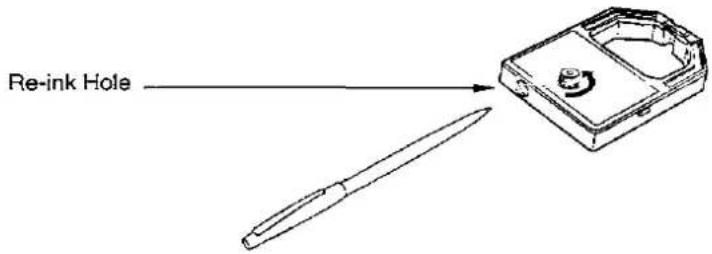
Hinweis:
Tinten Sie das Farbband erst wieder nach, wenn der Druck zu verblassen beginnt. Wenn das Farbband zu viel Tinte enthält, verschmieren die Zeichen beim Drucken.
Wenn das Farbband am Druckkopf hängen bleibt, einreißt oder reißt, muss Ihr Drucker gewartet werden.
Selbsttest
Nach dem erneuten Einfärben des Farbbands können Sie die Schritte 1\~3 des "Selbsttests" ausführen, um sicherzustellen, dass die Zeichen nicht mehr verschmieren. (S. 27)
Fehlerbehebung
Die meisten Probleme mit dem Drucker lassen sich auf falsche Einrichtung, Installation oder Verkabelung zurückführen. Die folgende Tabelle 5.1 hilft dem Benutzer, einige der häufigsten Probleme zu identifizieren und zu beheben. Wenn Sie zusätzliche Hilfe benötigen, wenden Sie sich an das Geschäft, in dem das Gerät gekauft wurde.
| Symptom | Possible Cause | Probable Solution |
| Ink smears | Head gap lever is not in the proper position | Move the lever toward the lower position (+) until ink doesn't smear ( P. 11) |
| Printout is faint | Head gap lever is not in proper position | Set the lever to the proper position ( P. 11) |
| Head moves but does not print | Ribbon is not installed correctly | Re-insert ribbon ( P. 14~16) |
| Head gap lever is not in proper position | Set the lever to the proper position ( P. 11) | |
| Printer does not power up | No AC power | Check power cord ( P. 13) |
| Power is on but printer does not print | Printer is not ON LINE | Press ON LINE switch |
| Interface cable is not properly connected | Secure connection ( P. 13) | |
| Out of paper | Install new paper ( P. 19~23) | |
| Printhead has become overheated | Allow the printhead some time to cool down. The printer will automatically resume printing | |
| Carriage stops moving, all indicators start blinking | Path of printhead is blocked | Clear the path, turn the power off, then back on to resume printing |
| Paper wrinkles when using tractor feed | No reverse tension on paper | Set paper supply lower than printer |
| Printer can't load single sheet in Friction mode | Cut Sheet Feeder is Enable | Set Cut Sheet Feeder to Disable when not using the Cut Sheet Feeder ( P. 28~35) |
| Cut Sheet Feeder does not work | Cut Sheet Feeder is Disable | Set Cut Sheet Feeder to Enable ( P. 28~35) |
| Unexpected characters appear in printing | Emulation is set incorrectly | Check printer driver of your software package and set emulation accordingly ( P. 28~35) |
| KX-P44 (buffer chip) is installed but cannot download | Download is Disable | Set Download to Enable ( P. 28~32) |
| Printout is double-spaced | Auto LF is ON | Set Auto LF to OFF ( P. 28~35) |
| Keeps printing on the same line | Computer is not sending a LF command | Set Auto LF to ON ( P. 28~35) |
| Wrong character set printed | Wrong character set selected | Set the character set as required ( P. 28~32) |
Tabelle 5.1 Fehlerbehebung
| Power requirements: | ||||
| Frequency: | Refer to the nameplate located on the rear of the printer. | |||
| Current: | ||||
| Interface: | Centronics parallel | |||
| Print fonts: | 3 Draft (Pica, Elite, Micron)4 Letter Quality (Courier, Bold PS, Prestige, Script) | |||
| Software emulation: | Epson LQ-850IBM Proprinter X24E | |||
| Buffer: | 14K (standard), additional 32K (optional KX-P44) | |||
| Character sets: | 96 ASCII characters,96 Italic ASCII characters,38 International characters — 14 countries,158 IBM-PC special characters | |||
| Dot configuration: | 1/127 inch (0.2 mm) dot diameter | |||
| Draft | LQ | |||
| Matrix (Hor. × Ver) | 9 × 24 | 30 × 24 | ||
| Dot pitch (Hor.) | 1/120"(0.21 mm) | 1/360"(0.07 mm) | ||
| (Ver.) | 1/180"(0.14 mm) | 1/180"(0.14 mm) | ||
| Maximum number ofcharacters per line (cpl): | Pica [10 cpi (characters per inch)] | 80 cpl | ||
| Elite (12 cpi) | 96 cpl | |||
| Micron (15 cpi) | 120 cpl | |||
| Compressed (17 cpi) | 137 cpl | |||
| Elite compressed (20 cpi) | 160 cpl | |||
| Pica elongated (5 cpi) | 40 cpl | |||
| Elite elongated (6 cpi) | 48 cpl | |||
| Micron elongated (7.5 cpi) | 60 cpl | |||
| Compressed elongated (8.5 cpi) | 68 cpl | |||
| Elite compressed elongated (10 cpi) | 80 cpl | |||
| Printing speed [charactersper second (cps)]: | Micron | Elite | Pica | |
| Draft | 240 cps | 192 cps | 160 cps | |
| Letter Quality | 80 cps | 64 cps | 53 cps | |
| Printing direction: | Text printing: Bi-DirectionalBit Image printing: Uni-Directional & Bi-Directional | |||
| Line feed time: | Approx. 100 msec[with 1⁄2 inch (4.2 mm) line feeding)] | |||
| Paper Feed: | Push Tractor feed (with fanfold paper)Friction feed (with single sheets or envelopes) | |||
| Operating environment: | Temperature: 10°C~35°C {50°F~95°F}Humidity: 30~80% RH (Please allow the printer to stabilize at room temperature within the operating temperature range before operation) | |||
| Storage environment: | Temperature: -20°C~60°C {-4°F~140°F}Humidity: 10~90% RH | |||
(Fortsetzung)
Druckerspezifikationen
| Head service life: | Approx. 200 million strokes in draft mode |
| Ribbon: | Cassette seamless fabric ribbonBlack ribbon cassette KX-P145:Life expectancy (in Draft mode) (rolling ASCII)Approx. 3 million |
| Detectors: | Paper out detectorOverheat detector |
| Dimensions: | 434 (W) × 314 (D) × 134.5 (H) mm{17.1" × 12.4" × 5.3"} |
| Mass {Weight}: | Approx. 4.8 kg {10.6 lbs} |
Papierspezifikationen
Papier, das mit diesem Gerät verwendet werden kann, muss den unten angegebenen Spezifikationen entsprechen.
Endlospapier
Breite: 4 \~ 10 Zoll (102 \~ 254 mm)
Qualität und Anzahl der Blätter:
| Type of paper | Sheets | Weight | |
| In lbs | in g/m2 | ||
| Fine-quality paper | 1 | 16 ~ 24 | 60 ~ 90 |
| Non-carbon | 2 ~ 4 | 11 ~ 14 (17*) | 41 ~ 53 (64*) |
| Multi-layered with carbon | 2 | 11 ~ 14 (17*) | 41 ~ 53 (64*) |
(* nur für das letzte Blatt)
Hinweis:
Bei mehrlagigem Papier mit Kohlepapier entspricht die Kohleschicht einem Blatt Papier. Das Gewicht in Pfund bezieht sich auf 500 Blatt im Format 17×22 Zoll (423×559 mm). Der Drucker verarbeitet mehrteilige Papiere bis zu einer Dicke von 0,013 Zoll (0,32 mm). Es können bis zu 4 Kopien aus 14-Pfund-Chemikalien-Durchschlagpapier verwendet werden.
Einzelblätter
Breite: 4 \~ 11,7 Zoll (102 \~ 297 mm)
Höhe: 5 - 14,3 Zoll (127 - 363 mm)
Gewicht in Pfund (g/m²): 14 \~ 24 lbs (53 \~ 90 g/m²)
Hinweis:
Das Papier sollte mindestens 24 Stunden vor Verwendung innerhalb der Betriebstemperatur- und Luftfeuchtigkeitsbereiche gelagert werden.
Umschläge
Umschläge der Größe 6 und #10 werden empfohlen. Da Umschläge in Größe, Papiergewicht und Konstruktion variieren, können wir Druckqualität und Papierhandhabung für alle Umschlagtypen nicht garantieren.
Hinweis:
Um die Druckqualität zu optimieren, sollte nicht in Bereichen gedruckt werden, in denen die Kanten überlappen.
Druckbereich
Endlospapier
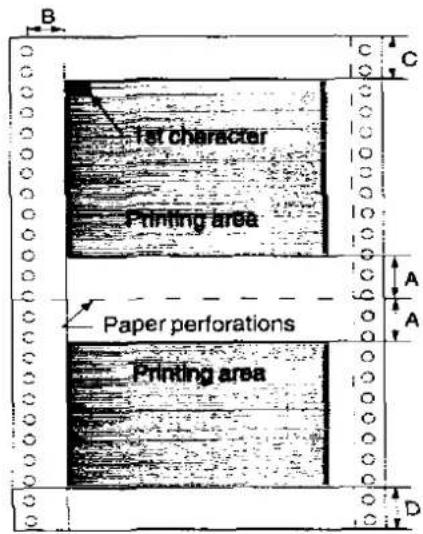
| Fanfold Paper | |
| A | 1" (25.4 mm) |
| B | 0.7" (17.8 mm) |
| C | 0.33" (8.38 mm) |
| D | 1" (25.4 mm) |
A: Wert A gibt den Bereich nahe der Papierperforation an, in dem die Qualität möglicherweise nicht optimal ist. B: Wert B gibt den Mindestabstand zwischen den Zahnradlöchern und dem ersten druckbaren Zeichen an. (Wenn der linke Traktor am linken Ende eingestellt ist und der Rand auf 0 gesetzt ist.) C: Wert C gibt den Bereich von der Oberkante des Papiers bis zur Oberkante des ersten gedruckten Zeichens an. D: Wert D gibt die Position an, an der das Papierende erkannt wird und der Druck möglicherweise nicht optimal ist.
Einzelblätter und Umschläge
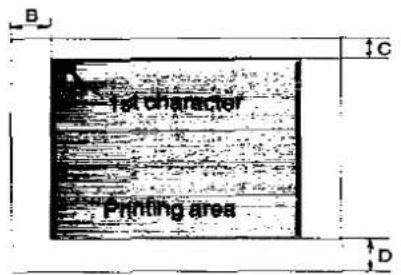
| Single Sheets and Envelopes | |
| B | 1.5" (38 mm) |
| C | 0.33" (8.38 mm) |
| D | 1" (25.4 mm) |
B: Der Wert B gibt den Mindestabstand zwischen der Papierkante und dem ersten druckbaren Zeichen an. (Wenn die linke Papierführung auf das linke Ende eingestellt ist und der Rand auf 0 gesetzt ist.) C: Der Wert C gibt den Bereich von der Oberkante des Papiers bis zur Oberkante des ersten gedruckten Zeichens an. D: Der Wert D gibt die Position an, an der das Papierende erkannt wird und der Druck möglicherweise nicht optimal ist. (Wenn Sie auf Umschläge drucken, drucken Sie nicht auf den Bereich, in dem sich die Kanten überlappen. Die Druckqualität ist möglicherweise nicht optimal.)
Parallele Schnittstelle
Die Kommunikation mit einem Computer erfolgt über eine parallele Schnittstelle, die auf dem Centronics-Standard basiert.
Technische Daten:
• Datenübertragungsgeschwindigkeit: mindestens 1000 Zeichen pro Sekunde - Synchronisation: externer STROBE-Impuls - Logikpegel: TTL-Pegel (Transistor-Transistor-Logik) - Handshaking: BUSY- und ACK-Signale - Steckertyp: 57-30360 (AMPHENOL) oder gleichwertig - Kabel: Verwenden Sie ein abgeschirmtes Kabel (maximal 6'5"/1,95 Meter) Länge.
Wenn der Drucker Daten verarbeitet, ist das BUSY-Signal hoch. Der Drucker akzeptiert keine neuen Daten vom Computer. Nach Abschluss der Verarbeitung wird das BUSY-Signal niedrig. (Das BUSY-Signal ist auch hoch, wenn der Drucker OFF LINE ist). Wenn das BUSY-Signal auftritt, wird das ACK-Signal niedrig, was dem Computer anzeigt, dass die Daten verarbeitet wurden und der Drucker bereit ist, weitere Daten zu akzeptieren. Diese Handshaking-Routine wird jedes Mal ausgeführt, wenn ein Zeichen an den Drucker gesendet wird.
| BUSY | SLCT | PO | ERROR | |
| ON LINE | LOW | HIGH | LOW | HIGH |
| OFF LINE | HIGH | LOW | LOW | LOW |
| PAPER OUT | HIGH | LOW | HIGH | LOW |
Druckerstatussignale
Paralleler Schnittstellenstecker (Druckerseite)
| Signal pin | Return side pin | Signal | Direction |
| 1 | 19 | STB | Input |
| 2 | 20 | DATA 1 | |
| 3 | 21 | DATA 2 | |
| 4 | 22 | DATA 3 | |
| 5 | 23 | DATA 4 | |
| 6 | 24 | DATA 5 | |
| 7 | 25 | DATA 6 | |
| 8 | 26 | DATA 7 | |
| 9 | 27 | DATA 8 | |
| 10 | 28 | ACK | Output |
| 11 | 29 | BUSY | |
| 12 | PO |
| Singal pin | Return side pin | Signal | Direction |
| 13 | SLCT | Output | |
| 14 | AUTO FEED XT | Input | |
| 15 | |||
| 16 | SG | ||
| 17 | FG | ||
| 18 | +5 V | Output | |
| 31 | 30 | PRIME | Input |
| 32 | ERROR | Output | |
| 33 | SG | ||
| 34 | |||
| 35 | |||
| 36 |
Pinbelegung (parallel)
Stecker-Pinsignale
STB...STROBE
- Dies ist ein Synchronisationseingangssignal zum Einlesen von Daten in den Drucker.
- Dieses Signal ist normalerweise hoch. Daten werden eingelesen, wenn es niedrig ist.
DATA1-DATA8
• Dies sind die Eingangssignale, die die 8 Datenbits der Informationen übertragen. - Das Signal wird synchron mit dem STROBE-Impuls gelesen. Ein hoher Pegel bedeutet eine logische "1".
ACK...ACKNOWLEDGE
- Dies ist ein Ausgangssignal an den Computer, das anzeigt, dass der Drucker bereit ist, die nächsten Daten zu empfangen. Wenn die Bedingung erfüllt ist, geht das Signal auf niedrigen Pegel.
- Das ACK-Signal wird automatisch gesendet, wenn der Drucker eingeschaltet (ON LINE) ist und das BUSY-Signal von hoch auf niedrig fällt.
BUSY
- Dieses Ausgangssignal zeigt an, dass der Drucker keine Daten empfangen kann.
• Das Signal ist unter den folgenden Bedingungen hoch:
- Empfangspuffer voll
- Drucker verarbeitet Daten
- Drucker ist OFF LINE
- Drucker befindet sich in einem Fehlerzustand
PO...PAPER OUT
- Dieses Ausgangssignal zeigt das Fehlen von Papier an und geht während eines "Papierstau"-Zustands auf hoch.
SLCT...SELECT
- Dieses Ausgangssignal ist im ON LINE-Zustand hoch und im OFF LINE-Zustand niedrig.
• Der Drucker wechselt in den Zustand ONLINE: 1. wenn der Drucker eingeschaltet wird 2. wenn PRIME empfangen wird 3. wenn der Befehl RESET empfangen wird 4. wenn der Schalter ONLINE gedrückt wird
• Der Drucker wechselt in den Zustand OFFLINE: 1. wenn das Papier ausgeht 2. wenn der Drucker auf OFFLINE geschaltet wird
AUTO FEED XT (AFXT)
- Solange dieses Eingangssignal niedrig ist, wird zu jedem Wagenrücklauf (CR) ein Zeilenvorschub-Befehl (LF) hinzugefügt.
- Die Einstellung Auto LF im Funktionsmodus kann die Reaktion des Druckers auf ein AFXT-Signal ändern. Wenn Auto LF eingeschaltet ist, führt der Drucker unabhängig vom Pegel des AFXT-Signals ein CR+LF aus. Wenn Auto LF ausgeschaltet ist, ist die automatische Funktion deaktiviert.
SG...SIGNALMASSE
- Die Rückleiter der verdrillten Paare (Pins 19\~30) sind mit der Signalerde verbunden.
FG...RAHMENERDE
• Rahmenerde ist dasselbe wie Gehäuseerde.
+5V
- Dies dient nur zur Bewertung. Es sollte nicht zur Stromversorgung externer Geräte verwendet werden.
PRIME
- Dieses Eingangssignal ist normalerweise hoch und geht zurücksetzen des Druckers auf niedrig. Es kann jederzeit während des Druckerbetriebs empfangen werden.
FEHLER
- Dieses Ausgangssignal ist normalerweise hoch und geht bei einem Fehler auf niedrig. Ein Fehlerzustand kann verursacht werden durch:
- Ein "Papierstau"-Zustand
- Der Drucker ist OFFLINE
- Ein Überlastzustand liegt vor
Zeitdiagramm (bei Empfang eines normalen Druckcodes)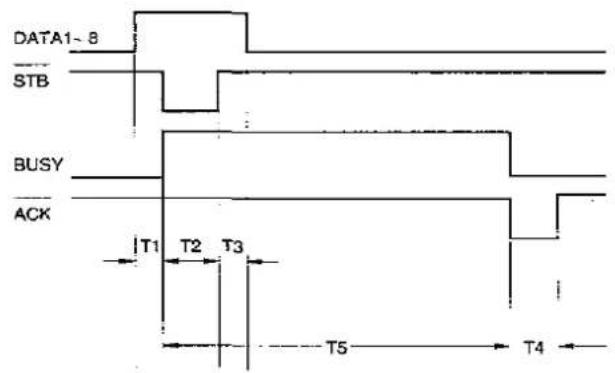
T1...0,5 μs (Min.)
T2...1 μs (Min.)
T3...0,5 μs (Min.)
T4...5 μs (Max.)
T5...1 ms oder weniger, wenn der Puffer nicht voll ist 1 s oder weniger, wenn der Puffer voll ist
Zeitdiagramm
Initialisierung
Der Drucker wird unter den folgenden Bedingungen initialisiert:
— Die Wechselspannung wird eingeschaltet
— Das PRIME-Signal wird empfangen
— Der Befehl RESET PRINTER wird empfangen
— die Funktion zum Löschen des Puffers wird verwendet
Wenn der Drucker initialisiert wird, werden die folgenden Bedingungen eingestellt:
— der Druckpuffer wird gelöscht
— der Empfangspuffer wird gelöscht (wird nicht durch den Befehl RESET PRINTER gelöscht)
— der Puffer für heruntergeladene Zeichen wird gelöscht (wird nicht durch das PRIME-Signal im IBM Proprinter X24E-Modus oder durch den Befehl RESET PRINTER gelöscht)
— horizontale Tabulatoren werden alle 8 Spalten gesetzt
— vertikale Tabulatoreinstellungen werden gelöscht
— alle Modi, die durch Steuer- und Escape-Befehle gesetzt wurden, werden gelöscht
— die aktuelle Formularposition wird als Formularanfang festgelegt
— der Selbsttestmodus wird gelöscht
— die Einstellungen des Bedienfelds werden gelesen und gesetzt
— die Einstellungen des Bedienfelds werden nicht durch das PRIME-Signal oder den Befehl RESET PRINTER geändert*
— der Druckkopf geht in die Ausgangsposition
* Einige Softwarepakete senden zu Beginn ihrer Programme ein PRIME-Signal. Die über das Bedienfeld eingestellten Druckmodi werden nicht geändert.
Benutzer-Löschfunktion
Diese Funktion initialisiert den Drucker über das Bedienfeld. Diese Funktion ist sehr nützlich, wenn Sie den Empfangspuffer (Informationen, die kürzlich vom Computer gesendet wurden und gerade gedruckt werden) löschen möchten, ohne das Bedienfeld zu ändern.
- Drücken Sie ON LINE, um den Druck zu stoppen und in den OFF LINE-Modus zu wechseln.
- Halten Sie FONT gedrückt und drücken Sie ON LINE, um die Daten im Empfangspuffer zu löschen.
- Drücken Sie ON LINE, um wieder in den ON LINE-Modus zu wechseln.
Hex-Dump
In diesem Modus werden alle vom Computer empfangenen Daten im Hex-Code anstelle der normalen ASCII-Zeichen gedruckt. Funktionscodes für den Drucker (CR, LF, HT usw.) werden nicht ausgeführt. Dieser Modus ist sehr nützlich zum Debuggen von Programmen.
So wechseln Sie in den Hex-Dump-Modus:
Halten Sie FONT gedrückt und schalten Sie das Gerät ein.
So verlassen Sie den Hex-Dump-Modus:
Schalten Sie das Gerät aus und wieder ein.
Zeichensatztabellen
Epson-Kursivzeichensatz (USA)
| Dec | 0 | 16 | 32 | 48 | 84 | 80 | 96 | 112 | 128 | 144 | 160 | 175 | 192 | 208 | 224 | 240 | |
| Hex | 0 | 1 | 2 | 3 | 4 | 5 | 6 | 7 | 8 | 9 | A | D | C | D | E | F | |
| 5 | 0 | NUL | SP | 3 | 6 | P | p | SP | 0 | 0 | P | p | |||||
| 11 | 1 | DC1 | 1 | A | a | q | DC1 | 1 | A | q | |||||||
| 2 | DC2 | 2 | B | R | b | r | DC2 | 2 | B | r | |||||||
| 3 | DC3 | 3 | C | S | c | s | DC3 | 3 | C | s | |||||||
| 4 | DC4 | 4 | T | d | I | DC4 | 4 | D | t | ||||||||
| 5 | |||||||||||||||||
| 6 | |||||||||||||||||
| 7 | |||||||||||||||||
| 8 | BS CAN | ||||||||||||||||
| 9 | HT EM | ||||||||||||||||
| 10 | LF | ||||||||||||||||
| 11 | VT ESC | ||||||||||||||||
| 12 | |||||||||||||||||
| 13 | |||||||||||||||||
| 14 | |||||||||||||||||
| 15: F SI : ? O _ o CEL SI / ? O — o NUL | |||||||||||||||||
Epson Graphic Character Set 2 (USA)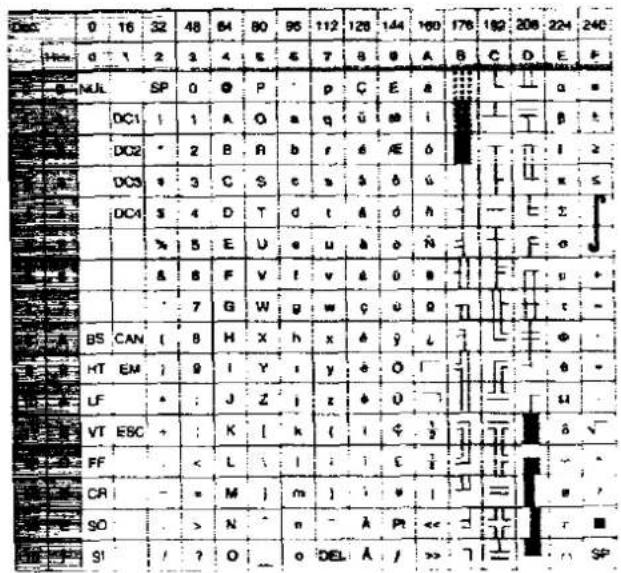
Hinweis: - Satz 1 ist derselbe, bei dem 80H-9FH auf 00H-1FH umgeschaltet wird.
Epson Zeichensatz 2 (mehrsprachig)
| Desc. | 0 | 15 | 32 | 48 | 64 | 80 | 95 | 112 | 128 | 144 | 160 | 176 | 192 | 208 | 224 | 240 | |
| Hex. | 0 | 1 | 2 | 3 | 4 | 5 | 6 | 7 | 8 | 9 | A | B | C | D | E | F | |
| 9 | 6 | NUL | SP | 0 | € | P | - | p | € | E | a | ||||||
| t | ↑ | DC1 | 1 | A | Q | a | q | ü | |||||||||
| 2 | 2 | DC2 | 2 | B | R | b | c | é | |||||||||
| 3 | 3 | DC3 | 3 | C | S | c | s | A | ö | ||||||||
| 4 | 4 | DC4 | 4 | D | T | d | t | ä | ö, h | ||||||||
| 5 | 5 | 5 | E | U | e | ä | ö | ||||||||||
| 6 | 6 | ||||||||||||||||
| 7 | 7 | ||||||||||||||||
| 8 | 8 | BS CAN | |||||||||||||||
| 9 | 9 | HT EM | |||||||||||||||
| 10 | A | LF - | |||||||||||||||
| 11 | B | VT ESC + | |||||||||||||||
| 12 | C | FF - | |||||||||||||||
| 13 - D | |||||||||||||||||
| 14 - E | |||||||||||||||||
| 15 - F | |||||||||||||||||
Epson Zeichensatz 2 (Portugal) Hinweis: - Satz 1 ist derselbe, bei dem 80H 9FH auf 00H 1FH umgeschaltet wird.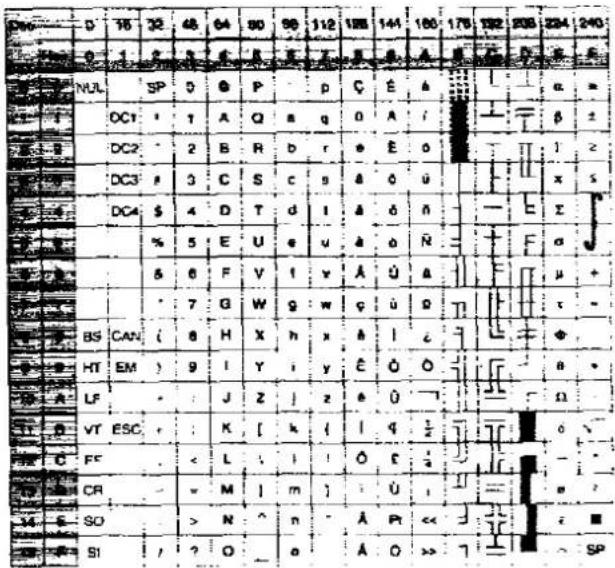
Epson Zeichensatz 2 (Kanada-Französisch)
| 0 | 16 | 32 | 48 | 54 | 90 | 96 | 112 | 128 | 144 | 160 | 176 | 192 | 208 | 224 | 240 | |||
| Hex. | 0 | ! | 2 | 3 | 4 | 5 | 8 | 7 | 8 | 9 | A | B | C | D | E | F | ||
| 0 | 0 | NUL | SP | C | 8 | P | P | C | E | u | ||||||||
| 1 | 1 | CC: | A | Q | a | q | ü | E | 3 | |||||||||
| 2 | DC2 | 2 | B | R | b | r | e | E | ||||||||||
| 3 | DC3 | 3 | C | S | c | s | ä | ö | ||||||||||
| 4 | DC4 | 4 | D | T | d | Ä | E | |||||||||||
| 5 | % | 5 | E | U | e | ü | ||||||||||||
| 6 | & | 6 | F | V | l | v | ||||||||||||
| 7 | 7 | G | W | g | w | |||||||||||||
| 8 | 8' B' S' E' F' G' H' I' J' K' L' M' N' O' P' Q' R' S' T' U' V' W' X' Y' Z' Z' AA' AB' AC' AD' AE' AF' AG' AH' AI' AJ' AK' AL' AM' AN' AO' AP' AQ' AR' AS' AT' AU' AV' AW' AX' AY' AZ' BA' BB' BC' BD' BEC' BF' BG' BH' BI' BJ' BK' BLI' BMI' BNI' BOI' BPJCIJCAJCIJCIJCIJCIJCIJCIJCIJCIJCIJCIJCIJCIJCIJCIJCIJCIJCIJCIJCIJCIJCIJCIJCIJCIJCIJCIJCIJCIJCIJCIJCIJCIJCIJCIJCIJCIJCIJCIJCIJCIJCIJCIJCIJCIJCIJCIJCIJCIJCIJCIJ CIJCIJCIJCIJCIJCIJCIJCIJCIJCIJCIJCIJCIJCIJCIJCIJCIJCIJCIJCIJCIJCIJCIJCIJCIJCIJCIJCIJCIJCIJCIJCIJCIJCIJCIJCIJCIJCIJCIJCIJCIJCIJCIJCIJCIJCIJCIJCIJCIJCIJCl J C C D E F G H I J I J I J I J I J I J I J I J I J I J I J I J I J I J I J I J I J I J I J I J I J I J I J I J I J I J I J I J I J I J I J I J I J I J I J I J I J I J I J I J I J I J I J I J I J I J I J I J I J I J I I 1 2 3 4 5 6 7 8 9 10 11 12 13 14 15 16 17 18 19 20 21 22 23 24 25 26 27 28 29 30 31 32 33 34 35 36 37 38 39 40 41 42 43 44 45 46 47 48 49 50 51 52 53 54 55 56 57 58 59 60 61 62 63 64 65 66 67 68 69 70 71 72 73 74 75 76 77 78 79 80 81 82 83 84 85 86 87 88 89 90 91 92 93 94 95 96 97 98 99 100 | |||||||||||||||||
Epson Zeichensatz 2 (Norwegen)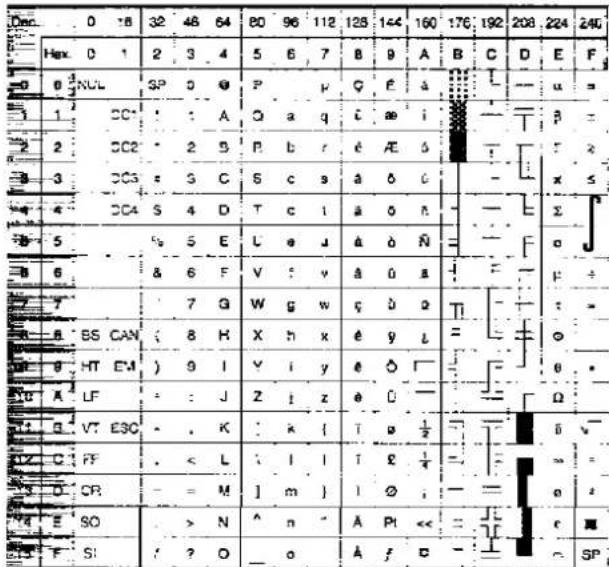

Epson Zeichensatz 2 (Türkei)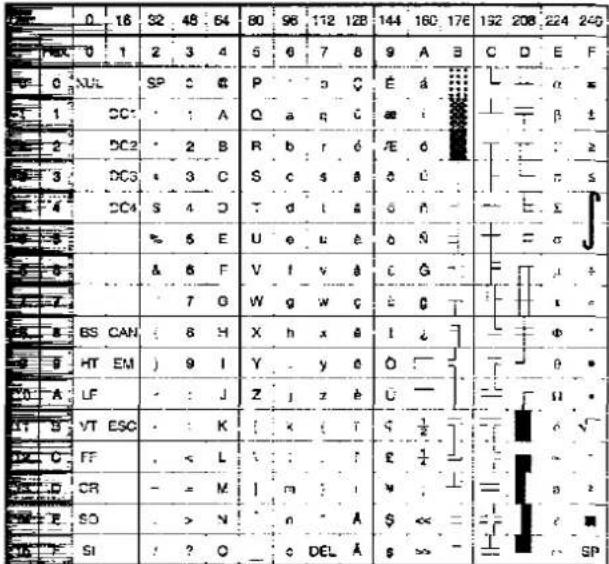
Hinweis:
Satz 1 ist derselbe, bei dem 80H-9FH auf
00H-1FH umgeschaltet wird.
Zeichensatztabellen
IBM Zeichensatz 2 (USA)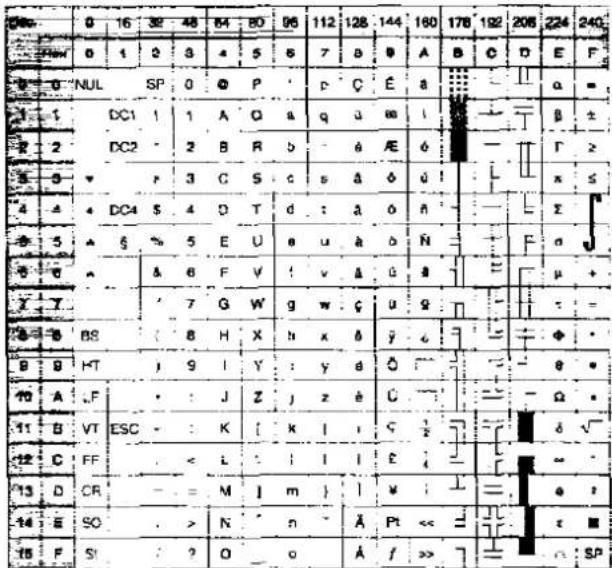
Hinweis:
- Satz 1 ist derselbe, bei dem 03H\~06H und 15H auf NUL umgeschaltet werden, und 80H\~9FH auf 00H\~1FH.
IBM Alle Zeichentabelle (USA)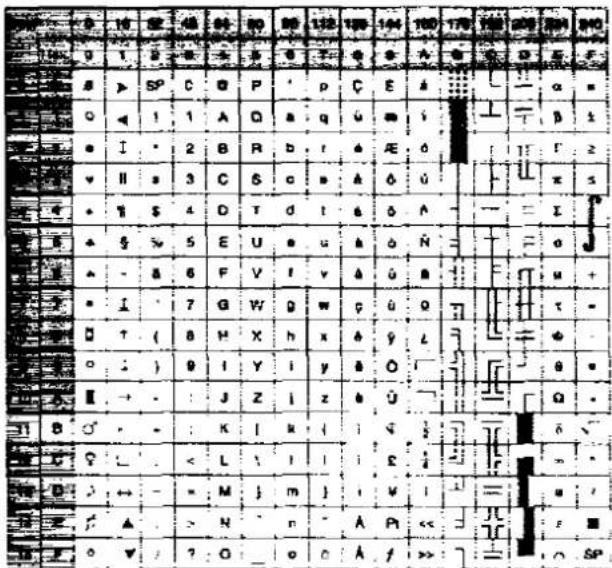
IBM Zeichensatz 2 (Mehrsprachig)
| D#e | 0 - 16 - 32 | 48 | 64 | 80 | 98 | 112 | 128 | 144 | 150 | 178 | 192 | 208 | 224 | 240 | ||
| H### | 0 : 1 | 2 | 3 | 4 - 5 | 6 : 7 | 8 | 9 : A | B | C | D | E | F | ||||
| # | 0 NUL SP 0 # P * p C E d | |||||||||||||||
| # | 1 DC1 ! 1 A Q a q u # i | |||||||||||||||
| # | 2 DC2 . 2 B R b , r # AE # | |||||||||||||||
| # | 3 v . 5 C S c s # # # # # # # # # # # # # # # # # # # # # # # # # # # # # # # # # # # # # # # # # # # # # # # # # # # # # # # # # # # # # # # # # # # # # # # # # # # # # # # # # # # # # # # # # # # # # # # # # # # # | |||||||||||||||
| # | 4 DC4 4 DTdlaoR - E o ? | |||||||||||||||
| # | 5 + 5 % 5 EUeuaoNA - IOS | |||||||||||||||
| # | 6 & & 6 FyfvaUaAaIμ ? | |||||||||||||||
| # | 7 . 7 GWgwguqAAIP . | |||||||||||||||
| # | 8 BS CAN (8 Hxhxayzo [ ] i b . | |||||||||||||||
| # | 9 HT ) 9 . yiyeOe [ ] - U . | |||||||||||||||
| # | A . J . : JZizeU - [ ] - U .* | |||||||||||||||
| 11 | B VT ESC + . K [ k i . a\frac{1}{2}U . | |||||||||||||||
| # | C IT < Lili ! t E\frac{1}{4}$ y > | |||||||||||||||
| # | D CR = M - n ] i ∅ i = , ? . | |||||||||||||||
| # | E SO > N - n - A < < < , y - ■ | |||||||||||||||
| # | F SI ? O a f >> - D SP | |||||||||||||||
Hinweis:
- Satz 1 ist derselbe, bei dem 03H\~06H und 15H auf NUL umgeschaltet werden, und 80H\~9FH auf 00H\~1FH umgeschaltet wird.
IBM Alle Zeichen (Mehrsprachig)
| 0 | 16 | 32 | 48 | 64 | 60 | 96 | 112 | 128 | 144 | 160 | 176 | 192 | 206 | 224 | 240 | ||
| Hus | 0 | 1 | 2 | 3 | 4 | 5 | 6 | 7 | 8 | 9 | A | B | C | D | E | F | |
| 0 | 8 | ▶ | SP | 0 | 0 | P | p | C | E | n | |||||||
| ○ | ! | 1 | A | Q | a | q | 0 | ∞ | l | ||||||||
| ● | 2 | B | R | b | r | ||||||||||||
IBM Zeichensatz 2 (Portugal) Hinweis:
1. Satz 1 ist derselbe, bei dem 03H\~06H und T5H auf NUL umgeschaltet werden, und 80H\~9FH auf 00H\~1FH umgeschaltet wird.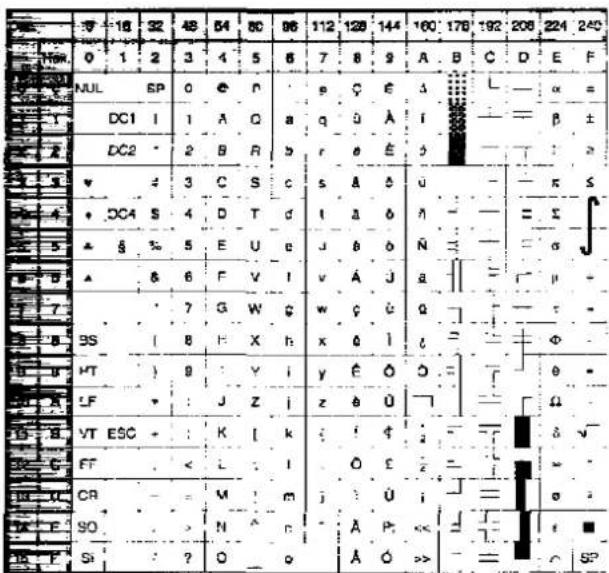
IBM Alle Zeichen (Portugal)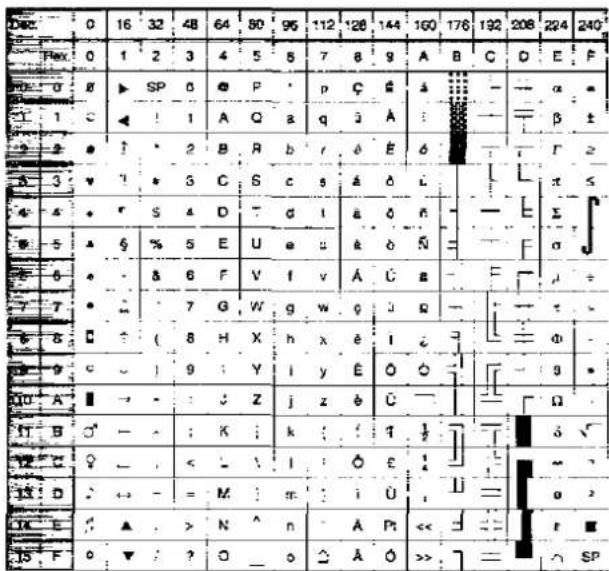
IBM Zeichensatz 2 (Kanada-Französisch) Hinweis:
Satz 1 ist derselbe, bei dem 03H\~06H und 15H auf NUL umgeschaltet werden, und 80H\~9FH auf 00H\~1FH umgeschaltet wird.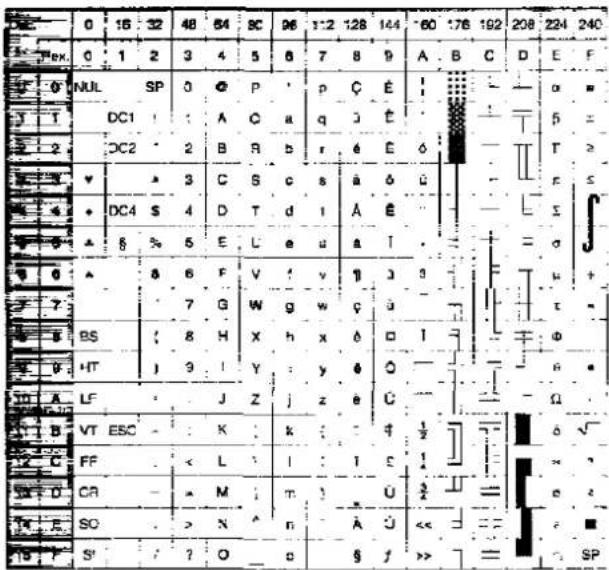
IBM Alle Zeichen (Kanada-Französisch)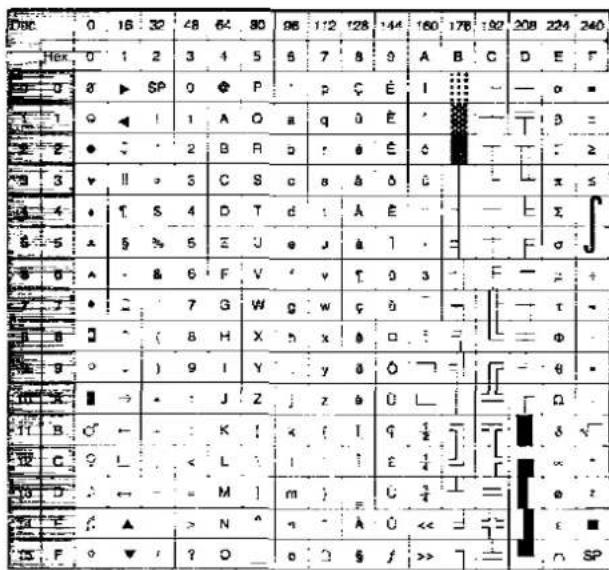

Zeichensatztabellen
IBM Zeichensatz 2 (Norwegen)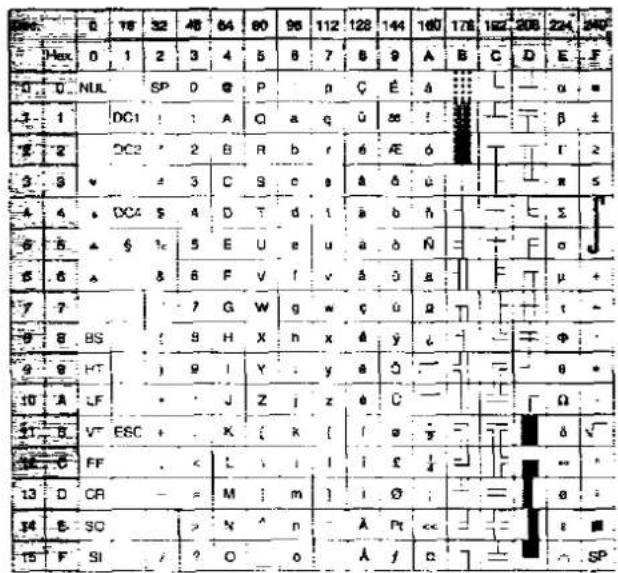
Hinweis:
- Satz 1 ist derselbe, bei dem 03H\~06H und 15H auf NUL umgeschaltet werden, und 80H\~9FH auf 00H\~1FH umgeschaltet wird.
IBM Alle Zeichen (Norwegen)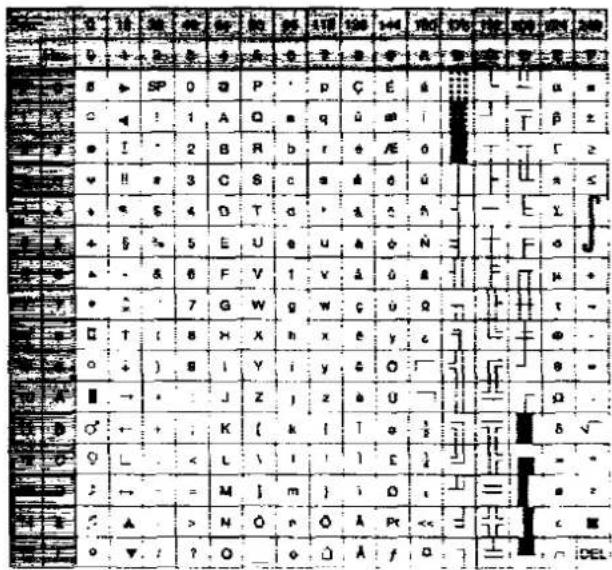
IBM Zeichensatz 2 (Türkei)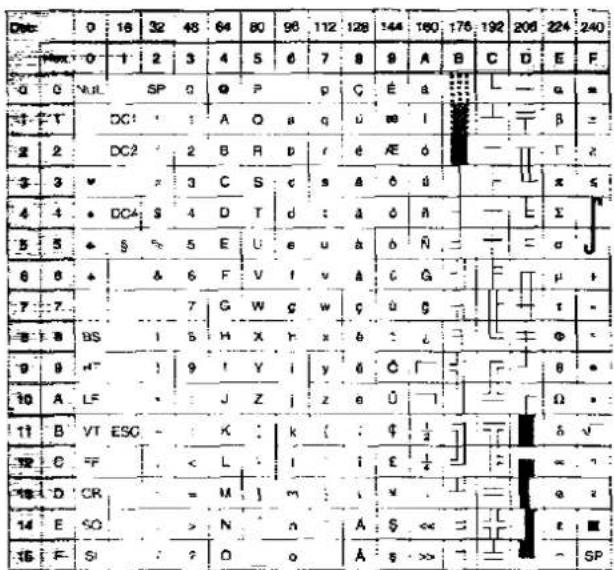
Hinweis:
- Satz 1 ist derselbe, bei dem 03H\~06H und 15H auf NUL umgeschaltet werden und 80H\~9FH auf 00H\~1FH umgeschaltet wird.
IBM Alle Zeichen (Türkei)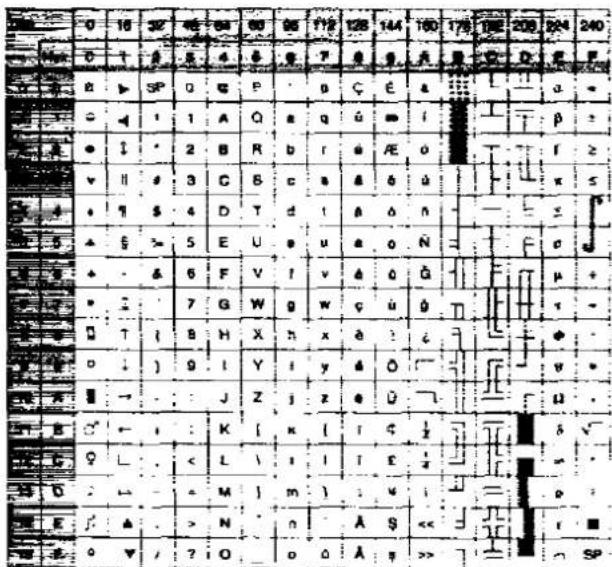
Internationaler Zeichensatz
| n | 35023k | 36024h | 64040h | 910SB- | 9205C- | 9305D- | 9405Eh | 96060h | 123c7Bh | 124c7Ch | 12507DH | 12607EH | 155098h | 16709Dh | |
| TNT | 0 | # | S | ∅ | [ | \ | : | · | · | [ | ] | - | ∅ | ¥ | |
| TORICE | 1 | # | S | ∅ | * | ∅ | § | · | · | ∅ | ü | ø | ∅ | ¥ | |
| DENNANT | 2 | # | S | § | A | ∅ | Ü | · | · | å | ø | ü | β | ∅ | ¥ |
| LIC | 3 | £ | S | ∅ | [ | : | ! | · | · | { | ! | } | - | ∅ | ¥ |
| DENMARKI | 4 | ¥ | § | ∅ | Æ | ∅ | Å | · | · | øø | ø | å | - | ø | ∅ |
| WEDDER | 5 | # | ∅ | É | Å | ∅ | Å | Ü | ø | å | ø | å | ü | ∅ | ¥ |
| ITALY | 6 | # | S | ∅ | · | \ | ø | · | ü | å | ø | ø | i | ∅ | ¥ |
| MAINT | 7 | Pl | S | ∅ | i | Ñ | ¿ | · | · | · | ñ | } | - | ∅ | ¥ |
| JAPAN | 8 | # | S | ∅ | [ | ¥ | ] | · | · | { | } | - | ∅ | ¥ | |
| SUDWAY | 9 | # | ∅ | É | AC | ∅ | Å | Ü | ø | øø | ø | å | ü | ø | ∅ |
| DENMARKI | 10 | # | S | É | Æ | ∅ | Å | Ü | ø | øø | ø | å | ü | ø | ∅ |
| MAINT | 11 | # | S | ø | i | Ñ | ¿ | ø | · | í | ñ | ø | ü | ∅ | ¥ |
| LATIN AMERICA | 12 | # | S | ∅ | ; | Ñ | ¿ | ø | ∅ | í | ñ | ø | ü | ∅ | ¥ |
| KOREA | 13 | # | S | ∅ | : | ¥¥ | ] | · | · | [ | ] | - | ∅ | ¥ | |
| LEGAL | 14 | # | S | § | · | · | · | ¶ | · | ∅ | ∅ | ‡ | - | ∅ | ¥ |
Hinweis: 1 Diese Zeichen können nur im Epson LQ-850-Modus geändert werden. Im IBM Proprinter X24E-Modus ist der Internationale Zeichensatz auf USA eingestellt und kann nicht geändert werden. 2 Diese Zeichen sind sowohl im Grafikzeichensatz 2 des Epson LQ-850 als auch im IBM Proprinter X24E-Modus wirksam.

Tabellen für proportionale Abstände
ASCII-Zeichen
Epson-Modus-Zeichen
| ASCII code | Char. | Width | |
| Normal | Script | ||
| 32 | SPACE | 30 | 20 |
| 33 | 18 | 12 | |
| 34 | 30 | 20 | |
| 35 | 30 | 20 | |
| 36 | $ | 30 | 20 |
| 37 | % | 36 | 24 |
| 38 | 36 | 24 | |
| 39 | 18 | 12 | |
| 40 | 24 | 16 | |
| 41 | 24 | 16 | |
| 42 | 30 | 20 | |
| 43 | 30 | 20 | |
| 44 | 18 | 12 | |
| 45 | 30 | 20 | |
| 46 | 18 | 12 | |
| 47 | 30 | 20 | |
| 48 | 0 | 30 | 20 |
| 49 | 1 | 30 | 20 |
| 50 | 2 | 30 | 20 |
| 51 | 3 | 30 | 20 |
| 52 | 4 | 30 | 20 |
| 53 | 5 | 30 | 20 |
| 54 | 6 | 30 | 20 |
| 55 | 7 | 30 | 20 |
| 56 | 8 | 30 | 20 |
| 57 | 9 | 30 | 20 |
| 58 | 18 | 12 | |
| 59 | 18 | 12 | |
| 60 | 30 | 20 | |
| 61 | 30 | 20 | |
| 62 | 30 | 20 | |
| 63 | 30 | 20 | |
| 64 | 36 | 24 | |
| A#C# code | Char. | Width | |
| Normal | Script | ||
| 65 | A | 36 | 24 |
| 66 | B | 36 | 24 |
| 67 | C | 36 | 24 |
| 68 | D | 36 | 24 |
| 69 | E | 36 | 24 |
| 70 | F | 36 | 24 |
| 71 | G | 36 | 24 |
| 72 | H | 36 | 24 |
| 73 | I | 24 | 16 |
| 74 | J | 30 | 20 |
| 75 | K | 36 | 24 |
| 76 | L | 36 | 24 |
| 77 | M | 42 | 26 |
| 78 | N | 36 | 24 |
| 79 | O | 36 | 24 |
| 80 | P | 36 | 24 |
| 81 | Q | 36 | 24 |
| 82 | R | 36 | 24 |
| 83 | S | 36 | 24 |
| 84 | T | 36 | 24 |
| 85 | U | 42 | 28 |
| 86 | V | 36 | 24 |
| 87 | W | 42 | 28 |
| 88 | X | 36 | 24 |
| 89 | Y | 36 | 24 |
| 90 | Z | 30 | 20 |
| 91 | I | 24 | 16 |
| 92 | · | 30 | 20 |
| 93 | · | 24 | 16 |
| 94 | · | 30 | 20 |
| 95 | - | 30 | 24 |
| 96 | · | 18 | 12 |
| 97 | ø | 30 | 20 |
| A##r##s## | Char. | Width | |
| Normal | Script | ||
| 98 | b | 36 | 24 |
| 99 | c | 30 | 20 |
| 100 | d | 36 | 24 |
| 101 | e | 30 | 20 |
| 102 | f | 24 | 16 |
| 103 | g | 36 | 24 |
| 104 | h | 36 | 24 |
| 105 | i | 18 | 12 |
| 106 | j | 24 | 16 |
| 107 | k | 36 | 24 |
| 108 | l | 18 | 12 |
| 109 | m | 42 | 28 |
| 110 | n | 36 | 24 |
| 111 | o | 30 | 20 |
| 112 | p | 36 | 24 |
| 113 | q | 36 | 24 |
| 114 | r | 30 | 20 |
| 115 | s | 30 | 20 |
| 116 | t | 24 | 16 |
| 117 | u | 36 | 24 |
| 118 | v | 36 | 24 |
| 119 | w | 42 | 28 |
| 120 | x | 30 | 20 |
| 121 | y | 36 | 24 |
| 122 | z | 30 | 20 |
| 123 | [ | 24 | 16 |
| 124 | : | 16 | 12 |
| 125 | ] | 24 | 16 |
| 126 | - | 30 | 20 |
| 127 | # | 30 | 20 |
Die Breite des komprimierten PS ist die Hälfte des normalen PS. Einheit: 1/360 Zoll (0,07 mm)
IBM-Modus-Zeichen
| ASCII code | Char. | Width | |
| Normal 1 | Script | ||
| 32 | SPACE | 30 | |
| 33 | 30 | ||
| 34 | 30 | ||
| 35 | 30 | ||
| 36 | 30 | ||
| 37 | 30 | ||
| 38 | 36 | ||
| 39 | 18 | ||
| 40 | 30 | ||
| 41 | 30 | ||
| 42 | 30 | ||
| 43 | 30 | ||
| 44 | 30 | ||
| 45 | 30 | ||
| 46 | 30 | ||
| 47 | 30 | ||
| 48 | 30 | ||
| 49 | 30 | ||
| 50 | 30 | ||
| 51 | 30 | ||
| 52 | 30 | ||
| 53 | 30 | ||
| 54 | 30 | ||
| 55 | 30 | ||
| 56 | 30 | ||
| 57 | 30 | ||
| sousch poder | Char. | Width | |
| Normal | Script | ||
| 58 | 30 | ||
| 59 | 30 | ||
| 60 | 30 | ||
| 61 | 30 | ||
| 62 | 30 | ||
| 63 | 30 | ||
| 64 | 30 | ||
| 65 | A | 42 | |
| 66 | B | 42 | |
| 67 | C | 42 | |
| 68 | D | 42 | |
| 69 | E | 36 | |
| 70 | F | 36 | |
| 71 | G | 42 | |
| 72 | H | 42 | |
| 73 | I | 24 | |
| 74 | J | 30 | |
| 75 | K | 42 | |
| 76 | L | 36 | |
| 77 | M | 42 | |
| 78 | N | 42 | |
| 79 | O | 42 | |
| 80 | P | 36 | |
| 81 | O | 42 | |
| 82 | R | 42 | |
| 83 | S | 36 | |
| ASCII code | Char. | Width | |
| Iceland | Script | ||
| 84 | T | 42 | |
| 85 | U | 42 | |
| 86 | V | 42 | |
| 87 | W | 42 | |
| 88 | X | 42 | |
| 89 | Y | 42 | |
| 90 | Z | 38 | |
| 91 | [ | 30 | |
| 92 | , | 30 | |
| 93 | ] | 30 | |
| 94 | - | 30 | |
| 95 | - | 30 | |
| 96 | , | 30 | |
| 97 | a | 30 | |
| 98 | b | 36 | |
| 99 | c | 30 | |
| 100 | d | 36 | |
| 101 | e | 30 | |
| 102 | I | 24 | |
| 103 | g | 36 | |
| 104 | h | 36 | |
| 105 | i | 18 | |
| 106 | j | 18 | |
| 107 | k | 36 | |
| 108 | l | 18 | |
| 109 | m | 42 | |
| ASCR code | Cher. | Width | |
| Normet | Script | ||
| 110 | n | 38 | |
| 111 | o | 30 | |
| 112 | p | 38 | |
| 113 | q | 36 | |
| 114 | r | 30 | |
| 115 | s | 30 | |
| 116 | l | 24 | |
| 117 | u | 38 | |
| 118 | v | 38 | |
| 119 | w | 42 | |
| 120 | x | 36 | |
| 121 | y | 36 | |
| 122 | z | 30 | |
| 123 | { | 30 | |
| 124 | ! | 30 | |
| 125 | } | 30 | |
| 126 | - | 30 | |
Die Breite des komprimierten PS ist die Hälfte des normalen PS. Einheit: 1/360 Zoll (0,07 mm)
Sonderzeichen
Epson-Modus-Zeichen
| ASCIIcode | Char. | Width | |
| Normal | Script | ||
| 38 | c | 30 | 20 |
| 48 | 9 | 30 | 20 |
| 64 | § | 30 | 20 |
| 91 | * | 24 | 16 |
| 92 | O | 36 | 24 |
| 92 | 18 | 12 | |
| 92 | W | 42 | 28 |
| 93 | * | 30 | 20 |
| 94 | ¶ | 30 | 20 |
| 123 | © | 36 | 24 |
| 124 | © | 36 | 24 |
| 124 | ø | 30 | 20 |
| 125 | + | 30 | 20 |
| 126 | 30 | 20 | |
| 126 | •• | 36 | 24 |
| 128 | Ç | 36 | 24 |
| 129 | ü | 36 | 24 |
| 130 | ä | 30 | 20 |
| 131 | ä | 30 | 20 |
| 132 | ä | 30 | 20 |
| 133 | ä | 30 | 20 |
| 134 | ä | 30 | 20 |
| 135 | ç | 30 | 20 |
| 136 | ä | 30 | 20 |
| 137 | ä | 30 | 20 |
| 138 | ä | 30 | 20 |
| ASCII code | Char. | Width | |
| Normal | Script | ||
| 139 | i | 18 | 12 |
| 140 | l | 16 | 12 |
| 141 | i | 18 | 12 |
| 142 | A | 36 | 24 |
| 143 | A | 36 | 24 |
| 144 | E | 36 | 24 |
| 145 | æ | 42 | 26 |
| 146 | Æ | 42 | 28 |
| 147 | ð | 30 | 20 |
| 148 | o | 30 | 20 |
| 149 | ð | 30 | 20 |
| 150 | ú | 36 | 24 |
| 151 | ú | 35 | 24 |
| 152 | ý | 38 | 24 |
| 153 | Ó | 36 | 24 |
| 154 | U | 42 | 26 |
| 155 | c | 30 | 20 |
| 156 | £ | 30 | 20 |
| 157 | ¥ | 36 | 24 |
| 158 | Pt | 42 | 19 |
| 159 | f | 30 | 20 |
| 160 | á | 30 | 20 |
| 161 | í | 18 | 12 |
| 162 | ð | 30 | 20 |
| 163 | J | 30 | 24 |
| 164 | ŋ | 36 | 24 |
| ASCII code | Char. | Width | |
| Normal 1 | Script | ||
| 165 | 36 | 24 | |
| 166 | 30 | 20 | |
| 167 | 30 | 20 | |
| 168 | 30 | 20 | |
| 169 | — | 30 | 20 |
| 170 | 30 | 20 | |
| 171 | 1/2 | 30 | 20 |
| 172 | 1/4 | 30 | 20 |
| 173 | 30 | 20 | |
| 174 | 30 | 20 | |
| 175 | 30 | 20 | |
| 224 | 30 | 20 | |
| 225 | 3 | 30 | 20 |
| 226 | 30 | 20 | |
| 227 | 30 | 20 | |
| 228 | 1 | 30 | 20 |
| 229 | 30 | 20 | |
| 230 | µ | 30 | 20 |
| 231 | 30 | 20 | |
| 232 | 30 | 20 | |
| 233 | 6 | 30 | 20 |
| 234 | Ω | 30 | 20 |
| 235 | δ | 36 | 20 |
| 236 | 30 | 24 | |
| 237 | 30 | 20 | |
| 238 | 30 | 20 | |
| ASCII code | Char. | Width | |
| Normal | Script | ||
| 239 | 30 | 20 | |
| 240 | 30 | 20 | |
| 241 | 30 | 20 | |
| 242 | ≥ | 30 | 20 |
| 243 | ≤ | 30 | 20 |
| 246 | · | 30 | 20 |
| 247 | 30 | 20 | |
| 248 | · | 30 | 20 |
| 249 | · | 30 | 20 |
| 250 | · | 30 | 20 |
| 251 | 30 | 20 | |
| 252 | · | 30 | 20 |
| 253 | γ | 30 | 20 |
| 254 | 30 | 20 | |
| 255 | SP | 30 | 20 |
Die Breite des komprimierten PS ist die Hälfte des normalen PS. Einheit: 1/360 Zoll (0,07 mm)
Epson-Modus-Zeichen (mehrsprachig)
| Code | Char. | Width | |
| Normal | Script | ||
| 35 | PI | 42 | 26 |
| 48 | Q | 30 | 20 |
| 92 | W | 42 | 26 |
| 93 | 30 | 20 | |
| 125 | † | 30 | 20 |
| 126 | TM | 36 | 24 |
| 128 | ♀ | 36 | 24 |
| 129 | ü | 36 | 24 |
| 130 | ä | 30 | 20 |
| 131 | ä | 30 | 20 |
| 132 | ä | 30 | 20 |
| 133 | ä | 30 | 20 |
| 134 | ä | 30 | 20 |
| 135 | ♀ | 30 | 20 |
| 136 | ö | 30 | 20 |
| 137 | ö | 30 | 20 |
| 138 | ö | 30 | 20 |
| 139 | T | 18 | 12 |
| 140 | 18 | 12 | |
| 141 | 18 | 12 | |
| 142 | Ä | 36 | 24 |
| 143 | Ä | 26 | 24 |
| 144 | E | 26 | 24 |
| 145 | ∞ | 42 | 28 |
| 146 | AE | 42 | 28 |
| 147 | ö | 30 | 20 |
| 148 | ä | 30 | 20 |
| 149 | ö | 30 | 20 |
| 150 | ü | 36 | 24 |
| 151 | ü | 36 | 24 |
| ASCII code | Char. | Width | |
| Normal | Script | ||
| 152 | y | 30 | 24 |
| 153 | O | 36 | 24 |
| 154 | U | 42 | 28 |
| 155 | e | 30 | 20 |
| 156 | £ | 30 | 20 |
| 157 | ∅ | 36 | 24 |
| 158 | x | 30 | 20 |
| 159 | f | 30 | 20 |
| 160 | a | 30 | 20 |
| 161 | i | 18 | 12 |
| 162 | o | 30 | 20 |
| 163 | J | 26 | 24 |
| 164 | n | 36 | 24 |
| 165 | K | 38 | 24 |
| 166 | a | 30 | 20 |
| 167 | Q | 30 | 20 |
| 168 | c | 30 | 20 |
| 169 | ∅ | 36 | 24 |
| 170 | - | 30 | 20 |
| 171 | 1/2 | 30 | 20 |
| 172 | 1/2 | 30 | 20 |
| 173 | : | 30 | 20 |
| 174 | - | 30 | 20 |
| 175 | - | 30 | 20 |
| 181 | A | 36 | 24 |
| 182 | A | 36 | 24 |
| 183 | A | 36 | 24 |
| 184 | ∅ | 36 | 24 |
| 189 | c | 30 | 20 |
| 190 | ¥ | 36 | 24 |
| ASCII code | Char. | Width | |
| Normal | Script | ||
| 198 | a | 30 | 20 |
| 199 | A | 36 | 24 |
| 207 | c | 30 | 20 |
| 206 | 36 | 24 | |
| 209 | D | 36 | 24 |
| 210 | E | 36 | 24 |
| 211 | E | 36 | 24 |
| 212 | E | 36 | 24 |
| 213 | 18 | 12 | |
| 214 | I | 24 | 16 |
| 215 | I | 24 | 16 |
| 216 | I | 24 | 16 |
| 22* | 18 | 12 | |
| 222 | I | 24 | 16 |
| 224 | O | 36 | 24 |
| 225 | B | 30 | 20 |
| 226 | O | 36 | 24 |
| 227 | O | 36 | 24 |
| 228 | O | 30 | 20 |
| 229 | O | 36 | 24 |
| 230 | P | 30 | 20 |
| 231 | P | 36 | 24 |
| 232 | b | 36 | 24 |
| 233 | U | 42 | 28 |
| 234 | U | 42 | 28 |
| 235 | U | 42 | 28 |
| 236 | y | 36 | 24 |
| 237 | Y | 36 | 24 |
| 238 | 30 | 20 | |
| 239 | 18 | 12 | |
| ASCII code | Char. | Width | |
| Normal | Script | ||
| 240 | - | 30 | 20 |
| 241 | ± | 30 | 20 |
| 242 | - | 30 | 20 |
| 243 | + | 30 | 20 |
| 244 | ↑ | 30 | 20 |
| 245 | § | 30 | 20 |
| 246 | - | 30 | 20 |
| 247 | - | 30 | 20 |
| 248 | - | 30 | 20 |
| 249 | - | 30 | 20 |
| 250 | - | 30 | 20 |
| 251 | - | 24 | 16 |
| 252 | - | 24 | 16 |
| 253 | - | 30 | 20 |
| 254 | ■ | 30 | 20 |
| 255 | SP | 30 | 20 |
Die komprimierte PS-Breite beträgt 1/2 der normalen PS. Einheit: 1/360 Zoll (0,07 mm)
Epson-Modus-Zeichen (Portugal)
| ASCIIcode | Char. | Width | |
| Normal | Script | ||
| 36 | α | 30 | 20 |
| 48 | 30 | 20 | |
| 64 | § | 30 | 20 |
| 9* | 42 | 28 | |
| 91 | 36 | 24 | |
| 92 | 36 | 24 | |
| 92 | ° | 36 | 24 |
| 92 | ° | 36 | 24 |
| 92 | 18 | 12 | |
| 92 | W | 42 | 28 |
| 93 | 36 | 24 | |
| 93 | 30 | 20 | |
| 94 | η | 30 | 20 |
| 123 | ° | 36 | 24 |
| 123 | ä | 30 | 20 |
| 123 | ä | 42 | 28 |
| 124 | δ | 30 | 20 |
| 124 | ä | 30 | 20 |
| 124 | ° | 36 | 24 |
| 125 | 30 | 20 | |
| 125 | t | 30 | 20 |
| 126 | 36 | 24 | |
| 126 | 36 | 24 | |
| 129 | c | 36 | 24 |
| 130 | ë | 30 | 20 |
| 131 | 30 | 20 | |
| 132 | 30 | 20 | |
| 133 | 30 | 20 | |
| 134 | 36 | 24 | |
| 135 | 30 | 20 | |
| ASCH code | Char. | Width | |
| Normal | Script | ||
| 136 | δ | 30 | 20 |
| 137 | 36 | 24 | |
| 138 | δ | 30 | 20 |
| 139 | 24 | 16 | |
| 140 | 36 | 24 | |
| 141 | 18 | 12 | |
| 142 | 36 | 24 | |
| 143 | 36 | 24 | |
| 144 | 36 | 24 | |
| 145 | 36 | 24 | |
| 146 | 36 | 24 | |
| 147 | δ | 30 | 20 |
| 148 | 30 | 20 | |
| 149 | 30 | 20 | |
| 150 | 42 | 28 | |
| 151 | 36 | 24 | |
| 152 | 24 | 16 | |
| 153 | 36 | 24 | |
| 154 | 42 | 28 | |
| 155 | 30 | 20 | |
| 156 | Ë | 30 | 20 |
| 157 | 42 | 28 | |
| 158 | Pt | 42 | 28 |
| 159 | 36 | 24 | |
| 160 | ä | 30 | 20 |
| 161 | 18 | 12 | |
| 162 | 30 | 20 | |
| 163 | ü | 36 | 24 |
| 164 | Ä | 36 | 24 |
| 165 | N | 36 | 24 |
| ABCB | Width | ||
| Sandy | Char. | Normal | Script |
| 168 | B | 30 | 20 |
| 167 | Q | 30 | 20 |
| 168 | L | 30 | 20 |
| 169 | O | 38 | 24 |
| 170 | 30 | 20 | |
| 171 | I | 30 | 20 |
| 172 | J | 30 | 20 |
| 173 | I | 30 | 20 |
| 174 | 30 | 20 | |
| 175 | 30 | 20 | |
| 224 | α | 30 | 20 |
| 225 | β | 30 | 20 |
| 226 | Γ | 30 | 20 |
| 227 | π | 30 | 20 |
| 228 | Σ | 30 | 20 |
| 229 | σ | 30 | 20 |
| 230 | μ | 30 | 20 |
| 231 | τ | 30 | 20 |
| 232 | Φ | 30 | 20 |
| 233 | θ | 30 | 20 |
| 234 | Ω | 30 | 20 |
| 235 | δ | 30 | 20 |
| 236 | 30 | 20 | |
| 237 | φ | 30 | 20 |
| 238 | ε | 30 | 20 |
| 239 | η | 30 | 20 |
| 240 | η | 30 | 20 |
| 241 | z | 30 | 20 |
| 242 | Σ | 30 | 20 |
| 243 | ξ | 30 | 20 |
| S&P/CS index | Char. | WEEK | |
| Normal | Script | ||
| 248 | 30 | 20 | |
| 247 | 30 | 20 | |
| 248 | 30 | 20 | |
| 249 | 30 | 20 | |
| 250 | 30 | 20 | |
| 251 | 30 | 20 | |
| 252 | n | 30 | 20 |
| 253 | z | 30 | 20 |
| 254 | m | 30 | 20 |
| 255 | SP | 30 | 20 |
Die komprimierte PS-Breite beträgt 1/2 der normalen PS. Einheit: 1/360 Zoll (0,07 mm)
Epson-Modus-Zeichen (Kanadisch-Französisch)
| Symbol code | Char. | Width | |
| Normal | Script | ||
| 35 | Pt | 42 | 26 |
| 46 | 9 | 30 | 20 |
| 64 | a | 30 | 20 |
| 91 | 24 | 16 | |
| 91 | A | 35 | 24 |
| 91 | AE | 42 | 26 |
| 91 | i | 18 | 12 |
| 92 | C | 36 | 24 |
| 92 | N | 36 | 24 |
| 92 | O | 36 | 24 |
| 92 | v | 36 | 24 |
| 92 | 18 | 12 | |
| 92 | W | 42 | 26 |
| 93 | A | 36 | 24 |
| 93 | c | 30 | 20 |
| 93 | 30 | 20 | |
| 123 | C | 36 | 24 |
| 123 | a | 30 | 20 |
| 123 | m | 42 | 26 |
| 123 | 18 | 12 | |
| 124 | b | 30 | 20 |
| 124 | c | 30 | 20 |
| 124 | n | 36 | 24 |
| 124 | a | 30 | 20 |
| 124 | B | 36 | 24 |
| 125 | † | 30 | 20 |
| 126 | " | 36 | 24 |
| 126 | C | 36 | 24 |
| 129 | u | 36 | 24 |
| 130 | e | 30 | 20 |
| Agril code | Char. | Width | |
| Normal | Script | ||
| 132 | A | 30 | 20 |
| 132 | A | 36 | 24 |
| 133 | a | 30 | 20 |
| 134 | q | 30 | 20 |
| 135 | g | 30 | 20 |
| 136 | a | 30 | 20 |
| 137 | a | 30 | 20 |
| 138 | e | 30 | 20 |
| 139 | i | 18 | 12 |
| 140 | f | 18 | 12 |
| 141 | - | 30 | 20 |
| 142 | A | 36 | 24 |
| 143 | s | 30 | 20 |
| 144 | E | 36 | 24 |
| 145 | E | 36 | 24 |
| 146 | E | 36 | 24 |
| 147 | b | 30 | 20 |
| 148 | E | 36 | 24 |
| 149 | i | 24 | 16 |
| 150 | ü | 36 | 24 |
| 151 | ü | 36 | 24 |
| 152 | ü | 30 | 20 |
| 153 | ü | 36 | 24 |
| 154 | ü | 42 | 28 |
| 155 | ü | 30 | 20 |
| 156 | ü | 30 | 20 |
| 157 | ü | 42 | 28 |
| 158 | ü | 42 | 28 |
| 159 | ü | 30 | 20 |
| 160 | 18 | 12 | |
| JACIL | Char | Width | |
| Normal | Script | ||
| 161 | 15 | 12 | |
| 162 | δ | 30 | 20 |
| 163 | 35 | 24 | |
| 164 | 30 | 20 | |
| 165 | 30 | 20 | |
| 166 | a | 24 | 18 |
| 167 | 30 | 20 | |
| 168 | 24 | 16 | |
| 169 | 30 | 20 | |
| 170 | 30 | 20 | |
| 171 | b | 30 | 20 |
| 172 | c | 30 | 20 |
| 173 | d | 30 | 20 |
| 174 | 30 | 20 | |
| 175 | 30 | 20 | |
| 224 | α | 30 | 20 |
| 225 | β | 30 | 20 |
| 226 | 30 | 20 | |
| 227 | π | 30 | 20 |
| 228 | 30 | 20 | |
| 229 | ° | 30 | 20 |
| 230 | µ | 30 | 20 |
| 231 | τ | 30 | 20 |
| 232 | 30 | 20 | |
| 233 | θ | 30 | 20 |
| 234 | Ω | 30 | 20 |
| 235 | δ | 30 | 20 |
| 236 | 30 | 20 | |
| 237 | φ | 30 | 20 |
| 238 | 30 | 20 | |
| ASCII code | Char. | Width | |
| Normal | Script | ||
| 239 | ° | 30 | 20 |
| 240 | ° | 30 | 20 |
| 241 | ± | 30 | 20 |
| 242 | 30 | 20 | |
| 243 | 30 | 20 | |
| 246 | ± | 30 | 20 |
| 247 | · | 30 | 20 |
| 248 | · | 30 | 20 |
| 249 | · | 30 | 20 |
| 250 | · | 30 | 20 |
| 251 | 30 | 20 | |
| 252 | α | 30 | 20 |
| 253 | 2 | 30 | 20 |
| 254 | ■ | 30 | 20 |
| 255 | SP | 30 | 20 |
Die komprimierte PS-Breite beträgt 1/2 der normalen PS. Einheit: 1/360 Zoll (0,07 mm)
Epson-Modus-Zeichen (Norwegen)
| ASCII code | Char. | Width | ASCII code | Char. | Width | ASCII code | Char. | Width | |||
| Normal | Script | Normal | Script | Normal | Script | ||||||
| 48 | 0 | 30 | 20 | 146 | AE | 42 | 26 | 225 | β | 30 | 20 |
| 64 | § | 30 | 20 | 147 | δ | 30 | 20 | 226 | Γ | 30 | 20 |
| 91 | ° | 24 | 16 | 148 | o | 30 | 20 | 227 | π | 30 | 20 |
| 92 | ψ | 36 | 24 | 149 | δ | 30 | 20 | 228 | Σ | 30 | 20 |
| 92 | ' | 36 | 24 | 150 | ü | 36 | 24 | 229 | ε | 30 | 20 |
| 92 | ω | 42 | 26 | 151 | ü | 36 | 24 | 230 | μ | 30 | 20 |
| 93 | " | 35 | 24 | 152 | y | 36 | 24 | 231 | τ | 30 | 20 |
| 94 | η | 30 | 20 | 153 | O | 36 | 24 | 232 | ∅ | 30 | 20 |
| 123 | ∅ | 36 | 24 | 154 | Ü | 42 | 28 | 233 | θ | 30 | 20 |
| 124 | ∅ | 38 | 24 | 155 | ø | 30 | 20 | 234 | Ω | 30 | 20 |
| 125 | † | 30 | 20 | 156 | £ | 30 | 20 | 235 | δ | 30 | 20 |
| 125 | · | 30 | 20 | 157 | ∅ | 36 | 24 | 236 | ∞ | 30 | 20 |
| 126 | " | 36 | 24 | 158 | Pt | 42 | 28 | 237 | δ | 30 | 20 |
| 126 | ∅ | 36 | 24 | 159 | f | 30 | 20 | 238 | ε | 30 | 20 |
| 126 | ü | 36 | 24 | 160 | ä | 30 | 20 | 239 | ∩ | 30 | 20 |
| 130 | δ | 30 | 20 | 161 | i | 18 | 12 | 240 | = | 30 | 20 |
| 131 | δ | 30 | 20 | 162 | ø | 30 | 20 | 241 | ± | 30 | 20 |
| 132 | δ | 30 | 20 | 163 | ∅ | 36 | 24 | 242 | ≥ | 30 | 20 |
| 133 | δ | 30 | 20 | 164 | n | 36 | 24 | 243 | ≤ | 30 | 20 |
| 134 | δ | 30 | 20 | 165 | N | 36 | 24 | 246 | + | 30 | 20 |
| 135 | ∅ | 30 | 20 | 166 | # | 30 | 20 | 247 | · | 30 | 20 |
| 136 | δ | 30 | 20 | 167 | ø | 30 | 20 | 248 | · | 30 | 20 |
| 137 | 0 | 30 | 20 | 168 | δ | 30 | 20 | 249 | * | 30 | 20 |
| 138 | δ | 30 | 20 | 169 | - | 30 | 20 | 250 | · | 30 | 20 |
| 139 | T | 18 | 12 | 170 | - | 30 | 20 | 251 | √ | 30 | 20 |
| 140 | T | 18 | 12 | 171 | τ | 30 | 20 | 252 | n | 30 | 20 |
| 141 | · | 18 | 12 | 172 | 1/2 | 30 | 20 | 253 | 2 | 30 | 20 |
| 142 | A | 36 | 24 | 173 | : | 30 | 20 | 254 | ■ | 30 | 20 |
| 143 | A | 36 | 24 | 174 | < | 30 | 20 | 255 | SP | 30 | 20 |
| 144 | E | 36 | 24 | 175 | n | 30 | 20 | ||||
| 145 | ∞ | 42 | 28 | 224 | α | 30 | 20 | ||||
Die komprimierte PS-Breite beträgt 1/2 der normalen PS. Einheit: 1/360 Zoll (0,07 mm)
Epson-Modus-Zeichen (Türkei)
| ASCIIcode | Char. | Width | ASCIIcode | Char. | Width | ASCIIcode | Char. | Width | |||
| Normal | Script | Normal | Script | Normal | Script | ||||||
| 36 | c | 30 | 20 | 140 | I | 18 | 12 | 167 | 0 | 36 | 24 |
| 48 | 0 | 30 | 20 | 141 | : | 18 | 12 | 168 | 2 | 30 | 20 |
| 54 | § | 30 | 20 | 142 | A | 36 | 24 | 169 | : | 30 | 20 |
| 91 | * | 24 | 16 | 143 | A | 26 | 24 | 170 | ? | 30 | 20 |
| 92 | O | 36 | 24 | 144 | E | 38 | 24 | 171 | 1 | 30 | 20 |
| 92 | . | 18 | 12 | 145 | w | 42 | 28 | 172 | 1/2 | 30 | 20 |
| 92 | W | 42 | 28 | 146 | AE | 42 | 28 | 173 | 1 | 30 | 20 |
| 93 | - | 30 | 20 | 147 | δ | 30 | 20 | 174 | " | 30 | 20 |
| 94 | r | 30 | 20 | 148 | δ | 30 | 20 | 175 | " | 30 | 20 |
| 123 | ∅ | 36 | 24 | 149 | δ | 30 | 20 | 224 | α | 30 | 20 |
| 124 | e | 30 | 20 | 150 | δ | 36 | 24 | 225 | β | 30 | 20 |
| 124 | @ | 36 | 24 | 151 | δ | 36 | 24 | 226 | Γ | 30 | 20 |
| 125 | ↑ | 30 | 20 | 152 | I | 24 | 16 | 227 | π | 30 | 20 |
| 126 | . | 30 | 20 | 153 | ∅ | 34 | 24 | 228 | Σ | 30 | 20 |
| 126 | rw | 36 | 24 | 154 | U | 42 | 28 | 229 | σ | 30 | 20 |
| 128 | C | 36 | 24 | 155 | t | 30 | 20 | 230 | " | 30 | 20 |
| 129 | u | 36 | 24 | 156 | E | 30 | 20 | 231 | = | 30 | 20 |
| 130 | φ | 30 | 20 | 157 | V | 36 | 24 | 232 | Φ | 30 | 20 |
| 131 | A | 30 | 20 | 158 | S | 36 | 24 | 233 | θ | 30 | 20 |
| 132 | ā | 30 | 20 | 159 | § | 30 | 20 | 234 | Ω | 30 | 20 |
| 133 | a | 30 | 20 | 160 | A | 30 | 20 | 235 | δ | 36 | 20 |
| 134 | Δ | 30 | 20 | 161 | I | 18 | 12 | 236 | = | 30 | 24 |
| 135 | c | 30 | 20 | 162 | δ | 30 | 20 | 237 | φ | 30 | 20 |
| 136 | δ | 30 | 20 | 163 | J | 36 | 24 | 238 | ε | 30 | 20 |
| 137 | δ | 30 | 20 | 164 | η | 36 | 24 | 239 | ○ | 30 | 20 |
| 138 | φ | 30 | 20 | 165 | N | 36 | 24 | 240 | = | 30 | 20 |
| 139 | i | 18 | 12 | 166 | G | 36 | 24 | 241 | = | 30 | 20 |
Die komprimierte PS-Breite beträgt 1/2 der normalen PS.
| ABCI code | Char. | Width | |
| Normal | Script | ||
| 242 | 30 | 20 | |
| 243 | 30 | 20 | |
| 246 | → | 30 | 20 |
| 247 | → | 30 | 20 |
| 248 | · | 30 | 20 |
| 249 | · | 30 | 20 |
| 250 | · | 30 | 20 |
| 251 | 30 | 20 | |
| 252 | · | 30 | 20 |
| 253 | · | 30 | 20 |
| 254 | · | 30 | 20 |
| 255 | SP | 30 | 20 |
Einheit: 1/360 Zoll (0,07 mm)
IBM-Modus-Zeichen
| ASCII code | Char. | Width | |
| Normal | Script | ||
| 0 | ∅ | 30 | |
| 1 | 30 | ||
| 2 | ● | 30 | |
| 3 | ▼ | 30 | |
| 4 | ▲ | 30 | |
| 5 | ▲ | 30 | |
| 6 | ▲ | 30 | |
| 7 | • | 30 | |
| 8 | ∅ | 30 | |
| 9 | 30 | ||
| 10 | ■ | 30 | |
| 11 | ∅ | 30 | |
| 12 | ♀ | 30 | |
| 13 | J | 30 | |
| 14 | ∅ | 30 | |
| 15 | ° | 30 | |
| 16 | ▶ | 30 | |
| 17 | ◀ | 30 | |
| 18 | • | 30 | |
| 19 | I' | 30 | |
| 20 | T | 30 | |
| 21 | § | 30 | |
| 22 | • | 30 | |
| 23 | • | 30 | |
| 24 | • | 30 | |
| 25 | 30 | ||
| 26 | • | 30 | |
| 27 | • | 30 | |
| 28 | L | 30 | |
| 29 | • | 30 | |
| 30 | ▲ | 30 | |
| 31 | ▼ | 30 | |
| 127 | • | 30 | |
| sacc# | Char. | Width | |
| Normal | Script | ||
| 128 | 42 | ||
| 129 | ü | 36 | |
| 130 | ä | 30 | |
| 131 | ä | 30 | |
| 132 | ä | 30 | |
| 133 | ä | 30 | |
| 134 | ä | 30 | |
| 135 | ç | 30 | |
| 136 | ä | 30 | |
| 137 | ä | 30 | |
| 138 | ä | 30 | |
| 139 | i | 18 | |
| 140 | l | 18 | |
| 141 | l | 18 | |
| 142 | A | 42 | |
| 143 | Ä | 42 | |
| 144 | E | 36 | |
| 145 | ∞ | 42 | |
| 146 | AE | 42 | |
| 147 | ö | 30 | |
| 148 | ö | 30 | |
| 149 | ö | 30 | |
| 150 | ü | 36 | |
| 151 | ü | 36 | |
| 152 | ÿ | 36 | |
| 153 | Ö | 42 | |
| 154 | ü | 42 | |
| 155 | ü | 30 | |
| 156 | € | 30 | |
| 157 | ¥ | 30 | |
| 158 | Pts | 42 | |
| 159 | f | 30 | |
| 160 | ä | 30 | |
| AISC Code | Char. | Width | |
| Normal | Script | ||
| 161 | i | 18 | |
| 162 | o | 30 | |
| 163 | u | 36 | |
| 164 | n | 36 | |
| 165 | R | 42 | |
| 166 | B | 30 | |
| 167 | Q | 30 | |
| 168 | L | 30 | |
| 169 | r | 30 | |
| 170 | - | 30 | |
| 171 | 1 | 30 | |
| 172 | 1⁄2 | 30 | |
| 173 | i | 30 | |
| 174 | - | 42 | |
| 175 | - | 42 | |
| 224 | α | 30 | |
| 225 | β | 36 | |
| 226 | Γ | 36 | |
| 227 | x | 36 | |
| 228 | Σ | 42 | |
| 229 | σ | 36 | |
| 230 | μ | 36 | |
| 231 | τ | 30 | |
| 232 | Φ | 42 | |
| 233 | θ | 42 | |
| 234 | Ω | 42 | |
| 235 | δ | 30 | |
| 236 | ω | 30 | |
| 237 | φ | 42 | |
| 238 | ε | 30 | |
| 239 | ∩ | 30 | |
| 240 | = | 30 | |
| 241 | ± | 30 | |
| Author | Char. | Width | |
| Rational | Script | ||
| 242 | ≥ | 30 | |
| 243 | ≤ | 30 | |
| 246 | + | 30 | |
| 247 | - | 30 | |
| 248 | · | 30 | |
| 249 | * | 30 | |
| 250 | * | 30 | |
| 251 | √ | 30 | |
| 252 | n | 30 | |
| 253 | 2 | 30 | |
| 254 | III | 30 | |
| 255 | SP | 30 | |
Die komprimierte PS-Breite beträgt 1/2 der normalen PS. Einheit: 1/360 Zoll (0,07 mm)
IBM-Modus-Zeichen (Mehrsprachig)
| ABCLI code | Char. | Width | |
| Normal | Script | ||
| 0 | ∅ | 30 | |
| 1 | 30 | ||
| 2 | ● | 30 | |
| 3 | ▼ | 30 | |
| 4 | + | 30 | |
| 5 | ▲ | 30 | |
| 6 | ▲ | 30 | |
| 7 | • | 30 | |
| 8 | ■ | 30 | |
| 9 | • | 30 | |
| 10 | ■ | 30 | |
| 11 | ∅ | 30 | |
| 12 | ♀ | 30 | |
| 13 | ◇ | 30 | |
| 14 | ◇ | 30 | |
| 15 | ◇ | 30 | |
| 16 | ▶ | 30 | |
| 17 | ◀ | 30 | |
| 18 | ○ | 30 | |
| 19 | ◇ | 30 | |
| 20 | ◇ | 30 | |
| 21 | § | 30 | |
| 22 | • | 30 | |
| 23 | • | 30 | |
| 24 | • | 30 | |
| 25 | • | 30 | |
| 26 | • | 30 | |
| 27 | • | 30 | |
| 28 | • | 30 | |
| 29 | •• | 30 | |
| 30 | ▲ | 30 | |
| 31 | ▼ | 30 | |
| 127 | • | 30 | |
| 128 | C | 42 | |
| Code | Char. | Width | |
| Normal | Script | ||
| 129 | ü | 38 | |
| 130 | ä | 30 | |
| 131 | ä | 30 | |
| 132 | ä | 30 | |
| 133 | ä | 30 | |
| 134 | ä | 30 | |
| 135 | ç | 30 | |
| 136 | ö | 30 | |
| 137 | ö | 30 | |
| 138 | è | 30 | |
| 139 | i | 18 | |
| 140 | i | 18 | |
| 141 | i | 18 | |
| 142 | Ä | 42 | |
| 143 | Ä | 42 | |
| 144 | E | 38 | |
| 145 | ≡ | 42 | |
| 146 | Æ | 42 | |
| 147 | ö | 30 | |
| 148 | ö | 30 | |
| 149 | ö | 30 | |
| 150 | ü | 36 | |
| 151 | ü | 36 | |
| 152 | ÿ | 36 | |
| 153 | Ö | 42 | |
| 154 | Ü | 42 | |
| 155 | ø | 30 | |
| 156 | £ | 30 | |
| 157 | ∅ | 42 | |
| 158 | x | 30 | |
| 159 | f | 30 | |
| 160 | ä | 30 | |
| 161 | i | 18 | |
| 162 | ö | 30 | |
| Code | Char. | Width | |
| Normal | Script | ||
| 163 | 0 | 36 | |
| 164 | n | 36 | |
| 165 | R | 42 | |
| 166 | a | 30 | |
| 167 | 2 | 30 | |
| 168 | c | 30 | |
| 169 | @ | 30 | |
| 170 | - | 30 | |
| 171 | 1/2 | 30 | |
| 172 | 1/4 | 30 | |
| 173 | i | 30 | |
| 174 | - | 42 | |
| 175 | " | 42 | |
| 181 | A | 42 | |
| 182 | A | 42 | |
| 183 | A | 42 | |
| 184 | @ | 30 | |
| 189 | e | 30 | |
| 190 | y | 30 | |
| 196 | a | 30 | |
| 199 | A | 42 | |
| 207 | o | 30 | |
| 208 | @ | 36 | |
| 209 | D | 42 | |
| 210 | E | 36 | |
| 211 | E | 36 | |
| 212 | E | 36 | |
| 213 | | | 18 | |
| 214 | | | 24 | |
| 215 | | | 24 | |
| 216 | | | 24 | |
| 221 | | | 30 | |
| 222 | | | 24 | |
| 224 | O | 42 | |
| ABCE | Width | ||
| 6000 | Char. | Racket | Script |
| 225 | B | 36 | |
| 226 | O | 42 | |
| 227 | O | 42 | |
| 228 | δ | 30 | |
| 229 | O | 42 | |
| 230 | μ | 30 | |
| 231 | p | 36 | |
| 232 | p | 42 | |
| 233 | U | 42 | |
| 234 | U | 42 | |
| 235 | U | 42 | |
| 236 | γ | 36 | |
| 237 | γ | 42 | |
| 238 | - | 30 | |
| 239 | - | 30 | |
| 240 | - | 30 | |
| 241 | ± | 30 | |
| 242 | - | 30 | |
| 243 | 1/2 | 30 | |
| 244 | q | 30 | |
| 245 | 1/2 | 30 | |
| 246 | • | 30 | |
| 247 | • | 30 | |
| 248 | • | 30 | |
| 249 | • | 30 | |
| 250 | • | 30 | |
| 251 | • | 30 | |
| 252 | • | 30 | |
| 253 | • | 30 | |
| 254 | ■ | 30 | |
| 255 | SP | 30 | |
Die komprimierte PS-Breite beträgt 1/2 der normalen PS. Einheit: 1/360 Zoll (0,07 mm)
IBM-Modus-Zeichen (Portugal)
| Seode\AMCIL | Char. | Width | |
| Normal | Script | ||
| 0 | 0 | 30 | |
| 1 | 30 | ||
| 2 | ● | 30 | |
| 3 | ▼ | 30 | |
| 4 | ● | 30 | |
| 5 | × | 30 | |
| 6 | ▲ | 30 | |
| 7 | ● | 30 | |
| 8 | ■ | 30 | |
| 9 | 30 | ||
| 10 | ■ | 30 | |
| 11 | ○ | 30 | |
| 12 | ♀ | 30 | |
| 13 | 30 | ||
| 14 | ♂ | 30 | |
| 15 | ° | 30 | |
| 16 | ▶ | 30 | |
| 17 | ◀ | 30 | |
| 18 | 30 | ||
| 19 | 〃 | 30 | |
| 20 | 〃 | 30 | |
| 21 | 〃 | 30 | |
| 22 | 30 | ||
| 23 | ▲ | 30 | |
| 24 | 〃 | 30 | |
| 25 | 30 | ||
| 26 | 30 | ||
| 27 | 30 | ||
| 28 | L | 30 | |
| 29 | ▼ | 30 | |
| 30 | ▲ | 30 | |
| 31 | ▼ | 30 | |
| ASCII code | Char. | Width | |
| Normal | Script | ||
| 127 | 30 | ||
| 128 | 42 | ||
| 129 | 56 | ||
| 130 | é | 30 | |
| 131 | â | 30 | |
| 132 | â | 30 | |
| 133 | â | 30 | |
| 134 | Â | 36 | |
| 135 | 30 | ||
| 136 | á | 30 | |
| 137 | Ê | 36 | |
| 138 | â | 30 | |
| 139 | î | 24 | |
| 140 | Ô | 42 | |
| 141 | î | 18 | |
| 142 | Â | 42 | |
| 143 | Â | 42 | |
| 144 | Ê | 36 | |
| 145 | Â | 42 | |
| 146 | Ê | 36 | |
| 147 | δ | 30 | |
| 148 | δ | 30 | |
| 149 | δ | 30 | |
| 150 | Û | 42 | |
| 151 | û | 36 | |
| 152 | Î | 24 | |
| 153 | Ô | 42 | |
| 154 | Û | 42 | |
| 155 | t | 30 | |
| 156 | c | 30 | |
| 157 | Û | 42 | |
| 158 | Pno | 42 | |
| ASCII code | Char. | Width | |
| Normal | Script | ||
| 159 | O | 42 | |
| 160 | B | 30 | |
| 161 | i | 18 | |
| 162 | o | 30 | |
| 163 | u | 36 | |
| 164 | 36 | ||
| 165 | K | 42 | |
| 166 | B | 30 | |
| 167 | o | 30 | |
| 168 | i | 30 | |
| 169 | O | 42 | |
| 170 | T | 30 | |
| 171 | S | 30 | |
| 172 | Z | 30 | |
| 173 | i | 30 | |
| 174 | - | 42 | |
| 175 | - | 42 | |
| 224 | α | 30 | |
| 225 | β | 36 | |
| 226 | 36 | ||
| 227 | 36 | ||
| 228 | 42 | ||
| 229 | 36 | ||
| 230 | µ | 36 | |
| 231 | τ | 30 | |
| 232 | 42 | ||
| 233 | θ | 42 | |
| 234 | Ω | 42 | |
| 235 | δ | 30 | |
| 236 | 30 | ||
| 237 | 42 | ||
| 238 | σ | 30 | |
| ASCII code | Char. | Width | |
| Normal | Script | ||
| 239 | 30 | ||
| 240 | = | 30 | |
| 241 | ± | 30 | |
| 242 | ≥ | 30 | |
| 243 | ≤ | 30 | |
| 246 | + | 30 | |
| 247 | 30 | ||
| 248 | 30 | ||
| 249 | 30 | ||
| 250 | 30 | ||
| 251 | 30 | ||
| 252 | n | 30 | |
| 253 | 2 | 30 | |
| 254 | 30 | ||
| 255 | SP | 30 | |
Die Breite der komprimierten PS beträgt die Hälfte der normalen PS. Einheit: 1/360 Zoll (0,07 mm)
IBM-Modus-Zeichen (Kanada-Französisch)
| Code | Char. | Width | |
| Normal | Script | ||
| 0 | 8 | 30 | |
| 1 | 30 | ||
| 2 | ● | 30 | |
| 3 | ▼ | 30 | |
| 4 | ◆ | 30 | |
| 5 | + | 30 | |
| 6 | ▲ | 30 | |
| 7 | • | 30 | |
| 8 | □ | 30 | |
| 9 | ○ | 30 | |
| 10 | ■ | 30 | |
| 11 | ○ | 30 | |
| 12 | ♀ | 30 | |
| 13 | ♂ | 30 | |
| 14 | ♂ | 30 | |
| 15 | ° | 30 | |
| 16 | ▶ | 30 | |
| 17 | ◀ | 30 | |
| 18 | 30 | ||
| 19 | || | 30 | |
| 20 | ¶ | 30 | |
| 21 | § | 30 | |
| 22 | 30 | ||
| 23 | 30 | ||
| 24 | ‡ | 30 | |
| 25 | 30 | ||
| 26 | 30 | ||
| 27 | 30 | ||
| 28 | 30 | ||
| 29 | •• | 30 | |
| 30 | ▲ | 30 | |
| ABCBI code | Char. | Width | |
| Normal | Script | ||
| 31 | ▼ | 30 | |
| 127 | .. | 30 | |
| 128 | Ç | 42 | |
| 129 | ü | 36 | |
| 130 | é | 30 | |
| 131 | â | 30 | |
| 132 | Â | 42 | |
| 133 | ä | 30 | |
| 134 | T | 30 | |
| 135 | ç | 30 | |
| 136 | è | 30 | |
| 137 | à | 30 | |
| 138 | e | 30 | |
| 139 | i | 18 | |
| 140 | i | 18 | |
| 141 | = | 30 | |
| 142 | A | 42 | |
| 143 | § | 30 | |
| 144 | E | 36 | |
| 145 | E | 36 | |
| 146 | Ê | 56 | |
| 147 | ô | 30 | |
| 148 | Ê | 36 | |
| 149 | i | 24 | |
| 150 | û | 36 | |
| 151 | û | 36 | |
| 152 | ø | 30 | |
| 153 | Ó | 42 | |
| 154 | U | 42 | |
| 155 | ; | 30 | |
| 156 | £ | 30 | |
| 157 | U | 30 | |
| ASCII code | Char. | Width | |
| Normal | Script | ||
| 158 | 0 | 42 | |
| 159 | f | 30 | |
| 160 | 30 | ||
| 161 | · | 30 | |
| 162 | δ | 30 | |
| 163 | 36 | ||
| 164 | · | 30 | |
| 165 | · | 30 | |
| 166 | ° | 30 | |
| 167 | · | 30 | |
| 168 | 24 | ||
| 169 | τ | 30 | |
| 170 | · | 30 | |
| 171 | 1/τ | 30 | |
| 172 | 1/τ | 30 | |
| 173 | 2/τ | 30 | |
| 174 | ° | 42 | |
| 175 | · | 42 | |
| 224 | α | 30 | |
| 225 | β | 36 | |
| 226 | 36 | ||
| 227 | π | 36 | |
| 228 | 42 | ||
| 229 | σ | 36 | |
| 230 | µ | 36 | |
| 231 | τ | 30 | |
| 232 | 42 | ||
| 233 | θ | 42 | |
| 234 | Ω | 42 | |
| 235 | δ | 30 | |
| 236 | ∞ | 30 | |
| ASCII code | Char. | Width | |
| Normal | Script | ||
| 237 | φ | 42 | |
| 238 | 30 | ||
| 239 | ° | 30 | |
| 240 | π | 30 | |
| 241 | → | 30 | |
| 242 | ≥ | 30 | |
| 243 | ≤ | 30 | |
| 246 | 30 | ||
| 247 | 30 | ||
| 248 | · | 30 | |
| 249 | 30 | ||
| 250 | 30 | ||
| 251 | √ | 30 | |
| 252 | π | 30 | |
| 253 | 2 | 30 | |
| 254 | 30 | ||
| 255 | SP | 30 | |
Die Breite der komprimierten PS beträgt die Hälfte der normalen PS. Einheit: 1/360 Zoll (0,07 mm)
Tabellen für proportionale Abstände
IBM-Modus-Zeichen (Norwegen)
| Episode | Char. | Width | |
| Normal | Script | ||
| 0 | 9 | 30 | |
| 1 | ○ | 30 | |
| 2 | ● | 30 | |
| 3 | ▼ | 30 | |
| 4 | ● | 30 | |
| 5 | ▲ | 30 | |
| 6 | ▲ | 30 | |
| 7 | ● | 30 | |
| 8 | ■ | 30 | |
| 9 | ■ | 30 | |
| 10 | ■ | 30 | |
| 11 | ○ | 30 | |
| 12 | ♀ | 30 | |
| 13 | ◇ | 30 | |
| 14 | ◇ | 30 | |
| 15 | ○ | 30 | |
| 16 | ▲ | 30 | |
| 17 | ▲ | 30 | |
| 18 | ● | 30 | |
| 19 | ▼ | 30 | |
| 20 | ▼ | 30 | |
| 21 | § | 30 | |
| 22 | ● | 30 | |
| 23 | ● | 30 | |
| 24 | ● | 30 | |
| 25 | ● | 30 | |
| 26 | ● | 30 | |
| 27 | ● | 30 | |
| 28 | ● | 30 | |
| 29 | ● | 30 | |
| 30 | ▲ | 30 | |
| 31 | ▼ | 30 | |
| Code | Other. | Width | |
| Normal | Script | ||
| 127 | 30 | ||
| 128 | 42 | ||
| 129 | ü | 36 | |
| 130 | é | 30 | |
| 131 | ä | 30 | |
| 132 | ä | 30 | |
| 134 | ä | 30 | |
| 135 | á | 30 | |
| 136 | 30 | ||
| 137 | é | 30 | |
| 138 | é | 30 | |
| 139 | 30 | ||
| 140 | 18 | ||
| 140 | 18 | ||
| 141 | 18 | ||
| 142 | Ä | 42 | |
| 143 | Ä | 42 | |
| 144 | Ë | 36 | |
| 145 | ω | 42 | |
| 146 | Ë | 42 | |
| 147 | ó | 30 | |
| 148 | ó | 30 | |
| 149 | ó | 30 | |
| 150 | ú | 36 | |
| 151 | ú | 36 | |
| 152 | y | 36 | |
| 153 | Ö | 42 | |
| 154 | Ü | 42 | |
| 155 | φ | 30 | |
| 156 | Ë | 30 | |
| 157 | 42 | ||
| 158 | Pts | 42 | |
| Symbol | Pair | Width | |
| Normal | Script | ||
| 159 | f | 30 | |
| 160 | a | 30 | |
| 161 | i | 18 | |
| 162 | o | 30 | |
| 163 | u | 36 | |
| 164 | n | 36 | |
| 165 | N | 42 | |
| 166 | o | 30 | |
| 167 | o | 30 | |
| 168 | l | 30 | |
| 169 | r | 30 | |
| 170 | T | 30 | |
| 171 | 1/2 | 30 | |
| 172 | T | 30 | |
| 173 | i | 30 | |
| 174 | v | 42 | |
| 175 | o | 30 | |
| 224 | a | 30 | |
| 225 | β | 36 | |
| 226 | T | 36 | |
| 227 | = | 36 | |
| 228 | I | 42 | |
| 229 | o | 36 | |
| 230 | μ | 36 | |
| 231 | : | 30 | |
| 232 | Φ | 42 | |
| 233 | θ | 42 | |
| 234 | Ω | 42 | |
| 235 | δ | 30 | |
| 236 | m | 30 | |
| 237 | 1/2 | 42 | |
| 238 | ε | 30 | |
| ABCD Code | Char. | Width | |
| Normal | Script | ||
| 239 | ○ | 30 | |
| 240 | = | 30 | |
| 241 | * | 30 | |
| 242 | ≥ | 30 | |
| 243 | ≤ | 30 | |
| 246 | • | 30 | |
| 247 | - | 30 | |
| 248 | • | 30 | |
| 249 | • | 30 | |
| 250 | • | 30 | |
| 251 | √ | 30 | |
| 252 | n | 30 | |
| 253 | 2 | 30 | |
| 254 | ■ | 30 | |
| 255 | SP | 30 | |
Die Breite der komprimierten PS beträgt die Hälfte der normalen PS. Einheit: 1/360 Zoll (0,07 mm)
IBM-Modus-Zeichen (Türkei)
| Code | Char. | Width | |
| Normal | Script | ||
| 0 | 8 | 30 | |
| 1 | 30 | ||
| 2 | 30 | ||
| 3 | 30 | ||
| 4 | 30 | ||
| 5 | 30 | ||
| 6 | 30 | ||
| 7 | 30 | ||
| 8 | 30 | ||
| 9 | 30 | ||
| 10 | 30 | ||
| 11 | 30 | ||
| 12 | 30 | ||
| 13 | 30 | ||
| 14 | 30 | ||
| 15 | 30 | ||
| 16 | 30 | ||
| 17 | 30 | ||
| 18 | 30 | ||
| 19 | 30 | ||
| 20 | 30 | ||
| 21 | 30 | ||
| 22 | 30 | ||
| 23 | 30 | ||
| 24 | 30 | ||
| 25 | 30 | ||
| 26 | 30 | ||
| 27 | 30 | ||
| 26 | 30 | ||
| 29 | 30 | ||
| 30 | 30 | ||
| 31 | 30 | ||
| 127 | 30 | ||
| Selec# | Char. | Width | |
| Normal | Script | ||
| 128 | C | 42 | |
| 129 | ü | 38 | |
| 130 | ö | 30 | |
| 131 | ä | 30 | |
| 132 | ä | 30 | |
| 134 | ä | 30 | |
| 135 | ä | 30 | |
| 136 | ç | 30 | |
| 137 | ö | 30 | |
| 138 | e | 30 | |
| 139 | ö | 30 | |
| 140 | ı | 18 | |
| 140 | ı | 18 | |
| 141 | ı | 18 | |
| 142 | ä | 42 | |
| 143 | ä | 42 | |
| 144 | ë | 36 | |
| 145 | æ | 42 | |
| 146 | Æ | 42 | |
| 147 | ö | 30 | |
| 148 | ö | 30 | |
| 149 | ö | 30 | |
| 150 | ö | 36 | |
| 151 | ü | 36 | |
| 152 | ı | 24 | |
| 153 | Ö | 42 | |
| 154 | ü | 42 | |
| 155 | c | 30 | |
| 156 | £ | 30 | |
| 157 | v | 30 | |
| 158 | ş | 36 | |
| 159 | ş | 30 | |
| 160 | ä | 30 | |
| ABCBCode | Char. | Width | |
| Normal | Script | ||
| 161 | I | 18 | |
| 162 | 6 | 30 | |
| 163 | ü | 36 | |
| 164 | n | 36 | |
| 165 | N | 42 | |
| 166 | G | 42 | |
| 167 | q | 36 | |
| 168 | ü | 30 | |
| 169 | r | 30 | |
| 170 | - | 30 | |
| 171 | 1/2 | 30 | |
| 172 | 1/4 | 30 | |
| 173 | i | 30 | |
| 174 | - | 42 | |
| 175 | - | 42 | |
| 224 | a | 30 | |
| 225 | β | 36 | |
| 226 | Γ | 36 | |
| 227 | x | 36 | |
| 228 | I | 42 | |
| 229 | σ | 36 | |
| 230 | μ | 36 | |
| 231 | τ | 30 | |
| 232 | Φ | 42 | |
| 233 | θ | 42 | |
| 234 | Ω | 42 | |
| 235 | δ | 30 | |
| 236 | - | 30 | |
| 237 | φ | 42 | |
| 238 | ε | 30 | |
| 239 | ○ | 30 | |
| 240 | = | 30 | |
| 241 | * | 30 | |
| ABCB | Width | ||
| Mode | Char. | Normal | Script |
| 242 | ≥ | 30 | |
| 243 | ≤ | 30 | |
| 246 | - | 30 | |
| 247 | - | 30 | |
| 248 | - | 30 | |
| 249 | * | 30 | |
| 250 | - | 30 | |
| 251 | √ | 30 | |
| 252 | * | 30 | |
| 253 | 2 | 30 | |
| 254 | ■ | 30 | |
| 255 | SP | 30 | |
Die Breite der komprimierten PS beträgt die Hälfte der normalen PS. Einheit: 1/360 Zoll (0,07 mm)
ASCII: "ASCII" ist ein Akronym für "American Standard Code for Information Interchange". In ASCII hat jedes Zeichen einen eindeutigen Code.
BASIC: BASIC ist eine häufig verwendete Programmiersprache für Mikrocomputer.
Baud (Baudrate): Baud ist eine Einheit für die Datenübertragungsgeschwindigkeit zwischen Computergeräten. Kann, muss aber nicht, Bits pro Sekunde entsprechen.
Bidirektionaler Druck: Die Verarbeitungsgeschwindigkeit wird durch bidirektionales Drucken erhöht. Das heißt, der Drucker druckt von rechts nach links sowie in der normalen Weise von links nach rechts.
Binär: Binär ist ein Zahlensystem, das die beiden Ziffern Null (0) und Eins (1) verwendet.
Bit: Bit ist eine Abkürzung für "binäre Ziffer (0\~1)" und ist die kleinste Informationseinheit, die von einem Drucker oder Computer verwendet wird.
Puffer: Ein Puffer ist ein Speicherbereich, der Daten vorübergehend speichert.
Byte: Byte ist die Informationseinheit, die von einem Drucker oder Computer verwendet wird. Ein Byte entspricht acht (8) Bits.
Zeichensatz: Der Zeichensatz ist die Menge der Zeichen, Zahlen und Symbole, die zum Drucken zur Verfügung stehen.
Codepage: Codepage-Auswahlen sind verfügbar, um Kompatibilität zwischen Tastatur, angezeigten/gedruckten Zeichen und gespeicherten Dateien zu gewährleisten.
Steuercodes: Steuercodes sind Befehle vom Computer an den Drucker, die nicht druckbare Zeichen sind. Sie werden verwendet, um Druckerfunktionen zu steuern.
cpi: "cpi" ist eine Abkürzung für "Zeichen pro Zoll" und bedeutet die maximale Anzahl von Zeichen, die in einem horizontalen Zoll gedruckt werden.
cpl: "cpl" ist eine Abkürzung für "Zeichen pro Zeile" und bedeutet die maximale Anzahl von Zeichen, die auf einer Zeile gedruckt werden.
cps: "cps" ist eine Abkürzung für "Zeichen pro Sekunde" und bedeutet die Anzahl der Zeichen, die in einer Sekunde gedruckt werden.
CR (Wagenrücklauf): "CR" ist ein Steuercode, der den Druckkopf zum linken Rand zurückführt.
Dezimal (Dez.): Dezimal ist ein Zahlensystem, das aus 10 Ziffern 0, 1, 2, 3, 4, 5, 6, 7, 8 und 9 besteht.
Standard: Standard hat zwei Bedeutungen: Eine bezeichnet den zuvor eingestellten Zustand oder die Einstellungen, die beim Einschalten, Zurücksetzen oder Initialisieren ausgeführt werden; die andere bezeichnet die ursprünglichen Einstellungen ab Werk.
| Double strike printing: | Double printing is a print quality enhancing mode which uses a double strike with two passes of the printhead, feeding the paper 1/180" (0.14 mm) between the first and second pass (in Epson mode only). |
| Double high printing: | Double high printing makes the height of a character twice that of a normal one. |
| Double wide printing: | Double wide printing makes the width of a character twice that of a normal one. |
| Download character: | Download character is a character which the user can design. |
| Draft: | Draft is one of two print qualities available on this printer. Draft mode uses a minimum number of dots per character to maximize printing speed. |
| Emphasized printing: | Emphasized printing is a print quality enhancing mode done in one pass of the printhead at half speed, allowing horizontally adjacent dots to be printed producing a darker character. |
| Emulation: | Emulation means to operate like another printer.KX-P2023 can emulate the Epson LQ-850 or the IBM Proprinter X24E. |
| Escape (ESC) sequence: | "ESC" is a control code that begins most printer commands. The characters which follow the "ESC" are interpreted as the command, rather than characters to print. |
| Fanfold paper: | Fanfold paper has sprocket holes on the left and right sides and pages are separated by a perforation. Fanfold paper may also be known as computer paper or tractor paper. |
| FF (Form Feed): | "FF" is a control code that advances the paper one page. |
| Font: | Font is a style and size of type designated by a family name. |
| FORTRAN: | FORTRAN is one of many computer programming languages, which is used primarily in scientific applications. |
| Hexadecimal: | Hexadecimal is a numbering system using the 16 digits, 0, 1, 2, 3, 4, 5, 6, 7, 8, 9, A, B, C, D, E and F. |
| Initialization: | Initialization means to reset the printer to the initial start up condition. |
| Interface: | Interface is the connection between the two separate systems, such as the computer and the printer. A parallel interface transfers data one character or code at a time, and a serial interface transfers data one bit at a time. |
I/O: "I/O" ist die symbolische Notation für "Eingabe/Ausgabe".
LF (Zeilenvorschub): "LF" ist ein Steuercode, der das Papier um eine Zeile vorschiebt.
LSB: "LSB" ist ein Akronym für "niedrigstwertiges Bit" und bedeutet die Position ganz rechts in einer Binärzahl.
MSB: "MSB" ist ein Akronym für "höchstwertiges Bit" und bedeutet die Position ganz links in einer Binärzahl.
OFF LINE: OFF LINE ist der Zustand, in dem der Drucker nicht mit dem Computer kommunizieren kann.
ON LINE: ON LINE ist der Zustand, in dem der Drucker mit dem Computer kommunizieren kann.
Überdrucken: Beim Überdrucken wird eine durchgehende Linie über den Zeichen erzeugt, wobei der erste Stift des Druckkopfs verwendet wird.
Parallelschnittstelle: Synchronisierte 8-Bit-Übertragung von Daten vom Computer zum Drucker. (S. 82 "Schnittstelle".)
Parität: Parität ist eine Methode, mit der Computer und Drucker die Genauigkeit der Datenübertragung überprüfen.
PASCAL: PASCAL ist eine häufig verwendete Programmiersprache für Mikrocomputer.
Perforation: Perforation kennzeichnet die Abrissposition auf dem Endlospapier. (S. 62)
Schriftgrad: Der Schriftgrad ist die Anzahl der Zeichen, die in einem Zoll gedruckt werden. Der Schriftgrad entspricht Zeichen pro Zoll (cpi).
Platte: Die Platte ist die Gummivalze, die beim Drucken als Unterlage für das Papier dient.
Druckertreiber: Die meisten heutigen Standardsoftwareprogramme verwenden Druckertreiber, um Druckerfunktionen zu steuern. Diese Treiber enthalten die Softwarecodes, die Ihr Softwareprogramm verwendet, um auf Druckerfunktionen zuzugreifen. Mit installiertem Druckertreiber müssen Sie selten einen der KX-P2023-Befehle kennen.
Proportionalschrift (PS): Proportionalschrift ist eine Druckmethode, bei der der Raum, in dem ein Zeichen gedruckt wird, angepasst wird.
RAM: RAM ist ein Akronym für "Random Access Memory". Es ist der Teil des Druckerspeichers, in dem Daten, Steuercodes oder heruntergeladene Zeichen gespeichert werden, die gedruckt werden sollen. RAM wird gelöscht, wenn der Drucker ausgeschaltet wird.
ROM: ROM ist ein Akronym für "Read Only Memory". Es ist der Teil des Druckerspeichers, in dem vordefinierte Zeichen und Betriebsinformationen für den Drucker gespeichert sind. ROM wird nicht gelöscht, wenn der Drucker ausgeschaltet wird.
Selbsttest: Der Selbsttest ist eine Methode, um den Betrieb des Druckers zu testen. (S. 27)
Geschirmtes Kabel: Ein geschirmtes Kabel ist ein Kabel, dessen Drähte mit einem speziellen Metall umwickelt sind. Dies schützt vor Funkstörungen.
String-Verkettung: Dies ist das Zusammenfügen von zwei oder mehr Datenbytes zu einem einzigen Befehl.
Super-Quiet-Modus: Der Super-Quiet-Modus ist eine nützliche Funktion, die den Drucklärm reduziert.
Unidirektionaler Druck: Der Drucker druckt nur von links nach rechts. Die Druckgeschwindigkeit ist im Vergleich zum bidirektionalen Druck langsam. Diese Druckmethode ermöglicht eine bessere vertikale Ausrichtung.
A
Quittung 64
Alternativer Grafikmodus (A.G.M.) .....28
Auto CR 28
Auto LF 28
Automatischer Einzug 28
B
Bidirektionaler Druck 28, 81
Fettdruck PS 6,28,37,59
Puffer 6,59,81
C
Kabel 63
Zeichensätze .....59
Epson-Modus 68
IBM-Modus 70
Zeichen pro Zeile 59
Puffer löschen 66
Codepage 28, 81
Anschluss 12
Bedienfeld 10,28,33,34,37
Courier 6,28,37,59
Aktuelle Einstellungen 36
Einzelblattzufuhr 28,87
D
Detektoren 60
Punktkonfiguration 59
Dot-Matrix 59
Download 28
E
Elite 59
Emulation 6, 59, 82
Epson LQ-850 Modus ..... 6, 28, 43
IBM Proprinter X24E Modus .... 6, 28, 49
F
Werkseinstellungen 36
Endlospapier 11, 19, 59, 82
SCHRIFTART 28, 37, 82
SCHRIFTART-Schalter 10, 37
Formularvorschub 39, 82
Rahmenerdung 11, 12, 65
Reibung 11, 22
G
Grafische Ausrichtung 28
Bidirektionaler Druck ..... 28, 81
Unidirektionaler Druck 28,84
H
Kopfabstandshebel 11
Lebensdauer des Druckkopfs 60
Hex-Dump 67
I
Initialisierung 66,82
Initialer Einrichtungsmodus 28
Schnittstelle 59,63,82
Internationaler Zeichensatz 28,73
Kursiver Zeichensatz 28
L
LF/FF-Schalter 10,39
Zeilenvorschub 39,83
LADEN/PARKEN 40
LADEN/PARKEN-Schalter 10
M
Wartung 57
Mikron 59

O
ON LINE-Schalter 10
ON LINE-Anzeige 10
Betriebsumgebung 7
Überhitzungsmelder 60
P
Seitenlänge 28
Papier....61
Installation .... 19 Spezifikationen .... 61
Papierzufuhr 59
Reibungsmodus 22,59 Traktormodus 19,59
Papierzufuhr 39
Papierzufuhr-Wahlschalter 11
Papierende-Detektor 60
Papierablage 38
Papierstütze 11
Papierdicke....11
Parallelschnittstellenanschluss ..... 11, 13, 60
Teile des Druckers 10
Pica 59
Schriftgrad 59,83
Walzenknopf 10
Stromversorgungsanforderungen 59
Netzschalter 10, 13
ANZEIGE STROM/PAPIER AUS ..... 10
Vorsichtsmaßnahmen 7
Prestige 6,28,37,59
Prime Signal 66
Druckpuffer 66
Druckfont 59
Druckgeschwindigkeit 6,59
Druckertreiber 24,83
Druckbereich 62
Druckrichtung 59
Proportionale Abstandstabellen .....74
R
Wiedereinfärbband 57
Farbbandkassette 14,57
\$
Script 28
Selbsttest 27.57
Setup 12
Setup-Diskette 8,28
Initiales Setup-Programm .... 28 Befehlsreferenz-Programm .... 54
Einzelblatt 22,61,62
Standortanforderungen 7
Perforation überspringen 28
Rauchglas-Abdeckung 10
Software-Befehle Epson-Modus .... 43 IBM-Modus .... 49
Technische Daten 59
Strobe-Signal (STB) 64
Super-Leise-Modus 38,84
T
Abreißen 39
Obere Abdeckung 10,11
Traktor-Klemmhebel 20
Fehlerbehebung 58
U
Auspacken 8
Benutzer-Löschfunktion 66
Z
Null-Schriftart 28
Optionen und Zubehör
KX-PT12
Automatischer Einzelblatt-Einzug (Einzelmagazin)
Mit dieser Option können Sie automatisch 50 Blatt Papier (80 g/m²) in den Drucker einlegen.
KX-P44
32K-Pufferspeicher-Chip
Mit dieser Option können Sie selbst entworfene Zeichen herunterladen, oder sie kann verwendet werden, um den Empfangspuffer des Druckers zu erweitern.
KX-P145
Farbbandkassette (Schwarz)
Dieses Farbband ist für 3 Millionen Zeichen geeignet.
* Jede der oben genannten Optionen verfügt über eigene Installations- und Bedienungsanleitungen.
176
Matsushita Electric Industrial Co., Ltd.
Central P.O. Box 288, Osaka 530-91, Japan
- BETRIEBSANLEITUNG
- KX-P
- WICHTIG (FÜR VEREINIGTES KÖNIGREICH)
- KLASSE I FÜR BS
- ZU IHRER SICHERHEIT BITTE LESEN SIE DEN FOLGENDEN TEXT SORGFÄLTIG
- WARNUNG
- INHALTSVERZEICHNIS
- EINFÜHRUNG
- KAP. 1 VORBEREITUNGEN
- KAP. 2 EINRICHTUNG
- KAP. 3 INITIALER EINRICHTUNGSMODUS
- KAP. 4 VERWENDEN DES DRUCKERS
- KAP. 5 SOFTWARE-BEFEHLE
- KAP. 6 WARTUNG UND FEHLERBEHEBUNG
- ANHANG
- FUNKTIONEN
- BETRIEBSUMGEBUNG
- VORSICHTSMASSNAHMEN
- AUSPACKEN
- HINWEIS
- ZUSAMMENBAU DER TEILE
- PAPIERZUFUHR-WAHLSCHALTER
- KOPFABSTANDSHEBEL
- ANSCHLIESSEN AN EINEN COMPUTER
- SCHLIESSEN SIE DEN DRUCKER AN EINE GEERDETE 3-POLIGE AC-STECKDOSE AN
- INSTALLIEREN DER FARBBANDKASSETTE
- FARBBANDKASSETTE
- ENTFERNEN DER FARBBANDKASSETTE
- SCHALTEN SIE DAS GERÄT EIN
- HEBEN SIE DIE RAUCHFARBENE KUNSTSTOFFABDECKUNG AN
- VORSICHT
- EINLEGEN VON PAPIER
- ENDLOSPAPIER (TRAKTOR-SCHUBMODUS)
- DRÜCKEN SIE LOAD/PARK
- EINZELBLÄTTER UND UMSCHLÄGE (REIBUNGSMODUS)
- AUSWAHL DES DRUCKERTREIBERS
- INSTALLIEREN EINES DRUCKERTREIBERS (WINDOWS VER. 3.1)
- LEGEN SIE DIE DISKETTE EIN
- KLICKEN SIE AUF "OK
- KLICKEN SIE AUF "ALS STANDARDDRUCKER FESTLEGEN
- KLICKEN SIE AUF "SCHLIESSEN
- BEENDEN SIE DEN "DRUCKMANAGER
- LEGEN SIE EIN BLATT PAPIER EIN (ENDLOSPAPIER ODER EINZELBLATT) UND SCHALTEN SIE DANN DEN DRUCKER AUS
- WENN DER DRUCKER ORDNUNGSGEMÄSS FUNKTIONIERT, KÖNNEN SIE DEN DRUCKER WÄHREND DES SELBSTTESTS AUSSCHALTEN ODER DEN GESAMTEN TEST DURCHLAUFEN LASSEN (CA. 20 MINUTEN)
- VERWENDEN DER SETUP-DISKETTE
- AUSFÜHREN DES INITIAL-SETUP-PROGRAMMS
- FESTLEGEN UND SPEICHERN DER ANFÄNGLICHEN SETUP-ELEMENTE
- DRÜCKEN SIE ↑ ODER ↓
- DRÜCKEN SIE DIE EINGABETASTE
- DRÜCKEN SIE → ODER ←
- DRÜCKEN SIE ENTER
- DRÜCKEN SIE Y ODER N
- BILDSCHIRM
- DRÜCKEN SIE J ODER N
- VERWENDEN DES BEDIENFELDS
- FESTLEGEN DES STATUS DES ELEMENTS (Z. B. EPSON/IBM)
- BEENDEN DES INITIALISIERUNGSMODUS
- BEISPIELE
- ZURÜCKSETZEN ALLER AKTUELLEN EINSTELLUNGEN AUF DIE WERKSEINSTELLUNGEN
- AUSWÄHLEN EINER ZEICHENSCHRIFT
- DRÜCKEN UND LOSLASSEN SIE FONT
- SUPER-QUIET-MODUS
- AKTIVIEREN DES SUPER-LEISE-MODUS
- DEAKTIVIEREN DES SUPER-LEISE-MODUS
- ZEILENVORSCHUB/FORMULARVORSCHUB (LF/FF)
- ABREISSEN | TEAR OFF
- PAPIERABLAGE LOAD/PARK
- REISSEN SIE DIE BEDRUCKTEN SEITEN DES VERWENDETEN ENDLOSPAPIERS AB
- LEGEN SIE EIN EINZELNES BLATT ODER EINEN UMSCHLAG EIN
- BM PROPRINTER X24E MODUS
- IBM PROPRINTER X24E MODUS
- PROGRAMMREFERENZ
- DRÜCKEN SIE PG.UP / PG.DOWN ODER ↑ / ↓
- DRÜCKEN SIE E
- REGELMÄSSIGE WARTUNG
- SELBSTTEST
- FEHLERBEHEBUNG
- DRUCKERSPEZIFIKATIONEN
- PAPIERSPEZIFIKATIONEN
- ENDLOSPAPIER
- EINZELBLÄTTER
- UMSCHLÄGE
- UMSCHLÄGE DER GRÖSSE 6 UND #10 WERDEN EMPFOHLEN. DA UMSCHLÄGE IN GRÖSSE, PAPIERGEWICHT UND KONSTRUKTION VARIIEREN, KÖNNEN WIR DRUCKQUALITÄT UND PAPIERHANDHABUNG FÜR ALLE UMSCHLAGTYPEN NICHT GARANTIEREN
- DRUCKBEREICH
- EINZELBLÄTTER UND UMSCHLÄGE
- PARALLELE SCHNITTSTELLE
- TECHNISCHE DATEN
- STECKER-PINSIGNALE
- STB...STROBE
- DATA1-DATA
- ACK...ACKNOWLEDGE
- BUSY
- PO...PAPER OUT
- SLCT...SELECT
- AUTO FEED XT (AFXT)
- SG...SIGNALMASSE
- FG...RAHMENERDE
- V
- PRIME
- FEHLER
- INITIALISIERUNG
- BENUTZER-LÖSCHFUNKTION
- HEX-DUMP
- SO WECHSELN SIE IN DEN HEX-DUMP-MODUS
- SO VERLASSEN SIE DEN HEX-DUMP-MODUS
- ZEICHENSATZTABELLEN
- INTERNATIONALER ZEICHENSATZ
- TABELLEN FÜR PROPORTIONALE ABSTÄNDE
- ASCII-ZEICHEN
- SONDERZEICHEN
- A
- B
- C
- D
- E
- F
- G
- H
- I
- L
- M
- O
- P
- R
- T
- U
- Z
- OPTIONEN UND ZUBEHÖR
- KX-PT
Marke : PANASONIC
Modell : KX-P2023
Kategorie : Drucker