
KX-P1080 - Drucker PANASONIC - Kostenlose Bedienungsanleitung
Finden Sie kostenlos die Bedienungsanleitung des Geräts KX-P1080 PANASONIC als PDF.


| Produkttyp | Impact-Dot-Matrix-Drucker |
| Abmessungen (B x T x H) | 403 × 286 × 115 mm |
| Gewicht | Ca. 6,0 kg |
| Stromversorgung | AC 120 V, 60 Hz |
| Stromverbrauch | 0,25 A (Bereitschaft), 0,5 A (Betrieb) |
| Druckverfahren | 9-Nadel-Druckkopf, bidirektional mit Logiksuche |
| Druckgeschwindigkeit | Entwurf: 100 Zeichen/s, NLQ: 20 Zeichen/s |
| Schriftarten | Pica, Elite, Komprimiert, Proportional, Breitlaufend |
| Druckmodi | Entwurf, Near Letter Quality, Bitmap-Grafik |
| Zeichensätze | 96 ASCII, 96 kursiv ASCII, 32 internationale Zeichen (11 Länder) |
| Papierzufuhr | Traktor (Endlospapier) und Reibung (Einzelblätter) |
| Papierbreite | Endlos: 102–254 mm, Einzelblatt: 102–229 mm |
| Puffergröße | 1024 Byte (1 KB) |
| Schnittstellen | Parallele Centronics-Schnittstelle (Standard), optionale RS-232C-Seriell |
| DIP-Schalter | 8 Schalter für Papierende, Seitenlänge, Zeilenumbruch, Überbrückung, Zeichensatz, 7/8 Bit |
| Wartung | Reinigung der Walze mit Spiritus, Austausch des Farbbandes (KX-P110) |
| Sicherheitshinweise | Vor Feuchtigkeit schützen, Gerät vor Reinigung ausschalten, Sicherungen 2A/125V und 3A/125V |
| Ersatzteile/Zubehör | Farbbandkassette KX-P110, optionale RS-232C-Schnittstellenkarte |
| Reparierbarkeit | Keine benutzerreparierbaren Bauteile; Service nur durch autorisierte Panasonic-Zentren |
| Umgebungsbedingungen (Betrieb) | Temperatur 5–40 °C, Luftfeuchtigkeit 20–80 % |
Häufig gestellte Fragen - KX-P1080 PANASONIC
Benutzerfragen zu KX-P1080 PANASONIC
0 Frage zu diesem Gerät. Beantworten Sie die, die Sie kennen, oder stellen Sie Ihre eigene.
Eine neue Frage zu diesem Gerät stellen
Laden Sie die Anleitung für Ihr Drucker kostenlos im PDF-Format! Finden Sie Ihr Handbuch KX-P1080 - PANASONIC und nehmen Sie Ihr elektronisches Gerät wieder in die Hand. Auf dieser Seite sind alle Dokumente veröffentlicht, die für die Verwendung Ihres Geräts notwendig sind. KX-P1080 von der Marke PANASONIC.
BEDIENUNGSANLEITUNG KX-P1080 PANASONIC
Betriebsanleitung
Impact-Matrixdrucker
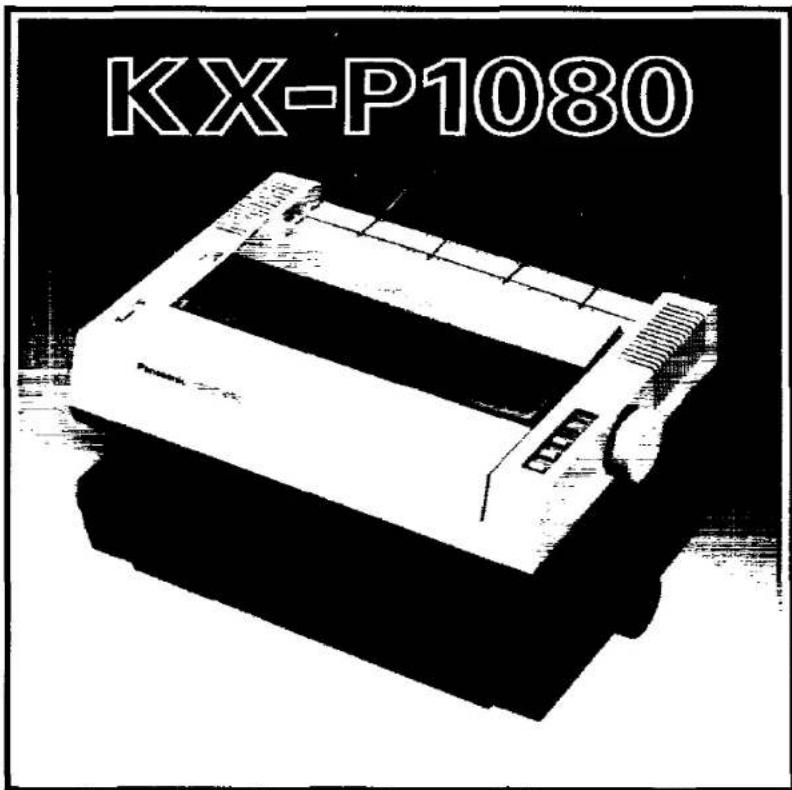
Panasonic
Bevor Sie dieses Gerät in Betrieb nehmen, lesen Sie diese Anleitung bitte vollständig.
Dieses Gerät wurde getestet und entspricht den Grenzwerten für ein Computergerät der Klasse B gemäß den Spezifikationen in Unterabschnitt J von Teil 15 der FCC-Bestimmungen. Falls dieses Gerät Störungen beim Radio- oder Fernsehempfang verursacht, was durch Ein- und Ausschalten des Geräts festgestellt werden kann, verwenden Sie das Gerät an einem anderen Ort und/oder nutzen Sie eine andere Steckdose als die des Empfängers. Bei Verwendung von speziellem Zubehör wie Kabeln sollte der Benutzer das in dieser Betriebsanleitung empfohlene oder vom Hersteller gelieferte Zubehör verwenden, um die Grenzwerte für ein Computergerät der Klasse B gemäß Unterabschnitt J von Teil 15 der FCC-Bestimmungen einzuhalten.
WARNUNG: UM BRAND- ODER STROMSCHLAGGEFAHR ZU VERMEIDEN, SETZEN SIE DIESES PRODUKT NICHT REGEN ODER FEUCHTIGKEIT AUS.
Die Seriennummer des Geräts befindet sich auf dem Etikett an der Unterseite des Geräts. Notieren Sie diese Nummer unten, und bewahren Sie dieses Buch zusammen mit Ihrem Kaufbeleg als dauerhaften Nachweis Ihres Kaufs im Falle eines Diebstahls oder für zukünftige Referenz auf.
MODELL-NR. KX-P1080 NAME DES HÄNDLERS
SERIEN-NR. ____ KAUFDATUM ____
HAFTUNGSAUSSCHLUSS
Das Material in diesem Handbuch dient nur zu Informationszwecken. Der Inhalt und das darin beschriebene Produkt können ohne Vorankündigung geändert werden. Die Panasonic Industrial Company gibt keine Zusicherungen oder Gewährleistungen in Bezug auf dieses Handbuch. In keinem Fall haftet die Panasonic Industrial Company für Schäden, direkte oder indirekte, die aus der Nutzung dieses Handbuchs entstehen oder damit zusammenhängen.

INHALTSVERZEICHNIS
| Section | Page | |
| INTRODUCTION | ||
| 1.1 | Product Overview | 1-1 |
| 1.2 | Names of the Parts | 1-2 |
| 1.3 | Specifications | 1-3 |
| INSTALLATION | ||
| 2.1 | Unpacking and Inspection | 2-1 |
| 2.2 | Site Requirements | 2-1 |
| 2.3 | Initial Setup | 2-1 |
| OPERATION | ||
| 3.1 | Switches and Indicators | 3-1 |
| 3.2 | Detectors | 3-2 |
| 3.3 | DIP Switches | 3-2 |
| 3.4 | Initialization | 3-4 |
| 3.5 | Self Test | 3-5 |
| 3.6 | Hex. Dump | 3-5 |
| 3.7 | Receive Buffer | 3-5 |
| 3.8 | Replacing the Covers | 3-5 |
| SOFTWARE COMMANDS | ||
| 4.1 | Introduction | 4-1 |
| 4.2 | Control Codes | 4-1 |
| 4.3 | Entering Control Codes Through Commercial Software Packages | 4-1 |
| 4.4 | Entering Control Codes Directly from the Keyboard | 4-2 |
| 4.5 | Entering Control Codes from Within a Program | 4-2 |
| 4.6 | Entering Hexadecimal Code | 4-3 |
| 4.7 | Single-Byte Control Codes | 4-3 |
| 4.8 | Multi-Byte Control Codes | 4-10 |
| 4.9 | Mixing Print Modes | 4-69 |
| 4.10 | DIP Switches and Control Codes | 4-70 |
| INTERFACING | ||
| 5.1 | Parallel Interfacing | 5-1 |
| 5.2 | Connector Pin Signals | 5-2 |
| MAINTENANCE | ||
| 6.1 | Preventive Maintenance | 6-1 |
| 6.2 | Periodic Maintenance | 6-1 |
| 6.3 | Troubleshooting | 6-2 |
| APPENDIX A Character Set Tables | A-1 | |
| APPENDIX B DIP Switch Settings | B-1 | |
| APPENDIX C Download Character Matrix Blanks | C-1 | |
| APPENDIX D Software Commands | D-1 | |
| APPENDIX E Paper and Printing Area | E-1 | |
| INDEX | INDEX-1 | |
ABBILDUNGSVERZEICHNIS
Abbildung Einleitung Seite
1.1 Teileposition 1-2
INSTALLATION
2.1 Entfernen der Druckerabdeckung 2-1
2.2 Entfernen der Wagenanschläge 2-1
2.3A Positionieren des Druckkopfs 2-2
2.3B Beseitigen des Farbbanddurchhangs 2-2
2.3C Einsetzen der Farbbandkassette 2-2
2.4A Papierführungen 2-2
2.4B Installieren der Papierführungen 2-2
2.5A Papierzufuhr-Wahlschalter 2-3
2.5B Einlegen eines Einzelblatts 2-3
2.5C Ausrichten eines Einzelblatts 2-3
2.6A Entriegeln des Traktors 2-4
2.6B Anheben der Traktorabdeckung 2-4
2.6C Einlegen von Endlospapier 2-4
2.6D Befestigen des Papiers 2-4
2.7 Stapeln des Papiers 2-5
2.8 Einstellen des Seitenanfangs 2-5
2.9 Einstellen des Druckkopfabstands 2-5
BETRIEB
3.1 ONLINE & OFFLINE 3-1
3.2 Position der DIP-Schalter 3-2
3.3 Austausch der Frontabdeckung 3-5
3.4 Austausch der oberen Abdeckung 3-5
SCHNITTSTELLE
5.1 Parallelschnittstellenstecker 5-1
5.2 Zeitdiagramm 5-3
LISTE DER TABELLEN
| Table | INSTALLATION | Page |
| 2.1 | Installation Requirements | 2-1 |
| 3.1 | DIP Switch Settings | 3-3 |
| 3.2 | Int'l Character Sets | 3-3 |
| SOFTWARE COMMANDS | ||
| 4.1 | Input Formats | 4-10 |
| 4.2 | International Italic Character Locations | 4-18 |
| 4.3 | International Character Set Locations | 4-19 |
| 4.4 | Print Mode Selection | 4-25 |
| 4.5 | Proportional Spacing : ASCII Draft and NLQ Characters | 4-31 |
| 4.6 | Word Processing Commands | 4-32 |
| 4.7 | Dot Resolution | 4-35 |
| 4.8 | Dot Density/Printing Speed | 4-42 |
| 4.9 | Line Spacing Commands | 4-45 |
| 4.10 | Mixed Print Modes | 4-69 |
| 4.11 | Software Control of DIP Switch Functions | 4-70 |
SCHNITTSTELLE
5.1 Steckerbelegung 5-1
WARTUNG
6.1 Fehlerbehebung 6-2
1.1 Produktübersicht
Der Drucker ist ein langlebiger, zuverlässiger Nadeldrucker. Er ist leicht und hat eine kleine Stellfläche, was ihn ideal für einen kompakten Arbeitsplatz macht.
Der Drucker verwendet einen 9-Nadel-Druckkopf, um ein 5×7-Punkt-Matrixzeichen auf einem 9×9-Feld zu bilden. Im Near-Letter-Quality-Modus ist die Matrix 18×18, was eine gute Druckqualität ermöglicht. Alle 96 ASCII-Zeichen können sowohl im normalen als auch im kursiven Stil gedruckt werden, plus 32 internationale Zeichen. Der Benutzer kann auch eigene Zeichen wie mathematische oder wissenschaftliche Symbole eingeben.
Zusätzlich zu den Druckmodi Pica (10 Zeichen pro Zoll) und Elite (12 Zeichen pro Zoll) kann dieser Drucker im Kompressionsmodus mit 17 Zeichen pro Zoll und im halbkomprimierten Modus mit 15 Zeichen pro Zoll drucken. Der Kompressionsmodus ergibt insgesamt 137 Zeichen (132 Zeichen bei initialisiertem Drucker) pro Zeile.
Zusätzlich zu den oben genannten vier Zeichenabständen verfügt dieser Drucker über einen Proportionalabstandsmodus, sodass die vollständige Zeichenabstandsfunktion (insgesamt fünf) verfügbar ist.
Die normale Druckgeschwindigkeit beträgt 100 Zeichen pro Sekunde (cps). Die Verarbeitungsgeschwindigkeit wird durch bidirektionales Drucken erhöht. Das heißt, der Drucker druckt normal von links nach rechts sowie von rechts nach links auf dem Rückweg des Wagens. Außerdem wird eine logiksuchende Technik verwendet. Dies verleiht dem Drucker eine Vorausschaufähigkeit, die es ihm ermöglicht, die Leerzeichen am Anfang und Ende der Zeile zu überspringen. Er überspringt auch die Leerzeilen zwischen Absätzen.
Druckvorgang und Datenverarbeitung erfolgen gleichzeitig, was den Gesamtdurchsatz erhöht und einen effektiven Druck von 63 Zeilen pro Minute ermöglicht.
Eine große Auswahl an Druckstilen ermöglicht es dem Benutzer, einzigartige Dokumente und Zeichnungen zu erstellen. Der Benutzer kann Zeichen doppelt breit oder komprimiert, betont oder unterstrichen, hochgestellt oder tiefgestellt usw. machen. Mit Bitmap-Grafiken kann der Drucker Spezialeffekte erzeugen, die von Firmenlogos bis zu fotorealistischen Bildern reichen.
Der Drucker verfügt standardmäßig über Reibungs- und Traktorvorschub. Er kann sowohl Einzelblätter als auch Endlospapier verarbeiten. Dies ermöglicht es dem Benutzer, Briefe auf Firmenbriefpapier zu erstellen oder Berichte vom Computer zu drucken. Das nahtlose Farbband kann bis zu drei Millionen Zeichen drucken. Das Kassetten-Design macht den Farbbandwechsel einfach und sauber.
Ein 1024-Byte-Puffer (1K) ist mit der standardmäßigen parallelen Schnittstelle vorhanden. Serielle Kommunikation ist über eine optionale RS-232C-Schnittstellenkarte möglich. Die Schnittstelle unterstützt XON/XOFF-, ETX/ACK- und DTR-Drop-Handshaking-Protokolle.
1.2 Bezeichnung der Teile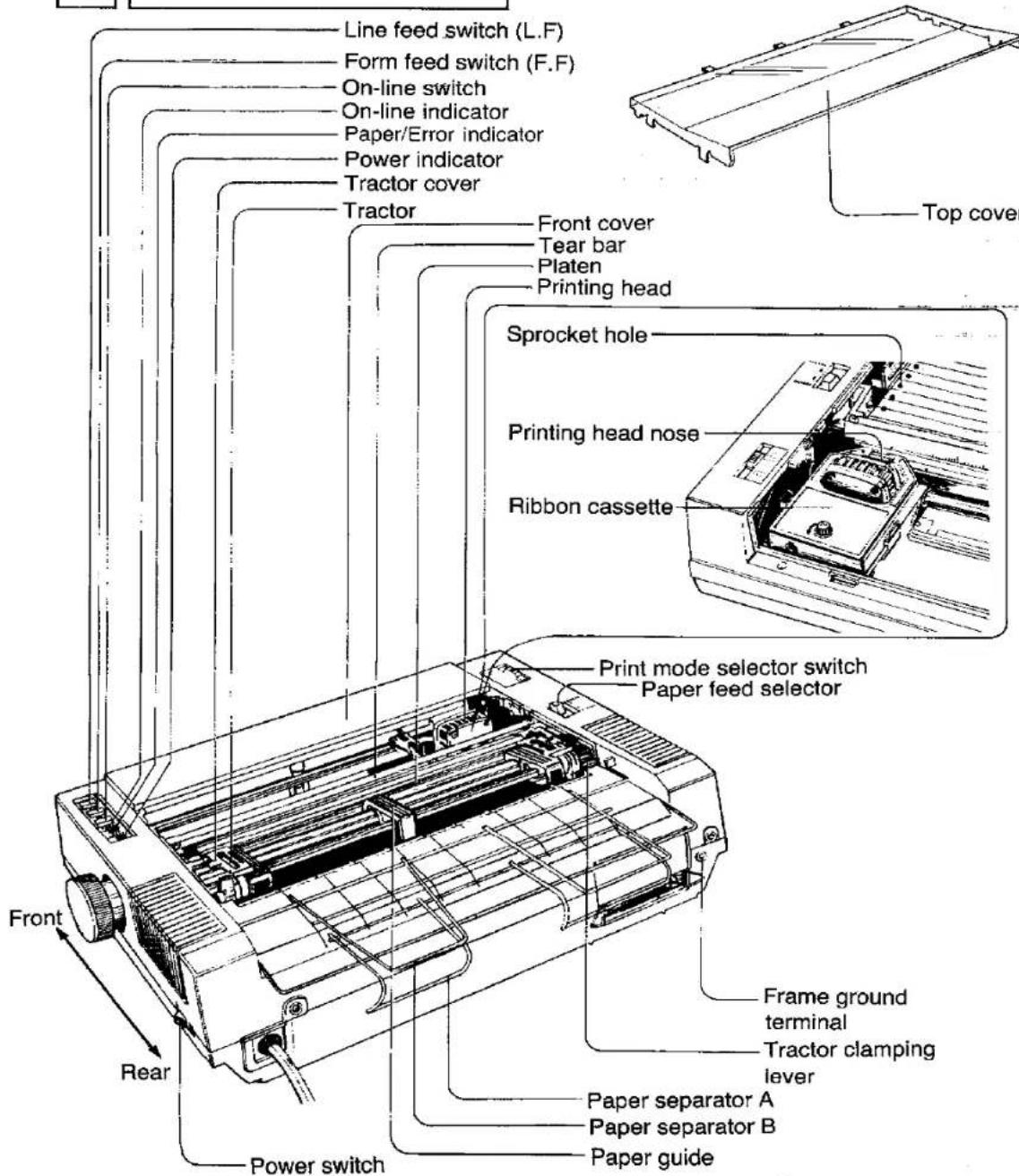
Abbildung 1.1 Position der Teile
1.3 Technische Daten
| Power requirements: | AC120 V (60 Hz) | ||
| Power consumption: | 0.25A during standby0.5A typ. during operation | ||
| Fuses: | 2A 125 V, 3A 125 V | ||
| Printing mode: | Draft, Near Letter Quality, Dot graphics | ||
| Character set: | ASCII 96 characters, Italic ASCII 96 characters, 32 International characters(11 countries) | ||
| Dot configuration: | 3/254 inch (0.3 mm) dot diameter | ||
| Draft (Pica) | NLQ | ||
| Dot alignment(Hor.×Ver.) | 9×9 | 18×18 | |
| Dot pitch (Hor.) | 1/120 inch | 1/240 inch | |
| (Ver.) | 1/72 inch | 1/144 inch | |
| Character size | |||
| Ordinary characters: | 0.078 (W)×0.095 (H) in. (1.99×2.42 mm) | ||
| Superscript/subscriptcharacters: | 0.078 (W)×0.053 (H) in. (1.99×1.36 mm) | ||
| Number of characters per line(per inch): | Pica | 80 CPL (10 cpi) | |
| Elite | 96 CPL (12 cpi) | ||
| Compressed | 137 CPL (17 cpi) | ||
| Semi Compressed | 120 CPL (15 cpi) | ||
| Pica elongated | 40 CPL (5 cpi) | ||
| Elite elongated | 48 CPL (6 cpi) | ||
| Semi Compressed elongated | 60 CPL (7.5 cpi) | ||
| Compressed elongated | 68 CPL (8.5 cpi) | ||
| Printing speed: | Draft-Pica 100 CPS | ||
| Draft-Elite 100 CPS | |||
| NLQ 20 CPS | |||
| Printing direction: | Text printing (Draft., NLQ): Bi-direction | ||
| Bit Image printing: Single-direction (left→right) | |||
| New line time: | Approx. 100 msec [with 1/6 inch (4.2 mm) line feeding] | ||
| Paper feed: | Tractor feed (with fanfold paper) | ||
| Friction feed (with single sheet) | |||
| Paper used: | Fanfold (continuous) paper width: 4~10 inches (102~254 mm) | ||
| Single sheet Width: 4~9 inches (102~229 mm) | |||
| Height: 5~14.3 inches (127~363 mm) | |||
| Thickness (paper weight in pound): 11~21.5 pounds(only 1 sheet) | |||
| Number of sheets: | 3 max. | ||
| Paper thickness: | Total thickness of sheets must be less than 1/100 in. (0.25 mm) | ||
| Storage environment: | -4°F (-20°C) to 140°F (60°C) temperature, 10~90% humidity | ||
| Operating environment: | 41°F (5°C) to 104°F (40°C) temperature, 20~80% humidity | ||
| Head service life: | 100 million characters in draft mode | ||
| Ribbon: | Specially designed cassette seamless ribbon | ||
| Ink color: Black (one color) | |||
| Sevice life: Max. 3 million characters in draft mode | |||
| Dimensions: | 15-43/50 (W)×11-1/4 (D)×4-53/100 (H) in. (403×286×115 mm) | ||
| Weight: | Approx. 13.2 pounds (6.0 kg) | ||
2.1 Auspacken und Prüfen
Öffnen Sie den Versandkarton vorsichtig und entnehmen Sie den Inhalt. Der Karton sollte die folgenden Artikel enthalten:
Drucker
Farbbandkassette (1)
Papierstützen (2)
Bedienungsanleitung
Überprüfen Sie den Drucker und das Zubehör auf Beschädigungen. Melden Sie Schäden oder Fehlmengen dem Geschäft, in dem das Gerät gekauft wurde. Auf der Innenseite des vorderen Deckels befindet sich ein Bereich zum Eintragen wichtiger Informationen zum Drucker.
2.2 | Standortanforderungen
Der Drucker kann in jeder normalen Büroumgebung installiert werden. Es sind keine spezielle Verkabelung oder Kühlung erforderlich. Es ist jedoch ein Mindestabstand von 4" (10 cm) erforderlich, um eine ordnungsgemäße Belüftung zu gewährleisten. Der Drucker sollte auf einer ebenen, horizontalen Fläche aufgestellt werden, entfernt von Heizungen oder anderen Wärmequellen. Der Drucker sollte nicht in übermäßig feuchter oder staubiger Umgebung verwendet werden. Tabelle 2.1 listet die Betriebsanforderungen des Druckers auf.
| Line Voltage | AC 120 V |
| Frequency | 60 Hz |
| Temperature | 41~104°F (5~40°C) |
| Humidity | 20~80% |
Tabelle 2.1 Installationsanforderungen
2.3 Ersteinrichtung
Entfernen der Druckerabdeckungen
Um die obere Abdeckung Ⓐ zu entfernen, heben Sie die Abdeckung in die in Abbildung 2.1 gezeigte Richtung. Entfernen Sie die vordere Abdeckung Ⓑ, indem Sie sie nach vorne und oben ziehen.
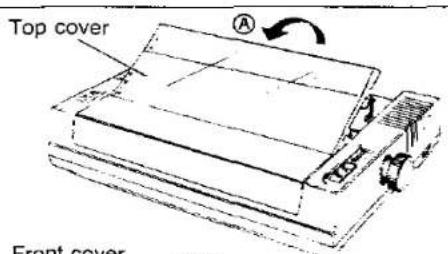
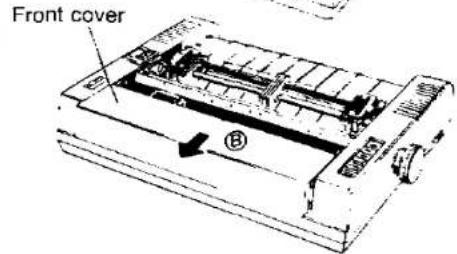
Abbildung 2.1 Entfernen der Druckerabdeckung
- Entfernen Sie das Schutzpapier um die Schreibwalze.
Entfernen der Wagenanschläge
Während des Transports wird der Druckkopfschlitten durch zwei Schlittenstopper in Position gehalten, um Schäden am Druckkopf zu vermeiden. Entfernen Sie diese vor dem Betrieb des Geräts. Siehe Abbildung 2.2.
Stellen Sie sicher, dass Sie sie vor dem Transport des Geräts wieder anbringen.
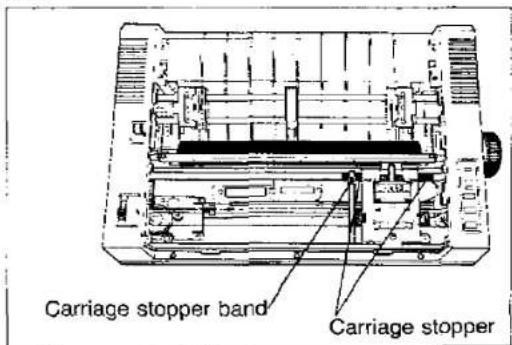
Abbildung 2.2 Entfernen der Schlittenstopper
Montage der Farbbandkassette
Stellen Sie sicher, dass der Drucker ausgeschaltet ist. Schieben Sie den Druckkopfschlitten vorsichtig in Richtung Gerätemitte. Entfernen Sie vor dem Einsetzen der Kassette jeglichen Schlupf im Farbband, indem Sie den Knopf an der Kassette gegen den Uhrzeigersinn drehen.
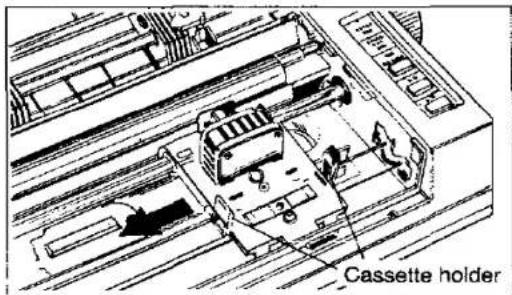
Abbildung 2.3A Positionierung des Druckkopfs
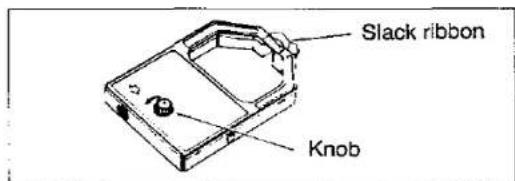
Abbildung 2.3B Entfernen des Farbbandschlupfs
Positionieren Sie die Kassette über dem Druckkopf und setzen Sie sie wie in Abbildung 2.3C gezeigt ein. Stellen Sie sicher, dass das Farbband zwischen der Farbbandabdeckung und der Nase des Druckkopfs verläuft. Drücken Sie die Kassette vorsichtig, aber fest nach unten, bis die beiden Flügelnasen einrasten.
Zum Entfernen der Kassette spreizen Sie die Flügelnasen vorsichtig und heben Sie die Kassette an.
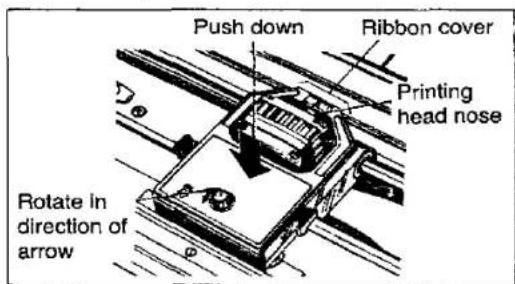
Abbildung 2.3C Einsetzen der Farbbandkassette
Montage der Papierführungen
Papierführungen gewährleisten den reibungslosen Durchlauf von Endlospapier oder Fanfold-Papier. Die Abbildungen 2.4A und 2.4B zeigen, wie die Führungen installiert werden. Installieren Sie zuerst Führung A in den Löchern an der oberen Rückseite des Gehäuses. Installieren Sie dann Führung B in der vorderen Lochreihe.
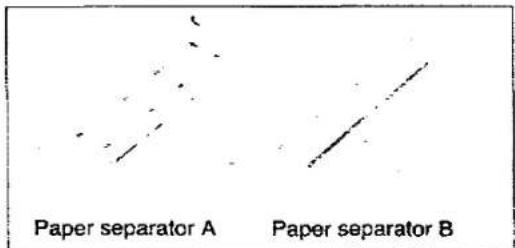
Abbildung 2.4A Papierführungen
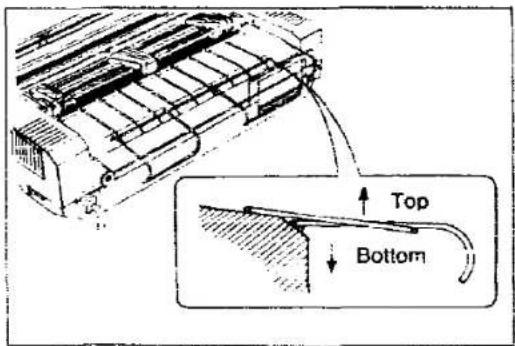
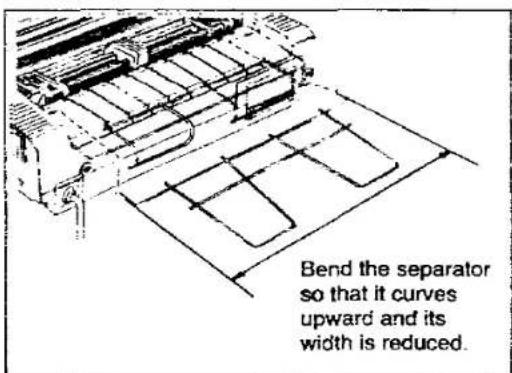
Abbildung 2.4B Installation der Papierführungen
Einlegen des Papiers
Der Papiereinzug des Druckers kann Einzelblätter oder Endlospapier im Fanfold-Stil verarbeiten. Bei Einzelblättern wird das Papier von Andruckrollen gehalten, die das Papier gegen die Schreibwalze drücken. Bei Endlospapier wird das Papier durch den Traktorantrieb durch den Drucker gezogen.
Einzelblatt
Um ein einzelnes Blatt Papier einzulegen, gehen Sie wie folgt vor:
- Schalten Sie den Netzschalter EIN.
- Stellen Sie den PAPIEREINZUG-Wahlschalter auf die Position FRIKTION. Siehe Abbildung 2.5A. Heben Sie die Abrisskante an, die sich vor der Schreibwalze befindet:
- Führen Sie das Papier wie in Abbildung 2.5B gezeigt in den Drucker ein. Der Drucker erfasst das Papier und dreht es etwa halb um die Schreibwalze.
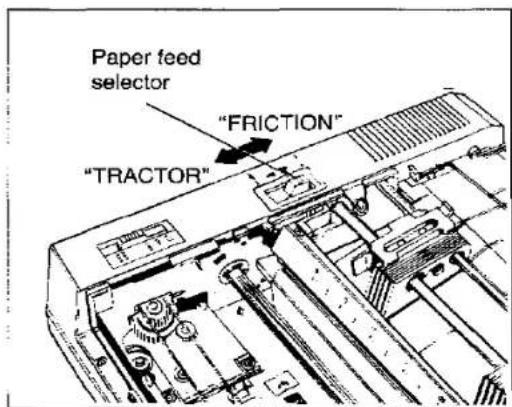
Abbildung 2.5A Papiereinzug-Wahlschalter
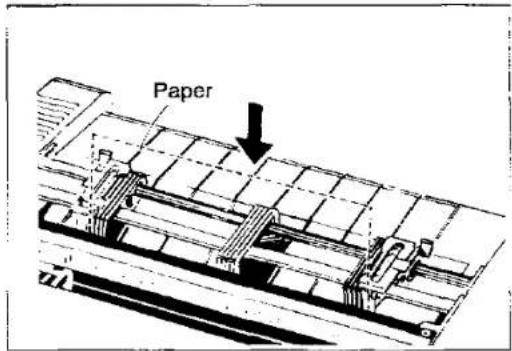
Abbildung 2.5B Einlegen eines Einzelblatts
- Drehen Sie den Walzenknopf, um das Papier vorzuschieben. Stecken Sie das Papier unter die Abrisskante und senken Sie die Kante dann wieder ab.
- Um das Papier horizontal oder vertikal auszurichten, stellen Sie den PAPIEREINZUG-Wahlschalter auf die Position TRAKTOR. Siehe Abbildung 2.5C. Dadurch werden die Andruckrollen gelöst und das Papier kann wie gewünscht positioniert werden. Stellen Sie den Schalter vor dem Drucken wieder auf FRIKTION. Siehe Abbildung 2.5A.
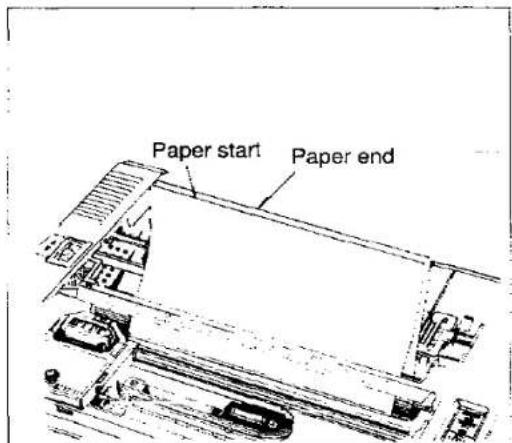
Abbildung 2.5C Ausrichten eines Einzelblatts
Endlospapier
Die folgenden Schritte beschreiben, wie Endlospapier eingelegt wird:
- Schalten Sie den Netzschalter EIN.
- Siehe Abbildungen 2.6A und 2.6B. Entriegeln Sie die Traktoren, indem Sie die Traktor-Klemmhebel nach oben ziehen. Schieben Sie die Traktoren zu den Seiten und heben Sie die Abdeckungen an.
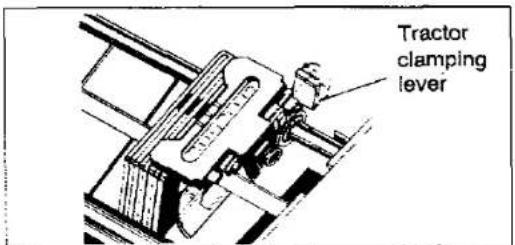
Abbildung 2.6A Entriegeln des Traktors
- Heben Sie die Abrisskante an, die sich vor der Schreibwalze befindet.
- Führen Sie das Papier wie in Abbildung 2.6C gezeigt in den Drucker ein. Der Drucker erfasst das Papier und dreht es etwa auf halbem Weg um die Schreibwalze.
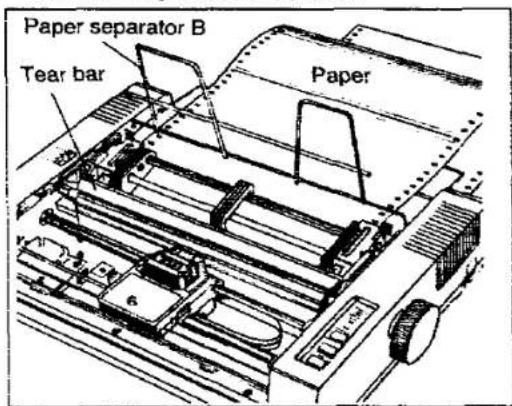
Abbildung 2.6C Einlegen von Endlospapier
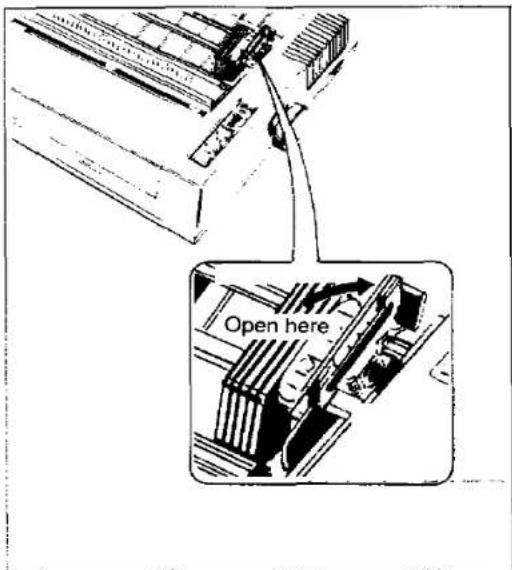
Abbildung 2.6B Anheben der Traktorabdeckung
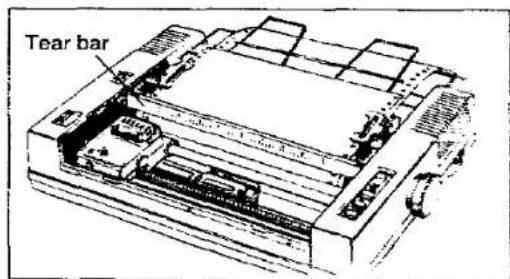
Abbildung 2.6D Montieren des Papiers
- Drehen Sie den Walzenknopf, um das Papier zu transportieren. Stecken Sie das Papier unter die Abrisskante und senken Sie die Kante dann in ihre Position.
- Stellen Sie den PAPIERVORSCHUB-Wahlschalter auf die Position TRAKTOR.
- Positionieren Sie die Traktoren wie erforderlich, um die Papierlochungen mit den Traktorstiften auszurichten, und schließen Sie die Traktorabdeckungen. Siehe Abbildung 2.6D.
- Zentrieren Sie das Papier horizontal mithilfe der Skala auf der Abrisskante als Orientierung. Der Drucker druckt zwischen 0 und 80 auf der Skala. Drücken Sie die Klemmhebel der Traktoren nach unten, um die Traktoren zu verriegeln.
- Stellen Sie den PAPIERVORSCHUB-Wahlschalter auf die Position REIBUNG, wie beim Einlegen von Einzelblättern.
- Um einen reibungslosen Papierfluss bei Verwendung von Endlospapier zu gewährleisten, achten Sie darauf, dass der Papierstapel nicht höher als die Papierführungen ist. Wenn Sie das Papier wie in Abbildung 2.7 gezeigt zuführen, sorgt das Papiergewicht für einen Gegenzug. Das Papier sollte sich direkt hinter dem Drucker befinden und nicht seitlich versetzt sein.
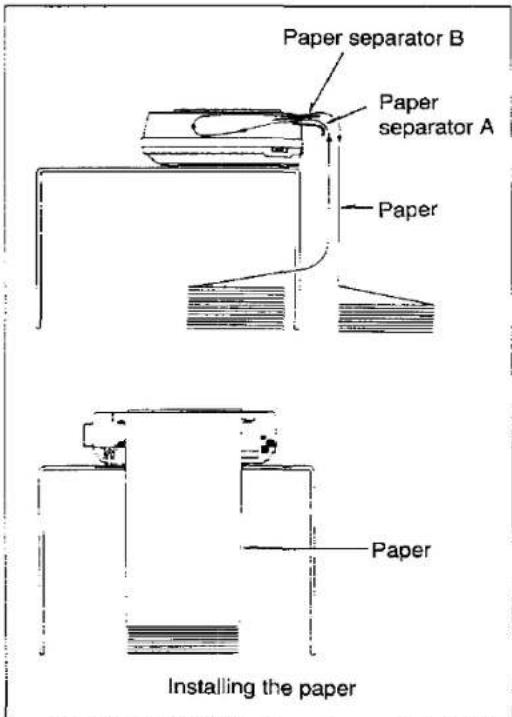
Abbildung 2.7 Stapeln des Papiers
Ausrichten des Formularanfangs
Der Drucker verfügt über einen Zeilenzähler, der die vertikale Position des Druckkopfs verfolgt. Bei jedem Einschalten wird der Zeilenzähler zurückgesetzt und die aktuelle Position des Kopfes als Zeile eins festgelegt. Diese Position wird als FORMULARANFANG bezeichnet. Wenn die Taste Formularvorschub (FF) gedrückt wird, wird das Papier um eine Seitenlänge vorgeschoben. Eine Seite wird durch den Befehl Seitenlänge festlegen definiert.
Die erste Textzeile beginnt etwa 1/6 (4,2 mm) vom oberen Rand der Papierhalteplatte entfernt. (Der Abstand zwischen der Unterkante der Zeichen und der Oberkante der hinteren Papierhalteplatte beträgt etwa 1/6 (4,2 mm).)
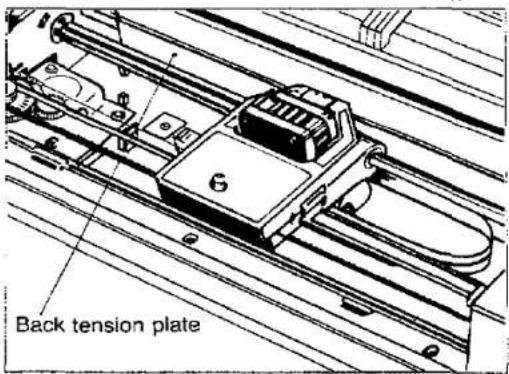
Abbildung 2.8 Einstellen des Formularanfangs
Einstellen des Druckkopfabstands
Der Abstand zwischen Druckkopf und Druckwalze kann eingestellt werden, um die Papierdicke auszugleichen.
Abbildung 2.9 zeigt die Position des Abstandshebels. Bewegen Sie den Hebel in Richtung Druckwalze für Einzelblatt und von der Druckwalze weg für Mehrfachformulare.
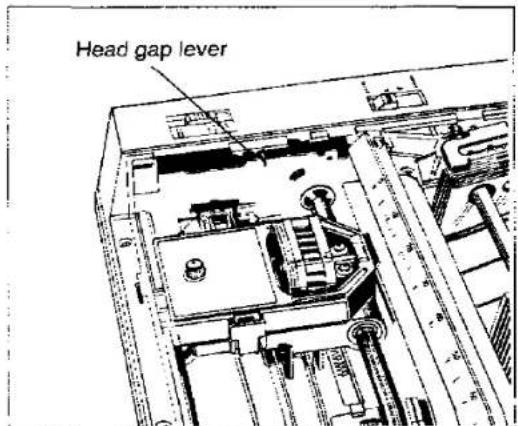
Abbildung 2.9 Einstellen des Druckkopfabstands
3.1 Schalter und Anzeigen
Netzschalter
Der Netzschalter befindet sich auf der rechten Seite des Druckers, nach hinten. Er dient zum Ein- und Ausschalten der Wechselspannung. Wenn der Drucker mit Strom versorgt wird, leuchtet die Betriebsanzeige an der Vorderseite.
Online-Schalter
Der ONLINE-Schalter ist ein Tastschalter, der die Kommunikationsleitung zum Computer öffnet und schließt. Wenn der Netzschalter eingeschaltet wird, startet der Drucker im ONLINE-Modus, wenn Papier eingelegt ist. Ist kein Papier eingelegt, startet der Drucker im OFFLINE-Modus. Im ONLINE-Modus kann der Drucker Daten vom Computer empfangen und die ONLINE-Anzeige leuchtet. Im OFFLINE-Modus ist die Anzeige aus und der Drucker kann keine Daten mehr empfangen. Siehe Abbildung 3.1.
![graph LR A["COMPUTER"] <--> B["PRINTER"] C["COMPUTER"] <--> D["PRINTER"] style A fill:#f9f,stroke:#333 style C fill:#f9f,stroke:#333 style B fill:#ccf,stroke:#333 style D fill:#ccf,stroke:#333 note1["ON LINE"] --> A note2["OFF LINE"] --> C](/content/2026/05/794195/images/7d3fa6ac04bed1ed220ce2cc3ef818a4639f9e4216be2df0616713607c0a7525.jpg)
Abbildung 3.1 ONLINE & OFFLINE
Wenn der Drucker auf ONLINE geschaltet wird, passieren folgende Dinge:
- Die ONLINE-Anzeige leuchtet.
- Die Kommunikationsleitung zwischen Drucker und Computer ist geöffnet. • Ein ACK-Signal wird gesendet. • Die Schnittstellensignalpegel sind:
Busy = Low
Select = High
Error = High
Wenn der Drucker AUSGESCHALTET (OFF LINE) ist, treten folgende Aktionen auf:
● die ON LINE-Lampe ist aus ● die Kommunikationsleitung zwischen Drucker und Computer ist unterbrochen ● die Pegel der Schnittstellensignale sind:
Busy = High
Select = Low
Error = Low
Formularvorschub-Schalter
Dieser Schalter ist sowohl im OFF LINE- als auch im ON LINE-Modus aktiv. Durch Drücken des FF-Schalters wird das Papier von seiner aktuellen Position zum Anfang der nächsten Seite vorgeschoben. Dann wird ein neuer Formularkopf eingestellt.
Zeilenvorschub-Schalter
Dieser Schalter ist sowohl im OFF LINE- als auch im ON LINE-Modus aktiv. Durch Drücken dieses Schalters wird das Papier um eine Zeile vorgeschoben. Mehrfacher Zeilenvorschub kann durch Halten des Schalters erreicht werden.
Druckmodus-Wahlschalter
Der Druckmodus-Wahlschalter ermöglicht dem Benutzer die Auswahl eines von drei grundlegenden Druckmodi: Entwurf, Fast-Druckqualität und Komprimiert.
Ein Moduswechsel durch diesen Schalter ist sowohl im OFF LINE- als auch im ON LINE-Modus wirksam.
- Draft-Modus (Std. Pgm.) ist ein Hochgeschwindigkeitsdruckmodus. Der Drucker druckt bidirektional mit 100 Zeichen pro Sekunde. Dieser Modus wird für Entwürfe und vorläufige Dokumente verwendet.
Ein Wechsel von diesem Modus in einen anderen Modus kann über den ESC-Befehl ausgeführt werden.
- Der Near-Letter-Quality-Modus (NLQ) ermöglicht dem Benutzer, qualitativ hochwertige Dokumente zu drucken. Die hohe Dichte wird durch einen doppelten Durchlauf des Druckkopfes erreicht.
Dieser Druckmodus kann nicht über ein Softwareprogramm in einen anderen Modus geändert werden.
- Komprimierter Modus (Comp.): In diesem Modus können 132 Zeichen pro Zeile gedruckt werden (wenn der Drucker initialisiert ist). Daher ist das Drucken von Ausgaben, die für breites Papier [15,5 Zoll (394 mm)] ausgelegt sind, auf schmalem Papier [8,5 Zoll (216 mm)] möglich.
Dieser Druckmodus kann nicht über ein Softwareprogramm in einen anderen Modus geändert werden.
Einzelheiten zu jedem dieser Modi finden Sie in KAPITEL 4.
Papier-/Fehleranzeige
Die PAPER/ERROR-Anzeige leuchtet, wenn weniger als 1,5 Zoll (38 mm) Papier verbleiben oder wenn kein Papier eingelegt ist, und blinkt bei Überlastung.
3.2 Detektoren
Papierende-Detektor
Der Papierende-Detektor befindet sich unter der Walze und erkennt das Fehlen von Papier. Wenn dem Drucker das Papier ausgeht, leuchtet die PAPER/ERROR-Anzeige. Die folgenden Bedingungen gelten:
- Der Drucker akzeptiert keine Daten vom Computer.
- Der Drucker ist OFF LINE und die ON LINE-Anzeige ist aus. • Die LF- und FF-Tasten sind aktiv. ● Die Schnittstellensignalpegel sind:
Busy = High
Select = Low
Error = Low
PE = High
Um die Kommunikation mit dem Computer wiederherzustellen, legen Sie Papier ein und drücken Sie die Taste ON LINE. Der Drucker setzt den Druckvorgang fort.
Verwenden Sie kein transparentes oder halbtransparentes Papier, da dieses nicht erkannt wird.
Überlastdetektor
Eine Überlastung kann auftreten, wenn der Weg des Druckkopfs blockiert ist. In diesem Fall blinkt die PAPER/ERROR-Anzeige. Während dieser Zeit gelten die folgenden Bedingungen:
- Die Kommunikation mit dem Computer wird unterbrochen und der Drucker geht in den Offline-Modus.
- Die Schalter an der Frontblende sind deaktiviert. Die Signalspiegel an der Schnittstelle sind:
Busy = High
Select = Low
Error = Low
Um den Drucker zurückzusetzen, beseitigen Sie die Ursache der Überlastung und schalten Sie das Gerät aus und wieder ein. Der Drucker setzt den Druckvorgang fort.
3.3 DIP-Schalter
Schalten Sie den Strom aus, bevor Sie die DIP-Schalter einstellen. Mit den DIP-Schaltern kann der Benutzer bestimmte Betriebsbedingungen des Druckers festlegen. Abbildung 3.2 zeigt die Position der Schalter, und Tabelle 3.1 fasst die Schaltereinstellungen zusammen.
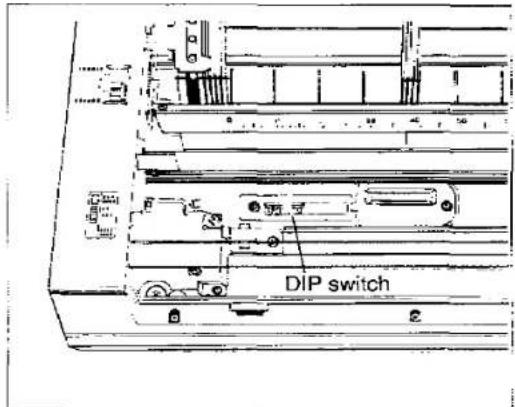
Abbildung 3.2 Position der DIP-Schalter
Die Schaltereinstellungen werden beim Einschalten in den Speicher eingelesen. Diese Speicherorte enthalten dann ein Abbild der Schaltereinstellungen. Der Computer kann die Schaltereinstellungen ändern, indem er neue Befehle herunterlädt. Der internationale Zeichensatz und die Schalter für den Perforationsübersprung usw. können auf diese Weise geändert werden. Informationen zur Softwaresteuerung der Schalter finden Sie in Abschnitt 4.10.
| SWITCH NUMBER | FUNCTION | ON | OFF | POSITION WHEN SHIPPED |
| SW1 | Paper Out Detector | Ineffective | Effective | OFF |
| SW2 | Page Length | 12 inch (305 mm) | 11 inch (279 mm) | OFF |
| SW3 | AUTO FEED XT | Fixed Internally | Not Fixed Internally | OFF |
| SW4 | Skip Perforation | 1 inch (25.4 mm) Skip | No Skip | OFF |
| SW5 | International | See International | ON | |
| SW6 | Character Set | Character Set Chart | ON ON | |
| SW7 | ||||
| SW8 | 7 bit/8 bit | 7 bit | 8 bit | OFF |
Tabelle 3.1 DIP-Schaltereinstellungen
| SW5 | SW6 | SW7 | INTERNATIONAL CHARACTER SET |
| ON | ON | ON | USA |
| OFF | ON | ON | FRANCE |
| ON | OFF | ON | GERMANY |
| OFF | OFF | ON | ENGLAND |
| ON | ON | OFF | DENMARK I |
| OFF | ON | OFF | SWEDEN |
| ON | OFF | OFF | ITALY |
| OFF | OFF | OFF | SPAIN |
Tabelle 3.2 Internationale Zeichensätze
PAPIERENDE-DETEKTOR SW1
EIN Der Papierende-Detektor ist nicht aktiv und das Drucken ist bei Papierende möglich. Bei Verwendung von Einzelblättern ist das Drucken in den letzten 1,5 Zoll (38 mm) des Blattes möglich.
AUS Der Papierende-Detektor ist aktiv und das Drucken stoppt automatisch bei Papierende.
SEITENLÄNGE SW2
EIN Die Formularlänge ist auf 12 Zoll (305 mm) eingestellt.
AUS Die Formularlänge ist auf 11 Zoll (279 mm) eingestellt.
AUTO EINZUG XT SW3
EIN Ein Zeilenvorschub-Befehl (LF) wird jedem Wagenrücklauf (CR) hinzugefügt.
AUS Nur Wagenrücklauf.
PERFORATIONSÜBERSPRUNG SW4
EIN Vor und nach der Perforation zwischen den Seiten wird ein Rand von 3 Zeilen übersprungen. AUS Der Druck ist durchgehend, KEINE Ränder um die Perforation.
Die Einstellung kann über den Computer geändert werden. Siehe Abschnitt 4.10.
INTERNATIONALER ZEICHENSATZ SW5, 6 & 7.
Die Kombination dieser Schaltereinstellungen wird verwendet, um einen von 8 internationalen Zeichensätzen auszuwählen. Das Diagramm der internationalen Zeichensätze befindet sich in Anhang A. Dieser Satz kann auch über den Computer ausgewählt werden. Siehe Abschnitt 4.10.
7/8-BIT-CODEAUSWAHL SW8
EIN=7 BIT
AUS=8 BIT
Dieser Schalter wählt die Größe des Datenworts. Wenn der Computer ein 7-Bit-Wort sendet, muss der Drucker ebenfalls auf 7 Bit eingestellt sein. Wenn die beiden Einstellungen nicht übereinstimmen, treten zufällige Fehler auf und eine sinnvolle Kommunikation ist nicht möglich. Informationen zur 7-Bit- und 8-Bit-Formatierung finden Sie in Abschnitt 4.8.
3.4 Initialisierung
A. Einschaltsequenz
Beim Einschalten des Druckers sollten die folgenden Verfahren befolgt werden:
- Stellen Sie sicher, dass die Druckwagensperren entfernt wurden.
- Legen Sie das Papier ein und stellen Sie den Papierzufuhr-Wahlschalter ein.
- Stellen Sie sicher, dass das Farbband korrekt installiert ist.
- Stellen Sie die DIP-Schalter wie erforderlich ein.
- Schalten Sie den Netzschalter aus und stecken Sie das Netzkabel in eine Steckdose mit der richtigen Nennleistung.
- Schalten Sie das Gerät ein.
B. Initialisierung
Der Drucker wird unter den folgenden Bedingungen initialisiert:
—Die Wechselstromversorgung wird eingeschaltet —Das PRIME-Signal wird empfangen —Der RESET-Befehl wird empfangen
Wenn der Drucker initialisiert wird, werden die folgenden Bedingungen eingestellt:
—Der Druckkopf fährt in die Ausgangsposition —Der Druckpuffer wird geleert —Der Empfangspuffer wird geleert (nicht durch den RESET-Befehl geleert) —Die Vertikal-Tab-Einstellungen werden gelöscht —Die Horizontal-Tabs werden alle 8 Spalten gesetzt —Die DIP-Schalter werden gelesen und die Druckermodi eingestellt —Der Druckmodus hängt von der Position des Druckmodus-Wahlschalters ab —Die aktuelle Formularposition wird als Seitenanfang festgelegt —Alle Modi, die durch Steuer- und Escape-Befehle gesetzt wurden, werden gelöscht —Der Drucker geht in den ONLINE-Zustand
3.5 Selbsttest
Der Drucker verfügt über eine Selbsttestfunktion, die es dem Benutzer ermöglicht, den Drucker unabhängig von einem Computer zu testen. Der Modus wird durch Einschalten des Netzschalters bei gleichzeitigem Drücken des Zeilenvorschub-Schalters (LF) aktiviert. Alle 96 ASCII-Zeichen werden kontinuierlich gedruckt, bis das Gerät ausgeschaltet wird.
3.6 Hex-Dump
Der HEX-DUMP-Modus wird durch Einschalten des Geräts bei gleichzeitigem Drücken der Schalter für Zeilenvorschub (LF) und Formularvorschub (FF) aktiviert. In diesem Modus werden alle vom Computer empfangenen Daten im Hexadezimalcode anstelle der normalen ASCII-Zeichen gedruckt. Funktionscodes für den Drucker (CR, LF, HT usw.) werden nicht ausgeführt. Um den Modus zurückzusetzen, schalten Sie das Gerät aus und wieder ein.
3.7 Empfangspuffer
Der Drucker verfügt über einen Empfangspuffer von 1 KB. Dies kann die Leerlaufzeit des Computers reduzieren, die durch das Warten auf den Abschluss des Druckvorgangs entsteht. Dadurch wird der Gesamtdurchsatz des gesamten Systems erhöht.
3.8 Austausch der Abdeckungen
Setzen Sie zuerst die vordere Abdeckung wie in Abbildung 3.3A gezeigt ein. Drücken Sie sie dann wie in Abbildung 3.3B gezeigt hinein.
Setzen Sie die obere Abdeckung (Abbildung 3.4A) so ein, dass die Laschen an der Vorderseite unter die vordere Abdeckung greifen. Drücken Sie dann nach unten, sodass die Laschen an der Seite einrasten (Abbildung 3.4B).
3.3A.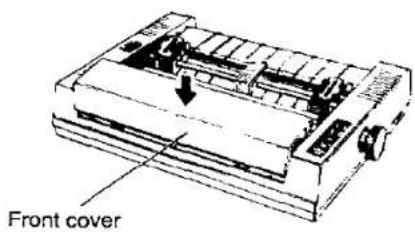
3.3B.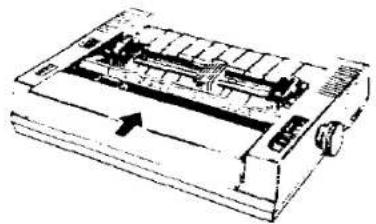
Abbildung 3.3 Austausch der Frontabdeckung
3.4A.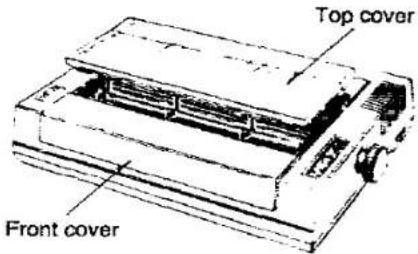
3.4B.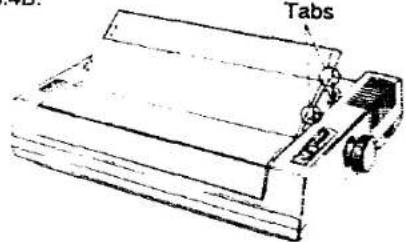
Abbildung 3.4 Austausch der oberen Abdeckung
4.1 Einführung
Damit ein Computer mit einem Drucker kommunizieren kann, müssen beide Geräte eine gemeinsame Sprache oder ein gemeinsames Kodierungsschema verstehen. Ein solches Kodierungsschema ist ASCII (American Standard Code for Information Interchange). Beispielsweise kann der ASCII-Code für das Zeichen "K" in jeder der folgenden Formen ausgedrückt werden:
(01001011) – binär
4Bhex , 4Bhex – hexadezimal
75dez, 75 – dezimal
Viele Computer ermöglichen die Eingabe von ASCII-Codes in hexadezimaler Form. Die meisten Computer, die ASCII unterstützen, erlauben die Eingabe in dezimaler Form. Viele ermöglichen die Eingabe in beiden Formen. Nach der Eingabe werden die ASCII-Codes vom Computer in binäre Form umgewandelt und dann an den Drucker gesendet.
In den folgenden Abschnitten sehen Sie, wie Sie verschiedene ASCII-Codes eingeben, um den Drucker die gewünschten Funktionen ausführen zu lassen. Da das dezimale Äquivalent des ASCII-Codes am häufigsten verwendet wird, verwenden alle folgenden Beispiele die dezimale Form.
Anhang A enthält die ASCII-Zeichen- und Steuerbefehlstabellen, die vom Drucker verwendet werden.
4.2 Steuercodes
Die verschiedenen Druckerfunktionen werden über Steuercodes eingestellt, die aus einem oder mehreren ASCII-Zeichen bestehen, die auf besondere Weise in den Computer eingegeben werden. Diese Steuercodes unterscheiden sich oft von Drucker zu Drucker. Steuercodes fallen im Allgemeinen in zwei Kategorien: Ein-Byte-Steuercodes und Mehr-Byte-Steuercodes. Die Mehr-Byte-Steuercodes werden oft als Escape-Sequenzen bezeichnet, da jeder Code mit dem ASCII-Code für das ESCAPE-Zeichen (ESC) beginnt. Ein solches ESC-Zeichen sollte nicht mit der Escape-Taste verwechselt werden, die sich auf einigen Computertastaturen befindet.
Steuercodes können auf verschiedene Weise von Ihrem Computer an den Drucker gesendet werden. Die drei gebräuchlichsten Methoden sind:
• Über kommerzielle Softwarepakete - Direkt über die Tastatur - Aus einem selbstgeschriebenen Programm
Die letzten beiden Methoden beziehen sich speziell auf die BASIC-Sprache, obwohl auch andere Sprachen wie FORTRAN, PASCAL usw. verwendet werden können. Wir verwenden BASIC, da es eine relativ einfach zu verwendende Sprache ist. Außerdem ist es die am häufigsten verwendete Mikrocomputersprache.
4.3 Eingabe von Steuercodes über kommerzielle Softwarepakete
Viele Computerbenutzer haben nicht die Zeit, das Fachwissen oder das Interesse, Software zu entwickeln, die für ihre Anwendungen geeignet ist. In solchen Fällen kann von Fachleuten geschriebene Software gekauft werden. Solche Software sollte nicht nur nach den Bedürfnissen des Benutzers ausgewählt werden, sondern muss auch mit Computer und Drucker kompatibel sein.
Kommerzielle Software wird oft mit einem sogenannten Treiber geschrieben. Ein Treiber ist der Teil der Software, der es dem Benutzer ermöglicht, das Paket auf den verwendeten Drucker- und Schnittstellentyp zu konfigurieren. Sobald die Software gestartet wurde, wird der Benutzer in der Regel aufgefordert, zusätzliche Informationen anzugeben, wie zum Beispiel:
- Marke/Modell des verwendeten Druckers.
- Steckplatznummer, in der die Schnittstellenkarte installiert ist.
- Baudrate, Parität usw., wenn eine serielle Schnittstelle verwendet wird.
Sobald die erforderlichen Informationen bereitgestellt wurden, stellt die Software dem Computer die Steuercodes und andere Daten zur Verfügung, die der Drucker benötigt.
Viele Textverarbeitungsprogramme fordern Sie auf, die vom Drucker verwendeten ASCII-Codes für spezielle Einstellungen wie Unterstreichen, Kompaktschrift, Hoch- und Tiefstellung, Kursivschrift usw. einzugeben. In allen Fällen sollten Sie sich im Software-Handbuch über die ordnungsgemäße Verwendung des Pakets mit dem Drucker informieren.
4.4 Eingabe von Steuercodes direkt über die Tastatur
Bei vielen Computern ist die BASIC-Sprache nach dem Einschalten sofort einsatzbereit. Bei anderen muss BASIC von Kassette oder Diskette geladen werden. In jedem Fall können Sie, sobald BASIC bereit ist, die Druckersteuerbefehle direkt über Ihre Computertastatur eingeben.
BASIC erfordert die Verwendung des PRINT-Befehls (oder LPRINT, Print# usw., je nach Art des verwendeten BASIC), um die Steuerbefehle zu verarbeiten und an den Drucker zu senden. Als Teil dieses PRINT-Befehls müssen Sie die entsprechenden ASCII-Codes für die CHR$-Funktion angeben.
Zum Beispiel setzt der Befehl LPRINT CHR$(15) gefolgt von einem RETURN den Drucker in den Komprimierungsmodus. Nachfolgende Ausgaben an den Drucker erscheinen im Komprimierungsmodus.
Wenn nach Ausführung des obigen Befehls nachfolgende PRINT-Anweisungen nichts an den Drucker ausgeben, überprüfen Sie einen oder mehrere der folgenden Punkte:
- Haben Sie dem Computer mitgeteilt, dass die Ausgabe an den Drucker und nicht an den Bildschirm gehen soll? Zum Beispiel bewirkt PR#1, dass nachfolgende PRINT-Anweisungen auf dem Apple®-Computer an den Drucker und nicht an den Bildschirm ausgegeben werden. (LPRINT macht dasselbe in Microsoft® BASIC).
- Ist der Drucker online? Wenn nicht, drücken Sie die grüne ON LINE-Taste auf der Vorderseite.
- Ist das Schnittstellenkabel in den Computer und den Drucker eingesteckt?
- Bei Verwendung einer seriellen Schnittstelle: Ist die Baudrate-Einstellung am Drucker dieselbe wie am Computer oder an der Schnittstellenkarte?
Beachten Sie, dass Sie bei der direkten Eingabe eines BASIC-Befehls über die Tastatur KEINE Zeilennummer verwenden, wie Sie es in einem BASIC-Programm tun würden. Darüber hinaus können Steuercodes nur zeilenweise eingegeben werden.
4.5 Eingabe von Steuercodes aus einem Programm
Steuerbefehle können auch aus einem BASIC-Programm heraus eingegeben werden. Der Vorteil dieser Technik besteht darin, dass Sie eine Reihe verschiedener Steuerbefehle in ein einziges Programm integrieren können und so eine Ausgabe mit einer Vielzahl spezieller Funktionen erzeugen können. Dies geschieht, indem Sie Ihr Programm einmal ausführen. In diesem Fall verlangt BASIC, dass jeder Zeile in Ihrem Programm eine Zeilennummer vorangestellt wird.
Als Beispiel haben wir bereits erwähnt, dass der Befehl LPRINT CHR$(15), direkt über die Tastatur eingegeben, den Komprimierungsdruck am Drucker einschaltet. In einem BASIC-Programm könnte dieser Befehl wie folgt aussehen:
50 LPRINT CHR$(15)
Der Rest dieses Kapitels zeigt Ihnen, wie Sie jeden der Steuerbefehle eingeben, die der Drucker verwendet. Alle Beispiele sind IBM-PC®-BASIC-Programme, die LPRINT verwenden, um auf den Drucker zuzugreifen, und Dezimalzahlen für die ASCII-Codes verwenden.
HINWEIS:
1) Wenn Sie Microsoft Basic verwenden und Daten eingeben, die mehr als 80 Zeichen umfassen, sendet der Computer unnötige Daten. Daher ist es notwendig, die folgenden Befehle am Anfang des Programms hinzuzufügen und die Daten dann mit PRINT #1 zu senden.
10 WIDTH "LPT1:", 255
20 OPEN "LPT1:" AS#1
2) Der Apple-II-e-Computer kann den Code (09) nicht mit dem PRINT-Befehl senden. Wenn Sie daher den Code (09) in Grafikprogrammen usw. senden möchten, geben Sie POKE (49601),9 ein.
4.6 Eingabe von Hexadezimalcode
Falls Sie ASCII-Codes in hexadezimaler Form eingeben möchten, müssen Sie pro Code zwei zusätzliche Zeichen angeben. Dies sind das Kaufmanns-Und (&) und der Buchstabe H. Das folgende Beispiel zeigt den BASIC-Befehl, um auf dem Drucker den Kompaktdruck zu aktivieren.
Dezimal
Hexadezimal
LPRINT CHR\$(15)
LPRINT CHR\$(&HOF)
Siehe Anhang A für die ASCII-Codetabelle.
4.7 Einzelbyte-Steuercodes
Eine Reihe von Druckersteuerbefehlen erfordert nur ein einzelnes ASCII-codiertes Zeichen als Teil der LPRINT-Anweisung. Der Befehl LPRINT CHR\$(15), den wir bereits besprochen haben, ist ein Beispiel für einen Einzelbyte-Steuerbefehl. Die folgenden 16 Steuerbefehle sind Einzelbyte-Codes. Obwohl nicht erforderlich, unterdrückt das Semikolon am Ende jedes Befehls einen Zeilenvorschub. Die Befehle sind in alphabetischer Reihenfolge aufgelistet.
RÜCKTASTE (BS):
Druckt Daten im Druckpuffer und führt einen Rückschritt um eine Position aus, bevor das nächste Zeichen gedruckt wird.
Code: 8 DEZ 08 HEX
Eingabeformat: LPRINT CHR\$(8);
| Example: | 10 REM UNDERLINE BY BACKSPACING |
| 20 LPRINT "ABCDE"; | |
| 30 FOR I=1 TO S ... | |
| 40 LPRINT CHR$(8); | |
| 50 NEXT I | |
| 60 LPRINT "____" | |
| 70 END |
ABCDE
Kommentare:
- Da BS die Breite eines Zeichens zurücksetzt, hängt der Rückstellbetrag vom Zeichenmodus ab, der beim Empfang des BS-Codes eingestellt war. • Siehe Beispiel 2, Unterstreichungsmodus, Abschnitt 4.8.
ABBRECHEN (CAN):
Löscht alle Daten im Empfangspuffer.
Code: 24 DEC 18 HEX
Eingabeformat: LPRINT CHR\$(24);
| Example: | 10 REM CANCEL |
| 20 LPRINT "CANCEL CLEARS"; | |
| 30 LPRINT CHR$(24); | |
| 40 LPRINT "CANCEL CLEARS THE BUFFER" | |
| 50 END | |
| CANCEL CLEARS THE BUFFER |
WAGENRÜCKLAUF (CR):
Druckt alle Daten im Puffer.
Code: 13 DEC 0D HEX
Eingabeformat: LPRINT CHR\$(13);
| Example: | 10 REM CARRIAGE RETURN |
| 20 WIDTH "LPT1:", 255 | |
| 30 OPEN "LPT1:" AS #1 | |
| 40 PRINT #1, "0000";CHP$(13); | |
| 50 PRINT #1, "////" | |
| 60 END | |
| 0000 |
Kommentare:
- Wenn die Ausgabe wie folgt erscheint: 0000, gibt Ihr Computer wahrscheinlich automatisch einen Zeilenvorschub mit einem Wagenrücklauf aus. Überprüfen Sie das Handbuch Ihres Computers für Details.
- Wenn DIP-Schalter 3 EIN ist oder das AFXT-Signal niedrig ist, wird die Zeile automatisch durch einen CR-Code vorgeschoben, was zu einem Ausdruck führt, der wie im obigen Kommentar erscheint.
LÖSCHEN (DEL):
Löscht das letzte im Puffer gespeicherte Zeichen.
Code: 127 DEZ 7F HEX
Eingabeformat: LPRINT CHR\$(127);
| Example: | 10 REM DELETE |
| 20 LPRINT "COMPUTE"; | |
| 30 LPRINT CHR$(127); "ING" | |
| 40 END | |
| COMPUTING |
Kommentare:
Es können nur normale Textzeichen gelöscht werden. Bitbilddaten, Abstände, die durch aufeinanderfolgende Tabulatoren erzeugt wurden, und Zeichenmoduszuweisungen können nicht gelöscht werden.
GERÄTESTEUERUNG 1 (DC1):
Wählt den Drucker aus der Ferne aus und aktiviert ihn für den Datenempfang (ON LINE).
Code: 17 DEZ 11 HEX
Eingabeformat: LPRINT CHR\$(17);
Beispiel: Siehe DC3
Kommentare:
Der Empfang von DC1, während der Drucker durch DC3 abgewählt ist, aktiviert den Drucker für den Datenempfang. Beim Empfang von DC1 gehen die zuvor im Druckpuffer gespeicherten Daten verloren.
GERÄTESTEUERUNG 2 (DC2):
Hebt den durch den SI-Code eingestellten Kompressionsmodus auf.
Code: 18 DEZ 12 HEX
Eingabeformat: LPRINT CHR\$(18);
Beispiel: Siehe SI
Kommentare:
- Wenn die Modi für hervorgehobene und komprimierte Zeichen gleichzeitig gesetzt sind, wird der komprimierte Modus ignoriert und hervorgehobene Zeichen werden gedruckt. Wenn der hervorgehobene Modus jedoch aufgehoben wird, werden Zeichen im komprimierten Modus gedruckt. Verwenden Sie DC2, um den komprimierten Druck zu beenden.
- Wenn der Schalter für den Druckmodus auf "Comp." steht, wird der komprimierte Modus nicht durch DC2 beendet.
GERÄTESTEUERUNG 3 (DC3):
Wählt den Drucker aus der Ferne ab, wodurch er daran gehindert wird, Daten zu empfangen.
Code: 19 DEZ 13 HEX
Eingabeformat: LPRINT CHR\$(19);
Beispiel: 10 REM FERN AUSWÄHLEN/ABWÄHLEN
20 LPRINT "AUSWÄHLEN"
30 LPRINT CHR\$(19);
40 LPRINT "ABWÄHLEN"
50 LPRINT CHR\$(17);
60 LPRINT "AUSWÄHLEN"
70 END
SELECT
SELECT
Kommentar:
Alle Daten, die im Deselect-Status gesendet werden, werden ungültig. Um zum Select-Status zurückzukehren, senden Sie den DC1-Code.
GERÄTESTEUERUNG 4 (DC4):
Hebt den durch SO oder ESC+SO gesetzten Doppelbreitenmodus (verlängerten Modus) auf.
Code: 20 Dezimal 14 Hexadezimal
Eingabeformat: LPRINT CHR\$(20);
Beispiel: (Siehe SO oder ESC + SO)
Kommentar:
DC4 hebt die durch ESC+W+1 gesetzte Doppelbreite nicht auf.
ESCAPE (ESC):
Erstes Byte jedes mehrbyteigen Druckersteuercodes.
Code: 27 Dezimal 1B Hexadezimal
Eingabeformat: LPRINT CHR\$(27);
Beispiel: (Siehe Abschnitt über MEHRBYTIGE STEUERBEFEHLE)
Kommentar:
Kann auf bestimmten Computern nicht mit der ESC-Taste erzeugt werden.
SEITENVORSCHUB (FF):
Transportiert das Papier zur nächsten Seitenanfangsposition, nachdem zuerst alle Daten im Puffer gedruckt wurden.
Code: 12 DEC 0C HEX
Eingabeformat: LPRINT CHR\$(12);
Beispiel: (Siehe ESC+C+0+n oder ESC+C+n)
Kommentare:
- FF hebt die durch SO oder ESC+SO gesetzte Doppelbreite auf.
- Die Menge des Seitenvorschubs hängt von der Seitenlänge ab, die durch den Seitenlängen-Steuerbefehl festgelegt wurde.
HORIZONTALTAB (HT):
Führt den horizontalen Tabulator aus, der durch ESC+D-n+n-...+n+0 oder ESC+e+0+n festgelegt wurde.
Code:
9 DEC
09 -EX
Eingabeformat: LPRINT CHRS(9);
Beispiel:
(Siehe ESC + D + n₁ ÷ n₂ ÷ ... + n₃ ÷ 0 oder ESC + e ÷ 0 ÷ n)
Kommentare:
- Wenn der Wert des horizontalen Tabulators kleiner als die aktuelle Spaltenposition ist, wird dieser HT ignoriert.
- Wenn der Wert des horizontalen Tabulators die maximale Druckbreite überschreitet, werden alle Daten innerhalb des korrekten Druckbereichs gemäß den HT-Einstellungen gedruckt und ein Zeilenvorschub ausgeführt.
- Im Unterstreichungsmodus werden die Leerzeichen zwischen aufeinanderfolgenden HT-Druckpositionen nicht unterstrichen.
- Beim Einschalten des Druckers wird der Tabulator automatisch alle 8 Zeichen gesetzt.
ZEILENVORSCHUB (LF):
Bewirkt, dass die Daten im Puffer gedruckt werden und dann ein einzelner Zeilenvorschub ausgeführt wird.
Code:
10 DEC
0A HEX
Eingabeformat: LPRINT CHR\$(10);
Beispiel:
10 REM ZEILENVORSCHUB 20 LPRINT "0000000000"; CHR\$(10); "11111" 30 END
0000000000 11111
Anmerkungen:
- Wenn die neue Zeilenposition in den Bereich des Perforationsüberspringens fällt, rückt das Papier bis zur nächsten oberen Formkante vor.
- Wenn dem LF-Code keine Daten vorausgehen oder alle vorausgehenden Daten LEERZEICHEN sind, wird nur ein Zeilenvorschub ausgeführt.
- Der durch LF erzeugte Abstand hängt von der Zeilenabstandseinstellung ab.
- Der Empfang des LF-Codes hebt den durch SO oder ESC+SO gesetzten Doppelbreitdruck auf.
NULL (NULL):
Letztes Byte bestimmter mehrbyteiger Druckersteuercodes.
Code:
0 LEC
00 HEX
Eingabeformat: LPRINT CHRS(0);
Beispiel: (Siehe Abschnitt über MEHRBYTE-STEUERBEFEHLE)
SHIFT IN (SI):
Aktiviert den Modus für komprimierte Druckzeichen.
Code: 15 DEZ HEX
Eingabeformat: LPRINT CHR$(15);
Beispiel: 10 REM KOMPRIMIERTE ZEICHEN 20 LPRINT "NORMALER MODUS"; 30 LPRINT CHR$(15); 40 LPRINT "KOMPRIMIERTER MODUS"; 50 LPRINT CHR$(18); 60 LPRINT "ZURÜCK ZUM NORMALEN MODUS" 70 ENDE
NORMALER MODUS KOMPRIMIERTER MODUS ZURÜCK ZUM NORMALEN MODUS
Kommentare:
- DC2 beendet den komprimierten Zeichenmodus, und nachfolgende Zeichen werden in Pica-Schrift gedruckt.
- Dieser Befehl ist wirkungslos, wenn sich der Drucker im 12-CPI-Modus (ELITE-PITCH) oder im Proportionalmodus befindet.
- Wenn sowohl der Modus für verstärkte als auch für komprimierte Zeichen aktiviert ist, wird die komprimierte Druckausgabe ignoriert und Zeichen werden nur im verstärkten Modus gedruckt. Nachdem der verstärkte Modus beendet wurde, muss die komprimierte Druckausgabe jedoch weiterhin beendet werden.
- Im komprimierten Modus werden 17 Zeichen pro Zoll gedruckt (132 Zeichen pro Zeile, wenn der Drucker initialisiert ist).
- Um mehr als 132 Zeichen pro Zeile zu drucken, muss der rechte Rand beispielsweise auf 137 gesetzt werden, mit dem Befehl ESC + Q + n.
SHIFT OUT (SO):
Aktiviert den Modus für einzeilige doppelte Breite (verlängerte) Druckzeichen.
Code: 14 DEC 0E HEX
Eingabeformat: LPRINT CHR$(14);
| Example: | 10 REM DOUBLE WIDTH PRINTING |
| 20 LPRINT "NORMAL WIDTH"; CHR(10); | |
| 30 LPRINT CHR(14); | |
| 40 LPRINT "DOUBLE WIDTH"; CHR$(10); | |
| 50 LPRINT "RELEASED BY (LF)" | |
| 60 END |
| NORMAL WIDTH |
| DOUBLE WIDTH |
| RELEASED BY (LF) |
Kommentare:
- Der durch SO gesetzte Doppelbreitdruck wird aufgehoben, wenn: — ein LF, FF, VT ausgeführt wird — ESC+W+0 ausgeführt wird — der Drucker initialisiert wird — DC4 ausgeführt wird
- SO und ESC+SO sind austauschbar.
VERTIKALTAB (VT):
Führt den Vertikaltab aus, wie durch ESC+B+n+n+...+n+0 oder ESC+e-1+n festgelegt.
Code: 11 DEC OB
Eingabeformat: LPRINT CHR$(11);
Beispiel: (Siehe ESC+B+n+zn+...÷n.+0 oder ESC-e+1÷n)
Kommentare:
- Wenn Tabs mit dem VT-Einstellbefehl gesetzt sind und keine Tab-Einstellung an einer Position vorhanden ist, die über die aktuelle Zeile hinausgeht, werden Daten gedruckt und das Papier wird zum Seitenanfang der nächsten Seite vorgeschoben. (wie FF)
- Wenn der Vertikaltab nicht durch ESC + B ÷ n1 + n2 + ... + nx ÷ 0 oder ESC + e + 1 + n gesetzt wurde, bewirkt die Ausführung von VT, dass die Daten im Puffer gedruckt werden und das Papier um eine Zeile vorgeschoben wird. (gleiche Funktion wie LF).
4.8 Mehrbyte-Steuercodes
Mehrbyte-Steuercodes, oft auch Escape-Steuercodes oder Escape-Sequenzen genannt, beginnen immer mit einer ESC-Bezeichnung. ESC wird durch CHR(27) in dezimaler Form oder CHR(&H1B) in hexadezimaler Form bezeichnet. Auf die ESC-Bezeichnung folgt immer ein oder mehrere zusätzliche Codes, daher der Name Mehrbyte-Steuercode.
In BASIC werden diese zwei oder mehr Bytes zu einem einzigen Befehl oder String zusammengefügt (oder konkateniert), entweder mit einem Pluszeichen (+), einem Semikolon (;) oder ohne Symbol, indem man ein Byte nach dem anderen ohne Leerzeichen auflistet. BASIC auf vielen Computern erlaubt es Ihnen, jedes dieser Formate zu verwenden. Schlagen Sie in Ihrem BASIC-Handbuch nach, um die korrekte Methode zur String-Konkatenation zu erfahren.
Tabelle 4.1 zeigt äquivalente Methoden zur Eingabe von Mehrbyte-Steuerbefehlen für die meisten Computer.
Es gibt noch ein weiteres Eingabeformat, das häufig verwendet wird, um die Tastatureingaben für einen Mehrbyte-Steuerbefehl zu reduzieren. Wenn Sie die Mehrbyte-Steuerbefehle auf den folgenden Seiten untersuchen, werden Sie feststellen, dass das zweite Byte, mit Ausnahme von ESC+SO und ESC+SI, immer ein Zeichen ist, das irgendwo auf Ihrer Tastatur erscheint. In solchen Fällen können Sie, anstatt den ASCII-Code dieses Zeichens als Teil der CHR$-Funktion einzugeben, einfach dieses Zeichen in Anführungszeichen (") eingeben. Zum Beispiel, um den Pica-Schriftgrad einzustellen (ESC+P), können Sie eingeben:
LPRINT CHR(27) + CHR(80):
oder
LPRINT CHR$(27) + "P";
Als weiteres Beispiel, um die doppelte Breite einzustellen, können Sie eingeben:
LPRINT CHR(27)+CHR(87)+CHR$(1);
oder
LPRINT CHR(27) + "W" + CHR(1):
Mit dieser Methode können auch alle drei in Tabelle 4.1 gezeigten Eingabeformate verwendet werden (abhängig von dem von Ihnen verwendeten BASIC).
Mehrbyte-Steuercodes können durch die folgenden Klassifikationen zusammengefasst werden:
• Zeichenmodus-Befehle • Textverarbeitungsbefehle - Bitbild-(Grafik-)Modus-Befehle • Zeilenabstandsbefehle • Papierzufuhrbefehle • Seitenformatbefehle ◆ Datensteuerbefehle - Ladbare Zeichenbefehle - Sonstige Befehle
| Two-Byte Command | Three-Byte Command | |
| Function Name Code | Set Pica PitchESC+P27,80 dec | Set Double Width PrintingESC+W+127,87,1 dec |
| Input Format 1 Input Format 2 Input Format 3 | LPRINT CHR(27)+CHR(80);LPRINT CHR(27);CHR(80);LPRINT CHR(27)CHR(80); | LPRINT CHR(27)+CHR(87)+CHR(1);LPRINT CHR(27);CHR(87);CHR(1);LPRINT CHR(27)CHR(87)CHR$(1); |
Tabelle 4.1 Eingabeformate
Zeichenmodus-Befehle
Mit den Zeichenmodus-Befehlen können Sie die Zeichengröße (Anzahl der Zeichen pro Zoll horizontal und vertikal), den Zeichensatz (residente ASCII-Zeichen), die Zeichenintensität (Dunkelheit) und die Unterstreichung steuern.
Zeichengröße
Die Zeichengröße bezieht sich auf den Abstand zwischen den Zeichen (sogenannte Schrittweite), die Höhe der Zeichen oder beides. In diesem Abschnitt werden wir Pica, Elite, doppelte Breite, Hochstellung und Tiefstellung behandeln.
Während komprimierter Druck und eine Form des doppelten Breitendrucks eigentlich in diesen Abschnitt gehören, sind sie Ein-Byte-Steuerbefehle. Unten ist die Liste dieser Ein-Byte-Befehle. Für Details siehe Abschnitt 4.7.
Ein-Byte-Steuerbefehl
SHIFT IN (SI)
DEVICE CONTROL 2 (DC2)
SHIFT OUT (SO)
DEVICE CONTROL 4 (DC4)
Funktion
Aktiviert komprimierten Druck
Deaktiviert komprimierten Druck
Aktiviert einzeiligen doppelten Breitendruck
Deaktiviert einzeiligen doppelten Breitendruck
PICA-SCHRITTWEITE:
Stellt den Druck auf 10 Zeichen pro Zoll ein (80 Zeichen pro Zeile).
Und wählt Draft-Schriftarten.
Name: ESC+P
Code: 27,80 DEC 1B,50 HEX
Eingabeformat: LPRINT CHR\$(27) + "P";
Beispiel: 10 REM PICA-SCHRIFT
20 LPRINT CHR\$(27)+"F";
30 LPRINT "PICA"
40 FÜR I=1 BIS 3
50 LPRINT "ABCDE";
60 NÄCHSTES I
70 LPRINT CHR\$(10);
BO ENDE
PICA
ABCDEABCDEABCDE
Kommentare:
- Der Pica-Schritt kann durch Eingabe der entsprechenden Steuerbefehle in Elite, Komprimiert, Proportional usw. geändert werden.
- Wenn der Druckmodus-Wahlschalter nicht auf "Std. Pgm." steht, ist dieser Befehl nicht betriebsbereit.
- Dieser Befehl hebt den NLQ-Modus auf.
ELITE-SCHRIFT:
Stellt den Druck auf 12 Zeichen pro Zoll (96 Zeichen pro Zeile) ein. Und wählt die Draft-Schriftarten.
Name: ESC+M
Code: 27,77 DEZ 1B,4D HEX
Eingabeformat: LPRINT CHR\$(27) + "M";
Beispiel: 10 REM ELITE-SCHRIFT
20 LPRINT "----PICA----" 30 LPRINT CHR\$(27) + "M"; 40 LPRINT "----ELITE----" 50 ENDE
----PICA----
----ELITE----
Kommentare:
- Der Elite- und der Komprimiert-Modus können nicht zusammen verwendet werden. Im Elite-Schritt wird die Komprimiert-Einstellung ignoriert.
- Wenn die Elite-Schriftart nach dem Setzen des Kompress- oder Proportionalabstandsmodus gewählt wird, wird der Kompress- oder Proportionalabstandsmodus aufgehoben und die Elite-Schriftart bleibt aktiv.
- Wenn der Druckmodus-Wahlschalter nicht auf "Std. Pgm." steht, ist dieser Befehl nicht funktionsfähig.
- Dieser Befehl hebt den NLQ-Modus auf.
DOPPELTE BREITE: Setzt den Modus für doppelte (gestreckte) Breite der Zeichen.
| Name: | Setting: ESC+W-n n=1,49,129,177Release: ESC+W-m m=0,48,128,176 | |
| Code: | Setting: 27,87,ndec 1B,57,nhexRelease: 27,87,mdec 1B,57,m+ex | |
| Input Format: | Setting: LPRINT CHR(27) + "W" + CHR(1);Release: LPRINT CHR(27) + "W" + CHR(0); | |
| Example: | 10 REM DOUBLE WIDTH USING ESC+W+120 LPRINT "NORMAL WIDTH"; CHR(10);30 LPRINT CHR(27) + "W" + CHR(1);40 LPRINT "DOUBLE WIDTH";50 LPRINT CHR(20); CHR(10);60 LPRINT "NOT RELEASED BY LF OR DC4"; CHR(10);70 LPRINT CHR(27) + "W" + CHR(0);80 LPRINT "RELEASED BY ESC+W+0"90 END | |
| NORMAL WIDTHDOUBLE WIDTHNOT RELEASED BY LF OR DC4RELEASED BY ESC+W+0 | ||
Anmerkungen:
- Die durch ESC+W+1 gesetzte doppelte Breite wird nicht durch LF oder DC4 aufgehoben.
- Die durch SO oder ESC+SO gesetzte doppelte Breite wird auch durch ESC+W+0 aufgehoben.
DOPPELTE BREITE (EINZEILIG):
Setzt den Modus für einzeilige doppelte (gestreckte) Breite der Zeichen.
Name: Setzen: ESC+SO
Aufhebung 1: DC4
Aufhebung 2: ESC+W+0
Code: Setzen: 27,14 DEZ 1B,0E HEX
Aufhebung 1: 20 DEZ 14 HEX
Aufhebung 2: 27,87,0 DEZ 1B,57,00 HEX
Eingabeformat: Einstellung: LPRINT CHR\(27)+CHR\(14);
Freigabe 1: LPRINT CHR\$(20);
Freigabe 2: LPRINT CHR\(27) + "W" + CHR\(0);
Beispiel: 10 REM DOPPELTE BREITE DRUCKEN
20 LPRINT "NORMALE BREITE"; CHR\$(10);
30 LPRINT CHR\(27)+CHR\(14);
40 LPRINT "DOPPELTE BREITE"; CHR\$(10);
50 LPRINT "FREIGEGEBEN DURCH (LF)"
60 ENDE
NORMALE BREITE
DOPPELTE BREITE
FREIGEGEBEN DURCH (LF)
Kommentare:
- Doppelte Breite, eingestellt durch ESC+SO und SO, sind gleich (siehe SO).
- Der einzeilige Doppelbreiten-Druckmodus wird durch Zeilenvorschub freigegeben, der durch LF, VT und FF-Code verursacht wird.
KOMPRIMIERTER DRUCKMODUS:
Stellt den komprimierten Zeichendruckmodus ein.
Name: ESC+SI
Code: 27,15 DEZ 1B,0F HEX
Eingabeformat: LPRINT CHR\(27)+CHR\(15);
Anmerkungen:
- Der komprimierte Druckmodus, eingestellt durch ESC+SI und SI, ist derselbe. (siehe SI).
- Siehe SI für das Drucken von mehr als 132 Zeichen pro Zeile.
HOCHGESTELLTER DRUCK:
Stellt den Hochstellmodus ein, bei dem Zeichen auf der oberen Hälfte der Zeile gedruckt werden. Zeichen werden auf die Hälfte ihrer ursprünglichen Höhe reduziert.
| Name: | Setting: | ESC+S+n | n=0, 48, 128, 176 |
| Release: | ESC+T |
| Code: | Setting: | 27,83,n DEC | 1B,53,n HEX |
| Release: | 27,84 DEC | 1B,54 HEX |
| Input Format: | Setting: | LPRINT CHR(27) + "S" + CHRS(0); |
| Release: | LPRINT CHR(27) + "T"; |
| Example: | (See SUBSCRIPT) |
Anmerkungen:
- Hochgestellte Zeichen haben normale Breite.
- Um sehr kleine Zeichen, wie Exponenten, zu drucken, stellen Sie den Hochstell- und den Komprimiertmodus gleichzeitig ein.
- Hochgestellte Zeichen können im Fast-Letter-Quality-Modus nicht gedruckt werden.
- ESC+T hebt auch die Tiefstelleinstellung auf. • Siehe Tiefstellkommentare.
SUBSCRIPT DRUCKEN:
Setzt den Tiefstellmodus, wobei Zeichen auf der unteren Hälfte der Zeile gedruckt werden.
Zeichen werden auf die Hälfte ihrer ursprünglichen Höhe reduziert.
Name:
Einstellung: ESC+S+n n=1,49,129,177
Freigabe: ESC+T
Code:
Einstellung: 27,83,n dez 1B,53,n hex
Freigabe: 27,84 DEZ 1B,54 HEX
Eingabeformat:
Einstellung: LPRINT CHR\(27) + "S" + CHR\(1);
Freigabe: LPRINT CHR\$(27) + "T":
Beispiel:
10 REM SUPER/SUB SCRIPT
20 LPRINT CHR\(27) + "-" + CHR\(1);
30 LPRINT CHR(27) + "S" + CHR(0);
40 LPRINT "ABCDEFGHIJKLMNOPQRSTUVWXYZKLMN - SUPERSCRIPT"
50 LPRINT CHR(27) + "S" + CHR(1);
60 LPRINT "ABCDEFGHIJKLMNOP - SUBSCRIPT"
70 LPRINT CHR$(27)+"T";
80 LPRINT "ABCDEFGHIJKLMNOP"
90 LPRINT CHR(27) + "-" + CHR(0);
100 END
ABCDEFGHIJKLMNOPQRSTUVWXYZ - SUPERSCRIPT
ABCDEFGHIJKLMN - SUBSCRIPT
ABCDEFGHIJKLMNOPQRSTUVWXYZ
Kommentare:
- Subscript-Zeichen haben normale Breite.
- Um sehr kleine Zeichen wie Exponenten zu drucken, setzen Sie Subscript und Kompression gleichzeitig.
- Subscript-Zeichen können nicht im Near Letter Quality Modus gedruckt werden.
- ESC+T hebt auch die Einstellung für Hochstellung auf.
- Im Tiefstellungs- und Hochstellungsmodus führt der Drucker einen Doppelschlag mit einseitigem Druck aus. Nach dem ersten Durchgang des Druckkopfes wird das Papier um 1/216 Zoll transportiert und die Zeile erneut gedruckt. Der Drucker kompensiert den Papiervorschub automatisch, um die korrekte Zeilenzahl beizubehalten.
Zeichensatz
Mit den Zeichensatzbefehlen können Sie auf eine Vielzahl von ASCII-Zeichensätzen zugreifen, die auf dem Drucker verfügbar sind. Innerhalb jedes Zeichenmodus können Sie dann die entsprechenden Steuerbefehle eingeben, um auf bestimmte Zeichensätze zuzugreifen.
Anhang A enthält den ASCII-Zeichensatz.
Sie können auf normale, kursive und internationale Zeichen zugreifen.
KURSIVE ZEICHEN: Wählt den Druck kursiver Zeichen aus.
| Name: | Setting: ESC+4Release: ESC+5 | |
| Code: | Setting: 27,52 cec Release: 27,53 csc | 1B,34 HEX1B,35 HEX |
| Input Format: | Setting: LPRINT CHR(27)+"4";Release: LPRINT CHR(27)+"5"; | |
| Example: | 10 REM ITALIC SETTING/RELEASE20 LPRINT CHR(27)+"4";30 LPRINT "ITALIC CHARACTERS ON"40 LPRINT CHR(27)+"5";50 LPRINT "ITALIC CHARACTERS OFF"60 END | |
| ITALIC CHARACTERS ONITALIC CHARACTERS OFF | ||
Anmerkungen:
- Kursive Zeichen können im Entwurfs- und im Fast-Druck-Qualitätsmodus gedruckt werden.
- Kursive Zeichen an den Positionen 160DEC - 254DEC (A0-Ex-FEHEX) werden anstelle der Zeichen an den Positionen 32DEC - 126DEC (20HEX-7EHEX) gedruckt.
KURSIVE INTERNATIONALE ZEICHEN: Weist den Positionen 128 DEC –159 DEC (80 HEX –9F HEX ) und 255 DEC (FF HEX ) kursive internationale Zeichen zu.
| Name: | Setting: ESC+6Release: ESC+7 | |
| Code: | Setting: 27,54 dec Release: 27,55 dec | 1B,36 hex1B,37 hex |
| Input Format: | Setting: LPRINT CHR(27)+"6";Release: LPRINT CHR(27)+"7"; | |
| Example: | 10 REM ITALIC INTERNATIONAL CHARACTERS20 LPRINT "ITALIC INTERNATIONAL CHARACTERS"30 LPRINT CHR(27)+"6"; CHR(10);40 FOR I=128 TO 15950 LPRINT CHR(I);60 NEXT I70 LPRINT CHR(255)80 LPRINT CHR$(27)+"7";90 END | |
| ITALIC INTERNATIONAL CHARACTERS | ||
| àèùì °£,¿s#r##Aáç§8fæ0φ "àòàòüe≠0 | ||
Anmerkungen:
Tabelle 4.2 zeigt die Zuordnung kursiver internationaler Zeichen zu ihren jeweiligen Positionen. Dieser Befehl ist wirksam, um Schriftarten im Bereich von 128DEC - 159DEC , 255DEC zu registrieren.
| LOCATION | CHAR. | LOCATION | CHAR. | LOCATION | CHAR. | LOCATION | CHAR. | ||||
| DEC | HEX | DEC | HEX | DEC | HEX | DEC | HEX | ||||
| 128 | 80 | à | 137 | 89 | 146 | 92 | 155 | 9B | ö | ||
| 129 | 81 | è | 138 | 8A | 147 | 93 | 156 | 9C | ü | ||
| 130 | 82 | ù | 139 | 8B | α | 148 | 94 | 157 | 9D | ||
| 131 | 83 | ò | 140 | 8C | Pt | 149 | 95 | σ | 158 | 9E | é |
| 132 | 84 | l | 141 | 8D | 150 | 96 | .. | 159 | 9F | ||
| 133 | 85 | ° | 142 | 8E | 151 | 97 | 255 | FF | ö | ||
| 134 | 86 | £ | 143 | 8F | 152 | 98 | Ö | ||||
| 135 | 87 | i | 144 | 90 | 153 | 99 | Ü | ||||
| 136 | 88 | ¿ | 145 | 91 | β | 154 | 9A | ä | |||
Tabelle 4.2 Positionen internationaler kursiver Zeichen
INTERNATIONALER ZEICHENSATZ:
Wählt einen von 11 internationalen Zeichensätzen aus.
Name: ESC+R+n 0≤n≤10
Code: 27,82,n bzw. 1B,52,n HEX
Eingabeformat: LPRINT CHR(27) + "R" + CHR(n);
Beispiel: 10 REM DEUTSCHE ZEICHEN WÄHLEN 20 LPRINT "DRUCKMUSTER AUF DEUTSCH" 30 LPRINT CHR$(10); 40 LPRINT CHR(27) + "R" + CHR(2); 50 LPRINT "DE"; CHR$(93); "TSCH" 60 END
DRUCKMUSTER AUF DEUTSCH
DEUTSCH
Kommentare:
- Tabelle 4.3 zeigt die Zuordnung der internationalen Zeichen zu ihren jeweiligen Positionen.
- Die internationalen Zeichensätze 0-7 können mit den DIP-Schaltern 5, 6 und 7 eingestellt werden.
- Die Zeichensätze 8, 9 und 10 sind nur über Software zugänglich.
| n | 35o23h | 36o24h | 64o40h | 91o5Bh | 92o5Ch | 93o5Dh | 94o5Eh | 96o60h | 123o7Bh | 124o7Ch | 125o7Dh | 126o7Eh | |
| USA | 0 | # | @ | [ | \ | ] | ^ | | | |||||
| FRANCE | 1 | # | à | ° | ç | § | ^ | é | ù | è | .. | ||
| GERMANY | 2 | # | § | Ä | Ö | Ü | ^ | ä | ö | ü | ß | ||
| ENGLAND | 3 | £ | @ | [ | \ | ] | ^ | { | | | } | ~ | ||
| DENMARK I | 4 | # | @ | Æ | ∅ | Å | ^ | æ | ø | å | |||
| SWEDEN | 5 | # | α | É | Ä | Ö | Å | Ü | é | ä | ö | å | ü |
| ITALY | 6 | # | @ | ° | \ | é | ^ | ü | à | ò | è | i | |
| SPAIN | 7 | Pt | @ | i | Ñ | ¿ | ^ | .. | ñ | ||||
| JAPAN | 8 | # | @ | [ | ¥ | ] | ^ | { | | | } | ~ | ||
| NORWAY | 9 | # | α | É | Æ | ∅ | Å | Ü | é | æ | ø | å | ü |
| DENMARK II | 10 | # | $ | É | Æ | ∅ | Å | Ü | é | æ | ø | å | ü |
Tabelle 4.3 Positionen der internationalen Zeichensätze
Zeichendichte
Die Zeichendichte (oder Schwärzung) kann über einige spezielle Steuerbefehle gesteuert werden. Neben dem normalen Entwurfsdruckmodus können Sie den Fettdruck, den Doppeldruck und den Modus für nahezu Briefqualität verwenden. Jeder wird unten besprochen.
FETTDRUCK-MODUS:
Setzt den Druck auf die doppelte horizontale Punktdichte des Originals.
| Name: | Setting: | ESC+E |
| Release: | ESC+F |
| Code: | Setting: | 27,69 DEC | 1B,45 HEX |
| Release: | 27,70 DEC | 1B,46 HEX |
| Input Format: | Setting: | LPRINT CHR(27) + "E"; |
| Release: | LPRINT CHR(27) + "F"; |
| Example: | 10 REM EMPHASIZED MODE |
| 20 LPRINT CHR(27) + "E"; | |
| 30 LPRINT "EMPHASIZED CHARACTERS" | |
| 40 LPRINT CHR(27) + "F"; | |
| 50 LPRINT "NORMAL CHARACTERS" | |
| 60 END |
HERVORGEHOBENE ZEICHEN
NORMALE ZEICHEN
Anmerkungen:
- Hervorgehobene Zeichen werden mit halber Geschwindigkeit gedruckt (50 Zeichen pro Sekunde bei Pica-Schrift).
- Wenn sowohl Hervorhebung als auch Kompaktdruck eingestellt sind, wird der Kompaktdruck ignoriert. Nach dem Aufheben des Hervorhebungsdrucks werden die Zeichen jedoch in kompakter Form gedruckt, daher muss der Kompaktdruck aufgehoben werden.
- Der Hervorhebungsdruck ist in den Modi Pica, Elite und Near Letter Quality verfügbar.
- Wenn der Schalter für den Druckmodus auf "Comp." steht, ist dieser Befehl nicht verfügbar.
DOPPELDRUCKMODUS:
Setzt den Druck jeder Datenzeile mit zwei Durchgängen des Druckkopfs, wobei das Papier zwischen dem ersten und zweiten Durchgang um 1/216 Zoll transportiert wird.
| Name: | Setting: | ESC+G |
| Release: | ESC+H |
| Code: | Setting: 27,71 DEC | 1B,47 HEX |
| Release: 27,72 DEC | 1B,48 HEX |
| Input Format: | Setting: | LPRINT CHR(27) + "G"; |
| Release: | LPRINT CHR(27) + "H"; |
| Example: | 10 REM DOUBLE PRINT MODE |
| 20 LPRINT CHR(27)+"G"; | |
| 30 LPRINT "2-PASS MODE" | |
| 40 LPRINT CHR(27)+"H"; | |
| 50 LPRINT "1-PASS MODE" | |
| 60 END |
| 2-PASS MODE |
| 1-PASS MODE |
Anmerkungen:
- Da Hoch-/Tiefstellung und Near-Letter-Quality-Zeichen normalerweise mit zwei Durchgängen des Druckkopfs gedruckt werden, hat die Doppeldruckeinstellung keine Wirkung.
- Doppeldruck ist in den Modi Pica, Elite und Kompakt verfügbar.
Unterstreichen
Der Steuercode für das Unterstreichen ermöglicht es dem Drucker, eine durchgehende Linie unter einer Zeichenfolge zu ziehen. Sie können jedoch auch eine unterbrochene oder zeichenweise Unterstreichung durchführen, indem Sie den Rückwärtsschritt-Befehl (BS) und ein CHR$(95) verwenden.
UNTERSTREICHUNGSMODUS:
Aktiviert die kontinuierliche Unterstreichung von Zeichen.
| Name: | Setting: | ESC+-+n | n=1, 49, 129, 177 |
| Release: | ESC+-+m | m=0, 48, 128, 176 |
| Code: | Setting: | 27,45,n dec | 1B,2D,n hex |
| Release: | 27,45,m dec | 1B,2D,m hex |
| Input Format: | Setting: | LPRINT CHR(27) + "-" + CHR(1); |
| Release: | LPRINT CHR(27) + "-" + CHR(0); |
| Example 1: | 10 REM CONTINUOUS UNDERLINING |
| 20 LPRINT CHR(27)+ "-" + CHR(1); | |
| 30 LPRINT "CONTINUOUS UNDERLINING" | |
| 40 LPRINT CHR(27)+ "-" + CHR(0); | |
| 50 LPRINT "NO UNDERLINING" | |
| 60 END |
| CONTINUOUS UNDERLINING |
| NO UNDERLINING |
| Example 2: | 10 REM BROKEN UNDERLINING |
| 20 LPRINT "BROKEN"; | |
| 30 FOR I=1 TO 6 | |
| 40 LPRINT CHR(8); | |
| 50 NEXT I | |
| 60 FOR I=1 TO 6 | |
| 70 LPRINT CHR(95); | |
| 80 NEXT I | |
| 90 LPRINT CHR$(10); | |
| 100 END |
GEBROCHEN
Kommentare:
- Bitbilddaten und durch den HT-Code gesetzte Leerzeichen werden nicht unterstrichen.
- Stift Nr. 9 des Druckkopfs wird für die Unterstreichung verwendet.
- Da g, j, p, q, y echte Unterlängen haben, verwenden sie ebenfalls Stift Nr. 9 und berühren die Unterstreichung. • Die Unterstreichung ist in allen Zeichenmodi wirksam.
DRUCKMODUSWAHL: Gibt eine Kombination von Druckmodi an.
| Name: | ESC+!+n | 0≤n≤63 |
| Code: | 27,33,n desc | 1B,21,n hex |
| Input Format: | LPRINT CHR(27)+"!"+CHR(n); | |
| Example: | 10 REM Print Mode Selection20 WIDTH "LPT1:",25S30 OPEN "LPT1:" AS #140 PRINT #1,CHR(27)+"D"+CHR(12)+CHR(0);50 FOR N=0 TO 6360 PRINT #1,CHR(27)+"!"+CHR(0);70 PRINT #1,"MODE;";N;CHR(9);80 PRINT #1,CHR(27)+"!"+CHR(N);90 PRINT #1,"Print mode Combinations";CHR$(10);100 NEXT N110 END | |
| MODE: 0 | Print mode Combinations | |
| MODE: 1 | Print mode Combinations | |
| MODE: 2 | Print mode Combinations | |
| MODE: 3 | Print mode Combinations | |
| MODE: 4 | Print mode Combinations | |
| MODE: 5 | Print mode Combinations | |
| MODE: 6 | Print mode Combinations | |
| MODE: 7 | Print mode Combinations | |
| MODE: 8 | Print mode Combinations | |
| MODE: 9 | Print mode Combinations | |
| MODE: 10 | Print mode Combinations | |
| MODE: 11 | Print mode Combinations | |
| MODE: 12 | Print mode Combinations | |
| MODE: 13 | Print mode Combinations | |
| MODE: 14 | Print mode Combinations | |
| MODE: 15 | Print mode Combinations | |
| MODE: 16 | Print mode Combinations | |
| MODE: 17 | Print mode Combinations | |
| MODE: 18 | Print mode Combinations | |
| MODE: 19 | Print mode Combinations | |
| MODE: 20 | Print mode Combinations | |
| MODE: 21 | Print mode Combinations | |
| MODE: 22 | Print mode Combinations | |
| MODE: 23 | Print mode Combinations | |
| MODE: 24 | Print mode Combinations | |
| MODE: 25 | Print mode Combinations | |
| MODE: 26 | Print mode Combinations | |
| MODE: 27 | Print mode Combinations | |
| MODE: 28 | Print mode Combinations | |
| Example: (cont'd) | MODE: 29 | Print mode Combinations |
| MODE: 30 | Print mode Combinations | |
| MODE: 31 | Print mode Combinations | |
| MODE: 32 | Print mode Combinations | |
| MODE: 33 | Print mode Combinations | |
| MODE: 34 | Print mode Combinations | |
| MODE: 35 | Print mode Combinations | |
| MODE: 36 | Print mode Combinations | |
| MODE: 37 | Print mode Combinations | |
| MODE: 38 | Print mode Combinations | |
| MODE: 39 | Print mode Combinations | |
| MODE: 40 | Print mode Combinations | |
| MODE: 41 | Print mode Combinations | |
| MODE: 42 | Print mode Combinations | |
| MODE: 43 | Print mode Combinations | |
| MODE: 44 | Print mode Combinations | |
| MODE: 45 | Print mode Combinations | |
| MODE: 46 | Print mode Combinations | |
| MODE: 47 | Print mode Combinations | |
| MODE: 48 | Print mode Combinations | |
| MODE: 49 | Print mode Combinations | |
| MODE: 50 | Print mode Combinations | |
| MODE: 51 | Print mode Combinations | |
| MODE: 52 | Print mode Combinations | |
| MODE: 53 | Print mode Combinations | |
| MODE: 54 | Print mode Combinations | |
| MODE: 55 | Print mode Combinations | |
| MODE: 56 | Print mode Combinations | |
| MODE: 57 | Print mode Combinations | |
| MODE: 58 | Print mode Combinations | |
| MODE: 59 | Print mode Combinations | |
| MODE: 60 | Print mode Combinations | |
| MODE: 61 | Print mode Combinations | |
| MODE: 62 | Print mode Combinations | |
| MODE: 63 | Print mode Combinations | |
Kommentare: Die Druckmodi entsprechen der Einstellung jedes Bits, wie unten dargestellt.
| bit | 7 | 6 | 5 | 4 | 3 | 2 | 1 | 0 |
| “1” | Always 0 | Always 0 | Double width | Double printing | Emphasized | Compressed | No meaning | Elite |
| “0” | Normal | Normal | Normal | Normal | Pica |
- Wenn n = 49DEC(31HEX) ist, erzeugt das Setzen der Bits 0, 4, 5 auf "1" doppelte Breite, doppelten Druck und Elite-Schrift.
- Wenn die Bits 2 und 3 beide auf "1" gesetzt sind, hat die verstärkte Schrift Vorrang vor der Komprimierung.
- ESC+1+n ist in allen Druckmodi (Entwurf, NLQ usw.) wirksam.
- Die Druckmodi werden durch den Wert von "n" bestimmt, wie in Tabelle 4.4 dargestellt.
- Siehe auch Tabelle 4.10.
| n | DW | DP | EM | COM | EL |
| 0 | |||||
| 1 | ○ | ||||
| 2 | |||||
| 3 | ○ | ||||
| 4 | ○ | ||||
| 5 | ○ | ||||
| 6 | ○ | ||||
| 7 | ○ | ||||
| 8 | ○ | ||||
| 9 | ○ | ○ | |||
| 10 | ○ | ||||
| 11 | ○ | ○ | |||
| 12 | ○ | ||||
| 13 | ○ | ○ | |||
| 14 | ○ | ||||
| 15 | ○ | ○ | |||
| 16 | ○ | ||||
| 17 | ○ | ○ | |||
| 18 | ○ | ||||
| 19 | ○ | ○ | |||
| 20 | ○ | ○ | |||
| 21 | ○ | ○ | |||
| 22 | ○ | ○ | |||
| 23 | ○ | ○ | |||
| 24 | ○ | ○ | |||
| 25 | ○ | ○ | ○ | ||
| 26 | ○ | ○ | |||
| 27 | ○ | ○ | ○ | ||
| 28 | ○ | ○ | |||
| 29 | ○ | ○ | ○ | ||
| 30 | ○ | ○ | |||
| 31 | ○ | ○ | ○ |
| n | DW | DP | EM | COM | EL |
| 32 | ○ | ||||
| 33 | ○ | ○ | |||
| 34 | ○ | ||||
| 35 | ○ | ○ | |||
| 36 | ○ | ○ | |||
| 37 | ○ | ○ | |||
| 38 | ○ | ○ | |||
| 39 | ○ | ○ | |||
| 40 | ○ | ○ | |||
| 41 | ○ | ○ | ○ | ||
| 42 | ○ | ○ | |||
| 43 | ○ | ○ | ○ | ||
| 44 | ○ | ○ | |||
| 45 | ○ | ○ | ○ | ||
| 46 | ○ | ○ | |||
| 47 | ○ | ○ | ○ | ||
| 48 | ○ | ○ | |||
| 49 | ○ | ○ | ○ | ||
| 50 | ○ | ○ | |||
| 51 | ○ | ○ | ○ | ||
| 52 | ○ | ○ | ○ | ||
| 53 | ○ | ○ | ○ | ||
| 54 | ○ | ○ | ○ | ||
| 55 | ○ | ○ | ○ | ||
| 56 | ○ | ○ | ○ | ||
| 57 | ○ | ○ | ○ | ○ | |
| 58 | ○ | ○ | ○ | ||
| 59 | ○ | ○ | ○ | ○ | |
| 60 | ○ | ○ | ○ | ||
| 61 | ○ | ○ | ○ | ○ | |
| 62 | ○ | ○ | ○ | ||
| 63 | ○ | ○ | ○ | ○ |
DB: Doppelte Breite
DP: Doppeldruckmodus
EM: Hervorgehobener Modus
COM: Komprimierter Modus
EL: Elite-Modus
Tabelle 4.4 Druckmodusauswahl
NAHE BUCHQUALITÄT PICA-SCHRIFTART MODUS:
Stellt den Pica-Schriftart-Druck jeder Datenzeile in einer Schriftart nahe der Buchqualität ein.
Name: ESC+n
Code: 27,110 DEZ 1B,6E HEX
Eingabeformat: LPRINT CHR\$(27) + "n";
Beispiel: 10 REM NAHE BUCHQUALITÄT PICA-DRUCK
20 LPRINT CHR\$(27)+"n";
30 LPRINT "NAHE BUCHQUALITÄT PICA-DRUCK"
40 LPRINT CHR\$(27)+"4";
50 LPRINT "NAHE BUCHQUALITÄT PICA (KURSIV) DRUCK"
60 LPRINT CHR$(27) + "5";
70 LPRINT CHR$(27)+"P";
80 LPRINT "DRAFT PICA PRINT"
90 END
NEAR LETTER QUALITY PICA PRINTING
NEAR LETTER QUALITY PICA (ITALIC) PRINTING
DRAFT PICA PRINT
Comments:
- The near letter quality characters are printed with two passes of the print head. Therefore double printing by ESC+G or super/subscript printing by ESC+S+n is ineffective in the near letter quality mode.
- Near letter quality font is also selectable by the print mode selector switch on the top left side of the printer.
- ESC+P and ESC+M and ESC+x+m releases near letter printing and sets printing mode to draft.
NEAR LETTER QUALITY ELITE PITCH MODE:
Sets Elite Pitch printing of each line of data in near letter quality font.
Name: ESC+o
Code: 27,111 DEC 1B,6F HEX
Eingabeformat: LPRINT CHRS(27)+"o";
Beispiel: 10 REM NAHE BRIEFQUALITÄT ELITE-DRUCK
20 LPRINT CHR\$(27)+"o";
30 LPRINT "NAHE BRIEFQUALITÄT ELITE-DRUCK"
40 LPRINT CHR\$(27)+"4";
50 LPRINT "NAHE BRIEFQUALITÄT ELITE (KURSIV) DRUCK"
60 LPRINT CHR\$(27)+"5";
70 LPRINT CHR\$(27) + "M";
80 LPRINT "ENTWURF ELITE-DRUCK"
90 ENDE
NAHE BRIEFQUALITÄT ELITE-DRUCK
NAHE BRIEFQUALITÄT ELITE (KURSIV) DRUCK
ENTWURF ELITE-DRUCK
Kommentar:
• Siehe ESC+n (Seite 4-26) Kommentare.
AUSWAHL DER ZEICHENDICHTE:
Wählt direkt einen von 4 Dichtetypen aus.
Name: ESC+w+n
Code: 27.119,n DEZ 1B,77,n HEX
Eingabeformat: LPRINT CHR\(27) + "w" + CHR\(n);
Beispiel:
10 REM AUSWAHL DER ZEICHENDICHTE 20 FOR M=0 TO 1 30 LPRINT CHR\(27); "@"; 40 IF M=0 THEN LPRINT CHR\(27)+"P";"(ENTWURF)" 50 IF M=1 THEN LPRINT CHR\(27)+"n";"(NLQ)" 60 RESTORE 70 FOR N=0 TO 3 80 LPRINT CHR\(27) + "W" + CHR\$(N); 90 READ A 100 LPRINT "DIES IST EIN BEISPIEL FÜR DIE VARIATION DER ZEICHENDICHTE ---";A:"CPI." 110 NEXT N 120 NEXT M 130 END 140 DATA 10,12,15,17
(ENTWURF)
DIES IST EIN BEISPIEL FÜR DIE VARIATION DER ZEICHENDICHTE --- 10 CPI.
DIES IST EIN BEISPIEL FÜR DIE VARIATION DER ZEICHENDICHTE --- 12 CPI.
DIES IST EIN BEISPIEL FÜR DIE VARIATION DER ZEICHENDICHTE --- 15 CPI.
DIES IST EIN BEISPIEL FÜR DIE VARIATION DER ZEICHENDICHTE --- 17 CPI.
(NLQ)
DIES IST EIN BEISPIEL FÜR DIE VARIATION DER ZEICHENDICHTE --- 10 CPI.
DIES IST EIN BEISPIEL FÜR DIE VARIATION DER ZEICHENDICHTE --- 12 CPI.
DIES IST EIN DRUCKMUSTER MIT SCHRIFTZEICHENABSTANDVARIATION --- 15 CPI.
DIES IST EIN DRUCKMUSTER MIT SCHRIFTZEICHENABSTANDVARIATION --- 17 CPI.
Kommentare:
- Dieser Befehl hat Priorität gegenüber anderen Zeichenmodus-Befehlen (ESC+P, ESC+M, SI usw.). Daher ist der gewählte Zeichenabstand unabhängig vom aktuellen Druckmodus wirksam.
- Wenn der Komprimierungsmodus (ESC+w+3) eingestellt ist, wird der Betonungsmodus wirkungslos.
- Dieser Befehl ändert nur den Zeichenabstand und beeinflusst nicht die Draft- oder N.L.Q.-Schriftmodi.
- Der Wert von n bestimmt den Zeichenabstand wie unten gezeigt.
n=0, 48, 128, 176 10 CPI
n=1,49,129,177 12 CPI
n=2.50.130.178 15 CPI
n=3,51,131,179 17 CPI
SCHRIFTARTWAHL: Wählt NLQ- oder Draft-Schrift.
| Name: | NLQ Selection: | ESC+x+n | n=1, 49, 129, 177 |
| Draft Selection: | ESC+x+m | m=0, 48, 128, 176 | |
| Code: | NLQ Selection: | 27,120,n DEC | 1B,78,n HEx |
| Draft Selection: | 27,120,m DEC | 1B,78,m HEx | |
| Input Format: | NLQ Selection: | LPRINT CHR(27) + "x" + CHR(1); | |
| Draft Selection: | LPRINT CHR(27) + "x" + CHR(0); | ||
Beispiel:
10 REM SCHRIFTARTWAHL 20 LPRINT CHR\(27) + "x" + CHR\(0); CHR\(15); 30 LPRINT "DIES IST EIN DRAFT-KOMPRIMIERTES DRUCKMUSTER." 40 LPRINT CHR\(27) + "x" + CHR\$(1); 50 LPRINT "ESC+x+n-BEFEHL BEHÄLT DEN VORHERIGEN DRUCKZEICHENABSTAND BEI." 60 END
DIES IST EIN DRAFT-KOMPRIMIERTES DRUCKMUSTER.
ESC+x+n BEFEHL ERHÄLT DIE VORHERIGE SCHRIFTGRÖSSE.
Kommentar:
- Diese Auswahl bestimmt nur den Schrifttyp, und die nachfolgenden Zeichendrucke werden in der vorherigen Schriftgröße ausgeführt.
PROPORTIONALER ABSTANDMODUS:
Setzt den Druck jeder Datenzeile mit proportionalem Abstand zwischen den Zeichen.
Name:
Einstellung: ESC+p+n n=1,49,129,177
Freigabe: ESC+p+m m=0,48,128,176
Code:
Einstellung: 27,112,n dez 1B,70,n hex
Freigabe: 27,112,m dez 1B,70,m
Eingabeformat:
LPRINT CHR\(27) + "p" + CHR\(1);
Freigabe: LPRINT CHR\(27) + "p" + CHR\(0);
Beispiel:
10 REM PROPORTIONAL SPACING MODE 20 FOR I=0 TO 1 30 IF I=0 THEN LPRINT CHR(27)+"F"; 40 IF I=1 THEN LPRINT CHR(27)+"n"; SO FOR J=0 TO 1 60 LPRINT CHR(27) + "p" + CHR(J); 70 LPRINT "Draft and NLO fonts can be printed with "; 80 LPRINT "proportional space." 90 LPRINT "When draft is selected, printing is performed in"; 100 LPRINT "emphasized mode." 110 NEXT J 120 LPRINT 130 NEXT I 140 END
Draft and NLQ fonts can be printed with proportional space.
When draft is selected, printing is performed in emphasized mode.
Draft and NLQ fonts can be printed with proportional space.
When draft is selected, printing is performed in emphasized mode.
Draft and NLQ fonts can be printed with proportional space.
When draft is selected, printing is performed in emphasized mode.
Draft and NLQ fonts can be printed with proportional space.
When draft is selected, printing is performed in emphasized mode.
Comments:
- Draft font and near letter quality font can be printed in proportional spacing mode.
- Draft font and near letter quality font have the same spacing amount, this enables printing of documents in near letter quality mode after proof reading them in draft font.
- In proportional spacing mode, draft font is printed in emphasized mode.
- ESC+p+n is ineffective in elite (12 CPI) mode.
- This command is ineffective when print mode selector switch is at "Comp." position.
- Siehe die folgenden Tabellen für proportionale Abstände im Draft- und NLQ-Modus.
| ASCII code | Char. | Width | ASCII code | Char. | Width | ASCII code | Char. | Width |
| 0 | 12 | 87 | W | 12 | 174 | 7 | ||
| 1 | 6 | 12 | 88 | W | 10 | 175 | 10 | |
| 2 | 6 | 11 | 89 | Y | 12 | 176 | 0 | 12 |
| 3 | 0 | 10 | 90 | Y | 10 | 177 | Y | 12 |
| 4 | - | 0 | 91 | N | 10 | 178 | Y | 12 |
| 5 | - | 8 | 92 | I | 8 | 179 | 2 | 12 |
| 6 | E | 12 | 93 | 10 | 180 | 3 | 12 | |
| 7 | 5 | 94 | 12 | 181 | 4 | 12 | ||
| 8 | L | 12 | 95 | 12 | 182 | 5 | 12 | |
| 9 | N | 12 | 96 | + | 5 | 183 | 6 | 12 |
| 10 | 11 | 97 | 6 | 12 | 184 | Y | 12 | |
| 11 | H | 12 | 98 | 6 | 12 | 185 | 8 | 12 |
| 12 | R | 12 | 99 | 6 | 11 | 186 | 7 | |
| 13 | A | 12 | 100 | 6 | 11 | 187 | 9 | |
| 14 | A | 12 | 101 | 6 | 12 | 188 | 10 | |
| 15 | C | 11 | 102 | + | 10 | 189 | 11 | |
| 16 | B | 10 | 103 | + | 11 | 190 | 9 | |
| 17 | B | 11 | 104 | 6 | 11 | 191 | 11 | |
| 18 | E | 12 | 105 | 6 | 192 | 12 | ||
| 19 | B | 12 | 106 | 9 | 193 | A | ||
| 20 | G | 12 | 107 | 6 | 194 | B | ||
| 21 | B | 12 | 108 | 10 | 195 | 12 | ||
| 22 | B | 8 | 109 | 6 | 196 | D | ||
| 23 | A | 12 | 110 | 12 | 197 | 12 | ||
| 24 | O | 12 | 110 | 12 | 198 | 12 | ||
| 25 | U | 12 | 111 | 12 | 199 | 12 | ||
| 26 | C | 12 | 112 | 11 | 199 | 12 | ||
| 27 | G | 12 | 113 | 11 | 200 | 12 | ||
| 28 | U | 10 | 114 | 11 | 201 | 10 | ||
| 29 | E | 11 | 115 | 12 | 202 | 10 | ||
| 30 | E | 12 | 116 | 11 | 203 | 12 | ||
| 31 | V | 12 | 117 | 12 | 204 | 10 | ||
| 32 | S | 12 | 118 | 12 | 205 | 12 | ||
| 33 | 5 | 119 | 13 | 206 | 12 | |||
| 34 | 8 | 120 | 10 | 207 | 12 | |||
| 35 | E | 12 | 121 | 10 | 208 | 12 | ||
| 36 | S | 12 | 122 | 9 | 209 | 12 | ||
| 37 | N | 12 | 123 | 5 | 210 | 12 | ||
| 38 | B | 12 | 124 | 5 | 211 | 12 | ||
| 39 | 12 | 125 | 9 | 212 | 12 | |||
| 40 | 5 | 126 | 12 | 213 | 12 | |||
| 41 | 7 | 127 | 214 | 12 | ||||
| 42 | 12 | 128 | 11 | 215 | 12 | |||
| 43 | 12 | 129 | 11 | 216 | 12 | |||
| 44 | 6 | 130 | 11 | 217 | 12 | |||
| 45 | 12 | 131 | 11 | 218 | 12 | |||
| 46 | 6 | 132 | 6 | 219 | 11 | |||
| 47 | 10 | 133 | 6 | 220 | 7 | |||
| 48 | O | 12 | 134 | 12 | 221 | 11 | ||
| 49 | T | 12 | 135 | 10 | 222 | 10 | ||
| 50 | N | 12 | 136 | 11 | 223 | 12 | ||
| 51 | 3 | 12 | 137 | 11 | 224 | 5 | ||
| 52 | 4 | 12 | 138 | 12 | 225 | 8 | ||
| 53 | 5 | 12 | 139 | 12 | 226 | 11 | ||
| 54 | 12 | 140 | 12 | 227 | 11 | |||
| 55 | 12 | 141 | 12 | 228 | 12 | |||
| 56 | B | 12 | 142 | 11 | 229 | 11 | ||
| 57 | 12 | 143 | 11 | 230 | 12 | |||
| 58 | 12 | 144 | 12 | 231 | 11 | |||
| 59 | 6 | 145 | 12 | 232 | 9 | |||
| 60 | 10 | 146 | 12 | 233 | 10 | |||
| 61 | 10 | 147 | 12 | 234 | 10 | |||
| 62 | 10 | 148 | 12 | 235 | 9 | |||
| 63 | 10 | 149 | 11 | 236 | 9 | |||
| 64 | 12 | 150 | 12 | 237 | 10 | |||
| 65 | 12 | 151 | 12 | 238 | 10 | |||
| 66 | 12 | 152 | 12 | 239 | 11 | |||
| 67 | 12 | 153 | 12 | 240 | 11 | |||
| 68 | 12 | 154 | 11 | 241 | 10 | |||
| 69 | 12 | 155 | 11 | 242 | 10 | |||
| 70 | 12 | 156 | 12 | 243 | 10 | |||
| 71 | 12 | 157 | 12 | 244 | 10 | |||
| 72 | 12 | 158 | 11 | 245 | 10 | |||
| 73 | 8 | 159 | 11 | 246 | 10 | |||
| 74 | 11 | 160 | 10 | 247 | 10 | |||
| 75 | 12 | 161 | 10 | 248 | 12 | |||
| 76 | 12 | 162 | 10 | 249 | 12 | |||
| 77 | 12 | 163 | 10 | 250 | 12 | |||
| 78 | 12 | 164 | 11 | 251 | 10 | |||
| 79 | 12 | 165 | 12 | 252 | 9 | |||
| 80 | 12 | 166 | 12 | 253 | 10 | |||
| 81 | 12 | 167 | 6 | 254 | 12 | |||
| 82 | 12 | 168 | 8 | |||||
| 83 | 12 | 169 | 8 | |||||
| 84 | 12 | 170 | 12 | |||||
| 85 | 12 | 171 | 12 | |||||
| 86 | 12 | 172 | 7 | |||||
| 87 | 12 | 12 |
Tabelle 4.5 Proportionaler Abstand: ASCII-Draft- und NLQ-Zeichen Einheit = 1/120 Zoll
Textverarbeitungsbefehle
Dieser Drucker verfügt über die folgenden 4 Arten von Textverarbeitungsbefehlen. Die folgenden Befehle sind im Draft- und NLQ-Modus wirksam.
| Command | Function |
| ESC + a + 0 | Left alignment |
| ESC + a + 1 | Auto centering |
| ESC + a + 2 | Right alignment |
| ESC + a + 3 | Auto justification |
Tabelle 4.6 Textverarbeitungsbefehle
LINKSBÜNDIG:
Aktiviert die linksbündige Ausrichtung einer Druckzeile am linken Rand.
Name: ESC+a+0
Code: 27,97,0 DEZ 1B,61,00 HEX
Eingabeformat: LPRINT CHR\(27) + "a" + CHR\(0);
Beispiel: (Siehe RECHTSBÜNDIG)
Kommentare:
- Dieser Befehl löscht die Modi ESC + a + 1 , ESC + a + 2 und ESC + a + 3 .
- Im Standardstatus ist der Drucker auf diesen Modus eingestellt.
- 48, 128 und 176 können ebenfalls anstelle von 0 verwendet werden.
AUTOZENTRIERUNG:
Aktiviert die automatische Zentrierung einer Druckzeile zwischen linkem und rechtem Rand.
Name: ESC+a+1
Code: 27,97,1 DEZ 1B,61,01 HEX
Eingabeformat: LPRINT CHR\(27) + "a" + CHR\(1);
Beispiel: (Siehe RECHTSBÜNDIG)
Kommentar:
• 49, 129 und 177 können auch anstelle von 1 verwendet werden.
RECHTSBÜNDIG:
Aktiviert die Rechtsbündigkeit einer Druckzeile am rechten Rand.
Name: ESC+a+2
Code: 27,97,2 DEZ 1B,61,02 HEX
Eingabeformat: LPRINT CHR\(27) + "a" + CHR\(2);
Beispiel: 10 REM AUTOZENTRIERUNG, RECHTSBÜNDIG, LINKSBÜNDIG
20 LPRINT CHR\(27) + "Q" + CHR\(40);
30 FOR I=1 TO 4:LPRINT "1234567890";:NEXT I
40 LPRINT
50 LPRINT CHR(27) + "a" + CHR(1);
60 LPRINT "AUTO CENTERING"
70 LPRINT "THIS IS A SAMPLE TEXT."
80 LPRINT CHR(27) + "a" + CHR(2);
90 LPRINT "RIGHT ALIGNMENT"
100 LPRINT "THIS IS A SAMPLE TEXT."
110 LPRINT CHR(27) + "a" + CHR(0);
120 LPRINT "LEFT ALIGNMENT"
130 LPRINT "THIS IS A SAMPLE TEXT."
140 END
1234567890123456789012345678901234567890
AUTO CENTERING
THIS IS A SAMPLE TEXT.
RECHTSBÜNDIG
DIES IST EIN BEISPIELTEXT.
LINKSBÜNDIG
DIES IST EIN BEISPIELTEXT.
Kommentar:
- 50, 130 und 178 können anstelle von 2 verwendet werden.
AUTOMATISCHE AUSRICHTUNG:
Ermöglicht die automatische Ausrichtung einer Druckzeile zwischen linkem und rechtem Rand.
Name: ESC+a+3
Code: 27,97,3 DEZ 1B,61,03 HEX
Eingabeformat: LPRINT CHR\(27) + "a" + CHR\(3);
Beispiel:
10 REM AUTOMATISCHE AUSRICHTUNG 20 LPRINT CHR\(27) + "a" + CHR\(3); 30 LPRINT CHR\(27) + "Q" + CHR\(38); 40 FDF I=0 TO 2 50 IF I=0 THEN LPRINT CHR\(27)+"P";"(DRAFT)" 60 IF I=1 THEN LPRINT CHR\(27)+"n";"(NLQ)" 70 IF I=2 THEN LPRINT CHR\(27)+"p"+CHR\(1);"(NLQ-PROPORTIONAL SPACING)" 80 LPRINT "A SAMPLE TEXT FOR AUTO JUSTIFICATION" 90 LPRINT "THE QUICK BROWN FOX JUMPED OVER THE LAZY DOG" 100 LPRINT "This printer has versatile features for WORD_PROCESSING." 110 LPRINT CHR\$(10); 120 NEXT I 130 END
(DRAFT)
EIN BEISPIELTEXT FÜR AUTOMATISCHE AUSRICHTUNG
DER SCHNELLE BRAUNE FUCHS SPRANG ÜBER DEN FAULEN
HUND
Dieser Drucker verfügt über vielseitige Funktionen für
TEXTVERA RBEITUNG.
(NLQ)
EIN BEISPIELTEXT FÜR AUTOMATISCHEN AUSGLEICH
DER SCHNELLE BRAUNE FUCHS SPRANG ÜBER DEN FAULEN
HUND
Dieser Drucker verfügt über vielseitige Funktionen für
TEXTVERA RBEITUNG.
(NLQ-PROPORTIONALER ZEICHENABSTAND)
EIN BEISPIELTEXT FÜR AUTOMATISCHEN AUSGLEICH
DER SCHNELLE BRAUNE FUCHS SPRANG ÜBER DEN FAULEN
HUND
Dieser Drucker verfügt über vielseitige Funktionen für
Textverarbeitung.
Anmerkungen:
- Dieser Befehl ist in allen Druckmodi wirksam.
- Der Druck wird beim Empfang von Druckausführungsbefehlen (CR, LF, FF usw.) ausgeführt.
- BS und DEL sind im automatischen Blocksatzmodus wirkungslos.
- Wenn das letzte Zeichen einer Zeile ein Punkt (.) ist, wird der automatische Blocksatz nicht ausgeführt.
- Der automatische Blocksatz wird ausgeführt, wenn Daten den rechten Rand überschreiten und beim Empfang von Druckausführungsbefehlen (CR, LF, FF usw.).
- Der automatische Blocksatz wird ausgeführt, wenn Daten den rechten Rand überschreiten und beim Empfang von Druckausführungsbefehlen (CR, LF, FF usw.).
- Eine zu geringe oder zu große Anzahl von Zeichen kann möglicherweise nicht im Blocksatz gesetzt werden.
• 51, 131 und 179 können ebenfalls anstelle von 3 verwendet werden.
Bitbild- (Grafik-) Modusbefehle
Der Bitbild- (Grafik-) Modus ermöglicht es Ihnen, das Auslösen jedes Stifts des Druckkopfs zu steuern, um praktisch jedes gewünschte Grafikdesign zu erstellen.
Die Punktdichte (Punktauflösung) bezieht sich auf die maximale Anzahl von Punkten, die auf einer bestimmten Zeile gedruckt werden können. Dieser Drucker ermöglicht Ihnen den Zugriff auf eine Vielzahl von Punktdichten über spezifische Steuerbefehle. Die verschiedenen Punktdichten und die entsprechenden Steuerbefehle sind in Tabelle 4.7 aufgeführt.
| Command | Function | Dot Density (Dot/inch) |
| ESC + K + n1 + n2 | Standard density designation | 60 |
| ESC + L + n1 + n2 | Double density designation | 120 |
| ESC + Y + n1 + n2 | Double speed, double density designation | 120 |
| ESC + Z + n1 + n2 | Quadruple density designation | 240 |
| ESC + - + m - n1 - n2 | 8-Pin Mode Selection: | |
| m=0 (Standard) | 60 | |
| m=1 (Double) | 120 | |
| m=2 (Double speed, double density) | 120 | |
| m=3 (Quadruple density) | 240 | |
| m=4 | 80 | |
| m=5 | 72 | |
| m=6 | 90 | |
| ESC + - + m + n1 + n2 | 9-Pin Mode Selection: | |
| m=0 (Standard) | 60 | |
| m=1 (Double) ... | 120 | |
| m=2 (Double speed, double density) | 120 | |
| m=3 (Quadruple density) | 240 | |
| m=4 | 80 | |
| m=5 | 72 | |
| m=6 | 90 | |
| ESC + ? + n + m | Bit Image Mode Assignment: | |
| n = "K", "L", "Y", "Z" | ||
| m=0 (Standard) | 60 | |
| m=1 (Double) | 120 | |
| m=2 (Double speed, double density) | 120 | |
| m=3 (Quadruple density) | 240 | |
| m=4 | 80 | |
| m=5 | 72 | |
| m=6 | 90 |
Tabelle 4.7 Punktauflösung
Wie Sie sehen, verwendet jeder Grafiksteuerbefehl zwei Bytes, n₁ und n₂, zur Angabe der tatsächlichen Anzahl von Punkten, die Sie auf einer Zeile drucken möchten. Die in Ihrem Programm eingegebenen Daten müssen dieser Punktspezifikation entsprechen; andernfalls werden Ihre Grafikdaten höchstwahrscheinlich seltsame Zeichen enthalten.
Die Bestimmung der Werte von n1 und n2 kann auf folgende Weise erfolgen. Angenommen, Sie möchten N Punkte auf einer Zeile drucken, wobei N innerhalb des richtigen Punktdichtebereichs liegt. Dann liefert das Ergebnis der Division unten die Werte n1 und n2.
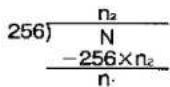
Das heißt, n2 ist der ganzzahlige Quotient und n1 ist der Rest. Für Benutzer mit BASIC-Programmierkenntnissen: n2 = INT(N/256) und n1 = N - (256 · n2).
Als Beispiel nehmen wir an, wir möchten 967 Punkte pro Zeile drucken. Dann:
3 2 5 6) 9 6 7 7 6 8 1 9 9 , also n _ 2 = 3 und n _ 1 = 1 9 9
8-Nadel-Bitbildmodus
Von den 9 Nadeln im Druckkopf verwendet der 8-Nadel-Bitbild-Grafikmodus nur die oberen acht Nadeln. Jede Nadel entspricht einer Zweierpotenz. Durch Summieren der Zweierpotenzen, die den Nadeln entsprechen, die Sie auslösen möchten, erhalten Sie einen numerischen Wert, der den Drucker anweist, eine Spalte von Punkten zu drucken. Durch Techniken wie Schleifen in BASIC werden numerische Werte für jede Spalte einer Zeile eingegeben und verarbeitet. Das Ergebnis ist eine Zeile Grafik.
| Pin No. | Pins | 8-Blt Interface | 7-Blt Interface |
| 1 | ● | 2' = 128 | Not used |
| 2 | ● | 2a = 64 | 2a = 64 |
| 3 | ● | 2a = 32 | 2a = 32 |
| 4 | ● | 2a = 16 | 2a = 16 |
| 5 | ● | 2a = 8 | 2a = 8 |
| 6 | ● | 2a = 4 | 2a = 4 |
| 7 | ● | 2' = 2 | 2' = 2 |
| 8 | ● | 2o = 1 | 2o = 1 |
| 9 | ● | Not used | Not used |
Als Beispiel nehmen wir an, Sie möchten die Nadeln 1, 2, 5 und 8 gleichzeitig auslösen. Dann berechnen Sie die folgende Summe:
Eingabecode = Nadel 1 Code + Nadel 2 Code + Nadel 5 Code + Nadel 8 Code = 2 ^ 7 + 2 ^ 8 + 2 ^ 3 + 2 ^ 9 = 1 2 8 + 6 4 + 8 + 1 = 2 0 1
Somit wird der Wert 201 in die CHR\$-Funktion eingegeben, um eine einzelne Spalte von Punkten zu drucken, die durch Auslösen der Nadeln 1, 2, 5 und 8 entsteht.
Für unser letztes Beispiel beziehen wir uns auf die Standarddichte-Bezeichnung in Tabelle 4.7. Diese Einstellung ist gegeben durch ESC+K+n+n. Angenommen, Sie möchten 100 Spalten von Punkten drucken, wobei jede Spalte nur die Nadeln 1 und 8 auslöst.
Sie berechnen zuerst die Werte von n1 und n2.
2 5 6) 0/1 0 0 0/1 0 0 , also n _ 2 = 0 und n _ 1 = 1 0 0
Unser Steuercode ESC÷K+n÷n₂ übersetzt sich nun in:
LPRINT CHR(27) + "K" + CHR(100) + CHR$(0);
Als nächstes berechnen Sie den Code für das gleichzeitige Auslösen der Nadeln 1 und 8;
Input Code=Pin 1 Code+Pin 8 Code
= 2 ^ 7 + 2 ^ 6
= 1 2 8 + 1
= 1 2 9
Schließlich integrieren wir unsere beiden Berechnungen in das folgende Programm.
10 REM STANDARDDICHTE
20 WIDTH "LFT1:", 255
30 OPEN "LFT1:" AS #1
40 PRINT#1, CHR\(27) + "K" + CHR\(100) + CHR\$(0);
50 FOR I=1 TO 100
60 PRINT#1, CHR\$(129);
70 NEXT I
80 PRINT#1, CHR\$(10);
90 END
9-Nadel-Bitbildmodus
Im 9-Nadel-Bitbildmodus können alle 9 Nadeln des Druckkopfs ausgelöst werden. Die 9 Nadeln im Druckkopf sind in zwei Teile unterteilt: die oberen 8 Nadeln und die unterste Nadel.
Wie im 8-Nadel-Modus entsprechen die oberen 8 Nadeln Zweierpotenzen, von 2° bis 2 . Das Auslösen einer oder mehrerer dieser 8 Nadeln repräsentiert 1 Byte Daten. Die 9. (unterste) Nadel repräsentiert ein zusätzliches Byte Daten. Wenn sie ausgelöst wird, wird sie durch den Wert 2° dargestellt. Wenn sie nicht ausgelöst wird, wird sie durch den Wert 0 dargestellt. Zusammen bestimmen diese beiden Bytes die Punktkonfiguration für eine einzelne Grafikspalte.
| Pin No. | Pins | Power of 2 | Byte |
| 1 | ● | 27=128 | |
| 2 | ● | 28=64 | |
| 3 | ● | 29=32 | |
| 4 | ● | 24=16 | |
| 5 | ● | 23=8 | 1 |
| 6 | ● | 22=4 | |
| 7 | ● | 21=2 | |
| 8 | ● | 22=1 | |
| 9 | ● | 27=128 | |
| NOT USED | 2 | ||
Als Beispiel: Angenommen, Sie möchten die Nadeln 1, 2, 5, 8 und 9 gleichzeitig betätigen. Dann bestimmen Sie die folgenden zwei Werte:
Byte 1: Input Code = Pin 1 Code + Pin 2 Code + Pin 5 Code + Pin 8 Code
= 2^7 + 2^8 + 2^3 + 2^2
= 128 + 64 + 8 + 1
= 201
Byte 2: Eingabecode = 27 = 128
Somit werden die zwei Bytes für eine einzelne Punktspalte eingegeben als: CHR\(201); CHR\(128);
Beziehen Sie sich auf die 9-Nadel-Standarddichte-Bezeichnung in Tabelle 4.7. Diese Einstellung wird durch ESC+ + m+n+n gegeben, wobei m=0. Angenommen, Sie möchten 100 Punktspalten drucken, wobei jede Spalte die Nadeln 1, 2, 5, 8 und 9 wie oben betätigt.
Wie im 8-Nadel-Beispiel auf Seite 4-36 sind n1 = 100 und n2 = 0. Unser Steuercode ESC + " + m + n1 + n2 übersetzt sich nun in: LPRINT CHR\(27) + "" + CHR\(0) + CHR\(100) + CHR\(0);
Wenn wir diese Informationen in ein Programm einbauen, könnten wir Folgendes haben:
10 REM 9-PIN STANDARD DENSITY
20 WIDTH "LPT1:", 255
30 OPEN "LPT1:" AS #1
40 PRINT#1, CHR(27) + "^" + CHR(0) + CHR(100) + CHR(0);
50 FOR I=1 TO 100
60 PRINT#1, CHR(201) + CHR(12B);
70 NEXT I
80 PRINT#1, CHR$(10);
90 END
Bevor wir mit Beispielen für jeden Grafiksteuerbefehl fortfahren, sind drei wichtige Punkte zu beachten.
Erstens wird Bit-Image-Grafik automatisch auf Einzelrichtung (von links nach rechts) Drucken eingestellt. Dies geschieht, um sicherzustellen, dass die Punkte vertikal korrekt ausgerichtet sind.
Zweitens wird der Grafikmodus unmittelbar nach dem Drucken aller Bit-Image-Daten aufgehoben. Der Druck kehrt in den Textmodus zurück.
Drittens werden Bit-Image-Daten nicht durch MSB-Steuerbefehle beeinflusst.
STANDARDDICHTE-GRAFIK: Setzt den Standarddichte-Grafikmodus (480 Punkte pro Zeile/60 Punkte pro Zoll).
| Name: | ESC+K+n1+n2 |
| Code: | 27,75,n1,n2 DEC 1B,4B,n-,n2 HEX |
| Input Format: | LPRINT CHR(27) + "K" + CHR(n1) + CHR(n2); |
| Example: | 10 REM STANDARD DENSITY GRAPHICS20 WIDTH "LPT1:",25530 OPEN "LPT1:" AS #140 PRINT#1,"STANDARD DENSITY GRAPHICS";CHR(10);50 PRINT#1,CHR(27) + "K" + CHR(64) + CHR(1);60 FOR I=1 TO 2070 PRINT#1,CHR(1) + CHR(1) + CHR(3) + CHR(3);80 PRINT#1,CHR(7) + CHR(7) + CHR(15) + CHR(15);90 PRINT#1,CHR(31) + CHR(31) + CHR(63) + CHR(63);100 PRINT#1,CHR(127) + CHR(127) + CHR(255) + CHR(255);110 NEXT I120 PRINT#1,CHR(10);130 END |
| STANDARD DENSITY GRAPHICS |
Kommentar: - Die Druckgeschwindigkeit wird auf 10 Zoll pro Sekunde eingestellt.
DOPPELDICHTE-GRAFIK: Setzt den Doppeldichte-Grafikmodus (960 Punkte pro Zeile/120 Punkte pro Zoll).
| Name: | ESC + L + n1 + n2 |
| Code: | 27,76, n1,n2 dec 1B,4C, n1,n2 HEX |
| Input Format: | LPRINT CHR(27) + "L" + CHR( n1 ) + CHR(n_{2}); |
| Example: | 10 REM DOUBLE DENSITY GRAPHICS20 WIDTH "LPT1:",25530 OPEN "LPT1:" AS #140 PRINT#1,"DOUBLE DENSITY GRAPHICS";CHR(10);50 PRINT#1,CHR(27) + "L" + CHR(144) + CHR(1);60 FOR I=1 TO 2570 PRINT#1,CHR(1) + CHR(1) + CHR(3) + CHR(3);80 PRINT#1,CHR(7) + CHR(7) + CHR(15) + CHR(15);90 PRINT#1,CHR(31) + CHR(31) + CHR(63) + CHR(63);100 PRINT#1,CHR(127) + CHR(127) + CHR(255) + CHR(255);110 NEXT I120 PRINT#1,CHR(10);130 ENDDOUBLE DENSITY GRAPHICS |
Kommentar: - Die Druckgeschwindigkeit wird auf 5 Zoll pro Sekunde eingestellt.
DOPPELGESCHWINDIGKEIT, DOPPELDICHTE-GRAFIK:
Setzt den Grafikmodus mit doppelter Geschwindigkeit und doppelter Dichte (960 Punkte pro Zeile/120 Punkte pro Zoll).
Name: ESC+Y+n1+n2
Code: 27,89,n1,n2 DEC 1B,59,n1,n2 HEX
Input Format: LPRINT CHR(27)+"Y"+CHR(n1)+CHR$(n2);
Example: 10 REM DOUBLE SPEED DOUBLE DENSITY GRAPHICS
20 WIDTH "LPT1:",255
30 OPEN "LPT1:" AS #1
40 PRINT#1,"DOUBLE SPEED DOUBLE DENSITY GRAPHICS";CHR$(10);
50 PRINT#1,CHR(27)+"Y"+CHR(144)+CHR$(1);
60 FOR I=1 TO 25
70 PRINT#1,CHR(1)+CHR(1)+CHR(3)+CHR(3);
80 PRINT#1,CHR(7)+CHR(7)+CHR(15)+CHR(15);
90 PRINT#1,CHR(31)+CHR(31)+CHR(63)+CHR(63);
100 PRINT#1,CHR(127)+CHR(127)+CHR(255)+CHR(255);
110 NEXT I
120 PRINT#1,CHR$(10);
130 END

DOUBLE SPEED DOUBLE DENSITY GRAPHICS
Anmerkungen:
- Die Druckgeschwindigkeit ist auf 10 Zoll pro Sekunde eingestellt.
- Horizontal benachbarte Punkte können nicht gedruckt werden.
GRAFIK MIT VIERFACHER DICHTE
Setzt den Grafikmodus mit vierfacher Dichte (1920 Punkte pro Zeile/240 Punkte pro Zoll).
Name: ESC+Z+n1+n2
Code: 27,90,n1,n2 desc 1B,5A,n1,n2 hex
Input Format: LPRINT CHR(27) + "Z" + CHR(n1) + CHR$(n2);
Example: 10 REM QUADRUPLE DENSITY GRAPHICS
20 WIDTH "LPT1:", 255
30 OPEN "LPT1:" AS #1
40 PRINT#1, "QUADRUPLE DENSITY GRAPHICS"; CHR$(10);
50 PRINT#1, CHR(27) + "Z" + CHR(144) + CHR$(1);
60 FOR I=1 TO 25
70 PRINT#1, CHR(1) + CHR(1) + CHR(3) + CHR(3);
80 PRINT#1, CHR(7) + CHR(7) + CHR(15) + CHR(15);
90 PRINT#1, CHR(31) + CHR(31) + CHR(63) + CHR(63);
100 PRINT#1, CHR(127) + CHR(127) + CHR(255) + CHR(255);
110 NEXT I
120 PRINT#1, CHR$(10);
130 END

QUADRUPLE DENSITY GRAPHICS
Anmerkungen:
- Die Druckgeschwindigkeit ist auf 5 Zoll pro Sekunde eingestellt.
- Horizontal benachbarte Punkte können nicht gedruckt werden.
AUSWAHL DES 8-NADEL-BITBILD-MODUS
Wählt einen von sieben 8-Nadel-Bitbild-Grafikmodi.
Name: ESC++÷m+n1+n2 0≤m≤6
Code: 27,42,m,n,n2 DEC 1B,2A,m,n,n2 HEX
Input Format: LPRINT CHR(27) + "-" + CHR(m) + CHR(n.) + CHR(ns);
Example: 10 REM BIT IMAGE MODE SELECTION
20 WIDTH "LPT1:", 255
30 OPEN "LPT1:" AS #1
40 FOR M=O TO 6
50 PRINT #1,"IMAGE MODE=";M;CHR$(10)
60 PRINT #1,CHR(27);"*";CHR(M);CHR(200);CHR(0);
70 FOR I=1 TO 25
80 PRINT #1,STRING(4,CHR(15));
90 PRINT #1,STRING(4,CHR(240));
100 NEXT I
110 PRINT #1,CHR$(10);
120 NEXT M
130 PRINT #1,CHR$(10);
140 END
IMAGE MODE = 0
IMAGE MODE = 1
IMAGE MODE = 2
IMAGE MODE = 3
IMAGE MODE = 4
IMAGE MODE = 5
IMAGE MODE = 6
Anmerkung:
- Tabelle 4.8 veranschaulicht die verschiedenen Modi basierend auf den Werten von m.
| Value of m | Mode | Dot Density | Printing Speed |
| 0 | Standard density | 480 dpi/60 dpi | 10 inches/sec |
| 1 | Double density | 960 dpi/120 dpi | 5 inches/sec |
| 2 | Double speed, double density | 960 dpi/120 dpi | 10 inches/sec |
| 3 | Quadruple density | 1920 dpi/240 dpi | 5 inches/sec |
| 4 | 640 dot density | 640 dpi/80 dpi | 7.5 inches/sec |
| 5 | 576 dot density | 576 dpi/72 dpi | 8.33 inches/sec |
| 6 | 720 dot density | 720 dpi/90 dpi | 6.66 inches/sec |
Tabelle 4.8 Punktdichte/Druckgeschwindigkeit
- Sowohl der vertikale als auch der horizontale Punktabstand im 576-Punkt-Dichte-Modus betragen 1/72 Zoll, wodurch ein Seitenverhältnis von 1:1 entsteht.
• Die folgenden Einstellungen sind äquivalent:
—ESC+K+n1+n2 und ESC++0+n1+n2
—ESC+L+n1+n2 und ESC+*+1+n1+n2
—ESC+Y+n 1 +n 2 und ESC++2+n 1 +n 2
—ESC+Z+n₁+n₂ und ESC+*+3+n₁+n₂
AUSWAHL DES 9-NADEL-BITBILD-MODUS:
Wählt einen von sieben 9-Nadel-Bitbild-Grafikmodi.
Name: ESC + + m + n1 + n2 0≤ m≤ 6
Code: 27,94,m,n,n2 ccc 1B,5E,m,n,n2 hex
Eingabeformat: LPRINT CHR\(27) + “^” ÷ CHR\(m) - CHR\(n1) + CHR\(n2);
Example: 10 REM 9-PIN BIT IMAGE MODE
20 WIDTH "LPT1:", 255
30 OPEN "LPT1:" AS #1
40 FOR M=O TO 6
50 PRINT #1, "IMAGE MODE=";M;CHR$(10);
60 PRINT #1, CHR(27) + "^" + CHR(M) + CHR(180) + CHR(0);
70 FOR I=1 TO 10
80 PRINT #1, CHR(0) + CHR(128) + CHR(0) + CHR(128);
90 PRINT #1, CHR(1) + CHR(128) + CHR(1) + CHR(128);
100 PRINT #1, CHR(3) + CHR(128) + CHR(3) + CHR(128);
110 PRINT #1, CHR(7) + CHR(128) + CHR(7) + CHR(128);
120 PRINT #1, CHR(15) + CHR(128) + CHR(15) + CHR(128);
130 PRINT #1, CHR(31) + CHR(128) + CHR(31) + CHR(128);
140 PRINT #1, CHR(63) + CHR(128) + CHR(63) + CHR(128);
150 PRINT #1, CHR(127) + CHR(128) + CHR(127) + CHR(128);
160 PRINT #1, CHR(255) + CHR(128) + CHR(255) + CHR(128);
170 NEXT I
180 PRINT #1, CHR$(10);
190 NEXT M
200 PRINT #1, CHR$(10);
210 END
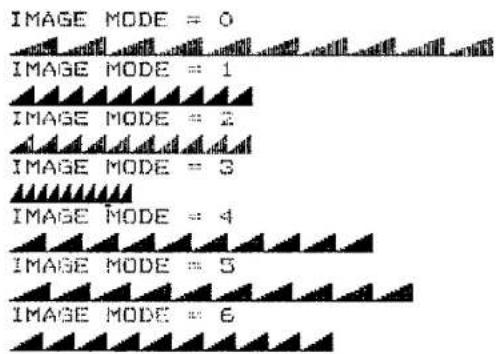
BITBILD-DICHTEZUWEISUNG:
Weist die Bitbilddichte von ESC+K, L, Y, Z zu.
Name: ESC+?+n+m
n=75("K"), 76("L"), 89("Y"), or 90 ("Z") (n corresponds to K, L, Y or Z in Bit Image Mode.)
0≤m≤6
Code: 27,63,n,m sec 1B,3F,n,m hex
Input Format: LPRINT CHR(27) + “?” + CHR(n) + CHR$(m);
Beispiel:
10 REM BIT IMAGE ASSIGN
20 WIDTH "LPT1:", 255
30 OPEN "LPT1:" AS #1
40 FOR L=1 TO 2
50    IF L=1 THEN PRINT #1, "ESC+K (STANDARD DENSITY GRAPHICS)"; CHR$(10);
60    IF L=2 THEN PRINT #1, "ESC+K (QUADRUPLE DENSITY GRAPHICS)"; CHR$(10);
70    IF L=2 THEN PRINT #1, CHR(27); "; "; "K"; CHR(3);
80    PRINT #1, CHR(27); "K"; CHR(64); CHR$(1);
90    FOR I=1 TO 20
100    PRINT #1, CHR(1); CHR(1); CHR(3); CHR(3);
110    PRINT #1, CHR(7); CHR(7); CHR(15); CHR(15);
120    PRINT #1, CHR(31); CHR(31); CHR(63); CHR(63);
130    PRINT #1, CHR(127); CHR(127); CHR(255); CHR(255);
140    NEXT I
150    PRINT #1, CHR$(10);
160 NEXT L
170 END
ESC+K (GRAFIK MIT STANDARDDICHTE)

ESC+K (GRAFIK MIT VIERFACHER DICHTE)
Kommentar:
- Der Benutzer kann die Dichtezuordnung des Bit-Image-Modus-Befehls frei ändern.
Befehle für den Zeilenabstand
Mit den Befehlen für den Zeilenabstand können Sie verschiedene Zeilenabstände einstellen.
Einstellungen für Seitenlänge, vertikale Positionen und Perforationsüberspringen bleiben auch bei geändertem Zeilenabstand unverändert.
Tabelle 4.9 unten listet die verschiedenen Steuerbefehle für den Zeilenabstand auf.
| Line Pitch Size | Setting Command |
| 1/8" | ESC+0 |
| /72" | ESC+1 |
| 1/6" | ESC+2 |
| n/72" | ESC+A+n |
| n/216" | ESC+3+n |
| n/216" (single line only) | ESC+J+n |
Tabelle 4.9 Befehle für den Zeilenabstand
ZEILENABSTAND 1/8 ZOLL:
Setzt den Zeilenabstand auf 1/8 Zoll.
Name: ESC+0
Code: 27,48 DEZ 1B,30 HEX
Eingabeformat: LPRINT CHR\$(27) = "0";
Example: 10 REM LINE SPACING = 1/8 INCH
20 LPRINT "LINE SPACING = 1/8 INCH"
30 LPRINT CHR$(27) + "0";
40 FOR I=1 TO 4 _
50 LPRINT "____"
60 NEXT I
70 END
ZEILENABSTAND = 1/8 ZOLL
ZEILENABSTAND 7/72 ZOLL:
Setzt den Zeilenabstand auf 7/72 Zoll.
Name: ESC+1
Code: 27,49 DEC 1B,31 HEX
Eingabeformat: LPRINT CHR\$(27)+"1";
Beispiel: 10 REM ZEILENABSTAND = 7/72 ZOLL
20 LPRINT "ZEILENABSTAND = 7/72 ZOLL"
30 LPRINT CHR\$(27)+"1";
40 FÜR I=1 BIS 4
50 LPRINT "____"
60 NÄCHSTES I
70 ENDE
ZEILENABSTAND = 7/72 ZOLL
1/6 ZOLL ZEILENABSTAND:
Setzt den Zeilenabstand auf 1/6 Zoll.
Name: ESC+2
Code: 27,50 DEC 1B,32 HEX
Eingabeformat: LPRINT CHR$(27) + "2";
Beispiel: 10 REM ZEILENABSTAND = 1/6 ZOLL
20 LPRINT "ZEILENABSTAND = 1/6 ZOLL"
30 LPRINT CHR$(27)+"2";
40 FÜR I=1 BIS 4
50 LPRINT "
60 NÄCHSTES I
70 ENDE
ZEILENABSTAND = 1/6 ZOLL
n/72 ZOLL ZEILENABSTAND: Setzt den programmierbaren Zeilenabstand auf n/72 Zoll.
Name: ESC+A+n
Code: 27,65,n DEC 1B,41,n HEX
Input Format: LPRINT CHR(27) + "A" + CHR(n);
Example: 10 REM LINE SPACING = n/72 INCH
20 WIDTH "LPT1:", 255
30 OPEN "LPT1:" AS #1
40 PRINT #1, "LINE SPACING = n/72 INCH"; CHR$(10);
50 FOR I=1 TO 20
60 PRINT #1, CHR(27); "A"; CHR(I);
70 PRINT #1, "____"; CHR$(10);
80 NEXT I
90 END
LINE SPACING = n/72 INCH
Kommentar:
- n/72 Zoll Zeilenabstand ist gültig für 0≤n≤85.
n/216 ZOLL ZEILENABSTAND:
Setzt den programmierbaren Zeilenabstand auf n/216 Zoll.
Name: ESC+3+n
Code: 27,51,n DEC 1B,33,n HEX
Input Format: LPRINT CHR\(27) + "3" + CHR\(n);
Example: 10 REM LINE SPACING = n/216 INCH
20 WIDTH "LPT1:", 255
30 OPEN "LPT1:" AS #1
40 PRINT#1, "LINE SPACING = n/216 INCH"; CHR$(10);
50 FOR I=1 TO 20
60 PRINT#1, CHR(27) + "3" + CHR(I);
70 PRINT#1, "----"; CHR$(10);
80 NEXT I
90 END
LINE SPACING = n/216 INCH
1. 2017年,公司与上海浦东发展银行股份有限公司签订了《关于使用部分闲置募集资金进行现金管理的协议》,同意公司使用不超过人民币5,000万元的闲置募集资金进行现金管理。
Comment:
- n/216 inch line spacing is valid for 0≤n≤255.
n/216 INCH SINGLE LINE SPACING: Prints out the data in print buffer, and spaces n/216 inch.
| Name: | ESC+J+n |
| Code: | 27,74,ncec 1B,4A,nHex |
| Input Format: | LPRINT CHR(27) + "J" + CHR(n); |
| Example: | 10 REM SINGLE LINE SPACING20 LPRINT " SINGLE LINE SPACING";30 LPRINT CHR(27) + "J" + CHR(108);40 LPRINT "OF ONE-HALF INCH"50 FOR I=1 TO 360 LPRINT "NORMAL LINE SPACING"70 NEXT I80 END |
| SINGLE LINE SPACINGOF ONE-HALF INCH | |
| NORMAL LINE SPACING | |
| NORMAL LINE SPACING | |
| NORMAL LINE SPACING |
Comments:
- Single line, n/216 line spacing is valid for 0≤n≤255.
- This command sets the line spacing for ONE line only. Subsequent line spacing returns to previous setting. However, the carriage does not return to the left margin position. Instead, printing of next line begins where previous printing left off.
- This command does not release one line double width mode (by SO or ESC+SO).
Paper feed commands
Single line paper feeding, full page paper feeding, and skip perforation are all classified as paper feed commands. Single line paper feed (LF) and full page paper feed (FF) were discussed in Section 4.7, Single-Byte Control Codes.
SKIP PERFORATION:
Sets skip-over perforation.
Name: Setting: ESC+N+n
Release: ESC+O
Code: Setting 27,78,n DEC 1B,4E,n HEX
Release: 27,79 oec 1B,4F
Input Format: Setting: LPRINT CHR\(27) + "N" + CHR\(n);
Release: LPRINT CHR\$(27) + "O";
Example: 10 REM SKIP PERFORATION
20 LPRINT CHR\(27) + "C" + CHR\(6);
30 LPRINT CHR\(27) + "N" + CHR\(3);
40 FOR I=1 TO 3
50 LPRINT "SEE IF SKIP TAKES PLACE"; I
60 NEXT I
70 LPRINT CHR\$(27)+"0";
80 FOR I=4 TO 10
90 LPRINT "SEE IF SKIP TAKES PLACE"; I
100 NEXT I
110 END
PRÜFEN, OB SPRUNG STATTFINDET 1
PRÜFEN, OB SPRUNG STATTFINDET 2
PRÜFEN, OB SPRUNG STATTFINDET 3
PRÜFEN, OB SPRUNG STATTFINDET 4
PRÜFEN, OB SPRUNG STATTFINDET 5
PRÜFEN, OB SPRUNG STATTFINDET 6
PRÜFEN, OB SPRUNG STATTFINDET 7
PRÜFEN, OB SPRUNG STATTFINDET 8
PRÜFEN, OB SPRUNG STATTFINDET 9
PRÜFEN, OB SPRUNG STATTFINDET 10
Kommentare:
- Der Wert von n gibt die Anzahl der Zeilen (oder n mal den aktuellen Zeilenabstand) an, die am unteren Rand des Formulars übersprungen werden sollen.
- Dieser Befehl ist nur für 1 ≤ n ≤ 127 wirksam. Wenn n ≥ 128 ist, wird der Wert als n - 128 verarbeitet.
- Die Skip-Perforationsmenge ändert sich nicht, auch wenn die Zeilenabstandsmenge nach einer Skip-Perforationsvorgabe geändert wird.
- Die Skip-Perforationseinstellung wird beim Empfang des Seitenlängenbefehls aufgehoben. Wenn DIP-Schalter 4 auf ON gesetzt ist, wird die Skip-Perforationsmenge auf 1 Zoll gesetzt. Wenn DIP-Schalter 4 auf OFF gesetzt ist, wird die Skip-Perforation nicht ausgeführt, es sei denn, sie wird mit ESC + N + n angegeben.
Seitenformatbefehle
Seitenformatbefehle beziehen sich auf die Einstellung der folgenden Parameter: horizontale Tabulierung, vertikale Tabulierung, Seitenlänge in Zeilen, Seitenlänge in Zoll, linke und rechte Ränder sowie horizontaler und vertikaler Abstand.
HORIZONTALE TABULIERUNG:
Setzt die horizontale Tabulierung auf bestimmte Werte.
Name: Einstellung: ESC+D÷n·+n₂+...+nₓ+0
Freigabe: ESC+D÷0
Code: Einstellung 27,68,n-,n₂,...,nₓ,0 sec 1B,44,n-,n₂,...,nₓ,00 HEX
Freigabe: 27,68,0 DEC 1B,44,00 HEX
Eingabeformat: Einstellung: LPRINT CHR\(27) + "D" + CHR\(n.) ÷ CHR\(n₂) ÷ ... + CHR\(n.) + CHR\$(0):
Freigabe: LPRINT CHR\(27) - "D" + CHR\(0);
Beispiel: 10 REM HT-EINSTELLUNG
20 LPRINT "HT-EINSTELLUNG"
30 FÜR I=1 BIS 5
40 LPRINT "0123456789";
50 NEXT I
60 LPRINT CHR$(10);
70 LPRINT CHR$(27)+"D";
80 LPRINT CHR(1)+CHR(8)+CHR(20)+CHR(30)+CHR(45)+CHR(0);
90 FOR I=1 TO 5
100 LPRINT CHR(9); "HT"; CHR(48+I);
110 NEXT I
120 LPRINT CHR$(10);
130 LPRINT "HT RELEASE"
140 LPRINT CHR(27) + "D" + CHR(0);
150 FOR I=1 TO 5
160 LPRINT CHR(9); "HT"; CHR(48+1);
170 NEXT I
180 LPRINT CHR$(10);
190 END
HT SETTING
01234567890123456789012345678901234567890123456789
HT1 HT2 HT3 HT4 HT5
HT RELEASE
HT1HT2HT3HT4HT5
Kommentare:
- HT wird von der linken Randposition (Spaltennummer 0) aus gesetzt.
- Horizontale Tabulatoren müssen so festgelegt werden, dass n1 < n2 < ... < nn gilt.
- Es können maximal 32 Tabulatoren in einer Zeile gesetzt werden.
- Der HT-Einzelbyte-Steuerbefehl, LPRINT CHR\$(9), wird verwendet, um die HT-Festlegung auszuführen.
- Die horizontalen Tabulatorpositionen ändern sich nicht, auch wenn die Zeichenbreite nach der HT-Festlegung geändert wird.
- Im Proportionalabstandsmodus wird die horizontale Tabulierung im Pica-Abstand gesetzt.
- Wenn der linke Rand geändert wird, wird der neue linke Rand zur Startposition des horizontalen Tabulators.
HORIZONTALE TABULATOREINHEIT:
Setzt horizontale Tabulatoren alle "n" Positionen, beginnend am linken Rand.
Name: ESC+e+0+n
Code: 27.101.0, n DEC 1B, 65, 00, n HEX
Eingabeformat: LPRINT CHR\(27) + "e" + CHR\(0) + CHR\$(n);
Beispiel: 10 REM HT-EINHEIT EINSTELLEN
20 FÜR I=1 BIS 5
30 LPRINT "0123456789";
40 NÄCHSTES I
50 LPRINT CHR\$(10);
60 LPRINT CHR\(27) + "e" + CHR\(0) + CHR\$(8);
70 LPRINT CHR\$(9); "TAB";
80 LPRINT CHR\(3); CHR\(3); "TAB";
90 LPRINT CHR\(9);CHR\(9);CHR\$(9);"TAB"
100 ENDE
01234567890123456789012345678901234567890123456789
Kommentare:
- Die HT-Einheitseinstellung wird freigegeben, wenn n = 0 (ESC+e+0+0).
- HT wird im Standardstatus alle 8 Spalten gesetzt.
VERTIKALTAB: Setzt die vertikale Tabulation auf bestimmte Werte.
| Name: | Setting: ESC+B+n1+n2+...+nx÷0Release: ESC+B+0 |
| Code: | Setting 27,66,n1,n2,...,n.,0 DEC 1B,42,n1,n2,...,n.,00-HExRelease: 27,66,0 DEC 1B,42,00 HEX |
| Input Format: | Setting: LPRINT CHR(27) + "B" + CHR(n1) + CHR(n2) + ... + CHR(n3) + CHR(0);Release: LPRINT CHR(27) + "B" + CHR(0); |
| Example: | 10 REM VT SETTING20 LPRINT "THIS PAGE IS 10 LINES LONG"30 LPRINT CHR(27) + "C" + CHR(10);40 LPRINT CHR(27) + "B" + CHR(3) + CHR(7) + CHR(0);50 LPRINT "1ST LINE"; CHR(11);60 LPRINT "3RD LINE"; CHR(11);70 LPRINT "7TH LINE"; CHR(12);80 LPRINT CHR(27) + "B" + CHR(0);90 LPRINT "1ST LINE"; CHR(11);100 LPRINT "3RD LINE"; CHR(11);110 LPRINT "7TH LINE"120 END |
| THIS PAGE IS 10 LINES LONG1ST LINE | |
| 3RD LINE | |
| 7TH LINE | |
| 1ST LINE3RD LINE7TH LINE |
Kommentare:
- VT wird von der oberen Formularposition aus gesetzt.
- Vertikale Tabs müssen so festgelegt werden, dass n1 < n2 < ... < nn gilt.
- Es können maximal 16 Tabs gesetzt werden.
- Der VT-Einzelbyte-Steuerbefehl, LPRINT CHRS(11), wird verwendet, um die VT-Festlegung auszuführen (siehe Abschnitt 4.7).
- Wenn der Zeilenabstand nach einer VT-Festlegung geändert wird, bleiben die VT-Positionen wie ursprünglich festgelegt.
- Die VT-Einstellung wird durch Befehle zur Formularlängenangabe freigegeben.
VERTIKALTAB-EINHEIT:
Setzt die vertikale Tabulation alle "n" Zeilen, beginnend am oberen Formularrand.
Name: ESC+e+1+n
Code: 27,101,1,n sec 1B,65,01,n hex
Eingabeformat: LPRINT CHR\(27) + "e" + CHR\(1) + CHR\$(n);
Beispiel: 10 REM VT-EINHEITSEINSTELLUNG
20 LPRINT "DIESE SEITE IST 20 ZEILEN LANG"
30 LPRINT CHR\(27) + "C" + CHR\(20);
40 LPRINT CHR\(27) + "e" + CHR\(1) + CHR\$(6);
50 LPRINT "1. ZEILE"; CHR\$(11);
60 LPRINT "7. ZEILE"; CHR\$(11);
70 LPRINT "13. ZEILE"; CHR\$(11);
BO LPRINT "19. ZEILE"; CHR\$ (12);
90 LPRINT "1. ZEILE (NÄCHSTE SEITE)"
100 ENDE
DIESE SEITE IST 20 ZEILEN LANG
1. ZEILE
7. ZEILE
13. ZEILE
19. ZEILE
1. ZEILE (NÄCHSTE SEITE)
Anmerkungen:
- Die VT-Einheitseinstellung wird bei n = 1 (ESC+e+1+1) aufgehoben.
- Die maximale Länge für eine VT-Einheit ist die Formularlänge. Wenn eine VT-Einheitsbezeichnung die Formularlänge überschreitet, wird die Einstellung ignoriert.
- Wenn der Zeilenabstand nach einer VT-Einheitsbezeichnung geändert wird, bleibt die VT-Einheit wie ursprünglich eingestellt.
- Bei n = 0 werden Daten gedruckt, aber das Papier wird nicht transportiert.
- Die VT-Einheitseinstellung wird durch den Befehl zur Formularlängenbezeichnung aufgehoben.
FORMULARLÄNGE (IN ZOLL):
Legt die Seitenlänge in Zoll fest.
Name: ESC+C+0+n
Code: 27,67,0,n DEZ 1B,43,00,n HEX
Eingabeformat: LPRINT CHR\(27) + "C" + CHR\(0) + CHR\$(n);
Beispiel: 10 REM FORMULARLÄNGE (IN ZOLL)
20 LPRINT CHR\(27) + "C" + CHR\(0) + CHR\$(1);
30 LPRINT "THIS PAGE IS 1 INCH LONG";
40 LPRINT CHR\$(12);
50 LPRINT CHR\(27) + "C" + CHR\(0) + CHR\$(2);
60 LPRINT "THIS PAGE IS 2 INCHES LONG";
70 LPRINT CHR\$(12);
80 LPRINT "NEXT PAGE"
90 END
THIS PAGE IS 1 INCH LONG
THIS PAGE IS 2 INCHES LONG
NEXT PAGE
Kommentare:
- Beim Empfang von ESC + C + 0 + n wird die aktuelle Zeilenposition zur oberen Formularposition.
- Der Wert von n muss im Bereich 1 ≤ n ≤ 22 liegen. Wenn n = 0 oder n ≥ 23 ist, ändert sich die Seitenlänge nicht.
- ESC÷C+0+n hebt die VT- und Überspringungs-Perforationseinstellungen auf.
- Die Seitenlänge ändert sich nicht, auch wenn der Zeilenabstand geändert wird.
FORMULARLÄNGE (ZEILEN):
Legt die Seitenlänge in Zeilenanzahl fest.
Name: ESC+C+n
Code: 27,67,n DEZ 1B,43,n HEX
Eingabeformat: LPRINT CHR\(27) + "C" + CHR\(n);
Beispiel: 10 REM FORMULARLÄNGE (ZEILEN)
20 LPRINT CHR\(27) + "C" + CHR\(3);
30 LPRINT "DIESE SEITE IST 3 ZEILEN LANG"
40 LPRINT CHR\$(12);
50 LPRINT CHR\(27)+"C"+CHR\(5);
60 LPRINT "DIESE SEITE IST 5 ZEILEN LANG"
70 LPRINT CHR\$(12);
80 LPRINT "NÄCHSTE SEITE"
90 ENDE
Kommentare:
- Beim Empfang von ESC + C + n wird die aktuelle Zeilenposition zur oberen Formularposition.
- Der Wert von n muss im Bereich 1 ≤ n ≤ 127 liegen. Wenn n = 0 ist, kehrt die Seitenlänge zur Zollangabe zurück. Wenn n ≥ 128 ist, werden Werte als n - 128 verarbeitet.
- ESC+C+n gibt die VT- und Überspringungs-Einstellungen für den Perforationsrand frei.
- Die Seitenlänge ändert sich nicht, auch wenn der Zeilenabstand geändert wird.
LINKER RAND:
Setzt die Position des linken Randes.
Name: ESC+1+n
Code: 27,108,n DEC 1B,6C,n -Ex
Eingabeformat: LPRINT CHR\(27) + "I" + CHR\(n);
Beispiel: 10 REM EINSTELLUNG DES LINKEN RANDES
20 FÜR I=1 BIS 5
30 LPRINT "0123456789";
40 NEXT I
50 LPRINT CHR$(10);
60 LPRINT CHR(27) + "I" + CHR(10);
70 LPRINT "LEFT MARGIN 10"
80 LPRINT CHR(27)+"1"+CHR(20);
90 LPRINT "LEFT MARGIN 20"
100 END
01234567890123456789012345678901234567890123456789
LEFT MARGIN 10
LEFT MARGIN 20
Kommentare:
- Wenn der Wert von n den rechten Randwert überschreitet, ist ESC + 1 - n wirkungslos und der linke Rand ändert sich nicht.
- Das Setzen der linken Randposition löscht alle Daten im Druckpuffer. Setzen Sie daher den linken Rand nicht vor dem Drucken.
- Im Proportionalabstandsmodus wird der linke Rand mit Pica-Schriftbreite gesetzt.
- Sobald die Position des linken Rands festgelegt ist, wird diese Einstellung durch eine Änderung des Zeichenmodus nicht verändert.
RECHTER RAND: Legt die Position des rechten Rands fest.
| Name: | ESC+Q+n |
| Code: | 27,81,ndec 1B,51,nhex |
| Input Format: | LPRINT CHR(27)+"Q"+CHR(n); |
| Example: | 10 REM RIGHT MARGIN SETTING20 FOR I=1 TO 530 LPRINT "0123456789";40 NEXT I50 LPRINT CHR(10)60 LPRINT CHR(27)+"Q"+CHR(40);70 LPRINT "RIGHT MARGIN 40"80 FOR I=1 TO 590 LPRINT "0123456789";100 NEXT I110 LPRINT CHR(10)120 LPRINT CHR(27)+"Q"+CHR(30);130 LPRINT "RIGHT MARGIN 30"140 FOR I=1 TO 5150 LPRINT "0123456789";160 NEXT I170 LPRINT CHR$(10)180 END |
| 01234567890123456789012345678901234567890123456789 | |
| RIGHT MARGIN 400123456789012345678901234567890123456789 | |
| RIGHT MARGIN 300123456789012345678901234567890123456789 |
Anmerkungen:
• Der gültige Bereich von n ist wie folgt:
Pica-Modus: 2 ≤ n ≤ 80
Komprimierter Modus: 4 ≤ n ≤ 137
Gestreckter Modus: 1 ≤ n ≤ 40
Gestreckter komprimierter Modus: 2 ≤ n ≤ 68
- Jede Angabe links von der Position des linken Rands wird ignoriert.
- Das Festlegen des rechten Rands löscht alle Daten im Puffer. Setzen Sie den rechten Rand daher nicht vor dem Drucken.
- Im Proportionalabstandsmodus wird der rechte Rand mit Pica-Schrittweite festgelegt.
- Sobald die Position des rechten Rands festgelegt ist, wird diese Einstellung durch eine Änderung des Zeichenmodus nicht verändert.
- Siehe Umschaltung auf Seite 4-8 zur Verwendung des rechten Rands beim Drucken komprimierter Zeichen.
HORIZONTALER ABSTAND: Überspringt "n" Leerzeichen zwischen der aktuellen und der nächsten Zeichenposition.
| Name: | ESC+f+0+n |
| Code: | 27,102,0,ndec 1B,66,00,nHEx |
| Input Format: | LPRINT CHR(27) + "f" + CHR(0) ÷ CHR(n); |
| Example: | 10 REM HORIZONTAL SPACING20 FOR I≈1 TO 530 LPRINT "1234567890";40 NEXT I50 LPRINT CHR(10)60 LPRINT "ESC+f+0+n";70 LPRINT CHR(27) + "f" + CHR(0) + CHR$(20);80 LPRINT "SKIP 20 SPACES"90 END |
| 12345678901234567890123456789012345678901234567890 | |
| ESC+f+0+n SKIP 20 SPACES |
Anmerkungen:
- Der Abstand hängt vom aktuellen Zeichenabstand ab.
- Der Wert von n muss im Bereich 0 ≤ n ≤ 127 liegen. Wenn n ≥ 128 ist, wird der Befehl mit einem Abstand von n - 128 ausgeführt.
- Im Unterstreichungsmodus werden Leerzeichen, die durch ESC+1+0+n gesetzt werden, unterstrichen.
- Wenn beim horizontalen Abstand der rechte Rand überschritten wird, werden überschüssige horizontale Leerzeichen ignoriert.
VERTIKALER ABSTAND:
Führt nach dem Drucken der Daten im Puffer einen Papiervorschub um "n" Zeilen aus.
Name: ESC+1+1+n
Code: 27,102,1,n DEZ 1B,66,01,n HEX
Eingabeformat: LPRINT CHR(27) + "f" + CHR(1) + CHR$(n);
Beispiel: 10 REM VERTIKALER ABSTAND 20 LPRINT "VERTIKAL"; 30 LPRINT CHR(27) + "f" + CHR(1) + CHR$(6); 40 LPRINT "ABSTAND" 50 END
VERTIKAL
ABSTAND
Kommentare:
- Der Zeilenabstand bestimmt den vertikalen Abstand.
- Der Wert von n muss im Bereich 0 ≤ n ≤ 127 liegen. Wenn n ≥ 128 ist, beträgt der vertikale Abstand n - 128.
- Sobald Daten gedruckt sind (unmittelbar vor dem vertikalen Abstand), rückt der Drucker n Zeilen vor und der Druck wird in der unmittelbar nächsten Spalte fortgesetzt.
- Die vertikale Abstandsangabe hebt den Doppelbreitdruck nicht auf.
Datensteuerbefehle
Datensteuerung bezieht sich auf das Format der Eingabedaten (7 oder 8 Bit), die Manipulation von Daten, die sich bereits im Druckpuffer befinden (CAN oder DEL), oder die Bereitschaft des Druckers, Daten zu empfangen (DC1 oder DC3).
CAN, DEL, DC1 und DC3 wurden bereits in Abschnitt 4.7, Einzelbyte-Steuercodes, behandelt.
Wie bereits erläutert, hat jedes einzelne Zeichen einen entsprechenden ASCII-Code. Ein solcher ASCII-Code kann in binärer Schreibweise ausgedrückt werden. In der 7-Bit-Binärschreibweise besteht ein Zeichen aus einer Kombination von sieben Nullen und Einsen, während in der 8-Bit-Binärschreibweise ein Zeichen aus einer Kombination von acht Nullen und Einsen besteht. In beiden Fällen befindet sich das rechteste Bit in der Spalte 20 = 1 und trägt das "geringste Gewicht" aller Bits und wird als niederwertigstes Bit (LSB) bezeichnet. Das linkeste Bit befindet sich in der Spalte 26 = 64 (7-Bit-Darstellung) oder in der Spalte 27 = 128 (8-Bit-Darstellung) und trägt daher das "größte Gewicht" aller Bits. Dieses Bit wird als höchstwertiges Bit (MSB) bezeichnet.
Es gibt Computer sowie Schnittstellen, die nur 7-Bit-Zeichen senden (ASCII-Codes 0–127). Mit dem Drucker können Sie jedoch auf Zeichen mit ASCII-Codes größer als 127 zugreifen. Die Druckersoftware enthält 3 Befehle zur Steuerung des MSB.
MSB EIN:
Setzt das MSB auf 1.
Name: ESC->
Code: 27,62 DEC 1B,3E
Eingabeformat: LPRINT CHR\$(27) - ">";
Example:
10 REM MSE TO 1
20 WIDTH "LPT1:", 255
30 OPEN "LPT1:" AS #1
40 PRINT #1, "MSB ON"; CHR$(IO);
50 PRINT #1, CHR$(27); ">",
60 FOR I=32 TO 126
70 PRINT #1, CHR$(I);
80 NEXT I
90 FOR I=160 TO 254
100 PRINT #1, CHR$(I);
110 NEXT I
120 PRINT #1, CHR$(IO);
130 END
MSB ON
"##1&'()++,-./0123456789;;<=>?@ABCDEFGHIJKLMNOPQRSTUVWXYZ!^ _`abcdefghijklmnopqrstuvwxyz( )~ "##1&'()++,-./0123456789;;<=>?@ABCDEFGHIJKLMNOPQRSTUVWXYZ!^ _`abcdefghijklmnopqrstuvwxyz( )~
Kommentare:
- ESC-> hat keine Auswirkung auf Bitbilddaten.
- Diese Einstellung kann durch ESC+# aufgehoben werden.
- Achten Sie darauf, dass, wenn dieser Befehl und ESC-6 gleichzeitig eingegeben werden, alle Steuercodes und die ESC-Befehle wirkungslos werden und dieser Modus nicht aufgehoben werden kann.
MSB AUS:
Setzt das MSB auf 0.
Name: ESC+=
Code: 27,61 DEC 1B,3D HEX
Eingabeformat: LPRINT CHR\$(27) + "=";
Beispiel:
10 REM MSB AUF 0
20 WIDTH "LFT1:", 255
30 OPEN "LPT1:" AS #1
40 PRINT #1, "MSB AUS"; CHR\$(10);
50 PRINT #1, CHR\$(27); "=";
60 FOR I=32 TO 126
70 PRINT #1, CHR\$(I);
80 NEXT I
90 FOR I=160 TO 254
100 PRINT #1, CHR\$(I);
110 NEXT I
120 PRINT #1, CHR\$(10);
130 END
MSB OFF
! "#s%&'()**,-./0123456789;;<=>?@ABCDEFGHIJKLMNOPQRSTUVWXYZ[ ]^_*abcdefghijklmnopqrstuvwxyz
pqrstuvwxyz(1)\~##29(144,-.70123456789;<=.8ABCDEFGHIJKLMNOPQRSTUVWXYZ()_ abcdefghijklmnopqrstuvwxyz(1)\~
Kommentare:
- ESC ÷ = hat keine Wirkung auf Bitbilddaten.
- Diese Einstellung kann mit ESC+# aufgehoben werden.
MSB CANCEL: Setzt den Drucker so, dass das 8. Bit "wie es ist" empfangen wird.
| Name: | ESC+# |
| Code: | 27,35 cec 1B,23 HEX |
| Input Format: | LPRINT CHR(27)+"#"; |
| Example: | 10 REM MSD AS IS20 WIDTH "LPT1:",25530 OPEN "LPT1:" AS #140 PRINT #1,"RECEIVE MSB AS IS";CHR(10);50 PRINT #1,CHR(27);"#";60 FOR I=32 TO 12670 PRINT #1,CHR(I);80 NEXT I90 FOR I=160 TO 254100 PRINT #1,CHR(I);110 NEXT I120 PRINT #1,CHR(10);130 END |
| RECEIVE MSB AS IS"#%&'( )++,-./0123456789;<=?@ABCDEFGHIJKLMNOPQRSTUVWXYZE^,'abcdefghijklmnopqrstuvwxyz( ) ("#%&'( )++,-./0123456789;<=?@ABCDEFGHIJKLMNOPQRSTUVWXYZE\J^,'abcdefghijklmnopqrstuvwxyz( )~ |
Kommentar:
Diese Einstellung hat keine Wirkung auf Bitbilddaten.
Befehle für ladbare Zeichen
Falls der Drucker nicht über alle Zeichen verfügt, die Sie benötigen, können Sie bis zu 40 Zeichen selbst definieren. Solche Zeichen werden nach der Erstellung im RAM des Druckers gespeichert (heruntergeladen).
Um ein Zeichen in den RAM herunterzuladen, müssen Sie das Zeichen zunächst entwerfen. In der folgenden Matrix stellen die Kreise Nadeln dar, die ausgelöst werden können. Sie können jeden Kreis schwärzen, solange keine zwei horizontal benachbarten Kreise ausgefüllt sind.
| 27 | ○ | ○ | ○ | ○ | ○ | ○ | ○ | ○ | ○ |
| 28 | ○ | ○ | ○ | ○ | ○ | ○ | ○ | ○ | ○ |
| 29 | ○ | ○ | ○ | ○ | ○ | ○ | ○ | ○ | ○ |
| 210 | ○ | ○ | ○ | ○ | ○ | ○ | ○ | ○ | ○ |
| 211 | ○ | ○ | ○ | ○ | ○ | ○ | ○ | ○ | ○ |
| 212 | ○ | ○ | ○ | ○ | ○ | ○ | ○ | ○ | ○ |
| 213 | ○ | ○ | ○ | ○ | ○ | ○ | ○ | ○ | ○ |
| 214 | ○ | ○ | ○ | ○ | ○ | ○ | ○ | ○ | ○ |
| 215 | ○ | ○ | ○ | ○ | ○ | ○ | ○ | ○ | ○ |
| 216 | ○ | ○ | ○ | ○ | ○ | ○ | ○ | ○ | ○ |
| D1 | D2 | D3 | D4 | D5 | D6 | D7 | D8 | D9 |
Sobald Sie das Zeichen entworfen haben, müssen Sie jede Punkte-Spalte D1 - D2 quantifizieren, indem Sie die Zweierpotenzen summieren, die durch jeden Punkt dargestellt werden. Betrachten Sie das Design des griechischen Zeichens γ (Gamma) unten.
| 2* | ○ | ○ | ● | ○ | ○ | ○ | ○ | ○ | ● |
| 26 | ○ | ○ | ○ | ● | ○ | ○ | ● | ○ | ○ |
| 25 | ○ | ○ | ○ | ○ | ● | ○ | ○ | ○ | ○ |
| 24 | ○ | ○ | ● | ○ | ○ | ● | ○ | ○ | ○ |
| 23 | ○ | ● | ○ | ○ | ○ | ● | ○ | ○ | ○ |
| 22 | ○ | ● | ○ | ○ | ○ | ● | ○ | ○ | ○ |
| 21 | ○ | ○ | ● | ○ | ● | ○ | ○ | ○ | ○ |
| 20 | ○ | ○ | ○ | ● | ○ | ○ | ○ | ○ | ○ |
| D1 | D2 | D3 | D4 | D5 | D6 | D7 | D8 | D9 |
Dann ist D. = 0
D _ 2 = 2 ^ 2 + 2 ^ 3 = 4 + 8 = 1 2
D _ 3 = 2 ^ 1 + 2 ^ 4 + 2 ^ 7 = 2 + 1 6 + 1 2 8 = 1 4 6
D _ 4 = 2 ^ 0 + 2 ^ 6 = 1 + 6 4 = 6 5
D _ 5 = 2 ^ 1 + 2 ^ 5 = 2 + 3 2 = 3 4
D _ 6 = 2 ^ 2 + 2 ^ 3 + 2 ^ 4 = 4 + 8 + 1 6 = 2 8
D _ 7 = 2 ^ 6 = 6 4
D _ 0 = 0
D _ 8 = 2 ^ 7 = 1 2 8
Die Methode, mit der die Werte D0 bis D8 in das Steuerkommando eingegeben werden, wird später erläutert. Sobald Sie Ihr Zeichen entworfen haben, müssen Sie jedoch auch bestimmen, wo im RAM diese Informationen gespeichert werden. Im 8-Bit-Modus können alle Adressen 32DEC-126DEC(20HEX-7EHEX) und 128DEC-255DEC(80HEX-FFHEX) verwendet werden, um Ihr Zeichen zu speichern. Im 7-Bit-Modus können alle Adressen 32DEC-126DEC(20HEX-7EHEX) verwendet werden, um Ihr Zeichen zu speichern. Nach dem Herunterladen "ersetzt" das von Ihnen erstellte Zeichen das ursprüngliche Zeichen an dieser Adresse, bis die Download-Zuordnung aufgehoben wird.
DEFINITION HERUNTERLADBARER ZEICHEN:
Definiert ein herunterladbares Zeichen an einer bestimmten Adresse im RAM.
Name: Setting: ESC+y+loc+D1+D2+...+D6 (loc = location code)
Release: ESC+z+loc
Code: Setting: 27,121,loc,D4,D2,...,D9 DEC 1B,79,loc,D4,D2,...,D9 HEX Release: 27,122,loc DEC 1B,7A,loc HEX
Input Format: Setting: LPRINT CHR(27) ÷ "y" + CHR(loc) ÷ CHR(D1) + CHR(D2) + ... - CHR$(D3);
Release: LPRINT CHR(27) ÷ "z" + CHR(loc);
Example: 10 REM STORE GAMMA IN LOCATION 67 (DEC)
20 LPRINT CHR(27) + "y" + CHR(67);
30 LPRINT CHR(0) + CHR(12) + CHR$(146);
40 LPRINT CHR(65) + CHR(34) + CHR$(28);
50 LPRINT CHR(64) + CHR(0) + CHR$(128);
60 FOR I = 1 TO 10
70    LPRINT CHR$(67);
80 NEXT I
90 LPRINT CHR$(10);
100 REM RELEASE GAMMA AND RETURN TO "C"
110 LPRINT CHR(27) + "z" + CHR(67);
120 FOR I = 1 TO 10
130 LPRINT CHR$(67);
140 NEXT I
150 LPRINT CHR$(10);
160 END
A
Kommentare:
- Download-Zeichen sind 9 Punkte breit mit einem 3-Punkte-Abstand.
- Vermeiden Sie die Verwendung desselben Stifts in zwei benachbarten Spalten; andernfalls wird der Stift in der zweiten Spalte des Paares nicht ausgelöst.
Verschiedene Befehle
DRUCKKOPF NACH HAUSE:
Bewirkt, dass der Druckkopf in seine Ausgangsposition zurückkehrt.
Name: ESC+<
Code: 27,60 DEZ 1B,3C HEX
Eingabeformat: LPRINT CHR\$(27) + "<";
Beispiel: 10 REM DRUCKKOPF NACH HAUSE 20 LPRINT "KOMM NACH HAUSE" 30 LPRINT CHR\$(27) + "<"; 40 ENDE
KOMM NACH HAUSE
DRUCKER ZURÜCKSETZEN:
Initialisiert den Drucker, wodurch Daten im Druckpuffer, aber nicht im Empfangspuffer, gelöscht werden.
Name: ESC+@
Code: 27,64 DEZ 1B,40 HEX
Eingabeformat: LPRINT CHR\$(27) + "@";
Beispiel: 10 REM DRUCKER ZURÜCKSETZEN
20 LPRINT CHR\(27) + "W" + CHR\(1);
30 LPRINT "HALLO! AUF WIEDERSEHEN!"
40 LPRINT CHR\$(27) + "@";
50 LPRINT "HALLO! AUF WIEDERSEHEN!"
60 ENDE
HALLO! AUF WIEDERSEHEN!
HALLO! AUF WIEDERSEHEN!
Kommentar:
Siehe Abschnitt 3.4 für eine Erläuterung der Druckerinitialisierung.
HALBGESCHWINDIGKEITSDRUCK: Setzt den Druck auf halbe Geschwindigkeit.
| Name: | Setting: ESC+s+n n=1,49,129,177Release: ESC+s+m m=0,48,128,176 | |
| Code: | Setting: 27,115,n dec 1B,73,n hexRelease: 27,115,m dec 1B,73,m hex | |
| Input Format: | Setting: LPRINT CHR(27) + "s" + CHR(1);Release: LPRINT CHR(27) + "s" + CHR(0); | |
| Example: | 10 REM HALF SPEED PRINTING20 LPRINT "HIGH SPEED PRINTING"30 LPRINT CHR(27) + "s" + CHR(1);40 LPRINT "HALF SPEED PRINTING"50 LPRINT CHR(27) + "s" + CHR(0);60 LPRINT "HIGH SPEED PRINTING"70 END | |
| HIGH SPEED PRINTINGHALF SPEED PRINTINGHIGH SPEED PRINTING | ||
Kommentare:
Der Halbgeschwindigkeitsdruck kann nur in den Modi Pica, Elite, Standarddichte-Bild, doppelte Geschwindigkeit doppelte Dichte-Bild und 576 Punkte/Zeile-Bild eingestellt werden.
EINZELRICHTUNG: Setzt den Einzelrichtungsdruckmodus (von links nach rechts).
| Name: | Setting: ESC+U+n n=1,49,129,177Release: ESC+U+m m=0,48,128,176 | |
| Code: | Setting: 27,85,ncec Release: 27,85,mcec | 1B,55,nrex 1B,55,mrex |
| Input Format: | Setting: LPRINT CHR(27)+"U"+CHR(1);Release: LPRINT CHR(27)+"U"+CHR(0); | |
| Example: | 10 REM SINGLE DIRECTION PRINTING20 LPRINT CHR(27)+"U"+CHR(1);30 LPRINT "SINGLE DIRECTION PRINTING"40 LPRINT "SINGLE DIRECTION PRINTING"50 LPRINT CHR(27)+"U"+CHR(0);60 LPRINT "BI-DIRECTIONAL PRINTING"70 LPRINT "BI-DIRECTIONAL PRINTING"80 END | |
| SINGLE DIRECTION PRINTINGSINGLE DIRECTION PRINTINGBI-DIRECTIONAL PRINTINGBI-DIRECTIONAL PRINTING4-67 | ||
PAPIERENDE-AUSWAHL: Aktiviert den Papierende-Detektor.
| Name: | Setting: ESC+9Release: ESC+8 | ||
| Code: | Setting: 27,57 dec Release: 27,56 dec | 1B,39 hex1B,38 hex | |
| Input Format: | Setting: LPRINT CHR(27) + "9";Release: LPRINT CHR(27) + "8"; | ||
Anmerkungen:
- Die Aktivierung des Papierende-Detektors bewirkt, dass der Druck 1,5 Zoll vor dem unteren Seitenrand stoppt. Der PE-Status wird dann festgelegt.
- Die Deaktivierung des Papierende-Detektors bewirkt, dass der Druck nach dem Papierende fortgesetzt wird.
- Wenn der Papierende-Detektor durch ESC+8 deaktiviert ist, ist das PE-Signal geschützt (PE=Low).
4.9 Mischen von Druckmodi
Der Drucker bietet eine Vielzahl von Druckmodi. Tabelle 4.10 zeigt, welche Druckmodi gleichzeitig eingestellt werden können und welche nicht.
| Y=YesN=No | Pica | Elite | Semi-Compressed | Compressed (by SI) | Proportional Spacing | Double Width | Emphasized | Double Print | Underline | Superscript | Subscript | ||||
| *1 | *1 | *1 | *1 | *1 | Y | Y | Y | Y | Y | Y | Y | Y | |||
| Pica | |||||||||||||||
| Elite | *1 | *1 | *1 | *1 | *1 | Y | Y | Y | Y | Y | Y | Y | Y | Y | |
| Semi-Compressed | *1 | *1 | *1 | *1 | *1 | Y | Y | *6 | Y | Y | Y | Y | Y | Y | |
| Compressed | *1 | *1 | *1 | *1 | Y | Y | *2 | Y | Y | Y | Y | Y | Y | Y | |
| Proportional Spacing | *1 | *1 | *1 | *1 | Y | Y | Y | Y | Y | Y | Y | Y | Y | Y | |
| NLQ | Y | Y | Y | Y | Y | Y | Y | *3 | Y | *4 | *4 | ||||
| Double Width | Y | Y | Y | Y | Y | Y | Y | Y | Y | Y | Y | Y | Y | ||
| Emphasized | Y | Y | *6 | *2 | Y | Y | Y | Y | Y | Y | Y | Y | Y | ||
| Double Print | Y | Y | Y | Y | Y | *3 | Y | Y | Y | *5 | *5 | ||||
| Underline | Y | Y | Y | Y | Y | Y | Y | Y | Y | Y | Y | Y | Y | ||
| Superscript | Y | Y | Y | Y | Y | *4 | Y | Y | *5 | Y | N | ||||
| Subscript | Y | Y | Y | Y | Y | *4 | Y | Y | *5 | Y | N | ||||
Tabelle 4.10 Gemischte Druckmodi
*1. Obwohl verschiedene Zeichenabstände nicht gleichzeitig eingestellt werden können, können sie in einer einzelnen Zeile gemischt werden. *2. Es werden nur hervorgehobene Zeichen gedruckt. *3. Da Near-Letter-Quality-Zeichen mit einem Doppeldurchlauf gedruckt werden, ist die Doppeldruck-Designation wirkungslos. *4. Hoch-/Tiefstellung kann nicht mit der Near-Letter-Quality-Schrift gedruckt werden. *5. Da Hoch-/Tiefstellungszeichen mit einem Doppeldurchlauf gedruckt werden, ist die Doppeldruck-Designation wirkungslos. *6. Der zuletzt eingegebene Modus überschreibt den vorherigen.
Hinweis: Alle Zeichenmodi können in einer einzelnen Zeile gemischt werden.
4.10 DIP-Schalter und Steuercodes
Wie in Abschnitt 3.3 erläutert, werden die DIP-Schaltereinstellungen beim Einschalten des Druckers in den Druckerspeicher gelesen. Bestimmte Druckerfunktionen, die durch diese DIP-Schalter eingestellt werden, können auch durch die Ausgabe der entsprechenden Steuerbefehle eingestellt werden. Tabelle 4.11 zeigt die DIP-Schalterfunktionen, die auch über Software eingestellt werden können. DER STEUERBEFEHL ÜBERSCHREIBT IMMER DIE ENTSPRECHENDE(N) DIP-SCHALTEREINSTELLUNG(EN).
| SWITCH NO. | FUNCTION | SETTING | ||
| DIP SWITCH | SOFTWARE | |||
| SW1 | Selection of paper out detector | |||
| ● Ineffective | ON | ESC+8 | ||
| ● Effective | OFF | ESC+9 | ||
| SW2 | Selection of page length | |||
| ● 12 inch | ON | ESC+C+0+12 | ||
| ● 11 inch | OFF | ESC+C+0+11 | ||
| SW4 | Selection of skip perforation | |||
| ● Skip perforation (1 inch) | ON | ESC+N+6 | ||
| ● No skip | OFF | ESC+O | ||
| SW5 | Selection of International Char. Set | SW5 | SW6 | SW7 |
| ● USA | ON | ON | ON | |
| ● France | OFF | ON | ON | |
| ● Germany | ON | OFF | ON | |
| SW6 | ● England | OFF | OFF | ON |
| SW7 | ● Denmark I | ON | ON | OFF |
| ● Sweden | OFF | ON | OFF | |
| ● Italy | ON | OFF | OFF | |
| ● Spain | OFF | OFF | OFF | |
| SW8 | Selection of 7/8 bit code | |||
| ● 7-bit code | — | ON | ESC+= | |
| ● 8-bit code | — | OFF | ESC+# | |
Tabelle 4.11 Softwaresteuerung der DIP-Schalterfunktionen
Hinweis:
- Die internationalen Zeichensätze Japan (ESC+R+8), Norwegen (ESC+R+9) und Dänemark II (ESC+R+10) sind nur über Software auswählbar.
- Die Einstellung AUTO FEED XT (SW3) ermöglicht es dem Drucker, nach einem Wagenrücklauf einen Zeilenvorschub auszugeben. Durch Einfügen von LPRINT CHR\$(10) in die entsprechenden Programmteile können Sie ebenfalls einen Zeilenvorschub nach einem Wagenrücklauf auslösen. Siehe auch die Bezeichnung LF, Abschnitt 4.7.
5.1
Parallele Schnittstelle
Die Kommunikation mit einem Computer erfolgt über eine parallele Schnittstelle, die auf dem Centronics-Standard basiert.
Technische Daten:
- Datenübertragungsgeschwindigkeit: mindestens 1000 Zeichen pro Sekunde
- Synchronisation: externer STROBE-Impuls
- Logikpegel: TTL
- Handshake: BUSY- und ACK-Signale
- Steckverbindertyp: 57-30360 (AMPHENOL) oder gleichwertig
- Kabel: Verwenden Sie ein abgeschirmtes Kabel mit einer Länge von höchstens 3 Metern.
Wenn der Drucker Daten verarbeitet, ist das BUSY-Signal hoch. Der Drucker akzeptiert dann keine neuen Daten vom Computer. Nach Abschluss der Verarbeitung geht das BUSY-Signal auf niedrig. (Das BUSY-Signal ist auch hoch, wenn der Drucker OFF LINE ist.) Wenn dies geschieht, geht das ACK-Signal auf niedrig und zeigt dem Computer an, dass die Daten verarbeitet wurden und der Drucker bereit ist, weitere Daten zu empfangen. Diese Handshake-Routine wird jedes Mal ausgeführt, wenn ein Zeichen an den Drucker gesendet wird.
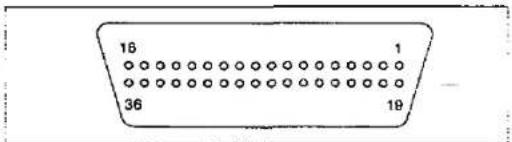
Abbildung 5.1 Paralleler Schnittstellenstecker
| Signal pin | Return side pin | Signal | Direction |
| 1 | 19 | STROBE | Input |
| 2 | 20 | DATA 1 | Input |
| 3 | 21 | DATA 2 | |
| 4 | 22 | DATA 3 | |
| 5 | 23 | DATA 4 | |
| 6 | 24 | DATA 5 | |
| 7 | 25 | DATA 6 | |
| 8 | 26 | DATA 7 | |
| 9 | 27 | DATA 8 | |
| 10 | 28 | ACK | Output |
| 11 | 29 | BUSY | Output |
| 12 | PE | Output | |
| 13 | SLCT | Output | |
| 14 | AUTO FEED XT | Input | |
| 15 | |||
| 16 | SG | ||
| 17 | FG | ||
| 18 | +5 V | Output | |
| 31 | 30 | PRIME | Input |
| 32 | ERROR | Output | |
| 33 | SG | ||
| 34 | |||
| 35 | |||
| 36 |
Tabelle 5.1 Stiftbelegung des Steckers
5.2 Stiftsignale des Steckers
ACK...ACKNOWLEDGE
Hinweise:
- "INPUT" bezieht sich auf ein Signal, das in den Drucker eingeht. "OUTPUT" bezeichnet ein Signal, das den Drucker verlässt.
- "RETURN" bezeichnet den Rückleiter eines verdrillten Paares und ist mit der Signalmasse verbunden.
- Alle Schnittstellensignale sind auf TTL-Pegel.
- Dies ist ein Ausgangssignal an den Computer, das anzeigt, dass der Drucker bereit ist, den nächsten Datenblock zu empfangen. Es wird gesendet, wenn das BUSY-Signal von hoch auf niedrig fällt. Daher kann es als Datenanforderungsimpuls betrachtet werden.
- Das Signal ist normalerweise hoch. Wenn die Bedingung eintritt, geht das Signal auf niedrig.
- Das ACK-Signal wird automatisch gesendet, wenn der Drucker eingeschaltet wird.
STROBE...STROBE
- Dies ist ein synchronisierendes Eingangssignal zum Einlesen von Daten in den Drucker.
- Dieses Signal ist normalerweise hoch. Daten werden eingelesen, wenn es auf niedrig geht.
- Der Impuls muss mindestens 0,5 Mikrosekunden lang niedrig sein.
BUSY
- Dieses Ausgangssignal zeigt den Status des Druckers an. Das Signal ist hoch, wenn der Drucker beschäftigt ist und keine Daten empfangen kann. • Das Signal ist unter den folgenden Bedingungen hoch:
- Empfangspuffer voll
- Drucker verarbeitet Daten
- Drucker ist AUS
- Drucker befindet sich in einem Fehlerzustand
DATA 1-DATA 8
- Dies sind die Eingangssignale, die die 8 Datenbits der Informationen übertragen.
- Das Signal wird synchron mit dem STROBE-Impuls gelesen. Ein hoher Pegel zeigt eine logische "1" an.
- Das Signal muss 0,5 Mikrosekunden vor Eintreffen des STROBE-Impulses vorhanden sein.
PE...PAPIERENDE
- Dieses Ausgangssignal zeigt an, dass nur noch 1,5 Zoll (38 mm) Papier vorhanden sind.
- Das Signal ist normalerweise niedrig und geht bei einem "Papierende"-Zustand auf hoch.
SLCT...AUSWAHL
- SELECT ist ein Ausgangssignal, das den ON LINE- oder OFF LINE-Zustand des Druckers anzeigt. Das Signal ist im ON LINE-Zustand hoch und im OFF LINE-Zustand niedrig. • Der Drucker wechselt in den ON LINE-Zustand:
- wenn der Drucker eingeschaltet wird
- wenn PRIME empfangen wird
- wenn der RESET-Befehl empfangen wird
- wenn der ON LINE-Schalter gedrückt wird
• Der Drucker wechselt in den OFF LINE-Zustand:
- wenn der Drucker kein Papier mehr hat
- wenn der Drucker auf OFF LINE geschaltet wird
AUTO FEED XT (AFXT)
- Dieses Eingangssignal bestimmt, ob zu jedem Wagenrücklauf (CR) ein Zeilenvorschub (LF) hinzugefügt wird.
- Wenn AFXT niedrig ist, erfolgt eine CR + LF-Aktion. Wenn AFXT hoch ist, wird nur ein Wagenrücklauf ausgeführt.
- Der DIP-Schalter SW3 kann die Reaktion des Druckers auf ein AFXT-Signal ändern. Wenn SW3 eingeschaltet ist, führt der Drucker unabhängig vom Pegel des ankommenden Signals einen CR + LF aus. Wenn SW3 ausgeschaltet ist, ist diese automatische Aktion deaktiviert.
SG...SIGNAL GROUND
- Die verdrillten Rückleiter (Pins 19–30) sind mit Signalmasse verbunden.
FG...FRAME GROUND
- Frame ground ist dasselbe wie Chassis-Masse.
+5V
Dies ist nur für die Bewertung gedacht. Es sollte nicht verwendet werden, um externe Geräte mit Strom zu versorgen.
PRIME
Dieses Eingangssignal wird verwendet, um den Drucker zu initialisieren. Das Signal ist normalerweise hoch und geht bei einem Reset des Druckers auf niedrig. Es kann jederzeit während des Druckerbetriebs empfangen werden.
FEHLER
Dieses Ausgangssignal ist ein "Fehler"- oder "Störungs"-Zustand. Normalerweise hoch, geht dieses Signal bei einem Fehler auf niedrig. Ein Fehlerzustand kann verursacht werden durch:
- einen "Papierende"-Zustand
- der Drucker ist OFFLINE
- ein Überlastzustand liegt vor
Zeitdiagramm (wenn normaler Druckcode empfangen wird)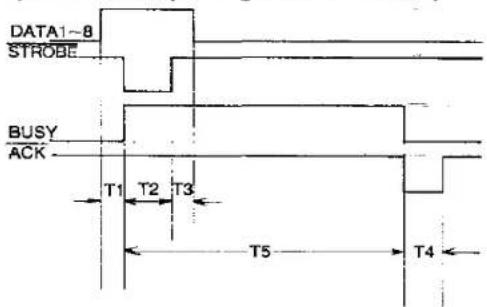
T1 ... 0,5 μs (min) T2 ... 1 μs (min) T3 ... 0,5 μs (min) T4 ... 5 μs (max) T5 ... 1 ms oder weniger, wenn der Puffer nicht voll ist 1 s oder weniger, wenn der Puffer voll ist
Abbildung 5.2 Zeitdiagramm
WARTUNG
Der Drucker erfordert keine routinemäßige Wartung. Dennoch verlängert eine angemessene Pflege des Druckers seine Lebensdauer. Die folgenden vorbeugenden und periodischen Maßnahmen werden empfohlen:
6.1 Vorbeugende Wartung
- Halten Sie alle Flüssigkeiten vom Drucker fern. Wenn versehentlich Flüssigkeit in den Drucker gelangt, kann dies zu schweren Schäden führen.
- Blockieren Sie nicht den Luftstrom um den Drucker. Legen Sie keine Bücher, Papier oder andere Gegenstände auf den Drucker.
- Besondere Vorsicht ist geboten, um den Drucker zu schützen, wenn er in einer ungünstigen Umgebung wie einer Werkstatt, einem staubigen oder sandigen Bereich usw. verwendet wird.
- Achten Sie beim Transport des Druckers darauf, dass die Wagenstopper angebracht sind. Dies hilft, Schäden am Druckkopf zu vermeiden.
- Die Lebensdauer des Druckkopfs kann durch einige einfache Vorsichtsmaßnahmen verlängert werden.
- Betreiben Sie den Drucker nicht ohne Papier und eine Farbbandkassette.
- Vermeiden Sie die kontinuierliche Verwendung derselben Stifte (Unterstreichung, Halbgrafiken usw.), ohne dem Druckkopf Zeit zum Abkühlen zu geben.
- Behindern Sie nicht die Bewegung des Druckkopfs während des Betriebs.
- Wenn der Drucker längere Zeit nicht verwendet wird, ziehen Sie das Netzkabel ab.
6.2 Periodische Wartung
Die Reinigung des Geräts ist die wichtigste Maßnahme, die der Benutzer durchführen kann. Die Häufigkeit der Reinigung hängt von der Umgebung ab.
- Schalten Sie den Strom AUS.
- Reinigen Sie Gehäuse und Abdeckungen mit einem weichen Tuch. Verwenden Sie ein mildes handelsübliches Reinigungsmittel.
- Entfernen Sie die obere und die vordere Abdeckung. Saugen Sie den Innenraum des Geräts ab oder wischen Sie ihn aus. Achten Sie darauf, das Flachbandkabel am Wagenantriebsriemen nicht zu beschädigen. ● Die Walze sollte nur mit denaturiertem Alkohol gereinigt werden.
- Wenn der Drucker gewartet werden muss, senden Sie das Gerät an ein autorisiertes Panasonic-Servicecenter. Versuchen Sie nicht, das Gerät selbst zu reparieren. Es gibt keine vom Benutzer reparierbaren Baugruppen im Drucker.
Farbbandkassette
Ein einzelnes Farbband ermöglicht das Drucken von etwa 2 Millionen Zeichen. Wenn der Druck zu verblassen beginnt, drücken Sie vorsichtig die Zählfeder im Loch der Farbbandkassette mit der Spitze eines Kugelschreibers oder eines anderen Gegenstands. Dadurch können weitere 1 Million Zeichen gedruckt werden. Sobald die Farbbandkassette auf dem Wagen montiert ist und eine kurze Zeit gedruckt wird, werden die Zeichen dunkler.
Hinweis:
Drücken Sie dies nicht, bevor der Druck zu verblassen beginnt.
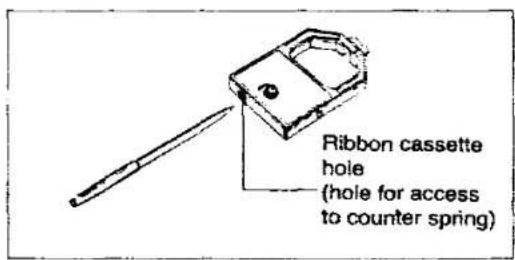
Neue Farbbandkassette
Wenn der Druck erneut zu verblassen beginnt, ersetzen Sie die Farbbandkassette.
Produktname: Farbbandkassette Produktnummer: KX-P110
Abnutzung der Druckkopfnadeln kann zu schweren Schäden am Farbband und zu verblassendem Druck führen. In einem solchen Fall muss der Drucker gewartet werden.
- Staub und Papierreste auf der Wagenwelle und der Wagenführungswelle können die Bewegung des Wagens behindern. Reinigen Sie sie mit einem weichen Tuch. Regelmäßige Reinigung ist für den ordnungsgemäßen Betrieb und eine längere Lebensdauer erforderlich.
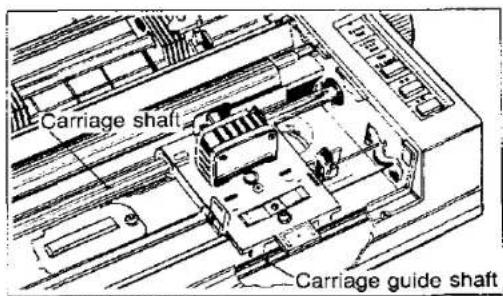
6.3 Fehlerbehebung
Die meisten Probleme im Zusammenhang mit dem Drucker lassen sich auf falsche Einrichtung, Installation oder Verkabelung zurückführen. Tabelle 6.1 hilft dem Benutzer, einige der häufigsten Probleme zu identifizieren und
zu beheben. Wenn Sie zusätzliche Hilfe benötigen, wenden Sie sich an das Geschäft, in dem das Gerät gekauft wurde.
| SYMPTOM | POSSIBLE CAUSE | PROBABLE SOLUTION |
| Printer Dead | No AC PowerFuse blown | Check Power CordReplace fuse |
| Power on but printer not printing | Printer not ON LINE; out of paper | Press ON LINE switch replace paper |
| Printer won't go ON LINE | Out of paper | Replace paper |
| Paper slips around platen | Paper feed selector in TRACTOR position. | Set selector to FRICTION |
| Head moves but does not print | Ribbon not installed correctly | Re-inset ribbon |
| Paper bunches up around platen | No reverse tension on paper | Set paper supply lower than printer |
| Continuous Paper/Error Indicator flashing | OVERLOAD condition | Carriage travel path blocked;carriage stoppers not removed |
| Printout double-spaced or no spacing | AFXT switch improperly set | Set DIP switchSW3—as required |
| Cannot print ASCII characters with code above 127, Italic characters printing | 7 bit/8 bit switch set incorrectly on printer or interface | Set DIP switchSW8—as required |
| Cannot change print mode from computer | Print mode switch set incorrectly | Normal condition.Refer to Section 3.1 |
Tabelle 6.1 Fehlerbehebung
ANHANG A
Zeichensatztabellen
| 0 | 1 | 2 | 3 | 4 | 5 | 6 | 7 | 8 | 9 | A | B | C | D | E | F | |
| 0 | NULL | SP | 0 | @ | P | ' | p | SP | 0 | @ | P | ' | p | |||
| 1 | DC1 | 1 | 1 | A | Q | a | q | DC1 | / | 1 | A | Q | a | q | ||
| 2 | DC2 | " | 2 | B | R | b | r | DC2 | " | 2 | B | R | b | r | ||
| 3 | DC3 | # | 3 | C | S | c | s | DC3 | # | 3 | C | S | c | s | ||
| 4 | DC4 | 4 | D | T | d | t | DC4 | 4 | D | T | d | t | ||||
| 5 | % | 5 | E | U | e | u | % | 5 | E | U | e | u | ||||
| 6 | & | 6 | F | V | f | v | & | 6 | F | V | f | v | ||||
| 7 | ' | 7 | G | W | g | w | ' | 7 | G | W | g | w | ||||
| 8 | BS | CAN | ( | 8 | H | X | h | x | BS | CAN | ( | 8 | H | X | h | x |
| 9 | HT | ) | 9 | I | Y | i | y | HT | ) | 9 | / | Y | i | y | ||
| A | LF | * | : | J | Z | j | z | LF | * | : | J | Z | j | z | ||
| B | VT | ESC | + | ; | K | [ | k | { | VT | ESC | + | ; | K | / | k | { |
| C | FF | , | < | L | \ | l | | | FF | , | < | L | \ | l | / | ||
| D | CR | - | = | M | ] | m | } | CR | - | = | M | ] | m | } | ||
| E | SO | . | > | N | ^ | n | ~ | SO | . | > | N | ^ | n | ~ | ||
| F | SI | / | ? | O | — | o | DEL | SI | / | ? | O | — | o | DEL | ||
Internationaler Zeichensatz
| n | 35o23- | 36o24- | 64o40H | 91o5B- | 92o5Cm | 93o5DH | 94o5EH | 96o60H | 123o7BH | 124o7Cr | 125o7Dn | 126o7EH | |
| USA | 0 | # | @ | [ | \ | ] | ^ | ' | | | ||||
| FRANCE | 1 | # | à | ° | ç | § | ^ | ' | é | ù | è | " | |
| GERMANY | 2 | # | S | § | Ä | Ö | Ü | ^ | ' | ä | ö | ü | ß |
| ENGLAND | 3 | £ | S | @ | [ | \ | ] | ^ | ' | { | | | } | ~ |
| DENMARK I | 4 | # | $ | @ | Æ | ∅ | Å | ^ | ' | æ | ø | å | ~ |
| SWEDEN | 5 | # | α | É | Ä | Ö | Å | Ü | é | ä | ö | å | ü |
| ITALY | 6 | # | S | @ | ° | \ | é | ^ | ù | à | ö | è | i |
| SPAIN | 7 | Pt | S | @ | i | Ñ | ¿ | ^ | ' | .. | ñ | } | ~ |
| -JAPAN | 8 | # | S | @ | [ | ¥ | ] | ^ | ' | { | | | } | ~ |
| -NORWAY | 9 | # | α | É | Æ | ∅ | Å | Ü | é | æ | ø | å | ü |
| -DENMARK II | 10 | # | S | É | Æ | ∅ | Å | Ü | é | æ | ø | å | ü |
*Nur über Software zugänglich
Kursiver internationaler Zeichensatz
| LOCATION | CHAR. | LOCATION | CHAR. | LOCATION | CHAR. | LOCATION | CHAR. | ||||
| DEC | HEX | DEC | HEX | DEC | HEX | DEC | HEX | ||||
| 128 | 80 | à | 137 | 89 | Ñ | 146 | 92 | 155 | 9B | ö | |
| 129 | 81 | è | 138 | 8A | 147 | 93 | 156 | 9C | ü | ||
| 130 | 82 | ù | 139 | 8B | 148 | 94 | 157 | 9D | |||
| 131 | 83 | ò | 140 | 8C | Pt | 149 | 95 | 158 | 9E | é | |
| 132 | 84 | l | 141 | 8D | 150 | 96 | .. | 159 | 9F | ¥ | |
| 133 | 85 | ° | 142 | 8E | 151 | 97 | 255 | FF | |||
| 134 | 86 | £ | 143 | 8F | 152 | 98 | |||||
| 135 | 87 | i | 144 | 90 | 153 | 99 | Ü | ||||
| 136 | 88 | ¿ | 145 | 91 | β | 154 | 9A | ä | |||
ANHANG B
DIP-Schaltereinstellungen
| SWITCH NUMBER | FUNCTION | ON | OFF | POSITION WHEN SHIPPED |
| SW1 | Paper Out Detector | Ineffective | Effective | OFF |
| SW2 | Page Length | 12 inch (305 mm) | 11 inch (279 mm) | OFF |
| SW3 | AUTO FEED XT | Fixed Internally | Not Fixed Internally | OFF |
| SW4 | Skip Perforation | 1 Inch (25.4 mm) Skip | No Skip | OFF |
| SW5 | International | See International | ON | |
| SW6 | Character | Character Set | ON | |
| SW7 | Set | Chart | ON | |
| SW8 | 7 bit/8 bit | 7 bit | 8 bit | OFF |
DIP-Schaltereinstellungen
| SW5 | SW6 | SW7 | INTERNATIONAL CHARACTER SET |
| ON | ON | ON | USA |
| OFF | ON | ON | FRANCE |
| ON | OFF | ON | GERMANY |
| OFF | OFF | ON | ENGLAND |
| ON | ON | OFF | DENMARK I |
| OFF | ON | OFF | SWEDEN |
| ON | OFF | OFF | ITALY |
| OFF | OFF | OFF | SPAIN |
Internationale Zeichensätze
ANHANG C
Leere Matrizen für Download-Zeichen
Kopieren Sie zuerst diese Seite. Verwenden Sie dann die leeren Matrizen, um Ihre Download-Zeichen zu entwerfen.
ANHANG D
Softwarebefehle
| CHARACTER MODE COMMANDS | Page | |
| Name | Function | |
| DC2 | Releases compressed printing | 4-5 |
| DC4 | Releases one-line double width setting | 4-6 |
| SI | Sets compressed printing | 4-8 |
| SO | Sets one-line double width printing | 4-9 |
| ESC+P | Sets pica pitch | 4-11 |
| ESC+M | Sets elite pitch | 4-12 |
| ESC+W+1 | Sets double width printing | 4-13 |
| ESC+W+0 | Releases all double width settings | 4-13 |
| ESC+SI | Sets compressed printing | 4-14 |
| ESC+SO | Sets one-line double width printing | 4-14 |
| ESC+S+0 | Sets superscript mode | 4-15 |
| ESC+T | Releases sub/superscript mode | 4-15 |
| ESC+S+1 | Sets subscript mode | 4-16 |
| ESC+4 | Sets italic mode | 4-17 |
| ESC+5 | Releases italic mode | 4-17 |
| ESC+6 | Sets italic international mode | 4-18 |
| ESC+7 | Releases italic international mode | 4-18 |
| ESC+R+n | Selects international character set | 4-19 |
| ESC+E | Sets emphasis print | 4-20 |
| ESC+F | Releases emphasis print | 4-20 |
| ESC+G | Sets double printing | 4-21 |
| ESC+H | Releases double printing | 4-21 |
| ESC+-+1 | Sets underline | 4-22 |
| ESC+-+0 | Releases underline | 4-22 |
| ESC+l+n | Specifies a print mode combination | 4-23 |
| ESC+n | Sets NLQ (pica pitch) mode | 4-26 |
| ESC+o | Sets NLQ (elite pitch) mode | 4-27 |
| ESC+w+n | Selects a character pitch | 4-28 |
| ESC+x+1 | Selects NLQ font | 4-29 |
| ESC+x+0 | Selects drafts font | 4-29 |
| ESC+p+1 | Sets proportional spacing mode | 4-30 |
| ESC+p+0 | Releases proportional spacing mode | 4-30 |
| BIT IMAGE (GRAPHICS) MODE COMMANDS | Page | |
| Name | Function | |
| ESC+K+n1+n2 | Sets standard density(480 dots/line) | 4-39 |
| ESC+L+n1+n2 | Sets double density(960 dots/line) | 4-39 |
| ESC+Y+n1-n2 | Sets double speed/double density(960 dots/line) | 4-40 |
| ESC+Z+n1+n2 | Sets quadruple density(1920 dots/line) | 4-40 |
| ESC+·+m+n1+n2 | Selects one of 8-pin bit image modes(480, 960, 1920, 640, 576, 720 dots/line) | 4-41 |
| ESC+·+m+n1+n2 | Selects one of 9-pin bit image modes(480, 960, 1920, 640, 576, 720 dots/line) | 4-43 |
| ESC+?+n+m | Assigns bit image density | 4-44 |
Software-Befehle
| LINE SPACING COMMANDS | Page | |
| Name | Function | |
| ESC+0 | Sets line spacing to 1/8" | 4-45 |
| ESC+1 | Sets line spacing to 7/72" | 4-46 |
| ESC+2 | Sets line spacing to 1/6" | 4-46 |
| ESC+A+n | Sets line spacing to n/72" | 4-47 |
| ESC+3+n | Sets line spacing to n/216" | 4-48 |
| ESC+J-n | Spaces n/216" (1-line only) | 4-49 |
| PAPER FEED COMMANDS | Page |
| Name | Function | |
| FF | Advances paper to next top of form position | 4-6 |
| LF | Advances paper one line | 4-7 |
| ESC+N+n | Sets skip perforation | 4-50 |
| ESC+O | Releases skip perforations setting | 4-50 |
| PAGE FORMAT COMMANDS | Page |
| Name | Function | |
| BS | Prints, then backspaces one character | 4-3 |
| HT | Executes horizontal tabulation | 4-7 |
| VT | Executes vertical tabulation | 4-9 |
| ESC+D+n+...+n+0 | Sets horizontal tabulation | 4-51 |
| ESC+D+0 | Releases horizontal tabulation | 4-51 |
| ESC+e+0+n | Sets horizontal tabulation every "n" positions | 4-52 |
| ESC+B+n+...+n+0 | Sets vertical tabulation | 4-53 |
| ESC+B+0 | Releases vertical tabulation | 4-53 |
| ESC+e-1+n | Sets vertical tabulation every "n" lines | 4-54 |
| ESC+C+0+n | Sets page length in inches | 4-55 |
| ESC+C+n | Sets page length in lines | 4-56 |
| ESC+l+n | Sets column head (Left margin) | 4-57 |
| ESC+Q+n | Sets column end (Right margin) | 4-58 |
| ESC+f+0+n | Skips "n" position on a line | 4-59 |
| ESC+f+1+n | Skips "n" lines | 4-60 |
| WORD PROCESSING COMMANDS | Page |
| Name | Function | |
| ESC+a+0 | Enables left alignment | 4-32 |
| ESC+a+1 | Enables auto centering | 4-33 |
| ESC+a-2 | Enables right alignment | 4-33 |
| ESC+a+3 | Enables auto justification | 4-34 |
Software-Befehle
| DATA CONTROL COMMANDS | Page | |
| Name | Function | |
| CAN | Clears data in buffer | 4-4 |
| DEL | Deletes last printable character | 4-4 |
| DC1 | Selects printer remotely | 4-5 |
| DC3 | Deselects printer remotely | 4-5 |
| ESC+> | Sets MSB on | 4-61 |
| ESC+= | Sets MSB off | 4-62 |
| ESC+# | Cancels MSB setting | 4-63 |
BEFEHLE FÜR LADBARE ZEICHEN Seite
| Name | Function | |
| ESC+y+loc+ | ||
| D1 + D2 + ... + Dn | Defines download character | 4-65 |
| ESC+z+loc | Releases download character definition | 4-65 |
VERSCHIEDENE BEFEHLE Seite
| Name | Function | |
| CR | Starts printing | 4-4 |
| ESC | First byte of multi-byte control code | 4-6 |
| NULL | Last byte of certain multi-byte control codes | 4-7 |
| ESC+< | Homes print head | 4-66 |
| ESC+@ | Initializes the printer | 4-66 |
| ESC+s+1 | Sets half speed printing | 4-67 |
| ESC+s+0 | Releases half speed printing | 4-67 |
| ESC+U+1 | Sets single direction printing | 4-67 |
| ESC+U+0 | Releases single direction printing | 4-67 |
| ESC+9 | Enables paper-end detection | 4-68 |
| ESC+8 | Disables paper-end detection | 4-68 |
ANHANG E
Papier
1. Endlospapier
Eine Liste der Papiere, die mit diesem Gerät verwendet werden können, ist unten aufgeführt.
Breite: 4\~10 Zoll (102\~254 mm) Endlospapier mit Perforation auf beiden Seiten.
Qualität und Anzahl der Blätter: Bis zu 3 Blätter können verwendet werden; das Verhältnis zwischen Papierqualität und Blattanzahl ist unten angegeben.
| Types of paper | Sheets | Thickness (continuous paper weight in pounds) | Remarks |
| Fine-quality paper | 1 | 14~17 | |
| Non-carbon paper | 2 | ||
| 3 | 11~14 (17) | (17) is only for the last sheet. | |
| Multi-layer paper with carbon | 2 |
- Bei Mehrschichtpapier mit Kohlepapier entspricht das eingelegte Kohlepapier einem Blatt Papier, daher beträgt die maximale Anzahl solcher Blätter 2.
- Das "Endlospapiergewicht" gibt das Gewicht des Papiers an, indem es das Gewicht von 500 Blatt [17×22 Zoll (432×559 mm)] in Pfund angibt.
2. Einzelblatt
Breite: 4\~9 Zoll (102\~229 mm) Höhe: 5\~14,3 Zoll (127\~363 mm) Dicke (Papiergewicht in Pfund): 11\~21,5 Pfund (nur 1 Blatt)
Druckbereich
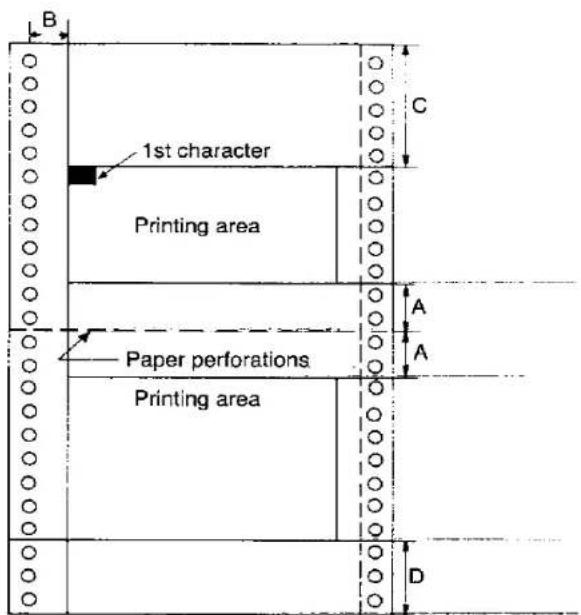
A : 1 Zoll (25,4 mm)
B : 0,95 Zoll (24 mm)
C : 3,85 Zoll (98 mm)
D : 1,5 Zoll (38 mm)
A: der Abstand von den Papierperforationen, wo die Linien verrutschen können. B: der Abstand von der Mitte des Stiftlochs bis zur linken Kante des linkesten Zeichens, wenn sich der Traktor in seiner linkesten Position befindet. C: der Abstand von der Oberkante des Papiers bis zur ersten Druckzeile. D: der Abstand von der Unterseite der Seite, wo das Papierende erkannt wird.
INDEX
A
| Acknowledge (ACK) | 3-1, 5-2 |
| ASCII | 1-1, 4-1 |
| AUTO FEED XT (AFXT) | 3-3, 5-3 |
B
| Backspace (BS) | 4-3 |
| BASIC | 4-1. 4-2 |
| Bi-directional printing | 1-1 |
| Bit image graphics | 4-43 |
| Bit image mode | 4-41. 4-43 |
| Buffer | 1-1 |
| Buffer clear | 4-4 |
| BUSY | 5-2 |
C
| Cancel (CAN) | 4-4 |
| Carriage return (CR) | 4-4 |
| Character intensity | 4-20 |
| Character mode commands | 4-11 |
| Compatibility | 3-3 |
| Compressed | |
| mode | 1-1, 4-8 |
| mode release | 4-5 |
| subscript | 4-16 |
| superscript | 4-15 |
| Concatenation | 4-10 |
| Connector pin signals | 5-2, 5-3 |
| Control codes | 4-1, 4-50 |
| multiple byte | 4-10 |
| single byte | 4-3 |
| Covers | |
| replacing | 3-5 |
| removal | 2-1 |
D
| Data control commands | 4-64 |
| Delete (DEL) | 4-4 |
| Device control (DC1-DC4) | 4-5 |
| DIP switches | |
| chart | 3-3 |
| function | 3-3 |
| location | 3-2 |
| software control | 4-70 |
| Dot density | 4-35 |
| Dot matrix | 1-1 |
| Double | |
| density graphics | 4-39 |
| printing | 4-21 |
| speed double | |
| density graphics | 4-40 |
| width | 4-13 |
| width release | 4-6 |
| width single line | 4-9, 4-14 |
Herunterladbar
| Character command | 4-64 |
| Character define | 4-65 |
| Draft mode | 3-1 |
| DTR | 1-1 |
E
| Elite mode | 1-1, 4-12 |
| Elongated(see double width) | 4-13, 4-14 |
| release (see double width) | 4-6 |
| Emphasis | 4-20 |
| Error | 5-3 |
| Escape (ESC) | 4-6 |
| ETX/ACK | 1-1 |
F
| Form feed | 2-5, 3-1, 4-6 |
| Form feed line feed (FF) switch | 3-1 |
| Form length set (inch) | 4-55 |
| Form length set (lines) | 4-56 |
| Frame ground (FG) | 5-3 |
| Friction feed | 2-4 |
G
| Graphics: | |
| bit image | 4-35 |
| double density | 4-39 |
| double speed | 4-40 |
| quad density | 4-40 |
| standard density | 4-39 |
H
| Half speed printing | 4-67 |
| Hex dump | 3-5 |
| Hexadecimal entry | 4-2 |
| Home Print Head | 4-66 |
| Horizontal spacing | 4-59 |
| tab | 4-7 |
| tab set | 4-51 |
| tab set (unit) | 4-52 |
| Initialization | 3-4 |
| Input formats | 4-10 |
| Intensity | 4-20 |
| Interface signals | 5-2 |
| Interfacing | 1-1 |
| International characters | 1-1, 3-3, 4-19 |
| Italics | 1-1, 4-17 |
| Italic int'l characters | 4-18 |
| K | |
| Keyboard entry | 4-2 |
| L | |
| Left margin set | 4-57 |
| Line feed | 4-7 |
| Line feed/Form feed (LF/FF) switch | 3-1 |
| Line spacing commands | 4-45 |
| Logic seeking | 1-1 |
| M | |
| Maintenance, preventative | 6-1 |
| Maintenance, periodic | 6-1 |
| Mixing print modes | 4-69 |
| Margin, left | 4-57 |
| Margin, right | 4-58 |
| Most significant bit (MSB) | |
| cancel | 4-63 |
| release | 4-62 |
| set | 4-61 |
| Multiple byte control codes | 4-10 |
| N | |
| Near letter quality (NLQ) | 4-26 |
| Null (NULL) command | 4-7 |
| O | |
| Online/Offline | 3-1 |
| P | |
| Page | |
| format commands | 4-51 |
| length designation | 2-5 |
| Paper | |
| alignment | 2-5 |
| end select | 4-68 |
| end signal | 5-2 |
| feed | 2-3, 2-4 |
| feed, FF | 4-6 |
| feed, LF | 4-7 |
| feed, skip perforation | 4-50 |
| installation | 2-3 |
| out detector | 3-2 |
| separators | 2-2 |
| Pica mode | 1-1, 4-1 |
| Pitch | 4-11 |
| Platen | 2-3, 2-4 |
| Power switch | 2-3, 3-1 |
| head | 1-1 |
| head gap | 2-5 |
| mode select switch | 3-1 |
| Proportional spacing | 4-30 |
| Protocols | 1-1 |
| Q | |
| Quadruple density graphics | 4-40 |
| R | |
| Receive buffer | 3-5 |
| Reset printer | 3-4, 4-66 |
| Ribbon installation | 2-2 |
| Right margin set | 4-58 |
| S | |
| Select signal | 5-3 |
| Self test | 3-5 |
| Shift | |
| in (SI) | 4-8 |
| out (SO) | 4-9 |
| Signal ground (SG) | 5-3 |
| Single | |
| byte control codes | 4-3 |
| direction set | 4-67 |
| Skip | |
| perforation | 3-3, 4-50 |
| perforation release | 4-50 |
| Specifications | 1-3 |
| Standard density graphics | 4-39 |
| Strobe signal | 5-2 |
| Subscript | 4-16 |
| release | 4-16 |
| Superscript | 4-15 |
| release | 4-15 |
| T | |
| Top of from | 2-5 |
| Tractors | 2-4 |
| Troubleshooting | 6-2 |
| U | |
| Underlining | 4-22, 4-59 |
| Vertical | |
| spacing | 4-60 |
| tab | 4-9 |
| tab release | 4-55, 4-56 |
| tab set | 4-53 |
| tab set (unit) | 4-54 |
| W | |
| Word processing | 4-10 |
| commands | 4-32 |
| packages | 4-1 |
MEMO
MEMO
121
Panasonic Industrial Company, Computer Products Div. Division of Matsushita Electric Corporation of America One Panasonic Way, Secaucus, New Jersey 07094
Panasonic Hawaii, Inc. (PHI) 91-238 Kauhi St. Ewa Beach, Honolulu, Hawaii 96808-0774
Panasonic Sales Company Ave. 65 De Infanteria. KM9.7 Victoria Industrial Park Carolina, Puerto Rico 00630

- BETRIEBSANLEITUNG
- HAFTUNGSAUSSCHLUSS
- ABBILDUNGSVERZEICHNIS
- ABBILDUNG EINLEITUNG SEITE
- INSTALLATION
- BETRIEB
- SCHNITTSTELLE
- LISTE DER TABELLEN
- WARTUNG
- PRODUKTÜBERSICHT
- AUSPACKEN UND PRÜFEN
- STANDORTANFORDERUNGEN
- ERSTEINRICHTUNG
- ENTFERNEN DER DRUCKERABDECKUNGEN
- ENTFERNEN DER WAGENANSCHLÄGE
- MONTAGE DER FARBBANDKASSETTE
- MONTAGE DER PAPIERFÜHRUNGEN
- EINLEGEN DES PAPIERS
- EINZELBLATT
- ENDLOSPAPIER
- AUSRICHTEN DES FORMULARANFANGS
- EINSTELLEN DES DRUCKKOPFABSTANDS
- SCHALTER UND ANZEIGEN
- NETZSCHALTER
- ONLINE-SCHALTER
- FORMULARVORSCHUB-SCHALTER
- ZEILENVORSCHUB-SCHALTER
- DRUCKMODUS-WAHLSCHALTER
- PAPIER-/FEHLERANZEIGE
- DETEKTOREN
- PAPIERENDE-DETEKTOR
- ÜBERLASTDETEKTOR
- DIP-SCHALTER
- PAPIERENDE-DETEKTOR SW
- SEITENLÄNGE SW
- AUTO EINZUG XT SW
- PERFORATIONSÜBERSPRUNG SW
- INTERNATIONALER ZEICHENSATZ SW
- BIT-CODEAUSWAHL SW
- INITIALISIERUNG
- EINSCHALTSEQUENZ
- SELBSTTEST
- HEX-DUMP
- EMPFANGSPUFFER
- AUSTAUSCH DER ABDECKUNGEN
- EINFÜHRUNG
- STEUERCODES
- EINGABE VON STEUERCODES ÜBER KOMMERZIELLE SOFTWAREPAKETE
- EINGABE VON STEUERCODES DIREKT ÜBER DIE TASTATUR
- EINGABE VON STEUERCODES AUS EINEM PROGRAMM
- LPRINT CHR$(15)
- HINWEIS
- EINGABE VON HEXADEZIMALCODE
- EINZELBYTE-STEUERCODES
- RÜCKTASTE (BS)
- ABCDE
- KOMMENTARE
- ABBRECHEN (CAN)
- WAGENRÜCKLAUF (CR)
- LÖSCHEN (DEL)
- GERÄTESTEUERUNG 1 (DC1)
- GERÄTESTEUERUNG 2 (DC2)
- GERÄTESTEUERUNG 3 (DC3)
- KOMMENTAR
- GERÄTESTEUERUNG 4 (DC4)
- ESCAPE (ESC)
- SEITENVORSCHUB (FF)
- HORIZONTALTAB (HT)
- ZEILENVORSCHUB (LF)
- ANMERKUNGEN
- NULL (NULL)
- SHIFT IN (SI)
- SHIFT OUT (SO)
- VERTIKALTAB (VT)
- MEHRBYTE-STEUERCODES
- ZEICHENMODUS-BEFEHLE
- ZEICHENGRÖSSE
- PICA-SCHRITTWEITE
- ELITE-SCHRIFT
- DOPPELTE BREITE (EINZEILIG)
- DOPPELTE BREITE
- KOMPRIMIERTER DRUCKMODUS
- HOCHGESTELLTER DRUCK
- SUBSCRIPT DRUCKEN
- ZEICHENSATZ
- INTERNATIONALER ZEICHENSATZ
- ZEICHENDICHTE
- FETTDRUCK-MODUS
- HERVORGEHOBENE ZEICHEN
- DOPPELDRUCKMODUS
- UNTERSTREICHEN
- UNTERSTREICHUNGSMODUS
- GEBROCHEN
- NAHE BUCHQUALITÄT PICA-SCHRIFTART MODUS
- COMMENTS
- NEAR LETTER QUALITY ELITE PITCH MODE
- AUSWAHL DER ZEICHENDICHTE
- BEISPIEL
- PROPORTIONALER ABSTANDMODUS
- TEXTVERARBEITUNGSBEFEHLE
- LINKSBÜNDIG
- AUTOZENTRIERUNG
- RECHTSBÜNDIG
- AUTOMATISCHE AUSRICHTUNG
- (DRAFT)
- (NLQ)
- (NLQ-PROPORTIONALER ZEICHENABSTAND)
- BITBILD- (GRAFIK-) MODUSBEFEHLE
- NADEL-BITBILDMODUS
- DOPPELGESCHWINDIGKEIT, DOPPELDICHTE-GRAFIK
- GRAFIK MIT VIERFACHER DICHTE
- AUSWAHL DES 8-NADEL-BITBILD-MODUS
- ANMERKUNG
- AUSWAHL DES 9-NADEL-BITBILD-MODUS
- BITBILD-DICHTEZUWEISUNG
- BEFEHLE FÜR DEN ZEILENABSTAND
- ZEILENABSTAND 1/8 ZOLL
- ZEILENABSTAND 7/72 ZOLL
- ZOLL ZEILENABSTAND
- N/216 ZOLL ZEILENABSTAND
- COMMENT
- PAPER FEED COMMANDS
- SKIP PERFORATION
- SEITENFORMATBEFEHLE
- HORIZONTALE TABULIERUNG
- HORIZONTALE TABULATOREINHEIT
- VERTIKALTAB-EINHEIT
- FORMULARLÄNGE (IN ZOLL)
- FORMULARLÄNGE (ZEILEN)
- LINKER RAND
- VERTIKALER ABSTAND
- ABSTAND
- DATENSTEUERBEFEHLE
- MSB EIN
- MSB AUS
- BEFEHLE FÜR LADBARE ZEICHEN
- DEFINITION HERUNTERLADBARER ZEICHEN
- VERSCHIEDENE BEFEHLE
- DRUCKKOPF NACH HAUSE
- DRUCKER ZURÜCKSETZEN
- MISCHEN VON DRUCKMODI
- DIP-SCHALTER UND STEUERCODES
- PARALLELE SCHNITTSTELLE
- TECHNISCHE DATEN
- STIFTSIGNALE DES STECKERS
- ACK...ACKNOWLEDGE
- HINWEISE
- STROBE...STROBE
- BUSY
- DATA 1-DATA
- PE...PAPIERENDE
- SLCT...AUSWAHL
- AUTO FEED XT (AFXT)
- SG...SIGNAL GROUND
- FG...FRAME GROUND
- V
- PRIME
- FEHLER
- VORBEUGENDE WARTUNG
- PERIODISCHE WARTUNG
- FARBBANDKASSETTE
- NEUE FARBBANDKASSETTE
- FEHLERBEHEBUNG
- ANHANG A
- ANHANG B
- ANHANG C
- ANHANG D
- ANHANG E
- PAPIER
- DRUCKBEREICH
- INDEX
- MEMO
Marke : PANASONIC
Modell : KX-P1080
Kategorie : Drucker