
KX-P4400 - Drucker PANASONIC - Kostenlose Bedienungsanleitung
Finden Sie kostenlos die Bedienungsanleitung des Geräts KX-P4400 PANASONIC als PDF.


| Produkttyp | LED-Seitendrucker |
| Druckverfahren | Elektrofotografisches LED-Verfahren |
| Druckgeschwindigkeit | Bis zu 4 Seiten pro Minute (A4, Textmodus, 5% Deckung) |
| Auflösung | 300 dpi |
| Papierzufuhr | Multifunktionsfach, bis zu 100 Blatt (75 g/m²) |
| Papierausgabe | Bis zu 50 Blatt (75 g/m²) |
| Abmessungen (B × T × H) | 127 × 381 × 297 mm |
| Gewicht | ca. 6,3 kg |
| Arbeitsspeicher (RAM) | 512 KB (erweiterbar auf max. 4,5 MB) |
| Schnittstelle | Centronics-parallel |
| Betriebstemperatur | 10 bis 32,5 °C |
| Luftfeuchtigkeit (Betrieb) | 20 % bis 80 % relative Feuchte |
| Stromversorgung | Gemäß Typenschild (Wechselspannung) |
| Tonerlebensdauer | ca. 1.600 Seiten (bei 5% Deckung) |
| Trommellebensdauer | ca. 6.000 Seiten (bei 5% Deckung) |
| Emulation | Panasonic LP (HP LaserJet Series IIP) |
| Schriftarten | Courier 10–20, Century PS (verschiedene Stile) |
| Papierformate | A4, Letter, Legal, Executive, benutzerdefiniert |
| Bedienfeld | LCD-Anzeige, Tasten für Menü, Online, Druck usw. |
| Reinigung | Regelmäßige Reinigung von Walzen und Ladeeinheit empfohlen |
| Sicherheit | Netzstecker mit Schutzkontakt; Gerät erden; keine Flüssigkeiten in der Nähe |
Häufig gestellte Fragen - KX-P4400 PANASONIC
Benutzerfragen zu KX-P4400 PANASONIC
0 Frage zu diesem Gerät. Beantworten Sie die, die Sie kennen, oder stellen Sie Ihre eigene.
Eine neue Frage zu diesem Gerät stellen
Laden Sie die Anleitung für Ihr Drucker kostenlos im PDF-Format! Finden Sie Ihr Handbuch KX-P4400 - PANASONIC und nehmen Sie Ihr elektronisches Gerät wieder in die Hand. Auf dieser Seite sind alle Dokumente veröffentlicht, die für die Verwendung Ihres Geräts notwendig sind. KX-P4400 von der Marke PANASONIC.
BEDIENUNGSANLEITUNG KX-P4400 PANASONIC
Betriebsanleitung
KX-P4400
Wir gratulieren Ihnen zum Kauf eines Panasonic LED-Seitendruckers.
Bevor Sie fortfahren, überprüfen Sie den Drucker und das Zubehör auf Beschädigungen.
Dieser Drucker ist werkseitig so eingestellt, dass er mit den meisten gängigen Softwarepaketen funktioniert.
Ihre Software sollte die Druckerfunktionen steuern. In den meisten Fällen müssen Sie die Einstellungen am Bedienfeld nicht ändern.
Inhalt
Auspacken 3 Vorsichtsmaßnahmen 3 Vorbereitung 4
- Installation des Druckerständers 4
- Tonerpatrone 4
- Installation der Trommeleinheit 5
Anschließen und Einschalten 6
- Anschließen von Drucker und Computer ..... 6
- Einschalten 7
Einlegen von Papier 7
Testdruck 9 Software-Druckerauswahl 9 Beseitigen eines Papierstaus 10 Druckerspezifikationen 12 Papierspezifikationen 13
Papierspezifikationen 13 Zu vermeidende Papiersorten 13 Bedruckbarer Bereich 14 Drucken von OHP-Folien und Etiketten 15 Drucken von gebrauchtem Papier 15
Bedienfeld-Betrieb 16
Menümodus-Betrieb 17 Zurücksetzen des Druckers 20 Wartung 20 Reinigen des Druckers 20
Fehlerbehebung 21
Fehlermeldung 22
Verpackungsanweisungen 23 Zeichentabellen 26 Breitentabellen für residente Century-Schriftarten 28 Optionen, Zubehör und Verbrauchsmaterial 34
Für Benutzer in Großbritannien
WICHTIG:
KLASSE I FÜR BS 7002
ZU IHRER SICHERHEIT LESEN SIE BITTE DEN FOLGENDEN TEXT SORGFÄLTIG.
Dieses Gerät wird aus Sicherheits- und Bequemlichkeitsgründen mit einem geformten dreipoligen Netzstecker geliefert.
In diesem Stecker ist eine 5-Ampere-Sicherung eingebaut.
Sollte die Sicherung ersetzt werden müssen, stellen Sie bitte sicher, dass die Ersatzsicherung eine Nennleistung von 5 Ampere hat und von ASTA oder BSI gemäß 1362 zugelassen ist.
Prüfen Sie auf dem Sicherungskörper das ASTA-Zeichen 📄 oder das BSI-Zeichen 🌐.
Wenn der Stecker eine abnehmbare Sicherungsabdeckung enthält, müssen Sie sicherstellen, dass diese beim Austausch der Sicherung wieder angebracht wird.
Wenn Sie die Sicherungsabdeckung verlieren, darf der Stecker nicht verwendet werden, bis eine Ersatzabdeckung beschafft wurde.
Eine Ersatz-Sicherungsabdeckung können Sie bei Ihrem örtlichen Panasonic-Händler erwerben.
FALLS DER ANGEFORMTE STECKER NICHT ZUR STECKDOSE IN IHREM HAUS PASST, SOLLTEN SIE DIE SICHERUNG ENTFERNEN UND DEN STECKER ABSCHNEIDEN UND SICHER ENTSORGEN. ES BESTEHT GEFAHR EINES SCHWEREN ELEKTRISCHEN SCHLAGS, WENN DER ABGESCHNITTENE STECKER IN EINE 13-AMPERE-STECKDOSE GESTECKT WIRD.
Wenn ein neuer Stecker angebracht werden soll, beachten Sie bitte den unten gezeigten Verdrahtungscode.
Wenn Sie Zweifel haben, wenden Sie sich bitte an einen qualifizierten Elektriker.
WARNUNG: DIESES GERÄT MUSS GEERDET WERDEN.
WICHTIG: Die Adern in diesem Netzkabel sind gemäß dem folgenden Code farbcodiert.
Grün-Gelb:
Erde
Blau:
Neutralleiter
Braun:
Außenleiter
Da die Farben der Adern im Netzkabel dieses Geräts möglicherweise nicht mit den farbigen Markierungen übereinstimmen, die die Anschlüsse in Ihrem Stecker kennzeichnen, gehen Sie wie folgt vor.
Das Kabel, das GRÜN-GELB gefärbt ist, muss an die Klemme im Stecker angeschlossen werden, die
mit dem Buchstaben E oder durch das Erdungssymbol gekennzeichnet ist

oder grün oder grün-gelb gefärbt ist.
Das Kabel, das BLAU gefärbt ist, muss an die Klemme im Stecker angeschlossen werden, die mit dem Buchstaben N oder schwarz gekennzeichnet ist.
Das Kabel, das BRAUN gefärbt ist, muss an die Klemme im Stecker angeschlossen werden, die mit dem Buchstaben L oder rot gekennzeichnet ist.
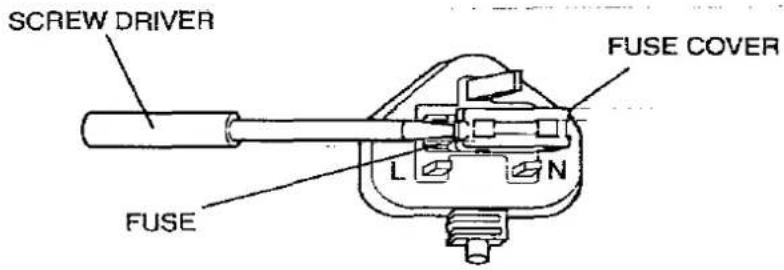
So tauschen Sie die Sicherung aus: Öffnen Sie das Sicherungsfach mit einem Schraubendreher und ersetzen Sie die Sicherung.
WARNUNG
- Die Netzspannung dieses Geräts ist auf dem Typenschild angegeben. Schließen Sie den Drucker nur an eine Steckdose mit der richtigen Spannung an. • Um Brand- oder Stromschlaggefahr zu vermeiden, setzen Sie dieses Produkt nicht Regen oder Feuchtigkeit aus.
- Wenn Sie dieses Gerät betreiben, sollte die Steckdose in der Nähe des Geräts und leicht zugänglich sein.
- Entfernen Sie keine Abdeckungen und führen Sie keine Reparaturen selbst durch. Überlassen Sie Wartungsarbeiten qualifiziertem Personal.
Um einen sicheren Betrieb zu gewährleisten, darf der mitgelieferte dreipolige Stecker nur in eine standardmäßige dreipolige Steckdose eingesteckt werden, die über die normale Hausverkabelung effektiv geerdet ist.
Verlängerungskabel, die mit dem Gerät verwendet werden, müssen dreiachsig sein und korrekt verdrahtet sein, um eine Verbindung zur Erde herzustellen. Falsch verdrahtete Verlängerungskabel sind eine häufige Todesursache.
Die Tatsache, dass das Gerät zufriedenstellend funktioniert, bedeutet nicht, dass die Steckdose geerdet ist und die Installation völlig sicher ist. Zu Ihrer Sicherheit: Wenn Sie Zweifel an der effektiven Erdung der Steckdose haben, wenden Sie sich an einen qualifizierten Elektriker.
Die Seriennummer des Geräts finden Sie auf dem Etikett auf der Rückseite des Geräts. Notieren Sie sich diese Nummer unten und bewahren Sie dieses Buch zusammen mit Ihrem Kaufbeleg auf, um einen dauerhaften Kaufnachweis im Falle eines Diebstahls oder für zukünftige Referenz zu haben.
MODELL-NR. KX-P4400
NAME OF DEALER ____
SERIAL NO.
DATE OF PURCHASE ____
Times und Helvetica sind Warenzeichen der Linotype-Hell AG und/oder ihrer Tochtergesellschaften.
HP und LaserJet sind Warenzeichen der Hewlett-Packard Company.
IBM und IBM PC sind Warenzeichen der International Business Machines Corporation.
Century 702, Dutch 801 und Swiss 721 sind Warenzeichen der Bitstream, Inc.
Alle anderen Anerkennungen sind Warenzeichen oder eingetragene Warenzeichen ihrer jeweiligen Inhaber.
Alle Rechte vorbehalten. © COPYRIGHT 1993 KYUSHU MATSUSHITA ELECTRIC CO., LTD.
Alle Angaben in dieser Bedienungsanleitung können ohne Vorankündigung geändert werden.
Auspacken
Nach dem Auspacken des Druckers stellen Sie sicher, dass keiner der unten aufgeführten Inhalte fehlt oder beschädigt ist. Melden Sie Schäden oder Fehlmengen dem Geschäft, in dem das Gerät gekauft wurde.
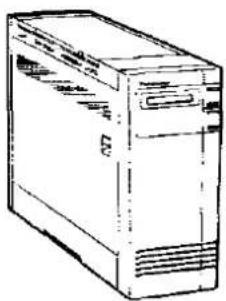
Drucker (KX-P4400)
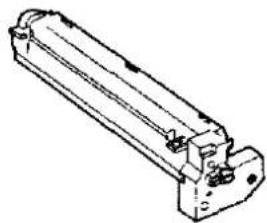
Trommeleinheit
Netzkabel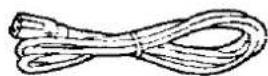
Handbuch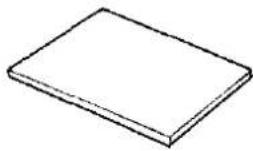
Aufbewahrungstasche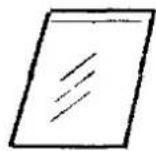
Vorsichtsmaßnahmen
Betriebsumgebung
• Extrem hohe oder niedrige Temperaturen • Extrem hohe oder niedrige Luftfeuchtigkeit (Luftfeuchtigkeitsbereich: 20% bis 80% relative Luftfeuchtigkeit) - Schlecht belüftete Bereiche - Bereiche mit hoher Staub- oder Chemikalienkonzentration (Verdünner usw.) - Direkt vor Klimaanlagen-Lüftungsöffnungen - Bereiche auf instabilen oder unebenen Oberflächen
Vorsichtsmaßnahmen
- Halten Sie alle Flüssigkeiten vom Drucker fern. (Verschüttete Flüssigkeiten im Drucker können schwere Schäden verursachen.)
- Legen Sie keine Bücher, Papier oder andere Gegenstände auf den Drucker.
- Öffnen Sie die linke Abdeckung während des Betriebs nicht, um Papierstaus zu vermeiden.
- Fügen Sie dem Papierfach kein Papier hinzu, wenn sich noch Papier darin befindet, da dies einen Papierstau verursachen kann.
- Wenn der Drucker längere Zeit nicht verwendet wird, ziehen Sie das Netzkabel ab.
- Stellen Sie den Drucker nicht auf die linke oder rechte Seite und nicht mit der Vorderseite nach oben.
Mindestplatzanforderungen
Die Mindestplatzanforderungen sind unten aufgeführt.
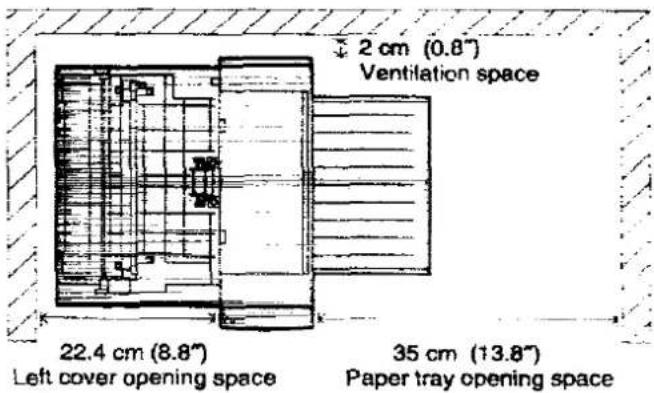
Stromquelle
- Verwenden Sie eine Spannung, die nicht mehr als ±10 % von der auf dem Typenschild (auf der Rückseite des Druckers) angegebenen Spannung abweicht.
- Verwenden Sie kein Verlängerungskabel.
- Dieser Drucker sollte an eine geerdete Steckdose angeschlossen werden.
- Verwenden Sie keinen Netzfilter, keinen Überspannungsschutz und keinen Surge Protector, da dies zu einem Maschinenfehler führen kann.
Vorbereitung
1. Installation des Druckerständers
Hinweis:
Stellen Sie den Drucker nicht auf die linke oder rechte
Seite und nicht mit der Vorderseite nach oben,
da sich der Toner auf eine Seite bewegen und
die Druckqualität beeinträchtigen kann.
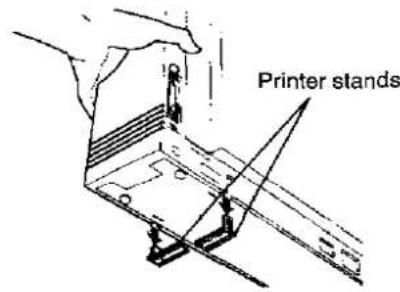
1 Heben Sie den Drucker an der Vorderseite an und entfernen Sie beide Druckerständer, indem Sie sie kräftig nach unten schieben.
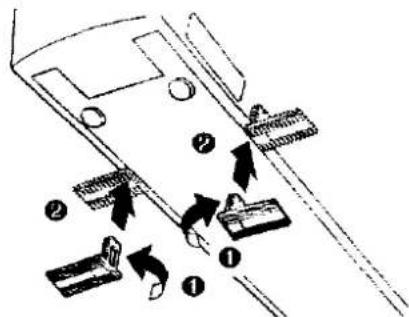
2 Drehen Sie beide Druckerständer um und installieren Sie sie am Drucker.
2. Tonerkartusche
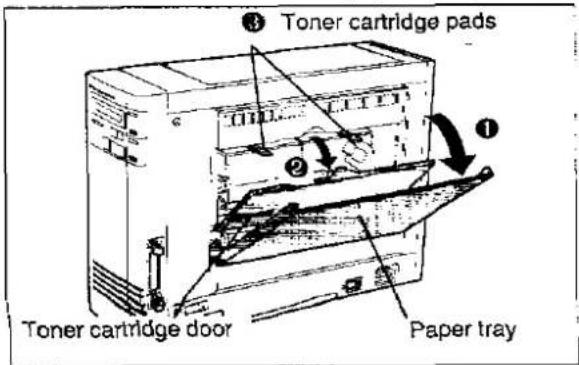
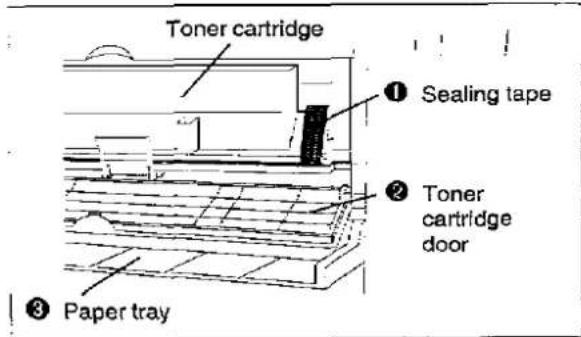
1 ① Öffnen Sie das Papierfach.
Öffnen Sie die Tonerkartuschenklappe. Entfernen Sie die Tonerkartuschen-Polster.
Hinweis:
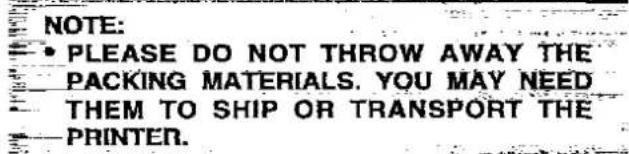
Legen Sie die Tonerkartuschen-Polster in den Aufbewahrungsbeutel und bewahren Sie sie auf, falls der Drucker neu verpackt und transportiert werden muss.
2
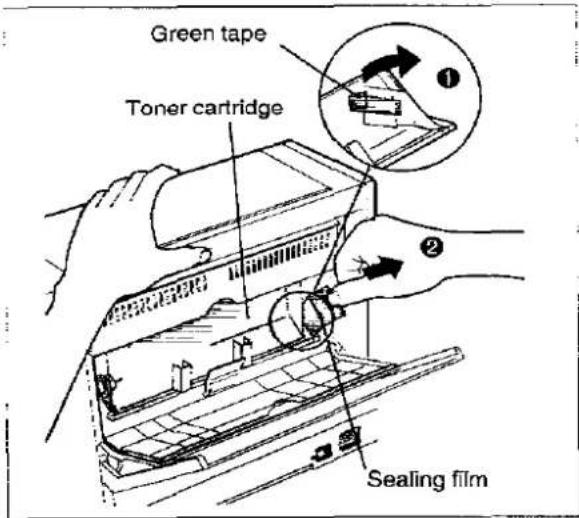
① Ziehen Sie das grüne Band ab. ② Halten Sie den Drucker fest, fassen Sie die durchsichtige Plastikversiegelungsfolie und ziehen Sie sie zu sich hin, um sie vollständig zu entfernen.
Verdrehen Sie die Versiegelungsfolie nicht, während Sie sie ziehen, da Toner auslaufen könnte.
③ Klopfen Sie leicht auf die Tonerkartusche, um Toner in die Entwicklungseinheit zu entleeren.
Hinweis:
- Seien Sie vorsichtig beim Umgang mit der Versiegelungsfolie, da sie Tonerreste enthalten kann.
3
Nehmen Sie das Versiegelungsband aus dem Aufbewahrungsbeutel und entfernen Sie die Papierunterlage. Drücken Sie dieses Band fest über den Schlitz auf der rechten Seite der Tonerkartusche. ② Schließen Sie die Tonerkartuschenklappe. ③ Schließen Sie das Papierfach.
3. Installation der Trommeleinheit
Wichtig:
- Setzen Sie die Trommeleinheit nicht länger als 5 Minuten Licht aus.
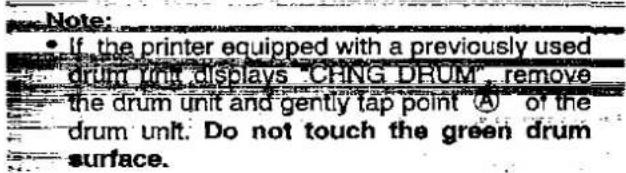
- Berühren Sie nicht die grüne Trommeloberfläche.
- Bewahren Sie die Trommeleinheit nicht in der Nähe von Staub oder Schmutz auf.
- Stellen Sie die Trommeleinheit nicht in Bereichen mit hoher Luftfeuchtigkeit auf und halten Sie sie von direktem Sonnenlicht fern.
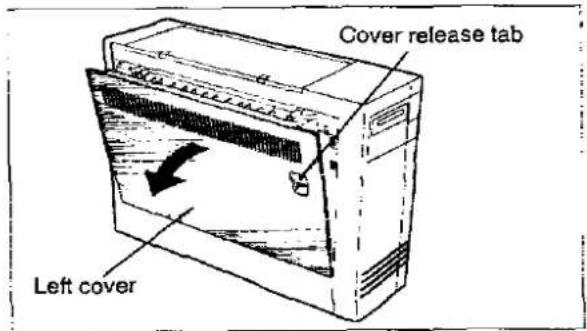
1 Öffnen Sie die linke Abdeckung, indem Sie die Entriegelungslasche der Abdeckung vorsichtig ziehen.
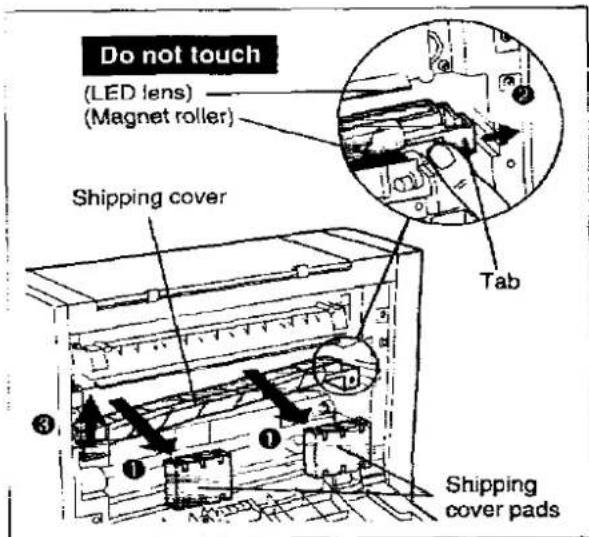
2 Entfernen Sie die Transportschutzpads, indem Sie sie zu sich hinziehen. ② Drücken Sie die Lasche der Transportschutzabdeckung fest nach rechts. ③ Heben Sie die linke Seite der Transportschutzabdeckung an und entfernen Sie sie, indem Sie sie zu sich hinziehen.
Hinweis:
- Legen Sie die Transportschutzabdeckung in den Transportschutzbeutel, um sicherzustellen, dass kein Tonerrückstand ausläuft. Legen Sie diesen Beutel und die Transportpads in den Aufbewahrungsbeutel und bewahren Sie sie für den Fall auf, dass der Drucker neu verpackt und transportiert werden muss. (S. 24 und S. 25)
3 Öffnen Sie den Schutzbeutel.
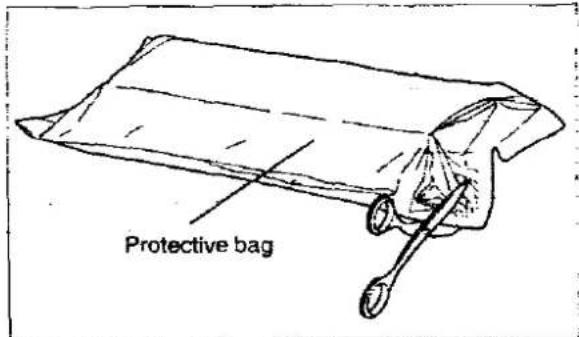
4 Nehmen Sie die Trommeleinheit heraus.
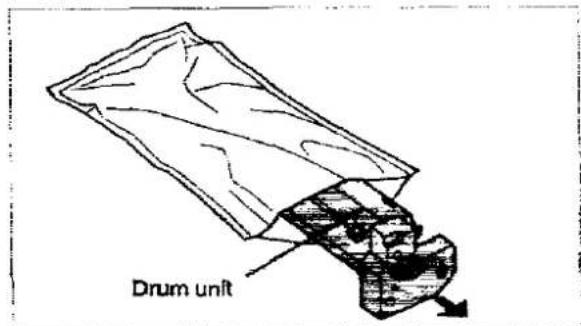
Hinweise:
- Setzen Sie die Trommeleinheit nicht länger als 5 Minuten Licht aus, da dies die Trommeleinheit beschädigen kann. * Legen Sie den Schutzbeutel in den Aufbewahrungsbeutel.
Die folgende Tabelle enthält die Informationen, die nicht verpackt und transportiert werden. (siehe S. 24)
5 Entfernen Sie die Trommelschutzkappe, indem Sie die rechte und linke Lasche zur Mitte drücken.
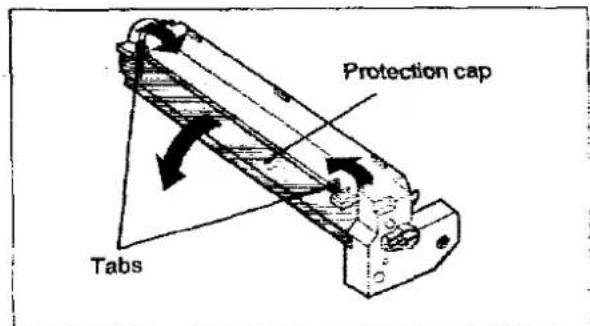
- Berühren Sie nicht die grüne Trommeloberfläche (unter der Schutzkappe), da dies die Trommeleinheit beschädigen kann. Legen Sie die Schutzkappe in den Aufbewahrungsbeutel und bewahren Sie sie für den Fall auf, dass der Drucker neu verpackt und transportiert werden muss. (S. 24)
6 Installieren Sie die Trommeleinheit, indem Sie die grün markierten Laschen halten und sie fest hineindrücken.
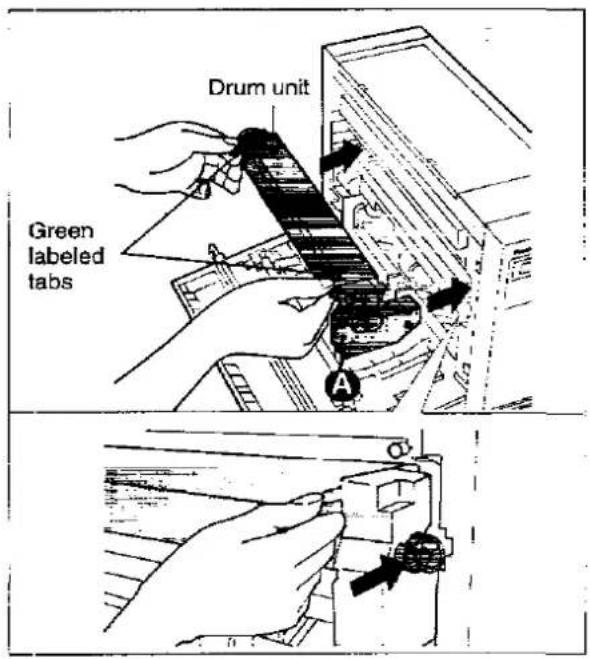
7 Schließen Sie die linke Abdeckung. Drücken Sie die linke Abdeckung vorsichtig an der mit "PUSH" markierten Stelle, um sie richtig zu schließen.
Anschließen und Einschalten
1. Anschließen von Drucker und Computer
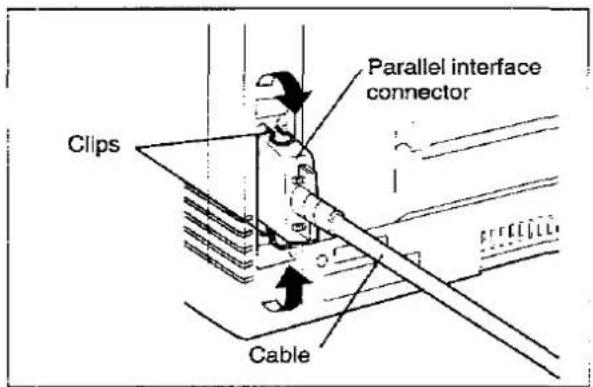
1 Schalten Sie sowohl den Drucker als auch den Computer aus. 2 Stecken Sie ein Ende des Kabels in den parallelen Schnittstellenanschluss des Druckers. Drücken Sie die Clips ein.
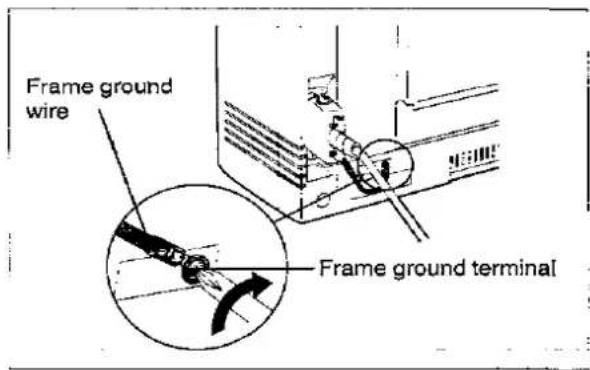
Wenn das Kabel ein Erdungskabel hat, schließen Sie es an die Rahmen-Erdungsklemme an.
3 Stecken Sie das andere Ende des Kabels in den Anschluss des Computers.
2. Einschalten
Stellen Sie sicher, dass der Drucker ausgeschaltet ist.
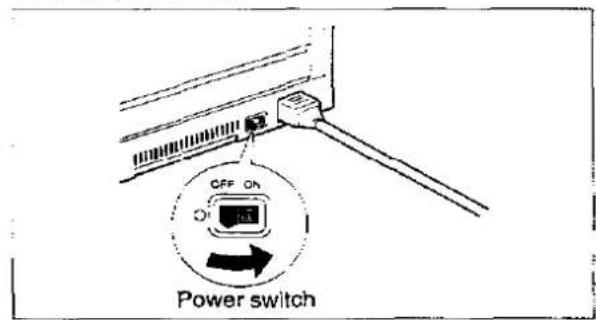
1 Schließen Sie das Netzkabel an den Netzanschluss des Druckers an.
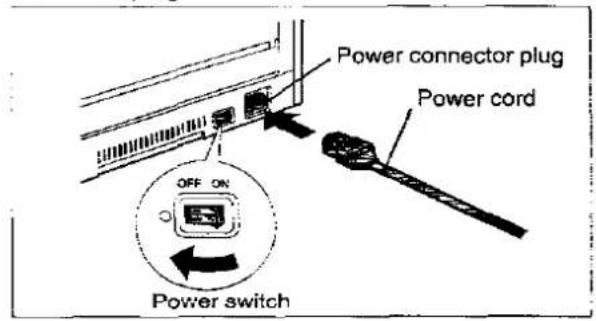
2 Stecken Sie das Netzkabel in eine dreipolige Steckdose.
3 Schalten Sie den Drucker ein.
4 Der Drucker wärmt sich auf.
AUFWÄRMEN 00
- Wenn kein Papier eingelegt ist, wird "PAPIER LEER U11" angezeigt. (5) unter "Papier einlegen", um das Papier einzulegen)
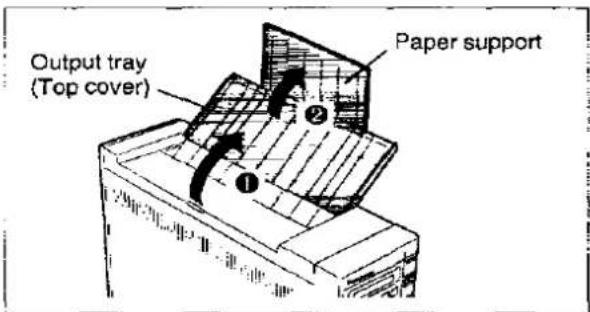
- Wenn das Ausgabefach (obere Abdeckung) nicht geöffnet ist, wird "JAM3/TOP COVER" angezeigt. Die Meldung wird gelöscht, nachdem das Ausgabefach (obere Abdeckung) geöffnet wurde.
5 Der Drucker ist bereit zum Drucken.
ON LINE 01
Papier einlegen
Dieser Drucker verfügt über ein Mehrzweck-Papierfach.
Die über das Bedienfeld oder Softwarebefehle ausgewählte Papiergröße sollte mit der Größe des Papiers im Papierfach übereinstimmen.
Wenn die ausgewählte Papiergröße von der eingelegten Papiergröße abweicht, kann es zu einem Papierstau kommen.
Hinweis:
- Lassen Sie den Drucker beim ersten Einrichten aufwärmen, bevor Sie das Papier einlegen. 1 ① Öffnen Sie das Ausgabefach (obere Abdeckung). ② Ziehen Sie die Papierablage heraus.
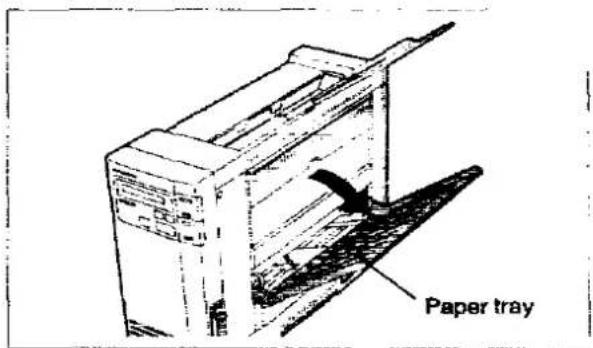
2 Öffnen Sie das Papierfach.
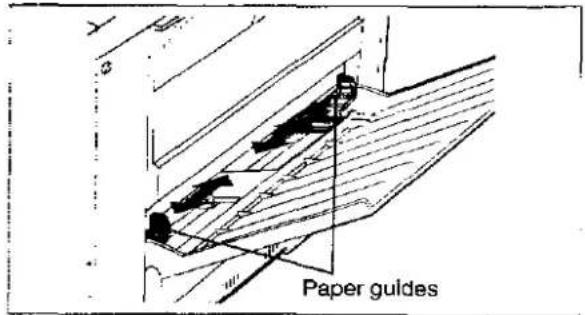
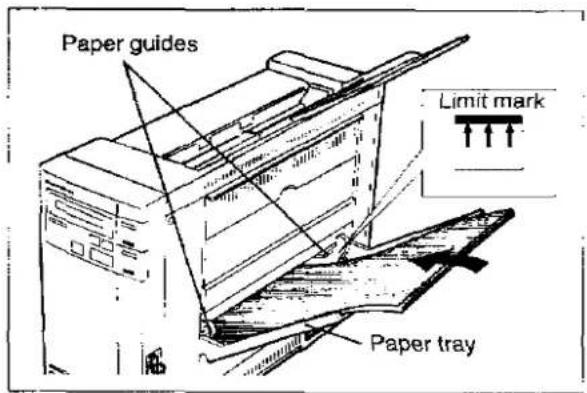
3 Schieben Sie die Papierführungen auf die ungefähre Breite Ihres Papiers. Beachten Sie die Größenangaben über den Papierführungen für die genaue Papierbreite.
4 Fächern Sie den Papierstapel auf, um einen Papierstau zu vermeiden.
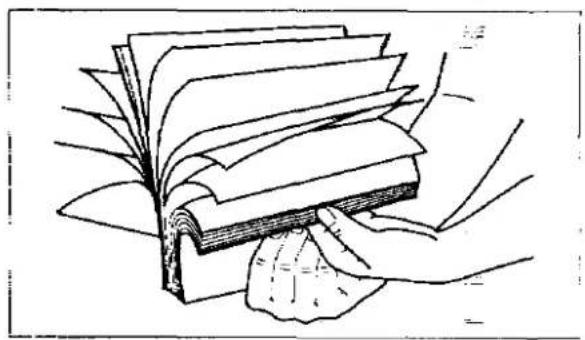
5 Legen Sie das Papier ordnungsgemäß in das Papierfach und stellen Sie die Papierführungen auf Ihre Papiergröße ein. Die Papierhöhe sollte die Begrenzungsmarkierung an der Papierführung nicht überschreiten, da dies einen Papierstau verursachen kann.
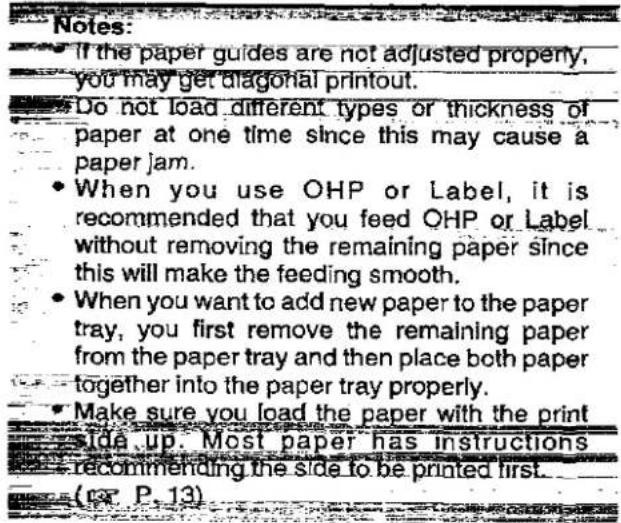
6 Wenn das Display nicht "ON LINE" anzeigt, drücken Sie [ON LINE], um den Druck vorzubereiten.
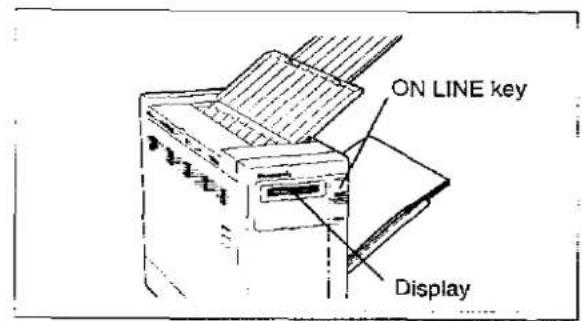
Das Display zeigt:
ON LINE 01
7 Wenn Sie das Papierformat ändern möchten, lesen Sie bitte die Seiten 16 und 19.
Das aktuelle Papierformat wird durch das Zeichen "▼" auf dem Display angezeigt.
![Hinweise: Nachdem Sie das Papierformat eingestellt haben, drücken Sie die Taste, um in den ON LINE-Modus zurückzukehren. Drucken Sie nicht mehr als 50 Blatt [75 g/m² (20 lbs)] auf einmal. Dies kann einen Papierstau verursachen.](/content/2026/05/794190/images/68c4004f68dc18c14123c03c30b9d9882292a39e2b7c837a875fd8cee1552810.jpg)
8 Nachdem Sie das Papier eingelegt haben, wird empfohlen, einen Testdruck durchzuführen. (S. 9 "Testdruck")
Testdruck
Ihr Panasonic-Drucker verfügt über eine Testdruckfunktion, um die Druckerkonfiguration und die aktiven Druckereinstellungen zu überprüfen.
Wir empfehlen, die Bedienungsabläufe zu befolgen, um sicherzustellen, dass der Drucker korrekt eingerichtet ist und eine hohe Ausgabequalität liefert.
![graph TD A["Press ON LINE"] --> B["OFF LINE 01"] B --> C["TEST"] C --> D["TEST"] D --> E["ENTER"] E --> F["STATUS PRINT"] F --> G["FONT LIST PRINT"] F --> H["CHARACTER PRINT"] H --> I["USER AVAIL RAM *"] I --> J["ENTER"] J --> K["**** KB FREE"] K --> L["ENTER"] L --> M["OFF LINE 01"] N["Press this k…](/content/2026/05/794190/images/60e9282650e2d9475dee900d36b9afd595f7c8b54a7378a80bafb57d6638d24d.jpg)
Um diesen Vorgang zu beenden: Drücken Sie, um in den ON LINE-Modus zurückzukehren.
* Diese Funktion zeigt die verbleibende Speicherkapazität an.

- Wenn Sie den Testdruck ausführen, während noch Daten im Drucker vorhanden sind, wird "CNANCEL JOB" für zwei Sekunden angezeigt und der Drucker druckt die Testseite nicht. Wenn dies auftritt, drücken Sie die PRINT-Taste, um die verbleibenden Daten zu drucken, und führen Sie dann den Testdruck über das Bedienfeld aus.
Software-Druckerauswahl
Dieser Vorgang ist der letzte Schritt vor dem Drucken und wird in Ihrem Anwendungssoftwareprogramm durchgeführt.
Die Schritte variieren je nach Softwareprogramm. Konsultieren Sie Ihre Software-Dokumentation für die richtigen Verfahren.
Der Panasonic KX-P4400 sollte Ihre erste Wahl sein. Wenn der Panasonic KX-P4400-Drucker jedoch nicht in Ihrer Software aufgeführt ist, müssen Sie eine Alternative aus der folgenden Tabelle auswählen.
| Emulation Mode |
| Panasonic KX-P4400 |
| Panasonic KX-P5400 (HP PCL) |
| Panasonic KX-P4410 |
| Panasonic KX-P4450i |
| Panasonic KX-P4420 |
| HP LaserJet Series IIP |
Beheben eines Papierstaus
Papierstaubereiche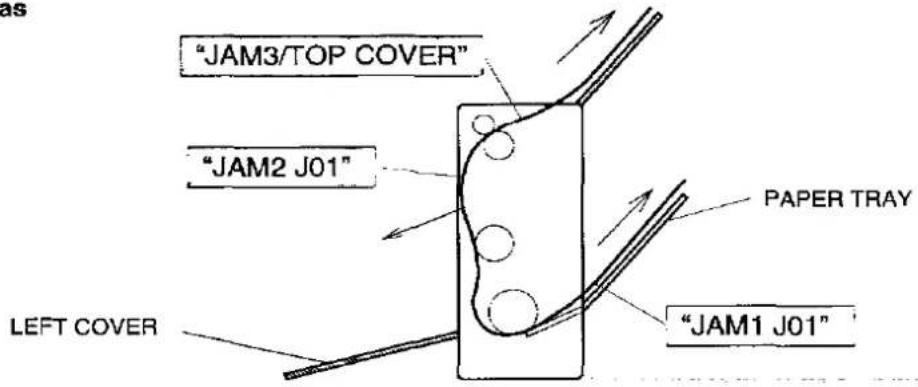
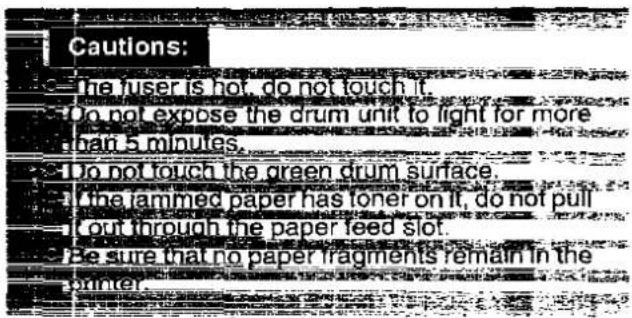
Hinweis:
- Wenn nach dem Beheben eines Papierstaus Flecken auf der Rückseite des bedruckten Papiers erscheinen, wird empfohlen, einige Testdrucke durchzuführen.
(13 S.9 Testdruck)
Wenn "STAU 1" angezeigt wird
1 Entfernen Sie den Papierstapel aus dem Papierfach und dann das gestaute Papier.
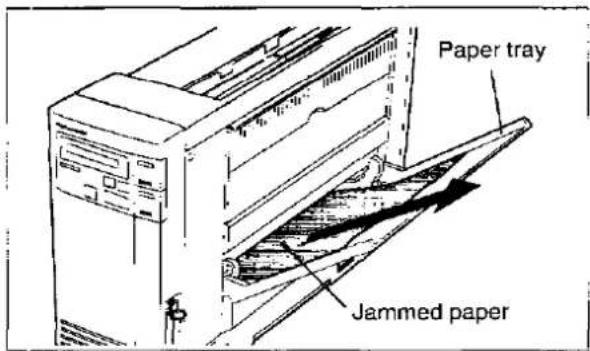
2 Legen Sie das Papier wieder ein und drücken Sie zum Fortsetzen.

zum Fortsetzen
Wenn "STAU 2" angezeigt wird
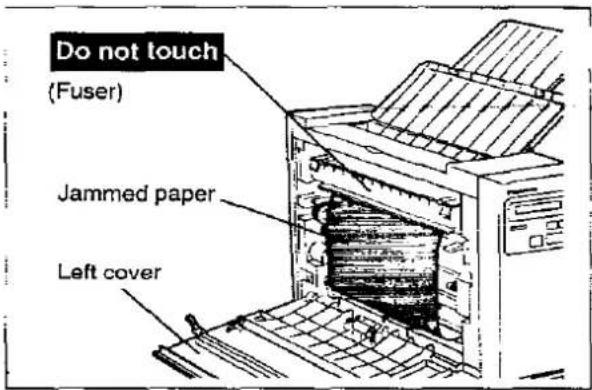
1 Öffnen Sie die linke Abdeckung und entfernen Sie das gestaute Papier.
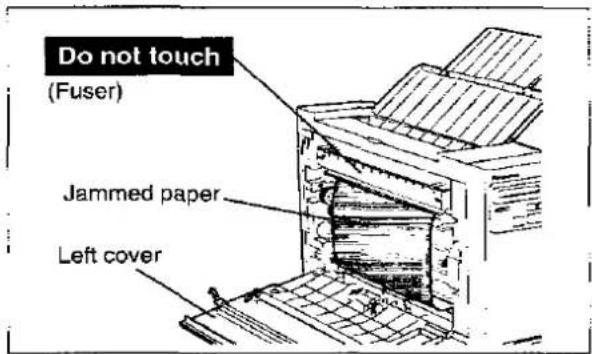
2 Schließen Sie die linke Abdeckung und drücken Sie zum Fortsetzen des Druckens.
Wenn "STAU 3/OBERE ABDECKUNG" angezeigt wird
1 Entfernen Sie das gestaute Papier, indem Sie es vorsichtig nach oben ziehen. Drücken Sie zum Fortsetzen des Druckens.
oder

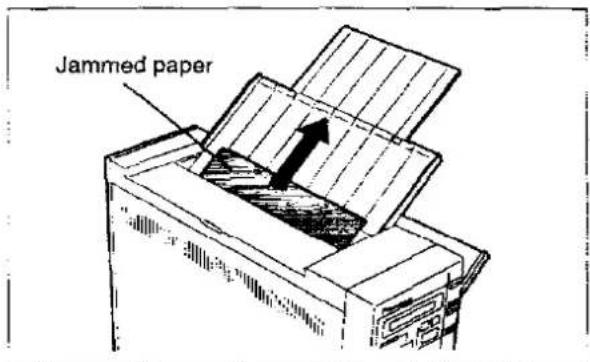
Öffnen Sie die linke Abdeckung und entfernen Sie das gestaute Papier. Schließen Sie dann die linke Abdeckung und drücken Sie, um den Druck fortzusetzen.

Technische Daten des Druckers
Druckverfahren: Elektrofotografische LED-Zeile
Druckgeschwindigkeit: maximal 4 Seiten pro Minute (ppm) (Letter-Format, Textmodus, 5% Bildfläche, alle Originale)
Auflösung: 300 Punkte pro Zoll (dpi)
Papierzufuhr: 1 Mehrzweck-Manuelleinzug für bis zu 100 Blatt Papier [75 g/m² (20 lbs.)]
Papierausgabe: Bis zu 50 Blatt Papier [75 g/m² (20 lbs.)]
Stromversorgung: Siehe Typenschild auf der Rückseite des Geräts
Software-Emulation: Panasonic LP (HP LaserJet Series IIP)
| Resident Fonts: | Courier 10; | Upright, Italic, Bold |
| Courier 12; | Upright, Italic, Bold | |
| Courier 15; | Upright, Italic | |
| Courier 17; | Upright, Italic | |
| Courier 20; | Upright | |
| Century PS; | Upright, Italic, Bold |
RAM-Puffer: 512 KB
(erweiterbar auf maximal 1,5 MB mit optionaler 1-MB-RAM-Karte, 2,5 MB mit optionaler 2-MB-RAM-Karte und 4,5 MB mit optionaler 4-MB-RAM-Karte)
Schnittstelle: Centronics-kompatibel parallel
Betriebsumgebung: 10 bis 32,5 °C {50 bis 90,5 °F}
20 bis 80 % relative Luftfeuchtigkeit
Lagerungsumgebung: 0 bis 35 °C [32 bis 95 °F]
10 bis 80 % relative Luftfeuchtigkeit
Abmessungen: 127 (B) × 381 (T) × 297 (H) mm {5,0" × 15,0" × 11,7"}
Gewicht: ca. 6,3 kg {13,9 lbs.}
Verbrauchsmaterial/Lebensdauer: Toner; durchschnittlich 1.600 Seiten
(5 % Bildfläche bei wiederholtem Druck von 10 Seiten)
Trommel: durchschnittlich 6.000 Seiten
(5 % Bildfläche bei wiederholtem Druck von 10 Seiten)
Papierspezifikationen
Dieser Drucker ist für die einwandfreie Verwendung mit den meisten Papiersorten ausgelegt. Unterschiede im Papier können jedoch erhebliche Auswirkungen auf die Druckqualität oder die Zuverlässigkeit der Papierzuführung haben. Es wird dringend empfohlen, Papier vor dem Kauf immer zu testen, um sicherzustellen, dass es die gewünschte Leistung erbringt. Die folgenden Richtlinien sind hilfreich.
Hinweis:
- Lagern Sie Ihr Papier gemäß den Empfehlungen des Herstellers.
Papierspezifikationen
| Basic Weight: | 60 to 120 g/m 2 (16 to 32 lbs.) |
| Thickness: | 3.7 to 7.5 mils (1 mil=1/1000") |
| Moisture Content: | 4% to 6% |
| Smoothness: | 100 to 300 Sheffield |
| Acid Content: | 5.5 PH minimum |
| Fusing Compatibility: | Must not scorch, melt, offset material, or release hazardous emissions when heated to 200°C (392°F) for 0.1 second |
| Cutting Dimensions: | ±0.0313 inch of nominal, comers 90°±4° |
| Grain: | Long grain |
| Cut Edge conditions: | Cut with sharp blades, no paper dust |
| Ash Content: | Not to exceed 10% |
| Curl: | No allowable curl toward side to be imaged (printed) |
| Packlng: | Polyaminated moisture proof ream wrap |
Zu vermeidende Papiersorten
- Extrem glattes oder glänzendes Papier oder Papier mit starker Struktur
- Gestrichene Papiere
- Briefköpfe mit Niedertemperatur- oder Thermografie-Druck. Diese Materialien können auf die Fixierwalze übertragen werden und Schäden verursachen. Jedes vorgedruckte Papier sollte Tinten verwenden, die für 200 °C (392 °F) für 0,1 Sekunde geeignet sind.
- Beschädigtes oder zerknittertes Papier oder Papier mit Unregelmäßigkeiten wie Laschen, Heftklammern usw.
- Mehrteilige Formulare oder kohlefreies Papier • Papier mit einem Baumwoll- und/oder Faseranteil von über 20 %
Druckbereich
Der Druckbereich bezieht sich auf den Bereich, in dem Texte und Abbildungen gedruckt werden können. Es gibt einen nicht bedruckbaren Bereich an den Rändern des Papiers, in dem Texte und Abbildungen nicht gedruckt werden können (im Folgenden durch den grauen Bereich dargestellt).
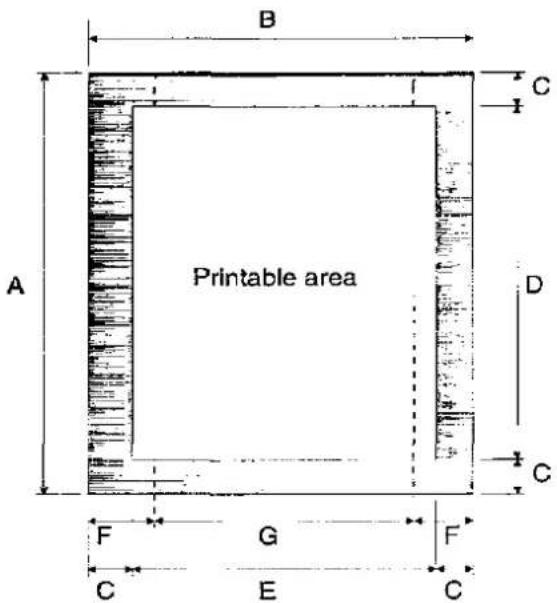
Hochformat
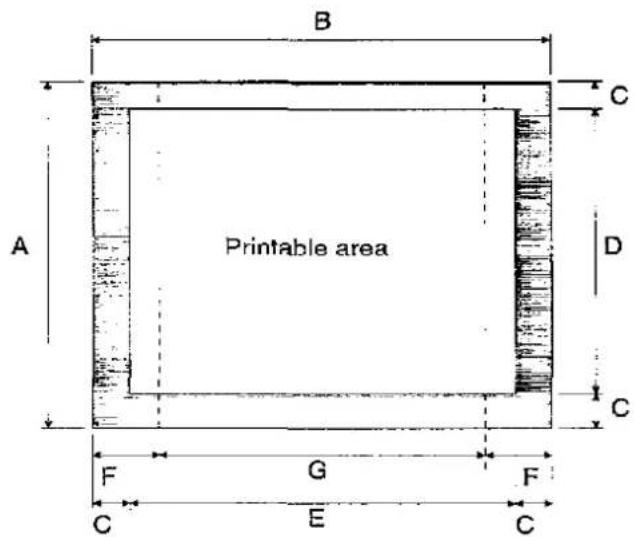
Querformat
☐: Nicht bedruckbarer Bereich
A: Papierlänge B: Papierbreite C: Abstand zwischen Papierkante und Druckbereich D: Länge des Druckbereichs
E: Breite des Druckbereichs F: Abstand zwischen Papierkante und logischer Seite G: Breite der logischen Seite
Größe des Druckbereichs – Hochformat-Druckmodus
| Paper Type | Paper Size | A (dots) | B (dots) | C (dots) | D (dots) | E (dots) | F (dots) | G (dots) |
| A4 | 210 × 297 mm | 3,507 | 2,480 | 50 | 3,407 | 2,380 | 71 | 2,338 |
| Letter | 215.9 × 279.4 mm | 3,300 | 2,550 | 50 | 3,200 | 2,450 | 75 | 2,400 |
| Legal | 215.9 × 355.6 mm | 4,200 | 2,550 | 50 | 4,100 | 2,450 | 75 | 2,400 |
| Executive | 184.1 × 266.7 mm | 3,150 | 2,175 | 50 | 3,050 | 2,075 | 75 | 2,025 |
(1 Punkt = 1/300")
Größe des Druckbereichs – Querformat-Druckmodus
| Paper Type | Paper Size | A (dots) | B (dots) | C (dots) | D (dots) | E (dots) | F (dots) | G (dots) |
| A4 | 210 × 297 mm | 2,480 | 3,507 | 50 | 2,380 | 3,407 | 59 | 3,389 |
| Letter | 215.9 × 279.4 mm | 2,550 | 3,300 | 50 | 2,450 | 3,200 | 60 | 3,180 |
| Legal | 215.9 × 355.6 mm | 2,550 | 4,200 | 50 | 2,450 | 4,100 | 60 | 4,080 |
| Executive | 184.1 × 266.7 mm | 2,175 | 3,150 | 50 | 2,075 | 3,050 | 60 | 3,030 |
(1 Punkt = 1/300")
Drucken von OHP-Folien und Etiketten
Sie können auch auf Etiketten und Folien drucken, die für Drucker geeignet sind. Panasonic hat getestet und festgestellt, dass die folgenden zufriedenstellend funktionieren.
OHP-Folie
PP2500
Etiketten
AVERY 5351, AVERY XS6016
AVERY ACL01, ACL08, ACL16, ACL24, ACL33
Avery Graphic
LG703724, LG704221, LG1053716, LG1054214
Avery Kopieretiketten (70 × 36 mm)
Avery Weiß (105 × 37 mm) 16 Etiketten pro Blatt
COPY TACK C-16, C-24
ESSELTE DATALINE,
ESSELTE KOPIETIKETTER
15914, 15917, 15920, 15922
FASTONALL COPY-LINE
18-030, 18-033, 18-034, 18-035, 18-036, 18-037
HERMA Copy-print 4455, 4464
Hinweis:
- Bei jedem Etikettenmaterial müssen die Etiketten das Trägermaterial vollständig bedecken.
JA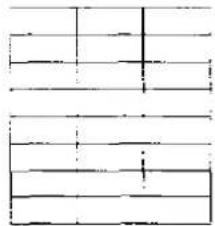
Etiketten bedecken das gesamte Trägermaterial
NEIN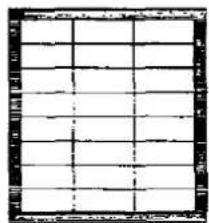
Das Trägermaterial ist freigelegt.
Bedrucken von gebrauchtem Papier
Doppelseitiger Druck ist möglich. Sie sollten jedoch nicht die gleiche Druckqualität und Zuverlässigkeit erwarten wie beim einseitigen Druck. Wir empfehlen dringend, die folgenden Richtlinien zu beachten.
- Verwenden Sie Papier mit 75 bis 90 g/m² (20 bis 24 lb). Verwenden Sie kein Papier mit 60 g/m² (16 lb).
- Legen Sie nicht mehr als 50 Blatt in das Papierfach.
- Stellen Sie das Papier vor dem Einlegen in das Fach so ein, dass die Kanten bündig sind.
Bedienfeld-Betrieb
Sie können den Menümodus aufrufen, indem Sie die MENÜ-Taste im BEREIT-Modus drücken. Der Menümodus besteht aus einem Hauptmenü und Ebenen, die es Ihnen ermöglichen, die gewünschte Einstellung auszuwählen.
![graph TD A["Display"] --> B["ON LINE 01"] B --> C["OFF LINE 01"] C --> D["MENU"] D --> E["Main Menu"] E --> F["TEST COPY FONT PAPER SIZE OTHER RESET"] F --> G["ENTER"] H["Level 1"] --> I["Selection 1"] H --> J["Selection 2"] H --> K["Selection 3"] L["Level 1"] --> M["Level 2, --- ENTER"]](/content/2026/05/794190/images/2d7a7b13965812c25943c7191b90cd6628b482f533d336f2b707eb4247a2222a.jpg)

: Sie können den ON LINE- oder OFF LINE-Modus durch Drücken dieser Taste aufrufen.

: Sie können das Hauptmenü durch Drücken dieser Taste aufrufen.

: Sie können die nächste Auswahl anzeigen, indem Sie diese Taste weniger als 2 Sekunden lang drücken.

: Sie können die vorherige Auswahl anzeigen, indem Sie diese Taste weniger als 2 Sekunden lang drücken.

: Sie können Ihre Auswahl aktivieren oder zur nächsten Ebene wechseln, indem Sie diese Taste drücken.
Zum Beenden des Betriebs: Drücken Sie

um zum ON LINE-Modus zurückzukehren.
Menümodus-Betrieb
| Main Menu | Level 1 | Level 2 | Level 3 |
| COPY | NUM OF COPY | COPY= ** | Factory default setting of the number of copies is "01". |
| VERIFY | OFF | ||
| ON | |||
| FONT | RESIDENT | COURIER 10 | (£) next page) |
| COURIER 10 BOLD | |||
| COURIER 10 ITA. | |||
| COURIER 12 | |||
| COURIER 12 BOLD | |||
| COURIER 12 ITA. | |||
| COURIER 15 | |||
| COURIER 15 ITA. | |||
| COURIER 17 | |||
| COURIER 17 ITA. | |||
| COURIER 20 | |||
| CENTURY PS | |||
| CENTURY PS BOLD | |||
| CENTURY PS ITA. | |||
| ZERO CHARACTER | 0 | ||
| 0 | |||
| 0 | |||
| FONT GROUP | FONT GROUP 1 | The RESIDENT is displayed when downloaded fonts are not available. | |
| FONT GROUP 2 | |||
| FONT GROUP 3 | |||
| SOFT FONT | SOFT FONT ### | The SOFT FONT is displayed only when downloaded fonts are available. Symbol set menu will be displayed according to the font type selected in Level 2. |
(Fortsetzung)
Symbolsätze
| Level 3 | Symbol sets |
| 8U | Roman-8 |
| ∅U | ISO 6: US ASCII |
| ∅E | Roman-8 Extensions |
| 2U | ISO 2: International Reference Version |
| 1E | ISO 4: United Kingdom |
| ∅F | ISO 25: ISO French |
| 1F | ISO 69: ISO French |
| ∅G | German |
| 1G | ISO 21: ISO German |
| ∅1 | ISO 15: ISO Italian |
| ∅K | ISO 14: JIS ASCII |
| 2K | ISO 57: ISO Chinese |
| 3S | ISO 10: ISO Swedish/Finnish |
| ∅S | ISO 11: ISO Swedish: names |
| 1S | Spanish |
| 2S | ISO 17: ISO Spanish |
| 6S | ISO 65: ISO Spanish: IBM |
| 4S | ISO 16: ISO Portuguese |
| 5S | ISO 84: ISO Portuguese: IBM |
| ∅D | ISO 60: ISO Norwegian Version 1 |
| 1D | ISO 61: ISO Norwegian Version 2 |
| ∅N | ISO 100: ECMA-94 (Latin 1)If you select SOFT FONT, these are not displayed. |
| 1∅U | PC-8 |
| 11U | PC-8 Danish/Norwegian |
| 12U | PC-850 |
| 1U | Legal |
(□=Werksvoreinstellung)
Schriftgruppen
| Fonts | Font Groups | ||
| 1 | 2 | 3 | |
| Courier 10 | A | A | A |
| Courier 10 Bold | A | A | A |
| Courier 10 Italic | A | A | A |
| Courier 12 | A | A | A |
| Courier 12 Bold | A | A | A |
| Courier 12 Italic | A | A | A |
| Courier 15 | A | A | — |
| Courier 15 Italic | A | A | — |
| Courier 17*1 | A | A | A |
| Courier 17*1 Italic | A | A | — |
| Courier 20 | A | A | — |
| Century PS | A | — | — |
| Century PS Bold | A | — | — |
| Century PS Italic | A | — | — |
(A=aktiv / —=nicht aktiv) +1 Courier 17 ist tatsächlich 16,66 cpi.
Schriftgruppe 1 wählt alle residenten Schriften aus. Schriftgruppe 2 wählt alle residenten Schriften außer Century aus.
Schriftgruppe 3 wählt die residenten Schriften des HP LaserJet Series IIP aus.
| Main Menu | Level 1 | Level 2 | Level 3 | Level 4 | Level 5 |
| PAPER SIZE | A4 | PORTRAIT | ORIGIN X | *** DOT COLUMNS | |
| ORIGIN Y | *** DOT ROWS | ||||
| LINES PER INCH | ** LPI | ||||
| PAGE LENGTH | # OF INCHES | *** INCHES | |||
| # OF LINES | *** LINES | ||||
| PAGE WIDTH | # OF INCHES | *** INCHES | |||
| # OF COLUMNS | *** COLUMNS | ||||
| TOP MARGIN | # OF INCHES | *** INCHES | |||
| # OF LINES | *** LINES | ||||
| BOTTOM MARGIN | # OF INCHES | *** INCHES | |||
| # OF LINES | *** LINES | ||||
| LEFT MARGIN | # OF INCHES | *** INCHES | |||
| # OF COLUMNS | *** COLUMNS | ||||
| RIGHT MARGIN | # OF INCHES | *** INCHES | |||
| # OF COLUMNS | *** COLUMNS | ||||
| LANDSCAPE | Same selections as PORTRAIT mode. | ||||
| EXECUTIVE | Same selections as A4 mode. | ||||
| LETTER | |||||
| LEGAL | |||||
| OTHER | PWR ON STAT PRT | OFF | |||
| ON | |||||
| POWER SAVE | ON | 15 MINUTES | |||
| 30 MINUTES | |||||
| 1 HOUR | |||||
| OFF | |||||
| HEX DUMP | OFF | ||||
| ON | |||||
| DATA TIME OUT | ON | ***SEC | |||
| OFF | |||||
| AUTO CONTINUE | OFF | ||||
| ON | |||||
| DENSITY | MEDIUM | ||||
| DARK | |||||
| LIGHT | |||||
| PERMANENT SAVE | NO | ||||
| YES | |||||
| LANGUAGE | ENGLISH | ||||
| FRENCH | |||||
| GERMAN | |||||
| SPANISH | |||||
| ITALIAN | |||||
(□=Werkseinstellung)
Zurücksetzen des Druckers
Drücken Sie

für mehr als 2 Sekunden.
| Level 1 | Level 2 |
| RESET | USER DEFAULT |
| CLEAR BUFFER | |
| CLEAR SOFT FONTS | |
| CLEAR MACROS | |
| FACTORY DEFAULT |
Wartung
Reinigen des Druckers
Es wird empfohlen, den Drucker regelmäßig zu reinigen. Die Reinigungshäufigkeit hängt von der Umgebung ab. Sie sollten den Drucker reinigen:
• mindestens einmal im Monat. - wenn Sie eine neue Trommeleinheit installieren. - wenn Probleme wie unscharfer Druck oder Flecken auf dem Papier auftreten.
Außenseite des Druckers
1 Schalten Sie das Gerät aus. 2 Reinigen Sie die Abdeckung mit einem weichen Tuch. Verwenden Sie ein mildes handelsübliches Reinigungsmittel.
Innenseite des Druckers
1 Schalten Sie das Gerät aus. 2 Öffnen Sie die linke Abdeckung. 3 Reinigen Sie die folgenden Bereiche mit einem trockenen Tuch oder einem Wattestäbchen. Mit einem trockenen Tuch - Klemmrolle - Einzugsrolle - Übertragungsrolle • Papierführung (Papierstaub)
Mit einem Wattestäbchen
- Wischen Sie den Wolframdraht vorsichtig ab, indem Sie ein Wattestäbchen 4 bis 5 Mal von einem Ende zum anderen führen.
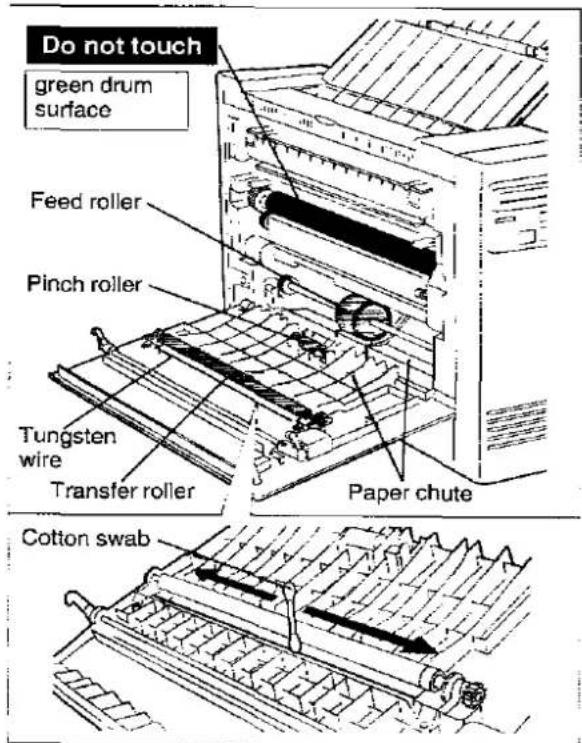
Vorsicht:
Der Drucker muss vor der Reinigung ausgeschaltet sein. Reinigen Sie die Fixiereinheit nicht mit hartem Material, da Sie sonst die Fixierwalze beschädigen könnten. Setzen Sie die Trommeleinheit nicht länger als 5 Minuten Licht aus. Berühren Sie nicht die grüne Trommeloberfläche.
4 Schließen Sie die linke Abdeckung.
Fehlerbehebung
Viele Probleme im Zusammenhang mit dem Drucker lassen sich auf unsachgemäße Einrichtung, Installation oder Verkabelung zurückführen. Die auf dem Display angezeigten Fehlermeldungen (S. 22) und die folgenden Tabellen helfen dem Benutzer, einige der häufigsten Probleme zu erkennen und zu beheben.
| Trouble | Possible Cause | Corrective Action |
| Printer not printing and no message in display | No AC power | Check power cord. |
| Power on but printer not printing data | Printer not ON LINE | Press ON LINE key. |
| Interface cable not connected | Check interface cable. | |
| Front panel keys not operational | Printer not OFF LINE | Press ON LINE key. |
| Paper jam occurs continually | Paper size selected by the front panel or software commands is different from the installed paper size | Select the correct paper size through the front panel. (P. 19) |
| Stains on paper | Dirty paper path | Clean paper path. (P. 20) |
| Vertical line on paper | Dirty paper path | Clean paper path. (P. 20) |
| Dirty tungsten wire | Clean tungsten wire. (P. 20) | |
| Scratch on drum | Replace drum. | |
| Scratch on fuser roller | Replace fuser.The printer requires service by an Authorized Panasonic Service Center. | |
| Very faint print | Print density not adjusted | Select the proper print density. (P. 19) |
| Abnormal transfer corona current | Replace transfer corona.The printer requires service by an Authorized Panasonic Service Center. | |
| "JAM3/TOP COVER" message appears on the display | Output tray (top cover) not opened or paper jam occurred | Open output tray (top cover) or remove jammed paper. |
| "REMAINING DATA" and "OFF LINE" or "ON LINE" messages appear on the display alternately | Remaining data still in the buffer | Press ON LINE or PRINT key. |
| "CALL SERVICE" message appears on the display, no display or the printer does not function properly | Internal errors | If one of these error appears, turn the power off for a few seconds then on again.If the error continues, service by an Authorized Panasonic Service Center is required. |
Fehlermeldung
| Error Message | Error Code | Possible Cause | Recovery |
| PAPER EMPTY | U11 | Paper is empty | Load paper in paper tray. (E3 P. 7) |
| LOAD LGL | U14 | Printer requires Legal paper | Load Legal paper and then set to Legal size in PAPER SIZE Menu of force printing by the ON LINE key. |
| LOAD LTR | U15 | Printer requires Letter paper | Load Letter paper and then set to Letter size in PAPER SIZE Menu of force printing by the ON LINE key. |
| LOAD EXEC | U16 | Printer requires Executive paper | Load Executive paper and then set to Executive size in PAPER SIZE Menu of force printing by the ON LINE key. |
| LOAD A4 | U17 | Printer requires A4 paper | Load A4 paper and then set to A4 size in PAPER SIZE Menu of force printing by the ON LINE key. |
| CHNG TONER | U20 | Toner is low in the toner cartridge (Printing is possible) | Change toner cartridge. |
| TONER EMPTY | U21 | Over 50 copies tried with "CHNG TONER U20" displayed (Printing is not possible. It is possible to print 50 copies with only 5% image area. If dense or complex printing is attempted, it may not be possible to print 50 copies.) | Change toner cartridge. |
| CHNG DRUM | U27 | Drum unit needs to be replaced | Install new drum unit. The printer will enable approximately 50 pages print-out after the message is displayed. And then the printer will automatically stop printing. |
| CHK OPC/DOOR | U29 | Drum unit is not installed correctly or door is open | Install drum unit or close the door. |
| BUFFER FULL | U35 | Receive buffer overflow | Power off then on. |
| RAM OVERFLOW | U36 | Page overflow, image overflow or download overflow has occurred | Press ON LINE key. |
| PAGE FORMAT | U37 | Overrun has occurred | Press ON LINE key. |
| RE-DO FORMAT | U38 | Format designation from Format menu is not correct | Reset format. |
Anweisungen zum Wiederverpacken
Es wird dringend empfohlen, den Originalkarton und das gesamte Verpackungsmaterial aufzubewahren. Falls Sie den Drucker transportieren oder versenden müssen, befolgen Sie bitte diese Anweisungen.
Bitte beachten Sie:
- Verwenden Sie den Originalkarton und das gesamte Originalverpackungsmaterial. Wenn Sie das Originalverpackungsmaterial nicht haben, ist ein Versandset von Panasonic erhältlich. Bitte kontaktieren Sie Ihren Händler und fordern Sie es an.
- Unsachgemäßes Wiederverpacken des Druckers kann zu einer Servicegebühr für die Reparatur des Geräts oder einer Reinigungsgebühr für das Entfernen von verschüttetem Toner führen.
- Da der Drucker Trockentoner verwendet, muss beim Umgang mit ihm äußerste Vorsicht geboten sein. Der Drucker sollte in aufrechter (vertikaler) Position gehandhabt werden.
Erforderliches Material:
• Original-Druckerkarton und Verpackungsmaterial • Original-Trommeleinheitenkarton und Verpackungsmaterial • Zeitungspapier oder Abdecktuch • Versandband und Schere
1 Trennen Sie den Drucker von der Steckdose und vom Drucker-/Computerkabel. 2 Breiten Sie Zeitungspapier oder ein Abdecktuch unter dem Gerät aus, um den Arbeitsbereich sauber zu halten. 3 Schließen Sie die Papierablage und das Ausgabefach (obere Abdeckung).
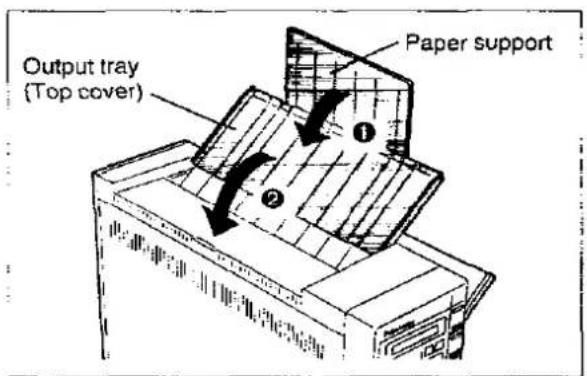
4 Versiegeln der Tonerkartusche:
① Öffnen Sie die Tonerkartuschentür. Wenn Sie den Schlitz auf der rechten Seite der Tonerkartusche nicht mit dem mitgelieferten Dichtungsband abgedeckt haben, reinigen Sie den Bereich um den Schlitz, bevor Sie das Band anbringen.
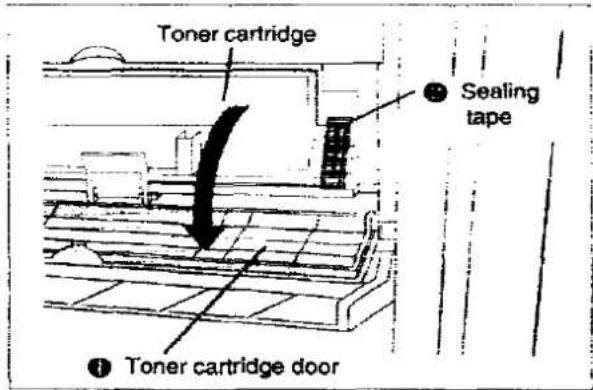
Installieren Sie die Tonerkartuschenpads. ④ Schließen Sie die Tonerkartuschentür und die Papierkassette.
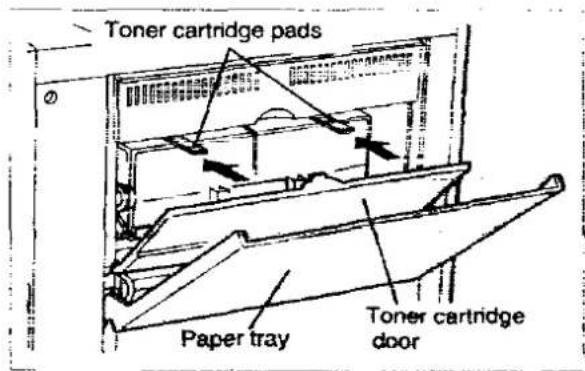
5 Verpacken der Trommeleinheit:
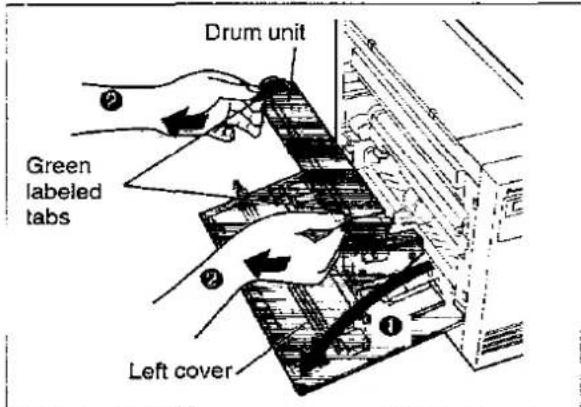
① Öffnen Sie die linke Abdeckung. Entfernen Sie die Trommeleinheit, indem Sie beide grün gekennzeichneten Laschen leicht anheben und die Trommeleinheit zu sich hin ziehen.
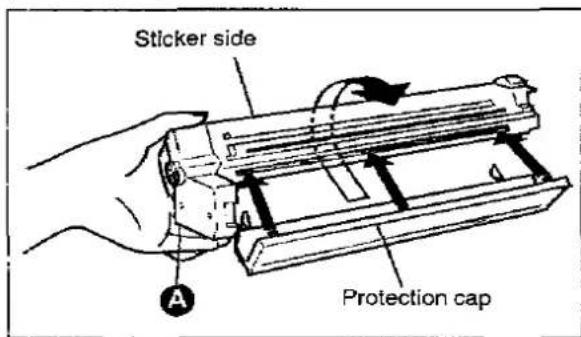
③ Setzen Sie die Trommelschutzkappe wieder auf die Trommeleinheit. Legen Sie die Trommeleinheit immer mit der Aufkleberseite nach oben, da der Drucker sonst möglicherweise nicht ordnungsgemäß funktioniert. 4 Legen Sie die Trommeleinheit in den Schutzbeutel und verpacken Sie sie im Originalkarton der Trommeleinheit.
Die Trommeleinheit sollte zusammen mit dem Drucker im Druckerkarton verpackt werden.
6 Abdichten der Entwicklereinheit:
Setzen Sie die linke Klemme der Versandabdeckung auf die Welle der Entwicklereinheit und drücken Sie sie fest.
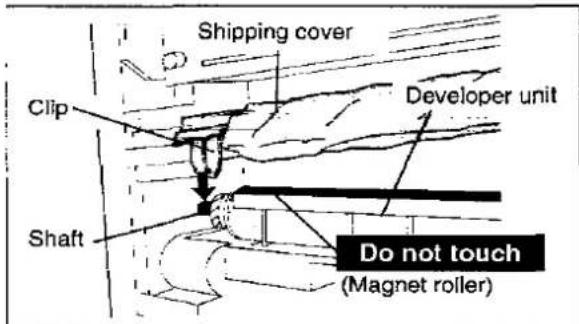
② Drücken Sie die rechte Seite der Versandabdeckung fest und führen Sie die Lasche der Entwicklereinheit in den Schlitz ein.
Ein Klickgeräusch ist zu hören.
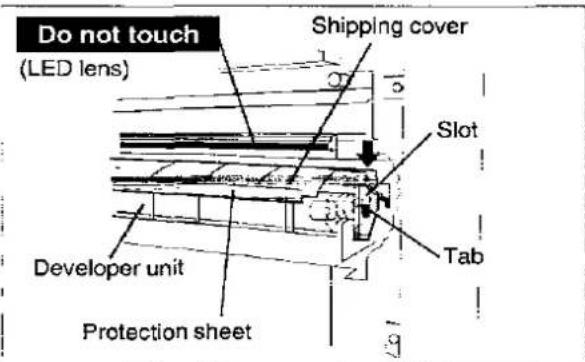
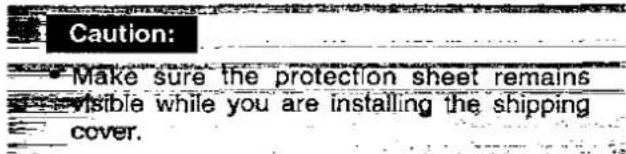
③ Setzen Sie beide Versandabdeckungspads gerade zwischen die Versandabdeckung und die Fixiereinheit ein.
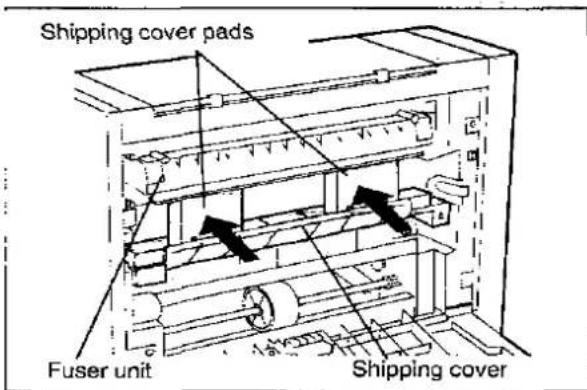
Die Pads sollten in den Aussparungen der Versandabdeckung platziert werden, die den grünen Etiketten entsprechen, wie in der Abbildung unten gezeigt.
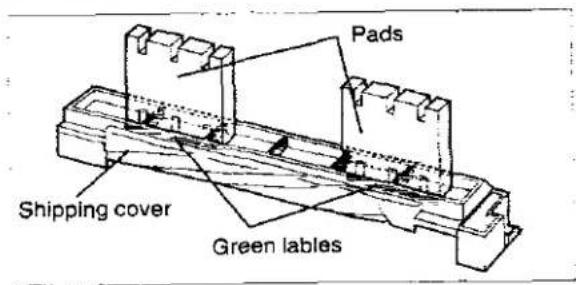
7 Schließen Sie die linke Abdeckung. 8 Entfernen Sie die Druckerständer und bringen Sie sie wieder in ihre ursprüngliche Position. (S. 4)
9 Verpacken des Druckers:
① Wickeln Sie den Drucker in die schützende Polyethylenfolie. ② Setzen Sie den Drucker in die vorderen (F) und hinteren (R) Schaumstoffpads ein. ③ Legen Sie den Drucker und den Karton der Trommeleinheit in den Originalkarton. ④ Verschließen Sie den Karton mit Plastikversandband.
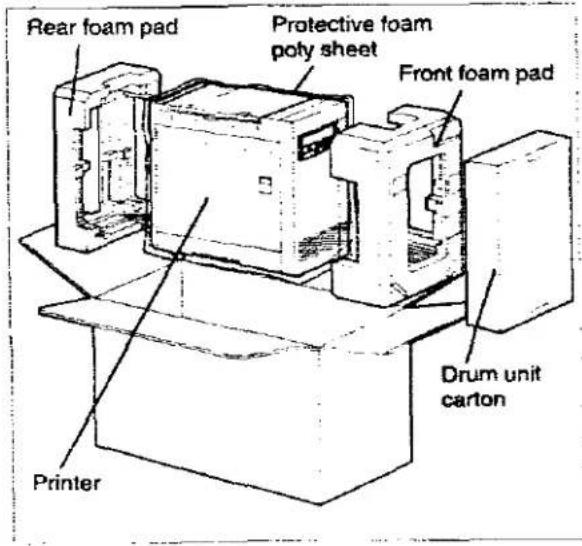
Zeichentabellen
Zeichensatz: Roman-8
| Dec. | 0 | 16 | 32 | 48 | 64 | 80 | 96 | 112 | 128 | 144 | 160 | 176 | 192 | 206 | 224 | 240 | |
| Hex | 0 | 1 | 2 | 3 | 4 | 5 | 6 | 7 | 8 | 9 | A | B | C | D | E | F | |
| 0 | 0 | SP | 0 | ∅ | P | - | p | - | å | Å | Å | p | |||||
| 1 | 1 | 1 | A | O | a | q | Å | ÿ | å | i | Å | P | |||||
| 2 | 2 | 2 | B | R | b | ? | Å | ÿ | å | ∅ | å | . | |||||
| 3 | 3 | 3 | C | S | c | s | È | ° | û | Æ | D | μ | |||||
| 4 | 4 | 4 | D | T | d | t | È | Ç | å | å | ø | ¶ | |||||
| 5 | 5 | 5 | E | U | e | u | È | ç | é | í | í | ÿ | |||||
| 6 | 6 | & | F | V | f | v | î | Ñ | ó | ø | î | - | |||||
| 7 | 7 | 7 | G | W | g | w | î | ñ | û | ø | Ó | 1⁄2 | |||||
| 8 | 8 | BS | ( 8 | H | X | h | x | · | i | å | Ä | Ö | 1⁄2 | ||||
| 9 | 9 | HT | 9 | I | Y | i | y | · | ¿ | ø | i | Ö | " | ||||
| 10 | A | LF | : | J | Z | j | z | · | ø | Ö | ð | ø | ° | ||||
| 11 | B | VT ESG | - | K | [ | k | [ | £ | ù | Ü | Š | " | |||||
| 12 | C | FF | < | L | \ | l | - | ¥ | å | É | š | ■ | |||||
| 13 | D | CR | - | = | M | ] | m | ] | Ù | § | è | ɪ | Ù | ." | |||
| 14 | E | SO | > | N | ^ | n | - | Ù | f | ó | ß | ÿ | = | ||||
| 15 | F | SI | / | ? | O | _ | o | 搬 | £ | c | ū | Ö | ÿ | ||||
Zeichensatz: PC-8
| Dec. | 0 | 16 | 32 | 48 | 64 | 80 | 96 | 112 | 128 | 144 | 160 | 176 | 192 | 206 | 224 | 240 | |
| Hex. | 0 | 1 | 2 | 3 | 4 | 5 | 6 | 7 | 8 | 9 | A | B | C | D | E | F | |
| 0 | 0 | ▶ | SP | 0 | @ | P | · | p | Ç | È | à | - | ⊥ | α | = | ||
| 1 | 1 | ⩽ | ◀ | ! | 1 | A | Q | a | q | ü | æ | í | ¶ | ⊥ | 〒 | ß | ± |
| 2 | 2 | ● | ↓ | 2 | B | R | b | r | é | Æ | ó | ¶ | T | Т | Γ | ≥ | |
| 3 | 3 | ♥ | !! | # | 3 | C | S | c | s | á | ð | ü | | | L | π | ≤ | |
| 4 | 4 | ♦ | ↑ | S | 4 | D | T | d | t | ä | ð | ñ | † | - | L | Σ | ∫ |
| 5 | 5 | ♠ | § | % | 5 | E | U | e | u | à | ð | Ñ | ‡ | + | Γ | σ | ∫ |
| 6 | 6 | ♠ | ~ | & | 6 | F | V | f | v | é | û | ▪ | ▪ | + | π | μ | + |
| 7 | 7 | ● | ˆ | 7 | G | W | g | w | ¢ | ù | ° | ° | |- | ‡ | ▪ | = | |
| 8 | 8 | ☐ | ↑ | ( | 8 | H | X | n | x | é | ÿ | ¿ | ? | ⊥ | ‡ | Φ | ° |
| 9 | 9 | ¢ | _ | ) | 9 | I | Y | i | y | é | Ö | r | ▪ | Γ | J | Θ | • |
| 10 | A | ■ | → | · | : | J | Z | j | z | è | Ü | ¬ | ▪ | ± | Γ | Ω | • |
| 11 | B | ♂ | ← | + | · | K | I | k | { | i | c | ½ | ° | 〒 | ¶ | δ | √ |
| 12 | C | ♀ | _ | , | < | L | \ | l | l | l | £ | ¥ | ÷ | | | ■ | ∞ | ° |
| 13 | D | ◇ | ↔ | _ | ≈ | M | ¡ | m | } | i | ¥ | ; | - | = | ¶ | φ | 2 |
| 14 | E | :. | ▲ | • | > | N | ^ | n | - | Å | Pl | - | ∫ | | | ¶ | € | ■ |
| 15 | F | ◦ | ▼ | : | ? | O | _ | o | △ | Å | f | - | ? | ± | ■ | ○ | |
Zeichensatz: PC-8 (D/N)
| Dec. | 0 | 16 | 32 | 48 | 64 | 80 | 96 | 112 | 128 | 144 | 160 | 176 | 192 | 208 | 224 | 240 | |
| Hex. | 0 | 1 | 2 | 3 | 4 | 5 | 6 | 7 | 8 | 9 | A | B | C | D | E | F | |
| 0 | 0 | ▶ | SP | 0 | @ | P | ` | p | Ç | É | á | L | L | α | = | ||
| 1 | 1 | ≡ | ◀ | ! | 1 | A | Q | a | q | ö | ae | í | ÷ | = | β | = | |
| 2 | 2 | ● | ⊂ | ` | 2 | B | R | b | r | é | Æ | ó | - | - | Γ | ≥ | |
| 3 | 3 | ♥ | !! | # | 3 | C | S | c | s | â | ô | ú | + | L | π | ≤ | |
| 4 | 4 | ♦ | ¶ | 4 | D | T | d | t | ä | ö | ñ | - | - | L | \Sigma | ` | |
| 5 | 5 | ♣ | § | % | 5 | E | U | e | u | à | ò | Ñ | = | - | = | \sigma | .. |
| 6 | 6 | ♠ | - | & | 6 | F | V | f | v | à | ù | ð | | | F | r | \mu | + |
| 7 | 7 | • | ˆ | ` | 7 | G | W | g | w | ç | ù | Ó | - | | | || | τ | = |
| 8 | 8 | □ | ↑ | ( | 8 | H | X | h | x | ê | ÿ | ¿ | ? | = | ‡ | \Phi | ^ |
| 9 | 9 | ○ | ↓ | ) | 9 | I | Y | i | y | ē | Ó | ä | ? | - | ⊥ | \Theta | • |
| 10 | A | ■ | → | * | : | J | Z | j | z | è | Ü | Ä | = | - | \Omega | .. | |
| 11 | B | ♂ | ← | + | ; | K | [ | k | ī | ø | l | ? | = | ■ | δ | √ | |
| 12 | C | ♀ | - | , | < | L | \ | | | ↑ | £ | 'n | ⊥ | = | ■ | ∞ | ? | |
| 13 | D | ; | ↔ | - | = | M | ] | m | ì | ∅ | ì | ⊥ | = | ■ | \phi$ | z | |
| 14 | E | J; | ▲ | • | > | N | ^ | n | - | Ä | L; | s | = | == | ■ | € | ■ |
| 15 | F | ∅ | ▼ | / | ? | O | _ | o | △ | Ä | I; | ☐ | - | = | ■ | ∩ | |
Zeichensatz: ECMA-94
| Dec. | 0 | 16 | 32 | 48 | 64 | 80 | 96 | 112 | 128 | 144 | 160 | 176 | 192 | 208 | 224 | 240 | |
| Hex. | 0 | 1 | 2 | 3 | 4 | 5 | 6 | 7 | 8 | 9 | A | B | C | D | E | F | |
| 0 | 0 | SP | 0 | @ | P | ` | p | ` | Ä | Đ | ä | ö | |||||
| 1 | 1 | ! | 1 | A | Q | a | q | i | ± | Ä | Ñ | ä | ñ | ||||
| 2 | 2 | ` | 2 | B | R | b | r | c | 2 | Ä | Ö | ä | ö | ||||
| 3 | 3 | # | 3 | C | S | c | s | £ | 3 | Ä | Ö | ä | ö | ||||
| 4 | 4 | $ | 4 | D | T | d | t | ☐ | ` | Ä | Ö | ä | ö | ||||
| 5 | 5 | % | 5 | E | U | e | u | ¥ | μ | Ä | Ö | ä | ö | ||||
| 6 | 6 | & | 6 | F | V | I | v | : | ¶ | Æ | Ö | æ | ö | ||||
| 7 | 7 | ` | 7 | G | W | g | w | § | ` | Ç | × | ç | ÷ | ||||
| 8 | 8 | BS | ( | 8 | H | X | h | x | ` | Ê | ∅ | è | ø | ||||
| 9 | 9 | HT | ) | 9 | I | Y | i | y | > | ` | Ê | Ü | é | ü | |||
| 10 | A | LF | ` | : | J | Z | j | z | * | ° | Ê | Ü | è | ü | |||
| 11 | B | VT | ESC | - | ; | K | [ | k | { | ~ | ~ | Ê | Ü | ë | ü | ||
| 12 | C | FF | , | < | L | \ | l | : | ~ | x | ì | Ü | i | ü | |||
| 13 | D | CR | - | = | M | ] | m | } | - | ? | ì | Y | i | ý | |||
| 14 | E | SO | ` | > | N | ` | n | ~ | > | x | ì | p | i | p | |||
| 15 | F | SI | / | ? | O | _ | o | ö | ¿ | ì | ß | í | ý | ||||
Zeichensatz: PC-850
| Dec. | 0 | 16 | 32 | 48 | 64 | 80 | 96 | 112 | 128 | 144 | 160 | 176 | 192 | 208 | 224 | 240 | |
| Hex. | 0 | 1 | 2 | 3 | 4 | 5 | 6 | 7 | 8 | 9 | A | B | C | D | E | F | |
| 0 | 0 | ▶ | SP | 0 | @ | P | · | p | Ç | É | á | L | ø | Ó | - | ||
| 1 | 1 | ∅ | ◀ | ! | 1 | A | Q | a | q | ü | æ | i | ■ | ⊥ | Đ | ß | ± |
| 2 | 2 | ● | † | * | 2 | B | R | b | r | é | Æ | ó | ■ | T | È | Ó | = |
| 3 | 3 | ♥ | !! | # | 3 | C | S | c | s | â | ô | ú | | | † | È | Ó | ¥ |
| 4 | 4 | + | ¶ | § | 4 | D | T | d | t | ä | ô | ñ | | | - | È | ð | ¶ |
| 5 | 5 | ♠ | § | % | 5 | E | U | e | u | å | ô | Ñ | Á | + | i | Ö | § |
| 6 | 6 | ♠ | - | & | 6 | F | V | I | v | å | û | • | À | å | | | μ | - |
| 7 | 7 | ● | ≡ | ' | 7 | G | W | g | w | ç | ù | ° | À | À | Î | p | . |
| 8 | 8 | ☐ | ↑ | ( | B | H | X | h | x | ß | ÿ | ¿ | ° | ‡ | Î | p | ° |
| 9 | 9 | ○ | ↓ | ) | 9 | I | Y | i | y | è | Ó | ≠ | ¶ | ¶ | - | Ü | - |
| 10 | A | ■ | → | · | : | J | Z | j | z | è | Ü | - | ¶ | ± | Γ | Ü | • |
| 11 | B | ♂ | ← | + | ; | K | [ | k | i | î | ø | ¥ | ¶ | — | ■ | Ü | ' |
| 12 | C | ♀ | ⊥ | , | < | L | \ | i | ! | î | £ | ¥ | ¶ | ||? | ■ | ÿ | * |
| 13 | D | ; | ↔ | - | = | M | ] | m | } | i | ∅ | i | ¢ | = | | | Ÿ | ° |
| 14 | E | ; | ▲ | • | > | N | ^ | n | - | À | × | « | ¶ | II/III | Î | ' | • |
| 15 | F | ° | ▼ | / | ? | O | _ | o | ɔ | À | f | » | ¬ | □ | ■ | · | |
Zeichensatz: Legal
| Dec. | 0 | 15 | 32 | 48 | 64 | 80 | 96 | 112 | 128 | 144 | 160 | 176 | 192 | 208 | 224 | 240 | |
| Hex. | 0 | 1 | 2 | 3 | 4 | 5 | 6 | 7 | 8 | 9 | A | B | C | D | E | F | |
| 0 | 0 | SP | 0 | € | P | - | p | ||||||||||
| 1 | 1 | ! | 1 | A | Q | a | q | ||||||||||
| 2 | 2 | * | 2 | B | R | b | r | ||||||||||
| 3 | 3 | # | 3 | C | S | c | a | ||||||||||
| 4 | 4 | $ | 4 | D | T | d | t | ||||||||||
| 5 | 5 | - | 5 | E | U | e | u | ||||||||||
| 6 | 6 | & | 6 | F | V | † | v | ||||||||||
| 7 | 7 | ' | 7 | G | W | g | w | ||||||||||
| 8 | 8 | BS | ( | 6 | H | X | h | x | |||||||||
| 9 | 9 | HT | ) | 9 | ! | Y | ! | y | |||||||||
| 10 | A | LF | · | : | J | Z | j | z | |||||||||
| 11 | B | VT | ESC | + | : | K | [ | k | § | ||||||||
| 12 | C | FF | , | = | L | * | l | ¶ | |||||||||
| 13 | D | CR | - | = | M | ] | m | † | |||||||||
| 14 | E | SO | . | c | N | ° | n | " | |||||||||
| 15 | F | SI | / | ? | O | _ | o | ¶ | |||||||||
Zeichensatz: ISO (Umrechnungstabelle)
| ID | Symbol Set | 3023n | 35024n | 64040n | 91868n | 89090n | 93080n | 64059n | 98060n | 12378n | 184070n | 185070n | 185070n |
| 0U | US ASCII (ISO 6) | # | ● | [ | \ | ] | ^ | · | I | - | |||
| 2U | :RV (ISO 2) | # | ○ | ● | [ | \ | ] | ^ | · | I | - | ||
| 1E | United Kingdom (ISO 4) | £ | ● | : | \ | ] | ^ | · | { | I | } | - | |
| 0F | French (ISO 25) | £ | a | ° | ¢ | § | ^ | · | ¢ | ü | ¢ | · | |
| 1F | French (ISO 69) | £ | a | ° | ¢ | § | ^ | ¢ | ¢ | ü | ¢ | · | |
| 0G | German | £ | § | A | Ö | Ü | ^ | · | ä | ü | ü | ß | |
| 1G | German (ISO 21) | # | § | A | Ö | Ç | ^ | · | ä | ü | ü | ß | |
| 0I | Italian (ISO 15) | £ | § | ° | ¢ | ¢ | ^ | ü | ä | ü | ¢ | I | |
| 0K | JIS ASCII (ISO :4) | ¥ | € | [ | ¥ | ] | ^ | · | { | I | } | - | |
| 2K | Chinese (ISO 57) | * | ¥ | € | [ | \ | ] | ^ | · | { | I | } | - |
| 3S | Swedish (ISO 10) | ¥ | ○ | € | A | Ö | Ä | ^ | · | ä | ü | ü | - |
| 0S | Swedish (ISO 11) | ¥ | ○ | € | A | Ö | Ä | Ü | ¢ | ä | ü | ü | ü |
| 1S | Spanish | * | € | | | N | ¿ | ° | · | ü | - | |||
| 2S | Spanish (ISO 17) | £ | § | | | N | ¿ | ^ | · | ° | ü | ¢ | - | |
| 6S | Spanish: IBM (ISO 85) | * | • | | | N | Ç | ¿ | · | · | ü | ¢ | - | |
| 4S | Portuguese (ISO :6) | # | § | Ä | Ç | Ö | ^ | · | ä | ü | ü | · | |
| 6S | Portuguese (ISO 84) | # | · | A | Ç | Ö | ^ | · | ä | ü | ü | - | |
| 0D | Norwegian v1 (ISO 60) | * | € | AE | ∅ | Ä | ^ | · | ∞ | ü | ü | - | |
| 1D | Norwegian v2 (ISO 61) | § | $ | € | AE | € | Ä | ^ | · | ∞ | ü | ü | I |
Breitentabellen für residente Century-Schriften
Zeichensatz: Roman-8
Century PS 10 pt aufrecht mittel
| Dec. | 0 | 16 | 32 | 48 | 64 | 80 | 96 | 112 | 128 | 144 | 160 | 176 | 192 | 208 | 224 | 240 | |
| Hex. | 0 | 1 | 2 | 3 | 4 | 5 | 6 | 7 | 8 | 9 | A | B | C | D | E | F | |
| 0 | 0 | 11 | 22 | 40 | 28 | 41 | 23 | 21 | 21 | 29 | 29 | 28 | |||||
| 1 | 1 | 11 | 22 | 29 | 32 | 21 | 23 | 29 | 29 | 21 | 11 | 29 | 23 | ||||
| 2 | 2 | 13 | 22 | 29 | 29 | 23 | 18 | 29 | 21 | 21 | 32 | 21 | 11 | ||||
| 3 | 3 | 32 | 22 | 29 | 26 | 18 | 18 | 29 | 21 | 24 | 42 | 31 | 23 | ||||
| 4 | 4 | 22 | 22 | 31 | 28 | 23 | 16 | 29 | 29 | 21 | 21 | 23 | 20 | ||||
| 5 | 5 | 33 | 22 | 29 | 34 | 21 | 24 | 29 | 18 | 21 | 11 | 16 | 13 | ||||
| 6 | 6 | 33 | 22 | 27 | 30 | 14 | 21 | 16 | 33 | 21 | 21 | 16 | 13 | ||||
| 7 | 7 | 12 | 22 | 32 | 40 | 21 | 31 | 16 | 24 | 24 | 32 | 32 | 13 | ||||
| 8 | 8 | 15 | 22 | 34 | 29 | 24 | 22 | 21 | 11 | 21 | 29 | 32 | 13 | ||||
| 9 | 9 | 15 | 22 | 16 | 27 | 11 | 21 | 21 | 18 | 21 | 11 | 32 | 15 | ||||
| 10 | A | 21 | 12 | 22 | 25 | 11 | 20 | 21 | 25 | 21 | 32 | 21 | 14 | ||||
| 11 | B | 41 | 12 | 31 | 15 | 24 | 21 | 21 | 22 | 24 | 34 | 26 | 20 | ||||
| 12 | C | 11 | 41 | 27 | 21 | 11 | 21 | 21 | 27 | 21 | 29 | 18 | 21 | ||||
| 13 | D | 13 | 41 | 38 | 15 | 35 | 21 | 34 | 21 | 21 | 11 | 34 | 20 | ||||
| 14 | E | 11 | 41 | 33 | 41 | 24 | 41 | 34 | 22 | 21 | 23 | 27 | 41 | ||||
| 15 | F | 12 | 18 | 32 | 21 | 21 | 42 | 22 | 22 | 24 | 32 | 21 | |||||
Century PS 10 pt aufrecht fett
| Dec. | 0 | 16 | 32 | 48 | 64 | 80 | 96 | 1·2 | 128 | 144 | 160 | 176 | 192 | 206 | 224 | 240 |
| Hex. 0 | 1 | 2 | 3 | 4 | 5 | 6 | 7 | 8 | 9 | A | B | C | D | E | F | |
| 0 | C | 12 | 24 | 41 | 32 | 41 | 27 | 21 | 25 | 31 | 31 | 31 | ||||
| 1 | 1 | 13 | 24 | 31 | 34 | 25 | 27 | 31 | 30 | 24 | 14 | 31 | 27 | |||
| 2 | 2 | 14 | 24 | 32 | 34 | 26 | 21 | 31 | 24 | 25 | 34 | 25 | 12 | |||
| 3 | 3 | 32 | 24 | 32 | 29 | 23 | 20 | 32 | 21 | 28 | 45 | 35 | 25 | |||
| 4 | 4 | 24 | 24 | 34 | 30 | 27 | 18 | 32 | 32 | 25 | 25 | 27 | 21 | |||
| 5 | 5 | 35 | 24 | 32 | 34 | 24 | 28 | 32 | 23 | 24 | 14 | 17 | 13 | |||
| 6 | 6 | 34 | 24 | 30 | 32 | 17 | 25 | 17 | 35 | 25 | 25 | 17 | 13 | |||
| 7 | 7 | 13 | 24 | 34 | 39 | 25 | 36 | 17 | 28 | 28 | 36 | 34 | 13 | |||
| 8 | 8 | 17 | 24 | 36 | 30 | 28 | 25 | 21 | 13 | 25 | 31 | 34 | 13 | |||
| 9 | 9 | 17 | 24 | 17 | 30 | 14 | 24 | 21 | 22 | 24 | 14 | 34 | 19 | |||
| 10 | A | 21 | 13 | 27 | 28 | 14 | 22 | 21 | 25 | 25 | 34 | 25 | 19 | |||
| 11 | B | 41 | 13 | 34 | 17 | 27 | 21 | 21 | 24 | 28 | 34 | 29 | 22 | |||
| 12 | C | 12 | 41 | 30 | 21 | 14 | 21 | 21 | 29 | 25 | 32 | 20 | 23 | |||
| 13 | D | 14 | 41 | 41 | 17 | 40 | 21 | 34 | 21 | 24 | 14 | 34 | 22 | |||
| 14 | E | 12 | 41 | 35 | 41 | 28 | 41 | 34 | 24 | 25 | 25 | 30 | 41 | |||
| 15 | F | 12 | 22 | 34 | 21 | 25 | 42 | 24 | 24 | 28 | 34 | 24 |
Century PS 10 pt kursiv mittel
| Dec. | 0 | 16 | 32 | 48 | 64 | 80 | 96 | 1:2 | 1:28 | 1:44 | 1:60 | 1:76 | 1:92 | 2:08 | 2:24 | 2:40 | |
| Hex | 0 | 1 | 2 | 3 | 4 | 5 | 6 | 7 | 8 | 9 | A | B | C | D | E | F | |
| 0 | 0 | 11 | 22 | 40 | 28 | 41 | 23 | 21 | 23 | 29 | 29 | 28 | |||||
| 1 | 1 | 14 | 22 | 29 | 32 | 23 | 22 | 29 | 28 | 18 | 14 | 28 | 23 | ||||
| 2 | 2 | 13 | 22 | 30 | 31 | 21 | 18 | 29 | 20 | 21 | 32 | 23 | 11 | ||||
| 3 | 3 | 32 | 22 | 29 | 27 | 18 | 19 | 29 | 21 | 25 | 43 | 32 | 23 | ||||
| 4 | 4 | 22 | 22 | 32 | 29 | 25 | 13 | 29 | 29 | 23 | 23 | 25 | 20 | ||||
| 5 | 5 | 34 | 22 | 29 | 33 | 18 | 25 | 29 | 18 | 18 | 14 | 17 | 13 | ||||
| 6 | 6 | 36 | 22 | 28 | 27 | 14 | 21 | 17 | 33 | 21 | 21 | 17 | 13 | ||||
| 7 | 7 | 12 | 22 | 32 | 37 | 23 | 31 | 17 | 25 | 25 | 30 | 32 | 13 | ||||
| 8 | 8 | 13 | 22 | 35 | 29 | 25 | 20 | 21 | 14 | 23 | 29 | 32 | 13 | ||||
| 9 | 9 | 13 | 22 | 17 | 27 | 14 | 19 | 21 | 20 | 18 | 14 | 32 | 16 | ||||
| 10 | A | 21 | 12 | 25 | 27 | 14 | 18 | 21 | 25 | 21 | 32 | 21 | 14 | ||||
| 11 | B | 41 | 12 | 31 | 14 | 23 | 21 | 21 | 22 | 25 | 33 | 27 | 20 | ||||
| 12 | C | 11 | 41 | 27 | 21 | 14 | 21 | 21 | 24 | 23 | 29 | 19 | 23 | ||||
| 13 | D | 13 | 41 | 38 | 14 | 36 | 21 | 33 | 21 | 18 | 14 | 33 | 20 | ||||
| 14 | E | 11 | 41 | 33 | 41 | 25 | 41 | 33 | 22 | 21 | 23 | 27 | 41 | ||||
| 15 | F | 12 | 20 | 32 | 21 | 21 | 42 | 22 | 22 | 25 | 32 | 19 | |||||
(Einheit=1/300")
Zeichensatz: PC-8
Century PS 10 pts Upright Medium
| Dec. | 0 | 16 | 32 | 48 | 84 | 80 | 96 | 112 | 128 | 144 | 160 | 178 | 192 | 208 | 224 | 240 | |
| Hex. | 0 | 1 | 2 | 3 | 4 | 5 | 6 | 7 | 8 | 9 | A | B | C | D | E | F | |
| 0 | 0 | 25 | 11 | 22 | 40 | 28 | 21 | 23 | 29 | 29 | 21 | 30 | 30 | 30 | 24 | 41 | |
| 1 | 1 | 36 | 25 | 11 | 22 | 29 | 32 | 21 | 23 | 24 | 32 | 11 | 30 | 30 | 30 | 23 | 41 |
| 2 | 2 | 36 | 21 | 13 | 22 | 29 | 29 | 23 | 18 | 21 | 42 | 21 | 30 | 30 | 30 | 24 | 41 |
| 3 | 3 | 40 | 24 | 32 | 22 | 28 | 26 | 18 | 18 | 21 | 21 | 24 | 30 | 30 | 30 | 25 | 41 |
| 4 | 4 | 40 | 20 | 22 | 22 | 31 | 28 | 23 | 16 | 21 | 21 | 24 | 30 | 30 | 30 | 26 | 25 |
| 5 | 5 | 40 | 21 | 33 | 22 | 29 | 34 | 21 | 24 | 21 | 21 | 33 | 30 | 30 | 30 | 22 | 25 |
| 6 | 6 | 40 | 39 | 33 | 22 | 27 | 30 | 14 | 21 | 21 | 24 | 15 | 30 | 30 | 30 | 23 | 41 |
| 7 | 7 | 28 | 21 | 7 | 22 | 32 | 40 | 21 | 31 | 18 | 24 | 14 | 30 | 30 | 30 | 19 | 41 |
| 8 | 8 | 41 | 21 | 15 | 22 | 34 | 29 | 24 | 22 | 21 | 21 | 18 | 30 | 30 | 30 | 33 | 21 |
| 9 | 9 | 33 | 21 | 15 | 22 | 16 | 27 | 11 | 21 | 21 | 32 | 41 | 30 | 30 | 30 | 21 | 13 |
| 10 | A | 41 | 41 | 21 | 12 | 22 | 25 | 11 | 20 | 21 | 34 | 41 | 30 | 30 | 30 | 33 | 13 |
| 11 | B | 34 | 41 | 41 | 12 | 31 | 15 | 24 | 21 | 11 | 22 | 13 | 30 | 30 | 30 | 22 | 23 |
| 12 | C | 34 | 35 | 11 | 41 | 27 | 21 | 11 | 21 | 11 | 22 | 13 | 30 | 30 | 30 | 41 | 17 |
| 13 | D | 22 | 41 | 13 | 41 | 38 | 15 | 35 | 21 | 11 | 27 | 11 | 30 | 30 | 30 | 25 | 15 |
| 14 | E | 30 | 25 | 11 | 41 | 33 | 21 | 24 | 21 | 29 | 30 | 20 | 30 | 30 | 30 | 41 | 28 |
| 15 | F | 36 | 25 | 12 | 16 | 32 | 21 | 21 | 36 | 29 | 22 | 20 | 30 | 30 | 30 | 41 | |
Century PS 10 pts Upright Bold
| Dec. | 0 | 16 | 32 | 48 | 64 | 80 | 96 | 112 | 128 | 144 | 160 | 178 | 192 | 208 | 224 | 240 | |
| Hex | 0 | 1 | 2 | 3 | 4 | 5 | 6 | 7 | 8 | 9 | A | B | C | D | E | F | |
| 0 | 0 | 25 | 12 | 24 | 41 | 32 | 21 | 27 | 32 | 32 | 25 | 30 | 30 | 30 | 26 | 35 | |
| 1 | 1 | 36 | 25 | 13 | 24 | 31 | 34 | 25 | 27 | 28 | 36 | 14 | 30 | 30 | 30 | 25 | 41 |
| 2 | 2 | 36 | 21 | 14 | 24 | 32 | 34 | 26 | 21 | 24 | 45 | 25 | 30 | 30 | 30 | 25 | 35 |
| 3 | 3 | 40 | 26 | 32 | 24 | 32 | 29 | 23 | 20 | 25 | 25 | 28 | 30 | 30 | 30 | 30 | 35 |
| 4 | 4 | 40 | 21 | 24 | 24 | 34 | 30 | 27 | 18 | 25 | 25 | 28 | 30 | 30 | 30 | 27 | 25 |
| 5 | 5 | 40 | 21 | 35 | 24 | 32 | 34 | 24 | 28 | 25 | 25 | 35 | 30 | 30 | 30 | 24 | 25 |
| 6 | 6 | 40 | 39 | 34 | 24 | 30 | 32 | 17 | 25 | 25 | 28 | 19 | 30 | 30 | 30 | 25 | 35 |
| 7 | 7 | 28 | 21 | 7 | 24 | 34 | 39 | 25 | 36 | 23 | 28 | 19 | 30 | 30 | 30 | 21 | 35 |
| 8 | 8 | 41 | 21 | 17 | 24 | 36 | 30 | 28 | 25 | 24 | 24 | 22 | 30 | 30 | 30 | 32 | 21 |
| 9 | 9 | 33 | 21 | 17 | 24 | 17 | 30 | 14 | 24 | 24 | 34 | 35 | 30 | 30 | 30 | 33 | 13 |
| 10 | A | 41 | 41 | 21 | 13 | 27 | 28 | 14 | 22 | 24 | 34 | 35 | 30 | 30 | 30 | 32 | 13 |
| 11 | B | 34 | 41 | 41 | 13 | 34 | 17 | 27 | 21 | 14 | 24 | 13 | 30 | 30 | 30 | 21 | 27 |
| 12 | C | 34 | 35 | 12 | 41 | 30 | 21 | 14 | 21 | 14 | 24 | 13 | 30 | 30 | 30 | 35 | 21 |
| 13 | D | 22 | 41 | 14 | 41 | 41 | 17 | 40 | 21 | 14 | 29 | 13 | 30 | 30 | 30 | 27 | 16 |
| 14 | E | 30 | 25 | 12 | 41 | 35 | 21 | 28 | 21 | 31 | 37 | 22 | 30 | 30 | 30 | 41 | 28 |
| 15 | F | 36 | 25 | 12 | 22 | 34 | 21 | 25 | 36 | 31 | 24 | 22 | 30 | 30 | 30 | 35 | |
Century PS 10 pts Italic Medium
| Dec. | 0 | 18 | 32 | 48 | 64 | 80 | 96 | 112 | 128 | 144 | 160 | 176 | 192 | 208 | 224 | 240 | |
| Hex. | 0 | 1 | 2 | 3 | 4 | 5 | 6 | 7 | 8 | 9 | A | B | C | D | E | F | |
| 0 | 0 | 25 | 11 | 22 | 40 | 28 | 21 | 23 | 29 | 29 | 23 | 30 | 30 | 30 | 24 | 41 | |
| 1 | 1 | 36 | 25 | 14 | 22 | 29 | 32 | 23 | 22 | 25 | 30 | 14 | 30 | 30 | 30 | 23 | 41 |
| 2 | 2 | 36 | 21 | 13 | 22 | 30 | 31 | 21 | 18 | 18 | 43 | 21 | 30 | 30 | 30 | 24 | 41 |
| 3 | 3 | 40 | 28 | 32 | 22 | 29 | 27 | 18 | 19 | 23 | 21 | 25 | 30 | 30 | 30 | 25 | 41 |
| 4 | 4 | 40 | 20 | 22 | 22 | 32 | 29 | 25 | 13 | 23 | 21 | 25 | 30 | 30 | 30 | 26 | 25 |
| 5 | 5 | 40 | 21 | 34 | 22 | 28 | 33 | 18 | 25 | 23 | 21 | 33 | 30 | 30 | 30 | 22 | 25 |
| 6 | 6 | 40 | 39 | 36 | 22 | 28 | 27 | 14 | 21 | 23 | 25 | 16 | 30 | 30 | 30 | 23 | 41 |
| 7 | 7 | 28 | 21 | 12 | 22 | 32 | 37 | 23 | 31 | 18 | 25 | 14 | 30 | 30 | 30 | 19 | 41 |
| 8 | 8 | 41 | 21 | 13 | 22 | 35 | 29 | 25 | 20 | 18 | 19 | 20 | 30 | 30 | 30 | 33 | 21 |
| 9 | 9 | 33 | 21 | 13 | 22 | 17 | 27 | 14 | 19 | 18 | 32 | 41 | 30 | 30 | 30 | 21 | 13 |
| 10 | A | 41 | 41 | 21 | 12 | 25 | 27 | 14 | 18 | 18 | 33 | 41 | 30 | 30 | 30 | 33 | 13 |
| 11 | B | 34 | 41 | 41 | 12 | 31 | 14 | 23 | 21 | 14 | 22 | 13 | 30 | 30 | 30 | 22 | 23 |
| 12 | C | 34 | 35 | 11 | 41 | 27 | 21 | 14 | 21 | 14 | 22 | 13 | 30 | 30 | 30 | 41 | 17 |
| 13 | D | 22 | 41 | 13 | 41 | 38 | 14 | 36 | 21 | 14 | 24 | 14 | 30 | 30 | 30 | 25 | 15 |
| 14 | E | 30 | 25 | 11 | 41 | 33 | 21 | 25 | 21 | 29 | 30 | 20 | 30 | 30 | 30 | 41 | 28 |
| 15 | F | 36 | 25 | 12 | 20 | 32 | 21 | 21 | 36 | 29 | 22 | 20 | 30 | 30 | 30 | 41 | |
(Einheit=1/300")
Symbolsatz: PC-8 (D/N)
Century PS 10 pts Upright Medium
| Dec. | 0 | 16 | 32 | 48 | 84 | 80 | 96 | 112 | 128 | 144 | 160 | 176 | 192 | 208 | 224 | 240 | |
| Hex. | 0 | : | 2 | 3 | 4 | 5 | 6 | 7 | 8 | 9 | A | B | C | D | E | F | |
| 0 | 0 | 25 | 11 | 22 | 40 | 28 | 21 | 23 | 29 | 29 | 21 | 30 | 30 | 30 | 24 | 41 | |
| 1 | 1 | 36 | 25 | 11 | 22 | 29 | 32 | 21 | 23 | 24 | 32 | 11 | 30 | 30 | 30 | 23 | 41 |
| 2 | 2 | 36 | 21 | 13 | 22 | 29 | 29 | 23 | 18 | 21 | 42 | 21 | 30 | 30 | 30 | 24 | 41 |
| 3 | 3 | 40 | 24 | 32 | 22 | 29 | 26 | 18 | 18 | 21 | 21 | 24 | 30 | 30 | 30 | 25 | 41 |
| 4 | 4 | 40 | 20 | 22 | 22 | 31 | 28 | 23 | 16 | 21 | 21 | 24 | 30 | 30 | 30 | 26 | 25 |
| 5 | 5 | 40 | 21 | 33 | 22 | 29 | 34 | 21 | 24 | 21 | 21 | 33 | 30 | 30 | 30 | 22 | 25 |
| 6 | 6 | 40 | 39 | 33 | 22 | 27 | 30 | 14 | 21 | 21 | 24 | 21 | 30 | 30 | 30 | 23 | 41 |
| 7 | 7 | 28 | 21 | 7 | 22 | 32 | 40 | 21 | 31 | 18 | 24 | 32 | 30 | 30 | 30 | 19 | 41 |
| 8 | 8 | 41 | 21 | 15 | 22 | 34 | 29 | 24 | 22 | 21 | 21 | 18 | 30 | 30 | 30 | 33 | 21 |
| 9 | 9 | 33 | 21 | 15 | 22 | 16 | 27 | 11 | 21 | 21 | 32 | 21 | 30 | 30 | 30 | 21 | 13 |
| 10 | A | 41 | 41 | 21 | 12 | 22 | 25 | 11 | 20 | 21 | 34 | 29 | 30 | 30 | 30 | 33 | 13 |
| 11 | B | 34 | 41 | 41 | 12 | 31 | 15 | 24 | 21 | 11 | 21 | 21 | 30 | 30 | 30 | 22 | 23 |
| 12 | C | 34 | 35 | 11 | 41 | 27 | 21 | 11 | 21 | 11 | 22 | 31 | 30 | 30 | 30 | 41 | 17 |
| 13 | D | 22 | 41 | 13 | 41 | 38 | 15 | 35 | 21 | 11 | 32 | 11 | 30 | 30 | 30 | 25 | 15 |
| 14 | E | 30 | 25 | 11 | 41 | 33 | 21 | 24 | 21 | 29 | 38 | 15 | 30 | 30 | 30 | 41 | 28 |
| 15 | F | 36 | 25 | 12 | 18 | 32 | 21 | 21 | 36 | 29 | 23 | 25 | 30 | 30 | 30 | 41 | |
Century PS 10 pts Upright Bold
| Dec. | 0 | 16 | 32 | 48 | 64 | 80 | 96 | 1:2 | 128 | 44 | 160 | 176 | 192 | 208 | 224 | 240 | |
| Fax | 0 | 1 | 2 | 3 | 4 | 5 | 6 | 7 | 8 | 9 | A | B | C | D | E | F | |
| 0 | 0 | 25 | 12 | 24 | 41 | 32 | 21 | 27 | 32 | 32 | 25 | 30 | 30 | 30 | 26 | 25 | |
| 1 | 1 | 36 | 25 | 13 | 24 | 31 | 34 | 25 | 27 | 28 | 36 | 14 | 30 | 30 | 30 | 25 | 41 |
| 2 | 2 | 36 | 21 | 14 | 24 | 32 | 34 | 26 | 21 | 24 | 45 | 25 | 30 | 30 | 30 | 25 | 35 |
| 3 | 3 | 40 | 26 | 32 | 24 | 32 | 29 | 23 | 20 | 25 | 25 | 28 | 30 | 30 | 30 | 30 | 35 |
| 4 | 4 | 40 | 21 | 24 | 24 | 34 | 30 | 27 | 18 | 25 | 25 | 28 | 30 | 30 | 30 | 27 | 25 |
| 5 | 5 | 40 | 21 | 35 | 24 | 32 | 34 | 24 | 28 | 25 | 25 | 35 | 30 | 30 | 30 | 24 | 25 |
| 6 | 6 | 40 | 39 | 34 | 24 | 30 | 32 | 17 | 25 | 25 | 28 | 25 | 30 | 30 | 30 | 25 | 35 |
| 7 | 7 | 28 | 21 | 7 | 24 | 34 | 39 | 25 | 36 | 23 | 28 | 34 | 30 | 30 | 30 | 21 | 35 |
| 8 | 8 | 41 | 21 | 17 | 24 | 36 | 30 | 28 | 25 | 24 | 24 | 22 | 30 | 30 | 30 | 32 | 21 |
| 9 | 9 | 33 | 21 | 17 | 24 | 17 | 30 | 14 | 24 | 24 | 34 | 25 | 30 | 30 | 30 | 33 | 13 |
| 10 | A | 41 | 41 | 21 | 13 | 27 | 28 | 14 | 22 | 24 | 34 | 31 | 30 | 30 | 30 | 32 | 13 |
| 11 | B | 34 | 41 | 41 | 13 | 34 | 17 | 27 | 21 | 14 | 25 | 21 | 30 | 30 | 30 | 21 | 27 |
| 12 | C | 34 | 35 | 12 | 41 | 30 | 21 | 14 | 21 | 14 | 24 | 36 | 30 | 30 | 30 | 35 | 21 |
| 13 | D | 22 | 41 | 14 | 41 | 41 | 17 | 40 | 21 | 14 | 34 | 13 | 30 | 30 | 30 | 27 | 16 |
| 14 | E | 30 | 25 | 12 | 41 | 35 | 21 | 28 | 21 | 31 | 42 | 16 | 30 | 30 | 30 | 41 | 28 |
| 15 | F | 36 | 25 | 12 | 22 | 34 | 21 | 25 | 36 | 31 | 26 | 25 | 30 | 30 | 30 | 35 | |
Century PS 10 pts Italic Medium
| Dec. | 0 | 16 | 32 | 48 | 64 | 80 | 96 | 12 | 28 | 144 | 160 | 176 | 192 | 208 | 224 | 240 | |
| Hex. | 0 | 1 | 2 | 3 | 4 | 5 | 6 | 7 | 8 | 9 | A | B | C | D | E | F | |
| 0 | 0 | 25 | 11 | 22 | 40 | 28 | 21 | 23 | 29 | 29 | 23 | 30 | 30 | 30 | 24 | 41 | |
| 1 | 1 | 36 | 25 | 14 | 22 | 29 | 32 | 23 | 22 | 25 | 30 | 14 | 30 | 30 | 30 | 23 | 41 |
| 2 | 2 | 36 | 21 | 13 | 22 | 30 | 31 | 21 | 18 | 18 | 43 | 21 | 30 | 30 | 30 | 24 | 41 |
| 3 | 3 | 40 | 28 | 32 | 22 | 29 | 27 | 18 | 19 | 23 | 21 | 25 | 30 | 30 | 30 | 25 | 41 |
| 4 | 4 | 40 | 20 | 22 | 22 | 32 | 29 | 25 | 13 | 23 | 21 | 25 | 30 | 30 | 30 | 26 | 25 |
| 5 | 5 | 40 | 21 | 34 | 22 | 29 | 33 | 18 | 25 | 23 | 21 | 33 | 30 | 30 | 30 | 22 | 25 |
| 6 | 6 | 40 | 39 | 36 | 22 | 28 | 27 | 14 | 21 | 23 | 25 | 21 | 30 | 30 | 30 | 23 | 41 |
| 7 | 7 | 28 | 21 | 12 | 22 | 32 | 37 | 23 | 31 | 18 | 25 | 32 | 30 | 30 | 30 | 19 | 41 |
| 8 | 8 | 41 | 21 | 13 | 22 | 35 | 29 | 25 | 20 | 18 | 19 | 20 | 30 | 30 | 30 | 33 | 21 |
| 9 | 9 | 33 | 21 | 13 | 22 | 17 | 27 | 14 | 19 | 18 | 32 | 23 | 30 | 30 | 30 | 21 | 13 |
| 10 | A | 41 | 41 | 21 | 12 | 25 | 27 | 14 | 18 | 18 | 33 | 29 | 30 | 30 | 30 | 33 | 13 |
| 11 | B | 34 | 41 | 41 | 12 | 31 | 14 | 23 | 21 | 14 | 21 | 21 | 30 | 30 | 30 | 22 | 23 |
| 12 | C | 34 | 35 | 11 | 41 | 27 | 21 | 14 | 21 | 14 | 22 | 32 | 30 | 30 | 30 | 41 | 17 |
| 13 | D | 22 | 41 | 13 | 41 | 38 | 14 | 36 | 21 | 14 | 32 | 14 | 30 | 30 | 30 | 25 | 15 |
| 14 | E | 30 | 25 | 11 | 41 | 33 | 21 | 25 | 21 | 29 | 39 | 15 | 30 | 30 | 30 | 41 | 28 |
| 15 | F | 36 | 25 | 12 | 20 | 32 | 21 | 21 | 36 | 29 | 25 | 25 | 30 | 30 | 30 | 41 | |
(Einheit=1/300")
Symbolsatz: ECMA-94
Century PS 10 pts Upright Medium
| Dec. | 0 | 16 | 32 | 48 | 64 | 80 | 96 | 112 | 128 | 144 | 160 | 176 | 192 | 208 | 224 | 240 | |
| Max | 0 | 1 | 2 | 3 | 4 | 5 | 6 | 7 | 6 | 9 | A | B | C | D | E | F | |
| 0 | 0 | 11 | 22 | 40 | 28 | 21 | 23 | 21 | 29 | 31 | 21 | 23 | |||||
| 1 | 1 | 11 | 22 | 29 | 32 | 21 | 23 | 11 | 41 | 29 | 33 | 21 | 24 | ||||
| 2 | 2 | 13 | 22 | 29 | 29 | 23 | 18 | 22 | 15 | 29 | 32 | 21 | 21 | ||||
| 3 | 3 | 32 | 22 | 29 | 26 | 18 | 18 | 22 | 15 | 29 | 32 | 21 | 21 | ||||
| 4 | 4 | 22 | 22 | 31 | 28 | 23 | 16 | 25 | 21 | 29 | 32 | 21 | 21 | ||||
| 5 | 5 | 33 | 22 | 29 | 34 | 21 | 24 | 27 | 23 | 29 | 32 | 21 | 21 | ||||
| 6 | 6 | 33 | 22 | 27 | 30 | 14 | 21 | 21 | 20 | 42 | 32 | 32 | 21 | ||||
| 7 | 7 | 7 | 22 | 32 | 40 | 21 | 31 | 21 | 11 | 29 | 35 | 18 | 41 | ||||
| 8 | 8 | 15 | 22 | 34 | 29 | 24 | 22 | 21 | 21 | 29 | 32 | 21 | 21 | ||||
| 9 | 9 | 15 | 22 | 16 | 27 | 11 | 21 | 23 | 15 | 29 | 34 | 21 | 24 | ||||
| 10 | A | 21 | 12 | 22 | 25 | 11 | 20 | 15 | 14 | 29 | 34 | 21 | 24 | ||||
| 11 | B | 41 | 12 | 31 | 15 | 24 | 21 | 20 | 20 | 29 | 34 | 21 | 24 | ||||
| 12 | C | 11 | 41 | 27 | 21 | 11 | 21 | 41 | 13 | 16 | 34 | 11 | 24 | ||||
| 13 | D | 13 | 41 | 38 | 15 | 35 | 21 | 13 | 13 | 16 | 29 | 11 | 21 | ||||
| 14 | E | 11 | 41 | 33 | 21 | 24 | 21 | 23 | 13 | 18 | 28 | 11 | 23 | ||||
| 15 | F | 12 | 18 | 32 | 21 | 21 | 42 | 21 | 18 | 16 | 23 | 11 | 21 | ||||
Century PS 10 pts Upright Bold
| Dec. | 0 | 18 | 32 | 48 | 64 | 80 | 96 | 112 | 128 | 144 | 160 | 176 | 192 | 208 | 224 | 240 | |
| Hex. | 0 | 1 | 2 | 3 | 4 | 5 | 6 | 7 | 8 | 9 | A | B | C | D | E | F | |
| 0 | 0 | 12 | 24 | 41 | 32 | 21 | 27 | 21 | 31 | 35 | 25 | 27 | |||||
| 1 | 1 | 13 | 24 | 31 | 34 | 25 | 27 | 13 | 41 | 31 | 35 | 25 | 28 | ||||
| 2 | 2 | 14 | 24 | 32 | 34 | 26 | 21 | 24 | 16 | 31 | 34 | 25 | 25 | ||||
| 3 | 3 | 32 | 24 | 32 | 29 | 23 | 20 | 24 | 16 | 31 | 34 | 25 | 25 | ||||
| 4 | 4 | 24 | 24 | 34 | 30 | 27 | 18 | 25 | 21 | 31 | 34 | 25 | 25 | ||||
| 5 | 5 | 35 | 24 | 32 | 34 | 24 | 26 | 29 | 25 | 31 | 34 | 25 | 25 | ||||
| 6 | 6 | 34 | 24 | 30 | 32 | 17 | 25 | 21 | 21 | 45 | 34 | 36 | 25 | ||||
| 7 | 7 | 7 | 24 | 34 | 39 | 25 | 36 | 21 | 12 | 32 | 35 | 23 | 35 | ||||
| 8 | 8 | 17 | 24 | 36 | 30 | 26 | 25 | 21 | 21 | 32 | 34 | 24 | 25 | ||||
| 9 | 9 | 17 | 24 | 17 | 30 | 14 | 24 | 23 | 16 | 32 | 34 | 24 | 28 | ||||
| 10 | A | 21 | 13 | 27 | 28 | 14 | 22 | 19 | 19 | 32 | 34 | 24 | 28 | ||||
| 11 | B | 41 | 13 | 34 | 17 | 27 | 21 | 22 | 22 | 32 | 34 | 24 | 28 | ||||
| 12 | C | 12 | 41 | 30 | 21 | 14 | 21 | 35 | 13 | 17 | 34 | 14 | 26 | ||||
| 13 | D | 14 | 41 | 41 | 17 | 40 | 21 | 14 | 13 | 17 | 30 | 14 | 24 | ||||
| 14 | E | 12 | 41 | 35 | 21 | 26 | 21 | 23 | 13 | 17 | 31 | 14 | 27 | ||||
| 16 | F | 12 | 22 | 34 | 21 | 25 | 42 | 21 | 22 | 17 | 25 | 14 | 24 | ||||
Century PS 10 pts Italic Medium
| Dec. | 0 | 16 | 32 | 48 | 64 | 80 | 96 | 112 | 128 | 144 | 160 | 176 | 192 | 208 | 224 | 240 | |
| Hex | 0 | 1 | 2 | 3 | 4 | 5 | 6 | 7 | 8 | 9 | A | B | C | D | E | F | |
| 0 | 0 | 11 | 22 | 40 | 28 | 21 | 23 | 21 | 29 | 32 | 23 | 25 | |||||
| 1 | 1 | 14 | 22 | 29 | 32 | 23 | 22 | 14 | 41 | 29 | 33 | 23 | 25 | ||||
| 2 | 2 | 13 | 22 | 30 | 31 | 21 | 18 | 22 | 15 | 29 | 32 | 23 | 21 | ||||
| 3 | 3 | 32 | 22 | 29 | 27 | 18 | 19 | 22 | 15 | 29 | 32 | 23 | 21 | ||||
| 4 | 4 | 22 | 22 | 32 | 29 | 25 | 13 | 25 | 21 | 29 | 32 | 23 | 21 | ||||
| 5 | 5 | 34 | 22 | 29 | 33 | 18 | 25 | 24 | 23 | 29 | 32 | 23 | 21 | ||||
| 6 | 6 | 36 | 22 | 25 | 27 | 14 | 21 | 21 | 20 | 43 | 32 | 30 | 21 | ||||
| 7 | 7 | 12 | 22 | 32 | 37 | 23 | 31 | 21 | 11 | 29 | 35 | 18 | 41 | ||||
| 8 | 8 | 13 | 22 | 35 | 29 | 25 | 20 | 21 | 21 | 29 | 32 | 18 | 21 | ||||
| 9 | 9 | 13 | 22 | 17 | 27 | 14 | 19 | 23 | 15 | 29 | 33 | 18 | 25 | ||||
| 10 | A | 21 | 12 | 25 | 27 | 14 | 18 | 16 | 14 | 29 | 33 | 18 | 25 | ||||
| 11 | B | 41 | 12 | 31 | 14 | 23 | 21 | 20 | 20 | 29 | 33 | 18 | 25 | ||||
| 12 | C | 11 | 41 | 27 | 21 | 14 | 21 | 41 | 13 | 17 | 33 | 14 | 25 | ||||
| 13 | D | 13 | 41 | 38 | 14 | 36 | 21 | 13 | 13 | 17 | 28 | 14 | 20 | ||||
| 14 | E | 11 | 41 | 33 | 21 | 25 | 21 | 23 | 13 | 17 | 28 | 14 | 23 | ||||
| 15 | F | 12 | 20 | 32 | 21 | 21 | 42 | 21 | 20 | 17 | 23 | 14 | 19 | ||||
(Einheit=1/300")
Symbolsatz: Legal
Century PS 10 pts Upright Medium
| Dec. | 0 | 6 | 32 | 48 | 64 | 80 | 96 | 112 | 128 | 144 | 160 | 176 | 192 | 208 | 224 | 240 | |
| Hex. | 0 | 1 | 2 | 3 | 4 | 5 | 6 | 7 | 8 | 9 | A | B | C | D | E | F | |
| 0 | 0 | 11 | 22 | 40 | 28 | 21 | 23 | ||||||||||
| 1 | 1 | 11 | 22 | 29 | 32 | 21 | 23 | ||||||||||
| 2 | 2 | 14 | 22 | 29 | 29 | 23 | 18 | ||||||||||
| 3 | 3 | 32 | 22 | 29 | 26 | 18 | 18 | ||||||||||
| 4 | 4 | 22 | 22 | 31 | 28 | 23 | 16 | ||||||||||
| 5 | 5 | 33 | 22 | 29 | 34 | 21 | 24 | ||||||||||
| 6 | 6 | 33 | 22 | 27 | 30 | 14 | 21 | ||||||||||
| 7 | 7 | 14 | 22 | 32 | 40 | 21 | 31 | ||||||||||
| 8 | 8 | 15 | 22 | 34 | 29 | 24 | 22 | ||||||||||
| 9 | 9 | 15 | 22 | 16 | 27 | 11 | 21 | ||||||||||
| 10 | A | 21 | 12 | 22 | 25 | 11 | 20 | ||||||||||
| 11 | B | 41 | 12 | 31 | 15 | 24 | 21 | ||||||||||
| 12 | C | 11 | 21 | 27 | 23 | 11 | 20 | ||||||||||
| 13 | D | 13 | 41 | 38 | 15 | 35 | 21 | ||||||||||
| 14 | E | 11 | 22 | 33 | 23 | 24 | 34 | ||||||||||
| 15 | F | 12 | 18 | 32 | 21 | 21 | 42 | ||||||||||
Century PS 10 pts Upright Bold
| Dec. | 0 | 16 | 32 | 48 | 64 | 80 | 96 | 112 | 128 | 144 | 160 | 176 | 192 | 208 | 224 | 240 | |
| Hex. | 0 | 1 | 2 | 3 | 4 | 5 | 6 | 7 | 8 | 9 | A | B | C | D | E | F | |
| 0 | 0 | 12 | 24 | 41 | 32 | 21 | 27 | ||||||||||
| 1 | 1 | 13 | 24 | 31 | 34 | 25 | 27 | ||||||||||
| 2 | 2 | 14 | 24 | 32 | 34 | 26 | 21 | ||||||||||
| 3 | 3 | 32 | 24 | 32 | 29 | 23 | 20 | ||||||||||
| 4 | 4 | 24 | 24 | 34 | 30 | 27 | 18 | ||||||||||
| 5 | 5 | 35 | 24 | 32 | 34 | 24 | 28 | ||||||||||
| 6 | 6 | 34 | 24 | 30 | 32 | 17 | 25 | ||||||||||
| 7 | 7 | 14 | 24 | 34 | 39 | 25 | 36 | ||||||||||
| 8 | 8 | 17 | 24 | 36 | 30 | 28 | 25 | ||||||||||
| 9 | 9 | 17 | 24 | 17 | 30 | 14 | 24 | ||||||||||
| 10 | A | 21 | 13 | 27 | 28 | 14 | 22 | ||||||||||
| 11 | B | 41 | 13 | 34 | 17 | 27 | 21 | ||||||||||
| 12 | C | 12 | 21 | 30 | 23 | 14 | 21 | ||||||||||
| 13 | D | 14 | 41 | 41 | 17 | 40 | 21 | ||||||||||
| 14 | E | 12 | 24 | 35 | 23 | 28 | 34 | ||||||||||
| 15 | F | 12 | 22 | 34 | 21 | 25 | 42 | ||||||||||
Century PS 10 pts Italic Medium
| Dec. | 0 | 6 | 32 | 48 | 64 | 60 | 96 | 112 | 128 | 144 | 160 | 176 | 192 | 208 | 224 | 240 | |
| Hex. | 0 | 1 | 2 | 3 | 4 | 5 | 6 | 7 | 8 | 9 | A | B | C | D | E | F | |
| 0 | D | 11 | 22 | 40 | 28 | 21 | 23 | ||||||||||
| 1 | 1 | 14 | 22 | 29 | 32 | 23 | 22 | ||||||||||
| 2 | 2 | 14 | 22 | 30 | 31 | 21 | 18 | ||||||||||
| 3 | 3 | 32 | 22 | 29 | 27 | 18 | 19 | ||||||||||
| 4 | 4 | 22 | 22 | 32 | 29 | 25 | 13 | ||||||||||
| 5 | 5 | 34 | 22 | 29 | 33 | 18 | 25 | ||||||||||
| 6 | 6 | 36 | 22 | 28 | 27 | 14 | 21 | ||||||||||
| 7 | 7 | 14 | 22 | 32 | 37 | 23 | 31 | ||||||||||
| 8 | 8 | 13 | 22 | 35 | 29 | 25 | 20 | ||||||||||
| 9 | 9 | 13 | 22 | 17 | 27 | 14 | 19 | ||||||||||
| 10 | A | 21 | 12 | 25 | 27 | 14 | 18 | ||||||||||
| 11 | B | 41 | 12 | 31 | 14 | 23 | 21 | ||||||||||
| 12 | C | 11 | 21 | 27 | 23 | 14 | 20 | ||||||||||
| 13 | D | 13 | 41 | 38 | 14 | 36 | 21 | ||||||||||
| 14 | E | 11 | 22 | 33 | 23 | 25 | 34 | ||||||||||
| 15 | F | 12 | 20 | 32 | 21 | 21 | 42 | ||||||||||
(Einheit=1/300")
Zeichensatz: PC-850
Century PS 10 pts Upright Medium
| Dec. | 0 | 16 | 32 | 48 | 64 | 80 | 96 | 112 | 128 | 144 | 160 | 176 | 192 | 206 | 224 | 240 | |
| Hex. | 0 | 1 | 2 | 3 | 4 | 5 | 6 | 7 | 8 | 9 | A | B | C | D | E | F | |
| 0 | 0 | 25 | 11 | 22 | 40 | 28 | 21 | 23 | 29 | 29 | 21 | 30 | 30 | 23 | 32 | 13 | |
| 1 | 1 | 36 | 25 | 11 | 22 | 29 | 32 | 21 | 23 | 24 | 32 | 11 | 30 | 30 | 31 | 23 | 41 |
| 2 | 2 | 36 | 21 | 13 | 22 | 29 | 29 | 23 | 18 | 21 | 42 | 21 | 30 | 30 | 29 | 32 | 21 |
| 3 | 3 | 40 | 24 | 32 | 22 | 29 | 26 | 18 | 18 | 21 | 21 | 24 | 30 | 30 | 29 | 32 | 13 |
| 4 | 4 | 40 | 20 | 22 | 22 | 31 | 28 | 23 | 16 | 21 | 21 | 24 | 30 | 30 | 29 | 21 | 20 |
| 5 | 5 | 40 | 21 | 33 | 22 | 29 | 34 | 21 | 24 | 21 | 21 | 33 | 29 | 30 | 11 | 32 | 21 |
| 6 | 6 | 40 | 39 | 33 | 22 | 27 | 30 | 14 | 21 | 21 | 24 | 15 | 29 | 21 | 16 | 23 | 41 |
| 7 | 7 | 28 | 21 | 7 | 22 | 32 | 40 | 21 | 31 | 18 | 24 | 14 | 29 | 29 | 16 | 23 | 21 |
| 8 | 8 | 41 | 21 | 15 | 22 | 34 | 29 | 24 | 22 | 21 | 21 | 18 | 23 | 30 | 16 | 26 | 21 |
| 9 | 9 | 33 | 21 | 15 | 22 | 16 | 27 | 11 | 21 | 21 | 32 | 23 | 30 | 30 | 30 | 34 | 21 |
| 10 | A | 41 | 41 | 21 | 12 | 22 | 25 | 11 | 20 | 21 | 34 | 41 | 30 | 30 | 30 | 34 | 11 |
| 11 | B | 34 | 41 | 41 | 12 | 31 | 15 | 24 | 21 | 11 | 21 | 13 | 30 | 30 | 30 | 34 | 15 |
| 12 | C | 34 | 35 | 11 | 41 | 27 | 21 | 11 | 21 | 11 | 22 | 13 | 30 | 30 | 30 | 21 | 15 |
| 13 | D | 22 | 41 | 13 | 41 | 38 | 15 | 35 | 21 | 11 | 32 | 11 | 22 | 30 | 21 | 29 | 15 |
| 14 | E | 30 | 25 | 11 | 41 | 33 | 21 | 24 | 21 | 29 | 35 | 20 | 27 | 30 | 16 | 13 | 26 |
| 15 | F | 36 | 25 | 12 | 18 | 32 | 21 | 21 | 36 | 29 | 22 | 20 | 30 | 25 | 30 | 21 | |
Century PS 10 pts Upright Bold
| Dec. | 0 | 16 | 32 | 48 | 64 | 80 | 96 | 112 | 128 | 144 | 160 | 176 | 192 | 208 | 224 | 240 | |
| Hex | 0 | 1 | 2 | 3 | 4 | 5 | 6 | 7 | 8 | 9 | A | B | C | D | E | ||
| 0 | 0 | 26 | 12 | 24 | 41 | 32 | 21 | 27 | 32 | 32 | 25 | 30 | 30 | 27 | 34 | 13 | |
| 1 | 1 | 36 | 25 | 13 | 24 | 31 | 34 | 25 | 27 | 28 | 36 | 14 | 30 | 30 | 35 | 25 | 41 |
| 2 | 2 | 36 | 21 | 14 | 24 | 32 | 34 | 26 | 21 | 24 | 45 | 25 | 30 | 30 | 32 | 34 | 21 |
| 3 | 3 | 40 | 26 | 32 | 24 | 32 | 29 | 23 | 20 | 25 | 25 | 28 | 30 | 30 | 32 | 34 | 13 |
| 4 | 4 | 40 | 21 | 24 | 24 | 34 | 30 | 27 | 18 | 25 | 25 | 26 | 30 | 30 | 32 | 25 | 21 |
| 5 | 5 | 40 | 21 | 36 | 24 | 32 | 34 | 24 | 28 | 25 | 25 | 35 | 31 | 30 | 14 | 34 | 21 |
| 6 | 6 | 40 | 39 | 34 | 24 | 30 | 32 | 17 | 25 | 25 | 28 | 19 | 31 | 25 | 17 | 25 | 35 |
| 7 | 7 | 28 | 21 | 7 | 24 | 34 | 39 | 25 | 36 | 23 | 28 | 19 | 31 | 31 | 17 | 27 | 21 |
| 8 | 8 | 41 | 21 | 17 | 24 | 36 | 30 | 28 | 25 | 24 | 24 | 22 | 23 | 30 | 17 | 31 | 21 |
| 9 | 9 | 33 | 21 | 17 | 24 | 17 | 30 | 14 | 24 | 24 | 34 | 23 | 30 | 30 | 30 | 34 | 21 |
| 10 | A | 41 | 41 | 21 | 13 | 27 | 28 | 14 | 22 | 24 | 34 | 35 | 30 | 30 | 30 | 34 | 11 |
| 11 | B | 34 | 41 | 41 | 13 | 34 | 17 | 27 | 21 | 14 | 25 | 13 | 30 | 30 | 30 | 34 | 16 |
| 12 | C | 34 | 35 | 12 | 41 | 30 | 21 | 14 | 21 | 14 | 24 | 13 | 30 | 30 | 30 | 24 | 16 |
| 13 | D | 22 | 41 | 14 | 41 | 41 | 17 | 40 | 21 | 14 | 34 | 13 | 24 | 30 | 21 | 30 | 16 |
| 14 | E | 30 | 25 | 12 | 41 | 35 | 21 | 28 | 21 | 31 | 35 | 22 | 29 | 30 | 17 | 14 | 28 |
| 15 | F | 36 | 25 | 12 | 22 | 34 | 21 | 25 | 36 | 31 | 24 | 22 | 30 | 25 | 30 | 21 | |
Century PS 10 pts Italic Medium
| Dec. | 0 | 16 | 32 | 48 | 64 | 60 | 96 | 112 | 128 | 144 | 160 | 176 | 192 | 208 | 224 | 240 | |
| Hex | 0 | 1 | 2 | 3 | 4 | 5 | 6 | 7 | 8 | 9 | A | B | C | D | E | F | |
| 0 | 0 | 25 | 11 | 22 | 40 | 28 | 21 | 23 | 29 | 29 | 23 | 30 | 30 | 25 | 32 | 13 | |
| 1 | 1 | 36 | 25 | 14 | 22 | 29 | 32 | 23 | 22 | 25 | 30 | 14 | 30 | 30 | 32 | 23 | 41 |
| 2 | 2 | 36 | 21 | 13 | 22 | 30 | 31 | 21 | 18 | 18 | 43 | 21 | 30 | 30 | 29 | 32 | 21 |
| 3 | 3 | 40 | 28 | 32 | 22 | 29 | 27 | 18 | 19 | 23 | 21 | 25 | 30 | 30 | 29 | 32 | 13 |
| 4 | 4 | 40 | 20 | 22 | 22 | 32 | 29 | 25 | 13 | 23 | 21 | 25 | 30 | 30 | 29 | 21 | 20 |
| 5 | 5 | 40 | 21 | 34 | 22 | 29 | 33 | 18 | 25 | 23 | 21 | 33 | 29 | 30 | 14 | 32 | 21 |
| 6 | 6 | 40 | 39 | 36 | 22 | 28 | 27 | 14 | 21 | 23 | 25 | 16 | 29 | 23 | 17 | 23 | 41 |
| 7 | 7 | 28 | 21 | 12 | 22 | 32 | 37 | 23 | 31 | 18 | 25 | 14 | 29 | 29 | 17 | 23 | 21 |
| 8 | 8 | 41 | 21 | 13 | 22 | 35 | 29 | 25 | 20 | 18 | 19 | 20 | 23 | 30 | 17 | 28 | 21 |
| 9 | 9 | 33 | 21 | 13 | 22 | 17 | 27 | 14 | 19 | 18 | 32 | 23 | 30 | 30 | 30 | 33 | 21 |
| 10 | A | 41 | 41 | 21 | 12 | 25 | 27 | 14 | 18 | 18 | 33 | 41 | 30 | 30 | 30 | 33 | 11 |
| 11 | B | 34 | 41 | 41 | 12 | 31 | 14 | 23 | 21 | 14 | 21 | 13 | 30 | 30 | 30 | 33 | 15 |
| 12 | C | 34 | 35 | 11 | 41 | 27 | 21 | 14 | 21 | 14 | 22 | 13 | 30 | 30 | 30 | 20 | 15 |
| 13 | D | 22 | 41 | 13 | 41 | 38 | 14 | 36 | 21 | 14 | 32 | 14 | 22 | 30 | 21 | 28 | 15 |
| 14 | E | 30 | 25 | 11 | 41 | 33 | 21 | 25 | 21 | 29 | 35 | 20 | 24 | 30 | 17 | 13 | 28 |
| 15 | F | 36 | 25 | 12 | 20 | 32 | 21 | 21 | 36 | 29 | 22 | 20 | 30 | 25 | 30 | 21 | |
(Einheit=1/300")
Optionen, Zubehör und Verbrauchsmaterial
Bitte wenden Sie sich an Ihren örtlichen Panasonic-Händler für die Verfügbarkeit.
Optionen und Zubehör
KX-PEM1 2MB RAM-Erweiterungskarte Kann verwendet werden, um den Speicher des Druckers zu erweitern.
KX-PEM2 4MB RAM-Erweiterungskarte Kann verwendet werden, um den Speicher des Druckers zu erweitern.
KX-PEM3 1MB RAM-Erweiterungskarte Kann verwendet werden, um den Speicher des Druckers zu erweitern.
Die oben genannten Optionen verfügen über eigene Installations- und Bedienungsanleitungen.
Verbrauchsmaterialien
KX-P455 Toner-Kit – Lebensdauer: 1.600 Seiten
KX-PDM6 Trommeleinheit – Lebensdauer: 6.000 Seiten
Hinweis: Die oben genannte Lebensdauer basiert auf dem Drucken von 5% Bildfläche bei wiederholtem Drucken von 10 Seiten.
149
Matsushita Electric Industrial Co., Ltd.
Central P.O. Box 288, Osaka 530-91, Japan

- BETRIEBSANLEITUNG
- KX-P
- INHALT
- FÜR BENUTZER IN GROSSBRITANNIEN
- WICHTIG
- WARNUNG
- AUSPACKEN
- VORSICHTSMASSNAHMEN
- BETRIEBSUMGEBUNG
- MINDESTPLATZANFORDERUNGEN
- STROMQUELLE
- VORBEREITUNG
- INSTALLATION DES DRUCKERSTÄNDERS
- TONERKARTUSCHE
- INSTALLATION DER TROMMELEINHEIT
- HINWEIS
- HINWEISE
- ANSCHLIESSEN UND EINSCHALTEN
- ANSCHLIESSEN VON DRUCKER UND COMPUTER
- EINSCHALTEN
- STELLEN SIE SICHER, DASS DER DRUCKER AUSGESCHALTET IST
- PAPIER EINLEGEN
- TESTDRUCK
- SOFTWARE-DRUCKERAUSWAHL
- BEHEBEN EINES PAPIERSTAUS
- WENN "STAU 1" ANGEZEIGT WIRD
- WENN "STAU 2" ANGEZEIGT WIRD
- WENN "STAU 3/OBERE ABDECKUNG" ANGEZEIGT WIRD
- ENTFERNEN SIE DAS GESTAUTE PAPIER, INDEM SIE ES VORSICHTIG NACH OBEN ZIEHEN. DRÜCKEN SIE ZUM FORTSETZEN DES DRUCKENS
- TECHNISCHE DATEN DES DRUCKERS
- PAPIERSPEZIFIKATIONEN
- ZU VERMEIDENDE PAPIERSORTEN
- DRUCKBEREICH
- DRUCKEN VON OHP-FOLIEN UND ETIKETTEN
- BEDRUCKEN VON GEBRAUCHTEM PAPIER
- BEDIENFELD-BETRIEB
- ZURÜCKSETZEN DES DRUCKERS
- WARTUNG
- REINIGEN DES DRUCKERS
- AUSSENSEITE DES DRUCKERS
- INNENSEITE DES DRUCKERS
- VORSICHT
- FEHLERBEHEBUNG
- ANWEISUNGEN ZUM WIEDERVERPACKEN
- BITTE BEACHTEN SIE
- ERFORDERLICHES MATERIAL
- VERSIEGELN DER TONERKARTUSCHE
- VERPACKEN DER TROMMELEINHEIT
- ABDICHTEN DER ENTWICKLEREINHEIT
- VERPACKEN DES DRUCKERS
- ZEICHENTABELLEN
- BREITENTABELLEN FÜR RESIDENTE CENTURY-SCHRIFTEN
- ZEICHENSATZ: ROMAN
- ZEICHENSATZ: PC
- SYMBOLSATZ: PC-8 (D/N)
- CENTURY PS 10 PTS UPRIGHT MEDIUM
- CENTURY PS 10 PTS UPRIGHT BOLD
- CENTURY PS 10 PTS ITALIC MEDIUM
- SYMBOLSATZ: ECMA
- SYMBOLSATZ: LEGAL
- OPTIONEN, ZUBEHÖR UND VERBRAUCHSMATERIAL
- OPTIONEN UND ZUBEHÖR
- VERBRAUCHSMATERIALIEN
Marke : PANASONIC
Modell : KX-P4400
Kategorie : Drucker