
Hammerhead iOS - Kopfhörer RAZER - Kostenlose Bedienungsanleitung
Finden Sie kostenlos die Bedienungsanleitung des Geräts Hammerhead iOS RAZER als PDF.


| Produkttyp | In-Ear-Kopfhörer mit Lightning-Anschluss |
| Treibergröße | 10 mm dynamische Treiber |
| Anschluss | Apple Lightning |
| Digital-Analog-Wandler (DAC) | Kundenspezifisch abgestimmter DAC |
| Geräuschisolierung | Passiv durch Bi-Flange-Ohrpolster |
| Mikrofon | Inline-Fernbedienung mit Mikrofon |
| Steuerungstasten | Lautstärke +/-, Wiedergabe/Pause, Titel vor/zurück, Siri |
| Beleuchtungseffekte | Atmend oder statisch (über App einstellbar) |
| Gehäusematerial | Aluminium |
| Kabeltyp | Flachkabel, knickfest |
| Kompatibilität | iOS-Geräte mit Lightning-Anschluss |
| App-Funktionen | Equalizer, Beleuchtung, Firmware-Update |
| Lieferumfang | Kopfhörer, 4 austauschbare Ohrpolster, Transporttasche, Kurzanleitung |
| Garantie | 1 Jahr eingeschränkte Herstellergarantie |
| Reinigung | Mit weichem Tuch abwischen; keine scharfen Reinigungsmittel |
| Sicherheitshinweise | Nicht bei lauten Umgebungen verwenden; Gehör schützen; nicht zerlegen |
| Reparatur | Keine vom Benutzer reparierbaren Teile; Kontakt zum Razer-Support |
Häufig gestellte Fragen - Hammerhead iOS RAZER
Benutzerfragen zu Hammerhead iOS RAZER
0 Frage zu diesem Gerät. Beantworten Sie die, die Sie kennen, oder stellen Sie Ihre eigene.
Eine neue Frage zu diesem Gerät stellen
Laden Sie die Anleitung für Ihr Kopfhörer kostenlos im PDF-Format! Finden Sie Ihr Handbuch Hammerhead iOS - RAZER und nehmen Sie Ihr elektronisches Gerät wieder in die Hand. Auf dieser Seite sind alle Dokumente veröffentlicht, die für die Verwendung Ihres Geräts notwendig sind. Hammerhead iOS von der Marke RAZER.
BEDIENUNGSANLEITUNG Hammerhead iOS RAZER

natural_image
Green neon-style line drawing of a stylized creature or creature on black background (no text or symbols)RAZER HAMMERHEAD FOR IOS
MASTER GUIDE
The Razer Hammerhead for iOS delivers pure audio fidelity thanks to extra-large 10 mm dynamic drivers and a custom-tuned digital-to-analog (DAC) converter. It gives you deeper bass tones and superior acoustic clarity, whether for music, games, or everything in between.
Stay fully immersed in the sound with noise-isolating bi-flange ear-tips and be in total control with the in-line remote. With an aluminum body and flat cables, these in-ears are truly made for toughness on the go.
CONTENTS
- PACKAGE CONTENTS / SYSTEM REQUIREMENTS .... 3
- REGISTRATION / TECHNICAL SUPPORT....4
- TECHNICAL SPECIFICATIONS....5
- DEVICE LAYOUT....6
- SETTING UP YOUR RAZER HAMMERHEAD FOR IOS....7
- USING YOUR RAZER HAMMERHEAD FOR IOS....8
- CONFIGURING THE RAZER HAMMERHEAD FOR IOS....11
- SAFETY AND MAINTENANCE 16
9.LEGALESE....17
1. PACKAGE CONTENTS / SYSTEM REQUIREMENTS
PACKAGE CONTENTS
■ Razer Hammerhead For iOS
■ 4 interchangeable ear-tips in varying sizes
- Carrying pouch
■ Important Product Information Guide
SYSTEM REQUIREMENTS
- iOS devices with Apple Lightning® connectivity
2. REGISTRATION / TECHNICAL SUPPORT
REGISTRATION
Register your product online at razerzone.com/registration to get real-time information on your product's warranty status.
If you haven't registered for a Razer ID yet, register now at razerzone.com/razer-id to get a wide range of Razer benefits.

natural_image
Pure diagram of a mechanical or optical setup with no text, numbers, or symbolsYour product's serial number can be found here.
TECHNICAL SUPPORT
What you'll get:
■ 1 years limited manufacturer's warranty.
■ Free online technical support at razersupport.com.
3. TECHNICAL SPECIFICATIONS
TECHNICAL SPECIFICATIONS
■ 10 mm dynamic drivers for stellar audio fidelity
■ Lightning connector and custom-tuned DAC for higher-resolution output
■ Highly durable body and anti-tangle cables
■ Passive noise isolating bi-flange ear tips
■ In-line mic and audio controls
■ Customizable experience via the Hammerhead app
4. DEVICE LAYOUT
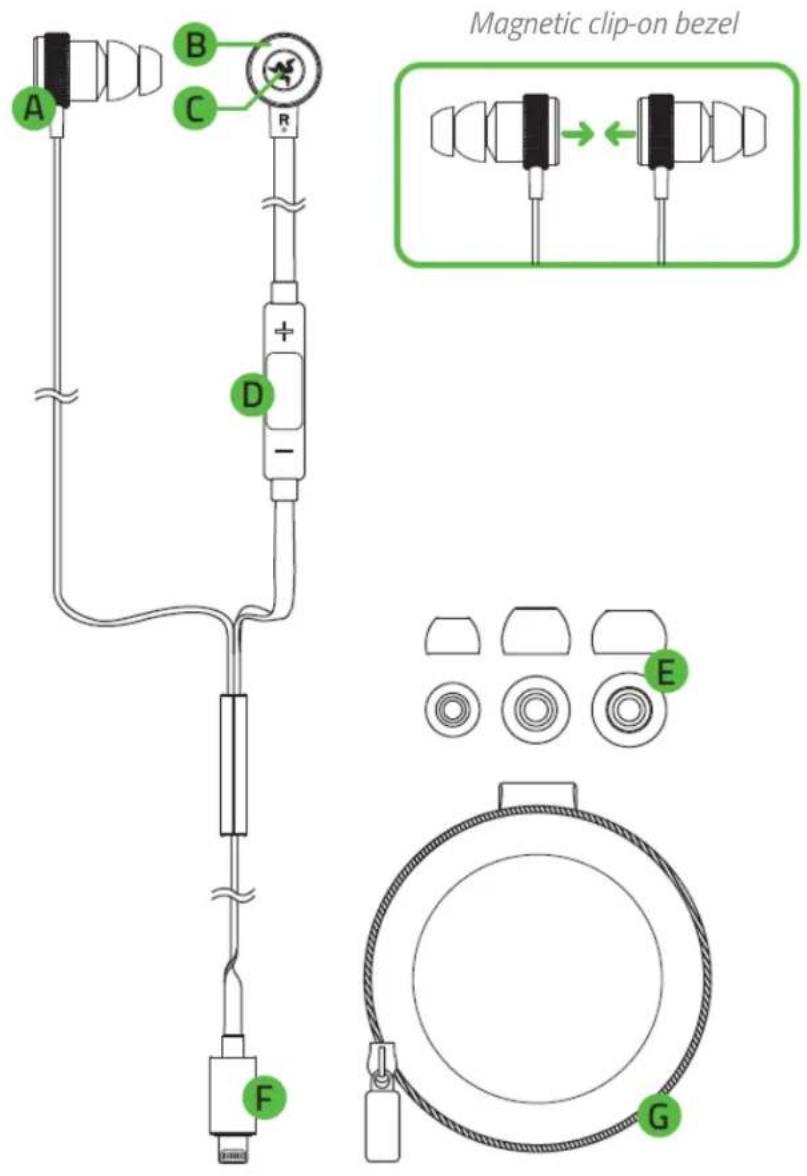
A. Earpiece with removable bi-flange ear-tips
B. Magnetic clip-on bezel
C. Backlit Razer logo
D. In-line microphone and remote cable
E. 3 interchangeable ear-tips in varying sizes
F. Apple Lightning connector
G. Carrying pouch
5. SETTING UP YOUR RAZER HAMMERHEAD FOR IOS
- Connect the Apple Lightning connector of your Razer Hammerhead For iOS to your compatible iOS device.

- Download the Hammerhead app and follow the on-screen instructions.

6. USING YOUR RAZER HAMMERHEAD FOR IOS
ACHIEVING A PROPER SEAL
To enjoy the full-bodied bass of the Razer Hammerhead For iOS as it is intended, please ensure that the ear-tips are properly fitted into your ears and that a proper seal is achieved to block out ambient noise.
REMOVING YOUR RAZER HAMMERHEAD FOR IOS
CAUTION: Do not yank out the earpiece from your ears as the sudden release of air pressure might cause potential discomfort.
EAR-TIP SIZES
Due to the different ear canal sizes of individuals, the default ear-tips may not achieve a proper seal. Interchanging the ear-tips to a larger/smaller size will improve performance.
REMOVING THE EAR-TIPS
- Firmly hold the earpiece.
- Grip the opening of the ear-tip firmly with the other hand.
- Pull the ear-tip downwards gently until it is released from the tip of the earpiece.

natural_image
Line drawing of a hand holding a small electronic component with a green arrow indicating the process (no text or symbols present)REPLACING THE EAR-TIPS
- Firmly hold the earpiece.
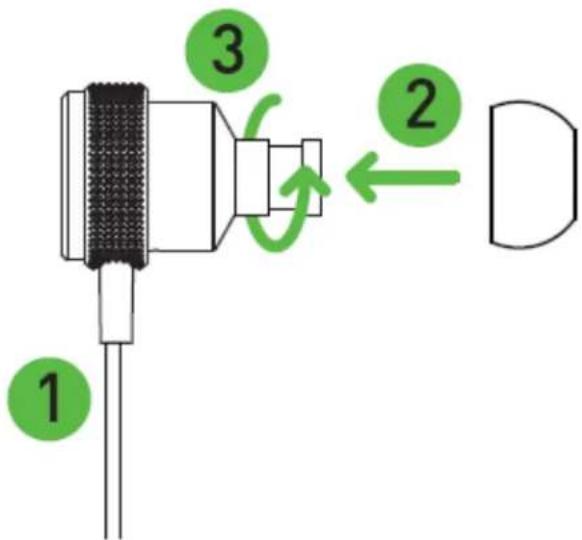
- Push the mouth of the ear-tip onto the tip of the earpiece.
- As you apply pressure, use a gentle twisting motion until the ear-tip is secured and in place.
USING THE MEDIA BUTTONS
The following in-line remote functions are available when connected to your mobile device.
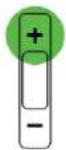 | Volume up button | |
| Single press | Increase audio volume | |

 | Center button | |
| Single press | Play/pause the current track | |
| Accept incoming call or end current call | ||
| Double press | Next track | |
| Triple press | Previous track | |
| Press and hold | Decline an incoming call/activate Siri | |
| Double press and hold on 2^nd press | Fast forwards the current track | |
| Triple press and hold on 3^rd press | Rewinds the current track | |
7. USING THE RAZER HAMMERHEAD APP
With the Razer Hammerhead For iOS connected to your device, feel free to customize your device's features through the Hammerhead app.
You may either use the app to change the Razer logo lighting effect on the earpiece; or change the equalization setting by selecting any of the presets available or by customizing one from scratch that will effectively match your listening preference.


Note: If the app has been launched without any compatible device connected, you would not be able to configure any of the settings, and the app will continuously prompt you to connect your Razer device.
EQUALIZER TAB
Accessible by tapping the 📁 icon, the Equalizer tab, allows you to filter various audio frequencies, enabling you to control the overall tone of your audio output.
Simply select any of the available equalizer presets on the list, or create your own by selecting (and adjusting) the each of the Custom option's audio frequency sliders until it matches your listening preference.
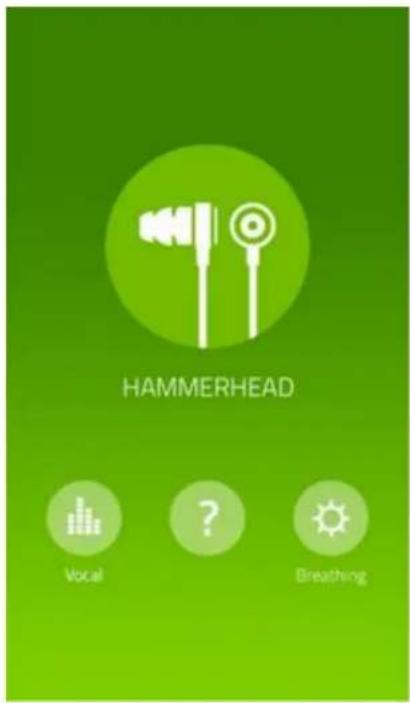
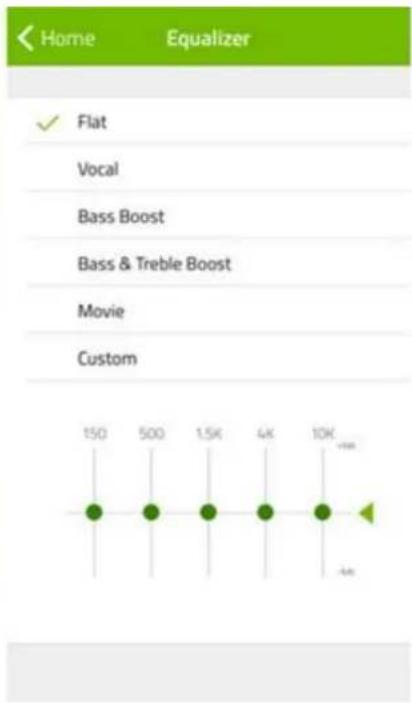
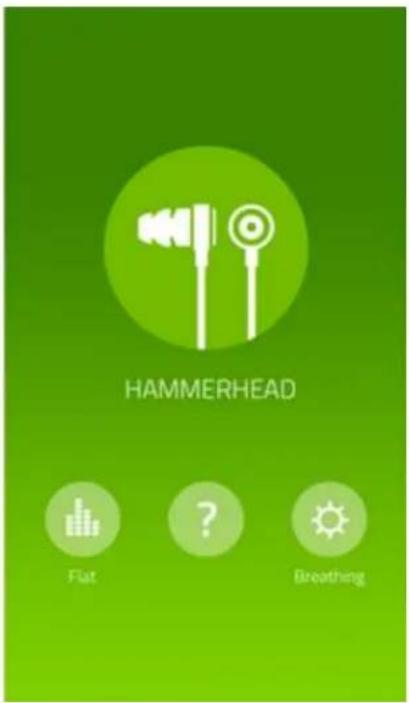
Tap Home to go back to the menu screen after you have selected a preset or customized your preferred frequency. The selected option will be displayed under the icon.
LIGHTING TAB
Accessible by pressing the 📋 icon, the Lighting tab displays the available Razer logo lighting effects for your Razer Hammerhead For iOS. The Razer logo lighting effects you can choose are as follows:
- Breathing: The Razer logo lighting on the earpiece will fade in and out.
■ Static: The Razer logo lighting on the earpiece will remain lit.
Simply select your desired effect from the list or turn off the Razer logo lighting.



Tap Home to go back to the menu screen after you have selected your preferred lighting effect. The selected lighting effect will be displayed under the 📂 icon on the home screen.
SUPPORT TAB
Accessible by tapping the icon, the Support tab allows you to check and/or perform firmware upgrade, view the FAQ and Master Guide, and view brief information about the app.
To update the Firmware of your headset:

- On the Support tab, tap Firmware Update on the list.

- Tap Check for Update, and then tap Update on the confirmation prompt to proceed,
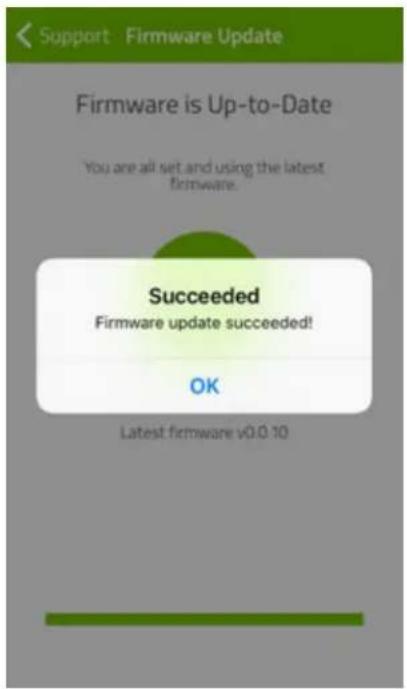
- Wait for the firmware update process to complete. Once done, the app will prompt you that the firmware update has been successful.
Note: Do not unplug your Razer device during the firmware update process.
8. SAFETY AND MAINTENANCE
SAFETY GUIDELINES
In order to achieve maximum safety while using your Razer Hammerhead For iOS, we suggest that you adopt the following guidelines:
Should you have trouble operating the device properly and troubleshooting does not work, unplug the device and contact the Razer hotline or go to www.razersupport.com for support. Do not attempt to service or fix the device yourself at any time.
Do not take apart the device (doing so will void your warranty) and do not attempt to service it yourself or operate it under abnormal current loads.
Keep your device away from liquid, humidity or moisture. Operate your device only within the specified temperature range of 0^ (32°F) to 40^ (104°F). Should you operate it in a temperature that is beyond this range, unplug and switch off the device in order to let the temperature stabilize within the optimal temperature range.
The device isolates external ambient sounds even at low volumes, resulting in lowered awareness of your external surroundings. Please remove the device when engaging in any activities that requires active awareness of your surroundings.
Listening to excessively loud volumes over extended periods of time can damage your hearing. Furthermore, legislation of certain countries permits a maximum sound level of 86db to affect your hearing for 8 hours a day. We therefore recommend that you reduce the volume to a comfortable level when listening for prolonged periods of time. Please, take good care of your hearing.
MAINTENANCE AND USE
The Razer Hammerhead For iOS requires minimum maintenance to keep it in optimum condition. Once a month we recommend you unplug the device from the computer and clean it using a soft cloth or cotton swab to prevent dirt buildup. Do not use soap or harsh cleaning agents.
9. LEGALESE
COPYRIGHT AND INTELLECTUAL PROPERTY INFORMATION
©2017 Razer Inc. All rights reserved. Razer, the triple-headed snake logo, Razer logo, "For Gamers. By Gamers.", and "Powered by Razer Chroma" logo are trademarks or registered trademarks of Razer Inc. and/or affiliated companies in the United States or other countries. All other trademarks are the property of their respective owners. Actual product may differ from pictures.
iOS is a trademark or registered trademark of Cisco in the U.S. and other countries and is used under license. Apple, the Apple logo, and iPhone are trademarks of Apple Inc., registered in the U.S. and other countries. App Store is a service mark of Apple Inc. "Made for iPod," "Made for iPhone," and "Made for iPad" mean that an electronic accessory has been designed to connect specifically to iPod, iPhone, or iPad, respectively, and has been certified by the developer to meet Apple performance standards. Apple is not responsible for the operation of this device or its compliance with safety and regulatory standards. Lightning is a trademark of Apple Inc.
Razer Inc. ("Razer") may have copyright, trademarks, trade secrets, patents, patent applications, or other intellectual property rights (whether registered or unregistered) concerning the product in this guide. Furnishing of this guide does not give you a license to any such copyright, trademark, patent or other intellectual property right. The Razer Hammerhead For iOS (the "Product") may differ from pictures whether on packaging or otherwise. Razer assumes no responsibility for such differences or for any errors that may appear. Information contained herein is subject to change without notice.
LIMITED PRODUCT WARRANTY
For the latest and current terms of the Limited Product Warranty, please visit: razerzone.com/warranty
LIMITATION OF LIABILITY
Razer shall in no event be liable for any lost profits, loss of information or data, special, incidental, indirect, punitive or consequential or incidental damages, arising in any way out of distribution of, sale of, resale of, use of, or inability to use the Product. In no event shall Razer's liability exceed the retail purchase price of the Product.
COSTS OF PROCUREMENT
For the avoidance of doubt, in no event will Razer be liable for any costs of procurement unless it has been advised of the possibility of such damages, and in no case shall Razer be liable for any costs of procurement liability exceeding the retail purchase price of the Product.
GENERAL
These terms shall be governed by and construed under the laws of the jurisdiction in which the Product was purchased. If any term herein is held to be invalid or unenforceable, then such term (in so far as it is invalid or unenforceable) shall be given no effect and deemed to be excluded without invalidating any of the remaining terms. Razer reserves the right to amend any term at any time without notice.



- CONTENTS
- PACKAGE CONTENTS / SYSTEM REQUIREMENTS
- PACKAGE CONTENTS
- SYSTEM REQUIREMENTS
- REGISTRATION / TECHNICAL SUPPORT
- REGISTRATION
- TECHNICAL SUPPORT
- TECHNICAL SPECIFICATIONS
- TECHNICAL SPECIFICATIONS
- DEVICE LAYOUT
- SETTING UP YOUR RAZER HAMMERHEAD FOR IOS
- USING YOUR RAZER HAMMERHEAD FOR IOS
- ACHIEVING A PROPER SEAL
- REMOVING YOUR RAZER HAMMERHEAD FOR IOS
- EAR-TIP SIZES
- REMOVING THE EAR-TIPS
- REPLACING THE EAR-TIPS
- USING THE MEDIA BUTTONS
- USING THE RAZER HAMMERHEAD APP
- EQUALIZER TAB
- LIGHTING TAB
- SUPPORT TAB
- SAFETY AND MAINTENANCE
- SAFETY GUIDELINES
- MAINTENANCE AND USE
- LEGALESE
- COPYRIGHT AND INTELLECTUAL PROPERTY INFORMATION
- LIMITED PRODUCT WARRANTY
- LIMITATION OF LIABILITY
- COSTS OF PROCUREMENT
- GENERAL
Marke : RAZER
Modell : Hammerhead iOS
Kategorie : Kopfhörer