
ITC-LASER26 - Kabelloser Zeiger Techly - Kostenlose Bedienungsanleitung
Finden Sie kostenlos die Bedienungsanleitung des Geräts ITC-LASER26 Techly als PDF.


| Produkttyp | Kabelloser Zeiger (Präsentationsgerät) |
| Marke | Techly |
| Modell | ITC-LASER26 |
| Technologie | Funk (2,4 GHz) |
| Reichweite (Funk) | >100 m |
| Laserklasse | 2M (EN60825-1) |
| Laserleistung | <1 mW |
| Laserwellenlänge | 650 nm (rot) |
| Laserreichweite | >200 m |
| Stromversorgung | 1x AAA-Batterie (1,5 V) |
| Abmessungen (Sender) | 138,8 x 17,6 x 15 mm |
| Gewicht (Sender) | 19,6 g |
| Abmessungen (Empfänger) | 24,68 x 13,8 x 5,14 mm |
| Gewicht (Empfänger) | 1,6 g |
| Unterstützte Betriebssysteme | Windows 7/8/10, Mac OS, Linux, Android 4.3+ |
| Kompatible Software | PowerPoint, Keynote, Prezi |
| Tastenfunktionen | Laser (Dauerfeuer), Page Up/Page Down (umschaltbar), Black Screen, Diashow Start/Ende |
| Anzeige | Blaue LED bei Tastendruck; langsames Blinken bei schwacher Batterie |
| Empfängeraufbewahrung | Im Sender integriert (Magnetverschluss) |
| Energiesparfunktionen | Automatische Standby, Tiefschlaf, Ein/Aus-Schalter |
| Anschluss | USB 3.0, Plug & Play |
| Lieferumfang | Sender mit integriertem Empfänger, Bedienungsanleitung |
| Sicherheitshinweis | Laser nicht in die Augen richten; von Kindern fernhalten |
Häufig gestellte Fragen - ITC-LASER26 Techly
Benutzerfragen zu ITC-LASER26 Techly
0 Frage zu diesem Gerät. Beantworten Sie die, die Sie kennen, oder stellen Sie Ihre eigene.
Eine neue Frage zu diesem Gerät stellen
Laden Sie die Anleitung für Ihr Kabelloser Zeiger kostenlos im PDF-Format! Finden Sie Ihr Handbuch ITC-LASER26 - Techly und nehmen Sie Ihr elektronisches Gerät wieder in die Hand. Auf dieser Seite sind alle Dokumente veröffentlicht, die für die Verwendung Ihres Geräts notwendig sind. ITC-LASER26 von der Marke Techly.
BEDIENUNGSANLEITUNG ITC-LASER26 Techly

In compliance with EU Directive WEEE this product is marked with this symbol. It means that used electrical and electronic products should not be mixed with general household waste. There is a separate collections system for these products in compliance with WEEE directive, otherwise contaminative and hazardous substances can pollute the environment.

With the CE sign, Techly ^® ensures that the product is conformed to the basic European standards and directives.
www.techly.com

EN

INSTALLATION
- Install battery.

8
WIRELESS PRESENTER
Take out the mini USB receiver from the wireless presenter.
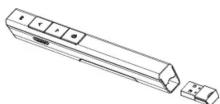
- Install the USB receiver.
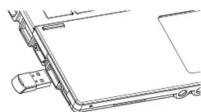
The operation systems including Windows, Android and Linux will install the driver for the USB receiver automatically.
-
Operate the wireless presenter. When a button is pressed, the blue led on the wireless presenter will flash.
-
Turn off the wireless presenter.
9
FREQUENTLY ASKED QUESTIONS
- How to know the battery is out of
power?
Turn on the power switch of the presenter, then press laser button to check if the laser can be turned on. If the laser cannot be turned on, usually it means the battery is out of power or the laser diode is broken and need replacement.
In other case, If the LED on the wireless presenter starts to flash slowly, it means the power is low and the battery needs to be replaced.
- Why does the laser pointer not work? First, turn on the power switch. Second, check whether the wireless presenter is in low power or out of power. If the LED flashes slowly, it means the power is low and the battery needs to be replaced. If all the other buttons can work, only the laser pointer cannot work, the laser diode may need replacement. Third, check the place of anode and cathode of battery. Before putting a battery into the presenter, remember to remove the plastic cover of the battery.
10 11
www.techly.com
- Why does the computer does not detect the device when the USB receiver plugs into the PC?
Please check whether the USB works or not. You can use a USB mouse or keyboard to test the USB port. If a USB mouse or keyboard works on the USB port and the USB receiver of the presenter doesn't work, it means the USB receiver of the presenter is broken or the USB drivers is not compatible with the USB receiver.
You can try another USB port of the same computer or USB ports of another computer to check whether the USB receiver of the presenter is good or not. If it works on other computer, it means the USB drivers of the computer are not compatible with the USB receiver. You need to back up your data and reinstall the OS.
- The laser is ok and the USB receiver can be detected by the computer, why does the presenter cannot control the computer?
The reason is the USB receiver doesn't save the presenter's address properly. You can use a CodeMatch software to let the USB receiver to save the presenter's address again.


WIRELESS PRESENTER

Be sure to carefully read this user's manual before using the wireless presenter and keep it for future reference.

WARNING! RISK OF INJURY!
Laser beams can cause permanent damage to the eyes. Do not look into the laser beam or shine the laser beam into your eyes, other peoples' eyes, or the eyes of pets. Be careful when pointing it towards reflective surfaces. Keep this device away from Children. This is a working tool, not a toy. It should only be used by adults. Information in this document is subject to change without notice. No part of this document may be reproduced or transmitted in any form or by any means, electronic or mechanical, for any purpose, without prior permission of the seller. The seller provides this document without warranty, or condition of any kind.
The seller may make improvements or changes in the product described in this document at any time.
INTRODUCTION
A slim and lightweight wireless presenter. A perfect companion when you present. Thanks to the 100 meter range you can easily interact with your audience without fear of walking out of range.
Thanks to the built in laser pointer, you can highlight the features you want your audience focused on.
The USB connector is securely fastened in the main body through the use of a magnet. And you can always change the AAA-battery whenever the built in led warns regarding low power.
FEATURES
-
PowerPoint, Keynote and Prezi support. The functions of page down and page up buttons can be switched between Page Down/Up, Left/Right Arrow and Up/Down Arrow, by pressing the page down and page up buttons at the same time.
-
2.4G RF frequency, which is an ISM free frequency and can be used world-wide. Up to 100 meters' wireless range. By using frequency hopping technology to improve the signal to noise ratio. It is Omni-directional and as
such allows for the control of devices in other rooms.
-
The transmitter can control 1 up to 6 USB receivers
-
Support functions including Page up
[Non-Text]
screen. 5. Soft Silica Gel buttons allow for
comfortable use.
- Low power reminding function, the led
will flash slowly when the power is low. Storable receiver for easy carrying.
- The USB receiver can be stored inside
the wireless presenter.
-
Safe laser class complies with EN60825-1
-
Compatible with USB3.0, plug and play
-
Three ways to save power consumi
by auto standby, deep sleeping and
power switch. 11. One AAA battery, easy to replace.
OPERATION SYSTEM
Windows 7, Windows 8, Windows 10,
Mac OS, Linux, Android 4.3 or above.
The Ground Truth image displays a single, solid horizontal line. According to Rule 2 (UNDERSCORE & LINE RULES), if the GT contains lines used for stylistic emphasis or as background elements (like ruled paper), the OCR result must ignore them. The OCR content provided is "\_\_\_\_", which consists of four underscores. This is incorrect because underscores are not equivalent to a solid line and are not permitted under the “Stylistic/Background Lines (Ignore)” rule. The OCR has hallucinated underscores where none should exist in the GT, violating the “Stylistic/Background Lines (Ignore)” rule. Therefore, the OCR result is inconsistent with the Ground Truth.
PACKAGE CONTENTS
- Wireless presenter
(USB receiver included) x 1
- User Manual x 1
SPECIFICATIONS
Transmitter
Technology: Radio Frequency
Frequency: 2.4GHz
Control Distance: >100m
Laser: Class 2M
Max Output: <1mW
Laser Distance: >200n
Wavelength: 650nm
Battery: AAA Battery
Working Voltage: 1.5V Dimension: 100.0
Dimension: 138.8 x 17.6 x 15mm
Weight: 18.6g
USB Receiver
Working Voltage: 5V DC
Dimension: 24.68 x 13.8 x 5.14mm
Weight: 1.6g
FUNCTION MAP
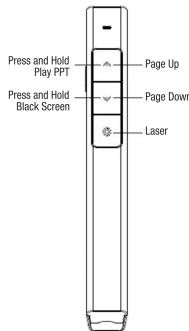
FUNCTION DESCRIPTION
- Press and hold "Laser Pointer" button
to turn on the laser, release button to
turn it off.
-
Use the Microsoft PowerPoint to open PowerPoint files
-
Press "Page Up" button for 2 seconds to Start a slideshow from the current slide. Press the button for 2 seconds again to escape from the full screen. Press "Page Down" button and "Page
-
Up" button to go forward and backward.
-
Press"Page Down" button for 2 seconds to enter into black screen. Press"Page Down" button for 2 seconds again to escape from the black screen.
Note: When you press "Page Down" button for 2 seconds to enter the black screen, the USB receiver will send the letter 'b' or comma '.' to the PowerPoint. If the Input Method Editor is open, the letter 'b' or comma ', will be intercepted and cannot be sent to the PowerPoint. In this case, try to turn off the IME or switch to the English input mode.


- WARNING! RISK OF INJURY!
- INTRODUCTION
- FEATURES
- OPERATION SYSTEM
- The Ground Truth image displays a single, solid horizontal line. According to Rule 2 (UNDERSCORE & LINE RULES), if the GT contains lines used for stylistic emphasis or as background elements (like ruled paper), the OCR result must ignore them. The OCR content provided is "\_\_\_\_", which consists of four underscores. This is incorrect because underscores are not equivalent to a solid line and are not permitted under the “Stylistic/Background Lines (Ignore)” rule. The OCR has hallucinated underscores where none should exist in the GT, violating the “Stylistic/Background Lines (Ignore)” rule. Therefore, the OCR result is inconsistent with the Ground Truth.
- SPECIFICATIONS
- USB Receiver
- FUNCTION DESCRIPTION
Marke : Techly
Modell : ITC-LASER26
Kategorie : Kabelloser Zeiger