
HS 2700 BT II - Kopfhörer SILVERCREST - Kostenlose Bedienungsanleitung
Finden Sie kostenlos die Bedienungsanleitung des Geräts HS 2700 BT II SILVERCREST als PDF.


| Produkttyp | Kabelloser Bluetooth-Kopfhörer |
| Modell | HS 2700 BT II |
| Marke | SilverCrest |
| Farbe | Schwarz |
| Bauform | Over-Ear (umschließend) |
| Gewicht | ca. 200 g |
| Abmessungen (B x H x T) | ca. 180 x 160 x 70 mm |
| Akku-Typ | Lithium-Ionen, 3,7 V, 300 mAh |
| Akku-Ladezeit | ca. 2 Stunden |
| Akku-Betriebsdauer (Musikwiedergabe) | ca. 20 Stunden (bei mittlerer Lautstärke) |
| Bluetooth-Version | 5.0 |
| Reichweite | bis zu 10 m |
| Frequenzbereich | 20 Hz – 20 kHz |
| Impedanz | 32 Ohm |
| Lautsprecherdurchmesser | 40 mm |
| Mikrofon | Integriert (Freisprechfunktion) |
| Funktionen | Freisprechfunktion, Musiksteuerung, Lautstärkeregelung, Anrufannahme/-ablehnung |
| Lieferumfang | Kopfhörer, USB-Ladekabel, Bedienungsanleitung |
| Reinigung & Pflege | Oberfläche mit weichem, trockenem Tuch reinigen; Lederimitatpflege empfohlen |
| Warnhinweise | Nicht in Wasser tauchen; vor Feuchtigkeit schützen; bei hoher Lautstärke Gehörschäden möglich |
| Ersatzteile/Reparatur | Ohrmuschelpolster als Ersatzteil erhältlich; Akku nicht austauschbar |
| Entsorgung | Elektrogeräte gehören nicht in den Hausmüll; Akku fachgerecht entsorgen |
| Garantie | 3 Jahre (gemäß Herstellerangabe) |
Häufig gestellte Fragen - HS 2700 BT II SILVERCREST
Benutzerfragen zu HS 2700 BT II SILVERCREST
0 Frage zu diesem Gerät. Beantworten Sie die, die Sie kennen, oder stellen Sie Ihre eigene.
Eine neue Frage zu diesem Gerät stellen
Laden Sie die Anleitung für Ihr Kopfhörer kostenlos im PDF-Format! Finden Sie Ihr Handbuch HS 2700 BT II - SILVERCREST und nehmen Sie Ihr elektronisches Gerät wieder in die Hand. Auf dieser Seite sind alle Dokumente veröffentlicht, die für die Verwendung Ihres Geräts notwendig sind. HS 2700 BT II von der Marke SILVERCREST.
BEDIENUNGSANLEITUNG HS 2700 BT II SILVERCREST
SilverCrest
User's Manual
For
SilverCrest
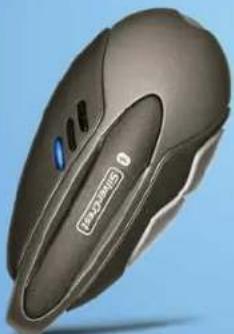
Bluetooth Headset
natural_image
Close-up of a sleek, gray ergonomic computer mouse with blue scroll wheel and 'TWO-WEI' branding (no text or symbols on body)HS 2700 BT II
English
Disposal:
a) If the product is labeled with a stroke-out waste bin, it is subject to the European Guideline 2002/96/EC.
b) All electric and electronic devices must be disposed of separately from household waste at publicly established bodies.
c) Avoid hazard to the environment and dangers to your personal health by disposing of the device properly.
d) For further information about proper disposal, contact your local government, disposal bodies or the shop where you bought the device.
English
CE STATEMENT
This device has been tested and found to comply with the requirements set up in the council directive on the approximation of the law of member states relating to EMC Directive 89/336/EEC, Low Voltage Directive 73/23/EEC and R&TTE Directive 99/5/EC.
TRADEMARK INFORMATION
Bluetooth® is a trademark owned by Bluetooth SIG, Inc. USA.
Other names and products may be trademarks or registered trademarks of their respective owners
READ THIS FIRST
Please start by reading the important messages below first.
- The bundled user's manual and quick-start guide that were packaged with the headset are subject to change without notice.
- The accessories that come with this headset may vary between regions
- Read the user manual of your Bluetooth mobile phone first.
- We are not liable whatsoever for any compensation arising from errors in descriptions in this user's manual
TARGA GmbH
Lange Wende 41
59494 Soest
Germany
English
English
WARNINGS CAUTIONS
- Use of non-original accessories may result in performance deterioration, injury, product damage, electronic shock and warranty termination.
- Attempting to disassemble your headset may damage it, and the warranty will be void.
- Only qualified Service Centers are authorized to remove or replace the battery. The rechargeable battery has a long service life if treated with care.
- The charger is designed for indoor use only. Do not use it outdoors. The charger may only be connected to the designated power sources as marked. When removing the charger from an outlet, never pull the charger cord, as it may damage the charger.
- To fully disconnect this device from the mains power, unplug the power cord (power adapter) from the wall outlet. Please make sure that the wall outlet is easily accessible.
• To charge the headset battery use only the supplied charger (Model No. KSAFB0500085W1UK) or car charger (Model no. TCD-050030C). - Do not expose the headset to extremely hot or cold temperatures.
• To reduce the risk of electric shock, do not expose the headset to rain or moisture. - Do not use the headset on a plane. At this time, the FAA prohibits the use of wireless/RF devices on airplanes.
- Remove the charger from the outlet during thunderstorms.
-
The headset complies to EN55024. When using the headset during charging interferences on the power line can result in the headset's powering off or in a reduced volume. In such cases please power on the unit again or simply adjust the volume.
-
Do not allow children to play with your headset, as the small parts may cause a choking hazard.
- Do not allow children to play with your headset, as they may injure themselves and also damage the headset.
- Do not put the headset in a dusty place.
- Use only a clean and soft cloth to clean your headset.
- Use the battery at room temperature so it can develop its maximum performance. The battery capacity may be reduced if operating in a cold environment. When not using the headset for a long time, recharge it anyway every two months.
- Charge the battery only when your headset is running on low battery. This will increase the liferime of your battery.
- When the headset is not in use, always keep it in its carrying bag.
- Check local laws regarding usage of a mobile phone and headset while driving. If you use the headset while driving make sure that your always pay attention to traffic.
- Do not place any fire (such as candles) onto the device. Do not throw the device into fire and keep it away from heat.
English
CONTENTS
CE STATEMENT....15
TRADEMARK INFORMATION....15
READ THIS FIRST....15
WARNINGS....16
CAUTIONS....16
INTRODUCTION....19
- Introduction to Bluetooth ^® Wireless Technology
- Mini Bluetooth headset
- Box Content
- Technical Specifications
GETTING STARTED....21
- Charging the Battery
- Turning Your Headset On
- Turning Your Headset Off
- Pairing the Headset
- Making And Answering/Ending Calls
- Transferring Calls
- Volume Control
IMPORTANT INFORMATION....24
- Troubleshooting
- Battery Information
- About Pairing
FREQUENTLY ASKED QUESTIONS....26
English
INTRODUCTION
Introduction to Bluetooth Wireless Technology
Bluetooth is a short-range wireless communication technology that allows wireless connections between different Bluetooth devices such as cellular phones and headsets. Bluetooth refers to worldwide standard designed to operate in the internationally recognized ISM (Industrial Scientific and Medical) frequency band. Within the ISM band (2.4 GHz - 2.48 GHz) Bluetooth missions hop between 79 separate frequencies 1,600 times every second, and coimmuneration range of about 10 meters (class II).
Mini Bluetooth headset
The Mini Bluetooth headset is a Bluetooth device developed with the latest Bluetooth technology, which can connect to Bluetooth mobile phones operating in a wireless within a range of 10 meters.
Box Content
- Mini Bluetooth headset
- Charger
- Car Charger
- 2 small charging adapters
- Ear hook
- Carrying bag
- Necklace and hook
- 2 Earplug sponges
- Quick Guide and User's Manual
Technical Specifications
- Bluetooth V 1.2-compatible
- rechargeable Lithium-Ion battery
- reduced weight: approx. 13g (incl. battery)
- range up to 10 m
- talk time up to 8 hours
- standby time up to 100 hours
- supported Bluetooth profiles: Handsfree, Headset
English
English
GETTING STARTED
Charging the Battery
The headset comes with a built-in rechargeable battery. For first time use, it takes about 4 hours to fully charge the battery. Afterwards, it will take approx. 2 hours charged. With the battery fully charged, the talk time is up to 8 hours, and the standby time is up to 100 hours.
Battery Indicator
The red LED indicator on the headset will flash slowly when the battery is low. Recharge the battery when the red LED indicator on the headset starts flashing or when you hear a recurring warning tone.
To Charge the Battery
- Connect the charger to a wall outlet or the car charger to the socket of the cigarette lighter in your car.
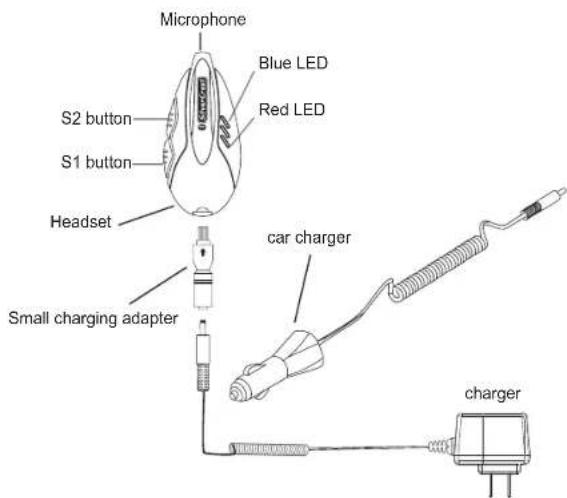
- Connect one of the small charging adapters to the charger (or the car charger) and to the headset as shown in the above picture. The red LED on the headset will light up.
- When the battery is fully charged, the red LED indicator on the headset will go out.
Turning Your Headset On
-
Put the headset on.
-
To turn the headset on, press and hold the S1 button for about 3 seconds. You will hear two short beeps and the blue LED indicator on the headset flashes.
Turning Your Headset Off
To turn the headset off, press and hold the S1 button for 3 seconds. You will hear two short beeps and the red LED indicator on the headset flashes quickly. The headset is then powered off.
Pairing the Headset
You are required to pair the headset with your Bluetooth mobile phone before using it.
English
NOTE: It is highly recommended to first read your mobile phone's user manual before doing so.
- The headset must be powered off before initiating the pairing process, After that, press and hold the S1 button for at least 5 seconds until the blue and red LED indicators on the headset start flashing alternately.
- Tell your mobile phone to scan for other Bluetooth devices.
- Your mobile phone will show you now all devices it has discovered during the scanning process. The Bluetooth headset will be listed as "BT headset-F3" or even as an "unknown device". Please select the appropriate entry and confirm. Now your mobile phone will ask you for a password/key to access the headset. Please enter "1234" and confirm once again.
After successful pairing, the red LED indicator on your headset will turn off and the blue LED indicator will start flashing.
NOTE:
The factory default access key for your headset is "1234"
NOTE:
- If the headset is not in pairing mode, your mobile phone will not be able to find it. Please set the headset in pairing mode before letting your mobile phone scan for it.
- If no successful pairing is established after approx. 4 minutes, the headset will automatically switch to standby mode and the blue LED indicator flashes. You may need to repeat steps 1 to 3 until pairing succeeds.
Making and Answering/Ending Calls
Once the headset is successfully paired with your phone, you can use it to make and receive calls. The headset can be used with voice dialing if your phone supports this feature.
Making Calls
You can use the headset to make calls when it is paired successfully with your mobile phone.
- Using voice dialing - Press the S1 button, wait for a beep tone and say the name of the person you want to call. Press the S1 button again to cancel voice dialing.
English
- Using the phone keys - Dial the number on the mobile phone as you usually do. Once the call has been set up, the voice will be transmitted to your headset automatically.
- Redial - Press and hold the S2 button for 3 seconds to redial the last number you have called.
Answering and Ending Calls
- When the headset is powered on and you are receiving a call, you will hear a musical beep and the blue LED indicator on the headset will start flashing quickly.
a. Press the S1 button to answer the call.
b. Press and hold the S2 button for 3 seconds to reject the call.
- To end the call press and hold the S2 button for 3 seconds.
NOTE:
Due to the varying designs of mobile phones, an auto-disconnect may happen even when the headset is powered on. In this case, the headset will not ring when there is an incoming call. Press the S1 button for 1 sec. to reconnect the headset with your mobile phone for an incoming call.
Transferring Calls
Press and hold the S1 button for 3 seconds to transfer the call to your mobile phone (and stop talking though the headset). To transfer the call back to the headset, press the S1 button again.
Volume control
Adjust the headset volume by pressing the S1 (volume up) or S2 button (volume down).
English
English
IMPORTANT INFORMATION
Troubleshooting
- The red LED indicator on the headset flashes.
The headset is low on battery. Charge the headset for 2 hours until the red LED indicator on the headset turns off.
- The headset cannot be turned on after being charged for 20 minutes.
To turn on the headset, you need to charge the battery for 40 minutes. However, it is highly recommended to fully charge the battery before use.
- No indication of charging is shown.
If the headset battery is empty or the headset hasn't been used for a long time, it may take several minutes till the LED indicator on the headset shows the charging status with a solid red light.
- No sound connection between headset and other devices.
- Make sure that the two devices have been paired.
- Make sure that the headset is turned on.
- Make sure that the two devices are within range.
- Some Bluetooth mobile phones can support only one Bluetooth headset. Disconnection may happen when there is more than one headset paired with your mobile phone.
Battery Information
New batteries
For first time use, plug the adapter into the headset and charge it for at least 4 hours until the red indicator light turns off.
Battery card
Only qualified Service Centers are authorized to remove or replace the battery.
Use the battery at room temperature so it can develop its maximum performance.
The battery capacity may be reduced if operating in a cold environment.
When not using the headset for a long time, recharge it anyway every two months.
About Pairing
What is Pairing?
Pairing is a process of associating Bluetooth devices with one other. It will establish a permanent, secure link between the devices and enable quick access to the services provided without the need to enter any passkeys.
Bluetooth Passkey
or Email Mini Bluetooth headset has the default passkey 1234 for pairing, which is stored in its internal memory. You are usually required to enter the passkey 1234 in a pairing process with a Bluetooth mobile phone.
Paired devices remain paired even when:
- One of the devices is not powered on.
- A service connection is interrupted or the service stopped.
- One or both devices are rebooted.
Notes for Nokia Bluetooth phones
- Set the headset as default authorized.
Please ensure that the headset is permitted by the phone to connect without authorization. To set it as authorized, go to "Bluetooth" > "Paired devices" > select "BT Headset-F3" > press "Options" > select "Request conn. Authorization" > and select "No".
- Volume bar appears abnormally.
Due to the differing designs of mobile phones, some models (such as N6230, N6820) will check the volume status whenever Bluetooth connection is building up. The volume bar may appear while using the Bluetooth headset. Please skip it.
- Losing connection accidentally on N6600.
The connection of the headset may be lost accidentally. Please re-connect it if the headset is disconnected. To re-connect the headset with the mobile phone, press the S1 button of the headset and wait for the connecting message.
English
English
FREQUENTLY ASKED QUESTIONS
Q: Why doesn't the headset work with my mobile phone after the headset has been fully charged and switched on?
A: You need to enable the Bluetooth function of your mobile phone first and phone with the headset.
Q: Does the headset work with all types of mobile phones?
A: No. It works only with Bluetooth-enabled mobile phones.
Q: What is the operating range between the headset and a Bluetooth mobile phone?
A: The headset has been tested and approved by BQB. The Bluetooth Qualification information of this product can be referred to Bluetooth Identifier B02713. It is fully compliant to Bluetooth V1.2, class II. The maximum operation distance is 10 meters. value can be affected and shortened by different circumstances and different brands of mobile phones. Some mobile phones have a lower operating range.
Q: While my mobile phone was scanning for the headset, why did several Bluetooth devices appear on my mobile phone display?
A: Most Bluetooth-enabled mobile phones with Bluetooth function activated can scan for more than one Bluetooth device within their operating range. The headset will appear as "BT Headset-F3" or "Unknown Device" on your mobile phone.
Q: Why can't my mobile phone find the headset?
A: If the headset is not in pairing mode, your mobile phone will not find it. Please set the headset to pairing mode before starting the scanning function on your mobile phone. (See the User Manual of your mobile phone for detailed instructions.)
Q: Do I need to pair the headset with my mobile phone every time I use it?
A: No. Once the Pairing is set up between the two devices, they will remain paired even after one or both devices are powered off.
Q: Why is there a disturbance noise coming from the headset?
A: The performance of the headset will be affected by two factors:
1) whether your mobile phone is in a good signal area. If your mobile phone is in weak signal area, you will not hear clearly with the headset.
2) whether if there are barriers between your mobile phone and your headset which can't be penetrated.
Q: What should I do when I can't hear very well with the headset?
A: Adjust the sound volume on your mobile phone, press the S1 button on the headset to increase the volume, or check if your mobile phone is in a good signal area. In addition to the human body can block signals as well. When using the headset ensure that both Bluetooth devices (headset and mobile phone) are always carried on the same side of your body.
However, why doesn't the headset work suddenly?
A: 1) The headset may have run out of battery power. In low battery condition, the red LED indicator of the headset will start flashing.
2) Some Bluetooth mobile phones, which have a problem with the Bluetooth tation, will occasionally get into a Bluetooth shut-down status in unpredictable circumstances. When this happens, please reset your mobile phone by removing the battery. (It is not necessary to do the Pairing again.)
Make sure that your phone has the latest version of firmware loaded. Please check the website of your mobile phone's manufacturer for new firmware.
Q: Why doesn't the voice dialing function work with the headset?
A: You may have to record your voice with the headset to your mobile phone.