
Bravo - Smartphone MOTOROLA - Kostenlose Bedienungsanleitung
Finden Sie kostenlos die Bedienungsanleitung des Geräts Bravo MOTOROLA als PDF.


| Produkttyp | Smartphone |
| Marke | Motorola |
| Modell | Bravo |
| Betriebssystem | Android 2.1 (Eclair) mit MOTOBLUR |
| Display | ca. 9,4 cm (3,7 Zoll) Touchscreen |
| Kamera | 3 Megapixel |
| Speicher | 512 MB intern, erweiterbar via microSD-Karte (bis 32 GB) |
| Akku | Lithium-Ion, 1540 mAh (austauschbar) |
| Konnektivität | WLAN 802.11 b/g/n, Bluetooth 2.1+EDR, GPS, UMTS/HSDPA |
| Anschlüsse | Micro-USB, 3,5 mm Klinke |
| Abmessungen | ca. 114 x 57 x 10 mm |
| Gewicht | ca. 130 g |
| Besondere Merkmale | MOTOBLUR-Kontensynchronisation, Swype-Tastatur, AT&T-Dienste (nur USA) |
| Lieferumfang | Netzteil, USB-Kabel, Akku, Kurzanleitung |
| Entsorgung | Elektrogeräte nicht im Hausmüll entsorgen; Recycling-Infos beachten |
| Reinigung | Mit trockenem, fusselfreiem Tuch abwischen; keine Flüssigkeiten verwenden |
| Sicherheit | Vor Benutzung die Sicherheits-, Rechts- und Garantiehinweise lesen |
| Reparierbarkeit | Akku austauschbar; keine Angaben zu anderen Teilen in der Kurzanleitung |
| Hersteller | Motorola Mobility, Inc., USA |
| Modellnummer (PID) | MOTOROLABRAVO WITH MOTOBLUR (HB520) |
Häufig gestellte Fragen - Bravo MOTOROLA
Benutzerfragen zu Bravo MOTOROLA
0 Frage zu diesem Gerät. Beantworten Sie die, die Sie kennen, oder stellen Sie Ihre eigene.
Eine neue Frage zu diesem Gerät stellen
Laden Sie die Anleitung für Ihr Smartphone kostenlos im PDF-Format! Finden Sie Ihr Handbuch Bravo - MOTOROLA und nehmen Sie Ihr elektronisches Gerät wieder in die Hand. Auf dieser Seite sind alle Dokumente veröffentlicht, die für die Verwendung Ihres Geräts notwendig sind. Bravo von der Marke MOTOROLA.
BEDIENUNGSANLEITUNG Bravo MOTOROLA

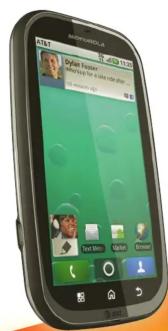
MOTOROLA BRAVO™ with MOTOBLUR™
Quickstart

at&t
Welcome to AT&T
Please use this quickstart to get a brief overview of the major features and services available with your MOTOROLA BRAVO with MOTOBLUR. You can also use our interactive web tutorial available at
att.com/Tutorials
for the most complete and up to date information available for setting up and using your new smartphone and all the services available. The online tutorials include step-by-step instructions and screen shots to assist your learning as well as providing an easy search function.
Your Phone
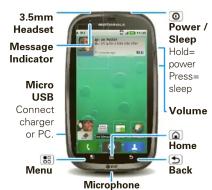
Tip: Your phone can automatically switch to vibrate mode whenever you place it face-down. To change this, touch Menu [ ] > Settings > Sound & display > Smart Profile: Face Down to Silence Ringer. To open the display keypad, touch a text field, or touch and hold Menu close the keypad, touch Back
Note: Your phone might look a little different.
Device Setup
- Cover off

- Battery in

- Charge up

- SIM in


- Cover on

- Power up & log in

Caution: Before assembling, charging or using your phone for the first time, please read the Safety, Regulatory, & Legal Information provided with your phone.
blur
When you first turn on your phone, you need to create or log into your MOTOBLUR account. MOTOBLUR syncs your contacts, posts, feeds, messages, emails, and photos from your other accounts. Registration is secure and should only take a few minutes:
-
Press and hold Power on top of your phone to turn it on.
-
Select a language.
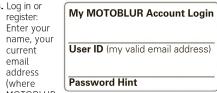
can send account information), and a new MOTOBLUR account password.
-
To add an account to MOTOBLUR, touch the account type, then enter the account's user name (or email) and password.
-
When you're done, touch Done adding accounts.
Tip: To see the accounts you added, touch Menu > Settings > Accounts.
You can log into your MOTOBLUR account from a computer to upload contacts, reset your password, get help, or even locate your phone: www.motorola.com/mymotoblur
Calls
Find it: Dialer
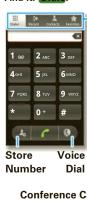
Call Lists
Tip: You can touch Home Back to home the
active call display. To reopen it, touch Dieler. When you have a new voicemail, shows at the top of your screen. To hear the voicemail, flick down the notification bar and touch the 90
More Information
On your phone—Touch 📷 > Help Center.
On the web—You can also get support online: Interactive web tutorials are available at
att.com/Tutorials. Select Manufacturer: Motorola and Model: BRAVO from the drop-down menus
• For help with MOTOBLUR go to
www.motorola.com/mymotoblur
- For detailed support information including device specifications, the user manual, troubleshooting, user forums and knowledgebase articles, go to att.com/DeviceSupport
- For information about your wireless account, service plan or network go to att.com/Wireless
On any phone—Call AT&T Customer Care at 1-800-331-0500 or dial 611 from any AT&T mobile phone for assistance with your service or device.
Accessories
You can find accessories for your phone at att.com/WirelessAccessories or visit your local AT&T store.
Home Screen
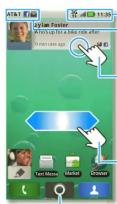
Phone Status
Flick this bar
down to see notifications
Widgets
Touch to open
Touch & hold to move items (or
show options in
lists)
: Drag or flick to
open panels (or
scroll in lists)

Open the app menu
The home screen gives you all your latest information in one place. It's what you see when you turn on the phone or touch Home 📂m a menu. If your screen goes to sleep, press Power 📄wake it up.
In your home screen:
- To open something, touch it. Touch Home 🔒 to return to the home screen.
- To change widget options (if available), open the widget and touch Menu 📄 by can choose an
account in messaging widgets.
- to resize a Motorola widget, touch and hold
it until you feel a
vibration, then release. Drag a corner to resize.
• To add something to the
screen, touch and hold an empty spot until the menu opens—you can add
shortcuts, widgets, or folders, or change wallpaper
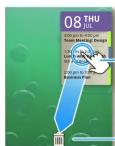
• To move or delete something, touch and hold it until you feel a vibration, then drag it to another
place, another panel, or to the trash can.

广力云智慧零售收银系统
u opens—you can add
ing touch and hold it
en drag it to another
the trash can.
Text Entry
To open a keypad, touch a text field, or touch and hold Menu 📄 to close the keypad, touch Back.
To change the Input method to Multi-touch keyboard or Swype, touch and hold a blank spot in the text box.
Tip: Turn your phone sideways for a larger keypad. When you open a text message in a Messages widget, touch 🔒 to open the conversation and then turn your phone sideways.
Swype lets you enter a word with one continuous motion. To enter a word, just drag your finger over the letters of the word.

#
SYM z x c v b n m , — .
0
[Non-Text]
1
SYM Z X C V 5 h m ,
0 1N 2 3 4 5 6 7
q w e r t y μ
a s d f g
SYM z x c v b n m ,
1
[Non-Text]
8 3 5 6 7 8 9 10
SYM z x c v b n m , ∪ .
Ringtones & Settings
You can customize sound and display settings:
To change your ringtone, notifications, and display settings, touch Menu [icon] > Settings > Sound &
display. Notification LED is the green flashing light at the top of your phone.
To use a song as a ringtone, touch 📷 > 🙏 Music
touch and hold the song name, then touch Use as
• To set notifications for different message types,
touch > Messaging > Menu > Messaging Settings: Text Messaging, Email
Messaging Settings > Text Messaging, Email, or Social Messaging
- To switch to silent
mode when you
have screen lock turned on, you can
slide the silence
switch on the unlock screen,
You can also try Menu > Settings > Sound & display > Double-Tan to Silence or Smart
Profile: Face Down to Silence Ringer.
→
[Non-Text]
creen,
Settings > Sound & to Silence or Smart
Silence Ringer.
Contacts
Find it: Contacts
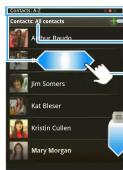
Add a contact
Touch to show
groups
Flick left or right
to show updates
of history
When you flick
up of down, a scroll tab
appears. Drag it
to scroll faster.
In your contacts list:
• To edit a contact, open it and touch Menu
Edit.
- To quickly send an email, delete, and more, touch and hold a contact.
• To search, touch and hold Menu open the
touchscreen keypad, then type a name.
Tip: You can hide a contact's social status updates, so name (as their name appears for incoming calls
or name (so their name appears for incoming out and messages, but not in your in your Contacts).
Open the contact, touch Menu Edit > Additional info, then choose wide in Contacts
Additional info, then choose hide in contacts list or Hide social activity.
To save a recent call as a
contact, touch 📊 Dialer >
Recent, touch the call, in choose Add to contacts.

Add to contacts
Social Networking
When you add social networking accounts (like Facebook or MySpace) to MOTOBLUR, friends appear in your phone's Contacts and updates.
appear in your phone's contacts, and updates appear in Social Status and Social Networking widgets.
Find it: Menu 📄 > Settings > Accounts > Add account
Sign into your social networking account with the user name or email and password you set up on that account (the same as on your computer). If you don't have accounts, you can visit their websites to set them up.
After you add a social networking account to MOTOBLUR, you can see and respond to friends' updates with a Social Networking widget on your home screen.
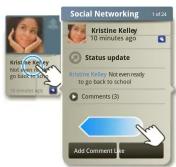
To add a Social Networking widget, touch and hold a blank spot on your home screen, then touch Motorola widgets.
Email & Text Messages
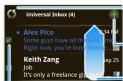
Find it: 📄 > Messaging > Universal Inbox
Touch to check
for messages
Create a
message
Flick up for more
Select multiple messages to move
delete and more
In your inbox:
• To create an email, text, or other message, touch
+ Choose the message type, then enter the recipient and messages. In text messages and
recipient and message. In text it emails, touch Menu options.
• To forward, save attachments,
or use other options for a text
message, up and hold it
• To enter names and text with
voice recognition, just touch a text box, then
touch the voice icon 📊 n the display keypad.
Tip: To turn only on the green notification light that flashes at the top of your phone, touch Menu Settings > Sound & display > Notification LED.
Please don't text and drive.
To add email accounts, touch Menu 📄 > Settings > Accounts > Add account.
- Email is for most personal and other accounts that are not on a Microsoft® Exchange Server. To sign into your account, use the user name or email and password that you set up on that account (the same as on your computer). For account details, contact the account provider.
When you sign into your account, you may see your friends and contacts in your Contacts list.
- Corporate Sync is for work email accounts on a Microsoft® Exchange Server. Enter your user and server details from your business IT department. Note: This requires an enterprise data plan. Some work accounts might require you to add a password lock to your phone for security.
To change your settings, touch ▶ Messaging > Menu 📄 en touch:
- Manage accounts to change your user name or password (or server settings for email).
- Edit Universal Inbox to choose which accounts show messages in the Universal Inbox
- Messaging Settings to set the notification for each account type (along with other preferences for email).
Photos & Videos
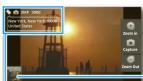
Find it: Camera
[Non-Text]
[Non-Text]
[Non-Text]
[Non-Text]
-Your last
Tag (location or custom)
3MP Resolution (touch to change)
3000 Photos Remaining (depends resolution and memory used)
Resolution and memory card) To open your camera's settings, touch Many (2)
Photos are stored on your memory card.
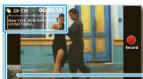
Find it: Camcorder
[Non-Text]
[Non-Text]
[Non-Text]
[Non-Text]
Your video
Tag (location or custom)
CIF Resolution (touch 📄 to change)
30:50 Minutes Remaining (depen) resolution and memory card
Before you record a video to send in a message, touch Menu > Settings > Video Resolution > Small.
Apps & Updates
Find it: Market
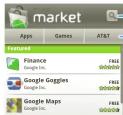
Search by app name
Open a list of AT&T
apps
广力云智慧零售收银系统
Press to open a
menu where you
can search, see
downloads, or get help
Android Market offers quick, easy access to a wide variety of applications developed specifically for the Android platform. These have been created by developers all around the world, and have been rated by your fellow Android users. In Market:
- To find an app, touch the search icon or Menu 📄
• To reinstall downloaded apps or load your apps on
a new device, touch Downloads.
• To get help, touch Menu 📄 > Help
To manage or remove apps on your phone, touch Menu Ⓞ > Settings > Applications > Manage
applications. Touch an app in the list, then touch Uninstall (for apps you downloaded), Clear cache, or other options.
If you have trouble removing an app, turn off you
phone, then turn it back on—when you see the "Motorola" logo during power-up, press and hold
both volume keys. Your screen will show Safe Mode
In the tower left corner, and you can remove the app.
AT&T Features & Services
Note: To use some AT&T services, you might need to turn off Wi-Fi® power.
- AT&T Maps & Navigator—Check maps and get
driving directions quickly and conveniently. Navigator requires a separate subscription
- Instant Messaging (IM)—Send IMs to your buddy list using your favorite service.
- Mobile Video —Watch news, sports, wea entertainment video clips
- Mob i TV —Transform your phone into a wireless T
MobNV requires a subscription and data plan, and is not available in all areas. Programs are subject
to change.
- Mobile Banking—Check your account balances,
transfer funds between eligible accounts, view and pay bills. To find out if your bank supports Mobile
Banking, visit att.com/m your financial institution
For information on setting up or using these services,
visit att.com/ rutohals. to add these services, contact your local AT&T store or call 1-800-331-0500.
Web
Find it: Browser
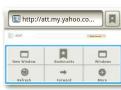
Press Menu to open the address bar and a menu for bookmarks, windows and more
To go to a web page in the browser, touch Menu then enter the URL address in the box at the top of the screen. In your home screen, you can enter an address in a Search widget.
A at the right of the address bar means you can add the page's RSS news feed to a News app or widget: Touch Menu > More > RSS Feeds.
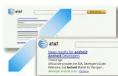
Zoom To zoom in or out, slide two fingers apart or together
Music Player & Radio
Find it: 📄 > 🟢 Music, then choose a song
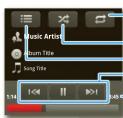
Repeat Off/All/Current Shuffle On/Off Open Playlist Music Controls Song Length
Tip: When a song is playing, you can add it to a playlist by touching Menu Add to playlist.
AT&T Radio lets you bring 400+ stations anywhere you go. Enjoy all the best in music, from Hip-Hop and R&B to Rock, Pop, Latin and more, PLUS the best in talk radio.
Note: AT&T Radio requires a subscription and data plan, unless you only listen to the FM Radio Tuner.
Find it: > AT&T Radio
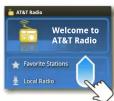
Drag or flick to scroll through local stations, genre stations, talk, and more
To close the radio, touch Menu Exit.
Wi-Fi ^® , DLNA ^TM & Bluetooth ^®
Connections
Find it: Menu 📄 > Settings > Wireless & networks > Wi-Fi settings or Bluetooth settings
Wi-Fi settings:
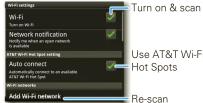
You can connect to a Wi-Fi network for fast Internet access and downloads. Your phone comes with Wi-Fi power turned on. To turn it off, touch touch Menu > Settings > Wireless &
See www.attwifi.com for terms, conditions & charges.
If your Wi-Fi network has
other DLNA certified devices, you can use them
to play or transfer the
Videos, pictures, and music stored on your phone. Touch > Media Share.
• In Bluetooth settings
Touch Bluetooth to turn it on and scan for a Bluetooth headset or car kit, then touch a device that was found to connect it.
Note: Using a mobile device or accessory while driving may cause distraction and may be illegal. Always obey the laws and drive safely.
Tip: Airplane mode turns off your Bluetooth, Wi-Fi, and network connections—useful when flying. Press and hold Power 📍Airplane mode.
Memory Card & USB
Your phone comes with a removable memory card already installed. You need it for some features on your phone, like Camera.
To manage memory card files, touch 📷 > Quickoffice > Memory card. Touch a file or folder to open, touch and hold a file to
Delete or Share
You can transfer your pictures, videos, music, ringtones and more, from your computer to the memory card in your phone:
- Connect a Motorola micro USB data cable from your phone's micro USB port to a USB port on your
computer
- Your phone should show ♦ in the notification bar. Flick down the notification bar and touch ♦ to choose a memory card connection. You should be able to access the memory card from your computer.


•
e notification bar.
nd touch ♦ to on. You should be from your
Icons & Battery Life
At the top of the screen, icons on the left notify you about new messages or events (flick the bar down for details). Icons on the right tell you about phone status:
| Bluetooth® active | Lfd | network (full signal) | |
| GPS active | network (roaming) | ||
| Wi-Fi® active | G | GPRS (fast data) | |
| downloading | E | EDGE (faster data) | |
| vibrate | 3G | 3G (fastest data) | |
| silent | → | flight mode | |
| mute call | battery (charging) | ||
| speakerphoneactive | battery (full charge) | ||
| alarm set | GoogleTM syncactive | ||
| Media Shareis ready to search over Wi-Fi® | |||
To get the most out of your battery, touch Men > Settings > Battery Manager > Battery Profile, then choose:
• Performance Mode for constant data transfer and battery use.
- Battery Saver Mode when your battery is low
- Smart Mode if you want to set Battery Profile Options that limit your data and wireless connections during off-peak hours.
Be aware that the following could reduce battery life between charges: - recording or watching videos, listening to music or taking pictures.
- widgets that stream information to your home screen, like news or weather.
Motorola Mobility, Inc. Consumer Advocacy
600 N US Hwy 45
Libertyville, IL 60048 www.hollamoto.com
Note: Do not ship your product to the above address. If you need to
return your product for repairs, replacement, or warranty service, please contact the Motorola Customer Support Center at:
1-800-734-5870 (United States - Android products)
1-888-390-6456 (TTY/TDD United States for hearing impaired - all
products) 1,800,461,457.5 (Canada, all products)
1-000-401-4375 (Canada - all products) Certain features, services and applications
may not be available in all areas; additional terms, conditions and/or changes may apply. Contact waves service provides for details.
All features, functionality, and other product specifications, as well as
the information contained in this guide, are based upon the latest
available information and believed to be accurate at the time of printing. Motorola reserves the right to change or modify any
information of specifications without notice or obligation. MOTOROLA, the Stylized MLogo, MOTORBLUE and the MOTORBLUE logo
are trademarks or registered trademarks of Motorola Trademark Holdings, LLC. © 2010 AT&T Intellectual Property. Service provided by AT&T Mobility. All rights reserved. AT&T, the AT&T logo and all other AT&T marks contained herein are trademarks of AT&T Intellectual
Property and/or AT&T affiliated companies. DLNA, the DLNA logo and
DLNA CERTIFIED are trademarks, service marks or certification marks of the Digital Living Network Alliance. The Bluetooth trademarks are
owned by their proprietor and used by Motorola Mobility, Inc. under
License: Google is a Certification Hall of the Wireless Disability Alliance, Inc. Google, the Google logo, Google Maps, Gmail, YouTube, Picasa.
Android and Android Market are trademarks of Google, Inc. Facebook is
a Registered trademark of Facebook, Inc. Microsoft, Windows, Windows Me. and Windows Vista are registered trademarks of Microsoft
Corporation in the United States and other countries. All other
© 2010 Motorola Mobility, Inc. All rights reserved.
Caution: Changes or modifications made in the radio phone, not
expressly approved by Motorola, will void the user's author operate the equipment.
Product ID: MOTOROI
Manual Number: 00514264051-9