VHR-277 - Videorekorder SANYO - Kostenlose Bedienungsanleitung
Finden Sie kostenlos die Bedienungsanleitung des Geräts VHR-277 SANYO als PDF.


Benutzerfragen zu VHR-277 SANYO
0 Frage zu diesem Gerät. Beantworten Sie die, die Sie kennen, oder stellen Sie Ihre eigene.
Eine neue Frage zu diesem Gerät stellen
Laden Sie die Anleitung für Ihr Videorekorder kostenlos im PDF-Format! Finden Sie Ihr Handbuch VHR-277 - SANYO und nehmen Sie Ihr elektronisches Gerät wieder in die Hand. Auf dieser Seite sind alle Dokumente veröffentlicht, die für die Verwendung Ihres Geräts notwendig sind. VHR-277 von der Marke SANYO.
BEDIENUNGSANLEITUNG VHR-277 SANYO
INSTRUCTION MANUAL
VHR-277E
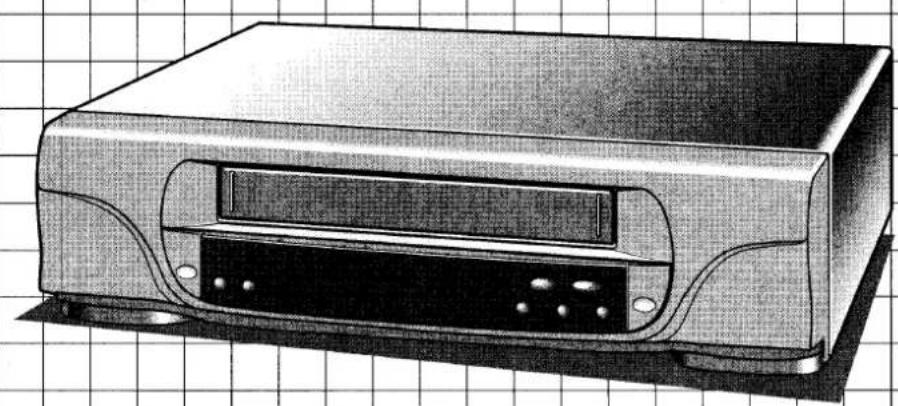
Video cassette recorder
natural_image
Illustration of a computer monitor with ventilation slots and ports, placed on a grid background (no text or symbols)CONNECTIONS
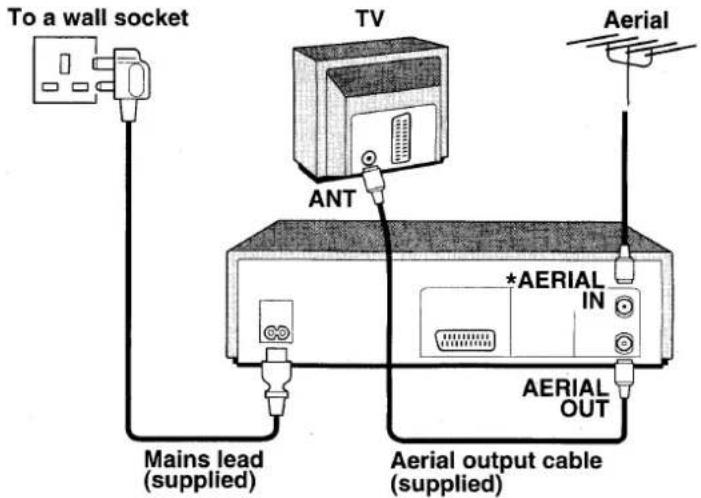
Note:
Do not connect anything to the VCR
AERIAL IN socket at this stage.
VCR PRESETTING
SETUP1 Setting the TV to the video channel
\* IMPORTANT
Make sure the VCR is connected to the TV as shown above, but that the aerial is not connected to the VCR at this stage.
flowchart
graph TD
A["1: Turn on your TV and set it to the designated video channel.<br>(on modern TVs it is normally 0, on older ones 8)"] --> B["2: Make sure the VCR is switched off, using the ⏻/I button."]
B --> C["3: Press the PRESET button for at least 3 seconds.<br>• The VCR display shows "52 RF"."]
C --> D["4: Adjust the tuning on the TV so that the test pattern (2 vertical bars) appears."]
D --> E["5: Now connect the aerial to the back of the VCR.<br>• If the test pattern is disturbed or replaced by a TV station, see page 6."]
E --> F["6: When the test pattern stays the same, press the PRESET button.<br>• The VCR is turned off."]
SETUP2 Clock setting
SETUP3 Auto tuning
The TV stations available in your area will be automatically preset in order starting from programme position number "1".
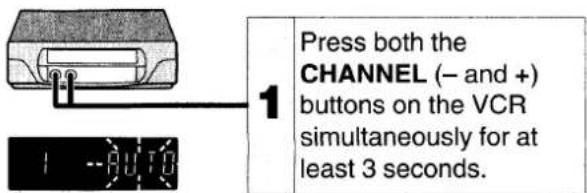
Please refer to "Additional tuning adjustments" on page 7 because you may have to sort the TV stations into the correct order.
This completes the video channel setting.
Now go to SETUP2.
QUICK SETUP GUIDE 1
1
INTRODUCTION
PRECAUTIONS 3
CONTROLS 4
2
PREPARATION
CONNECTIONS 5
Accessories 5
Remote control batteries insertion.... 5
VCR PRESETTING 6
SETUP1 Setting the TV to the video channel 6
SETUP2 Clock setting 6
SETUP3 Auto tuning 7
Additional tuning controls 7
3
BASIC OPERATION
PLAYBACK......8
Variable playback modes 8
Index search.... 8
Counter memory 8
Endless play 9
Playback of an NTSC tape 9
Picture adjustments 9
RECORDING TV PROGRAMMES 10
Setting the recording type.... 10
Quick Start Recording timer.... 10
4
ADVANCED OPERATION
VIDEO PLUS+ TIMER RECORDING PROGRAMMING ...... 11
MANUAL TIMER RECORDING PROGRAMMING.... 12
Confirmation 12
Cancelling 12
Notes on timer recording 12
TAPE COPY....13
5
TROUBLESHOOTING 13
SPECIFICATIONS 14
GUARANTEE TO CUSTOMER .... Back cover
Make sure these settings are done before operating the VCR.
Only cassettes marked VHS can be used with this VCR.
Safety precautions
DANGER:
This VCR contains live parts. Do not remove the cabinet.

WARNING:
To prevent fire or shock hazard, do not expose this product to rain or moisture.
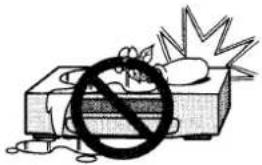
CAUTION:
Do not put your hand or other objects in the cassette loading slot because of the risk of injury or an accident. Be sure to keep small children away from the VCR.
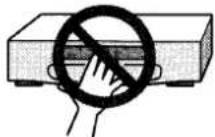
Caution concerning condensation
Be careful of condensation
Condensation can form inside a VCR when it is suddenly moved from a cold place to a warm, humid one, or when a heater has been turned on to quickly heat the room.
Do not insert a video cassette if you use this VCR in areas subject to condensation. Wait for 112 to 2 hours to completely eliminate condensation before using the VCR.
Operating precautions
- Place the VCR on a flat, stable, level surface. Never subject it to violent shaking or any other shock or impact.
- Do not expose the unit to high temperatures. Excessive heat (heat sources such as heaters, ovens, closed car on hot days, etc.) may damage the unit.
- Be sure to use this VCR only in a temperature range of 5°C to 40°C (41°F to 105°F) and at less than 80% humidity.
- Do not use the unit under the following conditions:
– in locations with high humidity
- in presence of excessive dirt or dust
– in areas subject to strong vibrations
- near strong magnetic fields (e.g. transmitting antennas, motors, fluorescent lights, etc.)
- Do not stack anything on top of your VCR, or block the air vents, to prevent damaging or overheating.
- Do not place anything, except VHS video cassette tapes, in the unit.
- Do not allow rain, steam, dew, salt water, sand, oily smoke, metal objects, etc. to enter the unit.
- Clean with a dry and soft cloth, or soft cloth slightly moistened with a mild detergent solution.
- Do not use any type of solvent, such as alcohol or benzine.
Power on/stand-by mode
Power is switched on/off by pressing the ⏻/I button.
VCR display
Stand-by mode (⏻)
Power on mode (1)

"Stand-by mode" is the condition in which only the time is displayed.
- Do not forget that even in the power off state there is an electrical voltage inside the VCR as long as it is connected to a wall socket.
- Disconnect the mains lead from the wall socket if the VCR is not to be used for a long time.
Note:
If the unit does not operate properly, switch it off, refer to "TROUBLESHOOTING" (see page 13) or contact your Sanyo authorized service agent.
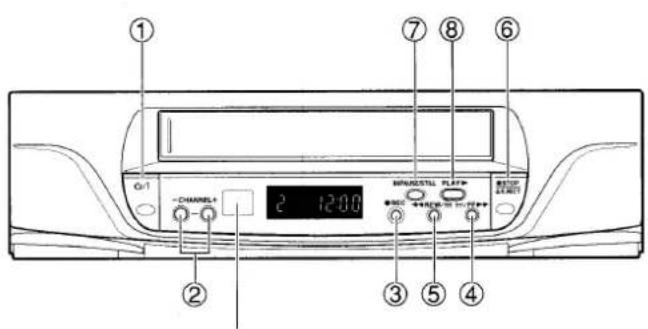
Remote control sensor
Operate the remote control unit within a range of approx. 30° and approx. 6m (20 ft.) from the front of the VCR.
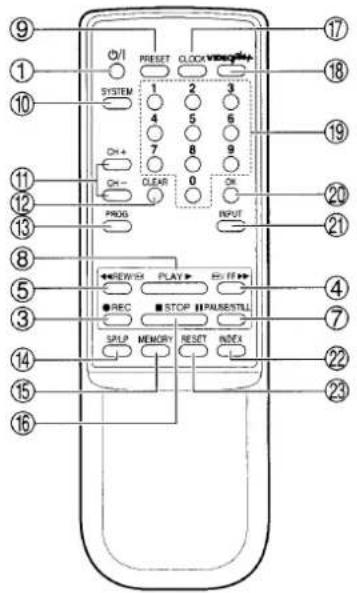
| Indication | Function | Page | |
| 1 | ∅/l | Power on/stand-by mode | 3 |
| 2 | CHANNEL-, + | Programme selection | 7, 10 |
| 3 | REC | Recording | 10, 13 |
| 4 | FF | Fast-forward, forward search during playback | 8 |
| 5 | REW | Rewind, reverse search during playback | 8, 9 |
| 6 | STOP/EJECT | Tape stop, cassette ejection (VCR only) | 8 |
| 7 | PAUSE/STILL | Pause during recording, still picture during playback | 8, 10 |
| 8 | PLAY | Playback | 8, 9 |
(On the remote control only)
| 9 | PRESET | Tuner preset | 6, 7 |
| 10 | SYSTEM | NTSC playback system selection | 9 |
| 11 | CH+, CH- | Tuning, programme selection, tracking adjustment | 7, 9, 10 |
| 12 | CLEAR | Clears data | 12 |
| 13 | PROG | Timer programme set | 12 |
| 14 | SP/LP | Recording tape speed selection | 10 |
| 15 | MEMORY | Counter “0:00:00” position memory | 8 |
| 16 | STOP | Tape stop | 8 |
| 17 | CLOCK | Clock set | 6 |
| 18 | VIDEO Plus+ | VIDEO Plus+ timer programme set | 11 |
| 19 | 0 – 9 | Direct programme selection, for various input | 6, 11, 12 |
| 20 | OK | Data/settings entry | 6, 11, 12 |
| 21 | INPUT | External input mode selection | 12, 13 |
| 22 | INDEX | Index search | 8 |
| 23 | RESET | Counter reset | 8 |
Function indicator VCR display
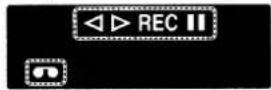
| Mode | Display |
| Cassette in | |
| Playback | |
| Forward search | |
| Fast-forward | |
| Rewind | |
| Reverse search | |
| Still picture | |
| Record | REC |
| Record pause | REC |
(※: Flashing)
Accessories
Is everything in the box?
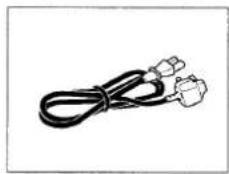
natural_image
Coiled black cable with two connectors (no text or symbols visible)Mains lead
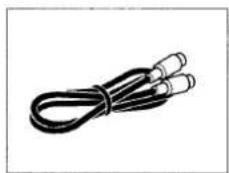
natural_image
Coiled black cable with two connectors (no text or symbols visible)Aerial output cable
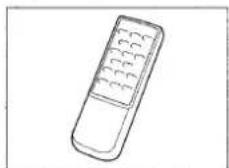
Remote control unit
natural_image
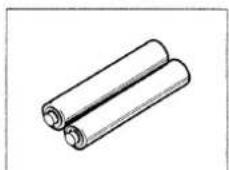
Simple line drawing of two cylindrical batteries (no text or symbols)2 "AA (IEC R6)" size, 1.5-volt batteries
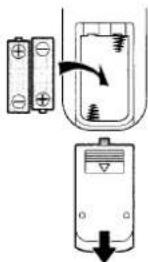
Remote control batteries insertion
1 Slide open the lid.
2 Insert 2 "AA (IEC R6)" 1.5 volt batteries (supplied) according to the ⊕ and ⊖ signs.
3 Replace the lid.
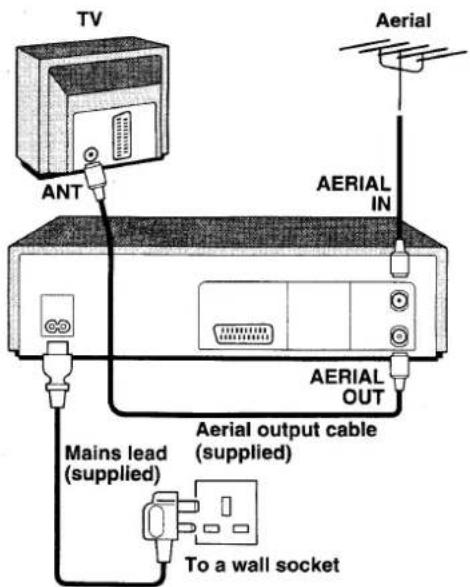
Aerial/RF connection
Set one of the channels on the TV as a video channel specifically for the signals from the VCR. See "Setting the TV to the video channel" on page 6.
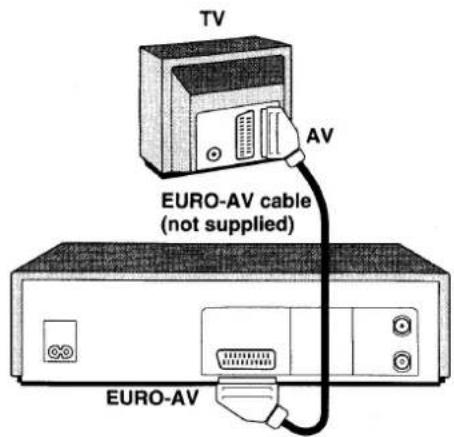
AV connection
If your TV has an AV terminal, the following AV connections are also possible.
- The advantage of this connection is a higher quality of picture and sound during playback.
- When the PLAY button is pressed, the TV is automatically switched to the AV mode.
Mains lead connections
- If the plug supplied with this appliance is not suitable for the wall socket in your home, it should be cut off and the correct type fitted.
The wires in the mains lead are coloured according to the following code:
Blue: Neutral
Brown: Live
If the colours of the wires in the mains lead of this apparatus do not correspond with the colour markings identifying the terminals in your plug, proceed as follows:
- The wire which is coloured blue must be connected to the terminal which is marked with the letter N or coloured blue or black.
- The wire which is coloured brown must be connected to the terminal which is marked with the letter L or coloured brown or red.
- Do not connect either wire to the Earth terminal.
Disposal of plug
If the non rewireable plug is to be cut off, the removed plug should be disposed of carefully as there is a shock hazard should the plug be inserted into a live socket.
Replacing the fuse
The detachable fuse cover must be replaced after changing the fuse. Only a 3A fuse should be used, it should comply with BS1362, and should carry the ASTA mark.
After all the connections are completed, please follow steps SETUP1 to SETUP3 before using the VCR.
If the VCR has been connected to the TV using the "AV connection", simply set the TV to the AV mode. Go to "SETUP2".
SETUP1
Setting the TV to the video channel
IMPORTANT
Make sure the VCR is connected to the TV as shown "Aerial/RF connection" on page 5, but that the aerial is not connected to the VCR at this stage.
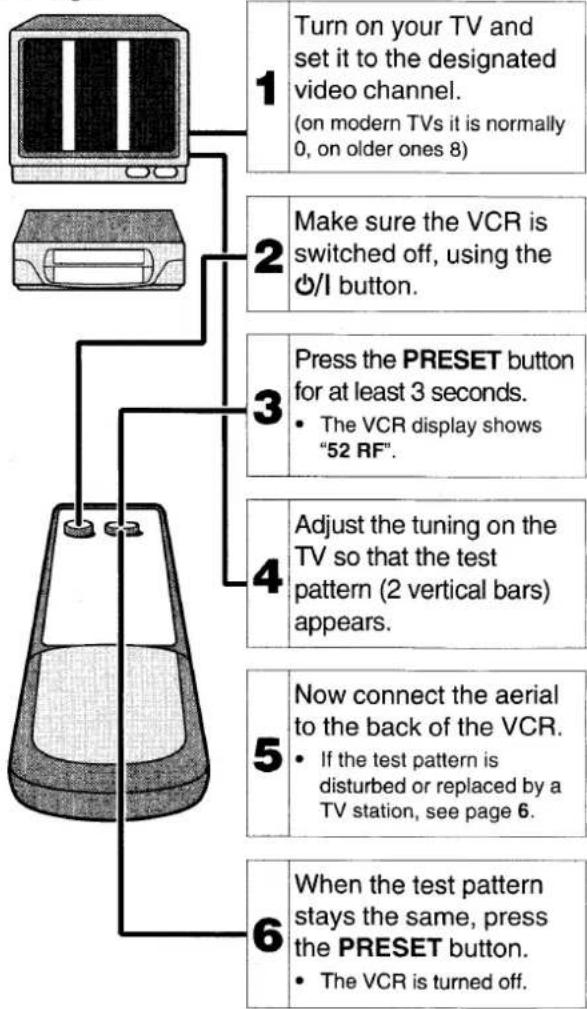
1 Turn on your TV and set it to the designated video channel (on modern TVs it is normally 0, on older ones 8).
2 Make sure the VCR is switched off, using the ⏻/l button.

3 Press the PRESET button for at least 3 seconds.
- The VCR display shows "52 RF".
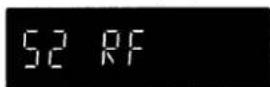
4 Adjust the tuning on the TV so that the test pattern (below) appears. (TV screen)

5 Now connect the aerial to the back of the VCR. If the test pattern is distributed or replaced by a TV station, go to step 6.
If the test pattern stays the same, press the PRESET button. The VCR is turned off.
This completes the video channel setting. Now go to SETUP2.
6 Disconnect the aerial from the back of the VCR.
7 Using the CH+ or CH− button on the VCR remote control, change the number on the VCR.
8 Adjust the tuning on the TV so that the test pattern appears.
9 Reconnect the aerial to the back of the VCR.
If the test pattern is disturbed or replaced by a TV station, go back to step 6 and repeat the procedure.
If the test pattern stays the same, press the PRESET button. The VCR is turned off.
This completes the video channel setting. Now go to SETUP2.
SETUP2
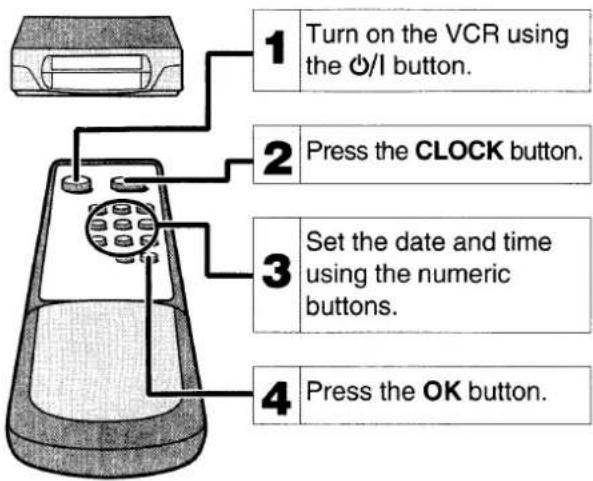
Clock setting
Example: To set December 10, 1997, 16:15.
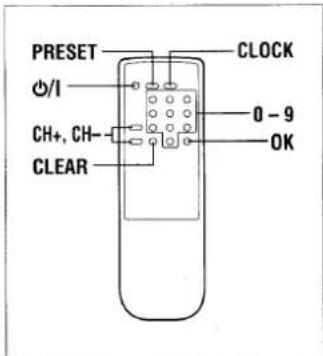
1 Press the ⏻/I button.
2 Press the CLOCK button.
3 Set the date using the numeric buttons (e.g. 10 12 97).
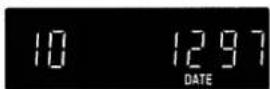
If you entered a wrong number, press the CLEAR button to delete it, then enter the correct number.
4 Set the time using the numeric buttons (e.g. 16 15).
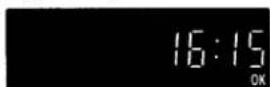
5 Press the OK button.
- Seconds will start counting from "00" as the OK button is pressed.
Summer/Standard time setting
1 Press the CLOCK button.
2 Each press of the CH+ or CH- button, will advance or retard the clock by 1 hour.
3 When finished, press the OK button.
Changing the time/date
1 Press the CLOCK button.
2 Continue pressing the CLEAR button to clear the digits to correct, then enter the new settings for the date, then for the time, using the numeric buttons.
3 When finished, press the OK button.
If a TV station is preset to channel position 0 or 8 on your TV, select another channel position where no TV station is received.
(For more details, please refer to your TV instruction manual.)
Power interruption
If the power to the VCR has failed or has been disconnected for more than 1 hour, the date, time, and any recording information regarding future recordings should be reset.
However, the tuner preset memory will not be erased. So there is no need to retune the VCR stations.
The date, time and recording information regarding future recordings should be reset.
First refer to "SETUP2 Clock setting" on page 6, to set the clock (date and time), then, the timer recording programmes should be set again as desired.
SETUP3
Auto tuning
This VCR has a built-in tuner capable of tuning up to 44 TV stations.
Press both the CHANNEL (− and +) buttons on the VCR simultaneously for at least 3 seconds.
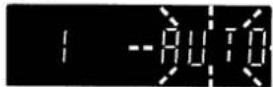
When all available TV stations have been preset, the function will stop and the TV station preset to the lowest programme position number will be tuned on your TV screen.
Because of this you may have to sort the TV stations into the correct order. Please refer to "Sorting the TV stations".
Notes:
- During the auto tuning operations, please do not press any of the buttons or controls on the VCR or remote control.
● Auto tuning is not possible if the VCR is set to AV mode. - The skip function will be automatically set for all position numbers where no TV station has been preset.
Additional tuning adjustments
Sorting the TV stations
Example: To change BBC 2 from programme position "3" to programme position "2".
| Programme position | “1” | “2” | “3” | “4” |
| TV station | BBC 1 | BBC 2 | ITV | C4 |
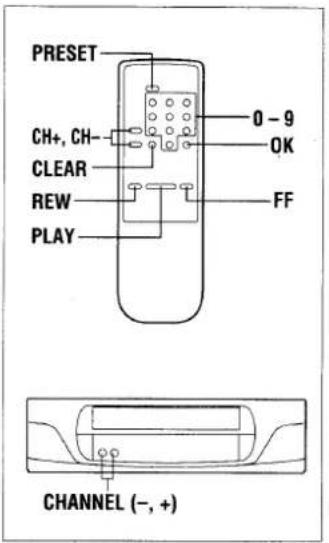
1 Press the PRESET button.
2 Using the CH+ or CH− button select the desired TV station (e.g. BBC 2).
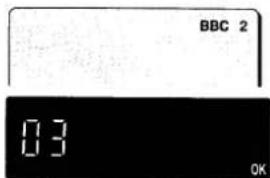
3 Using the numeric buttons (0 - 9), enter the target programme position number (e.g. "02").
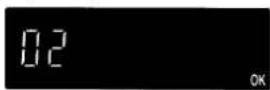
4 Press the OK button.
Repeat steps 2 to 4 to change another TV station programme position number.
5 When finished, press the PRESET button.
Fine tuning
If the tuning is not optimum, it can be improved by manual fine tuning.
1 Press the PRESET button.
2 Press the FF or REW button to obtain the best possible picture and sound.
3 Press the OK button.
4 When finished, press the PRESET button.
Skip function
If only programme position numbers 1 to 30 have been preset, set the skip function for programme position numbers 31 to 44, so that only the preset TV stations will appear when pressing the CH+ or CH- button.
1 Press the PRESET button.
2 Using the numeric buttons or the CH+ or CH- button, select the programme position number to skip.
3 Press the CLEAR button.
- The "S" indicator will light.
To cancel the skip function, press the CLEAR button again to erase the "S" indicator.
4 Press the OK button.
Repeat steps 2 to 4 for every programme position number to skip.
5 When finished, press the PRESET button.
Manual tuning
This tuning mode can be used to modify the settings entered by the Auto tuning function, or to manually preset the TV stations to particular programme position numbers.
1 Press the PRESET button.
2 Using the CH+ or CH− button, select the desired programme position number.
3 Press the PLAY button.
If the search stops on a broadcast other than the one desired, press the PLAY button again until the broadcast from the desired TV station appears on the TV screen.
4 Press the OK button when the desired TV station appears on the TV screen.
Repeat steps 2 to 4 to preset another TV station to another programme position number.
5 When finished, press the PRESET button.
Turn on the TV, then set it to the preset video channel.
1 Insert a recorded video cassette.
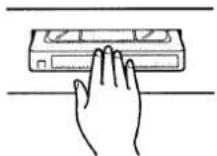
Cassette loading
Gently push the centre of the cassette until it is loaded automatically.
2 Press the PLAY button.
Stop
Press the STOP button.
Eject the cassette
Press the EJECT button on the VCR.
Rewind
Press the REW button during stop or reverse search operation.
Fast-forward
Press the FF button during stop or forward search operation.
Variable playback modes
Forward search
Press the FF button during playback or fast-forward operation.
Reverse search
Press the REW button during playback or rewind operation.
Still picture
Press the PAUSE/ STILL button during normal playback.
Frame advance
Press the PAUSE/ STILL button during still picture.
Index search
An index signal is automatically placed at the beginning of each recording made on this VCR. This index can be used to search for the next (or present) recording.
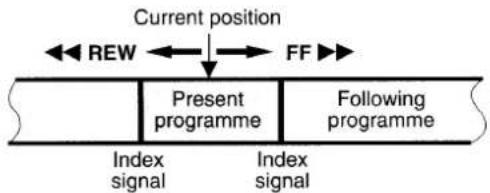
flowchart
graph LR
    A["Current position"] --> B["REW"]
    B --> C["FF"]
    C --> D["Present programme"]
    D --> E["Following programme"]
    F["Index signal"] --> G["Index signal"]
Notes:
● Make sure that indexes are at least five minutes apart from each other.
- Index signals are not recorded after a recording pause.
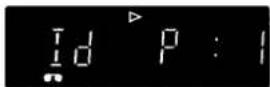
1 Press the INDEX button while in the stop or playback mode.
To cancel the index search mode, press the INDEX button again.
2 Press the FF or REW button.
To stop the search function, press the STOP button.
- Playback will start automatically when an index is found.
Counter memory
This convenient feature for finding the beginning of a specific recording etc., is made possible by the "Linear Time counter" that indicates the tape run time in hours, minutes and seconds.
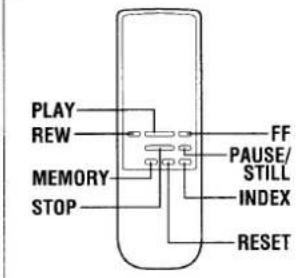
1 Press the RESET then the MEMORY button before starting recording or playback.
- The zero point of the counter is now memorized and the memory indicator "M" will illuminate.
2 Press the REW button at the end of the recording or playback, the tape will be rewound and stop automatically at the memorized position.
Notes:
- Whenever you load a cassette tape, the counter is reset to "0:00:00".
- If you play back a blank tape or a blank portion of tape, the counter will not operate.
EJECT
Auto power on
The power is automatically switched on as a cassette is inserted while the VCR is in the stand-by mode.
Auto play
The VCR will play back a tape automatically when a video cassette is inserted whose erasure-prevention tab has been removed.
Auto eject
When a video cassette without an erasure-prevention tab is played to the end of the tape, the tape will be automatically rewound and then the cassette will be ejected.
Power off eject
The video cassette will be ejected when the EJECT button is pressed, even when the VCR is in stand-by mode.
Endless play
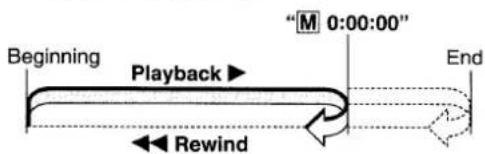
This function will play back a tape to the end, rewind it then replay it again, and again until you stop it.
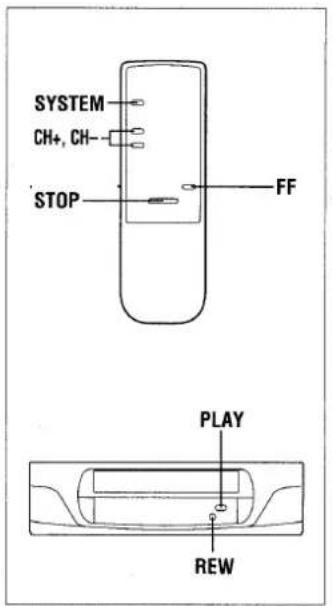
1 In the stop or playback mode, first press the PLAY button then while holding it down press the REW button on the VCR.
2 To cancel the endless play, press the STOP button.
- If the counter memory function is used in combination with endless play, the VCR will play back the tape to the counter reading "M 0:00:00" then start again from the beginning.
Note:
During endless play, please do not press FF, REW or PAUSE/STILL button because the endless play will be cancelled.
Playback of an NTSC tape
This VCR can playback an NTSC tape on a PAL (I) or NTSC 4.43 system TV.
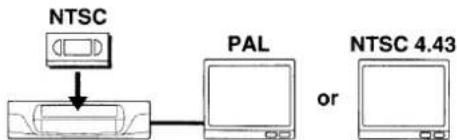
flowchart
graph TD
    A["NTSC"] --> B["Device"]
    B --> C["PAL"]
    C --> D["or"]
    D --> E["NTSC 4.43"]
Select the TV system on the VCR to match the system of the TV used, as indicated below.
1 Press the SYSTEM button.
2 Press the CH+ button.
| TV system | VCR display |
| PALI | |
| NTSC4.43 |
3 Press the SYSTEM button.
When you playback an NTSC tape on a PAL TV,
- If the image is unstable, rolling vertically, use the TV vertical hold button to stabilize the image.
- The image may shrink vertically and a black band may appear at the top and bottom of the screen.
Notes about NTSC tape
- An NTSC tape cannot be copied normally.
● Picture quality of NTSC tapes cannot be guaranteed with this VCR.
Picture adjustments
Tracking adjustment
This VCR is equipped with an auto tracking function. During playback this function will adjust the tracking to the best possible image. If noise appears in the playback picture, press the CH+ or CH- button, to reduce the noise interference in the image.
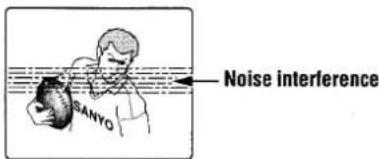
Note:
Depending on the cassette tape, you may find that some noise interference cannot be completely corrected using the tracking controls.
If the still picture moves up and down
Use the CH+ or CH− button, to correct. Once the cassette tape is unloaded, the VCR is reset and the next time the VCR is used you may need to do the corrections again.

Notes:
- During variable playback modes the picture may contain some noise or vibration that cannot be corrected. This is not a malfunction.
- If still picture playback is continued for about five minutes, the VCR will automatically change to stop mode in order to prevent the tape from being damaged.
- This VCR will not guarantee the variable playback modes picture quality.
Turn on the TV, then set it to the preset video channel or AV mode (if connected by a EURO-AV cable).
Insert a video cassette with erasure-prevention tab.
1 Press the numeric buttons, or the CH+ or CH- button, to select the TV station to be recorded.
2 To select the tape speed, press the SP/LP button.
3 Press the REC button.
4 To stop the recording, press the STOP button.
If you wish to avoid recording unwanted material
1 Press the PAUSE/ STILL button.
2 To continue recording, press the PAUSE/STILL button or REC button.
Note:
If the record pause mode continues for about five minutes, the VCR will automatically go into the stop mode in order to prevent damage to the tape.
Recording one programme while watching another
1 Start recording the desired TV station programme selected on the VCR.
2 Select on the TV receiver the TV station you want to watch.
If using the "AV connection", set the TV to the TV mode.
Quick Start Recording timer
Timer recording is simple.
You can start a recording and then programme when the VCR will automatically stop recording and go into stand-by mode.
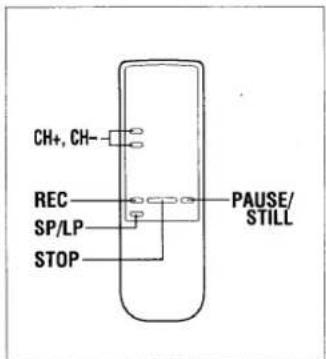
1 Press the REC button twice.
2 Set the recording end time by using REC and CH+ or CH- buttons.
| REC | Units of 30 minutes |
| CH+, CH- | Units of 1 minute |
- The timer indicator (☐) will light after the recording end time is set.
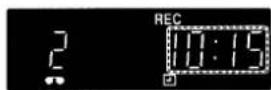
To stop the recording at any time, press the STOP button.
Checking/Changing
When the REC button is pressed during Quick Start Recording, the recording end time will blink.
The recording end time can be changed by pressing REC and CH+ or CH- buttons.
Tape speed
| SP | Best image and sound quality.No display. |
| LP | Recording or playback times are double the SP mode. |
| EP | NTSC playback only[IMAGE] |
Mis-erasure prevention eject
The cassette will automatically be ejected if recording is attempted on a video cassette without an erasure-prevention tab.
Auto rewind
The VCR automatically rewinds the tape when it reaches the end. This function does not operate with timer recording or Quick Start Recording timer.
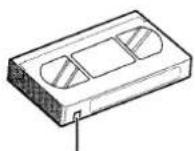
Erasure-prevention tab

To prevent accidental erasure, remove the tab after recording. To record again, cover the hole with vinyl tape.
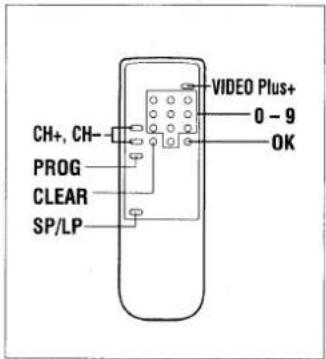
This VCR has a built-in VIDEO Plus+ system. Programming timer recordings is now as simple as entering a PlusCode number (1 to 9 digits) listed next to each programme in your local TV guide or newspaper TV programme listing.
VIDEO Plus+ and PlusCode are trademarks of Gemstar Development Corp. VIDEO Plus+ system is manufactured under license from Gemstar Development Corporation.
Newspaper or TV guide
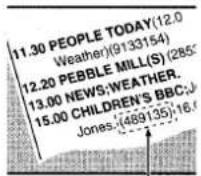
PlusCode
Easy process
1 Press the VIDEO Plus+ button.

2 Enter the PlusCode number.

3 Press the OK button.
Additional settings

4 Press the OK button.

5 Press the VIDEO Plus+ button.
VIDEO PLUS+ TIMER RECORDING PROGRAMMING
You can set up to 6 programmes to be recorded upon a period of up to 1 year. Make sure the date and time are correctly set (see page 6).
1 Press the VIDEO Plus+ button.
2 Using the numeric buttons, enter the Plus Code number for the programme you want to record. (e.g. 489135)
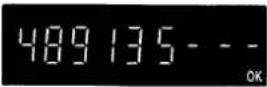
If you entered a wrong number, press the CLEAR button to delete it, then enter the correct number.
3 Press the OK button.
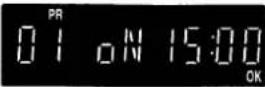
4 When all the settings are as desired, press the OK button.
You can programme another recording by repeating steps 2 to 4.
Insert a video cassette with erasure-prevention tab.
Make sure the tape is longer than the total recording time.
5 Press the VIDEO Plus+ button.
- The timer indicator (☐) will light on the VCR display and the VCR goes into timer recording stand-by mode.
At step 3,
If the programme position number (PR) displays “--”
Enter the programme position number the TV station has been preset to.
- That setting will be memorized and set the next time the same TV station is selected.
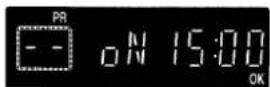
Additional settings
After pressing the OK button in step 3.
Daily/Weekly recording
Press the PROG button repeatedly to select:
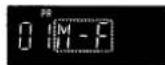
for daily recording (Monday through Friday)
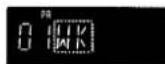
for weekly recording (the same programme every week)
Note:
Daily recording starting on a Saturday or Sunday is not possible.
Changing the off time
Each press of the CH+ or CH− button will change the recording off time by units of 10 minutes.
Recording tape speed setting
Press the SP/LP button repeatedly to display the desired tape speed.
MANUAL TIMER RECORDING PROGRAMMING
Example: Programme position: 02
Date: 25 December
On time (start): 21:30
Off time (end) 23:15
1 Press the PROG button.
2 Using the numeric buttons, set the programme position number (e.g. "02")
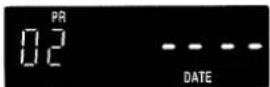
3 Set the date (e.g. 25 12)
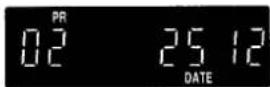
If you entered a wrong number, press the CLEAR button to delete it, then enter the correct number.
4 Set the recording on and off times (e.g. 21 30 23 15).
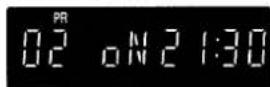
5 When all the settings are as desired, press the OK button.
You can programme another recording by repeating steps 2 to 5.
Insert a video cassette with erasure-prevention tab.
Make sure the tape is longer than the total recording time.
6 Press the ⏻/I button.
- The timer indicator (☐) will light on the VCR display and the VCR goes into timer recording stand-by mode.
To record from an external source
At step 2,
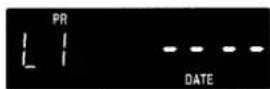
Press the INPUT button.
- The setting under "PR" (programme position) will change to "L1".
If a programme position number is already displayed, first press the CLEAR button.
Additional settings
After step 2,
Everyday/Weekly recording
Press the CH+ button repeatedly to select:
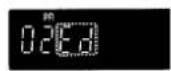
for everyday recording
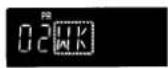
for weekly recording (the same programme every week)
Recording tape speed setting
Press the SP/LP button repeatedly to display the desired tape speed.
Confirmation
1 Press the PROG button repeatedly.
"PR -- ----" will be displayed first if less than 6 recordings have been programmed.
The settings (programme position and date) for the programmed recordings are displayed in sequence.
2 When the settings you want to confirm are displayed, press the CH-button.
The date will change to the on time then to the off time.
Cancelling
1 When the settings you want to cancel are displayed, press the PROG button.
2 Press the CLEAR button.
The VCR will automatically return to the clock (counter) display.
To correct a programmed timer recording, first cancel it, then reprogramme it as desired.
Notes on timer recording
- The (☐) indicator will flash if no video cassette is loaded when going into timer stand-by mode.
- The (☐) indicator will flash and the video cassette is ejected if a video cassette with no erasure-prevention tab is loaded.
Programme priority
If several timer recordings have overlapping recording time, the recording with the earliest start time will be recorded first, until the end.
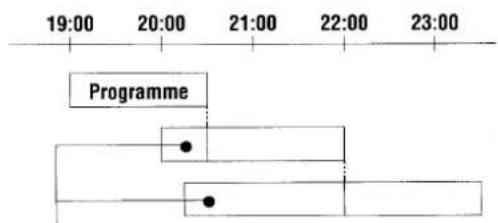
These portions will not be recorded
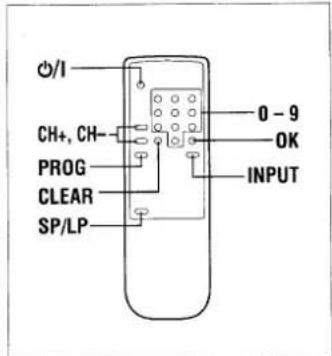
TAPE COPY
CAUTION:
The unauthorized recording of television programmes, video tapes, films and other such material may infringe upon copyright or the rights of third parties.
Copying (dubbing) a tape can be done using two video recorders, a playback VCR (e.g. a camcorder) and a recording VCR.
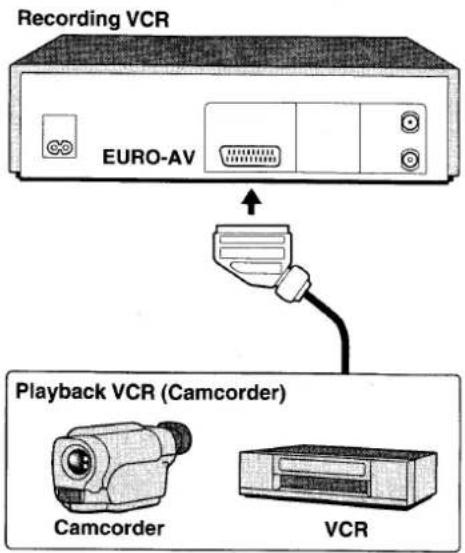
for RECORDING VCR
Insert a video cassette with erasure-prevention tab.
1 Press the INPUT button to select the external input mode.
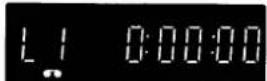
- "L1" is displayed instead of the programme position number.
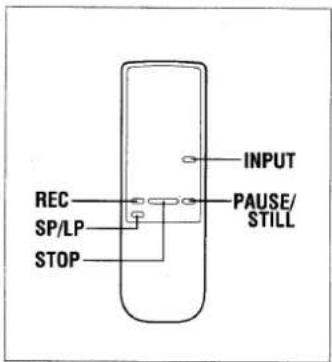
2 To select the tape speed, press the SP/LP button repeatedly to select the desired tape speed.
3 Set to the record pause mode. The record pause mode is set by pressing the REC button then the PAUSE/STILL button.
for PLAYBACK VCR (Camcorder)
Insert the recorded video cassette.
4 Start playback.
for RECORDING VCR
5 When the desired starting position is reached, start recording by pressing the PAUSE/ STILL button or the REC button.
6 When finished, press the STOP button on the RECORDING VCR then on the PLAYBACK VCR.
5
TROUBLESHOOTING
| Symptom | Check points |
| POWER TROUBLE | |
| No power | The mains lead is disconnected. |
| The remote control unit doesn't operate | The batteries are low. |
| RECEIVER TROUBLE | |
| No TV programmes received | Are the connections between your VCR and TV correct?Was tuning correctly preset? |
| Reception is poor when TV is on video channel | The video channel setting of the TV does not correspond to the video channel presetting of the VCR. |
| PLAYBACK TROUBLE | |
| Playback picture does not appear | The video channel setting of the TV does not correspond to the video channel presetting of the VCR. |
| Interference in playback picture | Adjust the tracking control.Dust or dirt on video heads. Contact your Sanyo authorized service agent. |
| RECORDING TROUBLE | |
| No recording | The erasure-prevention tab on the cassette has been removed. |
| VIDEO Plus+ or timer recording is not possible | The starting day and time have not been set correctly.The clock day and time are not set correctly.There has been a power interruption of more than one hour. |
SPECIFICATIONS
General
| Video format: | VHS PAL/NTSC 4.43 |
| Television system: | CCIR: 625 lines, PAL colour signals |
| Video heads: | 2 heads |
| Tape speed: | PALSP: 23.39 mm/secLP: 11.70 mm/secNTSC (Playback only)SP: 33.35 mm/secLP: 16.67 mm/secEP: 11.12 mm/sec |
| RF converter: | Built-in UHF converter |
| Converter output: | On channel 22 - 69 |
| Timer indication: | 24-hour indication |
| Power failure backup: | Approx. 1 hour |
| Timer recording: | 1 year 6 programmes with daily (Monday through Friday) or everyday and weekly recording function |
| Power requirement: | 220-240 V AC, 50Hz |
| Dimensions (W x H x D): | 360 x 97 x 296 mm |
| Weight: | Approx. 3.5 kg |
| Power consumption: | 20 W (in operation), less than 6 W (stand-by mode) |
Electrical characteristics
| Video input: | 0.5 - 2.0Vp-p, 75 ± 5 ohms |
| Video output: | 1.0 ± 0.2Vp-p, 75 ± 5 ohms |
| Audio input: | -3.8 dBs, more than 10 kohms |
| Audio output: | -3.8 dBs, less than 1 kohm |
| Video S/N: | More than 43 dB |
| Horizontal resolution: | More than 240 lines |
Appearance and specifications are subject to change without notice.
Repairs
This VCR is a precision instrument and, if treated with care, will provide years of satisfactory performance. However, in the event of difficulty, the owner is advised not to attempt to make repairs or open the cabinet. Servicing should always be referred to your Sanyo authorized service agent.
GUARANTEE TO CUSTOMER
Sanyo U.K. Sales Ltd. (the Company) guarantees to the initial retail purchaser that if this equipment is or becomes defective and that, in the opinion of the Company, the defect is due to faulty material or workmanship the Company will, for a period of 12 calendar months from the date of sale to the original purchaser repair or replace, at its sole option, free of charge, any such defective component part of the equipment, always provided that:-
- The equipment has at all times been used in accordance with the operating instructions issued by the Company, and has not been connected to an electrical mains supply for which it has not been adjusted.
- Accidental damage, or damage caused by negligence of misuse by the user, including leakage from exhausted batteries, is specifically excluded.
- Unauthorised repairs, or any modification to the equipment which has not been expressly approved by the Company, shall render this guarantee null and void.
- Failure due to fair wear and tear of any item, such as batteries, record playing styli, and tape recording, playback and erase heads and head cleaning is specifically excluded.
This guarantee is not transferable and is only applicable within the United Kingdom (and the Republic of Ireland). Nothing in this express guarantee affects the statutory rights available to the purchaser of this equipment.
DearCustomer
Thank you for buying Sanyo. This equipment should give you many years of pleasure and faithful service but in the event that a fault occurs, the following notes for your guidance may be helpful:-
- PLEASE RETAIN YOUR PURCHASE RECEIPT WHICH WILL BE REQUIRED FOR SERVICE DURING GUARANTEE.
- If your Sanyo equipment proves faulty during the period of guarantee, take it or send it back to the dealer who originally supplied it together with this guarantee and the proof of purchase. We have made arrangements with our approved dealers under which they will carry out in guarantee service repairs on our behalf. In this way, we hope to reduce to a minimum the amount of time you will be without your equipment.
- If for some reason it is impossible to return the equipment to the original supplier, please contact our Service Administration Department at the address below for further advice.
- Should the equipment require servicing after the expiry of the guarantee period, take or send it to the original supplier or any other Sanyo dealer. He will be pleased to give you a quotation for the repair. If you are in any doubt about what to do, write to us at the address below or telephone:
Sanyo U.K. Sales Ltd.
Sanyo House Otterspool Way, Watford, Hertfordshire WD2 8JX Tel: Watford 246363