BE6 - Kopfhörer OPTOMA - Kostenlose Bedienungsanleitung
Finden Sie kostenlos die Bedienungsanleitung des Geräts BE6 OPTOMA als PDF.


| Produkttyp | Kabellose In-Ear-Kopfhörer |
| Farbe | Schwarz |
| Treiber | 6 mm dynamisch |
| Frequenzbereich | 20 Hz – 20 kHz |
| Bluetooth-Version | 5.0 |
| Reichweite | Bis zu 10 m |
| Akkulaufzeit Kopfhörer | Bis zu 6 Stunden |
| Akkulaufzeit mit Ladecase | Bis zu 24 Stunden |
| Ladezeit Kopfhörer | Ca. 1,5 Stunden |
| Ladezeit Ladecase | Ca. 2 Stunden |
| Wasserschutz | IPX5 (spritzwassergeschützt) |
| Gewicht (pro Stück) | Ca. 5 g |
| Gewicht Ladecase | Ca. 40 g |
| Abmessungen Ladecase | 60 × 40 × 25 mm |
| Ladeanschluss | USB-C |
| Lieferumfang | Kopfhörer, Ladecase, USB-C-Kabel, 3 Paar Ohrstöpsel (S/M/L), Kurzanleitung |
| Garantie | 2 Jahre Herstellergarantie |
| Kompatible Geräte | Smartphones, Tablets, Laptops mit Bluetooth |
| Fernbedienung | Touch-Steuerung (Play/Pause, Anruf, Sprachassistent) |
| Mikrofon | Integriert, CVC 6.0 Rauschunterdrückung |
Häufig gestellte Fragen - BE6 OPTOMA
Benutzerfragen zu BE6 OPTOMA
0 Frage zu diesem Gerät. Beantworten Sie die, die Sie kennen, oder stellen Sie Ihre eigene.
Eine neue Frage zu diesem Gerät stellen
Laden Sie die Anleitung für Ihr Kopfhörer kostenlos im PDF-Format! Finden Sie Ihr Handbuch BE6 - OPTOMA und nehmen Sie Ihr elektronisches Gerät wieder in die Hand. Auf dieser Seite sind alle Dokumente veröffentlicht, die für die Verwendung Ihres Geräts notwendig sind. BE6 von der Marke OPTOMA.
BEDIENUNGSANLEITUNG BE6 OPTOMA
nu FORCE
BE6
Bluetooth in-ear headphone
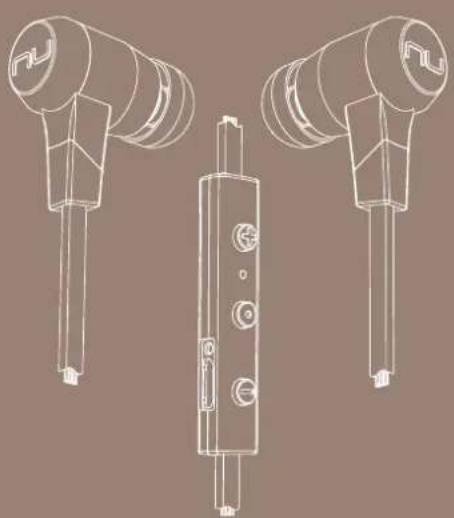
natural_image
Technical line drawing of two mechanical components with cylindrical and rectangular features (no text or symbols)User manual
Contents
WHAT'S IN THE BOX
BE6 EARPHONES
THE BASICS
Charging Your BE6
Checking Battery Level
Bluetooth Pairing
Power On/ Power Off
Wearing Your BE6
Handling Phone Calls
Listening to Music
Pairing with a Laptop
Pairing with a Mac
MISCELLANEOUS
Multipoint Connections
Restoring Factory Settings
Voice Prompts List
Disclaimer
FCC Interference Statement
Specification
WHAT'S IN THE BOX
| BE6 earphones (with inline controller and microphone) | 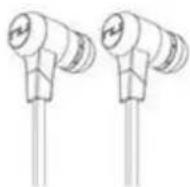 |
| Silicon tips (Silicon 4 pairs in L/M/S/XS) |  |
| Comply tips (two pairs in L/M)* |  |
| Stabilizers (1 pair) |  |
| Cable loop for adjusting the length of cable |  |
| Carry Case |  |
| Charging Cable (Micro-USB) |  |
| Quick Start Guide |  |
| Safety Instruction |  |
*You are able to purchase replacement Comply™ Foam tips through www.complyfoam.com.
BE6 EARPHONES
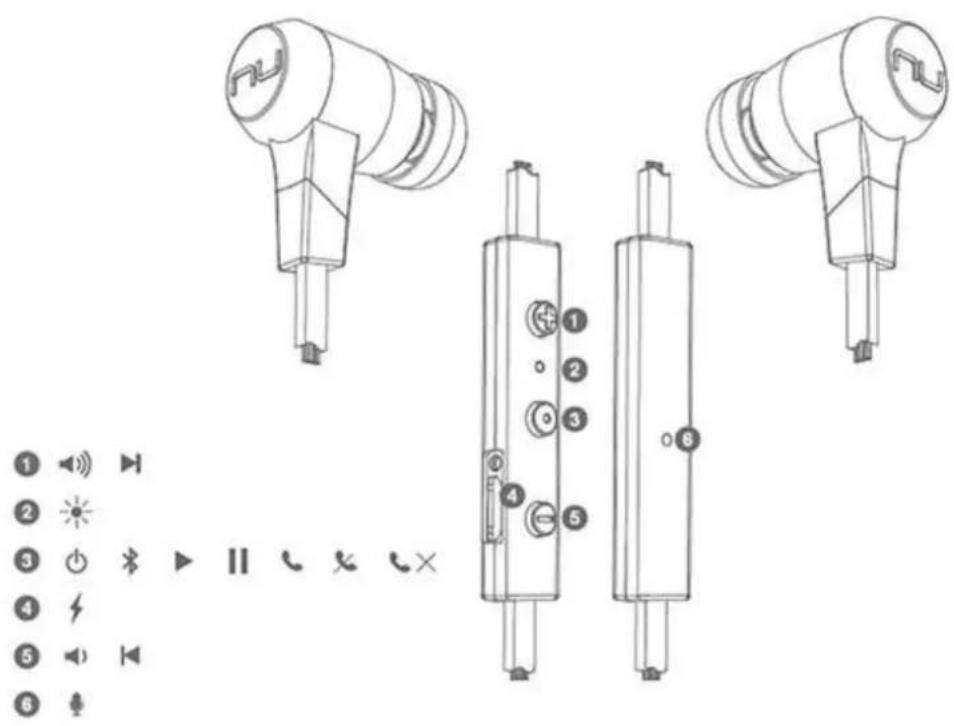
text_image
Technical diagram showing three types of electronic devices with labeled buttons and speaker icons, accompanied by a legend listing function keys.- Volume Up Button
- LED Indicator
- Power/Function Button
- Charging port
- Volume Down Button
- Microphone
The BASICS
Charging Your BE6
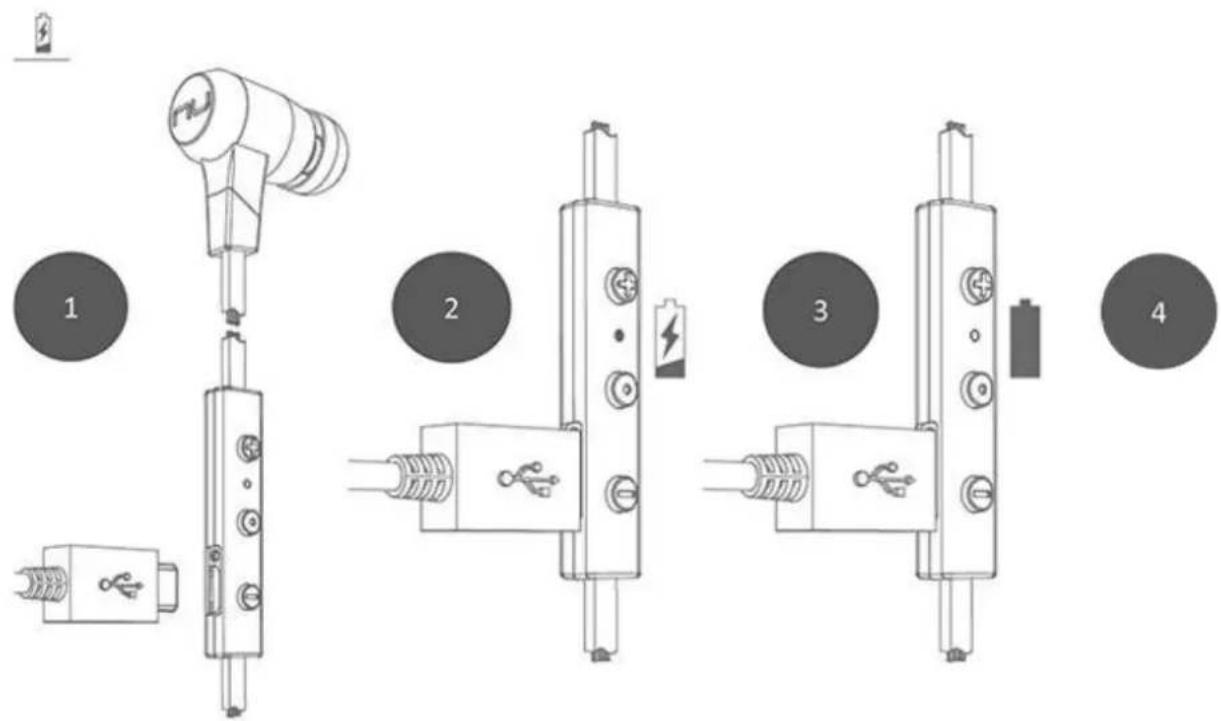
Although your BE6 in-ear headphones come with a partially charged battery, it is recommended that you fully charge your BE6 before first use.
- Open the charge port cover on the controller.
- The charge cable should be connected to the charge port and either to a PC or a dedicated USB charger.
- When charging, the LED indicator is red.
- LED Indicator turns off once charging is complete.
NOTE: It takes up to 2.5 hours to fully charge the BE6.
text_image
Diagram showing four stages of electronic component assembly with labeled parts and a battery symbolChecking Battery Level
You can check the battery level of your BE6 with the LED indicator *
To check battery level:
-
Press the Power/Function, volume up, and volume down buttons simultaneously.
-
The LED indicator will flash red and blue simultaneously. The battery level will be indicated by the number of flashes, as described in the table below:
Number of Flashes Battery Level
| Number of flashes | Voice prompts(enable) |
| 2 | Battery Low |
| 3 | Battery at 50% |
| 4 | Full Battery |
| 5 | Full Battery |
NOTE: When the battery level is low, you will hear a beep or a "Battery Low" voice prompt from your BE6 every 2 minutes, when the estimated battery reserve remaining time is under 15 minutes.
IN ADDITION:
-
When the Voice prompts are switched off you will hear a beeping sound (A short double tone) every two minutes.
-
Users with iOS devices and some Android models will be able to view the battery status on their device's display
*On some Android and all Windows operated devices you cannot check the battery level for your BE6 when you listen to music, in the middle of a phone call or in pairing mode.
Bluetooth Pairing
flowchart
graph TD
    A["1"] --> B["2"]
    B --> C["..."]
    D["1"] --> E["3"]
    E --> F["Optoma NuForce BE5"]
Using your BE6 for the first time
Pairing BE6 with source device
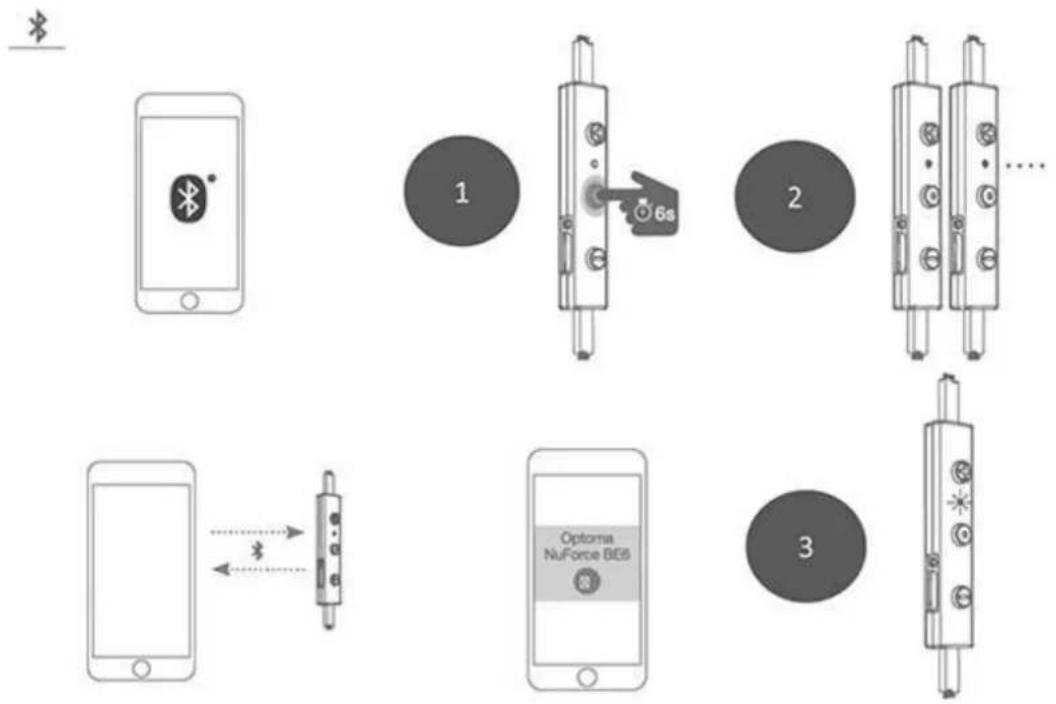
- Press and hold the BE6's Power/Function button for 6 seconds until the LED indicator light flashes blue/red. Your BE6 is now in pairing mode.
- Turn on Bluetooth® on your source device, then select "Optoma NuForce BE6" once it appears on the device list.
NOTE: Consult your source device's user manual for instructions on activating Bluetooth.
- Once successfully paired, the LED indicator will flash blue and you hear "Primary device connected" (when voice prompt enabled) from your BE6, or a beep if voice prompt is not enabled.
Please note:
A. You must always enter "Pair" mode from a powered-off state. Otherwise, pushing the Power/Function button for more than 3 seconds from a powered-on state turns the BE6 off.
B. If left inactive in pairing mode, your BE6 will automatically power off after 3 minutes.
C. Your BE6 can store pairing information for up to eight devices.
To pair additional devices to your BE6 ensure that your BE6 is not concurrently connected to any device, then repeat the steps 1,2,3 outlined above.
In case where your BE6 have already stored pairing information for eight devices and a ninth device is paired, the stored information for the very first device will be deleted.
Power On/Power Off
text_image
Diagram showing two identical electrical switch components with a 3-second indicator and power button, illustrating electrical control or status change.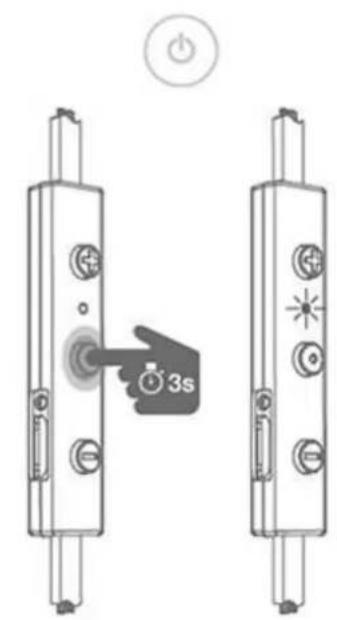
text_image
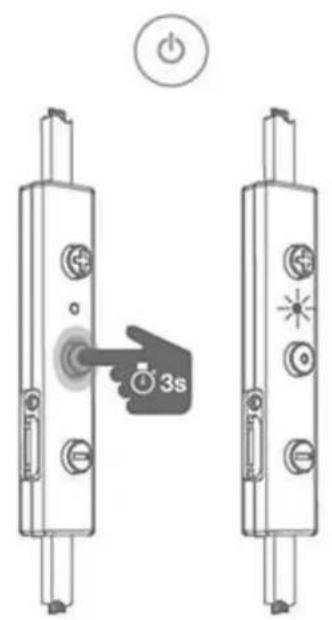
3sTo power on your BE6, press Power/Function button for about 3 seconds until the LED indicator flashes blue and you hear the "Power on" when voice prompt is activated or a beep if the voice prompt is not used.
NOTE:
Once you have successfully paired the BE6 to a Bluetooth-enabled device, the BE6 will automatically connect with that device once it is powered on again. For more information check "Bluetooth Pairing" section.
If you have stored pairing information for multiple devices and more than one of those devices is Bluetooth enabled, the BE6 will automatically connect with the most recently paired device and will also enable multipoint connection.
For more information read section "Multipoint Connections".
To turn the BE6 to OFF, push Power/Function button for about 3 seconds until the LED indicator turns red and you hear the "Power off" when voice prompt be activated or a beep if the voice prompt is not used.
Wearing Your BE6
flowchart
graph LR
    A["Earpiece"] --> B["Spindle"]
    B --> C["Anatomical Component R"]
    C --> D["Spindle"]
    D --> E["Inferior Head"]
    E --> F["Spindle"]
    F --> G["Inferior Head"]
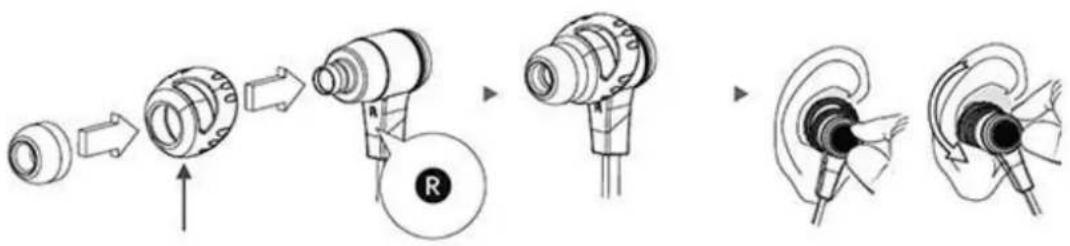
To ensure a secure and comfortable fit when wearing your BE6:
-
Install the stabilizers on the BE6 (see red arrow)
-
Select right size of ear tips and install tips on BE6.
-
Rotate the stabilizers and place the BE6 into each ear so that they are positioned comfortably.
Magnetic caps at the end of the earphones let users click the earphones together for ease of use.
Handling Phone Calls
When your BE6 are connected to a Bluetooth-enabled smartphone you can handle your phone calls directly using your BE6 in ear headphones.
The followings describe phone call options:
| Call option | Status | Action |
| Answer a call | Incoming call | Tap the Power/Function button |
| Decline a call | Incoming call | Press the Power/Function button for 2 seconds |
| End a call | In a call/outgoing call | Tap the Power/Function button |
| Redial the last number | Standby/connected | Double tap the Power/Function button |
| Mute on or mute off microphone | In a call/outgoing call | Tap the Volume Up and Volume Down simultaneously |
| Switching handset/earphone voice | In a call | Press the Volume Up and Volume Down buttons simultaneously for 2 seconds |
| Adjust the volume | Tap the Volume Up or Volume Down button | |
| Activate Siri (iOS) or Google Voice Search (Android) | Standby/Connected | Tap the Power/Function and Volume Up buttons simultaneously |
Listening to Music
You can enjoy and control Audio through the in line controller on your BE6.
| Audio option | Action |
| Play or pause audio | Tap the Power/Function button |
| Skip to next track | Press the Volume Up button for 2 seconds |
| Play previous track | Press the Volume Down button for 2 seconds |
| Adjust the volume | Tap the volume up or volume down button |
*Please note: when muting the BE6 or reactivating it from MUTE there will be a very slight delay
Pairing with a Laptop
The connection instructions below apply to owners of Windows 7, 8, 8.1 and 10.
-
Power your PC/Laptop
-
Find "Bluetooth Settings"
-
Switch your laptop Bluetooth to "On"
-
Turn the BE6 to "Pairing Mode"
-
When the BE6 is discovered by your laptop left click on "Pair"
-
Right click on the speaker symbol at the bottom right side of the screen
-
From the dropdown menu right click on the "Playback Device"
-
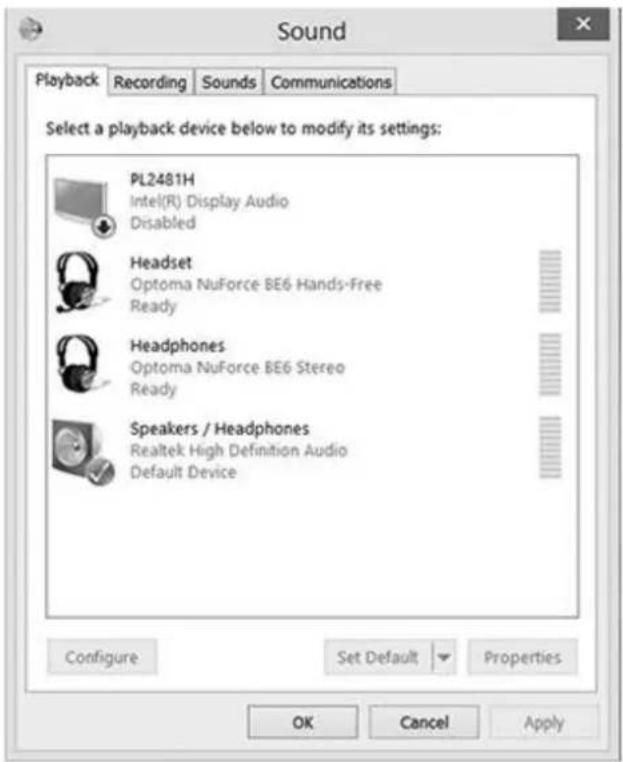
Please choose and right click the "Optoma NuForce BE6 stereo ready" (see image below text)
-
Click on HEADPHONES to set the "Headphones Optoma NuForce BE6" as default device
-
Press OK
text_image
Sound Playback Recording Sounds Communications Select a playback device below to modify its settings: PL2481H Intel(R) Display Audio Disabled Headset Optoma NuForce BE6 Hands-Free Ready Headphones Optoma NuForce BE6 Stereo Ready Speakers / Headphones Realtek High Definition Audio Default Device Configure Set Default Properties OK Cancel ApplyPairing with a Mac
The connection instructions below apply to owners of all current and recent iOS versions
- Power your Mac
- Open "System Preferences"
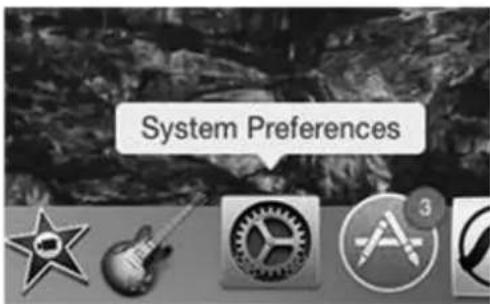
text_image
System Preferences- Click on the Bluetooth symbol
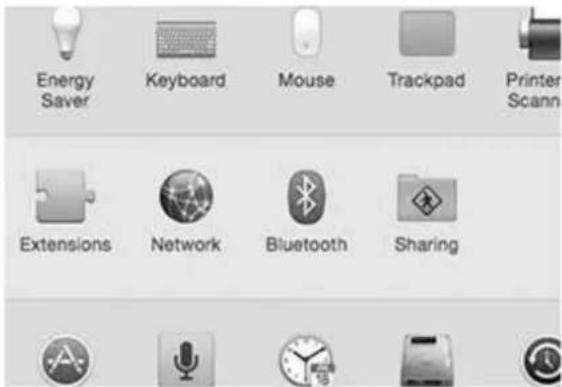
text_image
Energy Saver Keyboard Mouse Trackpad Printer Scann Extensions Network Bluetooth Sharing- Turn the Optoma NuForce BE6 to "Pairing Mode"
- When the Optoma NuForce BE6 is discovered by your Mac click on "Pair"
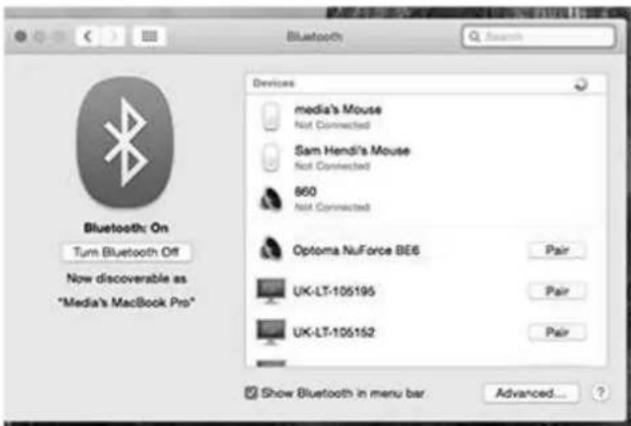
text_image
Bluetooth Search Devices media's Mouse Not Connected Sam Hendi's Mouse Not Connected 860 Not Connected Optoma NuForce BE6 Pair UK-LT-105195 Pair UK-LT-105152 Pair Show Bluetooth in menu bar Advanced...- Your Mac is now ready to play audio via the BE6
MISCELLANEOUS
Multipoint Connections
If you have stored pairing information for multiple devices and more than one of those devices have Bluetooth enabled at the same time, your BE6 will enable multipoint connection.
Multipoint connection allows your BE6 to hold connections with two devices at the same time while playing audio signal from only one of the two devices.
Multipoint connection works in the following ways:
- Your BE6 automatically connects with the most recently paired device ("Primary device").
- You must manually connect the second device ("Secondary device") to your BE6 via its operating system.
- The BE6 will prioritize the audio from Primary device.
- You can control Primary device using the BE6 in line controller.
- When Primary device is idle, your BE6 can receive audio from Secondary device.
- Secondary device must be controlled directly from its operating system.
- Simultaneous audio from both devices is disabled.
Restore Factory Settings
When you restore the BE6 to its factory settings, the paired devices stored will be deleted.
To restore factory settings:
1 Ensure that your BE6 are not connected to any device.
2 Put the BE6 in pairing mode.
3 Press simultaneously the Power/Function, Volume Up, and Volume Down buttons for 2 seconds until the LED indicator flashes red five times and you hear five short tones from the BE6.
Because all pairing information is deleted after restoring factory settings, the BE6 will directly enter pairing mode once powered on.
Voice Prompts list
The BE6 are pre-loaded with English voice prompts
"Power On"
"Power Off"
"Full Battery"
"Battery at 50%"
"Battery Low"
"Primary device connected"
"Secondary device connected"
"Device disconnected"
"Mute On"
"Mute Off"
"Pairing Mode Activated"
"Redial Last Number"
"Transfer Audio"
"Voice Dial"
"Voice Prompts Enabled"
"Voice Prompts Disabled"
| Audio option | Action |
| Activate voice prompts | Press the Power/Function and Volume Up buttons simultaneously for 2 seconds |
| Turn off voice prompt | Press the Power/Function and Volume Down buttons simultaneously for 2 seconds |
Disclaimer
Please be advised, The BE6 is equipped with the latest technology however functionality may vary by device.
Federal Communication Commission Interference
Statement
This equipment has been tested and found to comply with the limits for a Class B digital device, pursuant to Part 15 of the FCC Rules. These limits are designed to provide reasonable protection against harmful interference in a residential installation.
This equipment generates, uses and can radiate radio frequency energy and, if not installed and used in accordance with the instructions, may cause harmful interference to radio communications. However, there is no guarantee that interference will not occur in a particular installation. If this equipment does cause harmful interference to radio or television reception, which can be determined by turning the equipment off and on, the user is encouraged to try to correct the interference by one of the following measures:
. Reorient or relocate the receiving antenna.
. Increase the separation between the equipment and receiver.
. Connect the equipment into an outlet on a circuit different from that to which the receiver is connected.
. Consult the dealer or an experienced radio/TV technician for help.
FCC Caution: To assure continued compliance, any changes or modifications not expressly approved by the party responsible for compliance could void the user's authority to operate this equipment. (Example - use only shielded interface cables when connecting to computer or peripheral devices).
FCC Radiation Exposure Statement
This equipment complies with FCC RF radiation exposure limits set forth for an uncontrolled environment. This equipment should be installed and operated with a minimum distance of 0.5 centimeters (.20 of an Inch) between the radiator and your body.
This transmitter must not be co-located or operating in conjunction with any other antenna or transmitter.
The antennas used for this transmitter must be installed to provide a separation distance of at least 0.5 centimeters (.20 of an Inch) from all persons and must not be co-located or operating in conjunction with any other antenna or transmitter.
This device complies with Part 15 of the FCC Rules. Operation is subject to the following two conditions:
(1) This device may not cause harmful interference, and (2) This device must accept any interference received, including interference that may cause undesired operation.
Specification
| Connection type | Bluetooth 2.4Ghz | |
| Bluetooth type | V4.0+EDR Compliant | |
| Bluetooth profile | HSP 1.2, HFP 1.6, A2DP 1.2, AVRCP 1.4 , aptX, AAC | |
| Codec | SBC, aptX, AAC | |
| Cable length | 561 | mm |
| Driver Type | Dynamic | |
| Driver size | 10 | mm |
| Impedance | 20 | Ohm |
| Battery life (estimated) | Up to 6 hours | |
| Battery type | Lithium-ion battery, Cylindrical Type, Typical3.7V/80mAh | |
| Microphone sensitivity | -42dB | |
| Frequency response | 20Hz - 20kHz | |
| Sensitivity | 95dB +/-3dB at 1KHz | |
| power consumption | 15mA at A2DP mode, speaker output 75dB SPL | |
| Range | Up to 30m (98.5ft) | |
| Weight | 16 | Grams |