
PNY325 - Bildschirm SHARP - Kostenlose Bedienungsanleitung
Finden Sie kostenlos die Bedienungsanleitung des Geräts PNY325 SHARP als PDF.


| Produkttyp | Monitor (Bildschirm) |
| Marke | Sharp |
| Modell | PNY325 |
| Bildschirmdiagonale | 24 Zoll (61 cm) |
| Auflösung | 1920 x 1080 Pixel (Full HD) |
| Panel-Technologie | LED-Hintergrundbeleuchtung |
| Seitenverhältnis | 16:9 |
| Kontrastverhältnis | 1000:1 |
| Helligkeit | 250 cd/m² |
| Reaktionszeit | 5 ms |
| Blickwinkel | 178° / 178° |
| Abmessungen (mit Standfuß) | 557 x 402 x 185 mm |
| Gewicht | 4,5 kg |
| Stromversorgung | 100-240 V AC, 50/60 Hz |
| Leistungsaufnahme (typisch) | 30 W |
| Anschlüsse | 1x HDMI, 1x VGA (D-Sub), 1x 3,5 mm Klinke |
| Neigungsverstellung | Ja ( -5° bis 20° ) |
| VESA-Halterung | 100 x 100 mm |
| Reinigung | Mit einem weichen, trockenen Tuch abwischen |
| Sicherheitshinweise | CE-Kennzeichnung, TÜV-geprüft |
| Garantie | 2 Jahre |
| Ersatzteile | Über Sharp-Kundendienst erhältlich |
Häufig gestellte Fragen - PNY325 SHARP
Benutzerfragen zu PNY325 SHARP
0 Frage zu diesem Gerät. Beantworten Sie die, die Sie kennen, oder stellen Sie Ihre eigene.
Eine neue Frage zu diesem Gerät stellen
Laden Sie die Anleitung für Ihr Bildschirm kostenlos im PDF-Format! Finden Sie Ihr Handbuch PNY325 - SHARP und nehmen Sie Ihr elektronisches Gerät wieder in die Hand. Auf dieser Seite sind alle Dokumente veröffentlicht, die für die Verwendung Ihres Geräts notwendig sind. PNY325 von der Marke SHARP.
BEDIENUNGSANLEITUNG PNY325 SHARP
PN-Y325
LCD-MONITOR
BEDIENUNGSANLEITUNG
WICHTIG:
Um die Meldung im Falle eines Verlusts oder Diebstahls zu erleichtern, notieren Sie bitte die Modell- und Seriennummer des Produkts im dafür vorgesehenen Bereich. Die Nummern befinden sich auf der Rückseite des Produkts.
Modellnr.:
Seriennr.:
NUR IN DEN USA
WARNUNG: UM DAS RISIKO VON BRAND ODER ELEKTRISCHEM SCHLAG ZU REDUZIEREN, SETZEN SIE DIESES PRODUKT NICHT REGEN ODER FEUCHTIGKEIT AUS.

VORSICHT
RISIKO ELEKTRISCHER SCHLAG NICHT ÖFFNEN

VORSICHT: UM DAS RISIKO EINES ELEKTRISCHEN SCHLAGS ZU REDUZIEREN, ENTFERNEN SIE NICHT DIE ABDECKUNG. KEINE VOM BENUTZER WARTBAREN TEILE IM INNEREN. WENDEN SIE SICH FÜR WARTUNG AN QUALIFIZIERTES SERVICEPERSONAL.

Das Blitzsymbol mit Pfeilspitze in einem Dreieck soll den Benutzer auf das Vorhandensein von nicht isolierter "gefährlicher Spannung" im Inneren des Produkts aufmerksam machen, die ausreichend sein kann, um ein Risiko eines elektrischen Schlags für Personen darzustellen.

Das Ausrufezeichen in einem Dreieck soll den Benutzer auf wichtige Betriebs- und Wartungsanweisungen in der dem Produkt beiliegenden Literatur aufmerksam machen.
WARNUNG:
Die FCC-Bestimmungen besagen, dass nicht ausdrücklich vom Hersteller genehmigte Änderungen oder Modifikationen an diesem Gerät die Berechtigung des Benutzers zum Betrieb dieses Geräts aufheben können.
HINWEIS:
Dieses Gerät wurde getestet und entspricht den Grenzwerten für ein digitales Gerät der Klasse A gemäß Teil 15 der FCC-Bestimmungen. Diese Grenzwerte sollen einen angemessenen Schutz gegen schädliche Störungen bieten, wenn das Gerät in einer gewerblichen Umgebung betrieben wird. Dieses Gerät erzeugt, verwendet und kann Hochfrequenzenergie ausstrahlen und kann, wenn es nicht gemäß der Bedienungsanleitung installiert und verwendet wird, schädliche Störungen des Funkverkehrs verursachen. Der Betrieb dieses Geräts in einem Wohngebiet kann schädliche Störungen verursachen; in diesem Fall muss der Benutzer die Störungen auf eigene Kosten beheben.
NUR IN DEN USA
Vielen Dank für den Kauf eines SHARP-LCD-Produkts. Um Ihre Sicherheit und einen langjährigen störungsfreien Betrieb Ihres Produkts zu gewährleisten, lesen Sie bitte vor der Verwendung dieses Produkts sorgfältig die Sicherheitshinweise.
SICHERHEITSHINWEISE
Elektrizität wird für viele nützliche Funktionen verwendet, kann aber bei unsachgemäßer Handhabung auch zu Verletzungen und Sachschäden führen. Dieses Produkt wurde mit höchster Priorität auf Sicherheit entwickelt und hergestellt. Unsachgemäße Verwendung kann jedoch zu elektrischem Schlag und/oder Brand führen. Um mögliche Gefahren zu vermeiden, beachten Sie bitte die folgenden Anweisungen bei der Installation, dem Betrieb und der Reinigung des Produkts. Um Ihre Sicherheit zu gewährleisten und die Lebensdauer Ihres LCD-Produkts zu verlängern, lesen Sie bitte vor der Verwendung des Produkts die folgenden Vorsichtsmaßnahmen sorgfältig durch.
- Anweisungen lesen – Alle Bedienungsanweisungen müssen gelesen und verstanden werden, bevor das Produkt betrieben wird.
- Bewahren Sie dieses Handbuch an einem sicheren Ort auf – Diese Sicherheits- und Bedienungsanweisungen müssen für zukünftige Referenz an einem sicheren Ort aufbewahrt werden.
- Warnungen beachten – Alle Warnungen auf dem Produkt und in den Anweisungen müssen genau beachtet werden.
- Anweisungen befolgen – Alle Bedienungsanweisungen müssen befolgt werden.
- Reinigung – Ziehen Sie vor der Reinigung des Produkts das Netzkabel aus der Steckdose. Verwenden Sie ein trockenes Tuch, um das Produkt zu reinigen. Verwenden Sie keine flüssigen Reiniger oder Aerosolreiniger.
- Zubehör – Verwenden Sie kein Zubehör, das nicht vom Hersteller empfohlen wird. Die Verwendung ungeeigneter Zubehörteile kann zu Unfällen führen.
- Wasser und Feuchtigkeit – Verwenden Sie das Produkt nicht in der Nähe von Wasser. Installieren Sie das Produkt nicht an einem Ort, an dem Wasser darauf spritzen könnte. Seien Sie vorsichtig bei Geräten, die Wasser ablassen, wie z. B. Klimaanlagen.
- Belüftung — Die Lüftungsschlitze und anderen Öffnungen im Gehäuse dienen der Belüftung. Decken Sie diese Lüftungsschlitze und Öffnungen nicht ab und blockieren Sie sie nicht, da unzureichende Belüftung zu Überhitzung und/oder Verkürzung der Lebensdauer des Produkts führen kann. Stellen Sie das Produkt nicht auf ein Sofa, einen Teppich oder eine ähnliche Oberfläche, da diese die Lüftungsöffnungen blockieren können. Stellen Sie das Produkt nicht an einem geschlossenen Ort wie einem Bücherregal oder einem Rack auf, es sei denn, es ist für ausreichende Belüftung gesorgt oder die Anweisungen des Herstellers werden befolgt.
- Schutz des Netzkabels — Die Netzkabel müssen so verlegt werden, dass niemand darauf tritt und keine Gegenstände darauf liegen.
- Das in diesem Produkt verwendete LCD-Panel besteht aus Glas. Daher kann es brechen, wenn das Produkt fallen gelassen oder einem Aufprall ausgesetzt wird. Achten Sie darauf, sich nicht an zerbrochenen Glassplittern zu verletzen, falls das LCD-Panel bricht.
- Überlastung — Überlasten Sie keine Steckdosen oder Verlängerungskabel. Überlastung kann Brand oder elektrischen Schlag verursachen.
- Eindringen von Gegenständen und Flüssigkeiten — Führen Sie niemals einen Gegenstand durch Lüftungsschlitze oder Öffnungen in das Produkt ein. Im Produkt fließt Hochspannung, und das Einführen eines Gegenstands kann einen elektrischen Schlag und/oder einen Kurzschluss interner Teile verursachen. Aus demselben Grund dürfen Sie kein Wasser oder andere Flüssigkeiten über dem Produkt verschütten.
- Wartung — Versuchen Sie nicht, das Produkt selbst zu warten. Das Entfernen von Abdeckungen kann Sie hoher Spannung und anderen gefährlichen Bedingungen aussetzen. Beauftragen Sie qualifiziertes Fachpersonal mit der Wartung.
- Reparatur — Wenn eine der folgenden Bedingungen auftritt, ziehen Sie den Netzstecker aus der Steckdose und beauftragen Sie qualifiziertes Fachpersonal mit der Reparatur. a. Wenn das Netzkabel oder der Stecker beschädigt ist. b. Wenn Flüssigkeit auf das Produkt verschüttet wurde oder Gegenstände in das Produkt gefallen sind. c. Wenn das Produkt Regen oder Wasser ausgesetzt war. d. Wenn das Produkt nicht ordnungsgemäß funktioniert, wie in der Bedienungsanleitung beschrieben. Berühren Sie keine Bedienelemente außer den in der Bedienungsanleitung beschriebenen. Unsachgemäße Einstellung von Bedienelementen, die nicht in der Anleitung beschrieben sind, kann Schäden verursachen, die oft umfangreiche Einstellarbeiten durch einen qualifizierten Techniker erfordern. e. Wenn das Produkt fallen gelassen oder beschädigt wurde. f. Wenn das Produkt einen abnormalen Zustand anzeigt. Jede auffällige Anomalie am Produkt weist darauf hin, dass das Produkt gewartet werden muss.
- Ersatzteile — Falls das Produkt Ersatzteile benötigt, stellen Sie sicher, dass der Servicetechniker vom Hersteller angegebene Ersatzteile oder solche mit denselben Eigenschaften und derselben Leistung wie die Originalteile verwendet. Die Verwendung nicht zugelassener Teile kann zu Brand, elektrischem Schlag und/oder anderen Gefahren führen.
- Sicherheitsprüfungen — Nach Abschluss der Wartungs- oder Reparaturarbeiten bitten Sie den Servicetechniker, Sicherheitsprüfungen durchzuführen, um sicherzustellen, dass sich das Produkt in ordnungsgemäßem Betriebszustand befindet.
- Wandmontage — Bei der Wandmontage des Produkts muss das Produkt gemäß der vom Hersteller empfohlenen Methode installiert werden.
- Wärmequellen — Halten Sie das Produkt von Wärmequellen wie Heizkörpern, Heizungen, Öfen und anderen wärmeerzeugenden Produkten (einschließlich Verstärkern) fern.
- Batterien — Unsachgemäßer Gebrauch von Batterien kann dazu führen, dass die Batterien platzen oder sich entzünden. Eine auslaufende Batterie kann das Gerät korrodieren, Ihre Hände verschmutzen oder Ihre Kleidung beschädigen. Um diese Probleme zu vermeiden, beachten Sie bitte die folgenden Vorsichtsmaßnahmen:
- Verwenden Sie nur die angegebenen Batterien.
• Setzen Sie die Batterien gemäß den Anweisungen im Batteriefach ein und achten Sie dabei auf die Plus- (+) und Minus- (-) Seiten der Batterien.
- Mischen Sie keine alten und neuen Batterien.
- Mischen Sie keine Batterien verschiedener Typen. Die Spannungsspezifikationen von Batterien gleicher Form können variieren.
- Ersetzen Sie eine entladene Batterie umgehend durch eine neue.
- Wenn Sie die Fernbedienung längere Zeit nicht verwenden, entfernen Sie die Batterien.
- Wenn ausgelaufene Batterieflüssigkeit auf Ihre Haut oder Kleidung gelangt, spülen Sie sie sofort und gründlich ab. Wenn sie in Ihr Auge gelangt, spülen Sie das Auge gut aus, anstatt zu reiben, und suchen Sie sofort einen Arzt auf. Ausgelaufene Batterieflüssigkeit, die in Ihr Auge oder auf Ihre Kleidung gelangt, kann Hautreizungen verursachen oder Ihr Auge schädigen.
- Die Verwendung des Monitors darf nicht mit tödlichen Risiken oder Gefahren verbunden sein, die direkt zu Tod, Personenschäden, schweren körperlichen Schäden oder anderen Verlusten führen können, einschließlich der Steuerung von Kernreaktionen in kerntechnischen Anlagen, medizinischen Lebenserhaltungssystemen und der Raketenstartkontrolle in Waffensystemen.
- Vermeiden Sie längeren Hautkontakt mit Teilen des Produkts, die heiß werden. Dies kann zu Niedrigtemperatur-Verbrennungen führen.
- Um Feuer oder Stromschlag zu vermeiden, setzen Sie dieses Produkt nicht Tropf- oder Spritzwasser aus. Es sollten keine mit Flüssigkeiten gefüllten Gegenstände, wie z. B. Vasen, auf das Produkt gestellt werden.
WARNUNG:
1) Dies ist ein Produkt der Klasse A. In einer häuslichen Umgebung kann dieses Produkt Funkstörungen verursachen. In diesem Fall muss der Benutzer möglicherweise geeignete Maßnahmen ergreifen. 2) Batterien dürfen keiner übermäßigen Hitze wie Sonnenschein, Feuer oder Ähnlichem ausgesetzt werden. 3) Um Verletzungen zu vermeiden, muss dieses Gerät gemäß den Installationsanweisungen sicher am Boden/an der Wand befestigt werden.
Um die Einhaltung der EMV-Vorschriften zu gewährleisten, verwenden Sie abgeschirmte Kabel für den Anschluss an die folgenden Anschlüsse: DVI-D-Eingangs-/Ausgangsanschlüsse, HDMI-Eingangsanschluss, D-Sub-Eingangsanschluss und RS-232C-Eingangs-/Ausgangsanschlüsse.
Wenn ein Monitor nicht an einem ausreichend stabilen Ort positioniert ist, kann er durch Herunterfallen eine potenzielle Gefahr darstellen. Viele Verletzungen, insbesondere bei Kindern, können durch einfache Vorsichtsmaßnahmen vermieden werden, wie zum Beispiel:
- Verwenden Sie vom Hersteller empfohlene Befestigungsvorrichtungen wie Wandhalterungen.
- Verwenden Sie nur Möbel, die den Monitor sicher tragen können.
- Stellen Sie sicher, dass der Monitor nicht über die Kante des tragenden Möbels hinausragt.
- Stellen Sie den Monitor nicht auf hohe Möbel (z. B. Schränke oder Bücherregale), ohne sowohl die Möbel als auch den Monitor an einer geeigneten Stütze zu verankern.
- Stellen Sie die Monitore nicht auf Tücher oder andere Materialien, die zwischen Monitor und tragendem Möbel liegen. • Klären Sie Kinder über die Gefahren des Kletterns auf Möbel auf, um den Monitor oder seine Bedienelemente zu erreichen.
Besonders für die Sicherheit von Kindern
- Lassen Sie Kinder nicht auf den Monitor klettern oder damit spielen.
- Stellen Sie den Monitor nicht auf Möbel, die leicht als Stufen verwendet werden können, wie z. B. eine Kommode.
- Denken Sie daran, dass Kinder beim Ansehen einer Sendung aufgeregt werden können, insbesondere bei einem Monitor, der "größer als das Leben" ist. Es sollte darauf geachtet werden, den Monitor so zu platzieren oder zu installieren, dass er nicht geschoben, umgestoßen oder heruntergezogen werden kann.
- Es ist darauf zu achten, dass alle Kabel und Leitungen, die an den Monitor angeschlossen sind, so verlegt werden, dass neugierige Kinder sie nicht herausziehen oder ergreifen können.
1) Lesen Sie diese Anleitung. 2) Bewahren Sie diese Anleitung auf. 3) Beachten Sie alle Warnhinweise. 4) Befolgen Sie alle Anweisungen. 5) Verwenden Sie dieses Gerät nicht in der Nähe von Wasser. 6) Reinigen Sie es nur mit einem trockenen Tuch. 7) Blockieren Sie keine Belüftungsöffnungen. Installieren Sie das Gerät gemäß den Anweisungen des Herstellers. 8) Installieren Sie es nicht in der Nähe von Wärmequellen wie Heizkörpern, Heizregistern, Öfen oder anderen Geräten (einschließlich Verstärkern), die Wärme erzeugen. 9) Setzen Sie die Sicherheitsfunktion des polarisierten oder geerdeten Steckers nicht außer Kraft. Ein polarisierter Stecker hat zwei Klingen, von denen eine breiter ist als die andere. Ein geerdeter Stecker hat zwei Klingen und einen dritten Erdungsstift. Die breite Klinge oder der dritte Stift dienen Ihrer Sicherheit. Wenn der mitgelieferte Stecker nicht in Ihre Steckdose passt, wenden Sie sich an einen Elektriker, um die veraltete Steckdose ersetzen zu lassen. 10) Schützen Sie das Netzkabel davor, betreten oder eingeklemmt zu werden, insbesondere an den Steckern, Steckdosen und an der Stelle, an der es das Gerät verlässt. 11) Verwenden Sie nur Zubehörteile, die vom Hersteller angegeben sind. 12) Verwenden Sie nur mit dem Wagen, Ständer, Stativ, der Halterung oder dem Tisch, die vom Hersteller angegeben oder mit dem Gerät verkauft werden. Wenn ein Wagen verwendet wird, seien Sie beim Bewegen der Kombination aus Wagen und Gerät vorsichtig, um Verletzungen durch Umkippen zu vermeiden. 13) Ziehen Sie den Netzstecker bei Gewittern oder wenn das Gerät längere Zeit nicht benutzt wird. 14) Überlassen Sie alle Wartungsarbeiten qualifiziertem Servicepersonal. Eine Wartung ist erforderlich, wenn das Gerät in irgendeiner Weise beschädigt wurde, z. B. wenn das Netzkabel oder der Stecker beschädigt ist, Flüssigkeit verschüttet wurde oder Gegenstände in das Gerät gefallen sind, das Gerät Regen oder Feuchtigkeit ausgesetzt war, nicht normal funktioniert oder fallen gelassen wurde.

- Das in diesem Monitor verwendete TFT-Farb-LCD-Panel wird mit hochpräziser Technologie hergestellt. Es können jedoch winzige Punkte auf dem Bildschirm vorhanden sein, an denen Pixel nie leuchten oder dauerhaft leuchten. Auch wenn der Bildschirm aus einem spitzen Winkel betrachtet wird, können ungleichmäßige Farben oder Helligkeit auftreten. Bitte beachten Sie, dass dies keine Fehlfunktionen, sondern übliche Erscheinungen bei LCDs sind und die Leistung des Monitors nicht beeinträchtigen.
- Zeigen Sie nicht über einen längeren Zeitraum ein Standbild an, da dies ein Nachbild verursachen kann.
- Reiben oder tippen Sie niemals mit harten Gegenständen auf den Monitor.
- Bitte haben Sie Verständnis dafür, dass die SHARP CORPORATION keine Verantwortung für Fehler übernimmt, die während der Nutzung durch den Kunden oder Dritte entstehen, noch für andere Fehlfunktionen oder Schäden an diesem Produkt, die während des Gebrauchs auftreten, außer wenn eine Haftung gesetzlich anerkannt ist.
- Dieser Monitor und sein Zubehör können ohne Vorankündigung aufgerüstet werden.
- Verwenden Sie den Monitor nicht an Orten mit viel Staub, hoher Luftfeuchtigkeit oder an denen er mit Öl oder Dampf in Kontakt kommen kann. Verwenden Sie ihn nicht in Umgebungen mit korrosiven Gasen (Schwefeldioxid, Schwefelwasserstoff, Stickstoffdioxid, Chlor, Ammoniak, Ozon usw.). Dies könnte zu einem Brand führen.
- Stellen Sie sicher, dass der Monitor nicht mit Wasser oder anderen Flüssigkeiten in Kontakt kommt. Stellen Sie sicher, dass keine Gegenstände wie Büroklammern oder Nadeln in den Monitor gelangen, da dies zu einem Brand oder Stromschlag führen könnte.
- Stellen Sie den Monitor nicht auf instabile Gegenstände oder an unsichere Orte. Lassen Sie nicht zu, dass der Monitor starken Stößen oder Vibrationen ausgesetzt wird. Wenn der Monitor herunterfällt oder umkippt, kann er beschädigt werden.
- Verwenden Sie den Monitor nicht in der Nähe von Heizgeräten oder an Orten, an denen hohe Temperaturen wahrscheinlich sind, da dies zu übermäßiger Wärmeentwicklung und Brandausbruch führen kann.
- Verwenden Sie den Monitor nicht an Orten, an denen er direktem Sonnenlicht ausgesetzt sein könnte.
- Entfernen Sie regelmäßig Staub und Schmutz, die sich an der Belüftungsöffnung angesammelt haben. Wenn sich Staub in der Belüftungsöffnung oder im Inneren des Monitors ansammelt, kann dies zu übermäßiger Hitze, Brand oder Fehlfunktionen führen. Bitte beauftragen Sie einen autorisierten SHARP-Kundendienst oder ein Servicecenter mit der Reinigung des Monitorinneren.
- Bilder können auf diesem Monitor nicht gedreht werden. Wenn Sie den Monitor im Hochformat verwenden möchten, müssen Sie im Voraus entsprechend ausgerichtete Inhalte vorbereiten.
- Die Steckdose sollte in der Nähe des Geräts installiert und leicht zugänglich sein.
Das Netzkabel
- Verwenden Sie nur das mit dem Monitor gelieferte Netzkabel.
- Beschädigen Sie das Netzkabel nicht und legen Sie keine schweren Gegenstände darauf, dehnen Sie es nicht und biegen Sie es nicht übermäßig. Verwenden Sie auch keine Verlängerungskabel. Eine Beschädigung des Kabels kann zu Brand oder Stromschlag führen.
- Verwenden Sie das Netzkabel nicht mit einer Steckdosenleiste. Das Hinzufügen eines Verlängerungskabels kann durch Überhitzung zu einem Brand führen.
- Ziehen Sie den Netzstecker nicht mit nassen Händen heraus oder stecken Sie ihn nicht mit nassen Händen ein. Dies könnte zu einem Stromschlag führen.
- Ziehen Sie das Netzkabel ab, wenn es längere Zeit nicht verwendet wird.
- Versuchen Sie nicht, das Netzkabel zu reparieren, wenn es beschädigt oder defekt ist. Überlassen Sie die Reparatur dem Kundendienst.
Handbuchumfang
- Microsoft, Windows und Internet Explorer sind eingetragene Marken der Microsoft Corporation.
- Die Begriffe HDMI und HDMI High-Definition Multimedia Interface sowie das HDMI-Logo sind Marken oder eingetragene Marken von HDMI Licensing LLC in den Vereinigten Staaten und anderen Ländern.
- Adobe, Acrobat und Reader sind entweder eingetragene Marken oder Marken von Adobe Systems Incorporated in den Vereinigten Staaten und/oder anderen Ländern.
- Alle anderen Marken und Produktnamen sind Marken oder eingetragene Marken ihrer jeweiligen Inhaber.
- Die Sprache des OSD-Menüs in diesem Handbuch ist beispielhaft Englisch.
- Die Abbildungen in diesem Handbuch entsprechen möglicherweise nicht exakt dem tatsächlichen Produkt oder der Anzeige.
- Dieses Handbuch geht von der Verwendung im Querformat aus, sofern nicht ausdrücklich anders angegeben.
LED-Hintergrundbeleuchtung
• Die LED-Hintergrundbeleuchtung dieses Produkts hat eine begrenzte Lebensdauer.
* Wenn der Bildschirm dunkel wird oder sich nicht einschaltet, muss möglicherweise die LED-Hintergrundbeleuchtung ersetzt werden. * Diese LED-Hintergrundbeleuchtung ist exklusiv für dieses Produkt und muss von einem autorisierten SHARP-Kundendienst oder Servicecenter ersetzt werden. Bitte wenden Sie sich für Unterstützung an einen autorisierten SHARP-Kundendienst oder ein Servicecenter.
• Dieses Produkt ist für den Innenbereich bestimmt. - Eine Halterung gemäß VESA-Spezifikation ist erforderlich. - Da der Monitor schwer ist, konsultieren Sie vor der Installation, dem Entfernen oder dem Transport des Monitors Ihren Händler. - Die Wandmontage des Monitors erfordert spezielles Fachwissen und die Arbeiten müssen von einem autorisierten SHARP-Händler durchgeführt werden. Sie sollten niemals versuchen, diese Arbeiten selbst durchzuführen. Unser Unternehmen übernimmt keine Verantwortung für Unfälle oder Verletzungen, die durch unsachgemäße Montage oder unsachgemäße Handhabung verursacht werden. - Verwenden Sie den Monitor so, dass die Oberfläche senkrecht zu einer ebenen Fläche steht. Bei Bedarf kann der Monitor bis zu 20 Grad nach oben oder unten geneigt werden. - Dieser Monitor sollte bei einer Umgebungstemperatur zwischen 0 °C (32 °F) und 40 °C (104 °F) verwendet werden. Sorgen Sie für ausreichend Platz um den Monitor, um Wärmestau im Inneren zu vermeiden.
Für den Monitor im Querformat![7-7/8 [200] 2 [50] 2 [50] 2 [50] Einheit: Zoll [mm] 5/16 [7]](/content/2026/05/1029960/images/7afd28028427344aff423571dfa84dcfebc11563302e808130abda9901706af4.jpg)
Für den Monitor im Hochformat![7-7/8 [200] 2 [50] 2 [50] 2 [50] Einheit: Zoll [mm] 5/16 [7] Netz-LED](/content/2026/05/1029960/images/c2a69a39b9eabc3fd7bd55d33de92447abdc760f567beeb91dc2f1145828036b.jpg)
- Wenn es aus irgendeinem Grund schwierig ist, ausreichend Platz zu schaffen, z. B. bei der Installation des Monitors in einem Gehäuse, oder wenn die Umgebungstemperatur außerhalb des Bereichs von 0 °C (32 °F) bis 40 °C (104 °F) liegen kann, installieren Sie einen Lüfter oder ergreifen Sie andere Maßnahmen, um die Umgebungstemperatur im erforderlichen Bereich zu halten.
- Blockieren Sie keine Belüftungsöffnungen. Wenn die Temperatur im Monitor ansteigt, kann dies zu einer Fehlfunktion führen.
- Stellen Sie den Monitor nicht auf ein Gerät, das Wärme erzeugt.
- Beachten Sie Folgendes, wenn Sie den Monitor im Hochformat installieren. Wenn Sie die folgenden Hinweise nicht beachten, kann dies zu Fehlfunktionen führen.
- Installieren Sie den Monitor so, dass sich die Betriebs-LED auf der Unterseite befindet.
- Stellen Sie THERMAL SENSOR SETTING im SETUP-Menü auf PORTRAIT. (Siehe Seite 27.)
- Verwenden Sie den mitgelieferten Aufkleber für die Hochformat-Installation.
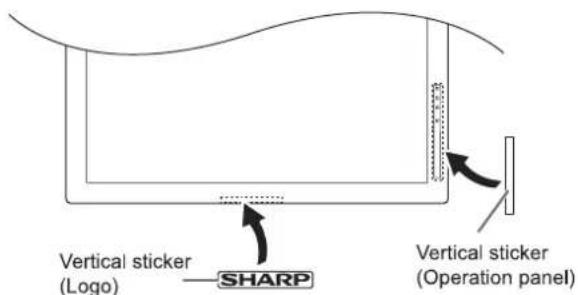
Entfernen Sie den werkseitig angebrachten Aufkleber nicht, sondern kleben Sie den Aufkleber darüber. Achten Sie darauf, den Fernbedienungssensor oder die Tasten nicht abzudecken.
Inhalt
WICHTIGE INFORMATIONEN....3
SEHR GEEHRTER SHARP-KUNDE....4
SICHERHEITSHINWEISE......4
WICHTIGE SICHERHEITSHINWEISE......6
TIPPS UND SICHERHEITSHINWEISE....7
MONTAGEHINWEISE 8
Mitgelieferte Komponenten....9
Bezeichnung der Teile....10
Anschluss von Peripheriegeräten....12
Anschließen des Netzkabels 14
Kabelbündelung....15
Einstellen der USB-Stick-Abdeckung....15
Vorbereiten der Fernbedienung....16
Einlegen der Batterien 16
Reichweite der Fernbedienung....16
Ein-/Ausschalten....17
Einschalten der Hauptstromversorgung....17
Ein-/Ausschalten 17
Grundlegende Bedienung 19
Abspielen der Dateien auf einem USB-Stick 21
Auto-Wiedergabe....21
Wiedergabe von Dateien....21
Wiedergabe von Dateien mit der SCHEDULE-Funktion .....22
Bedienung während der Wiedergabe 23
Einstellungen 23
Menüpunkte 25
Anzeigen des Menübildschirms....25
Details zu Menüpunkten 26
Steuerung des Monitors mit einem PC (RS-232C)....32
PC-Verbindung....32
Kommunikationsbedingungen....32
Kommunikationsablauf 32
RS-232C-Befehlstabelle....36
Steuerung des Monitors mit einem PC (LAN) 38
Einstellungen für die LAN-Verbindung....38
Befehlsbasierte Steuerung....39
Fehlerbehebung....40
Technische Daten 42
Montagehinweise
(Für SHARP-Händler und Kundendiensttechniker)....48
Mitgeliefertes Zubehör
Sollte eine Komponente fehlen, wenden Sie sich bitte an Ihren Händler.
□ Flüssigkristall-Monitor: 1
□ Fernbedienung: 1
□ Kabelklemme: 2
□ Netzkabel: 1
☐ R-6-Batterie (Größe "AA"): 2
☐ CD-ROM (Dienstprogramm-Disk für Windows): 1
□ Einrichtungsanleitung: 1
☐ Vertikaler Aufkleber (Logo): 1
☐ Vertikaler Aufkleber (Bedienfeld): 1
☐ USB-Stick-Abdeckung: 1
☐ Schraube für USB-Stick-Abdeckung: 1
□ Etikett mit Modellname / Seriennummer: 1
Gibt den Modellnamen und die Seriennummer an.
□ Aufkleber zur Abdeckung des SHARP-Logos: 1
Bringen Sie diesen Aufkleber auf dem SHARP-Logo an, um das Logo abzudecken.
* Die SHARP Corporation besitzt die Urheberrechte am Utility-Disk-Programm. Vervielfältigung ohne Genehmigung ist nicht gestattet.
* Zum Schutz der Umwelt!
Entsorgen Sie Batterien nicht im Hausmüll. Befolgen Sie die Entsorgungshinweise für Ihre Region.
Bauteilbezeichnungen
■Vorderansicht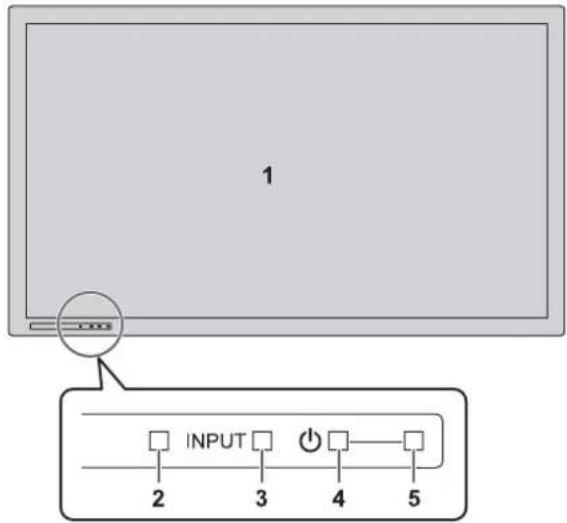
■Rückansicht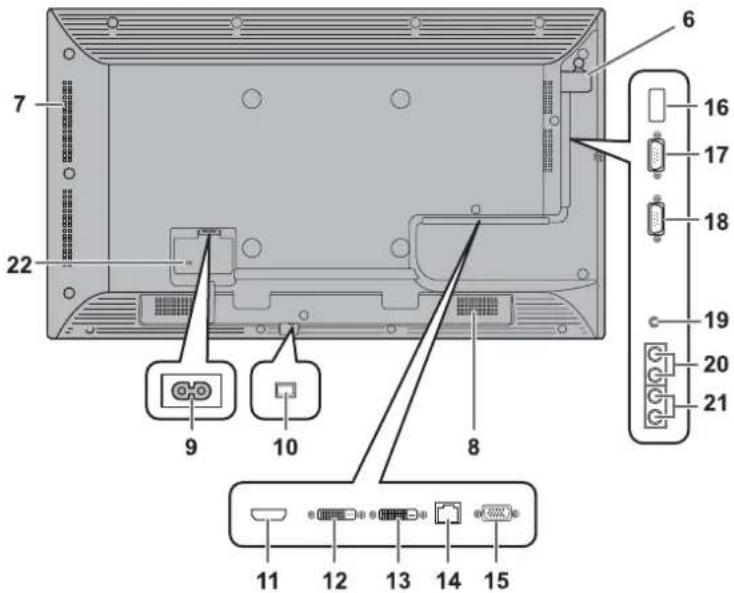
- LCD-Panel
- Fernbedienungssensor (Siehe Seite 16.)
- Eingangsschalter (Siehe Seite 19.)
- Netzschalter (Siehe Seite 17.)
- Netz-LED (Siehe Seite 17.)
- Abdeckung für USB-Flash-Laufwerk (Siehe Seite 15.)
- Lüftungsöffnungen
- Lautsprecher
- AC-Eingangsklemme (Siehe Seite 14.)
- Hauptnetzschalter (Siehe Seite 17.)
- HDMI-Eingangsklemme (Siehe Seite 12.)
- DVI-D-Eingangsklemme (Siehe Seite 12.)
- DVI-D-Ausgangsklemme (Siehe Seite 13.)
- LAN-Klemme (Siehe Seite 13.)
- D-Sub-Eingangsklemme (Siehe Seite 12.)
- USB-Anschluss (Siehe Seite 12.)
- RS-232C-Eingangsanschluss (Siehe Seite 13.)
- RS-232C-Ausgangsanschluss (Siehe Seite 13.)
- Audio1-Eingangsanschluss (Siehe Seite 13.)
- Audio-Ausgangsanschlüsse (Siehe Seite 13.)
- Audio2-Eingangsanschlüsse (Siehe Seite 13.)
- Diebstahlsicherungsloch (K)
Ein handelsübliches Diebstahlsicherungsschloss kann angeschlossen werden. Das Diebstahlsicherungsloch ist mit dem Kensington MicroSaver Security System kompatibel.
!Vorsicht
- Wenden Sie sich für das Anbringen/Abnehmen von optionalen Teilen an Ihren SHARP-Händler.
■Fernbedienung
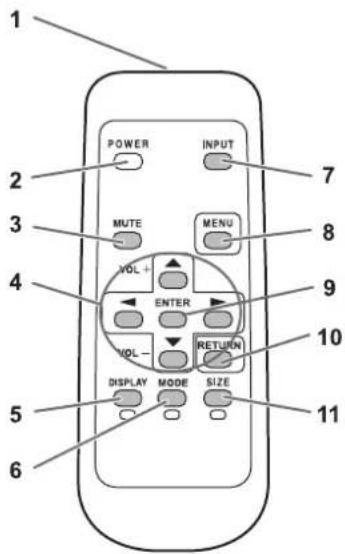
- Signalgeber
- POWER-Taste (Siehe Seite 17.)
- MUTE-Taste (Siehe Seite 19.)
- VOL +/- Tasten (Siehe Seite 19.) BRIGHT +/- Tasten (Siehe Seite 19.) Cursorsteuerung (▲ / ▼ / ◀ / ▶) Tasten
- DISPLAY/Rote Taste (Siehe Seite 19.)
- MODE/Grüne Taste (Siehe Seite 19.)
- INPUT-Taste (Siehe Seite 19.)
- MENU-Taste (Siehe Seite 19.)
- ENTER-Taste (Siehe Seite 19.)
- RETURN-Taste (Siehe Seite 19.)
- SIZE/Gelbe Taste (Siehe Seite 19.)
Anschluss von Peripheriegeräten
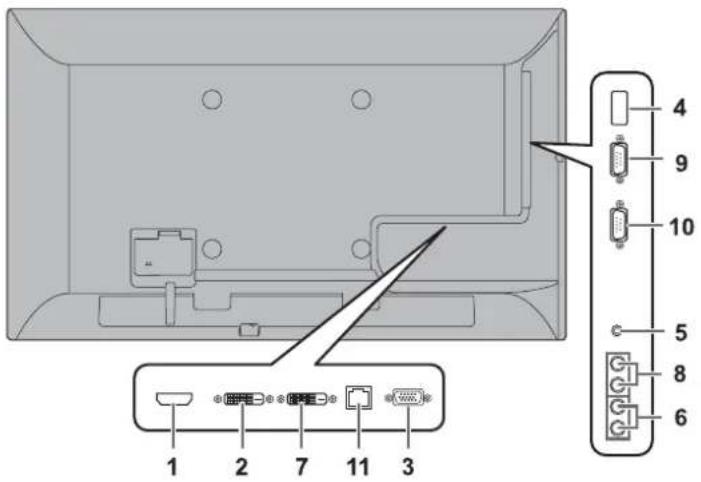
!Vorsicht
- Schalten Sie unbedingt den Hauptnetzschalter aus und ziehen Sie den Netzstecker aus der Steckdose, bevor Sie Kabel anschließen oder trennen. Lesen Sie außerdem die Anleitung des anzuschließenden Geräts.
- Achten Sie darauf, beim Anschließen der Kabel den Eingang nicht mit dem Ausgang zu verwechseln. Ein versehentliches Vertauschen der Kabel an Eingangs- und Ausgangsbuchsen kann zu Fehlfunktionen und anderen Problemen führen.
- Verwenden Sie keine Kabel mit beschädigten oder verformten Anschlüssen. Die Verwendung solcher Kabel kann Fehlfunktionen verursachen.
TIPPS
- Je nach angeschlossenem Computer (Grafikkarte) werden Bilder möglicherweise nicht korrekt angezeigt.
- Verwenden Sie die automatische Bildeinstellung, wenn ein PC-Bild zum ersten Mal über D-SUB angezeigt wird oder wenn die Einstellungen des PCs geändert werden. Der Bildschirm wird automatisch angepasst, wenn AUTO im Menü SCREEN auf ON gesetzt ist.
- Wenn die Audioausgabe des Wiedergabegeräts direkt an Lautsprecher oder andere Geräte angeschlossen ist, kann das Video auf dem Monitor gegenüber dem Audioanteil verzögert erscheinen. Der Ton sollte über diesen Monitor wiedergegeben werden, indem das Wiedergabegerät an den Audioeingang des Monitors angeschlossen wird und der Audioausgang des Monitors an die Lautsprecher oder andere Geräte.
- Die Audioeingangsbuchsen, die in jedem Eingangsmodus verwendet werden, sind werkseitig wie folgt eingestellt.
| Input mode | Audio input terminal |
| DVI-D | Audio1 input terminal |
| HDMI[PC], HDMI[AV] | HDMI input terminal / Audio1 input terminal |
| D-SUB[RGB] | Audio1 input terminal |
| D-SUB[COMPONENT], D-SUB[VIDEO] | Audio2 input terminals |
| USB | USB port |
1. HDMI-Eingangsbuchse
- Verwenden Sie ein handelsübliches HDMI-Kabel (das dem HDMI-Standard entspricht).
- Stellen Sie HDMI von INPUT SELECT im SETUP-Menü entsprechend dem anzuschließenden Gerät ein.
2. DVI-D-Eingangsbuchse
• Verwenden Sie ein handelsübliches Signalkabel (DVI-D 24-polig).
3. D-Sub-Eingangsbuchse
- Stellen Sie D-SUB von INPUT SELECT im SETUP-Menü entsprechend dem anzuschließenden Gerät ein.
4. USB-Anschluss
- Schließen Sie einen USB-Stick an den USB-Anschluss an.
- Schließen Sie kein anderes USB-Gerät als einen USB-Stick an.
- Schalten Sie den Monitor aus, wenn Sie einen USB-Stick entfernen.
- Nachdem Sie einen USB-Stick angeschlossen haben, erstellen Sie "data.db" und "db.info" im Stammordner.
Unterstützte USB-Sticks
| File System | FAT32 |
| Capacity | Up to 32 GB(maximum file size 2 GB) |
- Verwenden Sie keinen USB-Speicherstick mit Sicherheits- oder Schreibschutzfunktion.
- Verwenden Sie einen USB-Speicherstick, dessen Form in den USB-Anschluss eingeführt werden kann. Einige USB-Speichersticks mit speziellen Formen können nicht eingeführt werden. Erzwingen Sie nicht das Einführen eines USB-Speichersticks. Dies kann den Anschluss beschädigen und zu Fehlfunktionen führen.
5. Audio1-Eingangsanschluss
- Verwenden Sie ein Audiokabel ohne Widerstand.
6. Audio2-Eingangsanschlüsse
7. DVI-D-Ausgangsanschluss
- Wenn der Eingangsmodus auf DVI-D eingestellt ist, kann das Video des DVI-D-Eingangs an ein externes Gerät ausgegeben werden.
- Die Ausgabe von HDCP-verschlüsseltem Video erfordert ein externes Gerät, das HDCP unterstützt.
- Dieser Anschluss ermöglicht die Daisy-Chain-Verbindung von bis zu 5 Monitoren, indem die Monitore über den DVI-D-Eingangsanschluss jedes Monitors miteinander verbunden werden.
TIPPS
- Die Länge der Signalkabel oder die Umgebung können die Bildqualität beeinflussen.
- Wenn der Eingangsmodus auf einen anderen Modus als DVI-D eingestellt ist, kann kein Video ausgegeben werden.
8. Audio-Ausgangsanschlüsse
• Der Ausgangston variiert je nach Eingangsmodus. - Es ist nicht möglich, die Tonausgabe über die Audio-Ausgangsanschlüsse mit dem AUDIO-Menü zu steuern. Stellen Sie diese Funktion mit AUDIO OPTION im SETUP-Menü ein. (Siehe Seite 27.)
9. RS-232C-Eingangsanschluss
10. RS-232C-Ausgangsanschluss
- Sie können den Monitor von einem PC aus steuern, indem Sie ein handelsübliches RS-232-Verlängerungskabel zwischen diese Anschlüsse und den PC anschließen.
- PN-Y325-Monitore können in einer Daisy-Chain-Verbindung miteinander verbunden werden.
11. LAN-Anschluss
- Sie können den Monitor von einem PC in einem Netzwerk aus steuern, indem Sie ein handelsübliches LAN-Kabel zwischen diesen Anschluss und ein Netzwerk anschließen.
Anschließen des Netzkabels
!Vorsicht
- Verwenden Sie nur das mit dem Monitor gelieferte Netzkabel.
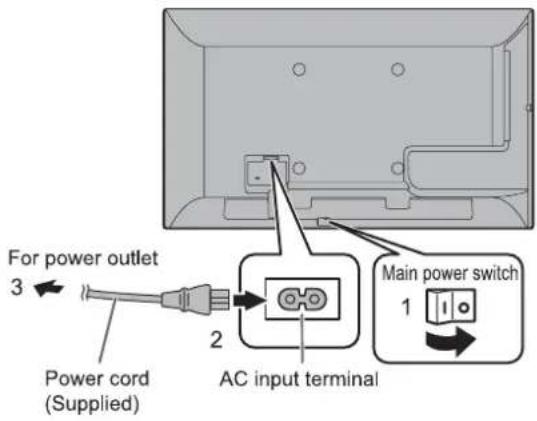
- Schalten Sie den Hauptnetzschalter aus.
- Stecken Sie das Netzkabel (mitgeliefert) in den AC-Eingangsanschluss.
- Stecken Sie das Netzkabel (mitgeliefert) in die AC-Steckdose.
Kabel befestigen
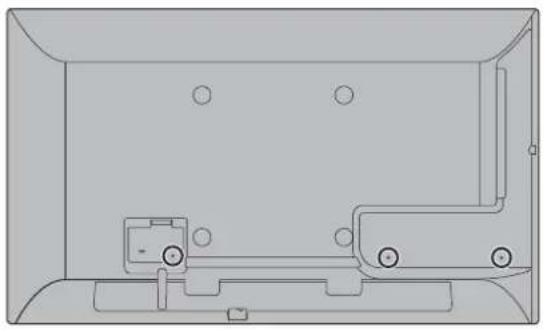
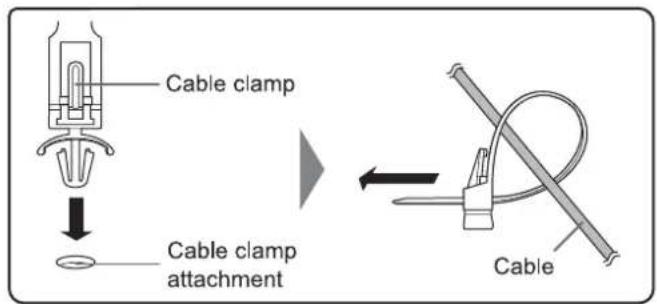
Die an den Anschlüssen auf der Rückseite des Monitors angeschlossenen Kabel können mit der Kabelklemme befestigt werden.
Befestigen Sie die Kabelklemme an der Kabelklemmenhalterung auf der Rückseite des Monitors und befestigen Sie die Kabel.
Einstellen der USB-Flash-Laufwerk-Abdeckung
- Stecken Sie den USB-Speicherstick in den USB-Anschluss.
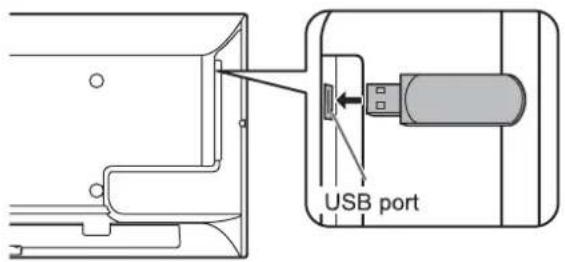
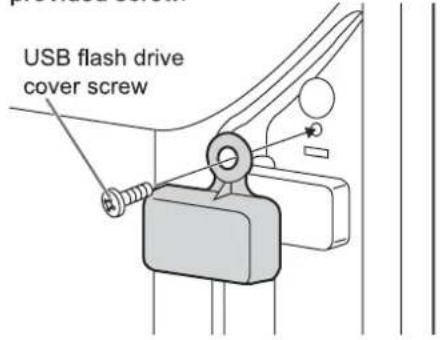
- Befestigen Sie die Abdeckung des USB-Speichersticks und sichern Sie sie mit der mitgelieferten Schraube.
TIPP
- Wenn der USB-Speicherstick angebracht wird, verwenden Sie einen USB-Speicherstick mit Abmessungen von nicht mehr als 1-15/16 Zoll (50 mm) (L) × 13/16 Zoll (20 mm) (B) × 1/2 Zoll (12 mm) (H).
Vorbereiten der Fernbedienung
Einlegen der Batterien
- Drücken Sie die Abdeckung vorsichtig und schieben Sie sie in Pfeilrichtung.
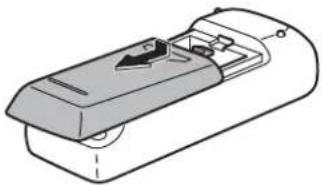
- Beachten Sie die Anweisungen im Fach und legen Sie die mitgelieferten Batterien (R-6 ("AA"-Größe) x 2) mit korrekt ausgerichteten Plus- (+) und Minuspolen (-) ein.
- Schließen Sie die Abdeckung.
TIPP
- Wenn die Batterien erschöpft sind, ersetzen Sie sie durch neue (im Handel erhältliche) Batterien.
- Die mitgelieferten Batterien (R-6 ("AA"-Größe) x 2) können sich je nach Lagerung schnell entladen.
- Wenn Sie die Fernbedienung längere Zeit nicht verwenden, entfernen Sie die Batterien. • Verwenden Sie nur Mangan- oder Alkalibatterien.
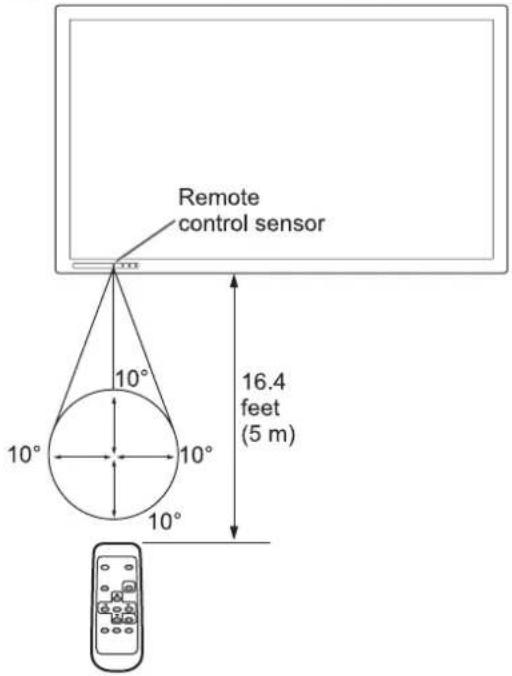
Reichweite der Fernbedienung
Die Reichweite der Fernbedienung beträgt ca. 5 m bei einem Winkel von ca. 10° von der Mitte nach oben/unten/rechts/links vom Fernbedienungssensor.
HINWEISE
- Setzen Sie die Fernbedienung keinen Stößen aus, indem Sie sie fallen lassen oder darauf treten. Dies kann zu einer Fehlfunktion führen.
- Setzen Sie die Fernbedienung keiner Flüssigkeit aus und stellen Sie sie nicht in Bereichen mit hoher Luftfeuchtigkeit ab.
- Die Fernbedienung funktioniert möglicherweise nicht richtig, wenn der Fernbedienungssensor direktem Sonnenlicht oder starker Beleuchtung ausgesetzt ist.
- Gegenstände zwischen der Fernbedienung und dem Fernbedienungssensor können die ordnungsgemäße Funktion verhindern.
- Ersetzen Sie die Batterien, wenn sie schwach werden, da dies die Reichweite der Fernbedienung verkürzen kann.
- Wenn eine Leuchtstofflampe in der Nähe der Fernbedienung beleuchtet ist, kann dies die ordnungsgemäße Funktion beeinträchtigen.
- Verwenden Sie sie nicht zusammen mit Fernbedienungen anderer Geräte wie Klimaanlagen, Stereoanlagen usw.
Ein-/Ausschalten
!Vorsicht
- Schalten Sie zuerst den Monitor ein, bevor Sie den PC oder das Wiedergabegerät einschalten.
Einschalten der Hauptstromversorgung
Wenn die Hauptstromversorgung eingeschaltet wird, leuchtet die Betriebs-LED. Warten Sie, bis das Bild angezeigt wird.
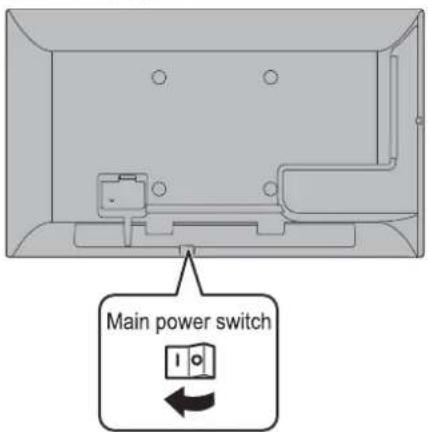
!Vorsicht
- Die Hauptstromversorgung muss mit dem Hauptschalter ein-/ausgeschaltet werden. Schließen Sie das Netzkabel nicht an bzw. trennen Sie es nicht, und schalten Sie den Schutzschalter nicht ein/aus, während der Hauptschalter eingeschaltet ist.
- Wenn Sie den Hauptschalter oder die POWER-Taste ausschalten und wieder einschalten, warten Sie immer mindestens 5 Sekunden. Bei zu kurzem Intervall besteht die Gefahr von Fehlfunktionen oder Störungen.
- Für eine vollständige elektrische Trennung ziehen Sie den Netzstecker.
Ein-/Ausschalten
Drücken Sie die POWER-Taste, um das Gerät ein-/auszuschalten.
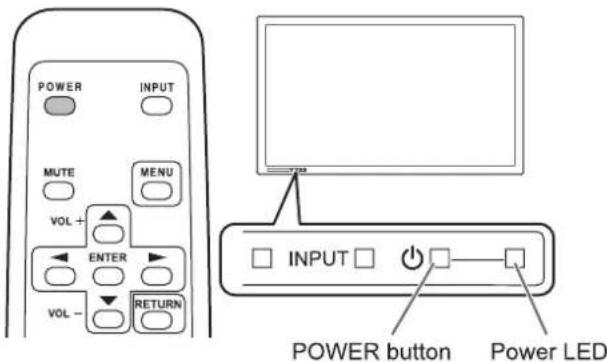
| Status | Status of the monitor |
| Green lit | Power on |
| Orange lit | Power off (Standby mode) |
| Green flashing | Input signal waiting mode |
Vorsicht
- Wenn Sie den Hauptschalter oder die POWER-Taste ausschalten und wieder einschalten, warten Sie immer mindestens 5 Sekunden. Ein kurzes Intervall kann zu Fehlfunktionen führen.
TIPP
- Wenn der Hauptschalter ausgeschaltet ist, kann der Monitor nicht eingeschaltet werden.
- Wenn sich der Monitor im Eingangssignal-Standby-Modus befindet und Sie die POWER-Taste auf der Fernbedienung drücken, wechselt der Monitor in den Standby-Modus.
- Wenn Sie den SCHEDULE einstellen, blinkt die Betriebs-LED im Standby-Modus abwechselnd rot und orange.
Ein-/Ausschalten
■Datum/Uhrzeit-Einstellung
- Wenn die Uhrzeit nicht eingestellt wurde, z. B. beim ersten Einschalten des Monitors, stellen Sie Datum und Uhrzeit unter DATE/TIME SETTING im SETUP-Menü ein. Stellen Sie unbedingt Datum und Uhrzeit ein.
TIPS
- Stellen Sie die Uhrzeit im 24-Stunden-Format ein.
- Die Uhr stoppt, wenn die Hauptstromversorgung etwa 1 Woche lang ausgeschaltet bleibt.* (*Ungefähre Zeit. Die tatsächliche Zeit variiert je nach Zustand des Monitors.)
Grundbedienung
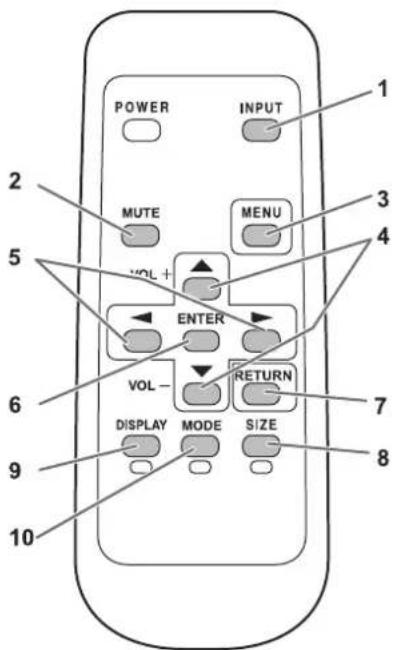
1. INPUT (Eingangsmodusauswahl)
Das Menü wird angezeigt. Drücken Sie ▲ oder ▼, um den Eingangsmodus auszuwählen, und drücken Sie ENTER, um zu bestätigen.
* Sie können den Eingangsterminal durch Drücken des Eingangsschalters des Monitors auswählen.
| Input mode | Video | Audio |
| DVI-D | DVI-D input terminal | Audio1 input terminal |
| HDMI[AV] | HDMI input terminal | HDMI input terminal / Audio1 input terminal |
| HDMI[PC] | ||
| D-SUB[RGB] | D-sub input terminal | Audio1 input terminal |
| D-SUB[COMPONENT] | Audio2 input terminals | |
| D-SUB[VIDEO] | ||
| USB | USB port | USB port |
Wenn ein USB-Flash-Laufwerk angeschlossen ist, wechselt der Eingangsmodus automatisch auf "USB". Der Eingangsmodus wechselt auch automatisch auf "USB", wenn das Gerät bei angeschlossenem USB-Flash-Laufwerk eingeschaltet wird.
2. MUTE
Schaltet die Lautstärke vorübergehend aus.
Drücken Sie die MUTE-Taste erneut, um den Ton auf den vorherigen Pegel zurückzusetzen.
3. MENU
Zeigt das Menü an und blendet es aus. (Siehe Seite 25.)
4. VOL +/- (Lautstärkeeinstellung)
Wenn das Menü nicht angezeigt wird, zeigt das Drücken von ▲ oder ▼ das LAUTSTÄRKE-Menü an.
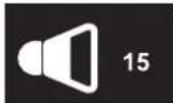
Drücken Sie ▲ oder ▼, um die Lautstärke des Tons einzustellen.
* Wenn Sie etwa 5 Sekunden lang keine Taste drücken, verschwindet das Menü LAUTSTÄRKE automatisch. * Um die Lautstärke von Video oder Musik zu ändern, wenn der Eingabemodus "USB" ist, verwenden Sie "Einstellungen während der Wiedergabe". (Siehe Seite 24.)
5. HELL +/- (Helligkeitseinstellung)
Durch Drücken von □ oder □ wird das Menü HELL angezeigt, wenn das Menü nicht angezeigt wird.

Drücken Sie □ oder ▶, um die Helligkeit einzustellen.
* Wenn Sie etwa 30 Sekunden lang keine Taste drücken, verschwindet das Menü HELL automatisch.
6. EINGABE
Bestätigt die Einstellung.
7. ZURÜCK
Kehrt zum vorherigen Bildschirm zurück.
8. GRÖSSE (Bildschirmgrößenauswahl)/Gelb
Jedes Mal, wenn Sie diese Taste drücken, ändert sich die Bildschirmgröße in der folgenden Reihenfolge: (Siehe Seite 20.)
NORMAL → BREIT → Punkt für Punkt → NORMAL...
9. ANZEIGE/Rot
Zeigt Monitorinformationen an (Eingabemodus, LAN-Einrichtung usw.). Die Anzeige verschwindet automatisch nach etwa 15 Sekunden.
10. MODE (Farbmodus-Auswahl)/Grün
Jedes Mal, wenn Sie diese Taste drücken, ändert sich der Farbmodus in der folgenden Reihenfolge:
STD (Standard) → VIVID → sRGB → HIGH ILLUMINANCE → USB → STD ...
- HIGH ILLUMINANCE ist eine Anzeige mit Farben, die für helle Umgebungen geeignet sind.
- sRGB ist nur für DVI-D-, HDMI[PC]- und D-SUB[RGB]-Eingänge verfügbar. sRGB ist der internationale Standard für die Farbdarstellung, der von der IEC (International Electrotechnical Commission) festgelegt wurde. Die Farbumrechnung erfolgt unter Berücksichtigung der Eigenschaften der Flüssigkristalle und stellt den Farbton nahe am Originalbild dar.
Vorsicht
- Wenn der Eingabemodus [USB] ist, können die Vorgänge 3, 4, 5, 8, 9 und 10 nicht ausgeführt werden. Ändern Sie den Eingabemodus auf einen anderen als USB, bevor Sie diese Vorgänge ausführen. FARBMODUS, LAUTSTÄRKE und GRÖSSE können geändert werden, während eine Datei auf einem USB-Stick abgespielt wird. (Siehe Seite 24.)
Tipps
- 8 GRÖSSE, 9 ANZEIGE und 10 MODUS werden auch beim Abspielen einer Datei auf einem USB-Stick und bei der Texteingabe verwendet. Farben und Bedienungsnamen erscheinen auf dem Bildschirm.
■Umschalten der Bildschirmgröße
Auch wenn die Bildschirmgröße geändert wird, kann die Anzeige je nach Eingangssignal gleich bleiben.
| NORMAL | 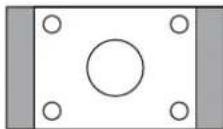 | Displays image so it fills the screen without changing the aspect ratio of the input signals. |
| WIDE | 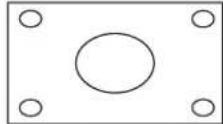 | Displays image so it fills the entire screen. |
| Dot by Dot | 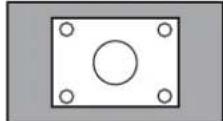 | Displays the dots of the input signals as the corresponding dots on the screen. |
Tipps
- Die Verwendung der Bildschirmgrößenumschaltung dieses Monitors, um den Bildschirm für kommerzielle oder öffentliche Vorführungen in Einrichtungen wie Cafés oder Hotels zu komprimieren oder zu erweitern, kann die Rechte der Urheber verletzen, die durch das Urheberrecht geschützt sind. Bitte seien Sie vorsichtig.
- Wenn "Vergrößern" eingestellt ist, ist die Bildschirmgröße auf den Breitbildmodus festgelegt.
- Das Erscheinungsbild des Originalvideos kann sich ändern, wenn Sie eine Bildschirmgröße mit einem anderen Seitenverhältnis als das Originalbild wählen (z. B. TV-Sendungen oder Videoeingaben von externen Geräten).
- Wenn ein normales, nicht breites Bild (4:3) mit der Bildschirmgrößen-Umschaltfunktion dieses Monitors im Vollbildmodus betrachtet wird, kann der Bildrand abgeschnitten oder verzerrt erscheinen. Wenn Sie die Absichten des Erstellers respektieren möchten, stellen Sie die Bildschirmgröße auf NORMAL.
- Beim Abspielen kommerzieller Software können Teile des Bildes (z. B. Untertitel) abgeschnitten werden. Wählen Sie in diesem Fall mit der Bildschirmgrößen-Umschaltfunktion dieses Monitors die optimale Bildschirmgröße. Bei mancher Software kann es an den Bildrändern zu Rauschen oder Verzerrungen kommen. Dies ist auf die Eigenschaften der Software zurückzuführen und stellt keine Fehlfunktion dar.
- Je nach Originalbildgröße können an den Bildrändern schwarze Balken verbleiben.
Wiedergabe von Dateien auf einem USB-Speicherstick
Ein USB-Speicherstick kann in den Monitor eingesteckt werden, um Bilder, Videos und Musik vom USB-Speicherstick auf dem Monitor anzuzeigen. Informationen zum USB-Speicherstick finden Sie auf Seite 12.
Automatische Wiedergabe
Die Bild- oder Videodateien auf einem USB-Speicherstick können automatisch abgespielt werden.
Erstellen Sie einen Ordner mit dem Namen "autoplay" auf der obersten Ebene des USB-Speichersticks.
Dateien im Ordner "autoplay", die die folgenden Kriterien erfüllen, werden automatisch abgespielt. (Unterstützte Formate und Dateinamen unterscheiden sich von anderen Wiedergaben.)
| Format | Image files : *.jpg *1orVideo files : *.wmv *1 |
| File name | 001.jpg - 030.jpg *2or001.wmv - 030.wmv *2(Files are played by number in ascending order. If a number is missing in the sequence, that number is skipped.) |
| Number of files | Up to 30. |
*1 Einzelheiten finden Sie unter "Unterstützte Formate" rechts. *2 Die Dateierweiterung muss in Kleinbuchstaben geschrieben sein.
! Vorsicht
- Eine gemischte Wiedergabe von Bild- und Videodateien ist nicht möglich. Um eine Mischung aus Bild- und Videodateien anzuzeigen, siehe "ZEITPLAN" (siehe Seite 30).
TIPP
- Während der automatischen Wiedergabe ist es besser, das Gerät mit der Fernbedienung ein- und auszuschalten. Wenn das Gerät über den Hauptnetzschalter ein- und ausgeschaltet wird, dauert es länger, bis die automatische Wiedergabe startet. Es dauert auch länger, bis die Wiedergabe aus dem STANDBY-MODUS und dem LOW-POWER-Modus startet.
■ Vorbereitungen
Stellen Sie den Dateityp für die automatische Wiedergabe ein.
- Ändern Sie den Eingangsmodus auf etwas anderes als [USB]. (Siehe Seite 19.)
- Drücken Sie ☐ und wählen Sie mit ▲ oder ▼ SETUP aus.
- Drücken Sie ENTER und wählen Sie mit ▲ oder ▼ AUTO PLAY aus.
- Drücken Sie ENTER und wählen Sie mit ▲ oder ▼ PHOTO oder MOVIE aus.
- Drücken Sie ENTER.
- Drücken Sie MENU.
■ Automatische Wiedergabe von Dateien
- Schließen Sie einen USB-Stick an (siehe Seite 12) und schalten Sie das Gerät ein. Sie können einen USB-Stick auch nach dem Einschalten anschließen (siehe Seite 12).
TIPPS
- Die automatische Wiedergabe startet nicht, wenn ein Ordner, ein Dateiformat oder ein Dateiname, der unter "Automatische Wiedergabe" angegeben ist, nicht korrekt eingestellt ist, und wenn AUTO PLAY im Monitoreinstellungsmenü nicht korrekt eingestellt ist.
■ So stoppen Sie die automatische Wiedergabe
- Drücken Sie INPUT.
Dateien abspielen
Sie können die angegebenen Bild-/Video-/Audiodateien auf einem USB-Stick abspielen.
- Stecken Sie den USB-Speicherstick in einen USB-Anschluss am Monitor. (Siehe Seite 12.)
- Ändern Sie den Eingabemodus auf [USB]. (Siehe Seite 19.)
- Wählen Sie die abzuspielenden Dateien und die Wiedergabemethode. (Siehe Seite 22.)
■ Unterstützte Formate
Die Dateitypen, die über den USB-Speicherstick abgespielt werden können, sind wie folgt:
Die Funktion von Formaten, die nicht in der Tabelle angegeben sind, ist nicht gewährleistet.
Bilddateien
| Extension | Display capability |
| *.jpg (*.jpeg) *1 | Size <= 10000 x 10000Color mode= 444, 422 |
| *.png | 4096x3072 4bit, 2730x2500 8bit2048x1536 16bit, 1500x1200 32bit |
*1 Progressive-JPEG-Dateien werden unterstützt.
Audiodateien
| Extension | Video coding | Audio coding |
| *.mp3 | - | MPEG-1, 2, 2.5 L3 |
| *.wma | - | WMA, WMA Pro |
Videodateien
| Extension | Video coding | Audio coding |
| *.wmv | WMV9 | WMA |
| *.mp4 | H.264 BP, MP, HP,MPEG4 SP, ASP,XVID | MP3, ADPCM, AAC |
| *.ts | MPEG-2, H.264 BP,MP, HP, VC1 | AC3, AAC, MP3, DD+,HE-AAC |
• In einigen Fällen kann es sein, dass die oben genannten Dateien nicht abgespielt werden können. - Für Ordnernamen und Dateinamen können maximal 32 alphanumerische Zeichen verwendet werden. Ein Dateiname oder Ordnername wird möglicherweise nicht korrekt angezeigt, wenn ein Leerzeichen, Bindestrich (-) oder Unterstrich (_) verwendet wird. - Wenn Dateinamen oder Ordnernamen lang sind, erscheinen einige Zeichen möglicherweise nicht in der Listenansicht. - Verwenden Sie keine Datei, die größer als 2 GB ist. - Während der Wiedergabe und wenn eine Liste angezeigt wird, reagieren die Fernbedienung und einige Tasten möglicherweise nicht auf Bedienung. Dies wird durch die hohe Bildverarbeitungslast verursacht und ist kein Produktfehler oder Problem. - Die Funktion ist nicht gewährleistet, wenn ein nicht unterstütztes Format verwendet wird. Die folgenden Arten von Problemen können auftreten:
- Abnormale Wiedergabegeschwindigkeit
- Während der Wiedergabe können keine Bedienvorgänge ausgeführt werden
- Die Wiedergabe stoppt. Die Player-Anwendung startet neu.
- Wenn eine Videodatei nicht abgespielt werden kann, erscheint "Nicht unterstützte Datei". Bei einigen Dateien erscheint möglicherweise "Videoauflösung nicht unterstützt" oder "Audioformat nicht unterstützt".
■ Auswahl der abzuspielenden Dateien
- Stecken Sie den USB-Stick in einen USB-Anschluss des Monitors. (Siehe Seite 12.)
- Ändern Sie den Eingabemodus auf [USB]. (Siehe Seite 19.)
- Drücken Sie ▲.
- Wählen Sie ein Symbol mit □ oder ▶ und drücken Sie ENTER. (4) (3) (2) (1)
(1) Ordner
Ordner und Dateien auf dem USB-Stick werden angezeigt.
(2) Foto
Bilddateien auf dem USB-Stick werden angezeigt.
(3) Film
Videodateien auf dem USB-Stick werden angezeigt.
(4) Musik
Audiodateien auf dem USB-Stick werden angezeigt.
5. Wählen Sie eine Datei.
(1) Ordner
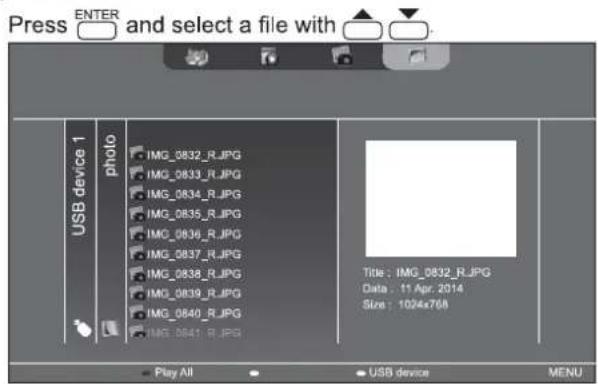
- Wenn das ausgewählte Element ein Ordner ist, werden die Dateien im Ordner auf der rechten Seite angezeigt. Drücken Sie ENTER, um in den Ordner zu wechseln.
- Wenn das ausgewählte Element eine Datei ist, werden die Dateiinformationen angezeigt.
(2) Foto
Wählen Sie eine Datei mit ▲, ▼, ▲ oder ▶ aus.
- Bilddateien sind zunächst nach Datum gruppiert. Um Bilder eines anderen Datums anzuzeigen, drücken Sie ▲, wählen Sie das Datum mit ▲ oder ▲ aus und drücken Sie ENTER.
- Um die Gruppe einer Datei zu ändern, drücken Sie MODE (Grün), während die Datei ausgewählt ist. Wählen Sie einen der folgenden Punkte mit ▲ oder ▼ aus und drücken Sie ENTER.
Datum ...... Gruppierung nach Erstellungsdatum der Datei
A.Z .... Gruppierung nach erstem Buchstaben des Dateinamens
Monat ...... Gruppierung nach Erstellungsmonat der Datei
Jahr..... Gruppierung nach Erstellungsjahr der Datei
(3) Film
Wählen Sie eine Datei mit ▲, ▼, ▶ oder ▶ aus.
(4) Musik
Wählen Sie eine Datei mit ▲ oder ▼ aus.
- Um zum Genre-Menü der Datei zu wechseln, drücken Sie ▲. Um Audiodateien einzugrenzen, wählen Sie mit ▲ oder ▶ aus und drücken Sie ENTER.
- Um die Gruppe einer Datei zu ändern, drücken Sie MODE (Grün), während die Datei ausgewählt ist. Wählen Sie einen der folgenden Punkte mit ▲ oder ▼ aus und drücken Sie ENTER. Album...... Nach Album gruppieren Künstler...... Nach Künstler gruppieren Genre ..... Nach Genre gruppieren Titel ...... Nach dem ersten Buchstaben des Liedtitels gruppieren
- Ein Standbild kann während der Audiowiedergabe abgespielt werden. (Siehe Seite 23.)
6. Wählen Sie die Dateiwiedergabemethode aus den folgenden Optionen:
- Eine ausgewählte Datei abspielen
Drücken Sie ENTER.
- Alle in der Liste angezeigten Dateien abspielen Drücken Sie DISPLAY (Rot).
- Um die Wiedergabe zu beenden, drücken Sie RETURN
- Wenn Sie Musik abspielen, pausieren Sie die Musik, bevor Sie die obigen Schritte ausführen. (Siehe Seite 23.)
TIPPS
- Informationen zu den Bedienvorgängen während der Wiedergabe finden Sie auf Seite 23.
- Wenn Sie alle Dateien in [Ordner] abspielen, beginnt die Wiedergabe mit der aktuell ausgewählten Datei, und es werden nur Dateien dieses Typs (Standbild, Video oder Musik) abgespielt. Die Wiedergabe erfolgt in der Reihenfolge der Dateinamen. Auch wenn die Dateien unterschiedliche Formate haben, werden sie abgespielt, solange sie vom gleichen Typ sind. Gemischte Dateitypen werden nicht abgespielt. • Um zur nächsthöheren Ebene zurückzukehren, drücken Sie ▲ oder RETURN.
- Wenn die Videodateiliste angezeigt wird, kann das Erscheinen der Miniaturansichten einiger Dateien einige Zeit in Anspruch nehmen. Warten Sie, bis die Miniaturansichten erscheinen, bevor Sie den nächsten Vorgang ausführen.
Abspielen von Dateien mit der SCHEDULE-Funktion
Die Bilddateien (im .jpg (.jpeg)/.png-Format) oder Videodateien (im .wmv/.mp4/.ts-Format) auf einem USB-Stick können mit der SCHEDULE-Funktion automatisch abgespielt werden. (Siehe Seite 30.)
Bedienung während der Wiedergabe
■ Bilddateien
Die Bedienung ist mit den folgenden Tasten möglich.
DISPLAY/ENTER: Diashow abspielen/pausieren.

: Das Bild um 90° im Uhrzeigersinn drehen.

: Wiedergabe beenden.
■ Videodateien
Die Bedienung ist mit den folgenden Tasten möglich.

: Etwa 10 Sekunden zurückspringen.
: Etwa 10 Sekunden vorspringen.

: Die gerade abgespielte Datei pausieren. Zum Fortsetzen der pausierten Datei ENTER drücken.

: Zwischen "Nur die abgespielte Datei abspielen" und "Alle abspielen" umschalten.

: Auswählen, ob die Wiedergabereihenfolge während der fortlaufenden Wiedergabe gemischt wird oder nicht.

: Wiedergabe beenden.
■ Audiodateien

: Etwa 10 Sekunden zurückspringen.
: Etwa 10 Sekunden vorspringen.

: Die Wiedergabe der aktuell abgespielten Datei pausieren. Zum Fortsetzen der pausierten Datei die EINGABETASTE drücken.

: Zwischen "Nur die abgespielte Datei" und "Alle abspielen" umschalten.

: Auswählen, ob die Wiedergabereihenfolge während der fortlaufenden Wiedergabe zufällig gemischt wird oder nicht.

: Während der Wiedergabe einer Datei kann RETURN gedrückt werden, um einen Vorgang auszuführen, ohne die Dateiwiedergabe zu stoppen. Wenn Sie beispielsweise nach dem Drücken von RETURN eine Standbilddatei aus "Foto" (siehe Seite 22) anzeigen, können Sie ein Standbild anzeigen, während Musik abgespielt wird. Um die Musik zu stoppen, wählen Sie die ursprüngliche Musikdatei aus und pausieren Sie. Sie können den Ton auch mit MUTE stummschalten. Wenn RETURN gedrückt wird, während die Musik pausiert ist, endet die Wiedergabe.
TIPPS
- Um die Lautstärke für Videodateien und Audiodateien einzustellen, befolgen Sie das Verfahren unter "Einstellungen während der Wiedergabe". (Siehe Seite 24.)
- Wenn während der Verarbeitung eines Vorgangs mit hoher Verarbeitungslast, wie z. B. "Etwa 10 Sekunden vorspringen" bei einem Video, der nächste Vorgang ausgeführt wird, wird dieser erst verarbeitet, wenn die vorherige Verarbeitung abgeschlossen ist. Warten Sie, bis die Verarbeitung abgeschlossen ist, bevor Sie den nächsten Vorgang ausführen.
- Die Verarbeitungszeit variiert stark je nach Auflösung und Dateigröße. Aus diesem Grund wird empfohlen, die Auflösung nach Möglichkeit bei 1920 x 1080 zu halten.
Einstellungen
■ Einstellungen, wenn die Dateiliste angezeigt wird
Wählen Sie eine Datei aus und drücken Sie MENU. Wählen Sie ein Element mit ▲ oder ▼ aus und drücken Sie die EINGABETASTE.
Zufällige Wiedergabe
Wählen Sie aus, ob die Wiedergabe während einer Diashow oder einer fortlaufenden Wiedergabe zufällig erfolgen soll.
Wiederholen
Legen Sie fest, ob die Wiedergabe einer Datei oder von Dateien in einem Ordner wiederholt wird.
Diashow-Zeit
(Nur während der Anzeige [Ordner] oder [Foto].)
Legen Sie die Wechselzeit der Diashow fest.
Diese Einstellung wird auch auf die automatische Wiedergabe und die geplante Wiedergabe angewendet.
Die folgenden Zeiten sind Richtwerte und können je nach Datei variieren.
Kurz.....Ungefähr 3 Sekunden
Mittel....Ungefähr 6 Sekunden
Lang.....Ungefähr 9 Sekunden
Diashow-Übergang
(Nur während der Anzeige [Ordner] oder [Foto].)
Legen Sie fest, wie die Folien in Diashows gewechselt werden.
■ Einstellungen während der Wiedergabe
Drücken Sie während der Wiedergabe MENU.
Konfigurieren Sie die gewünschte Einstellung mit ▲, ▼, ▲, ▶ und ENTER.
Optionen
"Einstellungen bei angezeigter Dateiliste" (siehe Seite 23) oder "Status" (nur bei Videowiedergabe) erscheint.
Bild und Ton
FARBMODUS
Ändert den Farbmodus auf dem Bildschirm.
LAUTSTÄRKE
Stellt die Lautstärke ein.
GRÖSSE
Ändert die Bildschirmgröße des Videos.
Eco-Einstellungen
Bildschirm aus
Verwenden Sie dies während der Wiedergabe eines Videos oder von Musik, um den Bildschirm auszuschalten und nur die Musik abzuspielen. Der Ton eines Videos oder von Musik wird nicht ausgeschaltet. Um den Bildschirm anzuzeigen, drücken Sie ENTER auf der Fernbedienung.
Uhr (Nur bei Videowiedergabe oder Musikwiedergabe.)
Uhr
Eine Uhr kann in der oberen rechten Ecke des Bildschirms angezeigt werden. Die Uhr erscheint während der Wiedergabe von Dateien ständig. Um die Uhranzeige zu löschen, wählen Sie erneut [Uhr] und drücken Sie die EINGABETASTE.
Menüpunkte
Anzeigen des Menübildschirms
Video- und Audioeinstellungen sowie Einstellungen verschiedener Funktionen sind möglich. In diesem Abschnitt wird beschrieben, wie die Menüpunkte verwendet werden. Einzelheiten zu jedem Menüpunkt finden Sie auf den Seiten 26 bis 31.
Vorsicht
- Schalten Sie den Hauptnetzschalter nicht aus, während die Menüpunkte angezeigt werden. Andernfalls können die Einstellungen initialisiert werden.
- Dies kann nicht angezeigt werden, wenn der Eingabemodus USB ist. Ändern Sie den Eingabemodus auf einen anderen als USB, bevor Sie diese Vorgänge ausführen.
■Beispiel für die Bedienung
(Einstellen von KONTRAST im Menü BILD)
- Drücken Sie ☐, um den Menübildschirm anzuzeigen.
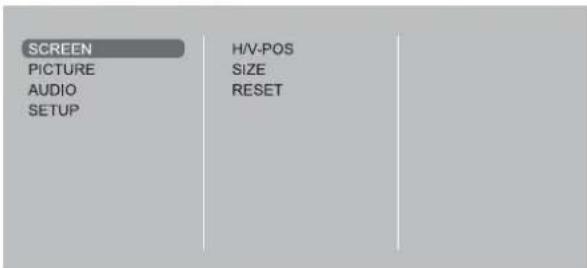
- Drücken Sie ▲ oder ▼, um BILD auszuwählen, und drücken Sie die EINGABETASTE.
- Drücken Sie ▲ oder ▼, um KONTRAST auszuwählen, und drücken Sie die EINGABETASTE.
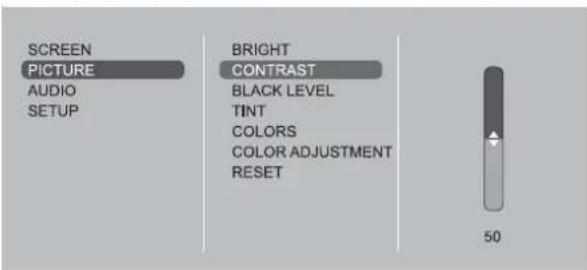
- Drücken Sie ▲ oder ▼, um die Einstellung anzupassen, und drücken Sie die EINGABETASTE.
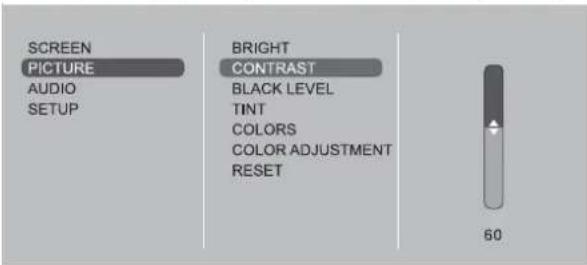
- Drücken Sie ☐, um den Menübildschirm zu schließen.
Tipps
• Das Menü unterscheidet sich je nach Eingabemodus. - Der Menübildschirm schließt sich automatisch, wenn etwa 1 Minute lang keine Bedienung erfolgt.
■Anzeige des Menübildschirms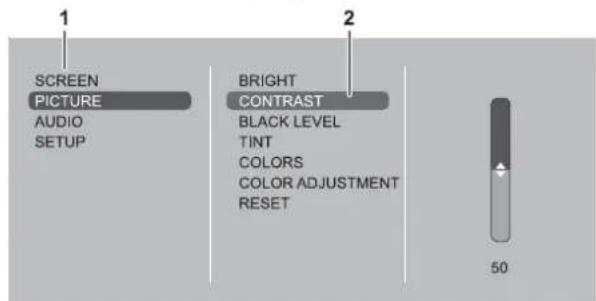
1 Name des Menüs 2 Ein ausgewähltes Element (hervorgehoben)
Details zum Menüpunkt
Das Menü unterscheidet sich je nach Eingabemodus.
■BILD
| AUTO (D-SUB[RGB]) |
| The H/V-POS, etc. are automatically adjusted. |
| H/V-POS |
| Adjust the horizontal and vertical position of the image. |
| SIZE |
| Changes the screen size. The screen size can also be changed using a remote control unit. (See page 19.) |
| ZOOM (HDMI[AV]/D-SUB[COMPONENT]/D-SUB[VIDEO]) |
| Enlarge and display part of the image. |
| INPUT SIGNAL (D-SUB[RGB]) |
| If a computer connected to the D-SUB output any of the following resolution, make a selection from the following options.768......1024x768, 1280x768, 1360x768 or 1366x768 |
| RESET |
| Resets the values of the SCREEN menu items to the factory preset values.Select “ON” and then press ENTER. |
■BILD
| BRIGHT |
| Adjusts the backlight brightness. |
| CONTRAST |
| Adjusts the difference between the bright and dark portions of the image. |
| BLACK LEVEL |
| Adjusts the entire brightness of the video signals. |
| TINT |
| Adjusts the hue. Selecting - changes the color towards magenta, and selecting + changes it towards green. |
| COLORS |
| Adjusts the color intensity. |
| SHARPNESS (HDMI[AV]/D-SUB[COMPONENT]/D-SUB[VIDEO]) |
| Adjusts the sharpness of the image. |
| COLOR ADJUSTMENT |
| COLOR MODE |
| Changes the color mode on the screen. The color mode on the screen can also be changed using a remote control unit. (See page 19.)* sRGB is DVI-D, HDMI[PC], D-SUB[RGB] input only. See page 19 for details. |
| WHITE BALANCE |
| THRU ......Displays the input signal level as is.PRESET......Selects the color temperature using PRESET.USER ......Used for adjusting R-/G-/B-GAIN and R-/G-/B-OFFSET respectively. |
| PRESET |
| Selects the color temperature when the WHITE BALANCE is set to PRESET.The setting values are shown for reference. The color temperature of the screen varies over time. This function is not intended to keep the color temperature constant. |
| GAMMA |
| Selects the gamma. |
| ADVANCED |
| NOISE REDUCTION (HDMI[AV]/D-SUB[COMPONENT]/D-SUB[VIDEO]) |
| Reduce the noise of playback images. |
| HDMI RGB INPUT RANGE (HDMI[PC]/HDMI[AV]) |
| Sets the RGB input signal range. |
| RESET |
| Resets the values of the PICTURE menu items to the factory preset values. |
| Select “ON” and then press ENTER. |
AUDIO
| BASS |
| Adjusts the volume of bass-level sound. |
| TREBLE |
| Adjusts the volume of treble-level sound. |
| RESET |
| Resets the values of the AUDIO menu items to the factory preset values.Select “ON” and then press ENTER. |
SETUP
| DATE/TIME SETTING |
| Set the date and time. Press ▲ or ▶ to select the date and time, and press ▲ or ▼ to change the numerical values. Set the time on a 24-hour basis. |
| SCHEDULE (See page 30.) |
| You can turn the power on/off at a specified time. Files in a USB flash drive can also be played at a specified time. |
| LANGUAGE |
| Sets the display language for the menu screen. |
| INPUT SELECT |
| HDMISelect the input mode to be used in HDMI input terminals. |
| D-SUBSelect the input mode to be used in D-Sub input terminal. Select SET after selecting the input mode, and then press ENTER. |
AUDIO-OPTION
AUDIO-AUSGANG
Stellt die Lautstärke des Tons ein, der von den Audioausgangsbuchsen ausgegeben wird.
LAUTSPRECHER
Wählen Sie, ob Lautsprecher verwendet werden oder nicht.
LAN-SETUP
Konfiguriert die Einstellungen, um den Monitor über das LAN vom Computer aus zu steuern. (Siehe Seite 38.)
ID-EINSTELLUNG
Weist Monitoren, die in einer Daisy-Chain (siehe Seite 33) mit RS-232-Kabeln verbunden sind, ID-Nummern zu.
Für ID-Nummern sind die Nummern 0 bis 25 verfügbar.
Wenn "0" eingestellt ist, betrachtet das System dies als den Zustand, in dem keine ID-Nummer eingestellt ist.
MULTI
VERGRÖSSERN (Siehe Seite 29.)
Legt fest, ob die Vergrößerungsfunktion verwendet werden soll oder nicht.
ERWEITERT (VERGRÖSSERN)
| ENLARGE H / ENLARGE V |
| ......Sets the number of screen splits (number of monitors) in the horizontal/vertical direction used for the enlargement. |
| ENLARGE-POS |
| ......Specify the split screen to be displayed when the enlargement function is used. (See page 29.) |
| BEZEL ADJUST |
| ......When ENLARGE is set to ON, sets whether or not to use the frame correction function. |
TEMPERATURSENSOR-EINSTELLUNG
Wählen Sie die Installationsrichtung des Monitors.
QUERFORMAT......Querformat
HOCHFORMAT ...... Hochformat
STANDBY-MODUS
| When STANDARD is selected, startup time from standby mode is reduced. Note, however that, more power will be consumed in standby mode. |
| When LOW POWER is selected, current consumption is reduced while the monitor is in standby mode. Note, however, that the startup time from standby mode becomes longer. |
| If set to LOW POWER, RS-232C commands cannot be used in standby mode and control via LAN is disabled. (See page 32, 38.) |
| When set to LOW POWER, the monitor enters power standby mode rather than input signal standby mode when there is no input signal, and therefore the monitor does not wake up when a signal is input. (See page 17.) |
AUS, WENN KEIN BETRIEB
Legt fest, ob der Monitor in den Bereitschaftsmodus wechseln soll, wenn über einen längeren Zeitraum als die eingestellte Zeit keine Bedienung über die Fernbedienung, RS-232C-Befehle oder LAN erfolgt.
Menüpunkte
EINSCHALTVERZÖGERUNG
Sie können die Bildschirmanzeige nach dem Einschalten des Monitors verzögern. Der Zeitraum kann in 1-Sekunden-Schritten bis zu 60 Sekunden eingestellt werden. Wenn diese Funktion aktiviert ist, blinkt die Betriebs-LED (in ca. 1-Sekunden-Intervallen) orange.
AUTOMATISCHER EINGANGSWECHSEL
Geben Sie an, ob die Eingänge automatisch gewechselt werden sollen. Wenn ON ausgewählt ist und im ausgewählten Eingangsmodus kein Signal vorhanden ist, wechselt AUTO INPUT CHANGE automatisch in einen anderen Modus, in dem ein Videosignal vorhanden ist. Wenn in mehreren Eingangsmodi Videosignale vorhanden sind, gilt folgende Umschaltpriorität: DVI-D, HDMI, D-SUB (Die Umschaltung des Eingangsmodus kann je nach angeschlossenem Gerät 15 Sekunden oder länger dauern. Wenn an keinem der Eingangsanschlüsse Signale anliegen, wird die Umschaltung fortgesetzt, bis ein Eingangssignal erkannt wird, und der Monitor wechselt nicht in den Signal-Bereitschaftsmodus.)
SCAN-MODUS (HDMI[AV])
Stellt den Scan-Modus ein.
EINSTELLUNGSSPERRE
Sie können die Bedienung des Monitors und der Fernbedienung über Tasten deaktivieren.
MONITOR-TASTEN
ENTSPERRT....Bedienung möglich. ALLES SPERREN....Keine Bedienung möglich. ALLES AUSSER POWER SPERREN....Alle Bedienungen außer Ein-/Ausschalten sind deaktiviert.
FERNBEDIENUNG
ENTSPERRT....Bedienung möglich. ALLES SPERREN....Keine Bedienung möglich. ALLES AUSSER LAUTSTÄRKE SPERREN....Nur Lautstärkeeinstellung möglich. Andere Bedienungen sind deaktiviert. ALLES AUSSER POWER SPERREN....Alle Bedienungen außer Ein-/Ausschalten sind deaktiviert.
- Um die EINSTELLSPERRE zu deaktivieren, drücken Sie SIZE, bis "F" in der oberen linken Ecke des Bildschirms erscheint. Drücken Sie dann in dieser Reihenfolge ▲, ▼ und ▶, bevor "F" verschwindet.
LED
Gibt an, ob die Betriebs-LED leuchten soll.
BILDSCHIRMBEWEGUNG
Nachbilder werden durch Bewegen des Bildschirms reduziert. Geben Sie einen Zeitraum (Betriebsintervall) an, bis die BILDSCHIRMBEWEGUNG startet.
ENERGIEVERWALTUNG
Die ENERGIEVERWALTUNG bestimmt, ob bei fehlendem Signal in den Bereitschaftsmodus für Eingangssignale umgeschaltet wird.
AUTOPLAY (Siehe Seite 21.)
Legen Sie den Dateityp fest, der automatisch von einem USB-Stick abgespielt werden soll.
ALLE ZURÜCKSETZEN
Setzt die Einstellungen auf die Werkseinstellungen zurück. (Die Einstellungen in LAN-SETUP bleiben erhalten.)
HINWEISE
- Wenn der FARBMODUS auf sRGB eingestellt ist, können die folgenden Elemente nicht eingestellt werden: WEISSABGLEICH, VOREINSTELLUNG, BENUTZER und GAMMA
- Wenn der FARBMODUS auf HOHE BELEUCHTUNGSSTÄRKE oder LEBHAFT eingestellt ist, kann GAMMA nicht angepasst werden.
- Wenn VERGRÖSSERN verwendet wird, ist die Funktion BILDSCHIRMBEWEGUNG deaktiviert. • Selbst wenn LED auf AUS gesetzt ist, leuchtet die Betriebs-LED bei einem Temperaturalarm.
■Vergrößern
- Sie können mehrere Monitore ausrichten und zu einem einzigen großen Bildschirm zusammenschließen, um anzuzeigen.
- Bis zu 5 Monitore können sowohl in horizontaler als auch in vertikaler Richtung ausgerichtet werden. • Jeder Monitor zeigt vergrößerte Ansichten von getrennten Bildern.
(Beispiel)
Horizontale Richtung: 2 Monitore
Vertikale Richtung: 2 Monitore
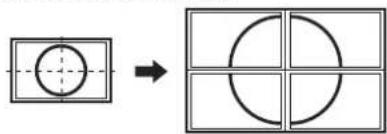
Horizontale Richtung: 3 Monitore
Vertikale Richtung: 2 Monitore
![graph LR A["Square with circle"] --> B["Grid with circles"]](/content/2026/05/1029960/images/b67eeb14642d1652b55f7b29967b1a66b7e5d46d9ee19cf8dd68da8343a40344.jpg)
Einstellvorgang
Stellen Sie es mit MULTI im SETUP-Menü ein.
- Setzen Sie ENLARGE auf ON.
- Wählen Sie ADVANCED.
- Stellen Sie die Anzahl der in horizontaler Richtung ausgerichteten Monitore in ENLARGE H ein.
- Stellen Sie die Anzahl der in vertikaler Richtung ausgerichteten Monitore in ENLARGE V ein.
- Legen Sie den Abschnitt des getrennten Bildes fest, der auf jedem Monitor im Modus ENLARGE-POS angezeigt werden soll.
1) Drücken Sie ENTER. 2) Drücken Sie ▲ oder ▼, um die Position auszuwählen, und drücken Sie dann MENU.
Vergrößern
Sie können 4, 9, 16 oder 25 Monitore ausrichten und zu einem einzigen großen Bildschirm für die Anzeige zusammenführen.
Vergrößerte Ansichten der getrennten Bilder werden auf jedem Monitor angezeigt.
Im Querformat![graph TD A["Original image"] --> B["4 monitors"] B --> C["9 monitors"] C --> D["16 monitors"] D --> E["25 monitors"]](/content/2026/05/1029960/images/2c79f421e2ccb270ad11b2af916f3c712a395c90af4728f4b4502014e92c96f7.jpg)
Im Hochformat![graph TD A["Original image"] --> B["4 monitors"] B --> C["9 monitors"] C --> D["16 monitors"] D --> E["25 monitors"]](/content/2026/05/1029960/images/7e528858e40512f65ca43aebedfc5442970d8d1367f3bd73fea1dfe0820651fe.jpg)
■ZEITPLAN
Sie können die Zeit für das Ein- und Ausschalten der Bewegung einstellen.
Eine Datei auf einem USB-Stick kann auch zu einer bestimmten Zeit abgespielt werden. Stellen Sie "EINGANG" im ZEITPLAN auf "USB" und erstellen Sie eine Wiedergabeliste.
Stellen Sie diese Funktion mit ZEITPLAN im SETUP-Menü ein. (Siehe Seite 27.)
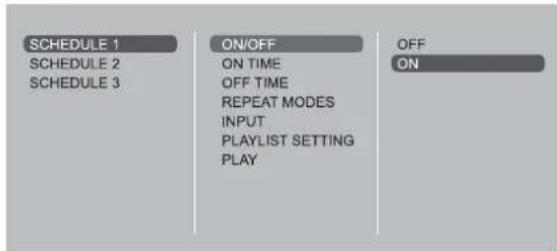
- Stecken Sie den USB-Stick in einen USB-Anschluss am Monitor. (Siehe Seite 12.)
- Drücken Sie ▲ oder ▼, um die ZEITPLAN-Nummer auszuwählen, und drücken Sie ENTER.
- Stellen Sie den ZEITPLAN ein. (Siehe unten)
Navigieren Sie mit ▲ oder ▼ durch die Elemente und zeigen Sie die Einstellungen eines Elements mit ENTER an.
- Drücken Sie MENU. SCHEDULE wird aktiv.
(1) EIN/AUS
Aktivieren/Deaktivieren des SCHEDULE.
(2) EIN-ZEIT
Geben Sie die Zeit für das Einschalten mit ▲ oder ▼ an. Stellen Sie die Zeit im 24-Stunden-Format ein. Wenn Sie fertig sind, wählen Sie mit ▲ oder ▼ [OK] und drücken Sie ENTER.
(3) AUS-ZEIT
Geben Sie die Zeit für das Ausschalten mit ▲ oder ▼ an. Stellen Sie die Zeit im 24-Stunden-Format ein. Wenn Sie fertig sind, wählen Sie mit ▲ oder ▼ [OK] und drücken Sie ENTER.
(4) WIEDERHOLUNGSMODI
Wählen Sie mit ▲ oder ▼ den Wochentag, an dem der Zeitplan ausgeführt werden soll, und legen Sie ihn mit ENTER fest.
- NUR EINMAL Der Zeitplan wird unabhängig vom Wochentag nur einmal ausgeführt.
- JEDEN SONNTAG - JEDEN SAMSTAG Führt den Zeitplan an dem angegebenen Tag jede Woche aus. Es können mehrere Wochentage angegeben werden.
(5) EINGANG
Geben Sie mit ▲ oder ▼ den Eingangsmodus beim Einschalten an.
(6) PLAYLIST-EINSTELLUNG
Dies erscheint nur, wenn INPUT auf [USB] eingestellt ist. Verwenden Sie diese Option, um eine Wiedergabeliste für die automatische Anzeige/Wiedergabe von Dateien auf einem USB-Stick zu erstellen.
• Bilddateien und Videodateien können in derselben Wiedergabeliste kombiniert werden. • Audiodateien können nicht verwendet werden.
- Wählen Sie den Dateityp, der in der Liste festgelegt werden soll, mit □ oder ▽ aus, und drücken Sie ENTER.
- Eine Liste der Ordner oder Dateien des ausgewählten Typs (Foto/Video) wird angezeigt.
- Wählen Sie eine Datei mit ▲ oder ▼ aus, und drücken Sie ENTER, um die Datei festzulegen.
- Wenn eine Datei ausgewählt und festgelegt wird, erscheint sie im linken Bereich.
- Wenn Sie eine Datei im linken Bereich auswählen und ENTER drücken, verschwindet sie aus dem linken Bereich. • Um eine Ebene nach oben zu wechseln, wählen Sie [...] und drücken Sie ENTER.
- Um den Dateityp zu ändern, drücken Sie [...] um zum Auswahlbildschirm zurückzukehren, oder drücken Sie DISPLAY (Rot), wählen Sie [Medientyp] mit ▲ oder ▼ und drücken Sie ENTER. Wenn [Foto] ausgewählt ist, werden Bilddateien angezeigt, und wenn [Video] ausgewählt ist, werden nur Videodateien angezeigt.
- Um die Dateien im Ordner zu sortieren, drücken Sie DISPLAY (Rot), wählen Sie [Sortieren] mit ▲ oder ▼ und drücken Sie ENTER. Drücken Sie ▲ oder ▼, um einen der folgenden Punkte auszuwählen, und drücken Sie ENTER. Typ.....Sortiert die Dateien nach dem Typ der Videodateien. Dieser Punkt erscheint nicht für Bilddateien. Datum.....Sortiert die Dateien nach Änderungsdatum und -zeit.
Name ... Sortiert die Dateien nach ihren Namen.
- Um die Dateiansicht zu ändern, drücken Sie DISPLAY (Rot), wählen Sie [Normaler Parser] oder [Rekursiver Parser] mit ▲ oder ▼ und drücken Sie ENTER. Wenn eine Option ausgewählt ist, ändert sich die Dateiansicht wie folgt:
Normaler Parser Ordner und Dateien werden in der Hierarchie des USB-Sticks angezeigt.
Rekursiver Parser Alle Bilddateien oder alle Videodateien werden zusammen angezeigt, unabhängig von der Hierarchie des USB-Sticks.
- Drücken Sie DISPLAY (Rot).
- Drücken Sie ▲ oder ▼, um [Liste speichern] auszuwählen, und drücken Sie ENTER.
- Die im linken Bereich angezeigte Liste wird als Wiedergabeliste gespeichert. Wenn Sie Änderungen an einer Wiedergabeliste vornehmen, verwenden Sie [Liste speichern], um die geänderte Liste zu speichern.
- Drücken Sie ☐ (Gelb).
(7) WIEDERGABE
Erscheint nur, nachdem die Wiedergabeliste gespeichert wurde.
Startet die Wiedergabeliste.
Drücken Sie INPUT, um die Wiedergabeliste anzuhalten.
Vorsicht
- Schalten Sie nach dem Einstellen des ZEITPLANS nicht die Hauptstromversorgung aus.
- Stellen Sie die Zeit sowohl für das Einschalten als auch für das Ausschalten ein. Die Zeit nur für eines von beiden kann nicht eingestellt werden. Zeitplan EIN und dann AUS finden nur im Bereitschaftsmodus und im Signalbereitschaftsmodus statt.
- Geben Sie das korrekte Datum und die korrekte Uhrzeit an. (Siehe Seite 27.) Der ZEITPLAN funktioniert nicht, wenn Datum und Uhrzeit nicht angegeben sind.
- Überprüfen Sie regelmäßig, ob das eingestellte Datum und die Uhrzeit korrekt sind.
- Wenn sich eine Datei in der Wiedergabeliste befindet, die nicht auf dem USB-Stick ist, wird die Datei während der Wiedergabe übersprungen.
- Wenn keine der Dateien in der Wiedergabeliste auf dem USB-Stick vorhanden sind, wird der Bildschirm schwarz. Drücken Sie INPUT, um zu beenden.
- Bevor Sie die Wiedergabelisteneinstellungen konfigurieren, stellen Sie sicher, dass ein USB-Flash-Laufwerk eingesteckt ist.
TIPPS
- Es können bis zu 3 SCHEDULE-Einträge registriert werden.
- Das Einstellen des SCHEDULE lässt die Betriebs-LED im Standby-Modus abwechselnd rot und orange blinken.
- Ein SCHEDULE mit einer kleinen Nummer hat Vorrang vor einem mit einer großen Nummer, wenn sich Zeitpläne überschneiden.
- Die Wiedergabeliste wird in "usb_schedulinglist.txt" auf dem USB-Flash-Laufwerk gespeichert.
■Bildschirmanzeige für die Einstellung
Bevor Sie Einstellungen im SCREEN-Menü oder PICTURE-Menü vornehmen, zeigen Sie ein Bild an, das den gesamten Bildschirm aufhellt. Wenn Sie einen Windows-PC verwenden, nutzen Sie das Einstellmuster auf der mitgelieferten CD-ROM.
Öffnen des Einstellmusters
Das folgende Beispiel wird unter Windows 7 durchgeführt.
- Legen Sie die mitgelieferte CD-ROM in das CD-ROM-Laufwerk des Computers ein.
- Öffnen Sie [CD-Laufwerk] in [Computer].
- Doppelklicken Sie auf [Adj_uty.exe].
Das Einstellmuster erscheint. Stellen Sie den Bildschirm automatisch oder manuell ein.
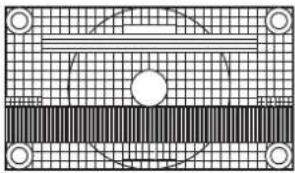
- Wenn die Einstellung abgeschlossen ist, drücken Sie die [Esc]-Taste auf der Computertastatur, um das Einstellprogramm zu beenden.
- Entnehmen Sie die CD-ROM aus dem CD-ROM-Laufwerk.
TIPPS
- Wenn der Anzeigemodus auf Ihrem Computer 65.000 Farben beträgt, können die Farbstufen im Farbmuster anders erscheinen oder Graustufen können farbig wirken. (Dies liegt an den Spezifikationen des Eingangssignals und ist keine Fehlfunktion.)
Steuerung des Monitors mit einem PC (RS-232C)
Sie können diesen Monitor über die RS-232C-Schnittstelle (COM-Port) des PCs steuern.
Sie können auch mehrere Monitore über eine Daisy-Chain-Verbindung mit einem PC verbinden. Durch die Vergabe von ID-Nummern an jeden Monitor (siehe Seite 33) können Sie die Eingangsmodusauswahl/-einstellung vornehmen oder den Status eines bestimmten Monitors überprüfen.
TIPPS
- Um den Monitor über RS-232C zu steuern, setzen Sie den STANDBY-MODUS auf STANDARD.
PC-Verbindung
■Direktverbindung mit einem PC
Verbinden Sie den PC über ein RS-232-Kabel (gerade Verbindung) zwischen dem COM-Port (RS-232C-Stecker) und dem RS-232C-Eingang am Monitor.
![graph TD A["RS-232C input terminal"] --> B["To COM port"] B --> C["PC"] D["RS-232 straight cable (commercially available)"] --> B](/content/2026/05/1029960/images/614533be742956a3cf203025016996103a1614528459649a55a640c513902cff.jpg)
■Daisy-Chain-Verbindung... Erweiterte Bedienung
PN-Y325-Monitore können in einer Daisy-Chain-Verbindung miteinander verbunden werden.
Verbinden Sie den PC über ein RS-232-Kabel (gerade Verbindung) zwischen dem COM-Port (RS-232C-Stecker) und dem RS-232C-Eingang am ersten Monitor.
Verbinden Sie dann ein RS-232-Kabel (gerade Verbindung) vom RS-232C-Ausgang des ersten Monitors mit dem RS-232C-Eingang des zweiten Monitors. Verbinden Sie auf die gleiche Weise den dritten und weitere Monitore.
Es können bis zu 25 Monitore verbunden werden. (Abhängig von der Kabellänge und der Umgebung.)
![graph TD A["First monitor"] --> B["RS-232C input terminal"] A --> C["RS-232C output terminal"] D["Second monitor"] --> E["RS-232C output terminal"] D --> F["RS-232C input terminal"] G["PC"] --> H["To COM port"] H --> I["RS-232 straight cables (commercially available)"] B <--> H C <--> H E <--> H F <…](/content/2026/05/1029960/images/60414ed65fb6af75ebafbfe6f05035cef56fd827de57948bc4e758a6f3ea3af8.jpg)
Kommunikationsbedingungen
Stellen Sie die RS-232C-Kommunikationseinstellungen am PC so ein, dass sie den Kommunikationseinstellungen des Monitors entsprechen:
| Baud rate | 9600bps |
| Data length | 8 bits |
| Parity bit | None |
| Stop bit | 1 bit |
| Flow control | None |
Kommunikationsablauf
■Befehlsformat
Wenn ein Befehl vom PC an den Monitor gesendet wird, führt der Monitor den empfangenen Befehl aus und sendet eine Antwortmeldung an den PC.
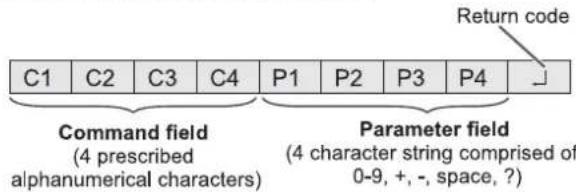
Beispiel: VOLM0030 VOLM ____ 30
* Geben Sie unbedingt 4 Zeichen für den Parameter ein. Füllen Sie bei Bedarf mit Leerzeichen ("____") auf.
("☐" ist ein Rückgabecode (0DH, 0AH oder 0DH))
Falsch: VOLM30☐
Verwenden Sie keine Leerzeichen für DATUM. Geben Sie Parameter mit einer bestimmten Anzahl von Zeichen an.
Wenn ein Befehl in der "RS-232C-Befehlstabelle" auf Seite 36 "R" für "RICHTUNG" aufgeführt hat, kann der aktuelle Wert durch Verwendung von "?" als Parameter zurückgegeben werden.
Beispiel:
VOLM ? ? ? ?
Vom PC zum Monitor (Wie hoch ist die aktuelle Lautstärkeeinstellung?).
30
Vom Monitor zum PC (Aktuelle Lautstärkeeinstellung: 30).
* Wenn eine ID-Nummer (siehe Seite 33) zugewiesen wurde (z. B. ID-Nummer = 1).
VOLM ____?
← Vom PC zum Monitor.
30 001
← Vom Monitor zum PC.
■Antwortcode-Format
Wenn ein Befehl korrekt ausgeführt wurde
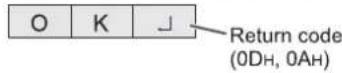
Nach Ausführen eines Befehls wird eine Antwort zurückgegeben.
* Wenn eine ID-Nummer zugewiesen wurde
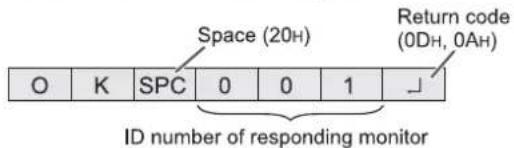
Wenn ein Befehl nicht ausgeführt wurde

* Wenn eine ID-Nummer zugewiesen wurde
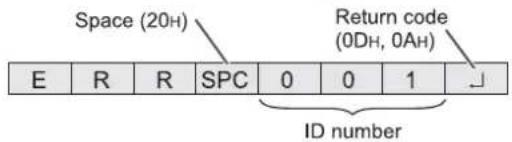
Tipps
- "ERR" wird zurückgegeben, wenn es keinen passenden Befehl gibt oder wenn der Befehl im aktuellen Zustand des Monitors nicht verwendet werden kann.
- Wenn keine Kommunikation aufgebaut wurde, z. B. aufgrund einer schlechten Verbindung zwischen PC und Monitor, wird nichts zurückgegeben (nicht einmal ERR).
- "ERR" kann zurückgegeben werden, wenn ein Befehl aufgrund von Störungen aus der Umgebung nicht korrekt empfangen werden kann.
Stellen Sie sicher, dass das System oder die Software den Befehl in diesem Fall erneut versucht.
- Wenn kein Monitor mit der angegebenen ID-Nummer zugewiesen wurde (z. B. wenn der Befehl IDSL0002 verwendet wird, aber kein Monitor mit der ID-Nummer: 2 gefunden wird), wird keine Antwort zurückgegeben.
Wenn die Ausführung des Befehls einige Zeit in Anspruch nimmt

Wenn die folgenden Befehle verwendet werden, wird "WAIT" zurückgegeben. In diesem Fall wird ein Wert zurückgegeben, wenn Sie eine Weile warten. Senden Sie während dieses Zeitraums keinen Befehl. An die WAIT-Antwort wird keine ID-Nummer angehängt.
- Befehle, die WAIT zurückgeben:
- Wenn Repeater-Steuerung verwendet wird
- Wenn ein IDSL- oder IDLK-Befehl verwendet wird
- Wenn einer der folgenden Befehle verwendet wird: RSET, INPS, ASNC, WIDE, POWR, EMHV, EPHV, ESHV, ENLG
■ Kommunikationsintervall
• Nachdem OK oder ERR zurückgegeben wurde, müssen Sie die folgenden Befehle senden. Um ein Timeout für die Befehlsantwort festzulegen, geben Sie 10 Sekunden oder mehr an. Wenn mehrere Monitore in einer Daisy Chain verbunden sind, setzen Sie das Timeout auf mindestens das Produkt aus der Position des Monitors vom Computer multipliziert mit 10 Sekunden. Beispiel) 3. Monitor vom Computer: 30 Sekunden oder mehr. - Lassen Sie ein Intervall von 100 ms oder mehr zwischen der Befehlsantwort und der Übertragung des nächsten Befehls.
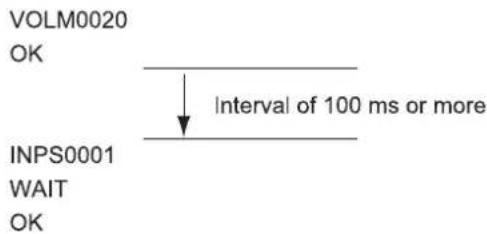
TIPPS
- Wenn Sie das Gerät einschalten, während die Funktion POWER ON DELAY verwendet wird, setzen Sie die Timeout-Periode auf die POWER ON DELAY-Periode + 10 Sekunden oder mehr.
Erweiterte Bedienung
Dieser Abschnitt erklärt Befehle für die Daisy-Chain-Verbindung. Das grundlegende Kommunikationsverfahren ist dasselbe wie im Abschnitt "Direktverbindung mit einem PC".
ID-EINSTELLUNG
Sie können jedem Monitor eine eindeutige ID-Nummer zuweisen (siehe Seite 27). Dies ermöglicht es Ihnen, einen bestimmten Monitor in einer Daisy Chain von Monitoren zu steuern.
Sie können ID-Nummern entweder über das Menü oder vom PC über ein RS-232-Kabel zuweisen.
[Beispiel]![graph LR A["Computer"] --> B["ID number: 1"] B --> C["ID number: 2"] C --> D["ID number: 3"] D --> E["ID number: 4"]](/content/2026/05/1029960/images/3f6a4b46b8a3132d4833e52a25172f64e5aa6cef2fd96a892f45a48e90aba597.jpg)
Wenn Monitore wie oben gezeigt verbunden sind, können Sie Befehle wie "Stellen Sie die Lautstärke des Monitors mit ID 4 auf 20" ausführen.
Bei der Vergabe von ID-Nummern für eine Gruppe von Monitoren, die in einer Daisy Chain verbunden sind, sollten Sie grundsätzlich eine Duplizierung von ID-Nummern vermeiden.
ID-Nummern müssen nicht in aufsteigender Reihenfolge ab dem PC vergeben werden. Sie können auch wie unten gezeigt verbunden werden.
![graph LR A["Computer"] --> B["ID number: 3"] B --> C["ID number: 2"] C --> D["ID number: 4"] D --> E["ID number: 1"]](/content/2026/05/1029960/images/e607196a3065385cf1a7fa0031610c241debca10369feea9284fcd2a9ed37194.jpg)
■ Befehle für die ID-Steuerung
Die auf dieser Seite gezeigten Befehlsbeispiele gehen von der folgenden Verbindung und ID-EINSTELLUNG aus.
![graph LR A["Computer"] --> B["ID number: 1"] B --> C["ID number: 2"] C --> D["ID number: 3"] D --> E["ID number: 4"]](/content/2026/05/1029960/images/91c648865ba9f8b4170a73dd6c1053beed1de574b16462aa8e1ebc5ad6947f70.jpg)
IDST ......Ein Monitor, der diesen Befehl empfängt, setzt seine eigene ID-Nummer in das Parameterfeld.
Beispiel:
IDST0001
OK 001 ← Die ID-Nummer dieses Monitors wird auf 1 gesetzt.
TIPP
Sie können ID-Nummern automatisch zuweisen, indem Sie den Befehl IDST mit der Repeater-Steuerung verwenden (siehe "Repeater-Steuerung" auf Seite 35).
Zum Beispiel setzt die Verwendung des Befehls "IDST001+" die ID-Nummern automatisch, wie unten gezeigt.
[Beispiel]
![graph LR A["Computer"] --> B["ID number: 1"] B --> C["ID number: 2"] C --> D["ID number: 3"] D --> E["ID number: 4"]](/content/2026/05/1029960/images/be2512010dee710c2efbf3260f815f16499fb7122fcf97b64cbff0b4b958d5e0.jpg)
IDST001 + ← ID-Einstellbefehl mit Repeater-Steuerung WARTEN
OK 001 ← "OK"-Antwort von ID-Nummer: 1
OK 002 ← "OK"-Antwort von ID-Nummer: 2
OK _ 003 ← "OK"-Antwort von ID-Nummer: 3
OK 004 ← "OK"-Antwort von ID-Nummer: 4 (Ende)
IDSL ......Der Parameter dieses Befehls setzt die ID-Nummer des Monitors. Der Monitor ist dem nächsten Befehl unterworfen.
Beispiel:
| IDSL0002 | ← | The next command is for the monitor with ID number: 2. |
| WAIT | ← | Searching for monitor with ID number: 2 |
| OK_002 | ← | Found monitor with ID number: 2 |
| VOLM0030 | ← | Sets volume of monitor with ID number: 2 to 30. |
| WAIT | ← | Processing |
| OK_002 | ← | OK response from monitor with ID number: 2 |
| VOLM0020 | ← | Sets volume to 20. |
| OK_001 | ← | The volume of the monitor with ID number: 1 (the one directly connected to the PC) is set to 20.* |
* Der Befehl |DSL ist nur einmal wirksam, und zwar für den unmittelbar folgenden Befehl.
IDLK ....Der Parameter dieses Befehls legt die ID-Nummer des Monitors fest. Der Monitor unterliegt allen nachfolgenden Befehlen.
Beispiel:
| IDLK0002 | ← | Following commands are for the monitor with ID number: 2. |
| WAIT | ← | Searching for monitor with ID number: 2 |
| OK _ 002 | ← | Found monitor with ID number: 2 |
| VOLM0030 | ← | Sets volume of monitor with ID number: 2 to 30.* |
| WAIT | ← | Processing |
| OK _ 002 | ||
| VOLM0020 | ← | Sets volume of monitor with ID number: 2 to 20.* |
| WAIT | ||
| OK _ 002 | ||
| IDLK0000 | ← | Canceling fixed ID number setting |
| WAIT | ← | Canceling IDLK |
| OK _ 002 | ← | Cancellation complete |
| VOLM0010 | ||
| OK _ 001 | ← | The volume of the monitor with ID number: 1 (the one directly connected to the PC) is set to 10. (IDLK is canceled.) |
* Der Befehl IDLK bleibt wirksam, bis er aufgehoben wird oder die Stromversorgung unterbrochen wird.
■Repeater-Steuerung
Dieses System verfügt über eine Funktion, mit der mehrere in einer Daisy-Kette verbundene Monitore mit einem einzigen Befehl eingestellt werden können. Diese Funktion wird Repeater-Steuerung genannt. Sie können die Repeater-Steuerungsfunktion verwenden, ohne ID-Nummern zuzuweisen.
[Beispiel]![graph LR A["Computer"] --> B["Set 1"] B --> C["Set 2"] C --> D["Set 3"] D --> E["Set 4"]](/content/2026/05/1029960/images/92d54fdd23595334b9f5689bf1af0094e857663ec7c879c4987efa088cfbf631.jpg)
* Wenn die Monitore wie oben gezeigt verbunden sind, können Sie einen Befehl wie „Setze die Eingangseinstellungen aller Monitore auf D-SUB“ ausführen.
■Repeater-Steuerungsbefehl
Die Repeater-Steuerung wird erreicht, indem das VIERTE ZEICHEN des Parameters auf „+“ gesetzt wird.
Beispiel:
VOLM030 + ← Setzt die Lautstärke aller Monitore auf 30.
Bei der Repeater-Steuerung werden Antworten von allen angeschlossenen Monitoren zurückgegeben.
Wenn Sie feststellen möchten, dass ein Wert von einem bestimmten Gerät zurückgegeben wurde, weisen Sie jedem Monitor im Voraus ID-Nummern zu. Wenn einige Monitore keine Antworten zurückgeben, liegt die wahrscheinliche Ursache darin, dass die Monitore den Befehl nicht empfangen konnten oder die Befehlsverarbeitung nicht abgeschlossen ist. Senden Sie keinen neuen Befehl.
Beispiel: (Wenn 4 Monitore angeschlossen sind und ID-Nummern zugewiesen wurden: 1 bis 4)
VOLM030 +
WAIT
OK 001
OK 002
OK_003
OK 004
← Wenn 4 Monitore in einer Kette angeschlossen sind, kann ein zuverlässiger Betrieb gewährleistet werden, indem ein neuer Befehl erst gesendet wird, nachdem eine Antwort vom 4. (letzten) Monitor zurückgekommen ist.
Die Repeater-Steuerung kann auch zum Lesen von Einstellungen verwendet werden.
Beispiel:
VOLM ? ? ? +
WAIT
10 001
20 002
30 003
30 004
Die Lautstärkeeinstellungen für alle Monitore werden zurückgegeben.
TIPPS
- Wenn bei der ID-Zuweisung (IDSL, IDLK) die Repeater-Steuerung verwendet wird, wird die ID-Zuweisung abgebrochen.
RS-232C-Befehlstabelle
So lesen Sie die Befehlstabelle
Befehl: Befehlsfeld (Siehe Seite 32.)
Richtung: W Wenn das "Parameter" im Parameterfeld (siehe Seite 32) gesetzt ist, funktioniert der Befehl wie unter "Steuer-/Antwortinhalt" beschrieben.
R Der unter "Antwort" angegebene zurückgegebene Wert kann durch Setzen von "????", "☐☐☐?" oder "???+" (Repeater-Steuerung) im Parameterfeld (siehe Seite 32) erhalten werden.
Parameter: Parameterfeld (Siehe Seite 32.)
Antwort: Antwort (Zurückgegebener Wert)
* : "o" zeigt einen Befehl an, der im Bereitschaftsmodus verwendet werden kann.
"-" zeigt einen Befehl an, der im Bereitschaftsmodus nicht verwendet werden kann.
(Wenn der BEREITSCHAFTSMODUS auf STANDARD eingestellt ist. Wenn auf NIEDRIGE LEISTUNG eingestellt, können RS-232C-Befehle nicht verwendet werden.)
Stromsteuerung/Eingangsquellenauswahl
| Function | Command | Direction | Parameter | Reply | Control/Response contents | * |
| POWER CONTROL | POWR | W | 0 | Switches to standby mode. | ○ | |
| 1 | Returns from standby mode. | |||||
| R | 0 | Standby mode | ||||
| 1 | Normal mode | |||||
| 2 | Input signal waiting mode | |||||
| INPUT MODE SELECTION | INPS | W | 0 | Toggle change for input mode. | ||
| 1 | DVI-D | |||||
| 2 | D-SUB[RGB] | |||||
| 3 | D-SUB[COMPONENT] | |||||
| 4 | D-SUB[VIDEO] | |||||
| 9 | HDMI[AV] | |||||
| 10 | HDMI[PC] | |||||
| 11 | USB | |||||
| R | 1 | DVI-D | ||||
| 2 | D-SUB[RGB] | |||||
| 3 | D-SUB[COMPONENT] | |||||
| 4 | D-SUB[VIDEO] | |||||
| 9 | HDMI[AV] | |||||
| 10 | HDMI[PC] | |||||
| 11 | USB* |
* Wenn der Standby-Modus aktiviert wird, während der Eingangsmodus USB ist, reagiert der Eingangsanschluss, der vor dem Umschalten auf USB verwendet wurde, nicht USB.
SCREEN-Menü
| Function | Command | Direction | Parameter | Reply | Control/Response contents | * |
| SIZE (DVI-D, HDMI[PC], D-SUB[RGB]) | WIDE | WR | 1-3 | 1-3 | 1: WIDE, 2: NORMAL, 3: Dot by Dot | - |
| SIZE (HDMI[AV], D-SUB[COMPONENT], D-SUB[VIDEO], USB) | WIDE | WR | 1, 4, 5 | 1, 4, 5 | 1: WIDE, 4: NORMAL, 5: Dot by Dot | |
| AUTO | ASNC | W | 1 | When the input mode is D-SUB. |
PICTURE-Menü
| Function | Command | Direction | Parameter | Reply | Control/Response contents | * | |
| BRIGHT | VLMP | WR | 0-31 | 0-31 | ○ | ||
| COLOR ADJUSTMENT | COLOR MODE | BMOD | WR | 0 | 0 | STD | |
| 2 | 2 | VIVID | |||||
| 3 | 3 | sRGB (When the input mode is DVI-D, D-SUB[RGB], HDMI[PC]) | |||||
| 4 | 4 | HIGH ILLUMINANCE | |||||
| 5 | 5 | USB | |||||
SETUP-Menü
| Function | Command | Direction | Parameter | Reply | Control/Response contents | * | |
| DATE/TIME SETTING | DATE | WR | AABBCCDDEE | AABBCCDDEE | AA: Year, BB: Month, CC: Day, DD: Hour, EE: Minute | ○ | |
| ID SETTING | ID NO.SETTING | IDST | W | 0-25 | Sets the monitor's ID number. ("0" means "no ID number".) | ||
| R | 0-25 | Returns the monitor's ID number. | |||||
| ID NO. SETTING (ONCE) | IDSL | W | 1-25 | Sets a monitor ID number.This ID number is only effective for the command immediately after this command. | |||
| 0 | Clears the ID number if one has been designated. | ||||||
| ID NO. SETTING (SUBSEQUENT) | IDLK | W | 1-25 | Sets a monitor ID number.This ID number is effective for the next and all subsequent commands after this command. | |||
| 0 | Clears the ID number if one has been designated. | ||||||
| MULTI | ENLARGE | ENLG | WR | 0-1 | 0-1 | 0: OFF, 1: ON | |
| ENLARGE MODE | EMHV | WR | 11-55 | 11-55 | 1 x 1 (OFF) to 5 x 5 ("m x n" is expressed as "mn", where m and n are the numbers of monitors specified for the longest direction and the shortest direction respectively.) | ||
| IMAGE POSITION (M x N) | EPHV | WR | 11-55 | 11-55 | Specifies values in the order of IMAGE POSITION IN LONGEST/ SHORTEST DIRECTION. | ||
| BEZEL ADJUST | BZCO | WR | 0-1 | 0-1 | 0: OFF, 1: ON | ||
| ENLARGE/ IMAGE POSITION SETTING | ESHV | WR | XXYY | XXYY | XX: ENLARGE MODE (Same as EMHV), YY: IMAGE POSITION (Same as EPHV) | ||
| THERMAL SENSOR SETTING | STDR | WR | 0-1 | 0-1 | 0: LANDSCAPE, 1: PORTRAIT | ||
| ADJUSTMENT LOCK | MONITOR BUTTONS | ALCM | WR | 0-1, 3 | 0-1, 3 | 0: UNLOCKED, 1: LOCK ALL, 3: LOCK EXCEPT POWER | |
| REMOTE CONTROL | ALCR | WR | 0-3 | 0-3 | 0: UNLOCKED, 1: LOCK ALL, 2: LOCK EXCEPT VOLUME, 3: LOCK EXCEPT POWER | ||
Sonstiges
| Function | Command | Direction | Parameter | Reply | Control/Response contents | * | |
| VOLUME | VOLM | WR | 0-31 | 0-31 | ○ | ||
| MUTE | MUTE | WR | 0-1 | 0-1 | 0: OFF, 1: ON | - | |
| INFORMATION | MODEL | INF1 | R | Value | ○ | ||
| SERIAL NO | SRNO | R | Value | ||||
| TEMPERATURE SENSOR | DSTA | R | 0 | Internal temperature normal | |||
| 1 | Internal temperature abnormal has occurred and the monitor is in standby mode | ||||||
| 2 | Internal temperature abnormal occurred (To delete the information of temperature abnormal, turn off the main power.) | ||||||
| 3 | Internal temperature abnormal has occurred and backlight brightness is dimmed | ||||||
| 4 | Temperature sensor abnormal | ||||||
| TEMPERATURE ACQUISITION | ERRT | R | Value | Returns the temperature at the temperature sensors in the following format. [Sensor 1] | |||
| CAUSE OF LAST STANDBY MODE | STCA | W | 0 | Initialization | |||
| R | 0 | No detectable error has occurred | |||||
| 1 | Standby mode by POWER button | ||||||
| 3 | Standby mode by RS-232C or LAN | ||||||
| 4 | Input signal waiting mode by No Signal | ||||||
| 6 | Standby mode by abnormal temperature | ||||||
| 8 | Standby mode by SCHEDULE setting | ||||||
| 20 | Standby mode by OFF IF NO OPERATION setting | ||||||
| LAN SETUP | USERNAME | USER | WR | XXXXXXXXX | XXXXXXXXX | X: Eight characters or less; half-width alphanumeric characters, "-", and " _". (The field can be left blank, but spaces cannot be entered.) | |
| PASSWORD | PASS | WR | XXXXXXXXX | XXXXXXXXX | X: Eight characters or less; half-width alphanumeric characters, "-", and " _". (The field can be left blank, but spaces cannot be entered.) | ||
Tipps
- Einige Menüeinstellungen haben keinen Befehl. Stellen Sie diese während der Installation mit der Fernbedienung ein.
Steuerung des Monitors mit einem PC (LAN)
Ihr Monitor kann mit einem LAN verbunden werden, sodass Sie ihn von einem PC im LAN aus steuern können.
Für die Verbindung ist ein handelsübliches LAN-Kabel (UTP-Kabel, Kategorie 5, gerade) erforderlich.
![graph TD A["LAN terminal"] --> B["Client 1"] A --> C["Client 2"] A --> D["Client 3"] A --> E["Client 4"] B --> F["Hub"] C --> F D --> F E --> F F --> G["Network (LAN)"] style A fill:#f9f,stroke:#333 style G fill:#ccf,stroke:#333](/content/2026/05/1029960/images/0fc717ce982f2874fd04d71a078ffb797d9725ea2f1795e775c226ce9711577b.jpg)
LAN-Kabel (handelsüblich, gerade)
Tipps
- Sie müssen dem Monitor eine IP-Adresse zuweisen, indem Sie die Schritte unter "Einstellungen für die LAN-Verbindung" befolgen. (Siehe Beschreibung rechts.)
- Um den Monitor über LAN zu steuern, setzen Sie den STANDBY-MODUS auf STANDARD.
- Wenn Sie RS-232C und LAN-Steuerung gleichzeitig verwenden, halten Sie einen Abstand von mindestens 100 ms zwischen den Befehlen ein.
Einstellungen für die Verbindung mit einem LAN
Stellen Sie die IP-Adresse und die Subnetzmaske des Monitors so ein, dass sie den Einstellungen Ihres LAN entsprechen.
Die Einstellungen hängen von der Konfiguration Ihres LAN ab. Fragen Sie Ihren LAN-Administrator nach Einzelheiten.
■ Einstellung am Monitor
Stellen Sie die LAN-SETUP-Optionen ein. (Siehe Seite 27.)
Drücken Sie nach dem Einstellen jedes Elements RETURN
DHCP-CLIENT
Wenn Ihr LAN über einen DHCP-Server verfügt und Sie die Adresse automatisch beziehen möchten, ändern Sie diese Einstellung auf ON.
Um die Adresse manuell einzustellen, setzen Sie diese auf OFF.
IP-ADRESSE
Wenn der DHCP-CLIENT auf OFF gesetzt ist, geben Sie eine IP-Adresse an.
SUBNETZMASKE
Wenn der DHCP-CLIENT auf OFF gesetzt ist, geben Sie die Subnetzmaske an.
STANDARD-GATEWAY
Wenn der DHCP-CLIENT auf OFF gesetzt ist, geben Sie das Standard-Gateway an.
Wenn Sie kein Gateway verwenden, geben Sie "0.0.0.0" an.
DNS 1
DNS 2
Geben Sie die DNS-Serveradresse an, wenn der DHCP-CLIENT auf AUS gesetzt ist.
Wenn Sie keinen DNS-Server verwenden, geben Sie "0.0.0.0" an.
NETZWERKNAME
Geben Sie den Gerätenamen ein.
■ Zeicheneingabe
Geben Sie Zeichen wie folgt ein, wenn es erforderlich ist.
Drücken Sie ENTER, um die Zeichentabelle anzuzeigen.
Wählen Sie ein Zeichen mit ▲ ▼ ▲ ▲ aus und drücken Sie ENTER, um es einzugeben. Um die eingegebenen Zeichen zu ändern, drücken Sie DISPLAY (Rot), MODE (Grün), SIZE (Gelb).
Um das vorherige Zeichen zu löschen, drücken Sie MUTE.
Wenn Sie mit der Eingabe der Zeichen fertig sind, wählen Sie [OK] und drücken Sie ENTER.
Befehlsbasierte Steuerung
Sie können den Monitor über RS-232C-Befehle (siehe Seite 36) mit Terminalsoftware und anderen geeigneten Anwendungen steuern.
Lesen Sie das Handbuch zur Terminal-Software für detaillierte Anweisungen.
(1) Verbinden Sie den PC mit dem Monitor.
- Geben Sie die IP-Adresse und die Datenportnummer (fest auf "10008") an und verbinden Sie den PC mit dem Monitor. Wenn die Verbindung erfolgreich hergestellt wurde, wird [☐ Login:] als Antwort zurückgegeben.
- Geben Sie den Benutzernamen und das Passwort ein. (Die Standardeinstellungen sind leer.)
(2) Senden Sie Befehle, um den Monitor zu steuern.
- Die verwendeten Befehle sind die gleichen wie für RS-232C. Beachten Sie das Kommunikationsverfahren (siehe Seite 32) für den Betrieb.
- Verwendbare Befehle finden Sie in der RS-232C-Befehlstabelle (siehe Seite 36).
(3) Trennen Sie die Verbindung mit dem Monitor und beenden Sie die Funktion.
1. Senden Sie [BYE□]
Wenn die Übertragung erfolgreich ist, wird [goodbye] zurückgegeben und die Verbindung wird getrennt.
Tipps
- Die Verbindung wird automatisch getrennt, wenn etwa 5 Minuten lang keine Kommunikation stattfindet.
Fehlerbehebung
Wenn Sie Probleme mit Ihrem Display haben, lesen Sie bitte vor der Kontaktaufnahme mit dem Kundendienst die folgenden Tipps zur Fehlerbehebung.
Es gibt kein Bild oder keinen Ton.
• Ist das Netzkabel abgezogen? (Siehe Seite 14.) • Ist der Hauptnetzschalter ausgeschaltet? (Siehe Seite 17.) - Befindet sich der Monitor im Standby-Modus (die Netzanzeige leuchtet orange)? (Siehe Seite 17.) • Stellen Sie sicher, dass der richtige Eingabemodus ausgewählt ist. (Siehe Seite 19.) - Wenn externes Gerät angeschlossen ist, stellen Sie sicher, dass das Gerät in Betrieb ist (Wiedergabe läuft).
Die Fernbedienung funktioniert nicht.
- Sind die Batterien mit korrekter Polarität (+,-) eingelegt? (Siehe Seite 16.) • Sind die Batterien leer?
- Richten Sie die Fernbedienung auf den Fernbedienungssensor des Monitors. (Siehe Seite 16.) • Ist die Bedienung deaktiviert? (Siehe Seite 28.)
Der Ton von linkem und rechtem Lautsprecher ist vertauscht.
• Sind die Audiokabel korrekt angeschlossen?
Es gibt ein Bild, aber keinen Ton.
• Ist der Ton stummgeschaltet? • Stellen Sie sicher, dass die Lautstärke nicht auf Minimum eingestellt ist. - Sind die Audiokabel korrekt angeschlossen? - Ist AUDIO OUTPUT oder SPEAKER im SETUP-Menü korrekt eingestellt? (Siehe Seite 27.)
Instabiles Bild.
• Das Signal ist möglicherweise nicht kompatibel.
Das Video vom HDMI-Eingangsterminal wird nicht korrekt angezeigt.
- Ist das HDMI-Kabel HDMI-Standard-konform? Der Monitor funktioniert nicht mit Kabeln, die nicht dem Standard entsprechen.
- Ist das Eingangssignal mit diesem Monitor kompatibel? (Siehe Seite 45.)
- Wenn ein AV-Signal wie 1920 x 1080i, 720(1440) x 576i oder 720 (1440) x 480i über den HDMI[PC]-Eingang angezeigt wird, können Anzeigeprobleme wie blasse Farben auftreten. Zeigen Sie es über HDMI[AV] an.
Das Video vom DVI-D-Eingangsterminal wird nicht korrekt angezeigt.
- Ist das Eingangssignal mit diesem Monitor kompatibel? (Siehe Seite 45.)
- Schalten Sie die Stromversorgung des angeschlossenen Geräts aus und dann wieder ein.
- Wenn die Monitore in einer Daisy-Chain verbunden sind, schalten Sie die Stromversorgung aller in der Daisy-Chain verbundenen Monitore aus und dann wieder ein.
- Wenn ein AV-Signal wie 1920 x 1080i, 720(1440) x 576i oder 720 (1440) x 480i über den DVI-D-Eingang angezeigt wird, können Anzeigeprobleme wie blasse Farben auftreten. Zeigen Sie es über HDMI[AV], D-SUB[COMPONENT] oder D-SUB[VIDEO] an.
Das Video vom D-Sub-Eingangsterminal wird nicht richtig angezeigt.
- Ist das Eingangssignal mit diesem Monitor kompatibel? (Siehe Seite 45.)
Die Bedientasten funktionieren nicht.
Es gibt kein Bild.
- Externe Störgeräusche können den normalen Betrieb beeinträchtigen. Schalten Sie die Stromversorgung aus und nach mindestens 5 Sekunden wieder ein, und überprüfen Sie dann den Betrieb.
Der Monitor macht ein knackendes Geräusch.
- Sie können gelegentlich ein knackendes Geräusch vom Monitor hören. Dies geschieht, wenn sich das Gehäuse je nach Temperaturänderung leicht ausdehnt und zusammenzieht. Dies beeinträchtigt die Leistung des Monitors nicht.
Es dauert länger, bis der Monitor startet.
- Wenn ein USB-Flash-Laufwerk angeschlossen ist, ist es besser, die Stromversorgung mit der Fernbedienung ein-/auszuschalten. Wenn die Stromversorgung mit dem Hauptnetzschalter bei angeschlossenem USB-Flash-Laufwerk eingeschaltet wird, dauert der Monitorstart länger, da der Monitor nach der Überprüfung anderer Anschlüsse die USB-Anschlussverbindung überprüft.
Eine Datei auf dem USB-Flash-Laufwerk wird nicht richtig abgespielt.
- Ist die Datei in einem unterstützten Format? (Siehe Seite 21.) Die folgenden Probleme können auftreten, wenn ein nicht unterstütztes Format verwendet wird:
- Die Datei wird nicht ordnungsgemäß wiedergegeben.
- Pause oder Vor-/Zurückspulen kann während der Wiedergabe nicht durchgeführt werden.
- Abnormale Wiedergabegeschwindigkeit
- Operationen können während der Wiedergabe nicht durchgeführt werden.
- Die Wiedergabe stoppt. Die Player-Anwendung startet neu.
Der Bildschirm wird schwarz, wenn eine Datei auf einem USB-Stick abgespielt wird.
- Der Bildschirm wird schwarz, wenn keine der Dateien in der Wiedergabeliste auf dem USB-Stick vorhanden sind. Drücken Sie INPUT, um zu beenden.
Die Power-LED blinkt abwechselnd rot und grün.
- Wenn die Innentemperatur des Monitors übermäßig ansteigt, wird die Helligkeit der Hintergrundbeleuchtung automatisch reduziert, um Probleme durch hohe Temperaturen zu vermeiden. Wenn dies auftritt, blinkt die Power-LED abwechselnd rot und grün.
- Wenn die Innentemperatur weiter ansteigt, wechselt der Monitor automatisch in den Standby-Modus. (Die Power-LED blinkt weiterhin abwechselnd rot und grün.)
- Beseitigen Sie die Ursache des übermäßigen Temperaturanstiegs.
- Wenn der Monitor aufgrund eines Temperaturanstiegs in den Standby-Modus wechselt, schalten Sie den Netzschalter aus und wieder ein, um zur normalen Anzeige zurückzukehren. Der Monitor wechselt jedoch erneut in den Standby-Modus, wenn die Ursache des Temperaturanstiegs nicht beseitigt wird. (Siehe Seite 8.)
- Überprüfen Sie, ob der Monitor an einem Ort aufgestellt ist, an dem ein schneller Temperaturanstieg wahrscheinlich ist. Die Innentemperatur steigt schnell an, wenn die Lüftungsöffnungen des Monitors blockiert sind.
- Die Innentemperatur steigt schnell an, wenn sich Staub im Inneren des Monitors oder um die Lüftungsöffnungen ansammelt. Entfernen Sie Staub, wenn möglich. Wenden Sie sich an den SHARP-Händler, um Staub im Inneren zu entfernen.
Technische Daten
■Produktspezifikationen
| Model | PN-Y325 | |
| LCD component | 32" Class [31-9/16 inch (80.1cm) diagonal] TFT LCD | |
| Max. resolution (pixels) | 1920 x 1080 | |
| Max. colors | Approx. 16.77 million colors | |
| Pixel pitch | 0.364 mm (H) x 0.364 mm (V) | |
| Viewing angle | 178° right/left/up/down (contrast ratio ≥ 10) | |
| Screen active area inch (mm) | 27-1/2 (W) x 15-7/16 (H) (698.4 x 392.9) | |
| Computer input signal | Digital (DVI 1.0 standard-compliant), Analog RGB (0.7 Vp-p) [75 Ω] | |
| Sync signal | Horizontal/vertical separate (TTL: positive/negative) | |
| Video color system | NTSC (3.58MHz)/NTSC (4.43MHz)/PAL/PAL-60/SECAM | |
| Plug and play | VESA DDC2B | |
| Power management | VESA DPMS, DVI DMPM | |
| Input terminals | PC/AV | HDMI x 1 |
| PC | Mini D-sub 15 pin, 3 rows x 1DVI-D 24 pin (HDCP compatible) x 1 | |
| Audio | 3.5 mm mini stereo jack x 1RCA pin (L/R) x 1 | |
| Serial (RS-232C) | D-sub 9 pin x 1 | |
| USB flash drive | x 1 | |
| Output terminals | PC | DVI-D 24 pin (HDCP compatible) x 1 |
| Audio | RCA pin (L/R) x 1 | |
| Serial (RS-232C) | D-sub 9 pin x 1 | |
| LAN terminal | 10 BASE-T/100 BASE-TX | |
| Speaker output | 5 W + 5 W | |
| Power requirement | AC 100 - 240 V, 1.1 A, 50/60 Hz | |
| Operating temperature *1 | 32°F to 104°F (0°C to 40°C) | |
| Operating humidity | 20% to 80% (no condensation) | |
| Power consumption (Input signal waiting mode / standby mode *2) | 56 W (11 W / 11 W) | |
| Dimensions (excluding protrusions) inch (mm) | Approx. 29-1/2 (W) x 1-7/8 (D) x 17-1/2 (H) (750 x 48 x 444) | |
| Weight lbs. (kg) | Approx. 17.7 (8.0) | |
*1 Die Temperaturbedingung kann sich ändern, wenn der Monitor zusammen mit den von SHARP empfohlenen optionalen Geräten verwendet wird. In solchen Fällen überprüfen Sie bitte die Temperaturbedingung, die für die optionalen Geräte angegeben ist. *2 Wenn der STANDBY-MODUS auf STANDARD eingestellt ist. Wenn der STANDBY-MODUS auf LOW POWER eingestellt ist: 0,5 W
Im Rahmen unserer Politik der kontinuierlichen Verbesserung behält sich SHARP das Recht vor, Design- und Spezifikationsänderungen zur Produktverbesserung ohne vorherige Ankündigung vorzunehmen. Die angegebenen Leistungsspezifikationen sind Nennwerte von Produktionseinheiten. Bei einzelnen Einheiten kann es zu Abweichungen von diesen Werten kommen.
■Maßzeichnungen
Beachten Sie, dass die angegebenen Werte Näherungswerte sind.
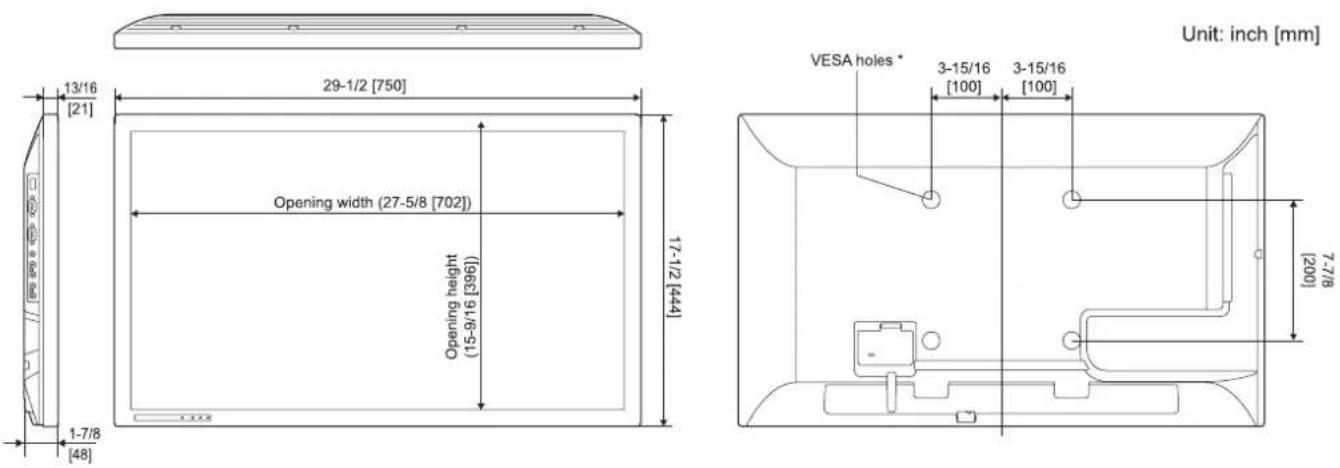
Verwenden Sie beim Montieren des Monitors unbedingt eine Wandhalterung, die der VESA-kompatiblen Montagemethode entspricht. SHARP empfiehlt die Verwendung von M6-Schrauben und ziehen Sie die Schrauben fest.
Beachten Sie, dass die Tiefe des Schraubenlochs des Monitors 3/8 Zoll (10 mm) beträgt. Eine lose Montage kann dazu führen, dass das Produkt herunterfällt, was zu schweren Verletzungen sowie Schäden am Produkt führen kann. Schraube und Loch sollten mit einer Gewindelänge von mehr als 5/16 Zoll (8 mm) zusammenpassen. Verwenden Sie eine Halterung, die nach UL1678 zugelassen ist und mindestens das 4-fache des Monitorgewichts oder mehr aushält.
Spezifikationen
■Energieverwaltung
Dieser Monitor entspricht VESA DPMS und DVI DMPM. Sowohl Ihre Grafikkarte als auch Ihr Computer müssen denselben Standard unterstützen, damit die Energieverwaltungsfunktion des Monitors funktioniert.
DPMS: Display Power Management Signaling
| DPMS | Screen | Power consumption | Hsync | Vsync |
| ON STATE | Display | 56 W | Yes | Yes |
| STANDBY | No display | 11 W | No | Yes |
| SUSPEND | Yes | No | ||
| OFF STATE | No | No |
DMPM: Digital Monitor Power Management
| DMPM | Screen | Power consumption |
| Monitor ON | Display | 56 W |
| Active OFF | No display | 11 W |
■DDC (Plug and Play)
Der Monitor unterstützt den VESA-DDC-Standard (Display Data Channel).
DDC ist ein Signalstandard für Plug-and-Play zwischen Monitoren und Computern. Informationen über Auflösung und andere Parameter werden zwischen den beiden ausgetauscht. Diese Funktion kann verwendet werden, wenn der Computer DDC unterstützt und so konfiguriert ist, dass er Plug-and-Play-Monitore erkennt.
Es gibt verschiedene Arten von DDC, abhängig von der verwendeten Kommunikationsmethode. Dieser Monitor unterstützt DDC2B.
■Kompatible Signaltimings (PC)
| Screen resolution | Hsync | Vsync | Dot frequency | Digital | Analog (D-SUB) | ||
| DVI-D | HDMI | ||||||
| VESA | 640 × 480 | 31.5kHz | 60Hz | 25.175MHz | Yes | Yes | Yes |
| 37.9kHz | 72Hz | 31.5MHz | Yes | Yes | Yes | ||
| 37.5kHz | 75Hz | 31.5MHz | Yes | Yes | Yes | ||
| 800 × 600 | 35.1kHz | 56Hz | 36.0MHz | - | - | Yes | |
| 37.9kHz | 60Hz | 40.0MHz | Yes | Yes | Yes | ||
| 48.1kHz | 72Hz | 50.0MHz | Yes | Yes | Yes | ||
| 46.9kHz | 75Hz | 49.5MHz | Yes | Yes | Yes | ||
| 1024 × 768 | 48.4kHz | 60Hz | 65.0MHz | Yes | Yes | Yes | |
| 56.5kHz | 70Hz | 75.0MHz | Yes | Yes | Yes | ||
| 60.0kHz | 75Hz | 78.75MHz | Yes | Yes | Yes | ||
| 1280 × 768 | 47.8kHz | 60Hz | 79.5MHz | Yes | - | Yes | |
| 1280 × 800 | 49.7kHz | 60Hz | 83.5MHz | Yes | Yes | Yes | |
| 1280 × 960 | 60.0kHz | 60Hz | 108.0MHz | Yes | Yes | Yes | |
| 1280 × 1024 | 64.0kHz | 60Hz | 108.0MHz | Yes | Yes | Yes | |
| 80.0kHz | 75Hz | 135.0MHz | Yes | Yes | Yes | ||
| 1360 × 768 | 47.7kHz | 60Hz | 85.5MHz | Yes | Yes | Yes | |
| 1400 × 1050 | 65.3kHz | 60Hz | 121.75MHz | Yes | Yes | Yes | |
| 1440 × 900 | 55.9kHz | 60Hz | 106.5MHz | Yes | Yes | Yes | |
| 1600 × 1200* | 75.0kHz | 60Hz | 162.0MHz | Yes | Yes | Yes | |
| 1920 × 1200* | 74.0kHz | 60Hz | 154.0MHz | Yes | Yes | Yes | |
| Wide | 1280 × 720 | 44.7kHz | 60Hz | 74.4MHz | Yes | Yes | Yes |
| 1366 × 768 | 47.7kHz | 60Hz | 85.383MHz | Yes | Yes | Yes | |
| 1920 × 1080 | 67.5kHz | 60Hz | 148.5MHz | Yes | Yes | Yes | |
| US TEXT | 720 × 400 | 31.5kHz | 70Hz | 28.3MHz | Yes | Yes | Yes |
* Zeigt ein verkleinertes Bild, außer bei Punkt-zu-Punkt. Bei Punkt-zu-Punkt wird das Bild auf die Panelgröße zugeschnitten und dann angezeigt.
- Abhängig vom angeschlossenen PC werden Bilder möglicherweise nicht korrekt angezeigt, selbst wenn das oben beschriebene kompatible Signal eingegeben wird.
■Kompatible Signaltimings (AV)
| Screen resolution | Frequency | HDMI | Component |
| 1920 × 1080p | 24Hz | Yes | - |
| 50Hz | Yes | Yes | |
| 59.94Hz | Yes | Yes | |
| 60Hz | Yes | Yes | |
| 1920 × 1080i | 50Hz | Yes | Yes |
| 59.94Hz | Yes | Yes | |
| 60Hz | Yes | Yes | |
| 1280 × 720p | 50Hz | Yes | Yes |
| 59.94Hz | Yes | Yes | |
| 60Hz | Yes | Yes | |
| 720 × 576p | 50Hz | Yes | Yes |
| 720 × 480p | 59.94Hz | Yes | Yes |
| 60Hz | Yes | Yes | |
| 640 × 480p(VGA) | 59.94Hz | Yes | - |
| 60Hz | Yes | - | |
| 720(1440) × 576i | 50Hz | Yes | Yes |
| 720(1440) × 480i | 59.94Hz | Yes | Yes |
| 60Hz | Yes | Yes |
■DVI-D-Eingangsanschluss-Pins
(DVI-D 24-polig)
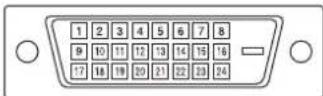
| No. | Function | No. | Function |
| 1 | TMDS data 2- | 13 | N.C. |
| 2 | TMDS data 2+ | 14 | +5V |
| 3 | TMDS data 2/4 shield | 15 | GND |
| 4 | N.C. | 16 | Hot-plug detection |
| 5 | N.C. | 17 | TMDS data 0- |
| 6 | DDC clock | 18 | TMDS data 0+ |
| 7 | DDC data | 19 | TMDS data 0/5 shield |
| 8 | N.C. | 20 | N.C. |
| 9 | TMDS data 1- | 21 | N.C. |
| 10 | TMDS data 1+ | 22 | TMDS clock shield |
| 11 | TMDS data 1/3 shield | 23 | TMDS clock+ |
| 12 | N.C. | 24 | TMDS clock- |
■HDMI-Eingangsanschluss-Pins
(HDMI™-Stecker)
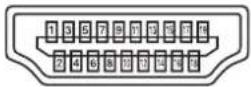
| No. | Function | No. | Function |
| 1 | TMDS data 2+ | 11 | TMDS clock shield |
| 2 | TMDS data 2 shield | 12 | TMDS clock- |
| 3 | TMDS data 2- | 13 | CEC |
| 4 | TMDS data 1+ | 14 | N.C. |
| 5 | TMDS data 1 shield | 15 | SCL |
| 6 | TMDS data 1- | 16 | SDA |
| 7 | TMDS data 0+ | 17 | GND |
| 8 | TMDS data 0 shield | 18 | +5V |
| 9 | TMDS data 0- | 19 | Hot-plug detection |
| 10 | TMDS clock+ | ||
■D-sub-Eingangsanschluss-Pins
(Mini-D-sub 15-polig)
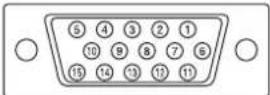
| No. | Function | No. | Function |
| 1 | Red video signal input | 9 | +5V |
| 2 | Green video signal input | 10 | GND |
| 3 | Blue video signal input | 11 | N.C. |
| 4 | N.C. | 12 | DDC data |
| 5 | N.C. | 13 | Hsync signal input |
| 6 | GND for red video signal | 14 | Vsync signal input |
| 7 | GND for green video signal | 15 | DDC clock |
| 8 | GND for blue video signal | ||
■RS-232C-Eingangsanschluss-Pins
(D-sub 9-polig)
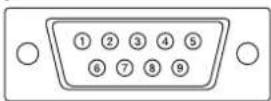
| No. | Function | No. | Function |
| 1 | N.C. | 6 | N.C. |
| 2 | Transmitted data | 7 | N.C. |
| 3 | Received data | 8 | N.C. |
| 4 | N.C. | 9 | N.C. |
| 5 | GND | ||
■DVI-D-Ausgangsanschluss-Pins
(DVI-D 24-polig)
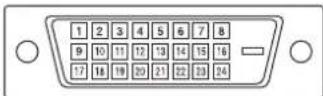
| No. | Function | No. | Function |
| 1 | TMDS data 2- | 13 | N.C. |
| 2 | TMDS data 2+ | 14 | +5V |
| 3 | TMDS data 2/4 shield | 15 | GND |
| 4 | N.C. | 16 | Hot-plug detection |
| 5 | N.C. | 17 | TMDS data 0- |
| 6 | DDC clock | 18 | TMDS data 0+ |
| 7 | DDC data | 19 | TMDS data 0/5 shield |
| 8 | N.C. | 20 | N.C. |
| 9 | TMDS data 1- | 21 | N.C. |
| 10 | TMDS data 1+ | 22 | TMDS clock shield |
| 11 | TMDS data 1/3 shield | 23 | TMDS clock+ |
| 12 | N.C. | 24 | TMDS clock- |
■RS-232C-Ausgangsanschlussstifte
(D-Sub 9-polig)
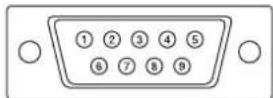
| No. | Function | No. | Function |
| 1 | N.C. | 6 | N.C. |
| 2 | Received data | 7 | N.C. |
| 3 | Transmitted data | 8 | N.C. |
| 4 | N.C. | 9 | N.C. |
| 5 | GND | ||
Montagehinweise (Für SHARP-Händler und Servicetechniker)
- Verwenden Sie unbedingt eine Wandhalterung, die für die Montage des Monitors entwickelt oder vorgesehen ist.
- Dieser Monitor ist für die Installation an einer Betonwand oder einem Pfeiler konzipiert. Bei einigen Materialien wie Gipskarton / dünner Kunststoffplatte / Holz kann vor Beginn der Installation eine Verstärkung erforderlich sein.
- Dieser Monitor und die Halterung müssen an einer Wand installiert werden, die mindestens das 4-fache oder mehr des Monitorgewichts aushalten kann. Installieren Sie mit der am besten geeigneten Methode für das Material und die Struktur.
- Verwenden Sie zur Befestigung einer VESA-konformen Montagehalterung M6-Schrauben, die 5/16 Zoll (8 mm) bis 3/8 Zoll (10 mm) länger sind als die Dicke der Montagehalterung. • Verwenden Sie keinen Schlagschrauber.
- Halten Sie den Monitor beim Bewegen an den unten mit ____ markierten Teilen. Fassen Sie nicht das LCD-Panel an. Dies kann zu Produktschäden, Ausfällen oder Verletzungen führen.
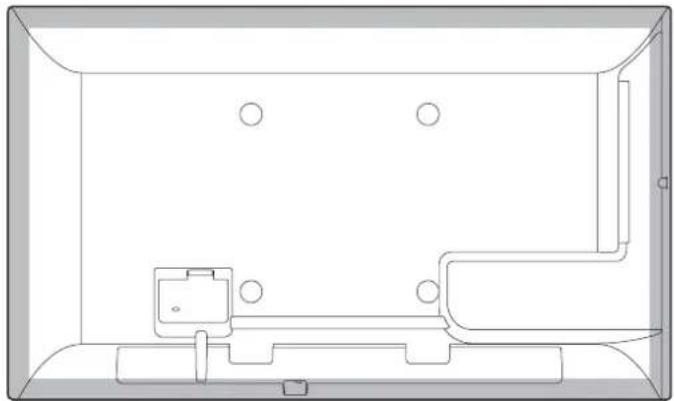
• Stellen Sie nach der Montage sorgfältig sicher, dass der Monitor sicher befestigt ist und sich nicht von der Wand oder Halterung lösen kann.
- Verwenden Sie für die Installation keine anderen Schraublöcher als die VESA-Löcher.
SHARP®
SHARP CORPORATION



- PN-Y
- WICHTIG
- VORSICHT
- WARNUNG
- HINWEIS
- SICHERHEITSHINWEISE
- BESONDERS FÜR DIE SICHERHEIT VON KINDERN
- DAS NETZKABEL
- HANDBUCHUMFANG
- LED-HINTERGRUNDBELEUCHTUNG
- INHALT
- MITGELIEFERTES ZUBEHÖR
- BAUTEILBEZEICHNUNGEN
- FERNBEDIENUNG
- ANSCHLUSS VON PERIPHERIEGERÄTEN
- TIPPS
- HDMI-EINGANGSBUCHSE
- DVI-D-EINGANGSBUCHSE
- D-SUB-EINGANGSBUCHSE
- USB-ANSCHLUSS
- AUDIO1-EINGANGSANSCHLUSS
- AUDIO2-EINGANGSANSCHLÜSSE
- DVI-D-AUSGANGSANSCHLUSS
- AUDIO-AUSGANGSANSCHLÜSSE
- RS-232C-EINGANGSANSCHLUSS
- RS-232C-AUSGANGSANSCHLUSS
- LAN-ANSCHLUSS
- ANSCHLIESSEN DES NETZKABELS
- KABEL BEFESTIGEN
- EINSTELLEN DER USB-FLASH-LAUFWERK-ABDECKUNG
- TIPP
- VORBEREITEN DER FERNBEDIENUNG
- EINLEGEN DER BATTERIEN
- REICHWEITE DER FERNBEDIENUNG
- HINWEISE
- EIN-/AUSSCHALTEN
- EINSCHALTEN DER HAUPTSTROMVERSORGUNG
- DATUM/UHRZEIT-EINSTELLUNG
- TIPS
- GRUNDBEDIENUNG
- INPUT (EINGANGSMODUSAUSWAHL)
- MUTE
- MENU
- VOL +/- (LAUTSTÄRKEEINSTELLUNG)
- HELL +/- (HELLIGKEITSEINSTELLUNG)
- EINGABE
- ZURÜCK
- GRÖSSE (BILDSCHIRMGRÖSSENAUSWAHL)/GELB
- ANZEIGE/ROT
- MODE (FARBMODUS-AUSWAHL)/GRÜN
- UMSCHALTEN DER BILDSCHIRMGRÖSSE
- WIEDERGABE VON DATEIEN AUF EINEM USB-SPEICHERSTICK
- AUTOMATISCHE WIEDERGABE
- VORBEREITUNGEN
- AUTOMATISCHE WIEDERGABE VON DATEIEN
- SO STOPPEN SIE DIE AUTOMATISCHE WIEDERGABE
- DATEIEN ABSPIELEN
- UNTERSTÜTZTE FORMATE
- AUSWAHL DER ABZUSPIELENDEN DATEIEN
- WÄHLEN SIE EINE DATEI
- ORDNER
- FOTO
- FILM
- MUSIK
- WÄHLEN SIE DIE DATEIWIEDERGABEMETHODE AUS DEN FOLGENDEN OPTIONEN
- ABSPIELEN VON DATEIEN MIT DER SCHEDULE-FUNKTION
- BEDIENUNG WÄHREND DER WIEDERGABE
- BILDDATEIEN
- VIDEODATEIEN
- AUDIODATEIEN
- EINSTELLUNGEN
- EINSTELLUNGEN, WENN DIE DATEILISTE ANGEZEIGT WIRD
- ZUFÄLLIGE WIEDERGABE
- WIEDERHOLEN
- DIASHOW-ZEIT
- (NUR WÄHREND DER ANZEIGE [ORDNER] ODER [FOTO].)
- DIASHOW-ÜBERGANG
- EINSTELLUNGEN WÄHREND DER WIEDERGABE
- OPTIONEN
- BILD UND TON
- FARBMODUS
- LAUTSTÄRKE
- GRÖSSE
- ECO-EINSTELLUNGEN
- BILDSCHIRM AUS
- UHR (NUR BEI VIDEOWIEDERGABE ODER MUSIKWIEDERGABE.)
- UHR
- MENÜPUNKTE
- ANZEIGEN DES MENÜBILDSCHIRMS
- BEISPIEL FÜR DIE BEDIENUNG
- DETAILS ZUM MENÜPUNKT
- AUDIO-OPTION
- AUDIO-AUSGANG
- LAUTSPRECHER
- LAN-SETUP
- ID-EINSTELLUNG
- MULTI
- VERGRÖSSERN (SIEHE SEITE 29.)
- ERWEITERT (VERGRÖSSERN)
- TEMPERATURSENSOR-EINSTELLUNG
- STANDBY-MODUS
- AUS, WENN KEIN BETRIEB
- EINSCHALTVERZÖGERUNG
- AUTOMATISCHER EINGANGSWECHSEL
- SCAN-MODUS (HDMI[AV])
- EINSTELLUNGSSPERRE
- MONITOR-TASTEN
- LED
- BILDSCHIRMBEWEGUNG
- ENERGIEVERWALTUNG
- AUTOPLAY (SIEHE SEITE 21.)
- ALLE ZURÜCKSETZEN
- VERGRÖSSERN
- EINSTELLVORGANG
- ZEITPLAN
- EIN/AUS
- EIN-ZEIT
- AUS-ZEIT
- WIEDERHOLUNGSMODI
- EINGANG
- PLAYLIST-EINSTELLUNG
- WIEDERGABE
- BILDSCHIRMANZEIGE FÜR DIE EINSTELLUNG
- ÖFFNEN DES EINSTELLMUSTERS
- STEUERUNG DES MONITORS MIT EINEM PC (RS-232C)
- PC-VERBINDUNG
- DIREKTVERBINDUNG MIT EINEM PC
- DAISY-CHAIN-VERBINDUNG... ERWEITERTE BEDIENUNG
- KOMMUNIKATIONSBEDINGUNGEN
- KOMMUNIKATIONSABLAUF
- BEFEHLSFORMAT
- ANTWORTCODE-FORMAT
- WENN EIN BEFEHL KORREKT AUSGEFÜHRT WURDE
- WENN EIN BEFEHL NICHT AUSGEFÜHRT WURDE
- WENN DIE AUSFÜHRUNG DES BEFEHLS EINIGE ZEIT IN ANSPRUCH NIMMT
- KOMMUNIKATIONSINTERVALL
- ERWEITERTE BEDIENUNG
- BEFEHLE FÜR DIE ID-STEUERUNG
- REPEATER-STEUERUNG
- REPEATER-STEUERUNGSBEFEHL
- RS-232C-BEFEHLSTABELLE
- SO LESEN SIE DIE BEFEHLSTABELLE
- STEUERUNG DES MONITORS MIT EINEM PC (LAN)
- EINSTELLUNGEN FÜR DIE VERBINDUNG MIT EINEM LAN
- EINSTELLUNG AM MONITOR
- DHCP-CLIENT
- IP-ADRESSE
- SUBNETZMASKE
- STANDARD-GATEWAY
- DNS
- NETZWERKNAME
- ZEICHENEINGABE
- BEFEHLSBASIERTE STEUERUNG
- VERBINDEN SIE DEN PC MIT DEM MONITOR
- SENDEN SIE BEFEHLE, UM DEN MONITOR ZU STEUERN
- TRENNEN SIE DIE VERBINDUNG MIT DEM MONITOR UND BEENDEN SIE DIE FUNKTION
- SENDEN SIE [BYE□]
- FEHLERBEHEBUNG
- ES GIBT KEIN BILD ODER KEINEN TON
- DIE FERNBEDIENUNG FUNKTIONIERT NICHT
- DER TON VON LINKEM UND RECHTEM LAUTSPRECHER IST VERTAUSCHT
- ES GIBT EIN BILD, ABER KEINEN TON
- INSTABILES BILD
- DAS VIDEO VOM HDMI-EINGANGSTERMINAL WIRD NICHT KORREKT ANGEZEIGT
- DAS VIDEO VOM DVI-D-EINGANGSTERMINAL WIRD NICHT KORREKT ANGEZEIGT
- DAS VIDEO VOM D-SUB-EINGANGSTERMINAL WIRD NICHT RICHTIG ANGEZEIGT
- DIE BEDIENTASTEN FUNKTIONIEREN NICHT
- ES GIBT KEIN BILD
- DER MONITOR MACHT EIN KNACKENDES GERÄUSCH
- ES DAUERT LÄNGER, BIS DER MONITOR STARTET
- EINE DATEI AUF DEM USB-FLASH-LAUFWERK WIRD NICHT RICHTIG ABGESPIELT
- DER BILDSCHIRM WIRD SCHWARZ, WENN EINE DATEI AUF EINEM USB-STICK ABGESPIELT WIRD
- DIE POWER-LED BLINKT ABWECHSELND ROT UND GRÜN
- TECHNISCHE DATEN
- MASSZEICHNUNGEN
- SPEZIFIKATIONEN
- DDC (PLUG AND PLAY)
- DVI-D-EINGANGSANSCHLUSS-PINS
- HDMI-EINGANGSANSCHLUSS-PINS
- D-SUB-EINGANGSANSCHLUSS-PINS
- RS-232C-EINGANGSANSCHLUSS-PINS
- DVI-D-AUSGANGSANSCHLUSS-PINS
- RS-232C-AUSGANGSANSCHLUSSSTIFTE
- MONTAGEHINWEISE (FÜR SHARP-HÄNDLER UND SERVICETECHNIKER)
- SHARP®
- SHARP CORPORATION
Marke : SHARP
Modell : PNY325
Kategorie : Bildschirm