
Q6215-LE 50 Hz - Overvågningskamera AXIS - Gratis brugsanvisning og manual
Find enhedens vejledning gratis Q6215-LE 50 Hz AXIS i PDF-format.


Brugerspørgsmål om Q6215-LE 50 Hz AXIS
0 spørgsmål om dette apparat. Besvar dem du kender, eller stil dit eget.
Stil et nyt spørgsmål om dette apparat
Download vejledningen til din Overvågningskamera i PDF-format gratis! Find din vejledning Q6215-LE 50 Hz - AXIS og tag din elektroniske enhed tilbage i hånden. På denne side er alle dokumenter nødvendige for brugen af din enhed offentliggjort. Q6215-LE 50 Hz af mærket AXIS.
BRUGSANVISNING Q6215-LE 50 Hz AXIS
AXISQ6215-LEPTZNetworkCamera
Productoverview....3
Findthedeviceonthenetwork....4
Accessthedevice....4
Aboutsecurepasswords....4
Setup....5
Webpageoverview....5
Imagequality....7
Privacymasks....8
Overlays....8
PTZ(PanTiltZoom)....9
Streamingandstorage....10
Rulesandalerts....1 1
Applications....14
Troubleshooting....15
Resettofactorydefaultsettings....15
Checkthecurrentfirmware....15
Upgradethefirmware....15
Technicalissues,cluesandsolutions....16
Performanceconsiderations....17
Specifications....18
SDcardslot.... 18
Buttons.... 18
Connectors.... 18
Productoverview
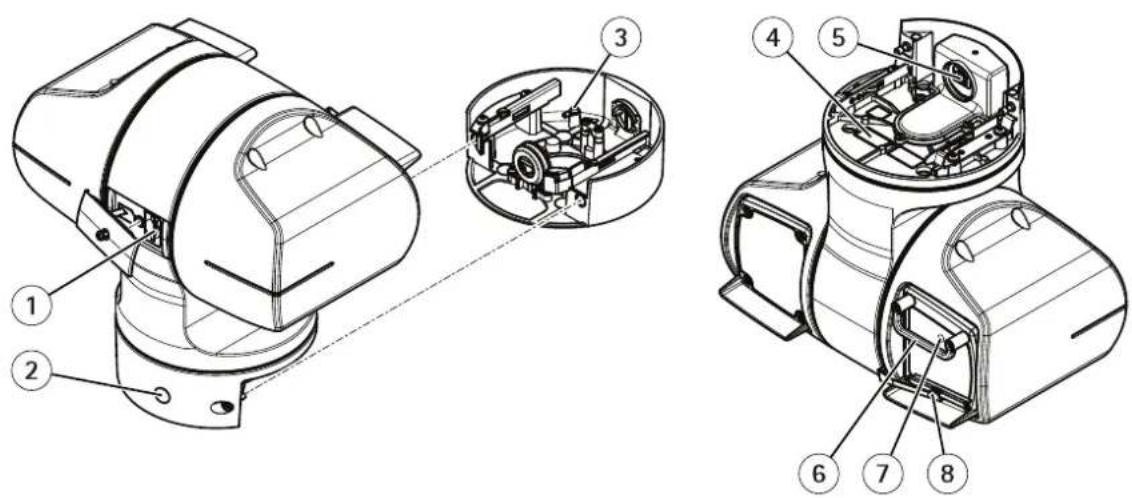
1 SDcardslot
2 Controlbutton
3 Groundscrew
4 Partnumber(P/N)&Serialnumber(S/N)
5 Networkconnector(HighPoE)
6 Impactprotectionbracket
7 StatusLED
8 Wiper
Findthedeviceonthenetwork
TofindAxisdevicesonthenetworkandassignthemIPaddressesinWindows®, useAXISIPUtilityorAXISDeviceManager. Both applicationsarefreeandcanbedownloadedfromaxis.com/support
FomoreinformationabouthowtdfindandassignrladdressesseethdocumentHowtassignrlAddressandaccessyourdeviceonthedevicepageataxis.com
Accessthedevice
1.OpenabrowserandenterthelPaddressorhostnameoftheAxisdevice.
If you have a Maccomputer (OSX), goto Safari, click on Bonjour and select the device from the drop-downlist. To add Bonjour as abrowser bookmark, goto Safari > Preferences.
If you donot know the IP address, use AXISIP Utility or AXISDevice Manager to find the device on then network.
2.Entertheusernameandpassword.Ifyouaccessthedeviceforthefirsttime,youmustsettherootpassword.See Setasecurepasswordfortherootaccountonpage4.
- Theliveviewpageopensinyourbrowser.
Aboutsecurepasswords
Important
Axisdevicessendtheinitiallysetpasswordincleartextoverthenetwork.Toprotectyourdeviceafterthefirstlogin,setupasecureandencryptedHTTPSconnectionandthenchangethepassword.
The device password the primary protection for your data and services. Axis devices do not impose a password policy as they may be used in various types of installations.
Toprotectyourdatawestronglyrecommendthatyou:
- Useapasswordwithatleast8characters,preferablycreatedbyapasswordgenerator.
- Don'texposethepassword.
- Changethepasswordatarecurringinterval, atleastonceayear.
Setasecurepasswordfortherootaccount
Important
The default administrator username root the password for roots of the device factory default settings.
TypepasswordFollowtheinstructionsaboutsecurepasswordSeeAboutsecurepasswordsorpage
- Retypethepasswordtoconfirmthespelling.
3.ClickCreatelogin.Thepasswordhasnowbeenconfigured.
Setup
Webpageoverview
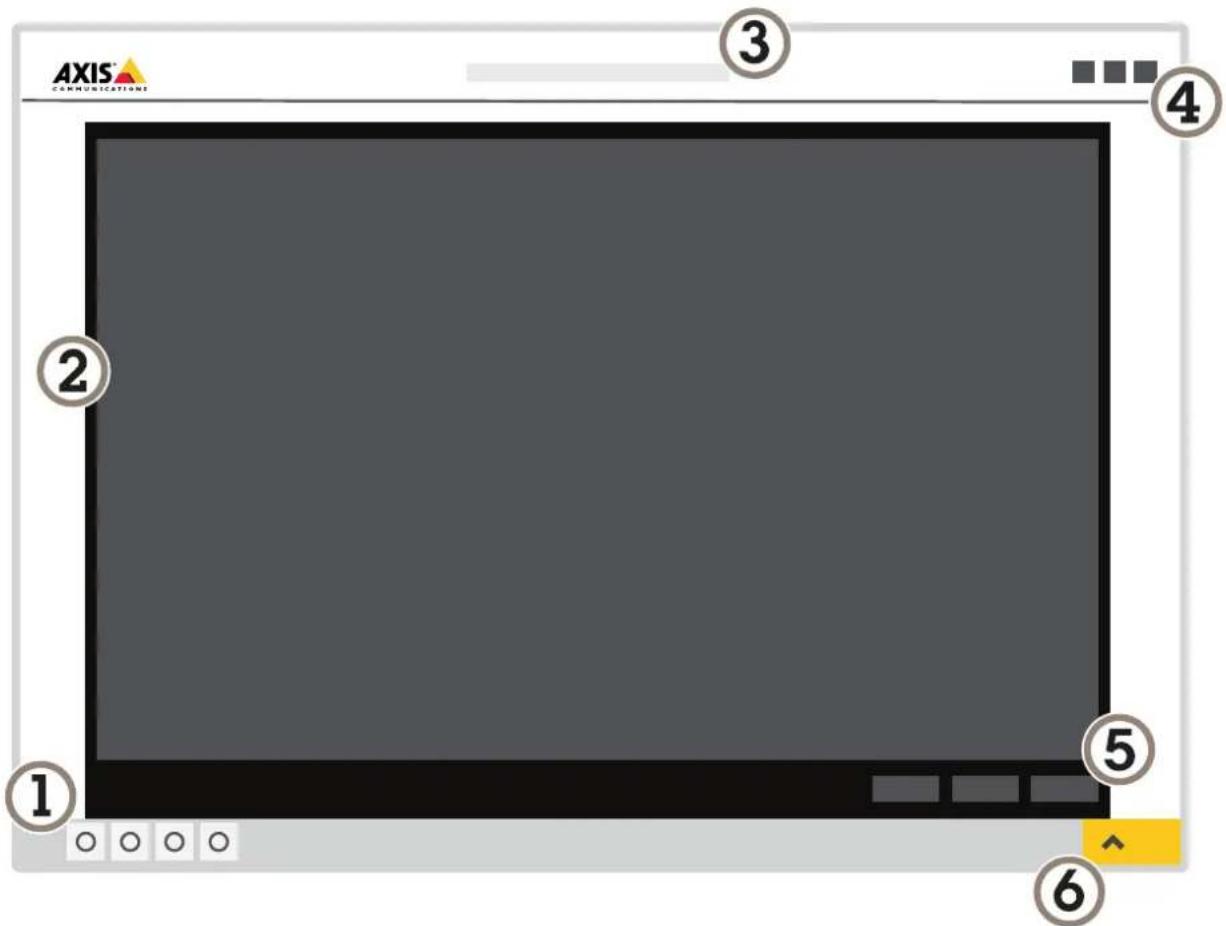
1 Liveviewcontrolbar
2 Liveview
3 Productname
4 Controls
5 Videocontrolbar
6 Settingstoggle
Setup
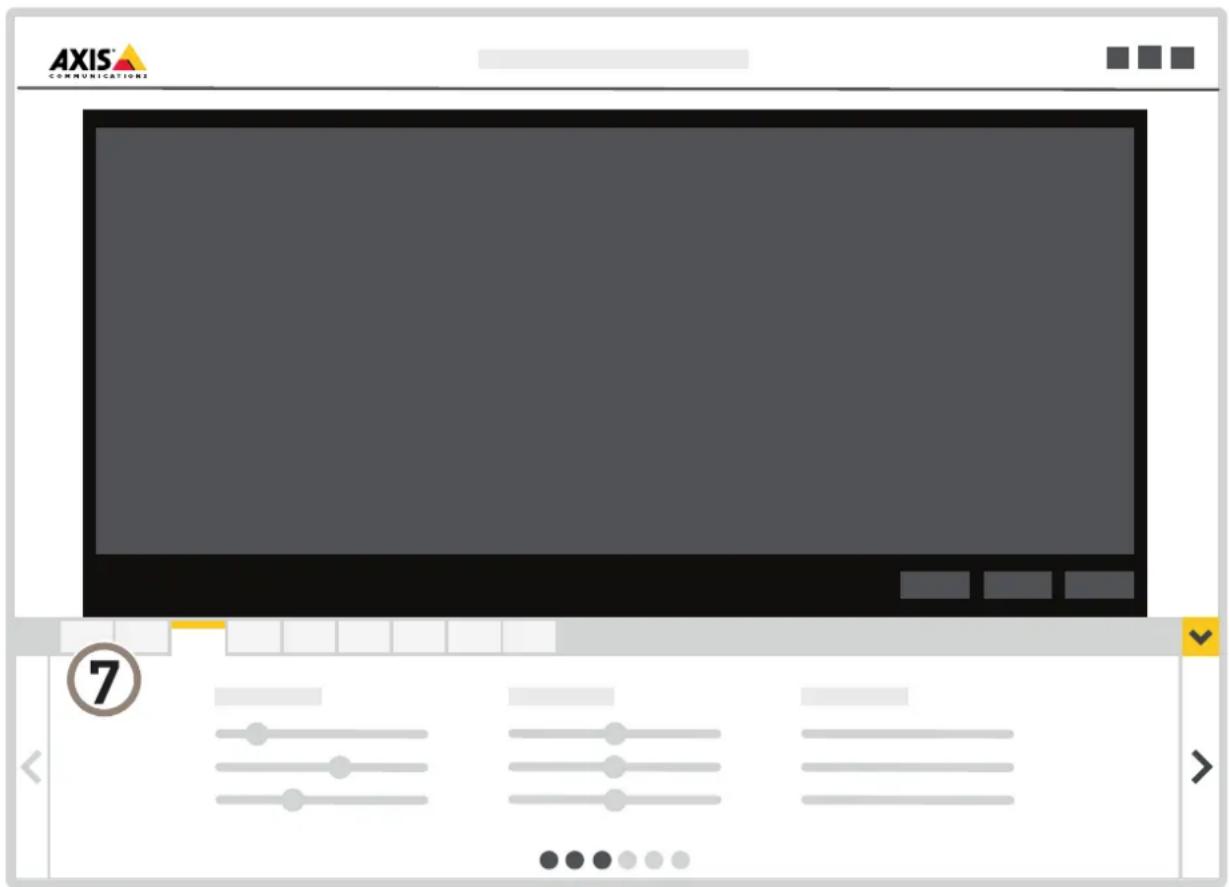
7 Settingstabs
Needmorehelp?
Youcanaccessthebuilt-inhelpfromthedevice'swebpage.Thehelpprovidesmoredetailedinformationonthedevice'sfeaturesandtheirsettings.
Imagequality
BenefitfromIRlightinlow-lightconditionsusingnightmode
Yourcamerausesvisiblelighttodelivercolorimagesduringtheday.Astheavailablelightdiminishes,youcansetthecamerato automaticallyshifttonightmode,inwhichthecamerausesbothvisiblelightandnear-infraredlighttodeliverblack-and-white images.Sincethecamerausesmoreoftheavailablelighttcandeliverbrighter,moredetailed,images.
GoSettingsImageDayandightandmakesurethathdRufiltersetoAuto.
To determine what tight every you want the camera shift night modeseth Day -nightshif priority Day, NightorNone.
EnableAllowRlluminationandSynchronizdRlluminationtousthecamera'sRightwhemightmodeactivated.
Reducemotionblurinlow-lightconditions
Toreducemotionblurinlow-lightconditions,youcanadjustoneormoreofthefollowingsettings:
Note
Imagenoisewillincreaseifyouincreasethegain.
Increase shutttespeed and gain Go SettingsImage Exposure and Mashuttetoshortetime and Again to a high value.
If you are still experiencing motion blur, you can try one of the following:
- Increase the light level in the obscene.
- Mountthecamerasothatobjectsmovetowarditorawayfromitratherthansideways.
Handlesceneswithstrongbacklight
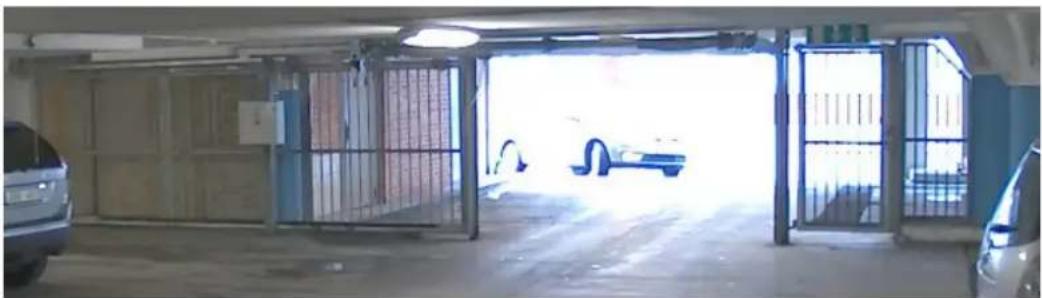
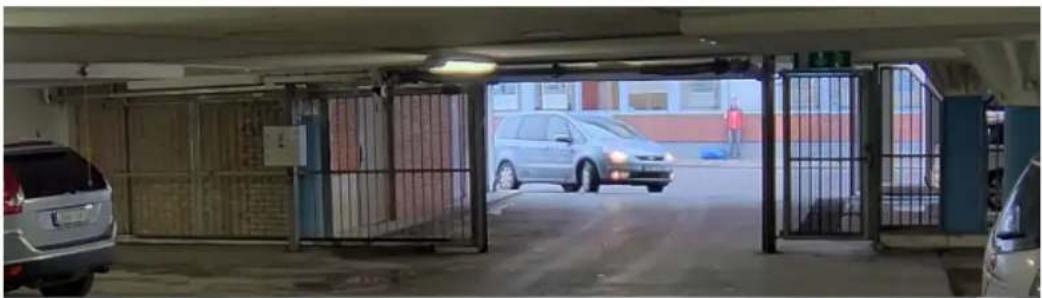
Dynamicrangeisthedifferenceinlightlevelsinanimage.Insomecasesthedifferencebetweenthedarkestandthebrightest areascanbesignificant.Theresultisoftenanimagewhereeitherthedarkorthebrightareasarevisible.Widedynamicrange (WDR)makesbothdarkandbrightareasoftheimagevisible.
1.GotoSettings>Image.
- If required, turn on WDR under Widedynamic range.
natural_image
Interior view of a car garage with parked cars and large windows (no visible text or symbols)ImagewithoutWDR.
Setup
natural_image
Exterior view of a parking garage with parked cars and metal gate (no signage or text visible)ImagewithWDR.
Note
WDRmaycauseartifactsintheimage.
FindoutmoreaboutWDRandhowtouseitataxis.com/web-articles/wdr
Removewaterfromthefrontglasswiththewiper
Thewiperiscontrolledmanually.
ClickorthWipebuttontheLiveViewontrobar.
Privacymasks
Hidepartsoftheimagewithprivacymasks
Whatisaprivacymask?
Aprivacymaskisauser-definedareathatpreventsusersfromviewingapartofthemonitoredarea.Inthevideostream,privacy masksappearasblocksofsolidcolor.
Theprivacymaskisrelativetothepan,tilt,andzoomcoordinates,soregardlessofwhereyoupointthecamera,theprivacy maskcoversthesameplaceorobject.
You'll seetheprivacymaskonallsnapshots, recorded video, and livestreams.
YoucanusetheVAPIX®applicationprogramminginterface(API)toturnofftheprivacymasks.
Important
Using multiple privacy masks may affect the product's performance.
Createaprivacymask
Tocreateaprivacymask, gotoSettings>Privacymask.
Overlays
Aboutoverlays
Overlaysaresuperimposedoverthevideostream.Theyareusedtoprovideextrainformationduringrecordings,suchasatimestamp,orduringproductinstallationandconfiguration.
Showatextoverlayinthevideostreamwhenthedevicedetectsmotion
Thisexampleexplainshowtodisplaythetext"Motiondetected"whenthedevicedetectsmotion:
Setup
MakesuretheAXISVideoMotionDetectionapplicationisrunning:
GoSettingsAppsAXISidedMotionDetection.
2.Starttheapplicationifitisnotalreadyrunning.
3. Makesureyouhavesetuptheapplicationaccordingtoyourneeds.
Addtheoverlaytext:
4.GotoSettings>Overlay.
5.Enter#Dinthetextfield.
6.Choosetextsizeandappearance.
Createarule:
- GotoSystem>Events>Rulesandaddarule.
8.Typeanamefortherule. - In the list of conditions, select AXIS Video Motion Detection.
- Inthelistofactions, selectUseoverlaytext.
11.Selectaviewarea. - Type "Motiondetected".
- Settheduration.
14.ClickSave.
Displaythepanortiltpositionasatextoverlay
Itmaybeusefultoretrieve,forinstancefromarecordedvideo,thepanortiltpositionindegreesinwhichaneventhastakenplace. Thiscanbeobtainedbyincludingthepositionintheimageasatextoverlay,usingaso-calledmodifier.
1.GotoSettings>Overlay.
2. In the text field, enter # x to show the pan position.
Enter#ytoshowthetiltposition.
3. Choosealignment, textsize and appearance.
4. The current span and tilt positions show up in the live view image and in therecording.
PTZ(PanTiltZoom)
Limitthepan, tilt, and zoommovements
Asanexample,youmightneedtoprotecttheprivacyofresidentslivinginapartmentbuildingslocatedclosetoaparkinglotthatyouwishtosurveil.Todothis,youcanlimitthepan,tilt,andzoommovements,sothattheviewdoesnotcovertheapartmentbuildingSettingsPTZLimits.
Aboutguardtours
Aguardtourdisplaysthevideostreamfromdifferentpresetpositionseitherinapredeterminedorrandomorder,andforconfigurable periodsoftime.Onceestarted,aguardtourcontinuestorununtilstopped,evenwhentherearenoclients(webbrowsers)viewingthe images.
Setup
Theguardtourfunctioninthisproductincludestourrecording.Thisallowsrecordingacustomtourusinganinputdevice,suchasa joystick,amouseorakeyboard,orthroughusingtheVAPIX®ApplicationProgrammingInterface(API).Arecordedtourisareplayofa recordedsequenceofpan/tilt/zoommovements,includingtheirvariablespeedsandlengths.
Createaguardtourwithpresetpositions
- GotoSettings>PTZ>Guardtours
2.Click+.
-
SelectPresetposition.
-
Toedittheguardtour'sproperties, click

5.Typeanamefortheguardtourandspecifythepauselengthinminutesbetweeneachtour.
Iqouwantheguardout@dthepresepositionsirrandomordertumorShuffle.
7.ClickDone.
8.ClickAddtoaddthepresetpositionsthatyouwantinyourguardtour.
9.ClickDonetoexittheguardtoursettings.
10.Toscheduletheguardtour,gotoSystem>Events.
Createarecordedguardtour
- GotoSettings>PTZ>Guardtours
2.Click+
3.SelectRecorded.
- Tostartrecordingthepan/tilt/zoommovements, click

- When you're satisfied, click

- If you're-record the guard tour you will overwrite the existing recorded guard tour.
7.Toedittheguardtour'sproperties,click

8.Typeanamefortheguardtourandspecifythepauselengthinminutesbetweeneachtour.
9.ClickDonetwicetoexittheguardtoursettings.
10.Toscheduletheguardtour, gotoSystem>Events.
Streamingandstorage
Choosevideocompressionformat
Decidewhichcompressionmethodtousebasedonyourviewingrequirements,andonthepropertiesofyournetwork.The availableoptionsare:
H.264orMPEG-4Part10/AVC
Note
H.264isalicensedtechnology.TheAxisproductincludesoneH.264viewingclientlicense.Installingadditionalunlicensed copiesoftheclientisprohibited.Topurchaseadditionallicenses,contactyourAxisreseller.
H.264can, without compromising image equality, reduce the size of digital video file by more than 80% compared to the Motion JPEG format and by smallest 50% compared to the MPEG-4 standard. This means that less network bandwidth and storage space are required for a video file. Or seen another way, higher video quality can be achieved for given bitrate.
Reducebandwidthandstorage
Important
If you reduce the bandwidth that can result in loss of details in the picture.
- GotoliveviewandselectH.264.
2.GotoSettings>Stream. - Dooneormoreofthefollowing:
-TurnontheZipstreamfunctionalityandselectthedesiredlevel.
-TurnondynamicGOPandsetahighGOPlengthvalue.
-Increasethecompression.
-TurnondynamicFPS.
Setupnetworkstorage
Tostorerecordingsonthenetwork,youneedtosetupnetworkstorage:
GoSettingsSystemStorage.
QlicSetupundeNetworkstorage.
3.EnterthelPaddressofthehostserver.
4.Enterthenameofthesharedlocationonthehostserver.
5.Movetheswitchifthesharerequiresalogin, andenterusernameandpassword.
6.ClickConnect.
Recordandwatchvideo
To record video you must first setup network storage see Setup network storage page 10haven & Card installed.
- Gotothecamera'sliveview.
- Clickon Record on cet ostart recording and onemoretimetostoprecording.
Towatchyourrecording:
- ClickonStorage>Gotorecordings.
- Select your recording in the list and will play automatically.
Rulesandalerts
Youcancreaterulestomakeyourdeviceperformanactionwhencertaineventsoccur.Aruleconsistsofconditionsandactions. Theconditionscanbeusedtotriggertheactions.Forexample,thedevicecanstartarecordingorsendanemailwhenitdetects motion,orshowanoverlaytextwhenitrecords.
Triggeranaction
GoSettingsSystemEventsetupRuleTheuledefineswhertheamerawilperformcertainactionsRules canbesetupasscheduled,recurring,orforexample,triggeredbymotiondetection.
Select the Condition that musbemetdriggetheaction if you specify morpharone condition for the rule of the conditions must be met to trigger the action.
- Select which Action the camerashould perform when the conditions are met.
Note
If you make changesto an active rule, then the uleneed stoberer started for the changestotake effect.
Recordvideowhenthecameradetectsmotion
This example explains how to setup the camera start recording to the SD card five seconds before it detects motion and to stop on minute after.
MakesuretheAXISVideoMotionDetectionapplicationisrunning:
GoSettingsAppsAXISidedMotionDetection.
2.Starttheapplicationifitisnotalreadyrunning.
- Makesureyouhavesetuptheapplicationaccordingtoyourneeds.
Createarule:
- GotoSettings>System>Eventsandaddarule.
2.Typeanamefortherule.
theistfonditionsundeApplicationselectAXIS/idedMotionDetection(VMD).
IthelisfiactionsundeRecordingsselecRecordvidewhiletheuleactive.
- Selectanexistingstreamprofileorcreateanewone.
6.Settheprebuffertimeto5seconds.
-
Setthepostbuffertimeto60seconds.
-
Inthelistofstorageoptions, selectSDcard.
9.ClickSave.
Directthecameratoapresetpositionwhenthecameradetectsmotion
This example explains how to setup the camera atogotoapreset position when it detects motion in the image.
MakesuretheAXISVideoMotionDetectionapplicationisrunning:
GoSettingsAppsAXISidedMotionDetection.
-
Start the application if it is not already running.
-
Makesureyouhavesetuptheapplicationaccordingtoyourneeds.
Addapresetposition:
GoSettingsPTZandewhereyouwanthecamertobdirectedbycreatingpreseposition.
Createarule:
GoSettingsSystemEventsRulesandaddrule.
Setup
2.Typeanamefortherule.
theist conditions select video motion detection condition under Application.
-
From the list of actions, select Gotopreset position.
-
Select the preset position you want the camerator to goto.
6.ClickSave.
Zoominonaspecificareaautomaticallywithgatekeeper
This example explains how to set the gatekeeper functionality to make the camera zoom in automatically on the license plate of a car that passes through a gate. When the car has passed, the camera zooms out to the home position.
Createthepresetpositions:
- GotoSettings>PTZ>Presetpositions.
- Createthehomepositionthatincludestheentranceofthegate.
3.Createthezoomed-inpresetpositionsothatitcoverstheareaintheimagewhereyouassumethatthelicenseplate willappear.
Createamotiondetectionprofile:
- GotoSettings>AppsandopenAXISVideoMotionDetection.
- Createaprofile that cover the entrance of the gate and then save the profile.
Createarule:
- GotoSettings>System>Eventsandaddarule.
- Nametherule "Gatekeeper".
Itheisb conditionsunde Applicationselecthemotiondetectionprofile.
ItheisbactionsundePresepositionsselectGdopreseposition.
5.SelectaVideochannel.
- Select the Preset position.
Tamak the cameravaitwhilebeforereturnsthdompositionselecHomtimeoutandsetime.
8.ClickSave.
Recordvideowhenthecameradetectsimpact
Shockdetectionallowsthecameratodetecttamperingcausedbyvibrationsorshock.Vibrationsduetotheenvironmentortoan objectcantriggeranactiondependingontheshocksensitivityrange,whichcanbesetfrom0to100.Inthisscenario,someoneis throwingrocksatthecameraafterhoursandyouwouldliketogetavideoclipoftheevent.
Turnonshockdetection:
- GotoSettings>System>Detectors.
- Turnonshockdetection, and set a value for the shocks sensitivity.
Createarule:
- GotoSettings>System>Eventsandaddarule.
2.Typeanamefortherule.
Setup
the disfonditionsundeDevicestatusselectShockdetected.
- Click+toaddasecondcondition.
The disbonditions undescheduled and recurring select scheduled event.
- Inthelistofschedules, seletAfterhours.
In the dispositions, under Recordings, select Record video while the rule active.
8.SelectaCamera.
-
Set the prebuffertimeto 5 seconds.
-
Setthepostbuffertimeto60seconds.
-
Selectwheretosavetherecordings.
12.ClickSave.
Applications
AXISCameraApplicationPlatform(ACAP)isanopenplatformthatenablesthirdpartiestodevelopanalyticsandotherapplications forAxisproductsToindoutmoreaboutavailableapplicationsdownloadstrialsandicensesgdxaxis.com/applications
TofindtheusermanualsforAxisapplications,gotoaxis.com
Note
- Several applications can run at the same time but some applications might not be compatible with each other. Certain combination of applications might require to much processing power or memory resources when run in parallel. Verify that the applications work together before deployment.
Troubleshooting
If you can't find what you're looking for here, try the troubleshooting section at axis.com/support
Resettofactorydefaultsettings
Important
Resettofactorydefaultshouldbeusedwithcaution.Aresettofactorydefaultresetsallsettings,includingtheIPaddress,to thefactorydefaultvalues.
Toresettheproducttothefactorydefaultsettings:
- Disconnectpowerfromtheproduct.
PresandholdtheontrobuttonwhilereconnectingpowerSeeProductovervieworpag8 - Keep the control button pressed for 15–30 seconds until the status LED indicator flashes amber.
- Releasethecontrolbutton. The process is complete when the status LED indicator turns green. The product has been reset to the factory default settings in DHCP serve available on the network the default address 192.168.0.90
- UsetheinstallationandmanagementsoftwaretoolstoassignanlPaddress, setthepassword, andaccessthevideostream.
The installation and management software tools are available from the support pages on axis.com/support
It's possible to reparameter factory default through the web interface and Settings System Maintenance and clickDefault.
Checkthecurrentfirmware
Firmwareisthesoftwarethatdeterminesthefunctionalityofnetworkdevices.Oneofyourfirstactionswhentroubleshootinga problemshouldbetocheckthecurrentfirmwareversion.Thelatestversionmaycontainacorrectionthatfixesyourparticular problem.
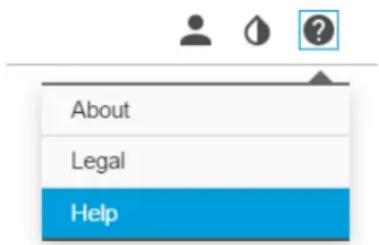
Tocheckthecurrentfirmware:
- Gototheproduct'swebpage.
- Clickonthehelpmenu.
3.ClickAbout.
Upgradethefirmware
Important
Preconfiguredandcustomizedsettingsaresavedwhenthefirmwareisupgraded(providedthatthefeaturesareavailableinthenewfirmware)althoughthisisnotguaranteedbyAxisCommunicationsAB.
Important
Makesuretheproductremainsconnectedtothepowersourcethroughouttheupgradeprocess.
Note
When you upgrade the product with the latest firmware in the active track, the product receives the latest functionality available. Always read the upgrade instructions and releases notes available with each new release before upgrading the firmware. To find the latest firmware and thereleasenotes, goto axis.com/support/firmware
-
Download the firmware file to your computer, available free of charge at axis.com/support/firmware
-
Logintotheproductasanadministrator.
Go Settings System Maintenance Follow the instructions on the page Whether the upgrade has finished the product restarts automatically.
AXISDeviceManagerabusedomultipleupgradesFindoutmoretaxis.com/products/axis-device-manager
Technicalissues,cluesandsolutions
If you can't find what you're looking for here, try the troubleshooting section at axis.com/support
Problemsupgradingthefirmware
| Firmwareupgradefailurelfthefirmwareupgradefails,thedevicereloadsthepreviousfirmware.Themostcommonreasonistatthewrongfirmwarefilehasbeenuploaded.Checkthatthenameofthefirmwarefilecorrespondstoyourdeviceandtryagain. | |
| ProblemssettingthelPaddress | |
| Thedeviceislocatedona differentsubnet | IfthelPaddressintendedforthedeviceandthelPaddressofthecomputerusedtoaccessthe devicearelocatedondifferentsubnets,youcannotsetthelPaddress.Contactyournetwork administratortoobtainanlPaddress. |
| ThelPaddressisbeingused byanotherdevice | DisconnecttheAxisdevicefromthenetwork.Runthepingcommand(inaCommand/DOSwindow,typepingandthelPaddressofthedevice):Ifyoureceive:Replyfrom:bytes=32;time=10... thismeansthatthelPaddressmayalreadybeinusebyanotherdeviceonthenetwork. ObtainanewlPaddressfromthenetworkadministratorandreinstallthedevice.Ifyoureceive:Requesttimedout,thismeansthatthelPaddressisavailable forusewiththeAxisdevice.Checkallcablingandreinstallthedevice. |
| PossiblelPaddressconflict withanotherdeviceonthe samesubnet | ThestaticlPaddressintheAxisdeviceisusedbeforetheDHCPserversetsadynamicaddress. ThismeansthatifthesamedefaultstaticlPaddressisalsousedbyanotherdevice,theremay beproblemsaccessingthedevice. |
| Thedevicecannotbeaccessedfromabrowser | |
| Cannotlogin | WhenHTTPSisenabled,ensurethatthecorrectprotocol(HTTPorHTTPS)isusedwhenattempting tdognYoumayneedmanuallytypehttp://tpithporthbrowser'saddressfield.Ifthepasswordfortheuserrootislost,thedevicemustberesettothefactorydefaultsettings.SeeResettofactorydefaultsettingsonpage15. |
| ThelPaddresshasbeen changedbyDHCP | IPaddressesobtainedfromaDHCPserveraredynamicandmaychange.IfthelPaddresshasbeen changed,useAXISIPUtilityorAXISDeviceManagertolocatethedeviceonthenetwork.Identify thedeviceusingitsmodelorserialnumber,orbytheDNSname(ifthenamehasbeenconfigured).Ifrequired,astaticlPaddresscanbeassignedmanually.Forinstructions,gotoaxis.com/support |
| Thedeviceisaccessiblelocallybutnotexternally | |
| Toaccessthedeviceexternally,werecommendusingoneofthefollowingapplicationsforWindows*:AXISCompanion:freeofcharge,idealforsmallsystemswithbasicsurveillanceneeds.AXISCameraStation:30-daytrialversionfreeofcharge,idealforsmalltomid-sizesystems.Forinstructionsanddownload,gotoaxis.com/products/axis-companion | |
Problemswithstreaming
| MulticastH.264onlyaccessiblebylocalclients | Checkifyourroutersupportsmulticasting,orifteroutersettingsbetweentheclientandthedeviceneedtobeconfigured.TheTTL(TimeToLive)valuemayneedtobeincreased. |
| NomulticastH.264displayedintheclient | CheckwithyournetworkadministratorthatthemulticastaddressesusedbytheAxisdevicearevalidforyournetwork. |
| Checkwithyournetworkadministratortortoseefthereisafirewallpreventingviewing. | |
| PoorrenderingofH.264images | Ensurethatyourgraphicscardisusingthelatestdriver.Thelatestdriverscanusuallybedownloadedfromthemanufacturer'swebsite. |
| ColorsaturationisdifferentinH.264andMotionJPEG | Modifythesettingsforyourgraphicsadapter.Gototheadapter'sdocumentationformoreinformation. |
| Lowerframeratethanexpected | •SeePerformanceconsiderationsonpage17.•Reducethenumberofapplicationsrunningontheclientcomputer.•Limitthenumberofsimultaneousviewers.•Checkwiththenetworkadministratorthatthereisenoughbandwidthavailable.•Lowertheimageresolution.•Logintothedevice'swebpageandsetacapturemodethatprioritizesframerate.Changingthecapturemodetoprioritizeframeratemightlowerthemaximumresolutiondependingonthedeviceusedandcapturemodesavailable.•Themaximumframespersecondisdependentontheutilityfrequency(60/50Hz)oftheAxisdevice. |
Performanceconsiderations
Whensettingupyour system, it is important to consider how various settings and situations affect the performance. Some factors affect the amount of bandwidth (the bitrate) required, others can affect the framerate, and some affect both. If the load on the CPU reaches its maximum, this also affects the framerate.
The following factors are them most important to consider:
- Highimageresolutionorlowercompressionlevelsresultinimagescontainingmoredatawhichinturnaffectsthe bandwidth.
- RotatingthelensmanuallywillresultinbetterperformancecomparedtorotatingtheimagefromtheGUI.
- AccessbylargenumbersofMotionJPEGorunicastH.264clientsaffectsthebandwidth.
- Simultaneousviewingofdifferentstreams(resolution, compression)bydifferentclientsaffectsbothframerateand bandwidth.
Use identical streams wherever possible to maintain a high framerate. Stream profiles can be used to ensure that streams are identical.
- AccessingMotionJPEGandH.264videostreamssimultaneously affects bothframerateandbandwidth.
- Heavyusageofeventsettingsaffectstheproduct'sCPUloadwhichinturnaffectstheframerate.
- UsingHTTPSmayreduceframerate, inparticularifstreamingMotionJPEG.
- Heavynetworkutilizationduetopoorinfrastructureaffectsthebandwidth.
- Viewingonpoorlyperformingclientcomputerslowersperceivedperformanceandaffectsframerate.
- Running multiple AXISCameraApplicationPlatform(ACAP)applicationssimultaneouslymayaffecttheframerateand thegeneralperformance.
Specifications
Tfindtheatestversionofthproduct'slatasheetgddtheproducpagetaxis.comandocatSupportDocumentation.
SDcardslot
NOTICE
- Riskofdamage to SDcard. Donotuses sharptools, metal objects, orexcessive force when inserting or removing the SDcard. Use your fingersto insert and remove the card.
- Riskofdatalossandcorruptedrecordings.DonotremovetheSDcardwhiletheproductisrunning.UnmounttheSDcard fromtheproduct'swebpagebeforeremoval.
ThisproductsupportsSD/SDHC/SDXCcards.
ForSDcardrecommendations,seeaxis.com


SD, SDHC, and SDXC Logosaretrademarksof SD-3CLLC. SD, SDHC and SDXC are trademarks or registered 3C, LLC in the United States, other countries or both.
Buttons
Controlbutton
Thecontrolbuttonisusedfor:
Resetting the product factory default settings See Reset factory default settings on page 15.
- ConnectingtoanAXISVideoHostingSystemservice.Toconnect,pressandholdthebuttonforabout3secondsuntilthe statusLEDflashesgreen.
Connectors
Networkconnector
RJ45Push-pullConnector(IP66)withHighPoweroverEthernet(HighPoE).
NOTICE
TocomplywiththeIP66-rateddesignofthecameraandmaintaintheIP66protection,thesuppliedRJ45Push-pullConnector(IP66)shallbeused.Alternatively,usetheRJ45IP66-ratedcablewithpremountedconnectorwhichisavailablefromyourAxisreseller.Donotremovetheplasticnetworkconnectorshieldfromthecamera.
- Productoverview
- Findthedeviceonthenetwork
- Accessthedevice
- Aboutsecurepasswords
- Important
- Setasecurepasswordfortherootaccount
- Setup
- Webpageoverview
- Needmorehelp?
- Imagequality
- BenefitfromIRlightinlow-lightconditionsusingnightmode
- Reducemotionblurinlow-lightconditions
- Note
- Handlesceneswithstrongbacklight
- Removewaterfromthefrontglasswiththewiper
- Privacymasks
- Hidepartsoftheimagewithprivacymasks
- Overlays
- Aboutoverlays
- Showatextoverlayinthevideostreamwhenthedevicedetectsmotion
- Displaythepanortiltpositionasatextoverlay
- PTZ(PanTiltZoom)
- Limitthepan, tilt, and zoommovements
- Aboutguardtours
- Createaguardtourwithpresetpositions
- Createarecordedguardtour
- Streamingandstorage
- Choosevideocompressionformat
- Reducebandwidthandstorage
- Setupnetworkstorage
- Recordandwatchvideo
- Rulesandalerts
- Triggeranaction
- Recordvideowhenthecameradetectsmotion
- Directthecameratoapresetpositionwhenthecameradetectsmotion
- Zoominonaspecificareaautomaticallywithgatekeeper
- Recordvideowhenthecameradetectsimpact
- Applications
- Troubleshooting
- Resettofactorydefaultsettings
- Checkthecurrentfirmware
- Upgradethefirmware
- Technicalissues,cluesandsolutions
- Performanceconsiderations
- Specifications
- SDcardslot
- NOTICE
- Buttons
- Controlbutton
- Connectors
- Networkconnector
Mærke : AXIS
Model : Q6215-LE 50 Hz
Kategori : Overvågningskamera