
P5415–E - Overvågningskamera AXIS - Gratis brugsanvisning og manual
Find enhedens vejledning gratis P5415–E AXIS i PDF-format.


Brugerspørgsmål om P5415–E AXIS
0 spørgsmål om dette apparat. Besvar dem du kender, eller stil dit eget.
Stil et nyt spørgsmål om dette apparat
Download vejledningen til din Overvågningskamera i PDF-format gratis! Find din vejledning P5415–E - AXIS og tag din elektroniske enhed tilbage i hånden. På denne side er alle dokumenter nødvendige for brugen af din enhed offentliggjort. P5415–E af mærket AXIS.
BRUGSANVISNING P5415–E AXIS
USERMANUAL
AXISP5415-EPTZDomeNetworkCamera
AboutthisDocument
ThismanualisintendedforadministratorsandusersoftheAXIS P5415-EPTZDomeNetworkCamera, andisapplicabletofirmware 5.55andlater.Itincludesinstructionsforusingandmanagingthe productonyournetwork.Previousexperienceofnetworkingwillbeof usewhenusingthisproduct.SomeknowledgeofUNIXorLinux-based systemsmayalsobeneficial, fordevelopingshellscriptsand applications.LaterverersionsofthisdocumentwillbepostedtotheAxis website, asrequired.Seealsotheproduct'sonlinehelp, availablevia theweb-basedinterface.
LegalConsiderations
Videoandaudiosurveillancecanberegulatedbylawsthatvaryfrom countrytocountry.Checkthelawsinyourlocalregionbeforeusing thisproductforsurveillancepurposes.
Thisproductincludesone(1)H.264decoderlicenseandone(1)AAC decoderlicense.Topurchasefurtherlicenses,contactyourreseller.
Liability
Everycarehasbeentakeninthepreparationofthisdocument.Please informyourlocalAxisofficefanyinaccuraciesoromissions.Axis CommunicationsABcannotbeheldresponsibleforanytechnical or typographicalerrorsandreservestherighttomakechangestothe productandmanualswithoutpriornotice.AxisCommunicationsAB makesnowarrantyfanyakindwithregardtothematerialcontained withinthisdocument,including,butnotlimitedto,theimplied warrantiesofmerchantabilityandfitnessforaparticularpurpose.Axis CommunicationsABshallnotbeliablenorresponsibleforincidental or consequentialdamagesinconnectionwiththefurnishing,performance oruseofthismaterial.Thisproductisonlytobeusedforitsintended purpose.
IntellectualPropertyRights
AxisABhasintellectualpropertyrightsrelatingtotechnologyembodied intheproductdescribedinthisdocument.Inparticular,andwithout limitation,theseintellectualpropertyrightsmayincludeoneoremore ofthepatentslistedathttp://www.axis.com/patent.htmandoneor moreadditionalpatentsorpendingpatentapplicationsintheUSand othercountries.
Thisproductcontainslicensedthird-partysoftware.Seethemenuitem "About"intheproduct'suserinterfaceformoreinformation.
ThisproductcontainssourcecodecopyrightAppleComputer, Inc.,underthetermsofApplePublicSourceLicense2.0(see http://www.opensource.apple.com/apsl).Thesourcecodeisavailable from http://developer.apple.com/darwin/projects/bonjour/
EquipmentModifications
This equipment must be installed and used in strict accordance with the instructions given in the user documentation. This equipment contains nouser-serviceable components. Unauthorized equipment changes or modifications will invalidate all applicable regulatory certifications and approvals.
TrademarkAcknowledgments
AXISCOMMUNICATIONS, AXIS, ETRAX, ARTPEC and VAPIX are registered trademarks to trademark applications of AxisAB in various jurisdictions. All other company names and products are trademarks or registered trademarks of their respective companies.
Apple,Boa,Apache,Bonjour,Ethernet,InternetExplorer,Linux, Microsoft,Mozilla,Real,SMPTE,QuickTime,UNIX,Windows,Windows VistaandWWWareregisteredtrademarksoftherespectiveholders. JavaandallJava-basedtrademarksandlogosaretrademarkor registeredtrademarksofOracleand/oritsaffiliates.UPnP ^TM is certificationmarkoftheUPnP ^TM ImplementersCorporation. SD,SDHCandSDXCaretrademarksorregisteredtrademarksofSD-3C, LLCintheUnitedStates,othercountriesorboth. Also,miniSD,microSD, miniSDHC,microSDHC,microSDXCarealltrademarksorregistered trademarksofSD-3C,LLCintheUnitedStates,othercountriesorboth.
RegulatoryInformation
Europe

ThisproductcomplieswiththeapplicableCEmarkingdirectives andharmonizedstandards:
- ElectromagneticCompatibility(EMC)Directive2004/108/EC.See ElectromagneticCompatibility(EMC),onpage2.
LowVoltage(LVD)Directive2006/95/ECSeSafetyprpag@
- Restrictions of Hazardous Substances (RoHS) Directive 2011/65/EU. See Disposal and Recycling, on page 2. Acopy of the original declaration of conformity may be obtained from Axis Communications AB. See Contact Information, on page 3.
Electromagnetic Compatibility(EMC)
This equipment has been designed and tested to fulfill applicable standards for:
- Radiofrequencyemissionwheninstalledaccordingtothe instructionsandusedinitsintendedenvironment.
- Immunitytoelectricalandelectromagneticphenomenawhen installedaccordingtotheinstructionsandusedinitsintended environment.
USA
This equipment has been tested using a shielded network cable (STP) and found to comply with the limits for a Class Digital device, pursuant to part 15 of the FCC Rules. These limits are designed to provide reasonable protection against harmful interference in residential installation. This equipment generates, uses and can radiate radio frequency energy and, if not installed and used in accordance with the instructions, may cause harmful interference or radio communications. However, there is no guarantee that interference will not occur in particular installation. If this equipment does cause harmful interference or radio television reception, which can be determined by turning the equipment off and on, the user is encouraged to try to correct the interference by one or more of the following measures:
•Reorientorrelocatethereceivingantenna.
- Increase these separation between the equipment and receiver.
- Connecttheequipmentintoanoutletonacircuitdifferentfrom thattowhichthereceiverisconnected.
- Consultthedealeroranexperiencedradio/TVtechnicianforhelp. Canada
ThisClassBdigitalapparatuscomplieswithCanadianICES-003.
Europe
This digitalequipmentfulfillstherequirementsforRFemission according to the ClassBlimitofEN55022.
This product fulfill therequirements for immunity according to EN61000-6-1 residential, commercial and light-industrial environments.
Thisproductfulfillstherequirementsforimmunityaccordingto EN61000-6-2industrialenvironments.
Thisproductfulfillstherequirementsforimmunityaccordingto EN55024officeandcommercialenvironments
Australia/NewZealand
This digitalequipmentfulfillstherequirementsforRFemission according to the ClassBlimitofAS/NZSCISPR22.
Japan
この装置は、クラスB情報技術装置です。この装置は、家庭環境で使用することを目的としていますが、この装置がラジオやテレビジョン受信機に近接して使用されると、受信障害を引き起こすことがあります。取扱説明書に従って正しい取り扱いをして下さい。
Korea
이기기는가정용(B급)전자파적합기기로서주로가정에서사용하는것을목적으로하며,모든지역에서사용할수있습니다.
Safety
ThisproductcomplieswithIEC/EN/UL60950-1and IEC/EN/UL60950-22,SafetyofInformationTechnology Equipment.
The powersupply used with this product shall fulfill therequirements for Safety Extra Low Voltage (SELV) and Limited Power Source (LPS) according to IEC/EN/UL60950-1.
DisposalandRecycling
Whenthisproducthasreachedtheendofitsusefullife,disposeof itaccordingtolocalrawsandregulations.Forinformationabout yournearestdesignatedcollectionpoint,contactyourlocalauthority responsibleforwastedisposal.Inaccordancewithlocallegislation, penaltiesmaybeapplicableforincorrectdisposalofthiswaste.
Europe

Thissymbolmeansthattheproductshallnotbedisposedof togetherwithhouseholdorcommercialwaste.Directive2012/19/EU onwasteelectricalandelectronicequipment(WEEE)isapplicablein theEuropeanUnionmemberstates.Topreventpotentialharmto humanhealthandtheenvironment,theproductmustbedisposed ofinanapprovedandenvironmentallysaferecyclingprocess.For informationaboutyournearestdesignatedcollectionpoint,contact yourlocalauthorityresponsibleforwastedisposal.Businessesshould contacttheproductsupplierforinformationabouthowtodispose ofthisproductcorrectly.
ThisproductcomplieswiththerequirementsofDirective2011/65/EU ontherestrictionoftheuseofcertainhazardoussubstancesin electricalandelectronicequipment(RoHS).
China
Thisproductcomplieswiththerequirementsofthelegislative actAdministrationontheControlofPollutionCausedbyElectronic InformationProducts(ACPEIP).
ContactInformation
AxisCommunicationsAB
Emdalavägen14
22369Lund
Sweden
Tel:+46462721800
Fax:+4646136130
www.axis.com
Support
Should you require any technical assistance, please contact your Axis reseller. If your questions cannot be answered immediately, your reseller will forward your queries through the appropriate channel to ensure a rapid response. If you are connected to the Internet, you can:
- downloaduserdocumentationandsoftwareupdates
• findanswerstoresolvedproblemsintheFAQdatabase.Search byproduct, category, orphrase
• reportproblemstoAxissupportstaffbyloggingintoyourprivate supportarea
- chatwithAxissupportstaff(selectedcountriesonly)
- visitAxisSupportatwww.axis.com/techsup/
LearnMore!
VisitAxislearningcenterwww.axis.com/academy/forusefultrainings, webinars,tutorialsandguides.
TableofContents
HardwareOverview....6
ConnectorsandButtons....6
LEDIndicators....7
AccessingtheProduct......8
AccessfromaBrowser......8
AccessfromtheInternet....9
SettheRootPassword....9
TheLiveViewPage....9
MediaStreams....13
HowtoStreamH.264....13
MJPEG....13
AXISMediaControl(AMC)....13
AlternativeMethodsofAccessingtheVideoStream....14
AccessingAudioStreams....15
SettingUptheProduct....16
BasicSetup....16
VideoandAudio....17
VideoStream....17
StreamProfiles....18
CameraSettings....19
Overlay....20
PrivacyMask....22
AudioSettings....22
AudioClips....23
LiveViewConfig....24
PTZ(PanTiltZoom)....27
PresetPositions....27
Gatekeeper....28
GuardTour....28
OSDIZones....28
Advanced....29
ControlQueue....29
Detectors....31
MotionDetection....31
AudioDetection....32
Applications....33
ApplicationLicenses....33
InstallApplication....33
ApplicationConsiderations....33
Events....35
SettingUpanActionRule....36
Recipients....37
Schedules....38
Recurrences....38
Recordings....40
RecordingList....40
ContinuousRecording....40
Languages....41
SystemOptions....42
Security....42
Date&Time....44
Network......45
Storage....50
Ports&Devices....51
Maintenance....51
Support....52
Advanced....52
ResettoFactoryDefaultSettings....53
RepaintingtheCamera....54
Troubleshooting....55
CheckingtheFirmware....55
TableofContents
UpgradingtheFirmware....55
Symptoms, Possible Causes and Remedial Actions....56
TechnicalSpecifications....59
Connectors....61
PerformanceConsiderations....63
HardwareOverview
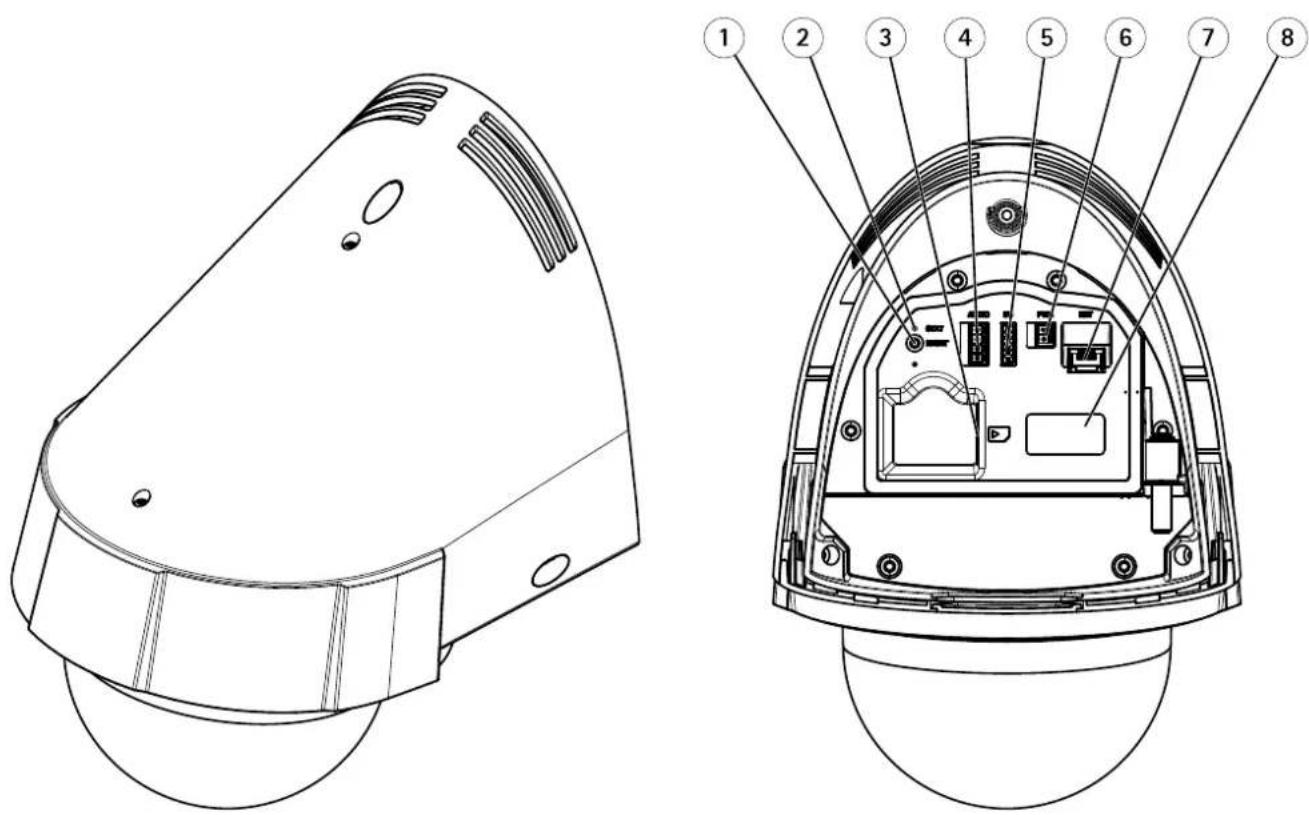
1 Controlbutton
2 StatusLEDindicator
3 SDmemorycardslot
4 Audioconnector
5 I/Oconnector
6 Powerconnector
7 Networkconnector(PoE+)
8 Partnumber(P/N)&Serialnumber(S/N)
ConnectorsandButtons
Fortechnicalspecifications,seepage59.
NetworkConnector
RJ45Ethernetconnector.SupportsPoweroverEthernetPlus(PoE+).
NOTICE
The product shall be connected using a shielded network cable (STP) or an optical fiber cable. All cables connecting the product to the network shall be intended for their specific use. Makes sure that the network devices are installed in accordance with the manufacturer's instructions for information about regulatory requirements, set Electromagnetic Compatibility (EMC), on page 2.
I/OConnector
Useinapplicationsfore.g.motiondetection, eventtriggering, timelapserecording and alarm notifications. In addition to an auxiliary power and a GNDpin, the / O terminal connector provides the interfaceto:
DigitabutputForconnectingexternaldevicesuchaselayandLEDConnecteddevicesarbeactivatedbythe VAPIX®ApplicationProgrammingInterface,outputbuttonsontheLiveViewpageorbyanActionRule.Theoutputwill showactiv(shownundeSystemOptionsPortsDevices)thealarmdevicesactivated.
DigitalInputAalarminpuforconnectingdevicethatartogglebetweenamperandclosedcircuitforexample: PIRs,door/windowcontacts,glassbreakdetectors,etc.Whenasignalisreceivedthestatechangesandtheinputbecomes active(shownunderSystemOptions>Ports&Devices).
PowerConnector
2-pinterminalblockforpowerinput.UseaSafetyExtraLowVoltage(SELV)compliantlimitedpowersource(LPS)witheitherarated outputpowerlimited≤100Varatedoutputcurrentlimited≤5A.
AudioConnector
4-pinterminalblockforaudioinputandoutput.
SDCardSlot
ArSCard(notincluded)carbusedforocarecordingwithremovablestorageEomoreinformationedTechnicalSpecifications.
NOTICE
Tpreventcorruption recording the Card should be unmounted before removal. Unmountgd Setup System Options > Storage > SDCardandclickUnmount.
ControlButton
Thecontrolbuttonisusedfor:
- Resetting the product to factory default settings. See page 53.
Connecting an AXISided Hosting System service Se page 46 connect press and hold the button for about second until the Status LED flashes green.
Connecting to AXIS Interne Dynamic DNS Service Seepage 46 To connect press and hold the button for about seconds.
LEDIndicators
| LED | Color | Indication |
| Status | Unlit | Connectionandnormaloperation |
| Amber | Steadyduringstartup.Flashesduringfirmwareupgrade. | |
| Amber/redFlashesamber/red | fnetworkconnectionisunavailableorlost. | |
| RedFlashesredforfirmwareupgradefailure. | ||
| GreenShowssteadygreenfor10 | secondsfornormaloperationafterrestart. | |
AccessingtheProduct
ToinstalltheAxisproduct, refertothel InstallationGuidesupplied with the product.
The product can be used with most operating systems and browsers. There recommended browsers are Internet Explorer with Windows, Safari with Macintosh and Firefox with the operating system. See Technical Specifications or page 59.
ToviewstreamingvideoinInternetExplorer,allowinstallationofAXISMediaControl(AMC)whenprompted.
Note
- QuickTime ^TM isalsosupportedforviewingH.264streamsandforaudio.
- If your computer restrict the use of additional software components, the product can be configured to use a Java applet for viewing Motion JPEG.
AccessfromaBrowser
- Startabrowser(InternetExplorer, Firefox, Safari).
2.EntertheIPaddressorhostnameoftheAxisproductinthebrowser'sLocation/Addressfield.ToaccesstheproductfromaMacintoshcomputer(MacOSX),clickontheBonjourtabandselecttheproductfromthedrop-downlist.
If you donot know the I paddress, use AXISIP Utility to locate the product on thenetwork. For information about how to discover and assign a P address, eth installation and Management Software CDoth document AssignariI Address and Access the Video Streamon Axis Support web at www axis.com/techsup
- Enteryourusernameandpassword.Ifthisisthefirsttimetheproductisaccessed,therootpasswordmustfirstbe configured.Forinstructions,seeSettheRootPassword,onpage9.
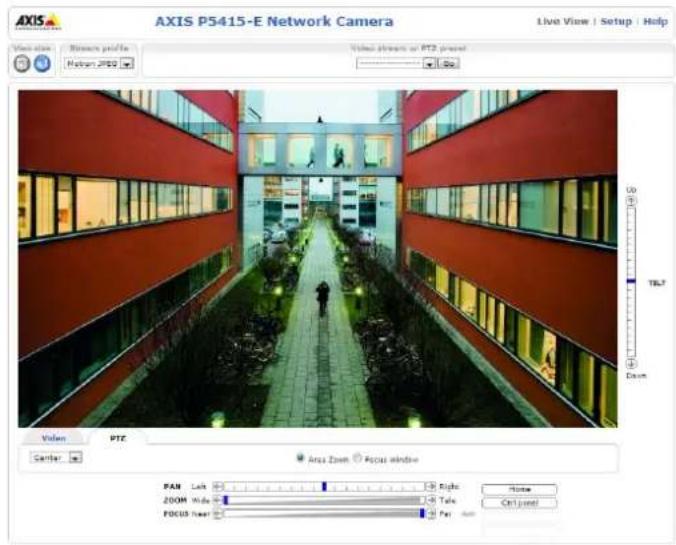
- The product'sLiveViewpageappearsinyourbrowser.
Note
The controls and layout of the liveView page may have been customized to meet specific installation requirements and user preferences. Consequently, some of the examples and functions featured her may differ from those displayed in your own live view page.
AccessfromtheInternet
Onceconnected,theAxisproductisaccessibleonyourlocalnetwork(LAN).ToaccesstheproductfromtheInternetyoumust configureyournetworkroutertoallowincomingdatatraffictotheproduct.Todothis,enabletheNAT-traversalfeature,which wilattemptautomaticallyconfiguretheroutetallowaccesstheproductThisenabledfromSetupSystemOptions>Network>TCP/IPAdvanced.
FomoreinformationsevNATraversa(portmapping)forPv4orpage4SealsAXISnterneDynamiDNService atwww.axiscam.net
ForTechnicalnotesonthisandothertopics,visittheAxisSupportwebatwww.axis.com/techsup
SettheRootPassword
Tacce the Axi product you must the password that default administrator user of this slone the Configur Root Passworddialog, which appears when the product is accessed for the first time.
Topreventnetworkeavesdropping,therootpasswordcanbesetviaanencryptedHTTPSconnection,whichrequiresanHTTPS certificate. HTTPS(HypertextTransferProtocoloverSSL)isaprotocolusedtoencrypttrafficbetweenwebbrowsersandservers.The HTTPScertificatensureencryptedexchangofinformationSedHTTPSprpage42.
The default administrator names are not permanent and cannot be deleted if password for out of the product must be reset the factory default settings. See Reset Factory Default Settings page 53.
TosetthepasswordviaastandardHTTPconnection,enteritdirectlyinthedialog.
TosetthepasswordviaanencryptedHTTPSconnection,followthesesteps:
- ClickUseHTTPS.
A temporary certificate(validforoneyear)iscreated, enabling encryption of all traffic and from the product, and the password can now be set securely.
2.Enterapasswordandthenre-enterittoconfirmthespelling.
3.ClickOK.Thepasswordhasnowbeenconfigured.
TheLiveViewPage
The controls and layout of the liveView pagemay have been customized to meet specific installation requirements and user preferences. Consequently, some of the examples and functions featured her may differ from those displayed in your own live view page. The following provides an overview of each available control.
ControlsontheLiveViewPage

ClicViewsizetoscalethemagedowrto80pixelswidodtfulscaleOnlyavailableMJPEG.
SelectstreamprofileoftheLiveViewpagefromtheStreamProfiledrop-downlistInformationabouthowtoconfigurestreamprofiles,seepage18.
ClicPulsctactivateproduct'sutputporfordefineperiodofimeEinformationabouthowtenable andconfigureoutputbuttons,see page25.
AccessingtheProduct
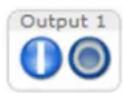
Click the Active/Inactive button to manually activate and activate the product output portion information about how to enable and configure output buttons, see page 25.

The ManualTriggerbutton is used to trigger an action rule from the LiveView page. For information about how to configure and enable the button, see ManualTrigger, on page 10.

ClickSnapshots=snapshots#the#imageRight-click#videimagesave#PEGformatyour computer.ThisbuttonisprimarilyintendedforusewhentheAXISMediaControlviewertoolbarsisnotavailable. EnablethisbuttonfromLiveViewConfig>ActionButtons.
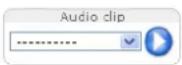
The Audioliprop-downlistallows/outplayaudioliprontheLivViewpageSelectaudioclipandclickthePlaybutton.
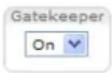
Enabled disable the Gatekeeper by selecting On Offron the drop-downlist Read more about the Gatekeeper on page 28.
ManualTrigger
The ManualTriggerusedTriggeractionulfromtheLiveViewpage. The manualatriggercarfoexampleusedo validateactionsduringproductinstallationandconfiguration.
Toconfigurethemanualtrigger:
1.GotoSetup>Events.
2.ClickAddtoaddanewactionrule.
BonthTriggedrop-downlistselectnpuSignal.
- From these second drop-downlist, select Manual Trigger.
- Select the desired action and configure the other settings as required.
Formoreinformationaboutactionrules,seeEvents,onpage35.
ToshowthemanualtriggerbuttonsintheLiveViewpage:
- GotoSetup>LiveViewLayout.
UndeActionButtons;selectShowmanuatriggebutton.
AXISMediaControlviewertoolbar
TheAXISMediaControlviewetoolbarsavailableInterneExploreOnlySeeAXISMediaControl(AMC)prpage1fromore information.Thetoolbardisplaysthefollowingbuttons:

ThePlaybuttonconnectstotheAxisproductandstartsplayingamediastream.

TheStopbuttonstopsthemediastream.

ThSnapshottortakesnapshotofthevideimage. The location where the images saved are specified in the AMCControlPanel.
AccessingtheProduct

ClickhViewFulScreerbuttonandtheideoimagovilfilthentirescreenPresESCEscapebrthecomputer keyboardtocancelfullscreenview.

TheRecordbuttonisusedrecordthecurrentvidestreamThelocationwhetherecordingsavedcarspecifiedn theAMControlPaneEnablethisbuttonfromLiveViewConfigVieweSettings.
AMCAudioControls
AMCaudiobuttonscontrolthespeakersandmicrophoneconnectedtotheclientcomputer.Thebuttonsareonlyvisiblewhen audioisenabled.

Speakerbutton—Clicktoturnthespeakersonoroff.

Microphone button Clickmutor unmut themicrophoned Simplex speaker only mode the Microphon and Talk button must both be activetosendaudiotothe Axis product. Clickeither button to stop a audiotransmission.
Use the sliderto control the volume of the speakers and the microphone.


Half-duplexmode
TheTalk/Listerbuttonusedswitchbetweensending and receiving audio The buttoncarbe configured from the AudiotabintheAMCControlpanel:
- Push-To-Talkmode: Clickandholdthebuttontotalk/send. Releasethebuttontolisten.
- Togglemode: Clickoncetoswitchbetweentalkingandlistening.
Simplex-speakeronlymode
To end audio the Tall and Microphon buttons mus both active click the buttort stop audio transmission.
PTZControls
TheLiveViewpagealsodisplaysPan/Tilt/Zoom(PTZ)controls.Theadministratorcanenable/disablecontrolsforspecifiedusersunder SystemOptions>Security>Users.
With the PT2ControlQueue enabled the timeachuser is a controb of the PT2setting is limited Click button or request release control of the PT2 controls the PT2 control Queue setup under PT2 Control Queue.
SelectFocuswindowtodefineareofthecamera'simagethafocushouldbappliednIfthfocuswindowisefrom theLiveViewpage,anychangeinthecamerapositionwillreturntheautofocustotheentirewindow.Tosetapermanentfocus window,seePresetPositions,onpage27

Click the Emulate joystick mode button and click the image to move the camera view in the direction of the mousepointer.

Click the Centemode button and click the image docent the camera view that position the centemode button could also be used to zoom on an as specific area. Click the image and drag to draw a rectangular surrounding the are at obemagnified. To zoom out, rotate the mouse wheel.

ClickhCtrpanebuttortoperthePTZontropanewhichprovidesadditionaPTZontrols. User-definedbuttonscanalsoappearintheControlpanel.SeeControls,onpage29.
SelectaPTZpresetpositiontosteerthecameraviewtothesavedposition.SeePresetPositions, onpage27.
AccessingtheProduct

PanandTiltbars—Usethearrowstopanandtiltthecameraview,orclickonapositiononthebartosteerthe cameraviewtothatposition.
Zoombar-Usethearrowstozoominandout,orclickonapositiononthebartozoomtothatposition.
Focusbar-Usethearrowstofocusthecamera,orclickonapositiononthebartosetthefocusposition.Usingthe focusbarwilldisabletheproduct'sautofocus.Tore-enable,usethePTZcontrolpanelwhichisopenedbyclicking theCtrlpanelbutton(seeabove).

The PTZ control sarbe disabled under PTZ Advanced Controlssee Controlsprpage29.
MediaStreams
TheAxisproductprovidesseveralaudioandvideostreamformats.Yourrequirementsandthepropertiesofyournetworkwill determinethetypeyouuse.
TheLiveViewpageintheproductprovidesaccesstoH.264andMotionJPEGvideostreams,audiostreamsandtothelistofavailablestreamprofiles.Otherapplicationsandclientscanaccessvideoandaudiostreamsdirectly,withoutgoingviatheLiveViewpage.
HowtoStreamH.264
The videocompressionstandardH.264 makes good use of bandwidth, and can provide high quality video streams at less than 1 Mbit/s.
Deciding which combination of protocols and method stoused depends on your viewing requirements, and on the properties of your network. The available options in AXIS Media Control are:
| UnicastRTP | Thisunicastmethod(RTPoverUDP)isused forliveunicastvideo,especiallywhenitis importanttoalwayshaveanup-to-datevideo stream,evenifsomeimagesaredropped. | Unicastingisusedforvideo-on-demand transmissionsothatthereisnovideotraffic onthenetworkuntilaclientconnectsand requeststhestream.Notethatthereareamaximumof20 simultaneousunicastconnections. |
| RTPoverRTSP | Thisunicastmethod(RTPtunneledoverRTSP) isusefulasitisrelativelysimpletoconfigure firewallstoallowRTSPtraffic. | |
| RTPoverRTSPoverHTTP | Thisunicastmethodcanbeusedtotraverse firewalls.Firewallsarecommonlyconfiguredto allowtheHTTPprotocol,thusallowingRTPto betunneled. | |
| MulticastRTP | Thismethod(RTPoverUDP)shouldbeusedforlivemulticastvideo.Thevideostreamisalways up-to-date,evenifsomeimagesaredropped.Multicastingprovidesthemostefficientusageofbandwidthwhentherearelargenumbersof clientsviewingsimultaneously.Amulticastcannothowever,passanetworkrouterunlessthe routerisconfiguredtoallowthis.ItisnotpossibletomulticastoverthelInternet,forexample.Notealsothatallmulticastviewerscountasoneunicastviewerinthemaximumtotalof20 simultaneousconnections. | |
AXISMediaControlnegotiateswiththeAxisproducttodeterminethetransportprotocoltouse.Theorderofpriority,listedintheAMCControlPanel,canbechangedandtheoptionsdisabled,tosuitspecificrequirements.
Note
H.264islicensedtechnology.TheAxisproductincludesoneH.264viewingclientlicense.Installingadditionalunlicensed copiesoftheclientisprohibited.Topurchaseadditionallicenses,contactyourAxisreseller.
MJPEG
This formatusesstandardJPEGstillimagesforthevideostream. These images are then displayed and updated at a ratesufficient to create stream that shows constantly updated motion.
TheMotionJPEGstreamusesconsiderableamountsofbandwidth,butprovidesexcellentimagequalityandaccesstoeveryimage containedinthestream.TherecommendedmethodofaccessingMotionJPEGlivevideofromtheAxisproductistousetheAXISMediaControlinInternetExplorerinWindows.
AXISMediaControl(AMC)
AXISMediaControl(AMC)inInternetExplorerinWindowsistherecommendedmethodofaccessinglivevideofromtheAxisproduct.
MediaStreams
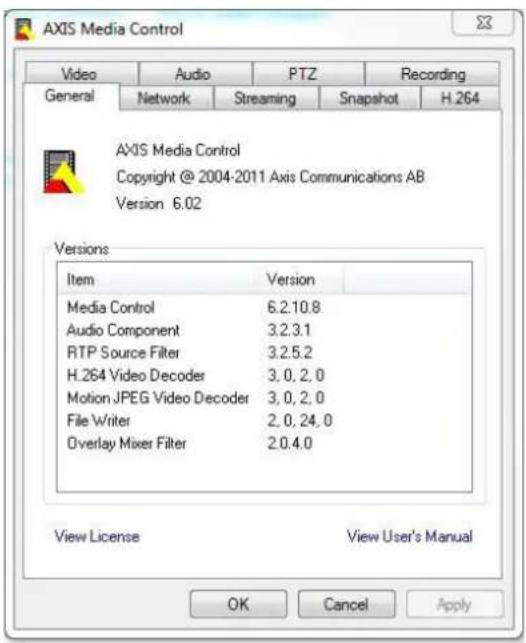
TheAMCControlPanelcanbeusedtoconfigurevariousvideoandaudiosettings.PleaseeseetheAXISMediaControlUser's Manualformoreinformation.
TheAMCControlPanelisautomaticallyinstalledonfirstuse,afterwhichitcanbeconfigured.OpentheAMCControlPanelfrom:
- WindowsControlPanel(fromtheStartmenu)
Alternatively right-click the video camera Interne Explore and click Settings.
AlternativeMethodsofAccessingtheVideoStream
YoucanalsoaccessvideoandimagesfromtheAxisproductinthefollowingways:
MotionPEGervepush(fupported by the client Firefox example) This option maintains proper HTTP connection to the browser and sends data as and when required, for as long as required.
StiUPEGmagesnbrowserEntethepathhttp://
Window Media Player This requires AXIS Media Control and the 1.264 decoder to installed the following paths can be used:
-UnicastviaRTP:axrtpu://<ip>/axis-media/media.amp
-UnicastviaRTSP:axrtsp://<ip>/axis-media/media.amp
-UnicastviaRTSP,tunneledviaHTTP:axrtsphttp://<ip>/axis-media/media.amp
-Multicast:axrtpm://<ip>/axis-media/media.amp
- QuickTime TM. The following pathscanbeused:
-rtsp://<ip>/axis-media/media.amp
-rtsp://<ip>/axis-media/media.3gp
Note
=|Paddress
•TheAxisproductsupportsQuickTime6.5.1andlater.- QuickTimeaddslatencytothevideostream.
- It maybe possible to use other player's view the H.264 stream using the paths above, although Axis does not guarantee this.
AccessingAudioStreams
TheLiveViewpageprovidesaccesstoaudiothroughAXISMediaControl;inadditionaudiocanbeaccessedinthefollowingways:
VAPIX®ApplicationProgrammingInterface(API)Fomoreinformationyisitwww.axis.com/developer
-WindowsMediaPlayersupportssimplexaudio.Thefollowingpathscanbeused:
-UnicastviaRTP:axrtpu://<ip>/axis-media/media.amp
-UnicastviaRTSP:axrtsp://<ip>/axis-media/media.amp
-UnicastviaRTSP,tunneledviaHTTP:axrtsphttp://<ip>/axis-media/media.amp
-Multicast:axrtpm://<ip>/axis-media/media.amp
-QuickTime TM supportsG.711andAACaudioencoding.Thefollowingpathscanbeused:
-rtsp://<ip>/axis-media/media.amp
-rtsp://<ip>/axis-media/media.3gp
-TheJavaappletsupportssimplexaudiowithG.711encoding.
SettingUptheProduct
The Axproduct are configured by users with administrator operator rights to the product's setup pages, including the copyright-hand corner of the Live View page.
- Administratorshaveunrestrictedaccesstoallsettings.
- OperatorshaveaccesstoallsettingsexceptSystemOptions
Seealsotheonlinehelp

BasicSetup
BasicSetupprovidesshortcutstothesettingsthatshouldbemadebeforeusingtheAxisproduct:
1.Users.Seepage42.
2.TCP/IP.Seepage45.
3. Date&Time.Seepage44.
4.VideoStream.Seepage17.
5. AudioSettings.See page22.
TheBasicSetupmenucanbedisabledfromSystemOptions>Security>Users.
VideoandAudio
Thevideoandaudiosettingscanbeusedtooptimizevideoandaudioquality.Youcanconfigurethefollowing:
•Videostreamsettings.Seepage17.
- Streamprofiles.See page 18.
- Camerasettings.See page 19.
•Overlayimage.Seepage20.
- Privacymask.Seepage22.
• Audiosettings.Seepage22.
• Audioclips.Seepage23.
VideoStream
You can define the following video stream settings from VideoAudioVideoStream:
- Image.Seepage17.
•Audio.Seepage22.
•H.264.Seepage18. - MJPEG.Seepage18.
![Basic Setup Video & Audio Video Stream Stream Profiles Camera Settings Overlay Image Privacy Mask Audio Settings Audio Clips Live View Config PTZ Detectors Applications Events Recordings Languages System Options About Video Stream Settings Image Audio H.264 MIPEG Image Appearance Resolution: 1920x1080 (16:19) pixels Compression: 30 [0..100] Rotate image: 0 degrees Video Stream Maximum frame rate: Unlimited Limited to [1..25] fps per viewer Overlay Settings Include overlay image at the coordinates: X 0 [0..] Y 0 [0..] Include date Include time Include text: Text overlay size: small Text colors: white Text background color black Place text/date/time at top of image Preview View image stream while configuring. Video formats MIPEG Open... Save Reset](/content/2026/05/865790/images/77419948c7bb2bd240119947a21199d1c878575be18cdc8ecda6c0a0d0f15c29.jpg)
Image
The default image settings can be configured under VideoAudioVideoStreamSelectImageTab.
The followingsettingsareavailable:
- Resolution.Selectthedefaultresolution.
CompressionThe compression leveaffect the image quality band width and fil size of saved images the dowethe compression, the higher the image quality with higher bandwidth requirements and larger filesizes.
- Rotateimage.lfrequired, theimagecanberotated.
Maximum framerate avoid bandwidth problems the framerate allowed each viewer can be limited to fixed amount Alternatively the framerate car base. Unlimited which means the Axis product always delivers the highest framerate possible under the current conditions.
OverlayettingSeeOverlappage20.
ClickSavetoapplythenewsettings.
H.264
H.264,alsoknownasMPEG-4Part10/AVC,isavideocompressionstandardthatprovideshighqualityvideostreamsatlowbitrates. AnH.264videostreamconsistsofdifferenttypesofframessuchasl-framesandP-frames.Anl-frameisacompleteimagewhereas P-framesonlycontainthedifferencesfrompreviousframes.
The GOVength the number of frames between two consecutive frames Increasing the GOVength may save considerably in bandwidth requirements in some cases, but may also have an adverse effect on image equality.
The Axis product supports wD.264 profiles The Main profile provides higher compressior than the Baseline profile with the same video quality, but requires more processing power to decode.
The bitratecabsetaVariableBiRate(VBR)ConstantBiRate(CBR)VBRadjustthebitataccordingthimage complexity,usingupmorebandwidthforincreasedactivityintheimage,andlessforlowerimageactivity.CBRallowsyoutoseta fixedtargetathatconsumespredictableamountbandwidthAshebitatowouldusuallyneedincreaseforincreased imageactivity,butinthiscasecannot,framerateandimagequalityareaffectednegatively.Topartlycompensateforthis,itis possibletoprioritizeeitherframerateorimagequality.Notsettingaprioritymeansthatframerateandimagequalityareequally affected.Youmustsaveyoursettingsbeforetheycantakeeffect.
The current table set appears to display this selection and the checkbox option under Overlay Settings and enter them modifier #binthefield.
MJPEG
Sometimes the imagesize is large duolow light or complex scenery. Adjusting them a maximum framesize help to control the bandwidth and storage used by the Motion PEG video stream in these situations. Setting the framesize the Default setting provides consistently good image quality at the expense of increased bandwidth and storage usage in low light. Limiting the frame size optimizes bandwidth and storage usage, but may give poor image quality. Toprevent increased bandwidth and storage usage, the maximum framesizes should be set to an optimal value.
StreamProfiles
Astreamprofileisasetofpredefinedstreamsettingsincludingresolution,compression,framerateandoverlaysettings.Stream profilescanbeused:
- Whensettinguprecordingusingactionrules.SeeEvents,onpage35.
- Whensettingupcontinuousrecording.SeeContinuousRecording,onpage40.
In the ViewpageselectstreamprofilefromtheStreamprofiledrop-downlist.
Forquicksetup, useoneofthepredefinedstreamprofiles. Each predefinedprofilehasadescriptivename, indicatingitspurpose. If required, thepredefinedstreamprofilescanbemodifiedandnewcustomizedstreamprofilescanbecreated.
Treatenewprofil modifyarexistingprofilegetSetupVide&AudioStreamProfiles.
To select default stream profile for the live view page to setup live view config.
CameraSettings
The VideoAudioCameraSettingspage provides access to advanced image settings for the Axis product.
ImageAppearance
Increasing the Coloreve increase the colosaturation The value gives maximum colosaturation The value gives blackandwhiteimage.
Thimag Brightness can be adjusted the range 0–100 where higher value produces brighter image.
IncreasinghSharpness an increase bandwidth usage sharpeimag might increase magenoises especially nowight conditions. Alowersetting reduces imagenoise, but the whole imagewill appear less sharp.
The ContrastangestrelativdifferencbteweerlighandarkcarbadjustedusingtheSlidebar.
WhiteBalance
Whitebalanceisusedtomakecolorsintheimageappearthesameregardlessofthecolortemperatureofthelightsource.TheAxis productcanbesettoautomaticallyidentifythelightsourceandcompensateforitscolor.Alternatively,selectthetypeoflight
sourcefromthedrop-downlist.Foradescriptionofeachavailablesetting,seetheonlinehelp

The white balance window enabled the Automation and Automatic outdoor options that appear in the White balance drop-down list. Select of the options from the drop-down list the white balance window properties Select Automatic use the default settings for the Automation and Automatic outdoor options (in the White balance drop-down list) Select Custom manually set a reference window for white balance in the view area.
WideDynamicRange
Widdynamicrange(DynamicContrast) can improve the exposure whether there is considerable contrasts between light and dark areas in the image. Enable WDRinintensebacklightconditions. Disable WDRinlowlightconditions for optimalexposure.
Note
Thissettingisonlypossiblewhenusingautomaticexposurecontrol.
ExposureSettings
Configure the exposures setting stosuit the image quality requirements in relation to lighting, framerate and bandwidth considerations.
Exposurevalue-Clickinthebartofine-tunetheexposure.
Enable Backlight compensation Enable this option bright spot fight for example light bulb causes the area in the imagetoappeartoodark.
Exposure zones This setting determines which part of the images used calculate the exposure from the situations the Auto setting can be used. For particular requirement, select a predefined area.
Shutter&Gain
Theshutterandgainsettingsaffecttheamountofmotionblurandnoiseintheimage.Toadapttodifferentlighting,available storagespaceandbandwidth,itisoftennecessarytoprioritizeeitherlowmotionblurorlownoise.TheAxisproductallows usingdifferentprioritizationinnormallightandinlowlight.
Shutterspeeds related the amount of time the shutters opened and measured second(s) as lowshutter speed allows more lighttoreachthesensorandcanhelpproduceabrighterimageinlowlightsituations. On the other hand, as lowshutter speed can cause moving object to appear blurry.
SetShutterto
VideoandAudio
Autosethutterspeedautomatically,requireduseMaxhutterdimthshutterspeedpreventframe ratefrombeingreduced.Forexample,toget30fps,setMaxshutterto1/30.
•Fixedtouseafixedshutterspeed.
Gainmeasureddecibe(dB)theamountamplificationappliedthemaghighaimmayprovidebetterimagenlow lightsituationsbutwillincreasetheamountofimagenoise.
SetGainto
AetdsethegainautomaticallyrequireduseMaxairtoimitheappliedgain.
- Fixedtouseafixedgain.
WherShutterandGainarebothsetAutoifispossiblegethePrioritybetweenlowmotionbluandownoismanuallyando usedifferenPriorityNormalLightandLowlight.
Example
Consideranareawherepeopleorvehiclesmoveduringtheday,butwherethereshouldbenomovementsduringnight.Tobeableto,forexample,recognizefacesorlicenseplates,movethenormallightpriorityslidertowardlowmotionblur.Atnighttime,motiondetectionismoreimportantthanidentification.Motionblurisacceptableandsincelowlightcancausealotofnoise,movethelowlightpriorityslidertowardlownoise.
Example
Ifstoragespaceorbandwidth this limited, try using a lower gain. This will reduce image noise and produces smaller image files.
Day/Night
TheIRcutfilterpreventsinfrared(IR)lightfromreachingtheimagesensor.Inpoorlightingconditions,forexampleatnight,orwhenusingarexternalRampsetdIRcutfelterToOffThisincreasesightsensitivityandallowstheproducto"seeInfraredighttheimageisshowninblackandwhitewhenthelIRcutfilterisoff.
IfisingautomaticExposurecontrolsettheRufiltertoAutodautomaticallyswitchbetweenOrandOfaccordingthe lightingconditions.
Overlay
Overlaysareusedtoprovideextrainformation,forexampleforforensicvideoanalysisorduringproductinstallationand configuration.Overlaysaresuperimposedoverthevideostream.
Anoverlaytextcandisplaythecurrentdateandtime,oratextstring.Whenusingatextstring, modifierscanbeusedtodisplay information such the currentbitato the currentframeofinformation about available modifiersseFileNamingft
Date/TimeFormatsintheonlinehelp.

It is possible to display text when action rule triggered using OverlayText from Action Rule.
Toenableoverlays:
GoVideoAudioVideStreamandelecthemagtab.
Tinclude overlayimages select include overlayimage the coordinates The overlaymagenus first be uploaded to theAxisproduct, see OverlayImage.
Tincluddatandimeselectncluddatandncludtime.
TincludatextstringselectIncludtextandentethdextrthefieldModifiersbusedseeFileNaminget
Date/TimeFormatsintheonlinehelp

- Definetextoverlaycharacteristicsintherelevantfields.
6.ClickSave.
Tomodify the date and time format to System Options DateTime See DateTime page 44.
OverlayImage
Anoverlayimageisastaticimagesuperimposedoverthevideostream.Theimage,forexamplecompanylogo,isusedtoprovide extrainformationortomaskapartoftheimage.
Sinceitisstatic, the position and size of an overlay image will remain the same regardless of resolution and Pan/Tilt/Zoom movements. The setup dynamic mask which will always mask the specific part of monitored area. Privacy Mask.
Touseanoverlayimage, theimagemustfirstbeuploadedtotheAxisproduct:
GoVideoAudioOverlaymage.
2.ClickBrowseandbrowsetothefile.
3.ClickUpload.
4. Select the imagetouse from the Use overlay imagelist.
5.ClickSave.
Todisplaytheoverlayimage:
GoVideoAudioVideStreamandelecthImagtab.
UndeOverlaSettingsselectincludeoverlaymagethecoordinatesandentethandcoordinates.
3.ClickSave.
Forinformationaboutsupportedimageformats,seetheonlinehelp

UsingOverlayTextinanActionRule
Actionrules:page35cardisplayaoverlaytextwhetherulestriggeredThextarbusedprovidenformationforforensicvideoanalysis,notifiesurveillanceoperatorsorvalidatetriggersandactionsduringproductinstallationandconfiguration.
Tolisplayoverlaytextwhenactionrulesrigeredthemodifie# IshouldusedascribedbelowWhetherrules triggered,#Dwillbereplacedbythetextspecifiedintheactionrule.
Startbyenablingoverlaytextinthevideostream:
GooVideoAudioVideStreamandelecthæmagtab.
UndeOverlaySettingsselectncludtext.
Enteth modifier: Landoptionallyadditionatextwhichwilbdisplayedalsowhertheactionrulesnotactive.
Createtheactionrule:
- GotoEvents>ActionRules
2.ClickAddtocreateanewrule.
SelectTriggerandoptionally,ScheduleandAdditionaConditionsSethonlinhelpforetails.
- From the Actionslist, select OverlayText
Entethtext Display the Textfield This text that Dwill be replaced by.
SpecifyDurationThextarbe displayedwhiletheuleactiveoffixednumberseconds.
Example
TodisplaytheTextMotiondetectedWhemotionisdetectedente#DthacludtexfieldandentePMotiondetectedIn theTextfieldwhensettinguptheactionrule.
PrivacyMask
Aprivacymaskisanareaofsolidcolorthatprohibitsusersfromviewingpartsofthemonitoredarea.Privacymaskscannotbe bypassedviatheVAPIX®ApplicationProgrammingInterface(API).
The Privacy Mask List Video Audio Privacy Mask shows the mask that are currently configured the Axis product and indicates if they are enabled.
SincethePan/Tilt/Zoomcoordinatesdefineitssizeandposition,aprivacymaskisdynamicinrelationtothemonitoredarea.This meansthatregardlessoftheangleandzoomofthelens,thesameplaceorobjectwillbehidden.BoDefineatwhatmagnificationthe maskshouldbedisplayed,zoomtothedesiredlevelandclickSetlevel.
Youcanaddanewmask,re-sizethemaskwiththemouse,chooseacolorforthemask,andgivethemaskaname.
Formoreinformation,seetheonlinehelp

Important
Adding many privacy masks may affect the product's performance.
AudioSettings
The audiofunctionality for each video stream enabled under Video Audio Video Stream Audio.
AudioModes
TheAxisproductsupportsthefollowingaudiomodes:
Fulldupleximultaneous two-way audio allowing the Axiproductransmit and receive audio in the same dimension echo cancellation; if feedback loops appear, try moving themicrophone or the speaker.
Half-duplexAudiocartransmittedandfromtheAxiproducubonlyrondirectionatimeTransmitaudusingtheLiveViewpageuschTalkandListbuttonsseeAMoAudioControlsprpage1.
SimplexspeakeonlyAudiotransmittedfromclienttheXiproductandarbe playedbyspeakerconnectedtdhproductdtransmitaudiusingtheLiveViewpagethTalkandMicrophonbuttonsmusbothbactiveseeAMCAudioControls,onpage11.
Simplex-microphononlyAudio captured by the product microphonestransmitted from the Axis production more clients.
To the audiomodeg to video Audio Audio Settings and select the desired mode from the Audiomodelrop-downlist.
Audiolnput
Select Microphonon users externamicrophone, Linux use linear device, graudiomixefomultiplenicrophones oramicrophonewithabuilt-inamplifier, asaudiosource.
Select the microphon sensitivity level (High/Low) depending on the sound event monitored area. For example, the axis product installed in this environment, setting the input sensitivity level.
The MicrophonpoweroptionprovidedQpowefoarexternamicrophoneMicrophonpoweshouldonlybusedwith microphonesthathavenobattery.Thissettingshouldnotbeenabledwhenusingadynamicorbatterypoweredmicrophone. Microphonepowerwillnotharmthemicrophone;ifyouareuncertain,tryswitchingitoffandon.Touseaprofessionalmicrophone requiring48Vphantompower,youneedanexternalpowersupplyandabalanced-unbalancedconverter(audiotransformer)in between.
VideoandAudio
Use the input gate control the volume (dB Full Scale) the audio input the sound to how choose higher B amplify the sound the sounds to high choose lowered B The level bag gives visual representation of the audio signal level dB relativeto the full-scale input level.
- Green—thesignalisatagoodlevel.
- Yellow—thesignalisbecomingdistorted.
- Red—thesignalisdistorted.
UsetheEncodingoptiontoselectdigitalaudioencodingformat.
AAO requires license for bot encoding and decoding AAC the least complicated and most widely used coded achieving the best possible audio quality is priority, AAC is there recommended codectouse. An AAC license is included in the Axis product.
G71 is an unlicensed standard code that useful when integrating audio into a system
G726aunlicensedspeechcodedthatmost commonlyusedwithinthesecurityindustry.
ThSampletdefinesthumberfimepesecondsoundsampledhighesampletovilprovidbetteraudio quality,butalsorequiresagreaterbandwidth.
SetherequiredBitatedependingtheselectedEncodingAighebitatewilgivbetteaudiqualityAowebitatemayhavelatencyordelay,butwillrequirelessbandwidth.
Formoreinformationaboutthesesettings,pleaseetheonlinehelp

AudioOutput
Configure the audio output settings under VideoAudioAudioSettings.
OutputainControlvolume(dBulScale)theinaudioutputfhsoundstodowchooshighedBlthe soundistoohigh,choosealowerdB.
AudioClips
Aaudiclipsoundfile that are played where events occur directly from the liveViewpage. The audiclipmusts be uploaded to the Axis product recorded by a microphone connected to the product.
TaddownloadmodifyremoveaudiclipsgdVidedAudioAudicLipsFomoreinformationsethonlinehelp

ToconfiguretheAxisproducttoplayaudioclipswhenaneventoccurs,anactionrulemustbesetup.Formoreinformation,seeEvents,onpage35.
Note
AudioLips:annobusedtheproduct'saudifunctionalityenabledTheaudifunctionalityenabledtheAudiotabunderVideo&Audio>VideoStream.
LiveViewConfig
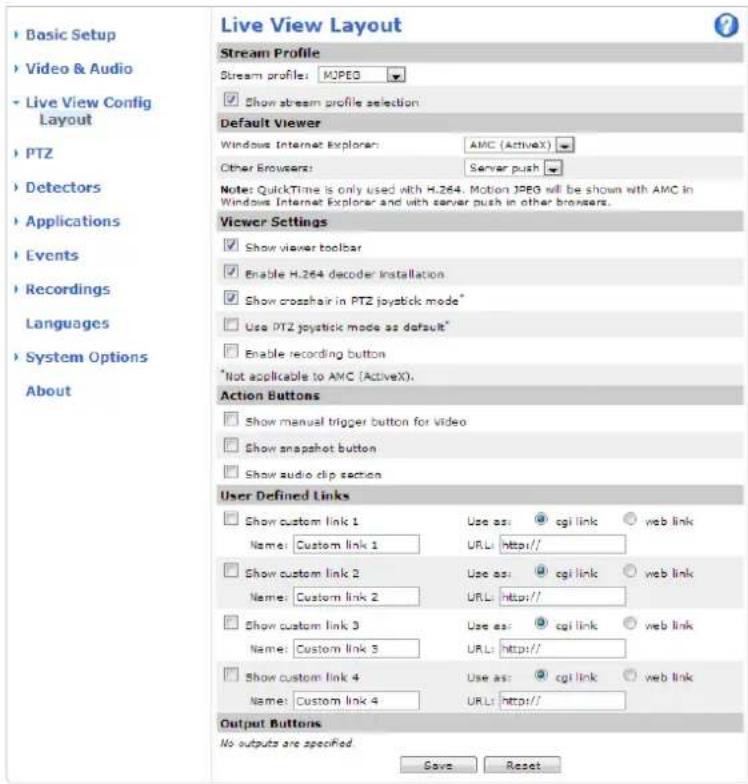
YoucancustomizetheLiveViewpageandalterittosuityourrequirements.ItispossibletedefinethefollowingfeaturesoftheLiveViewpage.
- StreamProfile.Seepage18.
- DefaultViewerforBrowser.Seepage24.
-ViewerSettings.Seepage25.
ActionButtonsThesearchbuttonsdescribedControlstheLiveViewPageprpag
-UserDefinedLinks.Seepage25.
- OutputButtons.Seepage25.
DefaultViewerforBrowsers
FromLiveViewConfigDefaultVieweselecthedefaultmethodforviewingvideimagesyoubrowserTheproductattempts toshowthevideoimagesintheselectedvideoformatandviewer.Ifthisisnotpossible,theproductoverridesthesettingsand selectsthebestavailablecombination.
| BrowserViewerDescription | ||
| WindowsInternetExplorer | AMC | RecommendedviewerinInternetExplorer(H.264/MotionJPEG). |
| QuickTime | H.264. | |
| Javaapplet | AslowerimagingalternativetoAMC(MotionJPEG).Requiresoneofthe followinginstalledontheclient:•JVM(J2SE)1.4.2orhigher.•JRE(J2SE)5.0orhigher. | |
| StillimageDisplaysstillimagesonly.ClicktheRefreshbuttoninyourbrosertoviewa newimage. | ||
| Otherbrowsers | ServerPush | Recommendedviewerforotherbrowsers(MotionJPEG). |
| QuickTime | H.264. | |
| Javaapplet | AslowerimagingalternativetoServerPush(MotionJPEGonly). | |
| StillimageDisplaysstillimagesonly.ClicktheRefreshbuttoninyourbrosertoviewa newimage. | ||
Formoreinformation,pleaseetheonlinehelp.

ViewerSettings
Toconfigureoptionsfortheviewer,gotoLiveViewConfig>ViewerSettings.
SelectShowewetoolbatalisplaytheAXISmediaControl(AMC)theQuickTimeviewetoolbaundethevideoimageinyourbrowser.
H.264lecodeinstallationThe administratorandisableinstallationofH.264lecodeincludedwithAXISMedia Control.Thisisusedtopreventinstallationofunlicensedcopies.Furtherdecoderlicensescanbepurchasedfromyour Axisreseller.
SelectShovercrosshainPTJoystickmode enable crosshatwill indicate the center of the image PTJoystick mode.
SelectUsePTZystickmodasdefaultenablejoystickmode. The mode can be changed temporarily from the PTZcontrolpanel.
SelectEnableecordingbuttonEnablerecordingfromtheLiveViewpagThisbuttonisavailablewhenusingtheAMCviewer.TherecordingsaresavedtothelocationspecifiedintheAMCControlPanel.SeeAXISMediaControl(AMC),onpage 13.
UserDefinedLinks
Todisplayuser-definedinkinthliveViewpageselecthShowcustomlinkoptiongivthedinknamandherentethURL tolinkto.Whendefiningaweblinkdonotremovethehttp://fromtheURLaddress.Customlinkscanbeusedtorunscriptor activateexternaldevicesconnectedtotheproduct,ortheycanlinktoawebpage.Customlinksdefinedascgilinkswillrunthe scriptinthebackground,inahiddenframe.Definingthelinkasaweblinkwillopenthelinkinanewwindow.
OutputButtons
Externall/OdevicesconnectedtotheAxisproduct'soutputportscanbecontrolleddirectlyfromtheLiveViewpage.
TodisplayoutputbuttonsintheLiveViewpage:
1.GotoSetup>LiveViewConfig.
- UnderOutputButtons, select the type of controltouse:
Pulsactivates the output for define period of time. The pulse time can be seen from 10 seconds to 60 seconds.
-Active/Inactive displaywobuttons, oneoreachaction.
ToconfigureactiveandnactivstatesgdSystemOptionsPortsDevicesl/Portandethport'Normastate.
Formoreinformationaboutl/Oports,seeI/OPorts,onpage51.
PTZ(PanTiltZoom)
PresetPositions
Apresetpositionisapredefinedviewthatcanbeusedtoquicklysteerthecameratoaspecificlocation.Presetpositionscan beaccessedinseveralways:
Byelecting the prese from the Prese positions drop-down list the live view Page.
- Whensettingupactionrules.Seepage35.
- WhensettingupGuardTour.Seepage28.
- WhensettinguptheGatekeeper.See page28
Toaddapresetposition:
- GotoPTZ>PresetPositions.
- Usethepan, tilt and zoom control, tosteer the camera view to the desired position.
BaddfocuswindowselecFocuswindowPlacethemousepointeortheparbtheimagdhayouwantfocuson, clickanddragtocreatearectanglearoundditandreasethemousebutton.
Therectanglewillturngreenwhenthefocuswindowhasbeenset.Thecamerawillautomaticallyadjusttheimage focustothisarea.
Formoreinformationaboutfocuswindows,seepage27.
Note
Therectanglewilldisappearafterawhile,butthefocuswindowwillstillbeactive.
4.EnteradescriptivenameintheCurrentpositionfield.
- If required, select UsecurrentpositionasHome.
GlicAddThecamera'spositionandfocussettingsareavedpreseposition.
TheHompositionisreadilyaccessiblebyclickingdHombuttonortheLiveViewpagandthePresePositionsetupwindow.
To a customized composition select Us current position Home when adding preposition The user-defined home position will have (H) added, forexample, Entrance (H). The default Home position called "Home", will still be available.
TheproductcanbeconfiguredtoreturntotheHomepositionwhenthePTZfunctionalityhasbeeninactiveforaspecifiedlengthofimeEntethlengthfimenthReturnhomewhiniactivfieldandlicSavSethdimdzerdpreventheproductfromautomaticallyreturningtotheHomeposition.
To include the preposition am either overlay text goto video Audio select include overlay text and then them modifier. Ein
thefield:fromoreinformationaboutmodifiersseeFileNamingDate/TimeFormatistheonlinehelp

FocusWindow
The focus window makes it possible to select an area of the camera's image that focus should be applied. This can be useful there is a part of the image where focus is more critical, or if a part of the images should be ignored by the autofocus.
If the focus window is set from the live view page, any change in the cameraposition will return the autofocus the entire window.
If the focus window is from the Preset Positions page, it will be included in these settings for that preset. The focus window can be redefined for the preset, but it cannot be deleted unless the preset is deleted.
![Basic Setup Video & Audio Live View Config PTZ Preset Positions Gatekeeper Guard Tour OSDT Zones Advanced Control Queue Detectors Applications Events Recordings Languages System Options About Preset Positions Preset Position Setup Current positions: Use current position as Home Add Available positions: Home (M) Go to Remove Return to home when inactive: [0..300] seconds. 0 = disabled Save Video RTE Center Area Zoom Focus Window TILT View Pan: Left Right Name Zoom Video Title RGB/5 Floor For: 100% Call panel](/content/2026/05/865790/images/65635b1b587d1a3f01ee60419178ec3f1743f5eb6a6804e73595cd648264bc1b.jpg)
Gatekeeper
TheAdvancedGatekeepermonitorsanareasuchasanentrancegate.Whenmotionisdetectedinthemonitoredarea,theGatekeeper willsteerthecameratoaselectedpresetposition.Usingazoomed-inpresetpositioncanmakeitpossibleto,forexample,reada licenseplateoridentifyaperson.Whenmotionisnolongerdetected,thecamerareturnstoitsHomepositionafteradefinedtime.
TenablethGatekeepergdtPTZGatekeeperandfollowthonlininstructions.
Italspossibletoexamplerecordvideosavimage(takesnapshot)whiletheGatekeepersactiveGoEvents andsetupanactionrulewithPTZPresetReachedastrigger.
GuardTour
Aguardtourdisplaysthevideostreamfromdifferentpresetpositions,one-by-one,inapredeterminedorderoratrandomandforconfigurabletimeperiods.Theenabledguardtourwillkeeprunningaftertheuserhasloggedofforclosedthebrowser.
Toaddaguardtour:
GdPTZGuardTouandclicAdd.
2.Enteradescriptivename.
-
Specifythepauselengthbetweenruns.
-
SelectanavailablepresetpositionandclickApply.
-
SpecifytheMoveSpeed.
-
Specify theViewTimeinsecondsorminutes.
SpecifyViewOrderselecttheRandomviewDeoption.
8.ClickSave.
TomodifpremoveguardoursgdoPTZGuardTourselectheguardouritheGuardTouListandlicModify/Remove.
Formoreinformationseetheonlinehelp

OSDIZones
On-ScreerDirectionIndicator(OSDI)onescanincludedtheoverlayex(seOverlayprpage20)aid thesetto navigate theAxisproduct.EachOSDIzoneissetupwithcoordinatesandadescriptivename.
OSDzonearesetupundePTZOSDZoneTheAxiproductsethecoordinatesofthecentefviewsethdower leftandupperrightzoneareas.FirstnavigatetowhereyouwouldlikethelowermostleftpointoftheOSDlzonetobelocated.
ClickGetoethecoordinatesProceedowherthupperighpointfzonshouldobocatedandclicGetGivthezone descriptivenameandclickOK.
TocluddthenamoftheOSDtonethoverlaytextgVideoAudioVideStreamOverlaSettingsCheckthe Includeexboxandentethenodifie#TirthfieldFomoreinformationaboutmodifiersseFileNamingDate/Time
Formatsintheonlinehelp
Advanced
Limits
Definethepan, tilt, zoom and focus limits for the Axis product. Movement to the left and right, up and down, can be restricted to narrow the area and undersurveillance.
Configurethenearfocuslimittoavoidfocusingonobjectstooclosetothecameralens.
Movespeedsetsthespeedofthecamera'spanandtiltmovements. Thedefaultsettingismaximumspeed.
When using joystick (oemulating new mouse) the Enable proportional speed setting can be used to reduce the maximum pan/tilt movements speed, i.e. the speed the cameraview moves at when the joystick is pushed all the way out in any direction. This is useful thenthe view is zoomed in nonan object.
Seetheonlinehelp formoreinformation.
Controls
PaneShortcuCommandButtons:abconfiguredprovide directaccess commandissued via the/APIX®Application ProgrammingInterface. The button will be displayed in the PTZ control panel, which is available in theLiveViewpagethrough the Ctrpanebuttonpage1.
DeselectoptionsundeEnable/Disablecontrolsolisablethepantiltzoomandfocuscontrols.
Note
DisablingPTZcontrolswillnotaffectpresetpositions. Forexample, ifthetiltcontrolisdisabled, theproductcanstillmoveto presetpositionsthatrequireatiltmovement.
ControlQueue
The administrator setup que ufo PTZ controller from PTZControlDueo Oncsetup the PTZControlDueu buttons appear in theLiveViewpageofferingoneviewerexclusivecontrolforalimitedperiodoftime. Other users will be placedinqueue.
Ausewhbelongsgroupsed/usersprpage42withhighePTprioritycangbeforetheusersinthequeuandtakecontroloftheproduct.Theorderofpriorityisasfollows:
Administrator\Administrator takesovePTZ control regardless of who first queue the administrator will be removed from the queue 60 seconds after the last PTZ control command.
Event-TheAxisproductarbeconfiguredoctapresetpositionwhertriggeredbyalarm(seeEventsorpage35). Theeventwillimmediatelybeplacedfirstinthequeueexceptwhenanadministratorisincontrol.
- Operator—Sameas administrator but with lower priority
GuardTour-Aguardou(sepage28haPTZontrofoarindefinitperiodofimeImmayoverriddenbyan operator,eventoradministrator.Theguardtourwillresumewhenhigherprioritygroupsleavethequeue.
Viewer-MultipleviewersmustwaifotheiturnTheviewehasSecondPTZontrobeforecontrolpassed ontothenextviewerinqueue.
Note
- The administrator can enable and disable PTZ controls for selected users.
- Toidentifydifferentusersintheviewergroup,cookiesmustbeenabledontheclient.
Detectors
MotionDetection
Motiondetectionisusedtogenerateanalarmwhenevermovementstartsorstopsinthecameraview.
Motiondetectionisconfiguredbydefiningupto10IncludeandExcludewindows:
- Includewindows—defineareaswheremotionsshouldbedetected
Exclude windows define areas within a window that should be ignored (areas outside include windows are automatically ignored).
Forinstructions, see SetupMotionDetectionWindows, onpage31.
To control the number of motion detection alarm parameters ObjectSizeHistory and Sensitivity can be adjusted. See MotionDetectionParameters, on page 32.
Oncemotiondetectionwindowsareconfigured, theAxisproductcanbeconfiguredtoperformactionswhenmotionisdetected. Possible actions include uploading images and start recording. For more information setting UponActionRulepage36.
Note
- Usingthemotiondetectionfeaturemaydecreasetheproduct'soverallperformance.
- ThepositionoftheMotionDetectionWindowisrelativetotheorientationoftheCamera.Changingtheorientationofthe camerawillalsochangethepositionoftheMotionDetectionWindow.
SetUpMotionDetectionWindows
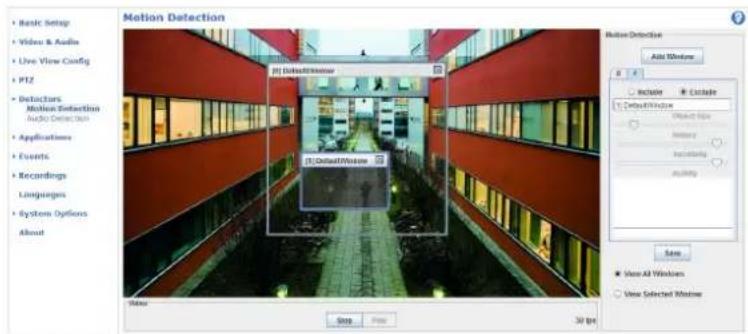
TosetupamotiondetectionIncludeWindow, followtheseinstructions:
- GotoDetectors > MotionDetection.
Select the Configur included Window option and lic New Select the new window the disb windows and enter adescriptivename.
- Adjustthesize(dragthebottomright-handcorner) and the position(clickonthetextatthetopanddragtothedesired position) of the window.
Adjust the Object Size History and Sensitivity profile slider (sed Motion Detection Parameters for details) Any detected motion within an active window is indicated by red peaks in the Activity window.
5.ClickSave.
To exclude part of the inclusion window, select the Configure Excluded Window and position the exclusion window within the inclusion window.
ToletanincludeexcludewindowselectehwindowitheistofwindowsandlicDel.
MotionDetectionParameters
The parameters controlling motion detection are described in the table below:
| Parameter | ObjectSize | History | Sensitivity |
| Description | Objectsizerelativetowindow size. | Objectmemorylength. | Differenceinluminance betweenbackground and object. |
| Highlevel(100%) | Onlyverylargeobjectstrigger motiondetection. | Anobjectthatappearsin thewindowtriggersmotion detectionforalongtime beforeitisconsideredas non-moving. | Ordinarycoloredobjectson ordinarybackgroundstrigger motiondetection. |
| Mediumlevel(50%) | Alargedifferenceinluminance isrequiredtotriggermotion detection. | ||
| Lowlevel(0%) | Evenverysmallobjectstrigger motiondetection. | Anobjectthatappearsin thewindowtriggersmotion detectiononlyforaveryshort timebeforeitisconsideredas non-moving. | Onlyverybrightobjectson adarkbackgroundtrigger motiondetection. |
| Recommendedvalues | 5–15%60–90%75–95% | ||
| Defaultvalues | 15%90%90% |
Note
- Totriggeronsmallobjectsormovements,useseveralsmallmotiondetectionwindowsratherthanonelargewindow andselectalowobjectsize.
- To avoid triggering on small objects, select a high object size.
- Whilemonitoringanareawheremovingobjectsarenotexpected,selectahighhistorylevel.Thiswillcausemotion detectiontotriggeraslongastheobjectispresentinthewindow.
- Toonlydetectflashinglight,selectalowsensitivity.Inothercaseshighsensitivityisrecommended.
AudioDetection
TheAxisproductcanbeconfiguredtogenerateanalarmwhenaudiorisesaboveorfallsbelowthethresholdvalue.Thethreshold valuecanbesetintherange0-100where0isthemostsensitiveand100theleastsensitive.
-
GotoDetectors>AudioDetection.
-
Set the audio alarm level and click Save.
GdEventsActionRulesandetuparactionruleseSettingUpanActionRuleprpage36.
Detected audio indicated by colore peak birth Activity indicator Are vent triggered when detected audio rises above falls below the threshold value, which is represented by the bar.
Applications
ThirdpartyapplicationscanbeuploadedtoandinstalledontheAxisproduct. Applicationsaddfunctionalitytotheproduct,for examplevideoanalyticsandintelligentvideocapabilitiessuchasrecognition,tracking,detectionandcounting.Forinformation aboutavailableapplications,downloads,trialsandlicenses,goto www.axis.com/applications
Note
- Itisrecommendedtorunoneapplicationatatime.
- Avoidrunningapplicationswhenthebuilt-inmotiondetectionisactive.
ApplicationLicenses
Someapplicationsneedalicensetorun.Licensescanbeinstalledintwoways:
•Automaticinstallation—requiresaccesstothelnternet
- Manualinstallation—obtainthelicensekeyfromtheapplicationvendoranduploadthekeytotheAxisproduct
Torequestalicense, theAxisproductserialnumber(S/N) is required. The serial number can be found on the product label and under SystemOptions > Support > SystemOverview.
InstallApplication
Toinstallandstartanapplication:
- GotoSetup>Applications.
UndeUploadApplicationclickBrowseLocatethapplicationfileandclickUploadPackage. - Install the license (if applicable). For instructions, seethedocumentation provided by the application vendor.
Start the applicationG40 page Applications select the application in the disf installed applications and click Start. - Configuretheapplication.Forinstructions,seethedocumentationprovidedbytheapplicationvendor.
Note
- Applicationscanbeuploadedbyproductadministrators.
- ApplicationsandlicensescanbeinstalledonmultipleproductsatthesametimeusingAXISCameraManagement,version 3.10andlater.
To generate log file of the application to Application Select the application and click Log.
ApplicationConsiderations
Ifanapplicationisupgraded, applicationsettings, including the license, will be removed. The license must be installed and the application reconfigured.
If the Axis product's firmware is upgraded, installed applications and their settings will remain unchanged, although this is not guaranteed by Axis Communications AB. Not that the application must be supported by the new firmware. For information about firmware upgrades, see Upgrading the Firmware.
If the Axis product is restarted, running applications will restart automatically.
If the Axis product is restored, installed applications remain unchanged but must be restarted. To start the application, goto Setup Application Select the application in this db installed applications and click Start Information about restoring the Axis product, see Maintenance.
Applications
If theAxisproductisresettofactorydefault, installed applications and their settings are removed. For information about factory default, see ResettoFactoryDefaultSettings.
Events
TheAxisproductcanbeconfiguredtoperformactionswhendifferenteventsoccur,forexample,startarecordingwhenmotionis detectedThesecondditionshatefineshowandwhethactionstriggeredsalledActionRule.
AvailableActionRuletriggersandconditionsinclude:
Applications=usinstalled applicationsdriggetheuleseeApplicationsprpage33.
- Detectors
AudioDetection-triggered rule when audiosdeltected see AudioDetectionpage32.
Day/NightMode-triggethe rule wherthproduct switches between day model (Rc filter) and night mode (IRc filter off). This can forexample be used to control an external infrared (IR) light connected to an output port.
LivStreamAccessed-triggered user when any streami accessed and during dsg storage playback. This can forexample be used to send notifications.
MotionDetection-triggeredulewhemotionisdetectedseeMotionDetectionprpage31.
- Hardware
Network-triggered network connection is restored. This example used start recording to the SDcard.
Temperature-triggered temperature falls outside inside the operating range of the product This can forexample be used to maintain anencenotifications.
- InputSignal
DigitalInputPort-triggetheulwheran/Oporteeivesignafromconnecteddevicesed/OPorts,onpage51.
ManualTrigger-triggered using the ManualTriggerbutton in the Viewpages Control on theLiveViewPage, onpage9. This can forexample be used to validate actions during product installation and configuration.
VirtualInputs-carbused by VMSVidedManagementSystemdriggeactionsVirtualInputscanfor example,beconnectedtobuttonsintheVMSuserinterface.
•PTZ
Error-triggetheulefthPTFunctionalityisnotworkingcorrectlyThisaforexampleusedosendmaintenancenotifications.
Moving-triggered rule where the camera view moves dueto PTZ operation This is a example used as an additional condition to prevent an action rule triggered by motion detection to record videowhile the camera view moves dueto PTZ operation.
PreseReached-triggered rule where the camera stops at prese position This bar before example used with the Send Images action to upload images from the preset position.
Ready-triggered rule where the PT functionality ready to be used. This example is used to steer the camerato as specific preset position when the product is started.
•Storage
Disruption-triggered eule storage problem are detected for example if the storage device unavailable, removed, full, locked or if other reader or write problems occur. This can forexample be used to send maintenance notifications.
Events
Recording-trigger theulwhertheAxiproductrecorddthstoragedeviceTherecordingstatustrigger canbeusedtonotifytheoperator,forexamplebyflashingLEDlights,iftheproducthasstartedorstoppedto recordtothestoragedevice.Notethat,thistriggercanbeusedonlyforedgestoragerecordingstatus.
•System
SystemReady-triggered rule whenthe product has been started and services running This for example be used to send an notification when the product restarts.
•Time
Recurrence-triggered ul periodically see Recurrences page 38 This far example should upload an image every 5 minutes.
UsSchedule-triggered uul according the selected schedules e Schedules pr page 38.
Availableactionsinclude:
Day/NightVisionMode-setlaymodel(Reufilteron)nightmode(Reufilteroff).
- OutputPort—activateanl/Oporttocontrolanexternaldevice.
OverlayText-displayaroverlaytextsedUsingOverlayTextActionRuleprpage21.
PlayAudioClip-seeAudioClipsorpag23.
- PTZControl
-PresetPosition—gotoapresetposition.
GuardTour-startguardourseGuardTourpage28.
- RecordVideo—recordvideotoaselectedstorage.
- SendImages—sendimagestoarecipient.
- SendNotifications—sendanotificationmessagetoarecipient.
- SendVideoClip—sendavideocliptoarecipient.
SettingUpanActionRule
Anactionruledefinestheconditionsthatmustbemetfortheproducttoperformanaction,forexemplerecordvideoorsendan emailnotification.Ifmultipleconditionsaredefined,allofthemmustbemettotriggertheaction.
The following example describes how to setup an action rule to record video to an network share if there is movement in the camera's field of view.
Setupmotiondetectionandaddanetworkshare:
Gdd Detectors Motion Detection and configure motion detection window page 31
QdsSystemOptionsStorageandetupthenetworkshareseepage50.
Setuptheactionrule:
GdEventsActionRulesandlicAdd.
- SelectEnableruleandenteradescriptivenamefortherule.
SelectDetectorsfromthTriggerdrop-downlist.
SelectMotionDetectionfromthedrop-downlistSelectthemotiondetectionwindowtause.
OptionallyselectScheduleandAdditionaconditionssebelow.
Events
UndeActionsselecRecordVidedfromthTypdrop-downlist.
SelectStreamprofil and configure the Duration settings as described below.
- SelectNetworkSharefromtheStoragedrop-downlist.
To additionacriteriaselecttheAdditionaconditionsoptionandadditionatriggersPreventractionfrombeing triggeredepeatedlyWaiateastimecarbEntethimemhoursminutesandsecondsduringwhichthrigger shouldbeignoredbeforetheactionrulecanbeactivatedagain.
The recording Duration of actions can be set into a single immediately before and after the event Select Pre-trigger time and oPost-triggered number seconds. When while the active enabled and action is triggered again during the post-trigger time, there cording timewill be extended with another post-trigger time period.
Formoreinformation,seetheonlinehelp

FallbackAction
Afallbackactionisstartediftheprimaryactioncannotbested,forexampleifconnectiontoarecipientcannotbeestablished.
Fallbackactionsaretypicallyusedtosendemailnotificationsonfailedactionsortuploadimagestoasecondaryrecipient.
Recipients
Recipientsreceivemediafilesandnotificationmessages.Thefollowingrecipientsareavailable:
| RecipientUsewithaction | |
| Email^1 | SendImagesSendNotificationSendVideoClip |
| FTP | SendImagesSendVideoClip |
| HTTP | SendImagesSendNotificationSendVideoClip |
| HTTPSSendImages | SendNotificationSendVideoClip |
| NetworkShare2 | SendImagesSendVideoClip |
| TCPSendNotification |
Some email providers have security filters that prevent users from receiving viewing charges amount attachments from receiving scheduled emails and similar. Check the email provider's security policy to avoid delivery problems and locked email accounts.
An2workshare can also be used for storage device forecorded video System Options Storage configuration network share before setting continuous recording action rule recorded video Storage page from more information about storage devices.
Toaddarecipient:
GoEventsRecipientandclicAdd.
Events
2.Enteradescriptivename.
3.SelectarecipientType.
4. Enter the information needed for the recipient type.
5.ClickTesttotesttheconnectiontotherecipient.
6.ClickOK.
SettingUpanEmailRecipient
Emailrecipientscanbeconfiguredbyselectingoneofthelistedemailproviders,orbyspecifyingtheSMTPserver,portand authenticationusedby,forexample,accorporateemailserver.
Note
Some email providers have security filter that prevent users from receiving or viewing large amount of attachments, from receiving scheduled emails and similar. Check the email provider's security policy to avoid delivery problems and locked email accounts.
Tosetupanemailrecipientusingoneofthelistedproviders:
GoEventsRecipientsandlicAdd.
EnterNameandelecEmaifronthTypeist.
Entethemailaddresses send emails forth To field Usecommatseparatemultipladdresses.
- Select the email provider from the Provider list.
5.Entertheuser|Dandpasswordfortheemailaccount.
6.ClickTesttosendatestemail.
To setup a email recipient using for example a corporate mail server follow the instructions above to select User defined as Provider Enteth email address appears to send either From field Select Advanced settings and specify SMTServer address port and authentication method. Optionally select User encryption to send emails over encrypted connection. The server certificate can be validated using the certificates available in the Axis product. For information on how to upload certificates, see Certificates, on page 43.
Schedules
Schedulescanbeusedasactionruletriggersorasadditionalconditions,forexampletorecordvideoifmotionisdetectedoutside officehours.Useoneofthepredefinedschedulesorcreateanewscheduleasdescribedbelow.
Tocreateanewschedule:
GoEventsSchedulesandClickAdd.
2.Enteradescriptivenameandtheinformationneededforadaily,weekly,monthlyoryearlyschedule.
3.ClickOK.
Taus the scheduled Action Rule selects the scheduled front schedule drop-down list the Action Rule Setup page.
Recurrences
RecurrencesareusedtotriggerActionRulesrepeatedly,forexampleevery5minutesoreveryhour.
Tosetuparecurrence:
Events
GdEventsRecurrencesandliclAdd.
2.Enteradescriptivenameandrecurrencepattern.
3.ClickOK.
To set the recurrence in Action Rule first select time from the triggered drop-downlist the Action Rule setup page and then select the recurrence from these second drop-downlist.
To modify remove recurrences select the recurrence path Recurrence List and click Modify Remove.
Recordings
TheAxisproductcanbeconfiguredtorecordvideocontinuouslyoraccordingtoanactionrule:
- Tostartacontinuousrecording,see page40.
- Tosetupactionrules,seepage36.
•Toaccessrecordings,seeRecordingList,onpage40. - Toconfigurecameracontrolledstorage,seeStorage,onpage50.
RecordingList
Recorded videos and the Recordings List page. The shows each recording 'start lat and time duration and the event that triggered therecording.
Toplayordownloadarecording, followthesesteps:
- GotoRecordings>List.
Use filter to narrow disb recording Enteth desired filter criterion and lic Filte Some filters may take along timetocomplete.
- Selecttherecording.
@licPlayplaythecording?clickDownloaddownloadhecording.
Multiple recordingscarbdownloadedatthesamtimeSelectrecordingsandlicDownloadThedownloadedfilezipfile containingaminimumofthreefiles,ofwhichtheMatroska(mkv)filesaretheactualrecordings.Therecordingsaretime-stamped withthedateandtimetheyweredownloaded(thatis,notthedatetherecordingsweremade).
Note
ToplayrecordingsinWindowsMediaPlayer,AXISMatroskaFileSplittermustbeinstalled.AXISMatroskaFileSplitter canbedownloadedfromwww.axis.com/techsup/software
For detailed recording and video information, select recording and lic Properties.
Toremovearecording,selecttherecordingandclickRemove.
ContinuousRecording
The Axiproductarbeconfiguredcontinuouslysaved storage device See Storage page 50 more information about storagedevices. Topreventthediskfrombecomingfull,itisrecommendedtoconfigurethedisktoautomaticallyremoveold recordings. Ifanewstreamprofileisselectedwhilearecordingisongoing,therecordingwillbestoppedandsavedintherecording listandanewrecordingwiththenewstreamprofilewillstart. Allpreviouscontinuousrecordingswillremainintherecordinglist untiltheyareremovedmanuallyyorthroughautomaticremovalofoldrecordings.
Tostartacontinuousrecording,followthesesteps:
- GotoRecordings>Continuous.
2.SelectEnabled. - SelecttypeofstoragedevicefromtheDisklist.
- SelectaStreamprofiletouseforcontinuousrecordings.
5.ClickSavetosaveandstarttherecording.
Languages
Languages
MultiplelanguagescanbeinstalledintheAxisproduct.AllwebpagesincludingtheonlinehelpwillbedisplayedintheselectedlanguageSwitchlanguagesgetSetupLanguagesandfirstuploadthenewlanguagefileBrowseandocatchelandclicktheUploadLanguagebutton.SelectthenewlanguagefromthelistandclickSave.
Note
- Resetting the product to factory default settings will erase any uploaded language file and reset the product language to English.
- ClickingtheRestorebuttonontheMaintenancepagewillnotaffectthelanguage.
- Afirmwareupgradewillnotaffectthelanguageused.Howeverifyouhaveuploadedanewlanguagetotheproductandlaterupgradethefirmware,itmayhappenthatthetranslationnolongermatchestheproduct'swebpages.Inthiscase,uploadanupdatedlanguagefile.
- Alanguagealreadyinstalledintheproductwillbereplacedwhenacurrentoralaterverersionofthelanguagefileisuploaded.
SystemOptions
Security
Users
Use access controlled enabled by default and bar configured under System Options Security Users Administrator can setup other users by giving them usernames and passwords. It is also possible to allow anonymous viewer login, which means that anybody may access the Live View page.
Theuserlistdisplaysauthorizedusersandusergroups(accesslevels):
Viewer-AccesstotheLiveViewpage
Operator-AccessstotheLiveViewpageandtoallsettingsexceptSystemOptions
Administrator-Unrestrictedaccesstoallsettings;canadd,modifyandremoveotherusers.
UndeHTTP/RTSIPasswordSettingsselectthypopasswordallowYoumayneedallowunencryptepasswordsthere areviewingclientsthatdonotsupportencryption,orifyouupgradedthefirmwareandexistingclientssupportencryptionbutneed tologinagainandbeconfiguredtousethisfunctionality.
UndeUseSettingsselecttheEnablanonymousviewelogimptionallowanonymoususersaccesstheLiveViewpage.
Select the Enable Anonymou PTZ contrologirt allow an anonymous users access the PTZ controls.
Deselect the Enable Basi Setup option to which the Basi Setup menu Basi Setup provides quick access settings that should be made before using the Axis product.
ONVIF
ONVIF(OpenNetworkVideoInterfaceForum)isaglobalinterfacestandardthatmakesiteasierforendusers,integrators,consultants,andmanufacturerstotakeadvantageofthepossibilitiesofferedbynetworkvideotechnology.ONVIFenablesinteroperabilitybetweendifferentvendorproducts,increasedflexibility,reducedcostandfuture-proofsystems.
BycreatingauseryouautomaticallyenableONVIFcommunication.UsetheusernameandpasswordwithallONVIFcommunication withtheproduct.Formoreinformationseewww.onvif.org
IPAddressFilter
IAddressfiltering enableorth SystemOptions Security/AddressFiltepage Once enabled the listed address are allowed denied access the Axiproduct Select Allow Denfrom the distandlic Apply to enable address filtering.
The administrator can add up to 256IP addressentriestothelist (asingleentry can contain multiple IP addresses).
HTTPS
HTTPS(HyperTextTransferProtocoloverSecureSocketLayer,orHTTPoverSSL)isawebprotocolprovidingencryptedbrowsing. HTTPScanalsobeusedbyusersandclientstoverifythatthecorrectdeviceisbeingaccessed. Thesecuritylevelprovidedby HTTPSisconsideredadequateformostcommercialexchanges.
TheAxisproductcanbeconfiguredtorequireHTTPSwhenusersfromdifferentusergroups(administrator,operator,viewer)connect.
TousHTTPSarHTTPScertificatenusfirstbaninstalledGoSystemOptionsSecurityCertificatesinstallandmanage certificates.SeeCertificates,onpage43.
ToenableHTTPSontheAxisproduct:
- GotoSystemOptions>Security>HTTPS
SystemOptions
- Selectan HTTPS certificate from the list of installed certificates.
- Optionally, click Ciphers and select the encryption algorithm for SSL.
- SettheHTTPSConnectionPolicyforthedifferentusergroups.
5.ClickSavetoenablethesettings.
TaccesstheAxiproductviathelesireprotocolenthttps://ohttp://irtheaddressfieldnbrowser.
The HTTP Sport change of the System Options Network TCP/IP Advance page.
IEEE802.1X
IEEE802.1Xisastandardforport-basedNetworkAdmissionControlprovidingsecureauthenticationofwiredandwirelessnetwork devices.IEEE802.1XisbasedonEAP(ExtensibleAuthenticationProtocol).
ToaccessanetworkprotectedbyIEEE802.1X,devicesmustbeauthenticated.Theauthenticationisperformedbyanauthentication servertypicallyRADIUServerexampleswhicharFreeRADIUSandMicrosoftInternetAuthenticationService.
InAxisimplementation, theAxisproductandtheauthenticationserveridentifythemselveswithdigitalcertificatesusingEAP-TLS (ExtensibleAuthenticationProtocolTransportLayerSecurity)ThecertificatesareprovidedbyCertificationAuthority(CA). Youneed:
- aCAcertificatetoauthenticatetheauthenticationserver
- aCA-signedclientcertificatetoauthenticatetheAxisproduct.
TreatandInstallcertificatesgdSystemOptionsSecurityCertificateSecCertificatesprpage4ManyCAcertificates arepreinstalled.
ToallowtheproducttoaccessanetworkprotectedbyIEEE802.1X:
- GotoSystemOptions>Security>IEEE802.1X. Select CACertificate and Client Certification from the list of installed certificates.
UndeSettingsselecttheEAPOLversionanprovidetheEARidentityassociatedwiththeclientcertificate.
- ChecktheboxtoenableIEEE802.1XandclickSave.
Note
Forauthenticationtoworkproperly, the date and timesettings in the Axis product should be synchronized with an NTP server. See Date & Time, on page 44.
Certificates
Certificatesareusedtoauthenticateddevicesonanetwork.Typicalapplicationsincludeencryptedwebbrowsing(HTTPS),network protectionviaIEEE802.1Xandsecureuploadofimagesandnotificationmessagesforexampleviaemail.Twotypesofcertificates canbeusedwiththeAxisproduct:
Server/Clientcertificates-toauthenticatetheAxisproduct
CAcertificates:authenticatpeercertificatesforexamplethecertificato:authenticationserveincastheAxisproducts connectedtoanIEEE802.1Xprotectednetwork.
Note
Installedcertificates,exceptpreinstalledCAcertificates,willbedeletediftheproductisresettofactorydefault.Preinstalled CAcertificatesthathavebeendeletedwillbereinstalled.
Server/Client certificate can self-signed issued by Certificate Authority (CA) Self-signed certificate offers limited protection and can be used before CA-issued certificate has been obtained.
SystemOptions
Toinstallaself-signedcertificate:
- GotoSystemOptions>Security>Certificates.
- ClickCreateself-signedcertificateandprovidetherequestedinformation.
TocreateandinstallaCA-signedcertificate:
- Createaself-signedcertificateasdescribedabove.
- GotoSystemOptions>Security>Certificates.
ClickCreatecertificatesigningequestanprovidetherequestedinformation. - CopythePEM-formattedrequestandsendtotheCAofyourchoice.
Whether signed certificates returned clicked install certificate and upload certificate.
Server/Clientcertificatesarbeninstalled.Certificatfromsigningequesba.CertificatonprivatekeySelectCertificateandprivatekeyiftheprivatekeyistobeuploadasaseparatefileorifthecertificateisinPKCS#12format.
The Axi product shipped with severapreinstalled C certificates required additional C certificates are installed:
- GotoSystemOptions>Security>Certificates
- ClickInstallcertificateanduploadthecertificate.
AudioSupport
SelectEnableaudisupportallowclientsRetrievaudiostreamfromtheAxisproductFoinformationhowtconfigure audiosettings,seeAudioSettings,onpage22.
Note
Deselecting this option will disable audioglobally in the Axis product, for configured events and profiles with audio as well.
Date&Time
The Axi product's lat and dim settings are configured under System Options DateTime.
CurrenServeTimedisplaythecurrentlatandtime(24clock)Theimcarbelisplayedn12clockrthetexoverlay(see below).
Tochangethelatandimsettingsselect preferred TimmodundeNewServeTime:
Synchronizewithcomputetimeslatandimaccordingthecomputer'slockWiththisoptiondatandtimearesetonceandwillnotbeupdatedautomatically.
SynchronizovitNTBerverobtainslatandimfromanNTBerverWiththisoptionlatandimsettingsare updatedcontinuouslyEoinformationonNTBettingsseeNTRConfigurationorpage47.
IfusingnostnameforthNTRerverDNServemusbconfiguredSeeDNSConfigurationprpage46.
- Setmanuallyallowsyoutomanuallysetdateandtime.
If using NTServer select your Timezone from the drop-downlist if required check Automatically adjust todaylight saving timechanges.
TheDateTimeFormaUsedImagesthdatandimformatdisplayedstexoverlaythevideostreamUsthe
predefinedformatsorseeFileNaming&Date/TimeFormatsintheonlinehelp forinformationonhowtocatecustomdateand timeformatsIncluddatandimethoverlaytextg0dVideAudianselectIncluddatandncludtime.
Network
BasicTCP/IPSettings
TheAxisproductsupportsIPversion4andIPversion6.Bothversionscanbeenabledsimultaneously, andatleastoneversion mustalwaysbeenabled.
IPv4AddressConfiguration
Bydefault, theAxisproductissettouseIPv4(IPversion4) and to obtain theIPaddress automatically via DHCP. TheIPv4 settings are configured under SystemOptions > Network > TCP/IP > Basic.
DHCP(DynamicHostConfigurationProtocol) allows network administrator stocentrally manage and automate the assignment of IP addresses. DHCP should only be enabled if using dynamicIP address notification, or if the DHCP can update a DNS server. It is then possible to access the Axis product by name (hostname).
If DHCPisenabledandtheproductcannotbeaccessed,runAXISIPUtilitytosearchthenetworkforconnectedAxisproducts,orresettheproductcdthefactorydefaultsetting(sepage53)andherperformtheninstallationagain.
TouestatidAddresscheckUsethfollowingAddressandspecifytheAddresssubnetmaslanddefaultrouter.
IPv6AddressConfiguration
IfIPv6(IPversion6)isenabled,theAxisproductwillreceiveanIPaddressaccordingtotheconfigurationinthenetworkrouter.
TenablePv6gdcSystemOptionsNetworkTCP/IPBasicOthesettingsforPv6shouldbeconfiguredrthenetworkrouter.
ARP/Ping
The product's Address can be assigned using ARP and Ping. For instructions see Assign/Address Using ARP/Ping on page 45.
TheARP/Pingserviceisenabledbydefaultbutisautomaticallydisabledtwominutesaftertheproductisstarted,orassoonasanIP addressisassigned.Tore-assignIPaddressusingARP/Ping,theproductmustberestartedtoenableARP/Pingforanadditional twominutes.
TalisabletheServicegodoSystemOptionsNetworkTCP/IPBasicandleathoptionEnableARP/PingettingofAddress.
Pinging the product is still possible when the service is disabled.
AssignIPAddressUsingARP/Ping
Theproduct'sIPaddresscanbeassignedusingARP/Ping.Thecommandmustbeissuedwithin2minutesofconnectingpower.
- AcquireafreestaticlPaddressonthesamenetworksegmentasthecomputer.
- Locatetheserialnumber(S/N) on the product label.
3.Openacommandpromptandenterthefollowingcommands:
Linux/Unixsyntax
arp-s<IPaddress><serialnumber>temp
ping-1408<IPaddress>
Linux/Unixexample
arp-s192.168.0.12500:40:8c:18:10:00temp
ping-1408192.168.0.125
Windowssyntax(thismayrequirethatyourunthecommandpromptasanadministrator)
arp-s<IPaddress><serialnumber>
SystemOptions
ping-1408-t<IPaddress>
Windowsexample(thismayrequirethatyourunthecommandpromptasanadministrator)
arp-s192.168.0.12500-40-8c-18-10-00
ping-1408-t192.168.0.125
- Check that thenetwork cable is connected and then restart the product by disconnecting and reconnecting power.
Glosthe command prompt whether products respond with Reply from 92.168.0.125:... similar.
Openbrowseandyphttp://
For themethods of assigning the Address, each installation and Management Software. The document Assigned IP Address and Access the Video Stream on Axis Support web at www.axis.com/techsup
Note
ToopercommandpromptWindowsoperthStartmenuandtypecmdrthRun/Searchfield.
- TousetheARPcommandinWindows7/WindowsVista,right-clickthecommandprompticonandselectRunas administrator.
ToopercommanpromptMacOSxopenthTerminalutilityfromApplicationUtilities.
AXISVideoHostingSystem(AVHS)
AVHSusedinconjunctionwithanAVHSservice,provideaseasyandsecureInternetaccesstoliveandrecordedvideoaccessiblefromanylocation.FormoreinformationandhelptofindalocalAVHSServiceProvidergotowww.axis.com/hosting
The AVHSettings are configured under SystemOptions Network TCPBasic the possibility to connect AVHService is enabled by default. Todisable, clear the Enable AVHSbox.
One-clickenabledPressproduct'sontrobuttonisedHardwareOverviewprag &connectarAVHService the Internet Once registered Always wilbenabled and the Axiproductstaysconnected the AVHService the product not registered within 24 hours from when the button is pressed, the product will disconnect from the AVHService.
Always The AxiproductwilconstantlyattemptconnecttheAVHServiceovethinternetOnceregistered the product will stayconnectedtotheservice.Thisoptioncanbeusedwhentheproductisalreadyinstalledanditisnotconvenienttousethe one-clickinstallation.
AXISInternetDynamicDNSService
AXISInternetDynamicDNSServiceassignsahostnameforeasyaccesstotheproduct.Formoreinformation,seewww.axiscam.net
To register the Axis product with AXIS Interne Dynamic DNS service and System Options Network TCP/IPBasid Under Services click the AXIS Interne Dynamic DNS Service Setting button (requires access to the Internet) The domain name currently registered at AXIS Internet Dynamic DNS service for the product can at any time be removed.
AdvancedTCP/IPSettings
DNSConfiguration
DNS(DomainNamService) provided the translation of host names and addresses The DNS settings are configured under System Options > Network > TCP/IP > Advanced.
SelectObtainDNServeaddress via DHCPouse theDNSettingsprovided by the DHCPerver.
TomakemanuatasettingsselectUschfollowingDNServeaddressandspecifythofollowing:
DomainnameEntethelomain(st)searchforthostnameusedbytheAxiproductMultipledomainscarbseparated by semicolonsThehostnameisalwayshefirsparbfullyqualifieddomainameforexamplemyserverithhostnamethefullyqualifieddomainamemyserver.mycompany.comwheremycompany.comthedomainame.
SystemOptions
Primary/SecondaryDNServerEntethAddresses the primary and secondaryDNServers The secondaryDNServes optionalandwillbeusediftheprimaryisunavailable.
NTPConfiguration
NTP(NetworkTimeProtocol)isusedtosynchronizetheclocktimesofdevicesinanetwork.TheNTPsettingsareconfiguredunder SystemOptions>Network>TCP/IP>Advanced.
SelectObtainNTBerveaddressidHCRaustheNTBettingprovidedbytheDHCServer.
TomakemanuasettingsselectUsethfollowingNTBervaddressandentethoshnameofAddressoftheNTBerver.
HostNameConfiguration
TheAxisproductcanbeaccessedusingahostnameinsteadofanIPaddress.ThehostnameisusuallythesameastheassignedDNS nameThehostnameconfiguredundesystemOptionsNetworkTCP/IPAdvanced.
SelectObtainostnameidPv4DHCRuschostnameprovidedbythDHCRerverunningnPv4.
SelectUsethehostnametosetthehostnamemanually.
SelectEnablDynamiDNSUpdates dynamically update docaDNServers whenever the Axi product's Paddress changes.
Formoreinformation,seetheonlinehelp
Link-LocalIPv4Address
Link-LocalAddress enabled by default and assign the Axiproduct additionaladdress which can be used to access the product from other hosts on the same segment on the local network. The product can have a Link-LocalIPandastic or DHCP-suppliedIPaddress at the same time.
This function can be disabled under System Options Network TCP/IP Advanced.
HTTP
The HTTP port used by the Axis product can be changed under SystemOptionsNetworkTCP/IP Advanced addition the default setting, which is 80, any port in therange 1024-65535 can be used.
HTTPS
The HTTP sport used by the Axi product are changed under System Options Network TCP/IP Advanced addition to the default setting, which is 443, any portion in the range 1024-65535 can be used.
TenableHTTPSgetSystemOptionsSecurityHTTPSFomoreinformationsedHTTPSpage42.
NATtraversal(portmapping)forIPv4
Anetworkrouterallowsdevicesonaprivatenetwork(LAN)toshareasingleconnectiontotheInternet.Thisisdonebyforwarding networktrafficfromtheprivatenetworktothe"outside",thatis,theInternet.Securityontheprivatenetwork(LAN)isincreased sincemostroutersarepre-configuredtostopattemptsstoaccesstheprivatenetwork(LAN)fromthepublicnetwork(Internet).
UsNATraversawhetherAxiproductlocatedanintrane(LAN)andowishtonaketavailablefromtheother (WAN)sideofaNATrouter.WithNATtraversalproperlyconfigured,allHTTPtraffictoanexternalHTTPportintheNATrouter isforwardedtotheproduct.
NATraversalsconfiguredindeSystemOptionsNetworkTCP/IPAdvanced.
Note
- ForNATtraversaltowork, this must be supported by the router. Therouter must also support UPnP
TM. - Therouterhasmanydifferentnames:"NATrouter","Networkrouter","InternetGateway","Broadbandrouter","Broadband sharingdevice"or"Homefirewall"buttheessentialpurposeofthedeviceisthesame.
SystemOptions
Enable/DisableWhenenabledtheAxiproductattemptstoconfigureportmappingnNATouteoryounetworkusingUPnP NotethatUPnP™ mustbeenabledintheproduct(seeSystemOptions>Network>UPnP).
Usmanually selected NATouterSelect this option manually select NATouter and the address other route in the field. If norouter is specified, the product automatically searches for NATrouterson your network. If more than one router is found, the default router is selected.
Alternative HTTP port Select this option manually defines external HTTP port Enteth port number field. Ports entered here, a port number is automatically selected when NAT traversal is enabled.
Note
- AnalternativeHTTPportcanbeusedorbeactiveevenifNATtraversalisdisabled. ThisisusefulifyourNATrouterdoesnot supportUPnPandyouneedtomanuallyconfigureportforwardingintheNATrouter.
- If you attempt to manually enter a port that is already in use, another available port is automatically selected.
WhertheportselectedautomaticallyitsdisplayedrthisfieldTochangethisentemewpornumbeandclickSave.
FTP
TheFTPserverrunningintheAxisproductenablesuploadofnewfirmware,userapplications,etc.TheFTPservercanbedisabled underSystemOptions>Network>TCP/IP>Advanced.
Note
ThisFTPserverhasnothingtodowiththeproduct'sabilitytotransferimagesviaFTPtootherlocationsandservers.
RTSP
TheRTSPserverrunningintheAxisproductallowsaconnectingclienttostartanH.264stream.TheRTSPportnumbercanbe changedundeSystemOptionsNetworkTCP/IPAdvancedThedefaultport554.
Note
H.264videostreamswillnotbeavailableiftheRTSPserverisdisabled.
SOCKS
SOCKSisanetworkingproxyprotocol.TheAxisproductcanbeconfiguredtouseaSOCKSservertoreachnetworksontheother sideofafirewallorproxyserver.ThisfunctionalityisusefuliftheAxisproductislocatedonalocalnetworkbehindafirewall,and notifications,uploads,alarms,etcneedtobesenttoadestinationoutsidethelocalnetwork(forexamplethelnternet).
SOCKSconfiguredundesystemOptionsNetworkSOCKSFomoreinformationsethonlinehelp

QoS(QualityofService)
QoS(QualityofService)guaranteesacertainlevelofaspecifiedresourcetoselectedtrafficonanetwork.AQoS-awarenetwork prioritizesnetworktrafficandprovidesagreaternetworkreliabilitybycontrollingtheamountofbandwidthanapplicationmayuse.
TheQoSettingsareconfiguredndesystemOptionsNetworkQoSUsingDSCRDifferentiatedServiceCodepointvaluestheAxisproductcanmarkthefollowingtypesoftraffic:livevideo,liveaudio,event/alarmtrafficandmanagementtraffic.
Note
LiveaudioDSCPwillbeequaltolivevideoDSCPifH.264overRTSPisused.
SMTP(email)
TosendemailmessagesfromtheAxisproductviaSMTP(SimpleMailTransferProtocol),anSMTPmailservermustbesetup.This isdoneunderSystemOptions>Network>SMTP(email).
SystemOptions
Entethosnames of addresses an for numbers to the primary and secondary ma iservers the field provided. From email address also required, the ma iserver requires authentication check Use authentication to get this server and enter the necessary information.
SNMP
TheSimpleNetworkManagementProtocol(SNMP) allows remotemanagementofnetworkdevices.AnSNMPcommunityisthe groupofdevicesandmanagementstationrunningSNMP.Communitynamesareusedtoidentifygroups.
The Axiproductarbeconfigured support SNMPorth System Options Network SNMPage.
Dependingonthelevelofsecurityrequired,selecttheversiononSNMPtouse.
SNMR1/v2provide the lowest website security. The community name can be specified as password for a read/write access supported SNMR device. The default password for the community public and default password for the write community is write.
Note
If HTTPSisenabled, SNMPv1 and SNMPv2 should be disabled.
TrapfoSNMR1/v2areused by the Axiproduct send messages to management system important events and status change CheckEnabletrapandentethAddress where the trapmessage should be sent and the community that should receive them message.
The followingtrapsareavailable:
•Coldstart
•Warmstart
- Linkup
- Authenticationfailed
SNMR3provide:encryptionandsecurpasswordsTausdrapswithSNMR3arSNMR3managementapplicationrequired.
TousSNMR3;HTTPSmustenabled,edHTTPSpage42:enableSNMR3;checkboxanprovidethenitialuser password.
Note
The initial password can only be set once. If the password is lost, the Axis product must be reset to factory default, see Resetto Factory Default Settings, on page 53.
UPnP ^TM
TheAxisproductincludessupportforUPnP ^TM .UPnP ^TM isenabledbydefaultandtheproductisautomaticallydetectedbyoperating systemsandclientsthatsupportthisprotocol.
UPnP ^TM canbedisabledunderSystemOptions>Network>UPnP ^TM .
RTP/H.264
The RT Portugal and multicast settings are configured under SystemOptionsNetworkRTP.
The RTP portranged defines the range of ports from which the video or audiports are automatically selected. Form multicast streams, only certain IP addresses and port numbers should be used.
SelectAlwaysMulticasVideoand/orAlwaysMulticastAudiostartmulticaststreamingwithoutpeningrRTSBession.
SystemOptions
Bonjour
TheAxisproductincludessupportforBonjour.Bonjourisenabledbydefaultandtheproductisautomaticallydetectedbyoperating systemsandclientsthatsupportthisprotocol.
BonjourcanbedisabledunderSystemOptions>Network>Bonjour.
Storage
SDCard
TheAxisproductsupportsSDcardswithupto64GBofstorage.Forbestrecordingperformance,useanSDHCorSDXCcard withspeedclass10.
NOTICE
Topreventcorruptionofrecordings, the SDcardshouldalwaysbeunmountedbeforeitisejected.
TheAxisproductsupportsSDcardswiththefollowingfilesystems:
ext4-recommended due to resiliency against data loss if cards ejected if there is bruppower loss to access data stored on the card from the Windows operating system, at third-party ext4 driver or application is required.
- vFAT—mostSDcardsarepre-formattedwithvFATwhenpurchased.
Ifrequired, the SDcard can be manually formatted to the desired filesystem. To format the SDcard:
- Insert the SD card in the SD card slot.
GoSystemOptionsStorageandlicSICard.
3.ClickFormatandselectthedesiredfilesystem.
Note
During formatting any previous data stored on the disk will belost.
Mountingisdoneautomaticallywhenthecardisinsertedorwhentheproductisstarted.Amanualmountisonlyrequiredifthe cardhasbeenunmountedandnotejectedandre-inserted.
TounmounttheSDcard:
GoSystemOptionsStorageandliclSICard.
2.ClickUnmount.
- Thecardcannowberemoved.
The SDcardsmanagedorthSystemOptionsStoragePageClickSDCardoperStorageManagement.
If the card's status shows a failed click Check disk to see the problem can be found and then Repair This option only available for SD cards with next 4. For SD cards with v FAT, use a card reader or computer to troubleshoot the card.
T avoid filling the card is recommended to remove recordings continuously. Under Recording Settings select Remove recordings older than and select then number of days or weeks.
TstopwritingthecardinprotectecordingsfrombeingemovedselectLockundeRecordingSettings.
NetworkShare
NetworkshareallowsyoutoaddnetworkstoragesuchasaNAS(NetworkAttachedStorage)oranyserverthatusesCIFS(Common InternetFileSystem)andusethemforstorageofrecordings.
SystemOptions
Toaddanetworkshare:
- GotoSystemOptions>Storage.
2.ClickNetworkShare.
3.EntertheIPaddress,DNSorBonjourametothehostserverintheHostfield.
4.EnterthenameoftheshareintheSharefield.Subfolderscannotbeused.
I ^s required ^e selectThe ^h are ^r requiresogirandentethusenamandpassword.
6.ClickConnect.
To clean recordings and data from the Axiproduct's folder, the designated share policy Clearunde Storage Tools.
T avoid filling the share if recommended remove recordings continuously Under Recording Settings select Remove recordings older than and select then number of days or weeks.
Tstopwriting the share and protect recordings from being removed, select Lockunde Recording Settings.
Ports&Devices
I/OPorts
TheAxisproductprovidesfourconfigurableinputandoutputportsforconnectionofexternaldevices.Forinformationabout howtoconnectexternaldevices,seeConnectors,onpage61.
The Port are configured under System Options, Ports Devices, Ports Select port direction (Input Output) The ports are given descriptive names and the Normastates are configured as Open circuit Grounded circuit.
PortStatus
The disbrth System Options Port Devices Port Status page show the status of the product input and output ports.
Maintenance
The Axiproduc provides several maintenance functions. These are available under System Options Maintenance.
ClickRestart perform correct start the Axiproducts no behaving expected This will have any of the current settings.
ClickRestoreresetmostsettingsthefactorydefaultvaluesThefollowingsettingsarenotaffected:
•thebootprotocol(DHCPorstatic)
- thestaticIPaddress
- thedefaultrouter
- thesubnetmask
- thesystemtime
•theIEEE802.1Xsettings
- uploadedapplicationsarekeptbutmustberestarted
ClickDefaultResetSettingsincludingtheAddress factorydefaultvaluesThisbuttonshouldusedwithcautionTheAxiproductandsoresetfactorydefaultusingthecontrolbuttonsetResetFactoryDefaultSettingsprpage53.
Toesthproduct'PTZmechanicsclicTestundePTZstatus.
SystemOptions
Forinformationaboutfirmwareupgrade,see UpgradingtheFirmware,onpage55.
Support
SupportOverview
The SystemOptionsSupportSupportOverviewPageprovideinformationtroubleshootingandcontactInformation, shouldyourequiretechnicalassistance.
SeealsoTroubleshooting,onpage55.
SystemOverview
Together overview of the Axi product's status and settings and System Options Support System Overview Information that can be found here includes firmware version, IP address, network and security settings, event settings, imagesettings and recent log items. Many of the captions are linked to the proper Setup page.
Logs&Reports
ThSystemOptionsSupportLogReportpagegeneratelogsandreportsusefufosystemanalysisandtroubleshootingf contactingAxisSupport,pleaseprovideavalidServerReportwithyourquery.
SystemLog-Providesinformationaboutsystemevents.
AccesLogListsfailed attempts to access the product The AccesLogans also configured disal connections the product(see below).
ServeReport Provides information about the product status: pop-up window. The Access log automatically included in the Server Report.
Youcanviewordownloadtheserverreport.Downloadingtheserverreportcreatesa.zipfilethatcontainsacompleteserverreport texfileUTF-FormaSelecthndludenapshowthdefaultmagsettingsoptionincludesnapshobfheproduct's LivViewthatalsshowthsettingsspecifiedundeVideStream>Image>ImageAppearanceTheserverreportzipfileshould alwaysbeincludedwhencontactingsupport.
ParametelisShow the product parameters and their current settings This may prove useful when troubleshooting or when contacting AxisSupport.
ConnectionList-Listsallclientsthatarecurrentlyaccessingmediastreams.
CrashReport-Generatesanarchivewithdebugginginformation.Thereporttakesseveralminutestogenerate.
TheodevelsforthSystemLogandheAccessLogresetndeSystemOptionsSupportLogReportsConfiguration. TheAccessLogcanbeconfiguredtolistallconnectionstotheproduct(selectCritical,Warnings&Info).
Advanced
Scripting
Scriptingallowsexperienceduserstocustomizeandusetheirownscripts.
NOTICE
ImproperusemaycauseunexpectedbehaviorandlossofcontactwiththeAxisproduct.
Axisstronglyrecommendsthatyoudonotusethisfunctionunlessyouunderstandtheconsequences.AxisSupportdoesnotprovide assistanceforproblemswithcustomizedscripts.
SystemOptions
To PerthScriptEditor@SystemOptionsAdvancedScriptingScriptauseproblemsresetproductotsfactorydefaultsettings,seepage53.
Formoreinformation,seewww.axis.com/developer
FileUpload
Files,forexamplewebpagesandimages,canbeuploadedtotheAxisproductandusedascustomsettings.Tuploadafile,go toSystemOptions>Advanced>FileUpload.
Uploadedfilesaccessedthroughhttp://
PlainConfig
PlainConfigisforadvanceduserswithexperienceofAxisproductconfiguration.Mostparameterscanbesetandmodifiedfromthis page.Helpisavailablefromthestandardhelppages.
ToperPlainConfigdSystemOptionsAdvancedPlainConfigAxisSupportdoesnoprovideassistance.
ResettoFactoryDefaultSettings
Important
Resettofactorydefaultshouldbeusedwithcaution.Aresettofactorydefaultwillresetallsettings,includingtheIP address,tothefactorydefaultvalues.
Note
The installation and management software tools are available on the CDs supplied with the product and from the support pages on www.axis.com/techsup
Toresettheproducttothefactorydefaultsettings:
- Disconnectpowerfromtheproduct.
PresandholdthecontrobuttonandeconnectpoweSedHardwareOverviewprpag6 - Keep the control button pressed for about 15–30 seconds until the status LED indicator flashes amber.
- Releasethecontrolbutton. The process is complete when the status LED indicator turns green. The product has been reset to the factory default settings in DHC server available on the network the default address 92.168.0.90
- Using the installation and management software tools, assign an Paddress, set the password, and access the videostream.
Italspossible oese parameters factory default via the web interface Gd Setup System Options Maintenance.
RepaintingtheCamera
The coverscanberepaintedtomatchtheinstallationenvironment.
ThematerialusedinthecoversisASAGeloyXTWM206.Usepaintsuitableforthismaterial.
- Removethetwotopcoverscrews.
- Useathinpaletteknifetoreleasethelockingtabswhilepullingthetopcoverstraightupwardstoremovethecover.
- Removethetwobottomcoverscrewsandremovethebottomcover.
- Maskthelockingtabsinthebottomcoverandthethreescrewcovers.
- Repaintthetopcover, thebottomcover, thescrewcovers, and theconduitcover.
- Assemble in thereverse order.
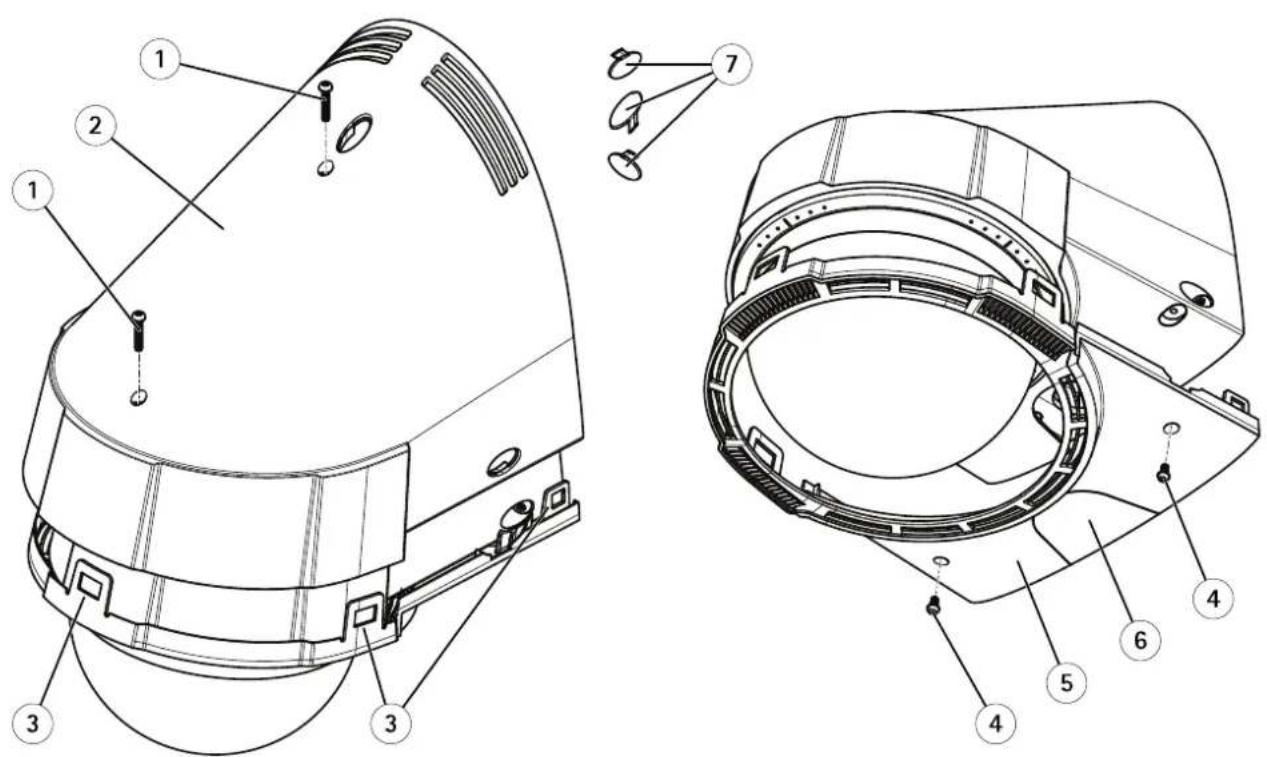
1 Topcoverscrew
2 Topcover
3 Lockingtab
4 Bottomcoverscrew
5 Bottomcover
6 Conduitcover
7 Screwcover
Troubleshooting
CheckingtheFirmware
Firmwareissoftwarethatdeterminesthefunctionalityofnetworkdevices.Oneofyourfirstactionswhentroubleshootingaproblem shouldbetocheckthecurrentfirmwareversion.Thelatestversionmaycontainacorrectionthatfixesyourparticularproblem.The currenfirmwareversiontheAxiproductsdisplayedthepagSetupBasiSetupandSetupAbout.
UpgradingtheFirmware
Whenyouupgradethe>withthelatestfirmwarefromAxiswebsite,theproductreceivesthelatestfunctionalityavailable.Alwaysreadtheupgradeinstructionsandreleasenotesavailablewitheachnewrelease,beforeupgradingthefirmware.
Toupgrade, followtheseinstructions:
- Savethefirmwarefiletoyourcomputer. The latest version of the firmware is available free of charge from Axis website at www.axis.com/techsup
- GotoSetup>SystemOptions>Maintenanceintheproduct'swebpages.
UndeUpgradServerClicBrowsandocatchfileyourcomputerClicUpgrade.
Afterstartingtheupgradeprocess,alwayswaitatleast5–10minutesbeforerestartingtheproduct,evenifyoususpectthe upgradehasfailed.
AXISCameraManagementcanbeusedformultipleupgrades.Seewww.axis.comformoreinformation.
Note
- Yourdealerreservestherighttochargeforanyrepairattributabletofaultyupgradebytheuser.
- Preconfiguredandcustomizedsettingsaresavedwhenthefirmwareisupgraded(providingthefeaturesareavailableinthenewfirmware)althoughthisisnotguaranteedbyAxisCommunicationsAB.
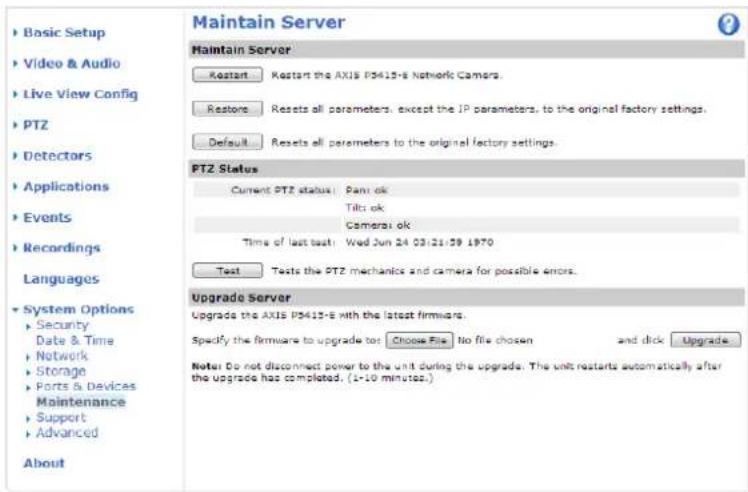
EmergencyRecoveryProcedure
If power or network connection is lostduring the upgrade, the process fails and the product becomes unresponsive. Flashing red Status indicator indicates a failed upgrade. Torecover the product, follow the steps below. The serial number is found on the product's label.
- In UNIX/Linux, typethefollowing from the commandline:
Troubleshooting
arp-s<IPaddress><serialnumber>temp
ping-1408<IPaddress>

In Window stypd following from command/DO prompt(this may require that your the command prompts an administrator);

arp-s<IPaddress><serialnumber>
ping-1408-t<IPaddress>
- If the product does not reply in 30 seconds, restart it and wait for areply. Press CTRL + Ctostop Ping.
Openbrowseandyparthropduct'sAddressrthepagthatappearsustheBrowsbuttontoselectheupgradefiletouse.ThenclickLoadtorestarttheupgradeprocess.
-
After the upgrade is complete (1–10 minutes), the product automatically restarts and shows a steady green on the Status indicator.
-
Reinstall the product, referring to the Installation Guide.
If the emergency recovery procedure does not get the product up and running again, contact Axissupport at www.axis.com/techsup/
Symptoms, Possible Causes and Remedial Actions
ProblemssettingtheIPaddress
| WhenusingARP/Ping | Trytheinstallationagain.TheIPaddressmustbesetwithintwominutesafterpowerhasbeen appliedtotheproduct.EnsurethePinglengththissetto408.Forinstructions,seeAssignIPAddressUsingARP/Ping,onpage45. |
| Theproductislocatedona differentsubnet | IfthelPaddressintendedfortheproductandthelPaddressofthecomputerusedtoaccessthe productarelocatedondifferentsubnets,youwillnotbeabletosethelPaddress.Contactyour networkadministratortoobtainanIPaddress. |
| ThelPaddressisbeingused byanotherdevice | DisconnecttheAxisproductfromthenetwork.RunthePingcommand(inaCommand/DOS window,typepingandthelPaddressoftheproduct):·Ifyoureceive:Replyfrom:bytes=32;time=10... thismeansthatthelPaddressmayalreadybeinusebyanotherdeviceonthenetwork. ObtainanewIPaddressfromthenetworkadministratorandreinstalltheproduct.·Ifyoureceive:Requesttimedout,thismeansthatthelPaddressisavailable forusewiththeAxisproduct.Checkallcablingandreinstalltheproduct. |
| PossibleIPaddressconflict withanotherdeviceonthe samesubnet. | ThestaticIPaddressintheAxisproductisusedbeforetheDHCPserversetsadynamicaddress. ThismeansthatifthesamedefaultstaticIPaddressisalsousedbyanotherdevice,theremay beproblemsaccessingtheproduct. |
| Theproductcannotbeaccessedfromabrowser | |
| Cannotlogin | WhenHTTPSisenabled,ensurethatthecorrectprotocol(HTTPorHTTPS)isusedwhenattempting tdognYoumayneedmanuallytypehttphttpsithebrowser'saddressfield.Ifthepasswordfortheuserrootislost,theproductmustberesettothefactorydefaultsettings.SeeResettoFactoryDefaultSettings,onpage53. |
Troubleshooting
| TheIPaddresshasbeen changedbyDHCP | IPaddressesobtainedfromaDHCPserveraredynamicandmaychange.IftheIPaddresshas beenchanged,useAXISIPUtilityorAXISCameraManagementtolocatetheproductonthe network.Identifytheproductusingitsmodelorserialnumber,orbytheDNSname(ifthename hasbeenconfigured).Ifrequired,astaticIPaddressscanbeassignedmanually.Forinstructions,seethInstallationand ManagemenSoftwareCDothedocumentAssignandAddressandAccesstheVideStreamonAxisSupportwebatwww.axis.com/techsup. |
| Certificateerrorwhenusing IEEE802.1X | Forauthenticationtoworkproperly,thedateandtimesettingsintheAxisproductshouldbe synchronizedwithanNTPserver.SeeDate&Time,onpage44. |
Theproductisaccessiblelocallybutnotexternally
| RouterconfigurationToconfigureyourroutertoallowincomingdatatrafficitotheAxisproduct,enabletheNAT-traversalfeaturewhichwillattempttoautomaticallyconfiguretheroutertoallowaccesstotheAxisproductsedNATtraversal(portmapping)forIPv4prpage47TheroutemustupporUPnP | TM. | |
| Firewallprotection | CheckthelInternetfirewallwithyournetworkadministrator. | |
| Defaultroutersrequired | CheckifyouneedtoconfiguretheroutersettingsfromSystemOptions>Network>TCP/IP>Basic. | |
ProblemswithstreamingH.264
| ProblemswithAXISMedia Control(InternetExplorer only) | ToenabletheupdatingofvideoimagesinInternetExplorer,setthebrowsertoallowActiveX controls.Also,makesurethatAXISMediaControlisinstalledonyourcomputer. |
| NoH.264displayedinthe client | CheckthattherelevantH.264connectionmethodsandcorrectinterfaceareenabledintheAMC ControlPanel(streamingtab).SeeAXISMediaControl(AMC),onpage13.IntheAMControPanelselectdH.264bandlicSetdefaultH.264decoder.CheckhaRTSRenabledundesystemOptionsNetworkTCP/IPAdvanced. |
| MulticastH.264only accessiblebylocalclients | Checkifyourroutersupportsmulticasting,orifteroutersettingsbetweentheclientandthe productneedtobeconfigured.TheTTL(TimeToLive)valuemayneedtobeincreased. |
| NomulticastH.264 displayedintheclient | CheckwithyournetworkadministratorthatthemulticastaddressesusedbytheAxisproduct arevalidforyournetwork.Checkwithyournetworkadministratortoseeifthereisafirewallpreventingviewing. |
| Installationofadditional ActiveXcomponent restrictedorprohibited | ConfiguretheAxisproducttouseaJavaappletforupdatingvideoimagesinyourbrowser.Goto SetupLiveViewConfigandelectlavaappletundeDefaultviewer. |
| PoorrenderingofH.264 images | Ensurethatyourgraphicscardisusingthelatestdriver.Thelatestdriverscanusuallybe downloadedfromthemanufacturer'swebsite. |
| Colorsaturationisdifferent inH.264andMotionJPEG | Modifythesettingsforyourgraphicsadapter.Refertotheadapter'sdocumentationformore information. |
Troubleshooting
| Lowerframeratethan expected | SeePerformanceConsiderations,onpage63. |
| Reducethenumberofapplicationsrunningontheclientcomputer. | |
| Limitthenumberofsimultaneousviewers. | |
| Checkwiththenetworkadministratorthatthereisenoughbandwidthavailable. | |
| CheckintheAMCControlPanel(H.264tag)thatvideoprocessingisNOTsettoDecodeonlykeyframes. | |
| Lowertheimageresolution. | |
| Themaximumframespersecondisdependentontheutilityfrequency(60/50Hz)oftheAxisproduct.SeeTechnicalSpecifications,onpage59. | |
| Videoandimageproblems,general | |
| Imageunsatisfactory | CheckthevidestreamandamerasettingsundeSetupAudioVidestreamand Setup>Video&Audio>CameraSettings. |
| MotionDetectiontriggersunexpectedly | |
| Changesinluminance | Motiondetectionisbasedonchangesinluminanceintheimage.Thismeansthatiftherearesuddenchangesinthelighting,motiondetectionmaytriggermistakenly.Lowerthesensitivitysettingtoavoidproblemswithluminance. |
| Noaudio | |
| Incorrectsetup | Checkthesoundcardinthecomputer.Ensurethatmuteisnotselectedandthatthevolumesettingsarecorrect. |
| CheckthaEnableaudisupportselectedundesetupSystemOptionsSecurityAudioSupport. | |
| CheckthacorrectAudionputourceselectedundesetupVidestAudioAudioSettings. | |
| Pooraudioquality | |
| Stuttering | Reducethenumberoflistenersandviewers.Decreaseimageresolutionandcompression. |
| Unsynchronizedaudioand videousingH.264 | Synchronizetheproduct'sdateandtimesettingswithanNTPserver.GotoSetup>System Options>Date&Time. |
| Distortedaudio | CheckthatcorrectAudionputourceselectedundesetupVidestAudioAudioSettings. |
| FeedbackloopsFeedbackloopsmightappearinfull-duplexmode.Trymovingthemicrophoneorthespeaker,or usehalf-duplexmodeinstead. | |
| Storageanddiskmanagementproblems | |
| Storagedisruption | Astoragedisruptionalarmissentifastoragedeviceisunavailable,removed,full,lockedorifotherreadwriteproblemsccurIdentifythesourceofhproblemchecktheSystemLogunder SystemOptions>Support>LogsetReports.Dependingontheproblem,itmightbenecessaryto re-mountthestorgagedevice. |
| Forinformationonhowtosetupastoragedisruptionalarm,seeEvents,onpage35. | |
| Videocannotberecorded | CheckthattheSDcardisnotwriteprotected(thatis,readonly). |
| SDcardcannotbemountedReformattheSDcardandthenclickMount. | |
TechnicalSpecifications
| Function/group | Item | Specifications |
| Camera | Models | AXISP5415-E50HzAXISP5415-E60Hz |
| Imagesensor | 1/2.9"progressivescanRGBCMOS | |
| Lensf=4.7mm-84.6mm | F1.6-2.8AutofocusAutomaticdayandnightfunctionalityHorizontalangleofview:59°-4° | |
| Minimumillumination | Color:0.5luxat30IREF1.6B/W:0.04luxat30IREF1.6 | |
| Shuttertime | 1/28000sto2s | |
| Pan/Tilt/ZoomPan±1 | 35°,0.2-400°/s*Tilt:0-90°,0.2-400°/s18xopticalzoomand12xdigitalzoom,total216xzoom100presetpositions*Thereisslightvisualobstructionfromthehousingintheupperleft/rightcornerofthe imageatpanendpoints. | |
| Pan/Tilt/Zoomfunctionalities | Guardtour,controlqueue,focuswindow,on-screendirectionalindicator | |
| Video | Videocompression | H.264MainandBaselineprofile(MPEG-4Part10/AVC)MotionJPEG |
| Resolutions | 1920x1080to240x135 | |
| FramerateH.264 | Upto30/25(60/50Hz)inallresolutions | |
| FramerateMotionJPEG | Upto30/25(60/50Hz)inallresolutions | |
| Videostreaming | Multiple,individuallyconfigurablestreamsinH.264andMotionJPEGControllableframerateandbandwidthVBR/CBRH.264 | |
| Imagesettings | WideDynamicRange(WDR),Compression,Color,Brightness,Sharpness,Contrast,White balance,Exposurecontrol,Exposurezones,Backlightcompensation,Finetuningof behavioratlowlight,Textandimageoverlay,20individual3Dprivacymasks | |
| Audio | AudiostreamingTwo-way | |
| Audiocompression | AACLC8/16kHzG.711PCM8kHzG.726ADPCM8kHzConfigurablebitrate | |
| Audioinput/output | Externalmicrophoneorlineinput,andlineoutput | |
TechnicalSpecifications
| Function/group | Item | Specifications |
| Network | SecurityPasswordpro | tection,IPaddressfiltering,HTTPSencryption*,IEEE802.1Xnetworkaccess control*,digestauthentication,useraccesslog*ThisproductincludessoftwaredevelopedbytheOpenSSLProjectforuseintheOpen SSLToolkit(www.openssl.org) |
| Supported protocols | IPv4/v6,HTTP,HTTPS*,SSL/TLS*,QoSLayer3DiffServ,FTP,CIFS/SMB,SMTP,Bonjour, UPnP,SNMPv1/v2c/v3(MIB-II),DNS,DynDNS,NTP,RTSP,RTP,TCP,UDP,IGMP,RTCP, ICMP,DHCP,ARP,SOCKS,etc*ThisproductincludessoftwaredevelopedbytheOpenSSLProjectforuseintheOpen SSLToolkit(www.openssl.org) | |
| System Integration | Application Programming Interface | OpenAPIforsoftwareintegration,includingVAPIX®andAXISCameraApplication PlatformfromAxisCommunications;specificationsavailableatwww.axis.com AXISVideoHostingSystem(AVHS)withOne-ClickCameraConnection ONVIFProfileS,specificationsavailableatwww.onvif.org |
| Intelligentvideo | Videomotiondetection,AdvancedGatekeeper,SupportforAXISCameraApplication Platformenablinginstallationofadditionalapplications | |
| EventtriggersVideom | motiondetection,audiodetection,externalinput,PTZpreset,temperature,memory cardfull | |
| EventactionsFileupload | adviaFTP,HTTP,networkshareandemailNotificationviaemail,HTTPandTCPExternaloutputactivationGotoPTZpresetRunguardtourRecordtolocalstoragePlayaudioclipDay/nightmode | |
| Videobuffer | 80MBpre-andpostalarm | |
| Videoaccessfrom webbrowser | CameraliveviewVideorecordingtofile(ASF)CustomizableHTMLpagesWindows7,WindowsVista,WindowsXP,WindowsServer2008,WindowsServer2003 DirectX9corhigherForotheroperatingsystemsandbrowsers,seewww.axis.com/techsup | |
| Installation, management and maintenance | AXISCameraManagementtoolonCDandweb-basedconfigurationConfigurationofbackupandrestoreFirmwareupgradesoverHTTPorFTP,firmwareavailableonwww.axis.com |
TechnicalSpecifications
| Function/group | Item | Specifications |
| General | Casing | IP66-andNEMA4X-ratedmetalcasing(aluminum),cleardome(PC),sunshield(ASA) |
| memory | 256MBRAM,128MBFlash | |
| Power | PoweroverEthernetPlus(PoE+)IEEE802.3atType2Class4,max30W20-28VDCmax16W | |
| Connectors | RJ-45for10BASE-T/100BASE-TXPoETerminalblockforDCinputTerminalblockfor4configurablealarminputsandoutputsTerminalblockformic/lininputandlineoutput | |
| Localstorage | SupportsSDcardswithupto64GBofstorage.Forbestrecordingperformance,usean SDHCorSDXCcardwithspeedclass10.(cardnotincluded)Supportforrecordingtonetworkshare(NetworkAttachedStorageorfileserver) | |
| Operating conditions | Temperature:-20°Cto50°C(-4°Fto122°F)Humidity10-100%RH(condensing) | |
| Approvals | EN50121-4,IEC62236-4,EN55022ClassB,EN61000-6-1,EN61000-6-2,EN55024,FCCPart15SubpartBClassB,ICES-003ClassB,VCCIClassB,C-tickAS/NZSCISPR22ClassB,KCKKN22ClassB,KN24,IEC/EN/UL60950-1,IEC/EN/UL60950-22,IEC60068-2-1,IEC60068-2-2,IEC60068-2-6,IEC60068-2-14,IEC60068-2-27,IEC60068-2-30,IEC60068-2-78,IEC60529IP66,EN50581,NEMA250Type4X,ISO4892-2 | |
| Weight | 3.5kg(7.7lb) | |
| Included accessories | InstallationGuide,AVHSAuthenticationkey,installationandmanagementsoftwareCD,Windowsdecoder1-userlicense | |
| Video management software(sold separately) | AXISCameraCompanion(included),AXISCameraStationandvideomanagement softwarefromAxis'ApplicationDevelopmentPartners(notincluded).Formore information,seewww.axis.com/products/video/software | |
| Optional accessories | SmokeddomecoverT8123HighPoE-30WMidspan1-portAXIST94P01BCornerBracketAXIST8310VideoSurveillanceControlBoardAXIST90AlluminatorsInstallationDisplayMulti-userdecoderlicensepack |
Connectors
I/OTerminalConnector
6-pinterminalblockfor:
•Auxiliarypowerandground(GND)
- DigitalInput
- DigitalOutput

1 2 3 4 5 6
| FunctionPinNotes | Specifications | ||
| GND | 1 | Ground | |
| 12VDCPower | 2 | Canbeusedtopowerauxiliaryequipment.Note:Thispincanonlybeusedaspowerout. | Maxload=50mA |
TechnicalSpecifications
| (InputorOutput) | 3-6 | Digitalinput—ConnecttoGNDtoactivate,orleavefloating(unconnected)todeactivate. | 0to+30VDC Configurable |
| Digitaloutput—Internalconnectiontogroundwhenactivated,floating(unconnected)whendeactivated.Ifusedwithaninductiveload,e.g.arelay,adiodemustbeconnectedinparallelwiththeload,forprotectionagainstvoltagetransients. | Maxload=100mAMaxvoltage=+30VDC |
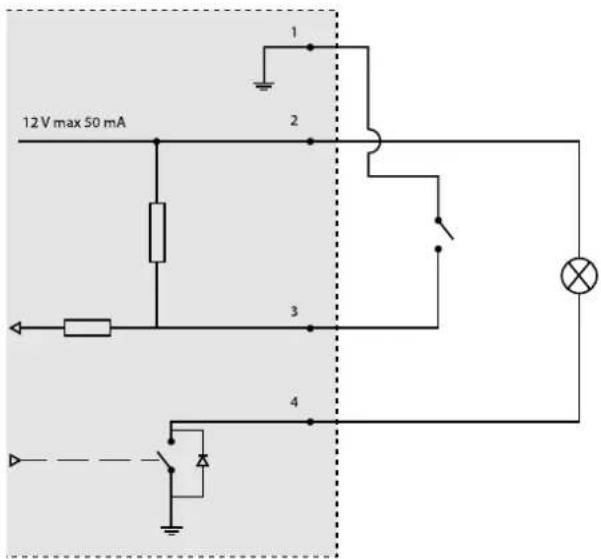
- I/Oconfiguredasinput
- I/Oconfiguredasoutput
PowerConnector
2-pinterminalblockforpowerinput. UseaSafetyExtraLowVoltage(SELV) compliantlimitedpowersource(LPS) witheitheraratedoutputpower limitedto≤100Woraratedoutput currentlimitedto≤5A.
DCpowerinput
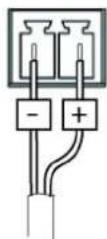
AudioConnector
4-pinterminalblockfor:
•Audioinput
•Audiooutput
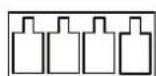
1 2 3 4
TechnicalSpecifications
| FunctionPinNotes | ||
| Microphone/Linein | 1 | Microphoneorlinein(mono) |
| GND | 2 | Ground |
| Lineout | 3 | Lineaudioout |
| GND | 4 | Ground |
SDCardSlot
SupportsSDcardswithupto64GBofstorage.Forbestrecordingperformance,useanSDHCorSDXCcardwithspeedclass10.
PerformanceConsiderations
Whensettingsupyoursystem,itisimportanttoconsiderhowvarioussettingsandsituationswillaffectperformance.Somefactors affecttheamountofbandwidth(thebitrate)required,otherscanaffecttheframerate,andsomeaffectboth.Iftheloadonthe CPUreachesitsmaximum,thiswillalsoaffecttheframerate.
The following factors are among them most important to consider:
- Highimageresolutionand/orlowercompressionlevelsresultinimagescontainingmoredata.Bandwidthaffected.
- AccessbylargenumbersofMotionJPEGand/orunicastH.264clients.Bandwidthaffected.
- Simultaneousviewingofdifferentstreams(resolution, compression)bydifferentclients.Effectonframerateand bandwidth.
- AccessingMotionJPEGandH.264videostreamssimultaneously.Framerateandbandwidthaffected.
- Heavyusageofeventsettingsaffecttheproduct'sCPUload.Framerateaffected.
- Heavynetworkutilizationduetopoorinfrastructure.Bandwidthaffected.
- Viewingonpoorlyperformingclientcomputerslowersperceivedperformance.Framerateaffected.
- USERMANUAL
- AboutthisDocument
- LegalConsiderations
- Liability
- IntellectualPropertyRights
- EquipmentModifications
- TrademarkAcknowledgments
- RegulatoryInformation
- Electromagnetic Compatibility(EMC)
- USA
- Europe
- Australia/NewZealand
- Japan
- Korea
- Safety
- DisposalandRecycling
- China
- ContactInformation
- Support
- LearnMore!
- TableofContents
- HardwareOverview
- ConnectorsandButtons
- NetworkConnector
- NOTICE
- I/OConnector
- PowerConnector
- AudioConnector
- SDCardSlot
- ControlButton
- AccessingtheProduct
- Note
- AccessfromaBrowser
- AccessfromtheInternet
- SettheRootPassword
- TheLiveViewPage
- ControlsontheLiveViewPage
- ManualTrigger
- AXISMediaControlviewertoolbar
- AMCAudioControls
- PTZControls
- MediaStreams
- HowtoStreamH.264
- MJPEG
- AXISMediaControl(AMC)
- AlternativeMethodsofAccessingtheVideoStream
- AccessingAudioStreams
- SettingUptheProduct
- BasicSetup
- VideoandAudio
- VideoStream
- Image
- H.264
- StreamProfiles
- CameraSettings
- ImageAppearance
- WhiteBalance
- WideDynamicRange
- ExposureSettings
- Shutter&Gain
- Example
- Day/Night
- Overlay
- OverlayImage
- UsingOverlayTextinanActionRule
- PrivacyMask
- Important
- AudioSettings
- AudioModes
- Audiolnput
- AudioOutput
- AudioClips
- LiveViewConfig
- DefaultViewerforBrowsers
- ViewerSettings
- UserDefinedLinks
- OutputButtons
- PTZ(PanTiltZoom)
- PresetPositions
- FocusWindow
- Gatekeeper
- GuardTour
- OSDIZones
- Advanced
- Limits
- Controls
- ControlQueue
- Detectors
- MotionDetection
- SetUpMotionDetectionWindows
- MotionDetectionParameters
- AudioDetection
- Applications
- ApplicationLicenses
- InstallApplication
- ApplicationConsiderations
- Events
- SettingUpanActionRule
- FallbackAction
- Recipients
- SettingUpanEmailRecipient
- Schedules
- Recurrences
- Recordings
- RecordingList
- ContinuousRecording
- Languages
- SystemOptions
- Security
- Users
- ONVIF
- IPAddressFilter
- HTTPS
- IEEE802.1X
- Certificates
- AudioSupport
- Date&Time
- Network
- BasicTCP/IPSettings
- IPv4AddressConfiguration
- IPv6AddressConfiguration
- ARP/Ping
- AssignIPAddressUsingARP/Ping
- AXISVideoHostingSystem(AVHS)
- AXISInternetDynamicDNSService
- AdvancedTCP/IPSettings
- DNSConfiguration
- NTPConfiguration
- HostNameConfiguration
- Link-LocalIPv4Address
- HTTP
- NATtraversal(portmapping)forIPv4
- FTP
- RTSP
- SOCKS
- QoS(QualityofService)
- SMTP(email)
- SNMP
- UPnP TM
- RTP/H.264
- Bonjour
- Storage
- SDCard
- NetworkShare
- Toaddanetworkshare:
- Ports&Devices
- I/OPorts
- PortStatus
- Maintenance
- SupportOverview
- SystemOverview
- Logs&Reports
- Scripting
- FileUpload
- PlainConfig
- ResettoFactoryDefaultSettings
- RepaintingtheCamera
- Troubleshooting
- CheckingtheFirmware
- UpgradingtheFirmware
- EmergencyRecoveryProcedure
- Symptoms, Possible Causes and Remedial Actions
- TechnicalSpecifications
- Connectors
- I/OTerminalConnector
- PerformanceConsiderations
Mærke : AXIS
Model : P5415–E
Kategori : Overvågningskamera