
M2026-LE Mk II - Overvågningskamera AXIS - Gratis brugsanvisning og manual
Find enhedens vejledning gratis M2026-LE Mk II AXIS i PDF-format.


Brugerspørgsmål om M2026-LE Mk II AXIS
0 spørgsmål om dette apparat. Besvar dem du kender, eller stil dit eget.
Stil et nyt spørgsmål om dette apparat
Download vejledningen til din Overvågningskamera i PDF-format gratis! Find din vejledning M2026-LE Mk II - AXIS og tag din elektroniske enhed tilbage i hånden. På denne side er alle dokumenter nødvendige for brugen af din enhed offentliggjort. M2026-LE Mk II af mærket AXIS.
BRUGSANVISNING M2026-LE Mk II AXIS
AXISM2026-LEMKIINetworkCamera
TableofContents
Solutionoverview....3
Productoverview....4
Findthedeviceonthenetwork....5
Browsersupport......5
Accessthedevice....6
Setanewpasswordfortherootaccount......6
Securepasswords....6
Additionalsettings....7
Webpageoverview....7
Imagequality....9
Streamingandstorage....10.
Events....1.1
Troubleshooting....12
Resettofactorydefaultsettings....1.2.
Firmwareoptions....12.
Checkthecurrentfirmware....13.
Upgradethefirmware....13.
Technical issues clues and solutions
Performanceconsiderations....1.5.
Specifications....16
LEDindicators.... 16
SDcardslot.... 16
Buttons.... 16
Connectors.... 16
Solutionoverview
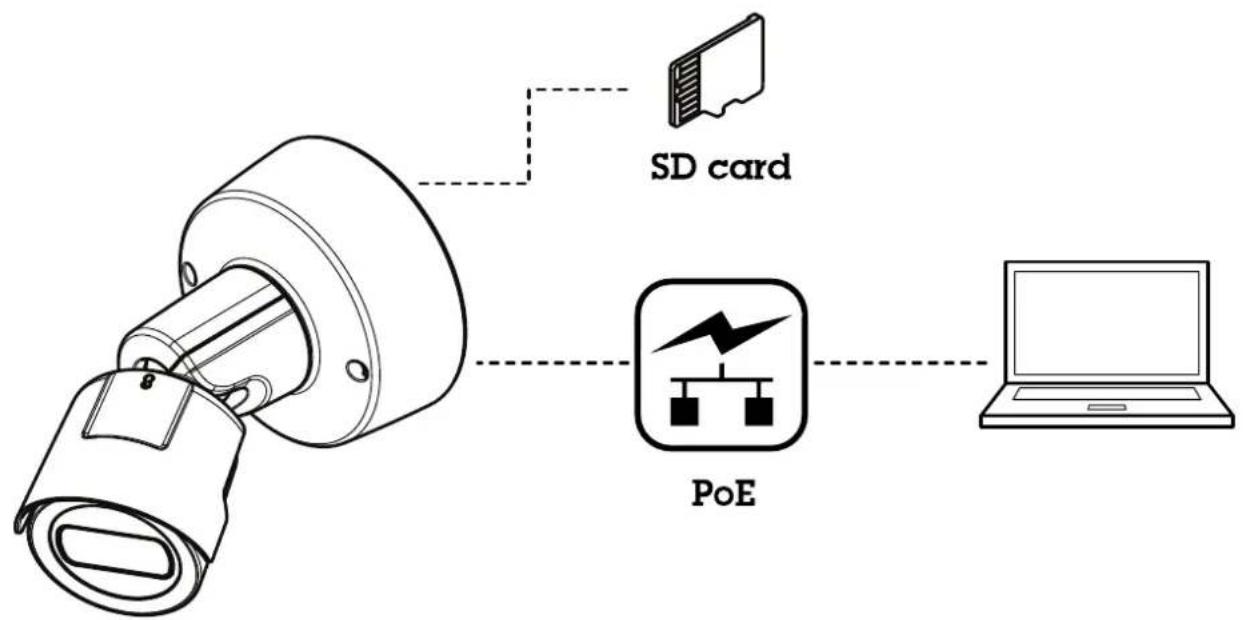
flowchart
graph TD
    A["Device with antenna"] -->|SD card| B["Network with PoE"]
    B --> C["Laptop"]
Productoverview
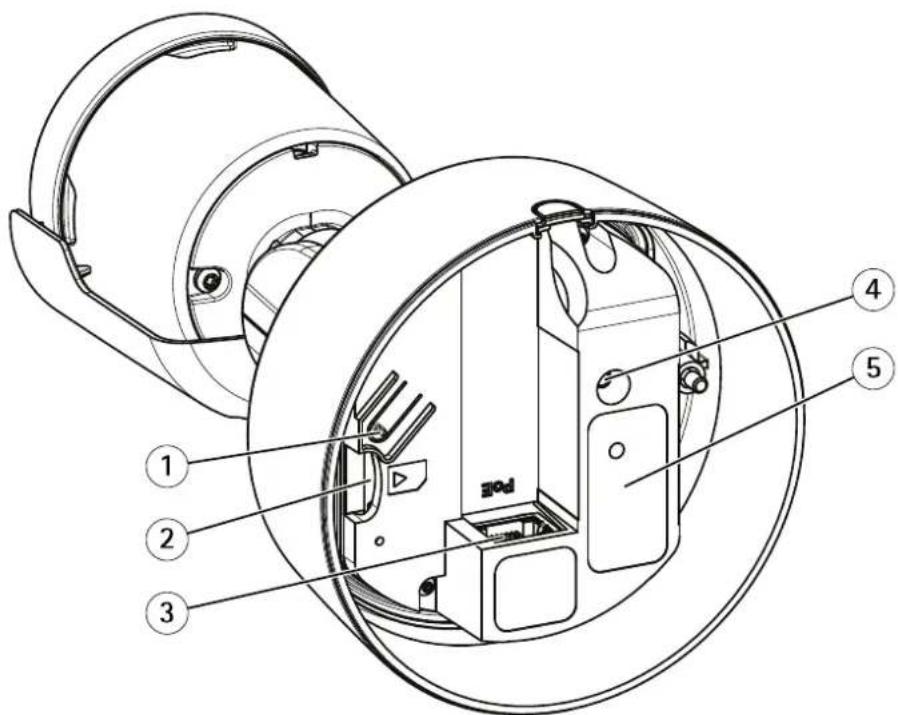
1 Controlbutton
2 SDcardslot
3 Networkconnector(PoE)
4 StatusLEDindicator
5 Partnumber(P/N)&Serialnumber(S/N)
Fortechnical specifications, see Specifications on page 16.
Findthedeviceonthenetwork
TofindAxisdevicesonthenetworkandassignthemIPaddressesinWindows ^® ,useAXISIPUtilityorAXISDeviceManager.Both applicationsarefreeandcanbedownloadedfromaxis.com/support.
FomoreinformationabouthowtdfindandassignrladdressesseethdocumentHowtassignrlAddressandaccessyourdeviceonthedevicepageataxis.com.
Browsersupport
Youcanusethedevicewiththefollowingbrowsers:
| ChromeTM | Firefox® | Edge® | Safari® | |
| Windows® | recommended | x | ||
| OSX® | recommended | x | ||
| Otheroperatingsystems | x |
If you need more information about recommended browsers via axis.com/browser-support.
Accessthedevice
1.OpenabrowserandenterthelPaddressorhostnameoftheAxisdevice.
If you have a Maccomputer(OSX), goto Safari, click Bonjour and select the device from the drop-downlist. To add Bonjour as a browser bookmark, goto Safari > Preferences.
If you donot know the IP address, use AXISIP Utility or AXISDevice Manager to find the device on then network.
Entethusernameandpasswordyouaccessthe deviceforthfirstimeyoumustetheroopasswordSeSetnewpasswordfortherootaccountonpage6.
- Theliveviewpageopensinyourbrowser.
Setanewpasswordfortherootaccount
Important
The default administrator username is root of password for roots, to set the device factory default settings.
TypepasswordFollowthenstructionsaboutsecurepasswordSeeSecurepasswordsorpag6
- Retypethepasswordtoconfirmthespelling.
3.ClickCreatelogin.Thepasswordhasnowbeenconfigured.
Securepasswords
Important
Axisdevicessendtheinitiallysetpasswordincleartextoverthenetwork.Toprotectyourdeviceafterthefirstlogin,setupasecureandencryptedHTTPSconnectionandthenchangethepassword.
The device password the primary protection for your data and services. Axis devices do not impose a password policy as they may be used in various types of installations.
Toprotectyourdatawestronglyrecommendthatyou:
- Useapasswordwithatleast8characters,preferablycreatedbyapasswordgenerator.
- Don'texposethepassword.
- Changethepasswordatarecurringinterval, atleastonceayear.
Additionalsettings
Webpageoverview
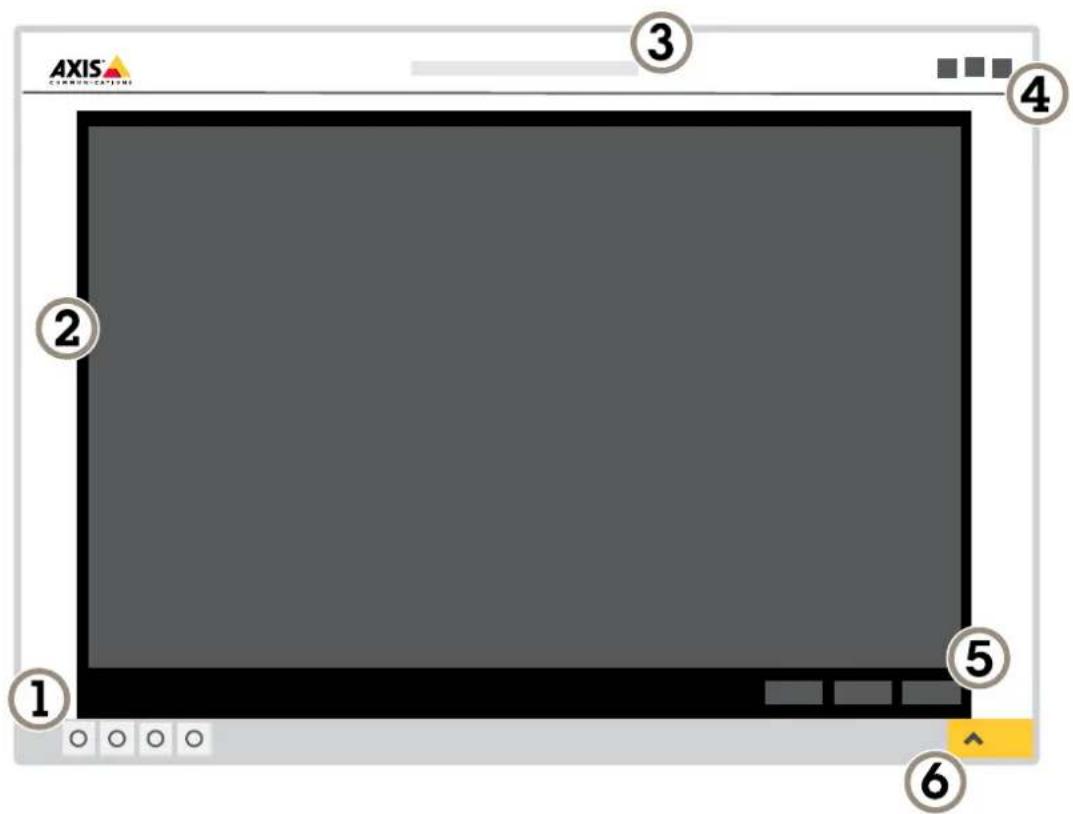
1 Liveviewcontrolbar
2 Liveview
3 Productname
4 Userinformation,colorthemes,andhelp
5 Videocontrolbar
6 Settingstoggle
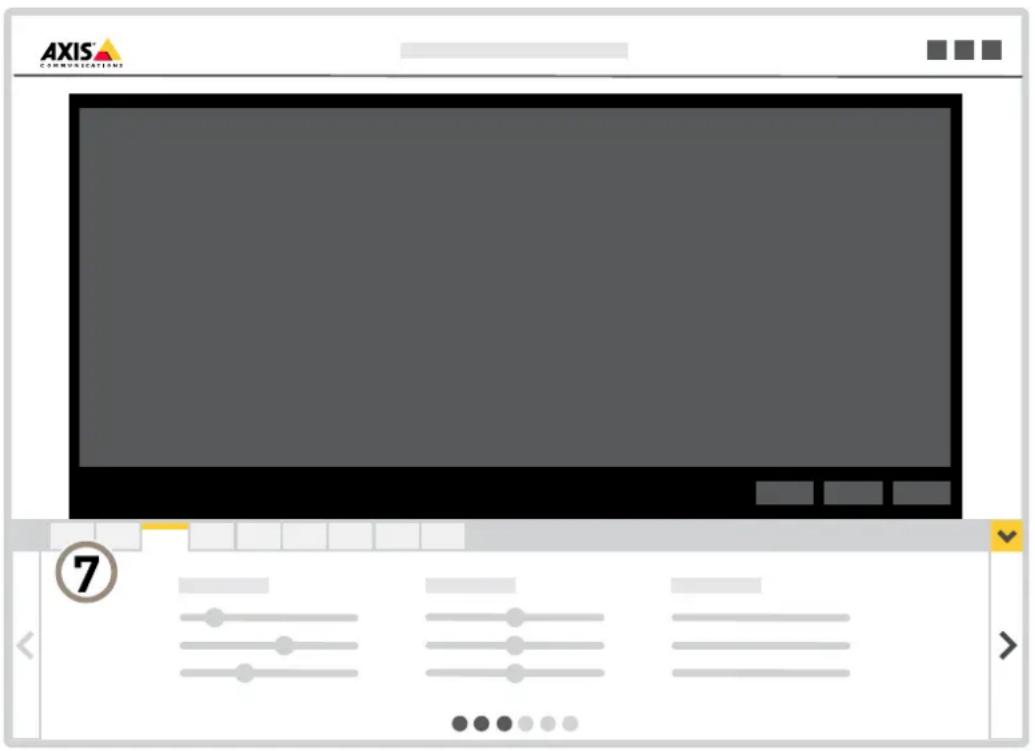
7 Settingstabs
Needmorehelp?
Youcanaccessthebuilt-inhelpfromthedevice'swebpage.Thehelpprovidesmoredetailedinformationonthedevice'sfeaturesandtheirsettings.
Imagequality
Capturemodes
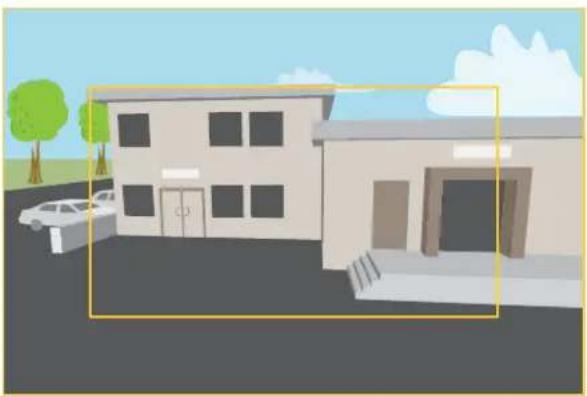
Acapturemodeconsistsofaresolutionandthecorrespondingframerateavailableintheproduct.Thecapturemodesetting affectsthecamera'sfieldofviewandaspectratio.
Thelowerresolutioncapturemodeiscroppedoutfromthehighestresolution.
natural_image
Illustration of a two-story building with a parked car in front, set against a blue sky and greenery (no text or symbols)Theimageshowshowthefieldofviewandaspectratiocanchangebetweentwodifferentcapturemodes.
Whichcapturemodetochoosedependsontherequirementsofframerateandresolutionforthespecificsurveillancesetup. For specificationsaboutavailablecapturmodessedproduct'slatasheetatxis.com.
Selectcapturemode
Whichcapturemodetochoosedependsontherequirementsofframerateandresolutionforthespecificsurveillancesetup. For specificationsaboutavailablecapturmodessedproduct'slatasheetfindhdatesversionofthdatasheetgdoaxis.com
Selectexposuremode
There are different exposure mode options in the camerath at adjusts aperture, shutterspeed, and gain to improve image quality for specific surveillance scenes. Get Settings Image Exposure and select between the following exposure modes:
Reducenoiseinlow-lightconditions
Toreducenoiseinlow-lightconditions,youcanadjustoneormoreofthefollowingsettings:
Note
Ahighmaxshuttervaluecanresultinmotionblur.
- Toslowdowntheshutterspeed, setmaxshuttertothehighestpossiblevalue.
- Reducesharpnessintheimage.
Maximizedetailsinanimage
Important
If you maximized details in an image, the bitrate will probably increase and you might get a reduced framerate.
- Makesuretoselectthecapturemodethathasthehighestresolution.
- Setthecompressionaslowaspossible.
- SelectMJPEGstreaming.
•TurnoffZipstreamfunctionality.
Streamingandstorage
Videocompressionformats
Decidewhichcompressionmethodtousebasedonyourviewingrequirements,andonthepropertiesofyournetwork.The availableoptionsare:
MotionJPEG
MotionJPEG,or MJPEG,isadigitalvideosequencethatismmadeupofaseriesofindividualJPEGimages. Theseimagesarethen displayedandupdatedataratesufficienttocreateastreamthatshowsconstantlyupdatedmotion.Fortheviewertoperceivemotion videotheratemustbeatleast16imageframespersecond.Fullmotionvideoisperceivedat30(NTSC)or25(PAL)framespersecond.
TheMotionJPEGstreamusesconsiderableamountsofbandwidth,butprovidesexcellentimagequalityandaccesstoeveryimage containedinthestream.
H.264orMPEG-4Part10/AVC
Note
H.264isalicensedtechnology.TheAxisproductincludesoneH.264viewingclientlicense.Toinstalladditionalunlicensed copiesoftheclientisprohibited.Topurchaseadditionallicenses,contactyourAxisreseller.
H.264can, without compromising imagequality, reduce the size of a digital video file by more than 80% compared to the Motion JPEG format and by smallest 50% compared to the MPEG-4 standard. This means that less network bandwidth and storage space are required for a video file. Or seen another way, higher video quality can be achieved for generating bitrate.
H.265orMPEG-HPart2/HEVC
Note
H.265islicensedtechnology.TheAxisproductincludesoneH.265viewingclientlicense.Toinstalladditionalunlicensed copiesoftheclientisprohibited.Topurchaseadditionallicenses,contactyourAxisreseller.
Reducebandwidthandstorage
Important
If you reduce the bandwidth hit can result in loss of details in the picture.
- GotoliveviewandselectH.264.
2.GotoSettings>Stream.
3.Dooneormoreofthefollowing:
-TurnontheZipstreamfunctionalityandselectthedesiredlevel.
Note
ThezipstreamsettingsareusedforbothH.264andH.265.
-TurnondynamicGOPandsetahighGOPlengthvalue.
-Increasethecompression.
-TurnondynamicFPS.
Note
WebbrowsersdonotsupportH.265decoding.UseavideomanagementsystemorapplicationsupportingH.265decoding.
Events
Setuprulesandalerts
Youcancreaterulestomakeyourdeviceperformanactionwhencertaineventsoccur.Aruleconsistsofconditionsandactions. Theconditionscanbeusedtotriggertheactions.Forexample,thedevicecanstartarecordingorsendanemailwhenitdetects motion,orshowanoverlaytextwhenitrecords.
Triggeranaction
GoSettingsSystemEventsetupruleTheuldefineswherthecamerawilperformcertainactionsRulescanbesetupasscheduled,recurring,orforexample,triggeredbymotiondetection.
Select the Condition that musbemetdriggetheaction, fouspecifymortharoneconditionfortheuleal of the conditions must be mettotriggertheaction.
- Select which Action the camerashould perform when the conditions are met.
Note
If you make changesto an active rule, then the rule need to be restated for the change to take effect.
Recordvideowhenthecameradetectsmotion
This example explains how to setup the camera start recording to the SD card five seconds before it detects motion and to stop on minute after.
MakesurethatAXISVideoMotionDetectionisrunning:
GatSettingsAppsAXISidedMotionDetection.
-
Start the application if it is not already running.
-
Makesureyouhavesetuptheapplicationaccordingtoyourneeds.
Createarule:
-
GotoSettings>System>Eventsandaddarule.
2.Typeanamefortherule.
theisbfonditionsundeApplicationselectAXIS/idedMotionDetection(VMD).
ItheisbactionsundeRecordingsselecRecordvidewhiletheuleactive. -
Selectanexistingstreamprofileorcreateanewone.
6.Settheprebuffertimeto5seconds. - Setthepostbuffertimeto60seconds.
- Inthelistofstorageoptions, selectSDcard.
9.ClickSave.
Troubleshooting
If you can find what you're looking for heretry the troubleshooting section at axis.com/support.
Resettofactorydefaultsettings
Important
Resettofactorydefaultshouldbeusedwithcaution.Aresettofactorydefaultresetsallsettings,includingtheIPaddress,to thefactorydefaultvalues.
Toresettheproducttothefactorydefaultsettings:
- Disconnectpowerfromtheproduct.
PresandholdtheontrobuttonwhilereconnectingpowerSeeProductvervieworpage - Keep the control button pressed for 15–30 seconds until the status LED indicator flashes amber.
- Releasethecontrolbutton. The process is complete when the status LED indicator turns green. The product has been reset that factory default settings in DHCP serve available on the network the default address 192.168.0.90.
- UsetheinstallationandmanagementsoftwaretoolstoassignanlPaddress, setthepassword, andaccessthevideostream.
The installation and management software are available from the support pages on axis.com/support.
It is possible to reparameter factory default through the web interface and Settings System Maintenance and clickDefault.
Important
Resettofactorydefaultshouldbeusedwithcautionasitresetsallsettings,includingthelPaddress,tofactorydefaultvalues.
Note
The installation and management software are available from the support pages or axis.com/support/downloads.
Toresettheproducttofactorydefaultsettings:
- Disconnectpowerfromtheproduct.
- Changethepositionofthefactorydefaultswitch.Formoreinformationonhowtoaccesstheswitch,seethelInstallation Guide.
- Re-connectpowertotheproduct.
Italspossiblereseparameters factorydefault via thewebinterfaceGdoSetupSystemOptionsMaintenanceandclickDefault.
Firmwareoptions
Axisoffersproductfirmwaremanagementaccordingtoeithertheactivetrackorthelong-termsupport(LTS)tracks.Beingonthe activetrackmeanscontinuouslygettingaccesstoallthelatestproductfeatures,whiletheLTStracksprovideafixedplatformwith periodicreleasesfocusedmainlyonbugfixesandsecurityupdates.
Using firmware from the activetrack is recommended if you want to access the newest features, orify us axis end-to-end system offerings. The LT Stracks are recommended if you use third-party integrations, which are not continuously validated against the latest activetrack. With LTS, the product can maintain cybersecurity without introducing any significant functional changes or affecting any existing integrations. For more detailed information about Axis product firmware strategy data.com/support/firmware.
Checkthecurrentfirmware
Firmwareisthesoftwarethatdeterminesthefunctionalityofnetworkdevices.Oneofyourfirstactionswhentroubleshootinga problemshouldbetocheckthecurrentfirmwareversion.Thelatestversionmaycontainacorrectionthatfixesyourparticular problem.
Tocheckthecurrentfirmware:
-
Gototheproduct'swebpage.
-
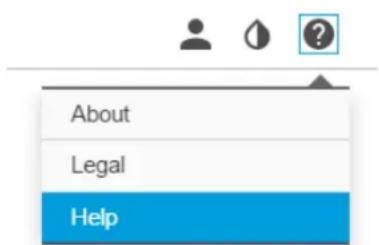
Clickonthehelpmenu
3.ClickAbout.

Upgradethefirmware
Important
Preconfiguredandcustomizedsettingsaresavedwhenthefirmwareisupgraded(providedthatthefeaturesareavailablein thenewfirmware)althoughthisisnotguaranteedbyAxisCommunicationsAB.
Important
Makesuretheproductremainsconnectedtothepowersourcethroughouttheupgradeprocess.
Note
When you upgrade the product with the latest firmware in the activetrack, the product receives the latest functionality available. Always read the upgrade instructions and release notes available with each new release before upgrading the firmware. Find dates firmware and release notes go axis.com/support/firmware.
Download the firmware file to you computer available free of charge axis.com/support/firmware.
- Logintotheproductasanadministrator.
GoSettingsSystemMaintenanceFollowInstructionspageWhenUpgradehasfinishedthe productrestartsautomatically.
AXISDeviceManagerabusedomultipleupgradesFindbutmorea taxis.com/products/axis-device-manager.
Technicalissues,cluesandsolutions
If you can find what you're looking for heretry the troubleshooting section at axis.com/support.
Problemsupgradingthefirmware
| FirmwareupgradefailureIfthefirmwareupgradefails,thedevicereloadsthepreviousfirmware.Themostcommonreasonisthatthewrongfirmwarefilehasbeenuploaded.Checkthatthenameofthefirmwarefilecorrespondstoyourdeviceandtryagain. |
ProblemssettingtheIPaddress
| Thedeviceislocatedona differentsubnet | IfthelPaddressintendedforthedeviceandthelPaddressofthecomputerusedtoaccessthe devicearelocatedondifferentsubnets,youcannotsetthelPaddress.Contactyournetwork administratortoobtainanlPaddress. |
Troubleshooting
TheIPaddressisbeingused byanotherdevice DisconnecttheAxisdevicefromthenetwork.Runthepingcommand(inaCommand/DOSwindow, typepingandtheIPaddressofthedevice):
- If you receive: Reply from
- If you receive: Request timed out, this means that the Paddress is available for use with the Axis device. Check all cabling and reinstall the device.
Possible|Paddressconflict withanotherdeviceonthe samesubnet Thestatic|PaddressintheAxisdeviceisusedbeforetheDHCPserversetsadynamicaddress. Thismeansthatifthesamedefaultstatic|Paddressisalsousedbyanotherdevice,theremay beproblemsaccessingthedevice.
The device cannot be accessed from a browser
| Cannotlogin | WhenHTTPSisenabled,ensurethatthecorrectprotocol(HTTPorHTTPS)isusedwhenattemptingtdoginYoumayneedmanuallytypehttp://https://browseraddressfield. |
| Ifthepasswordfortheuserrootislost,thedevicemustberesettothefactorydefaultsettings.SeeResettofactorydefaultsettingsonpage12. | |
| TheIPaddresshasbeenchangedbyDHCP | IPaddressesobtainedfromaDHCPserveraredynamicandmaychange.IfthelPaddresshasbeenchanged,useAXISIPUtilityorAXISDeviceManagertolocatethedeviceonthenetwork.Identify thedeviceusingitsmodelorserialnumber,orbytheDNSname(ifthenamehasbeenconfigured). |
| IfrequiredstatidAddresscarbassignedmanuallyEoinstructionsgdxaxis.com/support. | |
| CertificateerrorwhenusingIEEE802.1X | Forauthenticationtoworkproperly,thedateandtimesettingsintheAxisdevicemustbesynchronizedwithanNTPserver.GotoSettings>System>Dateandtime. |
The device is accessible locally but not externally
Toaccessthedeviceexternally, were recommend using one of the following applications for Windows ^® :
- AXISCompanion:freeofcharge,idealforsmallsystemswithbasicsurveillanceneeds.
- AXISCameraStation:30-daytrialversionfreeofcharge,idealforsmalltomid-sizesystems.
Forinstructionsanddownload,gotoaxis.com/products/axis-companion.
Problemswithstreaming
| MulticastH.264only accessiblebylocalclients | Checkifyourroutersupportsmulticasting,orifteroutersettingsbetweentheclientandthe deviceneedtobeconfigured.TheTTL(TimeToLive)valuemayneedtobeincreased. |
| NomulticastH.264 displayedintheclient | CheckwithyournetworkadministratorthatthemulticastaddressesusedbytheAxisdevice arevalidforyournetwork. |
| Checkwithyournetworkadministratorortoseeifthereisafirewallpreventingviewing. | |
| PoorrenderingofH.264 images | Ensurethatyourgraphicscardisusingthelatestdriver.Thelatestdriverscanusuallybe downloadedfromthemanufacturer'swebsite. |
| Colorsaturationisdifferent inH.264andMotionJPEG | Modifythesettingsforyourgraphicsadapter.Gototheadapter'sdocumentationformore information. |
Lowerframeratethan expected
•See Performanceconsiderationsonpage15.
- Reducethenumberofapplicationsrunningontheclientcomputer.
- Limitthenumberofsimultaneousviewers.
- Checkwiththenetworkadministratorthatthereisenoughbandwidthavailable.
- Lowertheimageresolution.
- Logintothedevice'swebpageandsetacapturemodethatprioritizesframerate. Changingthecapturemodetoprioritizeframeratemightlowerthemaximum resolutiondependingonthedeviceusedandcapturemodesavailable.
- Themaximumframespersecondisdependentontheutilityfrequency(60/50Hz) oftheAxisdevice.
Can'tselectH.265encoding inliveview
WebbrowsersdonotsupportH.265decoding.Useavideomanagementsystemorapplication supportingH.265decoding.
Performanceconsiderations
Whensettingupyour system, it is important to consider how various settings and situations affect the performance. Some factors affect the amount of bandwidth (the bitrate) required, others can affect the framerate, and some affect both. If the load on the CPU reaches its maximum, this also affects the framerate.
The following factors are them most important to consider:
- Highimageresolutionorlowercompressionlevelsresultinimagescontainingmoredatawhichinturnaffectsthe bandwidth.
- RotatingtheimageintheGUIwillincreasetheproduct'sCPUload.
- AccessbylargenumbersofMotionJPEGorunicastH.264clientsaffectsthebandwidth.
- Simultaneousviewingofdifferentstreams(resolution, compression)bydifferentclientsaffectsbothframerateand bandwidth.
Use identical streams wherever possible to maintain a high framerate. Stream profile can be used to ensure that streams are identical.
- AccessingMotionJPEGandH.264videostreamssimultaneouslyaffectsbothframerateandbandwidth.
- Heavyusageofeventsettingsaffectstheproduct'sCPUloadwhichinturnaffectstheframerate.
- UsingHTTPSmayreduceframerate, inparticularifstreamingMotionJPEG.
- Heavynetworkutilizationduetopoorinfrastructureaffectsthebandwidth.
- Viewingonpoorlyperformingclientcomputerslowersperceivedperformanceandaffectsframerate.
- RunningmultipleAXISCameraApplicationPlatform(ACAP)applicationssimultaneouslymayaffecttheframerateand thegeneralperformance.
Specifications
Tfindtheatestversionofthproduct'slatasheetgddtheproducpagetaxis.comandocatSupportDocumentation.
LEDindicators
| StatusLED | Indication |
| Unlit | Connectionandnormaloperation. |
| GreenShowssteadygreenfor10secondsfornormaloperationafterstartupcompleted. | |
| Amber | Steadyduringstartup.Flashesduringfirmwareupgradeorresettofactorydefault. |
| Amber/RedFlashesamber/redifnetworkconnectionisunavailableorlost. | |
| RedFirmwareupgradefailure. | |
SDcardslot
NOTICE
- RiskofdamagetoSDcard.Donotusesharptools,metalobjects,orexcessiveforcewheninsertingorremovingthe SDcard.Useyourfingerstoinsertandremovethecard.
- Riskofdatalossandcorruptedrecordings.DonotremovetheSDcardwhiletheproductisrunning.UnmounttheSDcard fromtheproduct'swebpagebeforeremoval.
ThisproductsupportsmicroSD/microSDHC/microSDXCcards.
ForSDcardrecommendations,seeaxis.com.

microSD, microSDHC, and microSDXC Logosaretrademarksof SD-3CLLC.microSD, microSDHC, microSDXCare steredtrademarksof SD-3C, LLCintheUnitedStates, other countries or both.
Buttons
Controlbutton
Thecontrolbuttonisusedfor:
Resetting the product factory default settings See Reset factory default settings page 12.
Connectors
Networkconnector
RJ45EthernetconnectorwithPoweroverEthernet(PoE).

- TableofContents
- Productoverview
- Findthedeviceonthenetwork
- Browsersupport
- Accessthedevice
- Setanewpasswordfortherootaccount
- Important
- Securepasswords
- Additionalsettings
- Webpageoverview
- Needmorehelp?
- Imagequality
- Capturemodes
- Selectcapturemode
- Selectexposuremode
- Reducenoiseinlow-lightconditions
- Note
- Maximizedetailsinanimage
- Streamingandstorage
- Videocompressionformats
- Reducebandwidthandstorage
- Events
- Setuprulesandalerts
- Triggeranaction
- Recordvideowhenthecameradetectsmotion
- Troubleshooting
- Resettofactorydefaultsettings
- Firmwareoptions
- Checkthecurrentfirmware
- Upgradethefirmware
- Technicalissues,cluesandsolutions
- Performanceconsiderations
- Specifications
- LEDindicators
- SDcardslot
- NOTICE
- Buttons
- Controlbutton
- Connectors
- Networkconnector
Mærke : AXIS
Model : M2026-LE Mk II
Kategori : Overvågningskamera