
Stylus CX5200 - Printer EPSON - Gratis brugsanvisning og manual
Find enhedens vejledning gratis Stylus CX5200 EPSON i PDF-format.


Brugerspørgsmål om Stylus CX5200 EPSON
0 spørgsmål om dette apparat. Besvar dem du kender, eller stil dit eget.
Stil et nyt spørgsmål om dette apparat
Download vejledningen til din Printer i PDF-format gratis! Find din vejledning Stylus CX5200 - EPSON og tag din elektroniske enhed tilbage i hånden. På denne side er alle dokumenter nødvendige for brugen af din enhed offentliggjort. Stylus CX5200 af mærket EPSON.
BRUGSANVISNING Stylus CX5200 EPSON
EPSON STYLUS™ CX5200
Setup
4033397-00
xxx
EPSON
English
Cautions and Notes

Cautions must be observed
to avoid damage to your equipment
Notes contain important
Information and useful tips on the operation of this product
1 Unpacking


feeder guard

paper support

ink cartridges

USB cable
to use the US

Power cord may corr
attached in some countries

CD-ROM
2 Setting Up the Stylus CX
- Unlocking


- Attaching the Parts


- Plugging in the Power Cord

- Installing the Ink Cartridges
. Press the ⏻ On button to turn on this product
- Shake the package of ink cartridges four or five
times, then open the package and remove the
ink carriages.


(1)

Caution:
□ Be careful not to break the hook on the side of the cartridge when you
remove it from the package.
☐ Do not shake the ink cartridge after removing from the package; this
can cause leakage.
☐ Do not remove or tear the label on the cartridge; this can cause leakage
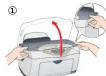
- Insert the ink cartridges as illustrated below.


Note
Install all ink cartridges. This product does not work unless all cartridges are
Inral
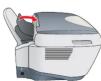
- Close the scanner unit.


Ink charging starts. It takes about two minutes. While charging, this product
produces a variety of mechanical sounds. This is normal. When the On light stops flashing, ink charging is complete.
0
Caution:
☐ Do not turn the power off during the ink charging process.
☐ Do not load paper until ink charging is complete
No
The ink cartridges packaged with this product are partly used during the initial setup. To produce high quality printouts, the print head in this product must be fully charged with ink. This one-time process consumes a considerable amount of ink, but subsequent cartridge sets will last for their full rated life.
- Selecting Language
You can select your preferred language for use on the LCD panel. For details, see Chapter 1. In the Copy Guide

This product is now ready to make copies. See "Using the Copy Feature". If you want to print data or scan images, set up your computer as described below.
3 Setting Up the Computer
- Connecting

Note
it turn on this product until a message prompts you to do so.
- Connect the USB cable.
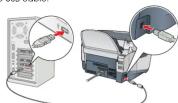
Note:
If the "Add New Hardware Wizard" dialog box appears, click Cancel and disconnect the USB cable from this product. Then return to step 1. Connecting
- Installing the Software
Caution for Macintosh users: Turn off all virus protection programs before you install the software.
For Mgn Of X, we see Installing the Software for Mgn Of Y!
-
Make sure that this product is off
-
Insert the software CD into the CD ROM drive
-
Insert the software CD into the For users of Mac OS 8.4 to 9 x:
Double-click the EPSON icon in the EPSON folder.
- The EPSON Installation Program dialog box appears
Select Install Software, and then click
-
Follow the on-screen instruction
-
For users of Mac OS 8.6 to 9.x
After installing the software, choose Chooser from the Apple menu, and then select the joep for this product.
and the port that this product is connected to
Note for Windows users:
You may need to restart your computer while installing the software. If a message instructing you to restart appears, remove the software CD, then click Restart. After restarting make sure this product is off, then reinstall the software.
This product is now ready to print and scan. The Reference Guide includes detailed information about printing and scanning. To view the Reference Guide, see "Viewing the Reference Guide".
Using the Copy Feature
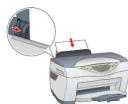
- Preparation
?
[Non-Text]


③

- Making a Copy
①

Press the ⏻ On button.

③

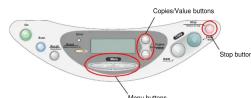
Press the Copies/Value buttons
to set the number of copies.
④

Press the B&W Copy button (to copy in
grayscale), or the Color Copy button (to copy in color).
⑤

Select Various Copy Modes and Other Options
Standard Copy

You can copy the original image to various
sizes of types of single sheet paper.
Use the Copies/Value buttons to select Standard from the Copy Mode menu.
Note:
In the Reduced Margin Copy mode, you can
make a copy with a 3-mm bottom margin on
paper.
2-up Copy/4-up Copy

You can put two or four pages of the original images on a sheet of paper.
Use the Copies/Value buttons to select 2-up
or 4-up from the Copy Mode menu.
This product provides you with a variety of copying options. You can choose from various formats and use many different types of paper.
-
Press one of the Menu buttons until Copy Mode appears on the LCD panel
-
Press one of the Copies/Value buttons until the desired copy mode appears.
Note:
Be sure to select the copy mode first, because other copy settings return to default
-
2023-07-06, ©: MEA CHANGU
-
Use the Menu and Copies/Value buttons to make other copy settings
-
Press the Stop button. The settings you made appear on the LCD panel.
use the Copy Guide for the available media items in each copy mode.
Repeat Copy
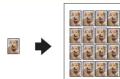
You can create multiple copies of an image on a sheet of paper.
Use the Copies/Value buttons to select Repacl
from the Copy Mode menu.
Note:
You can make lots of copies of a small original
Image, such as a card or a picture of the face in just one printing.
Auto Fit Page

You can make a copy with enlarging or reducing each page of your document.
reducing each page of your document automatically to fit the size of paper set in the
sheet feeder.
Use the Copies/Value buttons to select Auto
Fit Page from the Reduce/Enlarge menu.
Installing the Software for Mac OS X
- Make sure that this product is off and insert the software CD into the CD-ROM drive.
. Double-click the Mac OS X Driver folder. → Double-click the EPSON TWAIN folder. → Double-click your preferred language folder. → Double-click the EPSON TWAIN folder. → Double-click the EPSON TWAIN 5 Installer icon. Follow the on-screen instructions to install EPSON TWAIN.
If the Authorization window opens, click the key icon, enter the administrator's name and password, click OK, and then click Continue.
. After installing EPSON TWAIN, double-click the EPSON Scan to File folder in your preferred language folder, and then double-click the EPSON Scan to File Installer icon to install EPSON Scan to File.
. After installing EPSON Scan to File, double-click the Printer Driver folder in the Mac OS X Driver folder, and then double-click CY5200 pkg to install the printer software.
After installing the software, follow the instruction below to select this product: Double-click Macintosh HD. → Double-click the Applications folder. → Double-click the Utilities folder. → Double-click the Print Center Icon. → Click Add Printer. → Select EPSON USB. → Select this product. → Click Add.
Viewing the Reference Guide
To learn more about this product, see the Online Reference Guide
For Windows users
1. Insert the software CD into the CD-ROM drive. The Installer dialog box appears.
If the dialog box does not appear, double-click SETUP.EXE in the CD-ROM.
2. Select User Guides and click .→
For users of Mac OS 8.6 to 9.x
1. Insert the software CD into the CD-ROM drive.
2. Double-click the EPSON icon inside the EPSON folder, then select User Guides and click
→.
For Mac OS X users
1. Insert the software CD into the CD-ROM drive.
2. Double-click the Manual folder inside the EPSON folder, then double-click the REF_G
folder in your preferred language folder. Then double-click the INDEX.RTM


Mærke : EPSON
Model : Stylus CX5200
Kategori : Printer