
MHD 10159 - Sportskamera MONOPRICE - Gratis brugsanvisning og manual
Find enhedens vejledning gratis MHD 10159 MONOPRICE i PDF-format.


Brugerspørgsmål om MHD 10159 MONOPRICE
0 spørgsmål om dette apparat. Besvar dem du kender, eller stil dit eget.
Stil et nyt spørgsmål om dette apparat
Download vejledningen til din Sportskamera i PDF-format gratis! Find din vejledning MHD 10159 - MONOPRICE og tag din elektroniske enhed tilbage i hånden. På denne side er alle dokumenter nødvendige for brugen af din enhed offentliggjort. MHD 10159 af mærket MONOPRICE.
BRUGSANVISNING MHD 10159 MONOPRICE
MONOPRICE® MHD Action Camera User Manual Product ID: 10159
1. Key Features
• Record full HD video up to 1080p resolution at 30 frames per second with audio
• Can record up to 3 hours of 1080p video on a 32GB MicroSD card (not included)
• Capture still images with a 3, 5, or 16 megapixel resolution
• The built-in 1050mAh Li-ion battery provides up to 3 hours of continuous use
• Waterproof up to 10 meters depth without using any extra casing
- Package Contents
| 1 | Camera Body | 6 | Mounting Clip Screw Key |
| 2 | Back Cover | 7 | Mounting Clip Ball Joint |
| 3 | USB A to mini-B Cable | 8 | Handlebar Mount |
| 4 | Security Strap | 9 | Carry Pouch with Belt Loop |
| 5 | 1/4"-20 UNC Mounting Clip | 10 | User Manual |
- Functional Parts
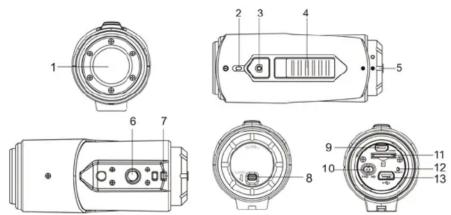
| 1 | Camera Lens | High quality lens |
| 2 | LED Indicator | Displays the camera status |
| 3 | Power / Shutter Button | 1. Turns the camera on or off2. Takes a single photograph |
| 4 | Record & Stop Slide Switch | Slide to start or stop video recording |
| 5 | Camera Back Cover | Rotate and lock to seal the camera |
| 6 | Tripod Socket | Standard 1/4" x 20 UNC attachment socket |
| 7 | Lanyard Through-Hole | Attachment point for security lanyard or strap |
| 8 | Cover Lock | Locks the back cover in place |
| 9 | Micro HDMI Port | Connect the camera to TV with an HDMI cable |
| 10 | Video Resolution Slide Switch | Select the video resolution: FHD or HD |
| 11 | MicroSD Card Slot | Accepts a MicroSD card up to 32GB for storage |
| 12 | Reset | Resets the camera to the factory defaults |
| 13 | Mini USB Port | 1. Connect to a computer for data transfer or camera setup2. Charges the internal battery |
4. Using the Camera
4.1 Charging up Your Camera
Charge the camera by connecting it to a 5 VDC USB charging source. The red LED illuminates to indicate the camera is charging and turns off as soon as the camera is fully charged. It takes about 2 hours to fully charge the camera.
4.2 Inserting a Memory Card
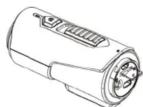
Insert a MicroSD card (not included) before using your camera. Ensure that the camera power is turned OFF before inserting the card into the slot or removing it.
Notes
- There is only one correct direction to insert the MicroSD card into the slot. Do not force the card into the card slot as it may damage both the camera and the MicroSD card.
- A new MicroSD card should be formatted before using. For more information, please see section 5.
4.3 Set up Date and Time
You can set the camera's clock with the utility software to ensure that your video and photo files are saved with the correct date/time information.
To set up the camera clock
-
Connect the camera to your Windows or Mac computer using the supplied USB cable.
-
Open the Windows or Mac software utility. Refer to section 5.2 for full details on how to run the utility programs.
- Locate the "Date and Time" options near the bottom of the window. Click the "Set" button.
- Manually adjust the date and time or click the "Sync with PC" button set the camera to the same time as your PC.
- Click "OK" to save the settings.
- After you have made the change, immediately disconnect the camera from the PC. This will cause the changes to take effect.
4.4 Sealing Your Camera
The Waterproof Housing lets the camera perform at depths up to 10 meters (about 30 feet) under water. You must seal the camera with Back Cover in order to protect the camera when using it in wet or moist conditions.
To secure the Back Cover
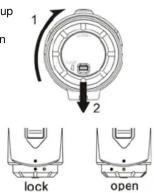
- Attach the Back Cover to the back of the camera and rotate clockwise until the two solid dots are aligned
- Slide the latch on the Back Cover to the lock position.
To open the back cover, slide the latch on the back cover out of the "lock" position. Rotate the cover counterclockwise until the hollow dot is aligned with the solid dot.
Notes:
- Failure to properly seal your camera can result in leaks that could damage or destroy your camera. Your warranty does not cover water damage resulting from user error.
- The rubber seal on the Back Cover forms the waterproof barrier to protect the camera in wet and underwater conditions. You must keep this seal clean as even a single strand of hair or grain of sand can cause a leak.
- After every use in salt water, you will need to rinse the outside of the product and the seal with non-salt water and dry it thoroughly. Failure to properly clean the camera could cause corrosion in the product or failure in the seal, which in turn, would damage the product.
4.5 Power On & Power Off
To power the camera ON:
Press and hold the 📷 button. The camera will vibrate and the Green LED will turn on. To power the camera OFF:
Press and hold the 📄 button. The camera will vibrate for about two seconds and the Green LED will turn off.
4.6 Recording Videos
Before starting any recording, select the video resolution 1080p (1920x1080) or 720p (1280x720) by switching the Video Resolution Switch. There are two ways to start video recording. When starting a video recording, a short vibration indicates recording has commenced. The LED indicator illuminates RED throughout the recording.
-
Whether the camera power is ON or OFF, simply slide the switch towards the camera front to start recording. The red REC mark will be visible and the LED will glow red.
-
If your camera is OFF and the 📄 switch is already at the REC location, press and hold the 🔒 button to turn the camera ON and start recording.
Slide the switch backward to stop recording. You will see the green STOP mark, the camera will vibrate, and the LED indicator will change to GREEN. The camera will then automatically enter Standby mode.
Alternatively, you can simply hold the 🔒 button for several seconds, which will stop the recording and turn the camera off. The camera will vibrate for about two seconds and the Red LED light will turn off.
Notes:
- You cannot change the video resolution while recording is in progress.
- There will be about a 2-3 seconds delay before the camera starts recording.
- Ensure there is sufficient memory available on the MicroSD card. If the card is full, the camera will vibrate for five seconds and the Green LED will flash continuously.
4.7 Taking Photos
- Power on the camera by pressing the 📄 button.
- After the camera power has been turned on, press the Ⓞ button to take a photo. A short vibration and a flash of the Green LED indicate that the action was successful. Notes:
- The Still Photo function is disabled during video recording.
- If the card is full, the camera will vibrate for five seconds and the Green LED will flash continuously.
4.8 Auto Rotation
The camera has a built-in gyroscopic sensor, which is able to detect the camera's orientation. If the camera is mounted upside down, for example, the recording is rotated so that it plays back with the proper orientation. This allows you to mount the camera in different orientations without recording a rotated or inverted view.
Notes
- Auto Rotation only applies to video recording. Still photos use a fixed orientation.
- The camera orientation will not change while recording is in progress. Ensure the orientation is set properly before starting a recording.
- You can disable the auto rotation function using the software utility.
5. Connecting Your Camera
5.1 Connecting Your Camera to a PC
The camera can be connected to a computer and be recognized as a mass storage device. You can copy or delete photos and video files the same as you would any file on any drive in your system.
- Press the button to turn the camera on.
- Connect your camera to a PC using the included USB cable.
Once the camera has connected to the computer as a mass storage device, you can:
- Open the MicroSD folder and browse the files saved by the camera.
- Format the MicroSD card.
- Run the software utility (see section 5.2).
Note: If you are unsure of which mode you are in, unplug the camera, turn it on, then back off again, then reconnect to the PC and try again.
5.2 Run the Software Utility
- Insert a MicroSD card with at least 10MB free space into your camera.
- Connect your camera to a PC using the included USB cable.
- Press the button to turn the camera on.
- Open the MicroSD card folder with your computer's file manager and you will see the files setting_win.exe and setting_mac.app. Double-click the appropriate file for the operating system in use.
Using the software utility you can change the following camera settings:
- Photo Resolution (3, 5, or 16 megapixels
- Photo Mode (Single, Burst, or Time Lapse)
- TV Type (PAL or NTSC) (not used)
- Frequency (50Hz or 60Hz) (not used)
- Auto Power Off (Off, 1, or 2 minutes)
- Auto Rotation (Off or On)
- Set Date and Time
Notes: If you cannot locate the files for the software utility, ensure you have a MicroSD card inserted and that it has at least 10MB free space. Unplug the camera from the PC, turn it on and off then connect to the PC again.
5.3 Connecting Your Camera to a HDTV or Receiver
You can connect your camera to a HDTV or AV receiver using a Micro HDMI cable (not included). Once you are connected you can use the TV as a viewfinder while taking photos or recording video content.
6. Mounting Your Camera
Your Monoprice Action Camera can be mounted in a variety of ways. The camera comes with the basic mounting accessories, while additional mounting options can be purchased separately.
6.1 Security Strap
- Loop one end of the security strap through the strap hole on the camera. Use a pin to help thread it through the hole, if necessary.
- Attach the other end to the mount or to any other secure mounting point.
- Clip both ends together when the camera is mounted.
6.2 Attach the Mounting Clip
- Fit the 1/4"-20 screw of the Mounting Clip to the tripod socket of the camera.
- Tighten the screw until the Mounting Clip is securely attached to the camera.
6.3 Mounting to Handlebars or a Pole
- Loosen both screws on the handlebar mount until it can be slipped over the pole.
- Position the mount as desired then tighten the screws until the mount is solidly in place.
- Loosen the ball joint nut until it is almost free of the screw threads.
- Insert the ball joint into the ball joint socket then tighten the nut.
- Slide the Mounting Clip onto the base of the Mounting Clip Ball Joint.
-
The ball joint system allows you to change the angle of the camera. Simply loosen the nut, adjust the camera angle, and re-tighten the nut.
-
Troubleshooting
| Problems | Causes | Solutions |
| 1. LED flashes and camera turns off2. Cannot turn on the camera | Battery is depleted | Recharge the camera |
| Red LED flashes during recording | Low battery Recharge the camera | |
| Cannot take photos or video (Green LED flashes) | Memory card full | Delete unneeded files or replace with a card with sufficient available space |
| Cannot take photos or video (Green and Red LED flashes alternately) | 1. MicroSD card is not inserted2. MicroSD card has not been properly formatted. | 1. Insert a MicroSD card2. Format the MicroSD card using your PC or TV |
| Cannot find the removable disk after connecting the camera to the computer | Connection failure | 1. Make sure all cable connections are secured and restart the computer if necessary.2. Try a different USB port. |
- Specifications
| Sensor | 3/5/16 Megapixel CMOS sensor |
| Lens | 120^ ultra wide angle field of view |
| Focus range | 0.5m - |
| Video | 1080p: 1920x1080 pixels (16:9), 30 fps720p: 1280x720 pixels (16:9), 30 fpsFormat: H.264 compression, saved in .MOV container |
| Photo | 16.0 Megapixels:(460x3456)5.0 Megapixels: (2592x1944)3.0 Megapixels: (2048x1536)Format: JPEGCapture Modes: Single photo. Burst mode, Time lapse |
| Audio | Built-in high quality microphoneADPCM Compression, Automatic Gain Control |
| Storage | MicroSD/MicroSDHC with minimum Class 6 (not included)Average Recording Times: about 3 hours (using 32GB microSD card at 1080p/30fps) |
| Connection | USB 2.0 (for data connection and battery charging)Micro HDMI video output |
| Power | Built-in 1050 mAh Rechargeable Li-ion BatteryBattery Life: approximately 3 hours |
| Housing | Durable plastic housingWaterproof to up to 30 feet / 10 meters depth |
| Dimension | 3.8^ × 1.6^ × 1.8^ (96.3 x 40 x 45.8 mm) |
| Weight | 4.0 oz (112.5g) |
* If your existing video player does not play the files saved by this camera, download the QuickTime Player from the Apple site.
- System Requirements
| Operating system | Windows® XP SP3, Vista, Windows 7; Mac® OS X® 10.5 or later |
| CPU | Pentium® III or better |
| RAM At least | 64MB |
| Interface | USB 2.0 port |
10. Trademark Information
- Microsoft® and Windows® are U.S. registered trademarks of Microsoft Corporation.
- Pentium ^ is a registered trademark of Intel Corporation.
• Apple, Mac, and Macintosh are trademarks of Apple Inc. - Quick Time is a trademark of Apple Inc.
- MicroSD™ is a trademark of the SD Association.
- Other names and products may be trademarks or
- Other names and products may be trademarks of registered trademarks of their respective owners.
IMPORTANT
- Keep the lens clean. Dirt and fingerprints will affect the quality of the picture.
- Close the Back Cover properly to seal the camera against moisture. Do not open it under water.
- Rinse the camera with clean water after use and dry it completely before storage.
FCC Statement
Caution Statement
*Modifications not approved by the party responsible for compliance could void the user's authority to operate the equipment."
Instruction Statement
NOTE: This equipment has been tested and found to comply with the limits for a Class B digital device, pursuant to Part 15 of the FCC Rules. These limits are designed to provide reasonable protection against harmful interference in a residential installation. This equipment generates, uses and can radiate radio frequency energy and, if not installed and used in accordance with the instructions, may cause harmful interference to radio or television reception, which can be
determined by turning the equipment off and on, the user is encouraged to try to correct the interference by one or more of the following measures:
- Reorient or relocate the receiving antenna.
- Increase the separation between the equip
- Increase the separation between the equipment and receiver.
- Connect the equipment into an outlet on a circuit different from
Connect the equipment into an outlet on a circuit element from that to which the equipment is connected.
- Consult the dealer or an experienced radio/ TV technician for help.
WARNING: THE MANUFACTURER IS NOT RESPONSIBLE FOR ANY RADIO OR TV INTERFERENCE CAUSED BY UNAUTHORIZED MODIFICATIONS TO THE DEVICE. ANY SUCH MODIFICATIONS COULD VOID THE USER'S AUTHORITY TO OPERATE THE EQUIPMENT.

For EU only