FV2161 - Đầu ghi băng FUNAI - Hướng dẫn sử dụng miễn phí
Tìm hướng dẫn sử dụng thiết bị miễn phí FV2161 FUNAI ở định dạng PDF.


Câu hỏi của người dùng về FV2161 FUNAI
0 câu hỏi về thiết bị này. Trả lời những câu bạn biết hoặc đặt câu hỏi riêng.
Đặt câu hỏi mới về thiết bị này
Tải xuống hướng dẫn cho thiết bị của bạn Đầu ghi băng ở định dạng PDF miễn phí! Tìm hướng dẫn của bạn FV2161 - FUNAI và lấy lại thiết bị điện tử của bạn. Trên trang này được đăng tải tất cả các tài liệu cần thiết để sử dụng thiết bị của bạn. FV2161 thương hiệu FUNAI.
HƯỚNG DẪN NGƯỜI DÙNG FV2161 FUNAI
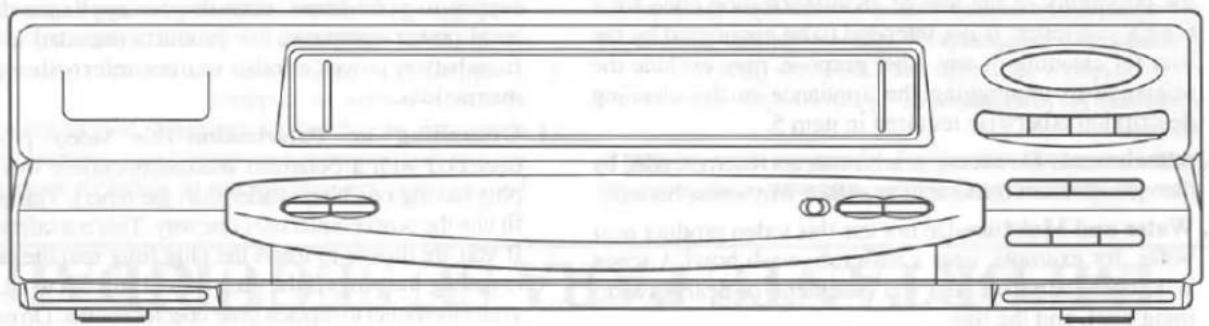
VIDEO CASSETTE RECORDER FV2161
natural_image
Line drawing of a front view of a CD or DVD device with buttons and ventilation slots (no text or symbols)WARNING:
TO REDUCE THE RISK OF FIRE OR ELECTRIC SHOCK, DO NOT EXPOSE THIS APPLIANCE TO RAIN OR MOISTURE.

CAUTION
RISK OF ELECTRIC SHOCK DO NOT OPEN

CAUTION: TO REDUCE THE RISK OF ELECTRIC SHOCK, DO NOT REMOVE COVER (OR BACK). NO USER SERVICEABLE PARTS INSIDE. REFER SERVICING TO QUALIFIED SERVICE PERSONNEL.
THIS SYMBOL INDICATES THAT DANGEROUS VOLTAGE CONSTITUTING A RISK OF ELECTRIC SHOCK IS PRESENT WITHIN THIS UNIT.

THIS SYMBOL INDICATES THAT THERE ARE IMPORTANT OPERATING AND MAINTENANCE INSTRUCTIONS IN THE LITERATURE ACCOMPANYING THE APPLIANCE.
The caution marking is located on the rear of the cabinet.
IMPORTANT SAFEGUARDS
- Read instructions-All the safety and operating instructions should be read before the appliance is operated.
- Retain Instructions-The safety and operating instructions should be retained for future reference.
- Heed Warnings-All warnings on the appliance and in the operating instructions should be adhered to.
- Follow Instructions-All operating and use instructions should be followed.
- Cleaning-Unplug this video product from the wall outlet before cleaning. Do not use liquid cleaners or aerosol cleaners. Use a damp cloth for cleaning.
EXCEPTION: A product that is meant for uninterrupted service and, that for some specific reason, such as the possibility of the loss of an authorization code for a CATV converter, is not intended to be unplugged by the user for cleaning or any other purpose, may exclude the reference to unplugging the appliance in the cleaning description otherwise required in item 5.
- Attachments-Do not use attachments not recommended by the video product manufacturer as they may cause hazards.
- Water and Moisture-Do not use this video product near water, for example, near a bath tub, wash bowl, kitchen sink, or laundry tub, in a wet basement, or near a swimming pool, and the like.
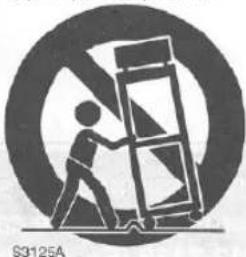
- Accessories-Do not place this video product on an unstable cart, stand, tripod, bracket, or table. The video product may fall, causing serious injury to a child or adult, and serious damage to the appliance. Use only with a cart, stand, tripod, bracket, or table recommended by the manu-
facturer, or sold with the video product. Any mounting of the appliance should follow the manufacturer's instructions and should use a mounting accessory recommended by the manufacturer. An appliance and cart combination should be moved with care. Quick stops, excessive force, and uneven surfaces may cause the
FORTABLE CART WARNING (Symbol provided by RETAC)
natural_image
Silhouette of a person climbing a ladder inside a circular frame with diagonal lines (no text or symbols)appliance and cart combination to overturn.
- Ventilation-Slots and openings in the cabinet are provided for ventilation and to ensure reliable operation of the video product and to protect it from overheating, and these openings must not be blocked or covered. The openings should never be blocked by placing the video product on a bed, sofa, rug, or other similar surface. This video product should not be placed in a built-in installation such as a bookcase or rack unless proper ventilation is provided or the manufacturer's instructions have been adhered to.
- Power Sources-This video product should be operated only from the type of power source indicated on the marking label. If you are not sure of the type of power supply to your home, consult your appliance dealer or local power company. For products intended to operate from battery power, or other sources, refer to the operating instructions.
- Grounding or Polarization-This video product is equipped with a polarized alternating-current line plug (a plug having one blade wider than the other). This plug will fit into the power outlet only one way. This is a safety feature. If you are unable to insert the plug fully into the outlet, try reversing the plug. If the plug should still fail to fit, contact your electrician to replace your obsolete outlet. Do not defeat the safety purpose of the polarized plug.
- Power Cord Protection-Power supply cords should be routed so that they are not likely to be walked on or pinched by items placed upon or against them, paying particular attention to cords at plugs, convenience receptacles, and the point where they exit from the appliance.
- Outdoor Antenna Grounding-If an outside antenna or cable system is connected to the video product, be sure the antenna or cable system is grounded so as to provide some protection against voltage surges and built-up static charges. Article 810 of the National Electrical Code, ANSI/NFPA No. 70, provides information with regard to proper grounding of the mast and supporting structure, grounding of the lead-in wire to an antenna discharge unit, size of grounding conductors, location of antenna-dis
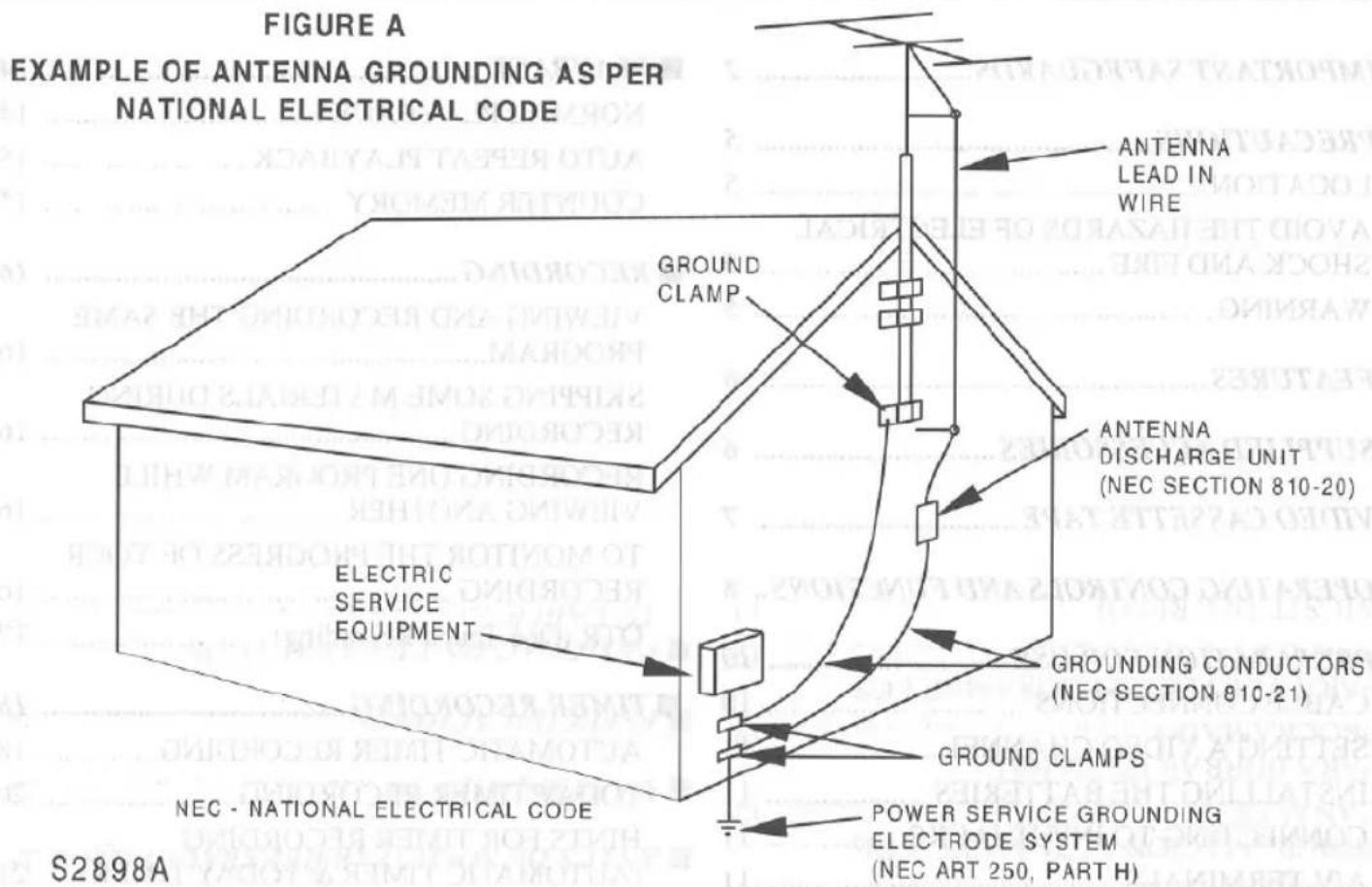
charge unit, connection to grounding electrodes, and requirements for the grounding electrode. (Fig. A)
-
Lightning-For added protection for this video product during a lightning storm, or when it is left unattended and unused for long periods of time, unplug it from the wall outlet and disconnect the antenna or cable system. This will prevent damage to the video product due to lightning and power-line surges.
-
Power Lines-An outside antenna system should not be located in the vicinity of overhead power lines or other electric light or power circuits, or where it can fall into such power lines or circuits. When installing an outside antenna system, extreme care should be taken to keep from touching such power lines or circuits as contact with them might be fatal.
-
Overloading-Do not overload wall outlets and extension cords as this can result in a risk of fire or electric shock.
-
Object and Liquid Entry-Never push objects of any kind into this video product through any openings as they may touch dangerous voltage points or short-out parts that could result in a fire or electric shock. Never spill liquid of any kind on the video product.
-
Servicing-Do not attempt to service this video product yourself as opening or removing covers may expose you to dangerous voltage or other hazards. Refer all servicing to qualified service personnel.
-
Damage Requiring Service-Unplug this video product from the wall outlet and refer servicing to qualified service personnel under the following conditions:
a. When the power-supply cord or plug is damaged.
b. If liquid has been spilled, or objects have fallen into the video product.
c. If the video product has been exposed to rain or water.
d. If the video product does not operate normally by following the operating instructions. Adjust only those controls that are covered by the operating instructions as an improper adjustment of other controls may result in damage and will often require extensive work by a qualified technician to restore the video product to its normal operation.
e. If the video product has been dropped or damaged in any way.
f. When the video product exhibits a distinct change in performance-this indicates a need for service.
-
Replacement Parts-When replacement parts are required, be sure the service technician has used replacement parts specified by the manufacturer or have the same characteristics as the original part. Unauthorized substitutions may result in fire, electric shock or other hazards.
-
Safety Check-Upon completion of any service or repairs to this video product, ask the service technician to perform safety checks to determine that the video product is in proper operating condition.
-
Heat-This video product should be situated away from heat sources such as radiators, heat registers, stoves, or other products (including amplifiers) that produce heat.
■ IMPORTANT SAFEGUARDS.... 2
■ PRECAUTIONS 5
LOCATION 5
AVOID THE HAZARDS OF ELECTRICAL SHOCK AND FIRE 5
WARNING 5
■ FEATURES....6
■ SUPPLIED ACCESSORIES 6
■ VIDEO CASSETTE TAPE....7
■ OPERATING CONTROLS AND FUNCTIONS.. 8
■ PREPARATION FOR USE.... 10
CABLE CONNECTIONS 10
SETTING A VIDEO CHANNEL.... 11
INSTALLING THE BATTERIES 11
CONNECTING TO INPUT JACKS.... 11
A/V TERMINALS.... 11
■ PRESET FOR USE 12
AUTOMATIC CHANNEL PRESET (Without a Cable Box).... 12
TO DELETE PRESET CHANNEL.... 12
CHANNEL PRESET AGAIN 12
SETTING THE CLOCK 13
■ PLAYBACK 14
NORMAL PLAYBACK 14
AUTO REPEAT PLAYBACK 15
COUNTER MEMORY 15
■ RECORDING 16
VIEWING AND RECORDING THE SAME PROGRAM.... 16
SKIPPING SOME MATERIALS DURING RECORDING 16
RECORDING ONE PROGRAM WHILE VIEWING ANOTHER.... 16
TO MONITOR THE PROGRESS OF YOUR RECORDING 16
OTR (One Touch Recording) 17
■ TIMER RECORDING 18
AUTOMATIC TIMER RECORDING.... 18
TODAY TIMER RECORDING 20
HINTS FOR TIMER RECORDING (AUTOMATIC TIMER & TODAY TIMER) .... 21 AUTO RETURN .... 21
COPYING A VIDEO TAPE.... 22
■ TROUBLESHOOTING GUIDE 23
■ MAINTENANCE 24
■ SPECIFICATIONS.... 24
■ CABLE CHANNEL DESIGNATIONS ...... 25
LOCATION
For safe operation and satisfactory performance of your VCR, keep the following in mind when selecting a place for its installation:
- Shield it from direct sunlight and keep it away from sources of intense heat.
- Avoid dusty or humid places.
- Avoid places with insufficient ventilation for proper heat dissipation. Do not block the ventilation holes at the top and bottom of the VCR. Do not place the unit on a carpet because this will block the ventilation holes.
• Install unit in a horizontal position. - Avoid locations subject to strong vibration.
- Do not place the VCR near strong magnetic fields.
- Do not move the unit from a cold to a hot place or vice versa.
- Do not place the VCR directly on top of the TV.
AVOID THE HAZARDS OF ELECTRICAL SHOCK AND FIRE
- Do not handle the power cord with wet hands.
- Do not pull on the power cord when disconnecting it from AC wall outlet. Grasp it by the plug.
- If, by accident, water is spilled on your VCR, unplug the power cord immediately and take the unit to a Funai Authorized Service Center for servicing.
- Do not put your fingers or objects into the VCR cassette holder.
- Do not place anything directly on top of the VCR.
WARNING
Moisture condensation may occur inside the unit when it is moved from a cold place to a warm place, or after heating a cold room or under conditions of high humidity. Do not use the VCR at least for 2 hours until its inside is dry.
FCC WARNING- This equipment may generate or use radio frequency energy. Changes or modifications to this equipment may cause harmful interference unless the modifications are expressly approved in the instruction manual. The user could lose the authority to operate this equipment if an unauthorized change or modification is made.
IMPORTANT COPYRIGHT INFORMATION
Unauthorized recording or use of broadcast television programming, video tape, film or other copyrighted material may violate applicable copyright laws. We assume no responsibility for the unauthorized duplication, use or other acts which infringe upon the rights of copyright owners.
The serial number of this product may be found on the back of the VCR. No others have the same serial number as yours. You should record the number and other vital information here and retain this book as a permanent record of your purchase to aid identification in case of theft.
| Date of Purchase | |
| Dealer Purchase from | |
| Dealer Address | |
| Dealer Phone No. | |
| Model No. | |
| Serial No. |
• Infrared remote control
- Real time counter—This shows the elapsed recording or playback time in hours, minutes, and seconds. The "-" indication will appear when the tape is re-wound further than the tape counter position "0:00:00".
- 181 channel capability PLL frequency synthesizer tuner with direct station call—(A converter may be necessary to view scrambled cable channels.)
- Auto power on system—(when inserted a tape)
- Auto counter reset—(when inserting a tape)
- Auto rewind when the end of a tape is reached—(not in the case of timer recording).
- Direct Button Operation—When a tape is in the VCR and the power is off, just press PLAY, RE-WIND or F.FWD button on the main unit and it will automatically turn on the VCR and playback, rewinding or fast-forwarding will start immediately.
- 2 Step Picture Search Operation— You can view a video program at a high speed or super high speed in either a forward or reverse direction in LP and SLP mode.
- Still—"Freeze" the picture at any time, for close viewing of a particular scene. Only tapes recorded in SLP mode will show a fairly clear picture.
- Digital Auto Tracking (DTR)— Adjusts the tracking automatically for each tape you play.
- Auto Repeat—Allows you to repeat a tape indefinitely without pressing the PLAY button.
• Three different tape speeds : SP/LP/SLP - OTR (One Touch Recording)—Instant timed recording from 30 to 480 minutes is possible at the push of the REC/OTR button.
- 1 Year, 8 events (including Today, Daily and Weekly Timer Recording)—The built-in timer allows you to record up to 7 programs at different times on different channels up to 1 year in advance. The Today Timer Recording feature uses program number 8. The daily timer allows recordings to be made of daily broadcasts, and the weekly timer allows recording to be made once a week up to the end of the tape.
- Today Timer Recording—Allows you to easily record one program within 24 hours.
- Auto return—After finished timer recording, the beginning of the recorded program(s) can be searched.
SUPPLIED ACCESSORIES
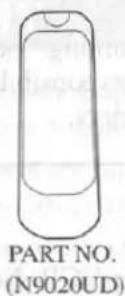
Remote Control Unit
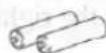
Batteries (AA × 2)
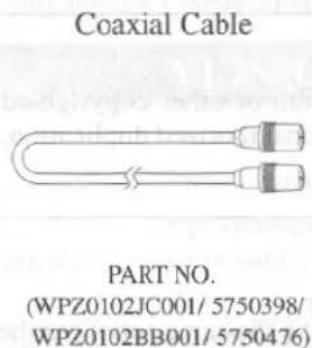
- If you need to replace these accessories, please refer to the PART NO. under the illustrations and contact the Funai parts department for ordering.
- Depending on your antenna system, you may need different types of Combiners (Mixer) or Separators (Splitter). Contact your local electronics store for these items.
This VCR will operate with any cassette that has the VHS mark. For best results, we recommend the use of high-quality tapes. Do not use poor quality or damaged tapes.
PRECAUTIONS
- Avoid moisture. Moisture condensation may occur on the tape if it is moved from a cold place to a warm place. Before using a tape with these conditions, to avoid a damage of the tape and your VCR, wait until the tape has warmed to room temperature and the moisture has evaporated.
- Avoid extreme heat, high humidity and magnetic fields.
- Do not tamper with the cassette mechanism.
- Do not touch the tape with your fingers.
INSERTING A CASSETTE
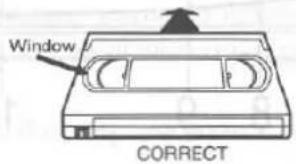
Insert the cassette in the direction as shown. Push in gently, but continuously, on the center-back of the cassette until it is drawn into the VCR.
The VCR will automatically turn on.
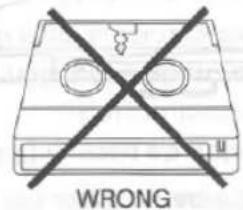
THREE DIFFERENT TAPE SPEEDS
Before recording, select the tape speed from: SP mode (Standard Play), LP mode (Long Play) or SLP mode (Super Long Play).
The table below shows the maximum recording/play-back time using T60, T120 or T160 tapes in each mode.
| Tape Speed | Recording/Playback Time | |||
| Type of tape | T60 | T120 | T160 | |
| SP mode | 1 hour | 2 hours | 2-2/3 hours | |
| LP mode | 2 hours | 4 hours | 5-1/3 hours | |
| SLP mode | 3 hours | 6 hours | 8 hours | |
REMOVING A CASSETTE
1) In the Stop mode, press EJECT button on the remote control or press STOP/EJECT button on the VCR. The cassette will be ejected.
2) Pull the cassette out of the cassette compartment.
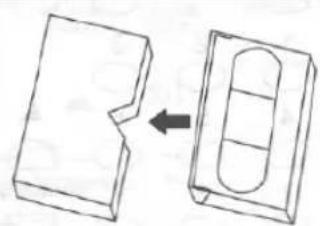
3) Store the cassette in its case as shown.
natural_image
Diagram showing a mechanical part being cut into a rectangular housing with internal compartments (no text or symbols)ERASE PREVENTION
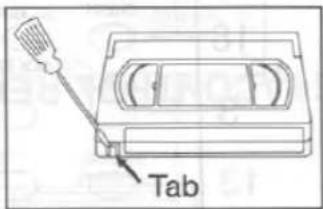
You can prevent accidental erasing of recording by breaking off the tab on the back edge of the cassette.
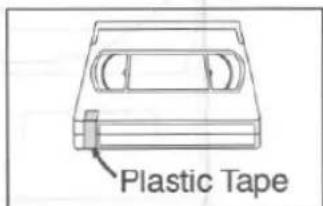
If you decide to record on the tape again, cover the hole with a plastic tape.
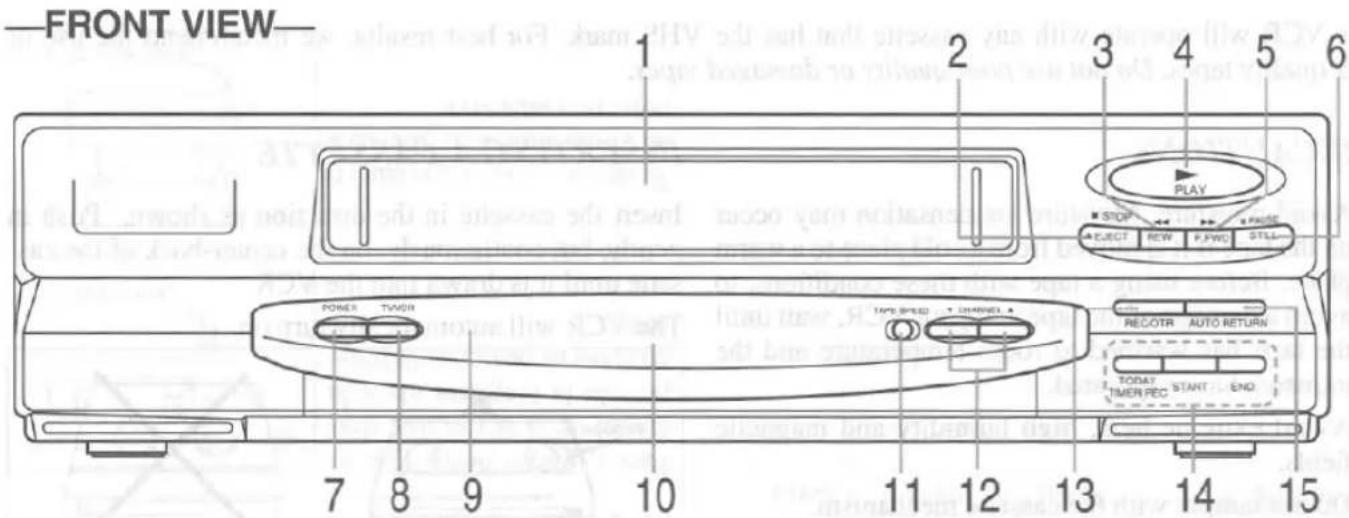
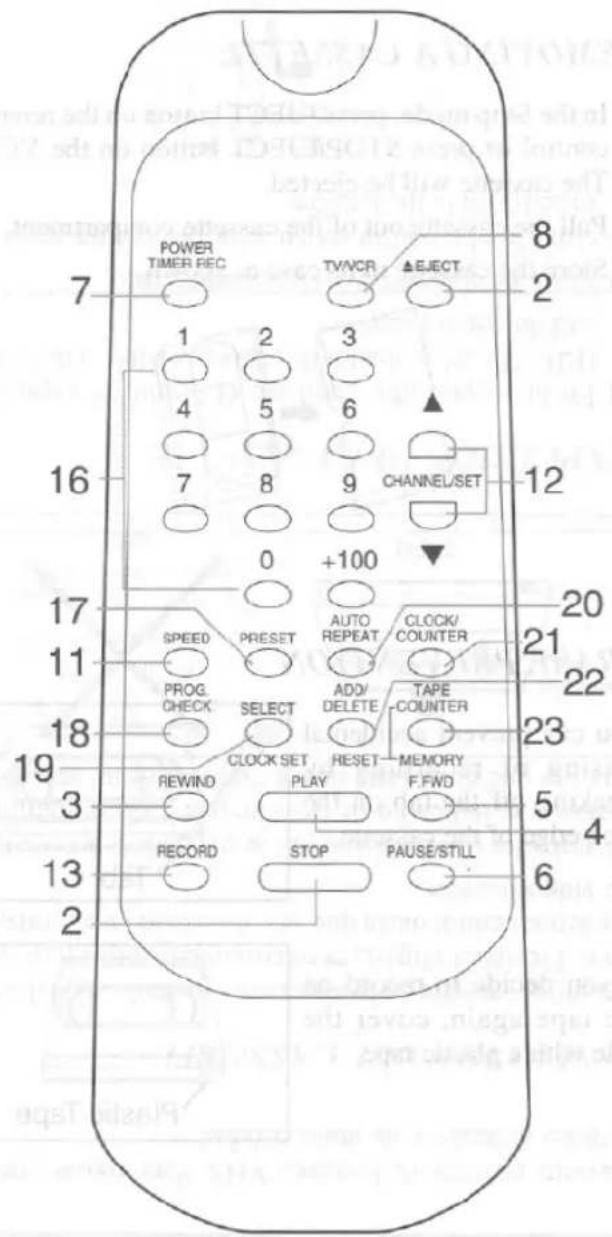
—REMOTE CONTROL VIEW—
- Cassette Compartment
- STOP button-Press to stop tape motion.
EJECT button-Press to remove a tape from the VCR.
- REWIND button-Press to rewind the tape, or to view the picture rapidly in reverse during the playback mode. (Rewind Search)
- PLAY button-Press to begin playback.
- F.FWD button—Press to rapidly advance the tape, or view the picture rapidly in forward during playback. (Forward Search)
- PAUSE/ STILL button-Press to temporarily stop the tape during recording or to view a still picture during playback.
- POWER/TIMER REC button-Press to turn VCR on and off. Press to activate a timer recording.
- TV/VCR button-Press to select TV or VCR mode.
VCR position: to view playback, to monitor video recordings or watch TV using the VCR tuner.
TV position: to watch TV or to view one program while recording another.
-
Remote sensor window—Receives the infrared signals from the remote control.
-
Digital display-Displays the clock, timer recording, counter and channel etc.
- TAPE SPEED button—Press to set desired recording speed : SP/LP/SLP.
- CHANNEL buttons-Press to select desired channels for viewing or recording.
SET buttons-Press to enter digits when setting program (for example: setting clock or timer program).
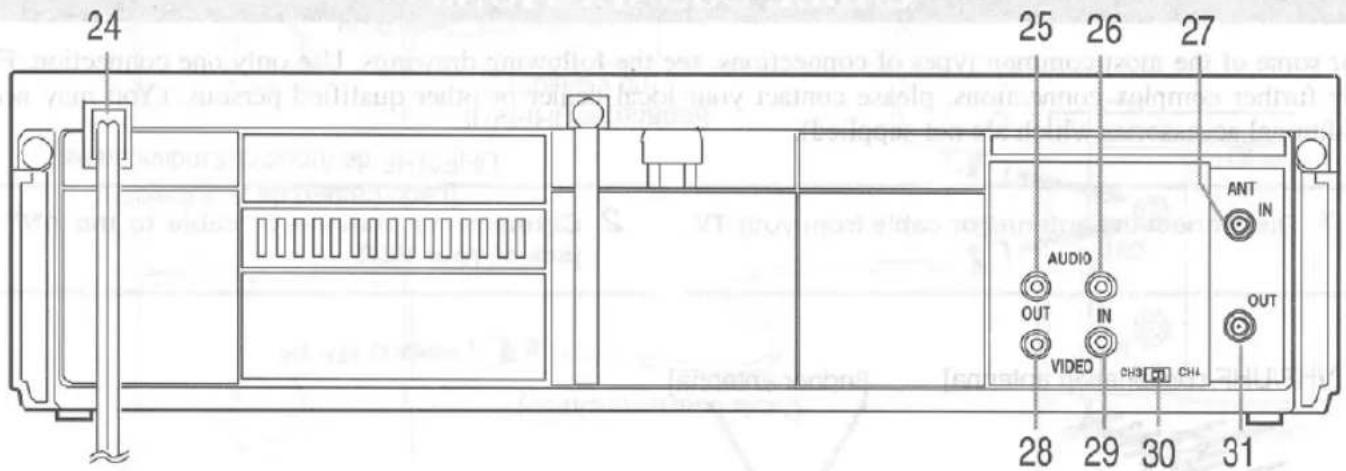
—REAR VIEW—
Tracking function-Press to minimize video 'noise' (lines or dots on screen) during playback. (used only on the VCR)
- RECORD button-Press to begin manual recording. OTR button-Press to activate One Touch Recording. (used only on the VCR)
- TODAY TIMER REC button—Press to set a today timer program, or to check it.
START button-Press to enter desired start time during today timer setting.
END button-Press to enter desired end time during today timer setting.
- AUTO RETURN button-Press to rewind to the beginning of a timer recording.
- NUMBER buttons-Press to select desired channels for viewing or recording. To select channels from 1 to 9, first press "0" button then 1 to 9.
+100 button-When selecting cable channels which are more than 100, press this button first, then press the last two digits. (To select channel 125, first press "+100" button then press "2" and "5").
- PRESET button—Press to begin channel preset.
- PROG. CHECK button—Press to set an automatic timer program, or to check it.
- SELECT button—When setting program (for example: setting clock or timer program), press to determine your selection and proceed to a next step you want to input.
CLOCK SET button—Press to determine the entered digits during clock setting.
- AUTO REPEAT button-Press to repeat playback automatically.
- CLOCK/COUNTER button-Press to display or alternate between clock and counter display modes.
- ADD/DELETE button-Press to delete or add channel numbers during channel preset. Press to cancel a setting of timer program.
TAPE COUNTER RESET button-Press to reset counter to 0:00:00.
- TAPE COUNTER MEMORY button-Press to set counter memory on and off.
- Power cord-Connect to a standard AC outlet (120V/60Hz).
- AUDIO OUT jack-Connect to an audio input jack of your audio equipment or another VCR.
- AUDIO IN jack-Connect to an audio output jack of your audio equipment or another VCR.
- ANT. IN terminal—Connect to an antenna or CATV.
- VIDEO OUT jack-Connect to a video input jack of video camera or another VCR.
- VIDEO IN jack-Connect to a video output jack of your video camera or another VCR.
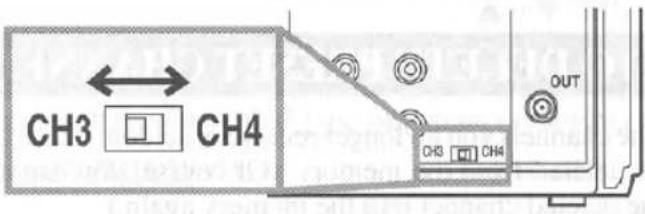
- CH3/CH4 selector switch—Use to select a video output channel (3 or 4) for playback from the VCR.
- ANT. OUT terminal—Connect to an antenna input terminal of your TV.
CABLE CONNECTIONS
For some of the most common types of connections, see the following drawings. Use only one connection. For any further complex connections, please contact your local dealer or other qualified persons. (You may need additional accessories which are not supplied).
1 Disconnect the antenna or cable from your TV.
2 Connect the antenna or cable to the ANT.IN jack of your VCR.
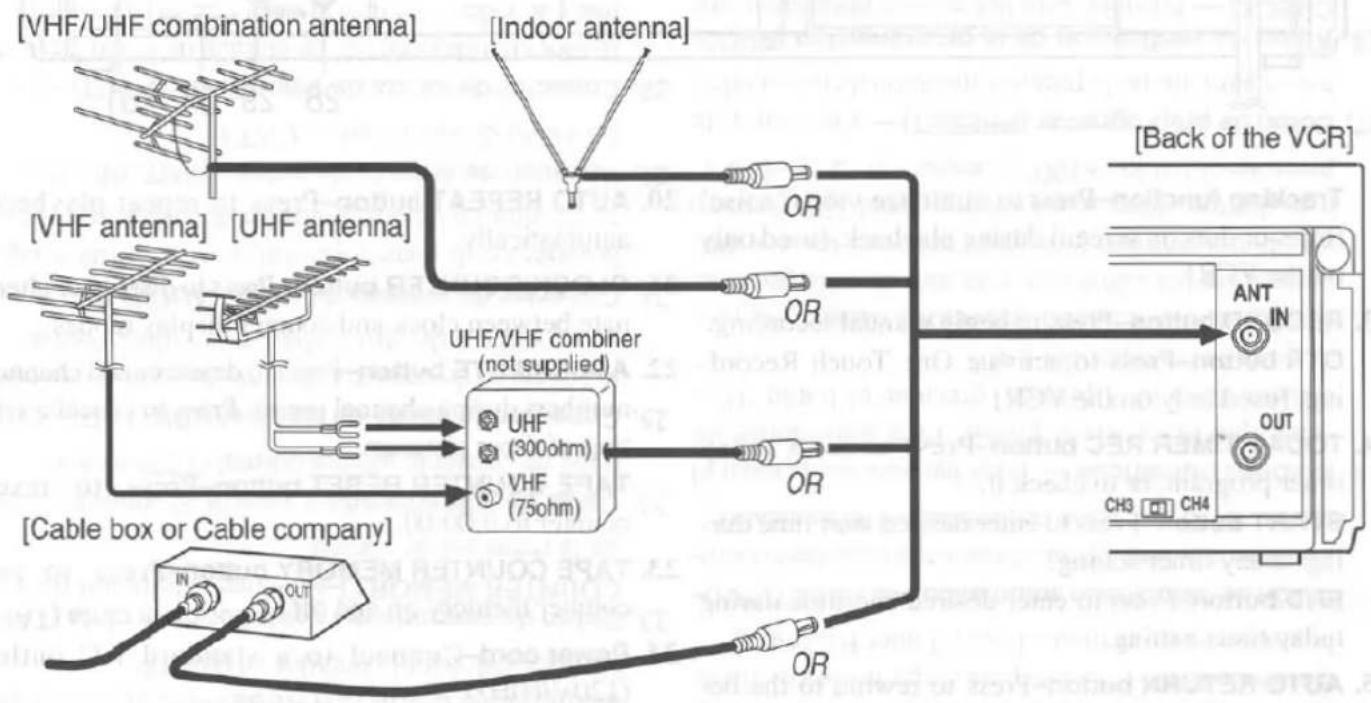
flowchart
graph TD
    A["VHF/UHF combination antenna"] --> B["OR"]
    C["VHF antenna"] --> D["OR"]
    E["UHF antenna"] --> F["OR"]
    G["Cable box or Cable company"] --> H["OR"]
    I["UHF/VHF combiner (not supplied)"] --> J["OR"]
    K["VHF (75ohm)"] --> L["OR"]
    M["Back of the VCR"] --> N["ANT IN OUT CH3 CH4"]
3 Connect one end of the coaxial cable (supplied) to the ANT.OUT jack of your VCR.
4 Connect the other end of the coaxial cable (supplied) to the UHF/VHF antenna jacks.
![[Back of the VCR] ANT IN OUT CH3 CH4 OR OR Coaxial cable (supplied) [Back of the UHF/VHF combination TV] UHF/VHF [Back of the UHF/VHF separated TV] UHF/VHF separator (not supplied) VHF UHF Coaxial cable (supplied)](/content/2026/06/1235655/images/7aebe96b356e795b9987034d727bd4969c242006aacc2fd05517428921bf2499.jpg)
SETTING A VIDEO CHANNEL
If your TV does not have A/V terminals;
When the VCR is in the Playback mode or when the TV/VCR button is in the VCR position, your TV will receive the signals from the VCR on either channel 3 or 4.
To use the VCR with your TV, set the selector switch to CH3 or CH4, whichever is not used or least used for normal broadcasts in your area. Then set your TV to that same channel.
INSTALLING THE BATTERIES
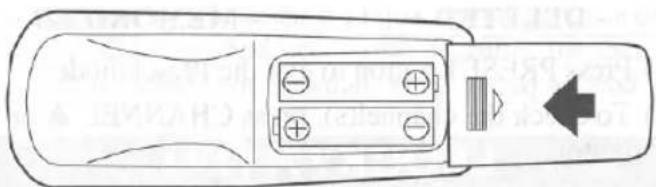
1) Open the battery compartment cover by pressing the cover on the remote unit in the direction of the arrow.
2) Insert 2 "AA" penlight batteries into the battery compartment in the direction indicated by the polarity (+/-) markings.
3) Replace the cover.
natural_image
Top-down schematic of a remote control device showing battery, switch, and directional arrow (no text or labels)CONNECTING TO INPUT JACKS
When you copy a video tape, or watch a program recorded on an another source, use audio/video input jacks.
NOTE: When the AUDIO IN and VIDEO IN jacks are used, you cannot preset channels and watch a TV by using CHANNEL buttons of the VCR.
Therefore, be sure to disconnect the cables from the VCR's AUDIO IN and VIDEO IN jacks when not in use of these input jacks.
![[Another source] To an audio output jack [Back of the VCR] Audio/Video adapter cord (not supplied) AUDIO OUT IN VIDEO etc. To an video output jack](/content/2026/06/1235655/images/9ff7d3c0648eb4adf7c3f3a410a883be32d044ee636cd17912c02f01ebe15e2f.jpg)
A/V TERMINALS
If your TV has A/V input jacks, you may connect your VCR's AUDIO/VIDEO OUTPUT jacks to the audio/video input jacks on back of your TV.
Direct audio/video connections usually result in a better picture and sound quality for tape playback. Please see your TV's owner's manual for A/V input connections.
![Audio/Video "Y" adapter cord (not supplied) [Back of the VCR] AUDIO OUT IN VIDEO IN L R AUDIO VIDEO [A/V television]](/content/2026/06/1235655/images/d9a86448e7bd1e9386caac87082eff0140269afe34cce5926a5c52769cefe178.jpg)
Note to CATV system installer
This reminder is provided to call the CATV system installer's attention to Article 820-40 of the NEC that provides guidelines for proper grounding and, in particular, specifies that the cable ground shall be connected to the grounding system of the building, as close to the point of cable entry as practical.
Channel memory programming is NOT needed when connected to a cable box. You can program the tuner to scan only the channels you receive in your area. See page 25 for channel designations.
AUTOMATIC CHANNEL PRESET (Without a Cable Box)
NOTES:
- Follow the steps below once. Repeat it only if there is a power failure or the VCR is unplugged for more than 30 seconds. In these cases, since the programmed channels are erased, the VCR will show you a "P" when you turn it on.
- You must follow the steps below before attempting to play or record a video tape. If you want to play or record a video tape BEFORE programming the tuner, you must first press POWER button to turn off the VCR. Then, press POWER button again to turn it back on. To program the tuner again, see "CHANNEL PRESET AGAIN".
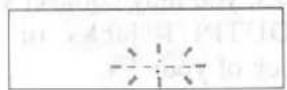
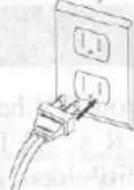
1 Plug the VCR power cord ("--:--" flashes)
Plug the VCR power cord into a standard AC outlet.
2 Turn on the VCR
Press POWER button to turn on the VCR. "P-" appears on the display.
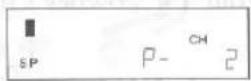
3 Begin channel preset
Press CHANNEL ▲ or ▼ button once. The tuner scans and memorizes all the active channels in your area. After scanning, the tuner stops on the lowest memorized channel. The display returns to original mode.
The VCR distinguishes between standard TV channels and cable channels. If you subscribe to CABLE TV, "CATV" appears on the display. (TV mode: from CH2/ CATV mode: from CH1)
- If "P-" is appeared, check the cable connections and begin preset again.
TO RECALL A DESIRED CHANNEL
You can select the desired channel by using CHANNEL ▲ or ▼ button or directly pressing number buttons on the remote control.
Note for using number buttons:
- When selecting cable channels which are higher than 100, press +100 button first, then press the last two digits. (To select channel 125, first press "+100" button then press "2" and "5").
- You must precede single-digit channel numbers with a zero (02, 03, 04 and so on).
TO DELETE PRESET CHANNEL
The channels you no longer receive or seldom watch can be deleted from the memory. (Of course, you can add the deleted channel into the memory again.)
1) Press PRESET button on the remote control.
2) Enter your desired channel using number buttons of the remote control.
3) Press ADD/DELETE button. The channel number will flash.
- To delete another channel, repeat steps [2] and [3].
- If you press ADD/DELETE button again, the channel is memorized again.
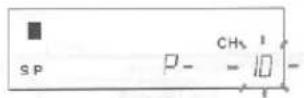
- DELETED -
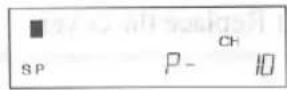
- MEMORIZED -
4) Press PRESET button to exit the Preset mode.
5) To check the channel(s), press CHANNEL ▲ or ▼ button.
CHANNEL PRESET AGAIN
1) Press POWER button to turn on the VCR.
2) Press PRESET button on the remote control.
3) If you subscribe to cable TV, press TV/VCR button so that "CATV" appears on the display.
4) Press CHANNEL ▲ or ▼ button once. After scanning, the tuner stops on the lowest memorized channel.
SETTING THE CLOCK
Set the clock accurately for proper automatic timer recording. We suggest that you use a TV or radio station as your time source.
NOTE: You must use the remote control for this procedure.
1 Turn on the VCR
Press POWER button to turn on the VCR so that the "■" appears on the display.
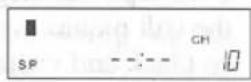
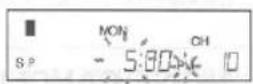
2 Select the hour
Press CLOCK SET button.
Then, press CHANNEL/ SET ▲ or ▼ button repeatedly until the correct hour is indicated. (Example: 5, PM)
3 Select the minute
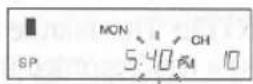
Press CLOCK SET button.
Then, press CHANNEL/ SET ▲ or ▼ button repeatedly until the correct minute is indicated. (Example: 40)
4 Select the year
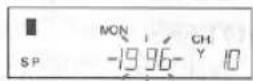
Press CLOCK SET button.
Then, press CHANNEL/ SET ▲ or ▼ button repeatedly until the correct year is indicated. (Example: 1996)
In the example below, the clock is to be set to:
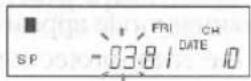
DATE 1st March, 1996
SETTING TIME 5:40PM
5 Select the month
Press CLOCK SET button.
Then, press CHANNEL/ SET ▲ or ▼ button repeatedly until the correct month is indicated. (Example: 03 for March)
6 Select the day
Press CLOCK SET button.
Then, press CHANNEL/ SET ▲ or ▼ button repeatedly until the correct day is indicated. (Example: 01)
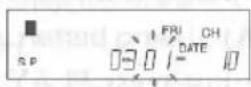
7 Start the clock
Press CLOCK SET button to start the clock. Although seconds are not displayed, they begin counting at 00 when you press it.
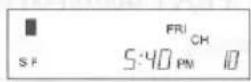
NOTES:
- When unplugging the AC-cord or if there is a power failure for more than 30 seconds, "---:" flashes on the display.
- If the display shows an abnormal reading or no reading, unplug the power cord for 30 seconds. Then plug it back in.
NORMAL PLAYBACK
Make sure ...
- Turn on the TV and set the TV channel to the same video output channel as located on the back of the VCR. (CH 3 or 4)
- Press TV/VCR button so that "VCR" appears on the display.
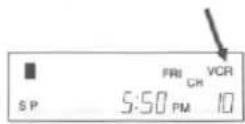
1 Insert a prerecorded tape
Counter mode appears at counter 0:00:00 on the display. If the erase-protection tab has been removed, the VCR will start playback automatically.
2 To begin playback
Press PLAY button.
If a tape is already in the VCR
2A) Using button on the VCR
Just press PLAY button on the VCR. Power will automatically turn on and playback will start. (Direct Button Operation)
2B) Using button on the remote control
Press POWER button to turn on, and then press PLAY button on the remote control.
3 To stop playback
Press STOP button.
PICTURE SEARCH
This feature is useful in finding or skipping over a particular scene on a tape. In this mode, the sound will be muted.
1) You may view a video tape at a high speed in either a forward or reverse direction by pressing F.FWD or REWIND button. (in the SP / LP / SLP modes)
2) Depress it again, the VCR will now search in super high speed. (in the LP / SLP modes)
3) For normal speed, simply press PLAY button.
STILL PICTURE
You can view a still picture on the screen during playback (the Still mode). Press PAUSE/ STILL button during playback. " || " appears on the display. Press PLAY button to return to playback.
NOTES:
- Usually there will be video "noise" lines (black and white streaks or dots) on the screen. This is normal. If the tape was originally recorded in SP or LP mode, the still picture will, in addition to the "noise" lines, be black and white.
This is not a fault of the machine but merely a by-product of the technology involved in producing a VCR with LP mode.
- If it is left in the Still mode for more than five minutes, the VCR will automatically switch to the Stop mode.
NOISE CANCEL (in the Still mode)
This feature allows you to reposition or reduce the noise lines of a still picture.
Press PAUSE/ STILL button repeatedly so that the noise lines change position on the screen and you can see the picture in its entirety without distracting noise lines.
NOTE: This feature can be activated ONLY when you use a tape recorded in the SLP mode.
VERTICAL HOLD CONTROL
When the picture begins to vibrate vertically, stabilize the picture by pressing CHANNEL ▲ or ▼ button in the Still mode.
NOTES:
- If there are video noise lines on the screen, reposition or reduce them. Refer to "NOISE CANCEL".
- When the picture is distorted or rolling vertically, adjust vertical hold control on your TV.
- Some latest TV's do not have a user adjustable vertical hold control.
TRACKING ADJUSTMENT
- Tracking adjustment will be set automatically (Digital TRacking function) when you start playback. "DTR" appears on the display.
- NOTE: The following function is controlled only by the buttons on the VCR.
When playing pre-recorded tapes or tapes recorded on units other than your own, noise lines (black and
white streaks) may appear on the playback picture. If this occurs, you can adjust the tracking control manually by pressing CHANNEL ▲ or ▼ button until the streaks disappear. To return to the DTR function, stop the tape once and start playback again.
AUTO REWIND
When the end of a tape is reached during recording, playback, or fast-forward, the tape will automatically rewind to the beginning. After that, the VCR will eject the tape and turn itself to off.
NOTES:
- The tape will not auto-rewind during timer recording or One Touch Recording.
- When the Counter Memory is activated, the tape will rewind to the 0:00:00 and the VCR will be in the Stop mode.
AUTO REPEAT PLAYBACK
The VCR has the auto repeat function that allows you to repeat a tape indefinitely without touching the PLAY button.
Make sure ...
• VCR power must be turned on.
- Turn on the TV and set the TV channel to the same video output channel as located on the back of the VCR. (CH 3 or 4)
- Press TV/VCR button so that "VCR" appears on the display.
- Insert a prerecorded tape.
1 Select Auto Repeat mode
Press AUTO REPEAT button on the remote control so that "☐" indicator appears on the display.
Playback will begin automatically.
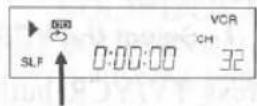
2 To stop playback
Press STOP button.
NOTES:
- Once you select the repeat play mode, it stays in effect even after you turn off the VCR.
- When the Counter Memory is activated, the tape will rewind to 0:00:00 and the VCR will be in the Stop mode.
TO EXIT THE AUTO REPEAT MODE
Press AUTO REPEAT button again. "☐" will then disappear from the display.
COUNTER MEMORY
This feature can be used to memorize a beginning point that you want to review. And you can search it easily by rewinding or fast forwarding.
Make sure ...
• VCR power must be turned on.
- Turn on the TV and set the TV channel to the same video output channel as located on the back of the VCR. (CH 3 or 4)
- Press TV/VCR button so that "VCR" appears on the display.
- Insert a prerecorded tape.
- If the counter is not displayed, the Counter Memory will not be activated. Press SELECT button so that the counter appears on the display.
1 Stop a tape at your desired point
Rewind or fast forward the tape to the beginning point at which you want to review.
2 Reset the counter to 0:00:00
Press TAPE COUNTER RESET button.
3 Select the Counter Memory mode
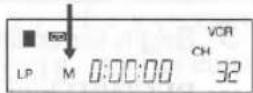
Press TAPE COUNTER MEM-ORY button so that "M" appears on the display.
4 Begin recording or playback
Press RECORD or PLAY button.
Press STOP button when recording or playback is completed.
5 To activate the Counter Memory
Press REWIND (or F.FWD) button. The tape will automatically stop when the counter returns to 0:00:00 (approx.).
TO EXIT THE COUNTER MEMORY
First, have the VCR appear on the counter of the display, then press TAPE COUNTER MEMORY button so that "M" disappears from the display.
Make sure ...
• VCR power must be on.
- Turn on the TV and set the TV channel to the same video output channel as located on the back of the VCR. (CH 3 or 4)
- Press TV/VCR button so that "VCR" appears on the display.
VIEWING AND RECORDING THE SAME PROGRAM
1 Select the channel to be recorded
Press number buttons on the remote control or the CHANNEL ▼ or ▲ button.
NOTE: When you record with a cable converter box, the VCR channel must be selected to 3 or 4 then the actual channel that you wish to record must be selected on the cable converter box.
2 Select the tape speed
Press TAPE SPEED button to select the desired tape speed (SP/LP/SLP).
3 Begin recording
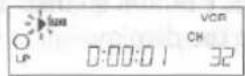
Press RECORD button. The red "O" appears on the display.
4 Stop recording
Press STOP button when recording is completed.
SKIPPING SOME MATERIALS DURING RECORDING
Press PAUSE/ STILL button to temporarily stop recording. "Ⅱ" appears on the display.
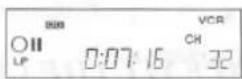
Press PAUSE/ STILL or RE-CORD button to resume recording.
NOTE: To prevent tape damage, after five minutes, the VCR will automatically switch to the Stop mode.
- Insert a cassette tape with its erase prevention tab in place. (If necessary, rewind or fast forward the tape to the point at which you want to begin recording.)
RECORDING ONE PROGRAM WHILE VIEWING ANOTHER
You can record one program while viewing another. To start recording, follow steps [1] to [3] under "VIEWING AND RECORDING THE SAME PROGRAM".
NOTE: When you record with a cable converter box, you cannot record one program while viewing another.
4 Select the TV mode
Press TV/VCR button to select TV so that "VCR" disappears from the display.
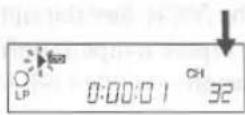
5 Select the channel at the TV side
Set the TV to the channel you want to watch.
TO MONITOR THE PROGRESS OF YOUR RECORDING
1 Select the VCR mode
Press TV/VCR button so that "VCR" appears on the display.
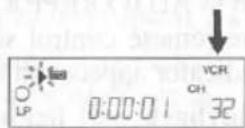
2 Select channel 3 or 4 at the TV side
Turn on the TV and set the TV channel to the same video output channel as located on the back of the VCR. (CH3 or 4)
OTR (One Touch Recording)
This function enables you to set a recording length simply by pressing REC/OTR button on the VCR.
NOTE: This function cannot be done by the remote control.
Make sure ...
• VCR power must be turned on.
- Turn on the TV and set the TV channel to the same video output channel as located on the back of the VCR. (CH3 or 4)
- Press TV/VCR button so that "VCR" appears on the display.
- Insert a cassette tape with its erase prevention tab in place. (If necessary, rewind or fast forward the tape to the point at which you want to begin recording.)
| PUSH(ES) | DISPLAY | RECORDED LENGTH |
| 1 push | (normal recording) | |
| 2 pushes | 0:30 | 30 minutes |
| 3 pushes | 1:00 | 60 minutes |
| ↓ | ↓ | ↓ |
| 17 pushes | 8:00 | 480 minutes |
| 18 pushes | (normal recording) | |
1 Select the channel to be recorded
Press number buttons on the remote control or the CHANNEL ▼ or ▲ button.
2 Begin OTR (the "OTR" Indicator appears)
Press REC/OTR button on the VCR as many times as needed. The recording length will be determined by the number of times you press REC/OTR button.
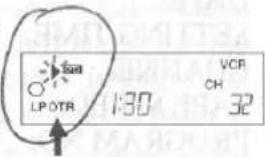
Each additional push will increase the recording time by 30 minutes. It is set up to 8 hours.
NOTES:
- Recording starts immediately when the REC/OTR button is pressed, whether you are watching the same or a different channel.
- When REC/OTR button is pressed 18 times, the VCR will returns to the Recording mode.
- To stop the OTR operation, press STOP button on the VCR or on the remote control.
- The recording length time remaining is indicated on the display as the recording is started.
- Recording stops when 0:00 is reached.
- Please note that in the SLP mode maximum recording time, assuming the tape is started at the beginning, is 8 hours using T-160 (or 6 hours using T-120).
- The TV that is connected to your VCR may be turned on or off during OTR.
- If the tape runs out before the end time, the VCR will switch to the Stop mode immediately, eject the tape and the VCR power will be turned off.
AUTOMATIC TIMER RECORDING
You may set the VCR to start and end a recording while you are away. You can set seven programs to record on specific days, daily or weekly within a 1 year period.
In the example below, the timer is being set to record:
| DATE: | 6th May, 1996 |
| SETTING TIME: | from 7:30PM to 8:30PM |
| CHANNEL: | CH16 |
| TAPE SPEED: | SP |
| PROGRAM NO: | No. 1 |
NOTE: You must use the remote control for this procedure.
Make sure ...
• VCR power must be turned on to program it.
- Turn on the TV and set the TV channel to the same video output channel as located on the back of the VCR. (CH3 or 4)
- Press TV/VCR button so that "VCR" appears on the display.
- Clock must be set to the correct time and date before setting the timer.
- Insert a cassette tape with its erase prevention tab in place. (If necessary, rewind or fast forward the tape to the point at which you want to begin recording.)
Avoid overlap of programs ...
There is a case that a program will not be performed. When programs overlap:
- The program that the start time is set earliest has priority.
- When the earliest program has finished and the programs which should start still overlap, the recording will start in order of the program number.
- If you programmed as the illustration, the timer recording would be carried out as follows (shaded part is the carried period):
9:00AM - 10:00AM for PROGRAM 2 10:00AM - for PROGRAM 1
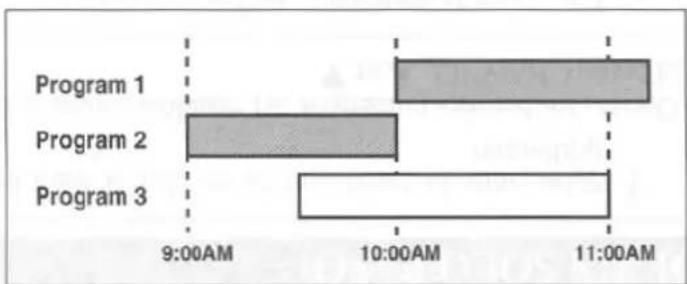
bar
| Program | Time (AM) | |---|---| | Program 1 | 12 | | Program 2 | 8 | | Program 3 | 6 |1 Select the program mode Press PROG. CHECK button.
2 Select the program number (1\~7)
Press CHANNEL/SET ▼ or ▲ button for a desired program number, and press SELECT button. (Example: 1)
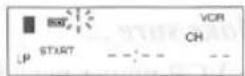
NOTE: The program number 8 is used for setting Today Timer Recording only. You cannot select number 8 in the procedure of Automatic Timer Recording.
3 Select once, daily or weekly recording ("START" and "DATE" appear)
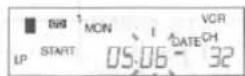
For once recording :
First press CHANNEL/SET ▼ or ▲ button for a desired month, and press SELECT button. (Example: "05" for May)
Next, enter the day, and press SELECT button. (Example: "06" for 6th)
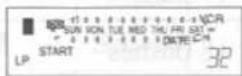
For daily recording: To record a program at the same time on the same channel every day. (Example: Monday through Sunday)
Press CHANNEL/SET ▼ or ▲ button repeatedly until all of the day indicators flash together, and press SELECT button.
For weekly recording: To record a program at the same time on the same channel every week. (Example: every Monday on channel 7 at 5:00PM)
Press CHANNEL/SET ▼ or ▲ button repeatedly until "WEEKLY" and a desired day of the week flash, and press SELECT button.

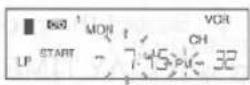
4 Set the start hour (only "START" appears)
Press CHANNEL/SET ▼ or ▲
button for a desired hour, and press SELECT button. (Example: "7, PM" for 7:30PM)
5 Set the start minute (only "START" appears)
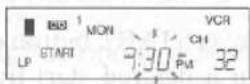
Press CHANNEL/SET ▼ or ▲
button for a desired minute, and press SELECT button. (Example: "30" for 7:30PM)
6 Set the end hour ("END" appears)
Press CHANNEL/SET ▼ or ▲
button for a desired hour, and press SELECT button. (Example: "8, PM" for 8:30PM)
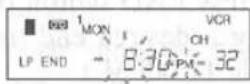
7 Set the end minute ("END" appears)
Press CHANNEL/SET ▼ or ▲ button for a desired minute, and press SELECT button. (Example: "30" for 8:30PM)
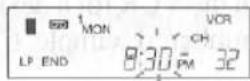
8 Set the channel number
Press CHANNEL/SET ▼ or ▲ button for a desired channel number, and press SELECT button. (Example: 16)
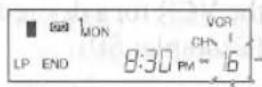
9 Set the tape speed
Press CHANNEL/SET ▼ or ▲ button for a desired tape speed and press SELECT button. (Example: SP)
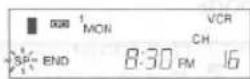
To set another program, repeat steps [2] to [9].
10 Exit the program mode
Press PROG.CHECK button to return to original mode.
11 Set the timer
Press POWER/TIMER REC button. This turns the VCR power off, and the "☑" indicator
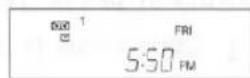
lights up on the display. The number of all programmed events are displayed with current time.
TO CANCEL AN AUTOMATIC TIMER PROGRAM
- While setting a program; from step [2] to [9], press ADD/DELETE button. "--:--" appears on the display.
● After setting a program ; (power must be on)
1) Press PROG.CHECK button.
2) Press CHANNEL/SET ▼ or ▲ button repeatedly until a program number you want to cancel is flashed.
3) Press ADD/DELETE button. The selected program is erased and "--:" appears on the display.
4) Press PROG.CHECK button. The display returns to original mode.
- While recording is in progress; press STOP/EJECT button on the VCR.
NOTE: STOP button on the remote control will not function in the Automatic Timer Recording mode.
TO CHECK THE START/END TIME
After setting the timer, you can check the program number, Start/End time and channel number.
1) Press PROG.CHECK button.
2) Press CHANNEL/SET ▼ or ▲ button repeatedly until desired program number is displayed.
3) Press SELECT button repeatedly.
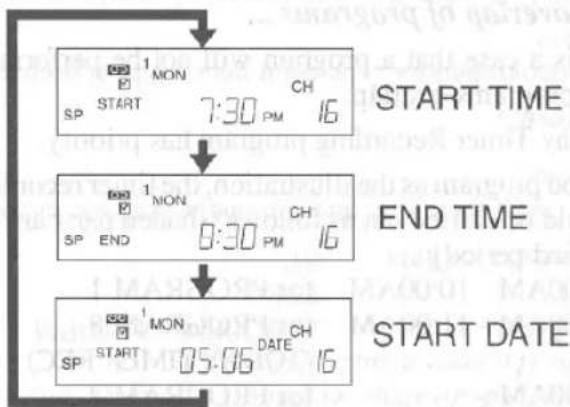
flowchart
graph TD
    A["START TIME"] --> B["END TIME"]
    B --> C["START DATE"]
Repeat steps [2] and [3] for next program number.
4) Press PROG.CHECK button to return to current timer display.
TODAY TIMER RECORDING
You may set the VCR to start and end recording one program within 24 hours by simply pressing TODAY TIMER REC, START and END buttons on the VCR. It is easy for you to set the timer for recording today's TV program.
In the example below, the Today Timer is being set to record (current time is 6:00PM):
SETTING TIME from 9:30PM to 11:00PM
CHANNEL CH61
TAPE SPEED SP
NOTE: This function cannot be done by the remote control.
Make sure ...
• VCR power must be turned on to program it.
- Turn on the TV and set the TV channel to the same video output channel as located on the back of the VCR. (CH3 or 4)
- Press TV/VCR button so that "VCR" appears on the display.
- Clock must be set to the correct time and date before setting the timer.
- Insert a cassette tape with its erase prevention tab in place. (If necessary, rewind or fast forward the tape to the point at which you want to begin recording.)
• Today Timer Recording controls program number 8.
Avoid overlap of programs ...
There is a case that a program will not be performed. When programs overlap:
• Today Timer Recording program has priority.
- If you program as the illustration, the timer recording would be carried out as follows (shaded parts are the carried period):
9:00AM - 10:00AM for PROGRAM 1
10:00AM - 11:00AM for PROGRAM 8
(TODAY TIMER REC)
11:00AM - for PROGRAM 2
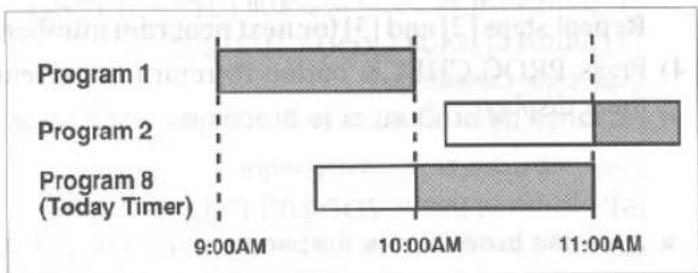
bar
| Program | Timeframe | |---|---| | Program 1 | 9:00AM | | Program 2 | 10:00AM | | Program 8 (Today Timer) | 10:00AM | | Program 1 (Timeframe) | 11:00AM | | Program 2 (Timeframe) | 11:00AM | | Program 8 (Today Timer) (Timeframe) | 11:00AM |1 Select the program mode
Press TODAY TIMER REC button on the VCR. Program number "8" appears on the display.
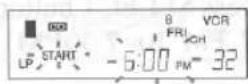
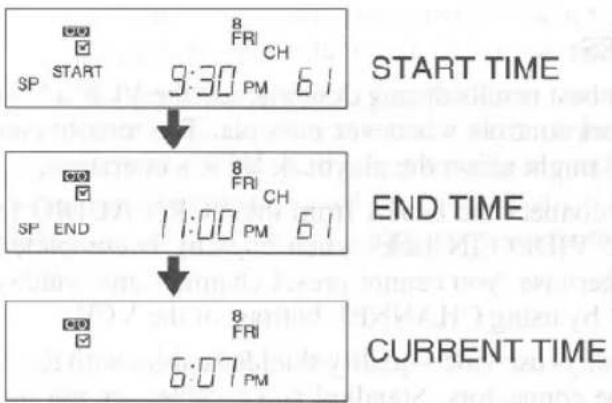
2 Set the start time ("START" flashes)
Press START button on the VCR for a desired start time. (Example: 9:30PM)
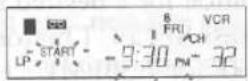
3 Set the end time ("END" flashes)
Press END button on the VCR for a desired end time. (Example:11:00PM)
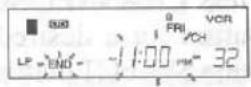
4 Set the channel number
Press CHANNEL ▼ or ▲ button on the VCR for a desired channel number. (Example: 61)
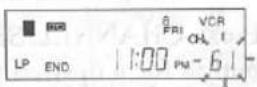
5 Set the tape speed
Press TAPE SPEED button on the VCR for a desired tape speed. (Example: SP)
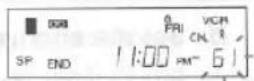
6 Exit the program mode
Press TODAY TIMER REC button to return to original mode.
7 Set the timer
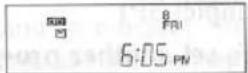
Press POWER / TIMER REC button to turn the VCR off. "☑" and the program number "8" are displayed with current time.
TO CANCEL A TODAY TIMER PROGRAM
- While setting a program; press STOP/EJECT button on the VCR. This function cannot be done by the remote control.
- After setting a program; (power must be on) First, press TODAY TIMER REC button. Then, press STOP/EJECT button on the VCR. This function cannot be activated by the remote control.
- While recording is in progress; press STOP /EJECT button on the VCR. This function cannot be activated by the remote control.
TO CHECK THE START/END TIME
1) Press POWER/TIMER REC button so that "☒" indicator appears.
2) Press TODAY TIMER REC button once. Both the start and end time will appear for 3 seconds each, and return to the Timer Stand-by mode.
flowchart
graph TD
    A["SP START"] --> B["9:30 PM 61"]
    B --> C["SP END"]
    C --> D["11:00 PM 61"]
    D --> E["6:07 PM"]
    style A fill:#f9f,stroke:#333
    style B fill:#ccf,stroke:#333
    style C fill:#cfc,stroke:#333
    style D fill:#fcc,stroke:#333
    style E fill:#cff,stroke:#333
HINTS FOR TIMER RECORDING (AUTOMATIC TIMER & TODAY TIMER)
- If there is a power failure or the VCR is unplugged for more than 30 seconds, the clock setting and all timer settings will be lost.
- If the tape runs out before the end time, the VCR will switch to the Stop mode immediately, eject the tape and the VCR power will be turned off. The "☑" indicator will flash.
- If a tape is not inserted or the erase-protection tab is removed, the "☒" flashes and timer recording cannot occur. Insert a tape that allows recording.
- The TV that is connected to your VCR may be turned on or off when the VCR is in the timer-record mode.
- When you record a cable channel program with cable converter box, first set the VCR's channel to 3 or 4 whichever is the output channel of your cable converter box. Then set your cable converter box to the channel you want to record and leave on while you are recording with power on.
AUTO RETURN
With this feature, after finished timer recording, the beginning of the recorded program(s) can be searched by one touch.
1 Start Auto Return
When all the timer recordings are completed ("☒" flashes), press AUTO RETURN button on the VCR at once. The VCR will rewind to the beginning of the recorded program(s).
NOTE: If there are any remaining programs, press POWER button to turn on, then press AUTO RETURN button. But In this case, if you press any other button once and press AUTO RETURN button, the Auto Return will not be done.
2 Watch the recorded program
Press PLAY button.
Connect the Funai/Symphonic editing (recording) VCR, source (playing) VCR and your TV using the following diagram.
![Audio/Video adapter cord (not supplied) Funai/Symphonic [Editing (Recording) VCR] AUDIO OUT IN VIDEO CHB CHA ANT IN OUT COAXIAL CABLE (supplied) TV set (Use for monitoring) Antenna input jack](/content/2026/06/1235655/images/8ae1f1dd18f530cefe58829cde149e2cd39a5c14bf7942f4d6ba370ee14fab13.jpg)
[Source (Playing) VCR
1) Insert a pre-recorded video cassette into the source(playing) VCR.
2) Insert a blank video cassette, or one you want to record over, into the Funai/Symphonic editing(recording) VCR cassette compartment.
3) Press TAPE SPEED button on the Funai/Symphonic editing (recording) VCR to select the desired recording speed (SLP, LP or SP).
4) Press REC button on the Funai/Symphonic editing (recording) VCR.
5) Begin playback of the tape in the source(playing) VCR.
NOTES:
- For best results during dubbing, use the VCR's front panel controls whenever possible. The remote control might affect the playback VCR's operation.
- Disconnect the cables from the VCR's AUDIO IN and VIDEO IN jacks when copying is completed. Otherwise, you cannot preset channels and watch a TV by using CHANNEL buttons of the VCR.
- Always use video-quality shielded cables with RCA-type connectors. Standard audio cables are not recommended.
- You can use a video disc player, satellite receiver, or other audio/video component with A/V outputs in place of the playback VCR.
TO MONITOR THE RECORDING
1) Turn on the TV, and set it to the same output channel as the Funai/Symphonic editing(recording) VCR channel 3 or 4.
2) Press TV/VCR button on the Funai/Symphonic editing VCR so that "VCR" appears on the display.
If you have followed the instructions contained in this manual and have difficulty in operating your VCR, locate the SYMPTOM in the left column below. Check the corresponding POSSIBLE CAUSE and CORRECTIVE ACTION columns to remedy the problem.
| SYMPTOM | POSSIBLE CAUSE | CORRECTIVE ACTION |
| No power. | Power cord is not connected.The VCR power is turned off. | Connect power cord to AC outlet.Press POWER button to turn on the VCR. |
| Timer recording is not possible. | The timer recording is set incorrectly.The VCR power is turned on.VCR clock is not set correctly. | Set the timer recording correctly.Press POWER button to turn off the VCR.Set VCR clock correctly. |
| Recording mode cannot be engaged. | The erase prevention tab on cassette is missing. | Place a plastic tape over the hole. |
| No picture or poor picture on playback. | The TV and/or VCR is in the TV mode.The TV fine tuning is not set correctly. | Set your TV to the VCR mode and/or press TV/VCR button so that "VCR" appears on the display.Fine tune your TV. |
| Noise in picture on play-back. | Video heads are dirty. | Head cleaning is necessary, consult the nearest Funai Authorized Service Center. |
| Playback picture is partially noisy. | The tracking control is not set correctly. | Adjust tracking control for a better picture. |
| On-the-air TV programs cannot be seen. | Connections are not correctly made.The TV and/or VCR is in VCR mode. | Re-check the ANT. IN and ANT. OUT connections.Set your TV to the TV mode and/or press TV/VCR button so that "VCR" disappears from the display. |
| No operation by infrared Remote Control. | Weak batteries. | Check the batteries in the remote control. |
| Operation buttons do not work after there is a power failure or you move your VCR. | Channel Memory Programming is required because programmed channels are erased. | See "NOTES" under "AUTOMATIC CHANNEL PRESET" on page 12. |
SERVICING
Should your VCR become inoperative, do not try to correct the problem by yourself. There are no user-service-able parts inside. Turn off, unplug the power cord, and take the unit to Funai Authorized Service Center for servicing.
CABINET CLEANING
- Wipe the front panel and other exterior surfaces of the VCR with a soft cloth immersed in lukewarm water and wrung dry.
- Never use a solvent or alcohol. Do not spray insecticide liquid near the VCR. Such chemicals may cause damage and discoloration to the exposed surfaces.
HEAD CLEANING
Playback picture may become blurred or interrupted while the TV program reception is clear. Dirt accumulated on the video heads after long periods of use, or the usage of rental or worn tapes can cause this problem.
If a streaky or snowy picture appears during playback, the heads of your VCR may need to be cleaned.
- Please visit your local Audio/Video store and purchase a good quality VHS Video Head Cleaner.
- If a Video Head Cleaner does not solve the problem, consult the nearest Funai Authorized Service Center. Professional video head cleaning requires highly technical attention.
NOTES:
- Remember to read the instructions included with the head cleaner before use.
- Clean heads only when problems occur.
SPECIFICATIONS
GENERAL SPECIFICATIONS
| Television system : | NTSC, TV standard |
| Video heads : | Rotary two-head |
| Tape width : | 1/2inch (12.65mm) |
| Tape speed | |
| SP : | 33.35mm/sec. |
| LP : | 16.67mm/sec. |
| SLP : | 11.12mm/sec. |
| Tuner channel | |
| VHF : | #2~#13 |
| UHF : | #14~#69 |
| Cable channel : | 5A, A-5 ~ A-1, A ~ W+84 |
| RF converter : | Built-in VHF converter |
| Converter output : | VHF Channel 3 or 4. |
| Timer indication : | AM/PM 12-hour system |
| Operating temperature : | 5°C~40°C (41°F~104°F) |
| Terminals | |
| Antenna input : | F type connector x 1 |
| Antenna output : | F type connector x 1 |
| Video input/output : | RCA connector x 2 |
| Audio input/output : | RCA connector x 2 |
ELECTRICAL SPECIFICATIONS
| Video output level : | 1Vp-p |
| Video output impedance : | 75Ω |
| Audio output level : | -6dBv (1KHz) |
| Video input level : | 0.5~2.0Vp-p |
| Audio input level : | -10dBv |
| Video S/N ratio | |
| SP: | More than 45dB |
| Audio S/N ratio | |
| SP : | More than 38dB |
OTHER SPECIFICATIONS
| Power requirement : | 120V, 60Hz |
| Power consumption : | 17 Watts |
| Dimensions : | W 14-1/4" (360mm)H 3-5/8" (92mm)D 10" (252mm) |
| Weight : | 7.0 lbs. (3.2 Kg.) (approx.) |
- Designs and specifications are subject to change without notice and without our legal obligation.
If you subscribe to cable TV, the channels are displayed as 1-125.
Cable companies often designate channels with letters or letter-number combinations. Please check with your local cable company. The following is a chart of common cable channel designations.
| CATV Channel | 5A | 2 | 3 | 4 | 5 | 6 | 7 | 8 | 9 | 10 | 11 | 12 | 13 | A | B |
| VCR Display | 1 | 2 | 3 | 4 | 5 | 6 | 7 | 8 | 9 | 10 | 11 | 12 | 13 | 14 | 15 |
| CATV Channel | C | D | E | F | G | H | I | J | K | L | M | N | O | P | Q |
| VCR Display | 16 | 17 | 18 | 19 | 20 | 21 | 22 | 23 | 24 | 25 | 26 | 27 | 28 | 29 | 30 |
| CATV Channel | R | S | T | U | V | W | W+1 | W+2 | W+3 | W+4 | W+5 | W+6 | W+7 | W+8 | W+9 |
| VCR Display | 31 | 32 | 33 | 34 | 35 | 36 | 37 | 38 | 39 | 40 | 41 | 42 | 43 | 44 | 45 |
| CATV Channel | W+10 | W+11 | W+12 | W+13 | W+14 | W+15 | W+16 | W+17 | W+18 | W+19 | W+20 | W+21 | W+22 | W+23 | W+24 |
| VCR Display | 46 | 47 | 48 | 49 | 50 | 51 | 52 | 53 | 54 | 55 | 56 | 57 | 58 | 59 | 60 |
| CATV Channel | W+25 | W+26 | W+27 | W+28 | W+29 | W+30 | W+31 | W+32 | W+33 | W+34 | W+35 | W+36 | W+37 | W+38 | W+39 |
| VCR Display | 61 | 62 | 63 | 64 | 65 | 66 | 67 | 68 | 69 | 70 | 71 | 72 | 73 | 74 | 75 |
| CATV Channel | W+40 | W+41 | W+42 | W+43 | W+44 | W+45 | W+46 | W+47 | W+48 | W+49 | W+50 | W+51 | W+52 | W+53 | W+54 |
| VCR Display | 76 | 77 | 78 | 79 | 80 | 81 | 82 | 83 | 84 | 85 | 86 | 87 | 88 | 89 | 90 |
| CATV Channel | W+55 | W+56 | W+57 | W+58 | A-5 | A-4 | A-3 | A-2 | A-1 | W+59 | W+60 | W+61 | W+62 | W+63 | W+64 |
| VCR Display | 91 | 92 | 93 | 94 | 95 | 96 | 97 | 98 | 99 | 100 | 101 | 102 | 103 | 104 | 105 |
| CATV Channel | W+65 | W+66 | W+67 | W+68 | W+69 | W+70 | W+71 | W+72 | W+73 | W+74 | W+75 | W+76 | W+77 | W+78 | W+79 |
| VCR Display | 106 | 107 | 108 | 109 | 110 | 111 | 112 | 113 | 114 | 115 | 116 | 117 | 118 | 119 | 120 |
| CATV Channel | W+80 | W+81 | W+82 | W+83 | W+84 | ||||||||||
| VCR Display | 121 | 122 | 123 | 124 | 125 | ||||||||||
FUNAI CORPORATION LIMITED WARRANTY
FUNAI CORP. will repair this product, free of charge in the USA in the event of defect in materials or workmanship as follows:
DURATION:
PARTS: FUNAI CORP. will provide parts to replace defective parts without charge for one (1) year from the date of original retail purchase. Two (2) years for Picture Tube. Certain parts are excluded from this warranty.
LABOR: FUNAI CORP. will provide the labor without charge for a period of ninety (90) days from the date of original retail purchase.
LIMITS AND EXCLUSIONS:
This warranty is extended only to the original retail purchaser. A purchase receipt or other proof of original retail purchase will be required together with the product to obtain service under this warranty.
This warranty shall not be extended to any other person or transferee.
This warranty is void and of no effect if any serial numbers on the product are altered, replaced, defaced or missing. This FUNAI CORPORATION Limited warranty does not apply to any the product not purchased and used in the United States.
This warranty only covers failures due to defects in material or workmanship which occur during normal use. It does not cover damage which occurs in shipment, or failures which are caused by repairs, alterations or product not supplied by FUNAI CORP., or damage which results from accident, misuse, abuse, mishandling, misapplication, alteration, faulty installation, improper maintenance, commercial use such as hotel, rental or office use of this product or damage which results from fire, flood, lightning or other acts of God.
THIS WARRANTY DOES NOT COVER PACKING MATERIALS, ANY ACCESSORIES (EXCEPT REMOTE CONTROL), ANY COSMETIC PARTS, COMPLETE ASSEMBLY PARTS, DEMO OR FLOOR MODELS.
FUNAI CORP. AND ITS REPRESENTATIVES OR AGENTS SHALL IN NO EVENT BE LIABLE FOR ANY GENERAL, INDIRECT OR CONSEQUENTIAL DAMAGES ARISING OUT OF OR OCCASIONED BY THE USE OF OR THE INABILITY TO USE THIS PRODUCT. THIS WARRANTY IS MADE IN LIEU OF ALL OTHER WARRANTIES, EXPRESS OR IMPLIED, AND OF ALL OTHER LIABILITIES ON THE PART OF FUNAI, ALL OTHER WARRANTIES INCLUDING THE WARRANTY OF MERCHANTABILITY, AND FITNESS FOR A PARTICULAR PURPOSE, ARE HEREBY DISCLAIMED BY FUNAI AND ITS REPRESENTATIVES IN THE UNITED STATES. ALL WARRANTY INSPECTIONS AND REPAIRS MUST BE PERFORMED BY FUNAI AUTHORIZED SERVICE CENTER. THIS WARRANTY IS VALID WHEN THE UNIT IS CARRIED-IN TO FUNAI AUTHORIZED SERVICE FACILITY.
WHEN YOU ARE RETURNING THE PRODUCT FOR SERVICE TO THE FACTORY SERVICE CENTER, PLEASE CONTACT THE FUNAI SERVICE DEPARTMENT TO RECEIVE A R.A. (REPAIR AUTHORIZATION) NUMBER PRIOR TO SHIPPING. ANY POSTAGE, INSURANCE AND SHIPPING COST, INCURRED IN PRESENTING OR SENDING YOUR FUNAI/SYMPHONIC PRODUCT FOR SERVICE ARE SHIPPER'S RESPONSIBILITY.
CAREFULLY PACK WITH PROPER PACKING MATERIALS, PREFERABLY IN THE ORIGINAL CARTON.
ATTACH WRITTEN DOCUMENTATION DETAILING THE COMPLAINT, TO THE OUTSIDE OR INSIDE OF THE CARTON.
THE PRODUCT MUST BE ACCOMPANIED BY A COPY OF THE ORIGINAL RETAIL PURCHASE RECEIPT. IF NO PROOF OF PURCHASE IS ATTACHED, THE WARRANTY WILL NOT BE HONORED AND REPAIRS COSTS WILL BE CHARGED.
IMPORTANT:
THIS LIMITED WARRANTY GIVES YOU SPECIFIC LEGAL RIGHTS, YOU MAY HAVE OTHER RIGHTS THAT VARY FROM STATE TO STATE, IF, AT ANY TIME DURING THE WARRANTY PERIOD, YOU ARE UNABLE TO OBTAIN SATISFACTION WITH THE REPAIR OF THIS PRODUCT, PLEASE CONTACT FUNAI CORP.
ATTENTION:
FUNAI CORP. RESERVES THE RIGHT TO MODIFY ANY DESIGN OF THIS PRODUCT WITHOUT PRIOR NOTICE.
For information of your nearest FUNAI Authorized Service Center or general service procedure, please call or write to the following:
FUNAI CORPORATION
Factory Service Center
100 North Street; Teterboro, NJ 07608
Tel :1-800-242-7158
(Eastern Time 9:00 AM - 4:30 PM / Monday - Friday)