Freakyforms Deluxe - Your Creations Alive (3DS) - Videospel NINTENDO - Gratis bruksanvisning och manual
Hitta enhetens manual gratis Freakyforms Deluxe - Your Creations Alive (3DS) NINTENDO i PDF-format.


Användarfrågor om Freakyforms Deluxe - Your Creations Alive (3DS) NINTENDO
0 fråga om denna apparat. Svara på dem du kan eller ställ din egen.
Ställ en ny fråga om denna apparat
Ladda ner instruktionerna för din Videospel i PDF-format gratis! Hitta din manual Freakyforms Deluxe - Your Creations Alive (3DS) - NINTENDO och ta tillbaka ditt elektroniska enhet i hand. På denna sida publiceras alla dokument som behövs för att använda din enhet. Freakyforms Deluxe - Your Creations Alive (3DS) av märket NINTENDO.
BRUKSANVISNING Freakyforms Deluxe - Your Creations Alive (3DS) NINTENDO
1 Important Information
Getting Started
2 Introduction
3 Controls
4 Starting the Game
5 Main Menu
6 Saving and Erasing Data
Creating Your World
7 Creating/Editing Formees
8 Creating/Editing Scenery
Playing in Your World
9 Exploring
10 Taking Photos
11 Special Powers
12 AR Card/QR Code Tools
Seeing What You've Found
13 Your Collection
Connecting with Others
14 The StreetPass Feature
15 Formee Playhouse
Troubleshooting
16 Support Information
Thank you for choosing the Freakyforms™ Deluxe: Your Creations, Alive! game for the Nintendo 3DS™ system.
Please read this manual carefully before using the software. Please also read your Nintendo 3DS Operations Manual for more details and tips to help you enjoy your playing experience.
Health and Safety Information
▲ IMPORTANT
Before using this software, read all content within the Health and Safety Information application on the HOME Menu.
To access this application, tap the icon on the HOME Menu, then tap Open and read the contents of each section carefully. When you are finished, press HOME to return to the HOME Menu.
You should also thoroughly read the Nintendo 3DS Operations Manual, including the Health and Safety Information section, before using Nintendo 3DS™ software.
CAUTION - STYLUS USE
To avoid fatigue and discomfort when using the stylus, do not grip it tightly or press it hard against the screen. Keep your fingers, hand, wrist and arm relaxed. Long, steady, gentle strokes work just as well as many short, hard strokes.
Protecting Your Privacy
This software allows you to share information with other users via StreetPass communication, local wireless communication, and Download Play. Please keep the following in mind regarding the use of these features:
● To protect your privacy, do not give out personal information such as last name, phone number, birth date, age, school, e-mail, or home address when communicating with others.
When you download or use this software (including any digital content or documentation you download or use in connection with this software) and pay any applicable fees, you are granted a personal, non-exclusive, revocable license to use this software on your Nintendo 3DS system. Your use of this software is subject to the Nintendo 3DS Service User Agreement, which includes the Nintendo 3DS system Privacy Policy and the Code of Conduct.
Your Nintendo 3DS system and this software are not designed for use with any unauthorized device or unlicensed accessory. Such use may be illegal, voids any warranty, and is a breach of your obligations under the User Agreement. Further, such use may lead to injury to yourself or others and may cause performance issues and/or damage to your Nintendo 3DS system and related services. Nintendo (as well as any Nintendo licensee or distributor) is not responsible for any damage or loss caused by the use of such device or unlicensed accessory. Except as authorized, copying of any Nintendo software is illegal and is strictly prohibited by domestic and international intellectual property laws, "Back-up" or "archival" copies are not authorized.
Nintendo respects the intellectual property of others, and we ask Nintendo 3DS software Content Providers to do the same. In accordance with the Digital Millennium Copyright Act in the US, the Electronic Commerce Directive in the EU, and other applicable law, we have adopted a policy of removing, in appropriate circumstances and at our sole discretion, any Nintendo 3DS software that appears to infringe anyone else's intellectual property. If you believe your intellectual property rights are being infringed, please visit www.nintendo.com/ippolicy to view the full policy and understand your rights.
© 2011-2012 Nintendo.
Trademarks are property of their respective owners. Nintendo 3DS is a trademark of Nintendo.
"QR Code reader" includes software deliverables of Information System Products Co., Ltd. and Institute of Super Compression Technologies, Inc. QR Code is a registered trademark of DENSO WAVE INCORPORATED in JAPAN and other countries.
Most of the controls involve using your stylus to interact with the Touch Screen, but there are a few controls for which you can use the buttons.

Controls While Exploring
| Talk to a formee | A/L/R/Twirl on the Touch Screen |
| Open door/ Enter dungeon | A/L/R/Twirl on the Touch Screen |
| Zoom in | |
| Zoom out | |
| Open/close map | START / SELECT |
| Open/close status screen | START / SELECT (while inside a dungeon) |
| Pause/ unpause game (while exploring) | START / SELECT |
natural_image
Illustration of a hot air balloon with a cartoon rabbit, pink tulip, and clouds on a green field (no text or symbols)Tap the Touch Screen at the title screen to proceed to the main menu.

Naming Your Planet

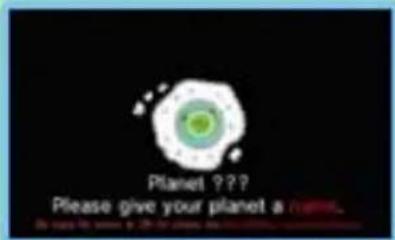
The first time you play, you'll be asked to name your planet.
Once you've given your planet a name, that name cannot be changed, so be sure to choose carefully!
text_image
Planet ???? Please give your planet a planet.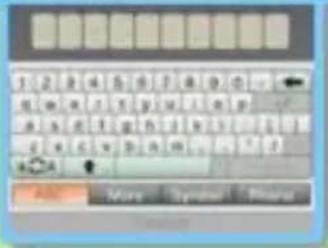
text_image
1 2 3 4 5 6 7 8 9 10 a e w a r s y g u l t o p a x e t i g h i k v i j t c e c v b h m . . . 1 ?If you activate the StreetPass™ feature, your planet's name will be sent to anyone who receives content from you, so please don't use personally identifying information or language that others might find offensive in your planet's name. To protect your privacy, don't give out personal information, such as your last name, phone number, birth date, age, school, e-mail address, or home address when communicating with others.
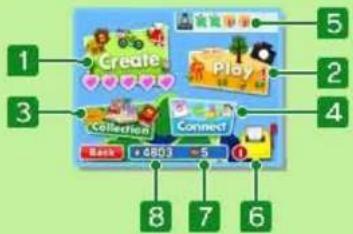
As you progress through the game, new menu items become available to you. When a menu item becomes available, a ! displays over that item.
text_image
1 2 3 4 5 6 7 8 9 10 11 12 13 14 15 16 17 18 19 20 21 22 23 24 25 26 27 28 29 30 31 32 33 34 35 36 37 38 39 40 41 42 43 44 45 46 47 48 49 50 51 52 53 54 55 56 57 58 59 60 61 62 63 64 65 66 67 68 69 70 71 72 73 74 75 76 77 78 79 801 Create
Here you can create and edit formees and scenery (pages 7-8) and try Creation Challenges using challenge packs you've discovered inside eggs (page 9). When you create a formee, you need a formee heart (♥) to bring it to life. You can have five formee hearts at a time; once used, formee hearts recharge at a rate of one per hour.
If you change the date and time in the System Settings, your formee hearts may not recharge properly.
2 Play
Here you can take formees exploring, equip your formees with special powers, take 3D photos, and use AR Card and QR Code® tools (pages 9-12).
3 Collection
Here you can view your formees, guests, friends, photos, accessories, and trophies (page 13).
4 Connect
If you've activated the StreetPass feature (page 14), go here to choose content to send to other players. You can also create formees with up to three other people here, via Download Play (page 15).
5 News
When a news bulletin arrives, icons like 📁 and 🌐 display here. Tap an icon to view that bulletin.
6 Mailbox
If you've activated the StreetPass feature (page 14), go here to open the letters you receive.
7 Number of formees created
8 Savings
Use coins to shop in the catalog, play minigames, and buy extra copies of the special powers you've found.

natural_image
Illustration of a white sheep standing on a green hill with a tree and clouds in the background (no text or symbols)
Saving Data

When you create or confirm edits to a formee or piece of scenery, buy or equip a special power, finish an exploring trip, or perform other similar actions, your game is automatically saved. When data is being saved, "Saving..." is displayed on the Touch Screen.

Erasing All Data
Select Freakyforms Deluxe: Your Creations, Alive! from the Nintendo 3DS HOME Menu, and press and hold Ⓐ + Ⓑ + ⒕ + Ⓨ before the title screen displays to erase all data.

Erasing Specific Data

Erase your formees and guests by finding them in your collection and selecting Good-Bye (page 13). Erase pieces of scenery by finding them in Create Scenery and selecting Erase.
Once erased, data cannot be recovered, so please be careful.
● Data can be lost due to user action such as repeatedly powering off and on the system, or removing the Game Card or SD Card while saving. Data loss may also be caused by poor connectivity, due to dirt or dust in the system's ports. Please be aware that in these cases data cannot be restored.
text_image
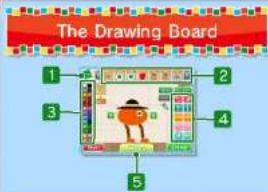
The Drawing Board 1 2 3 4 51 Catalog
Use the catalog to buy new forms and view your guests, friends, and other formees as you create new ones. Tap Buy when a locked friend is selected to unlock it and obtain its forms.
2 Form categories
3 Color palette
4 Transformation tools
5 Menu
Hint
Tweak
Gives you formee suggestions.
Lets you adjust a formee with options like Mutate, Color Swap, and Squish.
Match
Creates a look-alike of one of your formees, friends, or guests, which you can then edit to create someone new.
Erase All
Wipes all forms from the drawing board.
Tutorials
Lets you rewatch Formsby's tutorials.
Undo
Undoes your last action.

Drag and drop forms from the categories at the top of the Touch Screen to create a formee's face, body, legs, etc. Gain access to additional forms by purchasing them from the catalog or discovering them while exploring. You can use up to 20 forms on a formee; how you arrange them is up to you, but your formee must have a mouth.
Note: You can't edit formees who are resting in the sanctuary or your guests.
Transforming Forms
When a form is selected, tap Animate to view its movement if it includes an animation. Tap 📄/ 📋 to switch between different options in its category, and select All to see and choose from all those options at once. Tap 🔔 to center on the selected form and zoom in on it. 📍 can be used to change the zoom. 🌐 can be used to move around the drawing board. Tap 🔔 to return to normal view.
Transformation Tools Transformation-tool options change depending on which form you select. Here are a few of the most common transformation tools.
Copy
Flip horizontally

Lengthen/shorten vertically

Widen/narrow horizontally

Enlarge/shrink

Rotate

When you're done creating/editing a formee, select Done. A formee heart will breathe life into your creation if it's brand new. You'll then proceed to a series of screens where you'll be asked to pick a name, favorite phrase, and voice for your creation. Once all this has been done, you'll be asked whether you want to equip your new formee with a special power (page 11) before you go exploring together.

① Select an Area

Tap 1/1 to select the area for which you want to create or edit scenery, then tap Confirm.

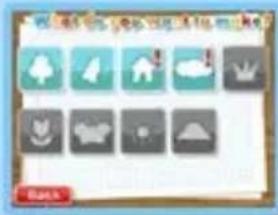
② Select a Kind of Scenery

Obtain new kinds of scenery while exploring to increase your options.
text_image
Screenshot of a software interface with icons for weather, climate, and weather management tools
③ Create/Edit Scenery
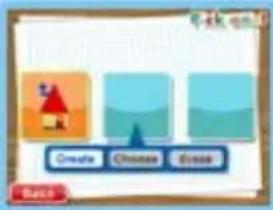
To create new scenery, tap an empty panel and select Create. To edit existing scenery, tap the panel showing the
text_image
Create Choose Close BATSpiece you want to modify and select Edit. Creating and editing scenery is much like creating and editing formees, but you can only use up to 12 forms on a piece of scenery.
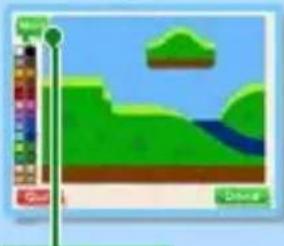
Note: When you're repainting a landscape, tap More to change the contents of the color palette.
natural_image
Game interface screenshot showing a green game scene with a cloud, grassy terrain, and a blue sky (no readable text or symbols)More
natural_image
Illustration of a green hill with trees, a pink flower, and a butterfly under a blue sky (no text or symbols)
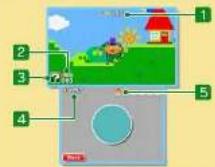
1 Remaining time
When time runs out, your trip ends.
2 Score
This increases as your exploring formee walks, eats food, and does other things.
3 Bonus Chance wheel
When your score reaches 100 points, you get a free spin on the Bonus Chance wheel. As the wheel spins, different bonuses cycle through this box; the one that sticks is the bonus you get. Bonuses include temporary boosts to your exploring formee's speed, jump height, etc.
4 Savings
5 Eggs collected
Walking
Touch to the left or the right of the ● to get your exploring formee to walk in that direction.

Jumping
Grab and pull the downward and then release it to get your exploring formee to jump.
Eating
Grab and pull the ● to stretch your exploring formee in that direction. If you bring a formee's mouth to food, it will eat.

Eggs
Your exploring formee will sometimes lay an egg after eating food. If you bump its body into an egg, you'll pick

up the egg. Once your trip is done, you'll proceed to the egg-breaking minigame if you picked up any eggs. Tap an egg to get it cracking. If you're very lucky, your first tap will smash it in two and you'll get a one-shot jackpot! When you break an egg, you'll receive coins and might receive other things too... Eggs are filled with many wondrous things.
Trash
Your exploring formee will sometimes leave trash behind after it eats. If you bump its body into dropped trash, you'll toss the trash bag into a trash can and earn some extra points.
Flying
Formees that have wings can fly through the sky. If you touch the upper half of the Touch Screen while

exploring with a winged formee, it will take off and fly in that direction, following your stylus. When your exploring formee takes flight, a meter appears on the 3D Screen and starts to decrease. If it reaches zero, the formee will fall. The meter replenishes when the formee is back on the ground or pops a balloon.
Swimming
When your exploring formee is in water, touch around the ● to direct its swim. Formees with fins can swim freely through the water as long as they like. Formees without fins can only swim for a limited amount of time, so be sure to keep an eye on the meter that appears on the 3D Screen and starts to decrease when they're underwater. If it reaches zero, the formee will start moving very, very slowly. The meter replenishes when the formee is back at the surface or pops a bubble.
Treasure Chests
If you approach a treasure chest while holding a key you'll open the chest. Treasure chests contain new kinds of scenery, minigames, and more!

Dungeons
If you enter a dungeon, that dungeon's adventure will begin.

You can take 3D photos with formees and pieces of scenery.

① Select a Shot

② Select an Area


③ Set the Stage


④ Take a Photo

Tap Shoot to take a photo.
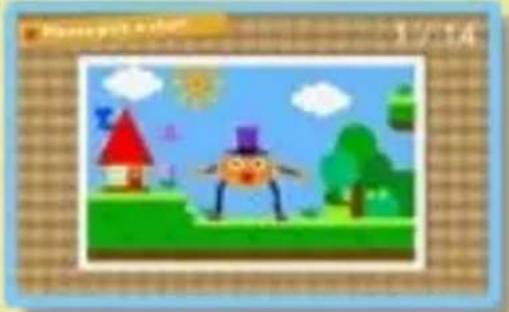
natural_image
Cartoon illustration of a character wearing a top hat standing on a grassy field with trees and sun in the sky (no text or symbols)Note: Photos can be viewed in your photo album (page 13) and shared via the StreetPass feature (page 14).


natural_image
Cartoon illustration of a man with a mustache wearing a top hat and holding a cane (no text or symbols)Special powers are items that can be equipped to your formees. Special powers let formees do amazing things!

① Pick a Special Power
The number on a special power's package tells you how many copies of that special power you're currently holding.
text_image
Closed 1 timer Back +50%
② Choose a Formee

Each formee can be equipped with one special power. If you equip a special power to a formee who already has a special power, the old special power that formee had will be lost. When you equip a formee with a special power, you will be taken to the area-selection screen so that you can go exploring and try out the special power!
Out of Special Powers?
You can use coins to buy extra copies of special powers that you've found.
natural_image
Illustration of a cartoon-style sun flying over a green hill with a flower and clouds, no text or symbols present.Taking AR Card Photos
You can use the "?" AR Card that came with your Nintendo 3DS system and your system's outer cameras to take 3D photos in which a formee and scenery objects appear right before you in real life.
Note: Photos taken this way can be viewed using the Nintendo 3DS Camera application on the HOME Menu. For details, please refer to the Nintendo 3DS Camera manual.
When playing AR Card games, you may have to move around the area while holding the Nintendo 3DS system. Make sure you have enough room, and hold the system firmly with both hands while playing.
Reading QR Code Patterns
You can use your Nintendo 3DS system's outer cameras to read QR Code patterns created by Freakyforms: Your Creations, Alive! and Freakyforms Deluxe: Your Creations, Alive!
Note: QR Code patterns can be generated by the My Formees and Guests albums in your collection (page 13).
① Read a QR Code
Align your Nintendo 3DS system's outer cameras so the QR Code you want to read sits within the frame displayed on the 3D Screen.
② Save the Formee
When you successfully read a QR Code, the encoded formee will appear on the 3D Screen. Welcome that formee to your planet as a guest to save it.
Loading QR Code Patterns
You can load QR Code patterns that have been saved to the SD Card.
natural_image
Simple cartoon illustration of a red-roofed house on a green field with yellow sky and clouds, no text or symbols present.As you progress through the game, you can develop your collection in six different categories: My Formees, Guests, Frier Accessories, and Trophi
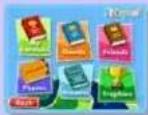

My Formees

Here you can view all of the formees you've made. Select Good-Bye to erase a selected formee.
Note: You cannot erase formees who are resting in the sanctuary. Once erased, data cannot be recovered, so please be careful.

Saving a Formee and Its QR Code to the SD Card
Select Save to SD Card to save one of your formees as an image that can be viewed using the
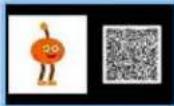
Nintendo 3DS Camera application. (Use the arrows on the Touch Screen to select a background for an image.) To generate a QR Code to accompany an image, turn the QR Code setting on before tapping Save. When the QR Code setting is on, you will see a QR Code next to the formee on the 3D Screen.
Note: Formee images and QR Code patterns will be saved in the DCIM folder on the SD Card.

Guests

Here you can view all of the guests you've welcomed to your planet. Guests can be saved onto an SD Card the same way your own formees can be saved. Select Good-Bye to erase a selected guest. You can have up to 120 guests at a time; if you exceed 120 guests, new guests will replace (erase) older ones, starting with the oldest.
Note: Guests you have marked as favorites will not be deleted this way. You can have a maximum of 60 favorite guests.

Photos

Here you can view all of the photos you've taken and received via the StreetPass feature. Photos can be saved onto the SD Card the same way your formees and guests can be saved. Select Erase to erase a photo. You can have up to 30 photos at a time; if you exceed 30 photos, new photos will replace (erase) older ones, starting with the oldest.
Note: Photos you have marked as favorites will not be erased this way. You can have a maximum of 15 favorite photos.
natural_image
Cartoon illustration of a yellow lion standing on grass with a butterfly flying nearby (no text or symbols)[Non-Text]
StreetPass
Communication (1)
If your Nintendo 3DS system gets close to another Nintendo 3DS system that has this game's StreetPass feature activated, your systems will automatically send and receive content that has been selected to be shared. As each player decides whether or not to share content, this interaction may or may not take the form of a one- player, players who have Freakyforms Deluxe: Your Creations, Alive! can communicate via StreetPass with players who have Freakyforms: Your Creations, Alive! Note: For StreetPass communication to take place, both players must have the StreetPass feature activated on their systems and have wireless communication enabled.
Activating StreetPass
You can't activate the StreetPass feature right away, but as you progress through the game this feature will become available. When it becomes available, select Connect on the main menu and then select StreetPass to begin the activation of the planet that he asked if you want to activate StreetPass for this title. To choose what content to send via StreetPass, select Connect from the main menu and then select StreetPass. You can set your formees, guests, and photos to be sent at random or choose what you want to send. Sending something to another player's planet doesn't mean it vanishes from yours. Your formees are not other planets yet still be on yours, ready to explore whenever you are. Note: If you send a formee or photo to another planet, please be aware that you cannot delete that content from the receiving player's system or impose limits on how that content is used by the other player. Note: Please do not share anything that gives away personal information, infringes on others' property rights, and a special content of our features content other might find offensive. For more information about information-sharing precautions, please see page 2.
Deactivating StreetPass To deactivate StreetPass, open the System Settings, select Data Management, and then select StreetPass management. Tap the icon for this software title, then select Deactivate StreetPass. Note: You can disable StreetPass functionality via Parental Controls. For more information, refer to the Nintendo 3DS Operations Manual.
If your Nintendo 3DS system contains data for both the card title Freakyforms Deluxe: Your Creations, Alive! and the downloadable title Freakyforms: Your Creations, Alive!. please note that these games can't send and receive data via StreetPass simultaneously. The game for which you most recently chose data to send via StreetPass will be the game that sends data, and the game you open first after receiving data will be the game that receives it.
My Formees Use this option to send up to three of your formees to other planets.
Guests Use this option to send up to three of your guests to other planets. Photo Use this option to send a photo to other planets. Note: AR Card photos cannot be sent to other planets.
Your StreetPass Stats Top 10 Pen Pals This ranks the planets you've encountered based on the number of letters you've received from them via the StreetPass feature. Top 10 Travelers This ranks the formees on your planet based on the number of planets they've visited via the StreetPass feature.
When You Receive a Letter... Content sent to you by other places arrives in letters. The letter that appears next to your mailbox on the main menu tells you how many new letters you've received. Tap your mailbox to see your new letters. When you open a letter, you must choose whether or not to save the contents enclosed within. If you choose to keep a letter's contents, that content will appear in the corresponding collection. If you decide you don't want to receive future letters from a certain player, you can block his or her communications by viewing the contents of one of that player's letters and selecting Don't Receive from This Planet. Note: It is possible to unlock a player who has been blocked this way. For details, please refer to the Blocked-User Settings section of the System Settings manual.
#
Formee Playhouse
(Local Play &
Download Play >>
This software supports multiplayer games via wireless communication. At least one player must have a copy of the software.

Setup
You Will Need:
- One Nintendo 3DS system per player
- At least one copy of the software

Connection Procedures
Every Formee Playhouse session must have a host. The host must have a copy of the game. If more than one participant has a copy of the game, decide who will host before beginning connection procedures.

If you have the game and are going to host:
- Tap Connect on the main menu, tap Formee Playhouse, and then tap Host.
If you have the game but are not going to host:

- Tap Connect on the main menu, tap Formee Playhouse, tap Search, and then tap Join.

If you don't have the game:
- Tap the Download Play icon on the HOME Menu, then tap Open.
- Tap the Nintendo 3DS logo.
- Tap Freakyforms Deluxe: Your Creations, Alive!

Beginning a Session
The host chooses which players to welcome into the session. The host can tap Reject to exclude a player and should tap Start when he or she is ready for the session to begin. If themes have been enabled, a player will then be chosen at random to write a theme for the session. If themes have been restricted, this step will be skipped and each player will be taken directly to his or her drawing board.
Each player then makes his or her own new formee. When all the new formees are done, King Roy will invite them onstage so that each player can see what the other players have made. Each player will then be given the opportunity to save the QR Code patterns of the session's formees and take a group photo of them.
natural_image
Illustration of a brown bear playing with a ball on a grassy field under a sunny sky (no text or symbols)Support Information
Nintendo Customer Service SUPPORT.NINTENDO.COM
USA/Canada: 1-800-255-3700
Latin America/Caribbean: (001) 425-558-7078