ProLite H511S - Televizioni IIYAMA - Manual falas për përdoruesin
Gjeni manualet e pajisjes falas ProLite H511S IIYAMA në format PDF.


Pyetjet e përdoruesve rreth ProLite H511S IIYAMA
0 pyetje rreth kësaj pajisjeje. Përgjigjuni atyre që njihni ose bëni tuajin.
Bëni një pyetje të re rreth kësaj pajisjeje
Shkarko udhëzimet për tuajin Televizioni në format PDF falas! Gjeni manualin tuaj ProLite H511S - IIYAMA dhe merrni pajisjen tuaj elektronike sërish në duar. Në këtë faqe janë publikuar të gjitha dokumentet e nevojshme për përdorimin e pajisjes suaj. ProLite H511S e markës IIYAMA.
MANUAL I PËRDORUESIT ProLite H511S IIYAMA
USER MANUAL
ProLite
LCD Monitor
TCODevelopment

Congratulations!
The display you have just purchased carries the TCO'03 Displays label. This means that your display is designed, manufactured and tested according to some of the strictest quality and environmental requirements in the world. This makes for a high performance product, designed with the user in focus that also minimizes the impact on our natural environment.
Some of the features of the TCO'03 Display requirements:
Ergonomics
- Good visual ergonomics and image quality in order to improve the working environment for the user and to reduce sight and strain problems. Important parameters are luminance, contrast, resolution, reflectance, colour rendition and image stability.
Energy
- Energy-saving mode after a certain time – beneficial both for the user and the environment
- Electrical safety
Emissions
• Electromagnetic fields
- Noise emissions
Ecology
- The product must be prepared for recycling and the manufacturer must have a certified environmental management system such as EMAS or ISO 14 001
- Restrictions on o chlorinated and brominated flame retardants and polymers o heavy metals such as cadmium, mercury and lead.
The requirements included in this label have been developed by TCO Development in cooperation with scientists, experts, users as well as manufacturers all over the world. Since the end of the 1980s TCO has been involved in influencing the development of IT equipment in a more user-friendly direction. Our labelling system started with displays in 1992 and is now requested by users and IT-manufacturers all over the world.
For more information, please visit
www.tcodevelopment.com
FCC DECLARATION OF CONFORMITY
Model Number: PLE511S / PLH511S
Trade Name: iiyama
Responsible party: IIYAMA North America, Inc.
Address: 65 West Street Road, Suite 101B, Warminster, PA18974 U.S.A.
Telephone number: 215-682-9050
This device complies with Part 15 of the FCC Rules. Operation is subject to the following two conditions: (1) This device may not cause harmful interference, and (2) this device must accept any interference received, including interference that may cause undesired operation.
This device has been tested and found to comply with the limits for Class B Personal Computers and peripherals, pursuant to Part 15 of the FCC Rules. These limits are designed to provide reasonable protection against harmful interference when the device is operated in a residential environment. This device generates, uses and can radiate radio frequency energy, and if not installed and used in accordance with the instructions, may cause harmful interference to radio communications. However, there is no guarantee that interference will not occur in a particular installation. If you determine the device does cause harmful interference to radio or television reception (this may be determined by monitoring the interference while turning the device off and on), you are encouraged to try to correct the interference by one of the following measures:
■ Reorient or relocate the receiving antenna.
■ Increase the separation between the device and receiver.
■ Connect the device into an outlet on a circuit different from that to which the receiver is connected.
■ Consult the dealer or an experienced radio or TV technician for help.
To meet the FCC requirements, you should use a signal cable with ferrite core at both ends.
CAUTION
Changes or modifications not expressly approved by iiyama could void the users authority to operate the device under FCC compliance regulations.
CANADIAN DEPARTMENT OF COMMUNICATIONS COMPLIANCE STATEMENT
This digital apparatus does not exceed the Class B limits for radio noise emissions from digital apparatus as set out in the radio interference regulation of the Canadian department of communications.
CE MARKING DECLARATION OF CONFORMITY
This LCD monitor complies with the requirements of the EC Directive 89/336/EEC "EMC Directive" and 73/23/EEC "Low Voltage Directive" as amended by Directive 93/68/EEC.
The electro-magnetic susceptibility has been chosen at a level that gives correct operation in residential areas, business and light industrial premises and small-scale enterprises, inside as well as outside of the buildings. All places of operation are characterised by their connection to the public low voltage power supply system.
■ We reserve the right to change specifications without notice.
■ All trademarks used in this user manual are the property of their respective owners.

TABLE OF CONTENTS
FOR YOUR SAFETY 1
SAFETY PRECAUTIONS 1
SPECIAL NOTES ON LCD MONITORS 3
CUSTOMER SERVICE 3
CLEANING 3
BEFORE YOU OPERATE THE MONITOR 4
FEATURES 4
CHECKING THE CONTENTS OF THE PACKAGE : ProLite E511S .... 5
CHECKING THE CONTENTS OF THE PACKAGE : ProLite H511S ... 5
CONTROLS AND CONNECTORS : ProLite E511S 6
CONTROLS AND CONNECTORS : ProLite H511S 7
CONNECTING YOUR MONITOR: ProLite E511S 8
CONNECTING YOUR MONITOR : ProLite H511S 9
COMPUTER SETTING 10
ADJUSTING THE VIEWING ANGLE: ProLite E511S 10
ADJUSTING THE HEIGHT AND THE VIEWING ANGLE: ProLite H511S .. 11
PANEL ROTATION : ProLite H511S 11
OPERATING THE MONITOR 12
ADJUSTMENT MENU CONTENTS 13
SCREENADJUSTMENTS 22
POWER MANAGEMENT FEATURE 25
TROUBLE SHOOTING 26
APPENDIX 28
SPECIFICATIONS: ProLite E511S 28
SPECIFICATIONS: ProLite H511S 29
DIMENSIONS: ProLite E511S 30
DIMENSIONS: ProLite H511S 30
COMPLIANT TIMING 31
CONNECTOR PIN ASSIGNMENT 32
FOR YOUR SAFETY
SAFETY PRECAUTIONS
WARNING
STOP OPERATING THE MONITOR WHEN YOU SENSE TROUBLE
If you notice any abnormal phenomena such as smoke, strange sounds or fumes, unplug the monitor and contact your dealer or iiyama service center immediately. Further use may be dangerous and can cause fire or electric shock.
NEVER REMOVE THE CABINET
High voltage circuits are inside the monitor. Removing the cabinet may expose you to the danger of fire or electric shock.
DO NOT PUT ANY OBJECT INTO THE MONITOR
Do not put any solid objects or liquids such as water into the monitor. In case of an accident, unplug your monitor immediately and contact your dealer or iiyama service center. Using the monitor with any object inside may cause fire, electric shock or damage.
INSTALL THE MONITOR ON A FLAT, STABLE SURFACE
The monitor may cause an injury if it falls or is dropped.
DO NOT USE THE MONITOR NEAR WATER
Do not use where water may be splashed or spilt onto the monitor as it may cause fire or electric shock.
OPERATE UNDER THE SPECIFIED POWER SUPPLY
Be sure to operate the monitor only with the specified power supply. Use of an incorrect voltage will cause malfunction and may cause fire or electric shock.
PROTECT THE CABLES
Do not pull or bend the power cable and signal cable. Do not place the monitor or any other heavy objects on the cables. If damaged, the cables may cause fire or electric shock.
ADVERSE WEATHER CONDITIONS
It is advisable not to operate the monitor during a heavy thunder storm as the continual breaks in power may cause malfunction. It is also advised not to touch the plug in these circumstances as it may cause electric shock.
CAUTION
INSTALLATION LOCATION
Do not install the monitor where sudden temperature changes may occur, or in humid, dusty or smoky areas as it may cause fire, electric shock or damage. You should also avoid areas where the sun shines directly on the monitor.
DO NOT PLACE THE MONITOR IN A HAZARDOUS POSITION
The monitor may topple and cause injury if not suitably located. Please also ensure that you do not place any heavy objects on the monitor, and that all cables are routed such that children may not pull the cables and possibly cause injury.
MAINTAIN GOOD VENTILATION
Ventilation slots are provided to keep the monitor from overheating. Covering the slots may cause fire. To allow adequate air circulation, place the monitor at least 10 cm (or 4 inches) from any walls. Do not remove the tilt stand when operating the monitor. Ventilation slots on the back of the cabinet will be blocked and the monitor may overheat if the stand is removed. This may cause fire or damage. Operating the monitor on its back, side, upside down or on a carpet or any other soft material may also cause damage.
DISCONNECT THE CABLES WHEN YOU MOVE THE MONITOR
When you move the monitor, turn off the power switch, unplug the monitor and be sure the signal cable is disconnected. If you do not disconnect them, it may cause fire or electric shock.
UNPLUG THE MONITOR
If the monitor is not in use for a long period of time it is recommended that it is left unplugged to avoid accidents.
HOLD THE PLUG WHEN DISCONNECTING
To disconnect the power cable or signal cable, always pull it by the plug. Never pull on the cable itself as this may cause fire or electric shock.
DO NOT TOUCH THE PLUG WITH WET HANDS
Pulling or inserting the plug with wet hands may cause electric shock.
WHEN YOU INSTALL THE MONITOR ON YOUR COMPUTER
Be sure the computer is strong enough to hold the weight of the monitor, otherwise, you may damage your computer.
DO NOT PUT FLOPPY DISKS NEAR THE SPEAKERS
Magnetically recorded data, such as on a floppy disk, may become corrupted by the magnetic field produced by the speakers if the disks are placed on or near the speakers.
OTHERS
ERGONOMIC RECOMMENDATIONS
To eliminate eye fatigue, do not operate the monitor against a bright background or in a dark room. For optimal viewing comfort, the monitor should be just below eye level and 40-60 cm (16-24 inches) away from your eyes. When using the monitor over a prolonged time, a ten minute break every hour is recommended as looking at the screen continuously can cause eye strain.
SPECIAL NOTES ON LCD MONITORS
The following symptoms are normal with LCD monitors and do not indicate a problem.
NOTE
■ When you first turn on the LCD monitor, the picture may not fit in the display area because of the type of computer that is used. In this case, adjust the picture position to the correct position.
■ Due to the nature of the backlight, the screen may flicker during initial use. Turn off the Power Switch and then turn it on again to make sure the flicker disappears.
■ You may find slightly uneven brightness on the screen depending on the desktop pattern you use.
■ Due to the nature of the LCD screen, an afterimage of the previous screen may remain after switching the image, when the same image is displayed for hours. In this case, the screen is recovered slowly by changing the image or turning off the Power Switch for hours.
■ Contact your dealer or iiyama service center for the backlight replacement when the screen is dark, flickering or not lighting up. Never attempt to replace it by yourself.
CUSTOMER SERVICE
NOTE
■ The fluorescent light used in the LCD monitor may have to be periodically replaced. For the warranty coverage on this component, please check with local iiyama service center.
If you have to return your unit for service and the original packaging has been discarded, please contact your dealer or iiyama service center for advice or replacement packaging.
CLEANING
WARNING
■ If you drop any materials or liquids such as water into the monitor when cleaning, unplug the power cable immediately and contact your dealer or iiyama service center.
CAUTION
■ For safety reasons, turn off the power switch and unplug the monitor before you clean it.
NOTE
■ To protect the LCD panel, do not scratch or rub the screen with a hard object.
■ Never use any of the following strong solvents. These will damage the cabinet and the LCD screen.
Thinner
Spray-type cleaner
Benzine
Wax
Abrasive cleaner
Acid or Alkaline solvent
■ Touching the cabinet with any product made from rubber or plastic for a long time may cause degeneration or loss of paint on the cabinet.
CABINET
Stains can be removed with a cloth lightly moistened with a mild detergent solvent. Then wipe the cabinet with a soft dry cloth.
LCD
Periodic cleaning with a soft dry cloth is recommended.
SCREEN
Don't use tissue paper etc. because these will damage the LCD screen.
BEFORE YOU OPERATE THE MONITOR
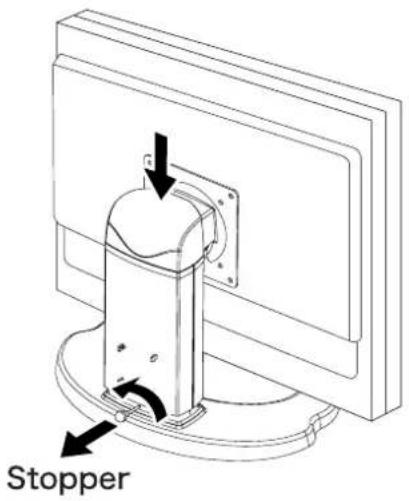
[Stopper] : ProLite H511S
Please stand the monitor and then remove the stopper on the back of the stand slowly while pushing top face of the stand before you install the monitor. Careful attention is required as the monitor is sprung loaded and may expand quickly when removing it.
FEATURES
◆ 51cm (20.1") TFT Color LCD Monitor
◆ Supports Resolutions up to 1600 × 1200
◆ High Contrast 900:1 / High Brightness 300cd/m² / Quick Response Time 8ms (Gray to Gray)
◆ 17.8mm Narrow Bezel & Slim Design
◆ Multi-Color Control
Supports sRGB International Standard
◆ Gamma Control
Clear Display for Moving Pictures & Photographs
◆ Digital Character Smoothing
◆ Automatic Set-up
◆ Stereo Speakers
2 × 2W Stereo Speakers & Headphone Connector
◆ Economy Mode
Reduced Power Consumption
◆ Plug & Play VESA DDC2B Compliant, Windows® 95/98/2000/Me/XP Compliant
Power Management (VESA DPMS Compliant)
DDC-CI Compliant
◆ Ergonomic Design
TCO '03 and MPR 3 Approved
◆ Digital Input (DVI-D) for Clear Display
◆ VESA Mounting Standard (100mm×100mm) Compliant
◆ 90° Panel Rotation Design : ProLite H511S
CHECKING THE CONTENTS OF THE PACKAGE : ProLite E511S
The following accessories are included in your package. Check to see if they are enclosed with the monitor. If anything is missing or damaged, please contact your local iiyama dealer or regional iiyama office.
■ Power Cable*
■ D-Sub Signal Cable
■ Audio Cable
■ User manual
CAUTION
* The rating of the Power Cable enclosed in 120V area is 10A/125V. If you are using a power supply higher than this rating, then a power cable with a rating of 10A/250V must be used.
However, all guarantees and warranties are void for any problems or damage caused by a power cable not supplied by iiyama.
CHECKING THE CONTENTS OF THE PACKAGE : ProLite H511S
The following accessories are included in your package. Check to see if they are enclosed with the monitor. If anything is missing or damaged, please contact your local iiyama dealer or regional iiyama office.
■ Power Cable*
■ D-Sub Signal Cable
■ DVI-D Signal Cable
■ Audio Cable
■ User Manual
■ Sample: Pivot® & Liquid Series software (CD)
Pivot®: This software enables to rotate the orientation of the screen to display in portrait or landscape mode.
Liquid View®: This software enables to scale icons up.
Liquid Surf™: This software supports Internet Explorer display.
Consult english.txt in CD-ROM for installation.
CAUTION
* The rating of the Power Cable enclosed in 120V area is 10A/125V. If you are using a power supply higher than this rating, then a power cable with a rating of 10A/250V must be used.
However, all guarantees and warranties are void for any problems or damage caused by a power cable not supplied by iiyama.
CONTROLS AND CONNECTORS : ProLite E511S
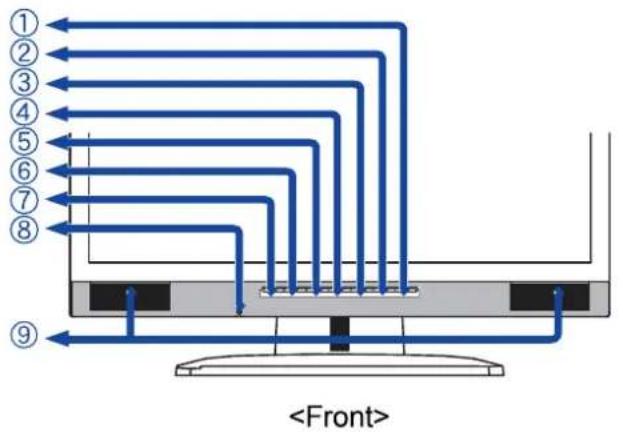
A Power Switch / Power Indicator ( ⏻ )
NOTE
Green: Normal operation (ProLite E511S)
Blue: Normal operation (ProLite E511S-B / ProLite E511S-S)
Orange: Power Management
The monitor enters into power management mode which reduces the power consumption to less than 2W when receiving no horizontal and/or vertical sync signal.
B Auto Button (AUTO)
C Exit / Volume Button (EXIT / 📋)
D + / Brightness Button (+ / ⚙)
E - / Contrast Button (- / Ⓞ)
F Menu Button (MENU)
G Input Button (INPUT)
H Headphone Connector
1 Speakers
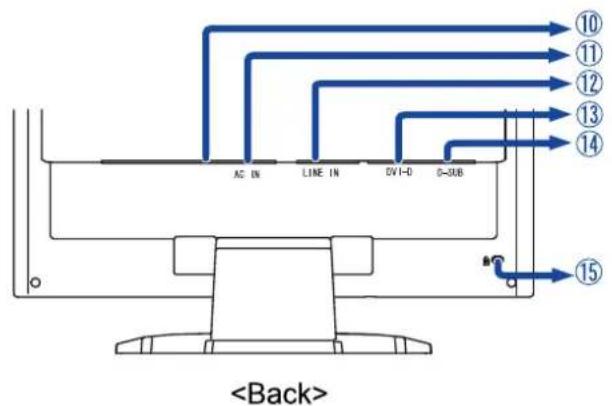
J Main Power Switch
K AC Connector (AC IN)
L Audio Connector (LINE IN)
M DVI-D 24pin Connector (DVI-D)
N D-sub mini 15pin Connector (D-SUB)
○ Keyhole for Security Lock
NOTE
You can fasten a security lock and cable to prevent the monitor from being removed without your permission.
CONTROLS AND CONNECTORS : ProLite H511S
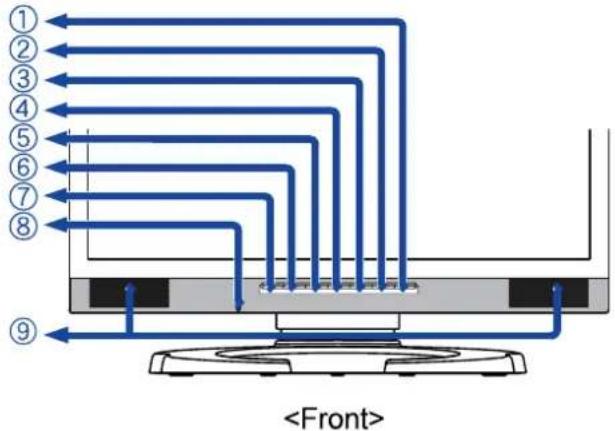
A Power Switch / Power Indicator ( ⏻ )
NOTE
Green: Normal operation (ProLite H511S)
Blue: Normal operation (ProLite H511S-B)
Orange: Power Management
The monitor enters into power management mode which reduces the power consumption to less than 2W when receiving no horizontal and/or vertical sync signal.
B Auto Button (AUTO)
C Exit / Volume Button (EXIT / ☐)
D + / Brightness Button (+ / ⚙)
E - / Contrast Button (- / Ⓞ)
F Menu Button (MENU)
G Input Button (INPUT)
H Headphone Connector
Speakers
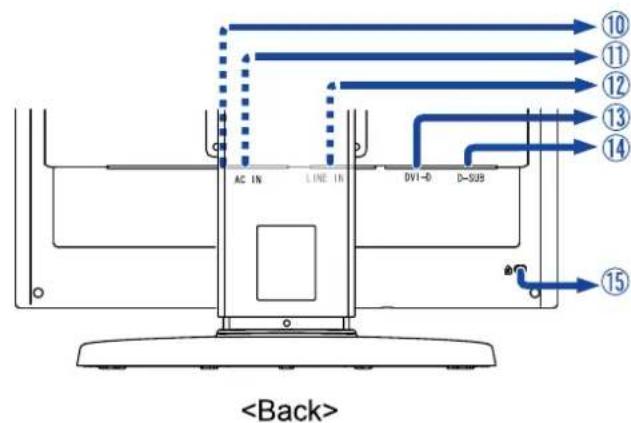
J Main Power Switch
K AC Connector (AC IN)
L Audio Connector (LINE IN)
M DVI-D 24pin Connector (DVI-D)
N D-sub mini 15pin Connector (D-SUB)
○ Keyhole for Security Lock
NOTE
You can fasten a security lock and cable to prevent the monitor from being removed without your permission.
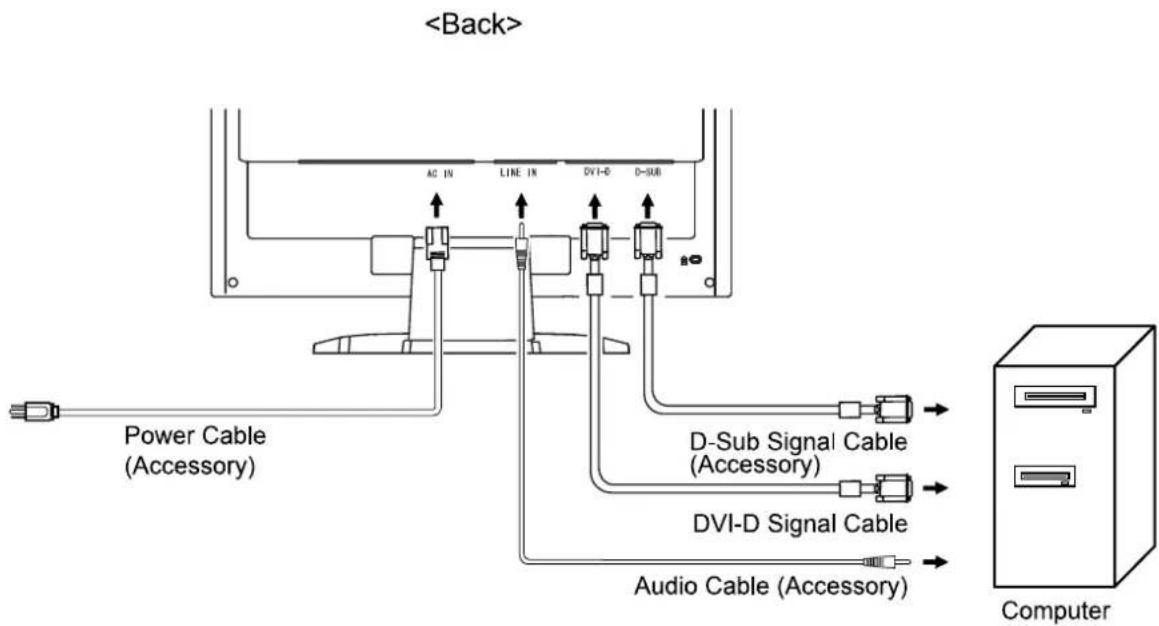
CONNECTING YOUR MONITOR : ProLite E511S
A Ensure that both the computer and the monitor are switched off.
B Connect the computer to the monitor with the signal cable. (See page 32 for CONNECTOR PIN ASSIGNMENT.)
C Connect the monitor to the audio equipment with the Audio Cable when using the audio features.
D Connect the Power Cable to the monitor first and then to the power supply.
NOTE
■ The signal cables used for connecting the computer and monitor may vary with the type of computer used. An incorrect connection may cause serious damage to both the monitor and the computer. The cable supplied with the monitor is for a standard 15 pin D-Sub connector. If a special cable is required please contact your local iiyama dealer or regional iiyama office.
■ For connection to Macintosh computers, contact your local iiyama dealer or regional iiyama office for a suitable adaptor.
■ Make sure you tighten the finger screws at each end of the signal cable.
[Example of Connection]
flowchart
graph TD
    A["Power Cable (Accessory)"] --> B["AC IN"]
    B --> C["LINE IN"]
    C --> D["DVI-0"]
    D --> E["D-SUB"]
    E --> F["Computer"]
    G["D-Sub Signal Cable (Accessory)"] --> H["Audio Cable (Accessory)"]
    I["DVI-D Signal Cable"] --> J["Audio Cable (Accessory)"]
    K["<Back>"] --> L["Computer"]
CONNECTING YOUR MONITOR : ProLite H511S
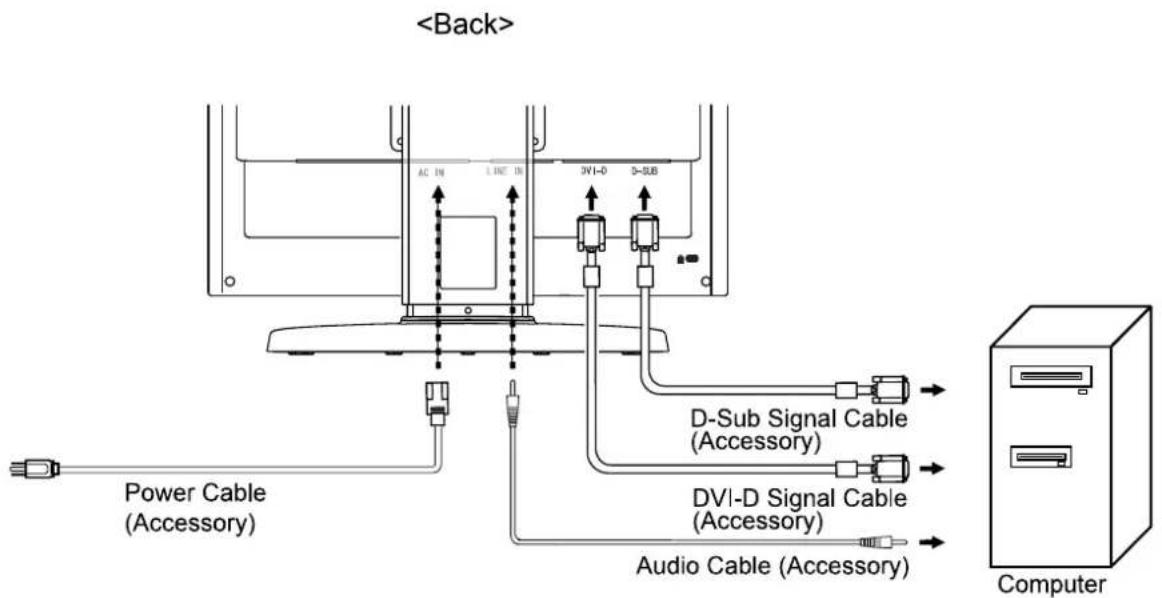
A Ensure that both the computer and the monitor are switched off.
B Connect the computer to the monitor with the signal cable. (See page 32 for CONNECTOR PIN ASSIGNMENT.)
C Connect the monitor to the audio equipment with the Audio Cable when using the audio features.
D Connect the Power Cable to the monitor first and then to the power supply.
NOTE
■ The signal cables used for connecting the computer and monitor may vary with the type of computer used. An incorrect connection may cause serious damage to both the monitor and the computer. The cable supplied with the monitor is for a standard 15 pin D-Sub connector. If a special cable is required please contact your local iiyama dealer or regional iiyama office.
■ For connection to Macintosh computers, contact your local iiyama dealer or regional iiyama office for a suitable adaptor.
■ Make sure you tighten the finger screws at each end of the signal cable.
[Example of Connection]
[Cable Wiring]
A Collect cable at the back of the stand.
B Hook the cable cover to the back of the stand.
![IIYAMA ProLite H511S - [Cable Wiring] - 1](/content/2026/05/1137590/images/48da52e819ac9659d052bcaaccac2d6668d200c386400e5564b5c00bd1f7d993.jpg)
natural_image
Technical line drawing of a mechanical assembly with wires and components mounted on a monitor (no text or symbols)COMPUTER SETTING
■ Signal Timing
Change to the desired signal timing listed on page 31: COMPLIANT TIMING.
■ Windows 95/98/2000/Me/XP Plug & Play
The iiyama LCD monitor complies with DDC2B of VESA standard. The Plug & Play function runs on Windows 95/98/2000/Me/XP by connecting the monitor to DDC2B compliant computer with the Signal Cable supplied. Windows 95/98/2000/Me/XP Monitor Information File for iiyama monitors may be necessary for your computer and obtained via the Internet, using the address:
http://www.iiyama.com
NOTE
■ For additional information on how to download the driver for your monitor, please access one of the internet sites noted above.
■ Monitor Drivers are not required in most cases for Macintosh or Unix operating systems. For further information, please contact your computer dealer first for advice.
ADJUSTING THE VIEWING ANGLE : ProLite E511S
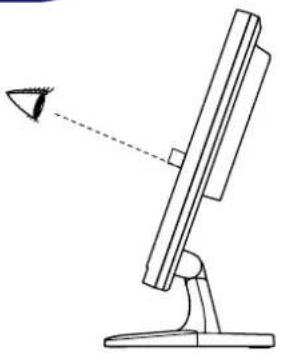
■ For optimal viewing it is recommended to look at the full face of the monitor.
■ Hold the stand so that the monitor does not topple when you change the monitor's angle.
■ You are able to adjust the monitor's angle up to 25 degrees upward, 4 degrees downward.
In order to ensure a healthy and relaxed body position when using the monitor at visual display workstations, it is recommended that the adjusted tilt angle should not exceed 10 degrees. Adjust the monitor's angle to your own preference.
NOTE
■ Do not touch the LCD screen when you change the angle. It may cause damage or break the LCD screen.
■ Careful attention is required not to catch your fingers or hands when you change the angle.
natural_image
Simple line drawing of a mechanical device with a pointer and lever (no text or symbols)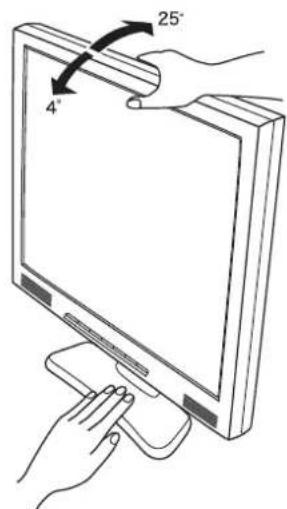
ADJUSTING THE HEIGHT AND THE VIEWING ANGLE : ProLite H511S
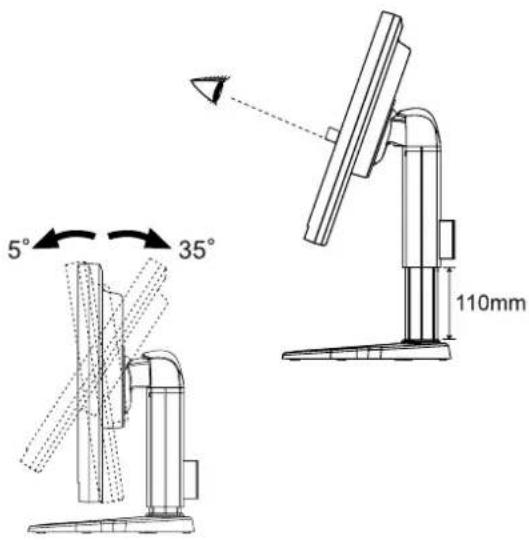
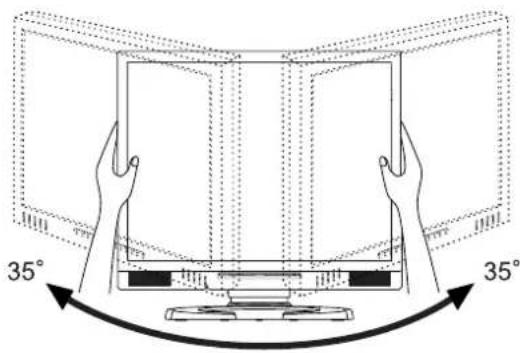
■ For optimal viewing it is recommended to look at the full face of the monitor, then adjust the monitor's Height and angle to your own preference.
■ Hold the stand so that the monitor does not topple when you change the monitor's angle.
■ you are able to adjust the monitor's height up to 110mm, angle up to 35 degrees right and left, 35 degrees upward, 5 degrees downward.
NOTE
■ Do not touch the LCD screen when you change the angle. It may cause damage or break the LCD screen.
■ Careful attention is required not to catch your fingers or hands when you change the angle.
natural_image
Diagram of hands holding a computer monitor with 35-degree angle annotations (no text or symbols on the diagram itself)PANEL ROTATION : ProLite H511S
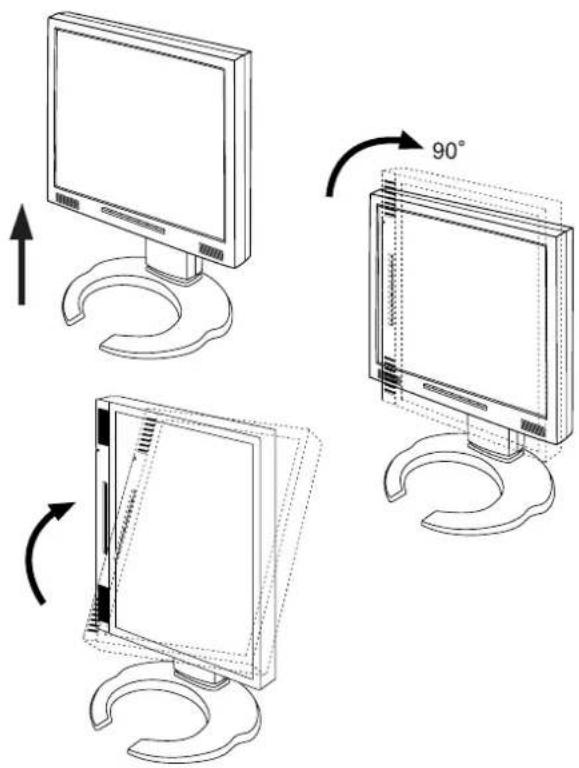
A Ajust the monitor's height to the maximum.
B Rotate the panel 90 degrees.
Portrait: Turn clockwise.
Landscape: Turn counter clockwise.
NOTE
■ Attempting to rotate without fully extending upward may cause damage to stand.
■ Please use attached Pivot® software for rotating the image on the screen.
C Ajust the monitor's angle to your preference.
OPERATING THE MONITOR
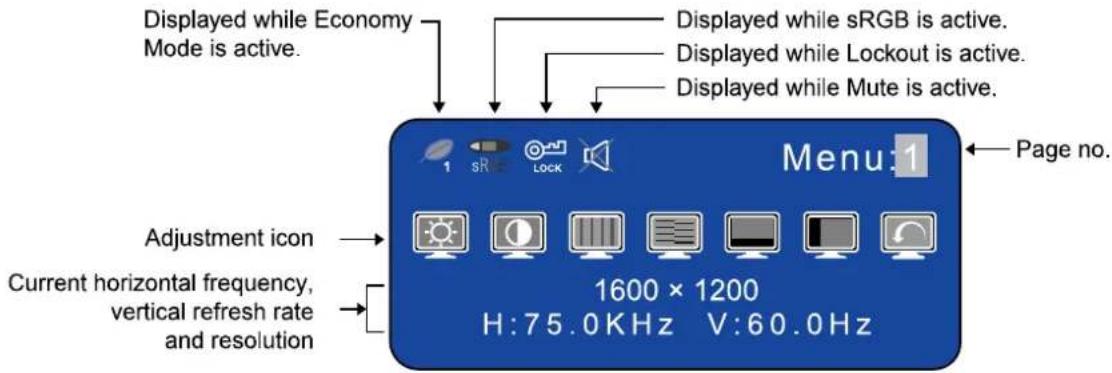
To create the best picture, your iiyama LCD monitor has been preset at the factory with the COMPLIANT TIMING shown on page 31. You are also able to adjust the picture by following the button operation shown below. For more detailed adjustments, see page 22 for SCREEN ADJUSTMENTS.
( Press the Menu Button to start the On Screen Display feature. There are additional Menu pages which can be switched by using the +/- Buttons.
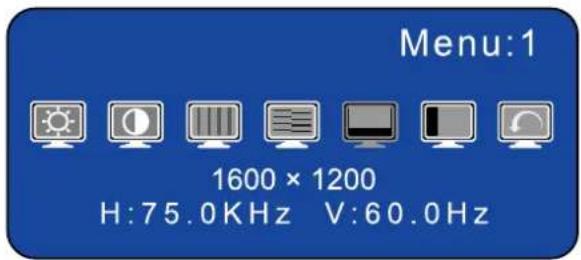
B Select the Menu page which contains the adjustment icon relating to the adjustment you want to make. Press the Menu Button again. Then, use the +/- Buttons to highlight the desired adjustment icon. Press the Menu Button again.
C Use the +/- Buttons to make the appropriate adjustment or setting.
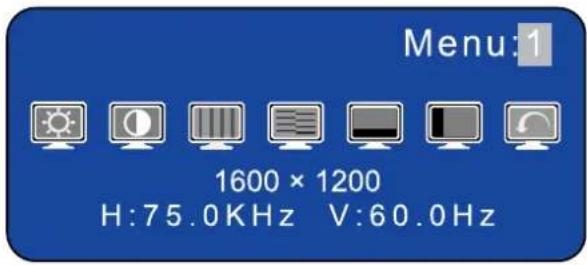
For example, to correct for vertical position, select Menu page number 1 and then press the Menu Button. Then, select ☐ (V-Position) by using the +/- Buttons.
An adjustment scale appears after you press the Menu Button. Use the +/- Buttons to change the vertical position settings. The vertical position of the overall display should be changing accordingly while you are doing this.

NOTE
■ When button operations are aborted during adjustment, On-Screen Display disappears when the time set for the OSD Off Timer has passed. The Exit button can be used to exit OSD window immediately.
■ Adjustments for Clock, Phase and Position are saved for each signal timing. Except for these adjustments, all other adjustments have only one setting which applies to all signal timings.
ADJUSTMENT MENU CONTENTS
Analog Input
Menu : 1 (Analog)
| Adjustment Item | Problem / Option | Button to Press | |||
 | Brightness *1 | Direct | Too dark |  |  |
| Too bright | |||||
 | Contrast | Direct | Too dull |  |  |
| Too intense | |||||
 | Clock *2 | To correct flickering text or lines |  |  | |
 | Phase *2 | To correct flickering text or lines |  |  | |
 | V-Position | Too low |  |  | |
| Too high | |||||
 | H-Position | Too far to the left |  |  | |
| Too far to the right | |||||
 | Return to Menu | Highlight “Menu :1” again. | |||
*1 Adjust the Brightness when you are using the monitor in a dark room and feel the screen is too bright.
*2 See page 22 for SCREEN ADJUSTMENTS.
Direct
You can skip the Menu pages and display an adjustment scale directly by using the following button operations.
● Brightness: Press the Brightness Button when the Menu is not displayed.
- Contrast: Press the Contrast Button when the Menu is not displayed.
Menu:2(Analog) 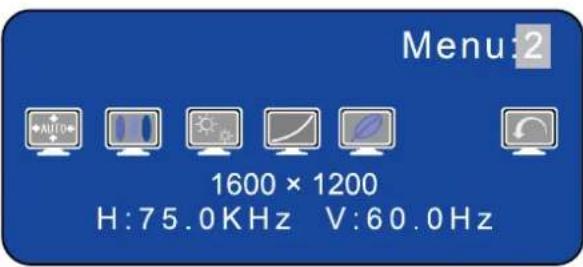 | |||||
| Adjustment Item | Problem / Option Button to Press | ||||
| Auto Set-up *1Direct | NO | Return to Menu. | |||
| YES | Adjust Clock, Phase, V-Position and H-Position automatically. | ||||
| Setting | Off | The Auto Set-up is not performed when the signal input is changed. | |||
| On | Adjust Clock, Phase, V-Position and H-Position automatically when the signal input is changed. | ||||
| NOTE ■ The brightness of screen varies for several seconds during the adjustment.■ This function is not performed automatically when changing the signal input because the factory-preset of “Setting” in Auto Set-up is set to Off. | |||||
| Color Temp. | Cold | Bluish white | |||
| Center | Normal white | ||||
| Warm | Warmer white | ||||
| s | sRGB | ||||
| (User) | MENU | R | Too weak Too strong + | ||
| G | |||||
| B | |||||
| NOTE ■ sRGB is an international standard which defines and unifies the difference of color appearance between equipment.■ You can not adjust the Gamma and Economy Mode during sRGB mode because those settings are locked.■is displayed while sRGB is active. | |||||
| Sharpness | 1 2 3 4 5Adjust the picture quality at resolutions of less than 1600 × 1200. You can change the picture quality from 1 to 5 (sharp to soft).Press the + Button to change the picture quality in numerical order. Press the - Button to change the picture quality in reverse numerical order. | ||||
*1 For best results, use the Auto Set-up in conjunction with the adjustment pattern. See page 22 for SCREENADJUSTMENTS.
Direct
You can skip the Menu pages and display an adjustment scale directly by using the following button operations.
● Auto Set-up: Press the Auto Button when the Menu is not displayed.
| Menu : 2(Analog) | |||
| Adjustment Item | Problem / Option | ||
 | Gamma | OffNormal | |
| Mode1High contrast | |||
| Mode2Dark | |||
 | Economy ModeDirect | OffNormal | |
| Mode1Brightness of back-light is reduced. | |||
| Mode2Brightness of back-light is reduced more than Mode1. | |||
 | ■is displayed while Economy Mode is active. | ||
 | Return to Menu | Highlight “Menu :2” again. | |
Direct
You can skip the Menu pages and display an adjustment scale directly by using the following button operations.
- Economy Mode: Press the Menu Button when the Menu is not displayed. Holding the Menu Button for 1-2 seconds will switch the Economy Mode.
→ Off → Mode1 → Mode2 —
| Menu:3(Analog) | |||
 OSD Position OSD Position | 1 2 3 4 5You can move the OSD display area to any one of the following 5 positions within the overall display: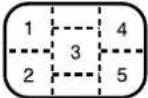 Press the + Button to move the OSD in numerical order. Press the - Button to move the OSD in reverse numerical order. Press the + Button to move the OSD in numerical order. Press the - Button to move the OSD in reverse numerical order. | ||
 OSD Off Timer OSD Off Timer | Set the OSD Off Timer for 3-60 seconds. | ||
 Language Language | English | English | |
| Deutsch | German | ||
| Français | French | ||
| Italiano | Italian | ||
| Español | Spanish | ||
| 日本語 | Japanese | ||
 Lockout Lockout | Off | Lockout is canceled. | |
| On | All adjustment items except this function are locked out. | ||
 [IMAGE] is displayed while Lockout is active. [IMAGE] is displayed while Lockout is active. | |||
 Return to Menu Return to Menu | Highlight “Menu :3” again. | ||
Menu:4(Analog)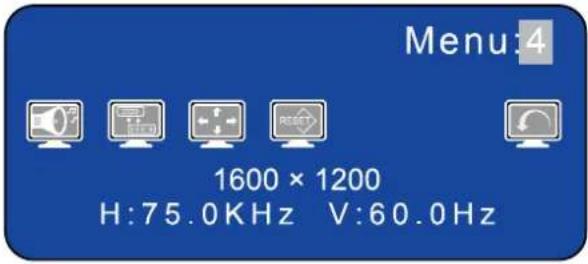 | ||
| Adjustment Item | Problem / Option Button to Press | |
 Volume Direct Volume Direct | Too softToo loud | |
| NOTE is displayed while Mute is active. | ||
| Signal Select Direct | Analog | Select the Analog input (D-SUB). |
| Digital | Select the Digital input (DVI-D). | |
| NOTE Select either Analog or Digital for the signal input when both of the signal inputs are connected to a signal source. Switch D-SUB and DVI-D whenever pressing the input button.When only one of the two signal inputs is connected to the signal source, the one connected is automatically selected. Input Button is not available if there is no signal input from the selected connector or during the power management mode. | ||
| Full Screen | Off | The picture is displayed at the optimum resolution. |
| Mode 1 | Sretch the picture and keep the screen size ratio. | |
| Mode 2 | Sretch the picture to fit the full screen. | |
| NOTE Adjust the screen size at resolutions of less than 1600 × 1200.When selecting “1” or “2”displayed text or lines may be blurred, or brightness may not be uniform when inputting stripe pattern signal or the like. | ||
| Reset | NO | Return to Menu. |
| YES | Factory-preset data is restored. | |
| Return to Menu | Highlight “Menu:4” again. | |
Direct
You can skip the Menu pages and display an adjustment scale directly by using the following button operations.
● Volume: Press the Volume Button when the Menu is not displayed.
Holding the Volume Button for 1-2 seconds will switch the Mute function between ON and OFF.
● Signal Select: Press the Input Button when the Menu is not displayed.
Digital Input
Menu:1(Digital)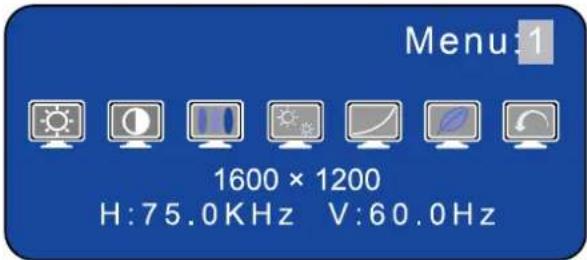 | ||||
| Adjustment Item | Problem / Option Button to Press | |||
| Brightness *1 Direct | Too dark +Too bright - | |||
| Contrast Direct | Too dull +Too intense - | |||
| Color Temp. | Cold | Bluish white | ||
| Center | Normal white | |||
| Warm | Warmer white | |||
| s | sRGB | |||
| (User) | MENU | R | Too weak +Too strong - | |
| G | ||||
| B | ||||
| NOTE■ sRGB is an international standard which defines and unifies the difference of color appearance between equipment.■ You can not adjust the Gamma and Economy Mode during sRGB mode because those settings are locked.■is displayed while sRGB is active. | ||||
| Sharpness | 1 2 3 4 5Adjust the picture quality at resolutions of less than 1600 × 1200.You can change the picture quality from 1 to 5 (sharp to soft).Press the + Button to change the picture quality in numerical order. Press the – Button to change the picture quality in reverse numerical order. | |||
| Gamma | Off | Normal | ||
| Mode1 | High contrast | |||
| Mode2 | Dark | |||
*1 Adjust the Brightness when you are using the monitor in a dark room and feel the screen is too bright.
Direct
You can skip the Menu pages and display an adjustment scale directly by using the following button operations.
● Brightness: Press the Brightness Button when the Menu is not displayed.
- Contrast: Press the Contrast Button when the Menu is not displayed.
| Menu:1(Digital) | |||
| Adjustment Item | Problem / Option | ||
 Economy ModeDirect Economy ModeDirect | Off Normal | ||
| Mode1 Brightness of back-light is reduced. | |||
| Mode2 Brightness of back-light is reduced more than Mode1. | |||
| NOTE is displayed while Economy Mode is active. | |||
 Return to Menu Return to Menu | Highlight “Menu:1” again. | ||
Direct
You can skip the Menu pages and display an adjustment scale directly by using the following button operations.
- Economy Mode: Press the Menu Button when the Menu is not displayed. Holding the Menu Button for 1-2 seconds will switch the Economy Mode.
→ Off → Mode1 → Mode2
| Menu:2(Digital) | |||
     1600×1200H:75.0KHz V:60.0Hz 1600×1200H:75.0KHz V:60.0Hz | |||
| Adjustment Item | Problem / Option | Button to Press | |
 OSD Position OSD Position | 1 2 3 4 5You can move the OSD display area to any one of the following 5 positions within the overall display: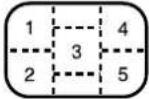 Press the + Button to move the OSD in numerical order. Press the - Button to move the OSD in reverse numerical order. Press the + Button to move the OSD in numerical order. Press the - Button to move the OSD in reverse numerical order. | ||
 OSD Off Timer OSD Off Timer | Set the OSD Off Timer for 3-60 seconds.  | ||
 Language Language | English | English | |
| Deutsch | German | ||
| Français | French | ||
| Italiano | Italian | ||
| Español | Spanish | ||
| 日本語 | Japanese | ||
 Lockout Lockout | Off | Lockout is canceled. | |
| On | All adjustment items except this function are locked out. | ||
| NOTE ▪ LOCK is displayed while Lockout is active. | |||
 Return to Menu Return to Menu | Highlight "Menu:2" again. | ||
Menu:3(Digital)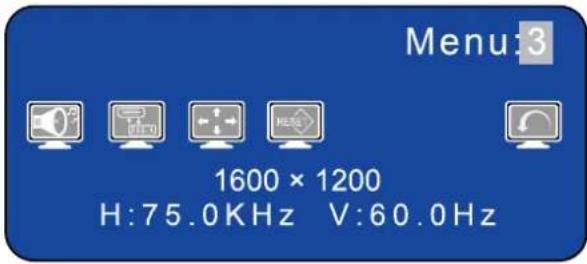 | ||
| Adjustment Item | Problem / Option Button to Press | |
 Volume Direct Volume Direct | Too softToo loud | |
| NOTE is displayed while Mute is active. | ||
| Signal Select Direct | Analog | Select the Analog input (D-SUB). |
| Digital | Select the Digital input (DVI-D). | |
| NOTE Select either Analog or Digital for the signal input when both of the signal inputs are connected to a signal source. Switch D-SUB and DVI-D whenever pressing the input button.When only one of the two signal inputs is connected to the signal source, the one connected is automatically selected. Input Button is not available if there is no signal input from the selected connector or during the power management mode. | ||
| Full Screen | Off | The picture is displayed at the optimum resolution. |
| Mode 1 | Sretch the picture and keep the screen size ratio. | |
| Mode 2 | Sretch the picture to fit the full screen. | |
| NOTE Adjust the screen size at resolutions of less than 1600 × 1200.When selecting “1” or “2”displayed text or lines may be blurred, or brightness may not be uniform when inputting stripe pattern signal or the like. | ||
| Reset | NO | Return to Menu. |
| YES | Factory-preset data is restored. | |
| Return to Menu | Highlight “Menu :3” again. | |
Direct
You can skip the Menu pages and display an adjustment scale directly by using the following button operations.
- Volume: Press the Volume Button when the Menu is not displayed.
Holding the Volume Button for 1-2 seconds will switch the Mute function between ON and OFF.
● Signal Select: Press the Input Button when the Menu is not displayed.
SCREEN ADJUSTMENTS
Adjust the image by following the procedure below to get the desired picture when selecting Analog input.
■ The screen adjustments described in this manual are designed to set image position and minimize flicker or blur for the particular computer in use.
■ The monitor is designed to provide the best performance at resolution of 1600 × 1200 , but can not provide the best at resolutions of less than 1600 × 1200 . It is recommended to operate at resolution of 1600 × 1200 in normal use.
■ Displayed text or lines will be blurred or irregular in thickness when the picture is stretched due to the screen enlargement process.
■ It is preferable to adjust the image position and frequency with the monitor controls, rather than the computer software or utilities.
■ Perform adjustments after a warm-up period of at least thirty minutes.
■ Additional adjustments may be required after the Auto Set-up depending on the resolution or signal timing.
■ The Auto Set-up may not work correctly when displaying the picture other than the screen adjustment pattern. In this case, manual adjustments are required.
There are two ways to adjust the screen. One way is automatic adjustment for Clock, Phase and Position. The other way is performing each adjustment manually.
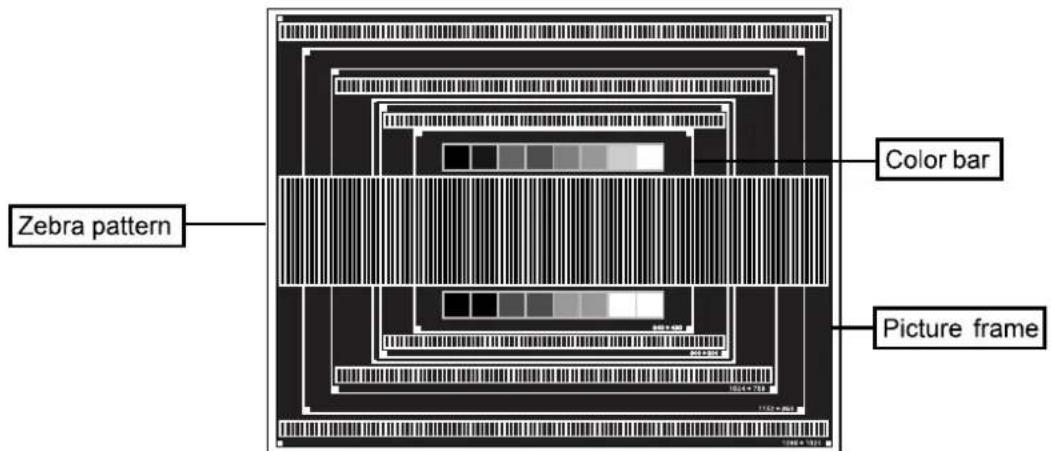
Perform the Auto Set-up first when the monitor is connected to a new computer, or resolution is changed. If the screen has a flicker or blur, or the picture does not fit in the display area after performing the Auto Set-up, manual adjustments are required. Both adjustments should be made by using the screen adjustment pattern (Test.bmp) obtained via the IIYAMA web site (http://www.iiyama.com).
Adjust the image by following the procedure below to get the desired picture.
This manual explains adjustment under Windows 95/98/2000/Me/XP.
A Display the picture at the optimum resolution.
B Enter the Test.bmp (screen adjustment pattern) to wallpaper.
NOTE
■ Consult the appropriate documentation for doing this.
■ Test.bmp is made at resolution of 1280 × 1024. Set the display position to center in the wallpaper setting dialogue box. If you use Microsoft® PLUS! 95/98 cancel the setting of "Stretch desktop wallpaper to fit the screen".
[Adjustment pattern]
C Press the Auto Button. (Auto Set-up)
D Adjust the image manually by following procedure below when the screen has a flicker or blur, or the picture does not fit in the display area after performing the Auto Set-up.
E Adjust the V-Position so that the top and bottom of the picture frame will fit to the display area.
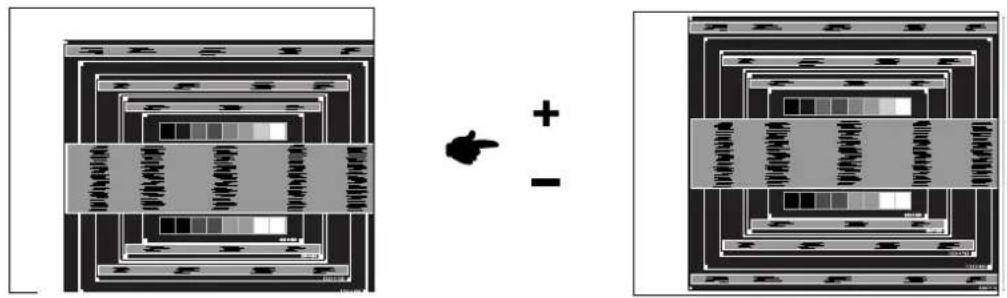
F 1) Adjust the H-Position so that the left side of the picture frame will move to the left edge of the display area.
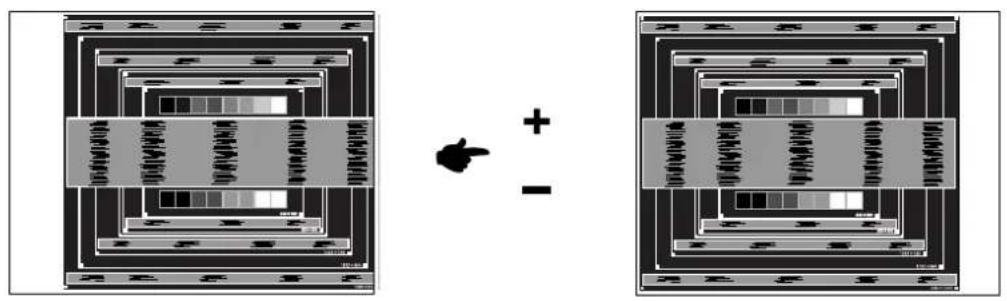
2) Stretch the right side of the picture frame to the right edge of the display area by adjusting the Clock.
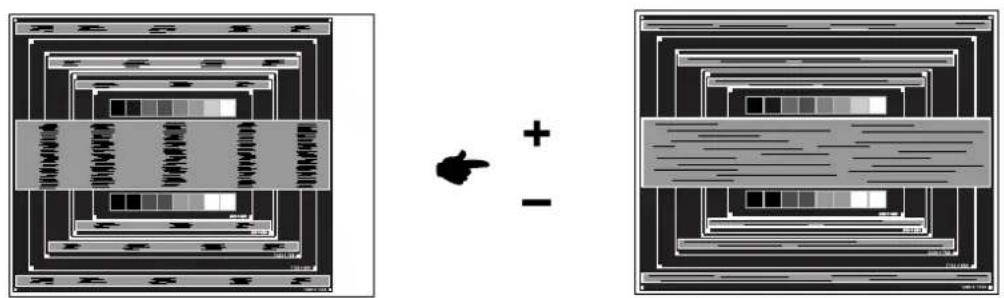
NOTE
■ When the left side of the picture frame moves apart from the left edge of the display area during the Clock adjustment, adjust steps 1) and 2).
■ Another way to make the Clock adjustment is to correct the vertical wavy lines in the zebra pattern.
■ The picture may flicker during the Clock, H-Position and V-Position adjustment.
In case the picture frame is bigger or smaller than the data display area after the Clock adjustment, repeat steps from C.
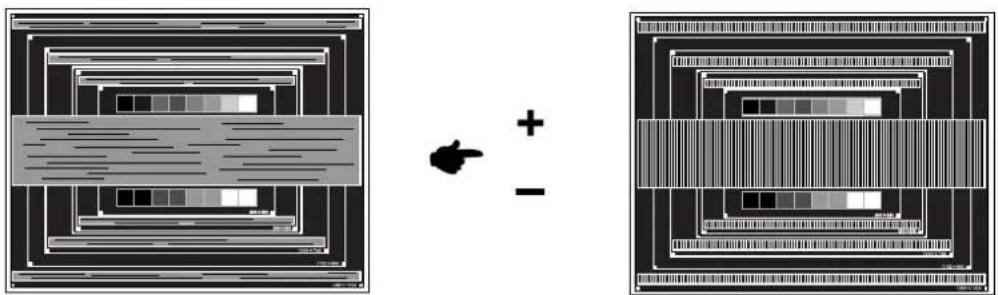
G Adjust the Phase to correct horizontal wavy noise, flicker or blur in the zebra pattern.
natural_image
Abstract geometric pattern with layered squares and a small arrow, no text or symbols presentNOTE
In case the strong flicker or blurs remain on a part of the screen, repeat steps F and G because the Clock may not be adjusted correctly. If the flicker or blurs still remain, set the refresh rate of computer to low (60Hz) and repeat steps from C again.
■ Adjust the H-Position after the Phase adjustment if the horizontal position moves during the adjustment.
H Adjust the Brightness and Color Temp. to get the desired picture after you complete the Clock and Phase adjustments.
Put back your favorite wallpaper.
POWER MANAGEMENT FEATURE
The power management feature of this product complies with power saving requirement of VESA DPMS. When activated, it automatically reduces unnecessary power consumption of the monitor when your computer is not in use.
To use the feature, the monitor needs to be connected to a VESA DPMS compliant computer. There is a power management step the monitor takes as described below. The power management function, including any timer settings is configured by the operating system. Check your operating system manual for information on how this can be configured.
■ Power Management Mode
When the H-sync signal / V-sync signal / H and V sync signals from the computer are off, the monitor enters into Power Management Mode which reduces the power consumption to less than 2W. The screen becomes dark, and the power indicator turns to orange. From Power Management Mode, the image reappears in several seconds when either the keyboard or the mouse are touched again.
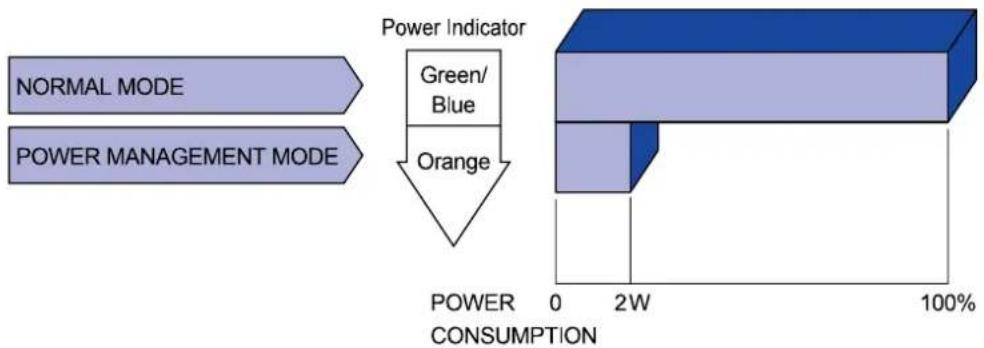
flowchart
graph TD
    A["NORMAL MODE"] --> C["Power Indicator"]
    B["POWER MANAGEMENT MODE"] --> C
    C --> D["Green/Blue"]
    C --> E["Orange"]
    D --> F["POWER CONSUMPTION 0-100%"]
    E --> G["POWER CONSUMPTION 2W-100%"]
NOTE
■ Even when using the power management mode, the monitor consumes electricity. Turn off the Power Switch whenever the monitor is not in use, during the night and weekends, to avoid unnecessary power consumption.
It is possible that the video signal from the computer may be on while the H or V sync signal is missing. In this instance, the POWER MANAGEMENT feature may not work properly.
TROUBLE SHOOTING
If the monitor fails to operate correctly, please follow the steps below for a possible solution.
- Perform the adjustments described in OPERATING THE MONITOR, depending on the problem you have. If the monitor does not get a picture, skip to 2.
- Consult the following items if you cannot find an appropriate adjustment item in OPERATING THE MONITOR or if the problem persists.
- If you are experiencing a problem which is not described below or you cannot correct the problem, discontinue using the monitor and contact your dealer or iiyama service center for further assistance.
Problem
A The picture does not appear.
(Power indicator does not light up.)
(Power indicator is green/blue.)
(Power indicator is orange.)
B The screen is not synchronized.
C The screen position is not in the center.
D The screen is too bright or too dark.
E The screen is shaking.
Check
☐ The Power Cable is firmly seated in the socket.
☐ The Power Switch is turned ON.
☐ The AC socket is live. Please check with another piece of equipment.
☐ If the blank screen saver is in active mode, touch the keyboard or the mouse.
☐ Increase the Contrast and/or Brightness.
□ The computer is ON.
☐ The Signal Cable is properly connected.
☐ The signal timing of the computer is within the specification of the monitor.
☐ If the monitor is in power management mode, touch the keyboard or the mouse.
□ The computer is ON.
☐ The Signal Cable is properly connected.
☐ The signal timing of the computer is within the specification of the monitor.
☐ The Signal Cable is properly connected.
☐ The signal timing of the computer is within the specification of the monitor.
☐ The video output level of the computer is within the specification of the monitor.
☐ The signal timing of the computer is within the specification of the monitor.
☐ The video output level of the computer is within the specification of the monitor.
☐ The power voltage is within the specification of the monitor.
☐ The signal timing of the computer is within the specification of the monitor.
Problem
Check
F No sound.
☐ The audio equipment (computer etc.) is ON.
☐ The Audio Cable is properly connected.
□ The Volume is turned up.
□ The Mute is OFF.
☐ The audio output level of the audio equipment is within the specification of the monitor.
G The sound is too loud or too quiet.
☐ The audio output level of the audio equipment is within the specification of the monitor.
H A strange noise is heard.
☐ The Audio Cable is properly connected.
SPECIFICATIONS : ProLite E511S
| LCD Panel | Driving system | a-Si TFT Active Matrix |
| Size | Diagonal: 51cm / 20.1" | |
| Pixel pitch | 0.255mm H × 0.255mm V | |
| Brightness | 300cd/m2 (Typical) | |
| Contrast ratio | 900 : 1 (Typical) | |
| Viewable angle | Right / Left / Up / Down: 89 degrees each (Typical) | |
| Response time | 16ms (Black, white, black), 8ms (Gray to Gray) | |
| Display Colors | 16,777,216 maximum | |
| Sync Frequency | Analog: Horizontal 24.0-80.0kHz, Vertical 55-85HzDigital: Horizontal 31.0-80.0kHz, Vertical 55-85Hz | |
| Dot Clock | 162MHz maximum | |
| Maximum Resolution | 1600 × 1200, 1.9 MegaPixels | |
| Input Connector | D-Sub mini 15pin, DVI-D 24pin | |
| Plug & Play | VESA DDC2BTM | |
| Input Sync Signal | Separate sync: TTL, Positive or NegativeComposite sync: TTL, Positive or NegativeSync on green: 0.3Vp-p, Negative | |
| Input Video Signal | Analog: 0.7Vp-p (Standard), 75Ω, PositiveDigital: DVI (Digital Visual Interface Standard Rev.1.0) compliance | |
| Input Audio Connector | ø 3.5mm mini jack (Stereo) | |
| Input Audio Signal | 0.7Vrms maximum | |
| Speakers | 2.0W × 2 (Stereo speakers) | |
| Headphone Connector | ø 3.5mm mini jack (Stereo) | |
| Maximum Screen Size | 408mm W × 306mm H / 16.1" W × 12" H | |
| Power Source | 100-240VAC, 50/60Hz, 1.5A | |
| Power Consumption | 55W maximum, Power management mode: 2W maximum* | |
| Dimensions / Net Weight | 446 × 423.5 × 215mm / 17.6 × 16.7 × 8.5" (W×H×D), 7.5kg / 16.5lbs | |
| Tilt Angle | Up: 25 degrees, Down: 4 degrees | |
| Environmental Considerations | Operating: Temperature 5 to 35°C / 41 to 95°FHumidity 10 to 80% (No condensation)Storage: Temperature -20 to 60°C / -4 to 140°FHumidity 5 to 85% (No condensation) | |
| Approvals | TCO '03, CE, TÜV-GS / MPR3(prEN50279) / ISO 13406-2, FCC-B, UL/C-UL, VCCI-B | |
NOTE
*Condition: Audio equipment is not connected.
SPECIFICATIONS : ProLite H511S
| LCD Panel | Driving system | a-Si TFT Active Matrix |
| Size | Diagonal: 51cm / 20.1" | |
| Pixel pitch | 0.255mm H × 0.255mm V | |
| Brightness | 300cd/m2 (Typical) | |
| Contrast ratio | 900 : 1 (Typical) | |
| Viewable angle | Right / Left / Up / Down: 89 degrees each (Typical) | |
| Response time | 16ms (Black, white, black), 8ms (Gray to Gray) | |
| Display Colors | 16,777,216 maximum | |
| Sync Frequency | Analog: Horizontal 24.0-80.0kHz, Vertical 55-85HzDigital: Horizontal 31.0-80.0kHz, Vertical 55-85Hz | |
| Dot Clock | 162MHz maximum | |
| Maximum Resolution | 1600 × 1200, 1.9 MegaPixels | |
| Input Connector | D-Sub mini 15pin, DVI-D 24pin | |
| Plug & Play | VESA DDC2BTM | |
| Input Sync Signal | Separate sync: TTL, Positive or NegativeComposite sync: TTL, Positive or NegativeSync on green: 0.3Vp-p, Negative | |
| Input Video Signal | Analog: 0.7Vp-p (Standard), 75Ω, PositiveDigital: DVI (Digital Visual Interface Standard Rev.1.0) compliance | |
| Input Audio Connector | ø 3.5mm mini jack (Stereo) | |
| Input Audio Signal | 0.7Vrms maximum | |
| Speakers | 2.0W × 2 (Stereo speakers) | |
| Headphone Connector | ø 3.5mm mini jack (Stereo) | |
| Maximum Screen Size | 408mm W × 306mm H / 16.1" W × 12" H | |
| Power Source | 100-240VAC, 50/60Hz, 1.5A | |
| Power Consumption | 55W maximum, Power management mode: 2W maximum* | |
| Dimensions / Net Weight | 446 × 391.5-501.5mm × 242mm / 17.6 × 15.4-19.7 × 9.5" (W×H×D), 9.0kg / 19.8lbs | |
| Tilt Angle | Right / Left: 35 degrees each, Up: 35 degrees, Down: 5 degrees | |
| Environmental Considerations | Operating: Temperature 5 to 35°C / 41 to 95°FHumidity 10 to 80% (No condensation)Storage: Temperature -20 to 60°C / -4 to 140°FHumidity 5 to 85% (No condensation) | |
| Approvals | TCO '03, CE, TÜV-GS / MPR3 (prEN50279) / ISO 13406-2, FCC-B, UL/C-UL, VCCI-B, CCC | |
NOTE
*Condition: Audio equipment is not connected.
DIMENSIONS : ProLite E511S
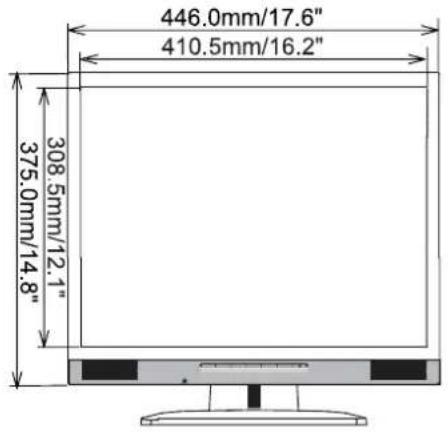
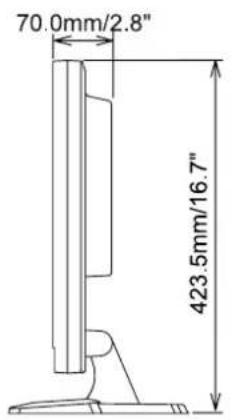
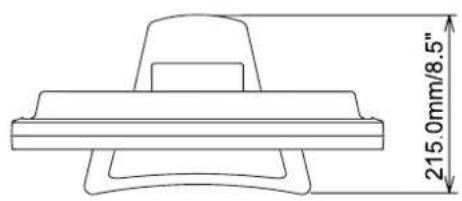
DIMENSIONS : ProLite H511S
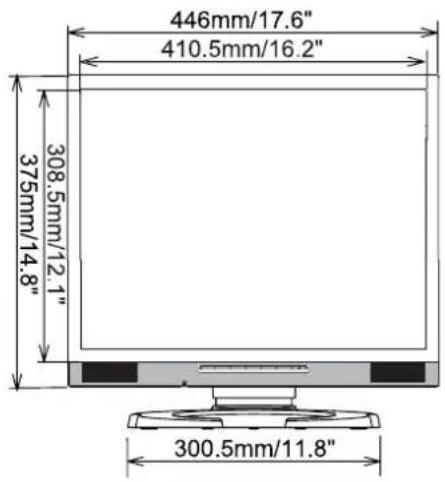
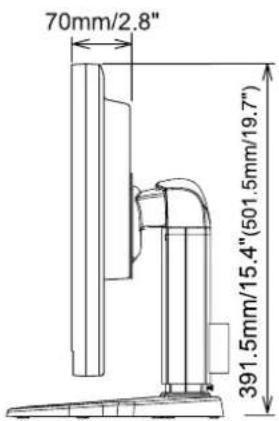
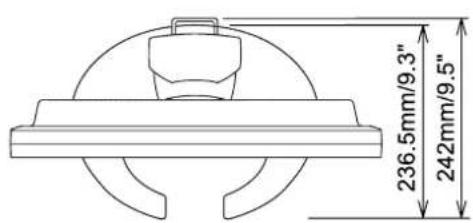
( ):Maximum adjustment range
| Video Mode | Horizontal Frequency | Vertical Frequency | Dot Clock | ||
| VESA | VGA 640 × 480 | 31.469kHz | 59.940Hz | 25.175MHz | |
| 37.861kHz | 72.809Hz | 31.500MHz | |||
| 37.500kHz | 75.000Hz | 31.500MHz | |||
| 43.269kHz | 85.008Hz | 36.000MHz | |||
| SVGA 800 × 600 | 35.156kHz | 56.250Hz | 36.000MHz | ||
| 37.879kHz | 60.317Hz | 40.000MHz | |||
| 48.077kHz | 72.188Hz | 50.000MHz | |||
| 46.875kHz | 75.000Hz | 49.500MHz | |||
| 53.674kHz | 85.061Hz | 56.250MHz | |||
| XGA 1024 × 768 | 48.363kHz | 60.004Hz | 65.000MHz | ||
| 56.476kHz | 70.069Hz | 75.000MHz | |||
| 60.023kHz | 75.029Hz | 78.750MHz | |||
| 68.677kHz | 84.997Hz | 94.500MHz | |||
| SXGA | 1152 × 864 | 67.500kHz | 75.000Hz | 108.000MHz | |
| 1280 × 1024 | 63.981kHz | 60.020Hz | 108.000MHz | ||
| 79.976kHz | 75.025Hz | 135.000MHz | |||
| UXGA 1600 × 1200 | 75.000kHz | 60.000Hz | 162.000MHz | ||
| VGA TEXT | 640 × 400 | 31.469kHz | 70.087Hz | 25.175MHz | |
| Macintosh | 640 × 480 | 35.000kHz | 66.667Hz | 30.240MHz | |
| 832 × 624 | 49.725kHz | 74.500Hz | 57.283MHz | ||
| 1024 × 768 | 60.150kHz | 74.720Hz | 80.000MHz | ||
| PC9801 | 640 × 400 | 24.827kHz | 56.424Hz | 21.053MHz | |

* DVI input is not compliant.
CONNECTOR PIN ASSIGNMENT
■ D-Sub mini 15pin Connector
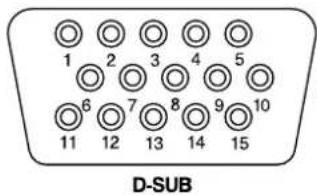
| Pin | Input Signal | Pin | Input Signal |
| 1 | Red video | 9 | |
| 2 | Green video / Sync on green | 10 | Ground |
| 3 | Blue video | 11 | Reserved port |
| 4 | Reserved port | 12 | Data line (SDA)* |
| 5 | Ground | 13 | H-Sync/HV-Sync |
| 6 | Red video ground | 14 | V-Sync |
| 7 | Green video ground | 15 | Clock line (SCL)* |
| 8 | Blue video ground | * Compliant to VESA DDC. | |
■ DVI-D 24pin Connector
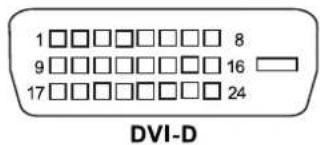
| Pin | Input Signal | Pin | Input Signal |
| 1 | T.M.D.S Data 2- | 13 | |
| 2 | T.M.D.S Data 2+ | 14 | |
| 3 | T.M.D.S Data 2 Ground | 15 | Ground |
| 4 | 16 | Hot Plug Detect | |
| 5 | 17 | T.M.D.S Data 0- | |
| 6 | Clock line (SCL) * | 18 | T.M.D.S Data 0+ |
| 7 | Data line (SDA) * | 19 | T.M.D.S Data 0 Ground |
| 8 | 20 | ||
| 9 | T.M.D.S Data 1- | 21 | |
| 10 | T.M.D.S Data 1+ | 22 | T.M.D.S Clock Ground |
| 11 | T.M.D.S Data 1 Ground | 23 | T.M.D.S Clock + |
| 12 | 24 | T.M.D.S Clock - |
* Compliant to VESA DDC.