SLE 1461M4 - Televízor SENCOR - Bezplatný návod na obsluhu
Nájdite návod k zariadeniu zdarma SLE 1461M4 SENCOR vo formáte PDF.


Otázky používateľov k SLE 1461M4 SENCOR
0 otázka o tomto zariadení. Odpovedzte na tie, ktoré poznáte, alebo položte vlastnú.
Položte novú otázku o tomto zariadení
Stiahnite si návod pre váš Televízor vo formáte PDF zadarmo! Nájdite svoj návod SLE 1461M4 - SENCOR a vezmite svoje elektronické zariadenie späť do rúk. Na tejto stránke sú zverejnené všetky dokumenty potrebné na používanie vášho zariadenia. SLE 1461M4 značky SENCOR.
NÁVOD NA OBSLUHU SLE 1461M4 SENCOR
SENCOR®
Let's live!
LED Television
SLE 1461M4
USER'S MANUAL
EN

CAREFULLY READ THIS USER'S MANUAL BEFORE PUTTING THE TELEVISION INTO OPERATION. KEEP IT FOR FUTURE USE. RECORD THE MODEL NUMBER AND THE SERIAL NUMBER OF THE TELEVISION. SEE THE LABEL ON THE REAR COVER AND PROVIDE THIS INFORMATION TO YOUR VENDOR IN THE EVENT THAT YOU REQUIRE REPAIRS.
Contents
Important safety conditions....3
- Introduction....10
1.1. Installation location of the TV....10
1.2. Mounting on the wall....10
- Description of the appliance....11
- Remote control....13
- Wiring diagram....17
- Basic controls....18
5.1. Turning on....18
5.2. Program selection....18
5.3. Setting the volume....18
5.4. Setting channels....18
- TV menu....20
6.1. Using the menus....20
6.2. Picture menu (Picture) 20
6.3. Sound menu (Sound) 21
6.4. Installation menu (Installation)....21
6.5. Setup menu (Settings) 22
6.6.Time menu (TIME) 22
6.7. Lock menu (Lock) 23
- PVR (Personal video recorder) 24
- EPG menu (Electronic Program Guide) 25
- USB menu 27
9.1. TEXT menu....27
9.2. Video menu....28
9.3. Music menu 29
9.4. Photo menu....30
- Care and maintenance 32
- Troubleshooting....33
- Technical specifications....35
Important safety conditions
If you want to use this product correctly, carefully read this user's manual and store it for future reference. If you give (sell) the appliance to somebody, please also include all the documentation together with this appliance, including this user's manual.
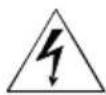
The flash symbol in an equilateral triangle indicates that there is dangerous voltage inside this appliance, which presents a risk of injury by electrical shock.
To reduce the risk of injury by electrical shock do not remove the cover (or the rear side). There are no components inside which the user can repair. Have all repairs or adjustments performed at an authorised service centre.

The exclamation mark in an equilateral triangle symbol indicates important operating or servicing instructions in the appliance's documentation.
General safety instructions
- Carefully read this manual before using the appliance. Follow the instructions contained in this user's manual.
- Heed all warnings.
- Adhere to all instructions.
- Use only accessories determined by the manufacturer.
- An open flame must not be placed on the appliance, e.g. a burning candle. Do not place hot items or objects with an open flame e.g. candles or night lamps on or in the vicinity of the appliance. High temperatures may melt plastic parts and cause a fire.
- Use the appliance in a temperate climate zone.
- Neither the manufacturer nor the seller of the appliance under no condition takes responsibility for any direct or indirect damages caused by not adhering to instructions for installation, setup, use, service or cleaning of this appliance as described in this user's manual.
- Protect the appliance against being knocked, dropped, hit, shaken and against vibrations, humidity and dust.
Before allowing children to use the appliance, they must be appropriately to their age, informed about the correct and safe use of the appliance. - If the appliance is equipped with a headphone jack, do not use headphones set to an extreme volume. There is a danger of hearing damage or loss.
Installation, operation
- Install the appliance according to the instructions in the user's manual.
Leave free space on all sides of the appliance, necessary for proper air circulation. This removes the heat created during operation. Covering the ventilation openings of the appliance's case creates a risk of overheating or damaging the appliance. It is necessary to ensure that the ventilation openings are not blocked, e.g. by a newspaper, table cloth, curtain, etc. Follow the installation instructions in the user's manual. - This appliance should not be located in a confined area such as a bookshelf or rack, if sufficient ventilation is not provided for or the instructions of the manufacturer are not followed.
- Never insert any items into any ventilation or other openings because they could come into contact with points with dangerous voltage levels or cause a short circuit of parts, which could cause a fire or injury by electric shock. Never pour any liquid into the appliance.
- Do not install the appliance in direct sunlight or near sources of heat, such as heaters, heat exchangers, stoves or other appliances (including amplifiers) producing heat. High temperatures significantly reduce the lifetime of electronic components in the appliance. Do not use or leave the appliance in the vicinity of an open fire.
- The appliance must not be exposed to dripping or running water and objects filled with water must not be placed on it, e.g. vases. Protect the appliance against rain, spray or contact with any other liquid, do not leave or install the appliance outdoors. Do not use the appliance outdoors. Not adhering to these instructions creates a risk of electrical shock or fire hazard.
- Do not use this appliance near water.
- Treat the glass panel and appliance cover with care. The screen glass can break on impact and cause serious injuries.
- Make sure that the power cord is not stepped on or compressed, particularly near the power plug, power socket and at the point where it exits the appliance or the adapter. The power plug (adapter) is used as a disconnection device and must be easily accessible.
- Never use an appliance with a damaged power cord or plug. If the power cord or plug are damaged, turn off the appliance, disconnect it from the power source and contact an authorised service centre. A damaged power cord or plug may only be replaced by qualified personnel. Under no circumstances attempt to replace the power cord or plug yourself.
- Do not attempt to circumvent the polarised power plug safety feature. If the power plug cannot be inserted into your power socket, contact a qualified electrician to replace the old type of power socket.
Before connecting the appliance into a power socket, check that the voltage in your power socket corresponds to the voltage on the rating label of the appliance or on its power adapter. If you are not certain about the type of the power sources in your home, contact your vendor or the local energy company.
Before turning on the appliance, check that the electrical connection is performed properly and in accordance with the instructions of the manufacturer. Before connecting or changing the connection, turn off the appliance and disconnect it from the mains. -
Remember to always disconnect the power plug (adapter) from the power socket before disconnecting the power cable from the back side of the appliance.
-
Insert the power plug into a independent power socket. Do not overload wall sockets with extension cords or multi-socket adapters. There is a risk of injury by electric shock.
- When disconnecting, hold the power cord by the plug and not by the cord itself.
- Disconnect the appliance from the power socket during storms or if you will not be using it for a longer time.
- Avoid moving the appliance from a cold environment to a warm one or vice versa, or when using the appliance in a very humid environment. Air humidity may condense on some components inside the case of the appliance and the appliance may stop working temporarily. If this occurs leave the appliance in a warm and well ventilated place and wait 1 – 2 hours until the moisture evaporates and the appliance can once more be used as usual. Take care especially during the first use of the player immediately after its purchase during a cold season.
- Do not place this appliance on an unstable cart, pedestal, stand, bracket or table. The appliance could fall and cause serious injuries to children or adults or could be seriously damaged or damage other items. Only use the appliance with a cart, pedestal, stand or table designated by the manufacturer or sold with the appliance. Any mounting of the appliance should be carried out according to the manufacturer's instructions and the mounting accessories recommended by the manufacturer should be used.
- Do not lean on the appliance, do not lean over it or use it as a step. Protect it against violent movements. Ensure that children do not play with the appliance.
- If using the cart, be careful when moving it. Stopping suddenly, excessive force and uneven surfaces could cause the cart to fall over with the appliance.
- Neither the manufacturer nor the seller of the appliance under no condition takes responsibility for any direct or indirect damages caused by not adhering to instructions for installation, setup, use, service or cleaning of this appliance as described in this user's manual.
- Protect the appliance against being knocked, dropped, hit, shaken and against vibrations, humidity and dust.
- Do not expose the appliance to extreme temperatures or humid conditions.
Note:
If the appliance is powered by an adapter, use only the adapter and AC power cord supplied with the appliance. Do not use faulty power sockets. Check that the power plug is properly inserted into the power socket. If the power plug is loose, arching could result in a fire. Contact a qualified electrician to have your socket replaced.
Note:
Only connect the appliance to a properly grounded socket with a protective grounding pin.
Note:
If you will be installing the appliance on a wall or to the ceiling, follow the manufacturer's instruction found in the user's manual of the particular appliance.
Repairs and maintenance
- To prevent risk of injury through electrical shock or the creation of a fire, do not take the appliance out of the case - there are no parts inside the case repairable or adjustable by the user without relevant equipment and qualifications. Should the appliance require adjustment or repair, contact a professional service centre.
- In the case of any unusual events occurring during the use of the appliance, e.g. if there is a distinct smell of burning insulation or smoke comes out of the appliance, immediately turn off the appliance, disconnect the appliance from the power source and do not use the appliance until you have received the results of an inspection by the employees of the professional service centre.
- Have all repairs carried out by qualified personnel. Repairs are necessary if the appliance has been damaged in any way, for example if the power cord is damaged, liquid was poured on the appliance, foreign objects have entered the appliance, the appliance has been exposed to rain or moisture, if the appliance is not working as usual or if it has fallen.
- In the event of repair or replacement of a part of the appliance, ensure that the service technician uses components designated by the manufacturer or that these components have the same specifications as the original ones. Unauthorised replacements could cause a fire, lead to a danger of injury by electrical shock or other dangers.
- Before cleaning, carrying or other maintenance, disconnect the plug (adapter) from the power socket.
– Clean the appliance only with a dry cloth. - For cleaning do not use petrol, thinners or any other solvents or use any abrasive cleaning agents, steel wool or any sponges with steel wool.
Note:
Do not throw the appliance into ordinary household waste. For disposal follow all local laws and regulations.
Remote control and batteries
- Do not expose the remote control or the batteries to direct sunlight or sources of heat, such as heaters, heat exchangers, stoves or other appliances (including amplifiers) that produce heat. Do not use or leave the appliance in the vicinity of an open fire.
- Ensure that the sensor is not exposed to a strong light source (e.g. sunlight) or light from fluorescent light tubes, which could reduce the effectiveness and reliability of the remote control.
-
Neither the remote control nor the batteries may be exposed to dripping or running water and objects filled with water must not be placed on them, e.g. vases. Protect against exposure to rain, spraying or pouring of any kind of liquid. Do not use outdoors. Not following these instructions creates a danger of damage to the remote control or the batteries.
-
Do not use this appliance near water.
- It is necessary pay attention to the environmental impact aspects of battery disposal.
-
The incorrect use of batteries may cause the leakage of the electrolyte and corrosion. To ensure that the remote control works correctly, proceed according to the instructions below:
-
Make sure when inserting batteries to correctly align the polarities.
- Do not recharge, heat, open or short circuit the batteries.
- Do not throw batteries into a fire.
- Do not leave discharged batteries in the remote control.
- Do not combine various types of batteries or new and old batteries.
- If you will not be using the remote control for a long period of time, remove the batteries to prevent potential damage caused by a subsequent battery leakage.
- If the remote control is not working correctly or its operational range is reduced, change all batteries for new ones.
- If electrolyte leaks out from the batteries, have the remote control cleaned by an authorised service centre.

ATTENTION
To prevent a fire hazard or injury by electrical shock, do not expose this appliance to rain or humidity.

ATTENTION
Batteries must not be exposed to excessive heat, for example sunlight, fire, etc.
Supplement to the LCD screen user's manual
SENCOR®
Warning about displaying static images, red/blue/green pixels on the screen.
Displaying a static image may cause permanent damage to the LCD panel.
- Do not display a static image on an LCD screen for longer than 2 hours as the image may remain in the picture of the screen. This permanent picture is called "screen burn-in". To prevent such permanent images, lower the brightness and contrast level on the screen when viewing a static image.
natural_image
Close-up black-and-white photo of a daisy-like flower with visible petals and center (no text or symbols)- A similar effect "image burn in" may occur on an LCD panel because of a permanently displayed television station logo.
- Viewing pictures in formats 4:3, 16:9 or similar modes, which do not cover the entire screen for an extended period of time may leave display marks on the left, right side or in the middle of the screen, caused by the differing light level on the screen. Playing a DVD or image from a game console can cause a similar effect on the screen.
- Displaying a static image of video games and from a computer for an extended period of time may cause partial image remains. To prevent this effect from occurring lower the brightness and contrast when displaying a static frame.
Damage resulting from the above mentioned causes is not covered by the warranty!
Red, blue, green and black pixels may appear on the screen.
- This is characteristic for liquid crystals and is not considered to be a problem. Liquid crystal panels are manufactured using a very precise technology bringing very fine image details. Occasionally inactive pixels may appear on the screen as permanent black, green, blue or red pixels (maximum 0.001% of the total number of pixels). Please take note that this does not affect the performance of the LCD screen.
Notes on the USB connector:
- USB flash drives must be inserted into the appliance directly. To prevent data transmission failure or its interference do not use USB extension cables. Electrostatic discharges may cause the appliance to malfunction. In such an event the user must restart the appliance.
Before using a USB flash drive test its ability to communicate with the appliance and its data reading and writing speed. - To achieve maximum reading speed we recommend that you keep disk space defragmented. Use the FAT32 file system, a single partition, without protection. If reading and writing on the USB memory device is not continuous, undesirable effects may occur such as partial image loss (distortions/checkering effects) or complete image loss, audio defects, and in extreme cases the operation will be stopped. Unexpected behaviour of the connected memory device, or the presence of viruses or other damaging software may cause the functions of the appliance to stop working, necessitating a restart. Do not use the NTFS file system.
- The USB connector is the standard type and is not able to power a USB device with a high power usage (e.g. hard disk drives HDD). Use devices with independent power supplies and power them from their own power supplies.
- The appliance was designed to achieve maximum compatibility with flash drives. With respect to the variety of devices on the market it is not possible to guarantee compatibility with every USB device. In the event of difficulties try formatting the flash drive directly in the appliance. If problems persist, use a different flash drive.
Due to the wide range of SD/MMC/MS cards / USB devices available on the market it is not possible to guarantee the compatibility of the appliance with all SD/MMC/MS cards / USB devices.
Serial number of the appliance
The serial number of the product is unique and unequivocally identifies your appliance. Enter the serial number of your appliance together with other details necessary for the definite identification of your appliance below.
Serial number:
Date of purchase: ____
1. Introduction
Thank you for purchasing our television.
Please, read the entire user's manual before installing and setting up the television – it contains important information about the optimal and safe use of all of its functions and features. Keep the user's manual in case of future need.
Features:
- The built-in digital colour setting provides improved brightness and a realistic picture.
- Increased black/white range circuit.
- Quality LCD screen with high brightness, contrast and fast response.
– Supports 1080P component input, high resolution signal format. - Supports HDMI input.
- Low power consumption in stand-by mode for energy savings.
– Latest highly integrated digital chip.
1.1. Installation location of the TV
Place the TV on a stable table in a location where it will not be exposed to direct sunlight. Provide for sufficient ventilation of the TV.
Follow the instructions in the preceding part of this user's manual – Safety instructions / Installation.
1.2. Mounting on the wall
Your television can be installed on a wall using a wall mount. The wall mount is not included. Follow the instructions supplied with the wall mount when attaching the television to a wall.
Note:
Do not install the wall mount alone. Contact a professional to perform the installation. The television must be installed on the wall only based on the specifications here provided and provided in the wall mount's manual. An insufficient installation or incorrect installation may cause damage to the television, the wall mount or injury to persons.
2. Description of the appliance
Television control panel
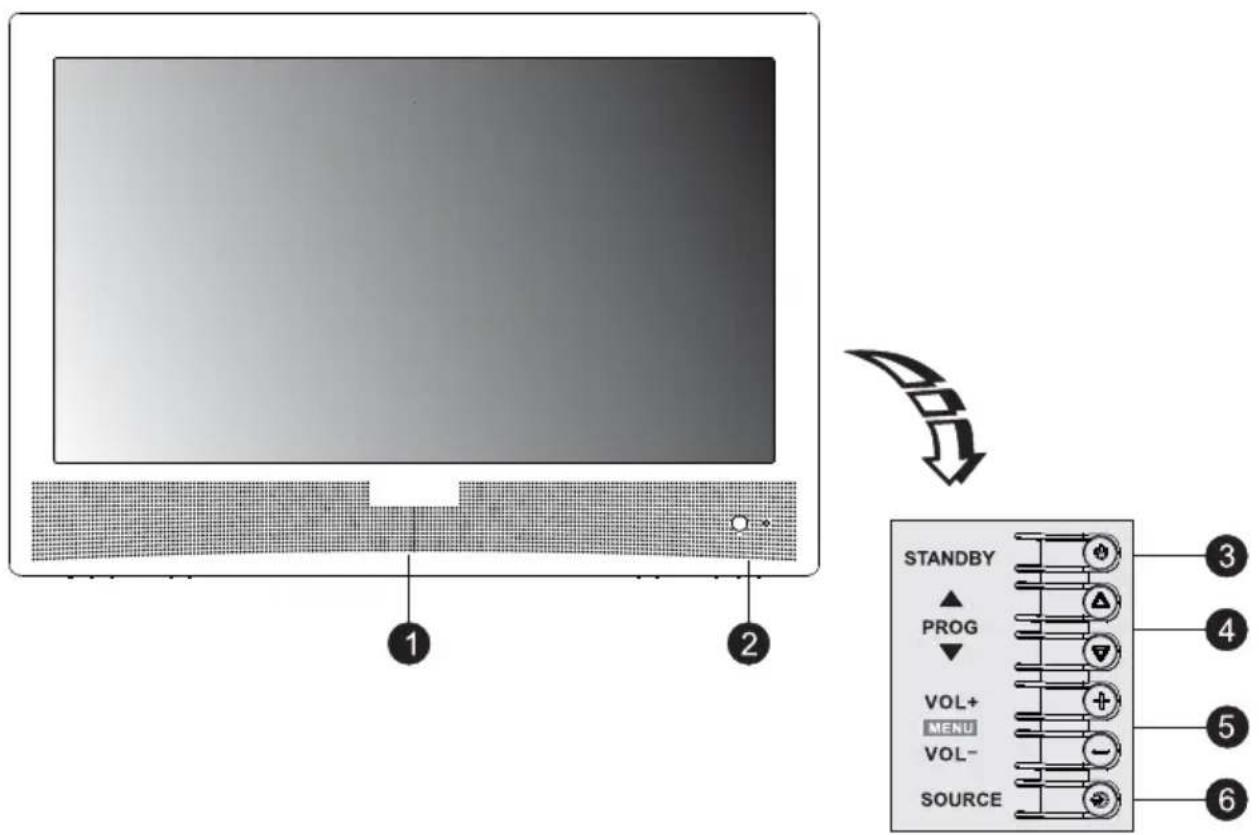
- Loudspeaker
- Power On indicator / remote control sensor
- Standby button (Stand-by mode)
- Channel selection button up / down
- Button for increasing and decreasing volume (also by holding down VOL+/VOL- you can control navigation in the menu)
- Button for selecting a signal source
Rear panel
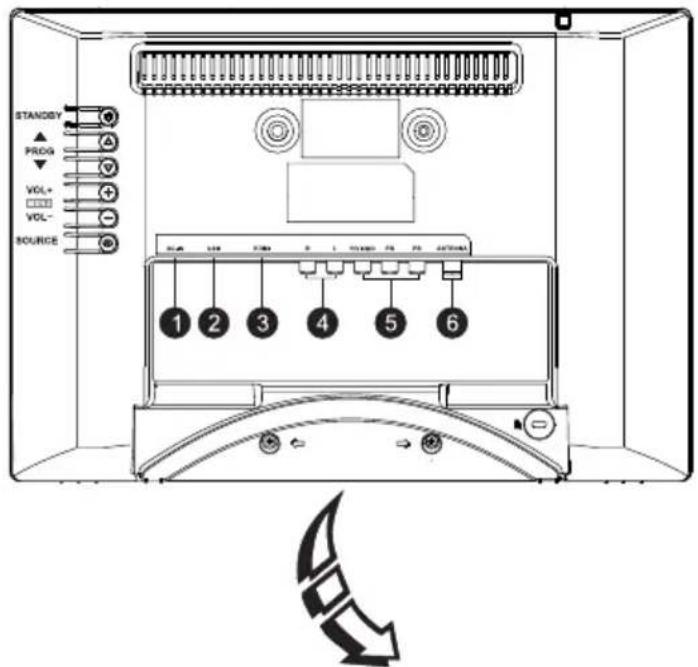

- DC-IN: Input 12 V AC power supply
- USB: USB port
- HDMI: Connect an HDMI input signal from the source, i.e. DVD.
- R/L: Connect an AUDIO input signal from the source, i.e. DVD.
- Y/VIDEO PB PR input: Connect a component or composite video signal from the source, i.e. DVD. Do the same with the AV IN audio input.
- ANTENNA IN (Antenna input): Connect a coaxial cable for signal reception from an antenna or cable.
3. Remote control
Description of the remote control buttons
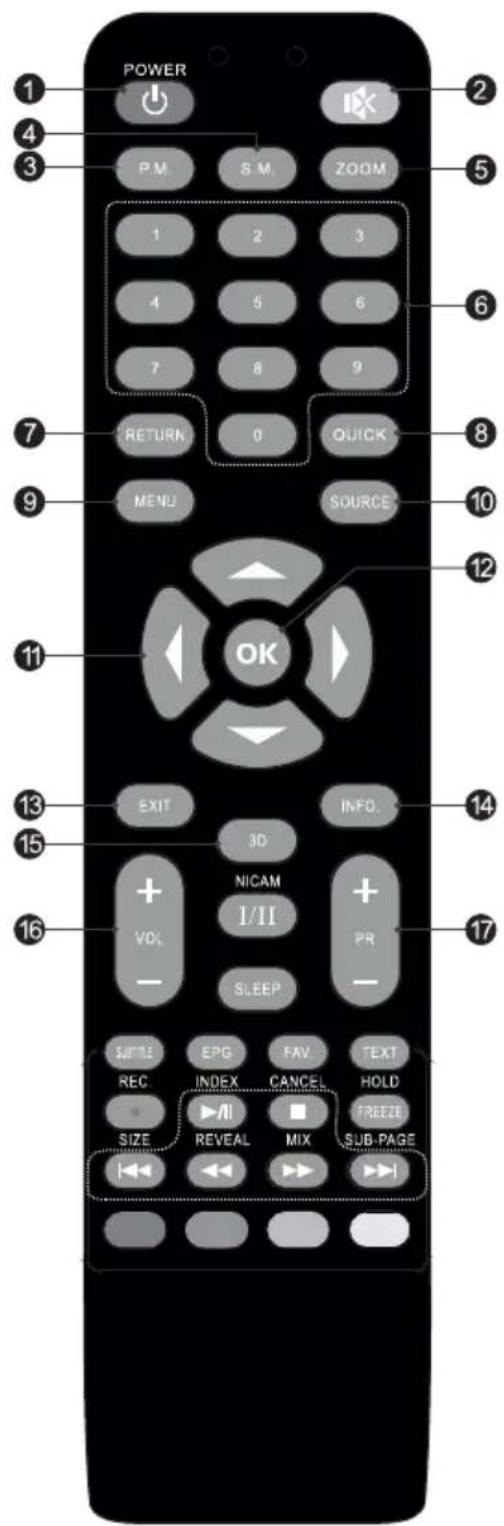
1. POWER button (☐)
Press to turn the television on or to stand-by mode.
2. Mute button (OK)
Press to immediately turn off audio and to renew the volume.
3. P.M. button (Picture mode)
Press to select the desired picture mode.
4. S.M. button (Sound mode)
Press to select the desired sound mode.
5. Zoom button
Press to select the desired picture format.
6. Numerical buttons
Directly select the number of a TV channel.
7. RETURN button (back)
Press to return to the previously watched channel.
Note:
In USB mode, press the RETURN button to return to the previous menu.
8. QUICK button
No function.
9. Menu button
Press to enter or exit the TV menu.
10. SOURCE button
Press to select a signal source.
11. Direction buttons (▲/▼/◄/►)
Used to select or set required items in the TV menu.
12. OK button
Press to confirm a selection
13. EXIT button
Press to exit from any menu.
14. INFO button
Press to display current information, e.g. screen format, sources, etc.
15. 3D button
This TV model does not have the 3D function.
Therefore this button on the remote control will not be functional, do not use it.
16. VOL-/VOL+ button
Press to set the volume.
17. PR+/PR-button
Press to select the previous / next channel.
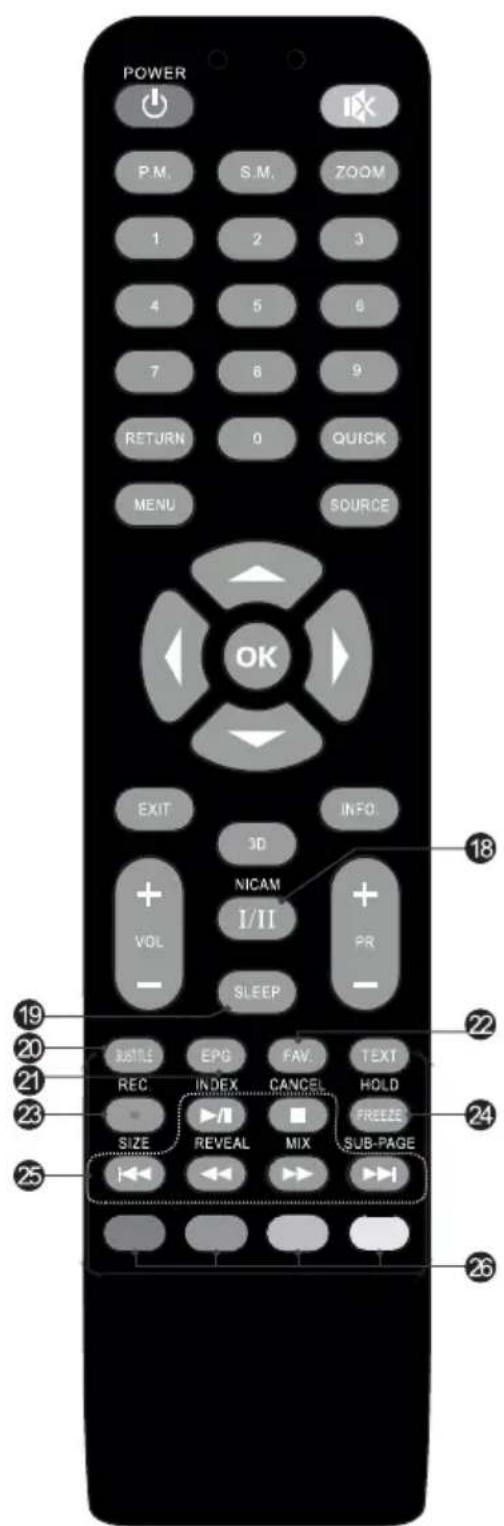
18. NICAM button
Switching between audio tracks, if available in the broadcast.
19. SLEEP button
Press to set a period of time after which the TV will automatically switch to the stand-by mode.
20. SUBTITLE button
Press to display or hide the subtitle mode. Switching between subtitles, if available in the broadcast.
21. EPG button
Press to display current EPG information in DTV mode.
22. FAV button
Press to show the favourite channels list. Press the up / down button to navigate in the favourite channels list, press the OK button to confirm.
23. REC button (Recording)
Available only in DTV mode.
24. FREEZE button
Press to freeze and then again to unfreeze the picture.
25. USB playback control buttons
Play and pause button (▶/1)
Press to pause playback, press again to resume playback.
Stop button (■)
To stop playback and to return to playback in fullscreen, press the STOP button.
Fast reverse button (◀◀)
Press to fast reverse.
Fast forward button (▶)
Press to fast forward.
Previous button (◀◀)
Press to display the previous file.
Next button (▶▶)
Press to display the next file.
26. Coloured buttons
Used to control various functions in DTV mode.
(Red/green/yellow/blue)
Press the respective colour button to perform the function corresponding to the colour of the button in teletext mode.
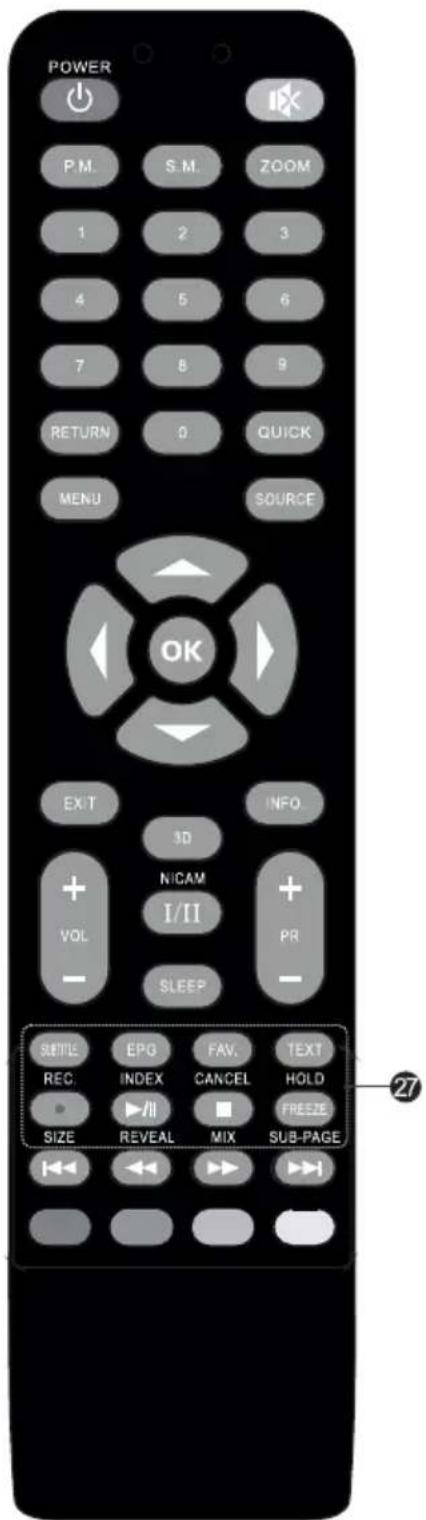
27. TEXT button (optional)
Press to display and hide teletext.
INDEX button
Press this button to show the index page.
CANCEL button (CANCEL)
Press this button to temporarily return to the TV program guide when searching teletext pages. After the search is complete, the page number will be shown in the top left part of the screen.
Press the button again to return to the teletext screen.
HOLD button
Press to hold a teletext page on the screen without updates or changes. Press the button again to release it. Except for teletext mode, press this button to freeze a displayed picture.
Note:
Excluding the teletext and USB modes, this button is used as FREEZE.
SIZE button
You can make the display larger in teletext: Press the button once to increase the size of the top half of the screen. Press the button twice to increase the size of the bottom half of the screen. Press this button again to renew the original size.
REVEAL button
This button serves to show hidden information, such as quiz and puzzle solutions. Press the button again to remove the information from the display.
MIX button
Press this button for a teletext overlay over a TV program.
Press the button again to return to the teletext screen.
SUB-PAGE button
Press this button to enter or exit a subpage of a mode (if available).
Use the red / green button to select the desired subpage.
Inserting batteries into the remote control
If you are using the remote control for the first time or if its function has decreased, it is necessary to insert batteries, i.e. replace the batteries.
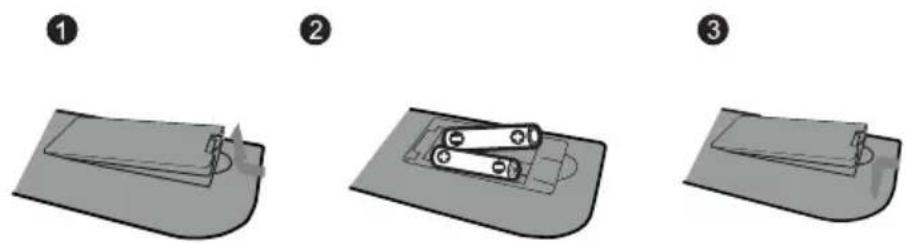
- Open the battery compartment cover.
- Insert the correct type of batteries. Ensure that the correct polarity +/- is adhered to as marked on the bottom of the battery compartment.
- Return the cover.
Note:
Remove the batteries if you will be storing the appliance or not using it for an extended period of time.
- To control the appliance using the remote control, point the remote control at the appliance and then press the button with the required function. The effective range of the remote control is up to about 5 meters with a maximum deviation of +/- 30^ from the perpendicular direction to the reception sensor of the remote control on the front side of the appliance. The falling capacity of the batteries gradually reduces the remote control range. There must be no solid obstacles in the area between the remote control and the appliance when the remote control is being used.
- During standard use the lifetime of batteries in the remote control is about 1 year. When the effective range of the remote control is substantially reduced or when there are problems with its use, change both the batteries in the remote control. If you will not be using the remote control for a longer period of time, take out both batteries - in this way you will prevent potential damage caused by their leakage.
- Prevent strong light from falling on the appliance, (e.g. sunlight or strong fluorescent lamps or ecological light bulbs), which could reduce the effectiveness and reliability of the infra-red remote control.
4. Wiring diagram
Prior to connecting any type of external device, check that:
- you have carefully read this user's manual and the user's manual of the external device and understand all the provided instructions, safety measures and warnings.
- both appliances (television and the connected device) are turned off and their power cords have been disconnected from the mains power sockets.
Connect the power cords only after fully completing the connections.
4.1. Connecting to a power socket
Only connect the power adapter plug into the power socket after performing all necessary connections.
Check that the voltage in your power socket corresponds to the voltage on the power adapter's rating label.
If you will not be using the television for a longer period of time, disconnect the plug from the power socket.
5. Basic controls
5.1. Turning on
As soon as the appliance is placed/attached in a suitable location, on a table or on a wall, and all the necessary cables are connected, including the power cord, do the following. Press the main power button and ⏻ on the remote control to turn on the power to the television, its LED indicator will be lit green in a short time.
Then select an input source by pressing the SOURCE button on the remote control. To turn off the TV press the ⏻ button on the remote control. The TV will return to stand-by mode.
5.2. Program selection
Press the PR (+ or -) button or use the numerical buttons to directly select a channel.
5.3. Setting the volume
Set the volume according to you personal preferences.
1 Press the VOL (+ or -) to set the volume.
2 If you need to temporarily turn off the audio, press the MUTE button.
3 You can renew the audio by again pressing the MUTE or VOL+ button.
5.4. Setting channels
5.4.1. Auto Search (Automatic tuning)
Automatically searches for all available channels in the antenna or cable input and stores them in memory in the channel list.
Launch this function if you change your residence or if you move the TV. Check that the antenna is connected during a TV broadcast.
The auto search will save only channels that are currently available.
Using the remote control you can control:
1 Press the SOURCE button and the ▲▼ buttons to select DTV or ATV.
2 Press the MENU button.
3 Use the ◀▶ buttons to select Installation (Installation).
4 Use the ▲▼ buttons to select Auto Search (Automatic tuning) and press the OK button to confirm; the TV will search for all TV channels and automatically store them in a list.
5 If you need to temporarily turn off the audio, press the MUTE button.
Press the ◀ button to exit from the auto scan;
Press the ▶ button to cancel a selection.
5.4.2. DTV Manual Search (DTV manual tuning)
Manual tuning of channels.
1 In the INSTALLATION (Installation) menu press the ▲ or ▼ buttons and select DTV Manual Search (DTV manual tuning) and press the OK button.
2 Use the ◀ or ▶ buttons to select Channel No (Channel number) and then press the OK button to launch the search.
3 The search will stop as soon as a channel is found and this channel will be stored at the current position of the channel. If you need to stop the search, press the MENU button.
5.4.3. ATV Manual Search (ATV manual tuning)
1 In the INSTALLATION (Installation) menu press the ▲ or ▼ buttons and select ATV Manual Search (ATV manual tuning) and press the OK button.
2 Highlight and press the ▲▼ button to select and use the ◆ buttons to set Channel No., Color System (channel number, colour system) and the Sound System (Audio system). Then select search (Search).
Press the ▶ button to search in the towards a higher frequency.
Press the ◀ button to search in the towards a lower frequency.
3 The search will stop as soon as a channel is found and this channel will be stored at the current position of the channel. If you need to stop the search, press the MENU button.
5.4.4. Fine Tuning (Fine tuning)
It is used to fine tune an individual channel. Fine tuning is not necessary under normal conditions. Nevertheless, in areas with a weak reception signal, fine tuning will improve the picture and sound.
1 Select a channel that you need to fine tune.
2 In the INSTALLATION (Installation) menu, select ATV Manual Search (ATV manual tuning) and press the ▼ button to highlight Fine Tuning (Fine tuning).
3 Use the ◀ or ▶ buttons to fine tune until the reception of the channel (picture and sound) is satisfactory.
6. TV menu
Due to the continuous development of the product during the manufacturing process, the descriptions provided here may not fully correspond to your TV. All the functions of this model are described in the user's manual, but your TV may not necessarily have all these functions, the symbol (♦) shown before them indicates the need to pay greater attention and to follow instructions if you are not sure.
6.1. Using the menus
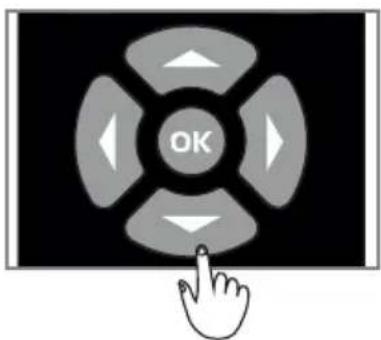
Press the MENU button to show the main menu.
Press the [◀] / [▶] button and select a menu.
Press the [◀] / [▶] button and select an item.
Press the OK button to enter the selected item.
Press the MENU button to exit the selected item.
6.2. Picture Menu (Picture)
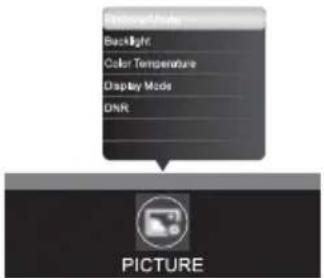
Picture Mode (Picture mode)
You can set the picture mode to: bright, normal, soft, user.
- Contrast: Set the difference between the light and dark part of the picture. To get a high-quality picture, brightness needs to be set to the correct value.
- Brightness: Set the brightness of the picture, usually it is set together with the contrast.
• Colours: Set the richness of the colours.
• Sharpness: Set the sharpness of the picture. - Hue: Set the hue of the picture. This function is only available in the HDMI system.
Backlight: You can set the backlight intensity: low, medium and high.
Colour temperature: You can set the temperature of the colours: neutral, warm, cold.
Display mode: You can set the side aspect ratio mode: 16:9, 4:3, Panorama, Point-on-Point (Just Scan), Films, Subtitles. (Some options are not shown with certain sources.)
DNR: You can set: off, low, medium, high. (Not available for PC source.)
6.3. Sound Menu (Sound)
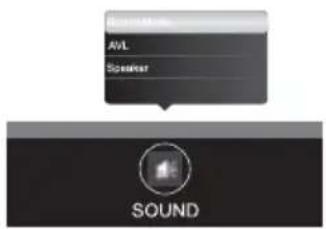
Sound Mode (Sound mode)
You can set the sound mode: standard, music, news, film and user.
AVL (Automatic volume level): You can turn this function on or off. The automatic volume level feature sets volume automatically depending on the audio input.
Loudspeaker: You can set L, R, L+R.
• L (left): Output to loudspeaker via the left audio channel.
• R (right): Output to loudspeaker via the right audio channel.
• L+R (left+right): Output to loudspeaker via the left and right audio channel.
6.4. Installation menu (Channel)
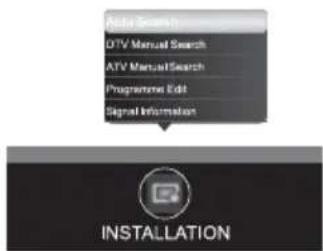
Auto Search (Automatic tuning): Automatically searches and stores all channels of the current source.
DTV Manual Search (DTV manual tuning): Manually searches and stores all digital channels.
ATV Manual Search (ATV manual tuning): Manually searches and stores all analogue channels.
Program Edit (Editing of channels): Enables the editing of channels. In the INSTALLATION menu (installation), press the ▲ or ▼ button to select Program Edit (Edit channels) and press the button OK to access the channel list. Press the coloured buttons on the remote control to edit the channel according to the functions on the screen.
- Delete: Press the red button to delete a channel.
-
Rename: Press the green button to move the cursor and enter a number.
-
Move: Press the yellow button and then use the ▲ or ▼ buttons to move channels up or down in the channel list.
- Skip: Highlight a channel in the channel list which you wish to skip, press the blue button and the channel will be marked with the skip symbol.
- List of favourites: Press the FAV button on the remote control to add a channel to the favourites list.
Information about signal: Displays information about the current DTV channel.
Note:
Information about the signal are available in ATV mode.
6.5. Setup Menu (Settings)
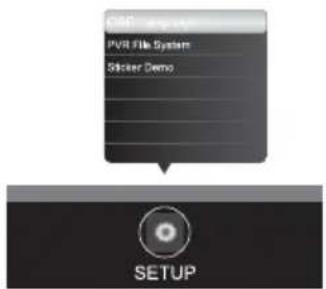
OSD Language (OSD language): Select the desired OSD language.
PVR File System (PVR file system): Check and format a USB disk so that it is compatible with the PVR file system of this model.
Demo: Working demo clip for store presentation.
6.6. Time menu (TIME)
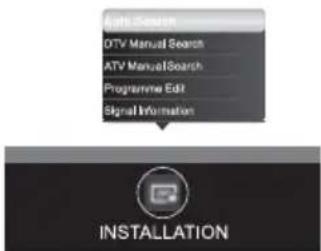
◆ Auto sync (Automatic synchronisation): This appliance synchronises time with the digital signal. (Recommended.)
◆ Clock (Clock): If you disable automatic synchronisation, here you can set it manually. Set the year, month, date, hour and minute.
Note:
Automatic synchronisation and the clock are only available in DTV mode.
Summer Time (Summer time): During DTV reception the exact time incl. summer time is received from the broadcast. If the received signal does not contain information about summer time, select On (activated).
Sleep timer (Shut-off timer): You can set a time after which the TV will turn off automatically: off, 10, 20, 30, 60, 90, 120, 180, 240 minutes.
Auto Sleep (Automatic shut-off): The TV will automatically turn off to the stand-by mode if no signal is found. Turn this function on or off.
6.7. Lock menu (Lock)
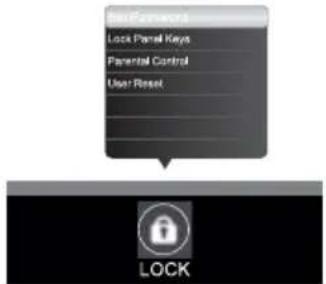
Set Password (Set password): Set a password.
Panel button lock: Turn this function on or off.
Parental control: In the DTV mode you can set the level for viewing certain channels.
Default settings: This will restore menu settings back to the factory settings, does not affect password settings.
Note:
The default password is "0000".
The super password is "8899".
In the event that you forget the new password, you can use the super password to reset the old password and enter a new password. Or directly use the super password for entry.
7. PVR (Personal video recorder)
PVR
Press the REC button to start recording.
Press the ■ button or OK to exit from the recording.
Note:
PVR is only available at port USB1. Before recording, make sure that the inserted USB device has sufficient free memory.
Use only high-speed USB devices.
The file can only be played in the USB source; it is not possible to play it in another device or on a PC.
This TV supports only USB devices with FAT32 format.
Produced recordings can only be played back on this TV, it is not possible to play back on another TV.
Produced recordings are stored in the main USB directory called "_MSTPVR" when you select FAT32, or they are saved in the USB main directory if you select high-speed type PVR.
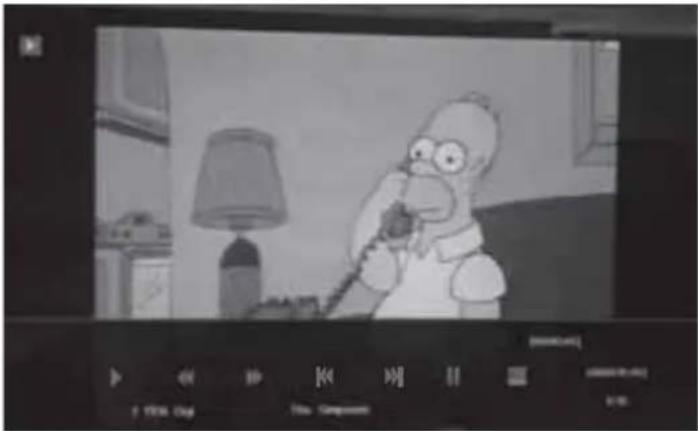
You can view recordings later like a normal film by selecting the signal source USB (MEDIA).
natural_image
Black-and-white photo of a cartoon character on a phone, with a lamp and desk in the background (no visible text or symbols)8. EPG menu (Electronic Program Guide)
The EPG menu is available only in DTV mode. It provides information from the operator of the channel and offers information about programs that are being broadcast. You can enter the digital mode by pressing the EPG button on the remote control.
- Press the EPG button to call up the EPG menu (right). The second strip from the top shows the current date and time. On the list below, the currently watched channel will be highlighted.
- Before displaying EPG information it is necessary to "activate" every program for which you wish this information to be displayed. For a set of several programs aggregated in a so-called multiplex, information is loaded simultaneously. To activate, use the ▲/▼ buttons to select a channel, then press the OK button to confirm.
- Use the ▲ button to go to the top bar on the display (or use the INDEX button (PLAY/PAUSE), then press the ▶ button to select a time. The top bar now shows the channel in the top right corner and the second bar shows one of your favourite channels.
- Go to a channel and using the ◀/▶ buttons select a channel for which you wish information to be displayed (also in the upcoming days based on information provided by the broadcaster of the program). The information will be shown after a short while.
- Use the ▲/▼ buttons to select between times.
- Press the MENU button to exit the EPG menu.
Recorder
Press the red button to display the recorder menu (on the right).
See detailed information about various TV recording options on a USB device.
Information
Press the green button to display information about the selected program.
Schedule
Press the yellow button to display the reminder list. Use the ▲/▼ buttons to select a reminder, press the red button to delete the reminder.
Reminder
Press the blue button to display the reminder menu. Use the ▲/▼ buttons to select an item and the ◀/▶ buttons to change the settings.
Press the OK button to add a program to the reminder list. An updated reminder list will be displayed.
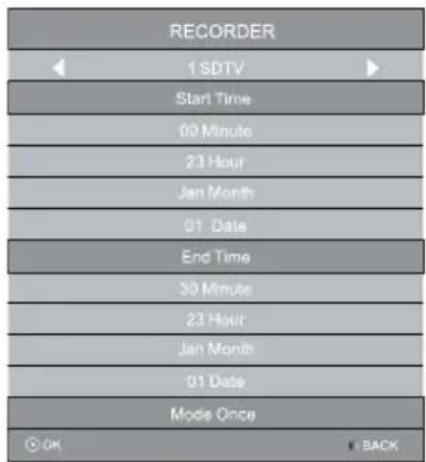
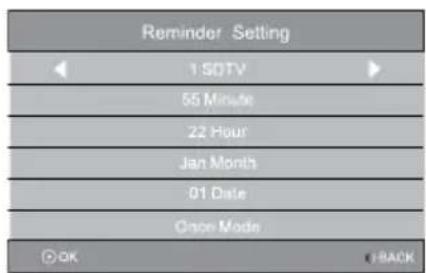
Tips:
Use the "PLAN" and "REMINDER" functions with forethought. Because time is not synchronised when the television is turned off, the actual time in stand-by mode is not accurate.
Note:
The accuracy and amount of displayed information, particularly times, depends on the content and amount of information supplied to the broadcast by the operator. Despite the appliance displaying as much information as possible to users, it is possible that certain specific information will not be provided to users exactly or completely.
9. USB menu
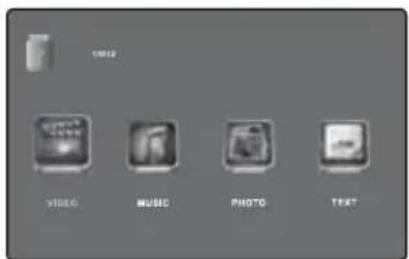
In the USB mode you can watch a video, playback music, display images and read texts from files stored on the USB device.
- Connect the USB device to the USB input of the TV and press the SOURCE button.
- Use the ◀/▶ buttons to select the type of media: VIDEO, MUSIC, PHOTO and TEXT.
- Press the OK button, the menu of the connected USB device will be shown on the screen, press the OK button again to display the directories and files.
- Use the ◀/▶ or ▲/▼ buttons to select a directory, press the OK button to open the directory and select a file, then press the OK button to mark and highlight a file that you wish to playback. To playback, press ▶/□; or select a file and press ▶/□ for direct playback.
- Press the ■ button to end playback and to return to the top level of the directory.
- Repeatedly press the RETURN button to return to a higher directory.
- Repeat steps 3-5 to select and playback other types of media files.
9.1. TEXT menu
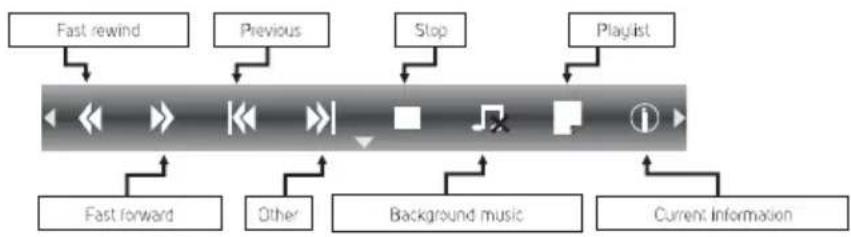
Press the INFO / ▼ button to show / exit the menu of the bar below. Press the USB control buttons on the remote control for respective operations.
Control bar menu text
flowchart
graph TD
    A["Fast rewind"] --> B["←"]
    C["Previous"] --> D["←"]
    E["Stop"] --> F["←"]
    G["Playlist"] --> H["←"]
    I["Fast forward"] --> J["←"]
    K["Other"] --> L["←"]
    M["Background music"] --> N["←"]
    O["Current Information"] --> P["←"]
Fast rewind / forward
Press and hold the ◀/▶ button for several seconds to fast rewind / fast forward the text as required.
Stop/previous/next
Press the ■ button to pause playback, press the ◀/▶ button to playback the previous or next file.
Or press the ◀/▶ button to highlight the respective icons and then press the OK button, the TV will then respond.
Background music
First, from the main USB directory enter the list of music files and select a music file that you wish to set as background music for reading texts, then return to the main USB directory and enter the text file display, on the control panel highlight the 📄 icon and press the OK button, the icon will change to ⌘ and the TV will start playing the selected music.
Playlist
A list of marked text files in the current directory will be displayed. If no text is marked, all compatible texts will be shown in the list. Use the
▲ / ▼ buttons to highlight a file and press the OK button to start the playback of texts.
Select Cancel and press the OK button to exit from the list.
Current information
Highlight the relevant button and press the OK button to check information about the music being played.
Note:
Supports text files up to 1000 pages (in English) with a "txt" extension.
9.2. Video menu
Press the INFO / ▼ button to show / exit the menu of the bar below. Press the USB control buttons on the remote control for respective operations.
Control bar menu text
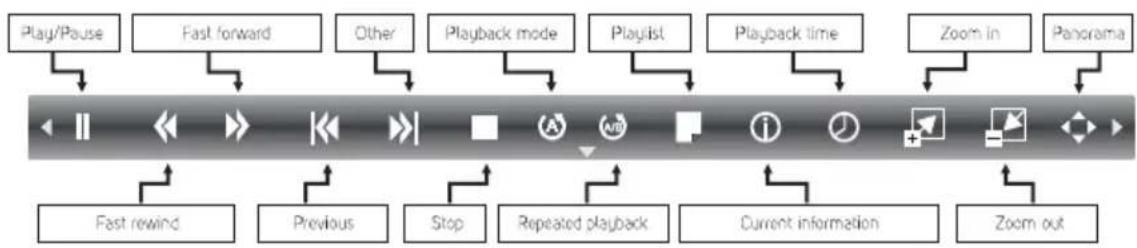
flowchart
graph TD
    A["Play/Pause"] --> B["Fast forward"]
    B --> C["Other"]
    C --> D["Playback mode"]
    D --> E["Playlist"]
    E --> F["Playback time"]
    F --> G["Zoom in"]
    G --> H["Panorama"]
    H --> I["Zoom out"]
    I --> J["Current information"]
    J --> K["Repeated playback"]
    K --> L["Stop"]
    L --> M["Previous"]
    M --> N["Fast rewind"]
Play, pause, stop, previous, next
Press the ▶/□ button to play or pause playback; press the ■ button to end playback; press the ◀/▶ button to playback the previous or next video file. Or press the ◀/▶ button to highlight the respective icons and then press the OK button, the TV will then respond.
Fast playback backwards / fast playback forwards
Press and hold the ◀/▶ button for a few seconds to fast rewind or fast forward, then press the ▶/□ button to playback from the new position.
Playback mode
Highlight Ⓐ and press the OK button to switch between playback modes: repeat 1 file, repeat all, repeat none.
Repeated playback
Highlight 📂 and press the OK button to set the starting point and then press the OK button again to set the finish point, the appliance will repeatedly playback the designated part. Press the OK button to return to normal playback.
Current information
Highlight the relevant button and press the OK button to check information about the video file being played.
Playlist
A list of marked video files in the current directory will be displayed. If no video file is marked, all compatible video files will be shown in the list. Use the ▲ / ▼ buttons to highlight a file and press the OK button to start the playback of a video. Select Cancel and press the OK button to exit from the list.
Playback time
Skip to a certain point after entering a time. Highlight the icon and press the OK button to open the menu for entering a time. Use the ◀/▶ buttons to move the cursor and use the numerical buttons to enter a time, press the OK button or ▲ to highlight OK on the screen, then press the OK button, the TV will start playback from the selected time.
Zoom in / zoom out
Highlight ☐ / ☐ on the control bar and press the OK button to zoom in / zoom out of the picture.
Panorama
If the picture is too large, use this function to check the picture. Highlight the icon, press the OK button, then press the left/right/up/down button to move around in the picture.
Note:
The Video option serves to view recordings from broadcasting. More - see chapter PVR.
9.3. Music menu
Press the INFO / ▼ button to show / exit the menu of the bar below. Press the USB control buttons on the remote control for respective operations.
Control bar menu music
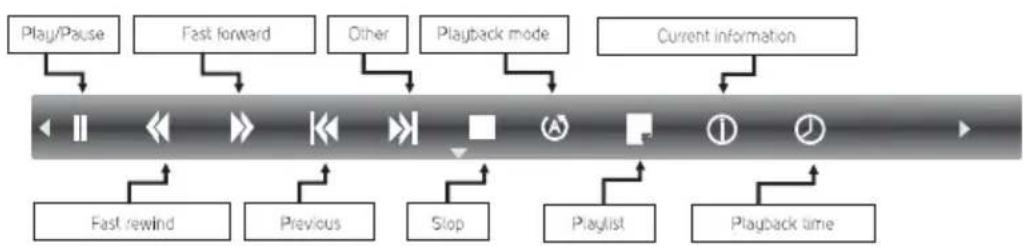
flowchart
graph TD
    A["Play/Pause"] --> B["Fast forward"]
    B --> C["Other"]
    C --> D["Playback mode"]
    D --> E["Current information"]
    E --> F["Fast rewind"]
    F --> G["Previous"]
    G --> H["Stop"]
    H --> I["Playlist"]
    I --> J["Playback time"]
Play, pause, stop, previous, next
Press the ▶/□ button to play or pause playback; press the ■ button to end playback; press the ◀/▶ button to playback the previous or next music file. Or press the ◀/▶ button to highlight the respective icons and then press the OK button, the TV will then respond.
Fast rewind / forward
Press and hold the ◀/▶ button for a few seconds to fast rewind or fast forward, then press the ▶/□ button to playback from the new position.
Playback mode
Highlight ⬆ and press the OK button to switch between playback modes: repeat 1 file, repeat all, repeat none.
Playlist
A list of marked music files in the current directory will be displayed. If no music file is marked, all compatible music files will be shown in the list. Use the ▲/▼ buttons to highlight a file and press the OK button to start the playback of a music file. Select Cancel and press the OK button to exit from the list.
Current information
Highlight the relevant button and press the OK button to check information about the music being played.
Playback time
Skip to a certain point after entering a time. Highlight the icon and press the OK button to open the menu for entering a time. Use the ◀/▶ buttons to move the cursor and use the numerical buttons to enter a time, press the OK button or ▲ to highlight OK on the screen, then press the OK button, the TV will start playback from the selected time.
Note:
If you need to display song lyrics on the screen together with the music, it is necessary to save the texts in the same folder and to use the same filename only with the extension ".lrc".
9.4. Photo menu
Press the INFO / ▼ button to show / exit the menu of the bar below. Press the USB control buttons on the remote control for respective operations.
Photo control bar menu
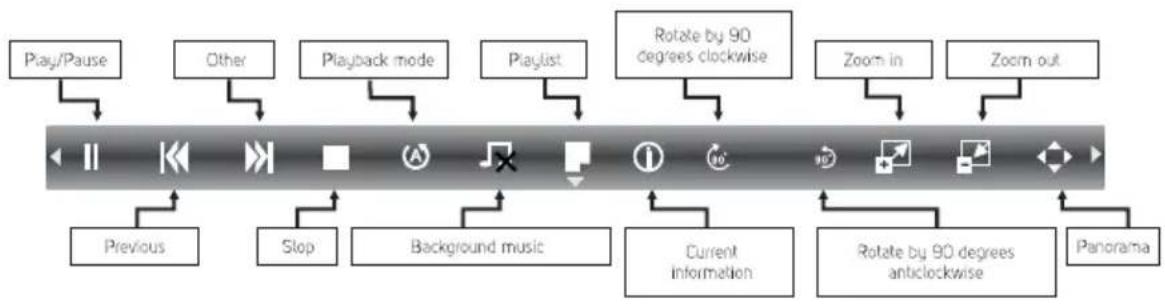
flowchart
graph TD
    A["Play/Pause"] --> B["Previous"]
    C["Other"] --> D["Slop"]
    E["Playback mode"] --> F["Background music"]
    G["Playlist"] --> H["Current information"]
    I["Rotate by 90 degrees clockwise"] --> J["Zoom in"]
    K["Zoom out"] --> L["Panorama"]
    M["Rotate by 90 degrees anticlockwise"] --> N["Panorama"]
Play, pause, stop, previous, next
Press the ▶/□ button to play or pause playback; press the ■ button to end playback; press the ◀/▶ button to display the previous or next photo. Or press the ◀/▶ button to highlight the respective icons and then press the OK button, the TV will then respond.
Playback mode
Highlight Ⓐ and press the OK button to switch between the playback modes. There are 3 playback modes available: repeat 1 file, repeat all, repeat none.
Background music
First, from the main USB directory enter the list of music files and select a music file that you wish to set as background music for viewing photos, then return to the main USB directory and enter the displaying of photos, on the control panel highlight the 📄 icon and press the OK button, the icon will change to 🏠 and the TV will start playing the selected music.
Playlist
A list of marked photo files in the current directory will be displayed. If no file is marked, all compatible files will be shown in the list. Use the ▲/▼ buttons to highlight a file and press the OK button to start displaying photos. Select Cancel and press the OK button to exit from the list.
Current information
Highlight the relevant button and press the OK button to check information about the displayed photo.
Rotate
Highlight 📄/💡 on the control bar and press the OK button to rotate the photo by 90 degrees clockwise / anticlockwise.
Zoom in / zoom out
Highlight 📋/☐ on the control bar and press the OK button to zoom in / zoom out of the picture.
Panorama
If the picture is too large, use this function to check the picture. Highlight the icon, press the OK button, then press the left/right/up/down button to move around in the picture.
10. Care and maintenance
Premature susceptibility to breakdown can be prevented. Careful and regular cleaning can prolong the lifetime of your television. Before cleaning, do not forget to turn off the television and to pull the power cord out of the power socket.
Cleaning the screen
- You can effectively remove dust from the screen in the following manner. Dampen a fine cloth in lukewarm water with an addition of a laundry conditioner or dish-washing detergent. Wring out the cloth until almost dry and use it to clean the screen.
- Make sure that the screen is not wet, and allow it to dry naturally before turning it on.
Cleaning other parts
To clean away dirt and dust, wipe the other parts of the television using a lint-free fine dry cloth. Do not use a dampened cloth.
Taking out of operation for an extended period
If you will not be using the television for an extended period of time (e.g. during a holiday), it is advisable to pull the power cord out of the power socket to prevent the television from being damaged as a result of a lightning strike or current spike.
11. Troubleshooting
In the event that you come across difficulties, proceed according to the solutions to the individual symptoms described below. The following symptoms may be caused rather by inappropriate settings than a real malfunction of the appliance. If problems persist, please contact a service centre.
No picture and audio.
- Check that the fuse and the circuit fuse is in order.
- Connect a different electronic appliance to the power outlet to check whether the power outlet is in order or not.
- The plug on the power cord is incorrectly inserted into the power outlet.
- Check the signal source.
No colours.
- Check the colour system settings.
- Set the colour saturation.
- Try another channel. You may be watching a black and white program.
Remote control is not working.
- Replace the batteries.
- The battery is not correctly installed.
- The TV is not connected to the electrical power grid.
No picture, but sound is normal.
- Set the brightness and contrast.
- Broadcasting error.
Normal picture, no sound.
- Press the button to increase volume.
- You pressed the MUTE button, press the MUTE button again to renew the volume.
- Change the audio system.
- Broadcasting error.
Irregular waves on the screen.
The picture is suffering from interference, e.g. from cars, lighting or hair dryer. Move the antenna to limit interference.
Snowing and interference
The antenna is located in a location with a weak television signal, dots may appear on the picture. If the signal is extremely weak, it is necessary to install a special antenna amplifier to improve signal reception.
- Change the location and the facing direction of the indoor/outdoor antenna.
-
Check the antenna connection.
-
Perform fine tuning.
- Try another channel. Broadcasting error.
Ignition
Black dots or horizontal stripes on the picture, the picture is shivering or trembling. This effect is caused by interference caused by the starting of a car, neon lamps, electric drills or other electrical equipment.
Ghosts on the screen
Ghosts are caused by a television signal that is following 2 paths. One is the direct path, the other is reflected from high buildings, hills or other objects. Changing the facing direction or position of the antenna will improve the reception.
Radio-frequency interference
This interference produces moving waves or diagonal bands and in certain cases results in loss of contrast. Identify and remove the source of the radio-frequency interference.
Note:
If the problem persists, turn off the television and contact an authorised service centre.

WARNING:
Never use a damaged television or a television with a damaged power cord. Never attempt to repair the television yourself.
- Technical specifications
| Model | SLE 1461M4 |
| Panel size | 14" (35.5 cm) |
| Consumption | 11 W |
| Standby power consumption | <1W |
| Nominal voltage | AC 100-240V/DC 12V IN |
| Remote control | Yes |
| VESA wall mount | VESA 75 |
| Dimensions with stand (W × H × D) | 349.7 x 243.0 x 63.4 mm |
| Dimensions w/o stand (W × H × D) | - |
| Dimensions of package (W × H × D) | 400 x 100 x 315 mm |
| Weight netto with stand | 0.85Kg |
| Weight netto w/o stand | - |
| Connections | |
| RF IN | 1 |
| AV in | 1 (share with Y of YPbPr) |
| SCART | 0 |
| Component YPbPr | 1 |
| VGA (D-Sub 15 pin) | 0 |
| HDMI | 1 |
| SPDIF coaxial | 0 |
| USB | 1 |
| USB supported formats | MPEG, XviD, MP3, JPG |
| CI slot | 0 |
| Other features | |
| WXGA resolution | 1366x768 |
| Brightness (cd/m2) | 300 |
| Aspect ratio | 16:9 |
| Dynamic contrast | 10000:1 |
| Response time (ms) | '8 |
| Colours | 16.7 mil |
| Colour temperature settings | YES |
| Viewing angle | 120°/120° |
| Built-in tuner | HD DVB-T |
| Video system | PAL/SECAM |
| Audio system | BG/DK/I/L |
| Stereo sound | - |
| Sound output | 1 x 5W |
| PVR recording to USB | YES |
| Pitch correction | YES |
| Progressive Scan | YES |
| Timeshift function | NO |
| Electronic Programme Guide EPG | YES |
| Teletext | YES |
| Teletext pages | 1000 |
| Comb filter | 3D |
| OSD menu | EN, CZ, SK, PL, HU, LIT, BUL, RUS, CR, SER, GER, FR, SP, IT, DU |
| Zoom | YES |
| Noise reduction | YES |
| Timer off /on/sleep | NO/NO/YES |
| Subtitles | YES |
| Audio language | YES |
| Channel list | YES |
| Favourites list | YES |
| Picture freeze | YES |
| Radio | YES |
| Lock | NO |
| Parent lock | YES |
| Hotel mode | YES (in factory menu) |
Notes:
Technical specifications may change without prior notice.
The original version is Czech.
INSTRUCTIONS AND INFORMATION REGARDING THE DISPOSAL OF USED PACKAGING MATERIALS
Dispose of packaging material at a public waste disposal site.
DISPOSAL OF USED ELECTRICAL AND ELECTRONIC APPLIANCES
The meaning of the symbol on the product, its accessory or packaging indicates that this product shall not be treated as household waste. Please, dispose of this product at your applicable collection point for the recycling of electrical & electronic equipment waste. Alternatively in some states of the European Union or other European states you may return your products to your local retailer when buying an equivalent new product. The correct disposal of this product will help save valuable natural resources and help in preventing the potential negative impact on the environment and human health, which could be caused as a result of improper liquidation of waste. Please ask your local authorities or the nearest waste collection centre for further details. The improper disposal of this type of waste may fall subject to national regulations for fines.
For business entities in the European Union
If you wish to dispose of an electrical or electronic device, request the necessary information from your seller or supplier.
Disposal in other countries outside the European Union
If you wish to dispose of this product, request the necessary information about the correct disposal method from local government departments or from your seller.

This product meets all the basic EU regulation requirements that relate to it.
Changes to the text, design and technical specifications may occur without prior notice and we reserve the right to make these changes.
SENCOR®
EN Warranty conditions
Warranty card is not a part of the device packaging.
This product is warranted for the period of 24 months from the date of purchase to the end-user. Warranty is limited to the following conditions. Warranty is referred only to the customer goods using for common domestic use. The claim for service can be applied either at dealer's shop where the product was bought, or at below mentioned authorized service shops. The end-user is obligated to set up a claim immediately when the defects appeared but only till the end of warranty period. The end user is obligated to cooperate to certify the claiming defects. Only completed and clean (according to hygienic standards) product will be accepted. In case of eligible warranty claim the warranty period will be prolonged by the period from the date of claim application till the date of taking over the product by end-user, or the date the end-user is obligated to take it over. To obtain the service under this warranty, end-user is obligated to certify his claim with duly completed following documents: receipt, certificate of warranty, certificate of installation.
This warranty is void especially if apply as follows:
■ Defects which were put on sale.
■ Wear-out or damage caused by common use.
The product was damaged by unprofessional or wrong installation, used in contrary to the applicable instruction manual, used in contrary to legal enactment and common process of use or used for another purpose which has been designed for.
■ The product was damaged by uncared-for or insufficient maintenance.
■ The product was damaged by dirt, accident of force majeure (natural disaster, fire, and flood).
■ Defects on functionality caused by low duality of signal, electromagnetic field interference etc.
The product was mechanically damaged (e.g. broken button, fall).
■ Damage caused by use of unsuitable media, fillings, expendable supplies (batteries) or by unsuitable working conditions (e.g. high temperatures, high humidity, quakes).
■ Repair, modification or other failure action to the product by unauthorized person.
■ End-user did not prove enough his right to claim (time and place of purchase).
■ Data on presented documents differs from data on products.
Cases when the claiming product cannot be identified according to the presented documents (e.g. the serial number or the warranty seal has been damaged).
Authorized service centers
Visit www.sencor.eu for detailed information about authorized service centers.