XFA240QS - Ekran ACER - Bezpłatna instrukcja obsługi
Znajdź bezpłatnie instrukcję urządzenia XFA240QS ACER w formacie PDF.


| Typ produktu | Monitor |
| Marka | Acer |
| Model | XFA240QS |
| Przekątna ekranu | 24 cale |
| Rozdzielczość | 1920 x 1080 (Full HD) |
| Częstotliwość odświeżania | 144 Hz |
| Czas reakcji | 1 ms |
| Technologia matrycy | TN |
| Jasność | 350 cd/m² |
| Kontrast | 1000:1 |
| Kąty widzenia | 170°/160° |
| Złącza | HDMI, DisplayPort, DVI |
| Mocowanie VESA | 100 x 100 mm |
| Regulacja wysokości | Tak |
| Pivot | Tak |
| Wbudowane głośniki | Nie |
| Pobór mocy (typowy) | 35 W |
| Waga | ok. 4,5 kg |
| Wymiary (z podstawą) | 565 x 467 x 221 mm |
| Zawartość opakowania | Monitor, podstawka, kable HDMI i DisplayPort, kabel zasilający, instrukcja |
Często zadawane pytania - XFA240QS ACER
Pytania użytkowników dotyczące XFA240QS ACER
0 pytanie dotyczące tego urządzenia. Odpowiedz na te, które znasz, lub zadaj własne.
Zadaj nowe pytanie dotyczące tego urządzenia
Pobierz instrukcję dla swojego Ekran w formacie PDF za darmo! Znajdź swoją instrukcję XFA240QS - ACER i weź swoje urządzenie elektroniczne z powrotem w ręce. Na tej stronie opublikowane są wszystkie dokumenty niezbędne do korzystania z urządzenia. XFA240QS marki ACER.
INSTRUKCJA OBSŁUGI XFA240QS ACER
Acer LCD Monitor Quick Start Guide (QSG)
Important safety instructions
Please read the following instructions carefully.
- To clean the LCD monitor screen:
- Turn off the LCD monitor and unplug the power cord. - Spray a non-solvent cleaning solution onto a rag and clean the screen gently.
-
Do not place the LCD monitor near a window. Exposing the monitor to rain, moisture or sunlight can severely damage it.
-
Do not apply pressure to the LCD screen. Excessive pressure may cause permanent damage to the display.
-
Do not remove the cover or attempt to service this unit yourself. An authorized technician should perform servicing of any nature.
-
Store the LCD monitor in a room with a temperature of -20^ to 60^ C ( -4^ to 140^ F). Storing the LCD monitor outside this range may result in permanent damage.
-
Immediately unplug your monitor and call an authorized technician if any of the following circumstances occur:
• Monitor-to-PC signal cable is frayed or damaged.
- Liquid spills onto the LCD monitor or the monitor is exposed to rain.
• The LCD monitor or case is damaged.
Attaching the monitor to the base
- Remove the monitor from the packaging.
- Attach the footstand to the base. (for selected models).
- Turn clockwise to lock. Ensure that the base in locked onto the stand. (for selected models)
- Secure the base to the stand by turning the screw using the intergrated tab or a suitable coin. (for selected models)
Connecting your monitor to a computer
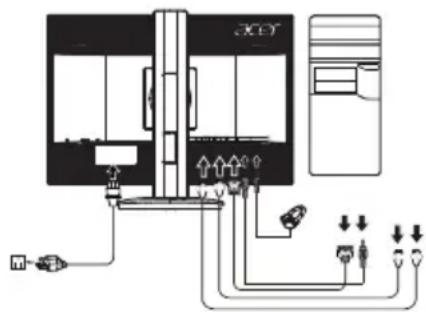
- Turn off your computer and unplug your computer's power cord.
- Connect the signal cable to the DP (optional) and/or HDMI (optional) input socket of the monitor, and the DP (optional) and/or HDMI (optional) output socket of the graphics card on the computer. Then tighten the thumbscrews on the signal cable connector.
- Optional: Connect the audio input socket (AUDIO IN) of the LCD monitor and the line-out port on the computer with the audio cable.
- Insert the monitor power cable into the power port at the back of the monitor.
- Plug the power cords of your computer and your monitor into a nearby electrical outlet.
flowchart
graph TD
    A["Central Device"] --> B["Server"]
    A --> C["Port 1"]
    A --> D["Port 2"]
    A --> E["Port 3"]
    A --> F["Port 4"]
    A --> G["Port 5"]
    A --> H["Port 6"]
    A --> I["Port 7"]
    A --> J["Port 8"]
    A --> K["Port 9"]
    A --> L["Port 10"]
    A --> M["Port 11"]
    A --> N["Port 12"]
    A --> O["Port 13"]
    A --> P["Port 14"]
    A --> Q["Port 15"]
Note: Audio output is only for audio output model. Please check user manual for more instruction.
FreeSync:
It can allow a FreeSync supported graphics source to dynamically adjust display refresh rate based on typical content frame rates for power efficient, virtually stutter free and low-latency display update.
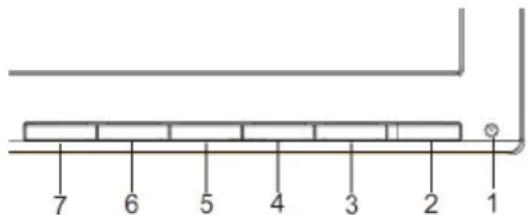
External controls
| 1&2 Power button Turns the monitor on/off.Blue indicates power on. Amber indicates standby/ power saving mode. | |
3 Function key  | a. Press to view Main page.Press again to enter next function in the Function Menu.b. When the Function Menu is active, press this key selected or move to the next function. |
4 Function key  | a. Press to view Main page.Press again to enter Input select function.b. When the Function Menu is active, press this button selected or move to the previous function. |
5 Function key | a. Press to view Main page.Press again to enter Volume adjustment function.b. When the Function Menu is active, this button will enter a selection in the OSD. |
6 Function key | a. Press to view Main page. Press again to enter brightness adjustment function.b. When the Function Menu is active. Press to return previous Menu or exit current Menu.. |
7 Function key | a. When the Main page is active,Press to trigger the Game mode controlb. When the Function Menu is active, press to exit current Menu. |
For displays with glossy bezels the user should consider the placement of the display as the bezel cause disturbing reflections from surrounding light and bright surfaces.
Regulations and safety notices
FCC notices
This device has been tested and found to comply with the limits for a Class B digital device pursuant to Part 15 of the FCC rules. These limits are designed to provide reasonable protection against harmful interference in a residential installation. This device generates, uses, and can radiate radio frequency energy and, if not installed and used in accordance with the instructions, may cause harmful interference to radio communications. However, there is no guarantee that interference will not occur in a particular installation. If this device does cause harmful interference to radio or television reception, which can be determined by turning the device off and on, the user is encouraged to try to correct the interference by one or more of the following measures:
• Reorient or relocate the receiving antenna.
- Increase the separation between the device and receiver.
- Connect the device into an outlet on a circuit different from that to which the receiver is connected.
- Consult the dealer or an experienced radio/television technician for help.
CE declaration of conformity
Hereby, Acer Inc., declares that this LCD monitor is in compliance with the essential requirements and other relevant provisions of EMC Directive 2014/30/EU, Low Voltage Directive 2014/35/EU, and RoHS Directive 2011/65/EU and Directive 2009/125/EC with regard to establishing a framework for the setting of ecodesign requirements for energy-related product.
Notice: Shielded cables
All connections to other computing devices must be made using shielded cables to maintain compliance with EMC regulations.
Notice: Peripheral devices
Only peripherals (input/output devices, terminals, printers, etc.) certified to comply with the Class B limits may be attached to this equipment. Operation with non-certified peripherals is likely to result in interference to radio and TV reception.
Caution
Changes or modifications not expressly approved by the manufacturer could void the user authority, which is granted by the Federal Communications Commission, to operate this product.
In order to prevent damage to the monitor, do not lift the monitor by its base.
Operation conditions
This device complies with Part 15 of the FCC Rules. Operation is subject to the following two conditions: (1) this device may not cause harmful interference, and (2) this device must accept any interference received, including interference that may cause undesired operation.
Notice: Canadian users
CAN ICES-3(B)/NMB-3(B)
Disposal of waste equipment by user in private household in the European Union
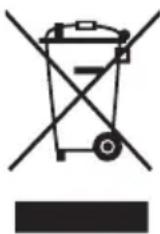
This symbol on the product or on its packaging indicates that this product must not be disposed of with your other household waste. Instead, it is your responsibility to dispose of your waste equipment by handing it over to a designated collection point for the recycling of waste electrical and electronic equipment. The separate collection and recycling of your waste equipment at the time of disposal will help to conserve natural resources and ensure that it is recycled in a manner that protects human health and the environment. For more information about where you can drop off your waste equipment for recycling, please contact your local city office, your household waste disposal service or the shop where you purchased the product.