Mokka B (2020-2024) Infotainment System - Automobile Vauxhall - Notice d'utilisation et mode d'emploi gratuit
Retrouvez gratuitement la notice de l'appareil Mokka B (2020-2024) Infotainment System Vauxhall au format PDF.

| Type de produit | Système d'infodivertissement pour véhicule |
| Marque / Modèle | Vauxhall Mokka B (2020-2024) Infotainment System |
| Catégorie | Automobile |
| Écran tactile | 10 pouces (25,4 cm) haute résolution |
| Connectivité sans fil | Bluetooth 5.0, Wi-Fi (2.4/5 GHz), Miracast |
| Ports USB | 2 ports USB-A (charge et données) |
| Récepteur radio | FM/AM avec RDS, DAB+ (Digital Audio Broadcasting) |
| Navigation embarquée | GPS + GLONASS, cartes Europe, mise à jour via USB |
| Streaming audio | Bluetooth A2DP, USB (MP3, WMA, AAC, FLAC) |
| Reconnaissance vocale | Intégrée (embarquée) et compatible Apple CarPlay / Android Auto (via USB) |
| Profil utilisateur | Jusqu'à 3 profils personnalisables + 1 profil commun |
| Affichage des photos | JPEG, PNG, BMP via USB |
| Fonction mains libres | Appels téléphoniques Bluetooth avec répertoire |
| Messages rapides | Envoi de SMS prédéfinis via l'écran tactile |
| Mises à jour logicielle | Par USB (système et cartes) |
| Langues disponibles | Multilingue (dont français, allemand, anglais, etc.) |
| Dimensions (panneau avant) | Environ 200 x 120 x 30 mm |
| Poids | Environ 1,2 kg |
| Alimentation | 12 V DC (système électrique du véhicule) |
| Température de fonctionnement | -20 °C à +60 °C |
| Antivol | Système de sécurité électronique : nécessite code à la première installation |
FOIRE AUX QUESTIONS - Mokka B (2020-2024) Infotainment System Vauxhall
Questions des utilisateurs sur Mokka B (2020-2024) Infotainment System Vauxhall
0 question sur cet appareil. Repondez a celles que vous connaissez ou posez la votre.
Poser une nouvelle question sur cet appareil
Téléchargez la notice de votre Automobile au format PDF gratuitement ! Retrouvez votre notice Mokka B (2020-2024) Infotainment System - Vauxhall et reprennez votre appareil électronique en main. Sur cette page sont publiés tous les documents nécessaires à l'utilisation de votre appareil Mokka B (2020-2024) Infotainment System de la marque Vauxhall.
MODE D'EMPLOI Mokka B (2020-2024) Infotainment System Vauxhall

natural_image
Exterior view of a modern white electric SUV with sleek black roof and red accent line (no visible text or symbols)
All-new Mokka
Infotainment System
Contents
Multimedia Navi Pro /
Multimedia Navi 5
Multimedia 57
Multimedia Navi Pro / Multimedia Navi
| Emergency numbers | ||
| For emergency service call the Vauxhall Incident Manager | 0800 55 33 88 (Free Linkline)* | |
| Vauxhall Assistance General Enquiries | 0845 7565 565 | |
| You will need to provide: | Vehicle registration number | Model and colour of your Vauxhall |
| Contact telephone number | Details of your precise location | |
* Calls may be chargeable from mobile phones
Introduction 6
Basic operation ...... 16
Radio 23
External devices 28
Navigation 32
Speech recognition 44
Phone 47
Index 54
Introduction
General information 6
Theft-deterrent feature 7
Control elements overview ...... 8
Usage 12
General information
Notice
This manual describes all options and features available for the various Infotainment systems. Certain descriptions, including those for display and menu functions, may not apply to your vehicle due to model variant, country specifications, special equipment or accessories.
Notice
The Infotainment system includes certain third party software. For the associated notices, licenses and any other information regarding this software see http://www.psa-peugeot-citroen.com/oss.
Important information on operation and traffic safety
⚠ Warning
Drive safely at all times. Only operate the Infotainment system if the traffic conditions allow a safe usage. In the interest of safety, it might be appropriate to stop the vehicle before operating the Infotainment system (e.g. for entries of addresses).
⚠ Warning
The usage of the navigation system does not release the driver from the responsibility for a correct, vigilant attitude in road traffic. Always follow the applicable traffic rules.
⚠ Warning
In some areas one-way streets and other roads and entrances (e.g. pedestrian zones) that you are not allowed to turn into are not marked on the map. In such areas the Infotainment system may issue a warning that must be accepted. Here you must pay particular attention to one-way streets, roads and entrances that you are not allowed to drive into.
Radio reception
Radio reception may be disrupted by static, noise, distortion or loss of reception due to:
- changes in distance from the transmitter
- multi-path reception due to reflection
- shadowing
Theft-deterrent feature
The Infotainment system is equipped with an electronic security system for the purpose of theft deterrence.
The Infotainment system therefore functions only in your vehicle and is worthless to a thief.
Control elements overview
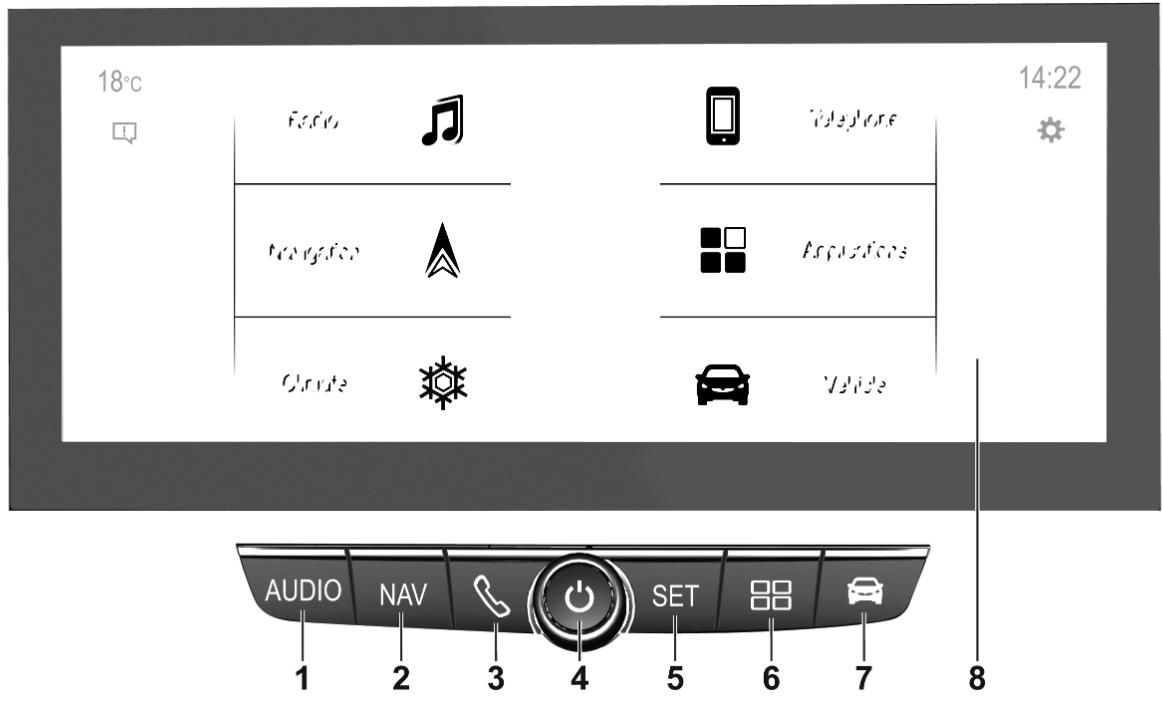
Control panel – Multimedia Navi Pro
text_image
18°C 14:22 Audio NAV SET 8 1 2 3 4 5 6 7 81 AUDIO
Open audio menu:
Radio 23
External devices (USB,
Bluetooth) 28
2 NAV
Display embedded
navigation map 33
3
Open phone menu 49
Display phone projection
screen when phone
projection is active .... 31
4 ⏻ 12
If switched off: switch
power on / off
If switched on: mute system
Turn: adjust volume
5 SET /
Open settings menu ...... 16
or open charging settings
(electric vehicles), see
Owner's Manual
6 □□
Open apps menu 31
7
Open vehicle settings
menu, see Owner's Manual
8 Info Display
Home menu will be
displayed by a 3-finger
touch on screen
Control panel – Multimedia Navi

text_image
5 4 3 2 1 6 7 81 ⏻ 12
If switched off: switch power on / off
If switched on: mute system
Turn: adjust volume
2 Info Display
Home menu will be displayed by a 3-finger touch on screen
3 55!°
Open climate menu if available, see Owner's Manual
4 N
Display embedded navigation map .... 33
5
Open audio menu:
Radio 23
External devices (USB, Bluetooth) 28
6
Open phone menu 49
Display phone projection screen when phone projection is active 31
7 88
Open apps menu 31
8
Open vehicle settings menu, see Owner's Manual
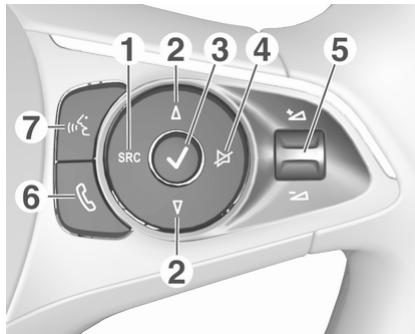
Steering wheel controls
text_image
1 2 3 4 5 7 SRC ✓ 6 21 SRC (Source)
Select audio source, confirm selection with √ ...... 12
Long press: mute system
2 /
Select next / previous preset radio station when radio active 23
or select next / previous track / picture when external devices active ..... 28
or select next / previous entry in station list, media list, call / contacts list when operation started via steering wheel controls
Confirm selection with √
3

Confirm selected item
or open station list, media list
4

Activate / deactivate mute function 12
5

Turn upwards /
downwards: increase / decrease volume
6

Short press: accept incoming call
Long press: reject incoming call, hang up call .... 49
or open call / contacts list ..... 49
If phone call active: open call in progress menu
7

Short press: activate embedded speech recognition
Long press: activate speech recognition in Apple CarPlay™ or Android™ Auto if phone connected via USB port ..... 45
Usage
Control elements
The Infotainment system is operated via function buttons, a touch screen and menus that are shown on the display.
Inputs are made optionally via:
- the control panel on the Infotainment system ➔ 8
• the touch screen ➔ 16 - audio controls on the steering wheel 8
• the speech recognition ➔ 44
Switching the Infotainment system on or off
Press ⏻. After switching on, the last selected Infotainment source becomes active.
Notice
Some functions of the Infotainment system are only available if ignition is switched on or engine is running.
Automatic switch-off
If the Infotainment system has been switched on pressing ⏻ while the ignition is switched off, it will switch off again automatically when the Eco mode becomes active.
Setting the volume
Turn ⏻. The current setting is shown on the display.
When the Infotainment system is switched on, the last selected volume is set.
Speed compensated volume
When the speed compensated volume is activated 19, the volume is adapted automatically to make up for the road and wind noise as you drive.
Mute
Press ⏻ to mute the Infotainment system.
To cancel the mute function, press ⏻ again. The last selected volume is set again.
Modes of operation
Audio-Media
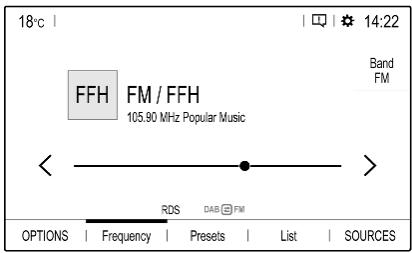
Press AUDIO / ♩ to display the main menu of the last selected audio mode.
text_image
18°C FFH FM / FFH 105.90 MHz Popular Music Band FM RDS DAB FM OPTIONS | Frequency | Presets | List | SOURCESChanging the media source
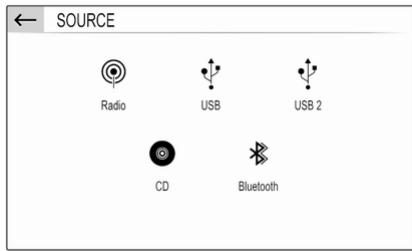
Select SOURCES to display the menu for media source selection.
Notice
For a detailed description of menu operation via touch screen ➔ 16.
text_image
SOURCE Radio USB USB 2 CD BluetoothSelect the desired media source.
For a detailed description of:
• Radio functions ➔ 23
• External devices ↩ 29
Navigation
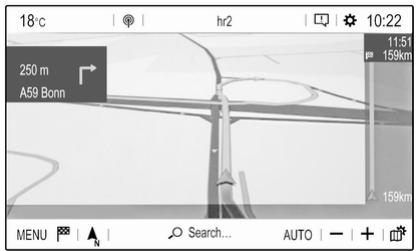
Press NAV / ^N to display the navigation map showing the area around the current location.
text_image
18°C hr2 10:22 250 m A59 Bonn 11:51 159km 159km MENU | N Search... AUTO | - + |For a detailed description of basic functions of the navigation system 33.
Navigation menu
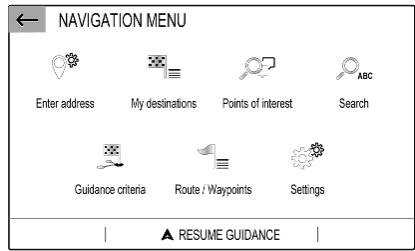
Select MENU to display the navigation menu.
text_image
NAVIGATION MENU Enter address My destinations Points of interest Search Guidance criteria Route / Waypoints Settings ▲ RESUME GUIDANCEThe navigation menu serves as central entry point for:
- Address search and input ↗ 37
- Defining trips with several waypoints ➔ 37
- Defining criteria for route guidance 41
- Cancelling and resuming route guidance ➔ 41
Phone
Before the phone function can be used, a connection has to be established between the Infotainment system and the mobile phone.
For a detailed description of preparing and establishing a Bluetooth connection between the Infotainment system and a mobile phone 47.
If the mobile phone is connected, press 🔔 to display the main menu of the phone function.

text_image
18°C big FM 14:22 ×3 1 . 2 . 3 abc def 4 . 5 . 6 MyProvider.com ghi jkl mno 7 . 8 . 9 pqrs tuv wxyz 0 . 0 . # OPTIONS | Contacts | CallsFor a detailed description of mobile phone operation via the Infotainment system ➔ 49.
Network and connected services
Press ☐ and then select OPTIONS to display the Bluetooth, network and connected services settings.
To connect the vehicle to a Wi-Fi network, touch 🔊. A list of all available Wi-Fi networks is displayed. It is also possible to share the Wi-Fi connection for other devices.
To update the service and connection status, go to the menu for connected services ⚙️ and touch ⏻.
To use the connected services, make sure that data sharing and the vehicle position are activated in the privacy menu in the System settings.
Apps
To show specific apps of your smartphone on the display of the Infotainment system, connect your smartphone.
Press ☐☐ to display the main menu of the apps mode.
Touch Apple CarPlay or Android Auto. A menu with different selectable apps is displayed.
For a detailed description ➔ 31.
Settings
Press SET / ⚙️ and then select Audio settings to display the respective menu.

text_image
AUDIO SETTINGS Bass Medium Treble +7 0 -7 Ambience Personalised ✓ Loudness Sound Voice RingtoneFor a detailed description ➔ 16.
Press SET / ⚙️ and then OPTIONS to display a menu for various system-related settings.
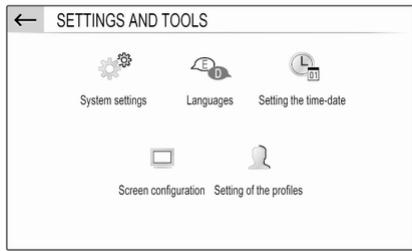
text_image
← SETTINGS AND TOOLS System settings Languages Setting the time-date Screen configuration Setting of the profilesFor a detailed description ➔ 16.
Vehicle settings
Select 📋 to open a menu for various vehicle-related settings.
Vehicle settings are described in the Owner's Manual.
Basic operation
Basic operation ...... 16
Tone settings 19
Volume settings 19
System settings 20
Basic operation
The display of the Infotainment system has a touch-sensitive surface that allows direct interaction with the displayed menu controls.
Caution
Do not use pointed or hard items like ballpoint pens, pencils or similar for touch screen operation.
Menu operation
Selecting or activating a screen button or menu item
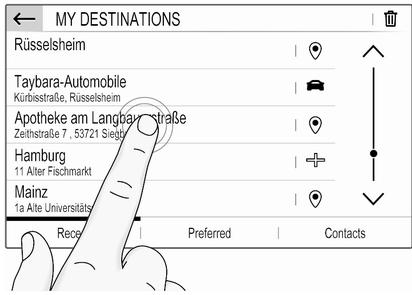
text_image
MY DESTINATIONS Rüsselsheim Taybara-Automobile Kürbisstraße, Rüsselsheim Apotheke am Langbaustraße Zeitstraße 7, 53721 Siegt Hamburg 11 Alter Fischmarkt Mainz 1a Alte Universitäts Rece: Preferred ContactsTouch a screen button or menu item.
Notice
Most icons displayed in a menu, like 📄 or 🔒 in the illustrated example, serve as screen buttons that initiate certain actions if you touch them.
The corresponding system function is activated, a message is shown, or a submenu with further options is displayed.
← and √ / OK screen buttons

text_image
GUIDANCE CRITERIA Fast 576 km 09:20 Compromise 531 km 09:56 Short 528 km 10:21 Ecological 563 km 09:59 Motorway: OFF ON Toll: OFF ON Ferry: OFF ON Take account of traffic Automatic ✓ | See on mapWhen operating the menus, touch ← in the respective submenu to return to the next higher menu level.
When no ← screen button is displayed, you are on the top level of the respective menu.
After selecting menu items or performing settings in a menu, touch √ / OK to confirm your settings.
Otherwise all performed selections or settings will be lost.
Shortcuts to important menus
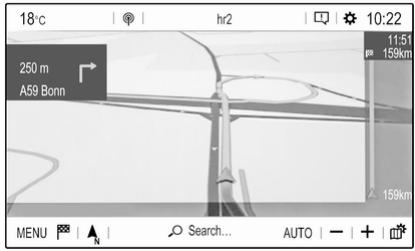
text_image
18°C | | hr2 | | 10:22 250 m A59 Bonn 11:51 159km 159km MENU | N | Search... AUTO | - | + |The texts and icons displayed in the top bar, of e.g. the navigation main menu, serve as shortcuts to some important menus. For example, touch the station name to open the station list menu.
Scrolling a list
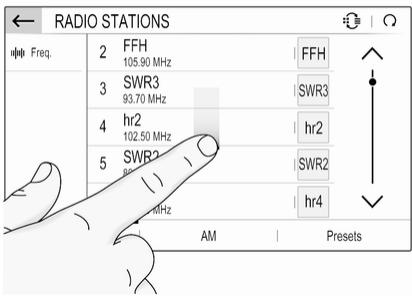
text_image
RADIO STATIONS uφφ Freq. 2 FFH 105.90 MHz 3 SWR3 93.70 MHz 4 hr2 102.50 MHz 5 SWR2 80 Hz AM Presets FFH SWR3 hr2 SWR2 hr4If there are more items available than presentable on the screen, the list must be scrolled.
To scroll through a list of menu items, you may optionally:
- Place your finger anywhere on the screen and move it upwards or downwards.
Notice
Constant pressure must be applied and the finger must be moved at a constant speed.
- Touch ∧ or ∨ at the top or bottom of the scroll bar.
- Touch anywhere on the guiding line of the scroll bar.
- Move the slider of the scroll bar up and down with your finger.
Updating a list
Touch ⬆ to manually update, e.g., station lists, contacts lists or destination lists.
Input fields and keyboards
text_image
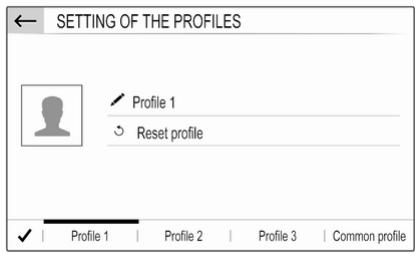
SETTING OF THE PROFILES Profile 1 Reset profile ✓ | Profile 1 | Profile 2 | Profile 3 | Common profileInput fields are indicated by ↗.
Touch the input field to open a keyboard for text or number input.
Depending on the application or function currently active, different keyboards are displayed.
Keyboards for text input
text_image
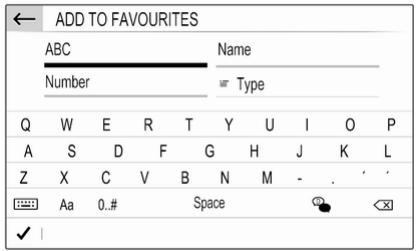
ADD TO FAVOURITES ABC Number Name Type Q W E R T Y U I O P A S D F G H J K L Z X C V B N M - . ' ' Aa 0.# SpaceKeyboards for text input may contain several input fields. To enable a field for text input, touch it.
To enter a character, touch the respective screen button. The character is entered upon release.
Touch and hold a letter screen button to display associated letters in a letter pop-up menu. Release and then select the desired letter.
To switch to the symbol keyboard, touch 0..#.
To switch back to the letter keyboard or to switch between capital and small letters, touch Aa.
To switch the letter keyboard between normal order and alphabetical order, touch 🐘.
To delete the most recently entered character or symbol, touch ✕.
To delete a character or symbol at any point of your input: touch at the desired point to place a blinking cursor, then touch ✕.
Keyboards for number input
text_image
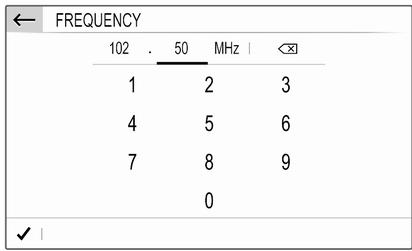
FREQUENCY 102 . 50 MHz | 1 2 3 4 5 6 7 8 9 0 ✓ |Keyboards for number input may contain several input fields. In the illustrated example, you first need to touch the input field behind the decimal point, before you can enter the decimal digits.
Adjusting a setting

text_image
AUDIO SETTINGS Default ringer volume: < > ✓ | Ambience | Balance | Sound | Voice | RingtoneTo adjust a setting like the illustrated example, you may optionally:
- Touch < or >.
- Touch anywhere on the line.
- Move the slider with your finger.
Tone settings
Press SET / ⚙, select Audio settings and then select the Ambience tab.
text_image
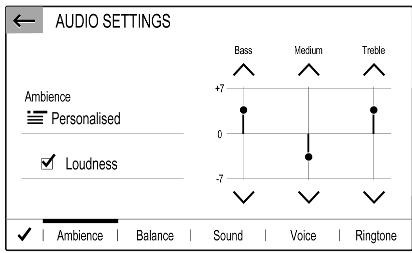
AUDIO SETTINGS Ambience Personalised Loudness +7 0 -7 Sound | Voice | Ringtone Ambience | Balance | Sound | Voice | RingtoneSeveral predefined settings are available to optimise the tone for a specific style of music (e.g. Pop-Rock or Classical).
To adjust the tone individually, select Personalised. Change the settings as desired and then confirm your settings.
Notice
If you change the settings of a predefined setting, e.g. Pop-Rock, this settings will be applied to the User or Personalised setting.
Activating the Loudness function may optimise the tone at low volume levels.
Balance and fader
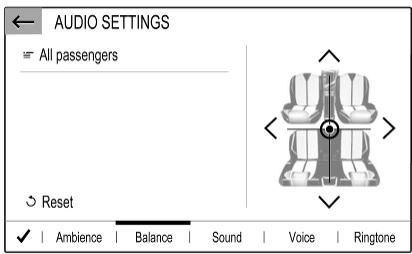
Select the Balance tab.
text_image
AUDIO SETTINGS All passengers Reset Ambience | Balance | Sound | Voice | RingtoneSeveral predefined settings are available to adjust the volume distribution inside the vehicle (e.g. All passengers or Front only).
To change the current setting, e.g. All passengers, select that setting and then select the desired new setting from the displayed list.
You may individually adjust the predefined settings.
To define the point in the passenger compartment where the volume is at its highest level, move the cursor in the illustration on the right side of the screen to the desired point.
To return to the default factory settings, select Reset.
Volume settings
Press SET / ⚙, select Audio settings and then select the Sound tab.
Audible touch feedback
If the audible touch feedback function is activated, each touch of a screen button or menu item is indicated by a beeping sound.
To adjust the touch beep volume, activate Touch tones and then adjust the setting.
Speed compensated volume
Activate or deactivate Volume linked to speed.
If activated, the volume of the Infotainment system is adapted automatically to make up for the road and wind noise as you drive.
Speech output
Select the Voice tab.
Adjust the volume for all speech outputs of the system, e.g. traffic announcements, navigation messages etc.
Ringtone
Select the Ringtone tab.
Adjust the ringtone volume of incoming calls.
System settings
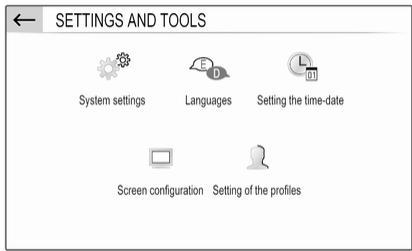
Press SET / ⚙ and then select OPTIONS.
text_image
SETTINGS AND TOOLS System settings Languages Setting the time-date Screen configuration Setting of the profilesConfiguring the system
Select System settings to perform some basic system configurations, e.g.:
- Adjust the display of units for temperature or fuel consumption.
- Reset the system configuration to factory defaults.
- Update the installed software version.
- Adjust the privacy settings for data sharing and vehicle position.
Changing display language
To adjust the language for the menu texts, select Languages and then select the desired language.
Notice
If the selected display language is supported by the embedded speech recognition, the language of the speech recognition will be changed accordingly; if not, embedded speech recognition will be not available.
Adjusting time and date
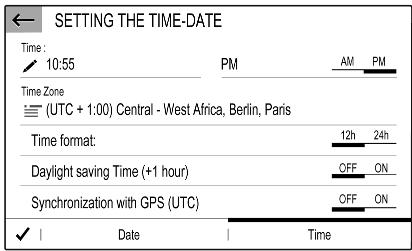
Select Setting the time-date.
text_image
SETTING THE TIME-DATE Time: 10:55 PM AM PM Time Zone (UTC + 1:00) Central - West Africa, Berlin, Paris Time format: 12h 24h Daylight saving Time (+1 hour) OFF ON Synchronization with GPS (UTC) OFF ON ✓ | Date | TimeChanging time and date formats
To change the time and date formats, select the respective tabs and then select the desired formats.
Setting time and date
By default the displayed time and date is automatically adjusted by the system.
To manually adjust the displayed time and date:
Select the Time tab.
Set Synchronization with GPS (UTC) to OFF and then select the Time field to set the desired time.
Select the Date tab and then select the Date: field to set the desired date.
Adjusting the screen
Select Screen configuration.
Text scroll function
Select the Animation tab.
If long texts on the screen should be scrolled automatically, activate Automatic scrolling.
If Automatic scrolling is deactivated, long texts are truncated.
Adjusting the brightness
Select Brightness and set the brightness of the screen to the desired level.
Storing your personal settings
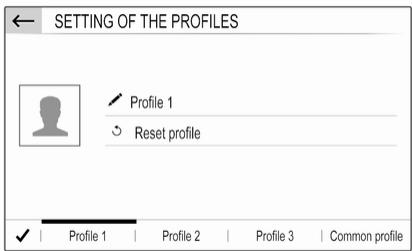
Select Setting of the profiles.
text_image
SETTING OF THE PROFILES Profile 1 Reset profile ✓ | Profile 1 | Profile 2 | Profile 3 | Common profileYou can store a multitude of settings in a personal profile. For example, all current tone settings, all radio presets, one phone book, the map settings and your preferred addresses.
In case you share the vehicle with other people, this enables you to restore your personal settings from your profile at any time.
A maximum of three personal profiles may be stored.
Additionally, a Common profile is available. All settings done at any time are automatically stored in that profile. If no personal profile is activated, the Common profile is active.
Storing your personal profile
After performing all your personal settings:
Select one of the personal profile tabs.
Select the input field ↗ and enter the desired name of your personal profile. If you want to add a photo to the profile:
Connect a USB device with the desired photo stored on it to the USB port ➔ 28, touch the photo frame and then select the desired photo.
Confirm your selection to download the selected photo to the system.
Finally, confirm your inputs to store them in your personal profile.
Activating your personal profile
Press ⚙️ and then select the tab with the name of your personal profile.
Activating the Common profile
If a personal profile is currently active:
Press ⚙️ and then select Deactivate profile.
Resetting a personal profile
You can at any time reset a personal profile to restore the default factory settings on that profile.
Select the respective profile and then select Reset profile.
Resetting the Common profile
You can at any time reset the Common profile to restore the default factory settings on that profile.
Select Common profile and then select Reset the common profile.
Radio
Usage 23
Radio data system 25
Digital audio broadcasting ..... 25
Usage
Activating the radio
Press AUDIO / ♩. The audio main menu last selected is displayed. If the radio main menu is not active select SOURCES and then select Radio.

text_image
18°C FFH FM / FFH 105.90 MHz Popular Music Band FM RDS DAB FM OPTIONS | Frequency | Presets | List | SOURCESThe station last played will be received.
Selecting a waveband
Repeatedly select Band to toggle between the different wavebands.
Searching for stations
Automatic station search
Briefly touch < or > to play the previous or next receivable station.
Manual station search
Press and hold < or >. Release when the required frequency has almost been reached.
A search is made for the next station that can be received and it is played automatically.
Station tuning
If you exactly know the reception frequency of a radio station, you may enter that frequency manually.
Select OPTIONS, select Radio stations and then select the desired waveband.
Select Freq., enter the reception frequency and confirm your input.
If a station is receivable on that frequency, the respective station is played.
Station lists
In the station lists, all receivable radio stations within the current reception area are available for selection.
To display the station list of the waveband currently active, select List.
Select the desired station.
Update station lists
If the stations stored in the waveband-specific station list can no longer be received, the AM and the DAB station lists must be updated. The FM station list is updated automatically.
Select OPTIONS, select Radio stations and then select the desired waveband.
To start an update for the selected waveband, select .
Storing favourite stations
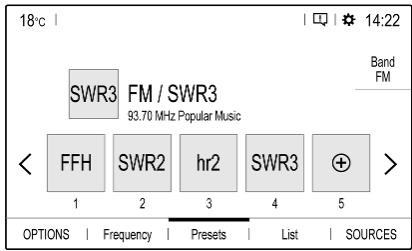
Up to 15 radio stations of all wavebands can be stored as favourites in the Presets list.
Select Presets to display the preset buttons.
text_image
18°C 14:22 SWR3 FM / SWR3 93.70 MHz Popular Music Band FM FFH SWR2 hr2 SWR3 + 1 2 3 4 5 OPTIONS | Frequency | Presets | List | SOURCESStoring the currently active station
Touch and hold the desired button for a few seconds. The respective frequency or station name is displayed on the button.
If a station is already stored on a preset button, that station will be overwritten by the new one.
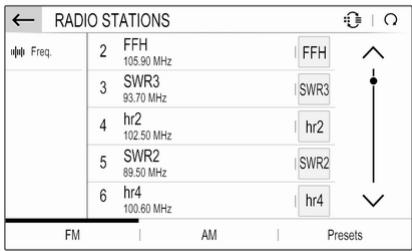
Storing a station from a station list Select OPTIONS, select Radio stations and then select the desired waveband.
text_image
← RADIO STATIONS ↑↑ ↑ ↑ Freq. 2 FFH 105.90 MHz | FFH 3 SWR3 93.70 MHz | SWR3 4 hr2 102.50 MHz | hr2 5 SWR2 89.50 MHz | SWR2 6 hr4 100.60 MHz | hr4 FM | AM | PresetsBriefly touch the button next to the desired station. Alternatively, select 🔒 to switch to the tiled view. Then briefly touch 🔒 on the tile of the desired station.
Select Add to favourites and then touch and hold for a few seconds on the list row where you want to store the station.
If a station is already stored on a list row, that station will be overwritten by the new one.
Retrieving stations
In the radio main menu select Presets and then briefly touch the preset button of the desired station.
Radio data system
Radio data system (RDS) is a service of FM stations that considerably facilitates the finding of the desired station and its fault-free reception.
Advantages of RDS
- On the display, the programme name of the station appears instead of its frequency.
- During a station search, the Infotainment system tunes in to RDS stations only.
- The Infotainment system always tunes into the best receivable broadcasting frequency of the set station by means of AF (alternative frequency).
- Depending on the station that is received, the Infotainment system displays radio text that can contain e.g. information on the current programme.
RDS configuration
In the radio main menu select OPTIONS and then select Radio settings to open the menu for RDS configuration.
Activating RDS
Select General and then activate Alternative frequency.
If Alternative frequency is activated, RDS is displayed in the bottom line of the radio main menu.
Radio text
If RDS is activated, information on the radio programme currently active or the music track currently playing are displayed below the programme name.
To show or hide the information, activate or deactivate Display radio text.
Traffic announcements
Many RDS stations broadcast traffic news. If the traffic announcements function is activated, radio or media playback is interrupted for the duration of a traffic announcement. Select Announcements and then activate or deactivate Traffic announcement.
If Traffic announcement is activated, TA is displayed in the bottom line of the radio main menu.
Digital audio broadcasting
Digital audio broadcasting (DAB) broadcasts radio stations digitally.
DAB stations are indicated by the programme name instead of the broadcasting frequency.
General information
- With DAB, several radio programmes (services) can be broadcast on a single ensemble.
-
Besides high-quality digital audio services, DAB is also able to transmit programme-associated data and a multitude of other data services including travel and traffic information.
-
As long as a given DAB receiver can pick up the signal sent out by a broadcasting station (even if the signal is very weak), sound reproduction is ensured.
- In the event of poor reception, the volume is reduced automatically to avoid the output of disagreeable noises.
If the DAB signal is too weak to be picked up by the receiver, reception is interrupted completely. This incident can be avoided by activating DAB-FM auto tracking, see below. - Interference caused by stations that are on nearby frequencies (a phenomenon that is typical of AM and FM reception) does not occur with DAB.
- If the DAB signal is reflected by natural obstacles or buildings, the reception quality of DAB is improved, whereas AM or FM reception is considerably impaired in such cases.
- When DAB reception is enabled, the FM tuner of the Infotainment system remains active in the
background and continually searches for the FM stations with the best reception. If Traffic announcement 25 is activated, traffic announcements of the FM station with the best reception are issued. Deactivate Traffic announcement if DAB reception should not be interrupted by FM traffic announcements.
DAB Announcements
Besides their music programmes, a lot of DAB stations also broadcast announcements of various categories. If you activate some or all categories, the currently received DAB service is interrupted when an announcement of these categories is made.
In the radio main menu select OPTIONS, select Radio settings and then select Announcements.
Activate the desired announcement categories, e.g., News or Weather. Different announcement categories can be selected at the same time.
FM-DAB Linking
This function enables switching from an FM station to a corresponding DAB station and vice versa.
Switching from FM to DAB occurs as soon as a corresponding DAB station is available. Therefore, it is recommended to store favourite stations as DAB stations to reduce frequent switching.
Switching from DAB to FM occurs if the signal is too weak to be picked up by the receiver.
Activation
Precondition is that Alternative frequency is activated before FM-DAB Linking can be activated.
To activate FM-DAB Linking, go to OPTIONS ➤ Radio settings ➤ General and select FM-DAB Follow-up.
The following symbol will be displayed when FM-DAB Linking is activated:

text_image
DAB FMDeactivation
To deactivate FM-DAB Linking, go to OPTIONS ♦ Radio settings ♦ General and deselect FM-DAB Follow-up.
FM-DAB Linking will automatically be deactivated when Alternative frequency is deactivated.
External devices
General information 28
Playing audio 29
Displaying pictures ...... 30
Using smartphone applications ... 31
General information
A USB port is located in the centre console.
Caution
To protect the system, do not use a USB hub.
Notice
The USB ports must always be kept clean and dry.
USB ports
An MP3 player, USB device, SD card (via USB connector / adapter) or smartphone can be connected to the USB port.
The Infotainment system can play audio files or show picture files contained in USB devices.
When connected to a USB port, various functions of the devices mentioned above can be operated via the controls and menus of the Infotainment system.
Notice
Not all auxiliary devices are supported by the Infotainment system.
Connecting / disconnecting a device
Connect one of the devices mentioned above to a USB port. If required, use the appropriate connection cable. The music function starts automatically.
Notice
If a non-readable USB device is connected, a corresponding error message appears and the Infotainment system automatically switches to the previous function.
To disconnect a USB device, select another function and then remove the USB device.
Caution
Avoid disconnecting the device during playback. This may damage the device or the Infotainment system.
Bluetooth audio streaming
Streaming allows you to listen to music from your smartphone.
For a detailed description on how to establish a Bluetooth connection 48.
If audio playback does not start automatically, it may be necessary to start the playback on the smartphone.
First adjust the volume on your smartphone (to a high level). Then adjust the volume of Infotainment system.
File formats
The audio equipment supports different file formats.
Playing audio
Activating the music function
Connecting the USB or Bluetooth device ➔ 28.
If device already connected, but playback of stored music files not active:
Press AUDIO / ♩, select SOURCES and then select the respective source.
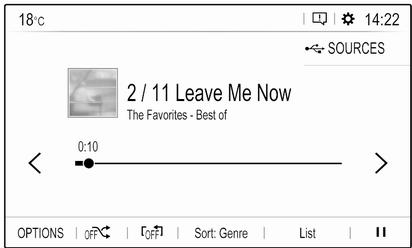
Playback of the audio tracks starts automatically.
text_image
18°C SOURCES 2 / 11 Leave Me Now The Favorites - Best of 0:10 OPTIONS | OFF | Off | Sort: Genre | List |Playback functions
Interrupting and resuming playback
Touch || to interrupt playback. The screen button changes to ▶.
Touch ▶ to resume playback.
Playing the previous or next track Touch < or >.
Fast forwarding and rewinding
Touch and hold < or >. Release to return to normal playback mode.
Alternatively, you can move the slider showing the current track position to the left or right.
Playing tracks randomly
Touch button repeatedly to toggle between the available random modes.
ON: play tracks of currently selected list (album, artist, etc.) in random order.
ALL: play all tracks stored on connected device in random order.
OFF: play tracks of currently selected list (album, artist, etc.) in normal playback mode.
Repeating tracks
Touch button repeatedly to switch repeat mode on or off.
ON: repeat tracks of currently selected list (album, artist, etc.).
OFF: play tracks of currently selected list (album, artist, etc.) in normal playback mode.
Browse music functions
(only available for devices connected via USB)
You can have your music files sorted according to different criteria. Two options are available for browsing the music files stored on the connected USB device.
Browsing via main menu
If you want to change the currently active USB source, select SOURCES and then select the desired source. The respective main menu is displayed.
Select the button showing the currently selected sorting criteria, e.g. Sort: Album or Sort: Artist, and then select the desired new sorting criteria. A sorting process is performed.
Select List and then select the desired track.
Playback of the selected track is started.
Browsing via device menu Select OPTIONS and then select Music files.
If you want to change the currently active USB source, select Other.
Select the desired sorting criteria, e.g. Albums or Artists, and then select the desired track.
Playback of the selected track is started.
Displaying pictures
You can view pictures stored on a USB device.
Activating the picture viewer
Connecting the USB device ➔ 28.
If device already connected, but picture viewer not active:
Press AUDIO / ♩, select OPTIONS and then select Managing photos.
Select the desired picture.
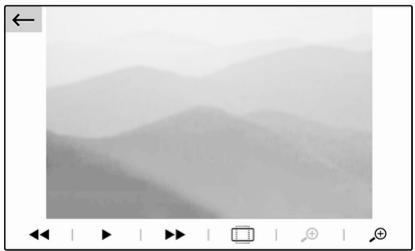
A slide show of all stored picture files starts automatically.
natural_image
Grayscale landscape photo of misty mountains with no visible text or symbolsTouch the screen to display the menu bar.
Viewing the previous or next picture
Touch ◀◀ or ▶▶.
Starting or stopping a slide show
Select ▶ to view the pictures stored on the USB device in a slide show. Touch || to end the slide show.
Using smartphone applications
Phone projection
The phone projection applications Apple CarPlay and Android Auto display selected apps from your smartphone on the Info Display and allow their operation directly via the Infotainment controls.
Check with the device's manufacturer if this function is compatible with your smartphone and if this application is available in the country you are in.
Preparing the smartphone
iPhone®: Make sure Siri® is activated on your phone.
Android phone: Download the Android Auto app to your phone from the Google Play™ Store.
Connecting the smartphone iPhone
Connect the phone to the USB port 28.
If the phone is already connected via Bluetooth, upon connecting to the USB port and launching Apple CarPlay, the Bluetooth connection will disconnect.
Android phone
Connect the phone via Bluetooth 48 and then connect the phone to the USB port 28.
Starting phone projection
Press □□ and then touch Apple CarPlay or Android Auto.
The phone projection screen displayed depends on your smartphone and software version.
Returning to the Infotainment screen
Press, e.g., the AUDIO / ♩ button on the control panel.
Navigation
General information 32
Usage 33
Destination input 37
Guidance 41
General information
This chapter is about the embedded navigation system which guides to desired destinations.
The current traffic situation is taken into account in the route calculation. For this purpose, the Infotainment system receives traffic announcements in the current reception area via RDS-TMC.
The navigation system cannot, however, take into account traffic incidents, traffic regulations changed at short notice and hazards or problems that arise suddenly (e.g. road works).
Caution
The usage of the navigation system does not release the driver from the responsibility for a correct, vigilant attitude in road traffic. The relevant traffic regulations must always be followed. If a navigation instruction contradicts traffic regulations, the traffic regulations always apply.
Functioning of the navigation system
The position and movement of the vehicle are detected by the navigation system using sensors. The travelled distance is determined by the vehicle's speedometer signal, turning movements on bends by a sensor. The position is determined by the GPS (Global Positioning System) satellites.
By comparing the sensor signals with the digital maps, it is possible to determine the position with an accuracy of approx. 10 m.
The system will also work with poor GPS reception. However, the accuracy of the determination of the position will be reduced.
After the entry of the destination address or point of interest (nearest petrol station, hotel, etc.), the route is calculated from the current location to the destination selected.
Route guidance is provided by voice output and an arrow, as well as with the aid of a multi-colour map display.
Important information
TMC traffic information system and dynamic route guidance
The TMC traffic information system receives all current traffic information from TMC radio stations. This information is included in the calculation of the overall route. During this process, the route is planned so that traffic problems related to pre-selected criteria are avoided.
To be able to use TMC traffic information, the system must receive TMC stations in the relevant region.
Live navigation
When data sharing and the vehicle position are activated, the navigation system will show online traffic information as well as online information for parking, fuel prices and weather. The services can be stopped at anytime by deactivating data sharing and the vehicle position.
Data sharing and the vehicle position can be activated or deactivated via the privacy menu in the System settings.
Network and connected services 12.
The privacy menu and the menu for connected services are also accessible via the message icon on the screen.
Map data
All required map data is stored within the Infotainment system.
Map updates are available at a Vauxhall Service Partner or at the MyVauxhall customer portal. To download the map updates from the Vauxhall customer portal, a MyVauxhall account and a USB stick with at least 16 GB memory and FAT 32 / MBR formatting are necessary.
Download and save the map data on a computer and unpack the data onto the USB stick.
To update the map data in the Infotainment system, connect the USB stick to the Infotainment system, select the navigation function and follow the steps on the Info Display.
The installation of the map update will take up to 1 hour. Do not switch off the engine during the installation process.
Some functions of the Infotainment system, e.g. the navigation function, are not available during the installation process.
Usage
Information on the map display
Press NAV / ^N to display the navigation map showing the area around the current location.
Route guidance not active

text_image
18°C hr2 10:22 Arl Friedhof Frankshahrstraße Schindemannstraße Gangau Erzbergerstraße Hunsrückstraße Hunsrückstraße MENU N Search... AUTO +• The map view is displayed.
- The current location is indicated by an arrow.
- The name of the street you are currently in is displayed at the bottom left of the map view.
- Public charging stations are indicated (electric vehicles).
Route guidance active
text_image
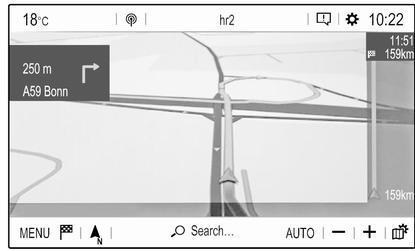
18°C | | hr2 | | 10:22 250 m A59 Bonn 11:51' 159km 159km MENU | | N | Search... AUTO | - | +• The map view is displayed.
- The active route is indicated by a coloured line.
- The moving vehicle is marked by an arrow pointing into the direction of travel.
- The next turning manoeuvre is shown in a separate field at the top left of the map view.
Depending on the situation information on lane guidance or the second next turning
manoeuvre may be displayed additionally.
- The arrival time and the remaining distance to the destination is shown at the top right of the map view.
Customise the map display
Map views
Different map views are available.
Touch ▲ to toggle between the different map views.
Depending on the map view, the remaining range is displayed as a circle (electric vehicles).
Map colours
Depending on the external lighting conditions, the colouring of the map screen (light colours for the day and dark colours for the night) can be adapted.
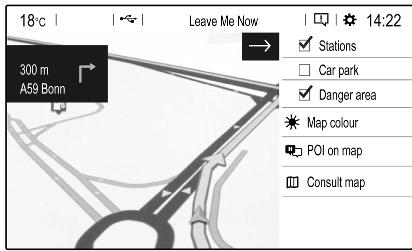
Touch 📄 to display a menu on the right side of the screen.
text_image
18°C | |←→ | Leave Me Now | □ | ★ 14:22 300 m A59 Bonn Stations Car park Danger area Map colour POI on map Consult mapSelect Map colour repeatedly to toggle between light and dark colours.
POI (Points of Interest) icons on the map
POIs are points of general interest, e.g. petrol stations or car parks.
The display of POI categories shown on the map may be personally adapted.
Activate the desired POI categories. The map view changes accordingly.
Alternatively, select POI on map to display a menu with a multitude of POI categories and subcategories to choose from. Activate the desired POI categories.
Traffic events
Traffic events may be indicated on the map. Additionally, information on these events may be displayed in a list.
Select Consult map to switch to an alternative map display with new menu options.
text_image
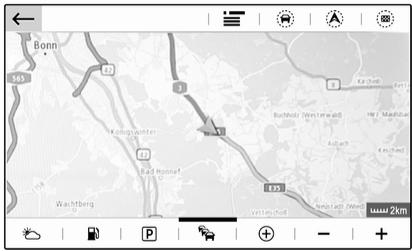
Bonn 365 Kolongpenter Bad Honnef Wachtberg 12 13 14 15 16 17 18 19 20 21 22 23 24 25 26 27 28 29 30 31 32 33 34 35 36 37 38 39 40 41 42 43 44 45 46 47 48 49 50 51 52 53 54 55 56 57 58 59 60 61 62 63 64 65 66 67 68 69 70 71 72 73 74 75 76 77 78 79 80 81 82 83 84 85 86 87 88 89 90 91 92 93 94 95 96 97 98 99 100The map view is switched to North orientation mode and and may display a greater part of the route.
Touch the traffic jam icon to show traffic events on the map. Touch ≡ to show a list with information on these traffic events.
Touch the charging station icon to display a circle that indicates the remaining range (electric vehicles).
If you want to display a different map section:
Touch ⚙ to show the area around the current location.
Touch ⚠️ to show the entire route.
Touch ☐ to show the area around the destination.
To return to the default navigation view, touch ←.
Autozoom function

text_image
18°C | | hr2 | □ 10:22 250 m A59 Bonn 11:51 159km 159km MENU | N Search... AUTO | - + |If the autozoom function is activated (AUTO is displayed below the map view), the zoom level changes automatically when approaching a turning manoeuvre during active route guidance. This way, you always get a good overview of the respective manoeuvre.
If the autozoom function is deactivated, the selected zoom level remains the same during the whole route guidance process.
To activate or deactivate the function:
Select MENU, select Settings and then select the Aspect tab.
Activate or deactivate Automatic zoom setting.
Map manipulation
Moving visible map section
Place your finger anywhere on the screen and move it in the desired direction.
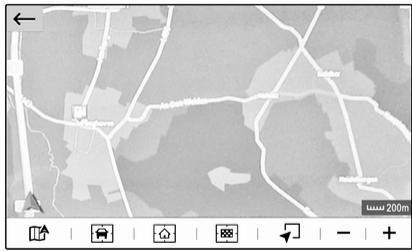
The map moves accordingly, displaying a new section. A new button bar is shown.
natural_image
Grayscale map view showing roads, water bodies, and a scale bar (no readable text or labels)☐: show area around current location again.
☐: show area around home address.
☐: show area around destination.
To return to the default navigation view, select ←.
Centring visible map section
Touch the desired location on the screen to centre the map around this location.
A red 🔒 is displayed at the respective location and the corresponding address is shown on a label.
Manual zooming
To zoom in on a selected map location, place two fingers on the screen and move them away from each other.
Alternatively, touch + below the map view.
To zoom out and display a larger area around the selected location, place two fingers on the screen and move them towards each other.
Alternatively, touch - below the map view.
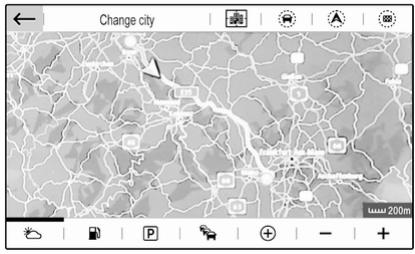
Showing an overview of the route
Touch 📋, select Consult map and then touch Ⓐ.
The map view is switched to North orientation and shows an overview of the current route.
text_image
Change city www 200mTo return to the default navigation view, touch ←.
Voice guidance
The route guidance process can be supported by voice prompts given out by the system.
To activate or deactivate the function: Select MENU in the navigation main menu, select Settings and then select the Vocal tab.
Activate or deactivate Activate navigation messages.
Navigation settings
Select MENU in the navigation main menu, and then select Settings to display the respective menu with a variety of navigation related settings.

text_image
SETTINGS North orientation Vehicle orientation Perspective view ✓ Building ✓ Terrain ✓ Automatic zoom setting ✓ Aspect Map Alerts Vocal MappingPlease explore the different settings. Some have already been described above, others are described in the following sections.
Destination input
The navigation system provides various options to set a destination for route guidance.
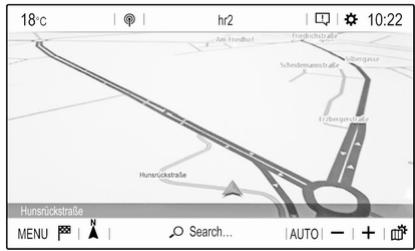
Press NAV / ↗ to display the navigation main menu.
text_image
18°C hr2 10:22 Arl Freiburg Schendemanstraße Erfeliger Hulfe Hunsrückstraße Hunsrückstraße MENU Search... AUTOSelecting an address from the map
Touch the desired location on the map. The map centres around this location.
A red 🔒 is displayed at the respective location and the corresponding address is shown on a label.
To start route guidance, select ▲.
For a detailed description on route guidance 41.
Quick address or POI search
Select Search.... A menu with a list of recent destinations and a keyboard is displayed.

text_image
Search... Stahlstraße Russelsheim Alte Universitätsstraße 1a Mainz, 55116 Q W E R T Y U I O P A S D F G H J K L Z X C V B N M - . ' ' Aa 0.# Space ✓ Address POITo refine the area for your address or POI search, select 📄 and then select the desired option.
To hide the keyboard and show the entire list, select ☐. To show the keyboard again, select ⏰.
If you want to search for POIs (Points of Interest) only, select the POI tab.
Enter an address or search term. As soon as characters are entered an address search is performed and the list of found addresses is updated continuously.
Select the desired list item.
Depending on the current situation and your selection, the navigation system may react differently:
- If the selected list item is a valid destination address and route guidance is currently not active:
The navigation main menu is displayed again and route guidance is started.
For a detailed description on route guidance 41.
- If the selected list item is a valid destination address but route guidance is already active:
A message is displayed and you need to decide first if the old destination should be replaced, or if you want to add the selected address as an intermediate destination to a waypoint trip.
Detailed description on waypoint trips, see below.
Select the desired option.
- If the navigation system needs more detailed information for route calculation:
Enter a further search term to refine your search.
Detailed address entry
Select MENU and then select Enter address to display a keyboard for address entry.

text_image
Rüsselsheim OPE < Opelplatz | Wilhelmstraße Opelwerk | Fritzstraße Opelwerk | Außerhalb An > Q W E R T Y U I O P A S D F G H J K L Z X C V B N M - . ' ' Aa 0..# SpaceAs soon as characters are entered, an address search is started. Every additional character is considered in the matching process and a list of matching addresses is displayed.
Select the desired address or change your input to initiate a new search.
Continue with the address entry until the entire address you are searching for is found.
Notice
Make sure that the correct country is selected. To change the country, touch the country code in the upper right corner.
To start route guidance to the respective address, confirm your input.
For a detailed description on route guidance ➔ 41.
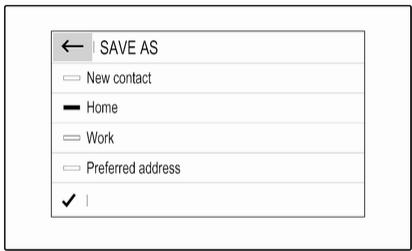
Storing your favourite addresses
If you want to store the entered address, select 📄.
text_image
← | SAVE AS □ New contact — Home □ Work □ Preferred address ✓ |You may store the address as, e.g., your Home address or your Work address.
Select the desired option, confirm your selection and then enter a name for the address.
The stored address can then be easily selected as destination address via the destination lists Preferred or Contacts, see below.
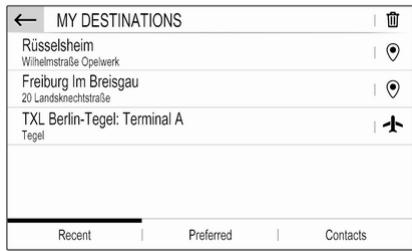
Destination lists
Select MENU and then select My destinations.
text_image
MY DESTINATIONS Rüsselsheim Wilhelmstraße Opelwerk Freiburg Im Breisgau 20 Landsknechtstraße TXL Berlin-Tegel: Terminal A Tegel Recent | Preferred | ContactsSelect Recent to display a list of all recently entered destinations.
Select Preferred to display all destinations which were stored before as home address, work address or preferred address.
Select Contacts to display a list with contact names and all related addresses stored before as personal contacts.
To start route guidance to the respective address, select a list entry.
For a detailed description on route guidance 41.
Points of interest
A point of interest (POI) is a specific location that might be of general interest, e.g. a petrol station, a parking area or a restaurant.
The data stored within the navigation system contains a great number of predefined POIs, which are indicated on the map (if activated, 33).
Selecting a POI from the map
Touch the desired POI icon on the map. The map centres around this location.
Touch the icon again.
A red 🔒 is displayed at the respective location and the corresponding address is shown on a label.
To start route guidance, select ▲.
For a detailed description on route guidance 41.
Showing a list of POIs around a location
Touch the desired location on the map. The map centres around this location.
A red 🔒 is displayed at the respective location and the corresponding address is shown on a label.
Touch and hold 🔒.
A list of POIs around the location is displayed.
Select the desired POI to start route guidance.
For a detailed description on route guidance 41.
Searching for POIs via categories
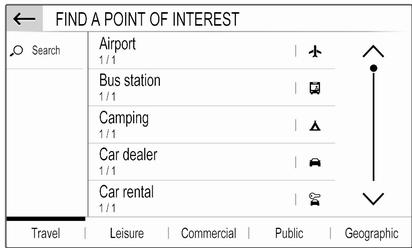
Select MENU and then select Points of interest.
text_image
FIND A POINT OF INTEREST Search | Airport | ↑ 1/1 Bus station | 1/1 | □ Camping | ▲ 1/1 Car dealer | ▼ 1/1 Car rental | ▽ 1/1 Travel | Leisure | Commercial | Public | GeographicSelect a POI main category, e.g., Travel and then select a subcategory, e.g. Airport. A new menu is displayed.
Select a search area, e.g., Around the vehicle to refine the search.
After the POI search is performed, select the desired POI.
To search for POIs at another location, select Address.
To search for POIs via keyword (see below), select Search.
Searching via keyword
Select MENU, select Search, enter a keyword, e.g., "Station", enter or select a city name and confirm your input.
After the POI search is performed, select the desired POI.
Waypoint trips
A waypoint is an intermediate destination that is considered in the calculation of a route to its final destination. To create a waypoint trip, you may add one or several waypoints.
Enter or select the final destination of your waypoint trip and start route guidance.
While under active route guidance, select MENU and then select Route / Waypoints.
| ← ROUTE AND WAYPOINTS | ↓↑ | |
| Add waypoint | BNJ Bonn-Hangelar 128 Richthofenstraße, Hangelar | 1 |
| Overview | CGN Köln Bonn Airport: Terminal 2 Kennedystraße, Grengel | 2 |
| Finish | Rüsselsheim Stahlstraße | 3 |
| Waypoints | Route | |
Select Add waypoint and then select an option for address entry, e.g. Find POI.
Enter or select a new address. The address is inserted into the list of waypoints.
If desired, enter further waypoints as described above.
If you want to change the order of the waypoints:
Touch and then touch the displayed arrows to move the list entries up or down.
Select Calculate to recalculate the route according to the changed order.
To return to the navigation main menu, select Finish.
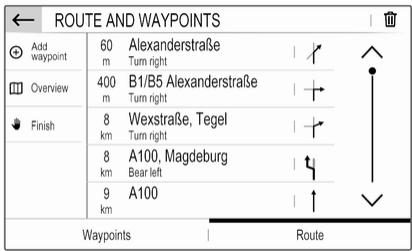
To display a detailed route list of the waypoint trip, select the Route tab.
text_image
ROUTE AND WAYPOINTS Add waypoint 60 Alexanderstraße m Turn right 400 B1/B5 Alexanderstraße m Turn right 8 Wexstraße, Tegel km Turn right 8 A100, Magdeburg km Bear left 9 A100 km Waypoints RouteGuidance
Route guidance is provided by the navigation system through visual instructions and voice prompts (voice guidance).
Visual instructions
Visual instructions are provided on the display.
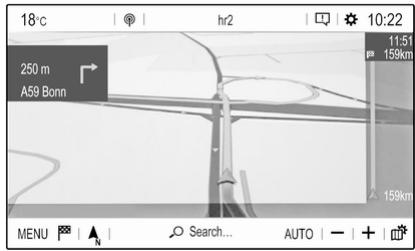
text_image
18°C hr2 10:22 250 m A59 Bonn 11:51 159km MENU | N Search... AUTO | - + |Notice
When route guidance is active and you are not within the navigation application, turning manoeuvres are shown on the instrument cluster display.
Voice guidance
Navigation voice prompts announce which direction to follow, when approaching an intersection at which you need to turn.
To activate or deactivate the voice prompts function select MENU in the navigation main menu, select Settings, select the Vocal tab and then activate or deactivate Activate navigation messages.
If voice prompts are activated you can additionally specify whether street names should be spoken or not.
To replay the last voice guidance instruction, touch the turn arrow on the left side of the screen.
Settings for route guidance
Select MENU in the navigation main menu and then select Guidance criteria to display the respective menu.

text_image
GUIDANCE CRITERIA Fast 576 km 09:20 Compromise 531 km 09:56 Short 528 km 10:21 Ecological 563 km 09:59 Motorway: OFF ON Toll: OFF ON Ferry: OFF ON Take account of traffic Automatic ✓ See on mapWhen the menu is opened, several optional routes are automatically calculated by the navigation system, e.g. the fastest route or the most ecological route.
To show the different optional routes on a map, select See on map.
If you want, e.g., avoid motorways on your route, set the respective option to OFF.
Take account of traffic
Traffic events are taken into consideration when the system determines a route to a destination.
During active route guidance, the route can be modified according to incoming traffic messages.
Three options are available for Take account of traffic:
If you want the system to automatically modify the route according to new traffic messages, select Automatic.
If you want to be consulted when a route is modified, select Manual. If you do not want routes to be modified, select None.
Starting, cancelling, resuming route guidance
To start route guidance, enter or select a destination address ➔ 37. Depending on the situation, route guidance may start automatically, or you may have to follow some instructions on the screen.
To cancel route guidance, select MENU in the navigation main menu and then select STOP NAVIGATION.
To resume a cancelled route guidance, select MENU in the navigation main menu and then select RESUME GUIDANCE.
Turn list
The next turning manoeuvre is displayed on the left side of the screen.
To display a list of all upcoming turns on the active route, select MENU in the navigation main menu, select Route / Waypoints and then select the Route tab.

text_image
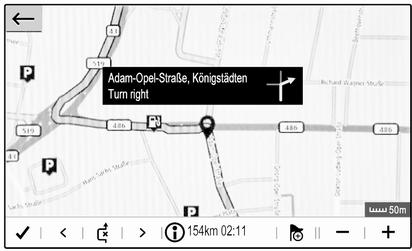
ROUTE AND WAYPOINTS Add waypoint 60 Alexanderstraße m Turn right 400 B1/B5 Alexanderstraße m Turn right 8 Wexstraße, Tegel km Turn right 8 A100, Magdeburg km Bear left 9 A100 km Waypoints RouteTo display a turning manoeuvre on the map, touch the turn arrow icon next to the desired list entry. The map jumps to the respective location on the map.
text_image
Adam-Opel-Straße, Königstädten Turn rightTo display the previous or next turning manoeuvre on the map, touch < or >.
To avoid the route section currently displayed on the map, touch ⬆.
If desired, further route sections may be selected to be avoided.
Confirm your selection(s).
Speech recognition
General information 44
Usage 45
General information
Embedded speech recognition
The embedded speech recognition of the Infotainment system enables you to operate various functions of the Infotainment system via voice input. It recognises commands and numeric sequences independently of the relevant speaker. The commands and numeric sequences can be spoken without a voice pause between the individual words.
In the event of incorrect operation or commands, the speech recognition gives visual and / or acoustic feedback and requests you to re-enter the desired command. Apart from this, the speech recognition acknowledges important commands and will enquire if necessary.
In general, there are different ways to speak commands for performing the desired actions.
Notice
To ensure that conversations inside the vehicle do not lead to unintentional triggering of the
system functions, the speech recognition does not start until it has been activated.
Important information
Language support
- Not all languages available for the display of the Infotainment system are also available for the speech recognition.
- If the display language currently selected is not supported by the speech recognition, speech recognition is not available.
In such a case, you need to select another language for the display if you want to control the Infotainment system via voice input. To change the display language 20.
Address input of destinations in foreign countries
In case you want to enter the address of a destination located in a foreign country via voice input, you need to change the language of the Info-Display to the language of the foreign country.
E.g., if the display is currently set to English and you want to enter the name of a city located in France, you need to change the display language to French.
For changing the display language, see "Language" in chapter "System settings" ➔ 20.
Input order for destination addresses
The order in which the parts of an address need to be entered using the speech recognition system is dependent on the country where the destination is located.
If the speech recognition system rejects your address entry, repeat the command with a different order of the address parts.
Voice pass-thru application
The voice pass-thru application of the Infotainment system allows access to the speech recognition commands on your smartphone.
Voice pass-through is available via the phone projection applications Apple CarPlay and Android Auto 31.
Usage
Embedded speech recognition
Activating speech recognition
Notice
Speech recognition is not available during an active phone call.
Activation via the (12) button on the steering wheel
Press 12 on the steering wheel.
The audio system mutes, a voice output message prompts you to say a command, and help menus with the most important commands currently available are shown on the display.
The speech recognition is ready for voice input, after a beep has been given.
You can now say a voice command to initiate a system function (e.g. playing a preset radio station).
Adjusting the volume of voice prompts
Press volume button on the steering wheel upwards (increase volume) + or downwards (decrease volume) -
Interrupting a voice prompt
As an experienced user, you can interrupt a voice prompt by briefly pressing _^ on the steering wheel.
Alternatively you can say "Set dialogue mode as expert".
A beep is heard immediately, and a command can be stated without having to wait.
Cancelling a dialogue sequence
To cancel a dialogue sequence and to deactivate the speech recognition, press 🔒 on the steering wheel.
If you do not say any command for a certain period of time, or if you say commands that are not recognised by the system, a dialogue sequence is automatically cancelled.
Operation via speech commands
Follow the instructions given by voice output and shown on the display.
For best results:
- Listen for the voice prompt and wait for the beep before saying a command or replying.
- Read the example commands on the display.
- The voice prompt can be interrupted by pressing _z^ again.
- Wait for the beep and then speak the command naturally, not too fast, not too slow.
Usually commands can be spoken in a single command.
Voice pass-thru application
Activating speech recognition
Press and hold ( ^1 ) on the steering wheel until a speech recognition session is started.
Adjusting the volume of voice prompts
Turn ⏻ on the control panel or press volume button on the steering wheel upwards (increase volume) + or downwards (decrease volume) -.
Deactivating speech recognition
Press 🔔 on the steering wheel. The speech recognition session is ended.
Phone
General information 47
Bluetooth connection 48
Operation 49
Mobile phones and CB radio equipment 52
General information
The phone function provides you with the possibility of having mobile phone conversations via a vehicle microphone and the vehicle loudspeakers as well as operating the most important mobile phone functions via the Infotainment system in the vehicle. To be able to use the phone function, the mobile phone must be connected to the Infotainment system via Bluetooth.
Not all phone functions are supported by every mobile phone. The usable phone functions depend on the relevant mobile phone and network provider. You can find further information on this in the operating instructions for your mobile phone, or you can enquire about them with your network provider.
Important information for operation and traffic safety
⚠ Warning
Mobile phones have effects on your environment. For this reason safety regulations and directions have been prepared. You should be familiar with the related directions before you use the telephone function.
⚠ Warning
Use of the hands-free facility while driving can be dangerous because your concentration is reduced when telephoning. Park your vehicle before you use the hands-free facility. Follow the stipulations of the country in which you find yourself at present.
Do not forget to follow the special regulations that apply in specific areas and always switch off the mobile phone if the use of mobile phones is prohibited, if
interference is caused by the mobile phone or if dangerous situations can occur.
Bluetooth
The phone function is certified by the Bluetooth Special Interest Group (SIG).
You can find further information about the specification on the internet at http://www.bluetooth.com.
Bluetooth connection
Bluetooth is a radio standard for the wireless connection of e.g. mobile phones, smartphones or other devices.
Pairing a device
During the pairing process, PIN code exchange between the Bluetooth device and the Infotainment system and connection of the Bluetooth devices to the Infotainment system are carried out.
Important information
- Two paired Bluetooth devices can be connected to the Infotainment system at the same time. One device in hands-free mode, the other in audio streaming mode, see description on Bluetooth profile settings below.
However, two devices cannot be used in hands-free mode at the same time.
- Pairing only needs to be carried out once, unless the device is deleted from the list of paired devices. If the device has been connected previously, the Infotainment system establishes the connection automatically.
- Bluetooth operation considerably drains the device's battery. Therefore, connect the device to the USB port for charging.
Pairing a new device
- Activate the Bluetooth function of the Bluetooth device. For further information, see the operating instructions for the Bluetooth device.
- If another Bluetooth device is already connected:
Press 🔔, select OPTIONS, select Bluetooth connection and then touch ○ Search.
If no Bluetooth device is currently connected:
Press 📋 and then touch Bluetooth search.
A search for all Bluetooth devices in the near environment is performed.
- Select the Bluetooth device you wish to pair from the displayed list.
- Confirm the pairing procedure:
- If SSP (secure simple pairing) is supported:
Confirm the messages on the Infotainment system and the Bluetooth device.
- If SSP (secure simple pairing) is not supported: On the Infotainment system: a message is displayed asking you to enter a PIN code on your Bluetooth device. On the Bluetooth device: enter the PIN code and confirm your input.
- Activate the functions you want the paired smartphone to perform and confirm your settings. You can change these Bluetooth profile settings at any time, see below.
The Infotainment system and the device are paired.
- The phone book is downloaded automatically to the Infotainment system. Depending on the phone, the Infotainment system must be allowed access to the phone book. If required, confirm the
messages displayed on the Bluetooth device.
If this function is not supported by the Bluetooth device, a corresponding message is displayed.
Operations on paired devices
Press 🔔, select OPTIONS and then select Bluetooth connection.
A list of all paired devices is displayed.
Changing the Bluetooth profile settings
Touch O= next to the desired paired device.
Activate or deactivate the profile settings as desired and confirm your settings.
Connecting a paired device
Devices which are paired but not connected are identified by ✗.
Select the desired device to connect it.
Disconnecting a device
The currently connected device is identified by ✕.
Select the device to disconnect it.
Deleting a paired device
Touch 📋 in the upper right corner of the screen to display 🔊 icons next to each paired device.
Touch 📄 next to the Bluetooth device you want to delete and confirm the displayed message.
Operation
As soon as a connection via Bluetooth has been set up between your mobile phone and the Infotainment system, you can operate many functions of your mobile phone via the Infotainment system.
Notice
In the hands-free mode, mobile phone operation is still possible, e.g. taking a call or adjusting the volume.
After setup of a connection between the mobile phone and the Infotainment system, mobile phone data is transmitted to the Infotainment system. This can take some time depending on the mobile phone and the amount of data to be transferred. During this period, operation of the mobile phone via the Infotainment system is possible only to a limited extent.
Notice
Not every mobile phone fully supports the phone function. Therefore, deviations from the range of functions described below are possible.
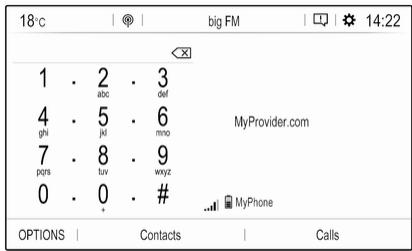
Phone main menu
Press 🔔 to display the phone main menu.
text_image
18°C | 📤 | big FM | 📄 | ⚙ 14:22 1 . 2 . 3 abc def 4 . 5 . 6 MyProvider.com ghi jkl mno 7 . 8 . 9 pqrs tuv wxyz 0 . 0 . # ... MyPhone OPTIONS | Contacts | CallsNotice
The phone main menu is only available if a mobile phone is connected to the Infotainment system via Bluetooth. For a detailed description 48.
Many functions of the mobile phone can now be controlled via the phone main menu (and associated submenus), and via the phone-specific controls on the steering wheel.
Initiating a phone call
Entering a phone number
Enter a phone number using the keypad in the phone main menu.

text_image
18℃ | ←→ | Leave Me Now | □ | ⚙ 14:22 017 ×← SUGGESTIONS 1 - 2 - 3 Peter Adams abc def 01793456789 4 - 5 - 6 Mila Baum ghi jkl mno 01784567890 7 - 8 - 9 Bea Classe pqrs tuv wxyz 01785678901 0 - 0 - # Anne Jones + wxyz 01776789012 OPTIONS | Contacts | CallsAs soon as figures are entered, matching entries from the contacts list are displayed in alphabetical order.
Touch the desired list entry to initiate a phone call.
Using the contacts list
The contacts list contains all phone book entries from the connected Bluetooth device and all contacts from the navigation system.
Select Contacts and then select the desired list type.

text_image
CONTACTS AND FAVOURITES Search | Richards Michael | A Create | Jones Anne | B Baum Mila | C Classe Bea | Adams Peter | All | Telephone | Address | FavouritesSearching for a contact
The contacts are ordered by the first name or surname. To change the order, touch 🖱️.
To scroll through the list, use the scroll bar, ∧ or ∨.
To search for a contact via keyboard, touch Search.
Modifying or deleting a contact
Select ● next to the contact and then select the desired option.
If you want to add a photo to the contact:
Connect a USB device with the desired photo stored on it to the USB port ➔ 28, touch the photo frame and then select the desired photo.
Confirm your selection to download the selected photo to the system.
Using the call history
All incoming, outgoing, or missed calls are registered.
Select Calls and then select the desired list.
Select the desired list entry to initiate a call.
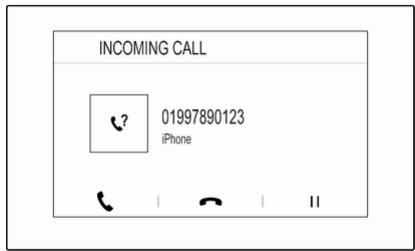
Incoming phone call
If an audio mode, e.g. the radio or USB mode, is active at the moment a call comes in, the audio source is muted and stays muted until the call ends.
A message with the caller's phone number or name is displayed.
text_image
INCOMING CALL 01997890123 iPhone | | | |To answer the call, touch 📞.
To reject the call, touch 🔍.
To put the call on hold, touch ||. To resume to the call, touch ▶.
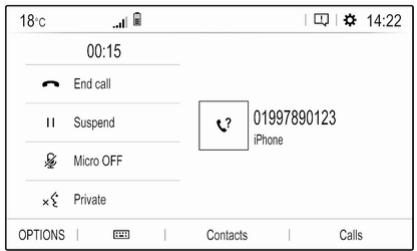
During the ongoing call, the following menu is displayed.
text_image
18°C 00:15 End call Suspend Micro OFF Private OPTIONS | Contacts | Calls 01997890123 iPhoneTo mute the microphone of the Infotainment system, touch Micro OFF.
To continue conversation via the mobile phone (private mode), touch ✗ Private. To reactivate the conversation via the Infotainment system, touch ⌘ Private.
Notice
If you leave the vehicle and lock it while you are still in a private mode phone conversation, the Infotainment system may remain switched on until you leave the Bluetooth reception area of the Infotainment system.
Put incoming calls always on hold
For safety reasons the phone function can put all incoming calls on hold by default.
To activate this function, select OPTIONS, select Security and then select Put incoming calls on hold.
Quick messages
Different quick messages can be sent to contacts via the Infotainment system.
Select OPTIONS and then Quick messages to display a list of quick messages sorted by different categories.
To send a quick message, select the respective message and choose the contact.
Mobile phones and CB radio equipment
Installation instructions and operating guidelines
The vehicle specific installation instructions and the operating guidelines of the mobile phone and hands-free manufacturer must be observed when installing and operating a mobile telephone. Failure to do so could invalidate the vehicle type approval (EU directive 95/54/EC).
Recommendations for fault-free operation:
- Professionally installed exterior antenna to obtain the maximum range possible
• Maximum transmission power 10 W - Installation of the phone in a suitable spot, consider relevant Note in the Owner's Manual, section Airbag system.
Seek advice on predetermined installation points for the external antenna or equipment holder and ways of using devices with a transmission power exceeding 10 W.
Use of a hands-free attachment without external antenna with mobile telephone standards GSM 900/1800/1900 and UMTS is only permitted if the maximum transmission power of the mobile telephone is 2 W for GSM 900 or 1 W for the other types.
For reasons of safety, do not use the phone while driving. Even use of a hands-free set can be a distraction while driving.
⚠ Warning
Operation of radio equipment and mobile telephones which fail to meet above mentioned mobile telephone standards is only permitted using an antenna located outside of the vehicle.
Caution
Mobile telephones and radio equipment may lead to malfunctions in the vehicle electronics when operated inside the vehicle with no exterior antenna, unless the above mentioned regulations are observed.
Index
A
Activating Bluetooth music...... 29
Activating phone.... 49
Activating radio.... 23
Activating the navigation system. . 33
Activating USB audio.... 29
Activating USB picture.... 30
Address book...... 37
Adjust time and date.... 20
Audio files.... 28
Auto volume.... 19
B
Balance.... 19
Basic operation.... 16
Bluetooth
Bluetooth connection...... 48
Bluetooth music menu.... 29
Connecting device.... 28
General information...... 28
Pairing....48
Phone 49
Bluetooth connection.... 48
C
Call
Functions during a call...... 49
Incoming call.... 49
Initiating a phone call.... 49
Ring tone....49
Call history.... 49
Change display language...... 20
Connected services.... 12
Contacts.... 37, 49
Control elements
Infotainment system...... 8
Steering wheel 8
Control elements overview...... 8
D
DAB
FM-DAB Linking.... 25
Date
adjust....20
Destination input 37
Digital audio broadcasting...... 25
Display
adjust brightness.... 20
change language.... 20
Displaying pictures.... 30
Display settings.... 30
E
Equaliser.... 19
F
Factory default settings.... 20
Fader.... 19
File formats.... 28
Audio files.... 28
Picture files.... 28
G
General information.... 28, 32, 44, 47
Bluetooth....28
DAB....25
Infotainment system...... 6
Navigation.... 32
Phone....47
Smartphone applications...... 28
USB....28
Guidance 41
|
Infotainment control panel...... 8
M
Maps.... 33
Menu operation.... 16
Mobile phones and CB radio equipment 52
Mute....12
N
Navigation
Contacts.... 37
Current location.... 33
Destination input...... 37
Map display.... 33
Map manipulation.... 33
Map update.... 32
Recent destinations.... 37
Route guidance.... 41
TMC stations.... 32, 41
Traffic incidents.... 41
Turn list.... 41
Waypoint trip.... 37
Network settings.... 12
O
Operation.... 49
External devices.... 28
Menu.... 16
Navigation system.... 33
Phone....49
Radio....23
P
Pairing....48
Personal settings.... 20
Phone
Bluetooth....47
Bluetooth connection.... 48
Call history.... 49
Contacts.... 49
Entering a number...... 49
Functions during a call...... 49
General information...... 47
Incoming call.... 49
Phone book.... 49
Phone main menu.... 49
Phone book...... 49
Phone projection.... 31
Picture files.... 28
Playing audio.... 29
POIs.... 37
Presets
Retrieving stations.... 23
Storing stations.... 23
Privacy settings.... 20
Profile settings.... 20
R
Radio
Activating.... 23
Configuring DAB...... 25
Configuring RDS.... 25
DAB announcements...... 25
Digital audio broadcasting
(DAB)....25
Presets.... 23
Radio data system (RDS)...... 25
Regional...... 25
Regionalisation.... 25
Retrieving stations.... 23
Selecting the waveband...... 23
Station search.... 23
Station tuning.... 23
Storing stations.... 23
Usage....23
Radio data system 25
RDS....25
Regional......25
Regionalisation.... 25
Retrieving stations.... 23
Ring tone....49
Ring tone volume.... 19
Route guidance.... 41
S
Smartphone.... 28
Phone projection.... 31
Speech output volume...... 19
Speech recognition.... 44
Storing stations.... 23
Switching the Infotainment system on.... 12
System settings.... 20
T
Theft-deterrent feature 7
Time adjust.... 20
TMC stations.... 32
Tone settings.... 19
Touch beep volume.... 19
Traffic incidents...... 41
Turn list.... 41
U
Update software....20
Usage...... 12, 23, 33, 45
Bluetooth.... 28
Menu.... 16
Navigation system.... 33
Phone....49
Radio....23
USB....28
USB
Connecting device.... 28
General information.... 28
USB audio menu.... 29
USB picture menu.... 30
Using smartphone applications.... 31
V
Voice guidance.... 33
Voice recognition.... 44
Volume
Auto volume.... 19
Mute function.... 12
Ring tone volume.... 19
Setting the volume...... 12
Speech output.... 19
Speed compensated volume.... 19
Touch beep volume...... 19
Volume settings.... 19
W
Waveband selection.... 23
Waypoint trip.... 37
Wi-Fi....12
Multimedia
| Emergency numbers | ||
| For emergency service call the Vauxhall Incident Manager | 0800 55 33 88 (Free Linkline)* | |
| Vauxhall Assistance General Enquiries | 0845 7565 565 | |
| You will need to provide: | Vehicle registration number | Model and colour of your Vauxhall |
| Contact telephone number | Details of your precise location | |
* Calls may be chargeable from mobile phones
Introduction 58
Basic operation 65
Radio 70
External devices 74
Speech recognition 77
Phone 80
Index 86
Introduction
General information 58
Theft-deterrent feature 59
Control elements overview ...... 60
Usage 62
General information
Notice
This manual describes all options and features available for the various Infotainment systems. Certain descriptions, including those for display and menu functions, may not apply to your vehicle due to model variant, country specifications, special equipment or accessories.
Notice
The Infotainment system includes certain third party software. For the associated notices, licenses and any other information regarding this software see http://www.psa-peugeot-citroen.com/oss.
Important information on operation and traffic safety
⚠ Warning
Drive safely at all times. Only operate the Infotainment system if the traffic conditions allow a safe usage.
In the interest of safety, it might be appropriate to stop the vehicle before operating the Infotainment system.
⚠ Warning
The usage of a navigation app does not release the driver from the responsibility for a correct, vigilant attitude in road traffic. Always follow the applicable traffic rules.
Radio reception
Radio reception may be disrupted by static, noise, distortion or loss of reception due to:
- changes in distance from the transmitter
- multi-path reception due to reflection
- shadowing
Theft-deterrent feature
The Infotainment system is equipped with an electronic security system for the purpose of theft deterrence.
The Infotainment system therefore functions only in your vehicle and is worthless to a thief.
Control elements overview
Control panel – Multimedia
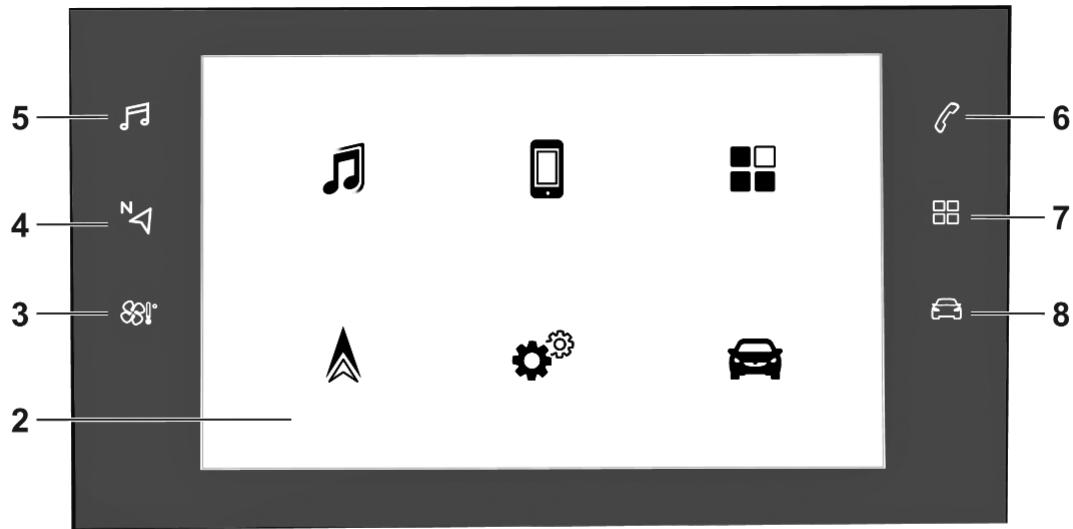
text_image
5 4 3 2 6 7 8
text_image
11 ⏻ 62
If switched off: switch power on / off
If switched on: mute system
Turn: adjust volume
2 Info Display
Home menu will be displayed by a 3-finger touch on screen
3 55!°
Open climate menu if available, see Owner's Manual
4 N
Display navigation app when phone projection is active 76
5
Open audio menu:
Radio 70
External devices (USB, Bluetooth) 74
6
Open phone menu 82
Display phone projection screen when phone projection is active 76
7 88
Open menu for picture function 75
8
Open vehicle settings menu, see Owner's Manual
Steering wheel controls
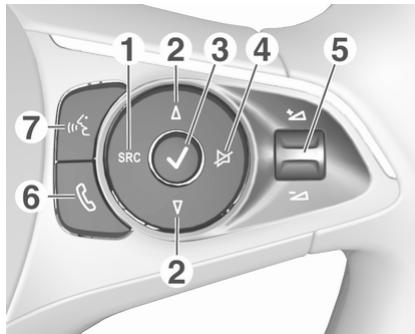
text_image
1 2 3 4 5 7 SRC ✓ 6 21 SRC (Source)
Select audio source, confirm selection with √ ...... 62
Long press: mute system
2 /
Select next / previous preset radio station when radio active 70
or select next / previous track / picture when external devices active ..... 74
or select next / previous entry in station list, media list, call / contacts list when operation started via steering wheel controls
Confirm selection with √
3

Confirm selected item
or open station list, media list
4

Activate / deactivate mute function 62
5

Turn upwards /
downwards: increase / decrease volume
6

Short press: accept incoming call
Long press: reject incoming call, hang up call .... 82
or open call / contacts list ..... 82
If phone call active: open call in progress menu
7

(with embedded speech recognition)
Short press: activate embedded speech recognition
Long press: activate speech recognition in Apple CarPlay™ or Android™ Auto if phone connected via USB port ..... 78
(without embedded speech recognition)
Short press: activate speech recognition in Apple CarPlay™ or Android™ Auto if phone connected via USB port
Usage
Control elements
The Infotainment system is operated via function buttons, a touch screen and menus that are shown on the display.
Inputs are made optionally via:
- the control panel on the Infotainment system ➔ 60
• the touch screen ➔ 65 - audio controls on the steering wheel 60
• the speech recognition ➔ 77
Switching the Infotainment system on or off
Press ⏻. After switching on, the last selected Infotainment source becomes active.
Notice
Some functions of the Infotainment system are only available if ignition is switched on or engine is running.
Automatic switch-off
If the Infotainment system has been switched on pressing ⏻ while the ignition is switched off, it will switch off again automatically when the Eco mode becomes active.
Setting the volume
Turn ⏻. The current setting is shown on the display.
When the Infotainment system is switched on, the last selected volume is set.
Speed compensated volume
When the speed compensated volume is activated 67, the volume is adapted automatically to make up for the road and wind noise as you drive.
Mute
Press ⏻ to mute the Infotainment system.
To cancel the mute function, press ⏻ again. The last selected volume is set again.
Modes of operation
Audio-Media
Press ♩ to display the main menu of the last selected audio mode.
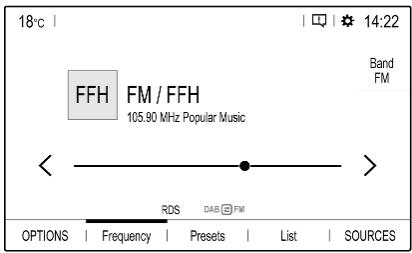
text_image
18°C FFH FM / FFH 105.90 MHz Popular Music Band FM RDS DAB FM OPTIONS | Frequency | Presets | List | SOURCESChanging the media source
Select SOURCES to display the menu for media source selection.
Notice
For a detailed description of menu operation via touch screen ➔ 65.
Select the desired media source.
For a detailed description of:
• Radio functions ➔ 70
- External devices ➔ 75
Phone
Before the phone function can be used, a connection has to be established between the Infotainment system and the mobile phone.
For a detailed description of preparing and establishing a Bluetooth connection between the Infotainment system and a mobile phone 80.
If the mobile phone is connected, press 🔒 to display the main menu of the phone function.
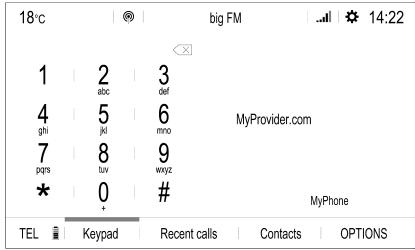
text_image
18°C big FM 1 | 2 | 3 abc | def | 4 | 5 | 6 | MyProvider.com ghi | jkl | mno | 7 | 8 | 9 pqrs | tuv | wxyz | * | 0 | # | MyPhone | TEL | Keypad | Recent calls | Contacts | OPTIONSFor a detailed description of mobile phone operation via the Infotainment system 82.
Apps
To show specific apps of your smartphone on the display of the Infotainment system, connect your smartphone.
Press 📋 and touch Apple CarPlay or Android Auto. A menu with different selectable apps is displayed. For a detailed description ➔ 76.
Settings
Press ⏻, select OPTIONS and then select Audio settings to display the respective menu.

text_image
AUDIO SETTINGS Bass +7 Medium Trebles User 0 -7 Voice Ringtones Balance Sound ResetFor a detailed description ➔ 65.
Touch the top bar ⚙ of the screen to display a menu for various system-related settings.
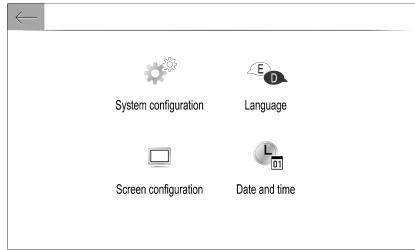
text_image
System configuration Language Screen configuration Date and timeFor a detailed description 65.
Vehicle settings
Select 📋 to open a menu for various vehicle-related settings.
Vehicle settings are described in the Owner's Manual.
Settings center
The Settings center provides quick access to the following settings:
- dark screen
- brightness
- profiles
- system configuration
- privacy settings
Touch the top bar ⚙ of the screen to display the Settings center.
Basic operation
Basic operation 65
Tone settings 67
Volume settings 67
System settings 68
Basic operation
The display of the Infotainment system has a touch-sensitive surface that allows direct interaction with the displayed menu controls.
Caution
Do not use pointed or hard items like ballpoint pens, pencils or similar for touch screen operation.
Menu operation
Selecting or activating a screen button or menu item
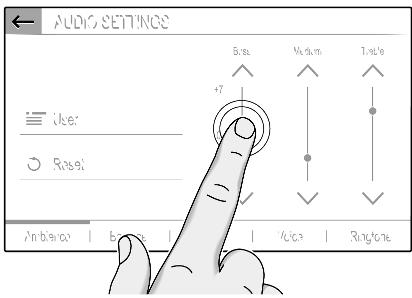
text_image
AUDIO SETTINGS Jitter Rogel Ambore | bruce | 1/2x3 | RingtoneTouch a screen button or menu item. The corresponding system function is activated, a message is shown, or a submenu with further options is displayed.
←, X and √ / OK screen buttons When operating the menus, touch ← or X in the respective submenu to return to the next higher menu level.
When no ← or ✗ screen button is displayed, you are on the top level of the respective menu.
On some screens √ / OK needs to be touched for confirmation after selecting menu items or changing settings. Otherwise all performed selections or settings will be lost.
Scrolling a list
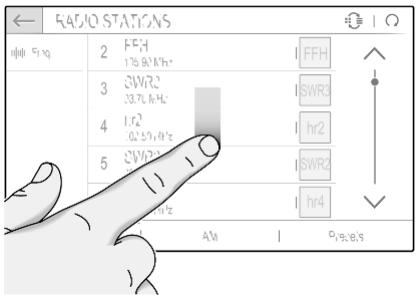
text_image
FADIO STATIONS 100 519 2 FEH 1/36.9/Hz 3 SWR2 33.7L Hz 4 Fz 0.25VHz 5 SWR1 0.2VHz AM | P19:8:5 FFH SWR3 hr2 SWR2 hr4If there are more items available than presentable on the screen, the list must be scrolled.
To scroll through a list of menu items, you may optionally:
- Place your finger anywhere on the screen and move it upwards or downwards.
Notice
Constant pressure must be applied and the finger must be moved at a constant speed.
- Touch ∧ or ∨ at the top or bottom of the scroll bar.
- Touch anywhere on the guiding line of the scroll bar.
- Move the slider of the scroll bar up and down with your finger.
Updating a list
Touch ☐ to manually update lists, e.g. the station list.
Input fields and keyboards
Input fields are indicated by ↗.
Touch the input field to open a keyboard for text or number input.
Depending on the application or function currently active, different keyboards are displayed.
Keyboards for text input
Keyboards for text input may contain several input fields. To enable a field for text input, touch it.
To enter a character, touch the respective screen button. The character is entered upon release.
Touch and hold a letter screen button to display associated letters in a letter pop-up menu. Release and then select the desired letter.
To switch to the symbol keyboard, touch 0..#.
To switch back to the letter keyboard or to switch between capital and small letters, touch Aa.
To switch the letter keyboard between normal order and alphabetical order, touch 📄.
To delete the most recently entered character or symbol, touch ✕.
Adjusting a setting
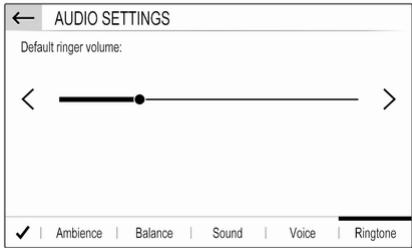
text_image
AUDIO SETTINGS Default ringer volume: < > ✓ | Ambience | Balance | Sound | Voice | RingtoneTo adjust a setting like the illustrated example, you may optionally:
- Touch < or >.
- Touch anywhere on the line.
- Move the slider with your finger.
Tone settings
Press ⏻, select OPTIONS and then select AUDIO SETTINGS.

text_image
AUDIO SETTINGS User Reset Bass +7 0 -7 Medium Trebles Tone | Balance | Sound | Voice | RingtonesSeveral predefined settings are available to optimise the tone for a specific style of music (e.g. Pop-Rock or Classical).
To adjust the tone individually, select User. Change the settings as desired.
Notice
If you change the settings of a predefined setting, e.g. Pop-Rock, this settings will be applied to the User or Personalised setting.
Balance and fader
Select the Balance tab.
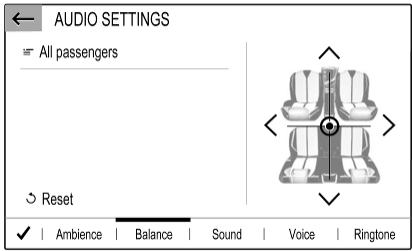
text_image
AUDIO SETTINGS All passengers Reset Ambience | Balance | Sound | Voice | RingtoneSeveral predefined settings are available to adjust the volume distribution inside the vehicle (e.g. All passengers or Front only).
To change the current setting, e.g. All passengers, select that setting and then select the desired new setting from the displayed list.
You may individually adjust the predefined settings.
To define the point in the passenger compartment where the volume is at its highest level, move the cursor in the illustration on the right side of the screen to the desired point.
To return to the default factory settings, select ↻.
Volume settings
Press ♩, select OPTIONS and then select AUDIO SETTINGS. Then select the Sound tab.
Audible touch feedback
If the audible touch feedback function is activated, each touch of a screen button or menu item is indicated by a beeping sound.
To adjust the touch beep volume, activate Touch tones and then adjust the setting.
Speed compensated volume
Activate or deactivate Volume linked to speed.
If activated, the volume of the Infotainment system is adapted automatically to make up for the road and wind noise as you drive.
Speech output
Select the Voice tab.
Adjust the volume for all speech outputs of the system.
Ringtone
Select the Ringtones tab.
Adjust the ringtone volume of incoming calls.
System settings
Touch the top bar ⚙ of the screen to display the Settings center.
The configuration menu is accessible via the Settings center.
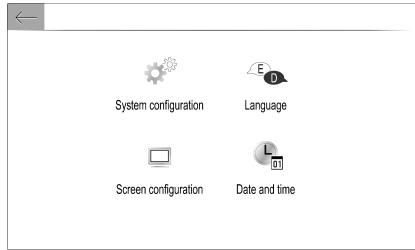
text_image
System configuration Language Screen configuration Date and timeConfiguring the system
Select System configuration to perform some basic system configurations, e.g.:
- Adjust the display of units for temperature or fuel consumption.
- Reset the system configuration to factory defaults.
- Update the installed software version.
- Adjust the privacy settings for data sharing and vehicle position.
Changing display language
To adjust the language for the menu texts, select Language and then select the desired language.
Notice
If the selected display language is supported by the embedded speech recognition, the language of the speech recognition will be changed accordingly; if not, embedded speech recognition will be not available.
Adjusting time and date
Select Date and time.
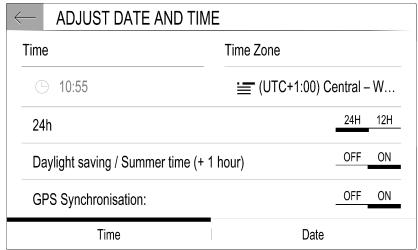
text_image
ADJUST DATE AND TIME Time Time Zone 10:55 (UTC+1:00) Central - W... 24h 24H 12H Daylight saving / Summer time (+ 1 hour) OFF ON GPS Synchronisation: OFF ON Time DateChanging time and date formats
To change the time and date formats, select the respective tabs and then select the desired formats.
Setting time and date
By default the displayed time and date is automatically adjusted by the system.
To manually adjust the displayed time and date:
Select the Time tab.
Set GPS Synchronisation: to OFF and then select the Time field to set the desired time.
Select the Date tab and then select the desired date format.
Adjusting the screen
Select Screen configuration.
Text scroll function
Select the Animation tab.
If long texts on the screen should be scrolled automatically, activate Automatic scrolling.
If Automatic scrolling is deactivated, long texts are truncated.
Adjusting the brightness
Select Brightness and set the brightness of the screen to the desired level.
Storing your personal settings
To go to the profile settings, touch the top bar of the screen ⚙ and then select Profiles.
You can store a multitude of settings in a personal profile. For example, all current tone settings, all radio presets and a phone book.
In case you share the vehicle with other people, this enables you to restore your personal settings from your profile at any time.
A maximum of three personal profiles may be stored.
Additionally, a Common profile is available. All settings done at any time are automatically stored in that profile. If no personal profile is activated, the Common profile is active.
Storing your personal profile
After performing all your personal settings:
Select one of the personal profile tabs.
Select the input field ✅ and enter the desired name of your personal profile. Finally, confirm your inputs to store them in your personal profile.
Activating your personal profile
Touch the top bar ⚙ of the screen, then select Profiles and then select the tab with the name of your personal profile.
Activating the Common profile
If a personal profile is currently active:
Go to the Common profile tab and then select Activate profile.
Resetting a personal profile
You can at any time reset a personal profile to restore the default factory settings on that profile.
Activate the respective profile and then select Reset the profile.
Resetting the Common profile
You can at any time reset the Common profile to restore the default factory settings on that profile.
Select Common profile and then select Reset the common profile.
Radio
Usage 70
Radio data system 71
Digital audio broadcasting ..... 72
Usage
Activating the radio
Press ♩. The audio main menu last selected is displayed.
If the radio main menu is not active, select SOURCES and then select Radio.

text_image
18°C FFH FM / FFH 105.90 MHz Popular Music Band FM RDS DAB FM OPTIONS | Frequency | Presets | List | SOURCESThe station last played will be received.
Selecting a waveband
Select OPTIONS and repeatedly touch Ⓧ to toggle between the different wavebands.
Searching for stations
Automatic station search
Briefly touch < or > to play the previous or next receivable station.
Manual station search
Press and hold < or >. Release when the required frequency has almost been reached.
A search is made for the next station that can be received and it is played automatically.
Station lists
In the station lists, all receivable radio stations within the current reception area are available for selection.
To display the station list of the waveband currently active, select List.
Select the desired station.
Update station lists
If the stations stored in the waveband-specific station list can no longer be received, the station lists must be updated.
To start an update for the currently active waveband, select ☐.
Storing favourite stations
Up to 24 radio stations of all wavebands can be stored as favourites in the Presets list.
Select Presets to display the preset buttons.
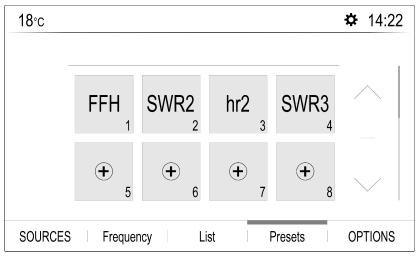
text_image
18°C FFH 1 SWR2 2 hr2 3 SWR3 4 + 5 + 6 + 7 + 8 SOURCES | Frequency | List | Presets | OPTIONSStoring the currently active station
Touch and hold the desired button in the Presets list for a few seconds. The respective frequency or station name is displayed on the button.
If a station is already stored on a preset button, that station will be overwritten by the new one.
Alternatively, touch ★ Mem in the radio main menu to store the currently active station.
Storing a station from a station list
Select OPTIONS and then select the desired waveband.
To store a station from the station list, briefly touch ★ next to the desired station. The station is stored and the number of the preset button will be displayed. To delete a station, touch ★ again.
Alternatively, touch and hold the name of the station until it is stored. To delete the station, touch and hold the name of the station again until a corresponding message is displayed.
Retrieving stations
In the radio main menu select Presets and then briefly touch the preset button of the desired station.
Radio data system
Radio data system (RDS) is a service of FM stations that considerably facilitates the finding of the desired station and its fault-free reception.
Advantages of RDS
- On the display, the programme name of the station appears instead of its frequency.
- During a station search, the Infotainment system tunes in to RDS stations only.
- The Infotainment system always tunes into the best receivable broadcasting frequency of the set station by means of AF (alternative frequency).
- Depending on the station that is received, the Infotainment system displays radio text that can contain e.g. information on the current programme.
Activating RDS
In the radio main menu, select OPTIONS and activate RDS.
If RDS is activated, RDS is displayed in the bottom line of the radio main menu.
Radio text
If RDS is activated, information on the radio programme currently active or the music track currently playing are displayed below the programme name.
To show or hide the information, go to the OPTIONS menu and activate or deactivate Information.
Traffic announcements
Many RDS stations broadcast traffic news. If the traffic announcements function is activated, radio or media playback is interrupted for the duration of a traffic announcement.
To activate traffic announcements, go to the OPTIONS menu and activate TA.
If TA is activated, TA is displayed in the bottom line of the radio main menu.
Digital audio broadcasting
Digital audio broadcasting (DAB) broadcasts radio stations digitally.
DAB stations are indicated by the programme name instead of the broadcasting frequency.
General information
- With DAB, several radio programmes (services) can be broadcast on a single ensemble.
- Besides high-quality digital audio services, DAB is also able to transmit programme-associated data and a multitude of other data services including travel and traffic information.
- As long as a given DAB receiver can pick up the signal sent out by a broadcasting station (even if the signal is very weak), sound reproduction is ensured.
- In the event of poor reception, the volume is reduced automatically to avoid the output of disagreeable noises.
If the DAB signal is too weak to be picked up by the receiver, reception is interrupted completely. This incident can be avoided by activating DAB-FM auto tracking, see below.
- Interference caused by stations that are on nearby frequencies (a phenomenon that is typical of AM and FM reception) does not occur with DAB.
- If the DAB signal is reflected by natural obstacles or buildings, the reception quality of DAB is improved, whereas AM or FM reception is considerably impaired in such cases.
- When DAB reception is enabled, the FM tuner of the Infotainment system remains active in the background and continually searches for the FM stations with the best reception. If Traffic announcement 71 is activated, traffic announcements of the FM station with the best reception are issued. Deactivate Traffic announcement if DAB reception should not be interrupted by FM traffic announcements.
FM-DAB Linking
This function enables switching from an FM station to a corresponding DAB station and vice versa.
Switching from FM to DAB occurs as soon as a corresponding DAB station is available. Therefore, it is recommended to store favourite stations as DAB stations to reduce frequent switching.
Switching from DAB to FM occurs if the signal is too weak to be picked up by the receiver.
Activation
Precondition is that RDS is activated before FM-DAB Linking can be activated.
To activate FM-DAB Linking, select OPTIONS in the radio main menu and then select FM-DAB Follow-up.
The following symbol will be displayed when FM-DAB Linking is activated:

text_image
DAB FMDeactivation
To deactivate FM-DAB Linking, select OPTIONS in the radio main menu and then deselect FM-DAB Follow-up.
FM-DAB Linking will automatically be deactivated when RDS is deactivated.
External devices
General information 74
Playing audio 75
Displaying pictures 75
Using smartphone applications ... 76
General information
A USB port is located in the centre console.
Caution
To protect the system, do not use a USB hub.
Notice
The USB ports must always be kept clean and dry.
USB ports
An MP3 player, USB device, SD card (via USB connector / adapter) or smartphone can be connected to the USB port.
The Infotainment system can play audio files or show picture files contained in USB devices.
When connected to a USB port, various functions of the devices mentioned above can be operated via the controls and menus of the Infotainment system.
Notice
Not all auxiliary devices are supported by the Infotainment system.
Connecting / disconnecting a device
Connect one of the devices mentioned above to a USB port. If required, use the appropriate connection cable. The music function starts automatically.
Notice
If a non-readable USB device is connected, a corresponding error message appears and the Infotainment system automatically switches to the previous function.
To disconnect a USB device, select another function and then remove the USB device.
Caution
Avoid disconnecting the device during playback. This may damage the device or the Infotainment system.
Bluetooth audio streaming
Streaming allows you to listen to music from your smartphone.
For a detailed description on how to establish a Bluetooth connection 81.
If audio playback does not start automatically, it may be necessary to start the playback on the smartphone.
First adjust the volume on your smartphone (to a high level). Then adjust the volume of Infotainment system.
File formats
The audio equipment supports different file formats.
Playing audio
Activating the music function
Connecting the USB or Bluetooth device ➔ 74.
If device already connected, but playback of stored music files not active:
Press ♩, select SOURCES and then select the respective source.
Playback of the audio tracks starts automatically.
Playback functions
Interrupting and resuming playback
Touch || to interrupt playback. The screen button changes to ▶.
Touch ▶ to resume playback.
Playing the previous or next track Touch < or >.
Fast forwarding and rewinding
Touch and hold < or >. Release to return to normal playback mode.
Alternatively, you can move the slider showing the current track position to the left or right.
Playing tracks randomly
Select OPTIONS and touch the Random icon repeatedly:
ON: play tracks of currently selected list (album, artist, etc.) in random order.
ALL: play all tracks stored on connected device in random order.
OFF: play tracks of currently selected list (album, artist, etc.) in normal playback mode.
Repeating tracks
Select OPTIONS and touch the Repeat icon ON repeatedly to select one of the following options:
ON: repeat tracks of currently selected list (album, artist, etc.)
1x : repeat tracks of currently selected list (album, artist, etc.) once 0FF : play tracks of currently selected list (album, artist, etc.) in normal playback mode
Displaying pictures
You can view pictures stored on a USB device.
Activating the picture viewer
Connecting the USB device ↩ 74.
If device already connected, but picture viewer not active:
Press ☐☐, select Photos and choose the desired folder and picture.
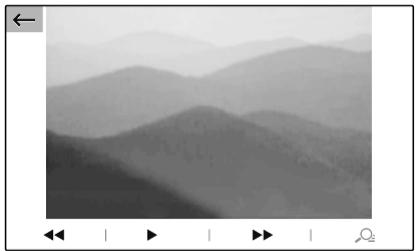
natural_image
Grayscale mountain landscape with layered peaks and valleys, no text or symbols visibleTouch the screen to display the menu bar.
Viewing the previous or next picture
Touch ◀◀ or ▶▶.
Starting or stopping a slide show
Select ▶ to view the pictures stored on the USB device in a slide show.
Touch || to end the slide show.
Using smartphone applications
Phone projection
The phone projection applications Apple CarPlay and Android Auto display selected apps from your smartphone on the Info Display and allow their operation directly via the Infotainment controls.
Check with the device's manufacturer if this function is compatible with your smartphone and if this application is available in the country you are in.
Preparing the smartphone
iPhone®: Make sure Siri® is activated on your phone.
Android phone: Download the Android Auto app to your phone from the Google Play™ Store.
Connecting the smartphone iPhone
Connect the phone to the USB port 74.
If the phone is already connected via Bluetooth, upon connecting to the USB port and launching Apple CarPlay, the Bluetooth connection will disconnect. After disconnecting the USB connection, the phone will be connected via Bluetooth again.
Android phone
Connect the phone via Bluetooth 81 and then connect the phone to the USB port 74.
Starting phone projection
If phone projection is not starting automatically, press Ⓤ and then touch Apple CarPlay or Android Auto.
The phone projection screen displayed depends on your smartphone and software version.
Returning to the Infotainment screen Press, e.g., the ♪ button on the control panel.
Speech recognition
General information 77
Usage 78
General information
Embedded speech recognition
The embedded speech recognition of the Infotainment system enables you to operate various functions of the Infotainment system via voice input. It recognises commands and numeric sequences independently of the relevant speaker. The commands and numeric sequences can be spoken without a voice pause between the individual words.
In the event of incorrect operation or commands, the speech recognition gives visual and / or acoustic feedback and requests you to re-enter the desired command. Apart from this, the speech recognition acknowledges important commands and will enquire if necessary.
In general, there are different ways to speak commands for performing the desired actions.
Notice
To ensure that conversations inside the vehicle do not lead to unintentional triggering of the
system functions, the speech recognition does not start until it has been activated.
Important information
Language support
- Not all languages available for the display of the Infotainment system are also available for the speech recognition.
- If the display language currently selected is not supported by the speech recognition, speech recognition is not available.
In such a case, you need to select another language for the display if you want to control the Infotainment system via voice input. To change the display language 68.
Voice pass-thru application
The voice pass-thru application of the Infotainment system allows access to the speech recognition commands on your smartphone.
Voice pass-through is available via the phone projection applications Apple CarPlay and Android Auto 76.
Usage
Embedded speech recognition
Activating speech recognition
Notice
Speech recognition is not available during an active phone call.
Activation via the ⏻ button on the steering wheel
Press 12 on the steering wheel.
The audio system mutes, a voice output message prompts you to say a command, and help menus with the most important commands currently available are shown on the display. The speech recognition is ready for voice input, after a beep has been given.
You can now say a voice command to initiate a system function (e.g. playing a preset radio station).
Adjusting the volume of voice prompts
Press volume button on the steering wheel upwards (increase volume) + or downwards (decrease volume) -
Interrupting a voice prompt
As an experienced user, you can interrupt a voice prompt by briefly pressing “/” on the steering wheel.
Alternatively you can say "Set dialogue mode as expert".
A beep is heard immediately, and a command can be stated without having to wait.
Cancelling a dialogue sequence
To cancel a dialogue sequence and to deactivate the speech recognition, press 🔒 on the steering wheel.
If you do not say any command for a certain period of time, or if you say commands that are not recognised by the system, a dialogue sequence is automatically cancelled.
Operation via speech commands
Follow the instructions given by voice output and shown on the display.
For best results:
- Listen for the voice prompt and wait for the beep before saying a command or replying.
- Read the example commands on the display.
- The voice prompt can be interrupted by pressing _z^ again.
- Wait for the beep and then speak the command naturally, not too fast, not too slow.
Usually commands can be spoken in a single command.
Voice pass-thru application
Activating speech recognition
Press (without embedded speech recognition) or press and hold (with embedded speech recognition) (w_^) on the steering wheel until a speech recognition session is started.
Adjusting the volume of voice prompts
Turn ⏻ on the control panel or press volume button on the steering wheel upwards (increase volume) + or downwards (decrease volume) -.
Deactivating speech recognition
Press 📋 on the steering wheel. The speech recognition session is ended.
Phone
General information 80
Bluetooth connection 81
Operation 82
Mobile phones and CB radio equipment 84
General information
The phone function provides you with the possibility of having mobile phone conversations via a vehicle microphone and the vehicle loudspeakers as well as operating the most important mobile phone functions via the Infotainment system in the vehicle. To be able to use the phone function, the mobile phone must be connected to the Infotainment system via Bluetooth.
Not all phone functions are supported by every mobile phone. The usable phone functions depend on the relevant mobile phone and network provider. You can find further information on this in the operating instructions for your mobile phone, or you can enquire about them with your network provider.
Important information for operation and traffic safety
⚠ Warning
Mobile phones have effects on your environment. For this reason safety regulations and directions have been prepared. You should be familiar with the related directions before you use the telephone function.
⚠ Warning
Use of the hands-free facility while driving can be dangerous because your concentration is reduced when telephoning. Park your vehicle before you use the hands-free facility. Follow the stipulations of the country in which you find yourself at present.
Do not forget to follow the special regulations that apply in specific areas and always switch off the mobile phone if the use of mobile phones is prohibited, if
interference is caused by the mobile phone or if dangerous situations can occur.
Bluetooth
The phone function is certified by the Bluetooth Special Interest Group (SIG).
You can find further information about the specification on the internet at http://www.bluetooth.com.
Bluetooth connection
Bluetooth is a radio standard for the wireless connection of e.g. mobile phones, smartphones or other devices.
Pairing a device
During the pairing process, PIN code exchange between the Bluetooth device and the Infotainment system and connection of the Bluetooth devices to the Infotainment system are carried out.
Important information
- Two paired Bluetooth devices can be connected to the Infotainment system at the same time. One device in hands-free mode, the other in audio streaming mode, see description on Bluetooth profile settings below.
However, two devices cannot be used in hands-free mode at the same time.
- Pairing only needs to be carried out once, unless the device is deleted from the list of paired devices. If the device has been connected previously, the Infotainment system establishes the connection automatically.
- Bluetooth operation considerably drains the device's battery. Therefore, connect the device to the USB port for charging.
Pairing a new device
-
Activate the Bluetooth function of the Bluetooth device. For further information, see the operating instructions for the Bluetooth device.
-
Press 🔔 and then touch Bluetooth search.
A search for all Bluetooth devices in the near environment is performed.
-
Select the Bluetooth device you wish to pair from the displayed list.
-
Confirm the pairing procedure:
- If SSP (secure simple pairing) is supported: Confirm the messages on the Infotainment system and the Bluetooth device.
- If SSP (secure simple pairing) is not supported: On the Infotainment system: a message is displayed asking you to enter a PIN code on your Bluetooth device.
On the Bluetooth device: enter the PIN code and confirm your input.
The Infotainment system and the device are paired.
- The phone book is downloaded automatically to the Infotainment system. Depending on the phone, the Infotainment system must be allowed access to the phone book. If required, confirm the messages displayed on the Bluetooth device.
If this function is not supported by the Bluetooth device, a corresponding message is displayed.
Operations on paired devices
Press 🔔, select TEL and then select Bluetooth connection.
A list of all paired devices is displayed.
Changing the Bluetooth profile settings
Touch ⚙ next to the desired paired device.
Activate or deactivate the profile settings as desired and confirm your settings.
Connecting a paired device
Devices which are paired but not connected are identified by ✗.
Select the desired device to connect it.
Disconnecting a device
The currently connected device is identified by ✕.
Select the device to disconnect it.
Deleting a paired device
Touch 📋 in the upper right corner of the screen to display 🔊 icons next to each paired device.
Touch 📄 next to the Bluetooth device you want to delete and confirm the displayed message.
Operation
As soon as a connection via Bluetooth has been set up between your mobile phone and the
Infotainment system, you can operate many functions of your mobile phone via the Infotainment system.
Notice
In the hands-free mode, mobile phone operation is still possible, e.g. taking a call or adjusting the volume.
After setup of a connection between the mobile phone and the Infotainment system, mobile phone data is transmitted to the Infotainment system. This can take some time depending on the mobile phone and the amount of data to be transferred. During this period, operation of the mobile phone via the Infotainment system is possible only to a limited extent.
Notice
Not every mobile phone fully supports the phone function. Therefore, deviations from the range of functions described below are possible.
Phone main menu
Press 🔒 to display the phone main menu.

text_image
18°C big FM 14:22 1 2 3 abc def 4 5 6 MyProvider.com ghi jkl mno 7 8 9 pqrs tuv wxyz * 0 # MyPhone TEL Keypad Recent calls Contacts OPTIONSNotice
The phone main menu is only available if a mobile phone is connected to the Infotainment system via Bluetooth. For a detailed description 81.
Many functions of the mobile phone can now be controlled via the phone main menu (and associated submenus), and via the phone-specific controls on the steering wheel.
Initiating a phone call
Entering a phone number
Enter a phone number using the keypad in the phone main menu. As soon as figures are entered, matching entries from the contacts list are displayed in alphabetical order.
Touch the desired list entry to initiate a phone call.
Using the contacts list
The contacts list contains all phone book entries from the connected Bluetooth device.
Select Contacts to see the contacts list.
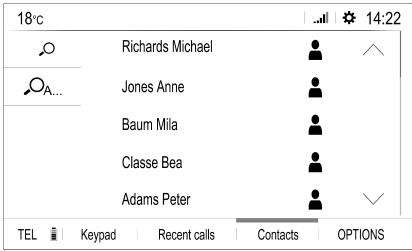
text_image
18°C Richards Michael Jones Anne Baum Mila Classe Bea Adams Peter TEL Keypad Recent calls Contacts OPTIONSSearching for a contact
The contacts are ordered by the first name or surname. To change the order, touch OPTIONS and then
To scroll through the list, touch ∧ or ∨.
To search for a contact via keyboard, touch ⭕.
To search for a contact via the first letter, touch _A.. and select the desired letter.
Modifying or deleting a contact
Select ● next to the contact and then select the desired option.
Using the call history
All incoming, outgoing, or missed calls are registered.
Select Recent calls to see the call history.
Select the desired list entry to initiate a call.
Incoming phone call
If an audio mode, e.g. the radio or USB mode, is active at the moment a call comes in, the audio source is muted and stays muted until the call ends.
A message with the caller's phone number or name is displayed.

text_image
INCOMING CALL 01997890123 iPhoneTo answer the call, touch 📞.
To reject the call, touch Ⓞ.
To put the call on hold, touch ||. To resume to the call, touch ▶.
To mute the microphone of the Infotainment system, touch Micro OFF and √ will appear. To cancel the mute function, press √ again.
To continue conversation via the mobile phone (private mode), touch 📄. To reactivate the conversation via the Infotainment system, touch 📄 again.
Notice
If you leave the vehicle and lock it while you are still in a private mode phone conversation, the Infotainment system may remain switched on until you leave the Bluetooth reception area of the Infotainment system.
Put incoming calls always on hold
For safety reasons the phone function can put all incoming calls on hold by default.
To activate this function, select OPTIONS and then touch 🔔 until the function is activated.
Mobile phones and CB radio equipment
Installation instructions and operating guidelines
The vehicle specific installation instructions and the operating guidelines of the mobile phone and hands-free manufacturer must be observed when installing and operating a mobile telephone. Failure
to do so could invalidate the vehicle type approval (EU directive 95/54/EC).
Recommendations for fault-free operation:
- Professionally installed exterior antenna to obtain the maximum range possible
• Maximum transmission power 10 W - Installation of the phone in a suitable spot, consider relevant. Note in the Owner's Manual, section Airbag system.
Seek advice on predetermined installation points for the external antenna or equipment holder and ways of using devices with a transmission power exceeding 10 W.
Use of a hands-free attachment without external antenna with mobile telephone standards GSM 900/1800/1900 and UMTS is only permitted if the maximum transmission power of the mobile telephone is 2 W for GSM 900 or 1 W for the other types.
For reasons of safety, do not use the phone while driving. Even use of a hands-free set can be a distraction while driving.
⚠ Warning
Operation of radio equipment and mobile telephones which fail to meet above mentioned mobile telephone standards is only permitted using an antenna located outside of the vehicle.
Caution
Mobile telephones and radio equipment may lead to malfunctions in the vehicle electronics when operated inside the vehicle with no exterior antenna, unless the above mentioned regulations are observed.
Index
A
Activating Bluetooth music...... 75
Activating phone 82
Activating radio....70
Activating USB audio....75
Activating USB picture.... 75
Adjust time and date.... 68
Audio files....74
Auto volume...... 67
B
Balance....67
Basic operation.... 65
Bluetooth
Bluetooth connection...... 81
Bluetooth music menu...... 75
Connecting device.... 74
General information.... 74
Pairing....81
Phone....82
Bluetooth connection.... 81
C
Call
Functions during a call...... 82
Incoming call....82
Initiating a phone call.... 82
Ring tone....82
Call history....82
Change display language...... 68
Contacts....82
Control elements
Infotainment system...... 60
Steering wheel....60
Control elements overview...... 60
D
DAB
FM-DAB Linking....72
Date
adjust....68
Digital audio broadcasting...... 72
Display
adjust brightness...... 68
change language.... 68
Displaying pictures.... 75
Display settings....75
E
Equaliser.... 67
F
Factory default settings.... 68
Fader....67
File formats....74
Audio files....74
Picture files.... 74
G
General information...... 74, 77, 80
Bluetooth....74
DAB....72
Infotainment system.... 58
Phone....80
Smartphone applications...... 74
USB....74
|
Infotainment control panel...... 60
M
Menu operation...... 65
Mobile phones and CB radio equipment 84
Mute....62
O
Operation....82
External devices.... 74
Menu....65
Phone....82
Radio....70
P
Pairing....81
Personal settings.... 68
Phone
Bluetooth....80
Bluetooth connection.... 81
Call history....82
Contacts....82
Entering a number...... 82
Functions during a call...... 82
General information...... 80
Incoming call....82
Phone book...... 82
Phone main menu....82
Phone book....82
Phone projection....76
Picture files....74
Playing audio....75
Presets
Retrieving stations.... 70
Storing stations....70
Privacy settings.... 68
Profile settings.... 68
R
Radio
Activating....70
Configuring DAB....72
Configuring RDS....71
DAB announcements.... 72
Digital audio broadcasting
(DAB)....72
Presets....70
Radio data system (RDS)...... 71
Regional....71
Regionalisation....71
Retrieving stations.... 70
Selecting the waveband.... 70
Station search....70
Station tuning....70
Storing stations.... 70
Usage....70
Radio data system 71
RDS....71
Regional....71
Regionalisation.... 71
Retrieving stations....70
Ring tone....82
Ring tone volume.... 67
S
Smartphone....74
Phone projection....76
Speech output volume...... 67
Speech recognition.... 77
Storing stations....70
Switching the Infotainment system on.... 62
System settings.... 68
T
Theft-deterrent feature 59
Time
adjust.... 68
Tone settings.... 67
Touch beep volume...... 67
U
Update software.... 68
Usage....62,70,78
Bluetooth....74
Menu...... 65
Phone......82
Radio....70
USB....74
USB
Connecting device.... 74
General information.... 74
USB audio menu....75
USB picture menu....75
Using smartphone applications.... 76
V
Voice recognition....77
Volume
Auto volume...... 67
Mute function.... 62
Ring tone volume.... 67
Setting the volume...... 62
Speech output...... 67
Speed compensated volume.... 67
Touch beep volume...... 67
Volume settings.... 67
W
Waveband selection.... 70
Copyright by Vauxhall Motors Ltd.
The information contained in this publication is effective as of the date indicated below. Vauxhall Motors Ltd. reserves the right to make changes to the technical specifications, features and design of the vehicles relative to the information contained in this publication, as well as changes to the publication itself.
Edition: December 2020, Vauxhall Motors Ltd.
Printed on chlorine-free bleached paper.
ID-VMKBIRIE2012-en