
MYX-5M - Téléphone mobile SAGEM - Notice d'utilisation et mode d'emploi gratuit
Retrouvez gratuitement la notice de l'appareil MYX-5M SAGEM au format PDF.


| Type de produit | Téléphone mobile GSM/DCS bi-bande |
| Marque | SAGEM |
| Modèle | MYX-5M |
| Poids | Environ 80 g (avec batterie) |
| Dimensions (L x l x h) | 105 x 45 x 20 mm (estimation) |
| Alimentation | Batterie rechargeable Li-Ion, chargeur secteur inclus |
| Autonomie en veille | Jusqu'à 200 heures (estimation) |
| Autonomie en communication | Jusqu'à 3 heures (estimation) |
| Écran | Écran graphique monochrome avec rétroéclairage |
| Carte SIM | Carte SIM standard (3V/1.8V) |
| Répertoire téléphonique | Jusqu'à 250 contacts selon capacité SIM et téléphone, format vCard possible |
| Messagerie | SMS, EMS, MMS |
| WAP | Navigateur WAP 1.2.1 (Openwave) |
| GPRS | Oui (classe 8) |
| Jeux intégrés | MegaBox Conquest, Picture Puzzle, téléchargeables |
| Fonctions supplémentaires | Calculatrice, convertisseur de devises, alarme, minuteur, vibreur, carnet d'appels |
| Sécurité | Verrouillage clavier, code PIN, code PIN2, code téléphone, confidentialité |
| Connectivité | Infrarouge (IrDA), câble USB/série (optionnel) |
| DAS | 0,64 W/kg (max mesuré) |
| Accessoires fournis | Chargeur secteur, batterie, notice d'utilisation |
| Entretien et nettoyage | Essuyer avec un chiffon doux, éviter l'eau et les solvants |
| Pièces détachées et réparabilité | Batterie, chargeur, coques interchangeables disponibles en option |
FOIRE AUX QUESTIONS - MYX-5M SAGEM
Questions des utilisateurs sur MYX-5M SAGEM
0 question sur cet appareil. Repondez a celles que vous connaissez ou posez la votre.
Poser une nouvelle question sur cet appareil
Téléchargez la notice de votre Téléphone mobile au format PDF gratuitement ! Retrouvez votre notice MYX-5M - SAGEM et reprennez votre appareil électronique en main. Sur cette page sont publiés tous les documents nécessaires à l'utilisation de votre appareil MYX-5M de la marque SAGEM.
MODE D'EMPLOI MYX-5M SAGEM
SAGEM SA declare under its sole responsibility that the product Dual Band GSM/DCS Type M2002 conforms to the requirements of the following EEC directives:
EEC Directive 1999/5/CE
SafetyEN 60950
EMC EN 301 489-1 EN 301 489-7
Low voltage directive 73/23/CEE
Network Requirements GT01 v 4.7.0 TBR 19 Edition 5 TBR 20 Edition 3 TBR 31 Edition 2 TBR 32 Edition 2 EN 301 419-1
Health EN 50360 EN 50361

natural_image
Abstract blue line drawing with intersecting curves and a vertical line (no text or symbols)P. KLEIN
Development Director, Mobile Phones Division

Phonebook
Phonebook Menu

Messages
Compose
Inbox
Outbox
Drafts
Options
Memory
Local info

WAP

Games
MegaBox Conquest
Downloaded games
Picture Puzzle

Sounds
Ring tones
Vibrate
Silent mode
Beeps

Background
Colours
Wallpapers
Screensavers
Greeting msg

Settings
Date / time
My objects
Languages
Networks
Contrast
Energy saving
Shortcuts
Reset settings

Calls
Calls forwarded
View last calls
Counters
Display numbers
Call waiting
Auto redial
Answer phone number

Security
Keypad locking
PIN number
PIN number 2
Phone code
Confidentiality
Operator
Call barring
Fixed dialling

Accessories
Calculator
Converter
Alarm
Timer
Car kit
Data

Services
Contents
| Page 2 | MENUS |
| Page 6 | YOUR PHONE PACKAGE - ACCESSORIES |
| Page 7 | DESCRIPTIONProgrammable and shortcut keys |
| Page 8 | PRINCIPLES OF NAVIGATION |
| Page 9 | HOME PAGE |
| Page 10 to 11 | ACTIVATING YOUR TELEPHONEInformation on the SIM cardInstalling the SIM card and installing the battery |
| Page 12 to 13 | USING YOUR TELEPHONEDon't obstruct the antenna with your fingersIncrease the efficiency of your phoneCharging the battery |
| Page 14 to 21 | PHONEBOOKUsing the phonebookPhonebook menuCall groupsSending a VCARDReceiving a VCARD |
| Page 22 to 31 | MESSAGESCompose SMSCompose MMSReceiving messagesInboxDraftsSending optionsOutboxMemoryLocal info |
Contents
Page 32 to 36
WAP
The WAP Menus Configuring WAP parameters WAP Logging on Downloading objects WAP Logging off GPRS
Page 37
GAMES
MegaBox Conquest Picture Puzzle Downloaded games
Page 38 to 39
SOUNDS
Volume and ring tone Vibrate Silent mode Beeps
Page 40 to 41
BACKGROUND
Colours Wallpapers Screensavers Greeting msg
Page 42 to 45
SETTINGS
Date / Time My Objects Languages Networks Contrast Energy saving Shortcuts Reset Settings
Page 46 to 50
CALLS
Forward calls
View last calls
Counters
Display numbers
Call waiting
Automatic redial
Answer phone number
Page 51 to 54
SECURITY
Keypad locking
PIN number
PIN number 2
Phone code
Confidentiality
Operator code
Call barring
Fixed dialling
Page 55 to 58
ACCESSORIES
Accessories
Converter
Alarm
Timer
Car kit
Data
Page 59
SERVICES
Page 60 to 61
TECHNICAL FEATURES
Page 62 to 64
WARRANTIES
Page 65 to 69
TROUBLESHOOTING
Page 70 to 72
INDEX
Your phone package - Accessories
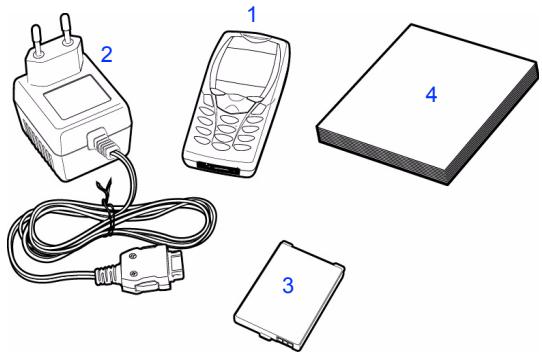
When you open the box, check that all the items are present:
1 - Telephone
2 - Mains charger
3 - Battery
4 - User manual
Accessories
You can also find (as an option) or order the following accessories:
Pedestrian kit (*)
Extra battery
Extra charger (*)
Office support (*)
Cable to connect your myX-5 to a PC USB or serial port (*)
CD driver (PC or Mac) to synchronise your telephone with your PC
Cigar lighter adapter (*)
Coloured cover
Hands-free kit (*)
(*) These accessories are identical to the ones provided for the earlier 900 and 3000 series.
Programmable keys and Shortcut keys

Stop key:
Hold down: Stop
Press briefly:
In a call context: Rejects a call - hang up
In menus: Return to home page.
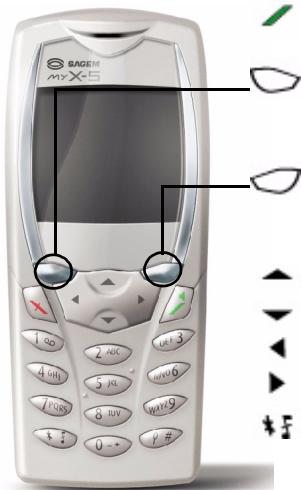
Start key: Press briefly: Starts phone
In call context: Call - reception of a call - hands-free mode
Left programmable key:
In home page: Access to certain functions (shortcuts)
In menus: Cancel (or return) as indicated on screen
During call: Reduces volume
Right programmable key:
In home page: Access to certain functions (shortcuts)
In menus: Accept, choose as shown on screen
During call: Increases volume

Top key: Previous choice / reduce value / top

Down key: Next choice / increase value / down

Left key: Up input field / move left

Right key: Down input field / move right

\* Key:
Hold down: In home page: Silent mode
Press briefly + OK (right programmable key) activates or deactivates keypad locking
In call reception mode: Short press stops ring tone
In ring tone setting mode: Activates/deactivates ring tone

# Key: Zoom mode (see message and WAP menus)
Principles of navigation
1st level
These basic principles bring a great deal of intuitiveness to your telephone
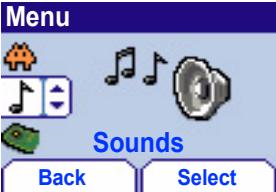
All the active areas on a white background (icon selector, programmable keys, menu selector, choice list)
Accept by pressing the right programmable key ☐. Cancel by pressing the left programmable key ☐.
The tabs on the sides at the bottom of the screen refer to the Programmable keys (and not to the left/right keys)
2nd level
In the menus a title bar recalls the higher level.
The down / up ▼ ▲ navigation keys are used to navigate from one menu to another within the same menu structure.
The right programmable key ◇ is used to go from a menu to a sub-menu.
The left programmable key ☐ is used to go from a sub-menu to a menu.
3rd level
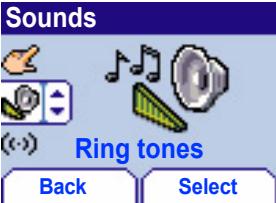
The first menu level can be identified by a large animated icon in the centre of the screen.
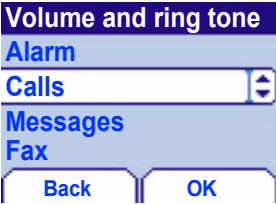
The second menu level can be identified by a large static icon in the centre of the screen.
The lowest sub-menus are lists.
The Stop ✗ key (press briefly) is used to return to the home page (current function is abandoned).
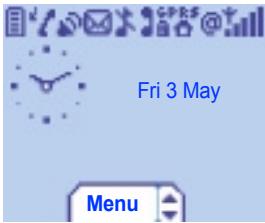
The home page contains the following
1 - The title bar icons:
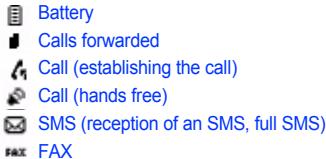
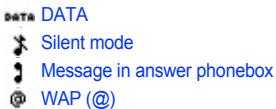
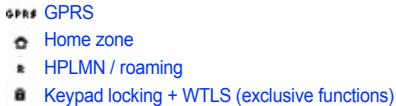
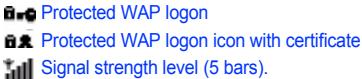
2 - Date and time, in digital or analogue mode 3 - Network name 4 - Tab centred on bottom line: the main "menu" tab shows that the menu can be accessed via the down / up ▼▲ keys. The following information may also be displayed: "1 message received"; or "1 call". They can be deleted by pressing Stop ▼ key briefly.
Information on the SIM card
natural_image
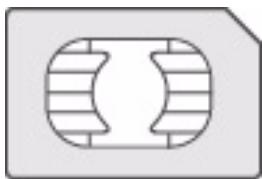
Pure diagram of a symmetrical mechanical or electrical component with no text, numbers, or symbolsTo use your telephone, you have a smart card called a SIM card. It contains all the information needed by the network as well as other information unique to you and that you can modify:
Secret codes (PIN(s): Personal Identification Numbers), these codes allow you to restrict access to your SIM card.
Phonebook,
Messages,
How special services work.
Your telephone is compatible with the different SIM cards offered by operators.
It is also compatible with the SIM/WIM cards (cards containing the WIM module in addition (WIM = Wireless Identity Module) that is used for secure WAP communications.
ATTENTION
This card must be handled and stored with care to avoid damaging it by scratching or bending it. If you should lose your SIM card, contact your operator or your SMC (Services Marketing Company) immediately.
Comment: do not leave your SIM card within the reach of young children.
Installing the SIM card and installing the battery
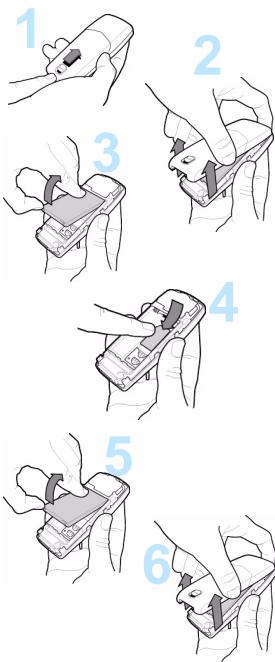
The SIM card is inserted under the telephone's battery. Ensure that the telephone is switched off and the charger disconnected.
1 Turn telephone over and push lock button upwards.
2 Remove rear cover by lifting bottom end first.
3 Take out battery if already installed.
4 Slide card fully under retaining plate with gold-plated contacts facing telephone and bevelled corner pointing as shown on drawing on telephone.
5 Insert battery into position by first positioning top section with connectors.
6 Replace cover by engaging top hook first, then push down back of rear cover and push button back into locked position.
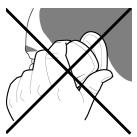
Don't obstruct the antenna with your fingers
natural_image
Simple line drawing of a hand holding an object with two crossed lines (no text or symbols)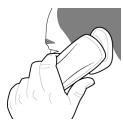
natural_image
Illustration of a hand holding a small object, possibly a tool or device, with no visible text or symbols.The antenna is embedded in your telephone, under the back cover at the top.
Avoid putting your fingers on this area when the telephone is switched ON.
If your fingers obstruct the antenna, the telephone may have to operate with a higher power level than usual; decreasing its efficiency quickly. It could also affect the quality of your communications.
Increase the efficiency of your phone
- Don't press the keys when not necessary: each keypress activates the backlight, and uses much power;
- Don't activate too often the screensaver: a starting time every 200s or less will require much processing power;
- Don't obstruct the antenna with your fingers.
Charging the battery
natural_image
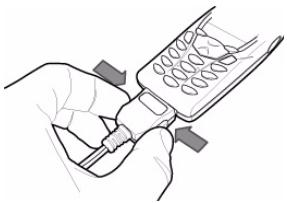
Illustration of hands using a tool to interact with a device (no text or symbols visible)Your telephone is powered by a rechargeable battery. A new battery must be charged for 4 hours at least before being used for the first time. It reaches its optimum capacity after a few cycles of use.
When your battery has been discharged, the telephone displays the state (empty battery icon flashes). In this case recharge your battery for at least 15 minutes before making any more calls so as to avoid being cut off mid-call.
To recharge the battery:
Connect the charger to a mains socket.
Plug the end of the cable into the connector at the base of the telephone.
The telephone starts to charge up, the battery charging light flashes to indicate charging. Charging stops by itself. Disconnect the cable.
It is possible that the battery may heat up slightly during charging; this phenomenon is normal.
ATTENTION
There is danger of explosion if the battery is replaced incorrectly or if it is exposed to fire.
Do not short circuit it.
The battery does not have any part that you can change.
Do not try to open the battery casing.
Use only the appropriate chargers and batteries shown in the manufacturer's catalogue.
Used batteries must be disposed of in the appropriate places.
It is advisable to remove the battery if your telephone is not used for extended periods.
Phonebook

natural_image
Pixelated illustration of an open book with visible pages (no text or symbols)The phonebook allows you to store numbers that you call regularly. These numbers can be stored in the SIM card or in the telephone.
If your telephone has a vCard phonebook (available in myX-5m), the following fields can be stored in the telephone for each contact: first name, last name, number 1, number 2, number 3, email, call group, company, comment, photo, preferred numbers (voice, EMS, SMS).
The list of numbers in the phonebook of the SIM card varies in relation to the capacity of the card: the supplier company will tell you what this is.
Using the phonebook
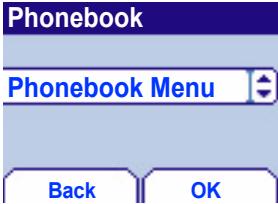
In the home page press the down ▼ key to access the main menus. The first menu proposed is phonebook.
Press the right programmable key ☐ corresponding to the accept tab to enter the menu.
The list of your correspondents appears, by default, the cursor is positioned on the first name in alphabetical order.
If you are using your telephone and SIM card for the first time, the phonebook list will be empty, only the Phonebook Menu function will be available.

natural_image
Pixelated illustration of an open book with visible pages (no legible text)Phonebook menu
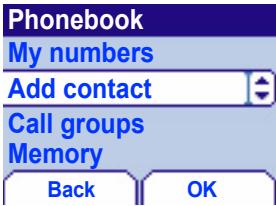
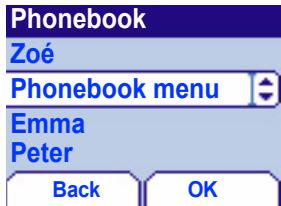
Add contact
Select Add contact and accept and press the right programmable key ◇ to enter the menu.
Choose the place where you wish to enter the contact (SIM card or telephone) using the down / up ▼▲ keys, and accept.
If the telephone isn't vCard standard enter the name, number and call group, select the location (SIM card or telephone memory) and Accept after each entry. The minimum information needed to store a contact in the SIM card is a name or telephone number.
If the telephone is vCard standard and the contact is to be stored in the telephone memory, select the location (SIM card, telephone or FDN memory – FDN is available depending on PIN number 2 options of your SIM card) and enter the contact information and Accept after each entry. The minimum information needed to store a contact in the telephone is first name or last name or one phone number or an email address. All other fields are not mandatory. If you want to stop the entry of the following fields, and save the information already entered for this contact, press the red key and Accept to save.
Phonebook

natural_image
Pixelated illustration of an open book with visible pages (no legible text)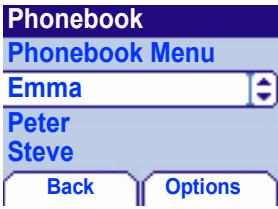
You can also enter a letter in the phonebook list screen, to directly access the first contact starting with this letter.
If you know the memory number of this contact on the SIM card (say 21 for example), you can enter 21* directly from the idle screen.
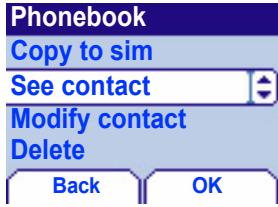
Select a contact from the list using the down / up keys. Then press the right programmable key ◯.
Choose from the options offered:
See contact
The first menu proposed is See contact. Enter.
Press the right programmable key ☐ to view this contact. Details of the store appears (name, phone number, call group, and some other details if your Phonebook is VCard).
Further screens display the other details of the contact:
Press right programmable key ☐ to view the 3 phone numbers the email address, company and comment for this contact.
Press the Start key ☐ from any of these screens to call this contact. Press the left programmable key ☐ to return to the phonebook.
Different icons inform you of the position in the phonebook where the contact is stored:
contact stored in the SIM card contact stored in the phone contact stored in the phone, with a VCard format your SIM card's forbidden calls: if the FDN option is activated, then you will be able to read those contacts, but you won't be allowed to call them. See PIN number 2 and Fixed Dialling in Security Menu for more details about this activation.

natural_image
Pixelated illustration of an open book with visible pages (no legible text)The phonebook menu allows you to create new contacts, to create call groups and to check the memory available to store new contacts.
Phonebook menu
Phonebook
Copy to sim
Modify contact
Delete
Back
OK
Modify Contact
Photo
Last name
First name
Number1
Back
OK
Modify contact
Modify contact. Enter. Using the down ▼ key.
If the contact stored on the Sim or the telephone is not vCard standard you can modify the name, number and call group if required, and Accept.
If your phone is vCard standard and the contact is stored in memory, you can modify the first name, last name, number 1, number 2, number 3, email, call group, company, comment, photo, preferred numbers (voice, SMS, MMS) if required, and Accept.
Copy to SIM / Copy to phone
This allows you to copy your phonebook entries from one memory to the other. Only the name, first phone number and the call group will be copied.
Select Copy to SIM or Copy to phone. Enter.
Delete
Select Delete. Enter.
Confirm deletion of entry with Yes.
Call
Select Call. Press the right programmable key ☐ to start the call.
You can also select the party to be called from the phonebook, and press the Start ☐ key to make the call.

natural_image
Pixelated illustration of an open book with visible pages (no legible text)Phonebook menu
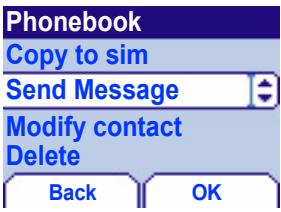
Send message
Select Send message. Accept.
Text editor opens automatically.
In the Phonebook screen, press the right programmable key ◇ to enter the menu.
Press the up ▲ key to position the cursor on the Phonebook menu and accept.
Choose from the options offered (add contact, call group, memory, my numbers).
Call groups
(See page 19)
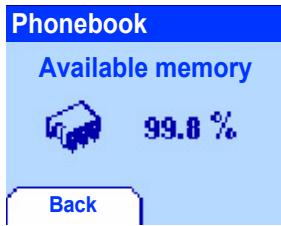
Memory
Select memory and accept.
The screen displays the locations used on the SIM Card and in the telephone itself; if the telephone is vCard, the screen displays the amount of memory used.
My numbers
You can create the entries corresponding to your own numbers in order to consult them when necessary.
Select My numbers and accept.
Enter the different details and accept.
Phonebook

natural_image
Pixelated illustration of an open book with visible pages (no legible text)You have the facility to group your contacts into call groups. It is possible to allocate characteristics to each group (icon, ring tone, vibrate).
Call groups
6 default call groups have already been created. You can create others.
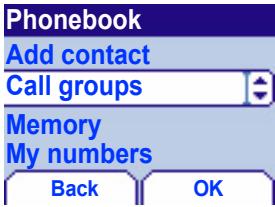
Creating new groups:
Do same as above to obtain the phonebook menu and accept.
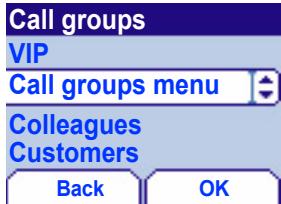
Press down ▼ key to position the cursor on Call groups and enter.
By default, the cursor is placed on Call groups menu, accept.
Choose one of the options offered (Create group or memory available).
Creating a group
By default, the cursor is placed on Create group, enter.
Enter group name and accept.
Choose the icon, ring tone and vibrate mode that you want to allocate to this group (accept after each step).
Memory
Select memory and OK.
The screen displays the number of locations available for new groups.

natural_image
Pixelated illustration of an open book with visible pages (no legible text)Sending a VCARD
It is possible to send a vCard from each contact stored in the phonebook. The availability of this function depends on the model of your phone.
vCards can be sent to another mobile phone using SMS.
From a contact in the phonebook, select the Send contact by SMS option menu item.
If the vCard is sent successfully, the SMS sending screen is displayed.
vCards can be sent to another mobile phone using MMS.
From a contact in the phonebook, select the Send contact by MMS option menu item.
If the vCard is sent successfully, the MMS sending screen is displayed.
vCards can be sent as an attachment to an MMS message. See Compose MMS messages on page 25.

natural_image
Pixelated illustration of an open book with visible pages (no legible text)Receiving a VCARD
The availability of this function depends the model of your phone.
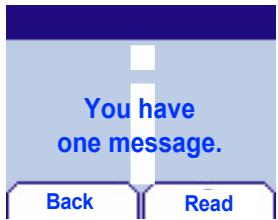
When a vCard is received in an SMS message, the message "You have received 1 message" is displayed.
View the vCard by opening the SMS from the inbox. Add this contact to the phonebook by pressing Softkey 2. A message is displayed to confirm the action.
When a vCard is received in an MMS message, the message "You have received 1 message" is displayed.
Open the MMS from the inbox. Go to Options by pressing Softkey 2, and select Extract; select the vCard among the list of objects attached to this MMS, and add this contact to the phonebook by pressing Softkey 2. A message is displayed to confirm the action.

natural_image
Pixelated illustration of a notepad with a pen and an envelope, no text or symbols present.The message menu brings together the following types of messages: SMS, EMS and MMS (MMS is available on myX-5m, depending on your SIM Card). EMS is an extended message, longer than an SMS and which allows you to insert images and sounds to your text messages. MMS is a Multimedia Message Service, which allows you to insert or attach audio, images and other rich content to your messages; these messages can even be composed of several slides. MMS is billed differently than SMS, consult your operator for details of their billing policy. This menu has been compiled in collaboration with magic4 ^™

Compose SMS
Messages
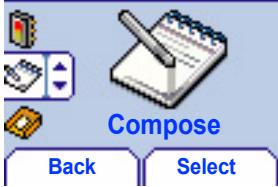
This menu allows you to compose your SMS and EMS messages.
From the Messages menu select the Compose menu and Enter.
Choose SMS from the proposed options (SMS or MMS).
By default, the language used is the language activated in the telephone's menu display (or English if a language not supported by Easy Message T9 ^™ has been chosen for the menus).
When the text has been entered, the right programmable key ⏻ (options) can also be used to access the functions offered:
Send is used to send the message by entering the correspondent's number.
T9 options (see next page)
ABC mode (see page 24)
123 mode (see page 24)
Cancel is used to delete all text entered
Activate/deactivate zoom is used to modify size of characters
Store is used to save a draft in memory
Formatting is used to enrich a text
Insert to insert an image or sound into your message (see page 24).

natural_image
Pixelated illustration of a pen writing on a document with an envelope nearby (no text or symbols)The Easy Message T9 ^™ helps you to conveniently enter your short messages.
Using T9 Mode
Press once the key corresponding to the letter chosen and make the word by continuing to press the keys corresponding to the various letters without paying attention to the display, until you have finished inputting the word: it then appears in inverse video.
If the word offered is what you wanted to enter, press the 0 key to accept it, create a space and move to the next word.
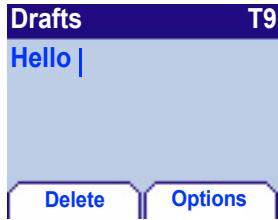
However, it is possible that several words exist in the corresponding dictionary for the same sequence of keys pressed. If the word that appears is not the word you expected, press the right programmable key indicating 🔒 to scroll through the words held in the dictionary corresponding to this key sequence.
When you find the chosen word, press the 0 key to accept it, create a space and move on to the next word.
Press the right key to simply accept the characters entered without creating a space and moving on to another T9 word.
If the word you want does not appear in the dictionary, several additional input modes can be used to display it.

natural_image
Pixelated illustration of a notepad with a pen and an envelope, no text or symbols present.In the input screen, the right programmable key ◇ is used to access other input options.
When composing a message: The navigation keys assume the following functions:
- Left key ◀ : Last word
- Right key ▶ : Next word
- Up key ▲ : Previous line
- Down key ▼ : Next line
- Left programmable key ☐: Deletes last letter
- Right programmable key 🔒: Message options
- Hold down 9# key: Zoom mode (changes size of characters)
- Short press of 9# key: Access to symbol table
Input modes
The ABC mode is used to enter words that do not exist in the dictionary. To obtain a letter, press the corresponding key several times, the letters and the number scroll past.
Mode 123 is used to insert numbers.
Insert mode is used to insert symbols, animations, call group icons and tunes: the SMS then becomes an EMS. Images and sounds can be two types: pre-defined or customised. Pre-defined images and sounds are smaller in size, especially suited to exchanging messages.
Upper case:
A short press of the key will display the next letter in upper case.
Two short presses on the key allow you to switch to upper case editing mode for the whole message.
Punctuation characters
Punctuation characters are obtained with the help of key 1 (except in 123 mode), or with the help of Insert mode (fast access via the 9# key).
Accented characters
Accented characters are generated automatically in T9 ^™ mode.
In ABC mode accented characters are available by pressing the key supporting the non-accented character in succession.

natural_image
Pixelated illustration of a pen writing on a document with an envelope nearby (no text or symbols)Compose MMS
This menu allows you to compose your MMS messages.
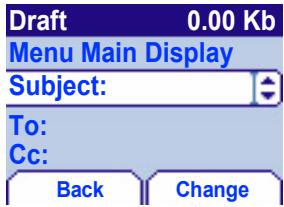
From the Messages menu choose the Compose menu and Enter. Choose MMS from the proposed options (SMS or MMS).
The functions offered are:
Subject: the subject of your message goes here.
To: this option gives access to the phonebook.
Cc: this option also gives access to the phonebook.
Body: to enter text and multimedia objects to the message.
When the text has been entered in the body screen, the right programmable key (options) can also be used to access the functions offered:
Editor Mode to allow editing and formatting of the text.
T9 options (see page 23).
Insert to insert multimedia objects such as images, animations and sounds into your message.
Send Send, Send and receive all, send later.
Slideshow to compose a slideshow of the multimedia objects.

natural_image
Pixelated illustration of a notepad with a pen and an envelope, no text or symbols present.Compose MMS
Saving your message
You can save your message as a draft by selecting “Save” from the options, when editing the Subject or the Body. You will be able to edit it later from the “Draft” Menu.
Sending MMS messages
You have the choice to activate or deactivate the storing of messages in your Outbox after sending. Sagem recommends that messages are not stored in your Outbox by default because if too many messages are saved, the telephone memory will soon become full and no further messages will be received.
Receiving MMS messages
There are 2 retrieval options, automatic and manual. The default behaviour on the user network is "Automatic Retrieval". When roaming, only the notification of an MMS message is received. Select "Manual Retrieval" if you prefer to delay the reception of your MMS on the user network as well.

natural_image
Pixelated illustration of a pen writing on a document with an envelope nearby (no text or symbols)The number of messages stored in the SIM card varies depending on the card's capacity.
Receiving messages

When you receive a message, an audio signal sounds (the one selected in the Sounds menu) and the message icon ☑ appears on your telephone screen.
If you do not read the messages, this icon remains displayed on the screen. When it flashes, the memory is full.
Receiving icons, backgrounds or tunes can take several seconds. An icon is blinking (☑) when the download of your message is in progress.
Note that you have two different possibilities for receiving MMS: automatically or manually; if "manual mode" is activated, then you will receive only a notification in your Inbox, meaning that a MMS is available on the MMS Server; select this notification, and read it when you want to retrieve the MMS from the server.
For more details about automatic and retrieval modes, see "Sending Options" on page 30.
Consult your operator on the downloading of icons, backgrounds or tunes.

natural_image
Pixelated illustration of a notepad with a pen and an envelope, no text or symbols present.Received messages are stored in the SIM card or in the telephone until you choose to delete them.
Inbox
Messages
natural_image
Pure electrical circuit lines without any symbolsBack

natural_image
Simple icon of a yellow box with an envelope inside, no text or symbols present.Inbox
Select
Inbox (2)

21:49
12kb
Philippe Lemaire

Sagem on-line "New Laure" Reunion en sa
Back
Options
From the Messages menu choose the Inbox menu and Select.
Each message shows the presence of any attachments, the time and date the message was received and the size of the message. Icons are used to describe the type of message (Multimedia (☐), Remote (☐), SMS/EMS (☐)).
Messages are listed in order of arrival time, with the latest first.
The number of Not Read and Not Retrieved messages is shown. High priority messages are displayed in red. Not Retrieved and Not Read messages are shown in bold.
Select a message and press the right programmable key ◯.
Choose from the proposed options (Read, Forward, Delete read, reply, reply with original message, call, send, delete, delete all).
If your message contains objects (images or sounds), you can save them in order to use them later (stored in your telephone's memory); when reading text, place the cursor on the object and choose the Save option from the options on the right programmable key.
When they have been stored in memory, the space required in the telephone is then indicated.
You can consult them in the corresponding menus (WAP bookmarks in WAP, tune in Sounds, backgrounds in Background, and icons in Call groups).

natural_image
Pixelated illustration of a notepad with a pen and an envelope, no text or symbols present.Drafts
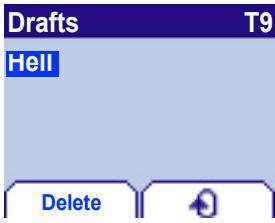
When you store a composed message, it is stored among the drafts.
Messages
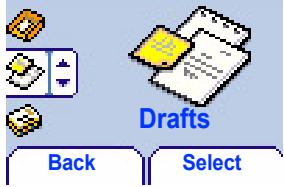
From the Messages menu choose the Drafts menu and Select.
Select a message and press the right programmable key ☐. If you do not delete this message, it will remain as a draft and can be re-used even if you have already sent it.
Choose from the proposed options (Read, Send, Delete, Delete all, Modify).
Sending options
Several sending options are offered.
Messages
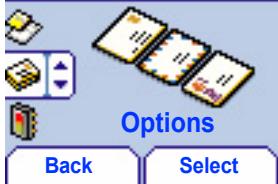
From the Messages menu choose Options and Select. Choose from the proposed options (SMS or MMS).
The proposed SMS send options are: acknowledgement, reply given, period of validity (life cycle of message on network before being routed), message format, message centre and save msgs sent.

natural_image
Pixelated illustration of a notepad with a pencil and an envelope, no text or symbols present.MMS settings
MMS server
Save msgs sent
Retrieval mode Default priority
Back
Select
The proposed MMS options are:
save message sent: (it is highly recommended that you keep this function deactivated, in order to avoid a full memory), retrieval mode (automatic or manual): if you are or in a poor coverage area it may be more convenient to choose the manual retrieval mode which gives you the retrieve later option.
this icon ✅ blinking on the top of the idle screen means that a message is arriving
default priority: high or low
MMS reject: if you want to deactivate the reception of any MMS in your phone.
MMS server: to select another MMS provider, or set the parameters of a new MMS provider.
Outbox
Messages

natural_image
Pure electrical circuit lines without any symbolsBack

natural_image
Pixelated illustration of a yellow envelope printer with paper (no text or symbols)Outbox
Select
The Outbox is used to store all your sent and waiting messages.
If too many messages are saved, the telephone memory will soon become full and no further messages will be received.
From the Messages menu choose the Outbox menu and Select.
Each message contains information on type of message (in the form of an icon) and time (or date) of sending.
Select a message and press the right programmable key ◯.
Choose from the proposed options (View, Details, Modify, Read, Send, Forward, Delete, delete all, Delete sent).

natural_image
Pixelated illustration of a notepad with a pen and envelope, no text or symbols presentMemory
You may know the memory available for saving messages.
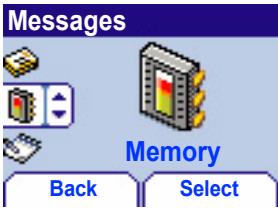
From the Messages menu select the Memory option and Select. Choose from the proposed options (SMS or MMS).
The SMS screen shows you the memory available on the SIM card phone (☐) and in the phone (☐).
The MMS screen shows you the amount of memory used in kbytes.
Local info
This menu is used to activate reception of local information broadcast by the network.
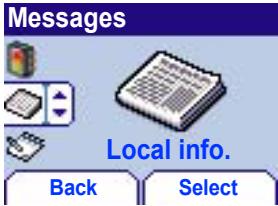
You can choose whether or not to receive information (ask the company with which you took out your subscription).
From the Messages menu select the Local info menu and Select.

natural_image
Pixelated globe icon with a small circular symbol on the left (no text or labels)WAP (Wireless Application Protocol): protocol that translates the Internet language into WML language that can be read by a mobile. The WAP function allows you to log onto certain Internet sites. You can log onto sites that allow you to download tunes, icons or animated screensavers to your telephone.
The WAP Menus
The WAP navigator is under licence:

OPENWAVE
© 1995-2001
RSA Data Security
BROWSER BY

OPENWAVE
The WAP navigator is the exclusive property of Openwave. For this reason, it is forbidden to modify, translate, disassemble or even decompile all or part of the software that makes up the navigator.
You can activate the magnifying glass to increase the size of the characters by holding down the # key.
The Services menu, a dropdown menu, can be accessed at all times when navigating through WAP pages.
Select the top left icon using the ▲ up key.
Consult the Services Menu using the right programmable softkey; these Services Menus can also be consulted from any WAP page, using the red key; these Services menus contain all the following sub menus:
Welcome: logs onto the home page. (carries the name of your access provider)
Bookmarks: is used to save in a phonebook the names and addresses of Internet sites to facilitate easy access. You can receive bookmarks from SMS and add them to this list (see chapter on SMS). You can also send messages by SMS: select a bookmark, press the right programmable key (Choice), then select Send by SMS.
Go to URL: this menu allows you to input an Internet address directly.
B. reception: this menu allows you consult messages sent by the Internet site.

natural_image
Pixelated globe icon with a small circular symbol (no text or labels)Save image: is used to save a WAP site image (option).
Reload: refreshes the current page.
Clear the cache: clears the stored information on previous logons.
Advanced...: offers the following advanced settings
- Configuring parameters
- Show URL
- Logoff
- Circuit message (if user can confirm each logon)
- Security (is used to access information on making WAP connections secure).
About...: information on the browser.
Exit: returns to the telephone's home page.
Configuring WAP parameters
Select the Advanced... menu, then the configuration menu.
Choose from the proposed sub-menus:
Logon parameters is used to select or modify your access provider's logon parameters or configure the parameters of other access providers.
The active access service is preceded with a start.

natural_image
Pixelated globe icon with a small circular symbol on the left (no text or symbols present)Configuration of WAP and GPRS parameters:
All information to be entered in the parameters are provided by your operator or access provider.
- Choose desired access service, then press Choice.
- Enter title of service and accept.
- Enter Internet address of home page and accept.
- Enter parameters of preferred logon:
GPRS otherwise GSM (by default): the logon to WAP services uses the GPRS as a priority. However, in the event of unavail-lability of the GPRS network, the GSM network is used to establish the link.
GPRS: the logon to WAP services uses the GPRS network exclusively.
GSM: the logon to WAP services uses the GSM network exclusively.
The GSM parameters to be entered are:
- User name
- Password
- IP address of WAP gateway
- Port type (secure or insecure)
- Call number
- Access mode (digital, analogue or automatic)
In automatic mode access can be gained to the operator's network by a digital link and by an analogue link to a different network (in roaming).

natural_image
Pixelated globe icon with a small circular symbol on the left (no text or symbols present)The GPRS parameters to be entered are:
- User name
- Password
- IP address of WAP gateway
- Port type (secure or insecure)
- APN: if no APN has been defined, press the right programmable key (Choice) then the APN menu. Select or add and APN.
Once all the settings have been entered, you can activate the chosen access provider. Select him from the list. Confirm your choice with OK.
Inactivity time is used to choose the time after which the call is automatically disconnected if you have forgotten to log off from a service.
FastW@p (depending on model) is used for faster access to Internet site pages.
Selecting FastW@P in GPRS may impact on the charges depending on the charging policy used by the operator.
WAP Logging on
The connection to a WAP service on the GPRS network is not cut if an incoming call is received. You can answer the call.
Using the Welcome menu, you can log onto your access provider's WAP site by pressing the right programmable key 🔔.
If you are logging onto the GSM network, the @ symbol flashes, the metering of the cost of the call starts as soon as it stops flashing.

natural_image
Pixelated globe icon with a small @ symbol (no text or labels)Downloading objects
Some WAP sites allow you to download tunes, icons or animated screensavers. Once downloaded, they are stored in your telephone's memory. You can then save them in your telephone (same operation as used for downloading using SMS).
WAP Logging off
To log off press Stop ✗ key.
The logoff happens automatically after a few seconds of inactivity if you forget to log off.
This period is defined by the inactivity time setting.
GPRS
A flashing icon indicates that the telephone is logging onto a GPRS network.
A non-flashing icon indicates that the GPRS network is available; if the icon is dark, it indicates that the telephone is logged onto the GPRS network: see p43 for the attachment options.
This icon is not displayed if the GPRS network is not available or if the SIM card inserted in your telephone does not include the GPRS service. It may also disappear when accessing WAP services if the connection uses the GSM network instead of the GPRS network.

natural_image
Pixelated illustration of a mobile game controller with two small insects nearby (no text or symbols)Your telephone is supplied with at least two games: MegaBox Conquest and Picture Puzzle. You can also download new games depending on your telephone and your subscription.

Embedded Games
A territorial conquest game and a picture puzzle game.
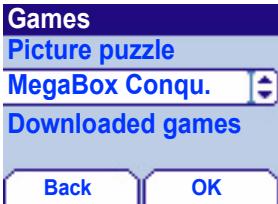
From the Games menu select the game you wish to play and press OK.
Principle of MegaBox Conquest is to win on enemy territory by guiding the little white square.
Use keys 2, 4, 6, 8 to move and 5 to stop.
The enemy must not touch you or your route.
The principle of the Picture Puzzle game is to place all the pieces of the mixed up picture in the correct order in a minimum number of moves.
Use the keypad arrows to move the pieces.
Use the right programmable key ☐ to pause and the left programmable key ☐ to exit.
Downloaded games
This optional menu has been developed by the company In-Fusio™.
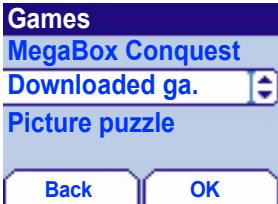
From the Games menu select the Downloaded games menu and press OK; this menu can also be accessed from the idle screen by a long press on the 9 key.
You can:
- Play the downloaded game already present (Wallbreaker). Use keys 2, 4, 6, 8 or navigation key to move and 5 to accept or pause.
- Download new games (available from the catalogue)
- Consult the loyalty points acquired during downloads, news, instructions,
- Make settings.
Sounds

natural_image
Pixelated icon showing a music note and a speaker (no text or symbols)This menu allows you to customise the ring tones on your telephone and to activate beep and vibrate modes.
Volume and ring tone
This menu allows you to allocate a ring tone to each type of event.
Sounds

Ring tones
Back

natural_image
Pixelated icon set showing music notes, a speaker, and a triangular play button (no text or symbols)Select
From the Sounds menu choose Ring tone menu and Select.
Select the type of event from the proposed list (Alarm, Calls, Messages and Fax) and accept.
Select the ring tone from the proposed list and accept.
Adjust the volume using the down / up keys and accept.
You can deactivate the sound by pressing the *§ key.
Voice Calls: the ringtone selected here will be played only when receiving a call from a contact stored without any call group. Otherwise, the ringtone selected for this call group will be played.
Vibrate
This menu allows you to activate the vibrate mode for calls.
Sounds

natural_image
Pixelated illustration of a mobile phone with signal waves (no text or symbols)Vibrate
Back
Select
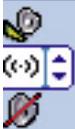
From the Sounds menu choose the Vibrate menu and Select.
Select the vibrate mode from the proposed choices (ring tone and vibrate, vibrate only, vibrate inactive or vibrate plus ring tone) and accept.

natural_image
Pixelated icon showing a music note and a speaker (no text or symbols)Attention: vibrate mode is not a priority in relation to the choice of ring tones in the call groups. To make vibrate mode apply in general, switch to Silent mode.
Silent mode
This menu allows you to switch to Silent mode.
Sounds
Silent mode
Back

Select
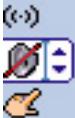
From the Sounds menu select Silent mode and Select.
Activate or deactivate Silent mode and accept.
Silent mode can also be accessed via the home page by holding down the ✦ key.
When the device is in silent mode, the relevant icon appears on the home page. In this mode the ring tone will not function, except for the alarm clock.
Beeps
This menu allows you to activate a beep for each type of event.
Sounds

natural_image
Pure electrical circuit lines without any symbolsBack

natural_image
Illustration of a hand holding a mobile phone with musical notes (no text or symbols visible)Beeps
Select
From the Sounds menu choose the Beeps menu and Select.
Select the type of beep you want to allocate from the proposed choices (Key beep, Network beep or Battery beep) and accept.
Activate or deactivate the beep and accept.
In the case of key beeps, you can also choose from the two types of beeps offered: key beeps or Dtmf tone (different beep depending on the key pressed).
Background

natural_image
Pixelated illustration of a green chameleon on a brown branch (no text or symbols)This menu allows you to customise your screen by choosing the colour, background image, animation or greeting message.
Colours
This menu allows you to display the colours you want on your mobile.
Background

natural_image
Pure iconographic layout with speech bubble, pen, and document icons (no text or symbols)
natural_image
Pixelated illustration of a hand holding a paintbrush and palette (no text or symbols)Colours
Back
Select
From the Background menu select the Colours menu and Select.
Select the colour you want to see during navigation in the menus and accept.
Wallpapers
This menu allows you to display the background image you want on your mobile.
Background


natural_image
Three overlapping document sheets with gradient colors, no visible text or symbolsWallpapers
Back
Select
From the Background menu select the Wallpapers menu and Select.
Select the Wallpaper and Select (right programmable key ☐). The image appears in the background of the home page.
Press the right programmable key ☐ to select this choice, or the left programmable key ☐ to return to choice.

natural_image
Pixelated illustration of a green chameleon perched on a brown surface (no text or symbols)Screensavers
This menu allows you to display an animation when the telephone is in standby mode.
Background
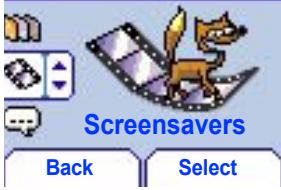
From the Background menu select the Screensavers menu and Select.
Select a screensaver from the proposed options and accept.
The chosen screensaver appears on the screen, accept it.
Adjust the screensaver display time (greater than 60 seconds) and accept. The screensaver appears at the end of each period of inactivity.
Greeting msg
This menu allows you to customise your greeting message.
Background
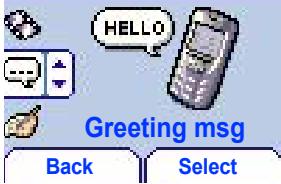
From the Background menu select the Welcome text menu and Select.
Enter the text that you want to see appear in the greeting message (when you switch on) and accept.
Settings

natural_image
Pixelated illustration of a wrench (no text or symbols)This menu allows you to customise the settings of your telephone to make it as convenient as possible for you to use.
Date / Time
This menu allows you to set the date and time of your telephone.
Settings


natural_image
Illustration of a notebook with a red number and a wristwatch (no text or symbols)Date / time
Back
Select
From the Settings menu select the Date / Time menu and Select.
Date: set the date by entering it directly in digital form or by using the down / up ▼▲ keys.
Use the right key ▶ (or left ◀) to access the next (or last) input field.
Once the date is correct, accept it.
Time: same procedure as for setting the date.
My Objects
This menu allows you to find out how much memory has been used for objects.
Settings


natural_image
Illustration of a file organizer with documents and a folder (no text or symbols)My Objects
Back
Select
From the Settings menu select the My objects menu and Select.
The list of your objects is displayed: ringtones, icons, wallpapers, screensavers ordered by storing date. A © icon, displayed in the title bar, indicates if the object is protected with a copyright: it won't be possible to forward it by MMS.
The amount of memory in use is displayed. This memory is divided between all your downloaded objects.
You can delete your objects to increase the memory available for new downloads.

natural_image
Pixelated illustration of a wrench (no text or symbols)Languages
This menu allows you to choose your telephone's display language.
Settings
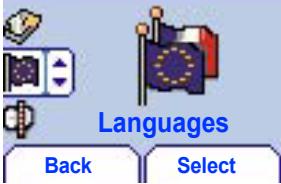
From the Settings menu select the Languages menu and Select.
Select the language of your choice and accept.
If you select Automatic, the display language will be the language of your SIM card.
Networks
This menu allows you to configure network preferences.
Settings
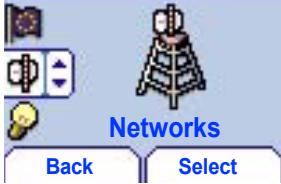
From the Settings menu select the Networks menu and Select.
Choose Preferred to view all the pre-registered networks.
Choose Selection to activate (automatically or manually) one of the networks accessible in the area in which your are located.
Choose GPRS to select the way you want to be attached on the GPRS network: always, or only when needed (when launching a data connection).

natural_image
Pixelated illustration of a wrench (no text or symbols)Contrast
This menu is used to adjust screen contrast.
Settings


Back
Contrast
Select
From the Settings menu select the Contrast menu and Select.
A test screen allows you to adjust the contrast by means of the down / up ▼▲ keys and enter.
Energy saving
This function is used to deactivate the screen backlight.
Settings


natural_image
Pixelated illustration of a yellow sun and a mobile phone (no text or symbols)Energy saving
Back
Select
From the Settings menu select the Energy saving menu and Select.
Activate or deactivate the backlight and accept.
By deactivating the screen backlight you increase the battery life of your telephone.
Attention: display legibility is reduced.

natural_image
Pixelated illustration of a wrench (no text or symbols)Shortcuts
This menu allows you to allocate functions to the programmable keys.
Settings

Back
From the Settings menu select the Shortcuts menu and Select.
Select the key that you wish to modify and accept.
Choose the function that you want to allocate to this key and accept.
Reset Settings
This menu allows you to reset all your telephone's settings.
Settings

Back
From the Settings menu select the RES menu (Reset) and Select.
Attention: you are about to lose all the downloaded objects and all the settings made on your telephone since you bought it.
A validation screen allows you to confirm this choice.
The telephone switches off and resets automatically when powered up to take account of the change of settings.

natural_image
Pixelated icon of a folder with a globe inside, pointing right (no text or symbols)The Calls menu allows you to manage and consult all your telephone's incoming and outgoing calls that are marked as follows:

Incoming call

Outgoing call
Forward calls
This menu allows you to transfer calls addressed to you.
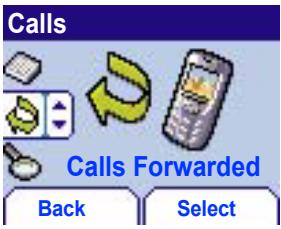
Depending on your subscription, this service allows you to redirect incoming calls to a different number or answer phonebox.
From the Calls menu select the Calls Forwarded menu and Select.
Choose the type of forwarding you want from the options available.

natural_image
Pixelated icon of a folder with a document and arrow, no readable text or symbolsFast access to the list of calls from the home page: press the Start √ key.
View last calls
Calls

natural_image
Illustration of a magnifying glass over a document with a leaf icon (no text or symbols)View last calls
Back
Select
This menu allows you to access the list of last numbers used.
From the Calls menu select the View last calls menu and Select.
Each call contains information on type of call (in the form of an icon), time (or date) and duration.
Select a call from the list and accept.
Choose from the options offered (Call, store in your phonebook, send a message, delete, delete all).
You can also make the call by pressing the Start √ key.
Counters
Calls
Back
Select
This menu allows you to consult the duration of the up calls.
It can also be used to consult the volume of data last exchanged in GPRS.
From the Calls menu select the Counters menu and Select.
Choose the type of counter you want from the options offered.

natural_image
Pixelated icon of a folder with a document and arrow, no readable text or symbolsDisplay numbers
This menu allows you to modify the status of the display number function.
From the Calls menu select the Display number menu and Select.
Choose from the options offered (Anonymous mode, My number, Caller's number).
Anonymous mode
You have the facility to mask your number on the telephone of the person you are calling.
Initial: network default mode.
No: you choose not to activate anonymous mode and so to display your number.
Yes: you choose to active anonymous mode and so not to display your number.

natural_image
Pixelated icon of a folder with a globe inside, pointing right (no text or symbols)During a call you may be informed that a caller is trying to reach you: you hear a special tone. The caller's number is displayed on the screen (or the caller's store if it has been stored).
Call waiting
(Operator-dependent service)
Calls



natural_image
Illustration of a mobile phone with two yellow arrows pointing to it (no text or symbols)
Call waiting
Back
Select
From the Calls menu select the Call waiting menu and Select.
You can activate, deactivate, or consult the status of the call waiting service in order to check if it is active or not.
During a call, if a second caller tries to contact you, the screen displays the call warning.
Automatic redial
This menu allows you to call back a caller who has not managed to reach you.
Calls



natural_image
Illustration of a mobile phone with two yellow arrows pointing at it, no text or symbols present.
Auto. redial
Back
Select
From the Calls menu select the Automatic redial menu and Select.
You can set the redial function to inactive, on demand or systematic.
If you choose On demand, your telephone will offer to redial your caller automatically if his number is busy.

natural_image
Pixelated icon of a document with a magnifying glass, pointing right (no text or symbols)Answer phone number
This function is used to programme your answer phone number.
This number will be used during a call to the voice mailbox using the programmable keys.
From the Calls menu select the Answer phone number menu and Select.
Enter your answer phone number and accept.
Security

natural_image
Pixelated illustration of a padlock with a key inserted (no text or symbols)This menu allows you to configure your telephone's security settings.
Keypad locking
This menu allows you to lock the keypad to avoid unauthorised use.
Security
Back
Select
From the Security menu select the Lock keypad menu and Select.
Select Activate or deactivate and accept.

The lock icon appears on the home page.
This function is also available in the home page via a combination of the * and Select keys (right programmable key).
PIN number
This menu allows you to activate and modify your telephone's PIN.
Security

natural_image
Icon set showing a lock, padlock, phone, and key (no text or symbols)
Back
PIN number
Select
From the Security menu select the PIN number menu and Select.
To modify the PIN, select Modify and Select.
Enter old PIN and accept.
Enter new PIN twice and accept.
To activate or deactivate the PIN, select the Check PIN menu and Select.
Enter PIN and accept.
Select Activate or Deactivate and accept.
Security

natural_image
Pixelated illustration of a padlock with a key inserted (no text or symbols)The Phone code menu allows you to activate the phone code so that it is requested and checked whenever the phone is switched on if a different SIM card is used. This code is automatically linked to the SIM card installed when the phone is activated.
PIN number 2
You have a second PIN number to allow you to access certain functions*.
Security

* This function may or may not be available depending on your SIM card.

Proceed as above in order to activate, deactivate or modify PIN number 2 of your telephone.
Back
Select
Phone code
The phone code is a secret code intended to protect the phone if stolen.
Security
natural_image
Illustration of a mobile phone with a keypad and two icons (no text or symbols)To activate or deactivate the phone code, select the Phone code menu and accept.
Enter 0000 and accept.
Select Activate or Deactivate and accept.

To modify the phone code, select Modify and accept.
Enter old phone code and accept.
Enter new phone code and accept.
Enter phone code again to verify it and accept.
Back
Select
Security

natural_image
Pixelated illustration of a padlock with a key inserted (no text or symbols)The Confidentiality function is used to delete numbers stored in View last calls and the SMS stored in the memory when a new SIM card is inserted into the phone.
Confidentiality
This menu allows the activation of automatic deletion, after power off/on, for messages and/or calls stored in the mobile.
Security

Back
From the Security menu, select the Confidentiality menu and Select.
Select Activate or Deactivate and accept.
Operator code
This menu allows you to modify the call barring.
Security

natural_image
Simple line icons showing a hand holding a document and a key, with no text or symbols present.
Operator code
Back
Select
From the Security menu, select the Operator code menu and Select.
Access to this service depends on your type of subscription.
Security

natural_image
Pixelated illustration of a padlock with a key inserted (no text or symbols)Call barring can be applied to ALL calls (incoming and outgoing), to all incoming calls when you are away from your home country (if roaming available).
Call barring
This menu allows you to block the sending or reception of certain calls..
Security
Back
Before you can use this service, a password will be provided by your operator when you take out your subscription.
From the Security menu, select the Call barring menu and Select.
Select Activate or Deactivate and accept.
Access to this service depends on your subscription type.
Fixed dialling
This menu allows you to restrict the sending of calls.
The availability of this menu depends on your SIM.
Security

natural_image
Two pixelated icons: a red gear icon and a yellow book with a padlock, both without any text or symbols.
Fixed dialling
Back
Select
From the Security menu, select the Fixed dialling menu and Select.
Enter PIN number 2 and accept.
Select Activate or Deactivate and accept.
Proceed as for any other phonebook.
By activating this function, you can send calls only to the numbers stored in this phonebook.
This phonebook is linked to the SIM card, and its size depends on the card's capacity.
Accessories

natural_image
Pixelated illustration of a red and silver knife (no text or symbols)This menu allows you to access the various accessories offered by your telephone: calculator, converter, alarm, timer, car kit, data parameters.
Accessories
This menu allows you to use your telephone as a calculator.
Accessories
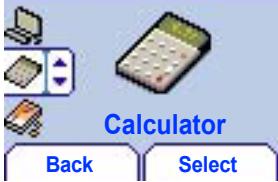
From the Accessories menu, select the Calculator menu and Select.
You can use the calculator with the help of the following keys:
Up key: Add
Down key: Subtract
▶ Right key: Multiply
Left key: Divide
Right programmable key: Equals
Left programmable key: Delete
* 5 9 # * key or #: Decimal point.
If no calculations are being run, the Right programmable key ◯ allows you to use the value in the converter directly.

natural_image
Pixelated illustration of a red and silver knife (no text or symbols)Converter
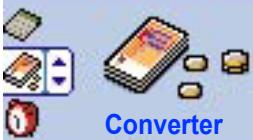
This menu allows you to convert one currency to another.
Accessories
Back
From the Accessories menu, select the Converter menu and Select.
Enter a value and press the Up key to convert from one currency to another, or the Down key to convert back.
The right programmable key ◇ allows you to use the following options:
Rapid exchange
If you check the Rapid exchange box, the converter will work in the home page by entering the desired numbers and pressing the up / down ▼▲ keys to make the conversion.
Exchange rate
Enter the rate of exchange corresponding to the chosen currencies.
Currencies
Enter the two types of currencies to be converted.
Go to calculator
This option allows you to use immediately the value converted in the calculator.
Accessories

natural_image
Pixelated illustration of a red and silver knife (no text or symbols)The alarm works even when the mobile is switched off.
Alarm
This menu allows you to set and activate the alarm.
Accessories
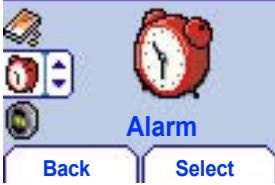
From the Accessories menu, select the Alarm menu and Select.
Activate or Deactivate the alarm and accept.
Set the waking time by entering the numbers directly or using the down / up ▼▲ keys and accept.
The alarm icon appears on the home page.
Timer
This menu is used to set and activate the timer.
Accessories
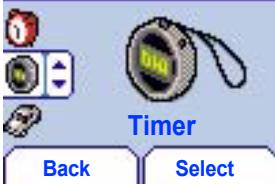
From the Accessories menu, select the Timer menu and Select.
Activate or Deactivate the alarm and accept.
Set the duration by entering the numbers directly or using the down / up ▼▲ keys and accept.
The alarm icon appears on the home page.

natural_image
Pixelated illustration of a red knife with a silver blade (no text or symbols)Car kit
This menu allows you to configure your telephone with a car kit.
Accessories

Back
From the Accessories menu, select the Car kit menu and Select.
Choose from the options offered (Automatic response, Switch off, Alarm timing, Hands-free volume control).
Data
This menu is used to configure the data exchange with another device (Personal Digital Assistant, PC etc).
Accessories

natural_image
Illustration of computer and data icons (no text or symbols)Back
From the Accessories menu, select the Data parameters menu and Enter.
With the IRDA menu, you can activate the infrared connection from your myX-5; this allows you, for example, to connect your handset to your computer, in order to download new pictures or ring-tones, using the “my Picture and sound” software (available on http://www.sagem.com).
Use the Speed menu to configure the data transfer speed if you are using AT commands.
If there is a modem embedded in your telephone, you can connect it to your computer in order to receive data or fax through GSM or GPRS network: configure the connection parameters of your computer using the Wellphone CD supplied as an accessory.
Services

natural_image
Pixelated illustration of a shell with a musical note (no text or symbols)This menu allows you to access numerous services offered by your operator. The list of these services will appear in the menu depending on your subscription.
Services
This menu allows you to access your operator's basic services.
From the Services menu, choose from the list offered.
This list depends on your SIM.
Use of your telephone is subject to safety measures designed to protect users and their environment.
Electrical safety:
Only use those chargers listed in the manufacturer's catalogue. Using any other charger may be dangerous; it would also invalidate your warranty. Line voltage must be the same as that indicated on the charger's serial plate.
Aircraft safety:
You must switch off your telephone on aeroplanes when so instructed either by cabin crew or by signs. Mobile phone use may be dangerous to the operation of the aircraft and may disrupt the mobile network.
Explosive materials:
Please comply with signs at petrol stations telling you to switch off your mobile. You must also observe radio equipment usage restrictions in chemical plants, fuel depots and at any location where blasting operations are under way.
Electronic medical equipment:
Your telephone is a radio transmitter which may interfere with electronic medical equipment such as hearing aids, pacemakers, etc. Your doctor or the manufacturers of such equipment will be able to give you any advice you may need in this area. Always make sure that your phone is switched off in hospitals when so instructed by signs or by medical staff.
Road safety:
Except in emergencies, do not use your phone when driving unless you have a hands-free kit enabling you to manoeuvre freely. In order to give your full attention to driving, stop and park safely before making a call. You must comply with any current legislation.
This mobile telephone complies with European requirements governing exposure to radio waves.
Your telephone is a transmitter/receiver. It has been designed and manufactured to comply with radiofrequency energy exposure limits recommended by the Council of the European Union and the ICNIRP for the entire population. These limits were established by independent scientific agencies on the basis of in-depth and regular evaluations of scientific studies. The limits include a large safety margin that is intended to guarantee the safety of all, irrespective of age or state of health.
The exposure standard for mobile telephones uses a unit of measure called the SAR, or Specific Absorption Ratio. The SAR limit recommended by the Council of the European Union and the ICNIRP is 2W / kg^* . Tests were conducted on a standardised usage position basis, with the telephone transmitting at its maximum level certified in all its frequency bands. Although the standardised measurement is done at maximum power, the real SAR of the telephone in use is generally very far below the maximum value. The telephone was designed to operate at the power level strictly necessary to ensure communication with the network. In general, the closer you are to a base station, the lower the power at which the telephone will transmit.
Validation of conformity with European directive 1999/5 (directive R&TTE) is a pre-requisite for introducing any model of telephone onto the market. Protection of health and the safety of the public and the user are a vital requirement of this directive.
This model's maximum SAR value measured in the conformity test is 0.64 W/kg.
Although differences may exist from one telephone to the other and depending on position, all comply with European regulations.
*The SAR limit for telephones used by the general public is 2 watts/kilogram (2 W/kg) on average for 10g of tissue. This value includes a large safety margin to increase protection and to take account of the variations in measurements. The SAR information may vary in different parts of the world, depending on declared national requirements and the frequency bands used by the network.
Usage precautions
Your mobile telephone allows you to download ring tones, icons and animated screensavers. Some of these items may contain data that may cause malfunctions of your mobile telephone or data losses (virus for example).
For this reason, Sagem rejects all responsibility concerning (1) the reception of downloaded data or losses of the said data, (2) the impact on the operation of the mobile telephone and (3) damages resulting from receiving the said downloaded data or loss of said data. In addition, Sagem states that a failure caused by receiving downloaded data that do not comply with the specifications set by Sagem is excluded from the warranty. Consequently, the diagnosis and repair of a mobile infected by the said downloaded data will be at the expense of the customer.
Warranty conditions
Whenever you wish to make use of the warranty, please contact your vendor and present him with the purchasing paperwork that he gave you.
If a fault occurs, he will advise you.
If you bought your telephone directly from SAGEM SA, the following rules will apply:
1.
The new equipment (excluding consumables), including new accessories bundled with the telephone, are guaranteed by SAGEM SA, parts and labour (apart from travel) against any manufacturing fault for a period of twelve (12) months with effect from the sale of the equipment by SAGEM SA to the customer, on presentation of the paperwork stating the purchase date of the equipment.
Equipment that has been repaired or replaced as standard during the warranty period stated above is guaranteed (parts and labour) until the later of these two dates:
Expiry of the guarantee period of twelve (12) months stated above or three (3) months with effect from the support provided by SAGEM SA.
In any disputes, the equipment is covered by the legal warranty against the consequences of faults or hidden defects in compliance with articles 1641 and subsequent of the French civil code.
2.
All faulty equipment under warranty will be replaced or repaired free of charge at SAGEM SA's option (with the exclusion of repair of any other damage), once it has been specified that the work required for the application of the warranty will be done in a workshop and that the return costs (transport and insurance) of the equipment to the address to be indicated to it by the SAGEM SA after-sales service, whose telephone number will appear on the delivery note, will be charged to the customer.
Subject to essential legal provisions, SAGEM SA does not accept any warranty, explicit or implicit, other than the warranty provided expressly in this chapter, nor shall SAGEM SA accept responsibility for any immaterial and/or indirect damages (such as loss of orders, loss of profit or any other financial or commercial damage) under the warranty or not.
3.
The acceptance of an item of equipment under warranty demands that a purchase document that is legible and without modification, stating vendor's name and address, date and place of purchase, type of equipment and IMEI, are attached to the warranty, and that the information on the equipment identification label is legible and that this label or any other seal has not been tampered with.
The warranty applies in normal conditions of use.
Prior to sending the equipment for repair, it is the customer's responsibility to backup at his expense the customised data stored in the equipment (phonebook, settings, wallpapers). A list of backup facilities can be provided by SAGEM SA on request. The responsibility of SAGEM SA cannot be invoked if damage occurs to customer files, programs or data. The information or operating elements and the contents of files will not be re-installed in any case in the event of loss.
SAGEM SA may decide, at its option, to repair the equipment with new or reconditioned parts, replace the equipment with new equipment or, in any dispute, equipment in good working condition. During its work SAGEM SA reserves the facility to make, where necessary, any technical modifications to the equipment where these modifications do not adversely affect its initial purpose.
Faulty parts to be replaced during a repair under warranty will become the property of SAGEM SA.
The equipment repair and standstill time during the warranty period may not lead to an extension of the warranty period as stated in article 1 above, provided no other vital provisions have been agreed.
The application of the warranty is subject to the full payment of the sums due for the equipment when the request for support is made.
4.
The following are excluded from the warranty:
Breakdowns or malfunctions due to non-compliance with the installation and use instructions, to an external cause of the equipment (shock, lightning, fire, vandalism, malice, water damage of any type, contact with various liquids or any harmful agent, unsuitable electric current...), to modifications of the equipment made without the written consent of SAGEM SA, to a servicing fault, as described in the documentation supplied with the equipment, to lack of supervision or care, to poor environmental conditions of the equipment (especially temperature and hygrometry, effects of variations in electric voltage, interference from the mains network or earth) or even due to a repair, a call-out (opening or trying to open the equipment) or to servicing done by personnel not approved by SAGEM SA.
Damage resulting from inadequate packaging and/or poor packing of the equipment sent back to SAGEM SA.
Normal wear and tear of equipment and accessories.
Communication problems linked with a poor environment, especially:
Problems accessing and/or logging onto the Internet, such as breakdowns of the access network, the failure of the subscriber's or his correspondent's line, transmission fault (poor geographic coverage by radio transmitters, interference, disturbance, fai-lure or poor quality of telephone lines...), a fault inherent to the local network (cabling, file server, user terminal) and/or transmission network fault (interference, disturbance, failure or poor quality of the network...).
Change of parameters of the cellular network made after the equipment was sold.
Supply of new software versions.
Current servicing work: delivery of consumables, installation or replacement of these consumables...
Call-outs for equipment or software modified or added without the written consent of SAGEM SA.
Faults or disruptions resulting from the use of products or accessories not compatible with the equipment.
Items of equipment returned to SAGEM SA without having complied with the return procedure specific to the equipment cove-red by this warranty.
The opening or closing of a SIM operator key and call-outs resulting in the non-operation of the equipment resulting from the opening or closing of SIM operator key done without the agreement of the original operator.
5.
In the cases of warranty exclusion and of expiry of the warranty period, SAGEM SA shall draw up an estimate to be given to the customer for acceptance before any call-out. The repair and carriage costs (there and back) given in the accepted estimate will be charged to the customer.
These provisions are valid unless a special written agreement has been made with the customer. If one of the provisions turns out to infringe a legally essential rule that consumers could have the benefit of under the national legislation, this provision will not be applied, but all other provisions will remain valid.
Troubleshooting
| PROBLEM - SITUATION | ACTIONS | |
| Impossible to start mobile | Hold down theStartkey (3s).Charge the mobile for at least 15 minutes before starting it again.Check the battery change icon scrolls.Yes: charge correct.No: disconnect the charger, then reconnect it, check that the battery icon scrolls. Press the right programmable key "Start".If the icon continues not to scroll, repeat the disconnect and connect operation several times. If the battery still does not charge, contact the after-sales service.When the charge battery icon has stopped flashing, the battery is charged. | |
| BATTERY STATE UNKNOWN message | The battery has not been recognised by the mobile. Check that the battery is correctly installed in the mobile. | |
| LOW BATTERY message | This message is displayed when the battery becomes too weak. The mobile switches itself off automatically. Put the mobile on charge. | |
| SIM ABSENT message | Check SIM card is present and properly installed.Visually check the SIM card. If the card is damaged, contact the operator's point of sale to check. If the message continues, contact the after-sales service. | |
| PIN INCORRECT Message | PIN keying error. Caution: after three attempts, the SIM card is locked. | |
Troubleshooting
| PROBLEM - SITUATION | |
| SIM LOCKED message | Three wrong PIN have been entered. Enter your PUK code to unlock the SIM card.You must then enter: **05*PUK*PIN*PIN#PUK: PUK (Personal Unblocking Key) code supplied by your operator.PIN: your PIN.After 10 failed attempts, the SIM card is permanently locked. You will then need to contact your operator or SMC to obtain a new SIM card. |
| LOCK SIM | At the request of the operator, the mobile may be used only with certain types of SIM cards. This message indicates that the SIM card used is not suitable.Remove the SIM card and restart the mobile. If the SIM ABSENT message appears, check the compatibility of the SIM card with the company that sold you the mobile. Otherwise, contact the after-sales service. |
| No call connection | Check the called number. Check that at least one signal strength bar is present. If the R icon appears without any operator name being displayed, only emergency calls are possible.Check that your call credit with your operator has not been used up.Check that the SIM card used offers the service that you are requesting and that its validity has not expired.Check and deactivate the restriction on outgoing calls if necessary.The network is overloaded. Call again later.If the poor call connection persists, contact the hotline. |
Troubleshooting
| PROBLEM - SITUATION | ACTIONS |
| No call reception | Try to make a call to check that the mobile and the network are operational. Check and deactivate the permanent calls forwarded (permanent calls forwarded icon displayed). Check and deactivate the restriction on incoming calls if necessary. If the poor reception persists, contact the hotline. |
| Network reception less good during a call | Avoid holding the telephone with your fingers at the top of the rear cover; this creates an obstacle for the antenna located at this spot. |
| Impossible to send message | Check that the SIM card used offers this service. Try to make a call to check that mobile and network are operational. Check the answer phone number is properly configured. To do this, go to the "Calls" menu, select "Answer phone number" and check the number. Otherwise, enter your operator's answer phone centre number. |
| No answer phonebox | Check that the SIM card does offer this service. Programme the call to be forwarded to answer phoneusing the information provided by the operator. |
| Answer phone icon flashing | Call the answer phone to make it disappear. |
| Wrong ringtone is played on call reception | Check the call group selected for the contact which has called: check the ringtone selected for this call group. |
Troubleshooting
| PROBLEM - SITUATION | ACTIONS |
| Backlight does not work | Go into the "Settings" menu, select the "Energy saving" menu and activate backlight |
| In WAP context:SERVER NOT ANSWERING message | Switch off and then switch telephone back on. |
| Logon to home page impossible | In the WAP menu, Clear the cache. |
| Operator name does not appear on screen | Go into the "Settings" menu, select "Networks", then "Selection". Wait until the operator appears, select it and accept. |
| How do I (un)lock the keypad? | Hit * : key, then the right programmable key (OK). |
| How do I switch to silent mode? | Hold * : key down unless ring tone sounds, when a short touch is enough. |
| How do I activate zoom? | Can be activated only in SMS and WAP screens; hold down ?# key. |
| How do I remove the envelop that appears on the screen? | This envelop means that you have written or answer phone. To remove it, all you need to do is enter the "Messages" menu to read your messages. The envelop is then deleted. In the case of a voice message, contact your answer phonebox and let it guide you. |
| How do I lift the receiver that appears on the screen? | This receiver means that you have received answer phone in your message box. To remove it, call your answer phone. |
Troubleshooting
| PROBLEM - SITUATION | ACTIONS |
| How do I remove the written message at the bottom of the home page (1 call) | Press the Stop key to return to the home page without messages. |
| How do I download ring tones? | Logon to one of the following sites via your computer: www.planetsagem.com, www.kiwee.com. These sites offer to send ring tones to your mobile in the form of an SMS. You can also logon to your operator's site. Once the SMS has been received, all you have to do is save it: accept the option "Save messages", the tune will then be added to your list. In addition, you can logon to some sites by telephone. |
| How do I free up memory to download my objects (sounds, images) | Go into the Settings menu, select My objects then delete some objects. |
| How do I free up memory to receive new messages? | Manage your Outbox carefully. Sagem recommends that messages are not stored in your Outbox by default because if too many messages are saved, the telephone memory will soon become full and no further messages will be received. To remove messages from your Outbox, go into the Messages menu, select Outbox then delete some messages. Manage your Inbox carefully also. |
| How do I free up memory to store new contacts in my Phonebook? | It is also important that you manage your Phonebook carefully. If you have received photographs in a vCard, detach them to your Wallpaper or delete them |
| How can I increase the efficiency of my telephone? | The most efficient actions are as follows:You can deactivate the backlight (in the menu Controls / Energy Saving), or be carefully where you keep your telephone to make sure that the keys can't be pressed accidentally because any key press will activate the backlight.You can deactivate the screensaver or select the activation time to be more than every 300s (the screensaver uses processing power).Make sure that you don't obstruct the antenna with your fingers when using the telephone (see p12). |
A
Accessories p6
Accessories (menu) p55
Activating your telephone p10
Adapter p6
Alarm p57
Anonymous mode p48
Answer phone number p50
B
Background p40, p41
Battery p11
Charging the battery p13
Installing the battery p11
Beeps p39
C
Calculator p55
Call barring p54
Call groups p18
CALLS (menu) p46
Automatic redial p49
Call waiting p49
Calls forwarded p46
Counters p47
Display numbers p48
View last calls p47
Car kit p58
CD p6
Changing cover p12
Charger p6
Colours p40
Confidentiality p53
Contact p15
Add contact p15
Delete p17
Modify contact p17
See contact p16
Contrast p44
Converter p56
Currencies p56
D
Data p58
Date and time p42
Description p7
Downloaded games p37
E
Energy saving p44
F
Fax p58
Fixed dialling p54
G
GAMES p37
GPRS p34 to p36
Greeting msg p41
GSM p34
H
Home page p9
I
Icon p8, p9
Input modes p24 to p27
IP address p34, p35
K
Keypad locking p7, p51
L
Languages p43
Local info p31
Lock keypad p51
M
Megabox Conquest p37
Memory p18, p31
Menus p2
Messages p25
Compose p25
Drafts p29
Inbox p28
MMS p25
Receiving messages p27
Sending options p29
MMS p25
N
Networks p43
O
Objects p42
Operator code p53
P
Phone code p52
Phonebook p14
Phonebook menu p15
Using the phonebook p14
PIN number p10, p51
PIN number 2 p52, p54
Principles of navigation p8
Programmable keys p7
R
Reset setting p7, p45
Ring tones p38
S
Screensavers p41
Security p51 to p54
Send options p29
Services p59
Settings p42
Shortcut keys p7, p45
Silent mode p39
SIM (card) p10, p11
SMS p22
Sounds p38, p39
T
T9 p23
Technical Features p60, p61
Text p25 to p27
Timer p57
Troubleshooting p65 to p68
V
vCard p20
Vibrate p38
Voicemail p50
Volume p38
W
Wallbreaker p37
Wallpapers p40
WAP p32 to p36
Configuring WAP parameters p33 to p35
Downloading objects p36
Services menu p32, p33
WAP logging off p36
WAP logging on p35
Warranties p62 to p64
Y
Your phone package p6
- Phonebook
- Messages
- WAP
- Games
- Sounds
- Background
- Settings
- Calls
- Security
- Accessories
- Services
- Contents
- Page 32 to 36
- Page 37
- Page 38 to 39
- Page 40 to 41
- Page 42 to 45
- Your phone package - Accessories
- Programmable keys and Shortcut keys
- Stop key:
- Start key: Press briefly: Starts phone
- Left programmable key:
- Right programmable key:
- \* Key:
- Principles of navigation
- - The title bar icons:
- Information on the SIM card
- ATTENTION
- Installing the SIM card and installing the battery
- Don't obstruct the antenna with your fingers
- Increase the efficiency of your phone
- Charging the battery
- To recharge the battery:
- Using the phonebook
- Phonebook menu
- Add contact
- See contact
- Copy to sim
- Modify contact
- Delete
- Photo
- Last name
- First name
- Number1
- Copy to SIM / Copy to phone
- Call
- Send message
- Call groups
- Memory
- My numbers
- Creating new groups:
- Creating a group
- Sending a VCARD
- Receiving a VCARD
- Compose SMS
- Using T9 Mode
- Input modes
- Upper case:
- Punctuation characters
- Accented characters
- Compose MMS
- Saving your message
- Sending MMS messages
- Receiving MMS messages
- Receiving messages
- Inbox
- Inbox (2)
- Philippe Lemaire
- Sagem on-line "New Laure" Reunion en sa
- Drafts
- Sending options
- MMS settings
- MMS server
- Save msgs sent
- Retrieval mode Default priority
- Outbox
- Local info
- The WAP Menus
- Configuring WAP parameters
- Configuration of WAP and GPRS parameters:
- The GSM parameters to be entered are:
- WAP Logging on
- Downloading objects
- WAP Logging off
- GPRS
- Embedded Games
- Downloaded games
- Volume and ring tone
- Ring tones
- Vibrate
- Silent mode
- Beeps
- Colours
- Wallpapers
- Screensavers
- Greeting msg
- Date / Time
- My Objects
- Languages
- Networks
- Contrast
- Energy saving
- Shortcuts
- Reset Settings
- Forward calls
- View last calls
- Counters
- Display numbers
- Anonymous mode
- Call waiting
- Automatic redial
- Auto. redial
- Answer phone number
- Keypad locking
- PIN number
- PIN number 2
- Phone code
- Confidentiality
- Operator code
- Call barring
- Fixed dialling
- Converter
- Rapid exchange
- Exchange rate
- Currencies
- Go to calculator
- Alarm
- Timer
- Car kit
- Data
- Electrical safety:
- Aircraft safety:
- Explosive materials:
- Electronic medical equipment:
- Road safety:
- Usage precautions
- Warranty conditions
- 1.
- 2.
- 3.
- 4.
- 5.
- Troubleshooting
- A
- B
- C
- D
- E
- F
- G
- H
- I
- K
- L
- M
- N
- O
- P
- R
- S
- T
- V
- W
- Y
Marque : SAGEM
Modèle : MYX-5M
Catégorie : Téléphone mobile