
P463 SST - Skjerm NEC - Gratis bruksanvisning og manual
Finn enhetens veiledning gratis P463 SST NEC i PDF-format.


Brukerspørsmål om P463 SST NEC
0 spørsmål om dette apparatet. Svar på dem du kjenner, eller still ditt eget.
Still et nytt spørsmål om dette apparatet
Last ned instruksjonene for din Skjerm i PDF-format gratis! Finn veiledningen din P463 SST - NEC og ta den elektroniske enheten tilbake i hendene. På denne siden er alle dokumenter som er nødvendige for bruken av enheten din publisert. P463 SST av merket NEC.
BRUKSANVISNING P463 SST NEC
NEC
"MultiSync® P403 SST"
"MultiSync® P463 SST"
"MultiSync® P553 SST"
"MultiSync® P703 SST"
"MultiSync® P801 SST"
User's Manual
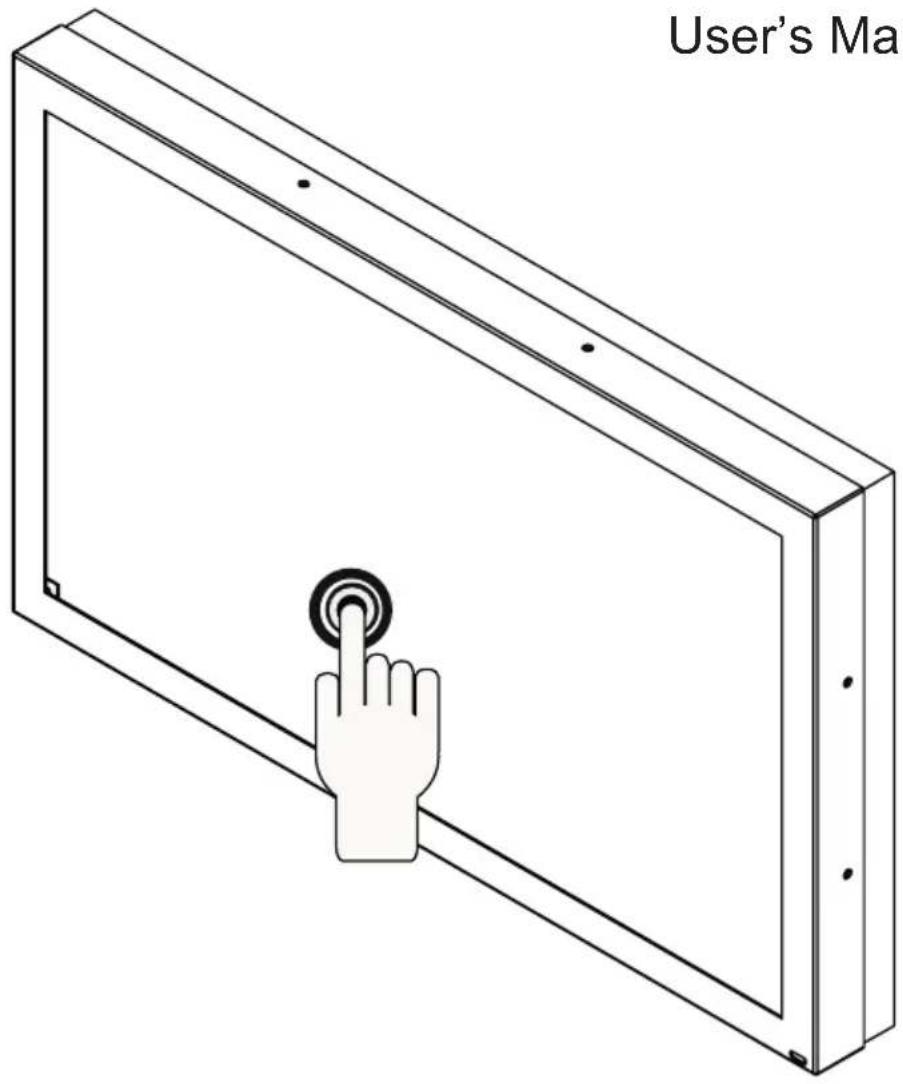
For using Touch Panel
- Turn off the monitor.
- Install the equipment.* 1
- Using slot 2 type PC:
Connect the slot 2 type PC into the option board slot. Connect the B type connector to the USB upstream port on the left back side of the monitor and the A type connector to the downstream port on the slot 2 type PC.
NOTE: Please refer to the slot 2 type PC's manual for connection.
NOTE: When you set option board accessory other then slot 2 type PC, touch function may not work.
- Using external computer:
Connect the B type connector to the USB upstream port on the left back side of the monitor and the A type connector to the downstream port on the external computer (Figure 1).
3. Turn on the monitor.
*1: Please contact your NEC customer support for more detailed information.
Figure 1
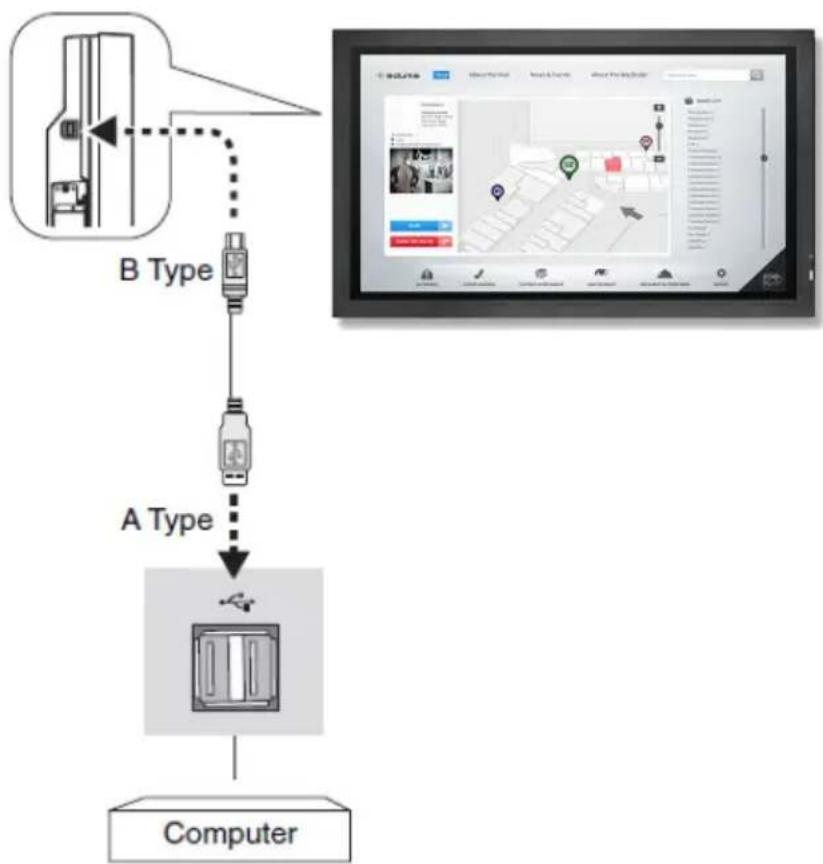
flowchart
graph TD
    A["Device 1"] -->|B Type| B["Device 2"]
    B -->|A Type| C["Computer"]
NOTE: Intelligent Wireless Data (NFC) communication is not supported with NEC ShadowSense touch screens.
Operating System Support Summary
| OS | Single Touch | Native Multi-Touch Support | Custom Multi-Touch Support | Comments |
| Win XP, Win XP Embedded | Yes, mouse emulation | NO | Yes, through Baanto SW Development Kit (SDK) | |
| Win 7 (all) | Yes Yes | Yes, through Baanto SW Development Kit (SDK) | ||
| Win8 (all) | Yes Yes | Yes, through Baanto SW Development Kit (SDK) | ||
| Mac OSX | Yes, with special EEPROM setting, R6.00 firmware | NO | Yes, through Baanto SW Development Kit (SDK) | Mouse data needs to be adjusted in MAC Os's to work propely. R6.00 Firmware allows user to configure MAC compatibility mode via Dashboard |
| Linux | Yes Yes | Yes, through Baanto SW Development Kit (SDK) | All Linux variants (Fedora, Ubuntu, etc.) require a base Linux kernel of 3.4 for native support. Otherwise, support is not guaranteed but might still be possible with analysis | |
| Android | Yes Yes | Yes, through Baanto SW Development Kit (SDK) | Requires base kernel to be 3.4 or above for support |
Monitor Setting
Select the input signal.
- Using slot 2 type PC. Select [OPTION] - Using external computer:
Select the input signal which is supplied by the PC connected to USB connector.
NOTE: Touch function does not work in PIP mode.
NOTE: Calibration under Windows is an option which can only make the touch screen work more accurate but it is not required.
Re-Calibrated
If the cursor fails to follow exact finger position, the screen can be re-calibrated in the following way:
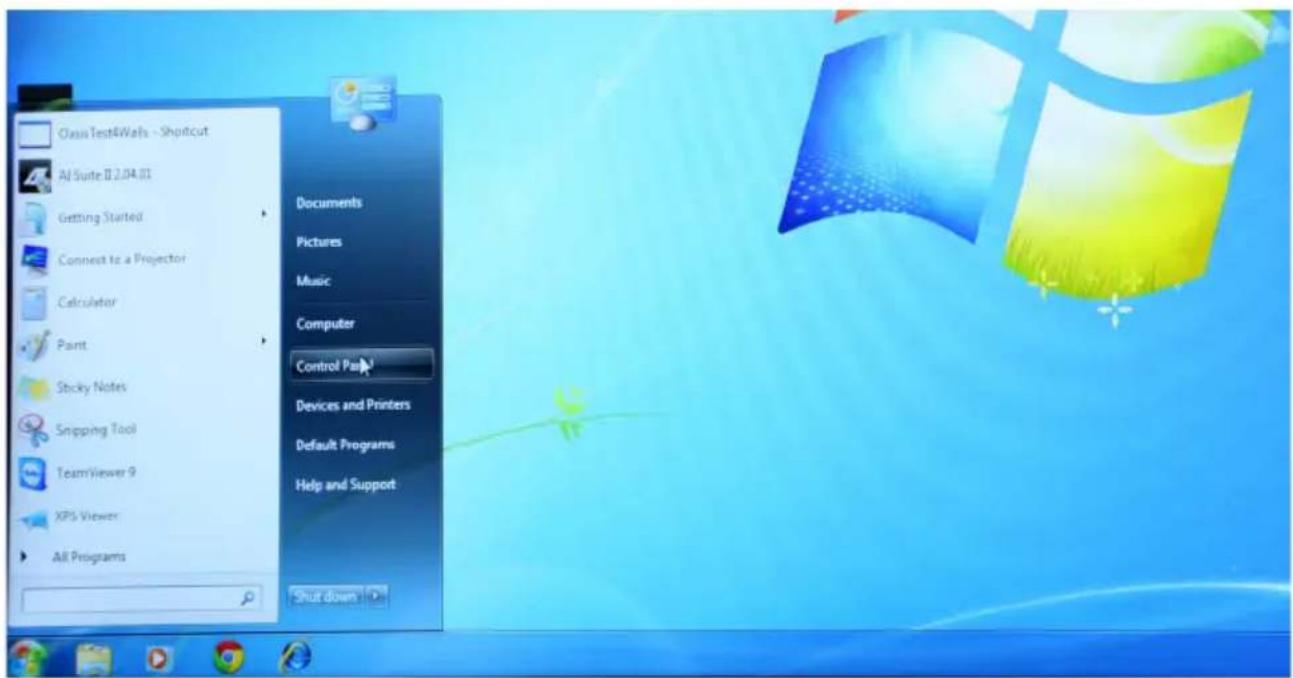
- Open start menu in Windows and select Control Panel.
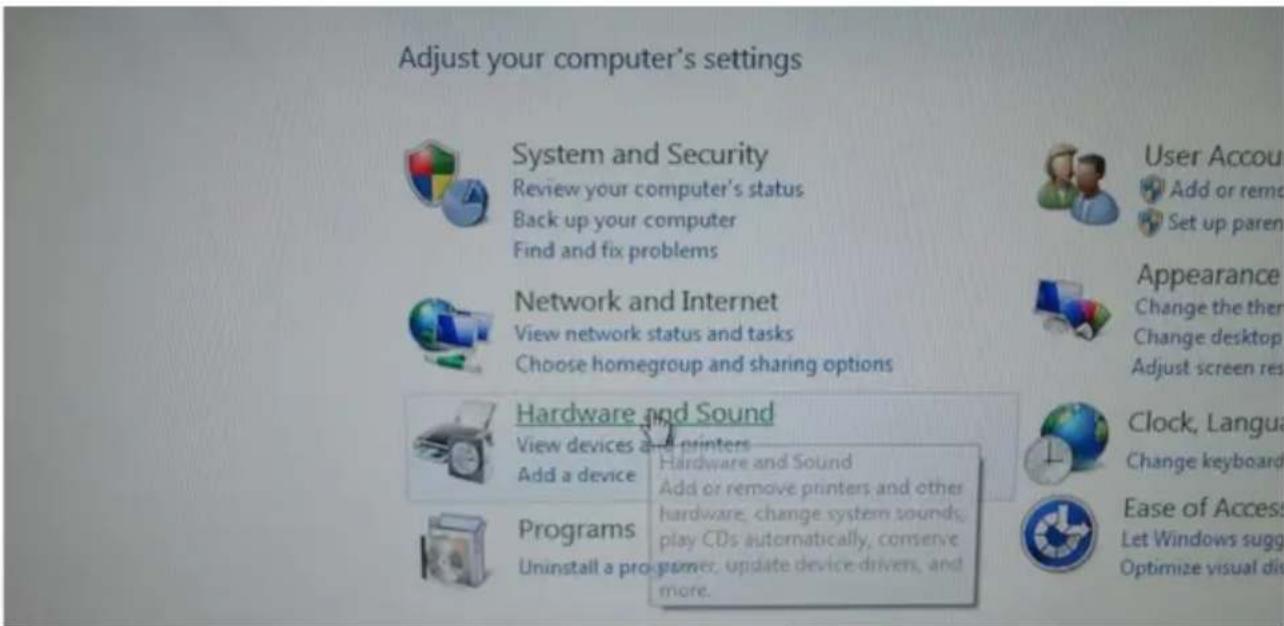
- Open Hardware and Sound settings.
3. Open Tablet PC Settings.
Pen and Touch
Change tablet pen settings | Change settings for Set flicks to perform certain tasks | Change touch
Tablet PC Settings
Calibrate the screen for pen or touch input Choose the order of how your screen rotates
Panel sterowania NVIDIA
4. Press Calibrate button.
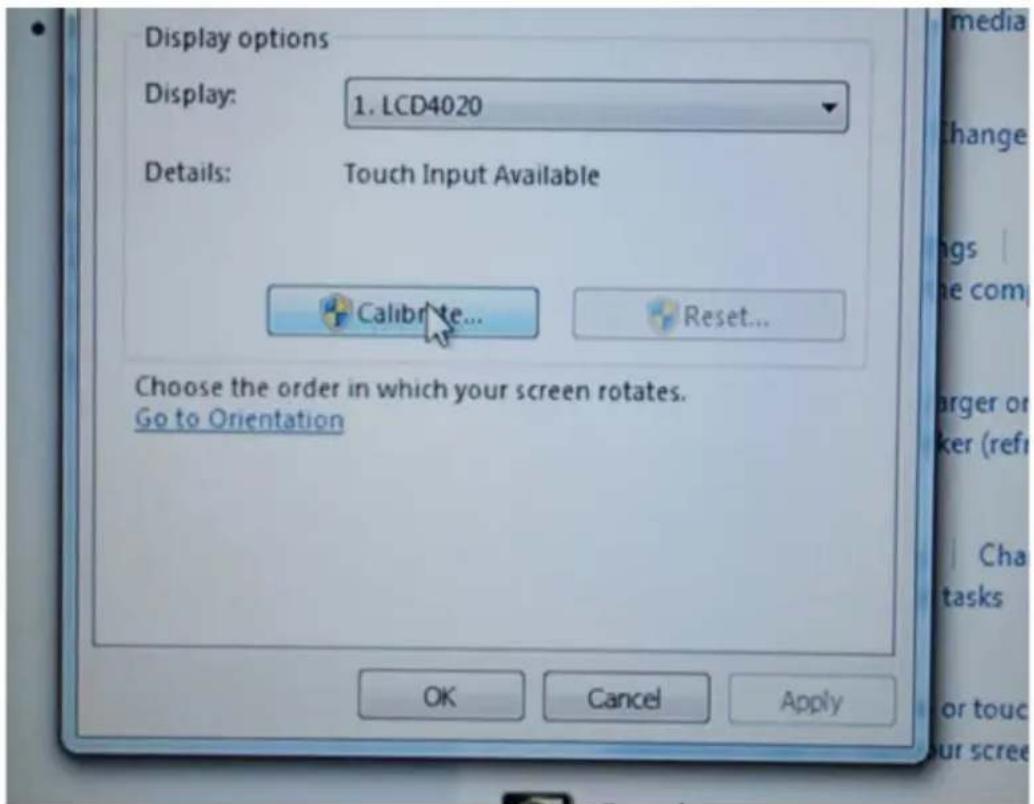
- If User Account Control window pops up, click yes.
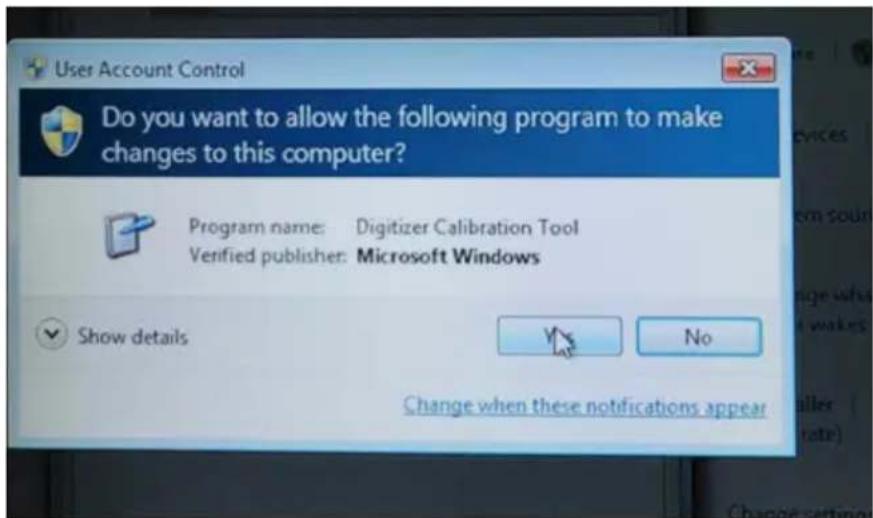
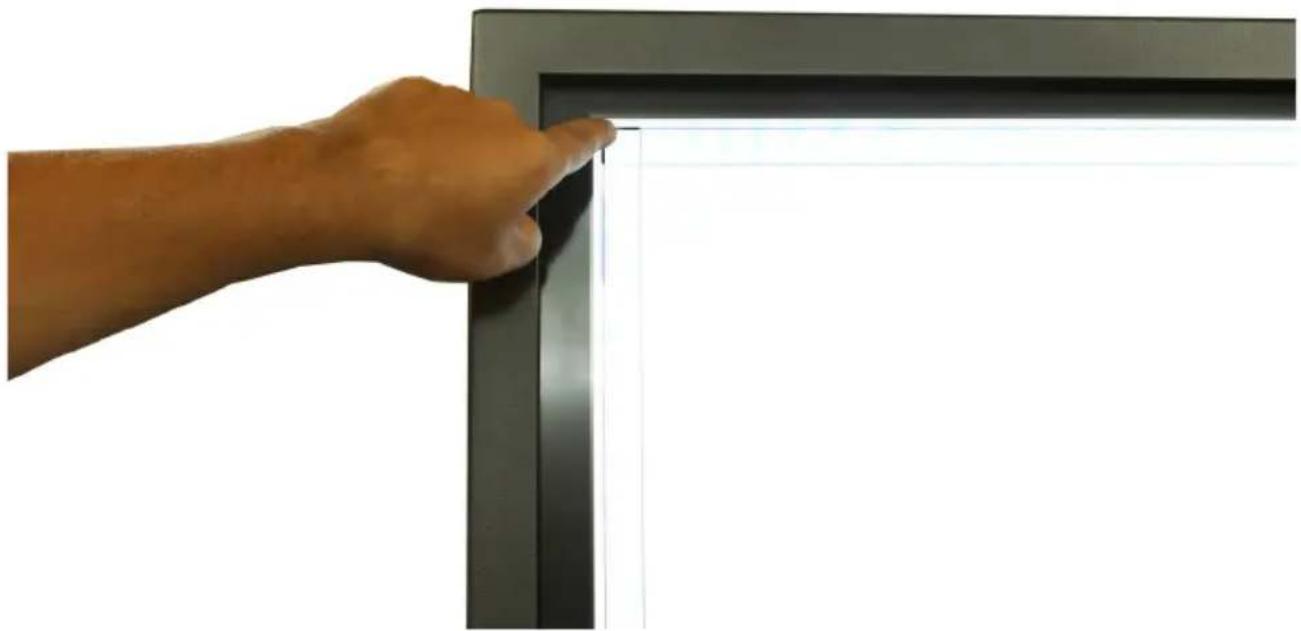
- When the calibration process begins, touch the middle of each cross that appears in bold on the screen; crosses shall appear several times in each corner of the screen. After touching the last cross, the calibration process ends.
NOTE: If the touch is still not precise enough, the whole action can be repeated.
natural_image
Hand holding a black rectangular object with a small white mark, against a white background (no text or symbols visible)Disposal Instruction
NEC products are meeting all EU norms regarding safety, health and environmental requirements.

natural_image
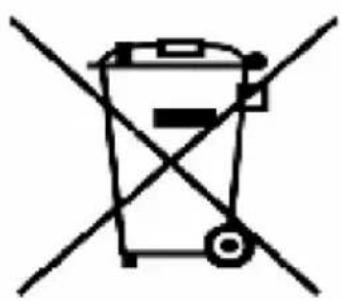
Simple line drawing of a trash bin with two crossed lines indicating no waste or prohibition (no text or symbols)WEEE Mark (European Directive 2002/96/EC)
Within the European Union
EU-wide legislation, as implemented in each Member State, requires that waste electrical and electronic products carrying the mark (left) must be disposed of separately from normal household waste.
This includes monitors and electrical accessories, such as signal cables or power cords. When you need to dispose of your NEC display products, please follow the guidance of your local authority, or ask the shop where you purchased the product, or if applicable, follow any agreements made between yourself and NEC.
The mark on electrical and electronic products only applies to the current European Union Member States.
Outside the European Union
If you wish to dispose of used electrical and electronic products outside the European Union, please contact your local authority so as to comply with the correct disposal method.
NEC

- NEC
- For using Touch Panel
- - Using slot 2 type PC:
- - Using external computer:
- Turn on the monitor.
- Monitor Setting
- Re-Calibrated
- Open Tablet PC Settings.
- Pen and Touch
- Tablet PC Settings
- Press Calibrate button.
- Disposal Instruction
- WEEE Mark (European Directive 2002/96/EC)
- Within the European Union
- Outside the European Union
Merke : NEC
Modell : P463 SST
Kategori : Skjerm