M3 BLACK - Mobiele telefoon M3 Mobile - Gratis gebruiksaanwijzing en handleiding
Vind de handleiding van het apparaat gratis M3 BLACK M3 Mobile in PDF-formaat.


| Producttype | Mobiele telefoon met barcodescanner |
| Merk en model | M3 Mobile M3 BLACK |
| Afmetingen (bij benadering) | 150 x 70 x 20 mm |
| Gewicht (bij benadering) | 250 g |
| Stroomvoorziening | Oplaadbare Li-Ion batterij (inbegrepen), opladen via cradle of snap-on met AC-voeding |
| Scherm | LCD-aanraakscherm |
| Toetsenbord | Alfanumeriek of QWERTY (afhankelijk van optie) |
| Scanner | Laserscanner klasse 2 (golflengte 650 nm, vermogen <1 mW) |
| Camera | Camera met flitser voor foto's en video's |
| Geheugenuitbreiding | Micro SD-kaartsleuf (onder batterij) |
| Connectiviteit | USB-synchronisatie met PC via ActiveSync of Windows Mobile Device Center |
| Besturingssysteem | Windows Embedded Handheld of Windows Embedded CE |
| Veiligheidsfuncties | Soft reset en clean boot; laserwaarschuwing; batterijvergrendeling |
| Onderhoud en reiniging | Reinig met zachte, droge doek; vermijd vloeistoffen; gebruik alleen goedgekeurde accessoires |
| Vervangbare onderdelen | Batterij, styluspen, cradle, snap-on, USB-kabel, stroomadapter (los verkrijgbaar) |
| Reparatie-informatie | Neem contact op met leverancier of M3 ITC; RMA na overleg met leverancier |
| Garantie | DOA en RMA via geautoriseerd servicecentrum (Zuid-Korea) |
| Algemene informatie | Ontworpen voor mobiel gebruik in logistiek en retail; laser klasse 2; niet in de straal kijken |
Veelgestelde vragen - M3 BLACK M3 Mobile
Gebruikersvragen over M3 BLACK M3 Mobile
0 vraag over dit apparaat. Beantwoord die u kent of stel uw eigen vraag.
Stel een nieuwe vraag over dit apparaat
Download de handleiding voor uw Mobiele telefoon in PDF-formaat gratis! Vind uw handleiding M3 BLACK - M3 Mobile en neem uw elektronisch apparaat weer in handen. Op deze pagina staan alle documenten die nodig zijn voor het gebruik van uw apparaat. M3 BLACK van het merk M3 Mobile.
GEBRUIKSAANWIJZING M3 BLACK M3 Mobile
M3 BLACK
Quick Manual Ver.1.1
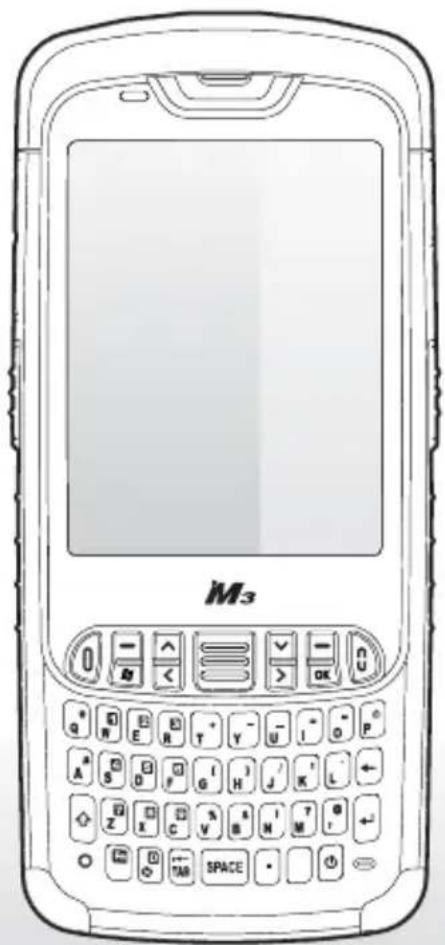

- Please check all items below are included in package box.

< M3 BLACK>
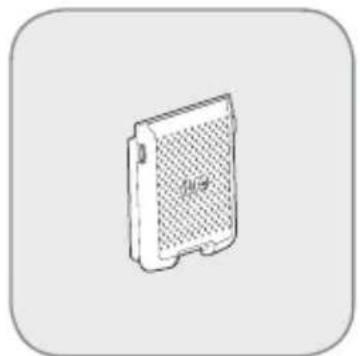
< Battery >

Accessory Package
- Cradle, Snap On, USB cable and Power Supply are required and must be purchased separately.
- Snap on kit-pack includes Snap on, USB cable and Power Supply.
- Cradle kit-pack includes Cradle, USB cable and Power Supply.

or

< Cradle or Snap On >


< Power Supply >
※Warning
Use of controls or adjustments or performance of procedures other than those specified herein may result in hazardous radiation exposure.
DEVICE

Scanner Window

Light Sensor
Charging LED
Receiver
Scan LED
Stylus Pen
LCD Touch Screen
Camera Flash Camera
Speaker
Keypad
Battery Lock
Battery

16 PIN I/O Port

KEYPAD
- M3 BLACK has two types of keypad – Alphanumeric and QWERTY. Some function keys may not work depending on its options.


SOFT RESET
When an unexpected error occurs while using the device, SOFT RESET allows your device to restart, similar to rebooting a computer. It will adjust memory allocation - all records and entries are retained after soft reset but unsaved data or files may be lost.
- Press the RESET BUTTON briefly.

CLEAN BOOT
When an unexpected error cannot be solved with SOFT RESET, perform CLEAN BOOT to restart the system.
It will erase all data stored in the device except in Flash Disk and return to its default settings.
Follow below steps to CLEAN BOOT. ( > + Ⓞ )
- Press the POWER BUTTON more than 10 seconds for turning the power off.
- Press and hold the
button then press the POWER button briefly. - When Boot Menu will be displayed on the screen, press "3" to proceed CLEAN BOOT.
CARD INSTALLATION
USIM Card Installation
- Remove the battery.
- Insert the USIM Card as shown in the below picture.
- Insert the battery back to original position and lock by sliding the lock to secure position.
- Check whether it is installed properly.

Micro SD Card Installation
- Remove the battery.
- Insert the Micro SD Card as shown in the below picture.
- Insert the battery back to original position and lock by sliding the lock to secure position.
- Check whether it is installed properly.

→

→
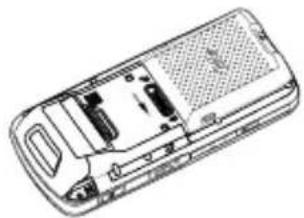
BATTERY
Inserting Battery
- Insert the battery pack.
- Lock the battery by sliding the lock to the left.

Removing Battery
- Loose the battery by sliding the lock to the right.
- Fasten the battery.
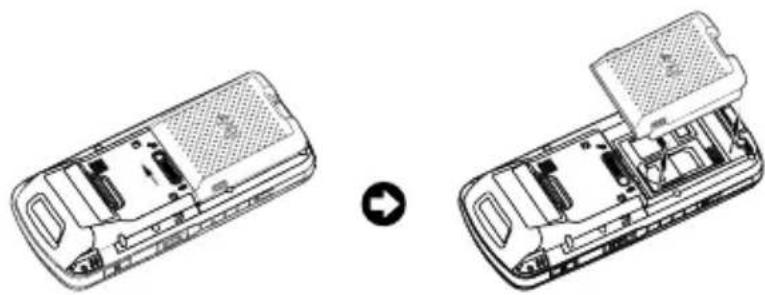
※ Warning
- Risk of Explosion if battery is replaced by an incorrect type. Dispose of used batteries according to the instructions.
- Battery contact pin can break if battery is forced to insert in wrong direction. Watch out for the correct direction as indicated on the battery.
CHARGING
※Either Cradle or Snap-on will be provided.
How to charge
- Supply power to the cradle using the AC charger.
- Insert the PDA to device slot to start charging the PDA.
Charging status
Charging status of the PDA and the spare battery is indicated by LEDs.
LED charging indicator on the cradle indicates the charging status of the spare battery.
LED on upper left corner in the middle of the device indicates the charging status of the battery attached to the PDA.

Charging with cradle
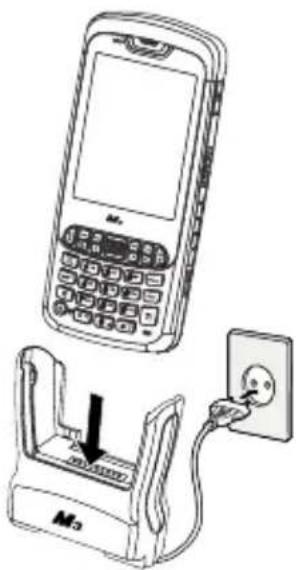
Charging with snap-on
| LED Color | Battery Status |
| RED | The battery is being charged. |
| GREEN | The battery is fully charged. |
※ Warning
- Risk of Explosion if unautorized power supply is used.
SCANNER
Scanning
- Launch the Scanner program (either ScanEmul or M3ScanTest).
- Press the SCAN BUTTON toward barcode to read.
Make sure the laser beam covered whole barcode to read data properly.

0

X
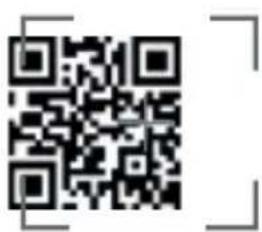
Imaging
- Launch the Scanner program.
- Press the SCAN BUTTON toward barcode to read.
Make sure the laser beam covered whole barcode to read data properly.

0
X
※Warning LASER LIGHT - Do not stare into beam, CLASS 2 LASER PRODUCT Output: <1mW, λ=650nm
CAMERA
Taking pictures
- Run the Camera program.
- Tab the Capture button to take a picture.
- Taken pictures can be checked in the following folder.
For Windows Embedded Handheld: Start\Programs\Pictures&Videos For Windows Embedded CE: \Flash Disk\Camera\Photo
Taking videos
- Run the Camera program.
- Tab the Video Mode button to take a video.
- Taken videos are stored in Pictures&Videos folder.
For Windows Embedded Handheld: Start\Programs\Pictures&Videos Video feature is not supported in Windows Embedded CE
※Warning
It may cause significant damage to your eyes if you directly look the flash attached at camera module.
SYNCHRONIZE with YOUR PC
Please download the ActiveSync from Microsoft webpage to activesync with PC.
ActiveSync :
http://www.microsoft.com/downloads/en/details.
aspx?FamilyID=9e641c34-6f7f-404d-a04b-dc09f8141141
Windows Mobile Device Center (Windows Vista and 7):
http://www.microsoft.com/windowsphone/en-us/howto/wp6/sync/installing-wmdc.aspx
TECHNICAL SUPPORT
Should you require and services or technical support on M3 Mobile's product, contact your supplier or visit
M3 Information & Technology Center webpage on:
http://itc.m3mobile.net
After your enquiry is registered on the page, our professional engineer will reply to you within 24 hours in during the week.
For DOA or RMA, please send the defective product to suitable address AFTER consulting the supplier.

Your Best Mobile Business Partner
Headquarter Production Center/Service Center
M3 bldg., 735–45,
Yeoksam-Dong, Gangnam-gu,
Seoul, 135–080, Korea
Tel: +82 2 574 0037 (Ext.4)
Fax: +82 2 556 0155
www.m3mobile.net
sales@m3mobile.co.kr
Chun-ui Techno Park 201-610,
202, Chunui-Dong, Wonmi-Gu,
Bucheon, Gyunggi-Do,
420–857, Korea
Tel: +82 32 623 0037
Fax: +82 32 655 0884
- M3 BLACK
- QUICK MANUAL VER.1.1
- ACCESSORY PACKAGE
- KEYPAD
- SOFT RESET
- CLEAN BOOT
- CARD INSTALLATION
- USIM CARD INSTALLATION
- MICRO SD CARD INSTALLATION
- BATTERY
- INSERTING BATTERY
- REMOVING BATTERY
- ※ WARNING
- CHARGING
- HOW TO CHARGE
- CHARGING STATUS
- SCANNER
- SCANNING
- IMAGING
- CAMERA
- TAKING PICTURES
- TAKING VIDEOS
- SYNCHRONIZE WITH YOUR PC
- TECHNICAL SUPPORT
- HEADQUARTER PRODUCTION CENTER/SERVICE CENTER
Merk : M3 Mobile
Model : M3 BLACK
Categorie : Mobiele telefoon