
DS-UTC1 - Computeraccessoires Sabrent - Gratis gebruiksaanwijzing en handleiding
Vind de handleiding van het apparaat gratis DS-UTC1 Sabrent in PDF-formaat.


| Type product | USB-C hub / adapter |
| Model | DS-UTC1 |
| Merk | Sabrent |
| Connectiviteit | USB-C (man) + meerdere poorten |
| Poorten | USB-A, HDMI, SD-kaart, USB-C PD |
| Afmetingen | 110 x 50 x 15 mm |
| Gewicht | 55 g |
| Stroomvoorziening | Bus-gevoed of externe voeding (optioneel) |
| Ondersteunde resolutie | 4K bij 30 Hz via HDMI |
| Gegevensoverdracht | USB 3.0 tot 5 Gbps |
| Materiaal | Aluminiumlegering |
| Onderhoud en reiniging | Droge doek; geen vloeistoffen gebruiken |
| Veiligheid | Overstroombeveiliging, kortsluitbeveiliging |
| Garantie | 1 jaar |
| Inhoud verpakking | DS-UTC1 hub, handleiding |
Veelgestelde vragen - DS-UTC1 Sabrent
Gebruikersvragen over DS-UTC1 Sabrent
0 vraag over dit apparaat. Beantwoord die u kent of stel uw eigen vraag.
Stel een nieuwe vraag over dit apparaat
Download de handleiding voor uw Computeraccessoires in PDF-formaat gratis! Vind uw handleiding DS-UTC1 - Sabrent en neem uw elektronisch apparaat weer in handen. Op deze pagina staan alle documenten die nodig zijn voor het gebruik van uw apparaat. DS-UTC1 van het merk Sabrent.
GEBRUIKSAANWIJZING DS-UTC1 Sabrent
SABRENT
Connecting Differently™
USB TYPE-C 3.1 SATA/SSD 2.5"/3.5" HARD DRIVE DOCKING STATION

With a Sabrent USB 3.1 SATA/SSD 2.5"/3.5" HDD Docking Station you can Hot-Swap 2.5"/3.5" SATA Hard Drives when connected to your Desktop or Notebook. Tool free Plug & Play installation makes for an easy setup. You can now transfer data quickly and easily through USB Type-C 3.1 at high speeds up to 10Gbps.

1
Connect the Power Adapter to the back of the dock
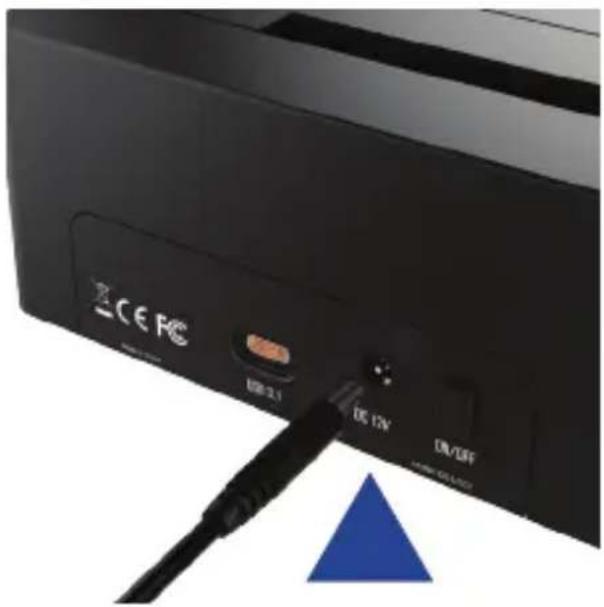
3
Connect the USB Cable to the back of the dock

natural_image
Close-up of a black electronic device with a blue triangular indicator and labeled ports (no readable text or symbols beyond branding)2
Connect the AC Power Cord to a power outlet

natural_image
3D illustration of a black electrical outlet with three white outlets and a wall-mounted socket (no text or symbols)4
Connect the other end of the USB Cable to your Computer USB Port

natural_image
Close-up of a laptop keyboard with a blue triangular indicator pointing to the left side (no text or symbols visible)Note: If your computer has a Type-C port use the Type-C cable. If your computer has a Type-A USB port use the Type-C - Type-A cable.
5
Insert your hard drive into the hard drive bay

natural_image
Black SABRENT printer with a Samsung memory card attached, showing front panel and control buttons (no readable text beyond brand name)6
Press the power switch to On The power LED should illuminate
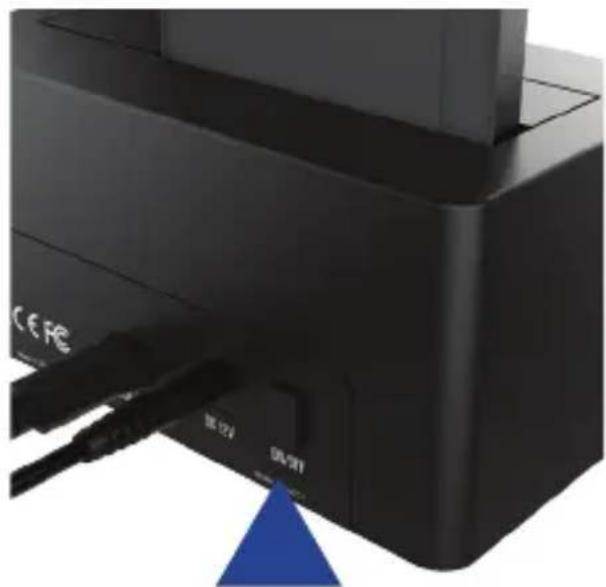
natural_image
Close-up of a black electronic device with a blue triangular indicator point and cable connector (no readable text or symbols)WINDOWS PC HARD DRIVE WITH DATA/FILES
Click on the Start Icon located on the bottom left of the screen and then click on Computer
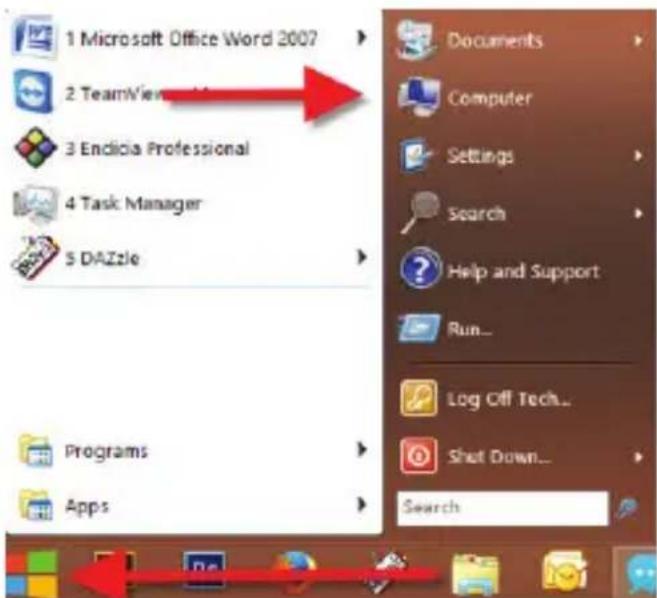
Note:
You can also click on the File Explorer Icon and then click on This PC or Computer

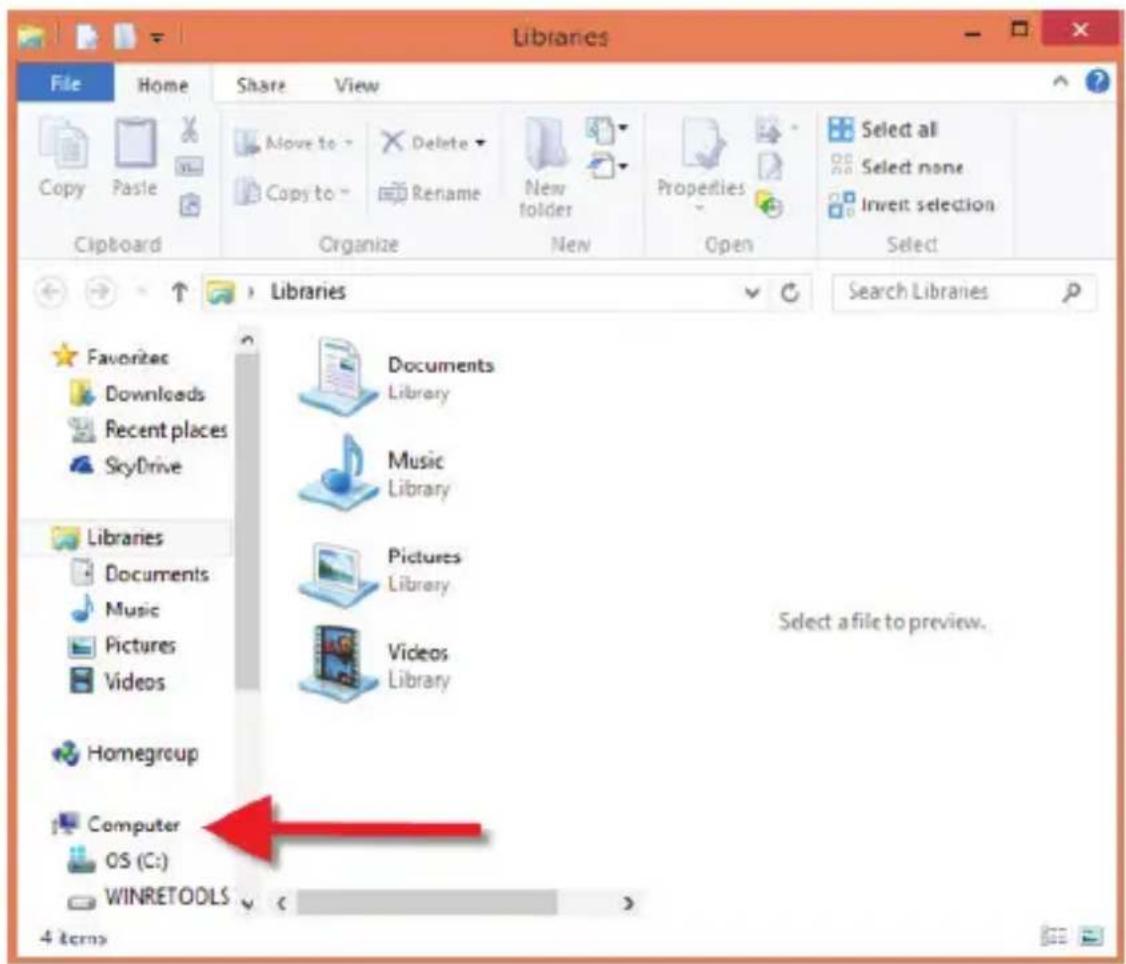
You should get a new drive letter every time you insert a hard drive with data/files

WINDOWS PC NEW HARD DRIVE SETUP (HARD DRIVE WITH NO DATA/FILES)
Click on the Start Icon located on the bottom left of the screen and then RIGHT click on Computer

Note:
You can also click on the File Explorer Icon and then click on This PC or Computer

flowchart
graph LR
    A["文件夹"] --> B["文件夹"]
    B --> C["文件夹"]
    C --> D["邮件"]
    D --> E["邮件"]
    style A fill:#f9f,stroke:#333
    style B fill:#ccf,stroke:#333
    style C fill:#cfc,stroke:#333
    style D fill:#fcc,stroke:#333
    style E fill:#cff,stroke:#333
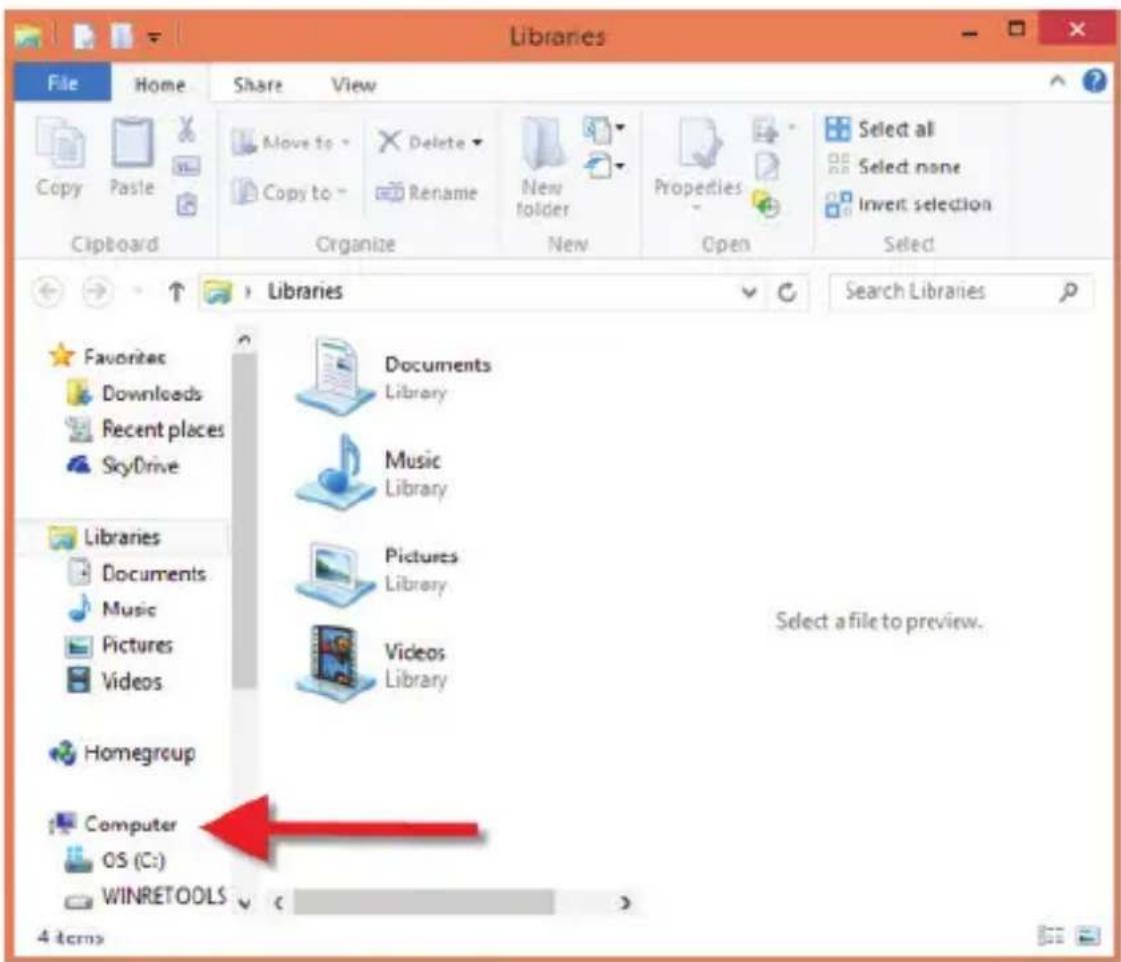
Click on Manage

Click on Disk Management

Note: Disk 0 should be your internal hard drive Disk 1 should be your external hard drive but SETUPS MAY DIFFER
RIGHT click on Unallocated and click on New Simple Volume
| Disk 0 Basic 465.76 GB Online | (C:) 195.32 GB NTFS Healthy (System, Boot, Page File) |
| Disk 1 Basic 465.76 GB Online | 465.76 GB Unallocated |
| CD-ROM 0 DVD (F:) No Media |
Go through the Setup Wizard to assign a drive letter

MAC OS HARD DRIVE WITH DATA/FILES
A new Icon should pop up on your main screen each time you insert a hard drive with DATA/Files

natural_image
Illustration of a silver server with a yellow top and a green indicator light (no text or symbols)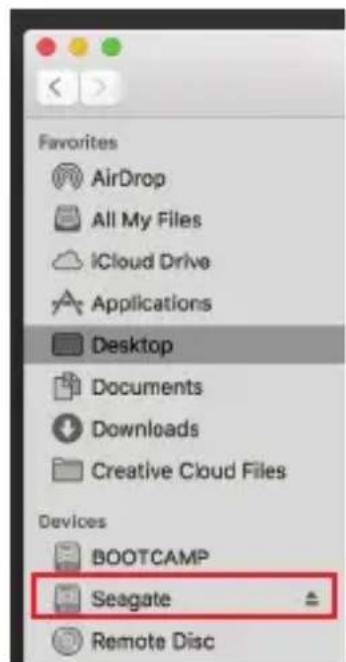
Click on the Icon to view your hard drive
Note: You can also click on the Finder icon and select your hard drive under Devices
MAC OS NEW HARD DRIVE SETUP (HARD DRIVE WITH NO DATA/FILES)
Click on the Search icon on your toolbar

Type in Disk Utility and click on it

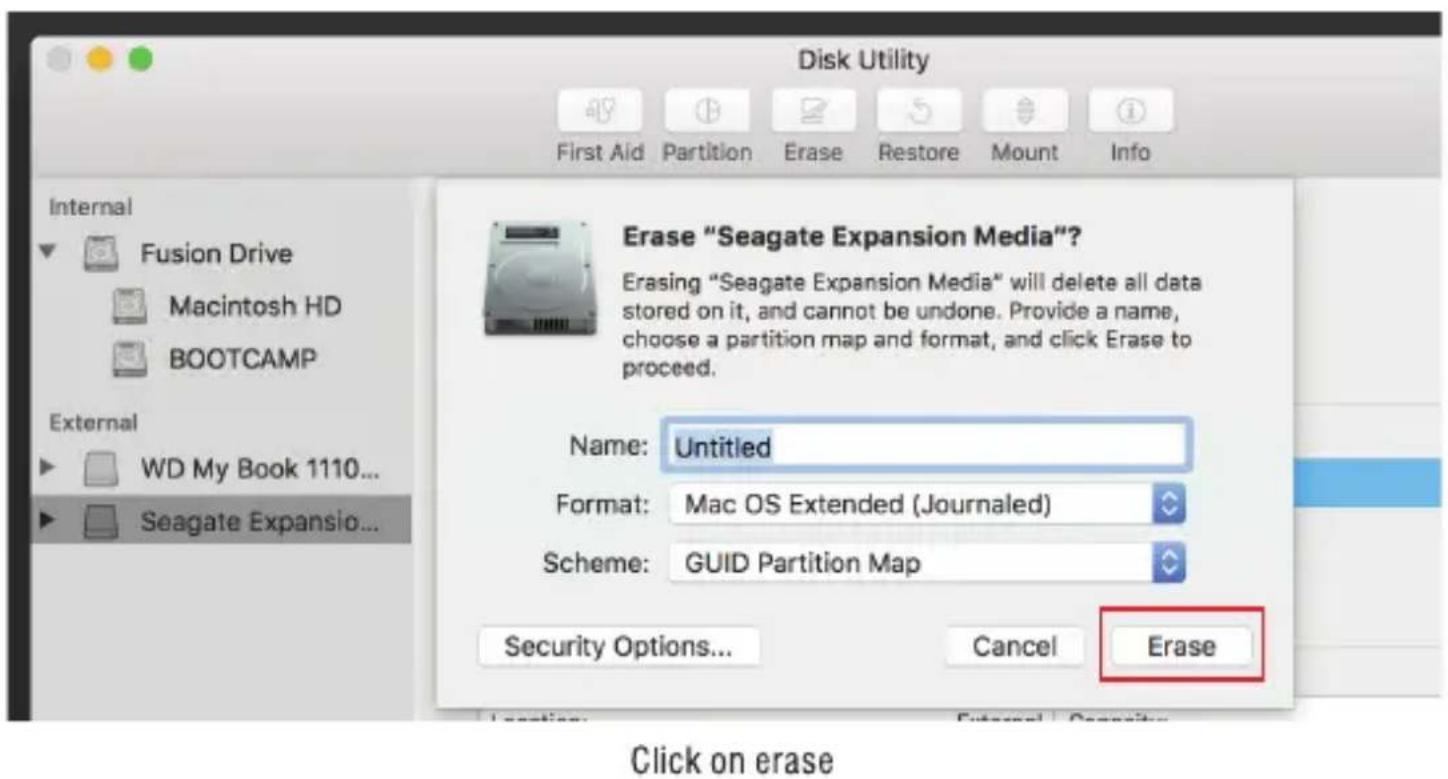
Click the icon for your external hard drive located in the sidebar on the left Click on the Erase tab at the top of the window

Select the volume format you want and give it a name
Notes
- This is backwards compatible on USB 2.0 and 1.1 with their transfer speeds.
- Please do not remove your hard drive while hard drive is being accessed.
TROUBLESHOOTING/SUPPORT
Power LED does not come on?
• Make sure that you have a tight connection between the power adapter and dock.
• Try it on a different power outlet.
HDD LED does not come on or turns off during offline clone?
• Re-seat the hard drive into the bay.
- Swap the hard drive out with a spare.
Computer does not recognize the hard drive?
- Make sure that you have a tight connection between the dock and 3.0 cable.
- Try the USB cable on a different USB port on your computer.
- New hard drive must be setup, please review new hard drive setup for your OS.
- Swap the hard drive out with a spare.
PLEASE CONTACT OUR TECHNICAL SUPPORT TEAM FOR ADDITIONAL TROUBLESHOOTING
WWW.SABRENT.COM

- SABRENT
- Connecting Differently™
- USB TYPE-C 3.1 SATA/SSD 2.5"/3.5" HARD DRIVE DOCKING STATION
- WINDOWS PC HARD DRIVE WITH DATA/FILES
- WINDOWS PC NEW HARD DRIVE SETUP (HARD DRIVE WITH NO DATA/FILES)
- Note:
- Click on Manage
- Click on Disk Management
- MAC OS HARD DRIVE WITH DATA/FILES
- MAC OS NEW HARD DRIVE SETUP (HARD DRIVE WITH NO DATA/FILES)
- Notes
- TROUBLESHOOTING/SUPPORT
- Power LED does not come on?
- HDD LED does not come on or turns off during offline clone?
- Computer does not recognize the hard drive?
- PLEASE CONTACT OUR TECHNICAL SUPPORT TEAM FOR ADDITIONAL TROUBLESHOOTING
Merk : Sabrent
Model : DS-UTC1
Categorie : Computeraccessoires