Run Profiler - Okosóra DIGITSOLE - Ingyenes használati útmutató
Találja meg az eszköz kézikönyvét ingyenesen Run Profiler DIGITSOLE PDF formátumban.


Felhasználói kérdések a következőről Run Profiler DIGITSOLE
0 kérdés erről a készülékről. Válaszolj azokra, amiket ismersz, vagy tedd fel a sajátod.
Tegyél fel egy új kérdést erről a készülékről
Töltse le az útmutatót a következőhöz Okosóra PDF formátumban ingyenesen! Találja meg kézikönyvét Run Profiler - DIGITSOLE és vegye vissza elektronikus eszközét a kezébe. Ezen az oldalon közzé van téve az eszköze használatához szükséges összes dokumentum. Run Profiler márka DIGITSOLE.
HASZNÁLATI ÚTMUTATÓ Run Profiler DIGITSOLE

natural_image
Abstract black and white geometric logo design with no text or symbolsDIGITSOLE®
FOOTWEAR. REINVENTED.
USER MANUAL APPLICATION
This manual explains the RUN PROFILER by DIGITSOLE application in detail.
USER MANUAL
Table of contents
- DOWNLOADING THE RUN PROFILER APP .... 3
- CREATING AN ACCOUNT ....3
- CONNECTING YOUR SOLES TO THE APP ....4
- STARTING A WORKOUT......4
A. FIRST WORKOUT....4
B. NEW ACTIVITY....4
- RUNNING WITH OR WITHOUT YOUR PHONE....4
- YOUR WORKOUT......4
A) AFTER YOUR ACTIVITY 4
B) SUMMARY....5
- WORKOUT HISTORY......5
- THE 3D MAP....6
-
ENDURANCE – PERFORMANCE – SAFETY - EFFICIENCY....6
-
DETAILS OF YOUR SCORES......7
A. STRIDE 7
a) Stride Nature 7
b) Propulsion level 7
c) Flight / contact time ratio....7
d) Strike Nature 7
B. SAFETY 8
a) Stride stability....8
b) Impact force 8
c) Injury risks....8
- GENERAL WORKOUT STATISTICS......8
- MANAGING YOUR WORKOUTS 9
- CONFIGURATION AND SETTINGS....9
1. Downloading the RUN PROFILER app
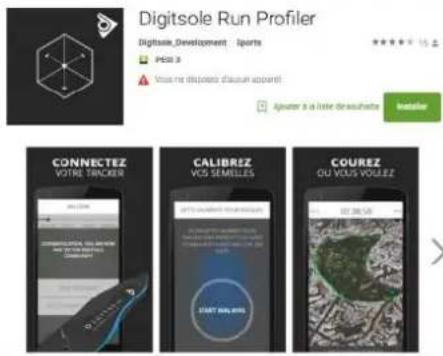
RUN PROFILER soles are connected to a dedicated application. This application is available for iOS (iPhone 4S and above) and Android (version 5.0 and above). To find out whether your device is compatible with the app, simply look at your firmware version on your smartphone and this user guide.
Visit your phone's app Store and search for "RUN PROFILER" in the search bar.
The application will appear as shown to the left.
Tap "INSTALL" and wait until the app has finished downloading to your phone.
2. Creating an account
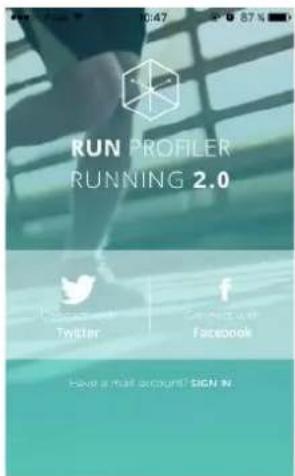
Don't have an account yet?
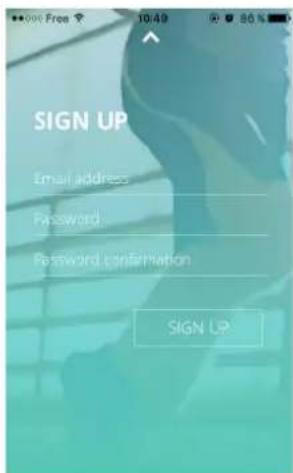
Already have an account? Sign Int
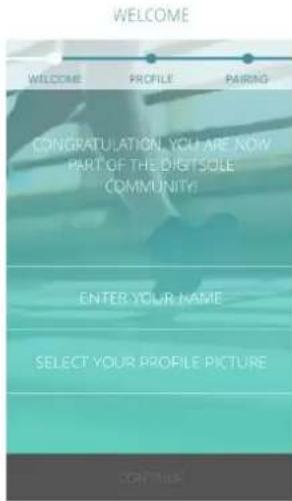
Once the app has finished downloading, you can create an account using Facebook, Twitter or your e-mail address.
If you decide to use your e-mail address, simply enter it, choose a password, and confirm.
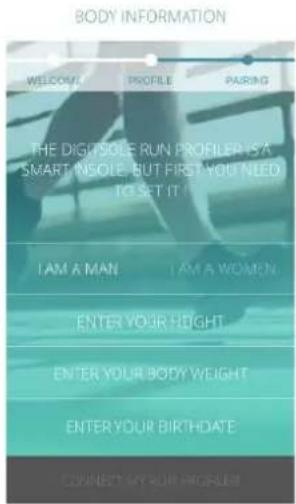
You must then complete your runner profile, entering your gender, height, weight and date of birth.
Then connect your soles to your phone and the app.
3. Connecting your soles to the app
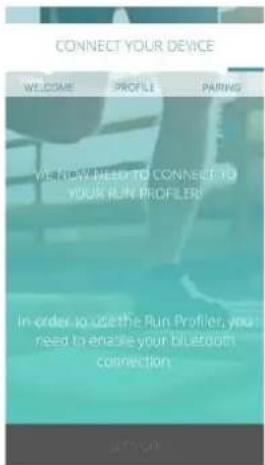
To connect your soles, first ensure that the battery is fully charged: when the red light goes out, the sole is fully charged. The charge will take approximately 2 1/2 hours.
You must then activate the Bluetooth on your phone and start the RUN PROFILER app. Follow the instructions given in the app, ensuring to unplug your sole once it is detected. (The sole will flash four times in green). Once the app has found your soles, they are connected.
4. Starting a workout
a. First workout
For your first workout, you need to calibrate your insole. The application will tell you to walk 200 steps in a straight line. You should do this preferably at a brisk pace.
b. New activity
To start a new workout session, you must be sure that you pair your soles with the app. All you have to do is tap "START NEW ACTIVITY." Your sole will record your entire run. Once you have finished your workout, tap "STOP ACTIVITY" and review your running stats.
Also, you can add more time before starting if you are not quite ready. Otherwise you can tap the screen to start directly.
5. Running with or without your phone
You can choose to run with or without your phone as the memory that records your run is inside the sole itself.
Note that if you leave your phone at home, you won't have the 3D map image of your run, but all other analytics will be available.
6. Your workout
a) After your activity
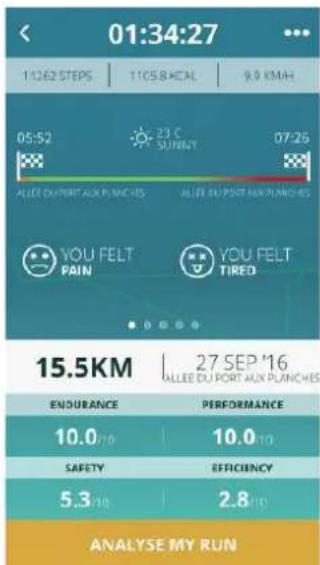
Once you finish your activity, tap on « STOP ACTIVITY ». Before saving you need to tap the icon corresponding to how you feel « YOU FELT PAIN » or « YOU FELT TIRED » or « YOU FELT FINE ». You can also deactivate this option on the setting.
b) Summary
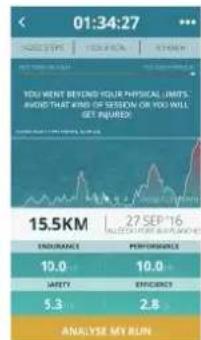
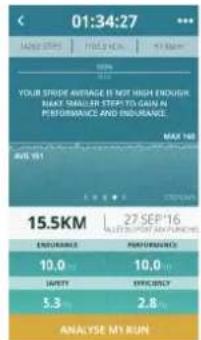
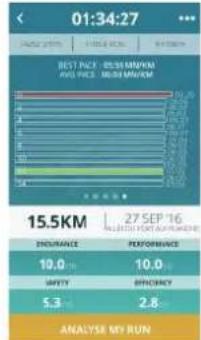
You will then find your run summary, which sets out the major details of your run, as follows:
- The time taken;
- Your condition;
• The distance covered;
• Scores for your endurance, performance, health and efficiency.
And :
• The number of steps
• The number of calories burned;
• The average speed;
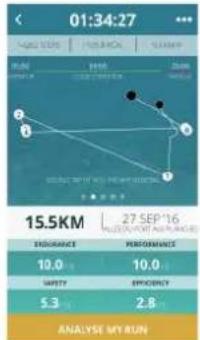
Sliding your finger to the top right of the screen gives you statistics with:
- The map of your activity
- Your level of fatigue during the run
- Your average stride
- Your running rhythm.
bar
| Metric | Value | | :--- | :--- | | BEST PRICE | 10.0 | | BEST MAINT | 10.0 | | AVGITY | 5.3 | | EQUITY | 2.8 | | ANALYSIS MY RUN | - |7. Workout history
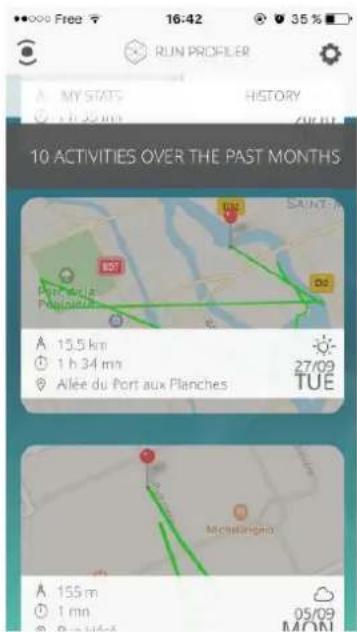
You can view your run history by selecting "History."
This tab contains a history of all your runs, and selecting each run allows you to view your route.
8. The 3D map
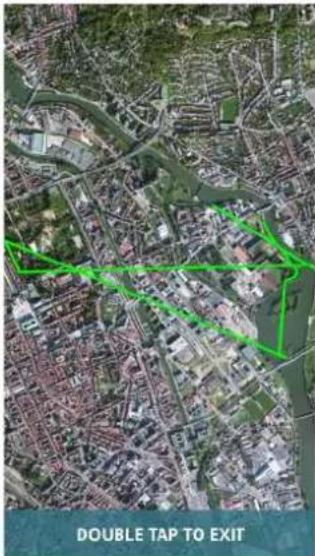
Once you've opened your run, you can tap twice on the screen to view the 3D map of your run, giving you details of your route.
To go back, just double tap again.
You can also chose to activate it or deactivate it. You just have to go in "settings" then touch "disable the 3D map".
9. Endurance – Performance – safety - efficiency
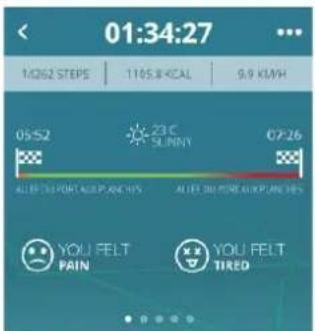
On the workout summary screen, you can access details of your run by selecting the different scores for:
- Endurance
- Performance
- Safety
- Efficiency
other
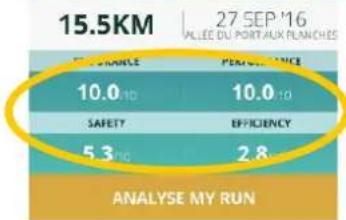
15.5KM | 27 SEP'16 VALLEE DU PORTAUX PLANCHES Performance | 10.0 10 | 10.0 10 | SAFETY | 5.3 10 | EFFICIENCY | 2.8 ANALYSE MY RUNThese links are selectable and will take you to your run detail to allow you to identify areas for improvement, as well as what you are already doing right when running.
For your grades, the scoring scale is measured as follows:
ANALYSE MTR RUN Endurance is based on your capacity to maintain the same intensity during your run. From 0 to 3: very low endurance, from 3 to 5: weak to average endurance, from 5 to 8: average to good endurance and from 8 to 10: strong endurance.
Performance is based on your latest runs compare to your actual run. From 0 to 3: weak performance, from 3 to 7: good performance, from 7 to 10: is a very good performance.
Safety is based on your risk of injury. From 0 to 3: your run is potentially unsafe, from 3 to 7: average run safety, from 7 to 10 is a safe run.
Efficiency is based on a number of factors, including your strike pattern, contact time and the level of instability of your stride. From 0 to 3 is poor efficiency, from 3 to 7 is medium, from 7 to 10 is good efficiency.
10. Details of your scores
A. STRIDE
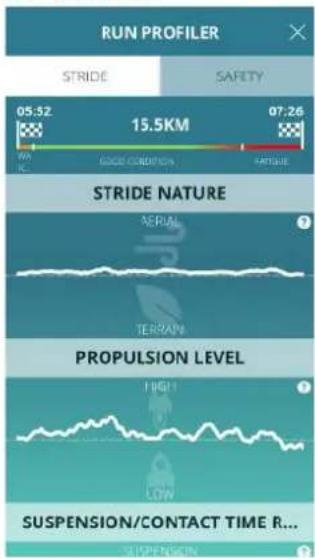
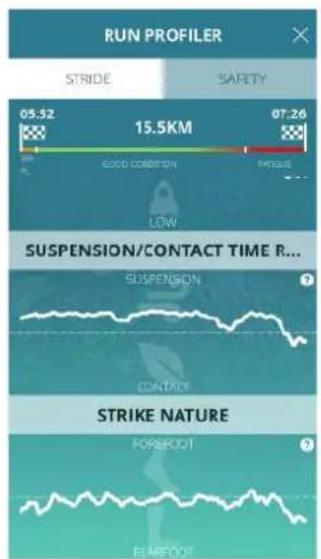
a) Stride Nature
These two stride types determine the time spent on your heel:
- Aerial stride is equivalent to a short time spent with pressure on the heel, and thus a longer flight time (in the air). An aerial stride is a stride where the runner bounces into the air.
- Terrestrial stride is the exact opposite of an aerial stride: i.e., you spend more time with pressure on your heel and less flight time (in the air). More terrestrial strides mean that the runner tends to "skim" the ground.
b) Propulsion level
The propulsion level represents the amount of force exerted when pressing your foot on the ground. In other words, this figure represents the power behind your stride as you move forward.
c) Flight / contact time ratio
Contact time is equal to the amount of time with pressure on the heel. The lower the contact time, the better the stride. Run flight time is the time without contact with the ground. Contact time is the time in contact with the floor.
The ratio is the flight time compare to the contact time you spend during your run.
d) Strike Nature
The pressure type represents the kind of pressure exerted when your foot first hits the ground. There are three different strike nature:
- FFS : Forefoot: This refers to weight borne by the front of your foot — which is recommended to improve your performance.
- MFS : Midfoot: this puts weight on the middle of your foot, when your foot is flat to the ground.
- RFS : Rearfoot: this puts weight on the back of your foot, i.e., the heel, and this is to be avoided due to the risk of injury.
B. SAFETY
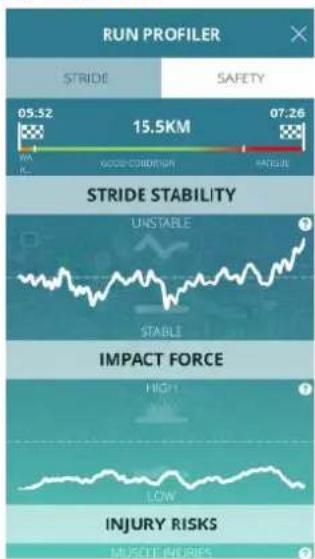
a) Stride stability
This graph shows the movement of your foot during the flight phase (in the air), i.e., the distance that your foot travels when your stride is in the air.
b) Impact force
This is the amount of force exerted during impact.
c) Injury risks
Nature of the injury, (joint or muscular) the most probable during your run
- General workout statistics
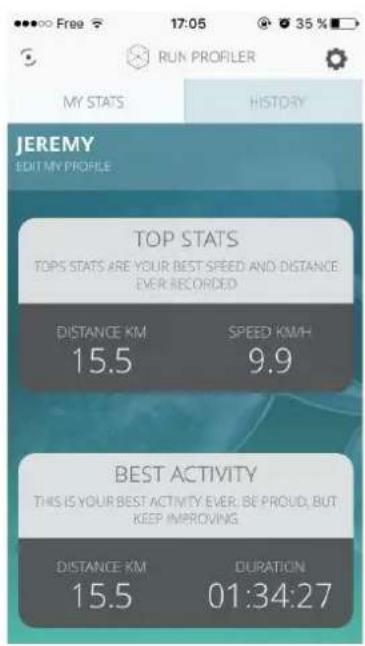
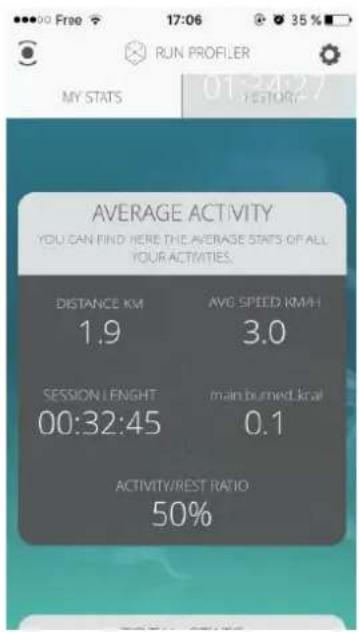
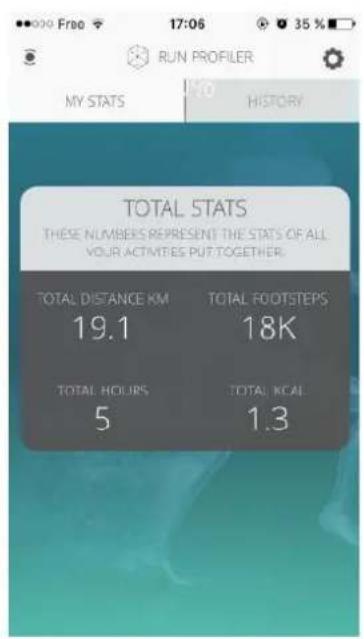
You can find your overall statistics in the "My stats" section of the app, including:
- Your personal bests;
- The average across all your runs workouts;
- Global stats that combine all your runs.
12. Managing your workouts
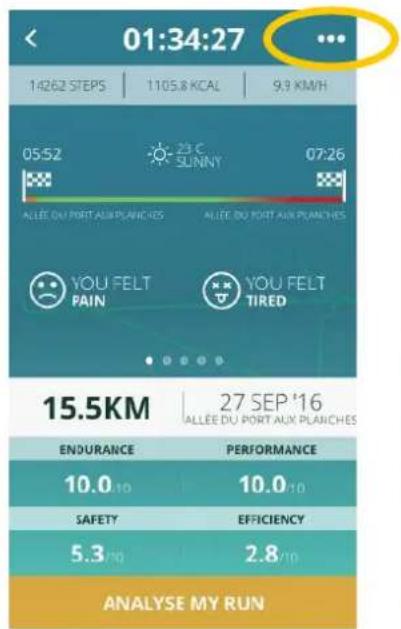
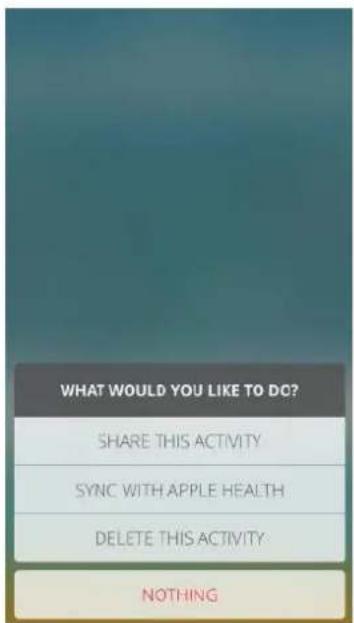
You can:
- Share details of your run;
- Delete your run;
- Synchronize your run with Apple Health.
Simply tap the “...” icon located at the top right of your screen.
You then choose what you wish to do.
13. Configuration and settings
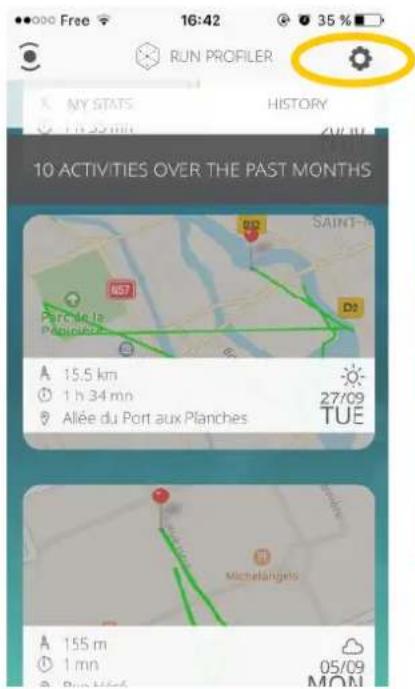
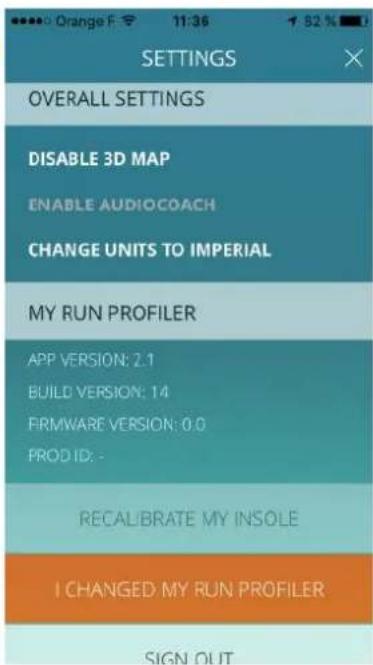
To access the general app settings, tap the settings icon.

You can then access the general app settings and the settings for your sole.
For example, you can:
- Turn off the 3D map;
- Change the RUN PROFILER (if you buy a new one you can synchronize you new insole here);
- Log out.
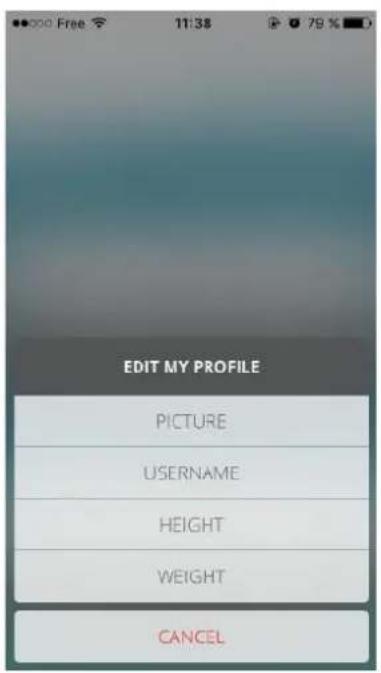
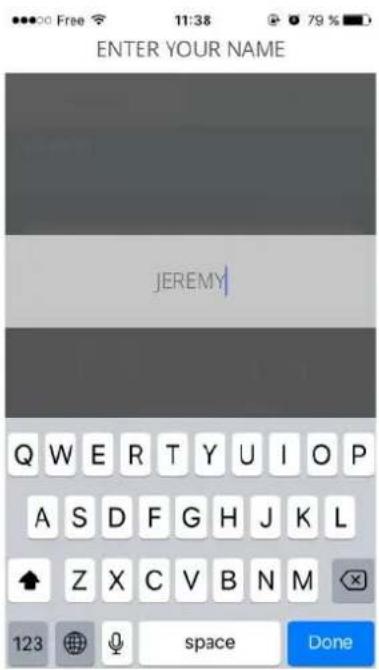
To change your profile like your picture, username, height or even weight touch the screen with you name and make the modifications.